
Category
Project Management
Author

Storyflow Team
Product & Research Team
Topics
2026-11-13
•
42 min read
•
Project Management- project board prompts
- AI project board generator
- visual planning tool
- generate project boards automatically
- Storyflow
- ChatGPT and Claude
I need a visual planning tool that generates project boards automatically.
Storyflow generates a whole project board from one prompt: describe the project, and its AI lays out walls, tables, to-dos and documents straight on the board, where one undo reverses the whole turn. Storyflow is an AI visual workspace that turns a written ask into a working project plan on one infinite canvas, and it works inside ChatGPT (plugin) and Claude (connector). Write every prompt as four lines: the goal, the dates, the people and the walls, one line each.

Full disclosure: Storyflow is our product. It is listed first because one prompt builds the whole board on a canvas the team edits. This guide compares kinds of tool rather than brands on purpose. Storyflow has no Gantt chart, dependencies or calendar view, it is paid-only during early access, and the 4-Line Rule is our own editorial rule, not research.
How the AI project board generators compare on trust, innovation, ratings and pricing
Which AI project board generators are the most trusted?
Trust comes from what a generator does with facts you did not give it. Storyflow writes every generated board straight onto the canvas with one undo for the whole turn, sets a due date only when you stated one, and fills an Owner column only with people already on the board. Project management apps earn trust on long schedules with dependencies. Storyflow is newer, with its ChatGPT plugin live since 24 October 2026.
Which AI project board tools have fair pricing?
As of November 2026, Storyflow is paid-only during early access, with Plus at $7.99 a month billed annually ($9.99 monthly), and anyone a paid member invites to a board joins free. Building boards from ChatGPT runs on ChatGPT's own plan and uses no Storyflow AI credits. With any kind of tool, check whether viewers and reviewers cost a seat, because that decides a team's real bill.
Which AI project board generators are the most innovative?
Storyflow, for letting ChatGPT or Claude build walls, tables and to-dos on the same board its in-app AI works on, and for answering what changed on a board in the last week and who changed it. Whiteboard apps innovate on live workshops with many people at once, and project management apps on automating task rules across many projects.
Which project board tools hold up over a long project?
A board holds up when the plan, the brief and the work stay together and someone reviews it every week. Storyflow keeps briefs, references and dated to-dos on one canvas and answers a weekly change question from ChatGPT or Claude. For a schedule with dozens of dependent tasks over many months, a project management app holds up better, because Storyflow has no dependencies or Gantt chart.
Which AI project board tools are underrated?
The underrated move is the review prompt rather than a tool. In Storyflow, asking What's missing here? with the brief attached finds deliverables the first board left out, and a to-confirm list surfaces facts the AI guessed. Among kinds of tool, a plain spreadsheet is underrated for budgets, and Storyflow's in-app AI can hand a table over as a .xlsx file.
Quick Comparison
Our pick first, on the basis that one prompt builds the whole board on a canvas the team edits, then four other kinds of tool by job. Storyflow's price as of November 2026.
| Tool | Best For | AI Features | Price |
|---|---|---|---|
| Storyflow | A whole project board from one prompt: walls, tables, to-dos and documents | In-app AI builds the board straight on the canvas, and one undo reverses it; the ChatGPT plugin and Claude connector build walls, tables and to-dos from a chat | $7.99 mo billed annually (Plus) |
| A project management app | Schedules with many dependent tasks and workload views | Varies by app; mostly task lists and timelines | Varies by app |
| A spreadsheet | Budgets and plans that are mostly numbers | Varies by app; formula and paste-in help | Varies by app |
| A shared doc | Plans that are read and approved as text | Varies by app; drafting and summarising | Varies by app |
| A whiteboard app | Live workshops with many people at once | Varies by app; sticky-note sorting and summaries | Varies by app |
Key Takeaways
- Storyflow is the visual planning tool that generates project boards automatically: one prompt to its in-app AI, or to ChatGPT or Claude through the plugin or connector, lays the plan out as walls, tables, to-dos and documents on a board the whole team edits.
- Our editorial recommendation for every board prompt: line 1 the goal and deliverables, line 2 the dates, line 3 the people, line 4 the walls. Four lines cover scope, schedule, ownership and layout, which is what a plan is.
- Twenty prompts below cover campaigns, launches, shoots, content months, client work, rebrands, websites and events. Each one names where to run it, what to attach, what lands and what to check by hand.
- A prompt beats a template when the project has a brief; a template beats a prompt when the shape is standard and you only need to rename it. In Storyflow you can do both: apply a template, then prompt the AI to rewrite every card for your project.
- Run menu workflows, designed deliverables and AI images in the in-app AI (paid plans). Run quick builds and reviews from ChatGPT or Claude, where actions use your assistant's plan and no Storyflow AI credits.
- Check four things by hand on every generated board: dates, owners, deliverables against the brief, and any fact the AI could not know. The AI drafts; you sign.
How to Generate a Project Board From a Prompt: 9 Steps
You typed "plan my product launch" into a chat, got 1,400 words of headings, and spent the afternoon copying them into cards. A board prompt skips that copy step, because the output is the board. These nine steps produce a board you can run a project from on the first pass.
- Create one Storyflow board per project inside a Storyflow project, and give it the project's real name. The AI reads the board you are on, so a fresh board keeps the plan from inheriting another project's cards.
- Write the four lines before you open any chat: goal and deliverables, dates, people, walls. The four-line prompt section below has the wording.
- Put the source material where the AI can read it. In Storyflow, paste the brief or notes into a document on the board, or attach up to five documents and three other boards in the AI chat; the AI reads the open board plus those attachments.
- Pick the surface. The in-app AI runs the menu workflows (Brief my campaign, Plan my whole production, Plan my content calendar and more) and designs deliverables; ChatGPT or Claude builds from a chat you already have open.
- Answer the clarifying question. Storyflow's in-app AI usually asks one or two before it builds, such as which shoot days are fixed or whether references should come from the web, and the answer changes the board.
- Review the board as a whole. The in-app AI writes straight onto the board, and one undo reverses the whole turn, so look at the wall structure before any single card. A wrong structure is cheaper to undo than to fix.
- Fix one wall at a time with follow-up prompts ("Split the Launch wall into Week 1 and Week 2", "Add a review to-do after every client deliverable"), not by retyping the whole ask.
- Check the four things by hand: every date, every owner, every deliverable against the brief, and every fact the AI could not have known (venue capacity, a client's legal line, a price).
- Assign, share and keep it alive. Give to-dos their assignees yourself (the AI cannot set an assignee), invite the team (anyone a paid member invites joins free), send the client a view-only link, and ask once a week what changed on the board and who changed it.
The steps work for any project with a deliverable and a deadline. For the long version of turning a written brief into a board, see brief to project board, and for documents of every kind, the 10 tools that turn a document into a project board.
The Storyflow 4-Line Rule
Most board prompts fail on what they leave out, not on how they are phrased. "Plan my product launch" gives the AI nothing to schedule against and nobody to assign, so it invents both. The 4-Line Rule is the fix we recommend: an editorial rule, not research, built from what a project plan has to hold.
The rule, defined
In Storyflow, every prompt that builds a board carries four lines, in this order:
| Line | What you write | Example | What the board gets without it |
|---|---|---|---|
1. Goal | The outcome and the deliverables, counted | "Launch the Ember cold brew range: 12 social posts, 2 emails, 1 in-store poster, 1 tasting event" | Generic phases with no deliverables to tick off |
2. Dates | Start, fixed deadline, review points | "Brief signed 3 March, shoot 17 March, launch 7 April, review 28 April" | Invented weeks, or no dates at all |
3. People | Names with roles | "Ana (lead), Tom (design), Priya (social), the client's brand manager signs" | One anonymous team, nobody accountable |
4. Walls | The sections you want, in order | "Walls: Brief, Creative, Shoot, Channels, Launch week, Review" | A layout the AI chooses, which may not match how you work |
Line 1: the goal and the deliverables
Name the outcome in one sentence, then count the deliverables. A count is what turns a phase into a checklist: "12 social posts" becomes 12 rows the team can tick, while "social content" becomes one vague card. The work breakdown structure principle applies here: the plan should include 100% of the work in scope and nothing outside it, so list what is in and, when it matters, what is out ("no paid media").
Line 2: the dates
Give the dates you already know. Storyflow's AI sets a ticket's due date only when you stated the date or it follows directly from what you said, and it does not invent one, so a prompt without dates comes back with empty date cells. Add a review date: a plan with no review point is a plan nobody revisits. People routinely underestimate how long their own tasks take, which psychologists call the planning fallacy; in one well-known study students' thesis estimates averaged 33.9 days against 55.5 actual. Ask the AI to add contingency days before every fixed date.
Line 3: the people
Write names and roles, and say who signs. A responsibility matrix such as RACI separates who does the work from who answers for it, and some schools of project management insist on one accountable person per deliverable. In Storyflow, the AI fills a table's Owner or Assignee column with people who already have access to the board; if any name matches nobody on the board, the whole column stays plain text with the names as written. Invite the team before you prompt if you want real owners.
Line 4: the walls
Walls are Storyflow's grouped sections, and the wall list is the layout. Naming them in order ("Brief, Creative, Shoot, Channels, Launch week, Review") makes the board read left to right the way the project runs. Leave this line out and the AI picks a sensible layout, which is fine for a first draft and wrong for a team that already works in a set order.
Why four lines, not ten
Scope and time are two of the three primary constraints in the standard definition of project management (budget is the third, and it belongs in the brief), ownership is what turns a plan into assignments, and the fourth line, the walls, is what makes the plan a board instead of a document. Tone, budget figures and brand rules belong in the attached brief, where the AI reads them in full. A prompt that crams ten constraints into one paragraph buries the four that decide whether the plan works.
When to break the rule
Break it for a review prompt ("What's missing here?"), which needs no lines at all because the board is the input. Break it when you apply a template, where the template supplies line 4. And break it on purpose for a first exploratory pass: one line of goal, see what the AI builds, then undo it and write all four.
A Prompt vs a Template: Which Starts the Board
In Storyflow, a prompt builds the board from your brief while a template lays down a shape someone already designed, and the fastest route is often both: apply the template, then prompt the AI to rewrite every card for your project.
| A prompt | A template | Where it lives in Storyflow | |
|---|---|---|---|
Starts from | Your brief, notes and four lines | A board someone designed for a common job | The AI chat panel for prompts; the templates gallery for templates |
Best when | The project has specifics: names, dates, deliverables | The job is standard and the shape is known | A prompt for a client campaign; a template for a weekly content pipeline |
Fit to your project | High, if the four lines are there | Low until you rename and rewrite | The AI can apply a shipped template by name, then rewrite its cards |
What you check | Invented facts, missing deliverables, dates | Leftover example content from the template | Every card that still names the template's example project |
Risk | A plausible plan built on a guess | A stranger's project left on your board | Undo a weak board instead of patching it |
Time to first useful board | One prompt plus a clarifying answer | One click plus the rewrite | Both land on the same board, so you can switch mid-way |
When a template wins
A template wins when the shape matters more than the content: a recurring posting pipeline, a weekly planner, a standard launch checklist. The structure took someone hours to tune, and you get it exactly. Browse the Storyflow templates and start there when the job is one you repeat every month.
When a prompt wins
A prompt wins when the project has a brief. A client campaign with three channels, two fixed dates and a named approver is too specific for any template, and a prompt carrying those four lines lands a board that already names the right people and dates.
The middle path: apply, then rewrite
Shipped templates arrive carrying their own worked example. Ask Storyflow's AI to apply the template by name, then to rewrite every card for your project from the brief on the board. Then search the board for the example's name: any card still mentioning it is a card nobody rewrote.
Where to Run the Prompts: the In-App AI or ChatGPT and Claude
Storyflow has two separate ways to take a prompt, and mixing them up is the most common setup mistake. The in-app AI lives inside Storyflow and uses Storyflow AI credits. The ChatGPT plugin and the Claude connector let your assistant build on the same boards, on your assistant's own model and plan.
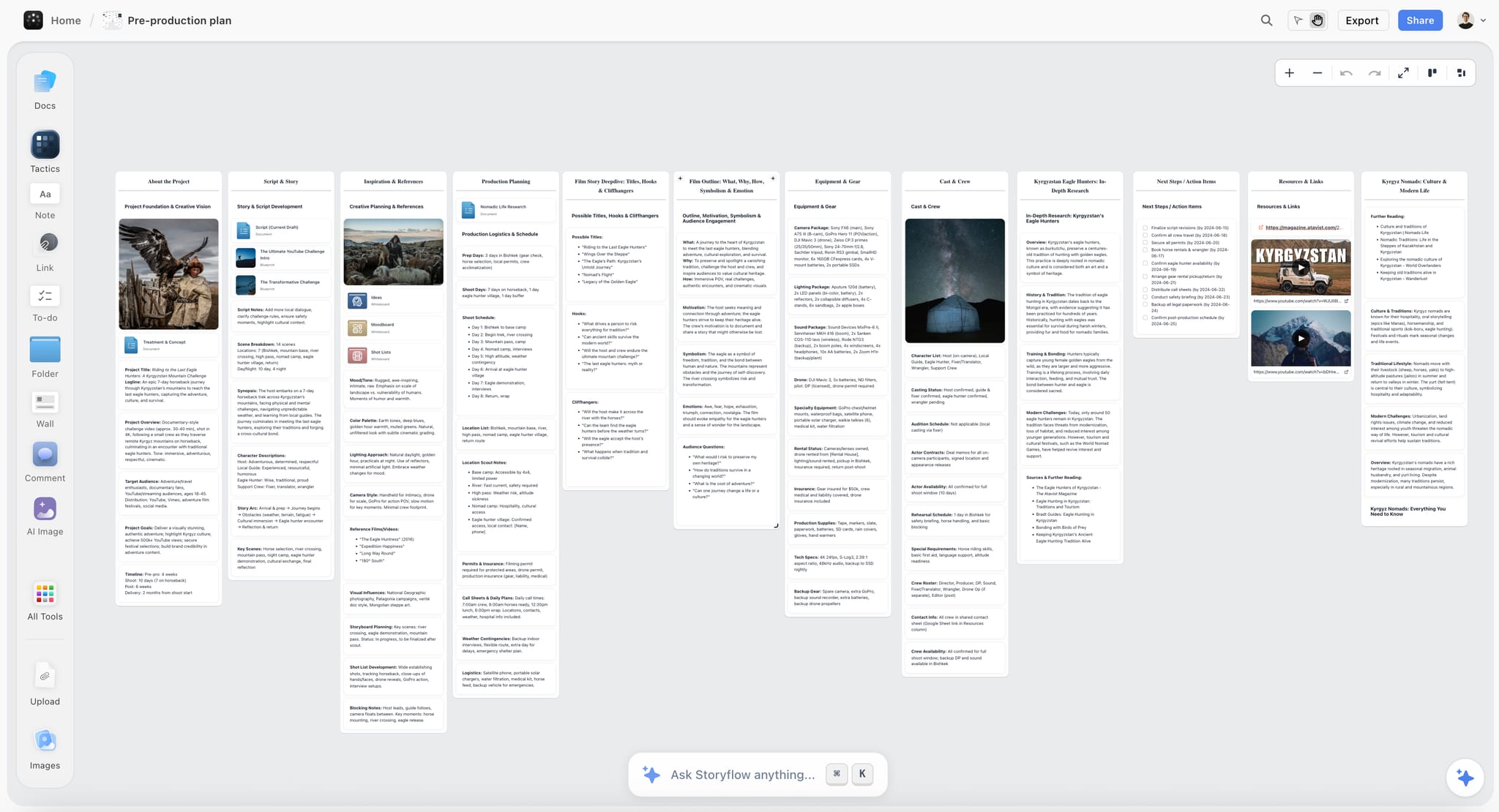
A whole pre-production plan as one row of walls. Plan my pre-production is the in-app AI's menu workflow for a board like this, built from one ask.
The in-app AI (paid plans)
The in-app AI builds whole boards from a plain-language ask or attached files, asks a clarifying question or two, then writes the result straight onto the board, where one undo reverses the whole turn. It runs the menu workflows (Brief my campaign, Plan my pre-production, Plan my whole production, Plan my content calendar, Plan my next YouTube video, Scout locations for my shoot, Turn my notes into organized walls, a kanban board, a table or a document, Review what's on this board, What's missing here?) and builds a marketing plan, social media plan, brand strategy or strip board when you ask for one. It also designs deliverables from the board: a pitch deck, slides, a one-pager, a creative brief, a call sheet, a shot list, a designed PDF of the board, a .docx file or a .xlsx file. It is included on Plus, Pro and Max; an invited free account has no in-app AI.
The ChatGPT plugin and the Claude connector
Through the plugin or connector, your assistant can read your projects, boards and documents, report what changed on a board in the last day or week and who changed it, and build on a board: notes, to-dos, headings, tables, documents, walls, whole sections, mind maps, diagrams with labelled connections, charts and dashboards, slide decks, shot cards, a strip board grouped into shoot days, colour palettes and ready-made board templates. It can add a comment card and set a ticket's due date you give it. It cannot generate images, read board comments or run the in-app menu workflows. Plugin actions run on ChatGPT's own model and plan and use no Storyflow AI credits.
Which prompt goes where
| What the prompt asks for | In-app AI | ChatGPT plugin or Claude connector |
|---|---|---|
A board from a brief or notes | Yes, written straight onto the board | Yes, built card by card from the chat |
A menu workflow (Plan my whole production, Brief my campaign) | Yes | No, describe the board instead |
A designed PDF, deck, one-pager or call sheet | Yes | A slide deck on the board, yes; designed PDFs, no |
AI-generated images | Pro and Max | No |
Your own photos on the board | Upload directly | Ask for an upload link; a photo attached in a ChatGPT chat does not reach Storyflow |
A weekly "what changed and who changed it" report | Yes, ask what changed this week | Yes, by day or week, with names |
A new project | Create it in Storyflow | Yes, when you granted access to all projects |
For the setup details on each assistant, see how to connect ChatGPT to your project board, how to connect Claude to your project board and how to connect Grok to your project board.
The 20 Project Board Prompts at a Glance
Every prompt below follows the four lines. Swap the fictional names, dates and counts for yours and keep the shape.
| # | Board it builds | Best run in | Attach | First thing to check |
|---|---|---|---|---|
1 | Brand campaign plan from a brief | In-app AI | The brief as a PDF or document | Deliverables against the brief |
2 | Product launch in phases | Either | Launch notes | Dates before and after the launch day |
3 | Social campaign with channel owners | Either | Channel list and owners | Owner column resolved to real people |
4 | Creator partnership programme | Either | Creator shortlist | Disclosure lines on every brief |
5 | Brand photoshoot plan | In-app AI | Brief and moodboard | Shot count against the hours booked |
6 | Commercial shoot, script to wrap | In-app AI | Script as PDF, screenplay file (.fdx) or Fountain | Scenes the AI grouped together |
7 | Strip board in shoot days | Either | Script breakdown | Page counts per day |
8 | Location scout board | In-app AI | Locations brief | Permits and access notes |
9 | A month of social content | In-app AI | Content pillars | Dates kept in order in the table |
10 | YouTube series plan | In-app AI | Channel notes | Episode order and upload dates |
11 | Content pillar map | Either | Audience notes | Pillars that overlap |
12 | Podcast season | Either | Guest list | Recording dates against guest availability |
13 | Client onboarding board | Either | Signed scope | Every client input with a due date |
14 | Agency hub as a kanban | Either | Client list | Columns match your real stages |
15 | Rebrand project | In-app AI | Brand audit notes | Sign-off points |
16 | Website project | Either | Sitemap notes | Content owners per page |
17 | Event plan with run of show | Either | Venue details | Times in the run of show |
18 | Team offsite or workshop | Either | Agenda draft | Session lengths and breaks |
19 | Messy notes into an organized board | In-app AI | The notes | Nothing lost from the notes |
20 | A review: what is missing | Either | The board itself | Gaps the AI flags, judged by you |
Campaign and Launch Boards: Prompts 1 to 4
Campaign prompts carry the most specifics, so they reward the four lines most. Each prompt below is ready to paste after you replace the fictional details.
Prompt 1: A brand campaign plan from a written brief
Use it when a client or your own team has signed a brief and you need the plan by tomorrow.
- "Read the attached brief. Build a campaign plan board for Larkspur Tea's spring campaign. Goal: launch the Garden Blend with 12 Instagram posts, 6 TikTok videos, 2 emails, 1 in-store poster and 1 tasting event. Dates: brief signed 3 March, shoot 17 March, first post 7 April, review 5 May. People: Ana leads, Tom designs, Priya runs social, Larkspur's brand manager signs off. Walls: Brief, Idea and messaging, Creative, Shoot, Channels, Launch, Review."
Run it in the in-app AI with the brief attached, or ask for a marketing plan by name. What should land: one wall per section in your order, a deliverables table with a row per asset, approval to-dos and a document holding the messaging; ask for whichever piece is missing. Check by hand: that every deliverable in the brief has a row, and that nothing the brief excluded crept in. The ChatGPT campaign plan page shows the same board built from a chat, and how to plan a brand campaign with AI covers the campaign thinking behind it.
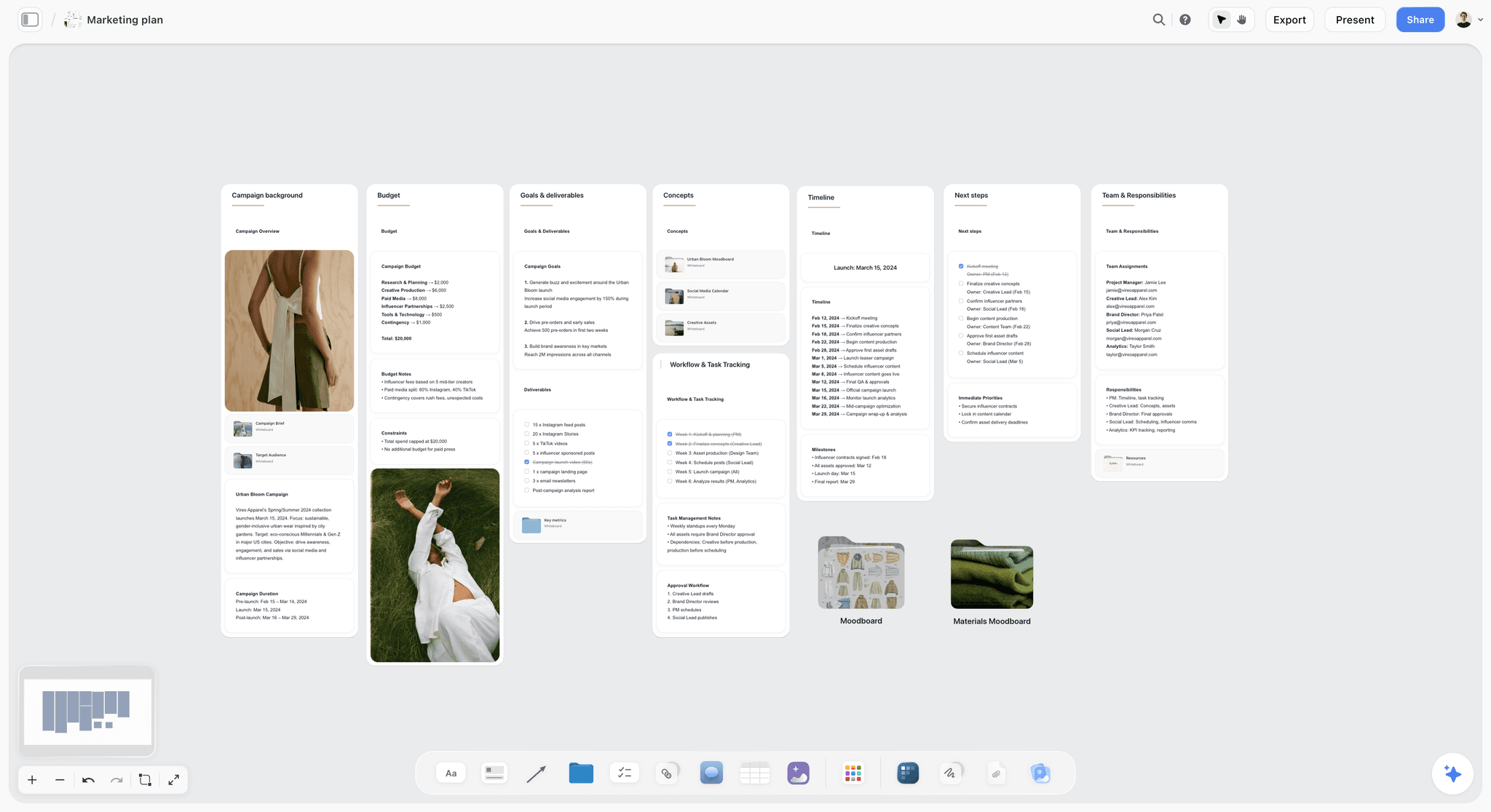
A campaign plan board keeps goals, timeline and team side by side; Vireo Apparel is fictional.
Prompt 2: A product launch board in phases
Use it when the launch date is fixed and everything else has to fit in front of it.
- "Build a product launch board for the Kiln Mug Set. Goal: launch on our shop with a landing page, 3 launch emails, 10 social posts and a press kit. Dates: today is 2 February, launch 16 March, freeze all copy 9 March, post-launch review 30 March. People: Sam (founder, signs), Lia (design), Joe (copy and email). Walls: Before launch, Build, Launch week, After launch, Status. Add contingency days before the copy freeze."
Run it in either surface. What lands: phase walls, a checklist per phase, a status wall and dated tickets. Check by hand: work after launch day (the review, the follow-up email) is the part AI plans most thinly. For the launch-specific board in depth, see the visual product launch plan for a small team and the product launch planner.
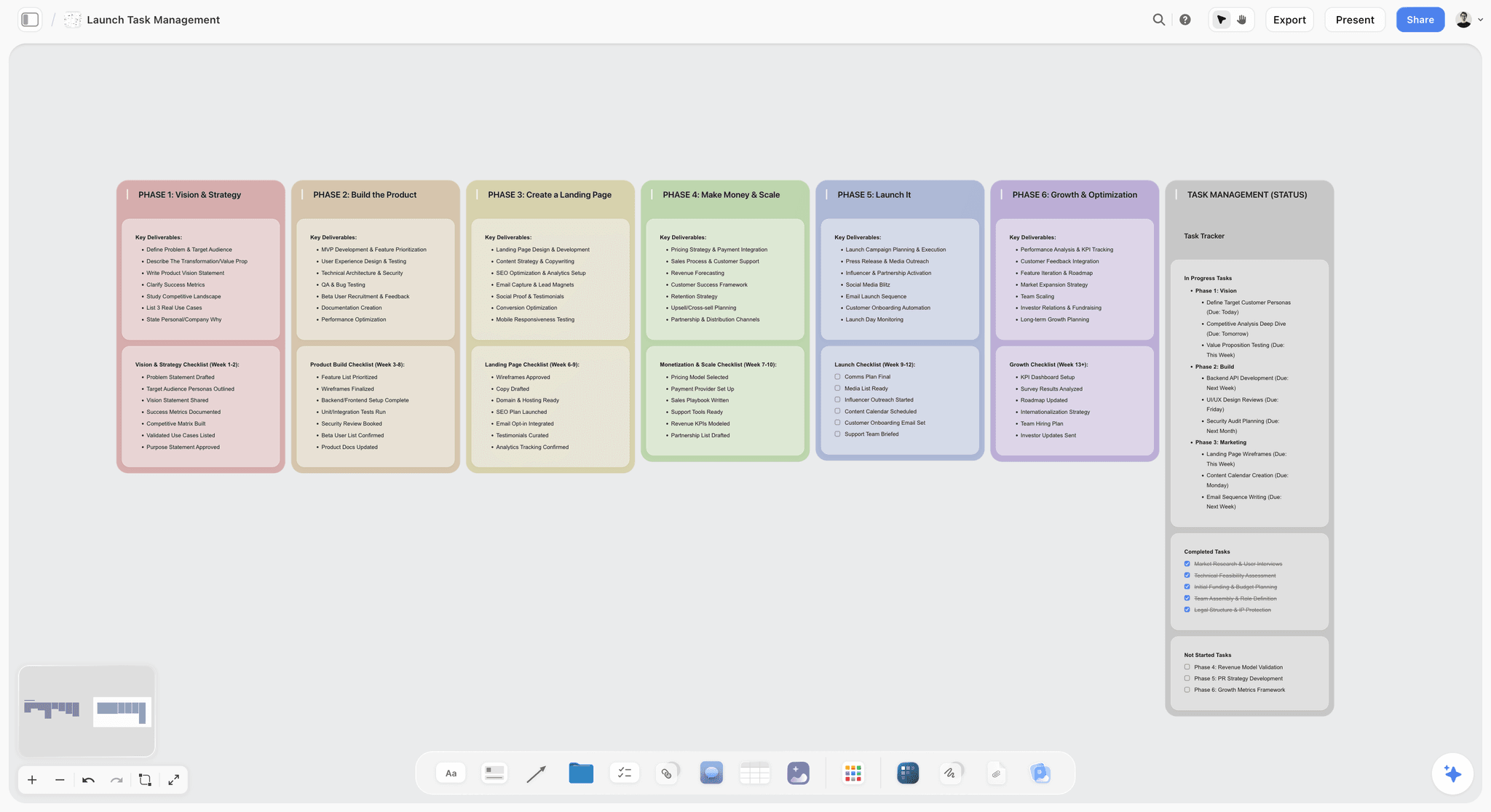
Phases across, checklists down and one status wall: the shape a launch prompt should produce.
Prompt 3: A social campaign with channel owners
Use it when several people each own a channel and the plan has to show who posts what.
- "Build a social campaign board for Northbeam Coffee's winter blend. Goal: 3 weeks of posts on Instagram, TikTok and LinkedIn, 15 posts in total, one hero video cut three ways. Dates: first post 1 December, last post 21 December. People: Mira owns Instagram, Dev owns TikTok, Sol owns LinkedIn, Ana approves. Walls: Message, Hero video, one wall per channel, Approvals. In each channel wall, add a table with Post, Format, Date, Owner and Status columns."
Run it in either surface, after inviting Mira, Dev and Sol to the board so the Owner column can resolve to real people. Check by hand: the dates sit in date cells with the rows kept in date order, since Storyflow tables cannot be sorted. Publishing happens in a social scheduler; Storyflow plans the posts and does not publish them.
Prompt 4: A creator partnership programme
Use it when you brief several creators at once and need one place for briefs, deliverables and approvals.
- "Build a creator programme board for Fernlight's refill launch. Goal: 6 creators, each delivering 1 video and 3 stories, each with a one-page brief. Dates: briefs out 10 May, drafts due 24 May, posts live 1 June to 14 June. People: Rae manages creators, Ana approves drafts. Walls: Programme brief, Creators, Deliverables, Approvals, Results. Add a disclosure line to every creator brief."
Run it in either surface. What lands: a wall per creator or a creators table, a brief document per creator and an approvals checklist. Check by hand: the disclosure wording against the platform's own rules and your market's advertising guidance, which the AI cannot settle for you.
Shoot and Production Boards: Prompts 5 to 8
Production boards depend on source files, so these prompts lean on the in-app AI, which reads scripts as PDF, screenplay files (.fdx) or Fountain and runs the production workflows.
Prompt 5: A brand photoshoot plan
Use it when a moodboard is approved and the shoot needs a plan, a shot list and a call sheet.
- "Plan the shoot for Larkspur Tea's spring campaign from the brief and moodboard on this board. Goal: 24 final images, 16 for social at 4:5 and 8 for the website at 16:9. Dates: shoot 17 March, 8am to 5pm, selects by 20 March. People: Kit (photographer), Jo (stylist), Ana (art director), one model. Walls: Shoot brief, Shot list, Props and wardrobe, Schedule, Call sheet details."
Run it in the in-app AI ("Make a shot list for my shoot" covers the shot list part). What lands: a shot list table, a schedule wall and the details a call sheet needs. Ask the AI for a call sheet PDF afterwards: it leaves unknowns visibly blank, and the nearest-hospital line stays blank unless you supply it. Check by hand: shot count against the hours booked. For the full method, see how to plan a photoshoot and the photoshoot plan template.
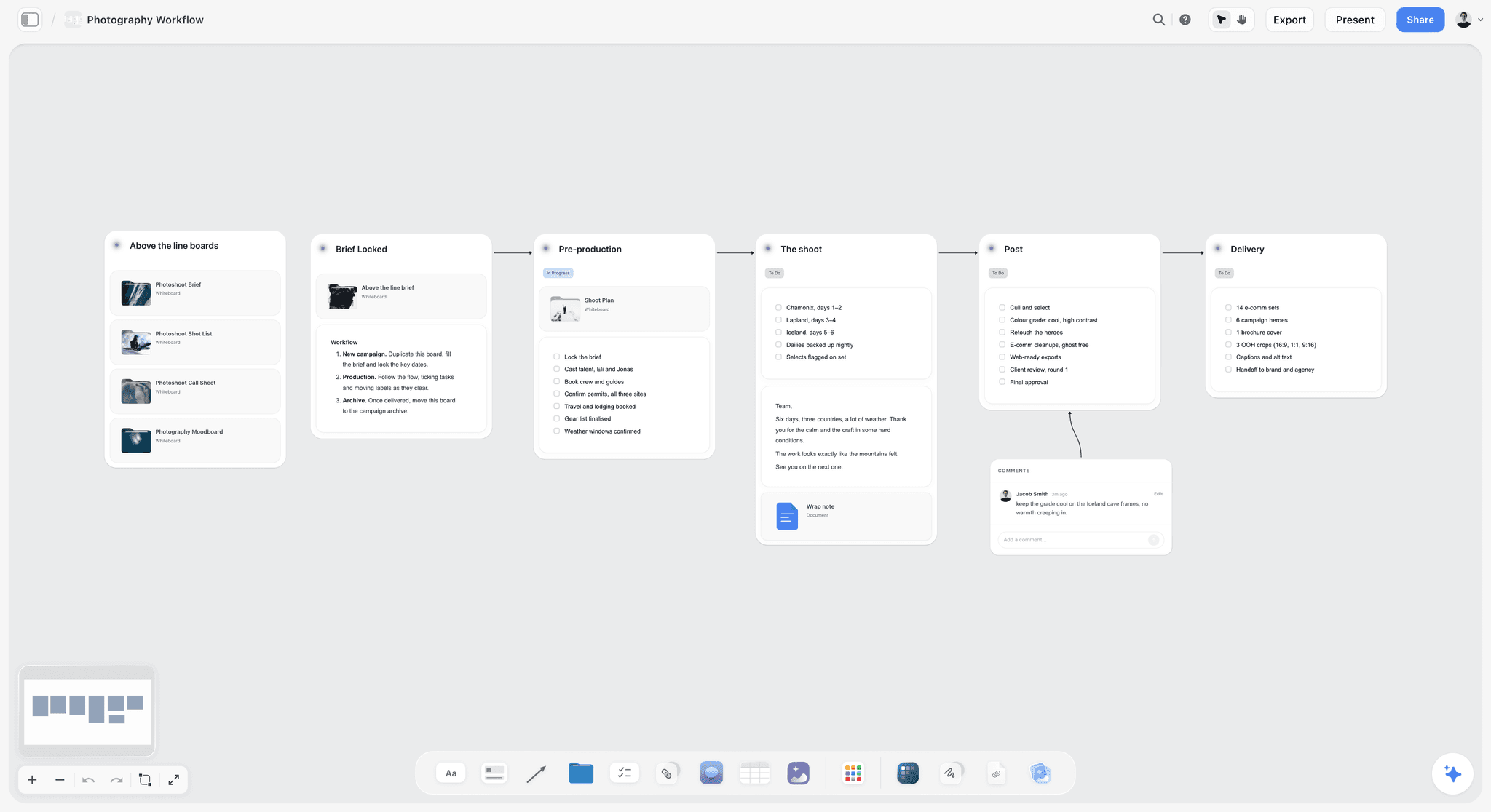
Brief, pre-production, shoot, post and delivery as five walls is the layout to ask for in line 4.
Prompt 6: A commercial shoot from script to wrap
Use it when you have a script and a shoot date and need the whole production on one board.
- "Plan my whole production for the attached 30-second Northbeam Coffee spot. Goal: one 30-second spot plus 15- and 6-second cutdowns. Dates: prep 4 to 15 November, shoot 18 and 19 November, offline edit by 29 November. People: Rae (producer), Leo (director), Kit (DP), client approver Mara. Walls: Script, Breakdown, Locations, Cast, Crew, Schedule, Post."
Run it in the in-app AI with the script attached. What should land: the workflow's whole-production board, with walls for the script, breakdown, schedule and departments. Check by hand: scenes the AI grouped onto the same day, and anything it could not know, such as a location's access hours. The ChatGPT production plan page shows the chat route.
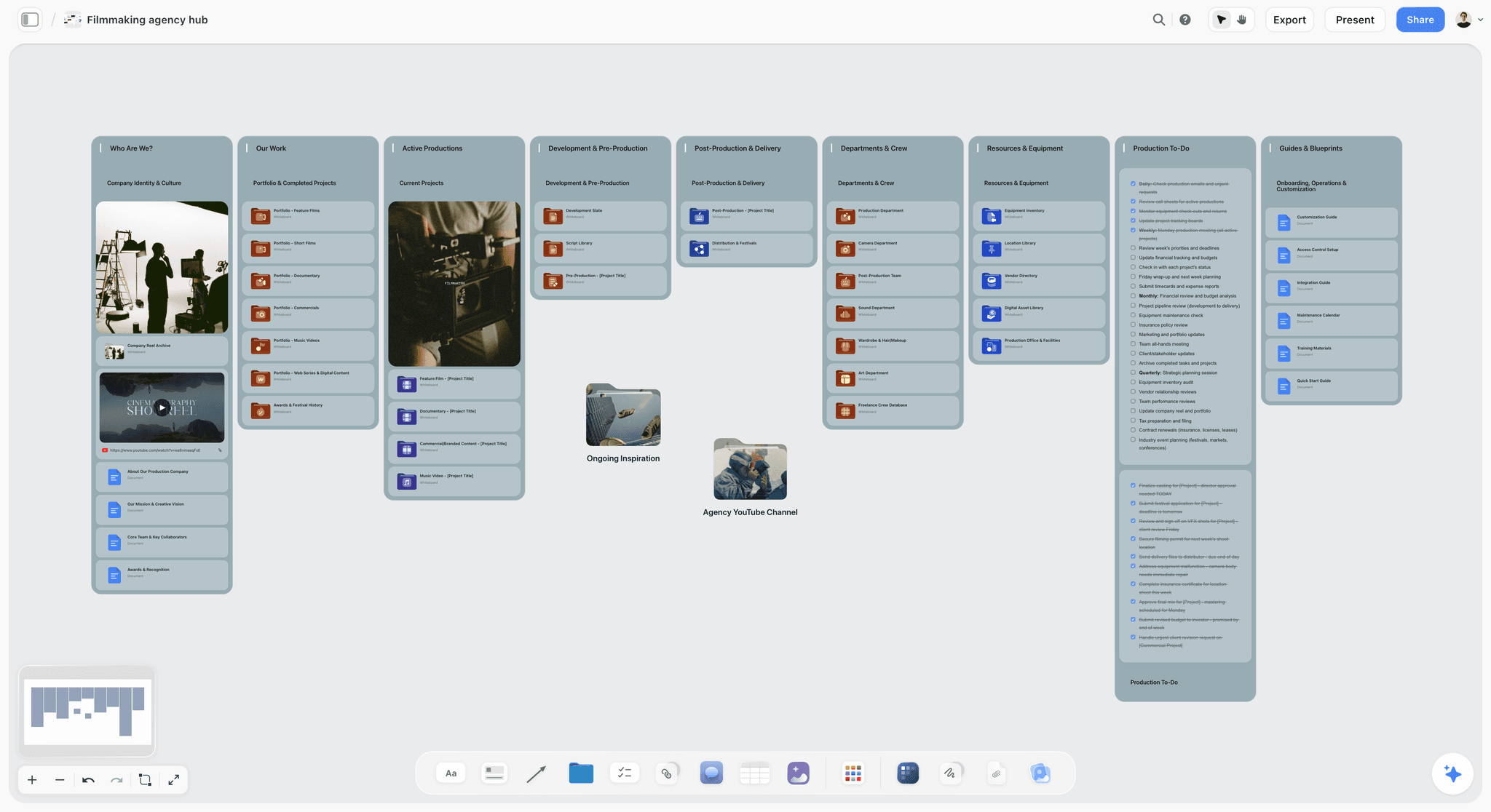
A production company keeps each job's board next to its studio hub, so the next shoot starts from a known shape.
Prompt 7: A strip board grouped into shoot days
Use it when the breakdown exists and you need the days.
- "Build a strip board from the script breakdown on this board. Goal: every scene on a strip with its page count. Dates: shoot days 18 and 19 November, 10 hours each. People: Rae schedules, Leo approves. Walls: Day 1, Day 2, Unscheduled. Group scenes by location first, then by cast."
Run it in either surface; both can build a strip board grouped into shoot days. Check by hand: page counts per day, because the strip board does not recalculate when you move a strip, and there is no day-out-of-days report. See the strip board page for the shape.
Prompt 8: A location scout board
Use it when the brief names a kind of place and you need candidates before a recce.
- "Scout locations for my shoot. Goal: 8 candidate locations for a dawn coffee scene, a rooftop or a riverside path within 30 minutes of the studio. Dates: recce 6 November. People: Rae books, Leo chooses. Walls: Brief, Candidates, Shortlist, Permits and access."
Run it in the in-app AI (Scout locations for my shoot is a menu workflow, and the AI searches the web when asked). Check by hand: every permit, access and cost note, which the web rarely states correctly. The ChatGPT location scouting page covers the chat version.
Content Boards: Prompts 9 to 12
Content boards are mostly tables with dates. Storyflow has no calendar view, so a content month is a table with date cells, rows kept in date order, beside the briefs and visuals it schedules.
Prompt 9: A month of social content
Use it when the pillars are agreed and next month is empty.
- "Plan my content calendar for January for Fernlight. Goal: 20 posts across Instagram and TikTok, 4 per week, rotating the pillars Refill how-to, Ingredients, Customer stories and Behind the scenes. Dates: 2 to 31 January, no posts on 1 January. People: Priya writes, Tom designs, Ana approves every Friday. Walls: Pillars, January table, Briefs, Approvals."
Run it in the in-app AI (Plan my content calendar). What should land: the pillars, a dated post table and a short brief per post; name the columns you want (Date, Channel, Pillar, Format, Hook, Owner, Status) if your team works to a set. Check by hand: that rows are in date order and every pillar appears every week. For the month in full, see how to plan a month of social media content and the AI content calendar generator.
Prompt 10: A YouTube series plan
Use it when you are planning several episodes at once rather than one video.
- "Build a series board for a six-episode YouTube series on home espresso for beginners. Goal: 6 episodes of 10 to 14 minutes, each with a title, hook, outline and thumbnail idea. Dates: one upload every Thursday from 9 January. People: Kai presents and edits, Lou researches. Walls: Series promise, Episodes, Research, Production, Uploads."
Run it in the in-app AI, using Plan my next YouTube video for each episode in depth afterwards. Check by hand: that episode order builds (episode 1 must not need episode 4's knowledge) and that every hook makes a promise the episode keeps. The YouTube series planner shows the layout.
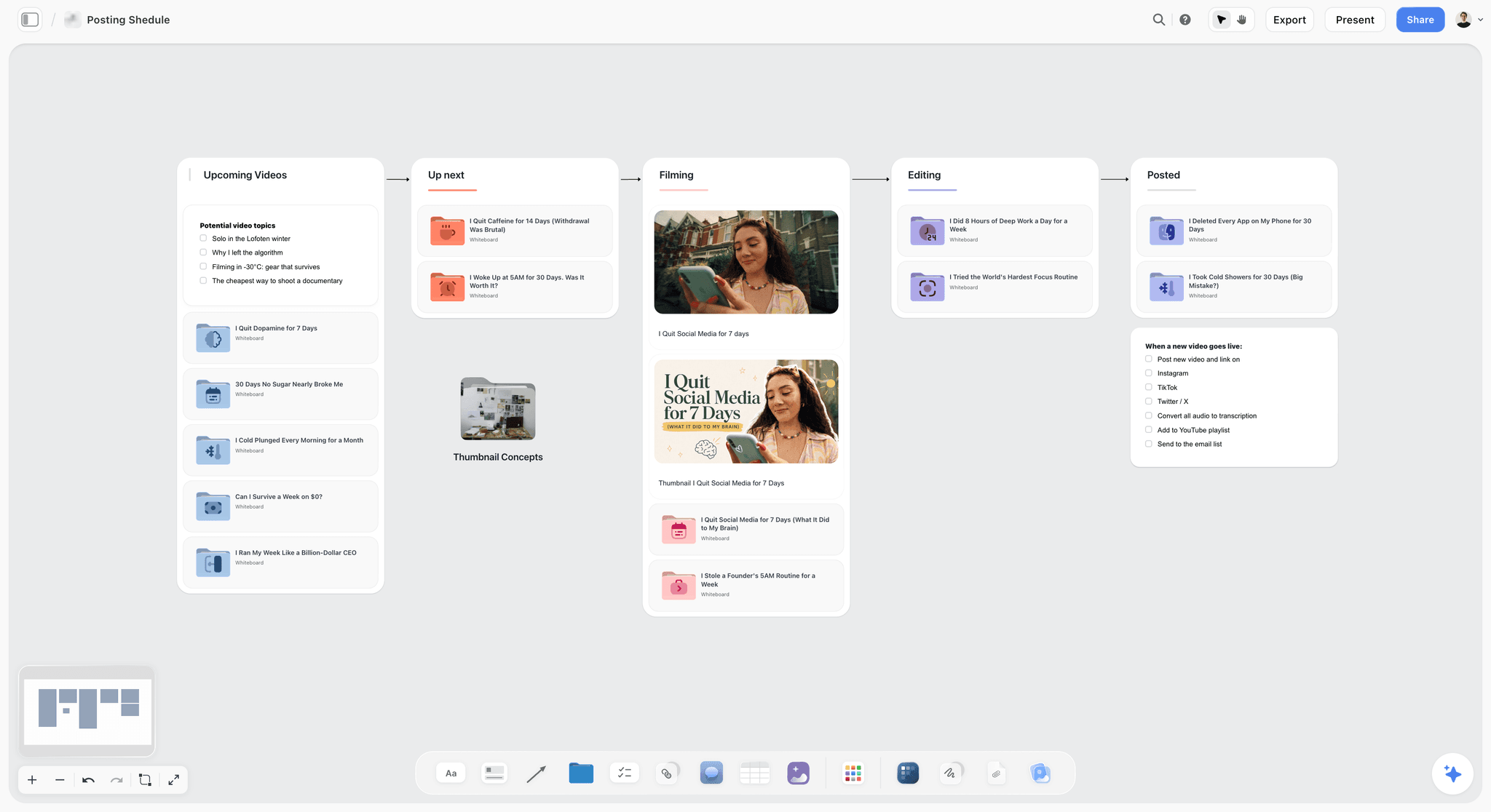
A posting pipeline moves each episode from idea to posted; ask for these columns in line 4.
Prompt 11: A content pillar map
Use it before a content calendar, when nobody agrees what the account is about.
- "Build a content pillar map for Northbeam Coffee from the audience notes on this board. Goal: 4 pillars, each with 5 post ideas and one sentence on why the audience cares. Dates: agree pillars by 15 November. People: Mira proposes, Ana decides. Walls: Audience, Pillars, Ideas per pillar, Out of scope."
Run it in either surface; a mind map works well for the first pass, then a wall per pillar. Check by hand: pillars that overlap, which split one audience in two. The content pillar planner holds the full method.
Prompt 12: A podcast season
Use it when guests, recording dates and release dates all have to line up.
- "Build a podcast season board for 'Shop Floor', a 10-episode interview show. Goal: 10 episodes, each with a guest, topic, 8 questions and a release date. Dates: record between 3 February and 14 March, release every other Tuesday from 4 March. People: Ines hosts, Ben books guests and edits. Walls: Season theme, Guests, Episodes, Recording schedule, Release table."
Run it in either surface. Check by hand: each recording date against the guest's confirmed availability, and a recording-to-release gap long enough to edit. See the AI podcast planner.
Client and Agency Boards: Prompts 13 to 16
Agency boards are shared with people outside the team, so they carry approvals and client inputs as first-class items. A view-only link opens with no account; a client who wants to comment signs in.
Prompt 13: A client onboarding board
Use it the day a scope is signed, so the client's inputs have dates from day one.
- "Build a client onboarding board for Halden Optics from the signed scope on this board. Goal: kickoff, brand assets received, access to channels, a confirmed timeline and a named approver. Dates: kickoff 12 January, all client inputs by 19 January. People: Ana (account lead), Halden's marketing lead Rosa. Walls: Scope, Client inputs, Our inputs, Timeline, Contacts."
Run it in either surface. What lands: a client inputs table with due dates, our inputs as to-dos, a contacts wall and a timeline table. Check by hand: every client input has a due date and a named person on their side. The creative client onboarding page covers what the board should hold.
Prompt 14: An agency hub as a kanban
Use it when the studio has more live jobs than anyone can hold in their head.
- "Turn my notes into a kanban board of our active client jobs. Goal: one ticket per job with client, deliverable, next step and due date. Dates: use the due dates in the notes. People: Ana, Tom and Priya are the leads. Walls: Brief in, In progress, With client, Approved, Delivered."
Run it in the in-app AI (Turn my notes into a kanban board), or from ChatGPT or Claude, which build a row of walls as kanban columns with tickets. Check by hand: the columns match your real stages, and each job sits in one column only. The best kanban board tools compares the approaches, and the ChatGPT kanban board and Claude kanban board pages show the assistant routes.
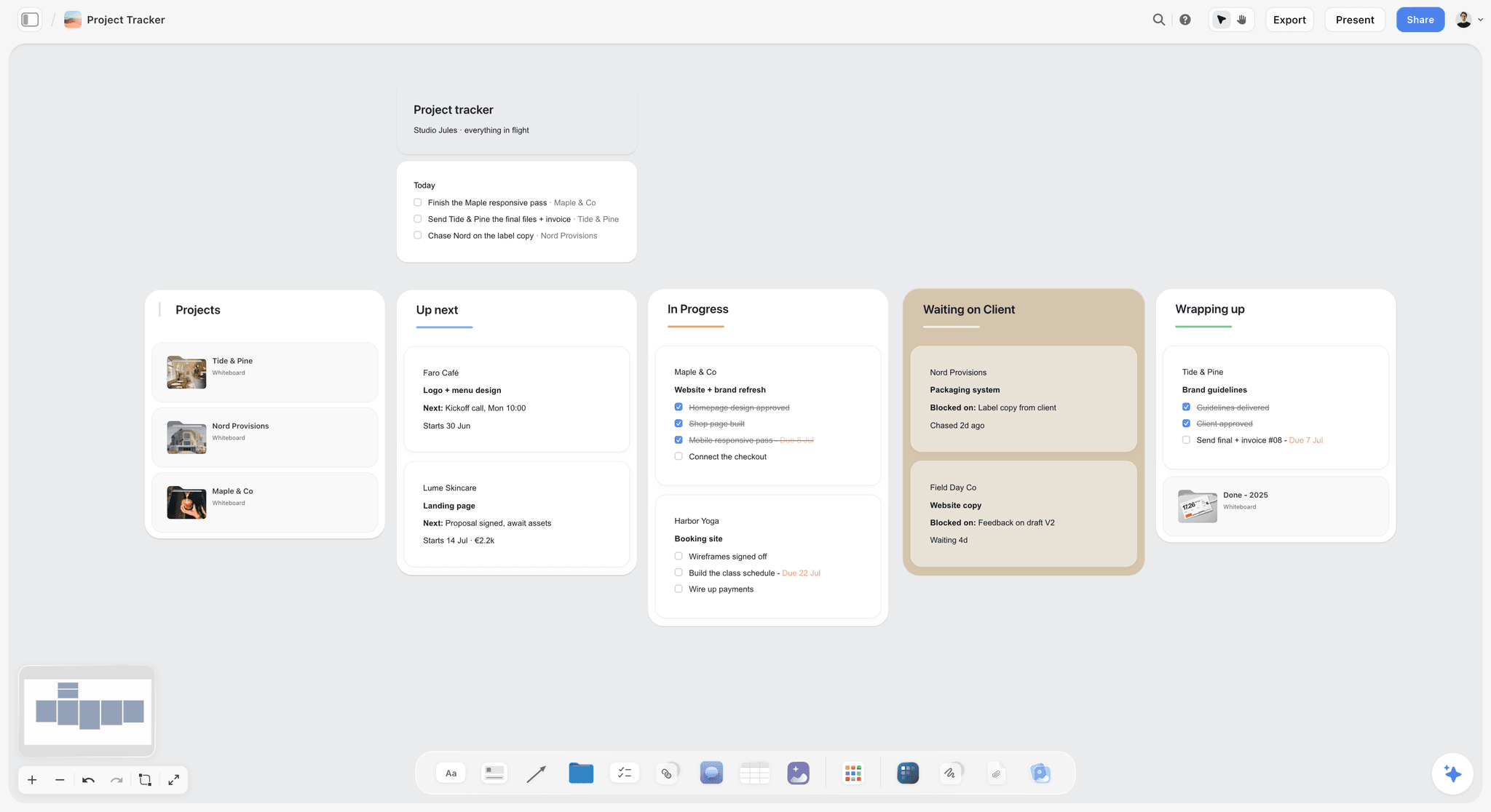
One ticket per job, one column per real stage; Studio Jules and its clients are fictional.
Prompt 15: A rebrand project
Use it when an identity project needs research, concepts and rounds of feedback in a fixed order.
- "Build a rebrand project board for Tide and Pine. Goal: a new logo, palette, type system and brand guidelines PDF, with 3 concepts and 2 feedback rounds. Dates: kickoff 6 January, concepts 27 January, round 1 feedback 3 February, round 2 17 February, final files 3 March. People: Lia leads design, Sam signs on the client side. Walls: Brief and audit, Research, Concepts, Feedback rounds, Final assets, Timeline."
Run it in the in-app AI, which can also build a brand strategy board when asked. Check by hand: the feedback rounds have dates and a named approver, since rounds without an approver multiply. The rebrand planner holds the full template.

Concepts, feedback rounds and final assets as separate walls keep a rebrand's sign-off points visible.
Prompt 16: A website project
Use it when pages, content owners and launch tasks have to be tracked together.
- "Build a website project board for Halden Optics. Goal: a 9-page site (home, 4 product pages, about, journal, stockists, contact) with copy and images for each. Dates: sitemap approved 13 January, copy due 3 February, launch 3 March. People: Joe writes, Lia designs, Rosa approves for the client. Walls: Sitemap, Pages, Content table, Build tasks, Launch checklist."
Run it in either surface; ask for the sitemap as a diagram with labelled connections. Check by hand: every page has a content owner and a due date. See the website project plan.
Event and Team Boards: Prompts 17 to 20
These prompts run lighter projects, plus the two prompts that keep any board useful: turning notes into a board and asking what is missing.
Prompt 17: An event plan with a run of show
Use it when the venue is booked and the day needs a minute-by-minute plan.
- "Build an event board for Larkspur Tea's tasting evening. Goal: 60 guests, 3 tastings, 1 short talk, a run of show from doors to close. Dates: event 24 April, 6pm doors, 9pm close; invitations out 3 April. People: Ana runs the night, Priya hosts, the venue manager Ola. Walls: Event brief, Guest list, Suppliers, Run of show, On the day, After."
Run it in either surface. Check by hand: every time in the run of show, and who owns safety on the night. The UK's event safety guidance says the first step is deciding who will help you with your duties as an event organiser and running a risk assessment, which a board can hold but not do for you. See the AI event planner, the AI run of show generator and the ChatGPT event plan.
Prompt 18: A team offsite or workshop
Use it when a day of sessions needs an agenda, materials and outcomes.
- "Build a workshop board for our two-day planning offsite. Goal: agree next quarter's 3 priorities and owners. Dates: 12 and 13 March, 9am to 5pm, breaks at 10:30, 12:30 and 3:30. People: Sam facilitates, 8 attendees. Walls: Agenda, Pre-reads, Session boards, Decisions, Actions with owners."
Run it in either surface. Add one session nobody likes and everybody needs: a pre-mortem, where the team imagines the plan has already failed and lists why. Check by hand: session lengths with breaks, since agendas without them overrun. The workshop planning tool page covers the board.

A plan becomes work when its first week turns into day-by-day to-dos like these.
Prompt 19: Messy notes into an organized board
Use it after a kickoff call, when the notes are a wall of text and the plan is somewhere inside.
- "Turn my notes into organized walls. The notes are in the document on this board. Group them into Decisions, Open questions, Tasks with owners and dates, Risks and Parking lot. Keep every point; do not summarise any away."
Run it in the in-app AI (Turn my notes into organized walls). Storyflow records one run of this job at 3 minutes, rounded up, against about 45 minutes by hand. Check by hand: that nothing from the notes was dropped; the last line of the prompt asks for that, and you confirm it. A call transcript works too, through transcript to board.
Prompt 20: A review of what is missing
Use it on any board the AI built, before you send it to anyone.
- "What's missing here? Compare this board against the brief in the attached document and list every deliverable, date, owner or approval the brief needs that the board does not have."
Run it in the in-app AI (What's missing here? and Review what's on this board are both menu workflows), or ask the same question from ChatGPT or Claude. Check by hand: What's missing here? adds the gaps it finds to the board, so delete the ones that are not real, or undo the turn. Run it again after every major change.
The Board Prompt Sheet: A Copyable Template
Harbour Lane Studio, a fictional five-person creative agency, keeps one prompt sheet as a table on its studio board. Each row is a board the studio generates often, written in the four lines. Copy the columns and fill the rows with your own projects.
| Board | Line 1: goal and deliverables | Line 2: dates | Line 3: people | Line 4: walls | Attach | Run in |
|---|---|---|---|---|---|---|
Client campaign | 12 posts, 2 emails, 1 poster, 1 event | Brief signed, shoot, launch, review | Lead, designer, social, client approver | Brief, Idea, Creative, Shoot, Channels, Launch, Review | The brief | In-app AI |
Product launch | Landing page, 3 emails, 10 posts, press kit | Today, copy freeze, launch, review | Founder signs, design, copy | Before, Build, Launch week, After, Status | Launch notes | Either |
Brand photoshoot | 24 images, 16 at 4:5 and 8 at 16:9 | Shoot day and hours, selects due | Photographer, stylist, art director, talent | Brief, Shot list, Props, Schedule, Call sheet details | Brief and moodboard | In-app AI |
Commercial | 30-second spot, 15 and 6 cutdowns | Prep, shoot days, offline edit | Producer, director, DP, client approver | Script, Breakdown, Locations, Cast, Crew, Schedule, Post | Script | In-app AI |
Content month | 20 posts, 4 a week, 4 pillars | First and last day, approval day | Writer, designer, approver | Pillars, Month table, Briefs, Approvals | Pillar notes | In-app AI |
Client onboarding | Kickoff, assets, access, approver | Kickoff, client inputs due | Account lead, client contact | Scope, Client inputs, Our inputs, Timeline, Contacts | Signed scope | Either |
Studio kanban | One ticket per live job | Due dates from notes | The three leads | Brief in, In progress, With client, Approved, Delivered | Job notes | Either |
Rebrand | Logo, palette, type, guidelines PDF; 3 concepts, 2 rounds | Kickoff, concepts, round 1, round 2, finals | Design lead, client signatory | Brief and audit, Research, Concepts, Feedback, Finals, Timeline | Audit notes | In-app AI |
Website | 9 pages with copy and images | Sitemap, copy due, launch | Writer, designer, client approver | Sitemap, Pages, Content, Build, Launch checklist | Sitemap notes | Either |
Event | 60 guests, run of show | Invites, event day with times | Event lead, host, venue manager | Brief, Guests, Suppliers, Run of show, On the day, After | Venue details | Either |
Offsite | 3 priorities with owners | Two days with breaks | Facilitator, attendees | Agenda, Pre-reads, Sessions, Decisions, Actions | Agenda draft | Either |
Kickoff notes | Every point kept, grouped | Dates from the notes | Owners from the notes | Decisions, Questions, Tasks, Risks, Parking lot | The notes | In-app AI |
Keep the sheet on the studio's hub board so every lead starts a project from the same four lines. A new hire then generates a board in the studio's shape on day one.
Worked Example: One Prompt to an Eight-Week Refill Launch Board
Fernlight is a fictional refillable-skincare brand with a team of five, launching refill stations in three of its stores. The example is illustrative: it shows the order of moves, not results from a real project.
The four lines Fernlight wrote
The marketing lead, Ana, created a board named "Refill stations launch" and attached the two-page launch brief. Her prompt to Storyflow's in-app AI:
- "Read the attached brief and build the launch board. Goal: refill stations live in 3 stores, with 1 launch film, 12 Instagram posts, 6 TikTok videos, 3 emails, in-store signage for each store and a press release. Dates: today is 6 January, film shoot 27 January, stations installed 17 February, launch 3 March, review 31 March. People: Ana leads, Tom designs, Priya runs social, Ben manages the stores, the founder Elsa signs off. Walls: Brief, Message, Film, Social, Email, Stores, Press, Launch week, Review."
The clarifying question
Before building, the AI asked one question: whether the three stores launch on the same day or in sequence. Ana answered "same day, 3 March", which removed a set of staggered dates the brief had left ambiguous.
What landed on the board
The board held nine walls in the order Ana named. The Social wall carried a table with 18 rows (12 posts and 6 videos) and Date, Channel, Format, Owner and Status columns. The Stores wall held one checklist per store. The Film wall had a shot list draft and a to-do for the shoot day. The Review wall held a ticket dated 31 March. Ana kept the board as a whole, because the structure matched the brief.
The follow-up prompts
Three follow-ups fixed what the first pass got thin:
- "Add 2 contingency days before the film shoot and before the station install, and move the dates that depend on them to match."
- "Add an approval to-do for Elsa after every deliverable in the Social, Email and Press walls."
- "What's missing here? Check the board against the brief."
The review flagged that the brief asked for a staff briefing in each store, which no wall held. Ana added it to the Stores wall.
What Ana checked by hand
She checked every date against the brief, which caught one email scheduled before the stations were installed. She confirmed that the Owner column had resolved to the four teammates, because she had invited them to the board first. She removed one invented detail, a store opening time the AI had no way to know. Then she assigned the shoot-day to-dos to Tom herself, since the AI cannot set an assignee.
How the board was shared
Elsa got a view-only link, which opens with no account. Tom, Priya and Ben edit the board in real time, and as invited collaborators they joined free. Every Monday, Ana asks ChatGPT, through the Storyflow plugin, what changed on the board in the last week and who changed it, and pastes the answer into the team update. For a launch board built entirely from a chat instead, see how to plan a product launch with AI.
Do This in ChatGPT or Claude
Every prompt above works from a chat too, with two limits: the in-app menu workflows and AI images stay in Storyflow. ChatGPT calls the add-on a plugin; Claude calls it a connector; both reach the same Storyflow boards. This route runs on your assistant's own model and plan and uses no Storyflow AI credits, and it is separate from the in-app AI.
Install in ChatGPT
Open the Storyflow plugin listing in ChatGPT's plugin directory and select Install plugin. Sign in to Storyflow, then choose which projects ChatGPT may use: all of them, or the ones you pick. Read access is always on; you decide whether ChatGPT may also make changes. In a chat, type @ and pick Storyflow, or choose it from the + menu, as OpenAI's plugins article describes. Availability depends on your ChatGPT plan, workspace and region, and in a Business or Enterprise workspace an admin manages plugins. ChatGPT may ask before it makes changes, depending on the permission option you choose, from Always ask to Allow all actions. The connection ends after 30 days, and ChatGPT asks you to sign in again. The ChatGPT project plan page shows this job end to end.
Connect in Claude
In Claude, open Customize, then Connectors, choose Add, then Add custom connector, as Anthropic's custom connector guide describes. Name it Storyflow, enter https://mcp.storyflow.so/mcp and sign in. On Team and Enterprise plans an owner adds the connector first, and each member then connects their own account. In a chat, select + and then Connectors to switch Storyflow on. The address speaks the Model Context Protocol, an open standard for connecting AI applications to outside tools, which is also how Gemini and Grok connect; every assistant's setup is on the Storyflow MCP page. The Claude campaign plan page shows a campaign board built from Claude.
The same board answers to ChatGPT through the plugin and to Claude through the connector.
Prompts to copy
Pick Storyflow first (@ in ChatGPT, the Connectors toggle in Claude), then paste.
- "List my Storyflow projects and boards, then open the board called Refill stations launch and summarise its walls."
- "On my Refill stations launch board, build walls named Brief, Message, Film, Social, Email, Stores, Press, Launch week and Review, in that order."
- "In the Social wall, add a table with Post, Channel, Format, Date, Owner and Status columns and 18 rows: 12 Instagram posts and 6 TikTok videos between 3 March and 28 March, rows kept in date order."
- "Fill the Owner column with Priya for Instagram rows and Tom for TikTok rows."
- "Add a ticket in the Review wall titled Launch review with the due date 31 March."
- "What changed on my Refill stations launch board in the last week, and who changed it?"
- In Claude: "Read the launch brief PDF I attached in this chat and list every deliverable it names. Then compare that list with the walls on my Refill stations launch board and add a note listing what is missing."
What lands on the board
Walls, headings, notes, to-dos, tables, documents, mind maps and diagrams appear on the board, built card by card. Tables keep the rows in the order you asked for. Owner columns resolve to people already on the board; otherwise the whole column stays plain text. A photo you attach in a ChatGPT chat does not reach Storyflow, so ask for the upload link instead. AI image generation and the in-app menu workflows are not available through the plugin or connector. An account a paid member invited, with no paid plan of its own, gets 25 plugin or connector actions a week, resetting on Monday (UTC); Plus, Pro and Max have no weekly limit.
What to check by hand
Open the board in Storyflow and look at it, because a chat reply describing the board is not the board. Check every date and owner, look for walls built twice when a prompt was re-sent, and confirm any fact the assistant pulled from its own knowledge rather than from your brief. If the plugin does not appear or an action fails, OpenAI's troubleshooting article and fixes for a ChatGPT plugin that is not working cover the usual causes.
When the Board Comes Back Wrong: Follow-Up Prompts That Fix It
The first board is a draft. Both OpenAI's prompting guide and Anthropic's prompting best practices make the same point in different words: be explicit, give context, and say what shape you want back. Anthropic suggests treating the model like a brilliant but new employee who lacks your context. The table below turns that into fixes for the ten ways a generated board goes wrong.
| What came back wrong | Follow-up prompt | Run in |
|---|---|---|
Generic phases, no deliverables | "Replace the phase notes with a table of deliverables, one row each, counted from the brief." | Either |
No dates | "Add these dates: shoot 17 March, launch 7 April. Leave any date I did not give empty." | Either |
Dates with no slack | "Add 2 contingency days before each fixed date and move the dates that depend on them." | Either |
One owner for everything | "Fill the Owner column using these assignments: Priya for social, Tom for design." | Either |
Walls in the wrong order | "Reorder the walls to Brief, Creative, Shoot, Channels, Launch, Review, left to right." | Either |
Too many cards to scan | "Group the loose notes into walls by theme and leave nothing outside a wall." | Either |
The template's example left behind | "Rewrite every card that mentions the template's example project for my project." | Either |
A plan that stops at launch | "Add an After launch wall with a review, a results table and a follow-up email." | Either |
Invented facts | "List every fact on this board that is not in the brief, in a note titled To confirm." | Either |
Missing approvals | "Add an approval to-do for the client after every deliverable that leaves the studio." | Either |
Fix the structure before the cards
If the wall list is wrong, undo it and re-prompt with a corrected line 4. Editing 40 cards inside the wrong structure takes longer than a second attempt.
Ask for a "to confirm" list
The single most useful follow-up is the invented-facts prompt. It turns the AI's guesses into a visible checklist instead of quiet errors inside cards.

A creative director's Storyflow board holding a fictional apparel ad brief with deliverables, channels and notes
Build the plan from one prompt
Install Storyflow in ChatGPT, paste a four-line prompt and get walls, tables, to-dos and dated tickets on a board your team edits, then check the dates and owners by hand.

8 Mistakes That Make a Generated Board Useless
Each mistake below produces a board that looks finished and fails in the first week. Each has a one-line fix.
Prompting before the board exists
Running the prompt on a board that already holds another project mixes the two. Fix: one fresh Storyflow board per project, named for it.
Leaving out the dates
The AI does not invent dates, so the board arrives with empty date cells and nobody notices until the deadline. Fix: line 2, every time, with a review date.
Naming roles instead of people
"Designer" cannot be assigned. Fix: names in line 3, and invite those people to the board before you prompt so the Owner column resolves.
Keeping a board for one good card
A single strong wall inside a wrong structure is still a wrong board. Fix: judge the wall list first; undo and re-prompt if it is off.
Never checking against the brief
A plausible plan can miss a deliverable the brief requires. Fix: run "What's missing here?" with the brief attached before sharing.
Leaving template content behind
A template's example project left on your board confuses the client. Fix: search the board for the example's name after every rewrite.
Treating the board as finished
A plan nobody updates is wrong within a week. Fix: a weekly "what changed and who changed it" question, and a dated review to-do.
Expecting the AI to assign people
The AI cannot set a to-do's assignee. Fix: assign to-dos yourself, or keep owners in a table column the AI fills from people on the board.
Storyflow's Honest Limits for Project Boards
Storyflow earns first place on generating the board and keeping brief, visuals and tasks on one canvas. These are the places it stops.
What it does not do
- No Gantt chart, task dependencies, critical path, workload view or time tracking. A project management app does those.
- No calendar view. Dates live in table date cells and to-dos, with rows kept in date order, because tables cannot be sorted.
- No recalculating schedule: move one date and the dates after it stay where they were. The strip board does not recalculate either.
- No due-date reminders; to-dos send in-app notifications only.
- The AI cannot set a to-do's assignee, and an Owner column resolves only to people already on the board.
- No social post scheduling or publishing, no invoicing, no e-signature, and no PPTX export; decks present fullscreen and export as PDF.
- No native desktop or mobile app; Storyflow runs in the browser and is best built on a laptop.
- Through the plugin or connector: no AI image generation, no reading of board comments and no in-app menu workflows.
What stays yours
The choices in the plan stay with you: which deliverables matter, which dates are real, who signs. The AI assists; it does not replace the producer or the account lead.
The Bottom Line
A board prompt is only as good as its four lines. Write the goal with counted deliverables, the dates you know, the people by name and the walls in order, attach the brief, and Storyflow's AI lays out a plan the team can run from the first morning. Then spend your time where it counts: the dates, the owners and the gaps. Take the project you are dreading most this week, open a fresh Storyflow board, and paste the matching prompt from the list above with your own details.
FAQ: Project Board Prompts
I need a visual planning tool that generates project boards automatically?
Storyflow generates project boards automatically: describe the project in one prompt and its AI lays out walls, tables, to-dos and documents on one canvas, and one undo reverses the whole turn if it misses. It works inside Storyflow and from ChatGPT through the plugin or Claude through the connector. Write the prompt as four lines (goal, dates, people, walls) and check dates and owners by hand before you share the board.
What is the best tool for generating project boards from a prompt?
Storyflow is the best tool for generating project boards from a prompt when the plan needs briefs, visuals and tasks together, because one prompt builds the whole board and the team edits it in real time. Choose a project management app instead when dependencies and workload views are the job, a spreadsheet when the plan is mostly numbers, and a whiteboard app when the work is a live workshop.
What is the Storyflow 4-Line Rule?
The Storyflow 4-Line Rule is our editorial rule for writing a board prompt: line 1 the goal and counted deliverables, line 2 the dates, line 3 the people with roles, line 4 the walls in order. Four lines cover scope, schedule, ownership and layout. Anything else, such as tone or brand rules, goes in the attached brief, where the AI reads it in full.
Can ChatGPT build a project board in Storyflow?
Yes. Install the Storyflow plugin from ChatGPT's plugin directory, sign in, choose which projects ChatGPT may use and allow changes. Then mention Storyflow with @ and describe the board: ChatGPT builds walls, tables, to-dos, documents and mind maps on it. Plugin actions use ChatGPT's own plan and no Storyflow AI credits. It cannot generate images or run Storyflow's in-app menu workflows.
Can Claude build a project board in Storyflow?
Yes. Add Storyflow in Claude as a custom connector with the address https://mcp.storyflow.so/mcp, sign in, then switch it on from the + menu under Connectors. Claude can then read your boards and build walls, tables, to-dos and documents. On Team and Enterprise plans an owner adds the connector first. Claude can also read a brief you attach in the chat before it builds.
What should a project board prompt include?
A project board prompt should include four things: the goal with counted deliverables, the known dates including a review date, the people by name and role, and the walls you want in order. Attach the brief or notes so the AI reads the details in full. Leave out long instructions about tone; they belong in the brief, not the prompt.
Is a prompt or a template better for starting a project board?
A prompt is better when the project has a brief with specific names, dates and deliverables; a template is better when the job is standard and you mainly need its shape. In Storyflow you can combine them: apply a shipped template, then prompt the AI to rewrite every card for your project, and search the board afterwards for leftover example content.
Can the AI assign tasks to people on a Storyflow board?
Not directly. Storyflow's AI cannot set a to-do's or ticket's assignee, so you assign to-dos yourself. It can fill a table's Owner or Assignee column with people who already have access to the board. If any name matches nobody on the board, the whole column stays plain text with the names as written, so invite the team before you prompt.
Does Storyflow make a Gantt chart from a prompt?
No. Storyflow has no Gantt chart, task dependencies, critical path or calendar view. A generated plan puts dates in table date cells and to-dos, with rows kept in date order, and the schedule does not recalculate when a date moves. If dependencies and a timeline chart are the deliverable, use a project management app for the schedule and keep the brief and creative work on the board.
How long does Storyflow's AI take to build a board?
Storyflow records one run of turning messy notes into an organized board at 3 minutes, rounded up, against about 45 minutes by hand, and one run of turning a PDF into tables at 2 minutes. Those are the in-app AI's figures. Your time goes on the four lines before the prompt and the checks after it, which is where the plan's quality is decided.
Which prompt turns meeting notes into a project board?
Use Storyflow's Turn my notes into organized walls workflow in the in-app AI: paste the notes into a document on the board, or attach up to five documents in the AI chat, and name the walls you want, such as Decisions, Open questions, Tasks and Risks. Add one line asking it to keep every point, then check nothing was dropped. The same menu also turns notes into a kanban board, a table or a document.
What should I check after the AI builds a board?
Check four things by hand: every date against the brief, every owner against the team, every deliverable against what the brief asked for, and every fact the AI could not have known, such as a venue's hours or a price. Ask the AI for a "to confirm" list of anything not in the brief, then clear it before you share the board.
Is Storyflow free?
Not yet. Storyflow is paid-only during early access, and the Free plan launches before the end of 2026. Anyone invited to a board by a paid member can sign up free. Plus, the entry plan with the in-app AI, is $7.99 a month billed annually or $9.99 monthly. An invited free account has no in-app AI and 25 plugin or connector actions a week.
Which board prompts should run in the in-app AI instead of ChatGPT?
Run a prompt in Storyflow's in-app AI when it names a menu workflow (Brief my campaign, Plan my whole production, Plan my content calendar), asks for a designed PDF, deck or call sheet, or needs AI images on Pro and Max; those use Storyflow AI credits. Run quick builds, table fills and weekly change reports from ChatGPT or Claude, where actions use the assistant's plan and no Storyflow AI credits.
Table of Contents
- Key Takeaways
- How to Generate a Project Board From a Prompt: 9 Steps
- The Storyflow 4-Line Rule
- A Prompt vs a Template: Which Starts the Board
- Where to Run the Prompts: the In-App AI or ChatGPT and Claude
- The 20 Project Board Prompts at a Glance
- Campaign and Launch Boards: Prompts 1 to 4
- Shoot and Production Boards: Prompts 5 to 8
- Content Boards: Prompts 9 to 12
- Client and Agency Boards: Prompts 13 to 16
- Event and Team Boards: Prompts 17 to 20
- The Board Prompt Sheet: A Copyable Template
- Worked Example: One Prompt to an Eight-Week Refill Launch Board
- Do This in ChatGPT or Claude
- When the Board Comes Back Wrong: Follow-Up Prompts That Fix It
- Where to Build It: Storyflow vs a Project Management App, a Spreadsheet, a Shared Doc and a Whiteboard App
- A project management app, for dependency-heavy schedules
- A spreadsheet, for plans that are mostly numbers
- A shared doc, for plans that are read rather than run
- A whiteboard app, for live workshops
- A chat window, for the first thinking
- 8 Mistakes That Make a Generated Board Useless
- Storyflow's Honest Limits for Project Boards
- The Bottom Line
- FAQ: Project Board Prompts
- Related Reading
Templates to check out for this topic


Templates you can use in Storyflow
Every Storyflow board starts from real structure and an AI that reads the whole canvas. Open one of these templates and make it yours.


See Storyflow in Action
A visual AI workspace where every feature lives inside one canvas. No tab-switching, no context lost.
Build your entire board from a single message
Type what you need in the AI chat at the bottom of your canvas. The AI adds cards, headings, and structure directly onto your board.
Use expert frameworks as AI context
Type @ in the AI chat and choose any Tactic. The AI tailors every response to that framework instead of giving generic advice.
Turn your board into a mind map in seconds
Ask the AI to restructure your canvas as a mindmap. It connects your ideas into a visual hierarchy so you can see how everything relates.
Why Storyflow Exists
Storyflow actually began as a personal tool while working on creative and research projects.
We kept running into the same problem: ideas were scattered everywhere: notes, documents, and whiteboards.
Nothing helped us see how everything connected.
So we started building a workspace designed around how ideas actually grow.
→ Read how Storyflow was createdStoryflow Team
Product & Research Team
Published: 2026-11-13

