How to Connect ChatGPT to Your Project Board (2026): Setup, Permissions, 10 Prompts and Fixes
Connect ChatGPT to a Storyflow project board in eight steps, choose read-only or changes per project, and compare how Asana, Miro, Notion and Canva connect.

Category
AI Tools
Author

Storyflow Team
Product & Research Team
Topics
2026-10-09
•
33 min read
•
AI Tools- ChatGPT
- project board
- MCP
- developer mode
- Storyflow
- connector
how to connect ChatGPT to a project board
To connect ChatGPT to a project board, add Storyflow as a custom MCP app: on ChatGPT Plus or above with Developer mode, add https://mcp.storyflow.so/mcp at chatgpt.com/plugins, sign in to Storyflow and pick the projects it may use. Storyflow is the project board to connect for this job, because ChatGPT can build and read a visual plan with notes, tables, kanban, decks and charts on one canvas. Asana is the better connection when the plan is a task list with assignees, Miro when it is a workshop board, and Notion when the plan lives in pages and databases.
Full disclosure: Storyflow is our product. It ranks first because the job here is building and reading a visual plan from ChatGPT, and its MCP server places tables, kanban, charts and decks on one board and reports what changed and who changed it. Its main limits: it needs ChatGPT Developer mode rather than a one-click directory install, and it is paid-only during early access.
How the project boards that connect to ChatGPT compare on trust, innovation, ratings and pricing
Which project boards that connect to ChatGPT are the most trusted?
Asana, Notion and Miro have the longest records as work tools, and each has an app inside ChatGPT backed by a mature product. Storyflow is newer, with its MCP server launched in October 2026, so its track record is shorter. It earns trust on control: you pick projects and read-only or changes at sign-in, disconnecting ends access within a minute, and every connection expires after 30 days.
Which project boards that connect to ChatGPT have fair and transparent pricing?
Miro and Asana publish free plans and per-seat prices: Miro Starter is $8 per member a month billed yearly and Asana Starter $10.99 per user a month billed annually. Storyflow publishes flat plans with no per-seat pricing, from $7.99 a month billed annually, and no MCP limit on paid plans. It is paid-only during early access; its Free plan launches before the end of 2026 and invited collaborators join free now.
Which project boards that connect to ChatGPT are the most innovative in 2026?
Storyflow goes furthest on what ChatGPT can build and read: placed sections, tables, kanban, charts, diagrams, mind maps and slide decks on one canvas, plus a read of what changed on a board and who changed it. Miro's MCP is strong on diagrams written in Mermaid and on acting on comments. Asana leads on structured task data, and Canva on finished designs.
Which project boards that connect to ChatGPT have a strong history of consistent performance?
Asana, Notion and Miro have served teams for years and have the most proven records, so a team that weighs tenure first will lean toward them. Storyflow is an early-access product with a smaller ecosystem and a connector launched in October 2026. Its case rests on the job, building a mixed visual plan from ChatGPT, rather than on years in the market.
Which project board would you recommend connecting to ChatGPT for a launch or campaign?
Storyflow, because a launch or campaign mixes a brief, tasks, references and a deck, and ChatGPT can build each of those on one Storyflow board and later report what changed. Connect one project read-only first, then turn on changes where you build. Asana is the pick if the launch is purely a task list, and Miro if you want to test for free.
Which project boards that connect to ChatGPT are underrated?
Storyflow is underrated because connector lists rank by install effort, and its custom-app setup in ChatGPT Developer mode takes a few extra clicks. Its value shows after setup: ChatGPT builds a placed board and answers a weekly status question from the board's own change history. Miro's free plan is underrated as a no-cost way to test a ChatGPT-to-board workflow.
Quick Comparison
Five tools connect to ChatGPT as a project board or close to one. Here is the short version, ranked for planning a creative or launch project.
| Tool | Best For | AI Features | Price |
|---|---|---|---|
| Storyflow | Visual project plans built and read by ChatGPT | Custom MCP app: builds placed sections, tables, kanban, charts, decks; reads changes and who made them | $7.99 mo annual (paid-only today; Free plan due before the end of 2026) |
| Asana | Task lists with owners | ChatGPT app: creates and assigns tasks, starts projects, checks portfolios | Free for 2 users; Starter $10.99 per user mo annual |
| Miro | Workshops and diagrams | ChatGPT plugin: reads and builds board items from SVG, Mermaid diagrams, comment replies | Free, 3 editable boards; Starter $8 per member mo yearly |
| Notion | Documentation and wikis | ChatGPT app searches and reads pages; Notion MCP creates pages and databases | Free plan; Plus $10 per member mo annual ($12 monthly) |
Key Takeaways
- Storyflow is the project board ChatGPT builds best on: one chat turns into a placed board with notes, tables, kanban, charts and a deck, and ChatGPT can read back what changed and who changed it.
- The setup is four moves: Developer mode on, a custom app at chatgpt.com/plugins pointing to https://mcp.storyflow.so/mcp, a Storyflow sign-in, then a project choice.
- You choose three permissions at sign-in: which projects, whether ChatGPT may make changes, and whether it may use documents outside projects. Start read-only on client work.
- Storyflow's help article lists the requirement as ChatGPT Plus or above with Developer mode.
- Asana, Miro, Notion and Canva all have apps inside ChatGPT, and they install with fewer clicks than a custom app. That is their real advantage over Storyflow here.
- The MCP runs on ChatGPT's own model, so it spends no Storyflow AI credits. Plus, Pro and Max have no MCP limit; a free invited account gets 25 actions a week.
- Connections end after 30 days and you sign in again. Disconnect any time in Storyflow under Settings, then Connected apps, and access ends within a minute.
- Storyflow is paid-only during early access and runs in the browser only. If you need a free board today, Miro's free plan works with its ChatGPT app.
Why Connect ChatGPT to a Project Board at All
You plan a launch in ChatGPT on Monday. By Thursday the plan is 60 messages up the thread, half of it superseded, and the version your co-founder saw was a screenshot. The chat did the thinking. Nothing kept the result. A connected project board fixes the part chat is worst at: holding a plan that more than one person edits over weeks.
The plan dies in the thread
A chat is a log, not a document. Every revision lands below the last one, so the current plan is whatever you scroll back to find. We covered the mechanics of that drift in Why ChatGPT Loses the Plot After the Third Reply. When ChatGPT can write to a board, the current plan is the board, and the chat becomes the way you change it.
Copy and paste is where structure breaks
The familiar approach is to ask ChatGPT for a plan, copy the markdown, and paste it into a tool. Tables lose their columns, headings turn into bold text, and the twelve tasks become one long note. With a connection, ChatGPT creates the table as a table and the kanban as a kanban, so nothing needs rebuilding after the paste.
The board answers questions the chat cannot
ChatGPT forgets what happened outside the conversation. A board does not. Once connected, you can ask "what changed on the launch board in the last week, and who changed it?" and get an answer from the board's own change history. For a small team, that answer covers most of a weekly status check.
It is not about making ChatGPT smarter. It is about giving its output somewhere to live.
What You Need Before You Start
Four things decide whether the setup is quick or stalls halfway. Check them first.
A ChatGPT plan that allows custom apps
Storyflow's connection guide lists the requirement as ChatGPT Plus or above with Developer mode. OpenAI describes developer mode and MCP apps as a beta and says the feature may change. If the Developer mode switch is missing on your account, check your ChatGPT plan first.
ChatGPT on the web
Do the setup on chatgpt.com in a browser. OpenAI's guide to connecting an MCP server runs through chatgpt.com/plugins, so start there rather than in a phone app.
A Storyflow account
You sign in with Storyflow during the connection. Storyflow is paid-only during early access; its Free plan launches before the end of 2026, and anyone a paid member invites to a board joins free now. An invited free account can connect ChatGPT, with 25 actions a week.
A decision about scope
Decide before you click which projects ChatGPT may see and whether it may change them. You are asked at sign-in, and adding a project or allowing changes later means disconnecting and connecting again. The permissions section below has a matrix.
How We Judged Which Project Board to Connect
Most "connect ChatGPT to X" guides stop at the install. The install is the easy part. What matters is what ChatGPT can do once connected, and whether a teammate can work with the result. We set up each tool's ChatGPT connection from its vendor documentation and scored it on six criteria weighted for one job: planning a creative or launch project with ChatGPT and keeping that plan on a shared board.
| Criterion | Weight | What earns full marks |
|---|---|---|
Builds a visual plan, not just text | 25% | ChatGPT creates tables, kanban, charts, diagrams and decks placed on a board, not a single page of text |
Reads the board back | 20% | ChatGPT can read the board, a summary of it, and what changed and who changed it |
Permission control at connection | 15% | You pick projects and choose read-only or changes when you connect |
Mix of planning artefacts in one place | 15% | Brief, tasks, moodboard, schedule and deck can sit on the same surface |
Setup effort in ChatGPT | 15% | Installs from ChatGPT's app directory, no developer setting |
Cost of the board for a small team | 10% | A clear published price, and a way to start without paying |
Why visual output carries the most weight
A project board earns its place by showing the plan at a glance. If ChatGPT can only write a page of text into a tool, you still do the layout work by hand. That is why the first criterion carries a quarter of the score.
Where Storyflow loses points
Storyflow scores lowest of the five on setup effort, because it is a custom app that needs Developer mode while the others install from ChatGPT's directory. It also loses on cost: there is no free plan yet. We weighted those honestly, and Storyflow still leads because the job is the plan, not the install.
What we did not score
We did not score raw model quality, because every tool here runs on the same ChatGPT model you already pay for. We did not score enterprise admin controls; Asana and Notion document Enterprise-tier controls over which AI clients may connect, and a large IT team should weigh that separately.
Comparison Table: Storyflow, Notion, Asana, Miro and Canva Connected to ChatGPT
| Tool | How it connects to ChatGPT | What ChatGPT can build | What ChatGPT can read | Permission choice at connect | Board price |
|---|---|---|---|---|---|
Storyflow | Custom MCP app, Developer mode, https://mcp.storyflow.so/mcp | Notes, groups, tables, charts, diagrams, mind maps, documents, slide decks, shot cards, strip boards, palettes, templates | Boards, notes, documents, files, what changed and who changed it | Projects (all or picked), read-only or changes, documents outside projects | From $7.99 a month billed annually (paid-only today; Free plan due before the end of 2026) |
Asana | Asana app in ChatGPT; MCP at mcp.asana.com/v2/mcp | Tasks and projects from natural language | Tasks, projects and portfolios | Asana account authorization; workspace app rules apply | Free Personal plan for 2 users; Starter $10.99 per user a month annually |
Miro | Miro in ChatGPT's plugin directory | Boards, diagrams, tables, documents, images | Board content, comments, board search | Miro account authorization | Free plan with 3 editable boards; Starter $8 per member a month yearly |
Notion | Notion app in ChatGPT; Notion MCP for MCP clients | Pages and databases (through Notion MCP) | Pages and databases your account can access | Notion account authorization; acts with your full Notion permissions | Free plan; Plus $10 per member a month annually ($12 monthly) |
Canva | Canva app in ChatGPT | Designs from a prompt: presentations, posts, docs | Your existing Canva designs | Canva account authorization | Not compared; Canva says paid features such as Magic Resize and Brand Kit are not yet available inside ChatGPT |
Sources: Asana MCP docs, Asana pricing, Miro MCP docs, Miro pricing, Notion MCP help, Notion pricing, Canva in ChatGPT help, all checked October 9, 2026.
Storyflow MCP connectors linking ChatGPT and other assistants to a Storyflow board
Give ChatGPT a board to build on
Add https://mcp.storyflow.so/mcp as a custom app in ChatGPT, connect one project read-only, and ask what is on the board. Plans start at $7.99 a month billed annually.

How to Connect ChatGPT to a Storyflow Project Board, Step by Step
These are the exact steps for ChatGPT on the web, matched against Storyflow's help article and OpenAI's MCP connection guide. Labels in ChatGPT move as OpenAI ships changes, so if a button name differs, look for the nearest match.
Step 1: Open ChatGPT settings on the web
Sign in at chatgpt.com in a desktop browser. Open Settings.
Step 2: Turn on Developer mode
Go to Security and login and switch Developer mode on. OpenAI's developer mode article warns that connecting an untrusted MCP server raises risks such as prompt injection, and that whoever adds a server is responsible for vetting it. Take that seriously: connect only servers you trust, which is also why Storyflow lets you start read-only.
Step 3: Add a custom app at chatgpt.com/plugins
Open chatgpt.com/plugins and click the plus button. OpenAI's guide calls the option Add custom MCP server. Give it the name Storyflow and a short description such as "My Storyflow project boards".
Step 4: Paste the address as a public endpoint
Under connection, choose Public endpoint and paste https://mcp.storyflow.so/mcp. Keep the /mcp at the end. Storyflow speaks Streamable HTTP; it does not serve SSE, so do not pick an SSE option if one appears.
Step 5: Accept the risk notice and create the app
ChatGPT shows a risk warning; per OpenAI's guide you select I understand and want to continue, then create it. ChatGPT then lists the tools it found on the server. You should see names like list_projects, list_boards, get_board_summary, get_board_changes, build_section, create_deck and create_chart. If the list is empty, the address is wrong.
Step 6: Sign in to Storyflow and choose permissions
ChatGPT opens Storyflow's sign-in. Sign in, then answer three questions: which projects (all of them, or the ones you pick), whether ChatGPT may make changes, and whether it may use your documents outside projects. If Storyflow does not recognise the app, it shows a warning and you tick I trust this app to continue.
Step 7: Start a new chat and call Storyflow
Open a new conversation, type @ and pick Storyflow, as OpenAI's guide describes. Then ask something read-only first: "List my Storyflow projects and the boards in each." If you get the list back, the connection works.
Step 8: Open the board next to the chat
Open the target board in Storyflow in a second browser tab before you ask ChatGPT to build. What ChatGPT adds appears live on an open board, so you watch the plan land and can stop it early if it goes the wrong way.
The whole setup is eight steps; the decision that matters is Step 6.
The Five Project Boards You Can Connect to ChatGPT, Reviewed
Each review follows the same shape: the verdict, who it suits, the price, why it ranks where it does, and what it cannot do.
1. Storyflow
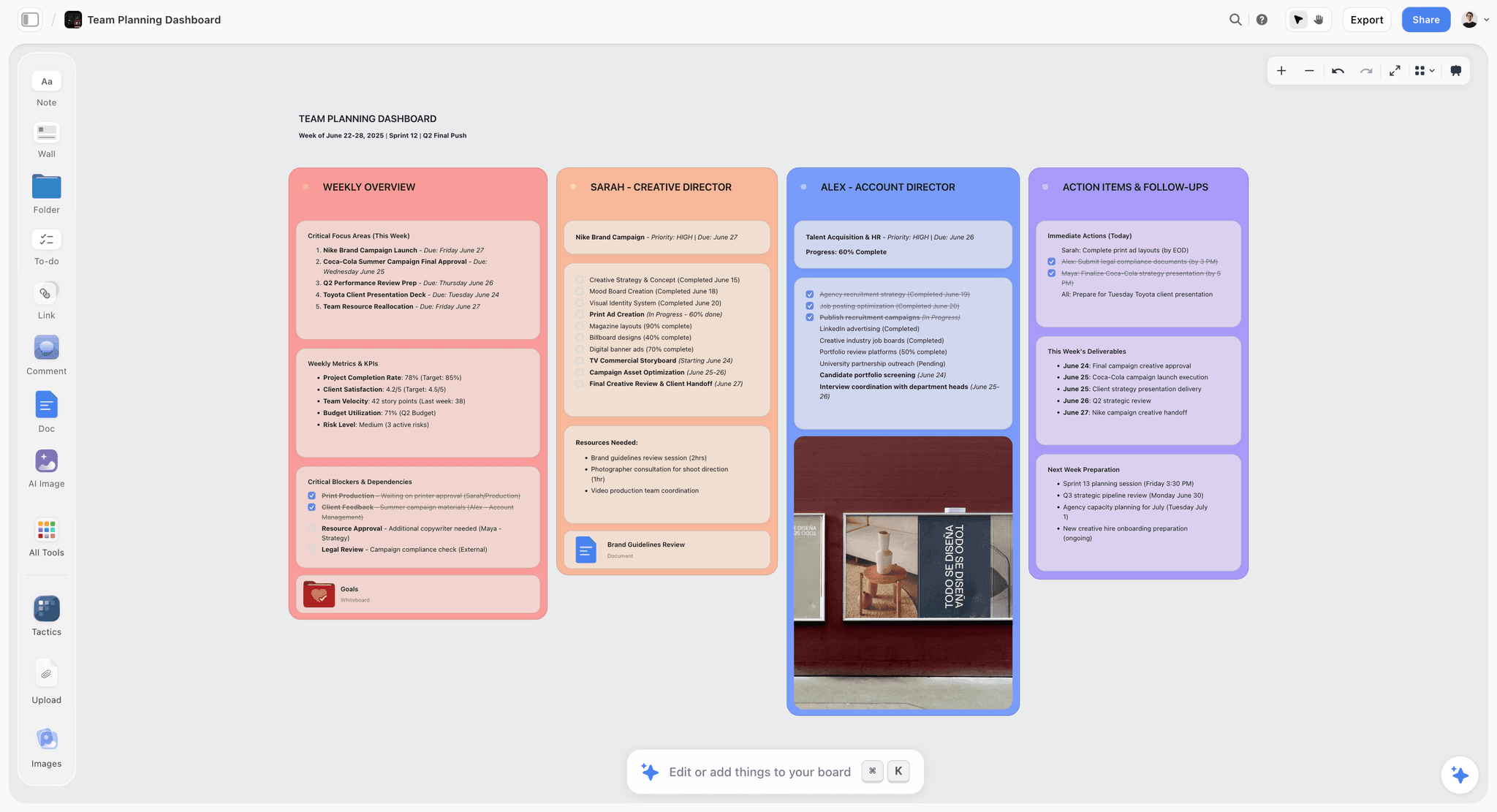
Verdict: The board ChatGPT builds the most complete visual plan on, and the one of the five whose ChatGPT tools include a read of what changed on a board and who changed it.
Best for: Founders, agencies, marketers and creators who plan a launch, a campaign or a shoot in ChatGPT and want the result as a board a teammate or client can open.
Price: Plus $7.99 a month billed annually ($9.99 monthly), Pro $14 ($19 monthly), Max $39 ($49 monthly). No per-seat pricing. Paid-only during early access; the Free plan launches before the end of 2026.
Storyflow is a visual project planning workspace: an infinite canvas board that holds notes, tables, documents, images, moodboards, storyboards, mind maps, kanban, charts and slide decks. Its MCP server, launched in October 2026, gives ChatGPT tools to build on that canvas. build_section places a group of elements where they belong on the board instead of stacking them at one point. create_deck builds a slide deck on the board, create_chart a chart, create_diagram a diagram, create_shot_cards shot cards and create_strip_board a strip board. On the read side, get_board_summary describes a board and get_board_changes reports what changed and who changed it. ChatGPT can also edit and move elements, remove deck slides and clear table cells, so a read-only connection is the right default on client work.
A photo you attach in ChatGPT does not reach Storyflow. ChatGPT calls request_photo_upload and gives you an upload link for the board instead.
- Builds placed, structured elements, not a pasted wall of text.
- Reads changes and who made them; none of the other four vendors' connector docs list a tool for that.
- Permissions per project, plus read-only, chosen at sign-in.
- No MCP limit on Plus, Pro or Max, and no Storyflow AI credits spent.
Limitations:
- Needs Developer mode and a custom app; there is no one-click directory install in ChatGPT.
- No free plan yet, no mobile or desktop app, no offline mode.
- No calendar tool; dates live in table date cells, tickets and kanban.
2. Asana
Verdict: The right connection when your project is already a task list with owners and due dates.
Best for: Teams that run projects in Asana and want ChatGPT to turn a conversation into tasks.
Price: Personal is free for 2 users; Starter is $10.99 per user a month billed annually ($13.49 monthly); Advanced $24.99 ($30.49 monthly), per Asana's pricing page.
Asana's MCP documentation covers an Asana app in ChatGPT as well as a server at mcp.asana.com/v2/mcp. Asana describes the ChatGPT app as a way to check portfolios, create and assign tasks, start new projects and review work from one conversation.
It ranks second because it is strong at its one shape, the task list, and installs from ChatGPT's directory. It ranks below Storyflow because the brief, the references and the deck still live somewhere else; Asana holds the tasks, not the whole plan.
- Directory app inside ChatGPT, no Developer mode.
- Structured tasks with assignees and dates.
- On Enterprise+ and Legacy Enterprise, admins can allow or block MCP clients.
Limitations:
- Per-user pricing grows with the team.
- No canvas for moodboards, scripts or decks.
3. Miro
Verdict: The closest visual rival, and the best place to test a ChatGPT-to-board connection for free.
Best for: Teams that run workshops, retros and diagrams on an online whiteboard.
Price: Free with 3 editable boards; Starter $8 per member a month billed yearly; Business $20 per member billed yearly, per Miro's pricing page.
Miro's MCP server works on all Miro plans, including free teams, and you add it from ChatGPT's plugin directory. Its tool list shows tools to search boards, read board items as SVG, create and update items from SVG (including tables, documents and diagrams), create images, and list, reply to or resolve comments. Diagrams are written in Mermaid inside the SVG.
Miro ranks third for this job because its tools work through a general SVG canvas format rather than named planning tools such as a deck or a shot list, so more of the plan's shape is left to the prompt. Its tool list has no tool for change history or who changed what.
- Free plan works with the connection.
- Strong diagramming through Mermaid.
- Comment tools let ChatGPT act on feedback.
Limitations:
- Free plan keeps only 3 boards editable.
- Per-member pricing.
4. Notion
Verdict: Right when your plan is written pages and databases, and you mostly want ChatGPT to find and read them.
Best for: Teams whose project documentation already lives in Notion.
Price: Free plan; Plus $10 per member a month billed annually ($12 monthly), Business $20 ($24 monthly), per Notion's pricing page.
OpenAI's Notion app article describes the Notion app in ChatGPT as searching and reading pages your Notion account can access. Notion's own MCP server goes further for MCP clients: Notion says it reads from and writes to your pages, and its examples include creating project pages and databases. Notion's MCP help page warns that MCP tools act with your full Notion permissions, and that admin controls over which AI apps may connect are on the Enterprise plan.
Notion ranks fourth because its output is a page, not a board, and because you cannot scope the connection to one project the way Storyflow lets you scope it at sign-in.
- Strong at search and retrieval across a large workspace.
- Pages and databases are a familiar shape for documentation.
Limitations:
- The ChatGPT app is described as search and read; building happens through Notion MCP.
- Acts with everything your account can access.
5. Canva
Verdict: Not a project board, but the connection people try when they want ChatGPT to produce the finished asset.
Best for: Turning a plan into a designed presentation, social post or document.
Price: Not compared here. Canva's help says paid features such as Magic Resize and Brand Kit are not yet available inside ChatGPT.
Canva's ChatGPT help article covers connecting Canva inside ChatGPT and asking it to create a design. Canva's MCP documentation lists generating designs from descriptions, editing designs in plain language, searching designs, exporting and adding comments. Canva's help says exporting and applying brand settings happen in Canva itself.
It ranks fifth for this job because a design is the end of a plan, not the plan. Pair it with a board: plan in Storyflow, then ask ChatGPT to make the launch deck's social cut in Canva.
- Fast designed output from a prompt.
- Installs inside ChatGPT, no Developer mode.
Limitations:
- No tasks, schedule or board.
- Paid features such as Magic Resize and Brand Kit stay in Canva itself.
Choosing Permissions: Read-Only, Changes, and Which Projects
The permission screen is the one decision you cannot skip. Pick it on purpose, by what is on the board.
| Situation | Projects | Changes | Documents outside projects |
|---|---|---|---|
First test of the connection | One test project | Off (read-only) | Off |
Client work you report on | The client's project only | Off | Off |
Your own launch or content plan | That project | On | Off |
Solo operator, everything in one place | All projects | On | On (default when all projects are allowed) |
Shared laptop or demo | One sample project | Off | Off |
Read-only is a real mode, not a lesser one
Without changes, ChatGPT can still read boards, notes, documents and files, summarise a board and report what changed. For a weekly client status update that is usually enough, and ChatGPT cannot change anything on the board.
Picking projects limits the blast radius
When you pick projects, documents outside projects start switched off. When you allow all projects, that option starts on. Either way you can flip it. If ChatGPT later says it cannot see a project, you did not pick it; disconnect and connect again to add it.
Changes allowed means edits and moves too
A connection with changes can edit and move elements, remove deck slides and clear table cells, not only add. OpenAI notes in its developer mode article that ChatGPT may ask you to confirm write actions, depending on the app's permissions and the action. Read those confirmations rather than clicking through.
Scoping the connection for a client project
Client work deserves its own connection rules, set before the first prompt. Keep each client in its own Storyflow project, so picking projects at sign-in maps exactly to one client. Connect with that project only, changes off, and documents outside projects off, which keeps your private notes and other clients' documents out of the chat. If you also build on your own projects, use a separate connection with changes on for those, rather than widening the client one.
Check three things before you ask anything:
- The first read prompt ("list my projects") returns only the client's project. If it returns more, disconnect and pick again.
- The client's brief and references sit inside that project, not in your private documents, or ChatGPT will not see them on a scoped connection.
- Anything you would not want quoted back to you in a chat is off the client board. ChatGPT reads every note in the projects you allow.
When the engagement ends, remove the connection in Settings, then Connected apps, instead of waiting for the 30-day expiry.
Ending access
Open Storyflow, then Settings, then Connected apps, and remove ChatGPT. Access ends within a minute. Every connection also ends by itself after 30 days, and ChatGPT asks you to sign in again.
A Worked Example: A Six-Week Product Launch Board From One ChatGPT Chat
Here is the job most founders bring to this setup: a small team, a launch date, and a plan scattered across a doc, a chat and someone's head. The team, tasks and counts below are illustrative, not measured, so you can copy the shape.
The starting point
Three people: a founder, a designer and a part-time marketer. Launch in six weeks on a Tuesday. Inputs: a one-page brief in a Storyflow document, 14 loose tasks in the founder's notes, and a target of 3 launch channels (email, a launch directory listing and one social platform). The connection allows changes on one project, Launch.
Prompt one: build the board
"Read the brief document in my Launch project. Build a launch board on the root board: a section for the goal and success numbers, a table of the 14 tasks with owner, due date and status columns, rows kept in date order, a kanban with To do, Doing and Done, and a section of open questions." ChatGPT reads the document, then uses build_section to place each part. On the open board you watch four sections appear side by side.
Prompt two: work back from the date
"The launch is on Tuesday in week six. Add a bar chart of tasks per week so I can see if week five is overloaded." ChatGPT counts the due dates in the table and calls create_chart. In this illustrative example week five holds 6 of the 14 tasks, so the next prompt moves two of them to week four.
Prompt three: the deck for the investor update
"Make a 6-slide deck on the board: goal, audience, channels, timeline, risks, ask." create_deck builds it on the board, next to the plan it summarises, so the deck and the plan cannot drift.
Prompt four, a week later: the status question
"What changed on the Launch board in the last week, and who changed it?" get_board_changes answers from the board's history over a fixed window (the last day, week or month). In this illustrative week the designer moved 3 cards to Done and added a note on the hero image, and the marketer changed 2 due dates. That answer replaces the status round-up.
Week two: the read-back loop
The status prompt only works if you use the windows Storyflow offers. get_board_changes reports changes over the last day, the last week or the last month. It does not take a custom range such as "since Wednesday" or "between the 3rd and the 10th", so build the routine around those three windows.
In week two of this illustrative launch, the loop runs like this:
| When | Prompt | Window | What you do with the answer |
|---|---|---|---|
Each morning, 2 minutes | What changed on the Launch board in the last day, and who changed it? | Last day | Spot a moved due date before it surprises anyone |
Monday, 10 minutes | What changed on the Launch board in the last week? Group it by person, then list tasks still in To do with a due date this week. | Last week | Replace the status meeting with the answer |
End of week four | What changed on the Launch board in the last month? Which sections had no edits at all? | Last month | Find the parts of the plan nobody is working on |
Ask the Monday question on a read-only connection if you run it for a client board. The answer comes from the board's history, so it reflects edits made by anyone on the board, including people who never open ChatGPT. If a teammate left feedback in a comment thread, check the board itself: the connector reads boards, notes, documents and files, not comment threads.
What the connection cannot do
Three gaps change how you plan the week. The connector cannot read comment threads, so feedback that matters should also live as a note or a table row. It cannot generate images: ChatGPT can put pictures on the board from their addresses with add_images, and AI image generation stays inside Storyflow's own agent on Pro and Max. And it cannot answer "what changed since Tuesday": ask for the smallest of the day, week or month windows that covers the period, and read the part you need.
What it cost
The founder's ChatGPT Plus plan, plus Storyflow Plus at $7.99 a month billed annually. The designer and the marketer joined the board by invite. The MCP spent no Storyflow AI credits, because the work ran on ChatGPT's model.
The board took four prompts to build and one prompt a week to keep current.
10 ChatGPT Prompts That Work on a Connected Project Board
Each prompt names the board, the shape you want and where it goes. Vague prompts get vague boards. Copy these and change the nouns.
| Job | Prompt to paste | Needs changes on? |
|---|---|---|
Inventory | List my Storyflow projects and the boards in each, with a one-line summary of every board. | No |
Brief to board | Read the brief document in my [project]. Build a board with goal, audience, deliverables, timeline table and open questions as separate sections. | Yes |
Task board | Turn these 12 tasks into a kanban on the [board] board with To do, Doing and Done, and a table with owner and due date, rows kept in date order. | Yes |
Weekly status | What changed on the [board] board in the last week, and who changed it? Group it by person. | No |
Gaps check | Read the [board] board and list every task with no owner or no date, and any open question nobody has answered. | No |
Deck from plan | Build a 6-slide deck on the [board] board from the plan already on it: goal, audience, channels, timeline, risks, next steps. | Yes |
Mind map | Make a mind map of content ideas for [topic] on the [board] board, 5 branches with 4 ideas each. | Yes |
Chart | Add a bar chart of tasks per week from the table on the [board] board. | Yes |
Template start | Find a board template for a [content calendar / campaign / shoot] and apply it to my [project]. | Yes |
Shot list | Read the script document and build shot cards for each setup on the [board] board, with the scene number on every card. | Yes |
Ask for sections, not a document
"Build sections for X, Y and Z" produces a placed board. "Write a plan for X" produces one long note. The verb decides the shape.
Name the board every time
Storyflow names a board by its project and board, and a new chat does not remember which one you meant yesterday. Say "the Launch project's root board" or the board's name in every prompt that writes.
Read before you write
Start a working session with a read prompt ("summarise the board"). ChatGPT then places new work next to what exists instead of on top of it.
What It Costs to Run ChatGPT With a Project Board
Two bills: the ChatGPT plan that allows the connection (Plus or above with Developer mode), and the board. The ChatGPT plan is the same in every row, so the table compares the board side. Board prices are per month, as published on October 9, 2026.
| Setup | Board price | Board cost, 1 person | Board cost, 3 people | ChatGPT side |
|---|---|---|---|---|
Storyflow Plus (annual) | $7.99 flat | $7.99 | $7.99; invited board members join free | Each person who connects ChatGPT needs Plus or above |
Storyflow Max (annual) | $39 flat, team workspace and roles | $39 | $39 | Same |
Asana Starter (annual) | $10.99 per user | $10.99 | $32.97 | Same |
Miro Starter (yearly) | $8 per member | $8 | $24 | Same |
Miro Free | $0, 3 editable boards | $0 | $0 | Same |
Notion Plus (annual) | $10 per member | $10 | $30 | Same |
Board prices from each vendor's pricing page linked above. Canva is left out because it is a design tool, not the board in this setup.
How to read the table
Only the person who talks to ChatGPT needs a ChatGPT plan. The rest of the team can work on the board directly. A flat-priced board costs the same at three people as at one; a per-seat board grows with every member.
The cost nobody puts in the table
The larger cost is the time spent re-pasting plans between a chat and a tool each week. If the connection removes even an hour of that a month, the board price is small next to it.
Decision Rules: Which Board to Connect for Which Job
If the plan is visual and mixed, connect Storyflow
A launch, a campaign, a shoot or a content month mixes a brief, references, tasks and a deck. Storyflow holds all of them on one canvas, and ChatGPT can build each shape. See Visual Project Planning for the board itself.
If the plan is a task list with owners, connect Asana
When the project already runs on assignees and due dates and nobody needs a moodboard, Asana's ChatGPT app turns a chat into tasks in fewer clicks. If you only need a board of cards, Storyflow's AI kanban board generator is the lighter route.
If you run workshops, connect Miro
For a retro, a journey map or a system diagram, Miro's diagrams and free plan are the faster start. If you are leaving Miro for creative planning, read Best Miro Alternatives for Creative Teams.
If the plan is documentation, connect Notion
For a handbook, meeting notes or a wiki, ChatGPT's Notion app finds and reads what your team already wrote. When the documentation turns into a creative project, Best Notion Alternatives for Creative Projects covers the trade.
If you need the finished asset, add Canva second
Plan on the board, then ask ChatGPT to make the post or presentation in Canva. One board plus one design app beats two boards.
If you cannot get Developer mode, use the help article's other routes
Storyflow's MCP page lists Claude, Gemini, Grok and other assistants that add a remote MCP server. If your ChatGPT workspace blocks custom apps, connect the same boards from another assistant. Our sister guide covers connecting Claude to a project board.
Troubleshooting: When ChatGPT and Your Board Do Not Talk
| Symptom | Likely cause | Fix |
|---|---|---|
No Developer mode switch | Plan does not include it | Use ChatGPT Plus or above with Developer mode, or connect from another assistant |
Custom app finds no tools | Address typo or missing /mcp | Paste https://mcp.storyflow.so/mcp exactly |
Asked to sign in again | 30 days passed, or removed in Connected apps | Sign in again and choose projects |
Cannot see a project | Not picked at sign-in | Disconnect, reconnect, pick it |
Cannot change anything | Connected read-only | Reconnect with changes on for that project |
Photo does not appear on the board | Chat attachments do not reach Storyflow | Use the upload link ChatGPT gives you |
Says the week's actions are used up | Free invited account hit 25 actions | Wait for Monday UTC reset, or use a paid plan |
ChatGPT does not use Storyflow at all
In a new chat, type @ and pick Storyflow before the prompt, as OpenAI's guide describes. Without it, ChatGPT may answer from its own knowledge and never call the board.
The tool list looks out of date
OpenAI's guide says custom servers have a Refresh button at chatgpt.com/plugins. Use it, then start a new conversation.
Elements land in an odd place
Ask ChatGPT to read the board first, then build "to the right of the existing plan". build_section places work where it belongs, but it needs to know what is already there.
Nothing changed on my board when actions ran out
That is by design. When the week's free actions are used up, ChatGPT tells you, and nothing on your boards changes.
Common Mistakes When Connecting ChatGPT to a Project Board
Mistake 1: Allowing all projects on day one
Start with one project. You can widen it after a week, and you will know what ChatGPT does with access.
Mistake 2: Leaving changes on for client boards
A client status update needs read-only. Turn changes on only where you are actively building.
Mistake 3: Asking for "a plan" instead of shapes
"Make a plan" gets one note. "Build a table, a kanban and an open-questions section" gets a board.
Mistake 4: Not opening the board while ChatGPT builds
What ChatGPT adds appears live on an open board. Watching it lets you stop a wrong turn after one section, not after six.
Mistake 5: Pasting photos into the chat
They never reach Storyflow. Use the upload link from request_photo_upload, or drop images on the board yourself.
Mistake 6: Treating the chat as the record
The board is the record. If a decision matters, ask ChatGPT to write it on the board as a note, so the next chat and your teammates see it.
Mistake 7: Forgetting the 30-day expiry
Put a reminder in your own calendar app. A launch week is the wrong week to discover the sign-in expired.
When Storyflow Is Not the Right Choice
Storyflow leads this guide on the job of building a visual plan. It is the wrong connection in these cases.
You need a free board today
Storyflow is paid-only during early access. Its Free plan launches before the end of 2026. Miro's free plan works with its ChatGPT app now.
Your project is a task list with assignees and nothing else
Asana's app is fewer clicks to install and built for exactly that shape.
Your workspace blocks custom apps
If your ChatGPT admin will not enable Developer mode, a directory app is the only route inside ChatGPT. Connect Storyflow from another assistant instead.
You need mobile or offline access
Storyflow runs in the browser only, with no mobile or desktop app and no offline mode.
You need a calendar, publishing or proofing
Storyflow has no calendar tool, does not publish or schedule social posts, and has no formal approval button. Dates live in table date cells, tickets and kanban.
Template: The ChatGPT-Ready Project Board
A board ChatGPT works well with has named sections and predictable tables. Build this once, or ask ChatGPT to build it with the prompt at the end.
The board layout
- Goal and success numbers (top left): one sentence and three numbers.
- Brief (document linked on the board).
- Task table: owner, due date, status, rows kept in date order.
- Kanban: To do, Doing, Done.
- References or moodboard.
- Open questions, each with an owner.
- Deck area for updates.
The task table columns
| Column | Type | Why ChatGPT needs it |
|---|---|---|
Task | Text | The thing to do, starting with a verb |
Owner | Text | Lets ChatGPT answer "what is on Sam's plate?" |
Due | Date | Lets ChatGPT count load per week |
Status | To do, Doing, Done | Matches the kanban |
Link | URL or document | Gives ChatGPT the source to read |
The prompt that builds it
"In my [project], build a board with seven sections: goal and success numbers, brief link, task table with Task, Owner, Due, Status and Link columns, a kanban with To do, Doing and Done, a references section, open questions with owners, and an empty area for an update deck." You can also start from Storyflow's brief to project board or document to project board workflows.
The Bottom Line
ChatGPT is where most people now think a project through. It is not where the project should live. Connect a board and the chat becomes the way you change the plan, not the place the plan gets lost. For a visual project that mixes a brief, tasks, references and a deck, connect Storyflow: eight steps, one project read-only to start. If your project is purely tasks, connect Asana; if you want to test for free, Miro. Then ask your first read-only question and see what the board tells you. The full setup for every assistant is on the Storyflow MCP page, and plans are on pricing.
FAQ: Connecting ChatGPT to a Project Board
How do I connect ChatGPT to a project board?
Add the board as a custom MCP app. For Storyflow: turn on Developer mode in ChatGPT under Settings, then Security and login; open chatgpt.com/plugins, click the plus button, name it Storyflow, choose Public endpoint and paste https://mcp.storyflow.so/mcp. Create it, sign in to Storyflow, and pick the projects ChatGPT may use and whether it may make changes.
Can ChatGPT create a project board for me?
Yes, once it is connected to a board tool with write access. Connected to Storyflow with changes allowed, ChatGPT builds notes, tables, kanban, charts, diagrams, mind maps, documents and slide decks, placed on the board where they belong. What it adds appears live if you have the board open in another tab.
Do I need ChatGPT Plus to connect Storyflow?
Yes, or a higher plan. Storyflow's help article lists the requirement as ChatGPT Plus or above with Developer mode, because ChatGPT adds Storyflow as a custom MCP app rather than from its directory. OpenAI calls Developer mode a beta, so the details can change. If your ChatGPT account cannot add custom apps, connect Storyflow from Claude, Gemini or Grok instead.
What is ChatGPT Developer mode?
Developer mode is the ChatGPT setting that lets you add custom MCP apps that are not in ChatGPT's directory. You find it under Settings, then Security and login. OpenAI describes it as a beta and warns that untrusted MCP servers raise risks such as prompt injection, so connect only servers you trust.
Is it safe to connect ChatGPT to my project board?
It is as safe as the permissions you pick. Storyflow asks which projects ChatGPT may use and whether it may make changes, so you can connect one project read-only. You can disconnect in Settings, then Connected apps, with access ending within a minute, and every connection expires after 30 days.
Can ChatGPT delete things on my Storyflow board?
With changes allowed, ChatGPT can edit and move elements, remove deck slides and clear table cells, so treat a write connection as real edit access. Connect read-only when you only need summaries or status. ChatGPT may also ask you to confirm write actions before it runs them.
Does connecting ChatGPT use my Storyflow AI credits?
No. The Storyflow MCP runs on ChatGPT's own model, so it spends no Storyflow AI credits. Plus, Pro and Max have no MCP limit. A free account invited by a paid member gets 25 actions a week, where every read and every change counts as one, resetting Monday UTC.
Can ChatGPT see all my Storyflow boards?
Only the projects you allow at sign-in. You choose all projects or pick specific ones, and separately whether ChatGPT may use documents outside projects. If ChatGPT says it cannot see a project, you did not pick it; disconnect and connect again to add it.
Can ChatGPT tell me what changed on a board?
Yes, with Storyflow. ChatGPT can read what changed on a board and who changed it over the last day, week or month, so "what changed on the Launch board in the last week?" returns the edits grouped by person. This works on a read-only connection, which makes it a safe weekly status check for client boards.
Does the Storyflow connection work in the ChatGPT mobile app?
Set it up on chatgpt.com in a desktop browser, since the steps run through Settings and chatgpt.com/plugins on the web. Storyflow itself runs in the browser only, with no mobile or desktop app, so plan to review the board on a laptop.
Can I connect ChatGPT to Notion, Asana or Miro instead?
Yes. Asana and Miro have apps in ChatGPT's directory, and ChatGPT's Notion app searches and reads your pages. Pick Asana for task lists, Miro for workshop boards and Notion for documentation. Pick Storyflow when you want ChatGPT to build a mixed visual plan and read its change history.
Why does ChatGPT keep asking me to sign in to Storyflow again?
Every Storyflow connection ends on its own after 30 days, or immediately if someone removed it in Settings, then Connected apps. Sign in again when ChatGPT asks, and choose your projects and permissions again. Nothing on your boards is lost when a connection expires.
Can I send a photo from ChatGPT to my Storyflow board?
Not directly. A photo attached in the ChatGPT chat does not reach Storyflow. Ask ChatGPT to add it, and it calls request_photo_upload and gives you an upload link for that board. Open the link and upload the photo there.
Is Storyflow free to use with ChatGPT?
Not during early access. Storyflow is paid-only for now, from $7.99 a month billed annually; its Free plan launches before the end of 2026. Anyone a paid member invites to a board joins free today, and that free account can connect ChatGPT with 25 actions a week.
Can my whole team use ChatGPT on the same board?
Yes. Each person who wants ChatGPT on the board connects their own ChatGPT account and signs in with their own Storyflow login. Invited collaborators edit shared boards in real time on any paid plan, and Max adds a team workspace with roles and permissions.
What is the Storyflow MCP address?
The address is https://mcp.storyflow.so/mcp. It uses Streamable HTTP, not SSE. The same address works for ChatGPT, Claude, Gemini, Grok, Claude Code, Cursor and other assistants that can add a remote MCP server; inside Storyflow, Settings then Storyflow MCP shows the steps for each.
Table of Contents
- Key Takeaways
- Why Connect ChatGPT to a Project Board at All
- What You Need Before You Start
- How We Judged Which Project Board to Connect
- Comparison Table: Storyflow, Notion, Asana, Miro and Canva Connected to ChatGPT
- How to Connect ChatGPT to a Storyflow Project Board, Step by Step
- Step 1: Open ChatGPT settings on the web
- Step 2: Turn on Developer mode
- Step 3: Add a custom app at chatgpt.com/plugins
- Step 4: Paste the address as a public endpoint
- Step 5: Accept the risk notice and create the app
- Step 6: Sign in to Storyflow and choose permissions
- Step 7: Start a new chat and call Storyflow
- Step 8: Open the board next to the chat
- The Five Project Boards You Can Connect to ChatGPT, Reviewed
- Choosing Permissions: Read-Only, Changes, and Which Projects
- A Worked Example: A Six-Week Product Launch Board From One ChatGPT Chat
- 10 ChatGPT Prompts That Work on a Connected Project Board
- What It Costs to Run ChatGPT With a Project Board
- Decision Rules: Which Board to Connect for Which Job
- Troubleshooting: When ChatGPT and Your Board Do Not Talk
- Common Mistakes When Connecting ChatGPT to a Project Board
- When Storyflow Is Not the Right Choice
- Template: The ChatGPT-Ready Project Board
- The Bottom Line
- FAQ: Connecting ChatGPT to a Project Board
- Related Reading
Templates to check out for this topic


Templates you can use in Storyflow
Every Storyflow board starts from real structure and an AI that reads the whole canvas. Open one of these templates and make it yours.


See Storyflow in Action
A visual AI workspace where every feature lives inside one canvas. No tab-switching, no context lost.
Build your entire board from a single message
Type what you need in the AI chat at the bottom of your canvas. The AI adds cards, headings, and structure directly onto your board.
Use expert frameworks as AI context
Type @ in the AI chat and choose any Tactic. The AI tailors every response to that framework instead of giving generic advice.
Turn your board into a mind map in seconds
Ask the AI to restructure your canvas as a mindmap. It connects your ideas into a visual hierarchy so you can see how everything relates.
Why Storyflow Exists
Storyflow actually began as a personal tool while working on creative and research projects.
We kept running into the same problem: ideas were scattered everywhere: notes, documents, and whiteboards.
Nothing helped us see how everything connected.
So we started building a workspace designed around how ideas actually grow.
→ Read how Storyflow was createdStoryflow Team
Product & Research Team
Published: 2026-10-09
Extremely simple, seriously capable


See how easy it is to get started
Watch a real project come together, from a blank board to a finished plan, clicked through step by step.
Start creating with AI and become more productive
Transform your creative workflow with AI-powered tools. Generate ideas, create content, and boost your productivity in minutes instead of hours.