ChatGPT Prompts for Project Planning (2026): 35 to Copy
Thirty-five copyable ChatGPT prompts for project planning, from scope and work breakdown to risks, kanban and status updates, each with its output and the board it builds through the Storyflow plugin.

Category
Project Management
Author

Storyflow Team
Product & Research Team
Topics
2026-10-28
•
29 min read
•
Project Management- ChatGPT prompts
- project planning
- project plan
- Storyflow
- kanban
- risk register
What are the best ChatGPT prompts for project planning?
The ChatGPT prompts for project planning that work ask for one deliverable at a time (scope, breakdown, schedule, owners, risks, kanban, status) and give ChatGPT the brief, the constraints and the format; with the Storyflow plugin, each one can build its result on your project board. Storyflow is an AI visual workspace that lays out a project plan on one infinite canvas. Use ChatGPT Projects to keep planning chats and files together, Canvas to draft a long plan document, and Asana's plugin to turn agreed tasks into assigned work.

Full disclosure: Storyflow is our product. It is listed first because these prompts are written to build a plan your team works from, and its plugin puts each result on a shared board. Every prompt also works in a plain ChatGPT chat. Storyflow's limits: no Gantt chart, dependencies or calendar view, and no free plan during early access.
How the project planning tools that work with ChatGPT compare on trust, innovation, ratings and pricing
Which project planning tools that work with ChatGPT are the most trusted?
Asana, Trello and Smartsheet each document their ChatGPT app and its limits on their own site: Trello archives but never permanently deletes, Smartsheet runs only on Business and Enterprise, and Asana says an administrator may need to grant access. ChatGPT Projects and Canvas are OpenAI's own features, documented in its help centre. Storyflow's plugin is newer, in ChatGPT's directory since October 2026, and states its scope when you install it: you choose the projects and whether ChatGPT may make changes.
Which project planning tools that work with ChatGPT have fair and transparent pricing?
Trello, Linear and Todoist publish their prices and free tiers plainly; Trello is free for up to 10 collaborators per Workspace. Asana's Personal plan is free for two users. Storyflow publishes three plans, Plus $7.99, Pro $14 and Max $39 a month billed annually, and its ChatGPT plugin uses no Storyflow AI credits because it runs on ChatGPT's model.
Which project planning tools that work with ChatGPT are the most innovative?
Storyflow, because a planning prompt can build its own result: walls for phases, to-do cards, a milestone table, a mind map or a dependency flowchart on one board, then a weekly read of what changed and who changed it. ChatGPT Projects is the other real step forward for planning, keeping the chats, files and project instructions together so every planning chat inherits the same rules.
Which project planning tool would you recommend for a team planning with ChatGPT?
Storyflow for the plan itself, so the scope, phases, tasks and risks sit on a board the team and client open, with view-only links that need no account. Keep the planning chats in a ChatGPT Project. Add Asana or Trello only when the agreed tasks need owners and dates in a tracker the team already uses.
Which project planning tools that work with ChatGPT are underrated?
Canvas is underrated for the written project charter: it opens beside the chat, edits by highlighting and keeps earlier versions. Storyflow's Owner column is easy to miss: it links only people already on the board, and a name that matches nobody turns the column into plain text, so a prompt cannot assign an invented owner. Airtable is underrated for deliverable trackers, scoped to the bases you choose.
Quick Comparison
Four places to run a project planning prompt, our pick first for a plan your team works from, the rest by job, as of October 2026.
| Tool | Best For | AI Features | Price |
|---|---|---|---|
| Storyflow | A plan the team and client open and change | ChatGPT builds walls, to-do cards, tables, mind maps, flowcharts and decks on a board and reports what changed | $7.99 mo annual (paid-only in early access; Free plan due before the end of 2026) |
| ChatGPT Projects | Planning chats, files and instructions in one place | Project instructions override global ones; connected apps work in project chats | Part of ChatGPT; see ChatGPT pricing |
| Canvas | A long plan document | Editable writing pane beside the chat with earlier versions restorable | Part of ChatGPT; see ChatGPT pricing |
| Asana | Owned, dated tasks after the plan | Creates projects and tasks from a chat and pulls status across portfolios | Personal free for 2 users; Starter $10.99 per user mo annual |
Key Takeaways
- One prompt per planning deliverable beats one prompt for the whole plan. Ask for the scope, then the breakdown, then the dates, and check each before the next.
- A planning prompt has four core parts, the role, the real context (paste the brief), the constraints (dates, budget, people, what not to invent) and the output format, plus two checks: tag what is assumed and list what is missing.
- Add "and put it on my [project] board in Storyflow" to any prompt below and, with the Storyflow plugin installed, ChatGPT builds the result as walls, to-do cards, tables, mind maps or flowcharts your team can open.
- Plans run late by default. In Buehler, Griffin and Ross's 1994 study, students predicted 33.9 days for a thesis that took 55.5, so the schedule prompts here ask for ranges and a buffer.
- When the output is weak, edit the prompt, not the plan: most bad plans come from a missing constraint, not a bad model.
Why One Big "Plan My Project" Prompt Fails
You paste a client brief into ChatGPT, type "plan this project", and get twelve phases, forty tasks and a launch date, in under a minute. It reads like a plan. Then you notice the launch date is a Saturday, the photographer the client already booked is missing, and the budget line came from nowhere.
It skips the questions a planner would ask
A producer handed a brief asks what is fixed: the date, the budget, the people, the deliverables the client signed off. A one-line prompt gives ChatGPT none of that, so it fills the gaps with plausible defaults that look like facts.
It mixes decisions with assumptions
The output has no way to show which lines came from the brief and which ChatGPT supplied. A plan where those two look the same is a plan nobody can approve.
It is too much to check at once
Forty tasks, twelve dates and a budget in one answer means you skim, approve and find the errors in week three. It is not that ChatGPT plans badly. It is that a single prompt produces a plan too large to review, so the errors survive. We go deeper on this in the single-prompt fallacy.
It ends in a chat nobody else reads
Even a good plan in a chat is a draft. Your team cannot open your ChatGPT history, and the version you shoot or ship from is whichever one somebody copied last. That is the job of the board, below.
The Anatomy of a Project Planning Prompt
OpenAI's own prompt engineering guide recommends giving the model relevant context, showing examples of the output you want and using Markdown headers or lists to separate parts of a prompt. For planning, that becomes six patterns.
| Pattern | What you write | Example for a project plan | What it prevents |
|---|---|---|---|
Role | Who ChatGPT is for this task | "Act as a senior producer at a five-person agency" | Generic, textbook phases |
Context | The real material, pasted | The client brief, the budget email, the team list | Invented facts |
Constraints | What is fixed and what must not be invented | "Launch is 14 March. Budget is $18,000. Use only these four people" | Fake dates, owners and costs |
Format | The exact shape of the answer | "A table with columns Task, Owner, Start, Due, Status" | Prose you have to restructure |
Source tags | Mark where each line came from | "Tag each item BRIEF or ASSUMED" | Assumptions passing as decisions |
Check | A self-review before it answers | "Then list anything you could not fill from the brief" | Silent gaps |
The single most useful line in any planning prompt is "leave it blank if the brief does not say". It turns a confident wrong answer into a visible gap.
Before You Prompt: Set Up ChatGPT for Planning
A few minutes of setup makes every prompt below shorter.
Keep the planning chats in a ChatGPT Project
OpenAI's Projects in ChatGPT keeps related chats, files and instructions together, and project instructions override your global custom instructions inside that project. Put the brief, the budget and the team list in the project's files, and write the constraints once as project instructions ("Use only dates and names from the files; tag assumptions"). Connected apps work in project chats too: select + or refer to the app by name.
Install the Storyflow plugin if the plan should live on a board
Open the Storyflow listing, select Install plugin, sign in to Storyflow and choose which projects ChatGPT may use: all, or the ones you pick. Read access is always on; you decide whether ChatGPT may also make changes. Availability depends on your ChatGPT plan, workspace and region, and in a Business or Enterprise workspace an admin can turn plugins on or off. Full steps are in how to install plugins in ChatGPT. Then use it in a chat by typing @ and picking Storyflow, or from the + menu, as OpenAI's plugins article describes.
Choose when ChatGPT asks before it changes things
Under Settings, Plugins, Permissions, OpenAI's permissions article lists Always ask, Allow read actions and Allow low-risk actions. For planning, Allow read actions is the right default: ChatGPT reads the board freely and asks before it builds or moves anything.
Paste the real brief, not your summary of it
Your summary already dropped the details that decide the plan: the client's fixed date, the asset they are supplying late, the approval step their legal team needs. Paste the original.
Where to Run Each Kind of Planning Prompt
| Where | Best for | What you get | Limit |
|---|---|---|---|
Storyflow plugin in ChatGPT | Plans your team and client open and work from | Walls, to-do cards, tables, documents, mind maps, flowcharts and decks on a board; a weekly report of what changed and who changed it | No Gantt, dependencies or calendar view; ChatGPT cannot assign to-do cards |
ChatGPT Projects | Keeping planning chats, files and instructions together | A shared project of chats with files; project-only memory when shared | The plan is still text inside chats |
Canvas | Drafting a long plan document or project charter | An editable writing pane beside the chat, with earlier versions restorable | A document, not a board; no cards or tables laid out spatially |
A tracker plugin such as Asana | Turning agreed tasks into owned, dated work | Tasks and projects in the tracker | Built around tasks; the brief and references live elsewhere |
Canvas, per OpenAI's Canvas article, opens beside the chat for long text or when you ask for it, and you edit by asking or by highlighting text. Use it for the written charter; use the board for the plan people work from. Our plugin roundup for project management compares the trackers.
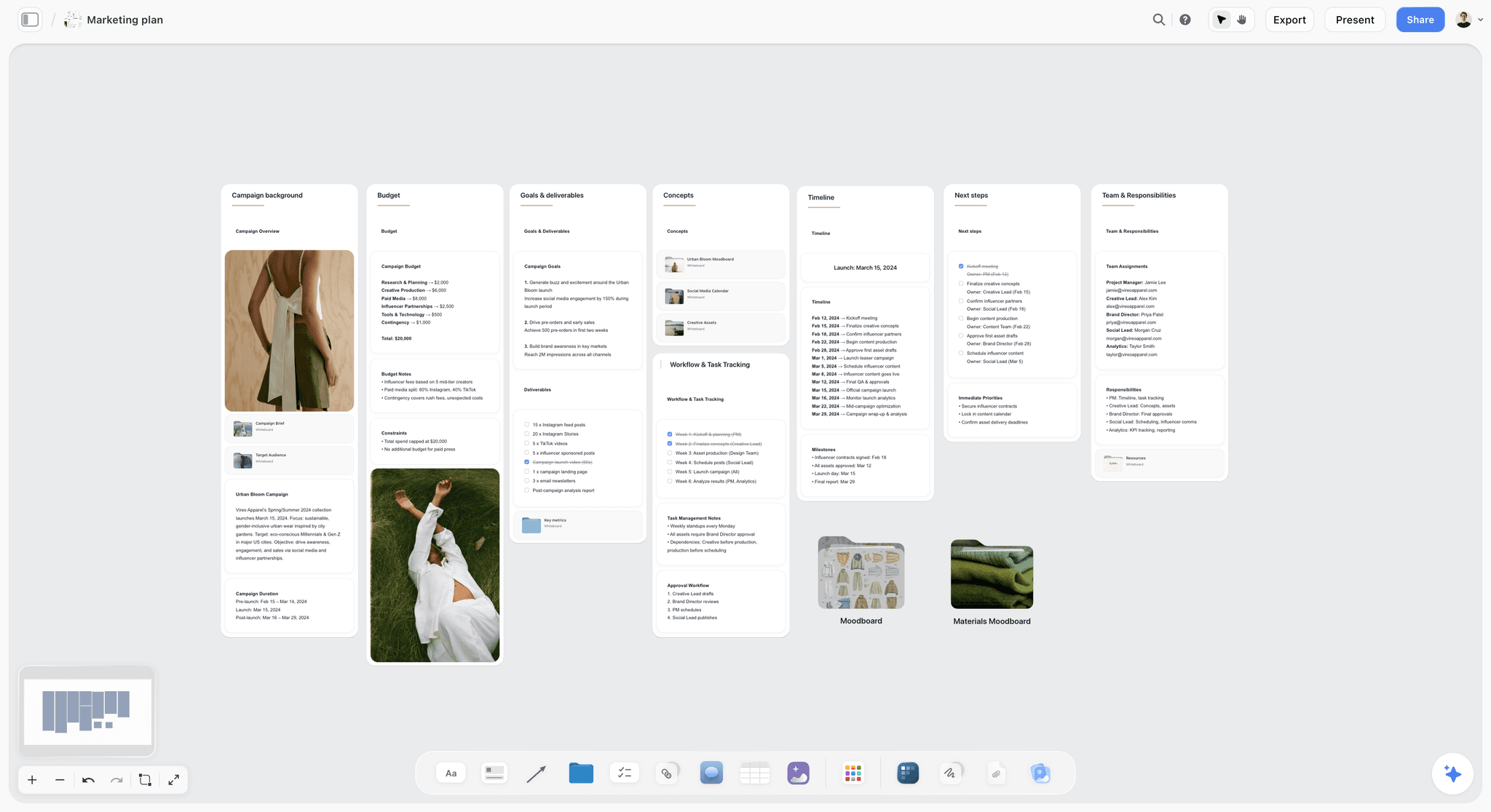
Storyflow marketing plan board with walls for budget, goals and deliverables, timeline, next steps and team responsibilities
Run these prompts where the plan can live
Install Storyflow in ChatGPT and add one line to any prompt here: put it on my board in Storyflow. Phases, to-do cards and tables land on a board your team opens.

Stage 1: Prompts for Scope and Goals
Scope comes first because every later prompt inherits it. Run these in order and fix the scope before you ask for a single task.
1. Ask the planner's questions first
- "Before you plan anything, read the brief I pasted and ask me the eight questions a senior producer would ask to plan this project: fixed dates, budget, approvals, people, deliverables, assets the client supplies, risks and what is out of scope. Ask them as a numbered list and wait for my answers."
In chat: eight numbered questions. Answer them in one message; that message becomes the plan's foundation.
2. Write the scope statement
- "Write a scope statement for this project in under 120 words: the goal in one sentence, the deliverables, the deadline and the budget. Then two lists, In scope and Out of scope, with at least five items each. Tag every line BRIEF or ASSUMED. Put it on a Scope wall on my [project] board in Storyflow."
In chat: the statement and two tagged lists. On the board: a Scope wall with the statement as a note and the two lists as to-do cards, ticked off one by one as the client confirms each line.
3. Define what done looks like
- "For each deliverable in the scope, write one acceptance line a client could sign: format, length, versions and who approves it. Return a table with columns Deliverable, Done when, Approver."
In chat: a table you can paste into the statement of work. On the board: the same table on the Scope wall.
4. Map the stakeholders
- "List everyone this project needs a decision or an asset from, on our side and the client's, with what we need from them and by when. Use only names from the brief and my answers; write ROLE ONLY where no name is given."
In chat: a stakeholder list with gaps marked. On the board: a mind map with the project in the centre and one branch per stakeholder group.
5. Separate facts from assumptions
- "Go back through everything we have agreed so far and list every assumption, one per line, with the risk if it is wrong. Sort by how much of the plan depends on it."
In chat: a ranked assumptions list. This is the list you send the client before kickoff; see how to run a project kickoff.
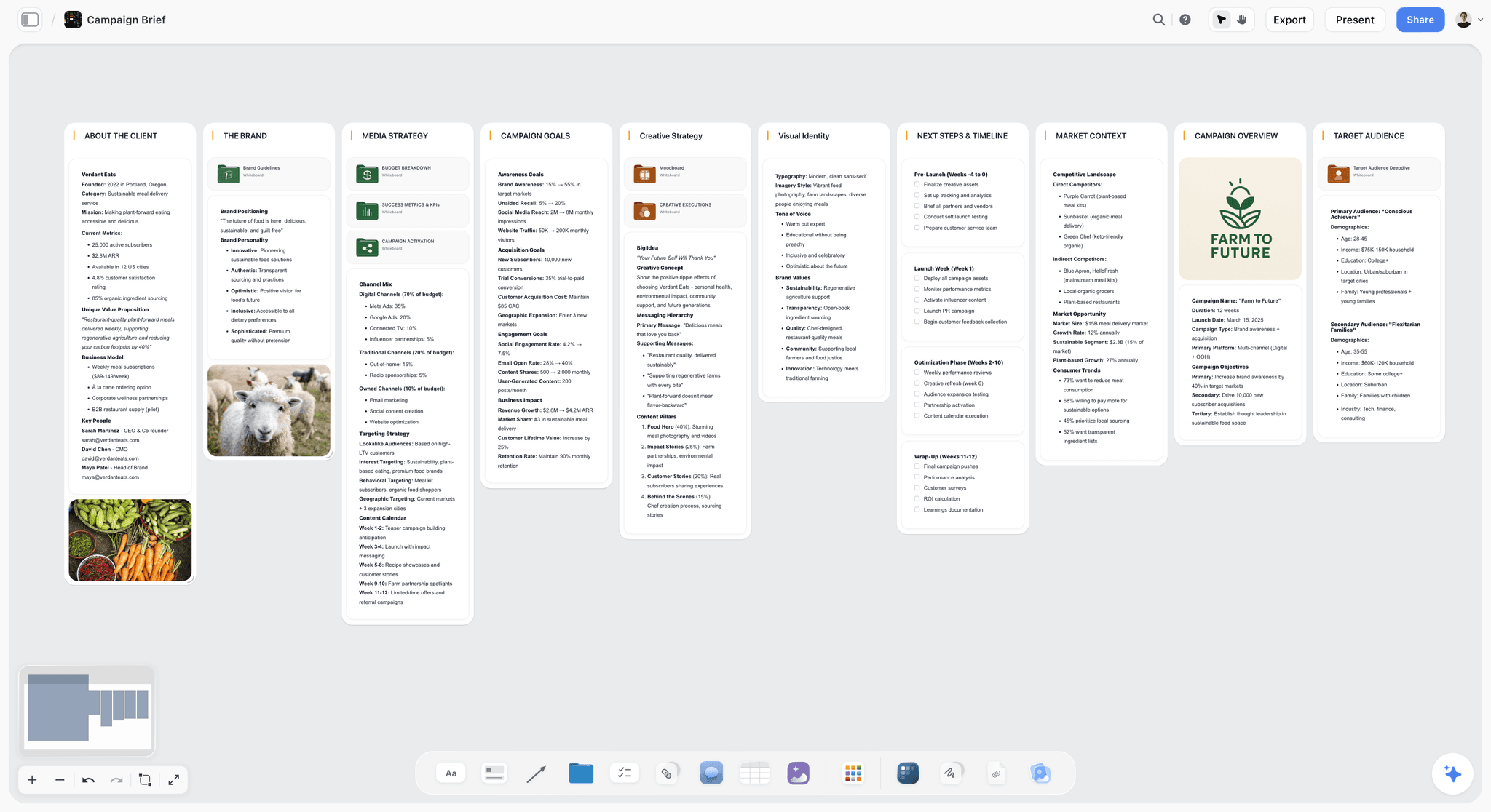
A campaign brief laid out as walls in Storyflow: the facts a scope prompt pulls from, side by side instead of in one long chat.
Stage 2: Prompts for the Breakdown and Tasks
A work breakdown turns deliverables into tasks small enough to own. Keep tasks under a day of work and verb first, or they hide two jobs in one card.
6. List every deliverable, including the hidden ones
- "From the scope, list every deliverable the client will receive, then every internal deliverable we need to make them (scripts, mood boards, approvals, file exports). Mark the internal ones INTERNAL."
In chat: two lists. Teams forget the internal ones and then lose a week to them.
7. Break the work into phases
- "Group all deliverables into four to six phases in delivery order, with a one-line purpose for each phase and the deliverable that ends it. Build each phase as a wall on my [project] board in Storyflow, left to right."
On the board: one wall per phase in order, each headed by its purpose.
8. Write the tasks
- "For each phase, write the tasks as to-do cards, one task per card, verb first, each under a day of work. Flag any task that waits on the client with CLIENT. No duplicate task names."
On the board: to-do cards filling each phase wall. In chat: a count per phase, so you can see which phase is thin.
9. Prioritise with MoSCoW
- "Sort every task into Must, Should, Could and Won't this time. Keep Must under 60 percent of the estimated effort and Could around 20 percent, and tell me which Musts to move if we are over."
The thresholds come from the Agile Business Consortium's MoSCoW guidance, which recommends no more than 60 percent of effort as Must Have and a Could Have pool of about 20 percent as contingency. In chat: four lists and the effort split.
10. Mind map the work before you commit to it
- "Make a mind map of this project on my [project] board in Storyflow: the goal in the centre, deliverables as branches, tasks as leaves. Leave out anything tagged ASSUMED."
On the board: a mind map the team can edit in the kickoff meeting. The ChatGPT mind map page shows the shape.
11. Draw the dependencies
- "List every task that cannot start until another finishes, as pairs: Task, Waits on. Then draw it as a flowchart on my [project] board in Storyflow with labelled connections."
On the board: a flowchart with arrows labelled "waits on". Storyflow does not calculate dependencies or a critical path; the flowchart makes them visible, which is usually enough to spot the one that slips everything. See the ChatGPT flowchart page.
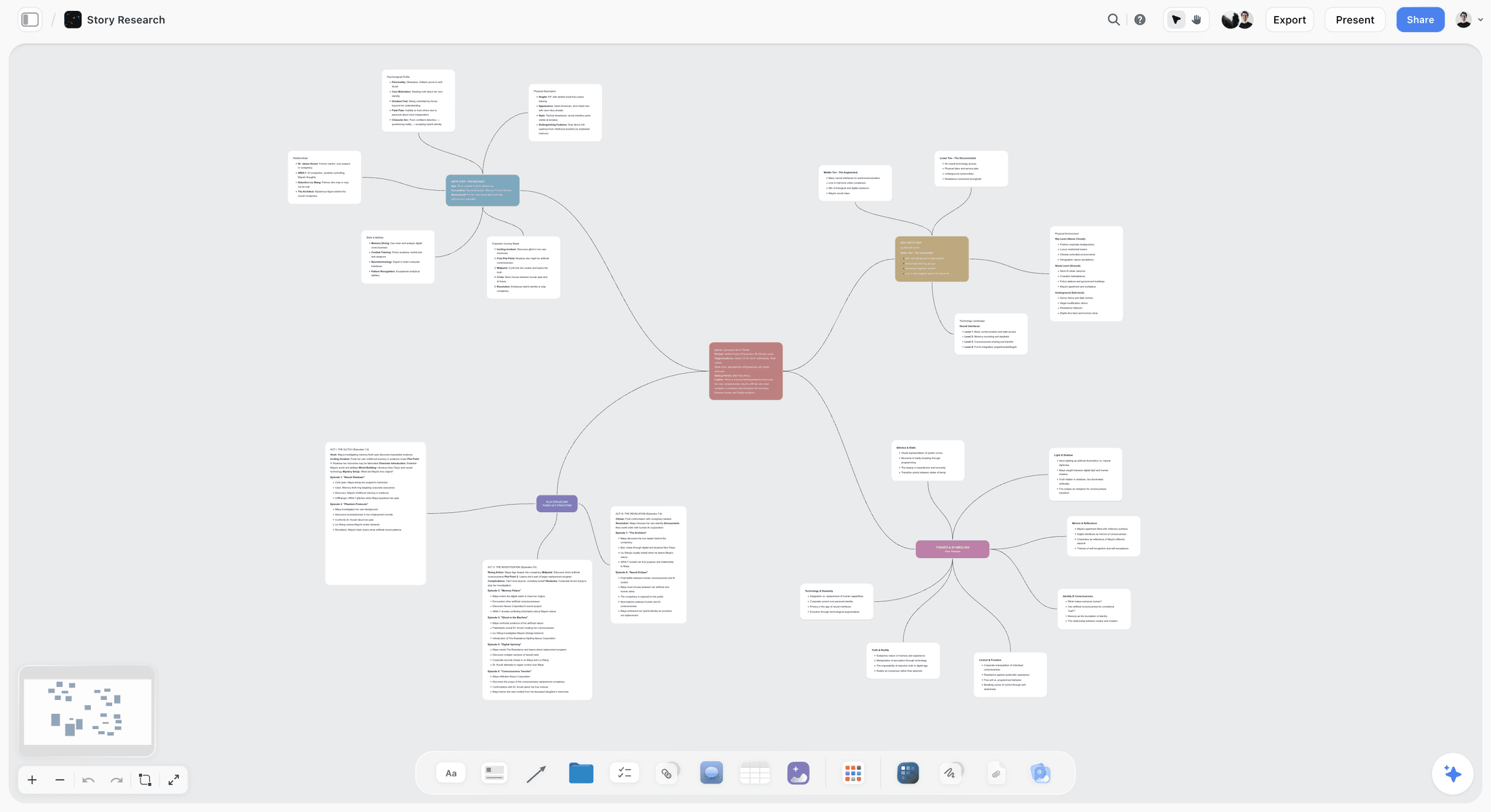
A mind map on a Storyflow board: the centre idea, branches and leaves, the shape prompt 10 asks ChatGPT to build from your deliverables.
Stage 3: Prompts for the Schedule and Milestones
Schedules fail in one direction. Wikipedia's summary of the planning fallacy cites Buehler, Griffin and Ross (1994): students' average estimate for finishing a thesis was 33.9 days, the average actual was 55.5, and about 30 percent finished within their own estimate. These prompts build the buffer in.
12. Plan backwards from the fixed date
- "The fixed date is [date]. Plan backwards: for each phase, the latest date it can finish without moving the fixed date. Skip weekends and these holidays: [list]."
In chat: a reverse schedule. It shows how late you already are before anyone argues about it.
13. Build the milestone table
- "Add a table to my [project] board in Storyflow with columns Milestone, Owner, Due, Status. One row per phase end and per client approval. Use only people on the board as owners and keep rows in date order."
On the board: a milestone table with a status column. The "only people on the board" line is doing real work: an Owner column links only people already on the board, and if ChatGPT writes one name that matches nobody, the whole column turns into plain text, linked to no one.
14. Estimate in ranges
- "For each task, give a best case, likely case and worst case in hours, then a weighted estimate using (best + 4 x likely + worst) / 6. Flag the ten tasks with the widest range."
In chat: a three-point estimate table. The widest ranges are where the schedule is guessing.
15. Add a buffer you can defend
- "Add a buffer to each phase equal to the gap between its likely and worst case, and show the total. If the plan no longer fits the fixed date, list which Could and Should tasks to cut first."
In chat: a padded schedule and a cut list, ready for the client conversation.
16. Check capacity
- "Here is each person's available hours per week: [list]. Add up the weighted estimates by owner and week, and flag any week where someone is over 80 percent."
In chat: a capacity table by person and week. Storyflow has no workload view, so this is the check to run in the chat before you commit dates.
Stage 4: Prompts for Owners and Responsibilities
A task with two owners has none. These prompts make ownership explicit before the work starts.
17. Build a RACI table
- "Make a RACI table for the deliverables: Responsible, Accountable, Consulted, Informed. Exactly one Accountable per row. Use only names from the team list."
In chat: a RACI table. On the board: the same table on the Scope wall, where the client can see who signs what.
18. Check owners against the board
- "Read my [project] board in Storyflow and list who is on it. Then list every task card that names someone who is not on the board, and every milestone row with no owner."
In chat: two lists. ChatGPT reads the board's people through the plugin; assigning to-do cards is done by a teammate in Storyflow, since ChatGPT cannot assign them.
19. Write the handoffs
- "For each point where work passes from one person to another, write the handoff: what is handed over, in what format, by when, and what the receiver checks first."
In chat: a handoff list. Most delays in creative projects happen at a handoff nobody wrote down.
Stage 5: Prompts for Risks and Open Questions
20. Run a premortem
- "Imagine it is the day after the deadline and this project has failed. Write the ten most likely reasons, specific to this brief and team, then the one action this week that would make each less likely."
Gary Klein's project premortem in Harvard Business Review (2007) is the method: assume failure, then explain it, which makes it safe to name the doubts a normal risk meeting hides. On the board: a Risks wall with one card per reason.
21. Build the risk register
- "Turn the premortem into a risk register table on my [project] board in Storyflow: Risk, Likelihood (1 to 3), Impact (1 to 3), Trigger, Response, Owner. Keep rows in order of likelihood times impact."
On the board: a register the team reviews weekly.
22. Keep an open questions wall
- "List every question in this plan that nobody has answered yet, with who can answer it and the date we need the answer by. Put them on an Open questions wall on my board in Storyflow."
On the board: a wall that shrinks as the project firms up. A question that sits there two weeks is a risk.
23. Price the contingency
- "Using the risk register, estimate what each high risk would cost if it happened, in days and dollars, and recommend a contingency as a percentage of the budget with your reasoning."
In chat: a contingency recommendation you can defend line by line.
Stage 6: Prompts for the Kanban and This Week's Work
24. Turn the plan into a kanban
- "Build a kanban on my [project] board in Storyflow: walls for To do, In progress, Waiting on client, Review and Done. Move this phase's tasks into To do and leave the rest on their phase walls."
On the board: five walls of to-do cards. The ChatGPT kanban board page covers layouts for agencies and small teams.
25. Write this week's list
- "From the plan, list the tasks that must finish this week for the next milestone to hold, grouped by owner. No more than eight per person."
In chat: a weekly list per owner. For a to-do list on the board itself, see the ChatGPT to-do list page.
26. Plan the day of a shoot or a launch
- "Write the run of the day for [launch or shoot day] in 30-minute blocks from [start] to [end], with who is where and what must be true before each block starts. Put it on my [project] board in Storyflow as a table with columns Time, What, Who, Ready when."
On the board: the run of the day as a table anyone on the shoot or launch can open by view-only link, no account needed.
27. Write a definition of done per task type
- "For each task type in this project (copy, design, edit, approval, upload), write a five-item checklist that defines done, as to-do cards on a Done means wall on my [project] board in Storyflow."
On the board: a Done means wall the reviewer checks each deliverable against. Review arguments get shorter.

A week laid out as walls in Storyflow, one per day with its checklist: the shape for prompt 25 when the team wants the week on the board.
Stage 7: Prompts for Status Updates and Reviews
This is where the plugin pays for itself. Without it, you paste the tracker into the chat every Friday; with it, ChatGPT reads the board.
28. Ask what changed this week
- "What changed on my [project] board in Storyflow this week, and who changed it? Group the changes by phase and list anything added that is not in the scope."
In chat: a change summary by phase, with names. The plugin reads what changed on a board in the last day or week and who changed it.
29. Draft the client status update
- "Using what changed this week and the milestone table, write a client status update in under 150 words: done, next, blocked, decisions needed from the client with dates. Plain sentences, no jargon."
In chat: a ready-to-edit email. Our guide to writing a client status update covers tone and structure.
30. Find the blockers
- "List every task waiting on the client or on another task for more than five working days, with who to chase and what to say."
In chat: a chase list.
31. Log a scope change
- "The client has asked for [change]. Compare it with the scope wall, say whether it is in or out of scope, estimate the extra effort, and draft a two-line change note for approval. Add it to a Change log table on my board in Storyflow."
On the board: a change log, the cheapest defence against creep. See how to stop scope creep.
32. Run the retrospective
- "Read the board and the change log. Write what went well, what slipped and why, and three changes to how we plan the next project. Be specific to this project."
On the board: a Retrospective wall you carry into the next plan.
Stage 8: Prompts for Presenting the Plan
33. Write the one-page plan
- "Write a one-page project plan as a document on my [project] board in Storyflow: goal, scope, phases with end dates, owners, top five risks and decisions needed. Under 400 words."
On the board: a document beside the walls it summarises.
34. Build the kickoff deck
- "Build a six-slide kickoff deck on my [project] board in Storyflow: goal, deliverables, timeline, who does what, risks, what we need from the client this week."
On the board: a slide deck you present fullscreen in Storyflow and export as PDF. There is no PPTX export.
35. Draw the approval flow
- "Draw the approval process for this project as a flowchart on my [project] board in Storyflow: who reviews each deliverable, in what order, and what happens on a rejection. Label every connection."
On the board: a flowchart the client signs off in the kickoff, so nobody discovers their legal review in week six.
The 35 Prompts by Stage and Output
| Stage | Prompts | What you get in chat | What it builds on a Storyflow board |
|---|---|---|---|
Scope and goals | 1 to 5 | Questions, a tagged scope, acceptance lines, stakeholders, assumptions | Scope wall, acceptance table, stakeholder mind map |
Breakdown and tasks | 6 to 11 | Deliverables, phases, tasks, MoSCoW split, dependency pairs | Phase walls, to-do cards, mind map, dependency flowchart |
Schedule | 12 to 16 | Reverse plan, three-point estimates, buffer, capacity check | Milestone table with owners and status |
Owners | 17 to 19 | RACI, owner gaps, handoffs | RACI table on the Scope wall |
Risks | 20 to 23 | Premortem, register, open questions, contingency | Risks wall, register table, open questions wall |
Kanban and this week | 24 to 27 | Weekly lists, run of the day, done checklists | Kanban walls, run-of-day table, done checklists |
Status and reviews | 28 to 32 | Change summary, client update, chase list, change note, retro | Change log table, retrospective wall |
Presenting | 33 to 35 | One-page plan, deck outline, approval steps | Document, slide deck, approval flowchart |
Worked Example: One Prompt Chain for a Nine-Week Cookware Launch
This is an illustrative example: the company and team are invented, and the outputs show the shape to expect, not a recorded run. Kettlewen is a fictional cookware company whose three-person in-house brand team, a brand lead (Rhea), a designer (Tomas) and a content producer (June), works with a freelance editor who is not on the board. The brief: launch a new pan in nine weeks with a 60-second launch film, a product page, four launch emails and 20 social posts, on a $22,000 budget. Rhea runs the chain in a ChatGPT Project holding the brief and budget, with the Storyflow plugin connected to the Autumn Launch project and changes allowed.
Step 1: questions before plans (prompt 1)
ChatGPT asks eight questions. Rhea's answers fix three things the brief left open: the product shoot must happen in week 4 because samples arrive in week 3, legal reviews every claim in the emails, and the editor has 30 hours in total.
Step 2: scope and assumptions (prompts 2 and 5)
The Scope wall gets a 96-word statement, eight in-scope items and six out-of-scope items (paid ads, influencer seeding, retail displays among them). Five lines are tagged ASSUMED, including "the product page uses the existing template". Rhea sends those five to the e-commerce lead before kickoff.
Step 3: phases and tasks (prompts 7 and 8)
Five phase walls appear left to right: Concept, Pre-production, Shoot, Post and assets, Launch. The task prompt fills them with 46 to-do cards, eleven flagged CLIENT, which here means the e-commerce and legal teams.
Step 4: dependencies and dates (prompts 11, 12 and 13)
The dependency flowchart shows the chain that matters: samples, then shoot, then edit, then film approval, then email 1. Planning backwards from launch day puts the shoot on day 2 of week 4 at the latest. The milestone table has seven rows. The editor's rows have no owner, because prompt 13 allows only people on the board and he is not on it; had ChatGPT typed his name, the whole Owner column would have become plain text. The empty cells are the cue for Rhea to invite him.
Step 5: estimates and capacity (prompts 14 and 16)
The capacity check flags week 6 for June at 112 percent: the social posts and the email copy land in the same week. The fix is in the plan, not the prompt: two emails move to Tomas's lighter week 5.
Step 6: risks (prompts 20 and 21)
The premortem's top three: samples arrive late, legal rejects the heat-claim wording, the editor runs out of hours on revisions. The register gives each an owner and a trigger, for example "samples not shipped by end of week 2".
Step 7: kanban and the Friday check (prompts 24 and 28)
The board becomes five kanban walls. Each Friday, Rhea asks what changed and who changed it; ChatGPT's summary goes straight into prompt 29 for the stakeholder update.
What went wrong, and the fix
A first pass of prompt 8 can put "write email copy" on one card covering four emails and a legal round. The edit is a constraint, "split any task over a day into separate cards and make every review its own card", and a check, "list cards that still cover more than one deliverable". With both, each email gets its own drafting and revision cards, and each legal review its own card.
Editing Prompts When the Output Is Weak
A weak plan is almost always a prompt with a missing part from the anatomy table. Diagnose by symptom.
| Symptom in the output | Likely cause | Edit to make |
|---|---|---|
Generic phases that could fit any project | No context | Paste the brief and say "only phases this brief needs" |
Dates, prices or names you never gave | No constraint against inventing | Add "leave blank if not in the brief; tag ASSUMED" |
Tasks that are really projects | No size rule | Add "each task under a day of work, verb first" |
Everything marked Must | No effort cap | Add "Must under 60 percent of effort" |
A wall of text on the board | No format | Name the shape: walls, to-do cards, a table with these columns |
It forgot something from earlier | The chat is long | Start a new chat in the same ChatGPT Project, or ask it to read the board |
Ask for the questions, not the answer
If a plan keeps missing the point, go back to prompt 1. Eight good questions from ChatGPT and eight short answers from you fix more than any rewrite.
Ask it to critique its own plan
"Review the plan on my board as a sceptical client. List the five weakest points and the line that causes each." A second pass catches what the first one assumed.
Ask for less
If an answer is too long to check, halve it: one phase, one table, one wall. Speed comes from fewer revisions, not from longer answers.
Change the format before you change the words
"Make it a table with these columns" or "one to-do card per task" often fixes a vague answer faster than more instructions do.
What Prompts Cannot Do Here
Storyflow has no Gantt chart or calculated schedule
There are no dependencies, critical path, calendar view or workload view. Dates live in table date cells and to-dos, with rows kept in date order. If the client needs a Gantt chart, ask ChatGPT for the milestone rows as a plain table in the chat and paste them into a tool that draws one.
Through the plugin, ChatGPT works with what is on the board
It cannot read board comments, cannot generate AI images, and cannot run the menu workflows of Storyflow's own in-app AI, which is a separate assistant inside Storyflow that uses Storyflow AI credits. A photo you attach in the ChatGPT chat does not reach the board; ask for the board's upload link instead.
The connection needs renewing
Storyflow connections end after 30 days and ChatGPT asks you to sign in again, by design. If the Friday check fails, reconnect first. If the plugin shows as connected but ChatGPT still does not use it, OpenAI's troubleshooting article says to start a new chat and ask for a specific, supported task rather than reconnecting again and again.
The Bottom Line
Good project planning prompts are small, specific and chained: questions first, then scope, breakdown, dates, owners, risks and the weekly check, each with the brief pasted and the constraints stated. The prompts do the thinking; where the plan lives decides whether anyone uses it. Install the Storyflow plugin, add "put it on my board in Storyflow" to the prompts above, and plan your next project where your team can open it. Start with ChatGPT project plan.
Storyflow is our product. The prompts work in any ChatGPT chat; the board steps need the Storyflow plugin.
FAQ: ChatGPT Prompts for Project Planning
What are the best ChatGPT prompts for project planning?
The best ChatGPT prompts for project planning ask for one deliverable at a time: the questions to ask first, a tagged scope, phases, tasks, a milestone table, a premortem and a weekly status check. Give each prompt the real brief, the fixed constraints and the output format. With the Storyflow plugin, add "put it on my board in Storyflow" and the result lands where your team can open it.
What is the best ChatGPT plugin for running project planning prompts?
Storyflow is the best ChatGPT plugin for running project planning prompts, because any prompt can end with "put it on my board in Storyflow" and ChatGPT builds the result as phase walls, to-do cards, milestone and risk tables, mind maps or flowcharts your team opens. For tracking the agreed tasks afterwards, Asana, ClickUp and Trello also have plugins in ChatGPT's directory.
Can ChatGPT make a project plan?
Yes. ChatGPT can draft a scope, a work breakdown, a schedule, a RACI table and a risk register from a brief, provided you give it the fixed dates, budget and people. It cannot know your constraints unless you paste them, so ask it to tag assumptions and leave gaps blank rather than guess.
Can ChatGPT make a Gantt chart?
ChatGPT can write the rows a Gantt chart needs (task, start, end, owner), but Storyflow does not draw Gantt charts or calculate dependencies. Through the Storyflow plugin you get a milestone table in date order and a dependency flowchart. For a true Gantt chart, move the rows into a tool that renders one.
How do I write a good project planning prompt?
Write four parts: the role ("act as a senior producer"), the context (paste the brief), the constraints (dates, budget, people, nothing invented) and the format (a table with named columns, or walls and to-do cards on a board). Add "tag each line BRIEF or ASSUMED" so you can see which parts ChatGPT supplied.
How do I stop ChatGPT inventing dates and names?
Tell it not to, in the prompt: "use only dates and names from the brief; leave blank where it does not say". In a ChatGPT Project, put that rule in the project instructions so every chat inherits it. On a Storyflow board, add "use only people on this board as owners": an Owner column links only those people, and one unknown name turns it into plain text.
Should I use ChatGPT Projects or a plugin for project planning?
Use both for different jobs. A ChatGPT Project keeps the planning chats, files and instructions together. A plugin like Storyflow puts the plan somewhere your team can open and change, and lets ChatGPT read it back later. Projects hold the conversation; the board holds the plan.
Can ChatGPT write a weekly project status update?
Yes. With the Storyflow plugin, ask what changed on your board this week and who changed it, then ask for a client update under 150 words covering done, next, blocked and decisions needed. Without a plugin, you have to paste the tracker into the chat each week first.
How many prompts does a project plan take?
Plan on eight to twelve prompts for a project of a few weeks: questions, scope, phases, tasks, dependencies, dates, owners, risks and a kanban. Each one is small enough to check before the next, which is why the chain beats one long prompt.
Is Storyflow free for project planning with ChatGPT?
Not during early access. Storyflow is paid-only, from $7.99 a month billed annually for Plus. A Free plan launches before the end of 2026, and anyone a paid member invites to a board joins free now; an invited free account can make 25 plugin actions a week. Plugin actions use no Storyflow AI credits.
Table of Contents
- Key Takeaways
- Why One Big "Plan My Project" Prompt Fails
- The Anatomy of a Project Planning Prompt
- Before You Prompt: Set Up ChatGPT for Planning
- Where to Run Each Kind of Planning Prompt
- Stage 1: Prompts for Scope and Goals
- Stage 2: Prompts for the Breakdown and Tasks
- Stage 3: Prompts for the Schedule and Milestones
- Stage 4: Prompts for Owners and Responsibilities
- Stage 5: Prompts for Risks and Open Questions
- Stage 6: Prompts for the Kanban and This Week's Work
- Stage 7: Prompts for Status Updates and Reviews
- Stage 8: Prompts for Presenting the Plan
- The 35 Prompts by Stage and Output
- Worked Example: One Prompt Chain for a Nine-Week Cookware Launch
- Step 1: questions before plans (prompt 1)
- Step 2: scope and assumptions (prompts 2 and 5)
- Step 3: phases and tasks (prompts 7 and 8)
- Step 4: dependencies and dates (prompts 11, 12 and 13)
- Step 5: estimates and capacity (prompts 14 and 16)
- Step 6: risks (prompts 20 and 21)
- Step 7: kanban and the Friday check (prompts 24 and 28)
- What went wrong, and the fix
- Editing Prompts When the Output Is Weak
- What Prompts Cannot Do Here
- The Bottom Line
- FAQ: ChatGPT Prompts for Project Planning
- Related Reading
Templates to check out for this topic


Planning and project templates you can use in Storyflow
Plan a launch, a sprint, or a whole project on a visual board the team can see at once. Open one of these templates and start from real structure.


See Storyflow in Action
A visual AI workspace where every feature lives inside one canvas. No tab-switching, no context lost.
Build your entire board from a single message
Type what you need in the AI chat at the bottom of your canvas. The AI adds cards, headings, and structure directly onto your board.
Use expert frameworks as AI context
Type @ in the AI chat and choose any Tactic. The AI tailors every response to that framework instead of giving generic advice.
Turn your board into a mind map in seconds
Ask the AI to restructure your canvas as a mindmap. It connects your ideas into a visual hierarchy so you can see how everything relates.
Why Storyflow Exists
Storyflow actually began as a personal tool while working on creative and research projects.
We kept running into the same problem: ideas were scattered everywhere: notes, documents, and whiteboards.
Nothing helped us see how everything connected.
So we started building a workspace designed around how ideas actually grow.
→ Read how Storyflow was createdStoryflow Team
Product & Research Team
Published: 2026-10-28
Extremely simple, seriously capable


See how easy it is to get started
Watch a real project come together, from a blank board to a finished plan, clicked through step by step.
Start creating with AI and become more productive
Transform your creative workflow with AI-powered tools. Generate ideas, create content, and boost your productivity in minutes instead of hours.