





https://mcp.storyflow.so/mcpExtremely simple, seriously capable
Turn your brief into a project board
without leaving Claude or ChatGPT
Connect Storyflow to the AI tools you already use. Ask about any project, or let your assistant build the board, the plan or the deck for you.
See what founders build with it.
Three jobs you can hand to your assistant. Each one starts with a single message.
“Here is our launch brief. Build a Storyflow board with the plan, the tasks and the open questions.”
Turn a launch brief into a board
Paste the brief or attach the doc. Your assistant makes the project and fills the board, sorted into groups you can move around.
“What changed on the launch board this week, and who changed it?”
Ask what changed this week
Get a plain summary of what your team added, edited and moved, without opening every board yourself.
“Turn the launch board into a ten-slide pitch deck.”
Make the pitch deck from your board
The deck lands on the same board, next to the plan it came from, ready to present.
Your board, right in the chat.
Ask Claude or ChatGPT and watch your Storyflow board fill in, live, inside the conversation.

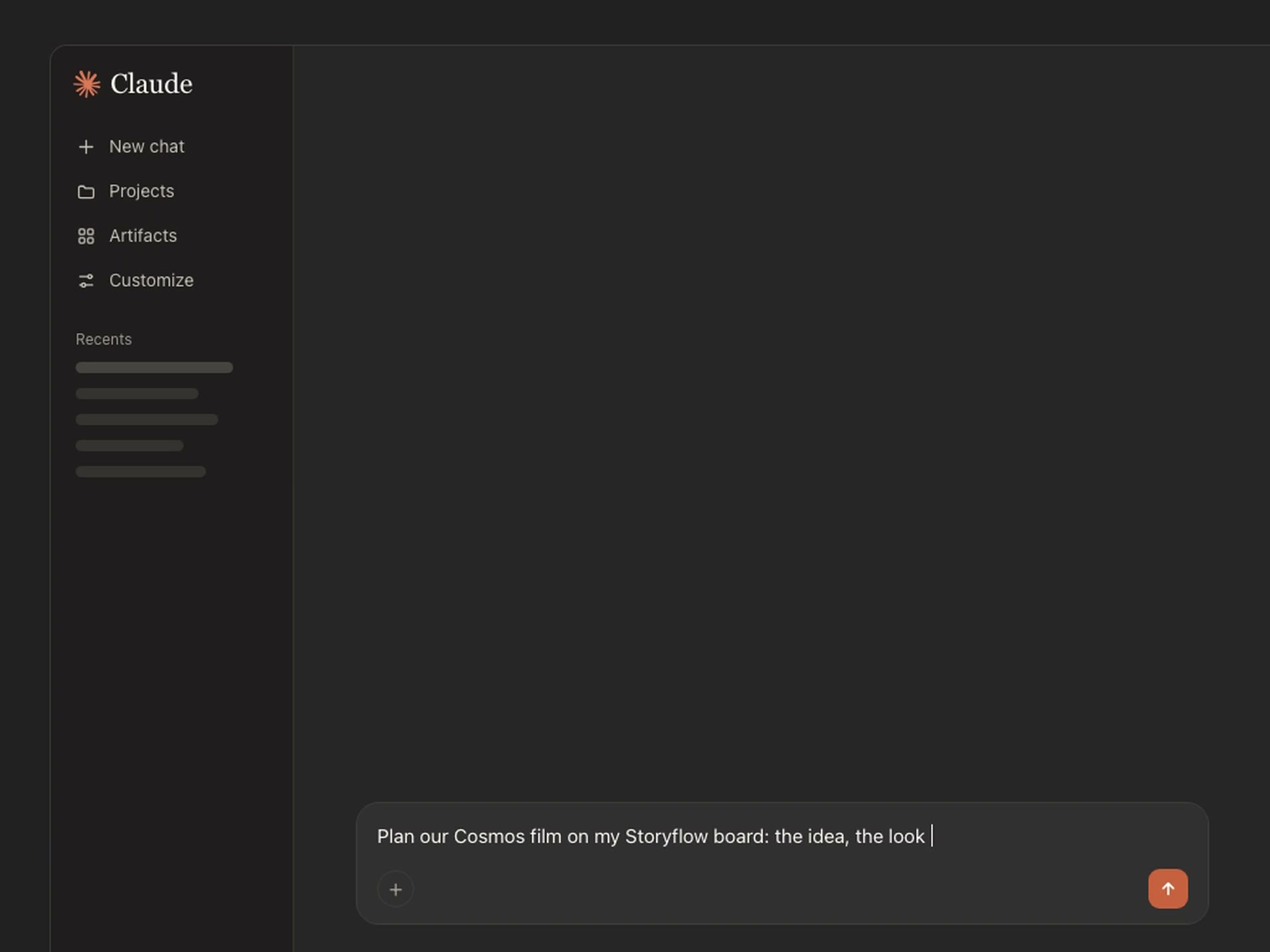
In Claude
Connect Claude to Storyflow and watch it build your board right inside the chat.

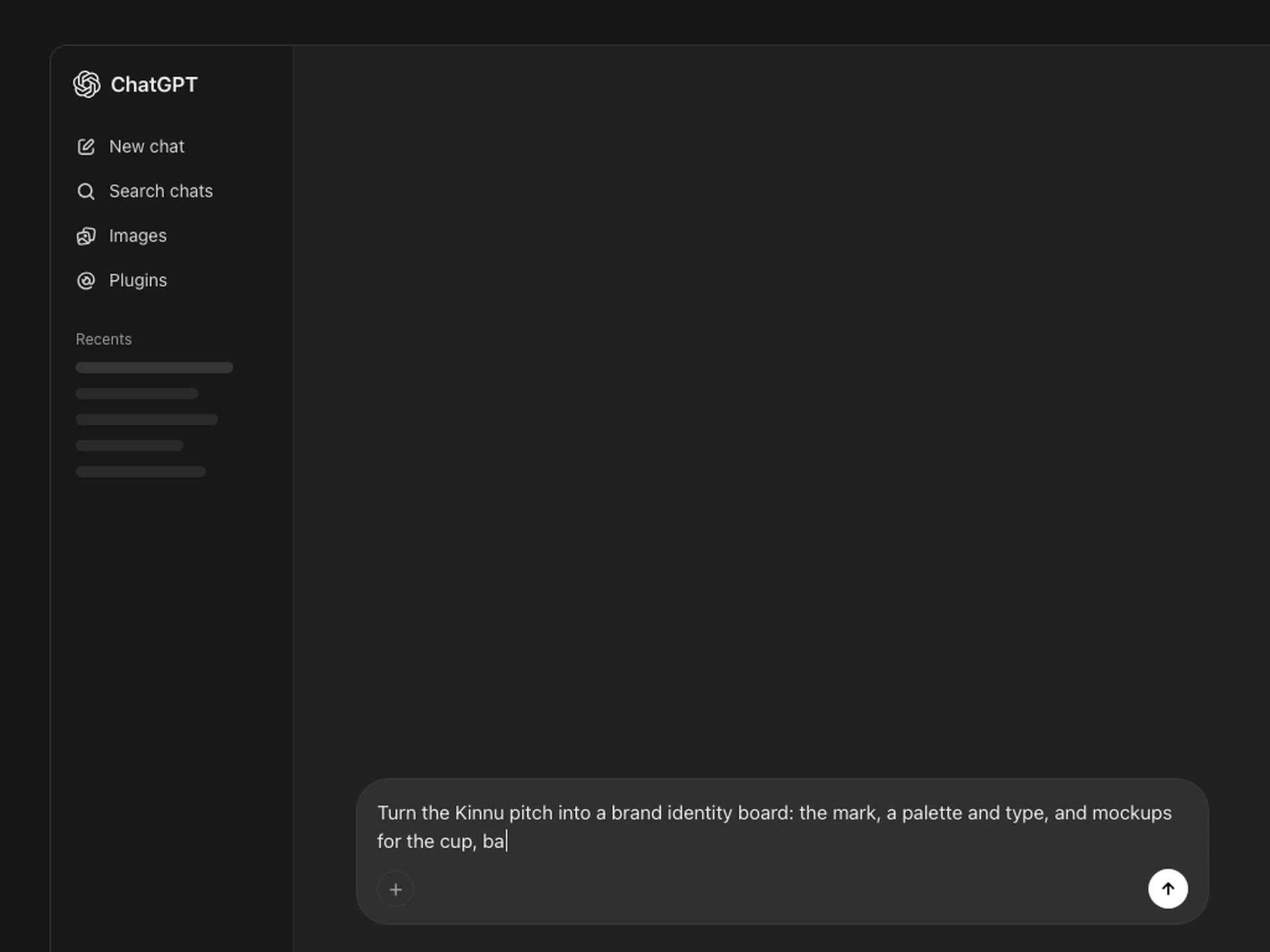
In ChatGPT
Hand ChatGPT a pitch and it lays out the mark, palette, type and mockups on your board, then the social posts.
What is the Storyflow MCP server?
The Storyflow MCP server lets AI assistants like Claude, ChatGPT, Gemini and Grok read and build your Storyflow projects. MCP, short for Model Context Protocol, is the open standard these assistants use to connect to other apps. You add one web address, sign in to Storyflow, and choose which projects the assistant may see and change.
It reads what is there: your boards, notes, documents and files, and what changed on a board and who changed it.
It builds what you ask for: notes, groups, tables, charts, diagrams, documents and slide decks, placed on the board where they belong.
You stay in charge. You choose its projects, whether it can make changes, and whether it may also use your documents outside projects, and you can disconnect it in Settings at any time.
Watch it connect.
ChatGPT, Claude and Grok, connected to Storyflow and building boards from the chat.
Connect in three steps.
No code needed. Most assistants take one web address and a sign-in.
Connect
Add the Storyflow address to your AI tool as a connector or an MCP server.
https://mcp.storyflow.so/mcpSign in
Sign in to Storyflow, pick the projects it may use, and choose whether it can make changes.
The exact steps for your tool
Pick the assistant you use. Each one adds Storyflow a little differently, and the steps below match it.
https://mcp.storyflow.so/mcp1
In Claude, open Customize → Connectors
2
Click + Add, then Add custom connector
3
Name it Storyflow and paste the URL above, then click Continue
4
Choose Sign in now, click Add, and complete the sign-in
On the Free plan Claude allows one custom connector.
Read Claude's own guideQuestions about the Storyflow MCP server
Short answers to what founders ask before they connect.
It is the connection that lets AI assistants such as Claude, ChatGPT, Gemini and Grok work with your Storyflow projects. It uses MCP, the Model Context Protocol, an open standard for connecting assistants to apps. Once it is connected, your assistant can read your boards and documents and build new ones in the projects you allow.
Any assistant that can add a remote MCP server. That includes Claude, ChatGPT, Gemini, Grok, Claude Code, Cursor, VS Code with GitHub Copilot, Gemini CLI, Codex, Devin, Figma, Zed, Raycast, Lovable, Perplexity and Le Chat. Some need a plan or account of their own, such as a personal Google account for the Gemini app; the help article "Connect Claude, ChatGPT and Other AI Tools (MCP)" lists what each one needs.
In Claude, open Customize, then Connectors. Click Add, then Add custom connector. Name it Storyflow, paste https://mcp.storyflow.so/mcp and click Continue. Choose Sign in now, click Add, then sign in to Storyflow and pick the projects Claude may use. On Claude's Free plan you can add one custom connector.
Storyflow is listed in ChatGPT's plugin directory. Open Storyflow there, add it, then sign in to Storyflow and pick the projects ChatGPT may use.
Only if you let it. When you sign in, you choose the projects it may use, whether it may make changes, and whether it may also use your documents outside projects: your private documents and the ones shared with you. That last choice starts on when you allow all your projects and off when you pick projects. With changes allowed, it can add and edit notes, documents, tables, charts and slide decks in those projects, and edit the documents outside projects if you let it use them. What it adds shows up on the board while you have it open.
A free account (today, one invited by a paid member) gets 25 actions a week from its assistant, enough to build a board. The count resets every Monday (UTC). Plus, Pro and Max have no limit.
Open Settings in Storyflow, then Connected apps, and remove it. It loses access within a minute. Every connection also ends on its own after 30 days: your assistant asks you to sign in again, and a personal key stops working, so you create a new one in Settings, then Storyflow MCP.
Yes. The assistant works with your own Storyflow projects, so you sign in with your Storyflow account when you connect. The free plan is coming before the end of 2026, and people invited by a paid member join free today.
Bring your boards into your AI assistant
Connect Storyflow once, then plan the launch, the campaign or the pitch from the chat you already have open.