
Ultra-fast planning, extremely simple
A kanban board in ChatGPT,
with cards your team moves on one board.
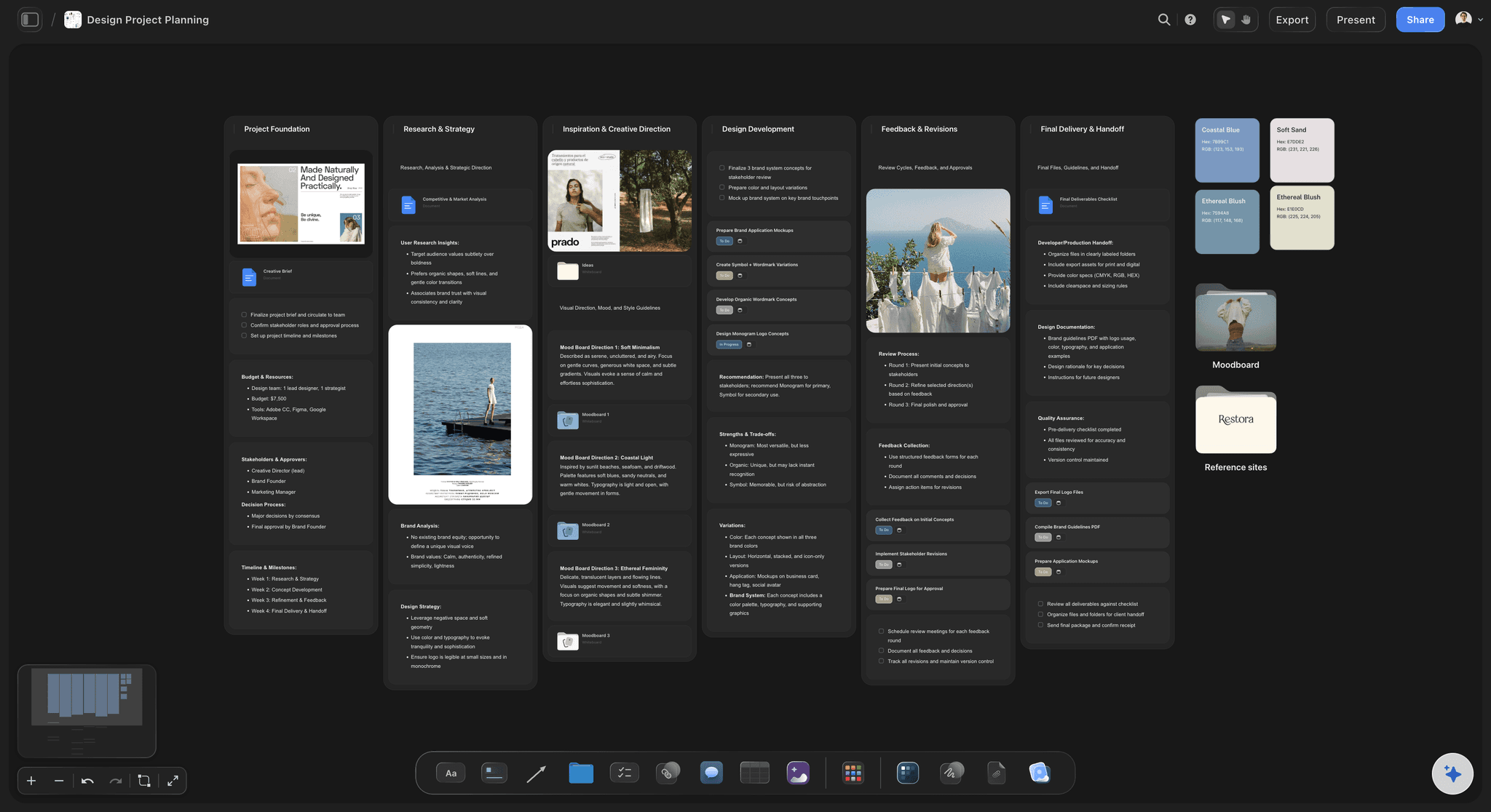
For teams and agencies: ChatGPT turns the plan into columns of task cards on a Storyflow board, moves them when you ask, and tells you what moved this week.


Creatives working for these brands already got early access
- Red Bull
- Canon
- Artlist
- Porsche
See how easy it is to get started
Watch a real project come together, from a blank board to a finished plan, clicked through step by step.
Start from a ready-made template
Pick a board to see what you can build, then let AI fill it in. Every template is a real, editable starting point on the same infinite canvas.

Mind Map
Branch one central idea out into themes and sub-points, then drag the connections around until the structure makes sense.
Can ChatGPT make a kanban board?
Yes, ChatGPT can make a kanban board: with the Storyflow plugin it builds the columns and the task cards on a shared board in one request, from a plan in the chat, a brief on the board or the loose notes from a meeting. Storyflow is an AI visual workspace that turns a plan in ChatGPT into a kanban board on one infinite canvas, beside the brief, the moodboard, the flowchart and the documents the work depends on. Your team drags the cards from column to column, and ChatGPT moves them too when you ask.
ChatGPT alone writes a good task list. Paste a client brief and it splits the job into deliverables, groups them by status and suggests what is blocked. But a task list in a chat is not a board anyone works from. Nobody drags a line of text into Done, the list does not change when a teammate finishes something, and next week ChatGPT has no idea what moved unless you tell it. So someone retypes the list into a task tool, and the chat and the board start to disagree.
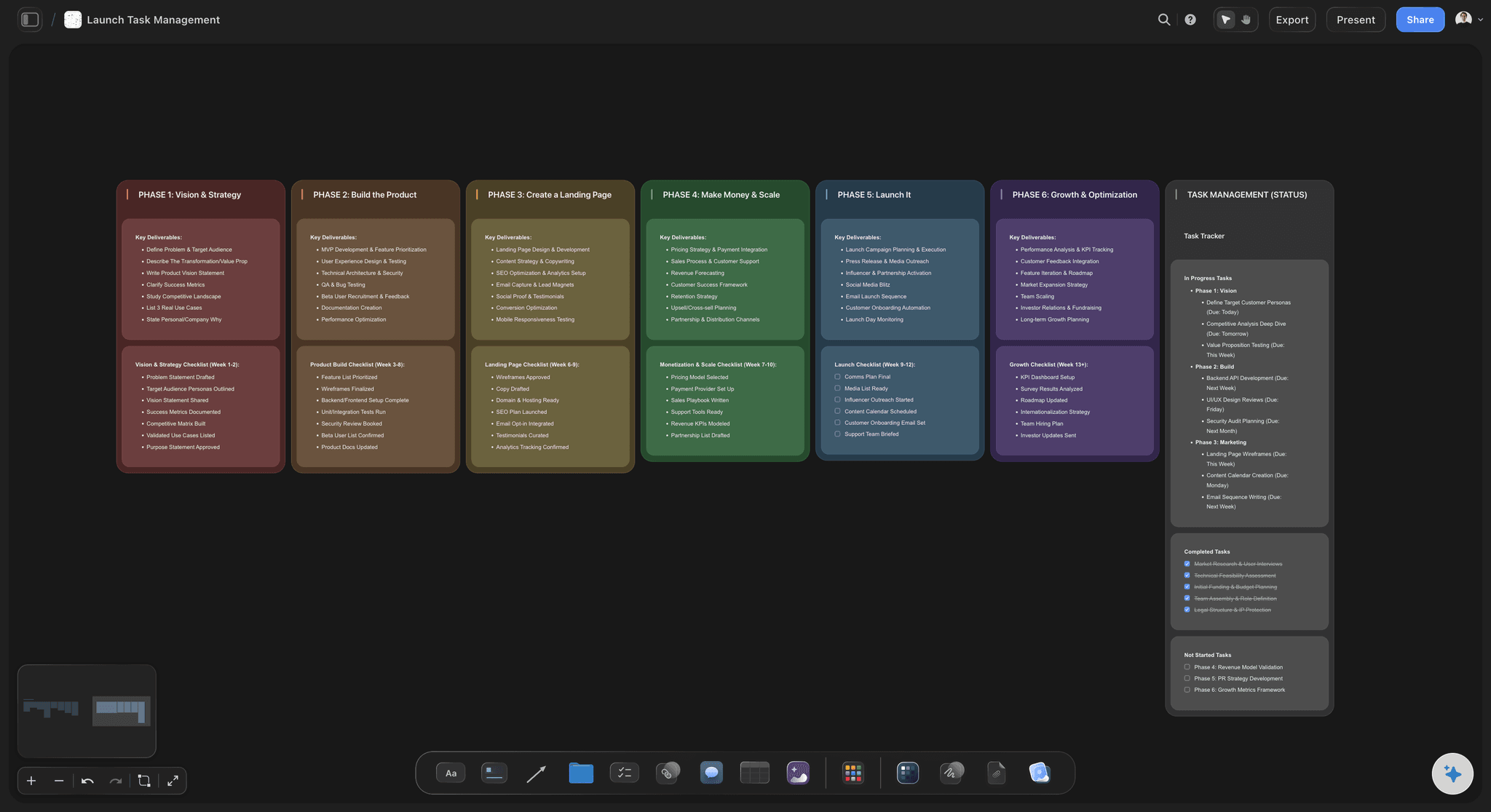
Connected to Storyflow, ChatGPT builds each column as a wall, a titled column with up to 40 cards in one request, and lines the columns up in a row. A task is a card with its own title, a short description, one coloured label and a due date when you give one. A list of quick steps goes on a single to-do card with a checkbox per line. If the tasks are already on the board as loose notes, ChatGPT moves them into columns instead of retyping them. Later, ask it to move a card, change a title, a label or a date, or tell you what changed this week and who changed it.
Here is an example. Bramble & Bolt, a six-person agency, runs three client campaigns at once. The account manager pastes the week's plan into the chat and asks: "Build a kanban board on the Q4 Clients board: one column per status, a card per deliverable, labelled by client." ChatGPT builds five columns, Brief in (4), In progress (7), Waiting on client (3), Approved (5) and Delivered (2): 21 cards with three client labels. She assigns each card to a designer by hand. On Thursday she types: "Move the Lumen banner set to Approved and make the Sorrelby video due 21 November." On Friday she asks what changed this week, and ChatGPT lists every card that moved and who moved it.
Pick the columns for the decision you need to make each morning. For client work, the column that matters most is Waiting on client, because it shows what is stuck outside your team and who to chase. Add a Blocked column only when something is genuinely blocked, and say on the card what it waits for. Keep In progress short, about two or three cards per person, or the board stops showing what is actually moving. Label by client or by campaign, not by status, since the column already says the status. A plan of more than about 40 cards reads better split into one board per client.
Now the limits. ChatGPT cannot assign a card to a person; you do that in Storyflow. It has no tool that deletes a card, so finished work moves to Delivered and you clear it by hand. Storyflow also has a separate kanban element you add from the toolbar, and ChatGPT cannot create that one: what it builds is a row of columns that works the same way. Storyflow has no automation rules, no due-date reminders, no calendar or timeline view and no Gantt chart. ChatGPT cannot create share links, and through the plugin it does not generate images or read board comments.
Ultra fast from brief to board
Four steps from a plan in the chat to a board the team works from.
Building the columns is one request. The other three steps are how the board stays true all week.
01
Install Storyflow from the plugin directory
Open the Storyflow listing in ChatGPT's plugin directory and select Install plugin. Sign in to Storyflow when asked, then choose which projects ChatGPT may use.
02
Ask for the columns and the cards
In a chat, type @ and pick Storyflow, or choose it from the + menu. Paste the plan or point at the board, then name the columns. For example: "Build a kanban board on the Q4 Clients board: Brief in, In progress, Waiting on client, Approved, Delivered. A card per deliverable, labelled by client." The columns appear on the board with their cards.
03
Assign people and set dates
Open a card in Storyflow to assign it to a teammate, add detail or change its date. Give ChatGPT the dates you know and it puts them on the cards; it does not guess the ones you did not mention.
04
Move cards and check the week
Drag cards between columns yourself, or tell ChatGPT: "Move the Lumen banner set to Approved." On Friday, ask what changed on the board this week, and share it with the client through a view-only link from Storyflow.

Columns, cards, the notes they came from and the week's changes.
ChatGPT lays out the board and keeps it moving. Storyflow keeps it where the whole team and the client can see it.
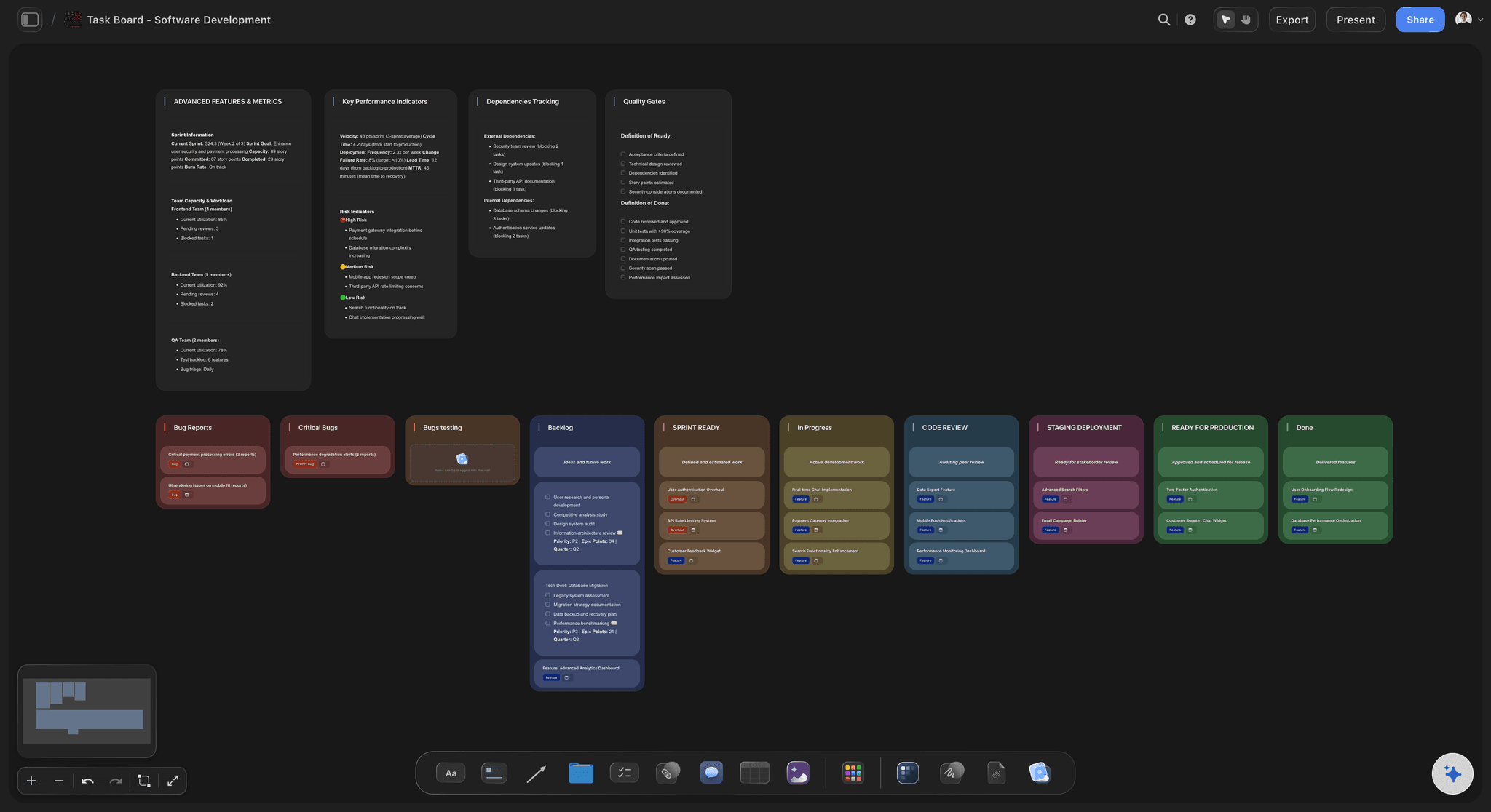
The columns
Up to 40 cards in each column
ChatGPT builds each column with its title and its cards, top to bottom, and lines the columns up in a row. Ask for a colour per column and a label per client, and the board reads at a glance.
See the AI kanban board generator →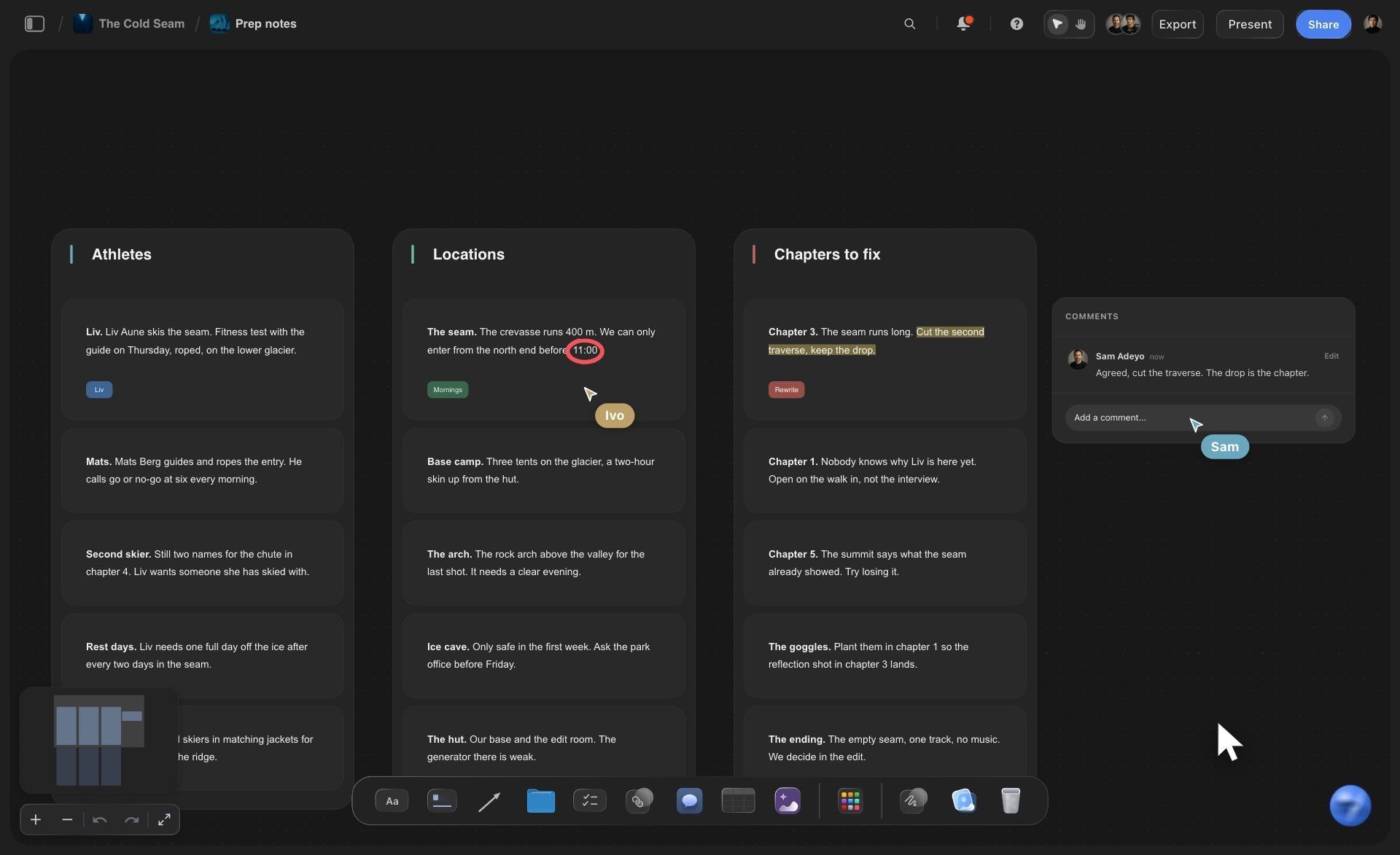
From the notes
The meeting's notes, sorted into columns
When the tasks are already on the board as loose notes, ChatGPT moves them into columns in one request. Every note keeps its author's wording, and no copy is left behind.
See the whiteboard in ChatGPT →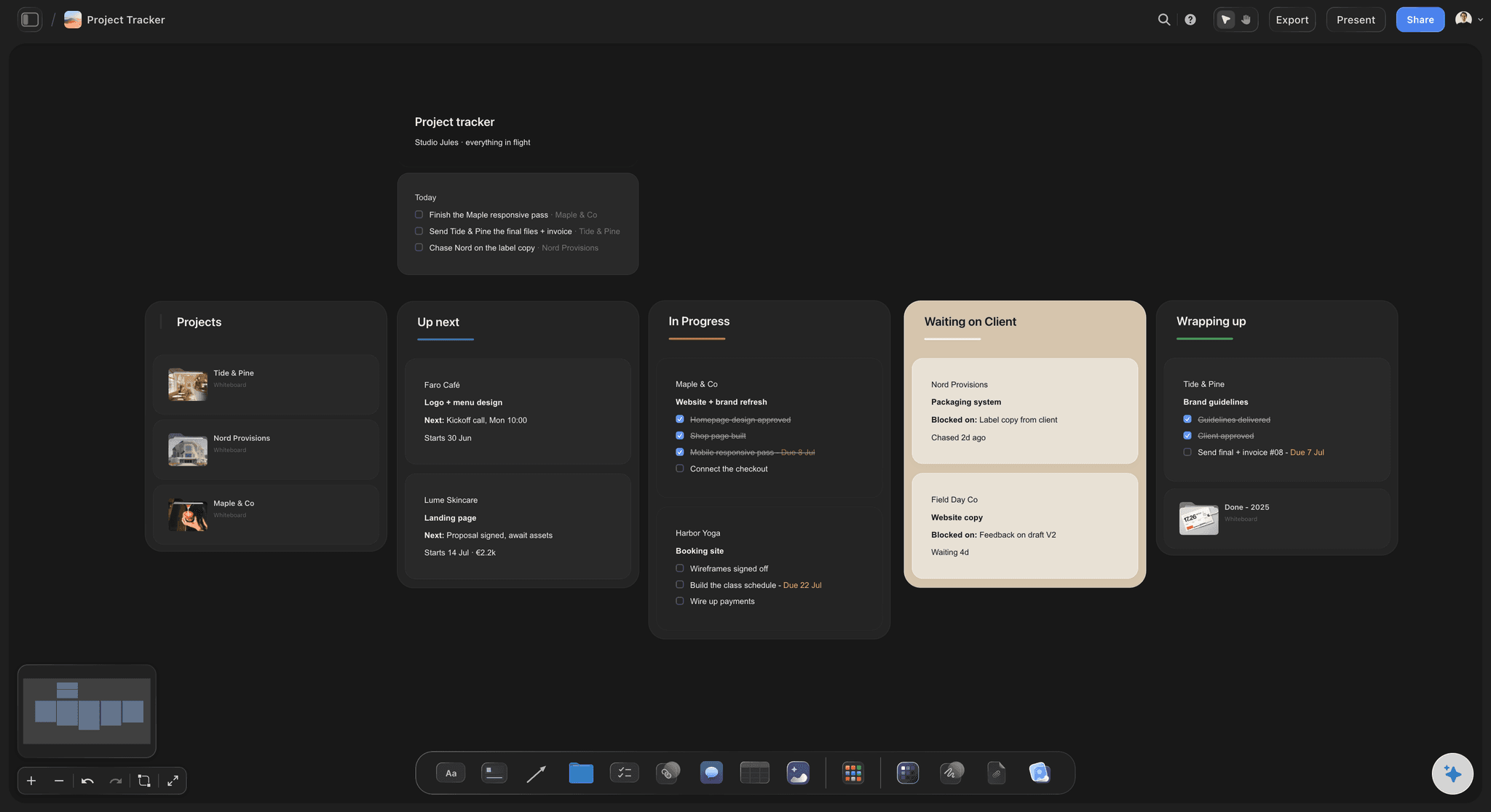
Owners and dates
Who has it and when it is due
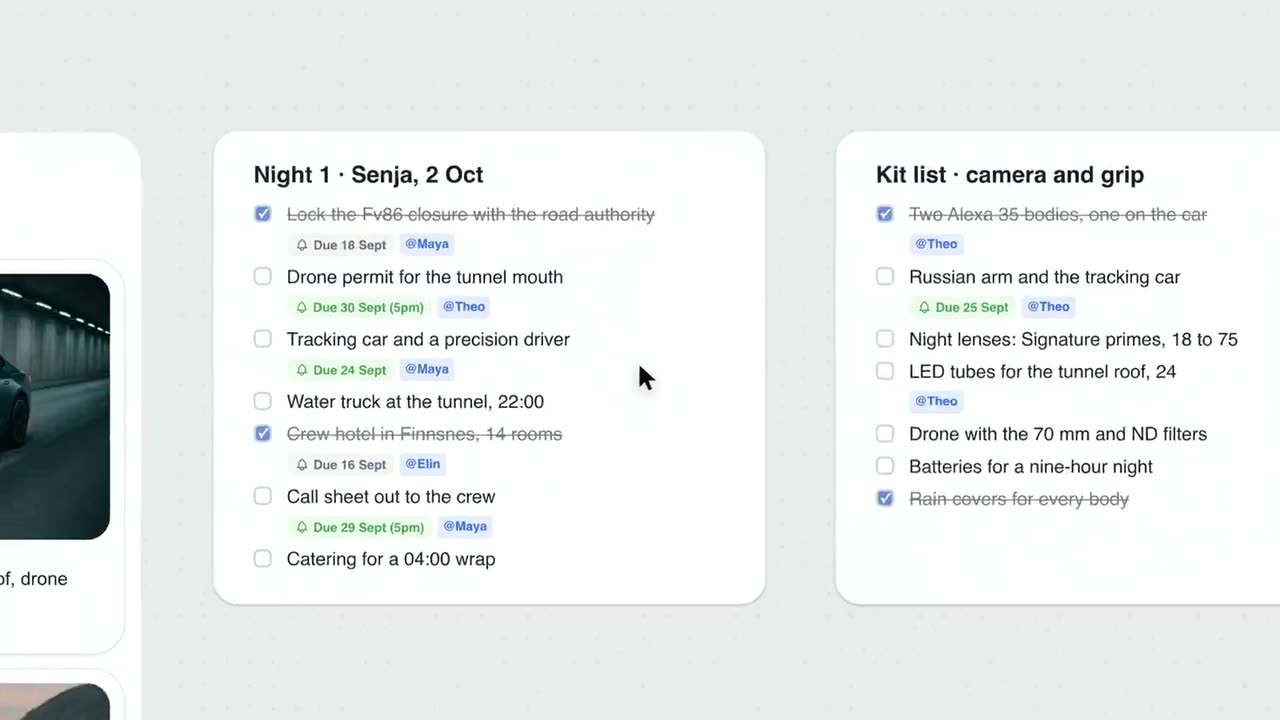
A card carries a due date when you give one, and a person in Storyflow assigns it. Waiting on client sits in its own column, so the account manager knows who to chase before the call.
See to-do lists with ChatGPT →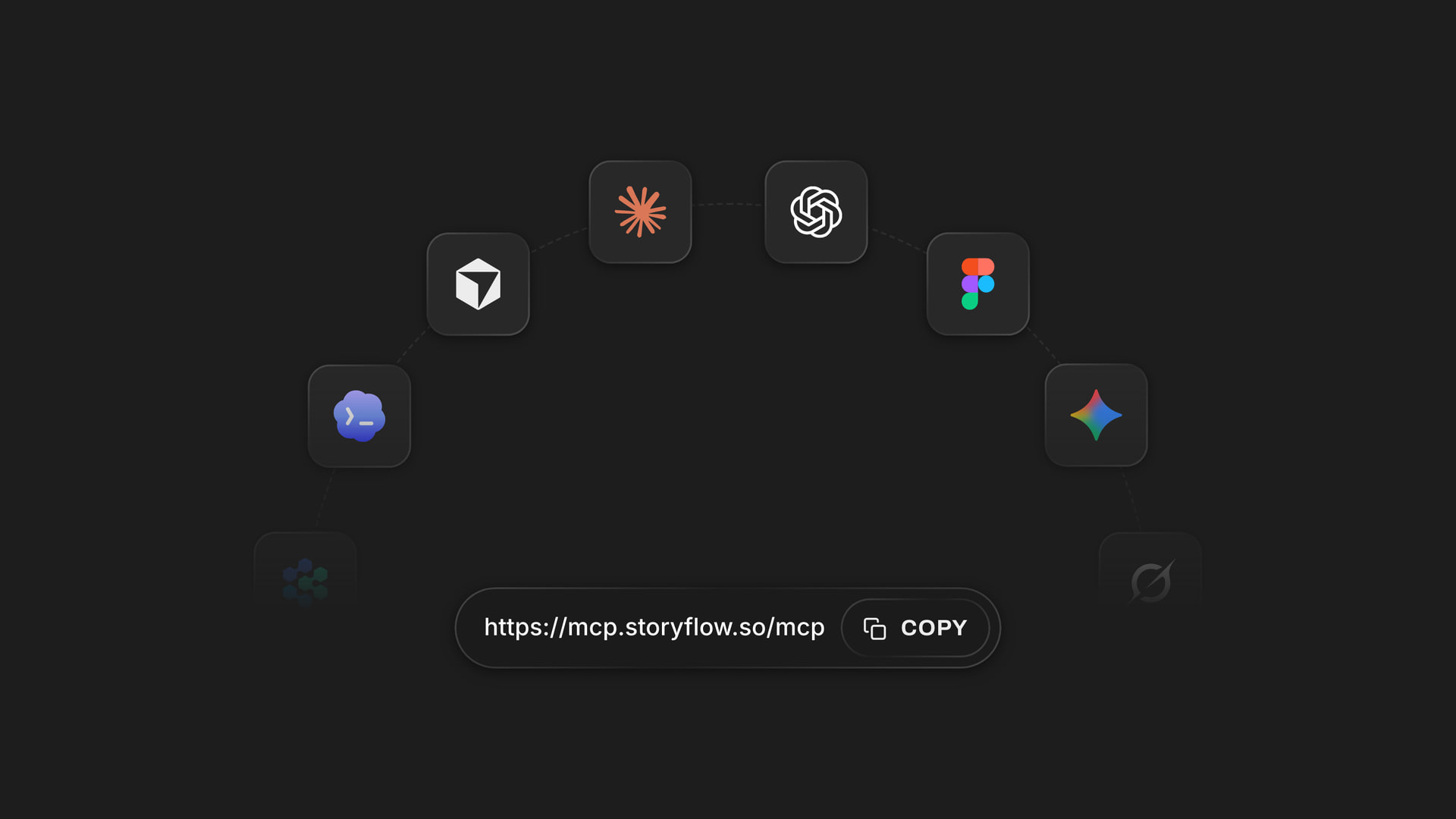
Any assistant
The same board from ChatGPT or Claude
Claude, Gemini and Grok reach the same Storyflow boards through one address, https://mcp.storyflow.so/mcp. A teammate can check the board in Claude while you move cards in ChatGPT.
See the kanban board with Claude →ChatGPT runs the board. Your Storyflow credits stay untouched.
The plugin runs on ChatGPT's own model and your ChatGPT plan, so a board ChatGPT builds or updates uses no Storyflow AI credits. An invited free Storyflow account can make 25 plugin actions a week, reset every Monday (UTC). Plus, Pro and Max have no weekly limit. Storyflow is paid-only during early access, with plans from $7.99 a month billed annually ($9.99 monthly), and anyone a paid member invites to a board joins free.
No Storyflow AI credits spent on boards ChatGPT builds or moves
25 plugin actions a week on an invited free account
No weekly limit on Plus, Pro and Max
Designers, freelancers and clients you invite join the board free
You choose which client projects ChatGPT may open, and whether it may change them
Built for people with taste
Where a kanban board from a chat usually falls apart.
The first version is easy. Keeping it current through a week of client work is where boards die.
The setup
A task list nobody can drag
Your columns, exactly: Name the columns and ChatGPT uses them as written. Leave them out and it picks columns that fit the plan: statuses for tracking work, phases for a launch, weeks for a schedule.
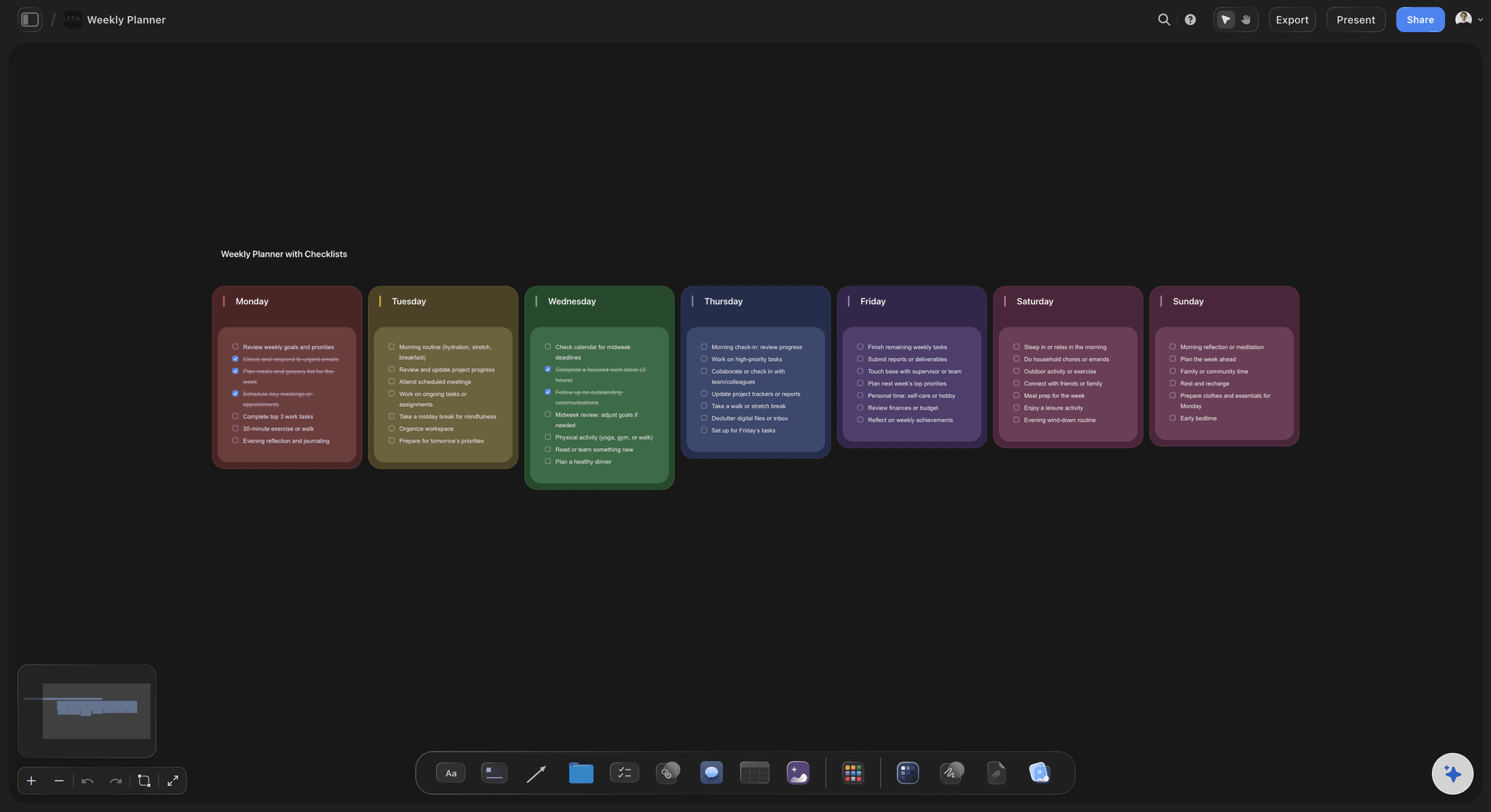
The right card for the job: A deliverable with detail is a task card with a title, a description and one label. A run of quick steps is a single to-do card with a checkbox per line.
Start from a template: Ask ChatGPT to put Storyflow's Project Tracker or Launch Task Management template on the board, then rewrite the example cards for your clients.
The brief beside the board: ChatGPT reads PDF, Word and Excel files on the board, so the client's brief or a budget sheet can become cards without anyone retyping it.
The week
Monday's board is wrong by Wednesday
Moved by asking: "Move the Lumen banner set to Approved" moves that one card into that column. The rest of the board stays where your team left it.
One field, not the whole card: Ask ChatGPT to change a card's title, description, label or date, and it edits only what you named on that card.
Friday's question answered: Ask what changed on the board this week. ChatGPT lists the cards added, edited, moved or deleted, and which teammate did it, so the client status email starts from facts.
Labels that run across columns: Each task card carries one coloured label. Name it for the client, such as Lumen or Sorrelby, and the same colour shows up in every column that client's work is in.
The people
A board only the account manager understands
Owners set by your team: ChatGPT cannot assign a card. Assign it in Storyflow and the owner sees their name on it when they open the board.
Edited together: On every paid plan the team edits the board at the same time, and anyone a paid member invites joins free.
The weekly call, column by column: Presentation mode goes fullscreen and steps through the board one wall at a time, so the client call follows the columns from Brief in to Delivered.
Access per client: Choose which client projects ChatGPT may open when you sign in, and whether it may change them. Each connection ends after 30 days.
Explore templates for your project
Every template opens as a real, editable board on the infinite canvas. Pick the closest fit and make it your own.
Mind Map
Branch one central idea out into themes and sub-points, then drag the connections around until the structure makes sense.
One app instead of five
Storyflow in ChatGPT, ChatGPT alone, or Trello.
Storyflow and Trello both give ChatGPT a board of cards. Trello lets ChatGPT assign card members, and adds built-in automation, phone apps and, on Premium, calendar and timeline views (Trello's docs and pricing, October 2026); Storyflow keeps the kanban beside the brief, the mind map and the deck.
Storyflow in ChatGPT
Recommended
ChatGPT creates the task cards from a chat request
ChatGPT moves a card to another column
Mind maps, flowcharts and decks beside the columns
ChatGPT assigns a card to a teammate
Built-in automation rules
Calendar and timeline views
A tier you can use without paying
Apps for phones
ChatGPT on its own
ChatGPT creates the task cards from a chat request
ChatGPT moves a card to another column
Mind maps, flowcharts and decks beside the columns
ChatGPT assigns a card to a teammate
Built-in automation rules
Calendar and timeline views
A tier you can use without paying
Apps for phones
Trello in ChatGPT
ChatGPT creates the task cards from a chat request
ChatGPT moves a card to another column
Mind maps, flowcharts and decks beside the columns
ChatGPT assigns a card to a teammate
Built-in automation rules
Calendar and timeline views
A tier you can use without paying
Apps for phones
What creators are saying
Join early creators getting structured workspaces and AI that remembers their projects
“Storyflow has sped up my workflow by at least 3x, which means more flow state and more projects I can actually ship. It truly changed the way me and my team create.”

Reilin Joey
Director & YouTuber
“One prompt gets me a structured board. But the tactics are my favorite. I run my YouTube scripts through them and my intros and retention got better. It's amazing.”

Justkay
YouTuber & Freelance Filmmaker
“I used to juggle five apps to plan a project. Now I describe what I am making and get boards, lists, and a schedule. All in one place.”

George
@fernwehchronicles
Kanban boards with ChatGPT: questions
What teams and agencies ask before the board goes in front of the client.
Yes. On its own ChatGPT writes the tasks as a list in the chat. With the Storyflow plugin it builds a real board in one request: a row of columns, each holding up to 40 task cards with a title, a description, a label and a due date when you give one. Your team drags the cards between columns, and ChatGPT moves them too when you ask.
Storyflow is our pick for agencies and teams whose tasks sit next to briefs, moodboards and decks, and it is our product. The basis: ChatGPT builds and moves the cards on the same board as the rest of the project, reports what changed this week, and spends no Storyflow AI credits. Trello, also in ChatGPT's plugin directory, suits a team that wants ChatGPT to assign card members, plus built-in automation and phone apps (Trello's docs, October 2026).
Open the Storyflow listing in ChatGPT's plugin directory and select Install plugin. Sign in to Storyflow, choose which projects ChatGPT may use, and decide whether it may make changes. In a chat, type @ and pick Storyflow, or choose it from the + menu. Availability depends on your ChatGPT plan, workspace and region, and in a Business or Enterprise workspace an admin can turn plugins on or off.
Start with five: Brief in, In progress, Waiting on client, Approved and Delivered. Waiting on client is the one that earns its place, because it shows what is stuck outside your team. Add Blocked only when a card genuinely waits on something, and write on the card what. Tell ChatGPT the columns by name and it uses them exactly as written.
Yes. Name the card and the column, such as "move the Lumen banner set to Approved", and ChatGPT moves that card on your Storyflow board. It can also change a card's title, description, label or due date. It edits only the card you name and leaves the rest of the board where your team left it.
No. ChatGPT can read who is on a Storyflow board and write a name into a card's description, but setting the owner of a card is done by a person in Storyflow. If you want ChatGPT to record owners, ask for a tracker table with an Owner column: it fills that column with people already on the board, and leaves a name that matches nobody empty.
No. Storyflow has a separate kanban element you add from the toolbar or with the K key, and ChatGPT cannot create that one through the plugin. What ChatGPT builds is a row of titled columns holding cards, which you drag between columns the same way. Both sit on the same canvas, so you can use either.
Yes. Paste the plan into the chat, or point ChatGPT at the loose notes on a Storyflow board, or at a PDF, Word or Excel file on the board. Loose notes are moved into columns rather than retyped, so they keep their wording. A file attached in the ChatGPT chat is read there, but the file itself does not reach Storyflow.
Yes. Ask what changed on the Storyflow board in the last day or week, and ChatGPT lists the cards that were added, edited, moved or deleted, when, and which teammate did it. It is a quick way to write a Friday status update from facts rather than memory. Reading the board needs no changes permission.
It cannot assign cards, delete cards, create Storyflow's separate kanban element, create share links or read board comments, and through the plugin it does not generate images. Storyflow has no automation rules, no due-date reminders, no calendar, timeline or Gantt view and no phone app. If you need those, a task tool such as Trello fits that part of the job.
Each column takes up to 40 cards in one request on a Storyflow board, and ChatGPT can add more cards to a column afterwards. The limit that matters is reading it: past about 40 live cards a board gets hard to scan in a stand-up, so give each client or campaign its own board and keep finished work in Delivered until you clear it.
No. The plugin runs on ChatGPT's own model and your ChatGPT plan, so a board ChatGPT builds or updates uses no Storyflow AI credits. An invited free Storyflow account can make 25 plugin actions a week, reset every Monday (UTC), and Plus, Pro and Max have no weekly limit. Storyflow is paid-only during early access, from $7.99 a month billed annually ($9.99 monthly).
Yes, when you share it. The board is an ordinary Storyflow board, so it stays after the chat ends. Share it from Storyflow with a view-only link, which opens in a browser with no account. To comment, the client signs in, and anyone a paid member invites joins free. ChatGPT cannot create share links, so sharing stays with you.
The board is the same; the way in differs. ChatGPT installs Storyflow from its plugin directory. Claude adds Storyflow as a custom connector with the address https://mcp.storyflow.so/mcp, as do Gemini and Grok. Both build the same columns and move the same cards, so one account manager can work in ChatGPT while another checks the board in Claude.
More from Storyflow
Connect ChatGPT to Storyflow
Storyflow MCP setup for every assistant
Kanban board with Claude
To-do lists with ChatGPT
Project plan from a ChatGPT chat
Whiteboard in ChatGPT
Flowcharts with ChatGPT
Client presentation with ChatGPT
AI kanban board generator
Client project planning for agencies
Best ChatGPT plugins for project management
Best ChatGPT plugins for creative agencies
Plan it in the chat. Move it on the board.
Columns from your plan, cards your team owns, and a straight answer to what changed this week.