
Category
Design
Author

Storyflow Team
Product & Research Team
Topics
2026-11-13
•
35 min read
•
Design- best moodboard app
- moodboard app features
- client moodboard
- moodboard checklist
- share link without account
- Storyflow
Best moodboard app
Storyflow passes the ten tests a client moodboard app must pass, from web clipping and labels beside images to a share link without an account, export and the plan beside the board, which makes it our pick for client work. Storyflow is an AI visual workspace that holds client moodboards, their directions and the plan that follows on one infinite canvas, and it works inside ChatGPT (plugin) and Claude (connector). In Storyflow, run all ten tests on one real client board in five working days.

Full disclosure: Storyflow is our product. It is listed first on the basis of the ten client tests. This guide compares kinds of tool rather than brands on purpose. Storyflow has no native phone app, clients sign in to comment, it is paid-only during early access, and the 10-Feature Checklist is our editorial recommendation, not research.
How the moodboard apps for client work compare on trust, innovation, ratings and pricing
Which moodboard apps are the most trusted for client work?
Trust in client work comes from the three things a client touches: labels beside images, a link that opens without an account and an export they keep. Design files are the most established kind of tool for final assets. Storyflow is newer, with its ChatGPT plugin live since 24 October 2026, and meets all three on one board: captions attached to images, a view-only link with no account, and PNG, JPEG or PDF export.
Which moodboard apps have fair and transparent pricing?
Fair pricing in a moodboard app means clients and reviewers do not need a paid seat. In Storyflow, a view-only link opens with no account and anyone a paid member invites to a board joins free, so only the person who builds boards pays. Storyflow is paid-only during early access, with Plus at $7.99 a month billed annually ($9.99 monthly), as of November 2026.
Which moodboard apps are the most innovative?
Storyflow, for letting ChatGPT or Claude build captioned direction walls and colour palettes on a real board, and for a Web Clipper that saves images at full size, video frames and selected text straight to the board you pick. Inspiration feeds remain the most innovative kind of tool for discovery, surfacing related references as you save.
Which moodboard apps are underrated by photographers and designers?
Desktop reference viewers are underrated for the private cull before a board exists. In Storyflow, the underrated feature is the plan beside the board: the approved direction becomes shot cards and a table with owner and date columns on the same canvas, so nobody copies the moodboard into a shot list file the night before the shoot.
Which moodboard apps hold up over a long client relationship?
Apps hold up when every approval leaves a record and the board keeps working after it. In Storyflow, each approved direction gets a dated PDF export, the decision is written in a note with a name and date, and the same project carries the next campaign's board. Plugin users can also ask what changed on a board this week and who changed it.
Quick Comparison
Our pick first, on the basis of the ten client tests and its three must-haves, then other kinds of tool by job. Storyflow prices as of November 2026.
| Tool | Best For | AI Features | Price |
|---|---|---|---|
| Storyflow | Client moodboards from clipped references to captioned direction walls, a view-only link with no account and a dated PDF | In-app AI builds a moodboard and reviews up to 24 selected images; ChatGPT plugin and Claude connector build walls, palettes and captioned image layouts; AI images on Pro and Max | $7.99 mo billed annually; paid-only during early access |
| An inspiration feed | Collecting references, especially on a phone | Recommendations | Varies |
| A design file | Exact roughs and final assets after the direction is chosen | Varies by design app | Varies |
| A whiteboard app | A live workshop sorting references with the client | Varies by whiteboard app | Varies |
Key Takeaways
- Storyflow is our pick for the best moodboard app for client work, because it passes all ten client tests on one board, from clipping and captions to a view-only link with no account and the shot list beside the approved direction, with honest gaps on phones and comments.
- A moodboard app for client work is judged by what the client touches: the labels, the link, the comments and the record. Taste tools and collecting tools fail there, not on looks.
- Ten tests, each scored 0, 1 or 2, run on one real client job in five working days. Three are must-haves: labels beside images, a link that opens without an account, and an export the client can keep. A zero on any of the three fails the app for client work, whatever the total.
- Test with a real brief, not a demo board. Every app looks good with ten pretty pictures; the gaps show at 60 references, three directions and a client who will not create an account.
- An inspiration feed is for collecting; a moodboard app is for deciding. Use both, and do not present from the feed.
- Storyflow's real limits for this job: no native phone app, so phone collecting is weaker; clients sign in to comment; and it is paid-only during early access, with Plus at $7.99 a month billed annually.
How to Choose the Best Moodboard App: Run 10 Tests on One Client Board
You picked the app because the demo boards looked beautiful. Three weeks later the client could not open the link without signing up, the photographer could not tell which picture was about light and which about casting, and the approved direction lived in an email thread. The best moodboard app for client work is the one that survives those three moments, and you can test for each of them before you commit.
Run these ten tests on one real client job, using the brief, not a sample project. Each one names the client-work failure it prevents.
- Clip 20 references from five sites in 15 minutes. In Storyflow, the Web Clipper browser extension saves a page, an image at full size, a video frame or selected text to the board you pick.
- Arrange 40 images into three groups and resize a group at once. In Storyflow, walls group the images and one handle resizes every selected element.
- Caption 10 images, then move them. In Storyflow, an image caption stays attached below its image when it moves or resizes.
- Build a five-colour palette from a reference. In Storyflow, a colour swatch shows its name, hex code and RGB value.
- Open the share link where you are signed out. In Storyflow, a view-only link opens with no account.
- Get one comment from someone outside the team. In Storyflow, the visitor signs in to comment or draw.
- Show three directions, then present one at a time. In Storyflow, presentation mode steps through the board one wall at a time, fullscreen.
- Export the board and open the file on a phone. In Storyflow, boards export as PNG, JPEG or PDF.
- Ask the AI for a first-pass board from the brief, and count what you keep.
- Turn the approved direction into a shot list or task list on the same board.
Score each test 0, 1 or 2, and read the must-haves first. The rest of this guide is each test in detail: what it catches, how to run it, the pass mark and how Storyflow does.
The Storyflow 10-Feature Checklist
The checklist, defined
The Storyflow 10-Feature Checklist is our editorial recommendation, not a research finding: ten tests, each tied to one feature a client moodboard needs, scored 0 (cannot do it), 1 (does it with a workaround or outside the time) or 2 (does it inside the test's time limit), for a total out of 20. The whole checklist runs on one real client board in five working days, two tests a day.
Why ten, and why these ten
A client moodboard does ten jobs between the brief and the shoot: collect, arrange, explain, set colour, share, take feedback, compare directions, keep a record, speed up the first draft and hand over to production. Each of the ten features serves one job. Nine would leave a job uncovered; adding an eleventh (templates, integrations, offline use) tests something that matters for other work, not for whether a client approves a direction.
The three must-haves
Three features are what the client touches: labels beside images (test 3), a link that opens without an account (test 5) and an export they can keep (test 8). A zero on any of them fails the app for client work, however high the total. An unlabelled board gets approved for the wrong reason; a link that demands sign-up gets ignored; a board nobody can export leaves no record of what was approved.
How to run it in five days
| Day | Tests | What you need | Time |
|---|---|---|---|
1 | 1 Web clipping, 2 Free layout | The brief and 60 candidate references | 45 minutes |
2 | 3 Labels, 4 Palettes | The 40 references you kept | 45 minutes |
3 | 5 Share link, 6 Comments | A colleague outside the team, a phone | 30 minutes |
4 | 7 Directions, 8 Export | Three directions roughed out | 45 minutes |
5 | 9 AI help, 10 The plan beside the board | The brief again, the approved direction | 60 minutes |
Score each test the day you run it, and write one line on what failed. A score of 16 or more with no zero on a must-have is a strong result for client work; below 12, the app is better kept for collecting or personal boards.
Client Moodboard App vs Inspiration Feed: Where Each One Stops
On a client job, an inspiration feed stops once the references are found, and a moodboard app takes over from the first cut to the signed direction and the plan after it. In Storyflow, the feed's role ends at the clipper: references arrive on the board, and everything after that (cutting, labelling, comparing, approving, planning) lives on walls beside the brief.
| Stage of the client job | Inspiration feed | Moodboard app | Where it lives in Storyflow |
|---|---|---|---|
Finding references | Its main job: wide discovery and recommendations | Clips from the feed and other sites | The Web Clipper saves to the board you pick |
Cutting to the keepers | Saving more is easy; cutting is not the design | Side-by-side cutting on a free layout | An image stack holds the rejects beside each wall |
Explaining each image | A short description at most | A label beside every image | Captions attached under images, notes beside them |
Colour and type | Not built for swatches or specimens | Swatches with codes, type set in real copy | Colour swatch elements; headings in a project font on paid plans |
Showing three directions | One collection per direction, no comparison view | Directions side by side, presented one at a time | One wall per direction, presentation mode |
Client review | Collaborators on a shared collection | A link the client opens, comments where they sign in | View-only link with no account; sign in to comment |
The approval record | None | An export with the date | Board PDF, PNG or JPEG |
After approval | Nothing | The plan, if the app holds it | Shot cards, tables and to-dos on the same board |
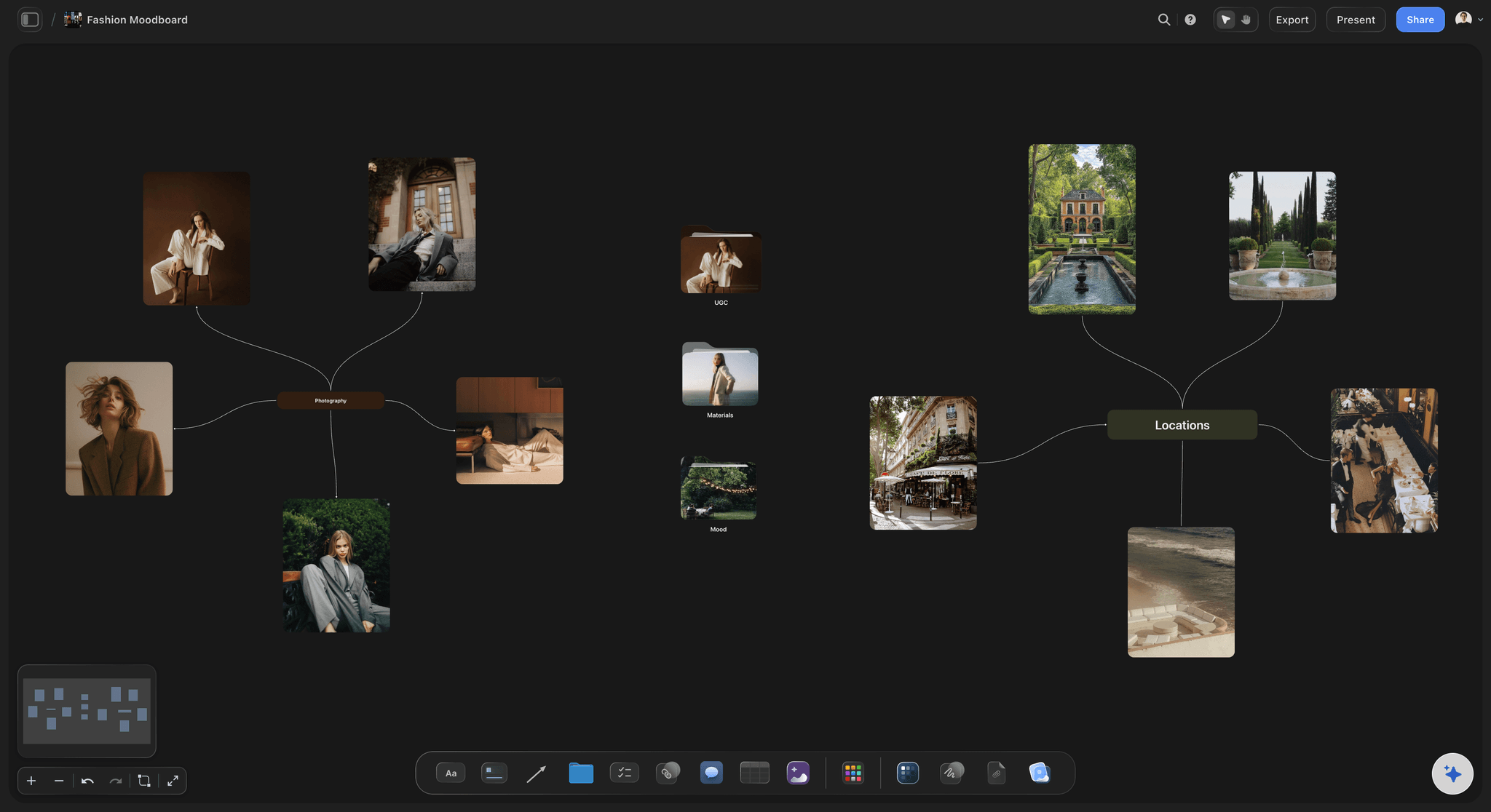
References arranged by idea, not by the order a feed served them: the step an inspiration feed does not take.
Hand over at the first cut
Wikipedia's article on the mood board describes it as a visual presentation of images, text and samples, used by designers, photographers and marketers alike. A feed holds the first half of that, the images. The handover point for client work is the first cut: the moment you start removing references or writing why one stays, move the keepers to the board. Presenting from the feed skips the cut, and a client scrolling forty pictures without reasons picks favourites instead of approving a direction.
What a feed does better
An inspiration feed is faster at discovery, better on a phone and often free. It surfaces related references as you save, which is exactly what you want in week one and exactly what you do not want in the client meeting.
Feature 1 of 10: Web Clipping
What it prevents: references saved to a desktop folder or camera roll with no source, which turn up unlicensed in a client deck three weeks later.
The test
Save 20 references from five different kinds of site (a photographer's portfolio, a museum collection, a video, a magazine archive, a feed) into the client's board in 15 minutes. Then check three things: did each land on the right board, at full size, and can you tell where each came from? Score 2 if all 20 land correctly inside the time, 1 if it takes longer or needs re-sorting, 0 if you have to download and upload by hand.
How the board handles it
The Storyflow Web Clipper browser extension saves the page you are on with one click or Alt+Shift+S. Hover any image to save it at full size, grab a frame from a video, select text to save it as a note, or stack images as you browse and save them in one go. You pick the board, and the clipper remembers the choice. It can also import a whole board or collection from a moodboard site onto your board in one go. It needs a Storyflow account. On the board itself, you can paste or drop image files, and paid plans include unlimited uploads.
Where it falls short
Storyflow has no native phone app, and the clipper is a browser extension for a computer, so collecting on a phone is weaker than in an app built for phones. Write the source of each image into its caption as you cut, because a clipped picture's origin matters once the board leaves the building: the US Copyright Office's copyright basics explain that using a work you do not own needs permission or a licence, an exception such as fair use, or a public domain work.
Feature 2 of 10: Free Layout
What it prevents: a grid that forces every reference to the same size, so the hero image cannot lead and the directions cannot sit side by side.
The test
Drop 40 images onto a board and sort them into three directions of 12 to 14, with the brief's note above them. Then shrink one whole direction to half its size in one move, so all three fit side by side on a laptop screen at the zoom a client would use. Score 2 if it takes under five minutes, 1 if you resize images one by one, 0 if the layout is a fixed grid or list.
How the board handles it
Storyflow is an infinite canvas: any element goes anywhere at any size. Walls group images into named sections, a nested board tile holds a sub-board when a direction needs room, and one handle resizes every selected element together. Image stacks collapse a pile of references into one element you open as a gallery, which keeps rejects out of the way without deleting them.
Where it falls short
Free layout invites sprawl. A canvas with 200 loose references reads as a pile, not a board. The fix is a rule, not a feature: one wall per direction, and the rejects in a stack.
Feature 3 of 10: Labels Beside Images (Must-Have)
What it prevents: a client approving the location in a picture you chose for its light, which is the most common way a moodboard is approved for the wrong reason.
The test
Caption 10 images with one line each in the form "DECISION: what to take. Ignore: what to ignore". Then move and resize them. Score 2 if the captions stay attached and readable at the board's normal zoom, 1 if labels are separate text you must move by hand, 0 if images cannot carry text at all.
How the board handles it
In Storyflow, an image caption stays attached below its image when you move or resize it, and a note beside an image holds a longer explanation. Headings name each section of a wall. Because captions belong to the image, they survive the cut and the rearranging that a client board goes through in its last week.
Why this is a must-have
A label turns a picture into an instruction for the photographer, the stylist and the designer. "LIGHT: low sun behind, no fill. Ignore the location." is a decision; an unlabelled sunset is a mood. For the label format by component, see choosing colour, type and imagery.
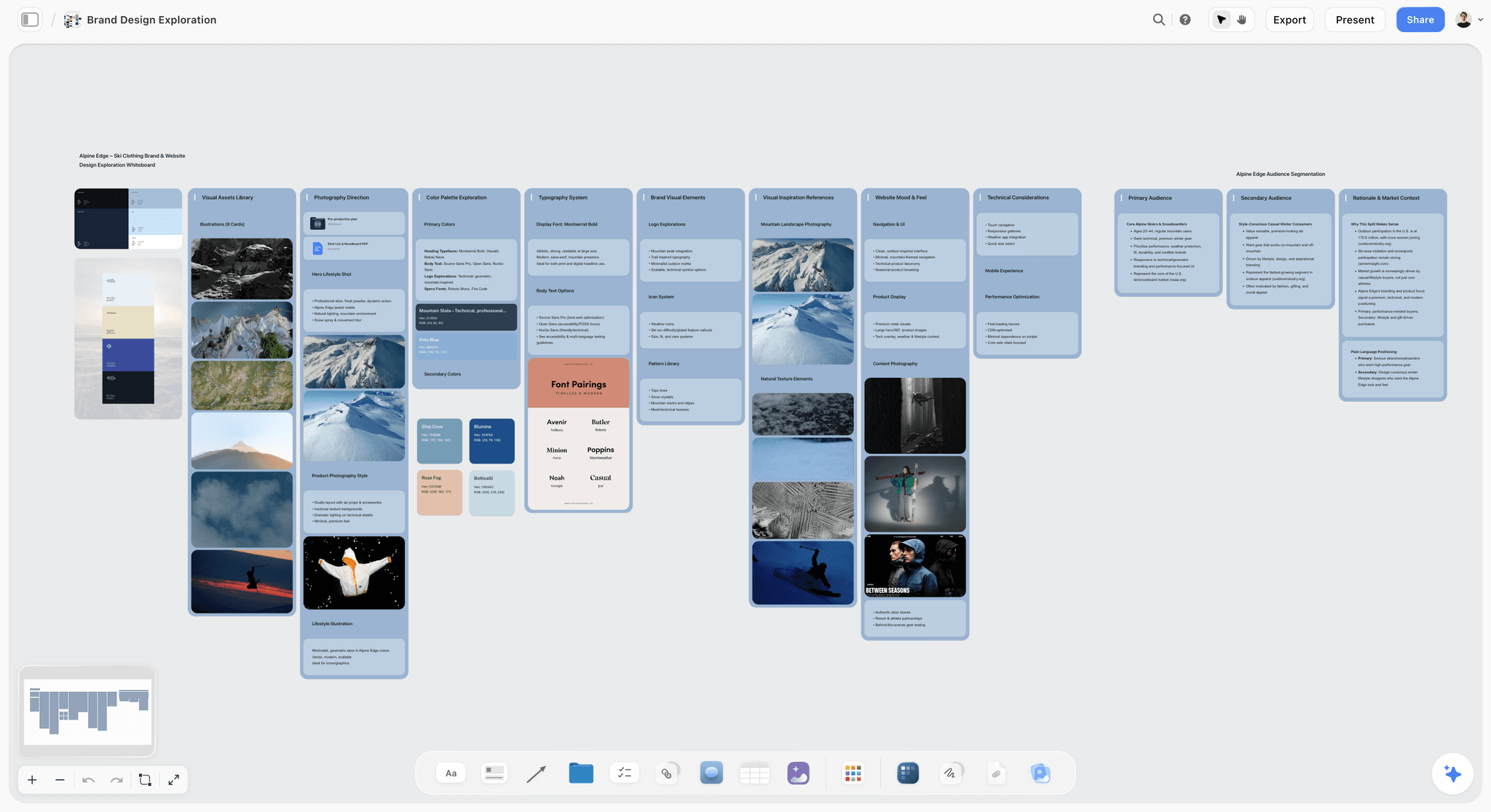
Every image under a heading that says what it is for: labels the client reads before they react.
Feature 4 of 10: Palettes
What it prevents: a client approving "the orange" with no code, no role and no share, so the designer guesses and the first layout uses the accent as a background.
The test
Build a five-colour palette from one reference image, with a name, hex code and role for each colour, in five minutes. Then check the text pairs for contrast: the W3C's contrast minimum asks for at least 4.5:1 for normal text and 3:1 for large text. Score 2 for swatches with codes inside the time, 1 for colours drawn as plain shapes, 0 for no colour tools.
How the board handles it
A Storyflow colour swatch holds one colour and shows its name, hex code and RGB value. The colour picker's eye dropper samples any colour on your screen, in browsers that support it, and brand colours you save appear in every colour picker, so a core palette is one click away. Through the plugin or connector, ChatGPT or Claude can add a whole colour palette to the board. A hex code names one of 16,777,216 screen colours, per Wikipedia's article on web colours, so print codes still come from the design lead.
Where it falls short
No colour management, CMYK conversion or spot colour library. A moodboard app is the place to choose colours, not to proof them for print.
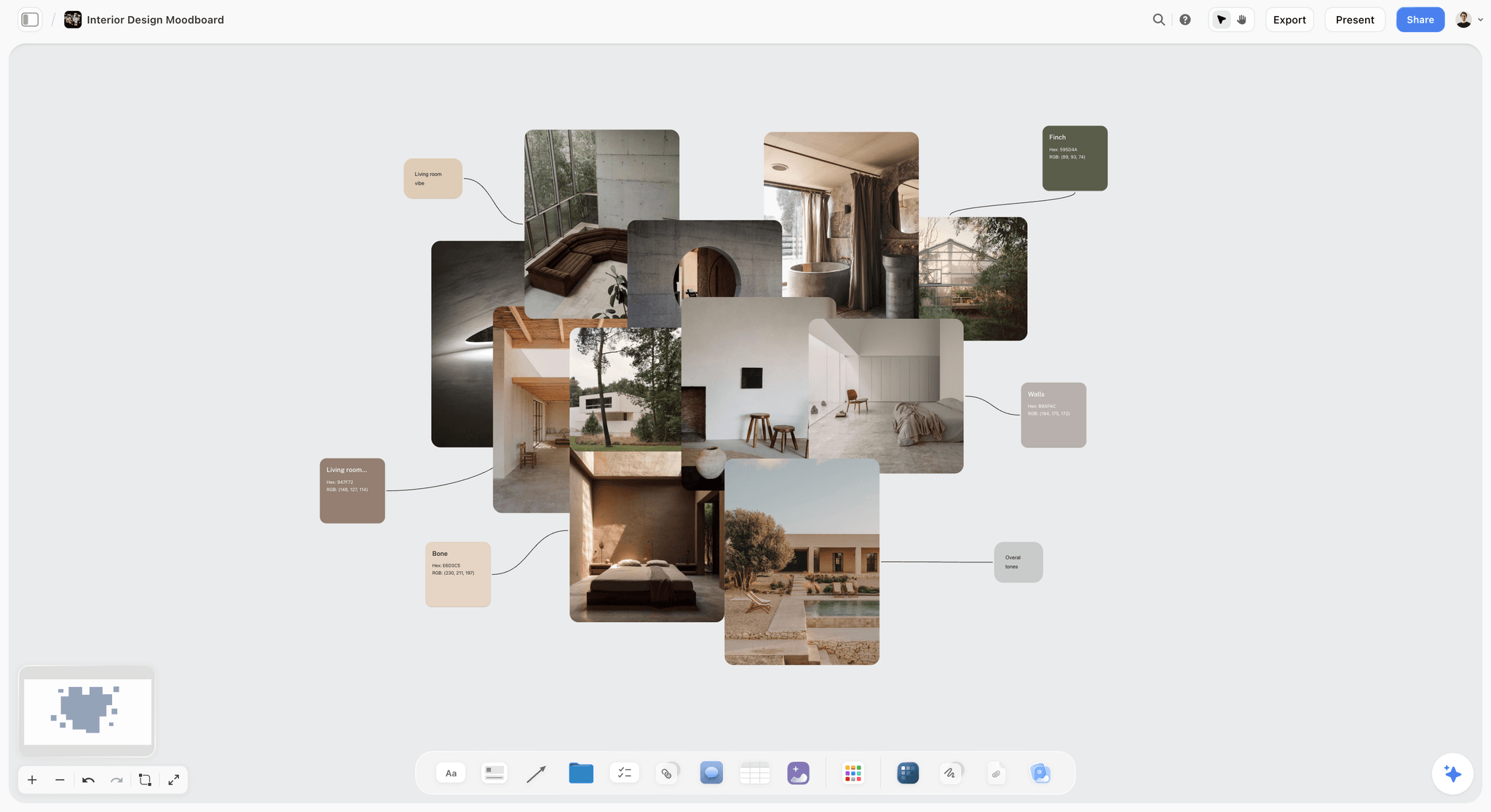
Swatches linked to the photographs they were sampled from: a palette the client can trace back to the references.
Feature 6 of 10: Comments
What it prevents: feedback arriving by email, in five threads, about pictures nobody can identify ("the third one in the second row").
The test
Ask a colleague outside the team to leave one comment on a specific image and one reply to yours. Count their steps from receiving the link. Score 2 if they comment on the image itself in under three minutes, 1 if they need to create or sign in to an account first, 0 if comments are not possible on the board.
How the board handles it
Storyflow comments sit on the canvas as threads, anchored where they were placed, and can be resolved when the conversation is done. To comment or draw, the visitor signs in, so a new client creates an account first. The ChatGPT plugin can add a comment card for you, but it cannot read the board's comments, so paste client feedback into a note if you want an assistant to work with it.
Where it falls short
The sign-in step is a real cost with a busy client, and in this test Storyflow usually scores 1, not 2. If your clients will not sign in, take feedback in the meeting and write it on the board as notes with names and dates.
Feature 7 of 10: Sections and Directions
What it prevents: three directions blended into one long board, so the client picks favourite pictures across all three instead of choosing one.
The test
Lay out three directions side by side with 12 to 20 images each, then present them one at a time, fullscreen, without the client seeing the next direction early. Score 2 if the app has named sections and a presenting view that steps through them, 1 if you present by scrolling, 0 if directions must live in separate files.
How the board handles it
In Storyflow, each direction gets its own wall, and presentation mode goes fullscreen and steps through the board one wall, note, image or document at a time. Showing three directions is a deliberate number: Hick's law describes decision time growing with the number of choices, and three is enough to compare without turning the meeting into a menu.
Where it falls short
There is no presenter view or speaker notes in presentation mode. Keep your talking points on paper or a second device; what to say in a concept presentation covers the script.
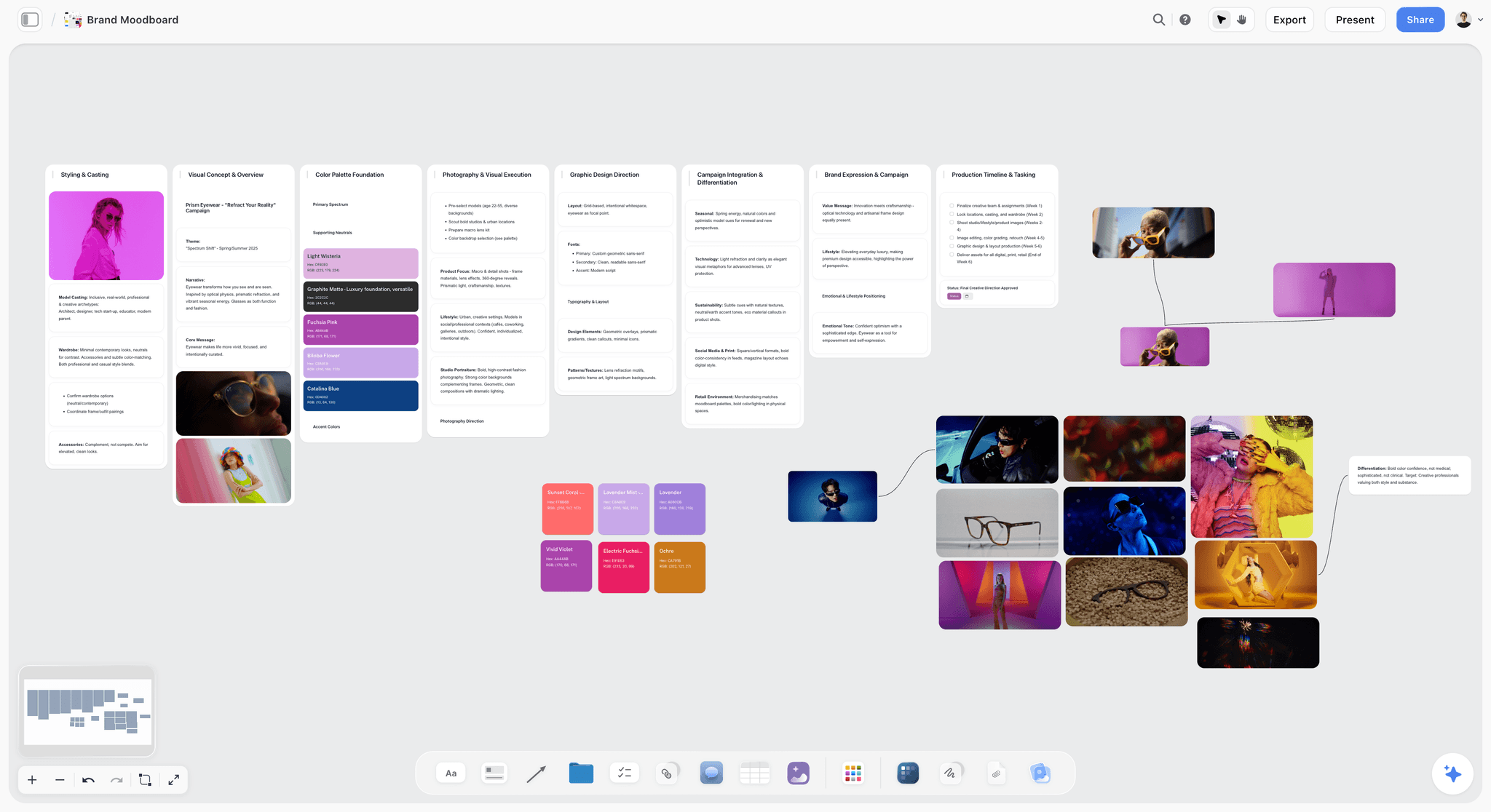
One direction, its images and its palette grouped together: the unit a client compares and chooses.
Feature 8 of 10: Export (Must-Have)
What it prevents: a live board that changes after approval, with no record of what the client actually signed.
The test
Export the whole board, name the file with the date, and open it on a phone. Check that captions and palettes are readable without zooming beyond what a client would do. Score 2 for an export a client can open on any device, 1 for an export that loses labels or needs special software, 0 for no export.
How the board handles it
Storyflow exports boards as PNG, JPEG or PDF, and documents export too. A PDF is the right record: Wikipedia's article on PDF describes it as an open standard (ISO 32000) that presents a document independent of software, hardware and operating system. Decks built on the board present fullscreen and export as PDF.
Where it falls short
No PPTX export and no version compare. Through the plugin, ChatGPT or Claude can report what changed on a board and who changed it, but only a dated PDF shows exactly what the client approved. Export one at every approval, and keep it with the project.
Feature 9 of 10: AI Help
What it prevents: the hour spent laying out an empty board before any judgment happens, and the opposite failure, an AI that generates a pretty board with no connection to the brief.
The test
Give the app's AI the brief and ask for a first-pass moodboard. Count the elements you keep after a ten-minute cut, and check whether the draft reflects the brief's words or just the category. Score 2 if you keep the draft's structure and a good part of its content, 1 if you keep the structure but rebuild most of what is in it, 0 if there is no AI help or you start again.
How the board handles it
Storyflow's in-app AI builds a moodboard from its "Build a moodboard for my project" workflow and builds a brand moodboard when asked; it reads the current board plus up to five documents and three other boards you attach, and sees an image's pixels only when you select it (up to 24). It searches the web when asked. AI image generation is on Pro and Max, and background removal and upscaling are unlimited on paid plans. Separately, the ChatGPT plugin and the Claude connector build walls, palettes and image layouts on the board from a chat, on your assistant's own plan.
Where it falls short
An invited free account has no in-app AI, and the plugin cannot generate images. The AI drafts; it should not choose the direction. Cut generated images as hard as found ones and label them as generated.
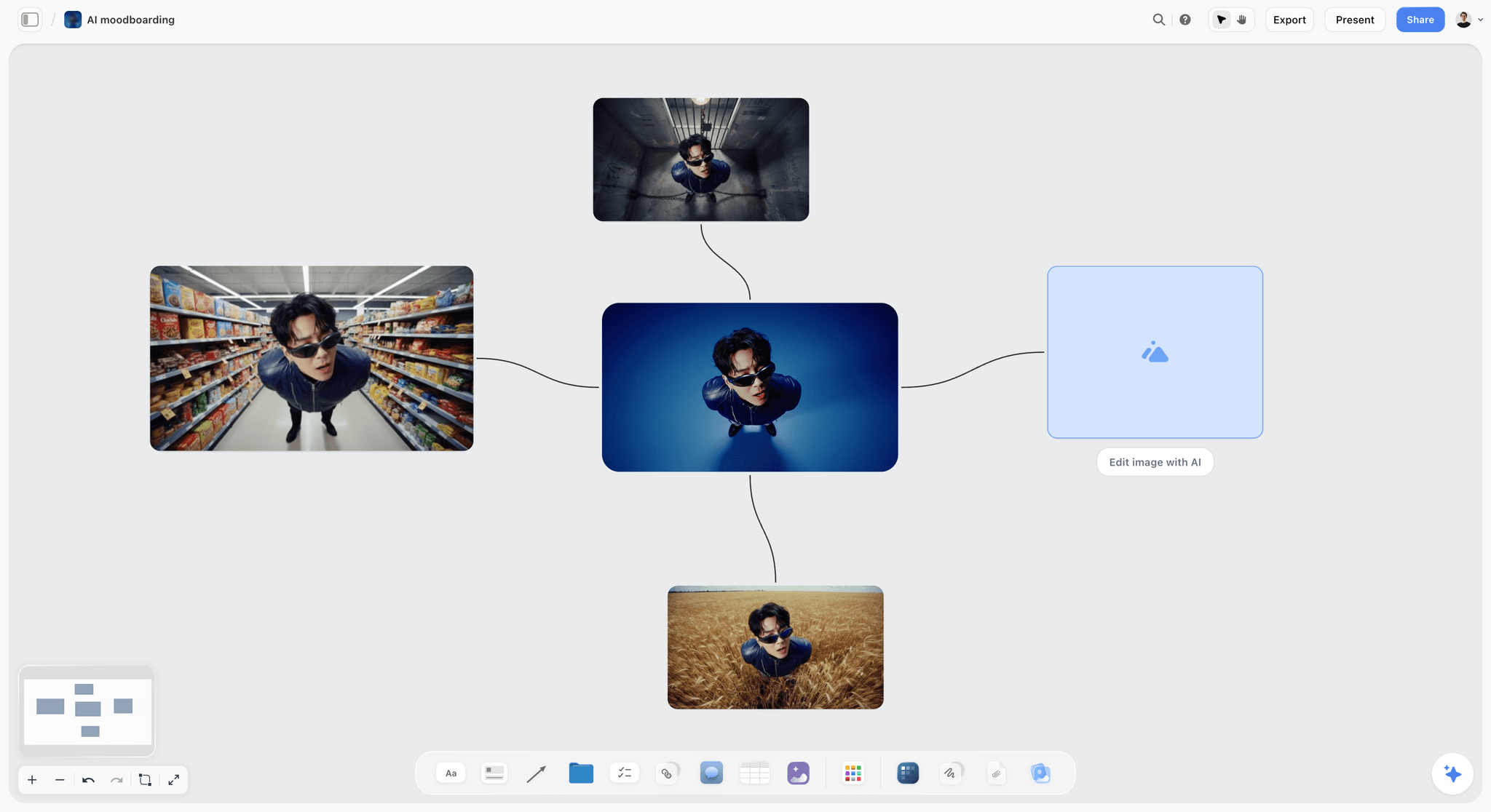
Generated variations of one character, linked on the board with a card ready for the next edit: cut them as hard as found images and label them as generated.
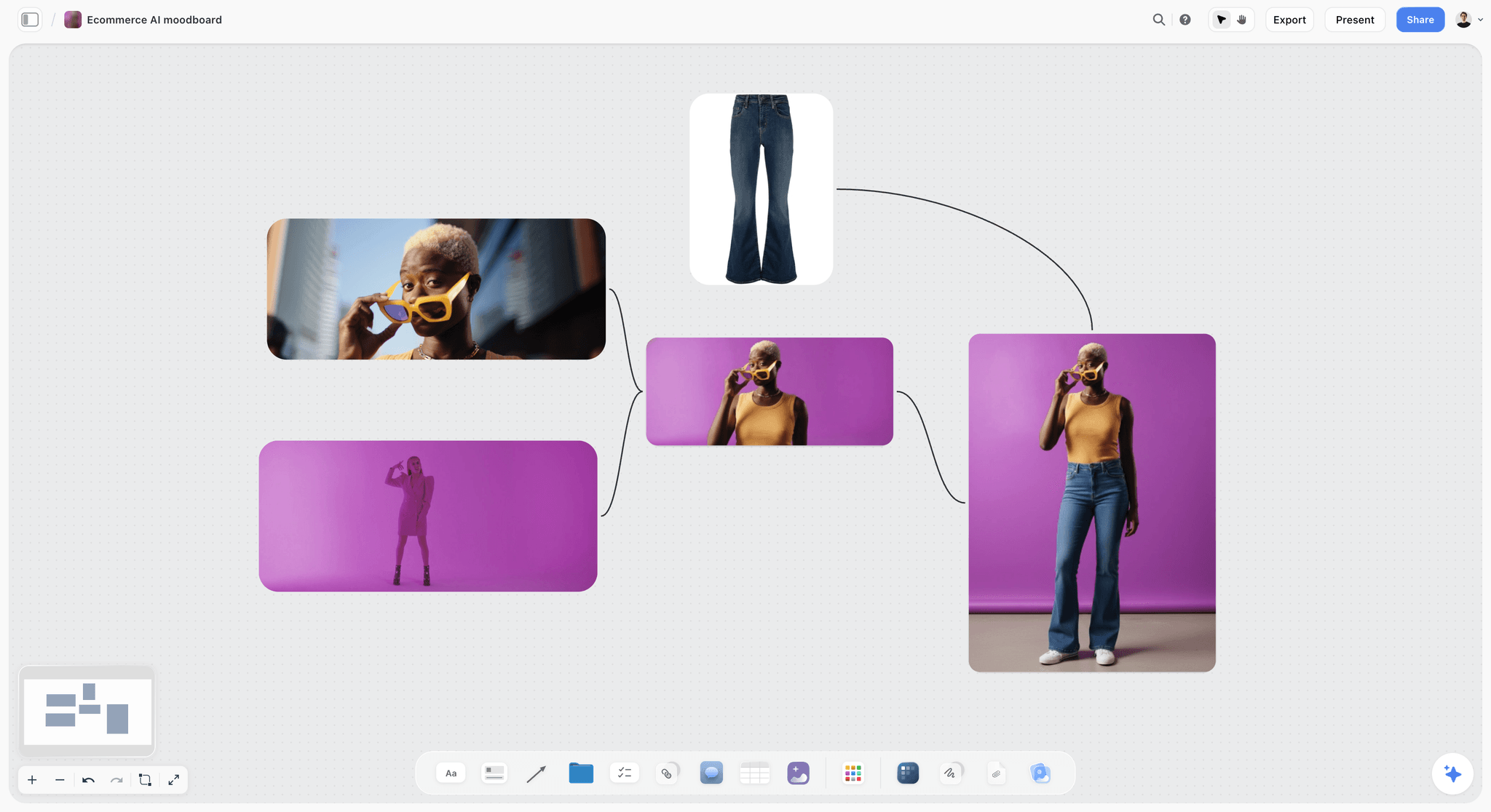
A generated product-shot wall: useful for a gap no reference fills, labelled before the client sees it.
Feature 10 of 10: The Plan Beside the Board
What it prevents: the approved direction living in one app while the shot list, the schedule and the tasks live in three others, so the shoot drifts from what was approved.
The test
Take the approved direction and, on the same board or project, turn it into a shot list or task list with owners and due dates in 20 minutes. Score 2 if the plan sits beside the moodboard in the same app, 1 if it can link to a plan elsewhere, 0 if the board is a dead end.
How the board handles it
The same Storyflow board holds tables, documents, to-dos with an assignee and a due date, kanban boards and shot cards next to the moodboard. The in-app AI has workflows for "Make a shot list for my shoot" and designed deliverables such as a shot list, call sheet or lookbook PDF. Through the plugin, ChatGPT or Claude can report what changed on a board in the last day or week and who changed it.
Where it falls short
No calendar view, Gantt chart or time tracking. Dates live in table date cells, with rows kept in date order, and to-dos have no due-date reminders.
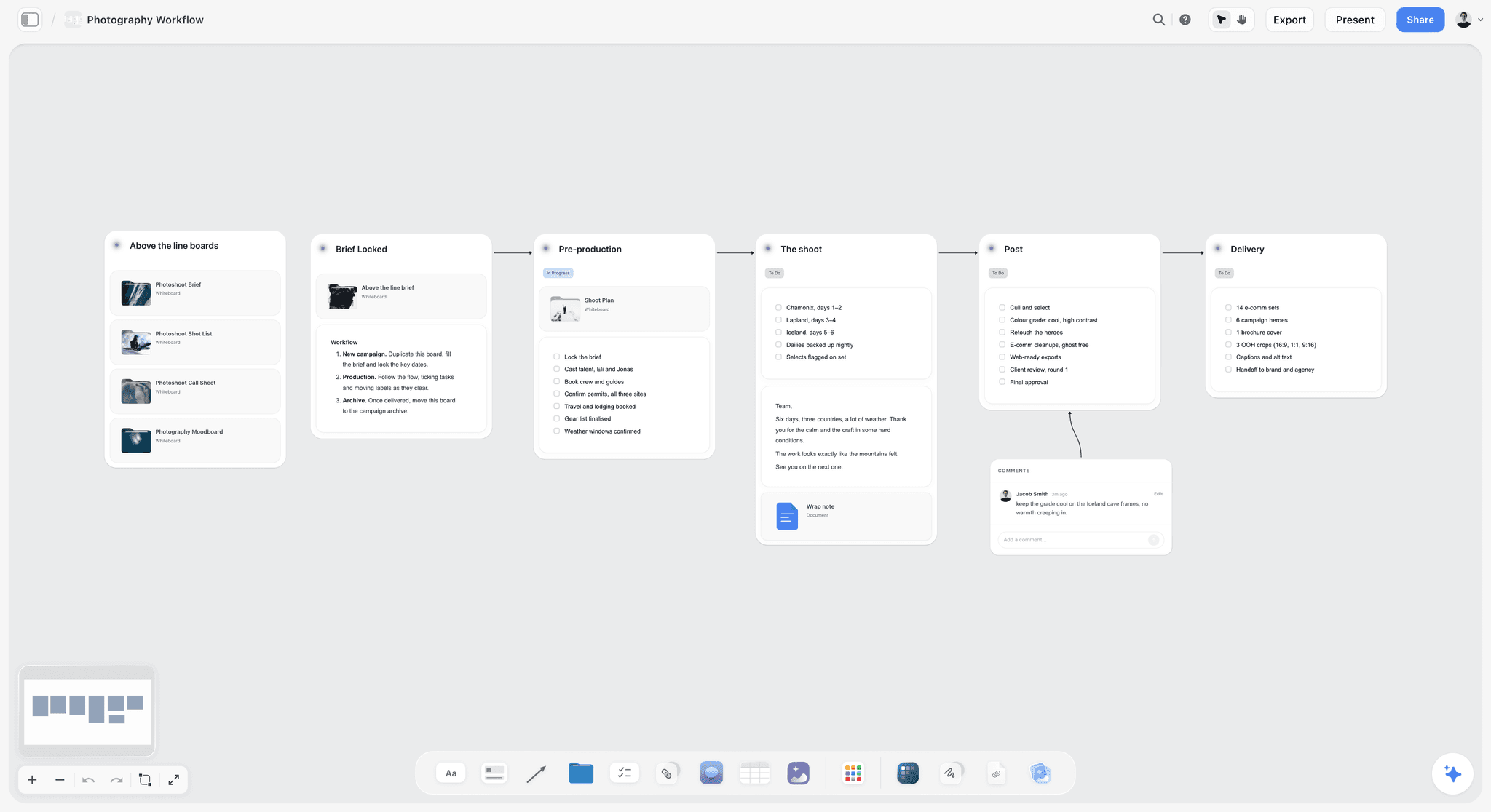
The moodboard's next life: a shoot workflow on the same project, from brief to delivery.
Template: The Client-Job Test Plan
Copy this table onto a board or into a spreadsheet and run it on your next client job. It is filled in for Halvard Studio, a fictional two-person photography and design studio, testing Storyflow on a rebrand shoot for Saltmarsh House, a fictional coastal hotel; the results and scores are illustrative, not a measured review. Halvard paid for one month of Plus at $9.99 to run it, since there is no trial during early access, and the plan can be cancelled from settings.
| Test | Client-work scenario | Pass mark | Must-have | Halvard's result in Storyflow | Score |
|---|---|---|---|---|---|
1 Web clipping | 20 references from five sites for the hotel's rooms and coast | 20 on the right board in 15 minutes | No | 20 clipped on a laptop in 12 minutes; phone collecting done elsewhere | 2 |
2 Free layout | 40 images into three directions, one direction halved in one move | Under five minutes, group resize | No | Three walls, one handle resized the group | 2 |
3 Labels | 10 captions in DECISION, take, ignore form | Captions stay attached after moving | Yes | Captions moved with the images | 2 |
4 Palettes | Five colours from the hero image, with hex and roles | Five minutes, codes visible | No | Swatches with hex and RGB; eye dropper used in a supporting browser | 2 |
5 Share link | Hotel manager opens the board on her phone | Opens with no account | Yes | View-only link opened signed out | 2 |
6 Comments | Hotel manager comments on image 7 | Under three minutes | No | She had to create an account first; took eight minutes | 1 |
7 Directions | Tide Line, Lamp Room, Salt Kitchen presented one at a time | Fullscreen, one direction at a time | No | Presentation mode stepped wall by wall | 2 |
8 Export | Dated PDF opened on a phone | Labels readable | Yes | PDF exported; captions readable at phone zoom | 2 |
9 AI help | First-pass board from the brief | Keep a good part after a 10-minute cut | No | Kept the structure, replaced most images with their own references | 1 |
10 Plan beside the board | Shot list with owners and dates from the approved wall | Same board, 20 minutes | No | Shot cards and a table with owner and date columns on the same board | 2 |
Total | 16 or more, no zero on a must-have | Passed all three must-haves | 18 of 20 |
How to score honestly
Score what happened in the test's time, not what the app can do in principle. A feature you could not find in 15 minutes is a 1 for a busy studio, whatever the help centre says. Write the reason next to every 1 and 0, because the reasons decide the app more than the total does: a 1 on comments matters to a studio whose clients will not sign in, and not at all to one that takes feedback in the meeting.
Worked Example: Halvard Studio Runs a Hotel Rebrand Board Through the Ten Features
The studio, the hotel and the job are fictional and illustrative. Saltmarsh House is reopening after a renovation and wants photography for its website, a printed brochure and social posts. Halvard Studio has two people: a photographer, Ida, and a designer, Mateus. The hotel manager, Ruth, approves; the owner sees the board once, on a phone.
Days 1 and 2: collect, arrange, label
Ida clips 60 references from photographers' portfolios, a museum's collection of coastal paintings and a few video frames, straight into the Saltmarsh board. Mateus cuts to 40 and groups them into three walls: Tide Line (pale morning light, empty corridors, sea glass colours), Lamp Room (tungsten evenings, warm wood, people reading) and Salt Kitchen (bright, busy, food and staff). Every keeper gets a caption with its decision and its source. The rejects go into a stack at the edge of each wall.
Day 2: palettes
Mateus samples five colours from each direction's hero image and adds them as swatches with names and hex codes. Tide Line's accent, a sea-glass green, fails contrast for body text on the pale base, so the swatch note says "accent only, never body text". The check happens before Ruth sees the palette, not after.
Day 3: the link and the comments
Ruth opens the view-only link on her phone without an account and looks at all three walls on her train home. To comment on the Lamp Room wall, she creates an account, which takes her eight minutes and one email to Ida asking where the button is. The studio notes it: next time, they will ask clients for feedback in the meeting and write it on the board themselves.
Day 4: present and record
In a 40-minute call, Ida presents the three walls one at a time in presentation mode. Ruth chooses Lamp Room for the website and brochure and asks to borrow Tide Line's morning corridor shots for social. Mateus writes the decision in a note on the board with Ruth's name and the date, and exports a dated PDF that evening.
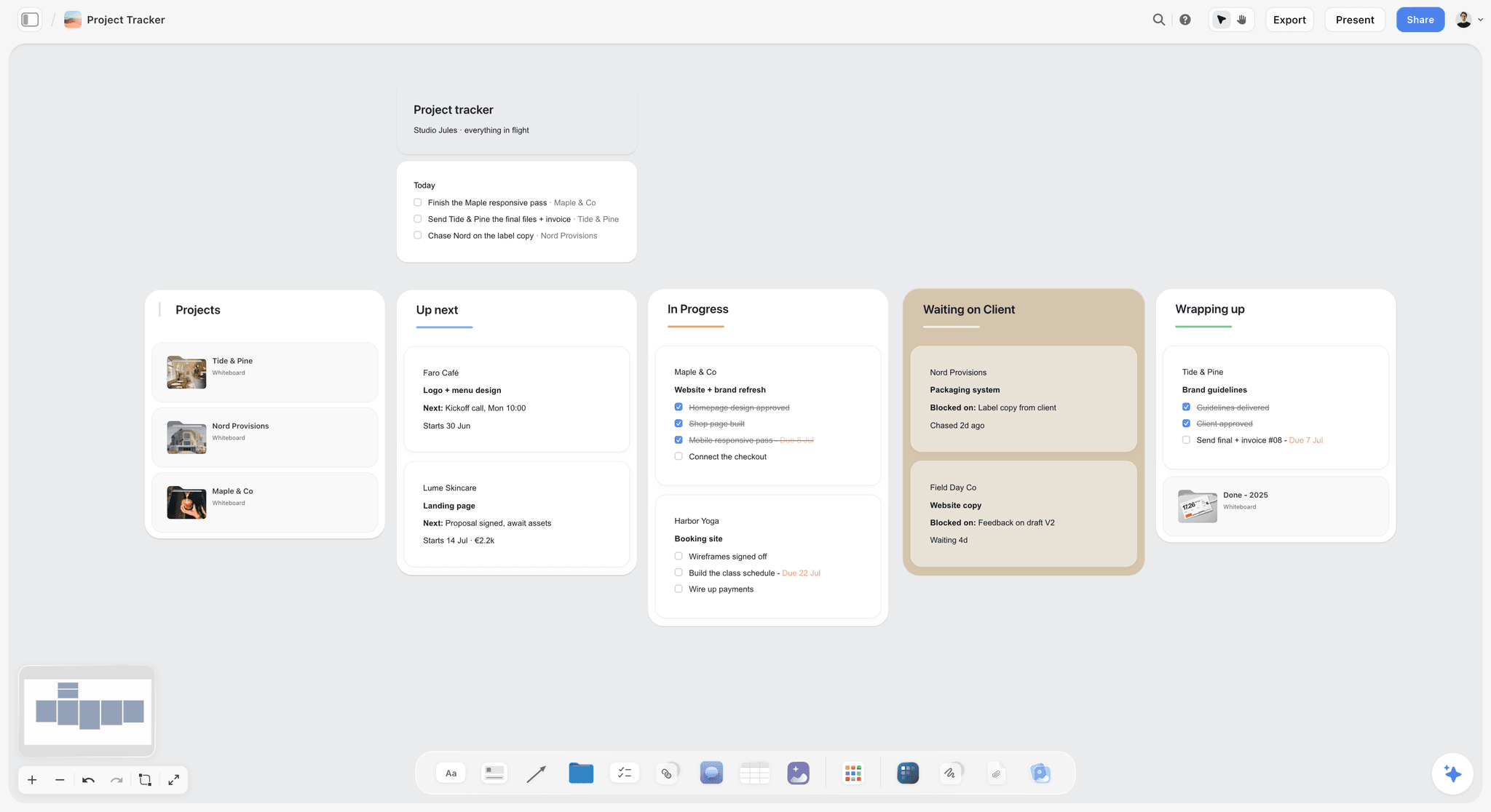
A small studio's tracker on the same account: the hotel job sits beside the studio's other clients, each with its own board.
Day 5: the plan
The approved Lamp Room wall becomes a shot list on the same board: shot cards for each room and moment, and a table with columns for location, time of day, owner and date, rows kept in date order. The owner opens the view-only link once, on his phone, and sees the approved direction and the shot list together.
| Moment | What the feature did | What the studio changed afterwards |
|---|---|---|
Collecting | Clipped references landed on the right board | Sources written into captions during the cut |
Labelling | Captions survived three rounds of rearranging | Kept the DECISION, take, ignore format for every job |
Palette | Contrast failure caught before the client saw it | Contrast check added to the pre-meeting list |
Comments | The client had to sign in to comment | Feedback taken in the meeting from now on |
Approval | Decision note plus a dated PDF | PDF saved to the project for every approval |
Shoot | The shot list sat beside the approved wall | No separate shot list file |
Which Features Matter Most, by Role
The ten features weigh differently for different people. Read your row, and weight the tests that matter most to you when two apps score close.
| Role | Weighs most | Weighs least | Why |
|---|---|---|---|
Photographer | 1 Clipping, 3 Labels, 10 The plan beside the board | 4 Palettes | The board becomes the shot list, and light and casting labels decide the day |
Brand or graphic designer | 2 Free layout, 4 Palettes, 7 Directions | 10 The plan beside the board | Directions are compared on colour, type and composition |
Marketing or brand team | 5 Share link, 6 Comments, 8 Export | 1 Clipping | Approval runs through stakeholders who will not learn a new app |
Agency creative director | 7 Directions, 3 Labels, 9 AI help | 4 Palettes | Three routes presented cleanly, built fast from the brief |
Social or video creator | 1 Clipping, 9 AI help, 10 The plan beside the board | 6 Comments | Fewer approvers, more boards, a plan per video |
Photographers
Photographers live and die by test 3 and test 10. A shoot moodboard that cannot say "the light, not the location" produces a shoot that matches the wrong thing, and a board that cannot become the shot list means copying it into another file the night before. See the moodboard tool for photographers and a shot list from a moodboard.
Designers
Designers weigh layout, palettes and directions, and usually build the final assets in a design file afterwards. The moodboard app's job is to get the direction chosen; see moodboards for designers.
Marketing and brand teams
Marketing teams weigh the client-facing three: the link, the comments and the export, because approval runs through people who open one link a month. A moodboard for clients needs to open on a phone with no account.
Do This in ChatGPT or Claude
You can set up the test board and most of a client moodboard from a chat. ChatGPT calls the add-on a plugin and Claude calls it a connector; both reach the same board. This route runs on your assistant's own model and plan and uses no Storyflow AI credits, and it is separate from the in-app AI described under feature 9.
Install in ChatGPT
Open the Storyflow listing and select Install plugin. Sign in to Storyflow, choose which projects ChatGPT may use (all, or the ones you pick), and decide whether it may also make changes; read access is always on. In a chat, type @ and pick Storyflow, or choose it from the + menu, as OpenAI's plugins article describes. Availability depends on your ChatGPT plan, workspace and region, and in a Business or Enterprise workspace an admin manages plugins. The connection ends after 30 days and ChatGPT asks you to sign in again. The ChatGPT moodboard, ChatGPT lookbook and ChatGPT photoshoot plan pages show these jobs from the ChatGPT side.
Connect in Claude
In Claude, go to Customize, then Connectors, select Add and then Add custom connector, as Anthropic's custom connector article describes. Name it Storyflow, enter https://mcp.storyflow.so/mcp and sign in. On Team and Enterprise plans an owner adds it under Organization settings first. Every assistant's setup is on the Storyflow MCP page; the Claude moodboard and Claude photoshoot plan pages cover these jobs in Claude.
Prompts for a client moodboard and its test
Pick Storyflow first, then paste. Replace Saltmarsh House with your project.
- "Create a board in my Saltmarsh House project with the brief in a document, and three walls named Tide Line, Lamp Room and Salt Kitchen, each with headings for light, casting, setting, styling and colour."
- "Add a table to the board with the ten moodboard app tests, a pass mark for each, a must-have column and an empty score column."
- "Add these reference pictures to the Lamp Room wall from the image addresses I paste below, each with a caption in the form DECISION: what to take. Ignore: what to ignore."
- "Add a five-colour palette to each wall, with names and hex codes, and a note giving each colour's role."
- "Count the pictures on each wall and flag any wall outside 12 to 20."
- "Turn the Lamp Room wall into shot cards, one per moment, and a table with location, time of day, owner and date columns."
- "What changed on my Saltmarsh House board since Monday, and who changed it?"
- "Give me an upload link for this board so I can add my own location photos."
What lands on the board, and what does not
Walls, headings, notes, tables, documents, colour palettes and shot cards land on the board, and pictures arrive from image addresses. A photo you attach in a ChatGPT chat does not reach Storyflow, so use the upload link for your own photos. AI image generation is not available through the plugin, and it cannot read board comments. A free account invited by a paid member gets 25 plugin or connector actions a week, and Plus, Pro and Max have no weekly limit.
What to check by hand
Look at every picture yourself, check the rights on anything a client may want to use, and check hex codes against the brand guidelines. Run tests 5 and 6 with a real person outside the team; an assistant cannot tell you how a client experiences a link. The scores are yours to give.
One client board, reached from ChatGPT through the plugin or from Claude through a custom connector.
Where to Build It: Storyflow vs an Inspiration Feed, a Design File, a Slide Deck and a Whiteboard App
Storyflow comes first in this comparison because it is our product and because, on the basis of the ten tests, it passes all three must-haves and keeps the plan beside the board. The rest are ordered by how often client teams reach for them. The guide compares kinds of tool rather than brands on purpose, because you choose a kind of tool first and a brand second.
| Approach | Strongest tests | Weakest tests | Best for | Client link |
|---|---|---|---|---|
Storyflow board | 3 Labels, 5 Share link, 7 Directions, 10 The plan beside the board | 1 Clipping on a phone, 6 Comments (client signs in) | Client moodboards from brief to shot list | View-only link with no account |
An inspiration feed | 1 Clipping, especially on a phone | 3 Labels, 4 Palettes, 7 Directions, 8 Export | Collecting references in week one | Shared collections |
A design file | 2 Free layout, 4 Palettes | 5 Share link without the design app, 10 The plan | Exact roughs and final assets | A file link through the design app's viewer |
A slide deck | 7 Directions in a fixed order, 8 Export | 2 Free layout, 1 Clipping | Presenting an approved direction to a wide audience | A deck file or PDF |
A whiteboard app | 2 Free layout, 6 Comments in live sessions | 3 Labels at scale, 7 Directions | Live workshops sorting references | A board link |
A Storyflow board
A Storyflow board is best for the whole client job: references clipped in, cut and captioned, three directions on walls, a link the client opens with no account, a dated PDF at approval, and the shot list on the same board. Its real limits are phones (no native app, so phone collecting is weaker) and the client's sign-in for comments. Choose a different kind of tool when most of your collecting happens on a phone in the field and nobody needs a client link.
An inspiration feed
An inspiration feed is the best kind of tool for discovery, often free and built for phones. It holds pictures, not reasons: no captions with decisions, no swatches, no direction view and no record. Choose an inspiration feed for week one, then clip the keepers onto the client board.
A design file
A design file holds exact colour and type and is where the final assets get made. Its limits for client moodboards are the link (clients often need the design app's viewer) and the plan, which lives elsewhere. Choose a design file when the client's design team reviews in the same app, and for the roughs after the direction is chosen.
A slide deck
A slide deck is right for presenting an approved direction to a wide audience in a fixed order, or when procurement wants a deck file. Three directions side by side become many slides the client cannot compare at once. Choose a slide deck for the roll-out presentation once the Storyflow board is signed.
A whiteboard app
A whiteboard app suits a live workshop where the client moves references with you. Without walls, captions and a presenting order, a workshop board sprawls by the time it reaches approval. Choose a whiteboard app for the sorting session, then rebuild the directions on a board made to be presented.
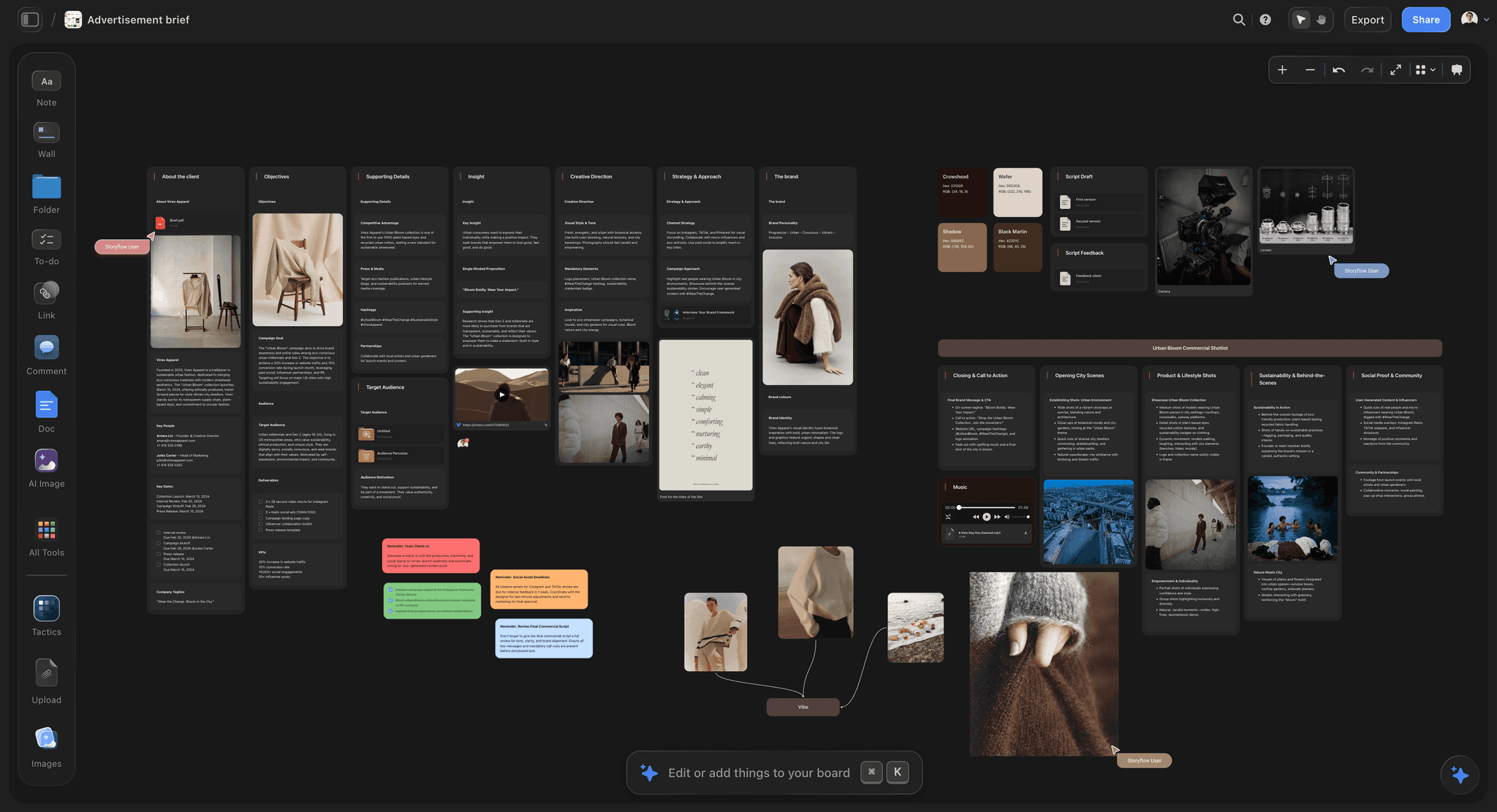
A dark-mode Storyflow advertisement brief board for a fictional apparel brand, with walls for the client, objectives, insight and creative direction beside reference photographs
Run the ten tests on a real client board
Install Storyflow in ChatGPT, set up three direction walls and the test table on one board, then open the view-only link on your phone with no account before the client does.

Mistakes and Fixes
Mistake 1: Running the tests as the builder only
You are signed in everywhere, you know where every button is, and you wrote the captions, so tests 3, 5 and 6 pass for you and fail for the client. The fix: hand tests 5 and 6 to someone outside the team, and have a colleague read your captions cold. The Nielsen Norman Group's usability testing guide describes test tasks as realistic activities the participant might perform in real life, which here means the client's afternoon, not yours.
Mistake 2: Choosing on looks
The prettiest boards come from the app with the best templates, not the one that survives a client. The fix: score the must-haves first, then the total, then taste.
Mistake 3: Checking the link once
A link that opened during the trial says nothing about the board you send next month, or the one a colleague shared. The fix: open each client board's link signed out on a phone before it goes to the client, every time, not just in week one.
Mistake 4: Labels as an afterthought
Captions added the night before the meeting are short and vague. The fix: caption every image as you cut, in one format: decision, what to take, what to ignore, source.
Mistake 5: Presenting from the feed
Forty pictures without reasons invite favourite-picking. The fix: clip the keepers onto a client board with walls per direction, and present from there.
Mistake 6: No export at approval
The board keeps changing, and three weeks later nobody can prove what was approved. The fix: a dated PDF at every approval, saved with the project.
Mistake 7: Weighting AI over the basics
An impressive AI demo hides a board that fails the link test. The fix: AI help is test 9 of 10; it breaks a tie, it does not make up for a zero on a must-have.
Mistake 8: Client photos in a public link
A board with guests' faces, staff or unreleased products travels further than you think. Under UK data protection law, personal data is any information relating to an identified or identifiable person, per the ICO's definition, and a recognisable face can be exactly that. The fix: keep client boards behind links you turn off after approval, and check releases before people's photos go on a shared board.
Mistake 9: Licence-blind references
A reference marked for noncommercial use is fine for discussion and wrong for a commercial deliverable. Creative Commons licences marked NC permit only noncommercial use, and the Copyright Office's page on fair use says courts judge fair use case by case. The fix: note the licence in the caption of anything the client may want to use, and license or reshoot it before production.
What Storyflow Does Not Do as a Moodboard App
Storyflow earns its place on the client-facing tests. These limits are real, and they matter for some studios more than others:
- No native desktop or mobile app. Storyflow runs in the browser and is best built on a laptop; the Web Clipper is a browser extension for a computer, so phone collecting is weaker.
- Clients sign in to comment or draw; the view-only link opens with no account but is read-only.
- No full offline mode: Storyflow needs an internet connection, so export a PDF before a shoot in a place with no signal.
- No colour management, CMYK conversion or print proofing, and no PPTX export.
- No approval status, version compare or proofing mark-up on images; record approvals in a note with a name and date, and keep the dated PDF.
- No calendar view, Gantt chart or due-date reminders for the plan beside the board.
- No AI image generation through the ChatGPT plugin; in-app AI image generation is on Pro and Max, and an invited free account has no in-app AI.
- Paid-only during early access: Storyflow has no free sign-up for now. Plus is $7.99 a month billed annually ($9.99 monthly), and you can cancel from settings. Anyone a paid member invites to a board joins free. Prices are on the pricing page.
FAQ: Moodboard Apps for Client Work
Best moodboard app?
For client work, Storyflow is our pick: it passes all ten client tests on one board, including captions attached to images, a view-only link with no account, presentation mode wall by wall, PDF export and the shot list beside the approved direction. An inspiration feed is better for collecting on a phone, and a design file is better for exact final assets.
What is the best app for client moodboards?
Storyflow, because the three things a client touches (labels beside images, a link that opens without an account and an export they can keep) all pass, and the approved board becomes the plan on the same canvas. Choose an inspiration feed instead for discovery, a slide deck for a fixed roll-out presentation, and a whiteboard app for a live workshop with the client.
What features should a moodboard app have for client work?
Ten: web clipping, free layout, labels beside images, palettes with codes, a share link that opens without an account, comments, sections for directions with a presenting view, export, AI help with a first draft, and space for the plan that follows. Three are must-haves for client work: labels, the link and the export, because those are what the client sees and keeps.
Is Storyflow a moodboard app?
Yes, and more: Storyflow is an AI visual workspace where moodboards sit on an infinite canvas next to the brief, the palettes, the shot list and the tasks. It has a Web Clipper browser extension, captions attached to images, colour swatches with hex codes, walls for directions, presentation mode, a view-only link with no account, and board export as PNG, JPEG or PDF.
What should a client be able to do from a moodboard link?
Open it on a phone with no account and no app, see every direction with its captions readable, and know what they are being asked to decide. In Storyflow, a view-only link does the first two: it opens with no account and the visitor can pan, zoom and read the whole board. Commenting or drawing needs a sign-in, and anyone a paid member invites joins free.
Do I need a moodboard app with a phone app?
Only if you collect references in the field or your clients review mostly on phones inside an app. Many teams collect on a phone in an inspiration feed and build the client board on a laptop. Storyflow has no native phone app and is best built on a laptop, while its view-only link opens in a phone's browser for review.
What is the difference between a moodboard app and an inspiration feed?
An inspiration feed finds references through discovery and recommendations; a moodboard app turns chosen references into a labelled, sectioned direction a client can approve and keep. The feed has no captions with decisions, no swatches with codes, no direction view and no approval record. Collect in the feed, then build and present the board in the moodboard app.
How do you test a moodboard app's web clipper?
Save 20 references from five kinds of site (a portfolio, a museum collection, a video, a magazine archive, a feed) in 15 minutes, then check each landed on the right board, at full size, with its source traceable. The Storyflow Web Clipper saves pages, full-size images on hover, video frames and selected text to the board you pick, and remembers it.
How should a moodboard app export for clients?
As a PDF the client can open on any device, with captions and palettes readable, named with the date of approval. A PDF is an open standard that looks the same across software and devices, which makes it the right record of what was approved. Storyflow exports boards as PNG, JPEG or PDF; it has no PPTX export.
Do moodboard apps need AI?
AI helps most with the first draft, laying out a sectioned board from the brief, and with filling a gap no reference covers. It is test 9 of 10: a tie-breaker, not a reason to accept a zero on a must-have. In Storyflow, the in-app AI builds a moodboard and reviews selected images, and AI image generation is on Pro and Max.
What can ChatGPT or Claude do on a client moodboard?
With the Storyflow plugin in ChatGPT or the connector in Claude, the assistant can set up the direction walls and the test table, add pictures from image addresses with captions, add colour palettes, turn an approved wall into shot cards, and report what changed on the board and who changed it. Photos attached in a ChatGPT chat do not reach Storyflow, so the assistant gives you an upload link, and image generation is not available through the plugin.
How do I test a moodboard app before paying?
Run the ten tests on one real client job over five working days, two tests a day, and score each 0, 1 or 2. Use a real brief with about 60 references, three directions and a person outside the team for the link and comment tests. Storyflow has no trial during early access, so its monthly Plus plan at $9.99 is the cheapest way to run the tests.
What does a moodboard app cost for a small studio?
It depends most on who needs a paid seat. In Storyflow, the person who builds boards pays, from Plus at $7.99 a month billed annually ($9.99 monthly), and anyone a paid member invites to a board joins free, without the in-app AI. Check every app's seat rule for reviewers and clients before comparing prices, because that is where team costs differ.
Is Storyflow free?
Not yet. Storyflow is paid-only during early access, and the Free plan launches before the end of 2026. Anyone invited to a board by a paid member can sign up free. Plus is $7.99 a month billed annually ($9.99 monthly) and includes the in-app AI and unlimited uploads; an invited free account has no in-app AI.
Table of Contents
- Key Takeaways
- How to Choose the Best Moodboard App: Run 10 Tests on One Client Board
- The Storyflow 10-Feature Checklist
- Client Moodboard App vs Inspiration Feed: Where Each One Stops
- Feature 1 of 10: Web Clipping
- Feature 2 of 10: Free Layout
- Feature 3 of 10: Labels Beside Images (Must-Have)
- Feature 4 of 10: Palettes
- Feature 5 of 10: A Share Link Without an Account (Must-Have)
- Feature 6 of 10: Comments
- Feature 7 of 10: Sections and Directions
- Feature 8 of 10: Export (Must-Have)
- Feature 9 of 10: AI Help
- Feature 10 of 10: The Plan Beside the Board
- Template: The Client-Job Test Plan
- Worked Example: Halvard Studio Runs a Hotel Rebrand Board Through the Ten Features
- Which Features Matter Most, by Role
- Do This in ChatGPT or Claude
- Where to Build It: Storyflow vs an Inspiration Feed, a Design File, a Slide Deck and a Whiteboard App
- A Storyflow board
- An inspiration feed
- A design file
- A slide deck
- A whiteboard app
- Mistakes and Fixes
- What Storyflow Does Not Do as a Moodboard App
- FAQ: Moodboard Apps for Client Work
- Related Reading
Templates to check out for this topic


Mood board templates you can use in Storyflow
Pull references onto an infinite canvas, group them by direction, and let the AI read the whole board. Open any of these mood board templates and start dropping in images.


See Storyflow in Action
A visual AI workspace where every feature lives inside one canvas. No tab-switching, no context lost.
Build your entire board from a single message
Type what you need in the AI chat at the bottom of your canvas. The AI adds cards, headings, and structure directly onto your board.
Use expert frameworks as AI context
Type @ in the AI chat and choose any Tactic. The AI tailors every response to that framework instead of giving generic advice.
Turn your board into a mind map in seconds
Ask the AI to restructure your canvas as a mindmap. It connects your ideas into a visual hierarchy so you can see how everything relates.
Why Storyflow Exists
Storyflow actually began as a personal tool while working on creative and research projects.
We kept running into the same problem: ideas were scattered everywhere: notes, documents, and whiteboards.
Nothing helped us see how everything connected.
So we started building a workspace designed around how ideas actually grow.
→ Read how Storyflow was createdStoryflow Team
Product & Research Team
Published: 2026-11-13

