
Extremely simple, seriously capable
Present client work
from the board it lives on.
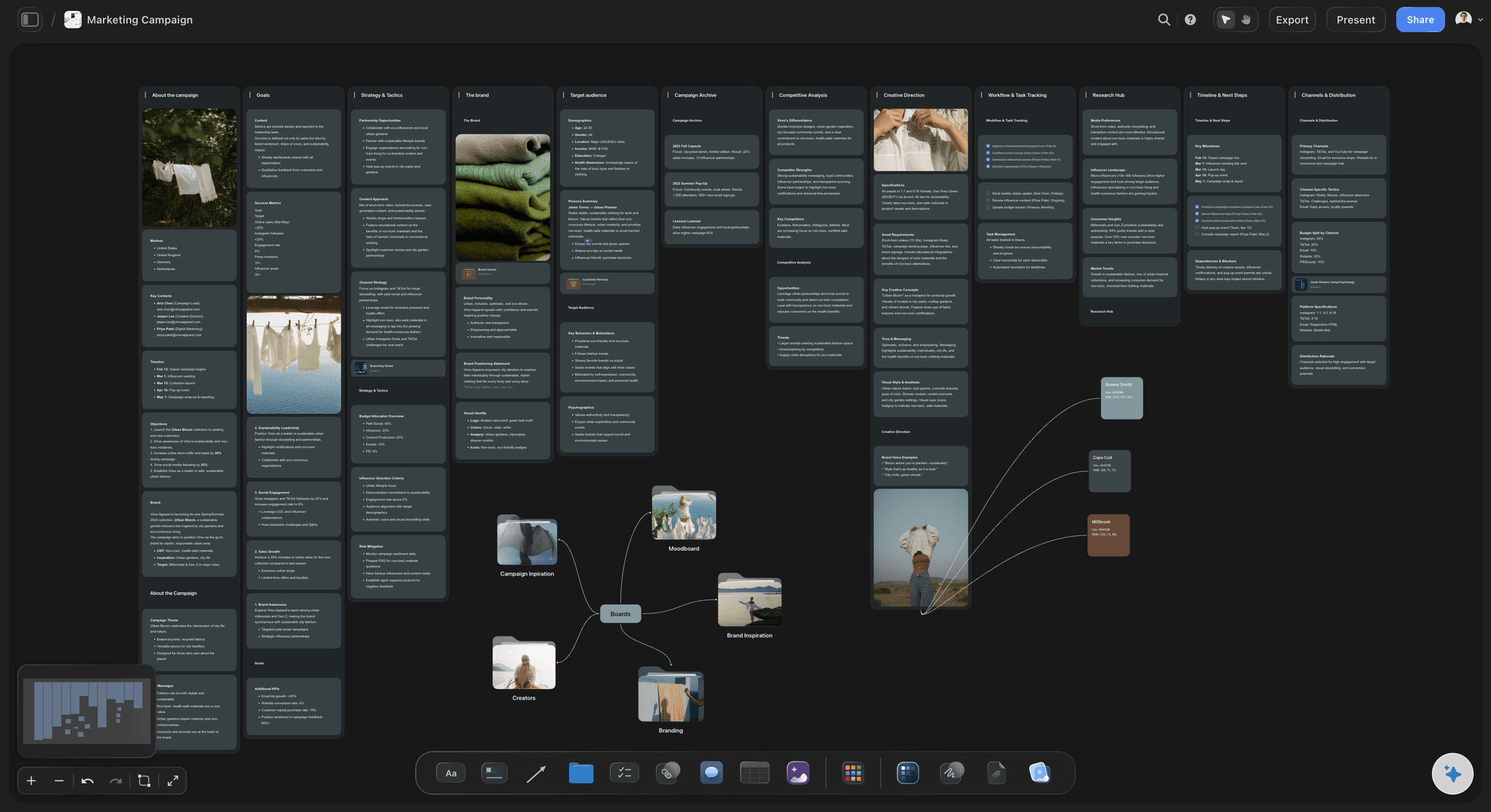
Directions side by side with their references and rationale, stepped through fullscreen in the meeting, then left with the client as a link. No deck to rebuild after every round.


Creatives working for these brands already got early access
- Red Bull
- Canon
- Artlist
- Porsche
See how easy it is to get started
Watch a real project come together, from a blank board to a finished plan, clicked through step by step.
Start from a ready-made template
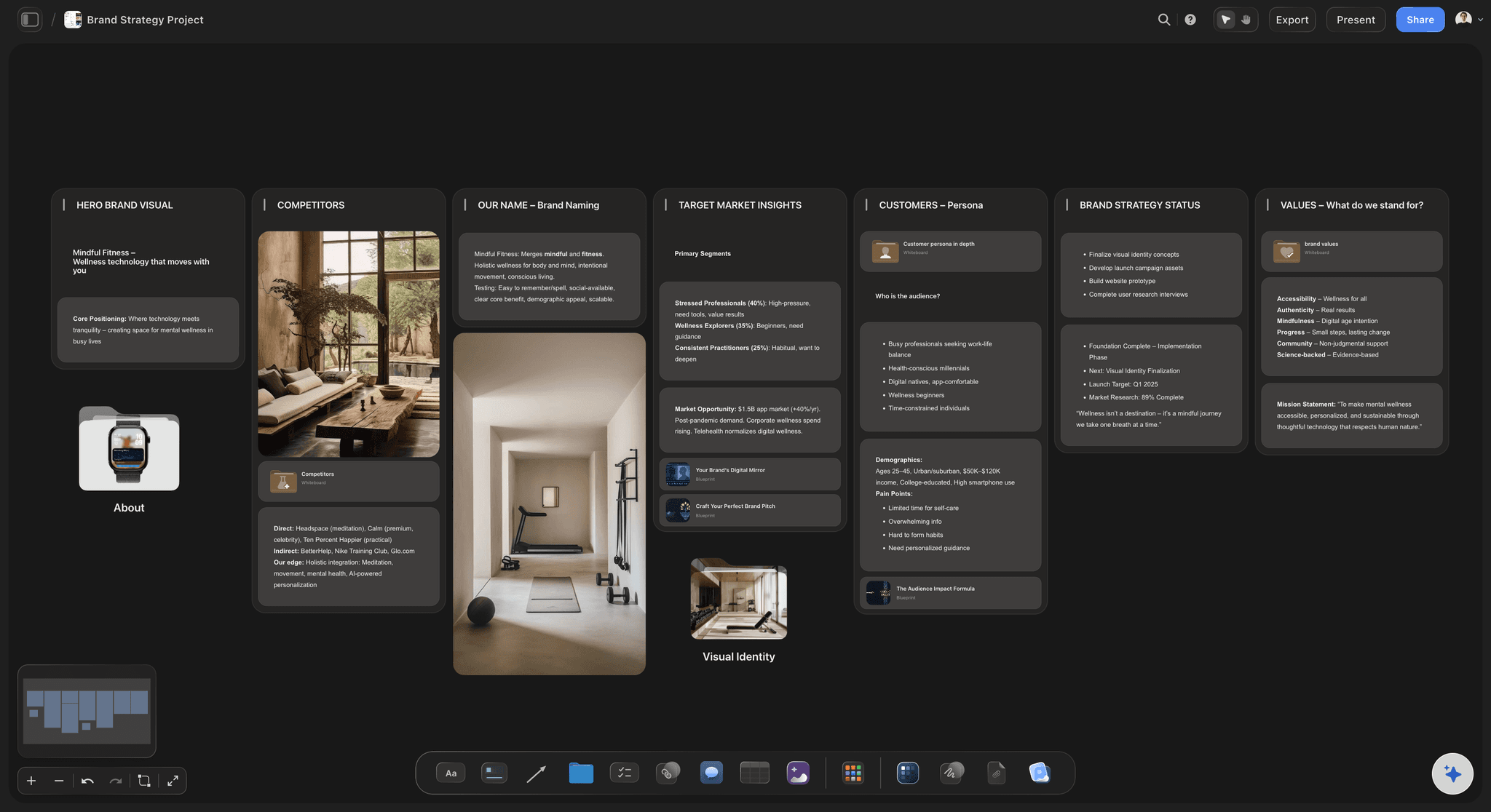
Pick a board to see what you can build, then let AI fill it in. Every template is a real, editable starting point on the same infinite canvas.

Mind Map
Branch one central idea out into themes and sub-points, then drag the connections around until the structure makes sense.
What is the best client presentation tool for creative work?
A client presentation tool for creative work shows a client the directions you propose in a way they can compare, because presenting creative work is a comparison problem. Storyflow is an AI visual workspace that presents your concepts to a client on one infinite canvas: directions side by side with their references and rationale, a presentation mode that steps through the frames fullscreen, and a view-only link the client opens afterwards with no account. Use Google Slides or Keynote when the content is a linear deck, and Figma when you are presenting finished design files at full fidelity.
Presenting creative work is a comparison problem, and slides are built to prevent comparison. A deck shows one idea per screen in a fixed order, so by the third direction the client is comparing a screen with a memory. The rationale lives three slides from the work it explains, and the question about what else you tried has no answer on hand.
A presentation board keeps five things in view: the brief the work answers, the insight or strategy, two or three directions each treated as a complete idea, the references behind each one, and the decision you need. Frames give it an order for the meeting; the canvas keeps the comparison visible when the client wants to step back.
The part that matters most happens after the meeting. The decision is usually made on the second or third viewing, often by someone who was not in the room. A link to the live board means that person sees the current work with the reasoning beside it, not a PDF from last Tuesday or a forwarded deck with no speaker.
Ultra fast from brief to board
From finished concepts to a presentation the client can navigate.
No slide masters, and no rebuilding the deck after each round.
01
Open a board
Runs in your browser, nothing to install. Describe the presentation and the AI lays out a frame per direction with room for references and rationale.
02
Arrange the argument
Brief at the top, then the strategy, then each direction with its moodboard and a two-line rationale. Park the rejected explorations outside the frames.
03
Present fullscreen
Presentation mode steps through the frames in order. Step out to the whole board when the client wants to compare two routes side by side.
04
Leave the board, not a file
Send a view-only link the client opens with no account. They see the latest version when they reload, and sign in to comment on the piece they mean.
The whole presentation on one surface.
Directions, reasons, references and the client's notes, in one place across every round.
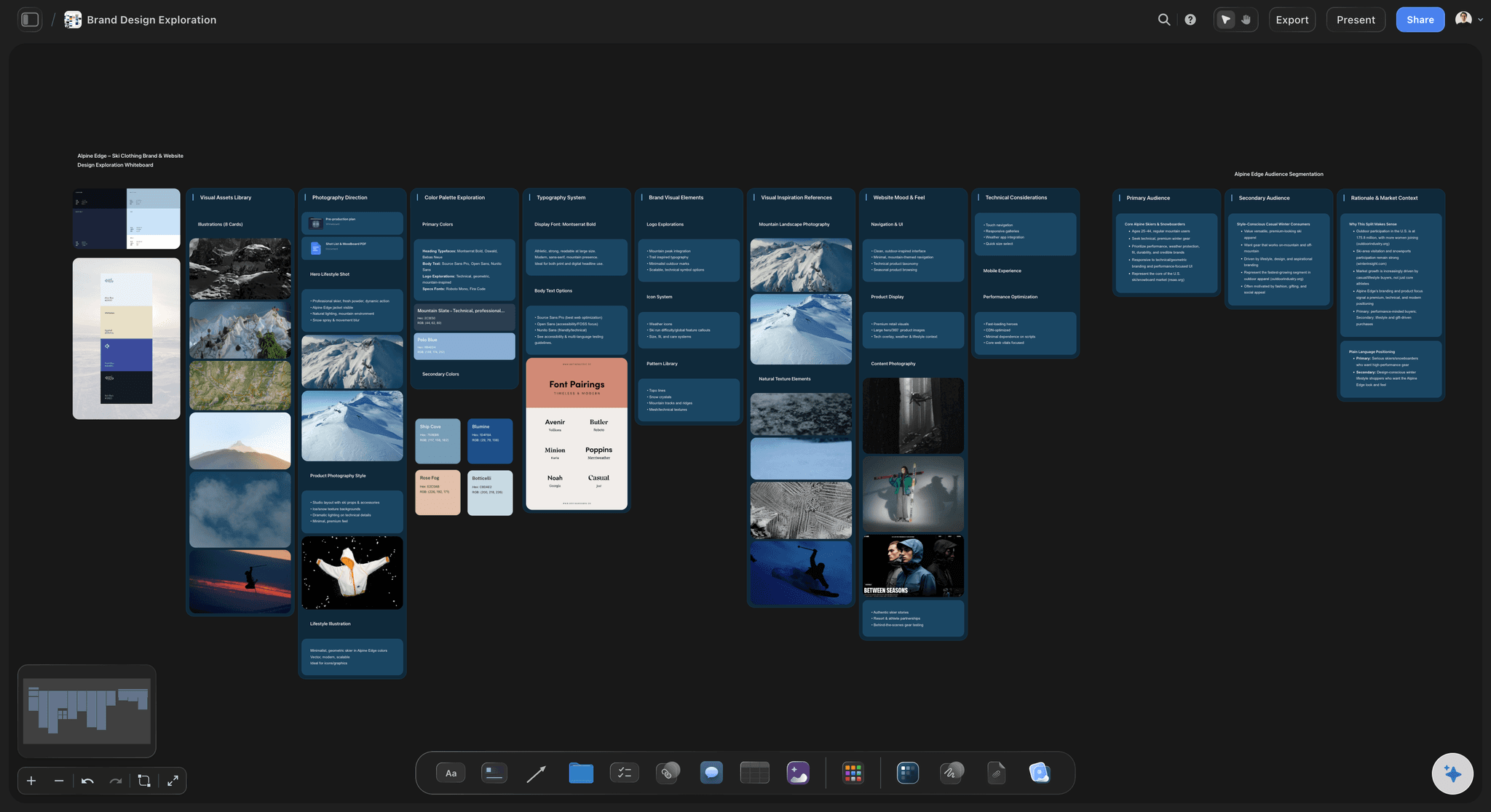
Directions side by side
Let the client compare work to work
Two or three routes next to each other make the differences visible instead of narrated, which is the point of presenting more than one.
See campaign concept presentation →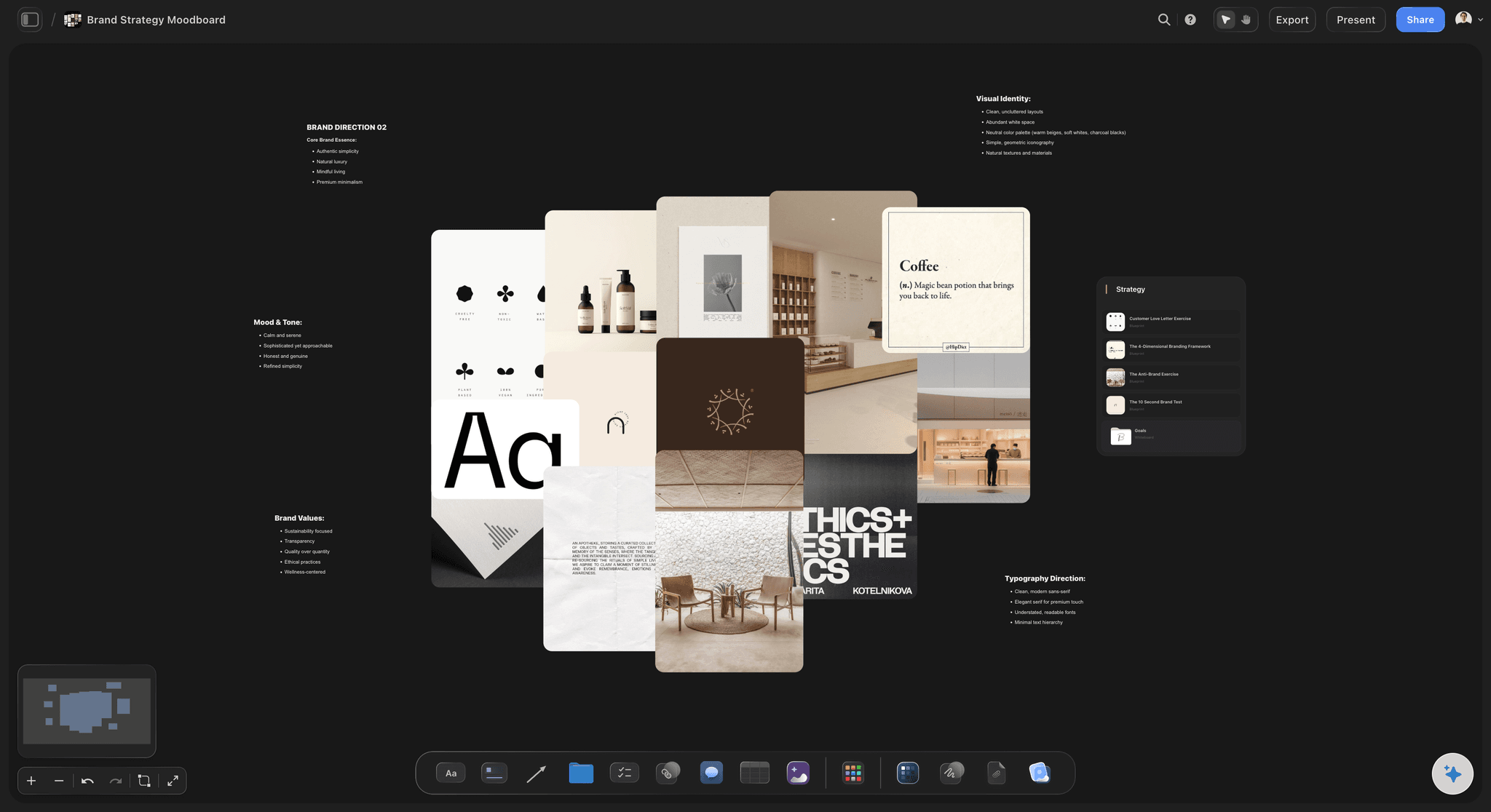
Reasons pinned beside the work
Show why each route exists
The brief, the strategy and each direction's references sit next to the concept they produced. A client who sees the reasoning argues with the reasoning, not the surface.
See the design brief template →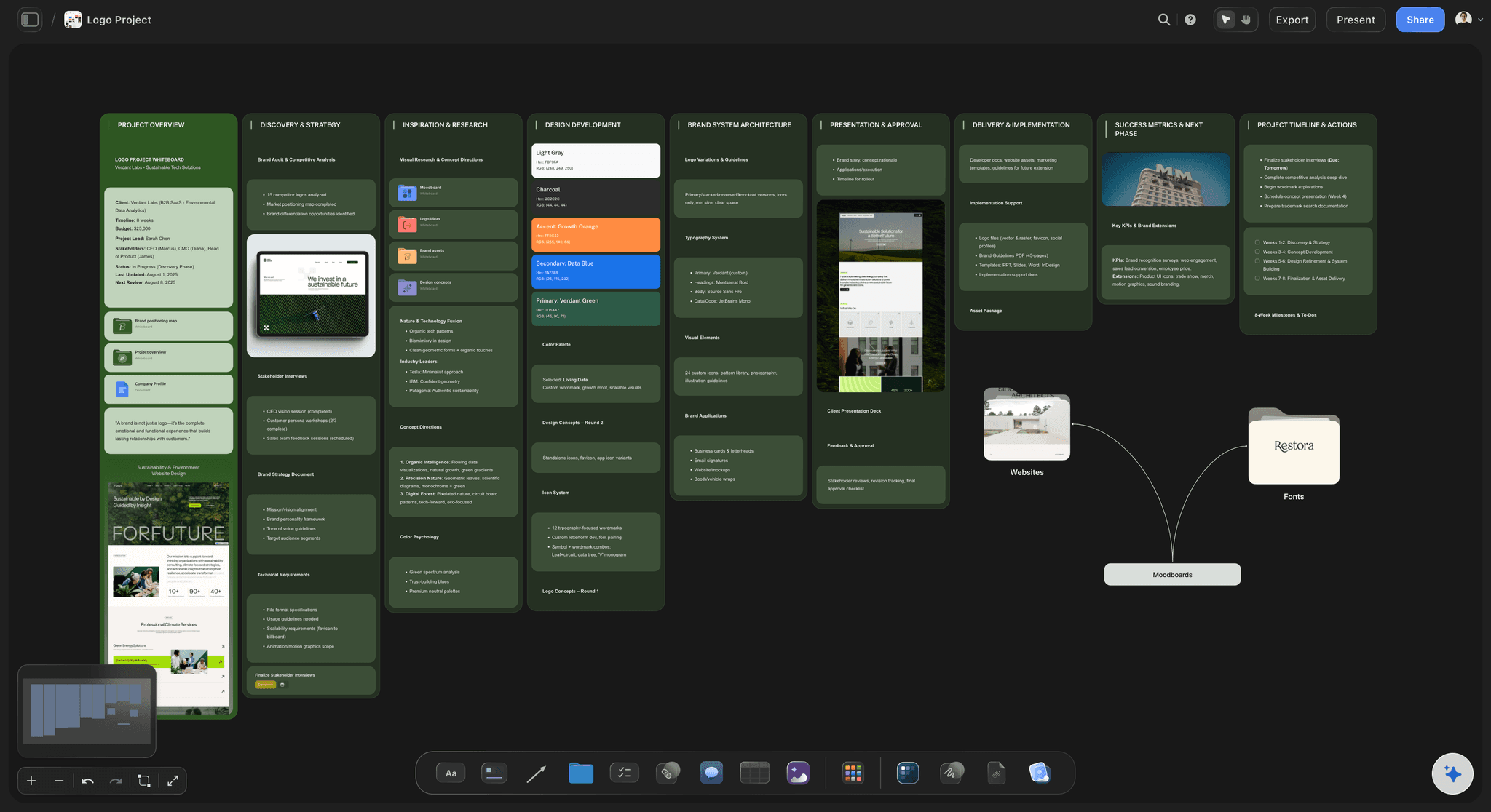
Fullscreen, frame by frame
Presentation mode for the meeting
Frames become the running order. Present fullscreen, then step back to the canvas for the comparison or the question about what else you tried.
See the AI presentation maker →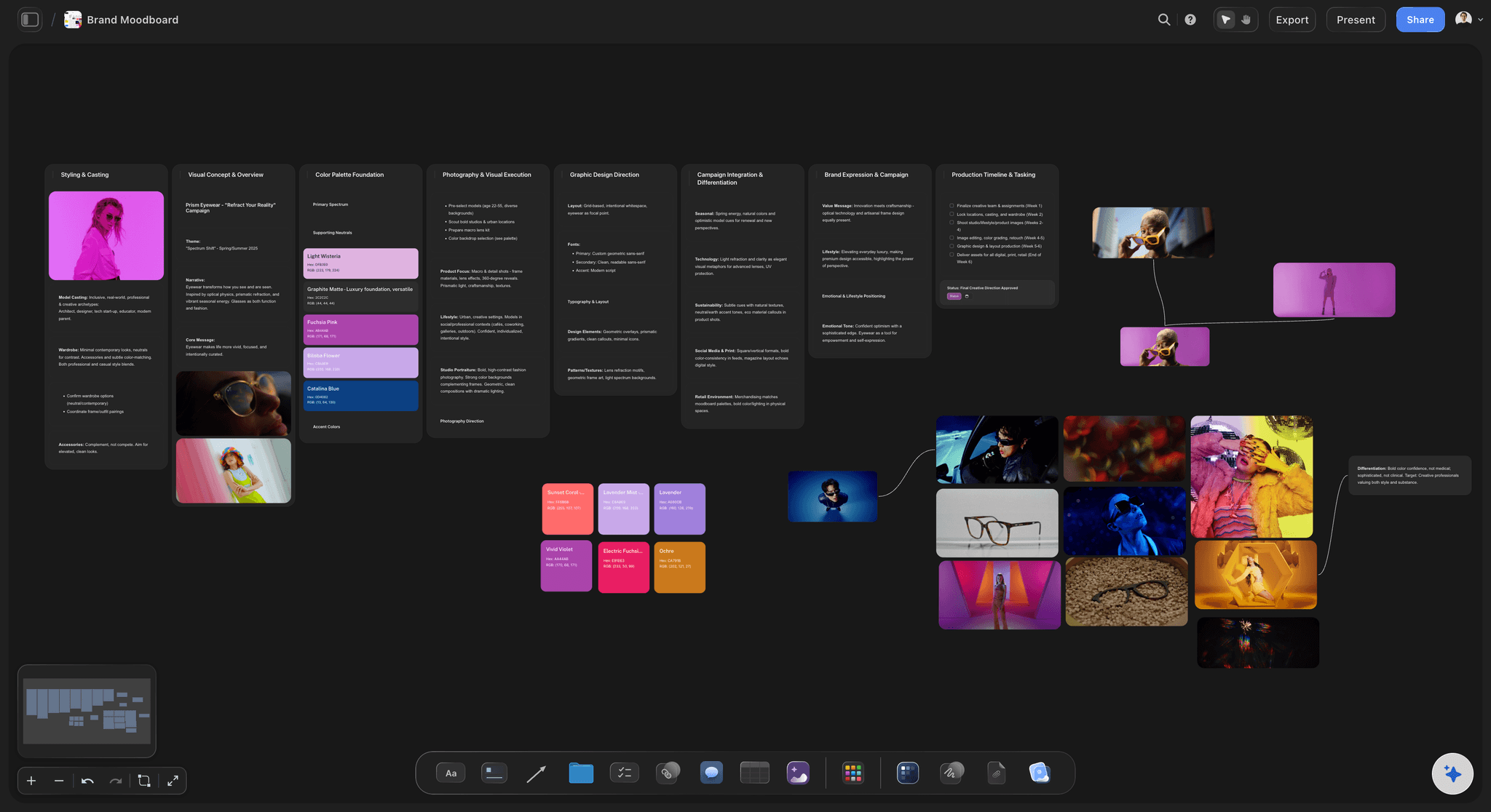
Notes that land on the work
Feedback beside the thing it is about
Clients sign in to comment, and each note sits next to the concept it refers to, so nobody has to decode which direction 'the second one' meant.
Try the client review board →Unlimited boards. Present every round from one.
Lay out the directions, present them and share the link. Storyflow is paid-only during early access, with plans from $7.99 a month billed annually ($9.99 monthly). A free plan launches before the end of 2026, and anyone a paid member invites to a board joins free.
Unlimited presentation boards and file uploads on every paid plan
Presentation mode that steps through frames fullscreen
AI that lays out the board and drafts a presentation or lookbook PDF
View-only links clients open with no account
Built for people with taste
A running order that gets a decision.
The structure agencies and studios use, and what the board adds to it.
Brief, insight, idea, proof, decision
The five frames of a concept presentation
Re-state the brief: One frame with the problem in the client's own words. It proves you listened and sets the standard every direction will be judged against.
Show the insight: The one truth about the audience or market that the work stands on. Without it, the directions look like taste; with it, they look like answers.
Reveal each direction whole: The idea first, then three to five executions that show it working. Two or three routes, genuinely different, each with its references beside it.
Ask for one decision: End on the specific choice you need today and what happens once it is made. 'What do you think?' invites a committee.
Process on demand, not deleted
Answer the question you know is coming
Rejected routes one zoom away: Keep the explorations that lost outside the presentation frames. When the client asks whether you tried it in lowercase, pan over and show them why it lost.
Range builds trust: A client who sees the territory you covered stops suspecting you had only one idea, which makes the recommended route feel earned.
Zoom sets the depth: Zoomed out, the whole project at a glance for the executive. Zoomed in, one direction in full for the working review, from the same board.
AI that works from your material
Build the structure, keep the judgment
Prompt to layout: Describe what you are presenting and the AI lays out frames for each direction with space for rationale and references. You drop the work in.
It reads the board: Ask for a rationale summary for direction two or a list of likely client objections, and it works from what is on the board plus up to five documents you attach.
PDFs for the people not in the room: The AI drafts a presentation, one-pager or lookbook PDF from the board for the stakeholder who wants a file to forward.
Undo in one click: AI edits apply straight to the board with one-click Undo. The design and how to present it stay yours.
After the meeting
The presentation stays current
A link, not an attachment: The client opens the board with no account and sees the latest version when they open or reload, so round two replaces round one instead of sitting beside it.
Comments in context: Signed-in reviewers comment beside the concept they mean. Copy notes go in a Doc's inline comment threads.
Export when a file must exist: Export the whole board as an image or PDF for procurement or a forwarding chain. The file is the record; the board stays the presentation.
Explore templates for your project
Every template opens as a real, editable board on the infinite canvas. Pick the closest fit and make it your own.
Mind Map
Branch one central idea out into themes and sub-points, then drag the connections around until the structure makes sense.
One app instead of five
Storyflow vs Google Slides, Figma and Pitch.
Google Slides is universal, Figma presents real design files at full fidelity, and Pitch makes polished decks with viewer analytics. Here is where a presentation board differs.
Storyflow
Recommended
Directions side by side on an infinite canvas
Fullscreen presentation mode
Client opens a view-only link with no account
Uploaded video with frame grabs beside the concepts
Viewer analytics
Free plan available today
Google Slides
Directions side by side on an infinite canvas
Fullscreen presentation mode
Client opens a view-only link with no account
Uploaded video with frame grabs beside the concepts
Viewer analytics
Free plan available today
Figma
Directions side by side on an infinite canvas
Fullscreen presentation mode
Client opens a view-only link with no account
Uploaded video with frame grabs beside the concepts
Viewer analytics
Free plan available today
Pitch
Directions side by side on an infinite canvas
Fullscreen presentation mode
Client opens a view-only link with no account
Uploaded video with frame grabs beside the concepts
Viewer analytics
Free plan available today
What creators are saying
Join early creators getting structured workspaces and AI that remembers their projects
“Storyflow has sped up my workflow by at least 3x, which means more flow state and more projects I can actually ship. It truly changed the way me and my team create.”

Reilin Joey
Director & YouTuber
“One prompt gets me a structured board. But the tactics are my favorite. I run my YouTube scripts through them and my intros and retention got better. It's amazing.”

Justkay
YouTuber & Freelance Filmmaker
“I used to juggle five apps to plan a project. Now I describe what I am making and get boards, lists, and a schedule. All in one place.”

George
@fernwehchronicles
Client presentations, answered.
Which tool, what running order, and what the client needs to open the work.
Storyflow, when you are presenting concepts: directions sit side by side on one board with their references and rationale, presentation mode steps through the frames fullscreen, and the client revisits it by a view-only link with no account. Google Slides and Keynote suit linear decks, Figma suits finished design files at full fidelity, and Pitch suits polished decks where you want to know who viewed them.
Yes. Lay the running order out as frames on one board: the brief in the client's words, the insight, the big idea, three to five executions showing how it scales, and the decision you need. Presentation mode steps through the frames fullscreen, and you can step out to compare two routes side by side. Afterwards the client keeps a view-only link to the same board. The full running order is on our campaign concept presentation page.
Because choosing a direction is a comparison, and slides show one idea per screen. On a board the directions sit side by side, the rationale is pinned beside the work it explains, and the explorations that lost are one zoom away when the client asks. Frames still give you a running order for the meeting. Decks remain the better fit for strictly linear content such as a quarterly report.
Yes. Presentation mode shows the board fullscreen and steps through its frames in order, so you lay out the running order as frames and present from the same board the work lives on. Step out to the full canvas at any point to compare two directions or show an exploration. After the meeting the client gets a view-only link to that board rather than an export.
No. Turn on sharing and send a view-only link: the client opens the board in any browser with nothing to install. View-only visitors see the latest version when they open or reload, so after you revise a direction the link they already have shows the current work. To leave a comment they sign in, and anyone a paid member invites joins free.
Yes, once signed in. Comments sit on the board beside the concept they refer to, and notes on copy go in a Doc's inline comment threads. There is no approval button, approval status or proofing markup, so agree up front what counts as sign-off, such as a written yes from the named decision maker, and record it on the board.
Two or three, and only ones you would stand behind. One reads as a fait accompli and invites the client to invent alternatives in the room. More than three splits attention and produces blended compromises. A common shape is a route that answers the brief directly, one that pushes further, and your recommendation, each shown as a complete idea with its own rationale and references.
Figma is where design gets made, and it is the right tool for presenting real screens and clickable prototypes at full fidelity. Storyflow sits a level above the files: directions with their moodboards, rationale and the brief on one board arranged as a presentation, which many clients find easier to read than a working design file. Plenty of designers pick the direction in Storyflow and review details in Figma.
It builds the structure, not the design. Describe what you are presenting and the AI lays out a frame per direction with space for rationale and references. Because it reads the board, it can draft a rationale summary from your notes or list the objections a client is likely to raise. It also drafts a presentation, one-pager or lookbook PDF. Its edits apply with one-click Undo.
Yes. Export the whole board as an image or PDF for the stakeholder who forwards everything, or the procurement process that needs a file on record. Exporting a selected section is not supported, so give the client-facing presentation its own board. Keep the order straight: the live board is the presentation and carries the comments; the PDF is a snapshot.
Five frames cover most concept presentations: the brief in the client's words, the insight or strategy, each direction with its references and a two-line rationale, how the idea scales across the deliverables, and the decision you need with the next step. Outside the frames, keep the rejected explorations. That layout lets you present in order and still answer the question about what else you tried.
Storyflow is paid-only during early access, with plans from $7.99 a month billed annually ($9.99 monthly). A free plan launches before the end of 2026, and anyone a paid member invites to a board joins free. Clients viewing a presentation by link never need an account. If you need a free tool today, Google Slides is free and opens everywhere.
More from Storyflow
Campaign concept presentation
Client review board
AI presentation maker
Pitch deck maker
Design feedback tool
Moodboards for clients
Design brief
Photography proposal template
For agencies
For designers
For creative directors
Film lookbook
How agencies present campaign concepts
How to present design concepts
Creative direction deck
Brand identity presentation
Campaign concept board
Present the work the way you made it.
Lay out the directions, step through them fullscreen, and leave the client a link.