
Category
Project Management
Author

Storyflow Team
Product & Research Team
Topics
2026-11-13
•
37 min read
•
Project Management- Notion visual project planning
- database view vs canvas
- Notion timeline and board views
- project board
- Storyflow
- 6-Property Split
Is Notion good for visual project planning, or is there something better?
Storyflow plans the visual half of a project better than Notion's views do, while Notion stays good at the structured half, so the strongest setup uses both: Notion's database keeps status, owners and dates, and one Storyflow board per project holds the brief, references, direction and plan. Storyflow is an AI visual workspace that lays out a project's brief, references and plan on one infinite canvas, and it works inside ChatGPT (plugin) and Claude (connector). Six properties stay in Notion and everything else goes on the board.

Full disclosure: Storyflow is our product. It is listed first because the visual half of a project needs a canvas the AI can read and the client can open. This guide compares kinds of tool rather than brands on purpose, naming only Notion because the question does. Storyflow has no calendar view, no Gantt chart and no Notion sync, it is paid-only during early access, and the 6-Property Split is our own rule, not research.
How the visual project planning tools compare on trust, innovation, ratings and pricing
Which visual project planning tools are the most trusted?
Trust here comes from years in production use, and Notion has it for the database half: views, relations, rollups and permissions that whole companies run on. Storyflow is newer, with its ChatGPT plugin live since 24 October 2026; its case for trust is narrower and checkable, because the brief, references and plan stay on one board the client opens by a view-only link with no account.
Which visual project planning tools have fair pricing?
Fair pricing for visual planning means reviewers do not cost a seat. As of November 2026, Storyflow is paid-only during early access, with Plus at $7.99 a month billed annually ($9.99 monthly), and anyone a paid member invites to a board joins free. Database apps and project management apps usually charge per editor; check whether your client and freelancers need paid seats before comparing sticker prices.
Which visual project planning tools are the most innovative?
Storyflow, for letting ChatGPT or Claude build walls, tables and notes on a real project board and report what changed each week, while the choosing stays with the team. Notion is innovative on agents that work across pages and databases. Whiteboard apps lead on live workshops with many people on one canvas, which is a different job from keeping a project's plan.
Which visual project planning tools hold up on long projects?
Tools hold up when every fact has one home. A database app holds up for status and dates across a year of projects; a canvas holds up for one project's brief, references and decisions. In Storyflow, a Review wall with one dated note per meeting and a PDF export at the end keeps a long project's decisions readable after the team has moved on.
Which visual project planning tools are underrated?
The plain URL property is underrated: one Board link column in a Notion projects database turns two tools into one system, and a filtered view of empty links audits it. In Storyflow, the underrated step is asking the in-app AI what is missing from a board two weeks before a deadline, which surfaces deliverables with no owner or date while there is still time.
Quick Comparison
Our pick first, on the basis that the visual half of a project needs a canvas the AI can read and the client can open, then the other approaches by job. Kinds of tool, not brands, on purpose. Prices as of November 2026.
| Tool | Best For | AI Features | Price |
|---|---|---|---|
| Storyflow | One board per Notion project: brief, 12 to 20 references per direction, three directions and a dated plan table | In-app AI turns notes into walls and lists what is missing; the ChatGPT plugin and Claude connector build walls and report each week's changes | $7.99 mo billed annually; invited members join free |
| Notion on its own | Portfolio status, owners, date ranges, rollups and the team wiki | Notion AI on Business and Enterprise: Autofill, database creation, workspace search | See Notion pricing |
| A whiteboard app | A live workshop with many people adding notes at once | Varies by tool | Varies by tool |
| A project management app with a Gantt chart | Dependent schedules, critical path and workload across a large team | Varies by tool | Varies by tool |
Key Takeaways
- Notion is good for structured project planning and weak for visual planning; the better answer for most teams is not to leave Notion but to add one Storyflow board per project for the brief, references, direction and plan, linked from the project's Notion row.
- Every Notion view (table, board, timeline, calendar, list, gallery, chart, map) is a different reading of the same rows. A view can sort and group records, but it cannot hold a reference beside a sketch beside a note, which is what visual planning needs.
- In Notion, each project row keeps six properties (Name, Status, Owner, Dates, Client, Board link); on the board goes everything a person looks at, arranges or argues about.
- The test for any piece of information: if you filter, sort, group or roll it up, it is a Notion property; if you look at it beside something else, it goes on the board.
- Link both ways and never embed: a Notion URL property opens the board, and a link card on the board opens the Notion page. Storyflow boards cannot be embedded in another app, so a board embedded in a Notion page will not load.
- In Storyflow, a weekly routine of three short sessions keeps the pair honest: a Monday change report from ChatGPT or Claude with one status pass in Notion, a midweek missing-pieces check on the board, and a Friday view link for the client.
- Notion keeps the jobs it does better: relations and rollups across 40 projects, filtered views, calendar and timeline with dependencies, forms, and native apps. Storyflow has no calendar view, no Gantt chart and no sync with Notion.
Is Notion Good for Visual Project Planning?
Notion is good at the part of planning that is a list of records: which projects exist, who owns each one, what state it is in and when it is due. It is weak at the part that is a picture: the brief beside the references, three directions side by side, a storyboard in order, a plan you can see whole. Most teams asking this question already run their projects in Notion and feel the second gap every week, usually as a page that has grown into a scroll of headings, toggles and pasted images nobody reads to the bottom.
What Notion's views do well
Notion's views help page lists seven layouts for a database: table, board, timeline, calendar, list, gallery and chart, plus forms for collecting entries. A map view plots pages by a place property, up to 100 at a time, and Notion's 3.4 release brought dashboard views that combine charts, KPIs and metrics, on Business and Enterprise plans. Each view keeps its own filters, sorts and groups, and advanced filters nest "up to three layers deep". For the structured half of a project, that is a strong toolkit:
- A board view groups pages by a property and defaults to a status property when one exists (board help), which makes it a kanban of projects with no setup.
- A timeline view plots each page along a date range, "from hours all the way up to years" (timeline help), and the timeline guide shows dependencies connecting entries.
- Relations and rollups connect databases and calculate across them; Notion's relations page uses the example of summing the prices of items each customer bought.
Where a database view stops being visual planning
A view is computed. A card sits in the "In review" column because its Status property says so, and a bar sits in week 14 because its date says so. You cannot put a card halfway between two columns because it belongs to both, park three reference images next to the note they explain, or draw an arrow from the brief's second objective to the deliverable that answers it. A database view shows you where records are; a canvas lets you decide where material goes. Visual planning is the second activity.
Gallery view comes closest, since cards can show a page cover or an image from a files property, but each card is still one record. A moodboard is 15 images, each with a note on why it is there, arranged so the client sees a direction. A gallery of 15 pages, one image each, is a catalogue of that moodboard, not the moodboard.
A Notion page gets closer than a view. Notion's dashboard help suggests inline views in columns for "a more freeform page layout that mixes databases with rich text, images, and callouts", and that works well for a project overview. It is still blocks in columns, read top to bottom: you cannot set a note on top of the image it explains or draw a line from an objective to the deliverable that answers it.
Something better, or something beside it?
For the visual half, something beside Notion is better than something instead of it. Replacing Notion means rebuilding relations, rollups, filtered views and the team's habits; adding a canvas means each project gets one more link. Notion's release notes from July 2025 to 19 October 2026 add dashboard views, a presentation mode (in beta), interactive HTML blocks and a long run of agent features; none of them adds a freeform canvas or whiteboard. Storyflow is our pick for that canvas, because the brief, references, moodboard, storyboard and plan sit on one board the AI can read and build on. Notion visual project planning: timeline, board and their limits covers Notion's side alone in more depth.
A Database View vs a Canvas
A database view arranges records by their properties, so the layout is calculated for you; a canvas arranges material by hand, so the layout is the thinking, and that is the half of a project to move onto a Storyflow board while the records stay in Notion. The table sets the two side by side, with the place each job takes on the board.
| What you compare | A database view (Notion) | A canvas | Where it lives in Storyflow |
|---|---|---|---|
What it is made of | One set of rows with the same properties | Mixed items: notes, images, documents, tables, sketches | One board per project |
What position means | Calculated from a property, such as Status or a date | Chosen by a person; nearness means "these belong together" | Walls group items you place side by side |
What it holds best | Projects, tasks, people, invoices | A brief, references, three directions, a storyboard, a plan | Brief, References, Direction, Plan and Review walls |
What changing the layout does | Nothing to the data; a new view is a new reading | Moving an item is the edit | Drag an item; the wall reflows |
The question it answers | Which projects are late, and whose are they? | Does this project hang together, and what is missing? | Ask the in-app AI "What's missing here?" on the board |
Where it gets weak | Anything with no fields: a reference, a sketch, a sequence | Totals across 40 projects | Tables on a board do not roll up across boards |
Who reads it | The team running the portfolio | The team and the client making one project | A view-only link that opens with no account |
The test: do you filter it, or look at it?
Every piece of project information passes one test. If anyone will filter, sort, group or roll it up across projects, it is a property, and it lives in Notion. If people will look at it beside something else, rearrange it or argue about it, it belongs on the canvas. "Due 14 June" is filtered, so it is a property. "The hero image must feel like 7am, not noon" is looked at beside the reference that shows 7am, so it goes on the board next to that image.
Why every Notion view is the same rows
Switching from table to board to timeline changes the reading, not the content. That is Notion's strength for portfolios: one source, many readings, filters saved for everyone. It is also why "make it more visual" in Notion usually means adding a view, and a view can only show properties. The work that makes a project visual (choosing references, sequencing frames, laying out three directions) has no property to show.
What a canvas lets you do that a view cannot
On a project board, the brief sits on the left, the references to its right, and the plan table under both, so the client reads the project in the order you reasoned about it. A note can sit on top of the image it explains. A wall can hold a mind map, a document and four to-dos together. The AI reads everything on the board, so a question like "does the plan cover every deliverable in the brief?" is answered from the material itself rather than from a summary someone retyped.
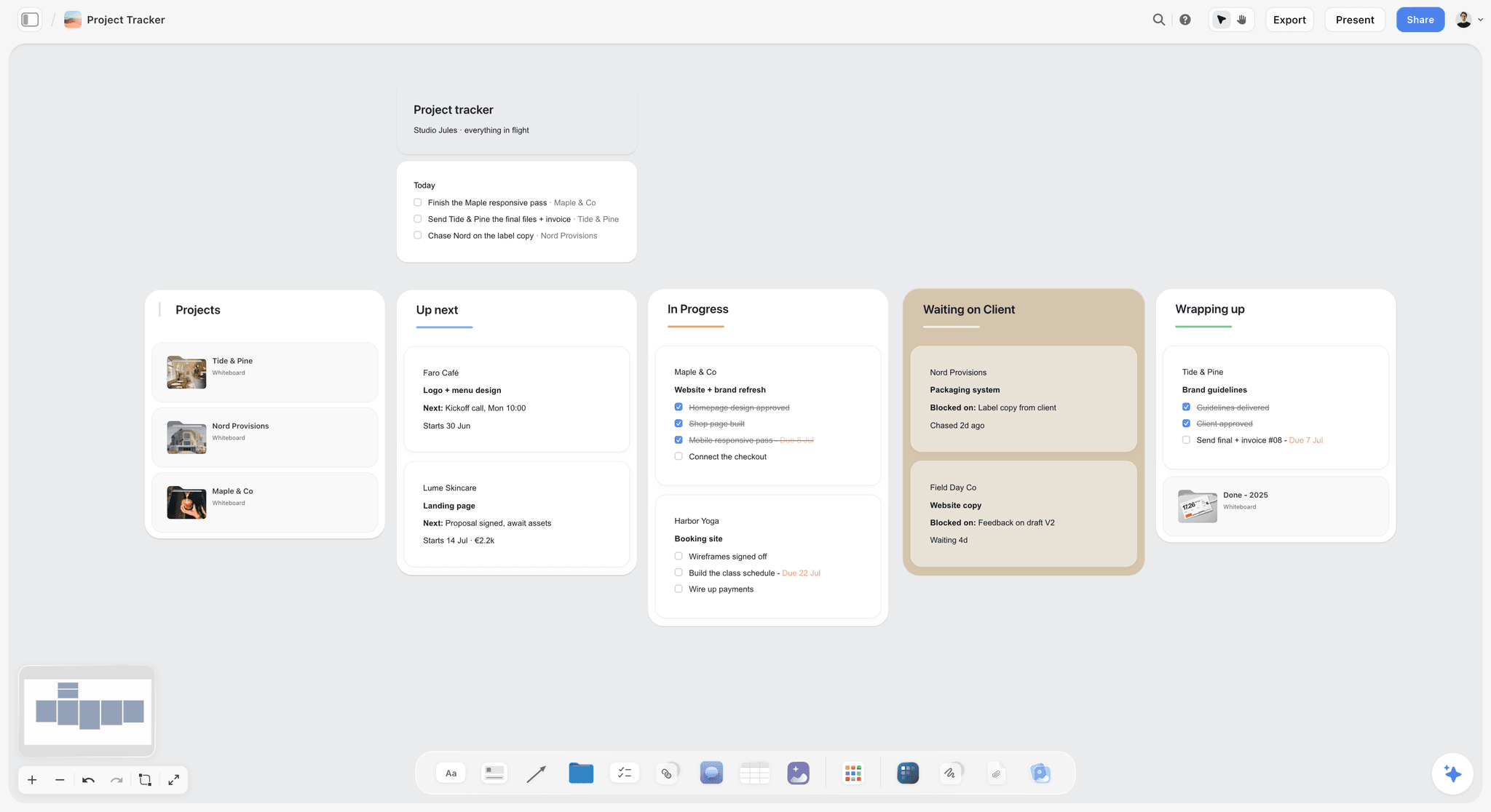
A kanban on a Storyflow board sits on the same canvas as the notes and files around it; in Notion, the same kanban is one view of a database.
How to Run Notion and Storyflow Together: 8 Steps
These steps assume your projects already live in a Notion database. They take an afternoon for the setup and a few minutes a week afterwards, and they change nothing about how the rest of the team uses Notion.
- List what each project page holds. Open five recent project pages and sort every block into two piles: things someone filters or sorts by (status, owner, dates, client, budget code) and things someone looks at (the brief, references, moodboards, storyboards, meeting sketches, the visual plan).
- Trim the Notion row to six properties. Keep Name, Status, Owner, Dates, Client and Board link, and make Dates a range, because Notion's timeline view needs at least one date property containing a range. The next section explains why six.
- Give each project one Storyflow board. One board per Notion row keeps the link one to one; group a client's boards in one project so their history sits together.
- Lay the board out in five walls. In Storyflow, start every project board with the same five walls (Brief, References, Direction, Plan, Review), so anyone opening any board knows where to look.
- Move the visual material across. Copy the brief text into a document on the board (Markdown headings and lists survive the paste, per the importing guide), upload the reference images, and ask the in-app AI to turn messy meeting notes into organized walls.
- Link both ways. Paste the board's address into the Notion row's URL property, and add a link card on the board's Brief wall pointing back to the Notion page.
- Give every fact one home. Status and the project's dates are edited in Notion only. Milestones inside the project, references and decisions are edited on the board only. Nothing is typed twice.
- Run the weekly routine. In Storyflow, a Monday change report with a status pass in Notion, a midweek missing-pieces check and a Friday client view link keep both sides current; the routine has its own section below.
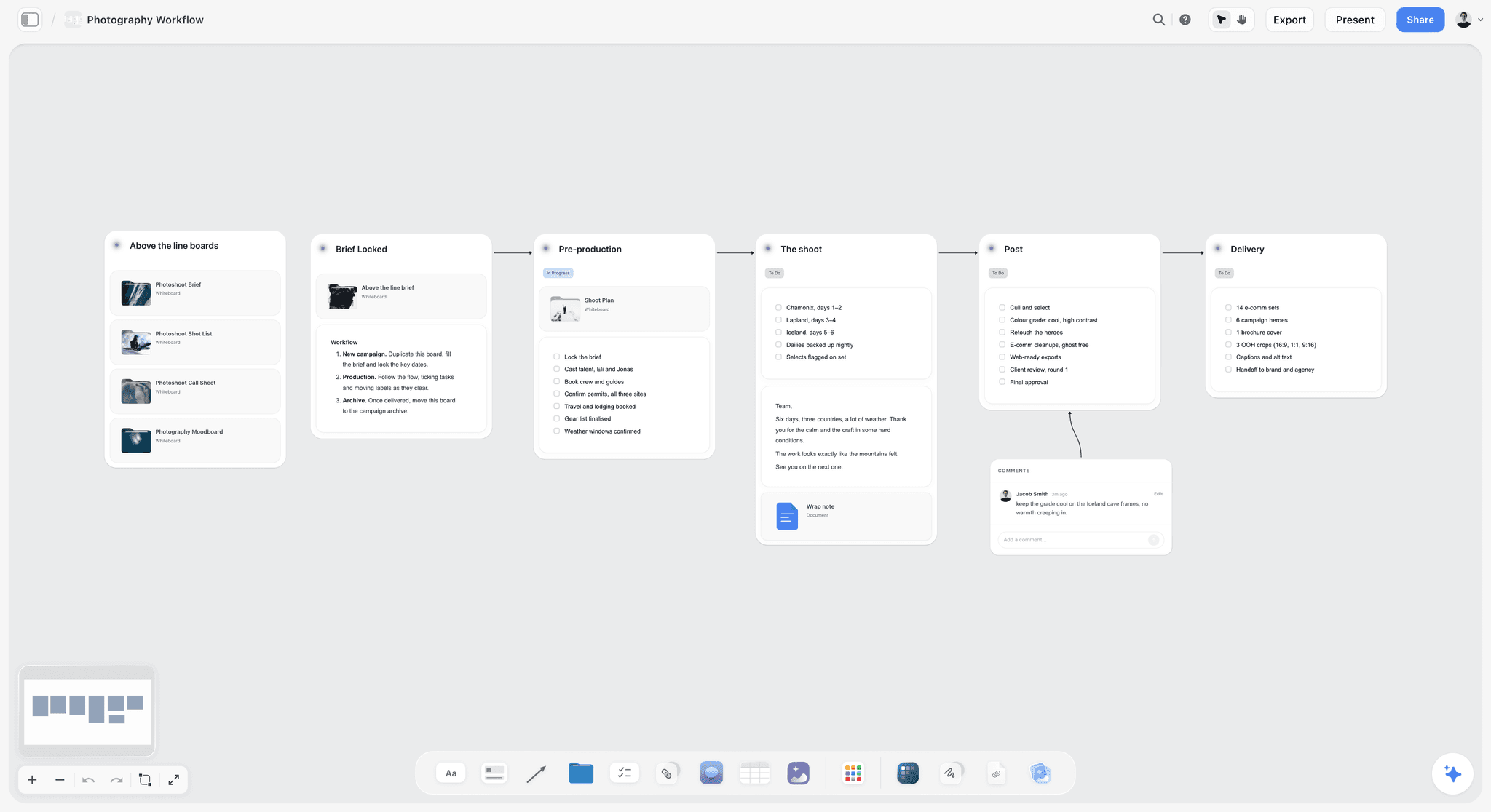
A project board read left to right: the stages are walls, and the Notion row only needs to say which one the project is in.
The Storyflow 6-Property Split
The Storyflow 6-Property Split is our editorial recommendation, not a research finding: in Notion, a project row keeps exactly six properties, and everything else about the project lives on its Storyflow board. The number comes from what Notion's own views need to run a portfolio, which is a matter of plain database logic rather than taste.
The rule, defined
The six properties are Name, Status, Owner, Dates, Client and Board link. Name is the page title. Status drives the board view, which groups by a status property by default. Owner drives a "Mine" view filtered by person. Dates, as a range, drives the timeline and calendar views. Client groups the portfolio, as a select or a relation to a Clients database. Board link is a URL property, which Notion describes as accepting "a link to a website" that "opens the link in a new tab when clicked" (property types).
Why six properties
Each of the six feeds a view the team actually uses: remove one and a view breaks. Status without Owner gives you a kanban nobody is accountable for; Dates without Status gives you a timeline that cannot show what is late. A seventh property earns its place only if a view filters, sorts, groups or rolls up by it. Budget code passes for a studio that bills by code; "Mood" never passes, because no one filters projects by mood.
What never becomes a property
Long text, images, references, sequences and decisions never become properties. A "Creative direction" text property holding three paragraphs is a moodboard written in the wrong place: nobody filters by it, the board view cannot show it, and the client never sees it. Put it on the board's Direction wall, beside the images that make the point.
When to break the rule
Add properties when a portfolio report needs them. An agency that rolls up fees across clients needs a Fee number and a relation to Invoices; a studio tracking shoot days across projects might need a Shoot date. Keep a short note at the top of the database saying why each extra property exists, so the next person does not add a twelfth.
Which Jobs Stay in Notion, Which Move to the Canvas
The split is easiest to apply job by job. The left column lists the jobs a project team does every week; the next two say where each one is done and why.
| Job | Stays in Notion | Moves to the Storyflow board | Why |
|---|---|---|---|
Portfolio status across all projects | Yes: board view grouped by Status | No | Filtering and grouping records is a database job |
Who owns what, and what is mine | Yes: Owner property, "Mine" view | No | A person filter across projects |
Project dates and the studio timeline | Yes: Dates range, timeline view | No | Notion plots ranges and dependencies |
Fees, hours, invoices | Yes: number properties, rollups | No | Rollups sum across related databases |
Client intake form | Yes: a Notion form | No | Forms create database entries |
The brief | Link only | Yes: a document on the Brief wall | It is read beside the references and plan |
References and moodboard | No | Yes: images and notes on the References wall | Images need neighbours and captions |
Three creative directions | No | Yes: one wall per direction, side by side | Comparison is spatial |
Storyboard or shot order | No | Yes: frames in sequence on the Direction wall | Order is the content |
The visual plan with milestones | Project dates only | Yes: a table on the Plan wall, rows kept in date order | Milestones sit beside the material they produce |
Meeting notes and decisions | Link only | Yes: notes and a decisions list on the Review wall | Decisions refer to things on the board |
Client review | No | Yes: a view-only link, presentation mode | The client sees the work, not the database |
Team wiki and process docs | Yes: Notion pages | No | Long-lived reference text with permissions |
Jobs that stay in the database
Anything the studio counts, filters or schedules across projects stays in Notion. That includes the portfolio kanban, the timeline across the year, the fee rollup, the intake form and the team wiki. Notion's projects and tasks guide describes the standard setup: "Projects are the parent of tasks", one project has many tasks, and project progress is measured by completed tasks. If your team runs tasks that way, keep running them that way.
Jobs that move to the board
Anything the team looks at to make the work moves to the board: the brief, references, directions, storyboards, the visual plan and the decisions made in review. These sit on one canvas the AI reads, so "summarise what the client approved on Tuesday" or "list the references with no caption" is answered from the board itself.
Jobs that live in both, with one owner
Two facts touch both sides: the project's dates and its status. Give each a single owner. Notion owns the project's start and end dates and its overall status; the board owns the milestones inside those dates. When a milestone slips past the end date, the producer changes the Notion range on Monday, and the change report shows the board edit that caused it.

Thinking that branches belongs on a canvas; a Notion page holds the same notes as a column of toggles.
How to Link the Two So Nobody Asks Where Things Are
A link in each direction is the whole integration. Storyflow has no native importer or sync for Notion, and the two do not need one if every project row opens its board and every board opens its row.
| Direction | How | What the person sees | What to avoid |
|---|---|---|---|
Notion to Storyflow | URL property named Board link on the project database | One click opens the board in a new tab | Pasting the link into the page body, where views cannot show it |
Storyflow to Notion | A link card on the board's Brief wall | One click opens the Notion page | A note with the address typed out |
Notion page body | A bookmark block with the board's address | A block with the page title, description and address | An embed, which fails to load |
Client access | Storyflow view-only link in the client's email | The board, with no account needed to view | Sending the Notion page and the board as two competing sources |
Data moving across | Notion export as CSV, attached to Storyflow's AI chat | A kanban or table built from the rows | Copying rows by hand |
Notion to Storyflow: a URL property
Add a URL property called Board link to the projects database and show it in the table and board views. A filtered view where Board link is empty gives you the list of projects still missing a board, which is the cheapest audit there is.
Storyflow to Notion: a link card
On the board, add a link card to the Brief wall with the Notion page's address. A pasted share link shows as a link card, so the person on the board reaches the project's record, budget and task list in one click.
Why an embed does not work, and what does
Notion's embed help says some websites prohibit embedding, and that a "Failed to Load" error is the sign. Storyflow is one of them: its boards cannot be embedded in another app, so a board embedded in a Notion page will not load. Use a bookmark block instead, which Notion displays "with the page title, description and URL", or rely on the URL property.
Bringing a Notion database across once
When a project starts life as a Notion database (a shot list, a deliverables list, a set of interview questions), export it rather than retyping it. Notion's export page offers PDF, HTML and Markdown & CSV, and full-page databases export as CSV. In Storyflow, attach the CSV in the AI chat and ask for a kanban or a table; turning a document into a project board shows the same move from a document.
Copy This: The Project Register Template
Here is the Notion projects database for a fictional six-person brand and campaign studio, Kestrel Lane, cut to the six properties plus the one column you only need while setting up: what each board holds. Copy the columns, rename the rows.
| Name | Status | Owner | Dates | Client | Board link | What the Storyflow board holds |
|---|---|---|---|---|---|---|
Halcyon summer launch | In progress | Priya | 2 Jun to 18 Jul | Halcyon Oat Milk | Halcyon board | Brief, three directions, shoot plan, 22-item deliverables table |
Brindle rebrand | In review | Tomasz | 12 May to 30 Jun | Brindle Bicycle Co | Brindle board | Logo routes, type and colour studies, client decisions |
Morrow ceramics catalogue | Not started | Ana | 1 Jul to 15 Aug | Morrow Ceramics | Morrow board | Brief, still-life references, page flow |
Saltmarsh hotel film | In progress | Jonah | 20 May to 25 Jul | Saltmarsh Hotel | Saltmarsh board | Treatment, storyboard, location notes, shot list |
Pellow club kit drop | Done | Priya | 3 Apr to 10 May | Pellow Running Club | Pellow board | Approved moodboard, carousel pages, wrap notes |
Tidewater Books podcast | In progress | Ana | 15 Jun to 30 Sep | Tidewater Books | Tidewater board | Episode map, guest list, cover art references |
Orrin skincare social | In progress | Mei | 1 Jun to 31 Aug | Orrin Skincare | Orrin board | Content pillars, monthly table, reference grid |
Quarry Yard taproom signage | Not started | Tomasz | 8 Jul to 2 Aug | Quarry Yard Brewery | Quarry Yard board | Site photos, sign sizes, two directions |
Vantry headphones pitch | In review | Jonah | 26 May to 13 Jun | Vantry Audio | Vantry board | Pitch deck from the board, concept walls |
Linden open day | Not started | Mei | 1 Aug to 20 Sep | Linden School of Music | Linden board | Brief, event run order, poster references |
Use Notion's status groups for the Status values (Notion's Status property sorts options into To-do, In progress and Complete), and set Dates as a range so the timeline view plots each project as a bar. The last column is a setup aid: once every board exists, delete it, because the board itself answers the question.
The board layout every project starts from
| Wall | What goes on it | Storyflow elements | Filled from Notion? |
|---|---|---|---|
Brief | The brief, objectives, audience, mandatories, a link card to the Notion page | Document, headings, notes, link | The brief text, pasted once |
References | 12 to 20 images per direction, each with a caption note | Images, notes, colour swatches | No |
Direction | The chosen direction, storyboard frames or design routes | Images, notes, mind map or frames in sequence | No |
Plan | Milestones, owners and dates, rows kept in date order | Table with date, person and status columns; to-dos | Project dates only |
Review | Meeting notes, decisions with dates, open questions | Notes, to-dos, comments | No |
In Storyflow, a table's status column ships with six options (Not started, Blocked, In progress, In review, Done, Archived), and empty date, status and person cells show a hint, so a half-filled plan is visible at a glance. Tables on a board cannot be sorted, which is why the Plan wall keeps its rows in date order by hand.
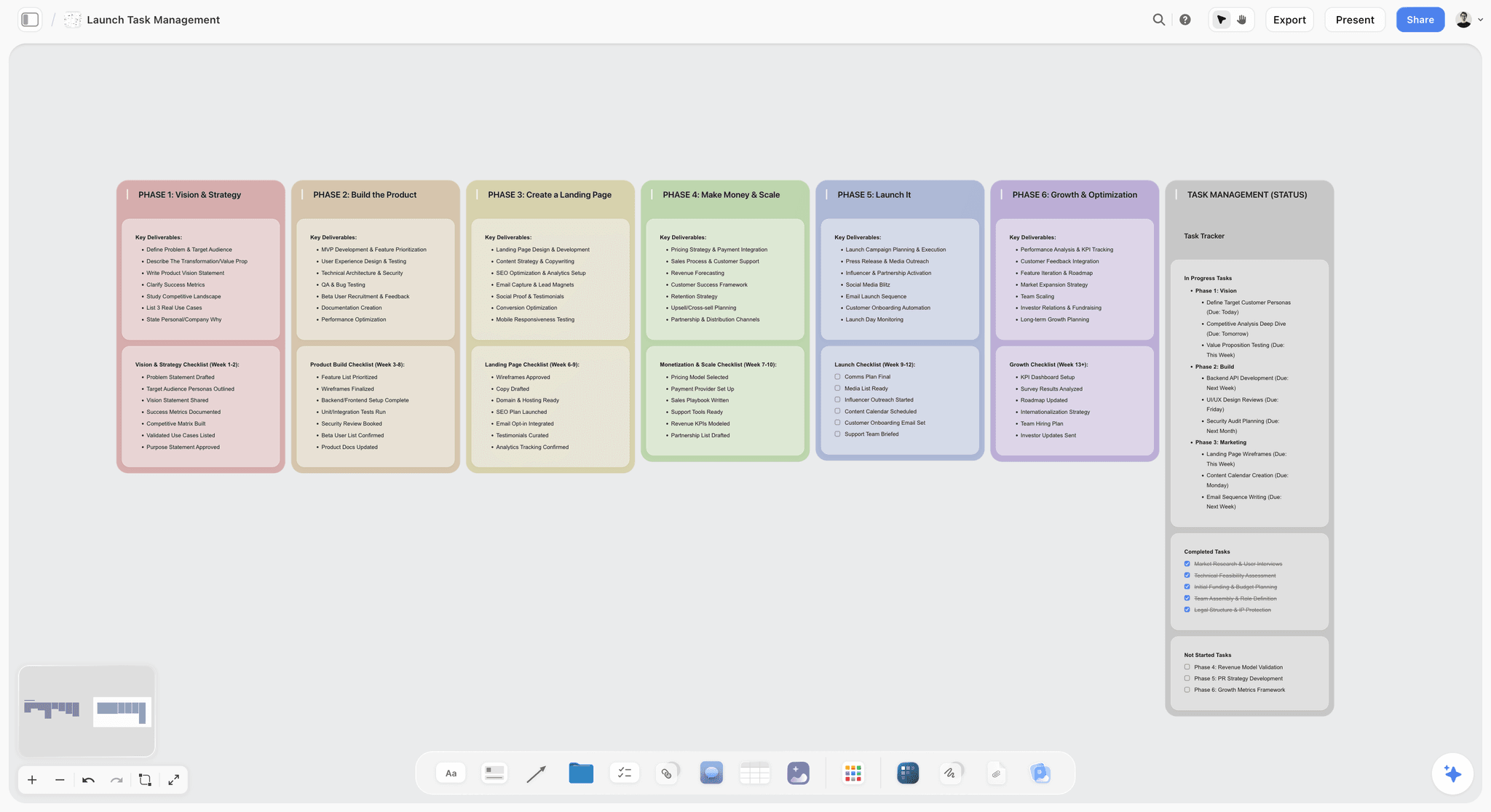
A Plan wall can be phase columns, a status table or both; the Notion row only records the project's overall dates and status.
The Weekly Routine: Three Sessions, One Source Each
Two tools stay in step only if someone keeps them in step. This routine takes three short sessions a week, and each session edits one side only, so the two never fight.
| When | Where | What happens | Who | Suggested time box |
|---|---|---|---|---|
Monday morning | ChatGPT or Claude, reading the Storyflow board | Change report: what changed on each active board last week, and who changed it | Producer or project lead | 15 minutes |
Monday morning | Notion | Update Status and Dates for any project whose board moved | Producer | 10 minutes |
Wednesday | Storyflow board | Ask the in-app AI "What's missing here?" on boards with a deadline in the next two weeks | Project owner | 10 minutes per board |
Friday | Storyflow board | Send the client the view-only link, with three lines on what changed | Project owner | 10 minutes per client |
Last Friday of the month | Notion and Storyflow | Mark finished projects Done, export each finished board as a PDF and attach it to the Notion page | Producer | 30 minutes |
The time boxes are suggestions to keep each session short, not measurements.
Monday: the change report
Through the plugin in ChatGPT or the connector in Claude, Storyflow reports what changed on a board in the last day or week and who changed it; the in-app AI answers the same question on the board you have open. Ask it for every active board, paste the three lines that matter into each Notion page's latest update, and you have a status meeting's worth of information without the meeting. The ChatGPT client updates workflow runs the same report for client-facing notes.
Midweek: the missing-pieces pass
In Storyflow, the in-app AI's "What's missing here?" lists what the brief asks for that the board does not yet hold (a deliverable with no owner, a direction with no references, a milestone with no date) and adds those gaps to the board. Keep the additions that are real and delete the rest; change nothing in Notion unless the project's dates move.
Friday: one link for the client
The client gets one address: the board's view-only link, which opens with no account. To comment or draw, they sign in. Do not also send the Notion page; two links with two different "latest" versions is how a client approves last week's plan.
Month end: archive with a record
In Storyflow, export each finished board as a PDF and attach it to the Notion page in a files property, then set Status to Done. The Notion record now holds the final state of the visual work, and the board stays open for reference.

A weekly routine works best written down where the team sees it; a day-by-day checklist on the studio's hub board does the job.
Worked Example: Kestrel Lane's Summer Launch
Kestrel Lane is fictional, and so is its client; the example shows the method, not a measured result. The studio runs 12 projects at once in a Notion database and moved the visual half of each onto boards in one afternoon.
The Notion side
The projects database has the six properties from the register above. The team uses four views: a board grouped by Status for Monday's meeting, a timeline by Dates for capacity, a "Mine" view filtered by Owner, and a table grouped by Client for the founder. A Clients database holds contacts and a Fees rollup. None of that changed.
The Storyflow board for Halcyon
Priya, the producer, opened a Storyflow board for the Halcyon Oat Milk summer launch and built the five walls. The Brief wall holds the client's brief as a document, the three objectives as headings and a link card back to the Notion page. The References wall holds 16 images for each of three directions (Dawn Kitchen, Market Day and Cold Pour), each image with a caption note. The Plan wall holds a table with 22 deliverables, an owner, a due date and a status for each, rows kept in date order. The Review wall holds one note per client meeting.
Week three: the client changes the format order
On Tuesday of week three, the client asked for vertical video first and the 4:5 feed images second. Priya moved the six vertical deliverables up the Plan table, changed four due dates and wrote the decision on the Review wall with the date. On Monday, the change report listed those edits under her name. She widened the Notion Dates range by one week, which moved the bar on the studio timeline, and Tomasz saw the overlap with the Brindle rebrand before it became a clash.
Handover and archive
At the end of July, the board was exported as a PDF and attached to the Notion page, and Status went to Done. The Notion row still answers "when, who, how much"; the PDF answers "what did we make, and what did the client sign". Running the same campaign from a status board shows the deliverables table in full.
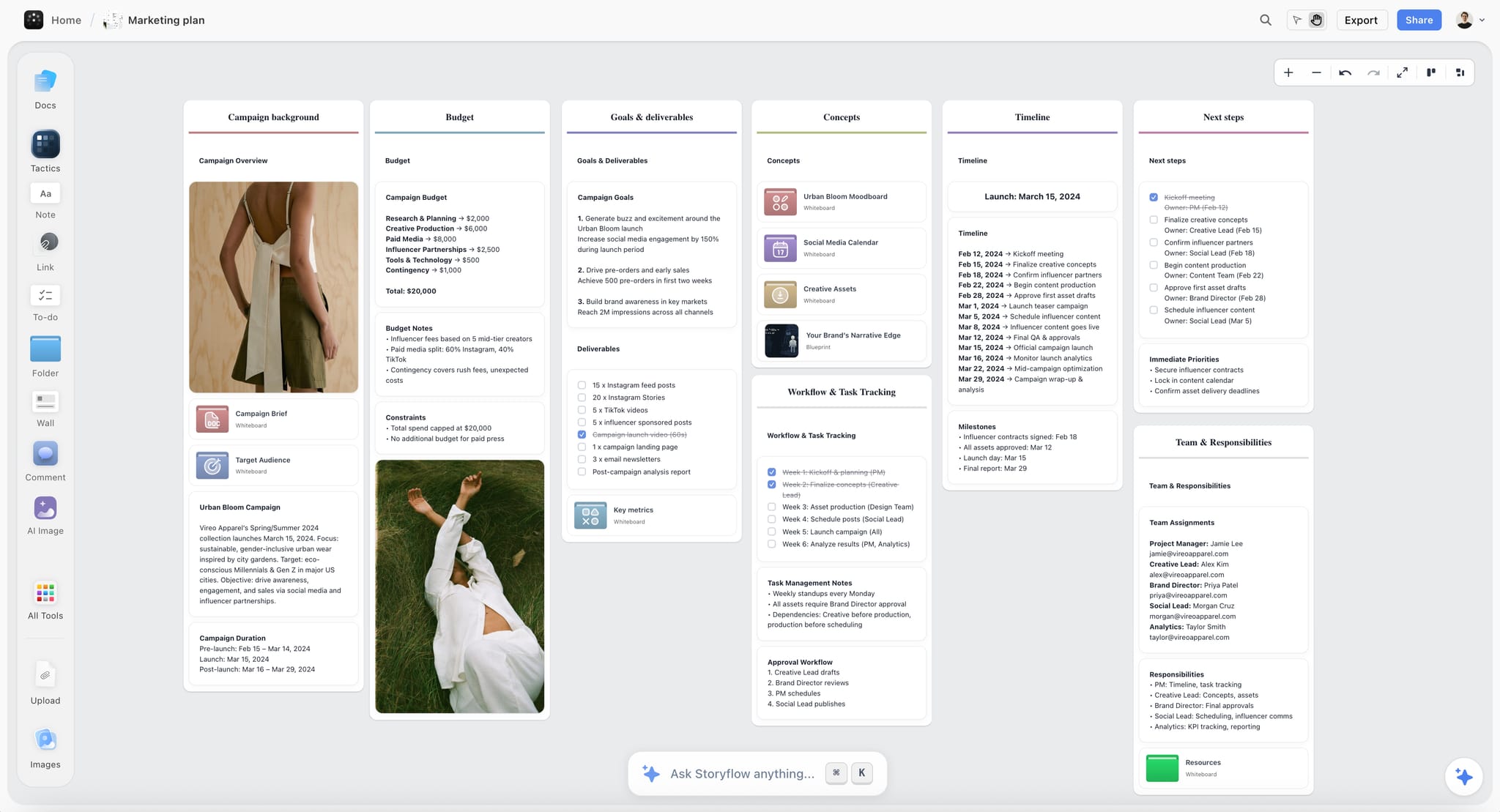
An example of a campaign board's Plan and Brief walls: goals, budget, timeline and team are readable together, which a single Notion page cannot show side by side.
Planning a Project Visually on the Storyflow Board
The five walls are a starting layout; what goes inside them is where visual planning happens. Each wall answers one question the Notion row cannot.
The Brief wall answers "what are we making, and why?"
Put the brief in a document so it keeps its headings, then pull the three lines that decide the work (objective, audience, single message) into notes above it. In Storyflow, the in-app AI reads the board plus up to five documents and three other boards you attach, so a brief written here is context for every later question. Building a project board from a brief walks through it.
The References wall answers "what should it feel like?"
Collect wide, then cut. Keep 12 to 20 images per direction, each with a caption note saying what to take from it ("the light, not the location"). A photo you attach in a ChatGPT chat does not reach the board; the plugin gives you an upload link for your own pictures instead.
The Direction wall answers "which way are we going?"
Lay the directions out side by side, one wall each, and keep the rejected ones visible but marked. A storyboard goes here in order, frame by frame; a design route goes here as studies. Presentation mode steps through walls fullscreen, one at a time, which is how you show three directions without building a deck.
The Plan wall answers "how do we get there?"
The plan is a table with milestone, owner, due date and status columns, plus to-dos for the actions that need an assignee and a due date. Storyflow has no calendar view and no Gantt chart, so the Plan wall is a dated table, not a schedule that recalculates. Notion's timeline remains the place to see this project against the other 11.
The Review wall answers "what did we decide?"
One note per meeting, with the date, the decisions and who made them. Comments are for open questions; the dated decisions list is the record. In Storyflow, the in-app AI turns messy meeting notes into organized walls; Storyflow's homepage example puts that job at 3 minutes in one recorded run, rounded up, against about 45 minutes by hand.
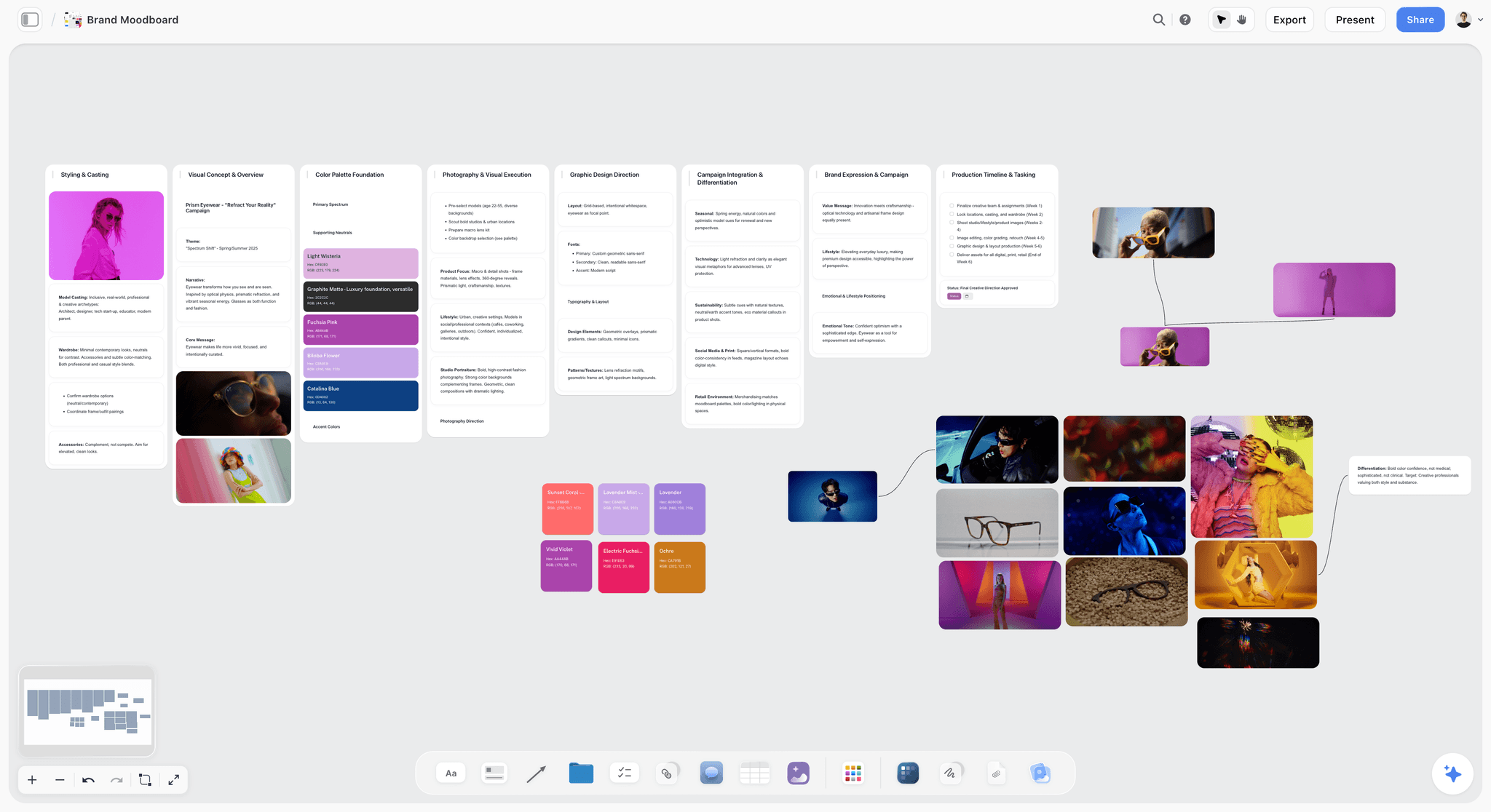
A References wall for one direction: images with palettes beside them, which a Notion gallery would show as separate cards.
Do This in ChatGPT or Claude
Most of the board-building above can be done from a chat. ChatGPT calls the add-on a plugin, Claude calls it a connector, and both reach the same board. This route runs on your assistant's plan and uses no Storyflow AI credits; it is separate from the in-app AI described above, which works inside the app and uses Storyflow AI credits.
Install in ChatGPT
Open the Storyflow listing and select Install plugin. Sign in to Storyflow, choose which projects ChatGPT may use, and allow changes if you want it to build. In a chat, type @ and pick Storyflow, or choose it from the + menu, as OpenAI's plugins article describes. Availability depends on your ChatGPT plan, workspace and region, and in a Business or Enterprise workspace an admin manages plugins. The connection ends after 30 days and ChatGPT asks you to sign in again. The ChatGPT project plan and ChatGPT kanban board pages show related jobs.
Use Notion and Storyflow in the same ChatGPT chat
ChatGPT also connects to Notion. OpenAI's Notion app article says the app lets ChatGPT "search and read content from Notion pages" your connected account can access. With both connected, one chat can read the project page in Notion and build its board, which is the whole routine of this guide in two prompts.
Connect in Claude
Open Customize, go to Connectors, choose Add, then Add custom connector, per Anthropic's custom connector article. Name it Storyflow, enter https://mcp.storyflow.so/mcp and sign in. On Team and Enterprise, an owner adds it first, and Claude's free tier allows one custom connector. Every assistant's setup is on the Storyflow MCP page; the Claude kanban board and Claude research board pages show this kind of work in Claude.
Prompts to copy
Pick the plugin (and Notion, in ChatGPT) first, then paste. Replace Halcyon with your project.
- "Find the Halcyon summer launch page in Notion and list its objective, audience, deliverables and dates. Then build a Brief wall on my Halcyon board with each as a note."
- "On my Halcyon board, build five walls named Brief, References, Direction, Plan and Review, each with a heading and a one-line note saying what goes there."
- "Add a table to the Plan wall with columns Milestone, Owner, Due and Status. Rows in date order: brief signed 6 June, directions 13 June, shoot 27 June, first cut 8 July, delivery 18 July."
- "Add a link card to the Brief wall pointing to this Notion page: [paste the page address]."
- "What changed on my Halcyon board in the last week, and who changed it? Write it as three lines I can paste into the Notion page."
- "Read my Halcyon board and list every deliverable in the brief that has no row in the Plan table."
- In Claude: "Read the attached CSV export of our Notion projects database and list the projects whose Board link is empty, then create a board heading for each in my Kestrel Lane project."
What lands on the board
Walls, headings, notes, to-dos, tables, documents, link cards and images appear on the board; open it to see them. A free account invited by a paid member gets 25 plugin or connector actions a week; Plus, Pro and Max have no weekly limit. The plugin cannot read board comments, and it cannot generate images.
What to check by hand
Check every date the assistant wrote against the Notion range, because a model will fill a missing date with a plausible one. Check that the Owner names match people on the board: a table's person column links only people who already have access, and if any name matches nobody, the whole column becomes plain text with the names as written. Check that the Notion row's Board link points to the right board. The decision notes on the Review wall are yours to write.
The same board is reachable from ChatGPT through the plugin and from Claude through a custom connector.
Where to Build It: Storyflow vs a Whiteboard App, a Project Management App and Notion Alone
Our pick first, on the basis that the visual half of a Notion project needs a canvas the AI can read and the client can open, then the other approaches by job. The table compares kinds of tool rather than brands, on purpose.
| Approach | Best for | Visual planning | Structured tracking | AI that reads the plan | Basis for the order |
|---|---|---|---|---|---|
Storyflow beside Notion | Teams that keep Notion for records and need a canvas per project | Brief, references, directions and plan on one board | Notion's views, relations and rollups | In-app AI on the board; ChatGPT plugin and Claude connector | Our pick: each half in the tool built for it, joined by two links |
Notion alone | Teams whose projects are mostly text and tasks | Gallery cards and page layouts | Strong | Notion's AI on Business and Enterprise | Fine until the work is visual |
A whiteboard app beside Notion | Live workshops with many hands | Strong freeform canvas | Weak | Varies | Good for sessions, weaker as a project's lasting home |
A project management app with a Gantt chart | Dependent schedules across many people | Weak | Strong, with workload and critical path | Varies | Right when the schedule is the hard part |
A spreadsheet | Budgets and long lists | None | Medium, with formulas | Varies | A ledger, not a plan |
A slide deck | Presenting a fixed direction once | Medium, page by page | None | Varies | A snapshot that goes stale after the meeting |
Storyflow beside Notion
What it does best: each half of a project lives where it works best, and two links join them. In Storyflow, one board per project holds the brief, references, directions and plan; Notion holds the portfolio. The real limit is discipline: someone has to run the Monday routine, or the two drift. Choose this setup when you run more than a handful of projects and at least half of each project is visual.
Notion on its own
What it does best: one place for records, wiki and tasks, with permissions that go down to a database page. Its limit for this job is the one this guide is about: a view shows properties, and visual material has none. Choose Notion alone when projects are mostly documents and tasks, such as an operations team's projects or a content team's article pipeline with little imagery.
A whiteboard app beside Notion
What it does best: a live session where eight people add stickies at once. Its limit is what happens after the session: boards sprawl, the brief lives elsewhere, and nothing turns the wall of stickies into a plan. Choose a whiteboard app for a workshop, then move the outcome onto the project's board where the plan is built.
A project management app with a Gantt chart
What it does best: dependent schedules, critical paths and workload across many people. Storyflow has none of those, and Notion's timeline covers only part of them. Choose this kind of tool when the hard part of the project is sequencing dozens of dependent tasks across a large team, and keep the creative material on a board linked from it.
A spreadsheet
What it does best: numbers, formulas and long lists that someone sorts. Its limit is that it holds no images and no sequence. Choose a spreadsheet for the budget and the cost report; link it from the Notion row, and keep it off the board unless the client needs to see a number.
A slide deck
What it does best: a fixed story told once in a meeting. Its limit is that it freezes the moment it is presented, so the plan moves on and the deck does not. Choose a slide deck, built from the board after sign-off, when a client needs a document to forward internally; the in-app AI drafts a pitch deck or slides from the board, and decks export as PDF.
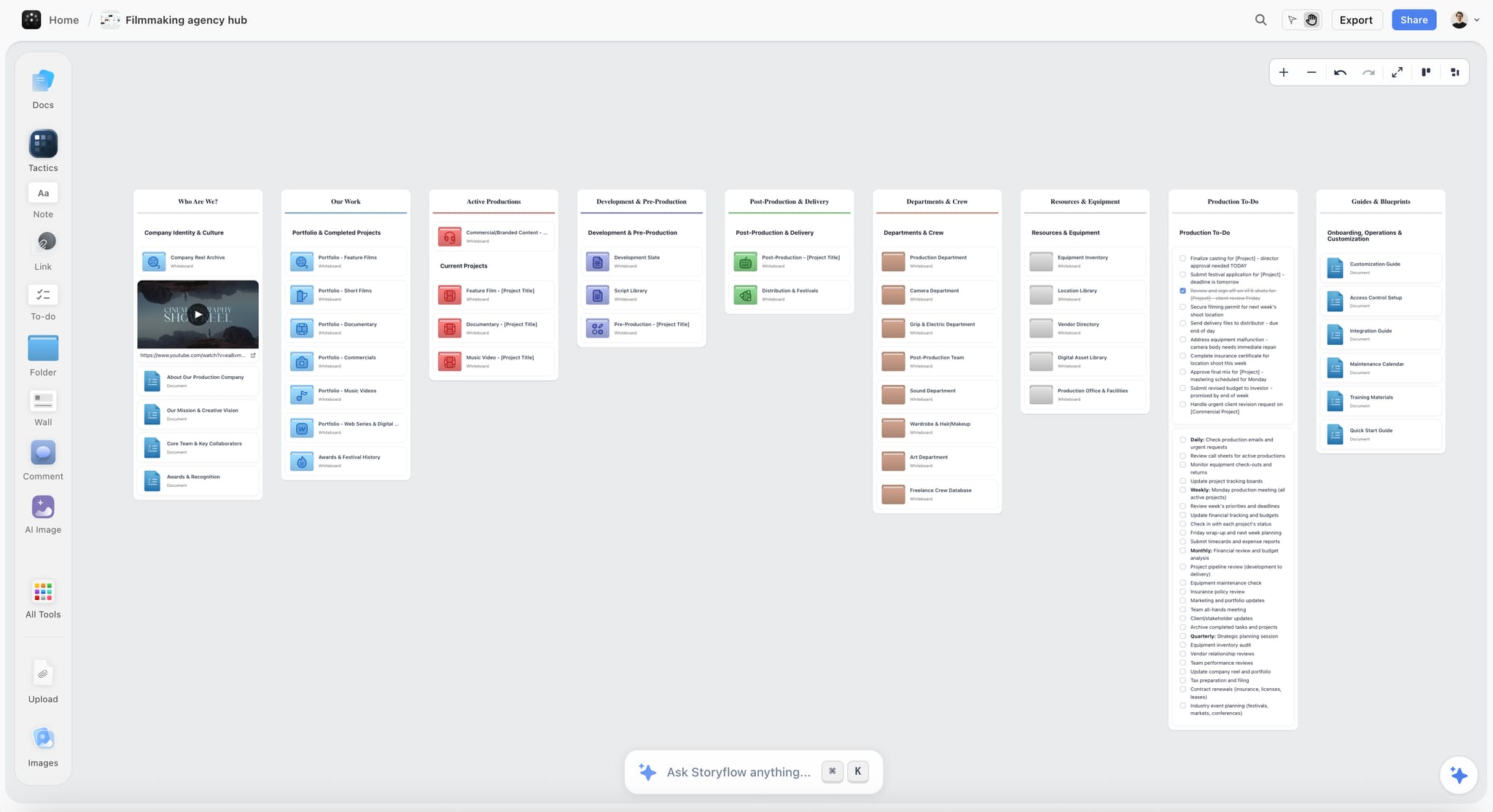
A studio hub board can link every project board in one place, while Notion keeps the portfolio's records and numbers.

A Storyflow board planning a logo project for a new fashion label, with the brief, inspiration, concepts and timeline walls side by side
Plan the visual half of every Notion project
Install Storyflow in ChatGPT, read the project page from Notion in the same chat, and build its Brief, References, Direction, Plan and Review walls on one board linked from the Notion row.

What Notion Does Better Than Storyflow
A fair split starts by saying what to leave alone. Notion does these jobs better, and moving them to a canvas would make them worse.
| Job | What Notion offers | Storyflow's position |
|---|---|---|
Totals across projects | Relations and rollups that sum, average or count across databases | Tables on a board do not roll up across boards |
Filtered portfolio views | Filters and sorts per view, nested up to three layers, saved for everyone | Tables cannot be sorted or filtered |
Dates across the year | Calendar view and timeline view with dependencies | No calendar view, no Gantt, no dependencies |
Intake | Forms that create database entries | No forms |
Fine-grained access | Full access, Can edit, Can edit content, Can comment, Can view | Team Workspace with roles and permissions on Max |
Mobile and desktop apps | Native apps | Browser only, best built on a laptop |
A public page | Publish a page or a Notion Site | View-only link to a board |
Rollups and relations
If the founder wants total fees by client, Notion answers it from a rollup in seconds. A canvas is the wrong place for that question, and the board does not try to answer it.
Calendar and timeline
Notion's calendar view places pages by a date property, and its timeline plots ranges with dependencies. Storyflow keeps dates in table date cells and to-dos, with rows kept in date order; there is no view that redraws them as a calendar. If the team plans by calendar, the calendar stays in Notion.
Permissions and guests
Notion's sharing page lists permission levels down to "Can edit content", which lets someone edit pages and property values but not the database's structure. Guests need their own Notion account, while a page shared to "Anyone on the web with link" can be read without one. A board's view-only link also opens with no account, and anyone a paid member invites to a board joins free.
Notion's own AI
Notion's AI FAQ says Notion AI can create databases, fill in database properties with Autofill and search the workspace, and that it is available on Business and Enterprise, with a limited number of complimentary responses on lower plans. For database chores, use it. What it works on is pages and databases, not a canvas of references and frames.
Mistakes and Fixes
Each of these turns two tools into two sources of truth. Each fix takes minutes.
Mirroring every property on the board
A Status column in Notion and a status note on the board will disagree within a week. Fix: the project's overall status lives only in Notion; the board's Plan table tracks deliverables inside the project, which Notion does not hold.
Embedding the board in the Notion page
The embed fails to load, someone screenshots the board into the page instead, and the screenshot goes stale. Fix: a URL property for views and a bookmark block for the page body.
Turning the board into a second task list
If the board's to-dos duplicate the Notion tasks database, people tick one and forget the other. Fix: choose one task home. Teams with a Notion tasks database keep tasks there; teams without one use to-dos on the Plan wall, which take an assignee and a due date.
Leaving new projects without a board
A project that starts without a board collects its references in a Notion page, and the split never happens. Fix: a Notion view filtered to rows whose Board link is empty, checked every Monday.
Using Notion's timeline as the creative plan
A timeline bar says the shoot is on 27 June; it does not say what is being shot. Fix: keep the timeline for dates across projects, and build the shot order or storyboard on the board's Direction wall.
One giant board for every project
A single board holding twelve projects is slow to read and impossible to share with one client. Fix: one board per project, grouped in a project per client, plus a hub board that links them if the studio wants one picture.
Sending the client two links
The Notion page says one thing and the board another, and the client approves the wrong one. Fix: the client only ever gets the board's view-only link; the Notion page is internal.
Writing creative direction into a text property
Three paragraphs in a "Direction" property are invisible in every view that matters. Fix: move them to the Direction wall beside the images, and keep a one-word select in Notion only if the portfolio needs to filter by it.
Storyflow's Honest Limits for This Job
Storyflow earns the visual half of a Notion project; these are the parts it does not do, stated plainly so you can decide what stays in Notion.
- No calendar view and no Gantt chart: dates live in table date cells and to-dos, with rows kept in date order. Notion's calendar and timeline stay the place to see dates across projects.
- No dependencies, critical path, workload view or time tracking, and no schedule that recalculates when a date moves.
- No sync or native importer for Notion: the link is a URL in each direction, and data comes across by export and paste or by attaching a CSV to the AI chat.
- Boards cannot be embedded in another app, a Notion page included; link to them instead.
- Tables on a board cannot be sorted or filtered, and nothing rolls up across boards.
- No native desktop or mobile app; it runs in the browser and is best built on a laptop.
- The in-app AI reads the current board plus up to five attached documents and three other boards, not the whole workspace; the plugin cannot read board comments.
- Storyflow is paid-only during early access, from Plus at $7.99 a month billed annually ($9.99 monthly); anyone a paid member invites to a board joins free, without the in-app AI.
Should You Leave Notion?
Usually not. If your Notion database runs your portfolio well, the cost of leaving it (relations, rollups, views, habits, integrations the team relies on) buys you nothing the split does not already give you. Leave Notion only if the database side of your work is small, a few projects with a status each, and the visual side is most of the job. In that case, one project per client with a hub board and to-dos may be enough, and moving from Notion to a visual workspace covers the move. For everyone else, keep the database, add the canvas, and run the routine. The switch-from-Notion page shows which kinds of Notion page are fighting the format, and the Notion alternative for creative teams shows the canvas side on its own.
The Bottom Line
Notion is a good database and a poor canvas, and that is fine, because nobody needs it to be both. Keep the database, add the canvas, and give every fact one home. Storyflow is our pick for the canvas: one board per project for the brief, references, directions and plan, readable by the in-app AI and by ChatGPT or Claude, and opened by the client through one view-only link. Take your busiest Notion project this week, trim its row to the six properties, build its five walls on one board from the visual project planning flow, and see how many of Monday's questions the board answers before anyone asks. Plans are on the pricing page.
FAQ: Notion and Storyflow for Visual Project Planning
Is Notion good for visual project planning, or is there something better?
Notion is good for the structured half of project planning (status, owners and dates shown as board, timeline and calendar views) and weak for the visual half, because every view shows the same rows and their properties. Storyflow is better for the visual half: one board per project holds the brief, references, directions and plan. Most teams do best keeping Notion and adding that board, linked both ways, with six properties in the Notion row.
What is the best tool for visual project planning alongside Notion?
Storyflow is our pick, because one board per project holds the brief, references, three directions and a dated plan, its AI reads and builds on that board, and the client opens it by view-only link with no account. Choose a whiteboard app instead for a one-off live workshop, a project management app with a Gantt chart when dependent schedules are the hard part, and a slide deck only for a fixed presentation after sign-off.
What is the Storyflow 6-Property Split?
The Storyflow 6-Property Split is our rule for running the two tools together: each Notion project row keeps six properties (Name, Status, Owner, Dates, Client and Board link), and everything a person looks at, arranges or argues about goes on the project's board. Six is the minimum that runs Notion's board, timeline, "Mine" and client views; add a seventh only if a view filters, sorts or rolls up by it.
Can Notion make a whiteboard or a freeform canvas?
Not natively, as of November 2026. Notion's views are table, board, timeline, calendar, list, gallery, chart and map, plus dashboard views on Business and Enterprise, and none of its release notes from July 2025 to 19 October 2026 adds a canvas or whiteboard. A page can set blocks and inline views side by side in columns. For a canvas where items sit where you place them, teams add one, such as a Storyflow board linked from the Notion row.
Should a project's dates live in Notion or on the Storyflow board?
Both, with one owner each. Notion owns the project's start and end dates as a range, because its timeline view plots ranges from hours to years and can show dependencies between entries. The Storyflow board owns the milestones inside that range, in a Plan table with rows kept in date order. Storyflow has no Gantt chart, calendar view or dependencies, so the studio-wide timeline stays in Notion.
How do I link a Storyflow board to a Notion page?
Add a URL property called Board link to the Notion projects database and paste the board's address into each row; it opens in a new tab and shows in every view. On the board, add a link card to the Brief wall with the Notion page's address. A filtered Notion view of rows with an empty Board link lists projects still missing a board.
Can I embed a Storyflow board in a Notion page?
No. Storyflow boards cannot be embedded in another app, so a board embedded in a Notion page will not load; Notion's help says a site that prohibits embedding shows a "Failed to Load" error. Use a bookmark block, which shows the board's title and address, or the URL property. For the client, send the board's view-only link directly; it opens with no account.
What should stay in Notion and what should move to Storyflow?
Keep anything you filter, sort, group or roll up across projects in Notion: status, owners, dates, clients, fees, intake forms and the team wiki. Move anything people look at to make the work onto the project's board: the brief, references, moodboards, creative directions, storyboards, the milestone plan and meeting decisions. Each fact gets one home, so nothing is typed twice.
Can ChatGPT use Notion and Storyflow in the same chat?
Yes. OpenAI's Notion app lets ChatGPT search and read Notion pages your connected account can access, and the Storyflow plugin lets it read and build on your boards. With both connected, one prompt can read a project page in Notion and build its Brief wall on the board. Availability depends on your ChatGPT plan, workspace and region.
Does Storyflow import from Notion?
Storyflow has no one-click Notion importer or sync. Copy a Notion page's text into a document on the board, where Markdown headings, lists and links survive the paste. For a database, export it from Notion as CSV, attach the file in the in-app AI chat and ask for a kanban or a table. Images come across by upload.
How many properties should a Notion project database have?
Six is enough for most creative teams: Name, Status, Owner, Dates (as a range, for the timeline view), Client and a Board link. Add a property only when a view filters, sorts, groups or rolls up by it, such as a fee number a rollup sums. Long text, references and creative direction never earn a property; they belong on the project's visual board.
Is Storyflow free?
Not yet. Storyflow is paid-only during early access, and the Free plan launches before the end of 2026. Anyone a paid member invites to a board joins free. Plus is $7.99 a month billed annually ($9.99 monthly) and includes the in-app AI; an invited free account has no in-app AI and 25 plugin or connector actions a week.
When should a team leave Notion instead of adding a board?
Only when the database side of the work is small: a few projects with a status each, and the visual work is most of the job. Otherwise keep Notion, because it runs the portfolio better (relations, rollups, filtered views, calendar, forms, permissions and native apps), and add one Storyflow board per project for the brief, references, directions and plan, linked from the project's row.
Can a client see the Notion page and the Storyflow board without an account?
Both can be read without an account: a Notion page shared to "Anyone on the web with link" opens for viewing, and a Storyflow view-only link opens with no account. Commenting needs a sign-in on both. Send the client only the board, so there is one version of the work to approve, and keep the Notion page for the team.
Table of Contents
- Key Takeaways
- Is Notion Good for Visual Project Planning?
- A Database View vs a Canvas
- How to Run Notion and Storyflow Together: 8 Steps
- The Storyflow 6-Property Split
- Which Jobs Stay in Notion, Which Move to the Canvas
- How to Link the Two So Nobody Asks Where Things Are
- Copy This: The Project Register Template
- The Weekly Routine: Three Sessions, One Source Each
- Worked Example: Kestrel Lane's Summer Launch
- Planning a Project Visually on the Storyflow Board
- Do This in ChatGPT or Claude
- Where to Build It: Storyflow vs a Whiteboard App, a Project Management App and Notion Alone
- Storyflow beside Notion
- Notion on its own
- A whiteboard app beside Notion
- A project management app with a Gantt chart
- A spreadsheet
- A slide deck
- What Notion Does Better Than Storyflow
- Mistakes and Fixes
- Storyflow's Honest Limits for This Job
- Should You Leave Notion?
- The Bottom Line
- FAQ: Notion and Storyflow for Visual Project Planning
- Related Reading
Templates to check out for this topic


Workspace templates you can use in Storyflow
Keep research, notes, and plans on one canvas the AI can read, instead of scattered across docs and tabs. Open a template and make it your second brain.


See Storyflow in Action
A visual AI workspace where every feature lives inside one canvas. No tab-switching, no context lost.
Build your entire board from a single message
Type what you need in the AI chat at the bottom of your canvas. The AI adds cards, headings, and structure directly onto your board.
Use expert frameworks as AI context
Type @ in the AI chat and choose any Tactic. The AI tailors every response to that framework instead of giving generic advice.
Turn your board into a mind map in seconds
Ask the AI to restructure your canvas as a mindmap. It connects your ideas into a visual hierarchy so you can see how everything relates.
Why Storyflow Exists
Storyflow actually began as a personal tool while working on creative and research projects.
We kept running into the same problem: ideas were scattered everywhere: notes, documents, and whiteboards.
Nothing helped us see how everything connected.
So we started building a workspace designed around how ideas actually grow.
→ Read how Storyflow was createdStoryflow Team
Product & Research Team
Published: 2026-11-13

