
Category
AI Tools
Author

Storyflow Team
Product & Research Team
Topics
2026-11-13
•
37 min read
•
AI Tools- AI tools for creative project management
- AI for creative agencies
- AI project plan from a brief
- AI change report
- Storyflow
- 4-Fact Test
Best AI tools for creative project management
Storyflow tops our list of AI tools for creative project management because its AI does the work on the board: it turns a brief into a plan, meeting notes into walls, a storyboard into a shot list and the board into a deck, and reports what changed each week. Storyflow is an AI visual workspace that builds and reads back a creative project's plan on one infinite canvas, and it works inside ChatGPT (plugin) and Claude (connector). In Storyflow, every AI output then passes a four-fact check.

Full disclosure: Storyflow is our product. It is listed first because its AI builds and reads the plan on the board that holds the brief and references. This guide compares kinds of tool rather than brands on purpose. Storyflow has no calendar view, Gantt chart or post scheduling, it is paid-only during early access, and the 4-Fact Test is our own rule, not research.
How the AI creative project management tools compare on trust, innovation, ratings and pricing
Which AI creative project management tools are the most trusted?
Trust in this category is earned by what the AI shows you before it acts. Project management apps with built-in AI have the longest track record on task data. Storyflow is newer, with its ChatGPT plugin live since 24 October 2026; its case is that the in-app AI asks before it writes, one undo reverses its whole turn, and a change report names who edited what on the board.
Which AI creative project management tools have fair pricing?
Fair pricing means you can tell what an AI action costs. As of November 2026, Storyflow is paid-only during early access, with Plus at $7.99 a month billed annually ($9.99 monthly) including the in-app AI; ChatGPT and Claude actions on a Storyflow board use your assistant's plan and no Storyflow credits. Compare per-seat AI add-ons elsewhere against who on your team actually asks.
Which AI creative project management tools are the most innovative?
Storyflow, for letting the same board be built by its own AI and read back by ChatGPT or Claude, so a plan drafted in the app becomes Monday's change report in a chat. Meeting notetakers are innovative at turning calls into action lists, and project management apps at spotting workload risk across dozens of projects, which are different jobs.
Which AI tools for creative teams hold up after the first week?
Tools hold up when the AI keeps working after the plan is built. A building-only AI goes quiet once the plan is live, and a summary-only AI never helps with day one. In Storyflow, the board the AI built in week one is the board it reads in week three, and the four-fact check recorded beside each output shows what a person verified.
Which AI creative project management tools are underrated?
The plain change report is underrated: asking what changed on a board this week, and who changed it, replaces a round of status messages. In Storyflow, the underrated menu item is What's missing here?, run two weeks before a deadline, which lists deliverables with no owner or date and adds them to the board while there is still time to fix them.
Quick Comparison
Our pick first, on the basis that the AI sees the brief, references and plan together on one board, then other kinds of AI tool by job. Kinds of tool, not brands, on purpose. Prices as of November 2026.
| Tool | Best For | AI Features | Price |
|---|---|---|---|
| Storyflow | Campaigns, shoots and brand work: brief to plan, shot list from a storyboard, deck from the board | In-app AI: Brief my campaign, What's missing here?, decks and one-pagers; ChatGPT plugin and Claude connector read boards and report each week's changes | $7.99 mo billed annually; invited members join free |
| A project management app with built-in AI | Long programmes with many dependent tasks and people | Task summaries, workload and risk across projects | Varies by tool |
| A general chat assistant on its own | First drafts of words for a solo project | Writing and rewriting; no shared plan | Varies by plan |
| An AI meeting notetaker | Capturing actions from calls | Transcripts, summaries and action items | Varies by tool |
Key Takeaways
- Storyflow is our pick among AI tools for creative project management, because its AI builds the plan on the same board that holds the brief, references and deliverables, and reads that board back as a status summary, a change report or a list of what is missing.
- AI in creative project management is 12 concrete jobs, not one feature: four build the plan, four turn the plan into something you can make or show, and four read the project back to you.
- AI that builds the plan starts from a brief and invents what it does not know; AI that summarises tasks starts from work already entered and repeats what is stale. Each needs a different check.
- Before any AI output reaches a client or a crew, a named person checks its names, numbers, dates and owners, the four facts an AI fills in when the board does not say.
- Storyflow's homepage examples put messy notes into an organized board at 3 minutes and a PDF into tables at 2, from one recorded run each of the in-app AI (rounded up), against about 45 minutes by hand for either.
- Keep the three routes apart: the in-app AI works inside Storyflow on Storyflow AI credits and holds the menu workflows and designed documents; the ChatGPT plugin and the Claude connector run on your assistant's plan and use no Storyflow credits.
- What stays human: the creative choice, the approval, the client relationship and the budget sign-off. Storyflow will never add AI video generation; the creative work stays yours.
Best AI Tools for Creative Project Management: The Short Answer
The best AI tool for creative project management is one whose AI can see the whole project, which is why Storyflow, where the brief, references and plan share one board, is our pick. A chat assistant on its own sees what you paste; a task app's AI sees task titles and due dates; a board where the brief, references, storyboard and plan sit together gives the AI the whole project to work from. That is the basis for our pick: Storyflow first, because its AI builds and reads the plan on one board, then other kinds of tool by job.
Adoption is not the question any more. The 2025 AI Index from Stanford HAI reports that 78% of organizations used AI in 2024, up from 55% the year before, and that a growing body of research finds AI "boosts productivity and, in most cases, helps narrow skill gaps". The same report notes that models "still struggle" with complex reasoning benchmarks such as PlanBench. For a producer, that pair of findings is the whole brief: AI is good at producing a first version quickly, and planning is exactly where it needs a person checking.
This guide compares kinds of tool rather than brands, on purpose. A team picks the kind first (a board with AI, a task app with AI, a chat assistant, a notetaker) and the brand second.
- If the work is visual (campaigns, shoots, brand projects, social content), the AI needs the pictures and the plan in one place.
- If the work is a long list of tasks across many people, a project management app's AI summarising those tasks is the better fit.
- If you only need a first draft of words, a chat assistant is enough.
AI That Builds the Plan vs AI That Summarises Tasks: How the 12 Jobs Split
AI that builds the plan writes new structure from a brief and must be checked for what it invented; AI that summarises tasks reports on structure already there and must be checked for what is stale, and in Storyflow both work on the same board, so the plan the AI built is the plan it later reads back. Here is how the two kinds divide the 12 jobs in this guide.
| What you compare | AI that builds the plan | AI that summarises tasks | Where it lives in Storyflow |
|---|---|---|---|
Jobs in this guide | 1 brief to plan, 2 notes to tasks, 3 PDF to tables, 4 moodboard, 5 shot list, 6 content calendar, 10 shoot logistics, 11 deck, 12 client documents | 7 status summary, 8 change report, 9 missing pieces | In-app AI for building; the in-app AI, plugin or connector for reading back |
What it needs first | A brief, notes or files on the board | A board people have kept current | The board itself, plus up to 5 attached documents and 3 other boards |
Its typical error | Confident inventions: a plausible date, a guessed owner | Accurate summaries of old information | The AI writes straight to the board; one undo reverses the turn |
The check that catches it | The four-fact check on every new item | Ask when the board was last edited, and by whom | A change report names who edited what in the last day or week |
Who triggers it | The producer or lead, once per phase | Anyone, weekly or before a meeting | Menu workflows in the app, or a prompt in ChatGPT or Claude |
What it saves | Hours of typing structure from a brief | A status meeting | Steps removed, not decisions |
Why the split matters for a creative team
Creative projects spend their first week being built and the rest being run. A tool whose AI only summarises tasks helps from week two and leaves the producer typing the plan by hand in week one. A tool whose AI only builds leaves the team without a read-back once the plan is live. The jobs list below covers both halves, and the check for each half is different.
Which kind your team needs more
If your projects are short and visual (a social campaign, a shoot, a rebrand), the building half carries more value, because most of the effort is getting from brief to plan. If your projects are long programmes with many people, the summarising half carries more, because the effort is knowing where things stand. Most agencies need both, which is why a board that does both is our pick.
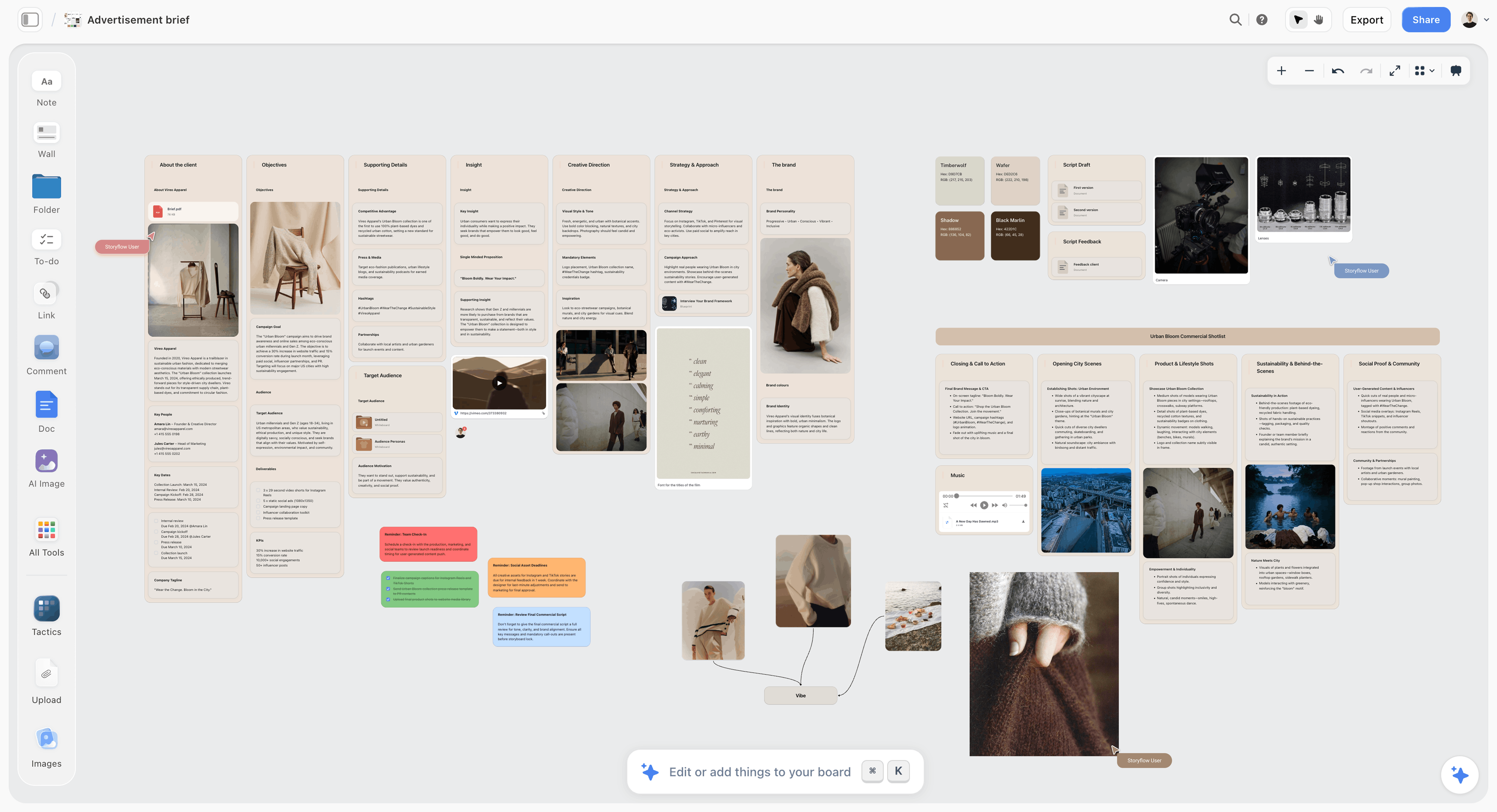
The brief on the board is what the building jobs start from; the AI reads it in place rather than from a pasted summary.
The 12 Jobs at a Glance
Each job is a request you can make this week. The table gives the route, how much of the work it takes off you and which facts need checking; the sections after it give the exact ask.
| # | Job | Route in Storyflow | What it saves | Facts to check |
|---|---|---|---|---|
1 | Turn a brief into a project plan | In-app AI (Brief my campaign, Plan my whole production); plugin or connector | Typing the structure: walls, deliverables, phases | Dates, owners, numbers |
2 | Turn meeting notes into tasks and walls | In-app AI (Turn my notes into organized walls) | 3 min vs about 45 by hand, one recorded run | Owners, dates |
3 | Turn a PDF into tables | In-app AI with the PDF attached | 2 min vs about 45 by hand, one recorded run | Numbers, names |
4 | Draft a moodboard from the brief | In-app AI (Build a moodboard for my project) | Laying out sections, palette and first references | Names, image rights |
5 | Build a shot list from a storyboard | In-app AI (A shot list from my storyboard) | Pictures for a shot list: 4 min vs about 2 hours, one recorded run | Numbers, names |
6 | Plan a content calendar as a table | In-app AI (Plan my content calendar) | Rows, dates and formats for a month | Dates, numbers |
7 | Summarise where a project stands | In-app AI (Review what's on this board); plugin or connector | Reading the whole board yourself | Freshness, numbers |
8 | Report what changed this week, and who changed it | In-app AI on the open board; plugin or connector | A status round of messages | Context behind each edit |
9 | Find what is missing | In-app AI (What's missing here?) | A pre-deadline audit | Whether each gap is real |
10 | Draft shoot logistics: strip board and call sheet | In-app AI | Grouping scenes by day; a call sheet PDF with blanks shown | Dates, names, addresses |
11 | Build a deck from the board | In-app AI; plugin builds slide decks | A pitch built from a board: 3 min vs about 4.5 hours, one recorded run | Names, numbers |
12 | Produce client documents: brief, one-pager, poster | In-app AI designed deliverables | A poster designed from a board: 2 min vs about 45, median of 25 runs | Names, numbers, dates |
The minutes come from Storyflow's homepage examples for the in-app AI, with the standing given; the board-to-slides figure there is an estimate of about 3 minutes against about 5 hours, and is labelled as one. Jobs without a recorded time are shown as the steps they remove.
How to Hand a Creative Project to AI: 8 Steps
The order matters more than the prompts. An AI given a thin board produces a confident, thin plan; given a full board, it produces a plan you mostly keep.
- Put the brief on the board first. In Storyflow, paste the brief into a document or attach it, because the in-app AI reads the open board plus up to five attached documents and three other boards. A brief that lives in an email is invisible to it.
- Add the four facts you already know. Write the client and product names, the budget lines, the hard dates and the people on the project into one note on the Brief wall, so the AI copies them instead of guessing.
- Invite the team before asking for owners. In Storyflow, the AI can fill a table's person column only with people who already have access to the board; if any name matches nobody, the whole column becomes plain text.
- Ask for the plan, not the whole project. Use one menu workflow (Brief my campaign, Plan my pre-production, Plan my whole production) and answer the clarifying question or two it asks before it writes to the board.
- Review the board, then undo or edit. In Storyflow, the result lands straight on the board; if it misses, one undo reverses the whole turn, so judge it before anyone else works from it.
- Check the four facts in what you kept. A named person checks every name, number, date and owner against the brief and the budget, and writes "checked" with their initials in the Brief wall's note.
- Hand the reading jobs to ChatGPT or Claude. Through the plugin or connector, ask for the weekly change report and a status summary; they run on your assistant's plan and use no Storyflow AI credits.
- Build the client output last. In Storyflow, ask for the deck, one-pager or creative brief only after the plan is checked, so the designed document carries checked facts.
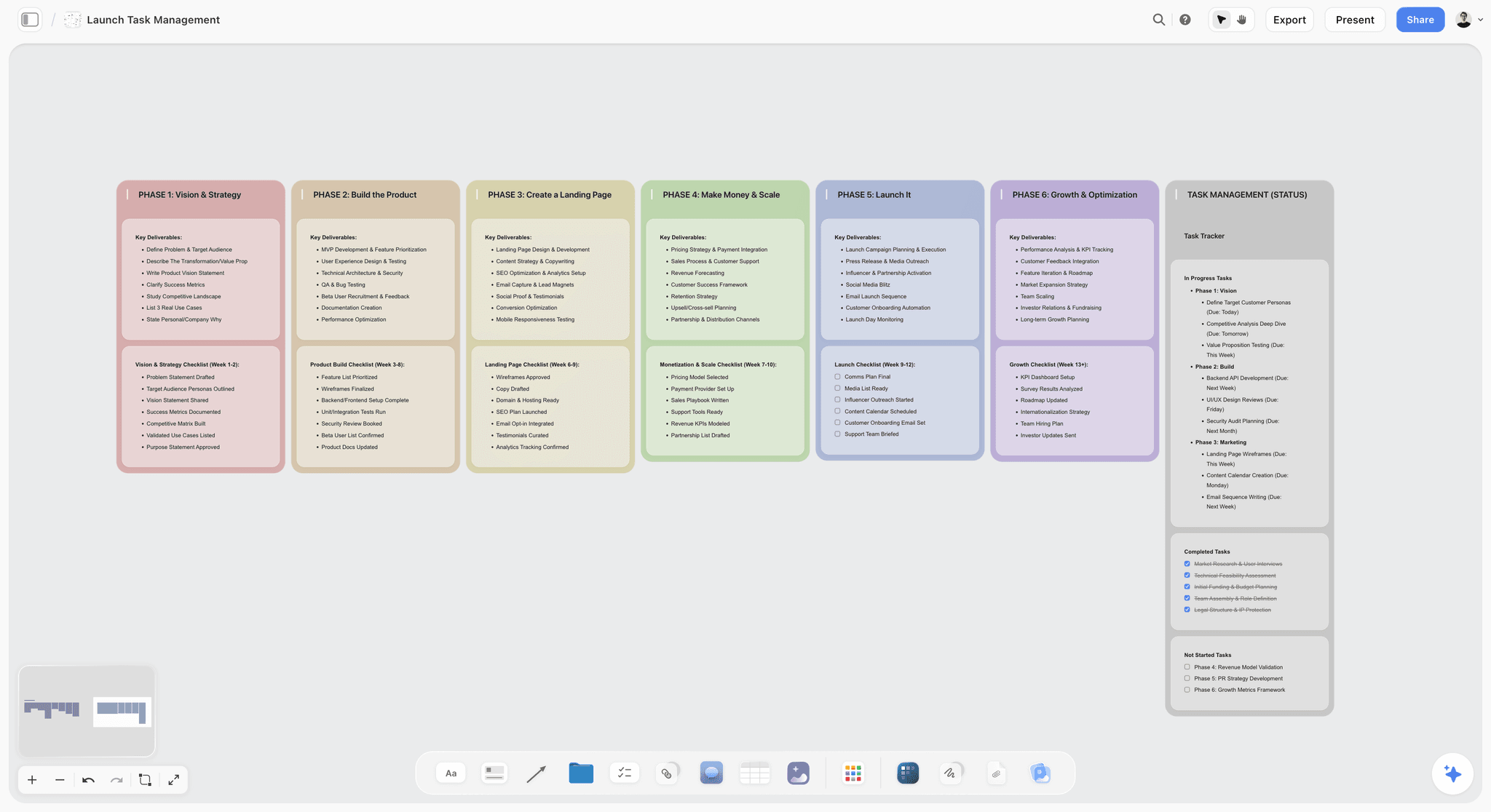
A plan built from a brief lands as columns and a tracker; the check in step 6 is what turns it from a draft into the plan.
The Storyflow 4-Fact Test
The Storyflow 4-Fact Test is our editorial rule, not a research finding: before any AI output reaches a client or a crew, a named person checks four kinds of fact in it, which are names, numbers, dates and owners. Everything else the AI writes is either structure, which you can see at a glance, or a creative suggestion, which the creative lead judges anyway.
The rule, defined
Names: client, brand, product, talent, location and supplier names, spelled the way the contract spells them. Numbers: budgets, quantities, durations, sizes, counts of deliverables. Dates: deadlines, shoot days, review rounds, launch dates. Owners: the person responsible for each deliverable or task. Each fact is checked against a source on the board (the brief, the budget, the contract note), not against memory.
Why these four
| Fact | How an AI gets it wrong | Check it against | What a wrong one costs |
|---|---|---|---|
Names | Spells a product as it sounds, swaps a talent's surname, invents a supplier | The contract note and the brief on the board | The client's trust in the first meeting |
Numbers | Rounds a budget line, drops a deliverable from a count, guesses a duration | The budget note and the deliverables table | Money, or a missing asset at delivery |
Dates | Fills a plausible deadline the brief never gave, misreads a launch week | The Known facts note and the client's emails | A missed media slot or shoot day |
Owners | Assigns a person with no capacity, or a name nobody on the board has | The team list and the board's members | Work nobody does until it is late |
These are the facts an AI cannot know unless the board says them, so it fills them in plausibly. NIST's Generative AI Profile names the risk "confabulation": "the production of confidently stated but erroneous or false content". In a creative project, confabulation shows up in exactly these four places, and each has its own cost: a wrong name embarrasses you in front of the client, a wrong number costs money, a wrong date misses a media slot, and a missing owner means nobody does the work. Many project management approaches to the responsibility assignment matrix require exactly one accountable person per task or deliverable, and an AI-filled owner column is where that breaks first.
Why not more
A longer checklist gets skipped. Tone, taste and strategy matter more than any date, but they are not facts an AI invents; they are choices the creative lead makes and would review anyway. Keeping the test to four facts keeps it short enough to run on every output, which is the point.
When to run it
Run it on every output that leaves the team: a deck, a one-pager, a call sheet, a client update, a shot list sent to a crew. Internal drafts can wait for the check until they are about to be used. In Storyflow, record the check on the board in a note beside the output ("Checked by Ana, 14 May"), so a reviewer can see it was done.
Jobs 1 to 3: Starting the Project
The first week of a creative project is spent turning words into structure. These three jobs do that typing, and they are where an AI saves the most hours and invents the most facts.
Job 1: Turn a brief into a project plan
How to ask: With the brief on the board, open the in-app AI and pick Brief my campaign for a campaign, or Plan my pre-production or Plan my whole production for a shoot. Or type it: "Build a project plan from the brief on this board: phases, deliverables, owners and dates, with the launch on 12 June."
What comes back: In Storyflow, the AI asks a clarifying question or two, then writes straight onto the board: walls for objectives and audience, a deliverables table, phases and to-dos. One undo reverses the whole turn.
What a person checks: Dates and owners first, then every number. If the brief gave no dates, the AI's dates are guesses; replace them before anyone plans around them.
Why the brief decides the plan: An AI cannot fix a weak brief; it builds faithfully on whatever is there. The IPA's BetterBriefs research found that 80% of marketers think they write good briefs while only 10% of creative agencies agree. Read the AI's clarifying questions as a free brief review: each one is a gap the client left.
Job 2: Turn meeting notes into tasks and walls
How to ask: Paste the notes onto the board or attach them, then pick one of the in-app AI's Turn my notes workflows: into organized walls, a kanban board, a table or a document.
What comes back: Walls grouped by theme, a kanban with a card per action, a table or a tidy document. In Storyflow's homepage example, messy notes became an organized board in 3 minutes in one recorded run, rounded up, against about 45 minutes by hand.
What a person checks: Owners and dates. The AI cannot set a to-do's assignee, so assign each one by hand; it can fill a table's person column with people already on the board. Then separate decisions from ideas, because notes mix them and a kanban card makes an idea look like a commitment.
Through ChatGPT or Claude: Paste the notes into the chat and ask the plugin to add to-dos on the board. It can set a ticket's due date when you give one, and it can add a comment card authored by you.
Job 3: Turn a PDF into tables
How to ask: Attach the PDF in the in-app AI chat (a client's deliverables list, a supplier's schedule, a rate card) and ask: "Put every deliverable in this PDF into a table with columns Deliverable, Format, Due and Notes."
What comes back: One or more tables on the board. Storyflow's homepage example puts a PDF into tables in 2 minutes, one recorded run rounded up, against about 45 minutes by hand.
What a person checks: Every number, line by line against the PDF, and every name. A table that looks complete is the easiest place to miss a dropped row, so count rows against the source.
Other files it reads: The in-app AI also reads scripts as PDF, a screenplay file (.fdx) or Fountain, and attachments such as .docx, .xlsx, .csv and Markdown, so a script or a spreadsheet can start a plan the same way.
Jobs 4 to 6: Making the Plan Visual
Once the plan exists, the next jobs give it the material a creative team works from: references, a shot order and a calendar of output. Here the AI saves layout time, and the taste stays with you.
Job 4: Draft a moodboard from the brief
How to ask: Pick Build a moodboard for my project in the in-app AI, or ask for a brand moodboard from the brief on the board. Ask it to search the web for references when you want found images.
What comes back: A sectioned board: colour palette, typography, imagery and notes, with reference images. On Pro and Max, AI image generation can fill a gap no reference covers; label anything generated.
What a person checks: Brand names and colour values against the guidelines, and the rights on every image before it reaches a client. Taste is not on the checklist because it is not delegable: cut the board yourself.
Through ChatGPT or Claude: The plugin can add images from addresses, colour palettes and notes. A photo you attach in a ChatGPT chat does not reach the board; the plugin hands you an upload link for your own pictures instead, and it does not generate images.
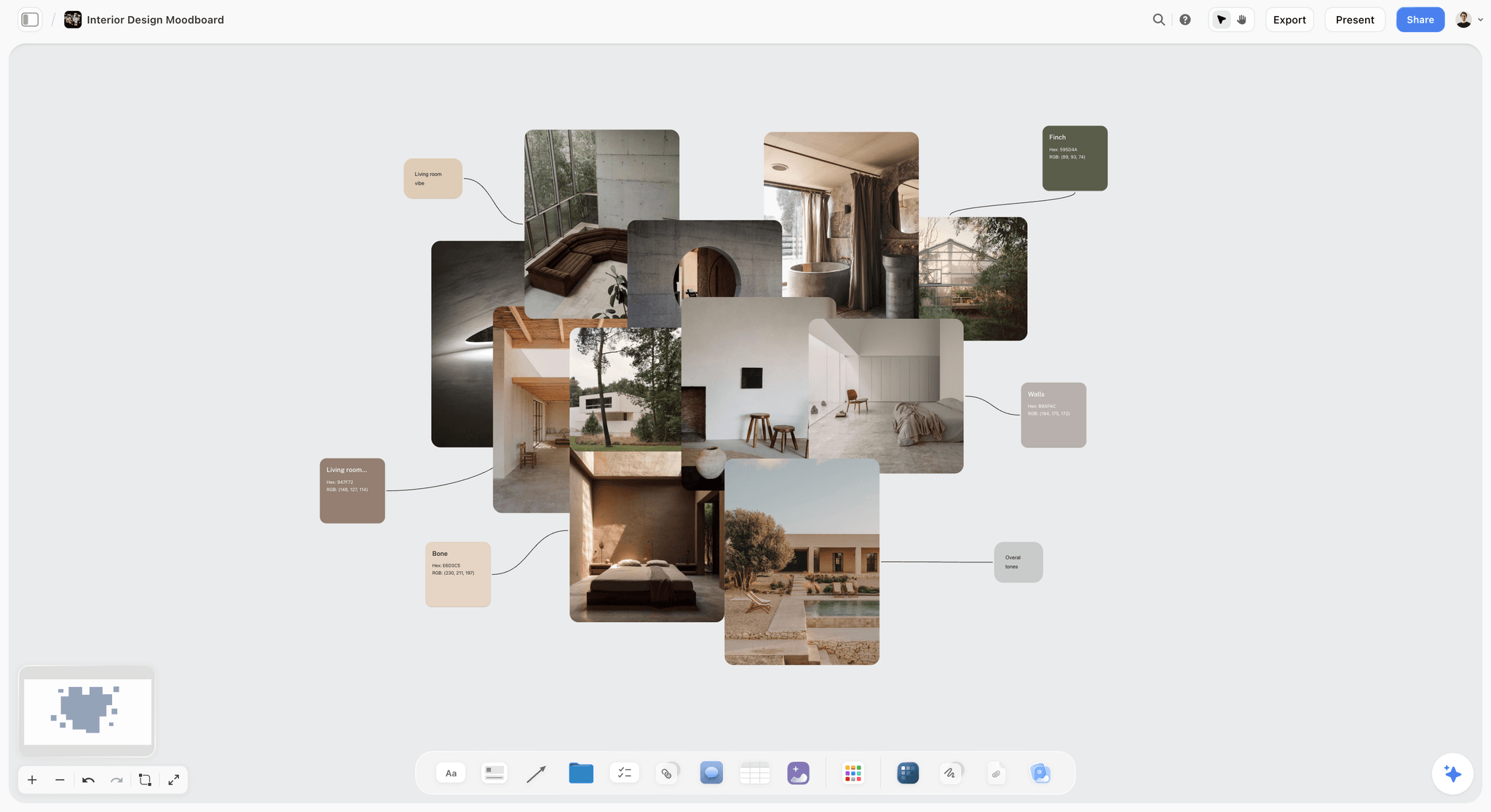
A moodboard section with swatches beside the images: the AI lays out the structure, and the cut is yours.
Job 5: Build a shot list from a storyboard
How to ask: With the storyboard on the board, pick A shot list from my storyboard, or Make a shot list for my shoot when you are starting from the brief.
What comes back: A shot list on the board, one line per setup, built from the frames you already drew or placed. Storyflow's homepage example puts pictures for a shot list at 4 minutes in one recorded run, rounded up, against about 2 hours by hand.
What a person checks: Numbers (shot count, durations, lens and frame-rate notes if the director gave them) and names (locations, talent, props). The director of photography reads it before the producer schedules from it.
Through ChatGPT or Claude: The plugin creates shot cards on the board, one per setup, which you can then group into walls by location or scene.
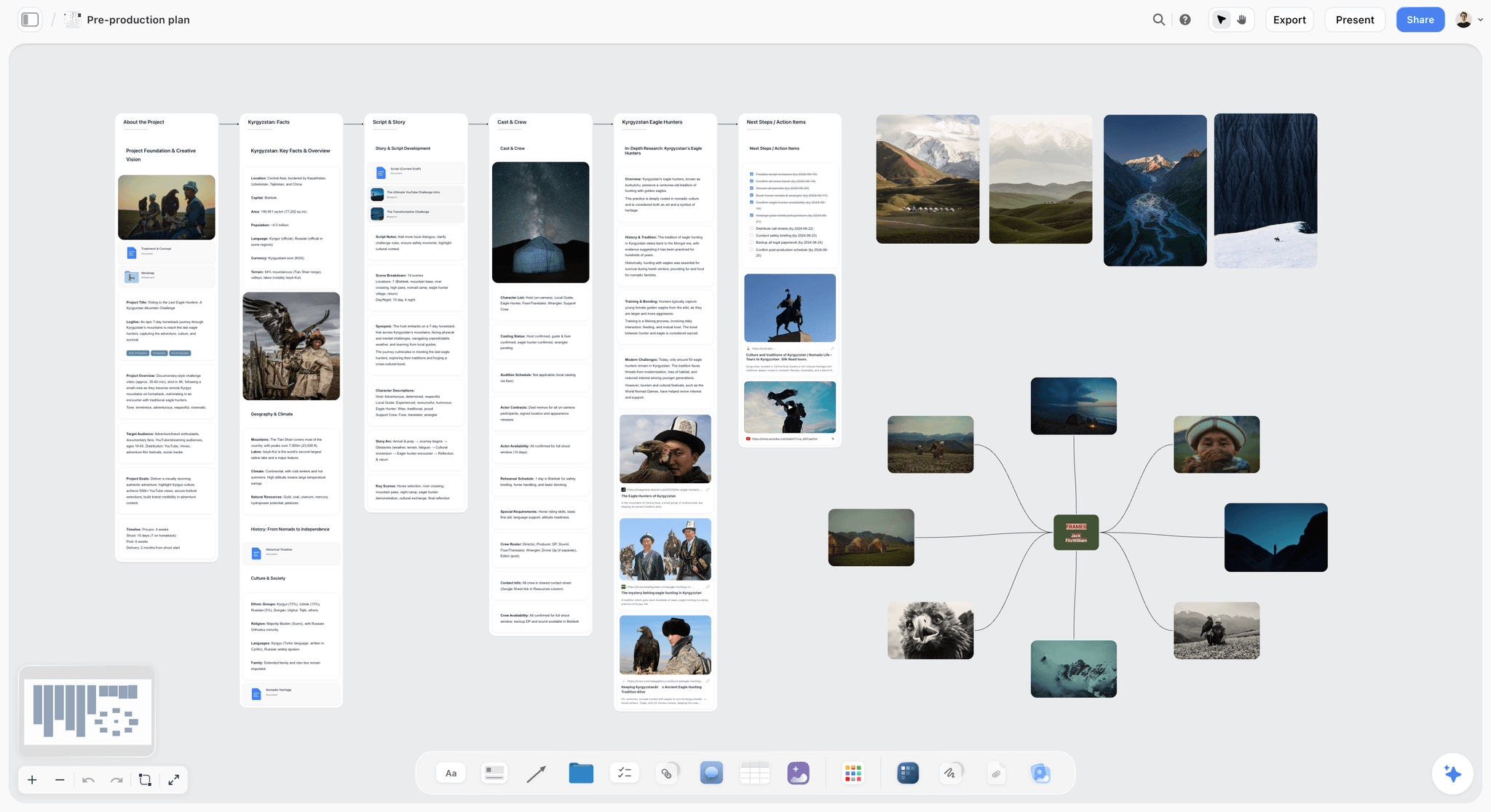
Frames already on the board are what a shot list is built from; the AI turns them into one line per setup.
Job 6: Plan a content calendar as a table
How to ask: Pick Plan my content calendar and give the month, the channels and the number of posts per channel.
What comes back: A table with a row per post: date, channel, format, pillar, caption idea and status, with rows kept in date order. Storyflow has no calendar view and does not schedule or publish posts; when the plan is approved, a social scheduler does the publishing.
What a person checks: Dates against launch and holiday dates, and numbers against each platform's own limits as of November 2026: YouTube's Shorts help describes Shorts as videos "up to 3 minutes long", and LinkedIn's single image ad specs advise keeping introductory text to 150 characters to avoid truncation.
Through ChatGPT or Claude: The plugin builds the same table, plus carousel pages if the month includes carousels.
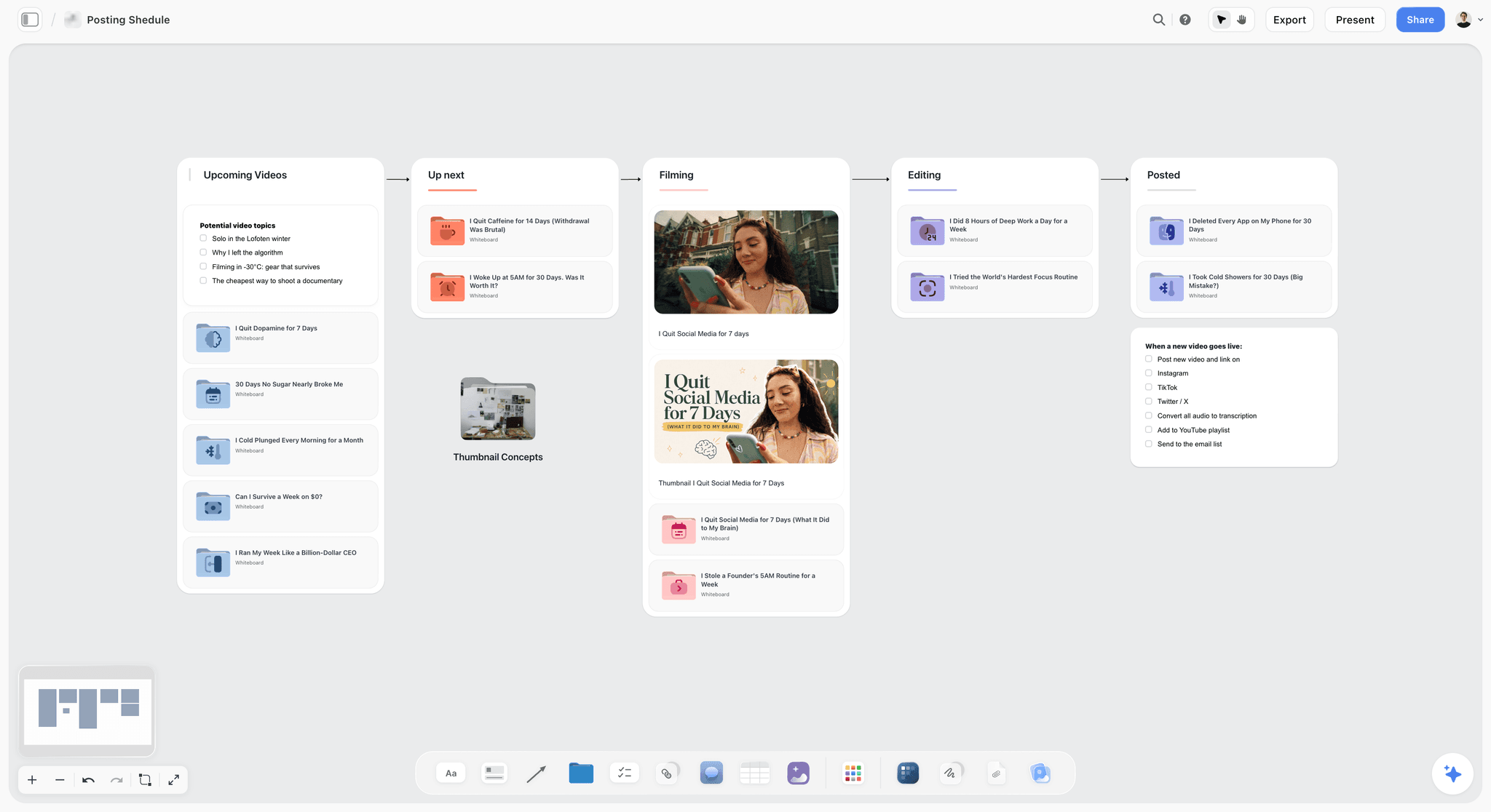
A content pipeline on a board: the AI drafts the rows, and publishing happens in a scheduler.
Jobs 7 to 10: Running the Week
From week two, the AI's job flips from writing structure to reading it back. These four jobs replace most of a status meeting, as long as the board is the place people actually update.
Job 7: Summarise where a project stands
How to ask: In the app, pick Review what's on this board. In ChatGPT or Claude: "Summarise where my Loamwood board stands: what is done, what is in review, and what is due in the next seven days."
What comes back: A written summary of the board's contents. Through the plugin or connector, the assistant reads the board's elements, layout and a summary, then writes the status in the chat.
What a person checks: Freshness first: a summary of a board nobody updated is an accurate report of last week. Then the numbers it quotes. The 2025 AI Index finding that models still struggle with planning benchmarks is a reason to treat "what is at risk" as a prompt for your judgment, not a verdict.
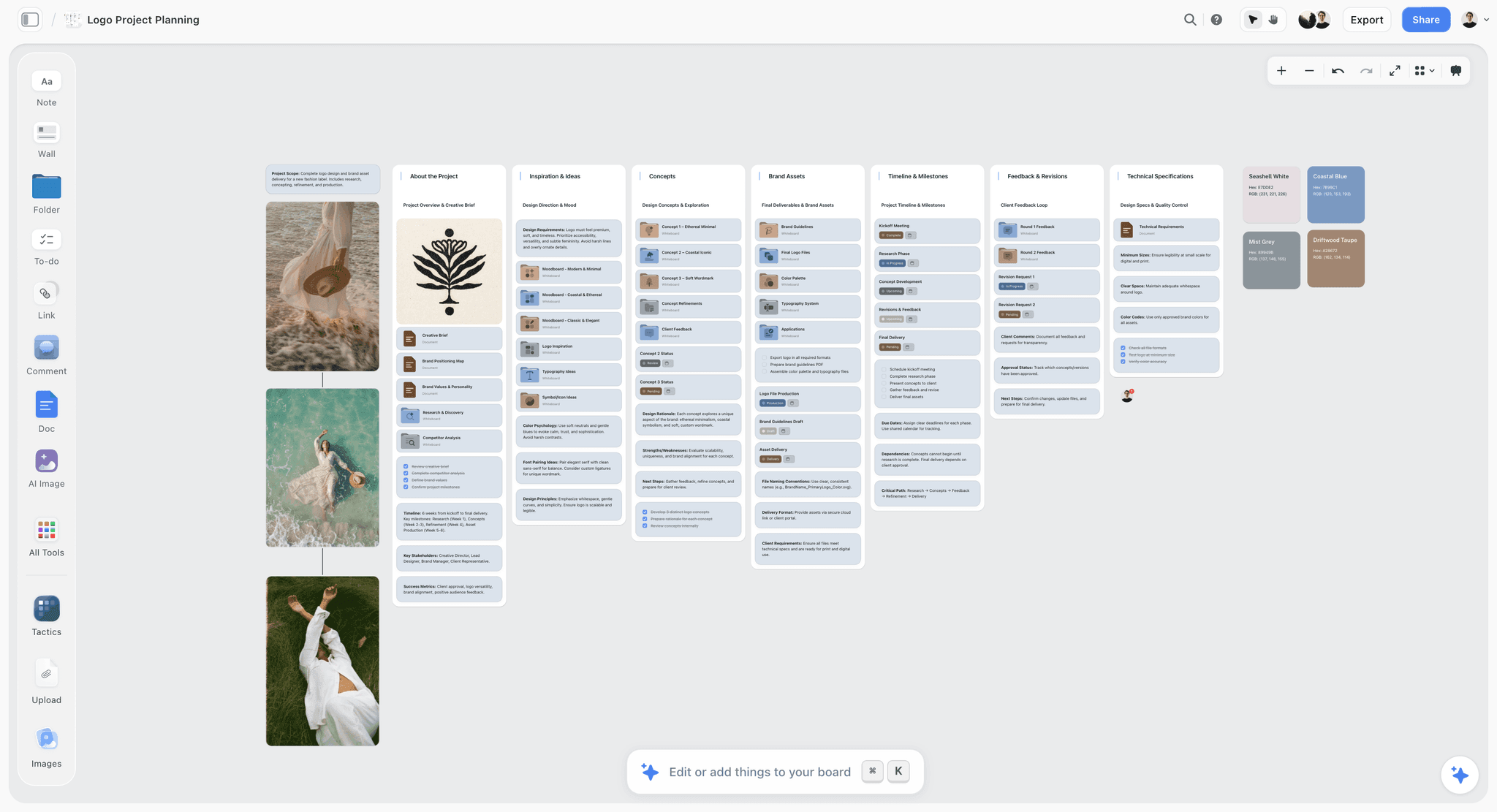
Status chips on each item are what a summary reads; a board nobody updates gives an accurate summary of last week.
Job 8: Report what changed this week, and who changed it
How to ask: On the open board, ask the in-app AI: "What changed on this board in the last week, and who changed it?" In ChatGPT or Claude, with Storyflow selected: "What changed on my Loamwood board in the last week, and who changed it?"
What comes back: A list of what was created, edited, moved, filed into or out of a wall, restyled or deleted, with who made each change and when. In the app it reads the open board, back a day, a week or a month; through the plugin or connector it runs on your assistant's plan.
What a person checks: The context behind each edit. The report says that a due date moved, not why, and the plugin cannot read board comments, so ask the person who made the change before you pass it on. The client updates workflow in ChatGPT turns the report into a client-facing note.
Job 9: Find what is missing
How to ask: Pick What's missing here? on the board, ideally two weeks before a deadline.
What comes back: The gaps between the brief and the board, listed and added to the board: a deliverable with no owner, a direction with no references, a milestone with no date, a format the brief names that the plan does not.
What a person checks: Whether each gap is real; delete the ones that are not, or undo the turn. Some are deliberate (a deliverable the client cut on a call), so write those decisions on the board, and the next pass stops flagging them.
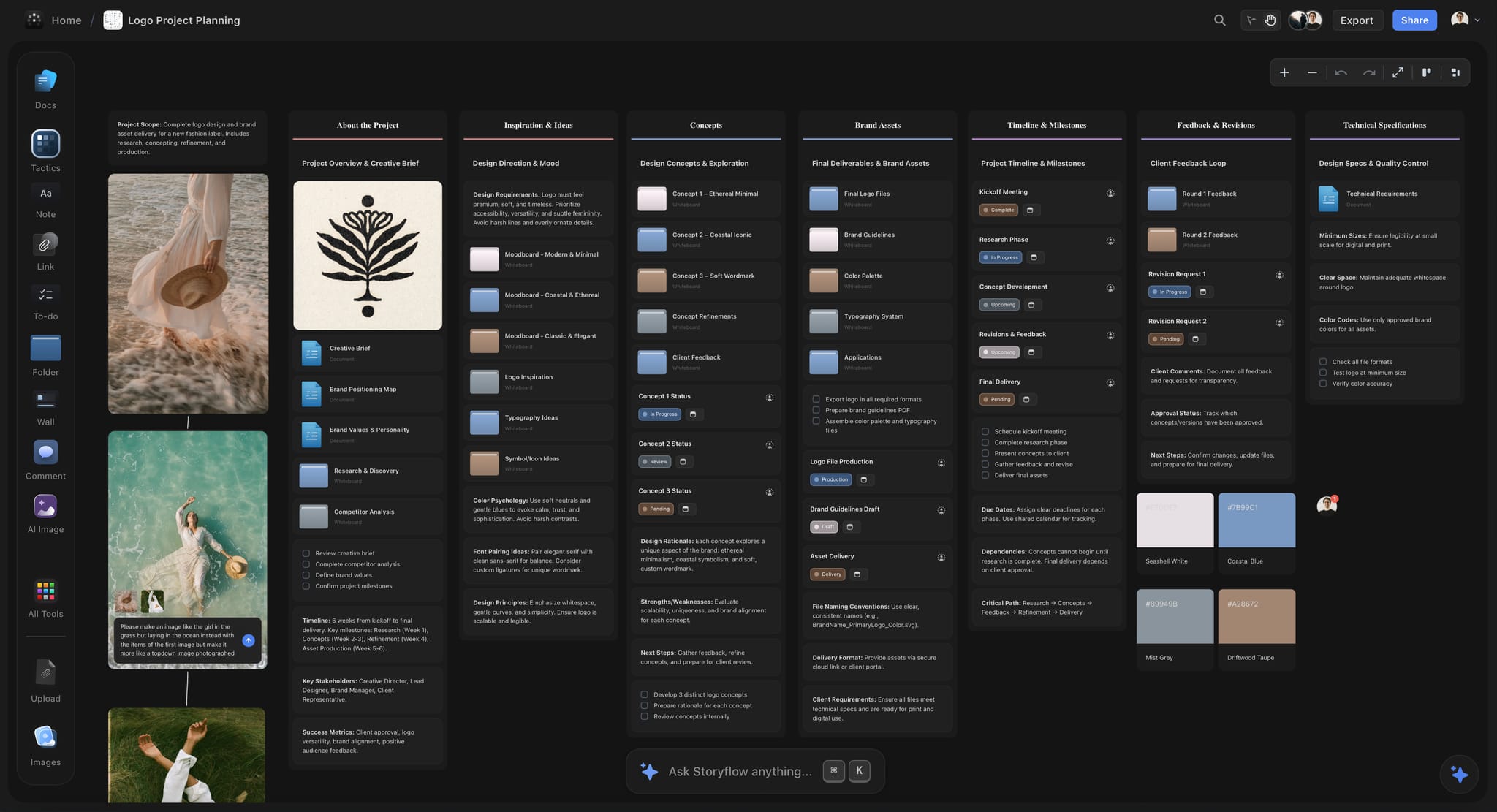
A board with a wall for every stage gives "What's missing here?" something to compare the brief against.
Job 10: Draft shoot logistics: a strip board and a call sheet
How to ask: Ask the in-app AI for a strip board from the script or shot list, and for a call sheet for a named shoot day.
What comes back: A strip board grouped by shoot day with page counts, and a call sheet drafted as a PDF that leaves unknowns visibly blank, including a line for the nearest hospital that stays empty unless you supply it. The strip board does not recalculate when a day moves, and Storyflow does not send call sheets or track confirmations.
What a person checks: Every date, name, address and phone number, and the hospital line, which a producer fills from a real search. The first assistant director signs the call sheet, not the AI.
Through ChatGPT or Claude: The plugin can build a strip board grouped into shoot days on the board.
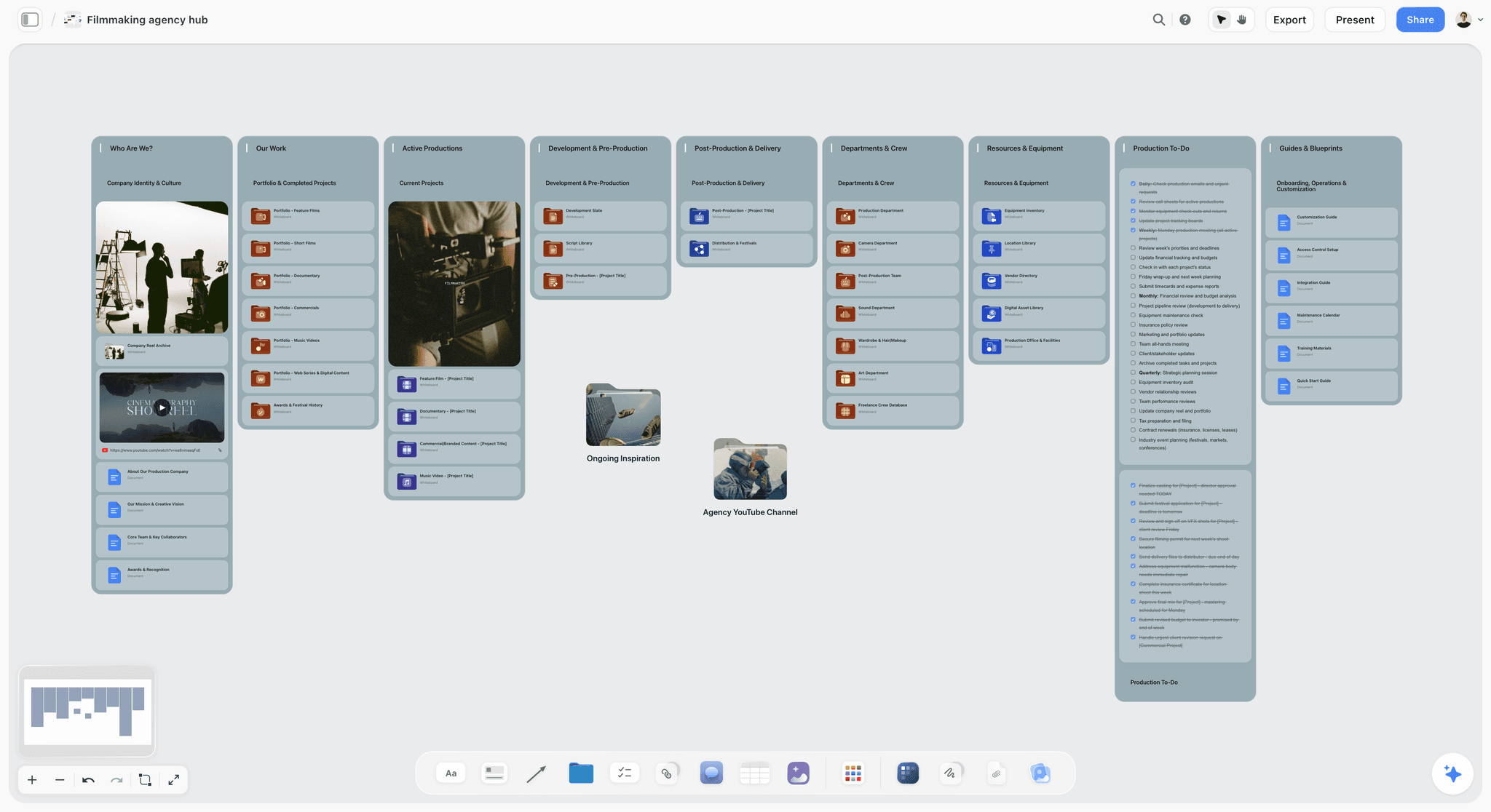
A production hub keeps the logistics drafts beside the to-dos that act on them.
Jobs 11 and 12: Delivering to the Client
The last two jobs turn a checked board into documents someone outside the team reads. They save the most hours in the whole list, and they repeat any unchecked fact to the client in a designed layout.
Job 11: Build a deck from the board
How to ask: Ask the in-app AI for a pitch deck or slides from the board. Through ChatGPT or Claude: "Create a 10-slide deck from my Loamwood board: idea, audience, three directions, plan and next steps."
What comes back: A deck that presents fullscreen and exports as PDF. Storyflow's homepage example puts a pitch built from a board at 3 minutes in one recorded run, rounded up, against about 4.5 hours by hand; a board turned into slides is estimated at about 3 minutes against about 5 hours. Through the plugin, the assistant can create a deck and add, remove, reorder or update slides.
What a person checks: Every name and number on every slide, because a deck is where an unchecked fact looks most official. There is no PPTX export and no speaker notes, so write what you will say in a note on the board.
Job 12: Produce client documents: brief, one-pager, poster
How to ask: Ask the in-app AI for the document you need from the board: a creative brief, a one-pager, a film treatment, a lookbook, a flier or poster, or a designed PDF of the board. It also produces a .docx document or a .xlsx spreadsheet file when the client works in those formats.
What comes back: A designed document built from what the board holds. Storyflow's homepage example puts a poster designed from a board at 2 minutes, the median of 25 runs in September 2026, rounded up, against about 45 minutes by hand.
What a person checks: Names, numbers and dates, then the brand: colours and type against the guidelines. On paid plans, a board's headings and wall titles can use a chosen project font, which keeps documents in the brand's type.
Three Routes to the Same Board: In-App AI, ChatGPT Plugin, Claude Connector
The 12 jobs come through three doors, and mixing them up is the most common confusion in setting AI up for a team. Each door has different costs and different abilities.
| In-app AI | ChatGPT plugin | Claude connector | |
|---|---|---|---|
Where you type | Inside Storyflow, on the board | In a ChatGPT chat, with Storyflow picked by @ or the + menu | In a Claude chat, after adding the custom connector |
Whose model and plan | Storyflow's AI, on Storyflow AI credits | ChatGPT's model and your ChatGPT plan; no Storyflow credits | Claude's model and your Claude plan; no Storyflow credits |
Who can use it | Plus, Pro and Max; an invited free account has no in-app AI | Any Storyflow account; 25 actions a week for an invited free account, no weekly limit on paid plans | Same allowance as the plugin |
Menu workflows (Brief my campaign, What's missing here?) | Yes | No | No |
Designed documents (deck PDF, one-pager, call sheet, poster) | Yes | Builds slide decks on the board | Builds slide decks on the board |
Weekly change report | Yes, on the open board | Yes, last day or week | Yes, last day or week |
AI image generation | Pro and Max | No | No |
Board comments | Comments are for people; decisions go in notes | Cannot read them; can add one comment card authored by you | Same as the plugin |
When to use the in-app AI
Use it to build: plans from briefs, walls from notes, tables from PDFs, moodboards, shot lists, and every designed document. It reads the board plus up to five documents and three other boards you attach, and it sees an image's pixels only when you select it (up to 24 at once). Memory across conversations is on Pro and Max.
When to use the ChatGPT plugin or the Claude connector
Use them to read and to make quick changes from wherever you already work: the Monday change report across several boards, a status summary before a call, adding a column, moving a card. Because they run on your assistant's plan, they are also the route for a collaborator on an invited free account, who gets 25 actions a week.
Do This in ChatGPT or Claude
ChatGPT calls the add-on a plugin, Claude calls it a connector, and both reach the same board. This route runs on your assistant's plan and uses no Storyflow AI credits; it is separate from the in-app AI, which runs inside the app.
Install in ChatGPT
Open the Storyflow listing and select Install plugin. Sign in to Storyflow, choose which projects ChatGPT may use (all, or the ones you pick), and decide whether ChatGPT may also make changes; read access is always on. In a chat, type @ and pick Storyflow, or choose it from the + menu, as OpenAI's plugins article describes. Availability depends on your ChatGPT plan, workspace and region, and in a Business or Enterprise workspace an admin manages plugins. The connection ends after 30 days, and ChatGPT asks you to sign in again. The ChatGPT project plan and ChatGPT kanban board pages show two of these jobs end to end.
Set how much ChatGPT may do without asking
OpenAI's app permissions article describes settings from "Always ask" to "Allow read actions", where ChatGPT reads without asking but asks before making changes. For a client board, "Allow read actions" is a sensible default: the change report and summaries run freely, and every edit asks first.
Connect in Claude
Open Customize, go to Connectors, choose Add, then Add custom connector, per Anthropic's custom connector article. Name it Storyflow, enter https://mcp.storyflow.so/mcp and sign in. On Team and Enterprise, an owner adds it first, and Claude's free tier allows one custom connector. Every assistant's setup is on the Storyflow MCP page; the Claude kanban board and Claude campaign plan pages show the same jobs in Claude.
Prompts to copy
Pick Storyflow first, then paste. Replace Loamwood with your project.
- "Read the brief on my Loamwood board and list every name, number, date and owner it states, as a note titled Known facts on the Brief wall."
- "Build a deliverables table on my Loamwood board with columns Deliverable, Format, Owner, Due and Status, one row per deliverable in the brief, rows in date order."
- "What changed on my Loamwood board in the last week, and who changed it? Group the changes by wall."
- "Summarise where my Loamwood board stands in five lines: done, in review, blocked, due in the next seven days, and the one decision we need from the client."
- "Create shot cards on my Loamwood board for the hero film, one per setup in the storyboard wall, and group them into walls by location."
- "Create a 10-slide deck from my Loamwood board: idea, audience, three directions, plan, budget lines and next steps."
- "Add a comment card to the Plan wall saying: Client moved the launch to 19 June; dates below not yet updated."
- In Claude: "Read the attached supplier schedule PDF and add its shoot dates as rows in the Plan table on my Loamwood board."
What lands on the board
Walls, headings, notes, to-dos, tables, documents, shot cards, slide decks and comment cards appear on the board; open the board to see them. The plugin cannot generate images or read comments, and it cannot run the in-app menu workflows.
What to check by hand
Check the names, numbers, dates and owners in everything the assistant wrote. Check that table owners are people on the board, since unmatched names turn the whole person column into plain text. Check dates the assistant filled when you gave none. Check that the deck's numbers match the budget note.
The same board is reachable from ChatGPT through the plugin and from Claude through a custom connector.
Copy This: The AI Job Card Template
Here is the job card a fictional six-person agency, Studio Halden, keeps on its hub board: one row per AI job the team runs, with the route, the input that must be on the board first and the person who signs it off. Copy the columns; change the rows to your jobs.
| Job | Who asks | Route | The ask | On the board first | Facts the check covers | Signed off by |
|---|---|---|---|---|---|---|
Brief to plan | Producer | In-app: Brief my campaign | "Build the plan from this brief, launch 12 June" | Brief document, known facts note | Dates, owners, numbers | Producer |
Kick-off notes to tasks | Account lead | In-app: Turn my notes into a kanban board | "Turn these notes into a kanban" | Pasted notes | Owners, dates | Account lead |
Supplier PDF to table | Producer | In-app with PDF attached | "Put the shoot schedule into a table" | The PDF | Numbers, names | Producer |
Moodboard draft | Creative director | In-app: Build a moodboard for my project | "Three directions from the brief" | Brief, brand guidelines PDF | Names, image rights | Creative director |
Shot list | Director | In-app: A shot list from my storyboard | "Shot list from the storyboard wall" | Storyboard frames | Numbers, names | Director of photography |
Content month | Social lead | In-app: Plan my content calendar | "June, three channels, 24 posts" | Pillars, launch date | Dates, numbers | Social lead |
Monday change report | Producer | ChatGPT plugin | "What changed last week, and who changed it?" | A board people update | Context behind edits | Producer |
Pre-deadline audit | Project owner | In-app: What's missing here? | Run two weeks before delivery | Brief and deliverables table | Whether each gap is real | Project owner |
Call sheet draft | Producer | In-app | "Call sheet for shoot day 2" | Locations, cast, crew, times | Names, addresses, times, hospital line | First assistant director |
Client deck | Account lead | In-app: pitch deck from the board | "Deck from the board for Thursday" | Checked plan and directions | Names, numbers | Creative director |
The last column is the point of the template: every AI job has one person who signs its output, and that person runs the check.
Worked Example: Studio Halden's Four-Week Launch
Studio Halden and its client, Loamwood, a plant-based skincare brand, are fictional; the example shows where each job fits in a real schedule, not a measured result. Loamwood is launching a serum with a 30-second film and its 15 and 6-second cutdowns, 8 feed stills, 6 vertical videos, a launch email, a web hero and a retail poster.
Week 1: from brief to checked plan
Ana, the producer, pasted Loamwood's brief into a document on the board and wrote a Known facts note: the product name as trademarked, the budget lines, the launch on 12 June, and the five people on the team. She invited the team, then picked Brief my campaign. The AI asked whether the retail poster was in scope for the first launch window; the brief did not say, so Ana asked the client. The plan landed on the board as walls and a deliverables table with 19 rows. Ana kept it, added the three missing cutdowns, and checked the names, numbers, dates and owners: two dates moved, one owner was a name nobody on the board had, and the budget line for music was missing. She wrote "Checked by Ana, 6 May" beside the table.
Week 2: making it visual
Jonah, the creative director, asked for a moodboard from the brief and cut each of three directions to its strongest references. The director picked A shot list from my storyboard once the storyboard wall was drawn. The social lead asked for the June content calendar as a table, three channels and 24 posts, rows in date order, with a note that publishing happens in the studio's social scheduler.
Week 3: running the week
On Monday, Ana asked ChatGPT, with Storyflow picked, what changed on the board in the last week and who changed it. The report showed the director had cut two setups and the social lead had moved four posts; she asked each why before writing the client update. On Wednesday, What's missing here? flagged that the web hero had no owner and the email had no copy deadline. Both were real gaps.
Week 4: delivering
The account lead asked the in-app AI for a pitch deck from the checked board for the client's internal review, and a one-pager for the retail team. The creative director checked every name and number in both. The shoot's call sheet came back with the hospital line blank, as designed; Ana filled it from a real search and the first assistant director signed it.
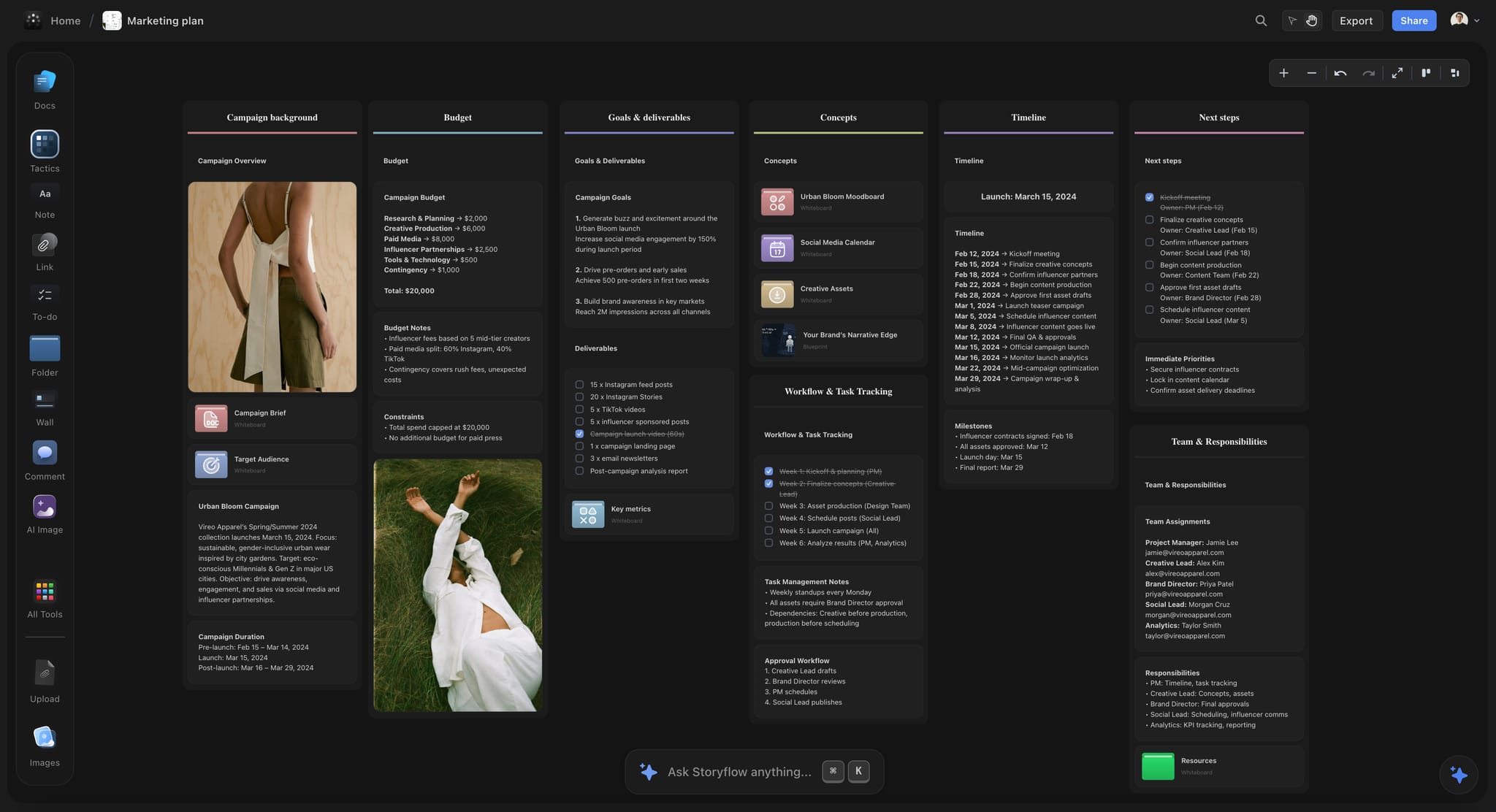
A campaign board after week one: the plan the AI drafted, checked and kept, beside the budget and team.
What AI Should Not Do on a Creative Project
The jobs list is long, and the list of things to keep human is short and firm. Each item below is a decision with consequences, and a decision needs someone accountable for it. The OECD's AI Principles, adopted in 2019 and updated in 2024, list accountability as one of the principles for trustworthy AI; on a creative team, accountability means a name beside every one of these.
Choose the creative direction
The AI can lay out three directions and the references for each. Choosing one is the creative director's job, argued with the client, and it is the part of the work the client is paying for. Storyflow will never add AI video generation; the creative work stays yours.
Approve anything
An AI can tell you the board has no open items. It cannot approve a deliverable, a budget or a final file, and a plan should never record an approval no person gave. Write approvals on the board as a dated note with the approver's name.
Talk to the client for you
A change report is raw material for a client update, not the update. The client relationship depends on someone reading the report, adding the why, and choosing what to say first.
Set the budget
The AI can put budget lines into a table from a PDF. It cannot decide what the project can afford, and any number it fills without a source is a guess.
Decide who does the work
An AI-filled owner column is a suggestion. Capacity, skill and who the client trusts are judgments a producer makes; assign owners yourself and use the check to catch any the AI added.
Where to Build It: Storyflow vs Kinds of AI Tool
Our pick first, on the basis that the AI sees the brief, references and plan together on one board, then the other kinds of tool by the jobs they do best. Kinds of tool, not brands, on purpose.
| Kind of tool | Jobs it does well | Jobs it does not do | Basis for the order |
|---|---|---|---|
Storyflow (a board with AI) | Brief to plan, notes to walls, moodboard, shot list, deck and documents from the board, change report through ChatGPT or Claude | Calendar view, Gantt chart, scheduling or publishing posts, time tracking, video editing | Our pick: the AI builds and reads the plan where the creative material is |
A general chat assistant on its own | First drafts of words, ideas, rewriting | Keeping a plan the team shares; reading the project unless you paste it | Strong writer, no project memory you can share |
A project management app's built-in AI | Summaries of tasks, workload and risk across many projects | Holding references, storyboards and moodboards beside tasks | Best for long, task-heavy programmes |
An AI meeting notetaker | Transcripts, summaries and action items from calls | Turning actions into a visual plan | A source of notes for Job 2 |
An AI image or video generator | Concept frames and assets | Planning, sequencing or tracking anything | A production tool, not a management tool |
A slide-deck generator | Decks from a prompt | Building from the project's real plan | Fast decks that start from a prompt rather than the board |
Storyflow: a board with AI
What it does best: every building job and every reading job on one canvas, with the brief and references in view of the AI. Its real limit is the schedule side: no calendar view, no Gantt chart, no dependencies and no time tracking. Choose it when your projects are visual and short to medium in length: campaigns, shoots, brand work, social content.
A general chat assistant on its own
What it does best: writing, rewriting and thinking out loud. Its limit for project management is that the plan lives in a chat thread nobody else can see or update. Choose it alone for a solo project you will carry in your head; connect it to a board through the plugin or connector once anyone else needs the plan.
A project management app's built-in AI
What it does best: summarising task status, workload and risk across dozens of projects and people. Its limit is that the creative material (references, frames, directions) usually lives somewhere else, so the AI summarises the tasks without seeing the work. Choose this kind instead when the hard part is a large programme with many dependent tasks, and link the creative boards from it.
An AI meeting notetaker
What it does best: capturing what was said and pulling out action items. Its limit is that the actions arrive as a list. Choose it to feed Job 2: paste its summary onto the board and turn it into walls or a kanban.
An AI image or video generator
What it does best: making concept frames and assets. Its limit is that it manages nothing. Choose it for the asset; keep the plan, approvals and references on the board.
A slide-deck generator
What it does best: a deck from a prompt in minutes. Its limit is that it starts from the prompt, not from the checked plan, so facts are re-entered and drift. Choose it for an internal deck with no source material; for a client deck, build it from the board after the check.
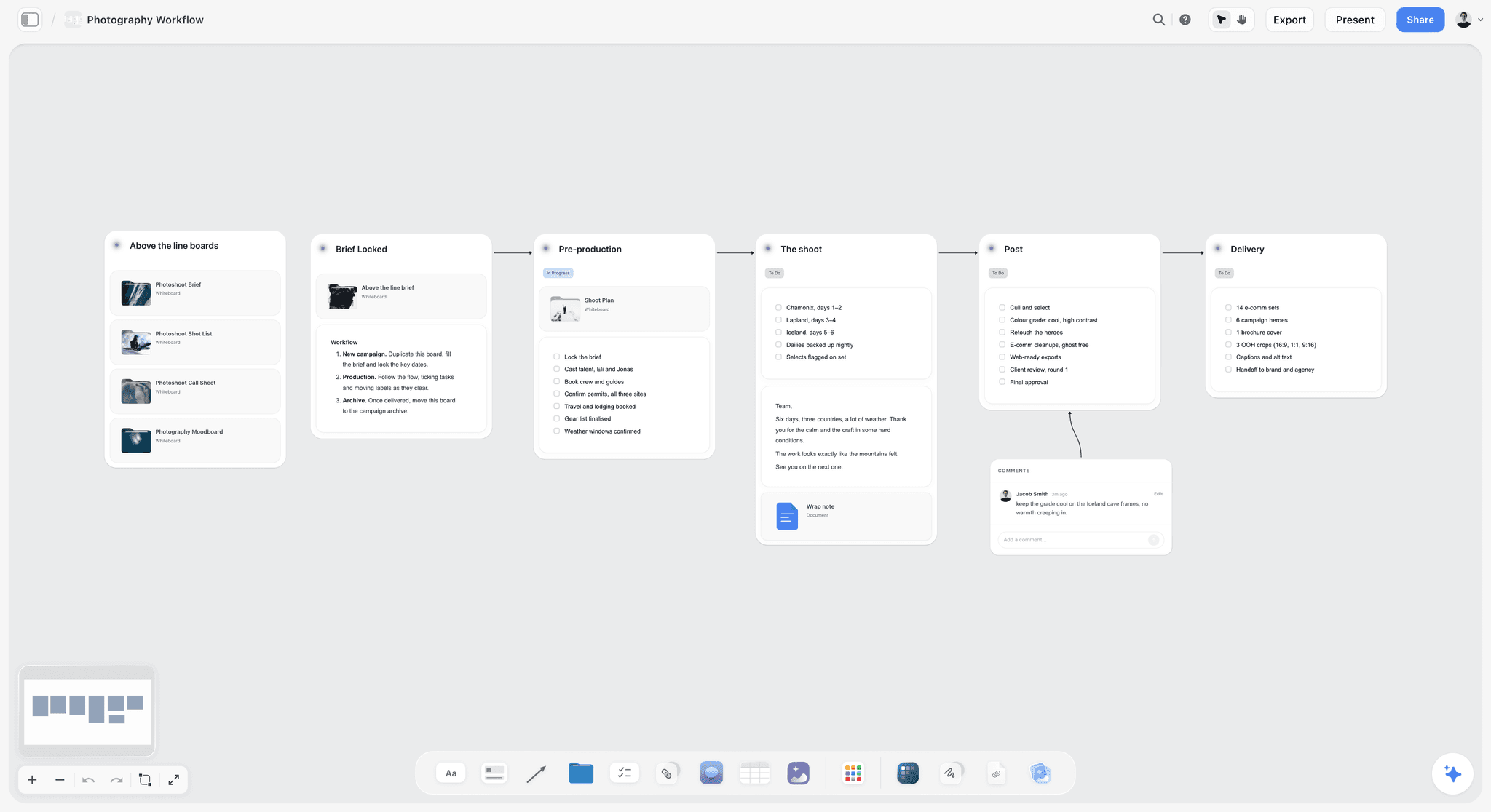
A Storyflow board with a six-stage photoshoot workflow from brief and pre-production through the shoot, post-production and delivery
Hand the typing to AI, keep the choosing
Install Storyflow in ChatGPT, build a checked plan from your brief on one board, and ask each Monday what changed and who changed it, then send the client the update in your words.

Mistakes and Fixes
Each of these is an AI output reaching someone before a person read it. Each fix costs a few minutes.
Asking for a plan before the brief is on the board
The AI builds from what it sees, so a plan from a two-line request is two lines of fact and a page of invention. Fix: brief document and Known facts note first, then the request.
Keeping the AI's dates because they look right
Plausible dates are the most dangerous kind, because nobody questions them. Fix: if the brief gave no date, the AI's date is a placeholder; mark it as one or replace it before the plan is shared.
Letting the owner column fill itself
An AI-filled owner is a guess about who has capacity. Fix: invite the team, assign owners yourself, and use the check to catch names the AI added.
Treating the status summary as current
A summary of a board nobody updated is a confident report of the past. Fix: run the change report first; if nothing changed in a week, the summary is not news.
Sending the change report to the client as it is
The report lists edits without reasons, and it cannot see comments. Fix: add the why for each change, cut internal edits, and lead with what the client needs to decide.
Building the deck before the plan is checked
A designed deck makes an unchecked number look official. Fix: deck last, after the check, and check the deck again.
Expecting the plugin to do the in-app jobs
The menu workflows, designed documents and AI image generation are in the app, not in ChatGPT or Claude. Fix: build in the app, read and adjust from the chat.
Running a different AI for every job
Five tools with five copies of the plan is five versions of the truth. Fix: one board as the source, with every AI route reading and writing that board.
Storyflow's Honest Limits for This Job
Storyflow earns the building and reading jobs on a visual project; these are the jobs it does not do, so you know what to add.
- No calendar view, Gantt chart, dependencies, critical path, workload view or time tracking; dates live in table date cells and to-dos, and nothing recalculates when a date moves.
- No social post scheduling or publishing; a content calendar is a table, and a social scheduler publishes.
- The strip board does not recalculate, and the call sheet is a draft PDF; Storyflow does not send call sheets or track confirmations.
- No proofing mark-up on frames, no version compare and no frame-level approval status.
- Decks export as PDF; there is no PPTX export, presenter view or speaker notes.
- The AI cannot set a to-do's or ticket's assignee, and the plugin cannot read board comments or generate images.
- The in-app AI reads the current board plus up to five attached documents and three other boards, not the whole workspace.
- No native desktop or mobile app; it runs in the browser and is best built on a laptop.
- Storyflow is paid-only during early access, from Plus at $7.99 a month billed annually ($9.99 monthly); an invited free account has no in-app AI.
The Bottom Line
AI in creative project management is not one feature to buy; it is 12 jobs to hand over, each with a person who checks it. Let the AI type and read; keep the choosing, the approving and the client. Storyflow is our pick because its AI builds the plan on the board where the brief and references already are, and reads that same board back through ChatGPT or Claude each week. Take your next brief, put it on a Storyflow board with a Known facts note, ask for the plan, and run the four-fact check before anyone sees it; the AI creative project management flow walks through the first build. Plans are on the pricing page.
FAQ: AI for Creative Project Management
Best AI tools for creative project management?
Storyflow is our pick, because its AI builds the plan on the same board that holds the brief, references and deliverables, then reads that board back as a status summary, a change report or a list of gaps. A project management app's built-in AI suits long, task-heavy programmes, a chat assistant suits first drafts, and a meeting notetaker suits capturing actions from calls.
What is the best AI tool for managing creative projects?
Storyflow is the best AI tool for managing visual creative projects such as campaigns, shoots and brand work, because one board holds the brief, references, plan and deliverables the AI works from, and ChatGPT or Claude can read and update it. Choose a project management app with built-in AI instead for long programmes with many dependent tasks, and a chat assistant alone for solo writing.
What can AI do in creative project management today?
AI can do 12 concrete jobs today: turn a brief into a plan, notes into tasks, a PDF into tables, draft a moodboard, build a shot list from a storyboard, plan a content calendar, summarise status, report weekly changes, find missing pieces, draft shoot logistics, build a deck and produce client documents. It cannot choose the direction, approve work, set the budget or replace the client conversation.
What is the Storyflow 4-Fact Test?
The Storyflow 4-Fact Test is our rule that a named person checks four facts in every AI output before it reaches a client or a crew: names, numbers, dates and owners. These are the facts an AI fills in plausibly when the board does not state them. Record the check beside the output on the board, with the checker's name and the date.
Can AI build a project plan from a creative brief?
Yes. With the brief on a Storyflow board, the in-app AI's Brief my campaign or Plan my whole production workflow asks a clarifying question or two, then writes a plan straight onto the board as walls, a deliverables table and to-dos, and one undo reverses the whole turn. Check every date, owner and number before anyone works from it, because the AI fills gaps the brief left open.
Can ChatGPT manage a creative project?
ChatGPT can read and update a creative project when the project lives on a board it can reach. With the Storyflow plugin, ChatGPT reads boards, reports what changed in the last week and who changed it, and builds tables, walls, shot cards and decks. It runs on your ChatGPT plan and uses no Storyflow AI credits. Approvals and creative decisions stay with the team.
Can Claude manage a creative project?
Claude can work on a creative project through Storyflow's custom connector: add it under Customize, then Connectors, with the address https://mcp.storyflow.so/mcp, and Claude can read boards, summarise status, report weekly changes and build tables, walls and decks on them. On Team and Enterprise plans an owner adds the connector first. Decisions and sign-off stay human.
Which parts of creative project management should stay human?
The judgments with consequences: who does the work, what the client is told, what the budget allows, when something is approved, and which creative direction wins. AI takes over the typing and reading around them. The 2023 NBER study of support agents found a generative AI assistant raised issues resolved per hour by 14% on average and 34% for novice and low-skilled workers: evidence for AI as the project manager's assistant.
How do I stop AI from making up dates and owners?
Put the facts on the board before you ask: a note with names, budget lines, hard dates and the team, and invite the team so owners can only be people with access. Then check the four facts in every output. In Storyflow, a table's person column only links people on the board, and unmatched names turn the column into plain text, which makes guessed owners visible.
Is my client data safe when I connect ChatGPT or Claude to Storyflow?
You control the scope: when you install the plugin, you choose which Storyflow projects ChatGPT may use and whether it may make changes, and in ChatGPT you can set app permissions so it asks before every change. In Business and Enterprise workspaces, an admin manages plugins. Check your client contract and your workspace's data settings before connecting a client's board.
Does Storyflow's AI cost extra?
The in-app AI is included on Plus, Pro and Max and uses Storyflow AI credits, with more AI on Pro and the most on Max; AI image generation is on Pro and Max. The ChatGPT plugin and Claude connector run on your assistant's plan and use no Storyflow AI credits. Paid plans have no weekly limit on plugin or connector actions.
Is Storyflow free?
Not yet. Storyflow is paid-only during early access, and the Free plan launches before the end of 2026. Anyone a paid member invites to a board joins free. Plus is $7.99 a month billed annually ($9.99 monthly) and includes the in-app AI; an invited free account has no in-app AI and 25 plugin or connector actions a week.
Can AI make the creative work itself?
Storyflow's AI drafts structure and documents: plans, moodboard layouts, shot lists, decks and one-pagers, with AI image generation on Pro and Max for gaps in a moodboard. It will never generate video, and the creative choices (the idea, the direction, the cut) stay with your team. Use an image or video generator for assets, and keep the plan on the board.
Which AI jobs save the most time on a creative project?
The documents from a checked board save the most: Storyflow's homepage examples put a pitch built from a board at 3 minutes against about 4.5 hours by hand, and pictures for a shot list at 4 minutes against about 2 hours, each from one recorded run, rounded up. Notes into an organized board and a PDF into tables each save most of about 45 minutes.
Table of Contents
- Key Takeaways
- Best AI Tools for Creative Project Management: The Short Answer
- AI That Builds the Plan vs AI That Summarises Tasks: How the 12 Jobs Split
- The 12 Jobs at a Glance
- How to Hand a Creative Project to AI: 8 Steps
- The Storyflow 4-Fact Test
- Jobs 1 to 3: Starting the Project
- Jobs 4 to 6: Making the Plan Visual
- Jobs 7 to 10: Running the Week
- Jobs 11 and 12: Delivering to the Client
- Three Routes to the Same Board: In-App AI, ChatGPT Plugin, Claude Connector
- Do This in ChatGPT or Claude
- Copy This: The AI Job Card Template
- Worked Example: Studio Halden's Four-Week Launch
- What AI Should Not Do on a Creative Project
- Where to Build It: Storyflow vs Kinds of AI Tool
- Storyflow: a board with AI
- A general chat assistant on its own
- A project management app's built-in AI
- An AI meeting notetaker
- An AI image or video generator
- A slide-deck generator
- Mistakes and Fixes
- Storyflow's Honest Limits for This Job
- The Bottom Line
- FAQ: AI for Creative Project Management
- Related Reading
Templates to check out for this topic


Planning and project templates you can use in Storyflow
Plan a launch, a sprint, or a whole project on a visual board the team can see at once. Open one of these templates and start from real structure.


See Storyflow in Action
A visual AI workspace where every feature lives inside one canvas. No tab-switching, no context lost.
Build your entire board from a single message
Type what you need in the AI chat at the bottom of your canvas. The AI adds cards, headings, and structure directly onto your board.
Use expert frameworks as AI context
Type @ in the AI chat and choose any Tactic. The AI tailors every response to that framework instead of giving generic advice.
Turn your board into a mind map in seconds
Ask the AI to restructure your canvas as a mindmap. It connects your ideas into a visual hierarchy so you can see how everything relates.
Why Storyflow Exists
Storyflow actually began as a personal tool while working on creative and research projects.
We kept running into the same problem: ideas were scattered everywhere: notes, documents, and whiteboards.
Nothing helped us see how everything connected.
So we started building a workspace designed around how ideas actually grow.
→ Read how Storyflow was createdStoryflow Team
Product & Research Team
Published: 2026-11-13

