
An ultra-fast canvas that stays calm
Let your AI assistant build on your whiteboard
through one MCP server address.
For founders and team leads who already work in an AI assistant: Storyflow's MCP server lets it read your boards and build columns, tables, diagrams and decks on them.


Creatives working for these brands already got early access
- Red Bull
- Canon
- Artlist
- Porsche
See how easy it is to get started
Watch a real project come together, from a blank board to a finished plan, clicked through step by step.
Start from a ready-made template
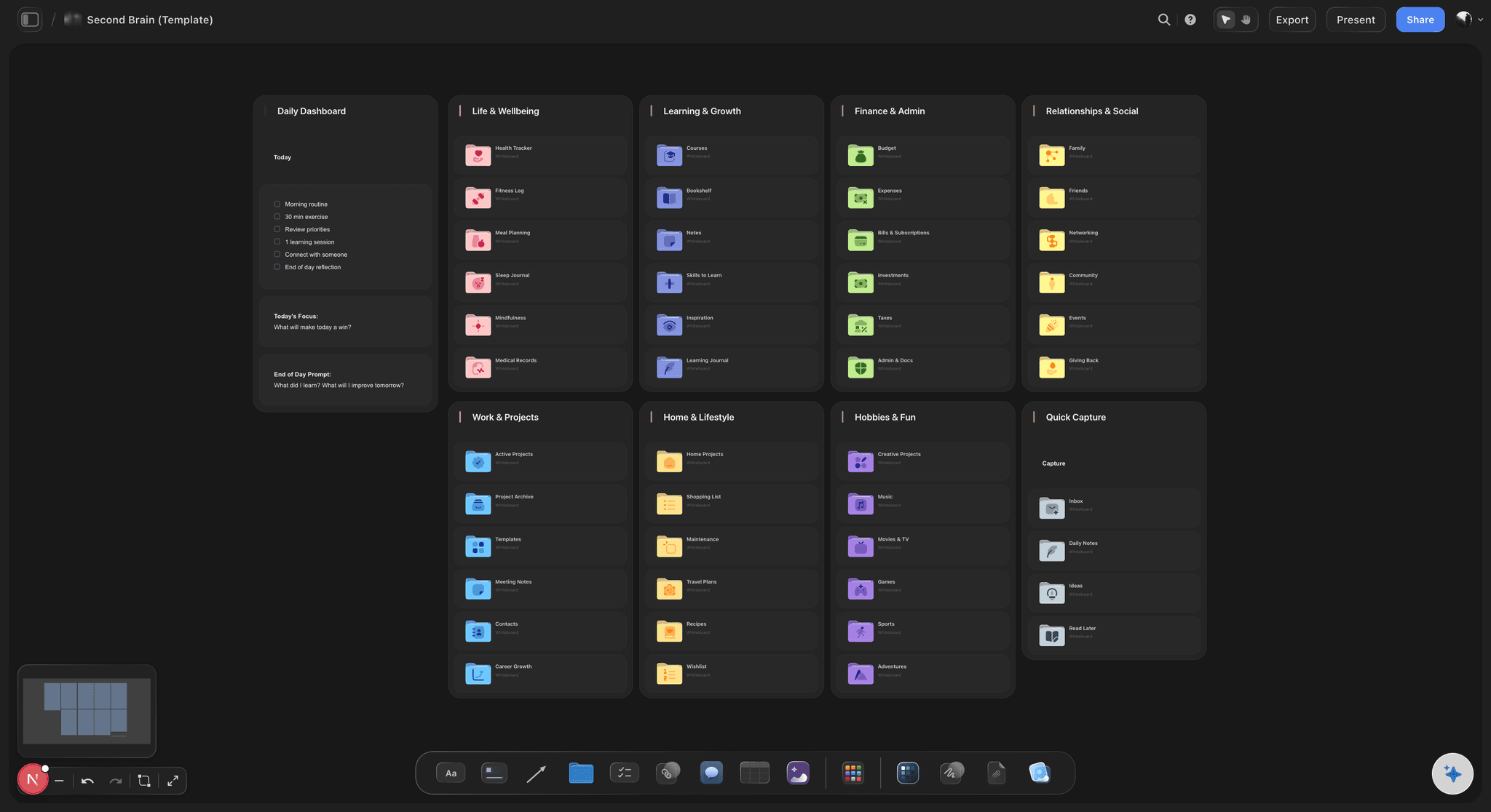
Pick a board to see what you can build, then let AI fill it in. Every template is a real, editable starting point on the same infinite canvas.

Mind Map
Branch one central idea out into themes and sub-points, then drag the connections around until the structure makes sense.
Is there a whiteboard MCP server?
Yes: a whiteboard MCP server is a web address that gives an AI assistant a set of tools for reading a shared board and building on it, over MCP (Model Context Protocol), the open standard assistants use to connect to other apps. Storyflow is an AI visual workspace that lets your assistant read and build project boards on one infinite canvas: columns of cards, tables and charts, diagrams and mind maps, documents and slide decks. Its MCP server is one address, https://mcp.storyflow.so/mcp, and once you add it and sign in, Claude, ChatGPT, Gemini, Cursor and other tools can use up to 57 tools, depending on what you allow.
An assistant with no board is good at the thinking. Ask Claude or ChatGPT for a launch plan and it writes the phases, the tasks and the risks in a minute. But the answer is a long reply in a private chat. The assistant has never seen the board your team works on, so it plans from your summary, and its plan reaches the team only when somebody copies it across by hand. A week later the board and the chat no longer say the same thing.
Add a whiteboard MCP server and the order changes. You paste one address into the assistant and sign in to Storyflow on the page that opens. There you choose three things: all your projects or only the ones you pick, whether the assistant may make changes or only read, and whether your documents outside projects are included. Then you approve. From that moment the assistant has tools. It reads first: the cards on a board, the tables, the documents, the files and what changed this week. Then it builds: a column of cards, a table, a chart, a diagram, a deck. Keep the board open in Storyflow and the new section appears while the assistant works.
Here is one request, counted, that you can try on paper first. A team lead with six people types one message on Monday: "Read the Q4 board. Build a column per person with their three tasks for this week, a table of all the tasks with an owner, a date and a status, and a bar chart of hours per client from the spreadsheet on the board." What lands on the board: 6 columns with 3 cards each, which is 18 cards. One table with 18 rows and 4 columns (task, owner, date, status), which is 72 cells. One bar chart with 4 bars, one per client, at 60, 45, 30 and 15 hours, which add up to 150. On Friday she asks one question, "What changed on the Q4 board this week?", and reads the answer in the chat.
Whichever whiteboard MCP server you look at, check the same six things before you connect it. Where it runs: a remote address you paste, or a program you install and keep updated. How it signs you in: a sign-in page, or a key you copy and must keep secret. What it can read. What it can write. What it can delete or overwrite. And how you switch it off, and how fast that takes effect. A server that answers all six in plain words is one you can hand to a team. One that cannot say what it is able to delete is not.
What Storyflow's server cannot do matters as much. Through it an assistant has no tool that deletes a card outright, and it cannot make or search for pictures, see the pictures on a board, do web research, or make PDF, Word or Excel files. A file you attach in the chat does not reach Storyflow, though pictures can go through an "Add your photos" link the assistant gives you. There is no calendar grid and no timeline element, and the assistant cannot create or change share links. The server speaks Streamable HTTP only, not SSE. Every connection ends 30 days after you approve it and has to be approved again, and you can revoke one sooner in Settings, under Connected apps.
Ultra fast from brief to board
One address, one sign-in, then two kinds of request.
A few minutes the first time. After that the assistant starts from your board, not from a blank page.
01
Add the address to your assistant
Paste https://mcp.storyflow.so/mcp into your assistant as a custom connector or a remote MCP server. Each tool words that step a little differently, and the Storyflow MCP page has the exact clicks for each one.
02
Sign in and set the limits
Sign in to Storyflow on the page that opens. Choose all your projects or only the ones you pick, leave changes ticked or untick them for read-only, and decide whether your documents outside projects are included. Then approve.
03
Ask it to read first
Start with a question: "What is on the Q4 board, and what changed this week?" The assistant reads the cards, the tables, the documents and the files on the board and answers from them. Nothing on the board changes.
04
Then ask it to build
Ask for a section: a column of cards, a table, a chart or a diagram. Keep the board open in Storyflow and it appears while the assistant works. Drag, rename or rewrite anything it made.
What the server lets an assistant do.
Tools that read, tools that build, and one address for every assistant your team uses.
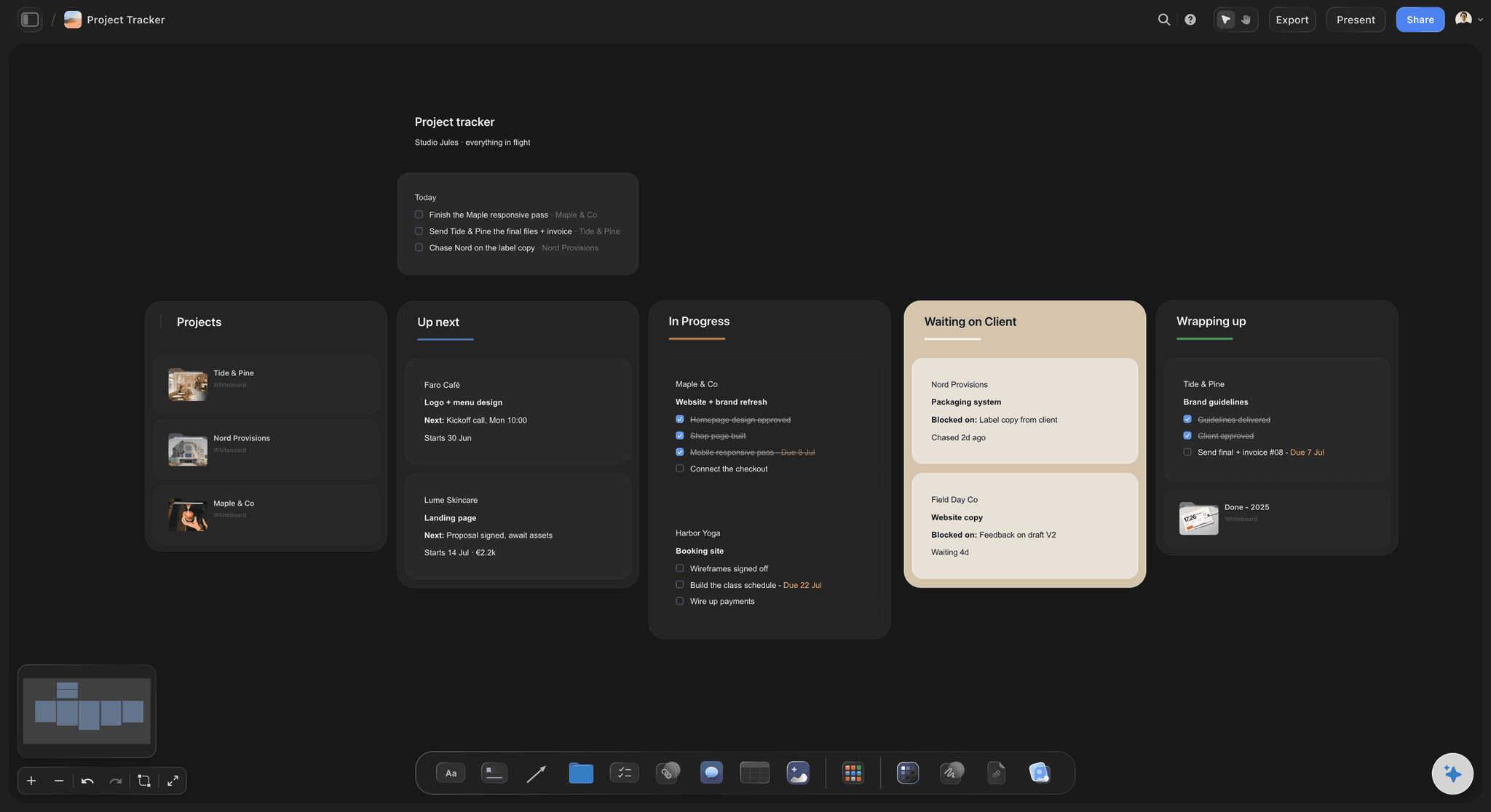
It reads
Boards, documents and files, read before it answers
The assistant lists your projects, opens a board and reads its notes, to-do lists, tables and documents, and the arrows between them. It reads the text of PDF, Word, Excel and CSV files on the board, and it can say what changed in the last day, week or month.
See AI project memory →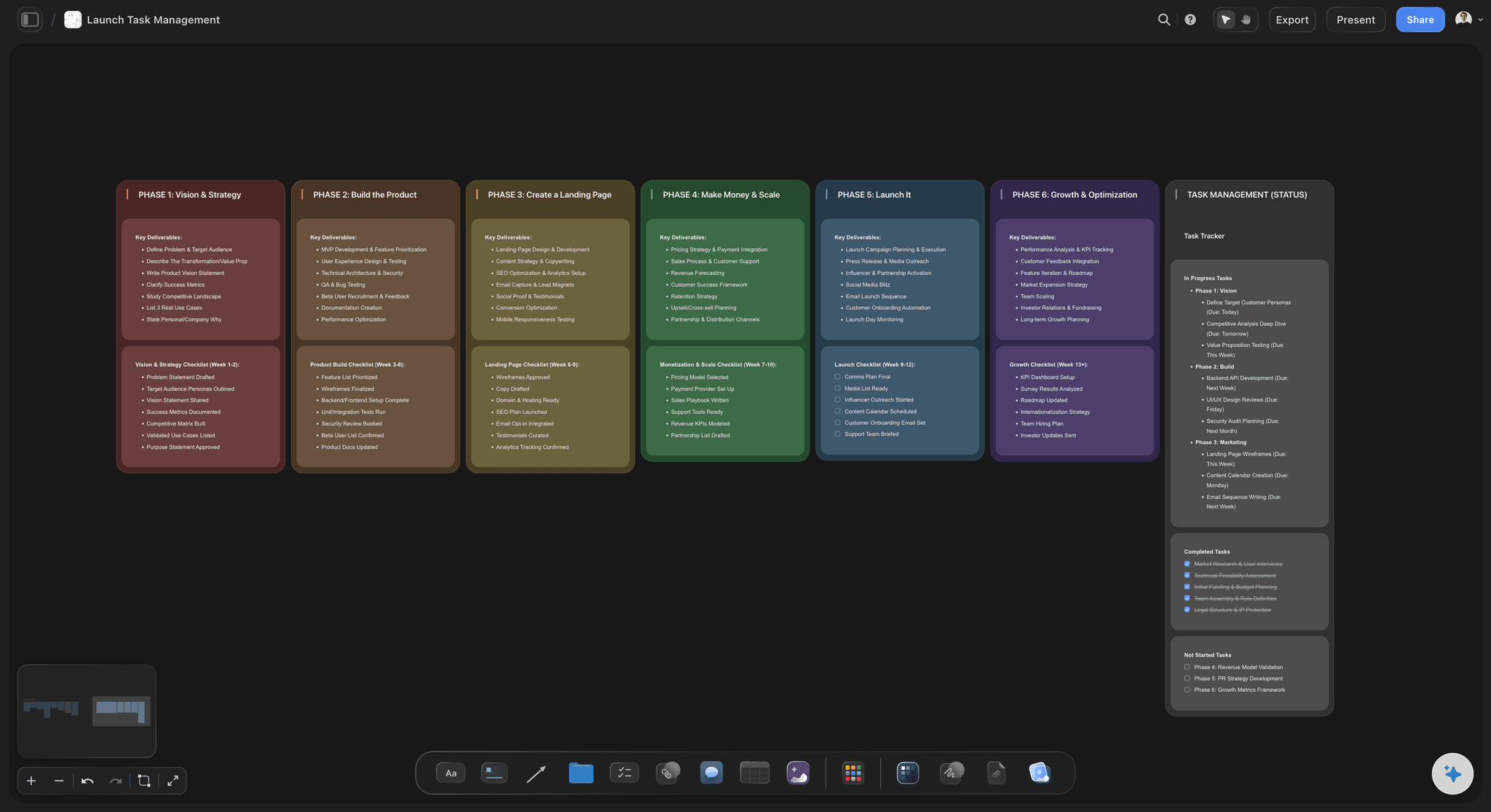
It builds
Columns, tables, charts and diagrams as real cards
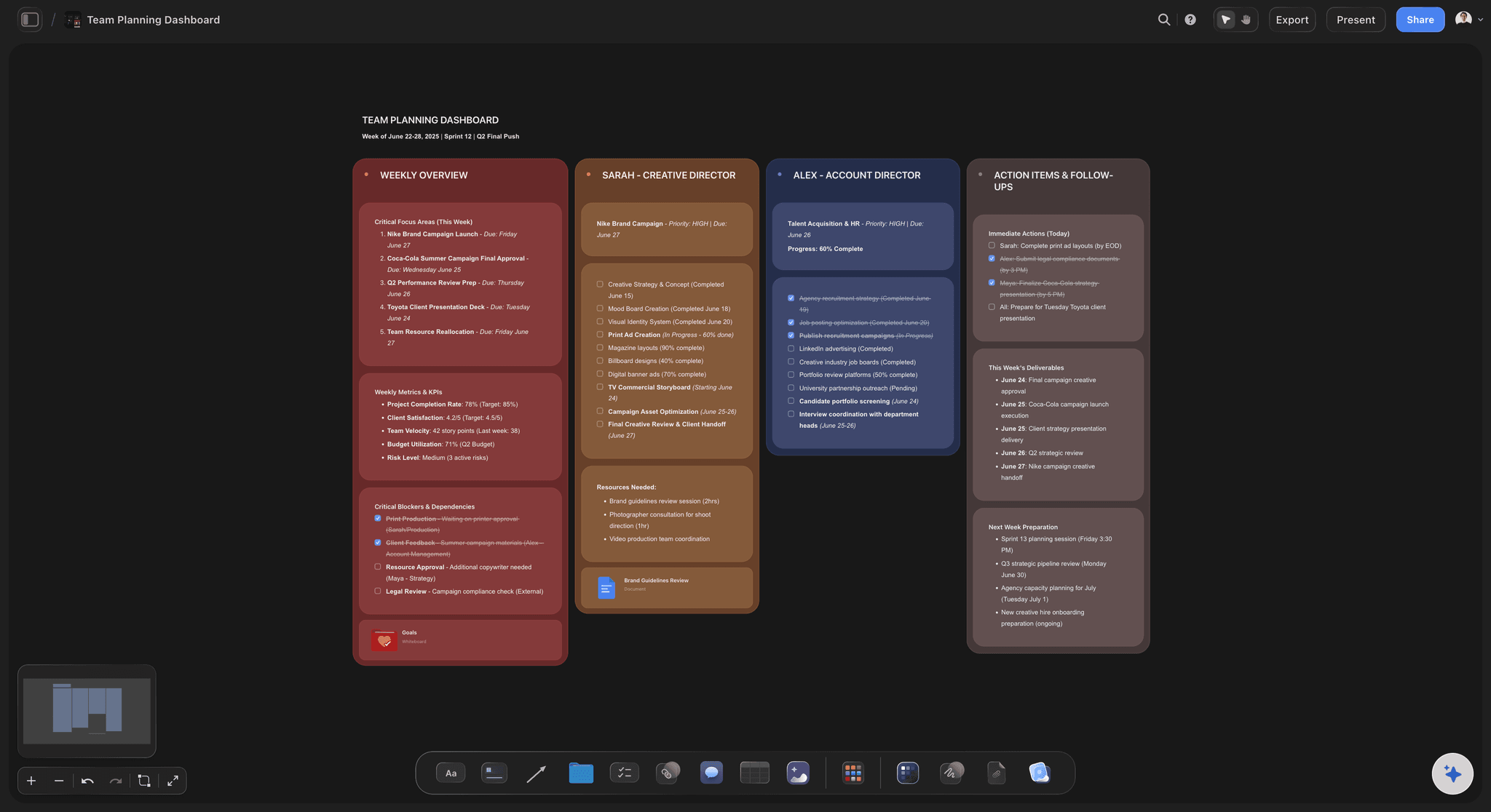
Ask for a section and the assistant builds a column and up to 40 cards in one go. A table takes up to 8 columns and 50 rows. A diagram is up to 40 boxes joined by labelled arrows, and a mind map is a centre with up to 60 branches.
See the AI whiteboard →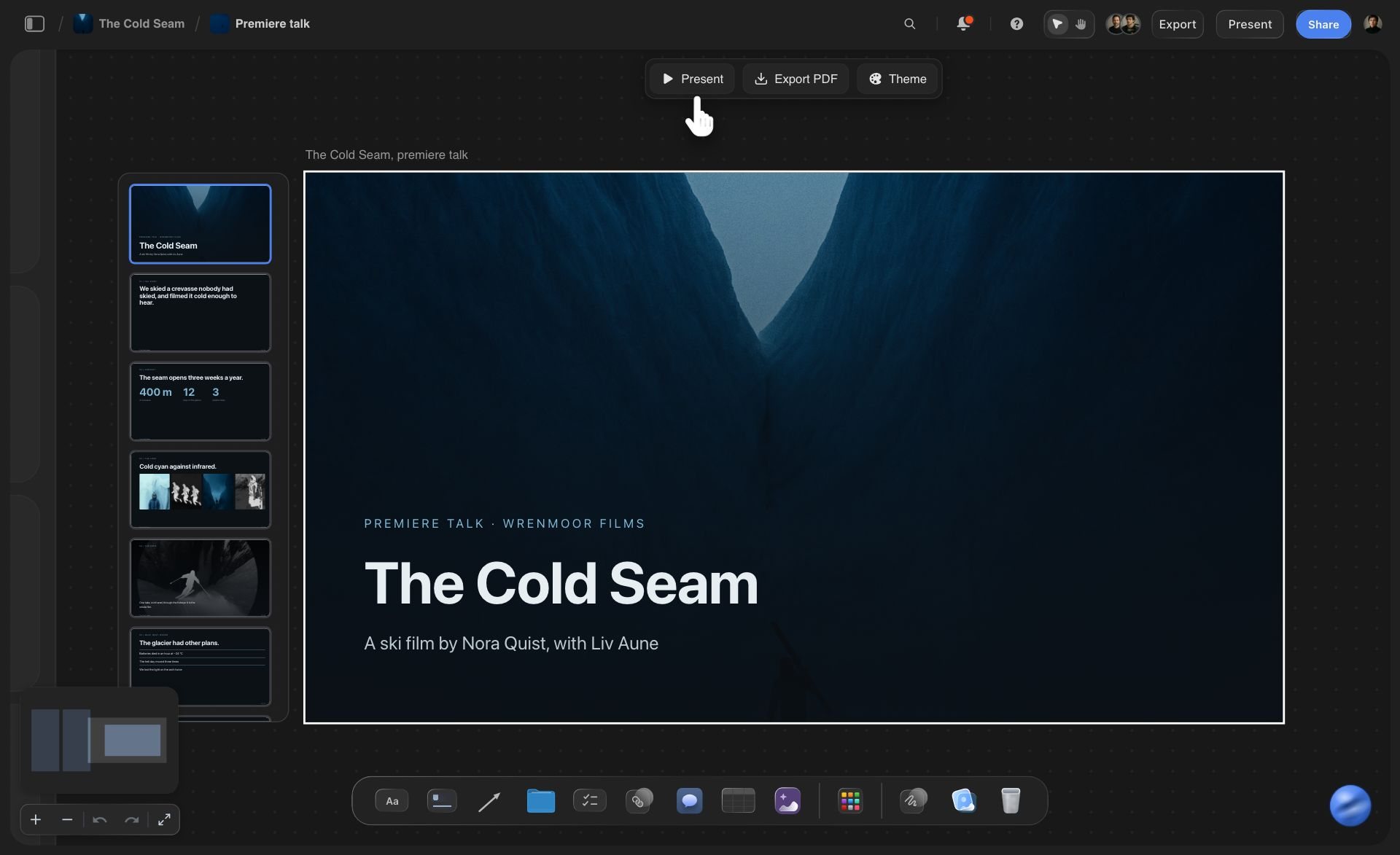
It presents
Slide decks, carousels and film tools
The assistant builds a deck of up to 30 slides on one theme, or a social carousel of 2 to 20 pages. For a shoot it builds a shot list of up to 60 shots and a shooting schedule by day. You present and export the deck in Storyflow.
See the pitch deck with ChatGPT →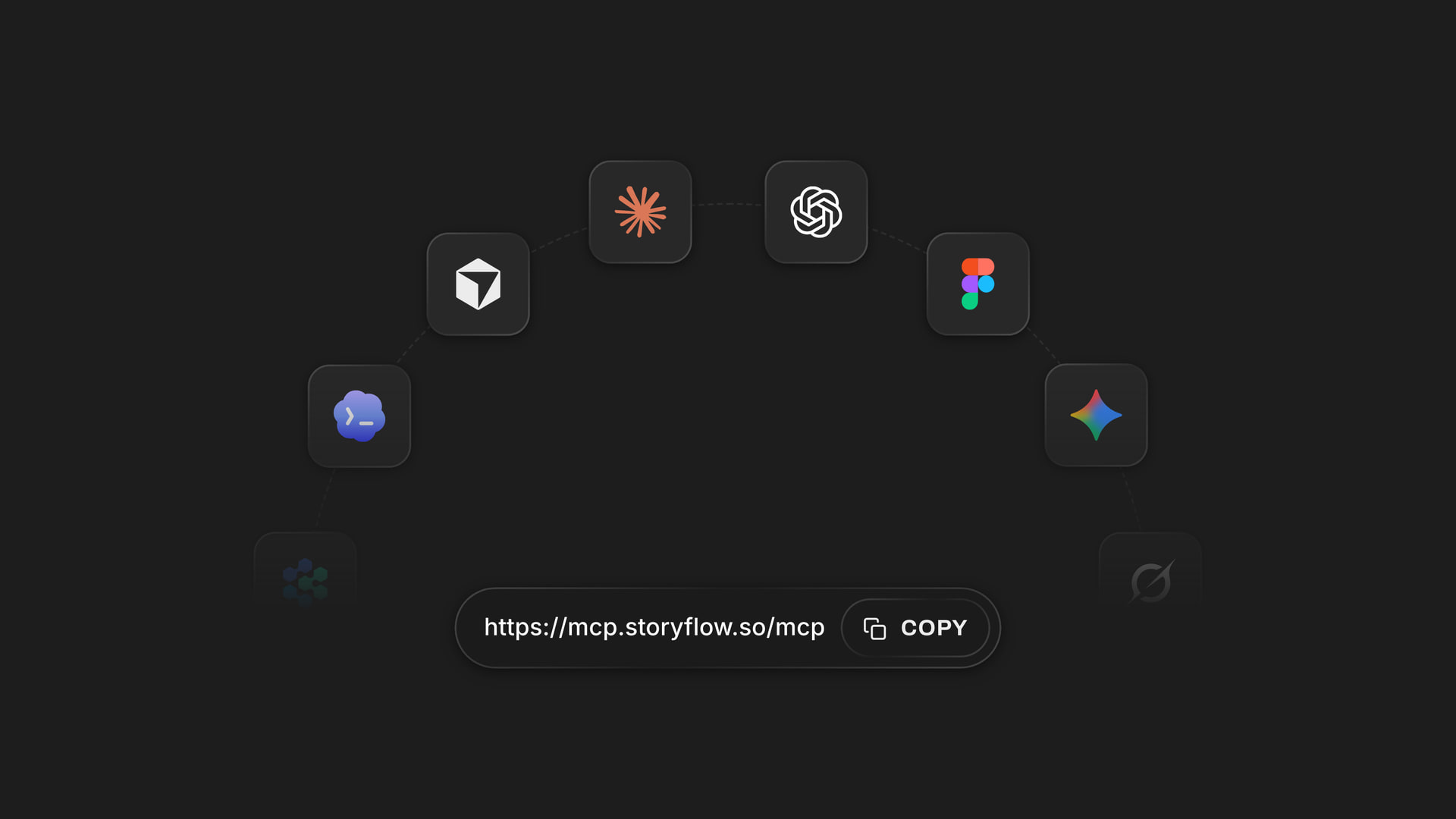
Any assistant
One address for chat assistants and coding tools
The same address works in Claude, ChatGPT, Gemini, Grok and Perplexity, and in Claude Code, Cursor, Codex and VS Code. Each person signs in with their own Storyflow account and their own choice of projects, and they all build on the same boards.
See the setup steps for each tool →What the server costs to use.
The assistant runs on its own model, so nothing it does through the server uses Storyflow AI credits. A free account (today, one invited by a paid member) gets a weekly allowance of actions, and the pricing page shows the current number. Plus, Pro and Max have no limit. Storyflow is paid-only during early access, with plans from $7.99 a month billed annually ($9.99 monthly). A free plan launches before the end of 2026.
No Storyflow AI credits used by any assistant over the server
Plus, Pro and Max: no limit on actions
One sign-in per assistant, each with its own choice of projects
Read-only or changes: you decide when you sign in
Every connection ends after 30 days until you approve it again
Built for people with taste
What changes when the board has an MCP server.
The assistant stops writing about the plan and starts working on it, inside limits you set.
The copy and paste
A plan that never leaves the chat
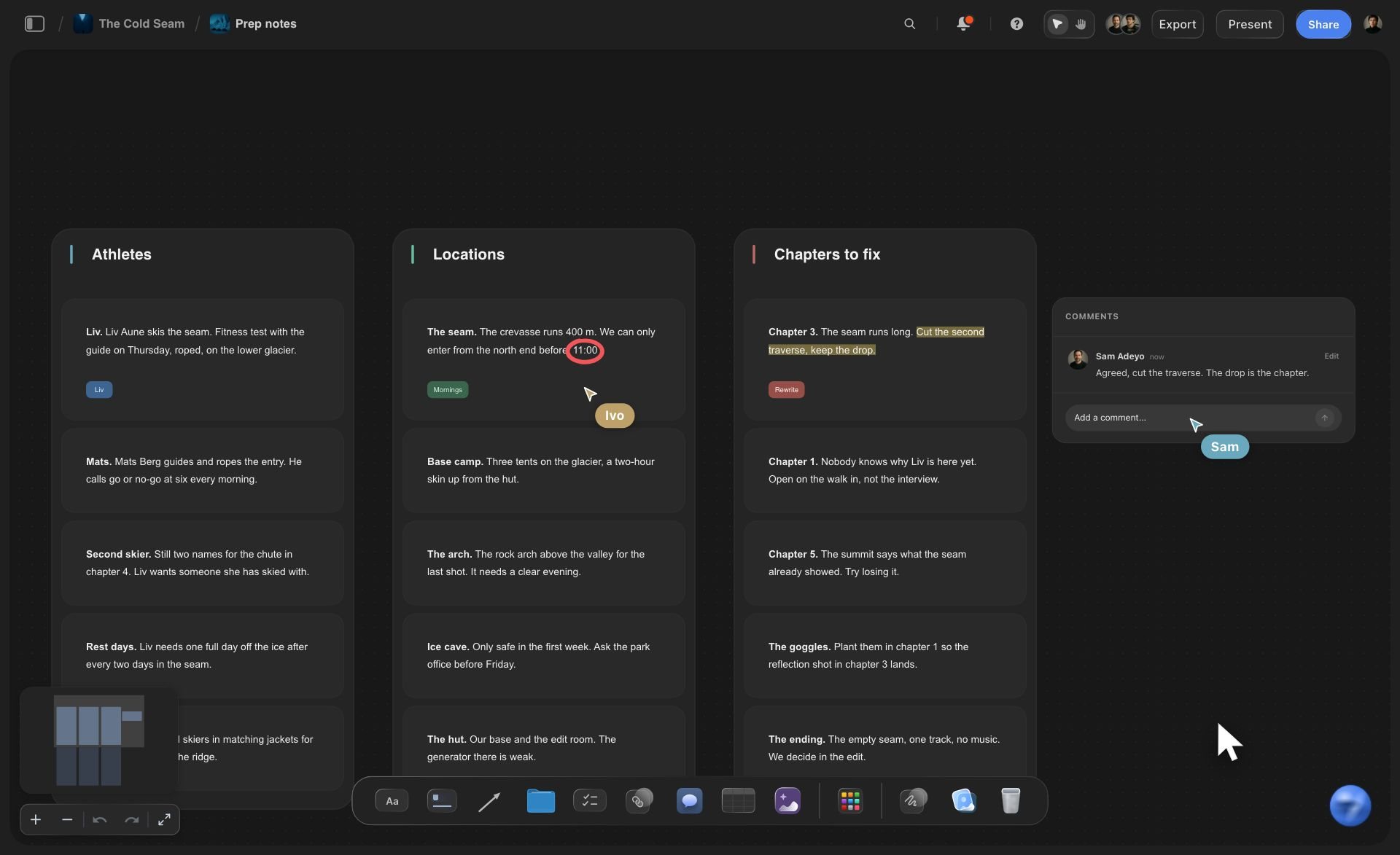
It lands on the board your team opens: The assistant builds each section on the project's board as a column of cards. Nobody copies a reply into a document, and the people you invite see it without opening the assistant.
One failed card does not lose the rest: A section is sent as one request: the column and up to 40 cards. If one card fails, the others stay on the board, so a long plan does not stop half way.
Diagrams made of cards: A flowchart, a customer journey or an org chart is drawn as boxes and labelled arrows. Each box is a real card your team drags and renames, not a picture.
Charts from your own file: Put a CSV or Excel file on the board and the assistant reads its rows, then draws a bar, line or pie chart from them, or a dashboard of up to 16 tiles.
The context
An assistant that has never seen your board
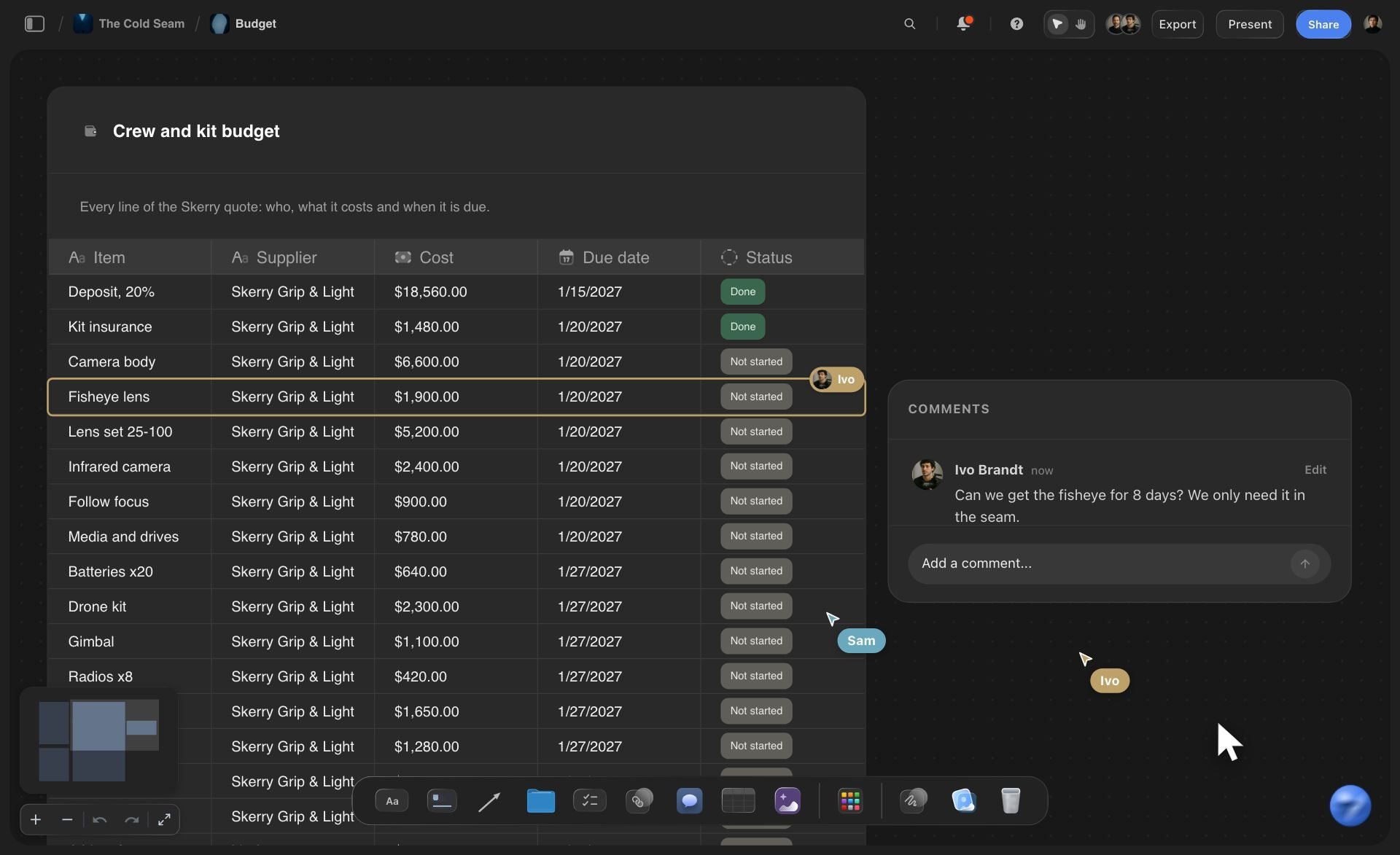
It starts from what is there: Ask about a project and the assistant reads the board first: the notes, the to-do lists, the tables and the documents. Its answer starts from your plan, not from your summary of it.
It tells you what changed: Ask what changed on a board in the last day, week or month. You get what was added, edited, moved or deleted, when it happened, and which teammate did it. An assistant's edits show under the name of the person who connected it.
It reads the files on the board: PDF, Word, Excel, CSV, text and Final Draft files up to 25 MB are readable. The assistant gets the first 40,000 characters of each, so split a long file into parts.
It finds things by name: The assistant searches your projects, boards and documents by title, so "the pricing board" is enough to point it at the right place.
The control
Handing an AI the keys to everything
The project list is yours to set: Hand over every project or tick a few. Storyflow tests each request against your list, so a project you did not tick never appears in the assistant's project list.
A connection that can only read: Leave the changes box unticked at sign-in and the assistant gets the tools that read and none that write. It answers questions about a board and cannot add, edit or move a thing.
Nothing is deleted without you asking: No tool deletes a card outright. Slides can be removed from a deck, notes turned into documents are moved, and a document's text is replaced only when you ask. A section built twice lands beside the first one, and you remove the spare by hand.
Switch it off in Settings: Open Settings, then Connected apps, and revoke one assistant or all of them. Access stops within about a minute, and every connection ends by itself after 30 days.
Explore templates for your project
Every template opens as a real, editable board on the infinite canvas. Pick the closest fit and make it your own.
Mind Map
Branch one central idea out into themes and sub-points, then drag the connections around until the structure makes sense.
One app instead of five
Storyflow's MCP server, an assistant alone, or Miro's MCP server.
Both servers give an assistant a door to a board. Miro's works on its free plan and an Enterprise admin controls it; Storyflow lets you pick single projects.
Storyflow MCP server
Recommended
Assistant reads your boards before it answers
Assistant builds tables, documents and diagrams on the board
Team opens and edits the result without the assistant
One address for Claude, ChatGPT, Cursor and more
You pick the single projects it may see
Searches the web for you
Board connection on a free plan
An admin can switch it on or off for a whole company
An assistant with no board
Assistant reads your boards before it answers
Assistant builds tables, documents and diagrams on the board
Team opens and edits the result without the assistant
One address for Claude, ChatGPT, Cursor and more
You pick the single projects it may see
Searches the web for you
Board connection on a free plan
An admin can switch it on or off for a whole company
Miro MCP Server
Assistant reads your boards before it answers
Assistant builds tables, documents and diagrams on the board
Team opens and edits the result without the assistant
One address for Claude, ChatGPT, Cursor and more
You pick the single projects it may see
Searches the web for you
Board connection on a free plan
An admin can switch it on or off for a whole company
What creators are saying
Join early creators getting structured workspaces and AI that remembers their projects
“Storyflow has sped up my workflow by at least 3x, which means more flow state and more projects I can actually ship. It truly changed the way me and my team create.”

Reilin Joey
Director & YouTuber
“One prompt gets me a structured board. But the tactics are my favorite. I run my YouTube scripts through them and my intros and retention got better. It's amazing.”

Justkay
YouTuber & Freelance Filmmaker
“I used to juggle five apps to plan a project. Now I describe what I am making and get boards, lists, and a schedule. All in one place.”

George
@fernwehchronicles
Whiteboard MCP server: questions
What founders, team leads and developers ask before they connect one.
Yes. Storyflow runs one at https://mcp.storyflow.so/mcp. An MCP server is a web address that gives an AI assistant a set of tools, and this one gives it tools to read your Storyflow boards, documents and files and to build on them: columns of cards, tables, charts, diagrams, mind maps, documents and slide decks. You sign in, pick the projects, and choose read-only or changes.
Storyflow is made for this: one address gives Claude, ChatGPT, Gemini, Cursor and other tools up to 57 tools, depending on what you allow, to read your boards and build columns of cards, tables, charts, diagrams, documents and decks in the projects you pick. Your team opens the result without the assistant. Miro's own MCP server still suits a team whose boards already live in Miro, and it works on Miro's free plan.
An MCP server is a web address that offers an AI assistant a set of tools. MCP stands for Model Context Protocol, an open standard that assistants such as Claude and ChatGPT use to connect to other apps. You add the address, sign in to the app, and the assistant can then call those tools. Storyflow's server is https://mcp.storyflow.so/mcp, and its tools read and build project boards.
Read: projects, boards, documents, the text of files on a board, what changed and who has access. Build, with changes allowed: columns of cards, tables, charts and dashboards, diagrams, mind maps, documents, slide decks, carousel pages, shot lists, shooting schedules and colour palettes. It can also edit and move single cards, label arrows, apply a Storyflow board template and add pictures from web addresses it already has.
Through Storyflow's server an assistant has no tool that deletes a card, a document or a project, and it cannot make or search for images, see the pictures on a board, do web research, transcribe audio, or make PDF, Word or Excel files. It cannot take a file you attach in the chat (pictures go through an "Add your photos" link), and it cannot create or change share links, your password or your plan. Exports and sharing happen in Storyflow itself.
Any chat assistant, coding agent or editor that can add a remote MCP server over Streamable HTTP can use Storyflow's server: Claude, ChatGPT and Cursor among them. The Storyflow MCP page has the full list and the clicks for each. Some tools need a plan of their own before they accept a custom server.
Add https://mcp.storyflow.so/mcp to your assistant as a custom connector or a remote MCP server, then sign in to Storyflow and approve. In Claude that is Customize, then Connectors, then Add custom connector. In Claude Code it is one line: claude mcp add --transport http storyflow https://mcp.storyflow.so/mcp. The Storyflow MCP page has the steps for each tool.
Streamable HTTP only. Storyflow's server does not serve SSE, so pick HTTP when your tool asks for a transport. Sign-in happens on a browser page the tool finds from the address, so there is no key to copy. For a tool that cannot run a sign-in, create a personal key in Storyflow Settings, under Storyflow MCP. A key expires after 30 days.
Only the ones you allow. When you sign in, Storyflow offers all your projects or only the ones you pick, and checks every call against that choice. With all projects and changes allowed, the assistant can also start a new project. You also choose whether it may make changes and whether it may use your documents outside projects.
In Storyflow, open Settings, then Connected apps, and revoke it. Access stops within about a minute. Every connection also ends on its own 30 days after you approved it, and the assistant asks you to sign in again. A new Storyflow password, or signing out everywhere, cuts every connection within five minutes.
No. The assistant runs on its own model, so nothing it does through Storyflow's MCP server uses Storyflow AI credits. A free Storyflow account (today, one invited by a paid member) gets a weekly allowance of actions, and the pricing page shows the current number. Plus, Pro and Max have no limit.
No. Storyflow's built-in AI works inside the app and is a separate thing: it lays out a board from a prompt and can generate images. The MCP server is for assistants you already use somewhere else, such as Claude or ChatGPT. They think on their own model and use Storyflow's tools to read and build your boards.
Yes. Each assistant signs in to Storyflow separately, with its own choice of projects, and they all read and build on the same boards. A plan one teammate built with ChatGPT is one another can read with Claude. Everything an assistant writes is saved under the name of the person who connected it.
More from Storyflow
Set up the Storyflow MCP server
Connect Claude to Storyflow
Connect ChatGPT to Storyflow
Connect Gemini to Storyflow
Connect Grok to Storyflow
Connect Perplexity to a project board
A project board for Claude Code
AI whiteboard
Diagrams with Claude
Project plan with ChatGPT
Dashboards with ChatGPT
Mind maps with Claude
AI project memory
Online whiteboard
Visual project planning
Storyflow for startups
Give your assistant a board, and your team the result.
One address, one sign-in, your choice of projects. Ask it to read the board, then to build the next part.