
Ultra-fast planning, extremely simple
Connect Gemini to Storyflow
and let it build on the board you have.
For founders who plan in Gemini: three steps on gemini.google.com, and Gemini reads your project and adds the next section to a board your team can open.


Creatives working for these brands already got early access
- Red Bull
- Canon
- Artlist
- Porsche
See how easy it is to get started
Watch a real project come together, from a blank board to a finished plan, clicked through step by step.
Start from a ready-made template
Pick a board to see what you can build, then let AI fill it in. Every template is a real, editable starting point on the same infinite canvas.

Mind Map
Branch one central idea out into themes and sub-points, then drag the connections around until the structure makes sense.
How do you connect Gemini to Storyflow?
You connect Gemini to another app by adding that app as a custom app in Gemini's settings, signing in to the app, and choosing what Gemini may read and change there. Storyflow is an AI visual workspace that turns what you plan in Gemini into a board on one infinite canvas: walls of cards, tables and charts, documents and slide decks. Once connected, Gemini reads the project you point it at, tells you what is on each board, and builds a new section beside the work that is already there.
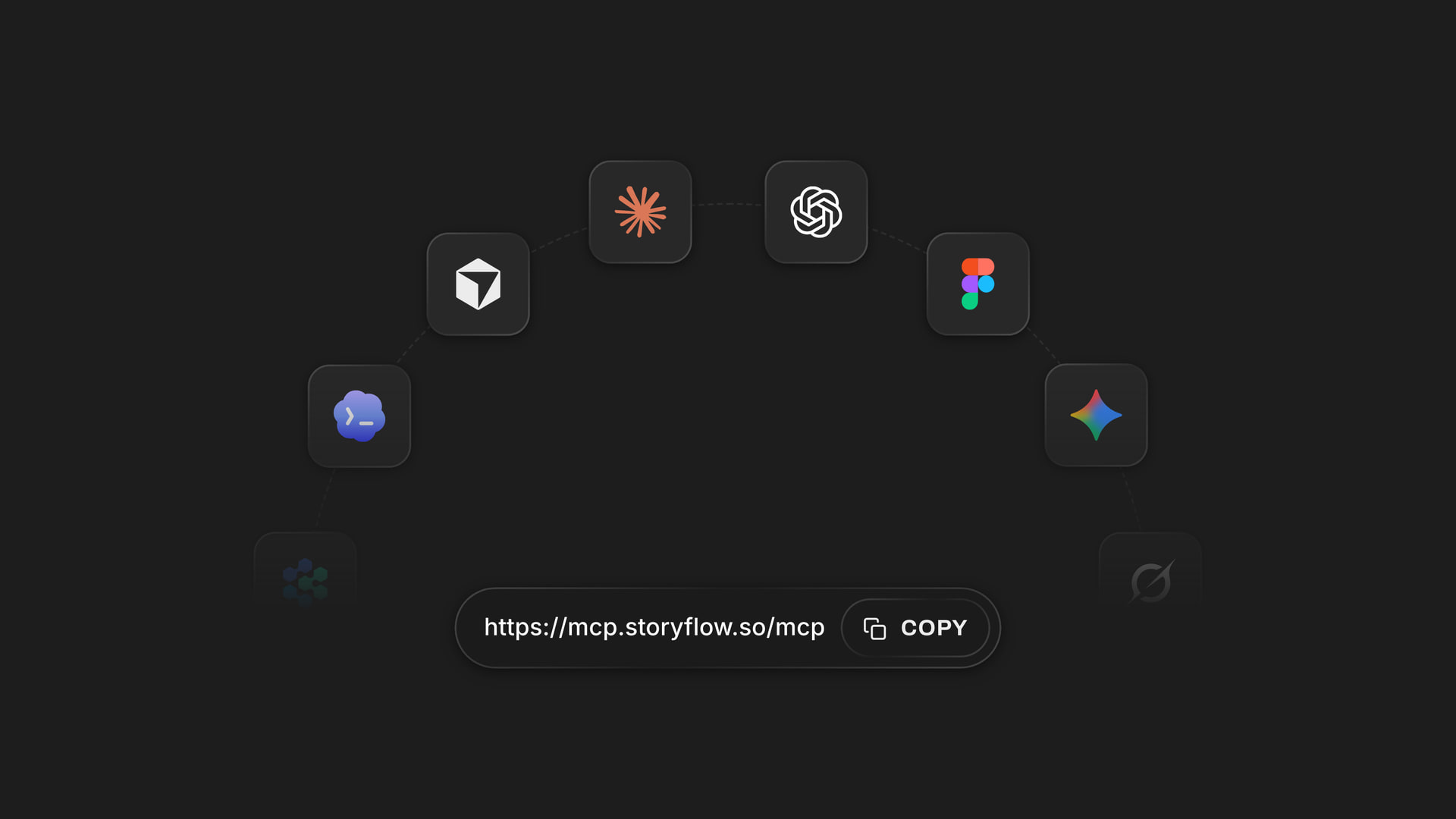
The setup is three steps and all of it happens on gemini.google.com. Open Settings, then Connected Apps. Under Custom apps, click Add a custom app. Paste https://mcp.storyflow.so/mcp, click Next and complete the sign-in. There is no key to copy, because Storyflow's sign-in page is found from that one address.
Check one list before you try, because Gemini is stricter than other assistants about who can add a custom app. Custom apps need a personal Google account with Keep Activity on, in the US, for people 18 or over, in English. If one of those is not true for you, you cannot add Storyflow in Gemini yet, and nothing on the Storyflow side can change that. The same address works in Claude, ChatGPT and Grok, so a founder outside the US can connect one of those and reach the same boards.
When you sign in, Storyflow asks three things. Which projects Gemini may use: all of them, or only the ones you pick. Allowing all of them also lets it start a new project and read your Tactics. Whether it may make changes: leave that ticked to let it build, untick it and it can only read. And whether it may also use your documents outside projects, your private documents and the ones shared with you. For a first try, pick one project and allow changes.
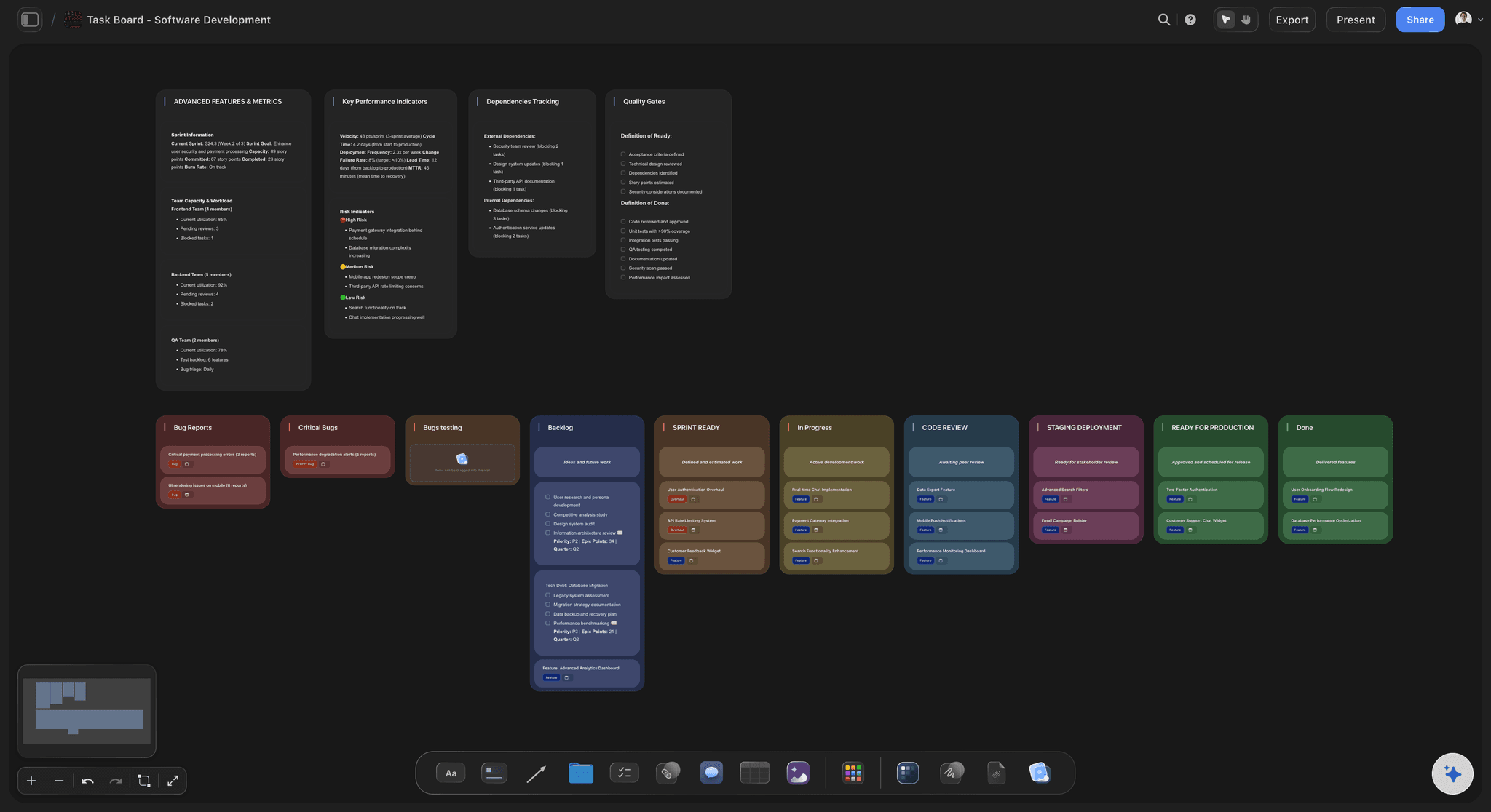
Here is one job, counted. A founder has a project called Spring launch with walls for scope, tasks and risks. She asks Gemini: "Read the Spring launch project in Storyflow and tell me what is on the board." Then: "Add a section called Pricing page with a note for the headline, a to-do list of the five things to ship and a table comparing our three plans." Gemini finds the project (1 action), lists its boards (1), reads the board's index (1), reads the cards (1), builds the section in one call (1) and checks where it landed (1). That is about six actions. A free account (today, one invited by a paid member) gets 50 a week, so roughly eight rounds like this one fit before Monday's reset.
It costs nothing extra on the Storyflow side. Gemini does the thinking on its own model, so a connector call uses no Storyflow AI credits. Storyflow keeps the result: the new wall, the to-do list and the table stay on the board after the chat is closed, and anyone you invite sees them without opening Gemini at all. Next week you can start a new chat, point Gemini at the same project, and it reads the board instead of asking you to explain the launch again.
Ultra fast from brief to board
Check the list, add one address, ask for a section.
All of it on gemini.google.com, once. About two minutes if you are on the list.
01
Check you can add a custom app
Gemini's custom apps need a personal Google account with Keep Activity on, in the US, for people 18 or over, in English. Keep Activity is a Gemini setting, not a Storyflow one, so switch it on in Gemini before you start. If you are not on that list, connect Claude, ChatGPT or Grok to the same address instead.
02
Add Storyflow under Custom apps
On gemini.google.com, open Settings, then Connected Apps. Under Custom apps, click Add a custom app. Paste https://mcp.storyflow.so/mcp and click Next. That one address is all Gemini needs: there is nothing to download and no key to paste.
03
Sign in and choose what it may touch
Complete the Storyflow sign-in. Pick all your projects or only some, decide whether Gemini may make changes, and decide whether it may use your documents outside projects. Then approve. If Storyflow does not recognise the app asking, it shows a warning and you tick I trust this app first.
04
Ask it to read, then to build
In a new chat, ask: "Read my launch project in Storyflow and tell me what is on the board." Then ask for one section: a wall with a note, a to-do list and a table. Keep the board open in Storyflow and the wall appears as Gemini writes it. Move anything you like; the board is yours, not the chat's.
What Gemini can do once Storyflow is connected.
It reads what is there and builds what you ask for, inside the projects you chose. Four jobs founders hand it first.
Reading
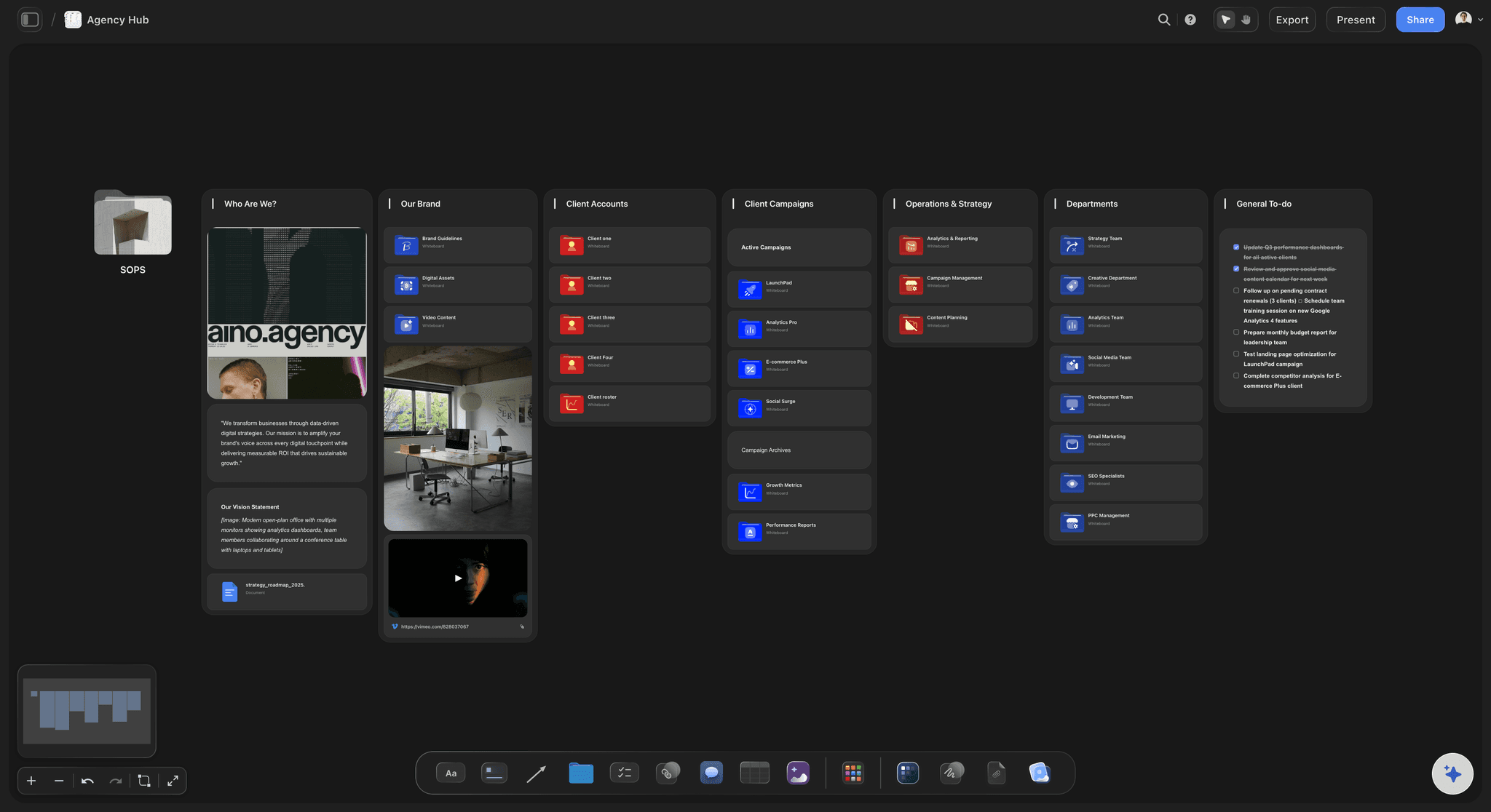
It reads the project before it writes
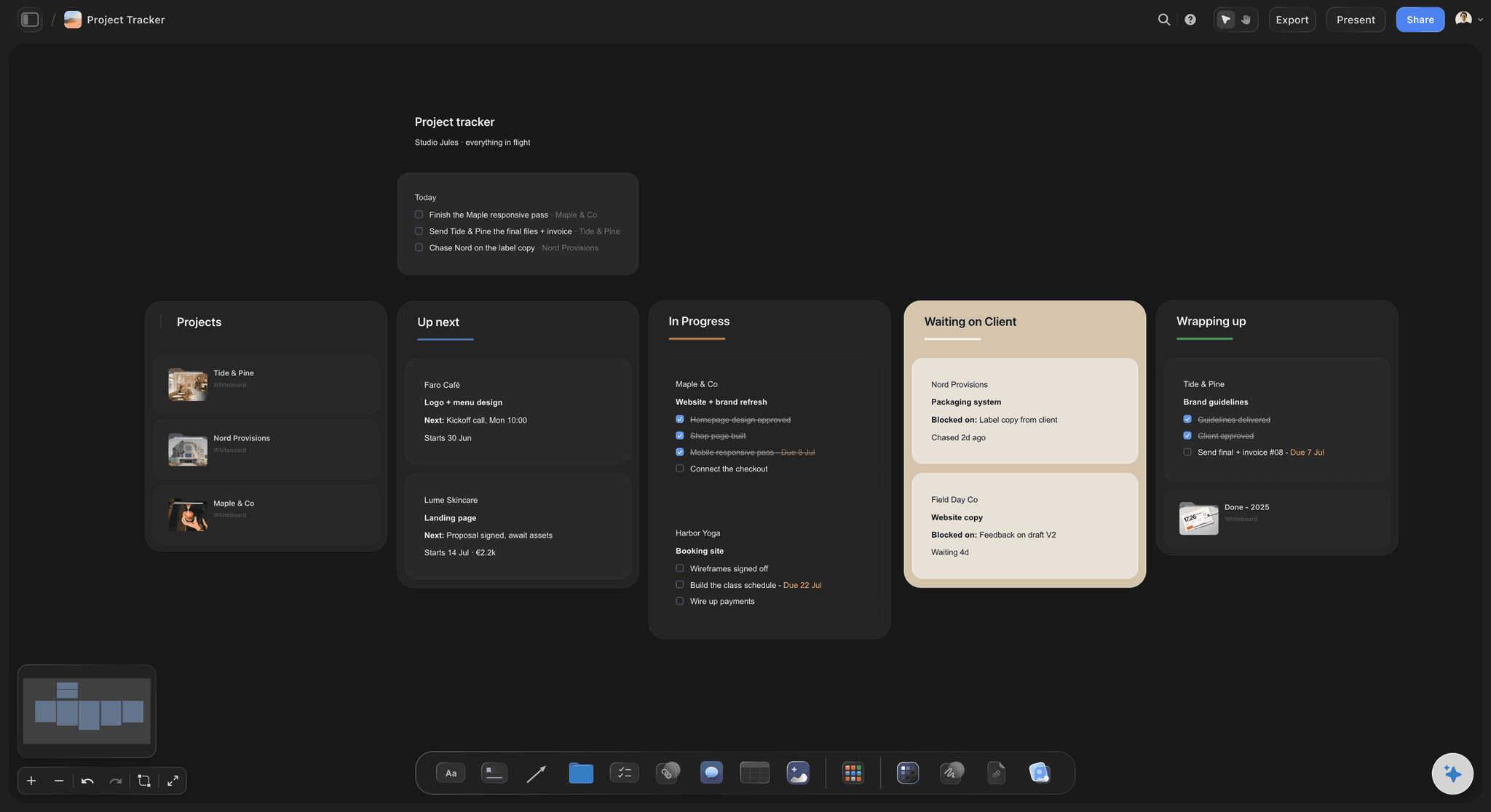
Gemini lists your projects, opens the one you name and reads its boards: the notes, to-do lists, tables and documents, and the arrows between them. It can start from an index of a board, with the names of its walls and folders, before it reads every card, so a question about a large board does not spend your week's actions.
See project memory →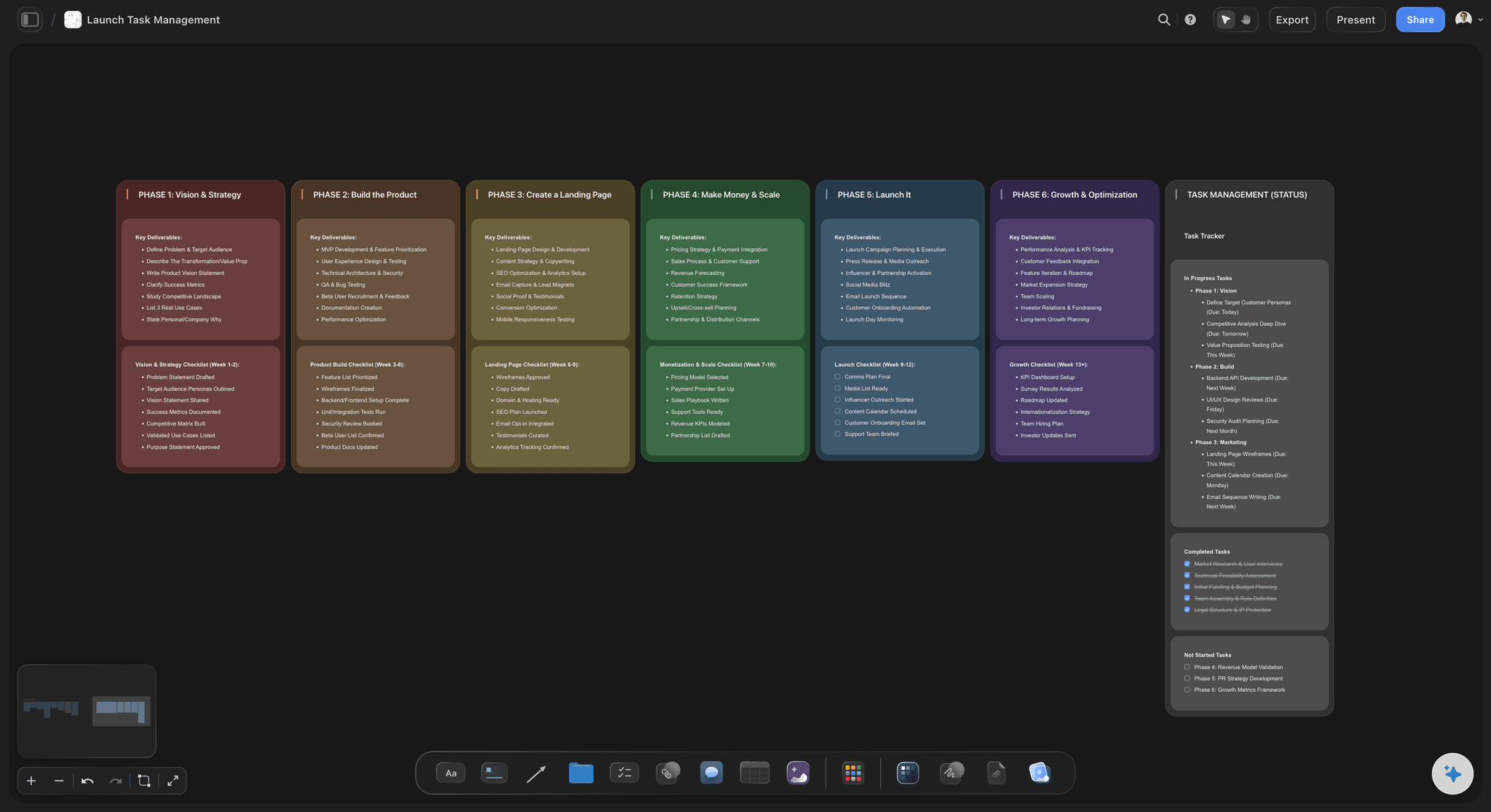
Building
One section, built in one go
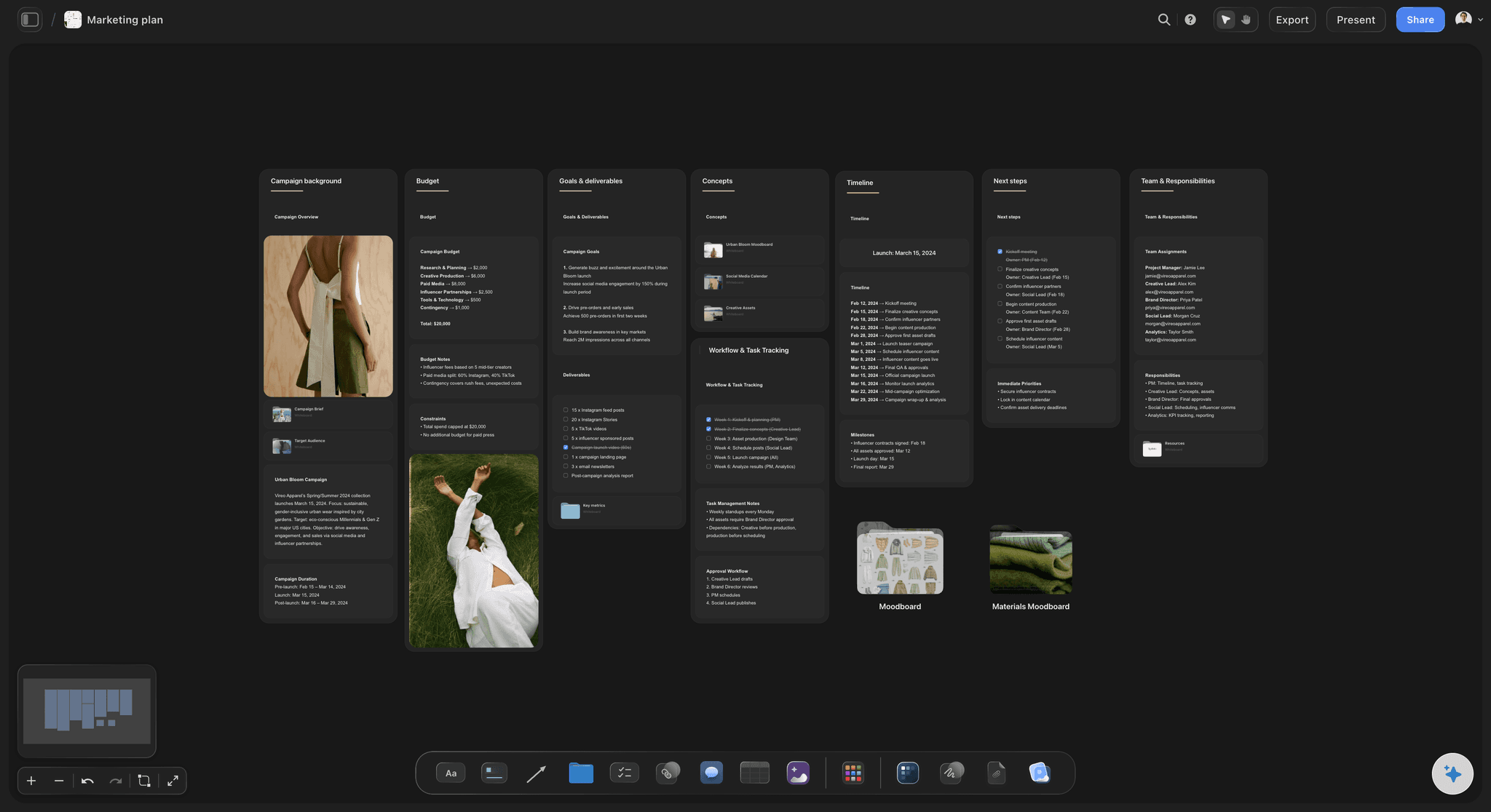
Ask for a section and Gemini sends the wall and every card inside it in a single call: notes, to-do lists, tables and documents, in the order you asked for. If one card fails, the others stay, and Gemini resends only the one that failed. You can drag, rename or rewrite anything it made.
See the AI project plan generator →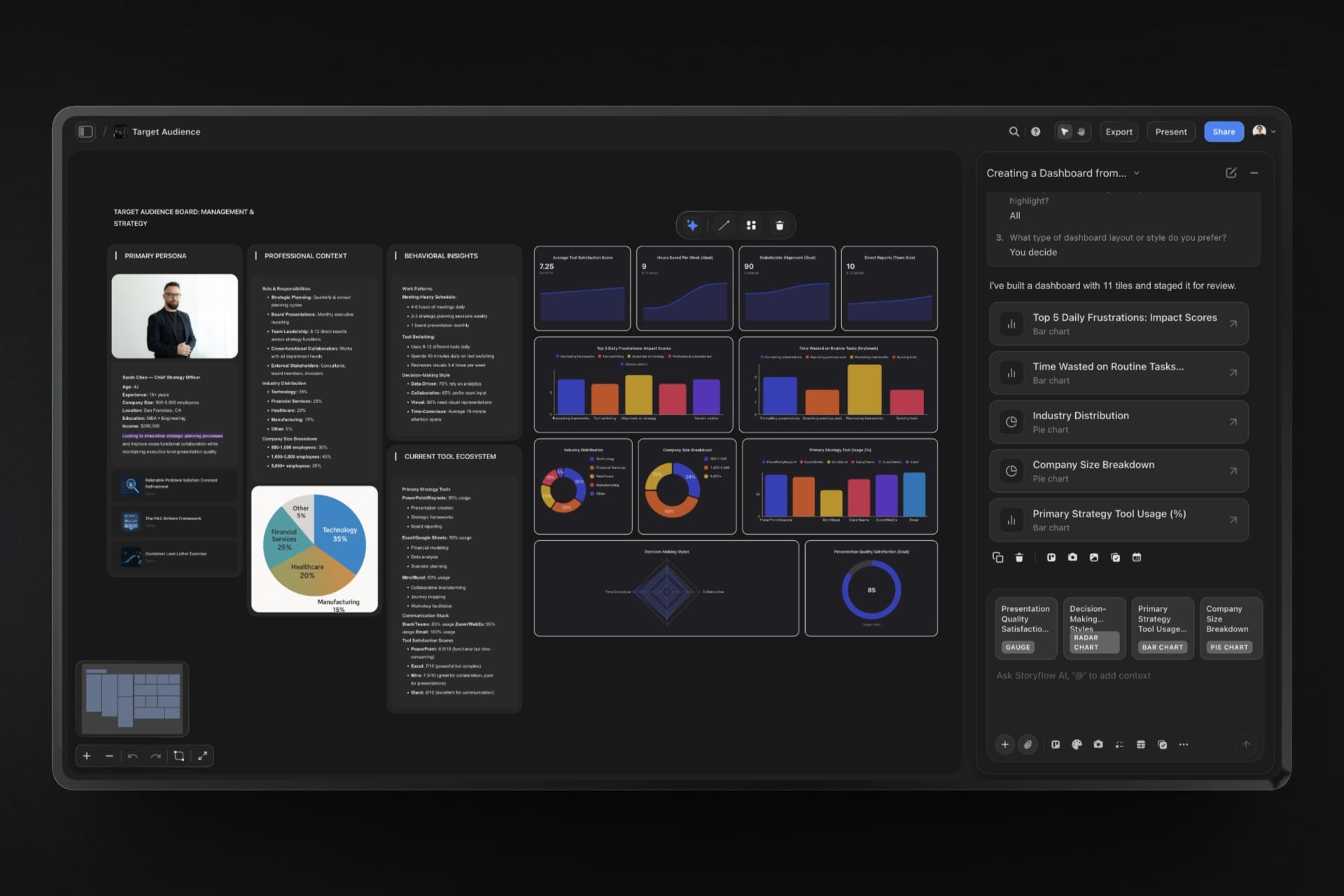
Numbers
Charts from the spreadsheet on your board
Upload a CSV or Excel file to the board and Gemini reads its rows, then builds a bar, line or pie chart from the real values, or a dashboard of several tiles. It is told to use real numbers only, so a chart of monthly revenue comes from your file and not from a guess.
See the investor update page →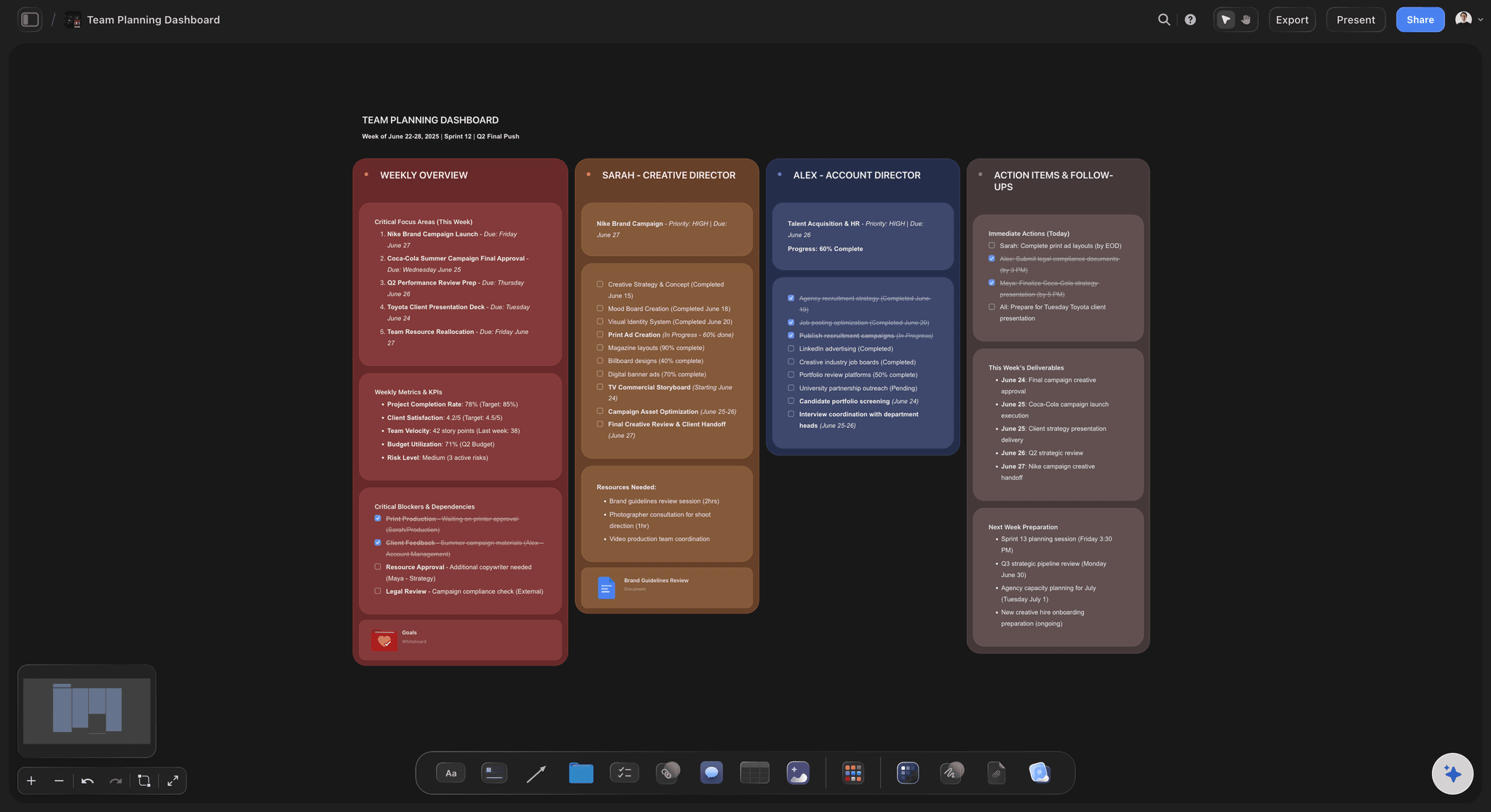
Keeping up
What changed this week, and who changed it
Ask what happened on the launch board since Monday. Gemini reads each card that was created, edited, moved or deleted, who did it and when, and gives you the short version. It can look back a day, a week or a month, so Friday's question covers the whole week.
See the launch roadmap →What it costs to connect Gemini.
The connector itself costs nothing extra. Gemini runs on its own model, and Storyflow counts actions only on a free account. Storyflow is paid-only during early access, with plans from $7.99 a month billed annually ($9.99 monthly). A free plan launches before the end of 2026, and anyone a paid member invites to a board joins free.
Connector calls use no Storyflow AI credits: Gemini does the thinking on its own model
Plus, Pro and Max: no weekly limit on what Gemini does in your boards
A free account (today, one invited by a paid member): 50 actions a week, reset every Monday (UTC)
Gemini side: a personal Google account with Keep Activity on, in the US, 18 or over, in English
Every connection ends after 30 days, and Gemini asks you to sign in again
Built for people with taste
Three things worth knowing before you connect.
Who can add it, what Gemini knows once it is added, and what it can never touch.
The list
Twenty minutes of trying before you learn you cannot add it
A personal Google account: Gemini's custom apps are for personal Google accounts. If you sign in to Gemini with the account your company or school gave you, plan on using a personal one for this, or another assistant.
Keep Activity switched on: Keep Activity is a switch on the Gemini side. Custom apps need it on. Storyflow cannot see or change that setting, so check it in Gemini before you paste the address.
In the US, 18 or over, in English: Those three come from Gemini as well. A founder in Berlin or Sydney, or one who uses Gemini in another language, cannot add a custom app there today.
Not on the list? Same boards, another assistant: Storyflow has one address for every assistant. Add it to Claude, ChatGPT or Grok and you reach the same projects. A cofounder on Gemini and one on Claude build on the same board.
The context
Explaining the project again in every chat
It reads the board first: Point Gemini at the project and it reads what is already there, so the next answer starts from the real plan and not from your summary of it. Edits your team made since the last chat are part of what it reads.
Files on the board count: A PDF, Word, Excel or CSV file on the board is readable to Gemini. Long files come back cut short, and Gemini is told when that happens. A file you attach in the Gemini chat stays in Gemini.
It knows who is on the board: Ask who is working on the launch board and Gemini reads the people with access, so a task table can carry real names in its owner column instead of Person A and Person B.
Documents too, if you allow it: With documents outside projects allowed, Gemini can read your private Storyflow documents and the ones shared with you, and add to them when changes are allowed.
The control
Not knowing what an assistant can touch
You pick the projects: Allow every project or only the ones you tick. Every call is checked against that choice, and a project you left out stays invisible to Gemini. Picking projects also keeps it from creating new ones.
Read-only is one untick: Untick changes when you sign in and Gemini gets no tools that write. It can answer questions about your boards and nothing more, which is a calm way to try it on a board that matters.
No delete tool: Storyflow gives Gemini no tool for deleting cards. With changes allowed it can still edit and move what is there. Ask for the same section twice and the second one is built beside the first, not over it.
Account settings stay yours: The connection cannot change your password or subscription, read billing, manage share links, or delete a project or a document. It ends on its own after 30 days.
Explore templates for your project
Every template opens as a real, editable board on the infinite canvas. Pick the closest fit and make it your own.
Mind Map
Branch one central idea out into themes and sub-points, then drag the connections around until the structure makes sense.
One app instead of five
Gemini with Storyflow, Gemini alone, or a doc.
Storyflow gives Gemini a board to read and build on. It does not make pictures for it, and Gemini's own rules decide who can add it.
Gemini + Storyflow
Recommended
Reads the board your team already built
Builds walls, tables and charts on a canvas
Says what changed and who changed it
You choose which projects it can see
Uses no Storyflow AI credits
Works with a work or school Google account
Can be set up outside the US
Makes pictures for you
Gemini alone
Reads the board your team already built
Builds walls, tables and charts on a canvas
Says what changed and who changed it
You choose which projects it can see
Uses no Storyflow AI credits
Works with a work or school Google account
Can be set up outside the US
Makes pictures for you
Copying replies into a doc
Reads the board your team already built
Builds walls, tables and charts on a canvas
Says what changed and who changed it
You choose which projects it can see
Uses no Storyflow AI credits
Works with a work or school Google account
Can be set up outside the US
Makes pictures for you
What creators are saying
Join early creators getting structured workspaces and AI that remembers their projects
“Storyflow has sped up my workflow by at least 3x, which means more flow state and more projects I can actually ship. It truly changed the way me and my team create.”

Reilin Joey
Director & YouTuber
“One prompt gets me a structured board. But the tactics are my favorite. I run my YouTube scripts through them and my intros and retention got better. It's amazing.”

Justkay
YouTuber & Freelance Filmmaker
“I used to juggle five apps to plan a project. Now I describe what I am making and get boards, lists, and a schedule. All in one place.”

George
@fernwehchronicles
Gemini connector questions
What founders ask before they connect Gemini to their boards.
In Storyflow's case it takes one address. On gemini.google.com, open Settings, then Connected Apps. Under Custom apps, click Add a custom app. Paste https://mcp.storyflow.so/mcp, click Next and complete the sign-in. Then pick the projects Gemini may use and whether it may change them. Custom apps need a personal Google account with Keep Activity on, in the US, for people 18 or over, in English.
Storyflow is made for this job: one address, and Gemini reads and builds in the projects you pick, as walls of cards, tables, charts, documents and decks your team opens without Gemini. You choose whether it may change anything, and it can tell you what changed on a board and who changed it. Pictures, web research and your Google files still come from Gemini itself.
Gemini's custom apps need a personal Google account with Keep Activity on, in the US, for people 18 or over, in English. That list is Gemini's, and Storyflow cannot widen it. A work or school Google account is not on it, so use a personal account, or add the same Storyflow address to Claude, ChatGPT or Grok. You also need a Storyflow account, because Gemini works inside your own projects.
Your projects, boards and documents. On a Storyflow board it reads notes, to-do lists, tables, documents and the arrows between them, plus the text of PDF, Word, Excel and CSV files on it. It can also read what changed on a board and who changed it, who has access, and what sits in the board's trash. Storyflow only shows it the projects you picked when you signed in.
With changes allowed: walls of notes, to-do lists and tables, charts and dashboards, diagrams and mind maps, documents, slide decks and carousel pages. It can apply one of Storyflow's board templates, connect cards with arrows, move and edit cards, and add pictures from web addresses it already has. What it adds shows up on the board while you have it open.
No. Gemini does the thinking on its own model, so a connector call uses no Storyflow AI credits. The only limit is on a free Storyflow account (today, one invited by a paid member), which gets 50 actions a week from its assistant. Every read and every change counts as one, and the count resets every Monday (UTC). Plus, Pro and Max have no limit.
Storyflow gives Gemini no tool for deleting cards, and it cannot delete a project or a document. With changes allowed it can still edit and move cards, and turning notes into documents removes the notes it moved. It cannot swap out a section it already built: ask again and a new one lands beside the first. Anything deleted on a board sits in the trash for seven days.
No. Over the connector Storyflow does not generate images, run research, make audio or export PDFs. Gemini does its own searching and image work, and it can add a picture to a board from a web address, where Storyflow keeps its own copy. Exporting a board happens in Storyflow itself.
Not the file itself. A file you attach in the Gemini chat stays in Gemini. Gemini can read it there and write what matters onto the Storyflow board as notes, tables or a document. To keep the original with the plan, upload it to the board, where Gemini can read PDF, Word, Excel and CSV files too.
No, it is a separate client with its own setup. In a terminal, run gemini mcp add --transport http storyflow https://mcp.storyflow.so/mcp, then in the Gemini CLI run /mcp auth storyflow and complete the sign-in. It reaches the same Storyflow projects with the same choices about what it may read and change.
Every Storyflow connection ends on its own after 30 days, and Gemini asks you to sign in again. Changing your Storyflow password or signing out everywhere ends it within five minutes. To end it yourself, open Settings in Storyflow, then Connected apps, and remove it: it loses access within a minute.
Yes. Storyflow has one address, https://mcp.storyflow.so/mcp. ChatGPT needs Plus, Pro, Business, Enterprise or Edu, on the web; on Business and Enterprise an admin turns on developer mode. Claude's Free plan allows one custom connector. On Grok Business and Enterprise, a team admin adds it in the xAI console first. Each one reaches the same Storyflow projects.
No. Storyflow runs in the browser and there are no native mobile or desktop apps, and the connector needs no download either. You add one address on gemini.google.com and sign in. The boards Gemini builds open in Storyflow in any browser.
More from Storyflow
Storyflow MCP server
Connect ChatGPT to Storyflow
Connect Claude to Storyflow
Connect Grok to Storyflow
Project plan from a ChatGPT chat
AI project plan generator
AI project memory
Launch roadmap
Investor update template
Product launch planner
Product roadmap
Visual project planning
Storyflow for startups
Storyflow for solopreneurs
Whiteboard MCP server
Connect Perplexity to a project board
Give Gemini a board to read before it answers.
Three steps on gemini.google.com, one sign-in, then ask for the next section. The plan stays where your team can find it.