
Ultra-fast planning, extremely simple
Connect Grok to Storyflow
and change the plan by asking.
For founders who think out loud in Grok: three steps at grok.com/connectors, and Grok builds the plan on a board, then moves and rewrites single cards when the plan changes.


Creatives working for these brands already got early access
- Red Bull
- Canon
- Artlist
- Porsche
See how easy it is to get started
Watch a real project come together, from a blank board to a finished plan, clicked through step by step.
Start from a ready-made template
Pick a board to see what you can build, then let AI fill it in. Every template is a real, editable starting point on the same infinite canvas.

Mind Map
Branch one central idea out into themes and sub-points, then drag the connections around until the structure makes sense.
How do you connect Grok to Storyflow?
You connect Grok to another app by adding the app's address as a custom connector on Grok's connectors page and signing in to the app, where you choose what Grok may read and change. Storyflow is an AI visual workspace that turns a plan you talk through in Grok into a board on one infinite canvas: walls of cards, tables and charts, arrows between them, and documents. Once connected, Grok builds the plan on your board and then edits it card by card as the plan changes.
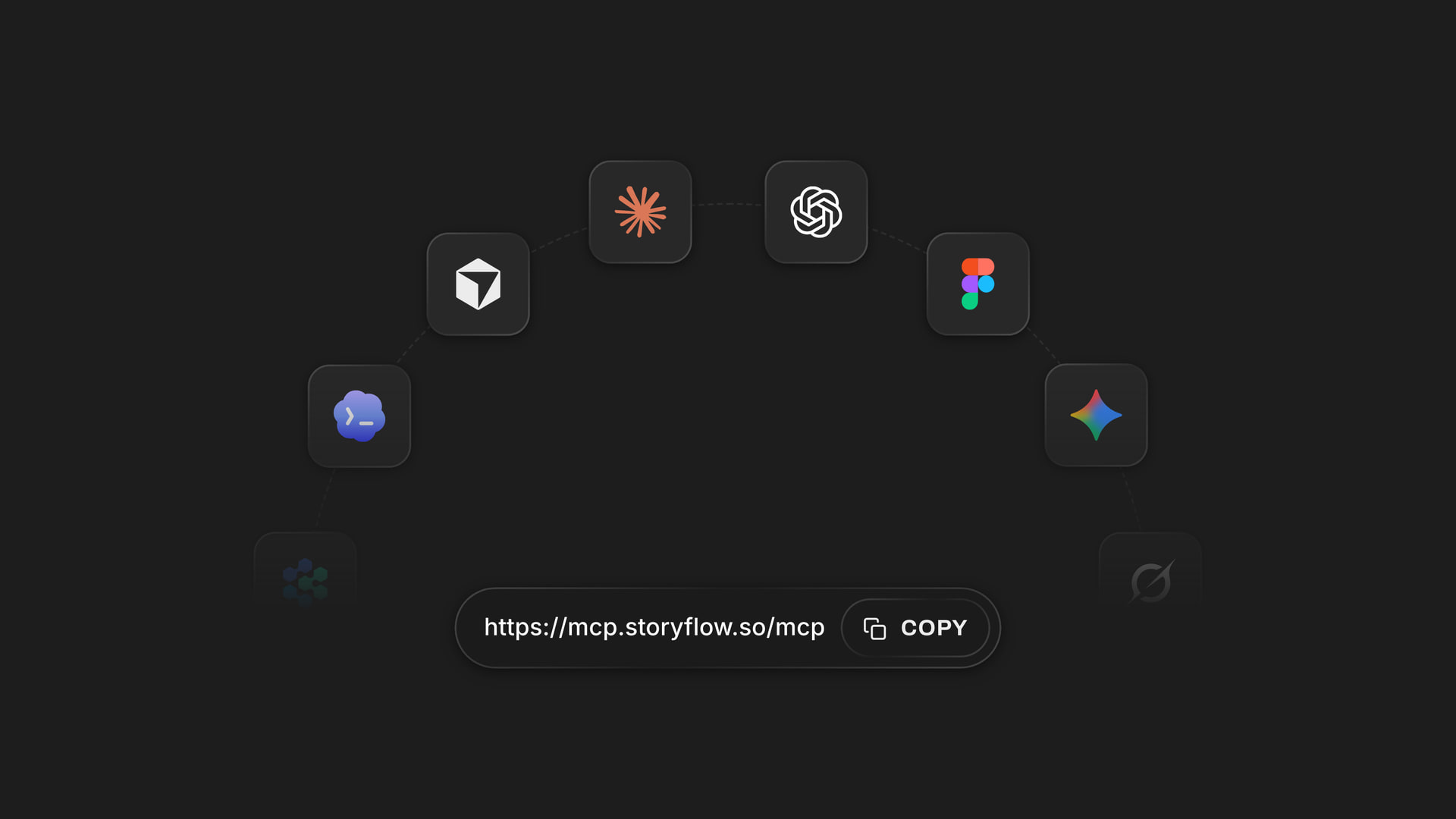
The setup is three steps. Open grok.com/connectors and click New Connector, then Custom. Paste https://mcp.storyflow.so/mcp. Complete the sign-in when prompted. There is no key to copy and nothing to download, because Storyflow's sign-in page is found from that one address.
One thing differs on Grok Business or Enterprise. On those plans, a team admin adds the connector in the xAI console first, under Grok Business, then Connectors. Until that is done, the people on the team cannot add Storyflow themselves. If you are the founder and the admin, that is one extra screen. If someone else runs the workspace, send them the address and that path before you plan your afternoon around it.
When you sign in, Storyflow asks three things. Which projects Grok may use: all of them, or only the ones you pick. Allowing all of them also lets it start a new project and read your Tactics. Whether it may make changes: leave that ticked to let it build and edit, untick it and it can only read. And whether it may also use your documents outside projects, your private documents and the ones shared with you.
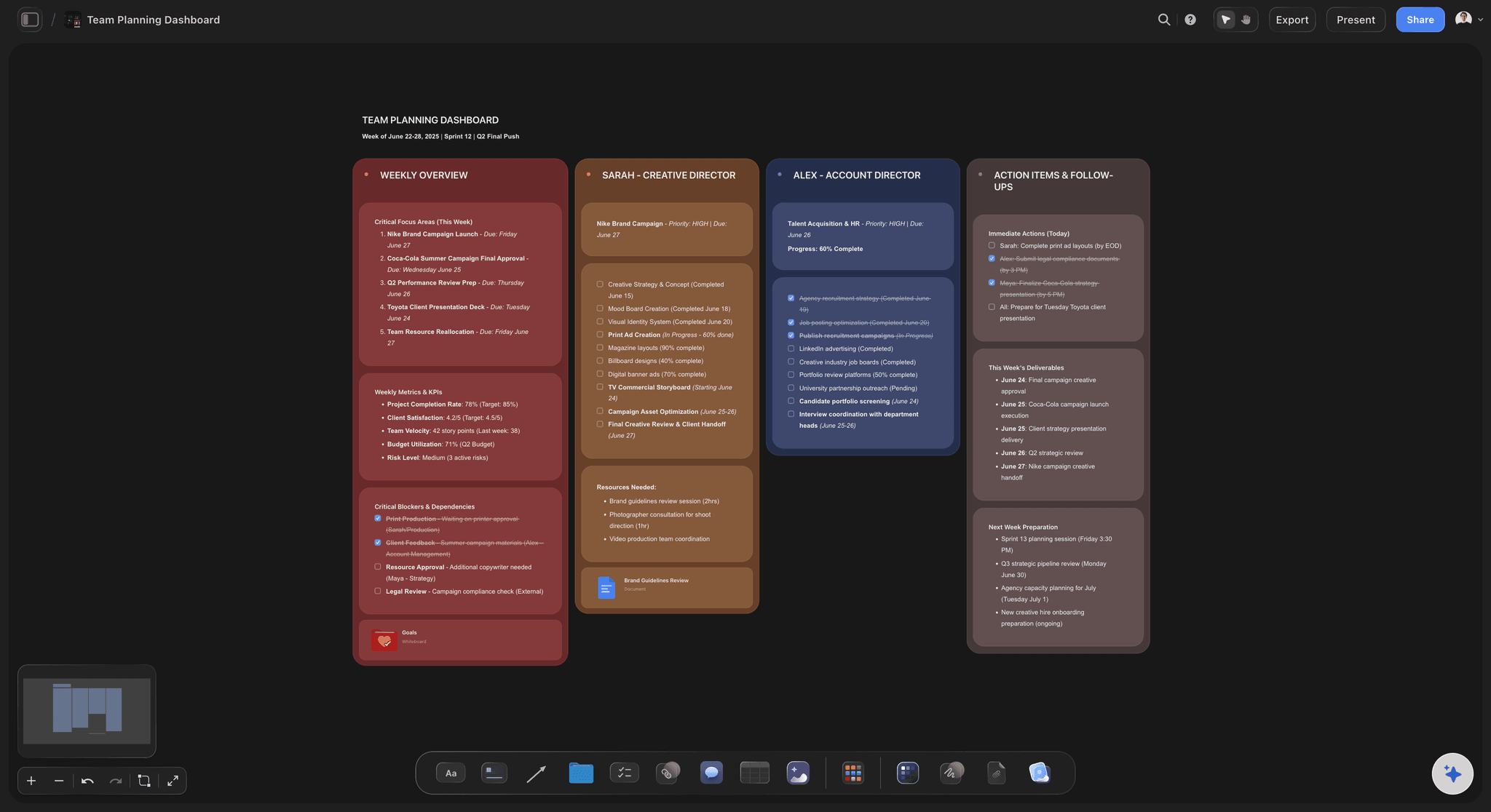
Here is one plan, built and then edited, with the actions counted. A founder asks Grok for a hiring plan for the next two quarters. Grok finds the project (1 action) and builds three walls: Q1 hires, Q2 hires and Budget (3). Each hire is its own card in its quarter's wall, and the Budget wall holds a table with four columns: role, start month, salary band and owner. A week later the plan moves. She asks Grok to shift the designer from Q1 to Q2, raise the engineer's salary band, and draw an arrow from the head of sales to the two account executives that says hire first. Grok finds the project again (1), reads the board (1), moves the designer's card (1), edits the table (1) and adds the two arrows with their text (2). About ten actions for the plan and its first revision, out of the 50 a week that a free account (today, one invited by a paid member) gets.
It costs nothing extra on the Storyflow side. Grok does the thinking on its own model, so a connector call uses no Storyflow AI credits. Storyflow keeps the result: the walls, the table and the arrows stay on the board after the chat is closed, and anyone you invite sees them without opening Grok. The next time the plan changes you do not paste the old plan back in. Grok reads the board as it stands, including the edits your team made by hand.
Ultra fast from brief to board
Three steps to connect, then one to start planning.
About two minutes on your own account. On Grok Business or Enterprise, an admin goes first.
01
On Grok Business or Enterprise, ask your admin first
On Grok Business and Enterprise, a team admin adds Storyflow in the xAI console (Grok Business, then Connectors) before anyone on the team can use it. Send them https://mcp.storyflow.so/mcp. On your own Grok account, skip this step.
02
Add a custom connector
Open grok.com/connectors and click New Connector, then Custom. Paste https://mcp.storyflow.so/mcp. That one address is all Grok needs: Storyflow's sign-in page is found from it, so there is no key to create.
03
Sign in and choose what it may touch
Complete the Storyflow sign-in when prompted. Pick all your projects or only some, decide whether Grok may make changes, and decide whether it may use your documents outside projects. If Storyflow does not recognise the app asking, it shows a warning and you tick I trust this app first.
04
Ask for the plan, then ask for the change
In a new chat, describe the plan and ask Grok to build it on a Storyflow board. Open the board and the walls appear as Grok writes them. When something moves, say so: "Move the designer hire to Q2 and change the start month to July." Grok edits the cards that are there.
What Grok can do once Storyflow is connected.
Build the plan, then keep it true. Four things founders ask Grok for on a board.
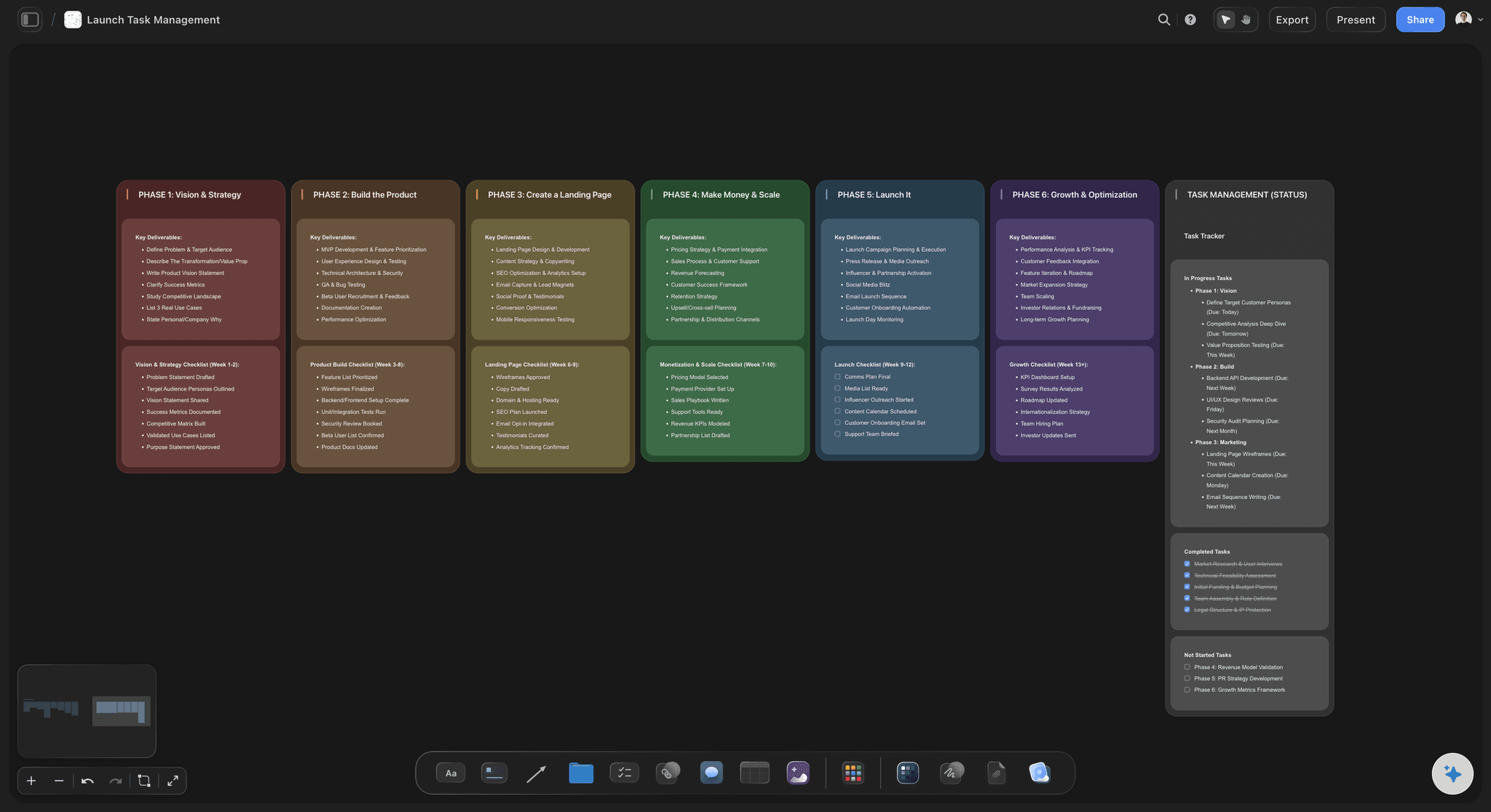
Planning
A plan laid out as walls of cards
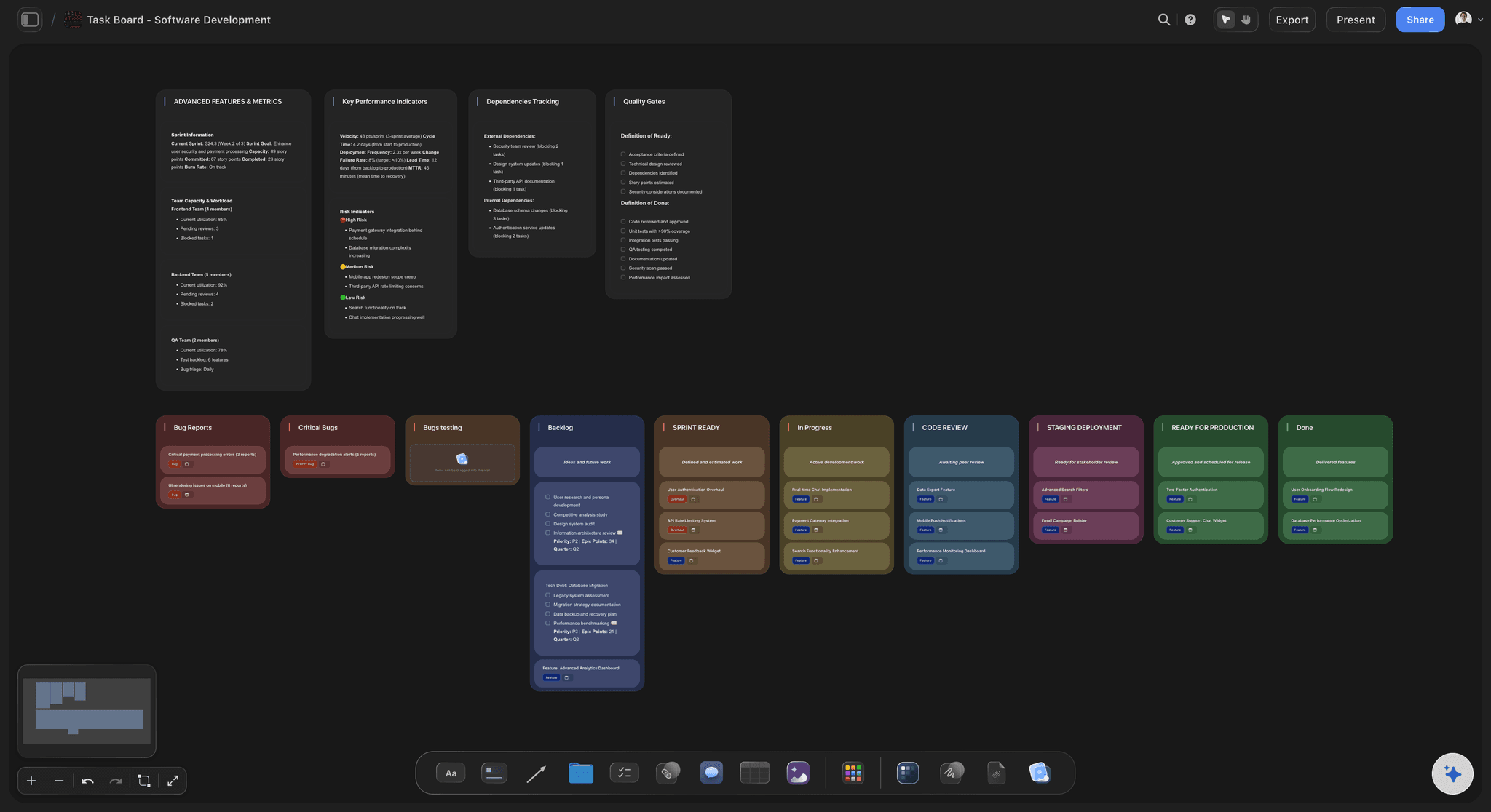
Describe the plan and Grok builds it one wall at a time: a wall per quarter, per phase or per person, each filled with notes, to-do lists and tables in the order you gave. A table can carry typed columns, such as money, dates, a status or an owner, so the plan is more than text in boxes.
See the product roadmap page →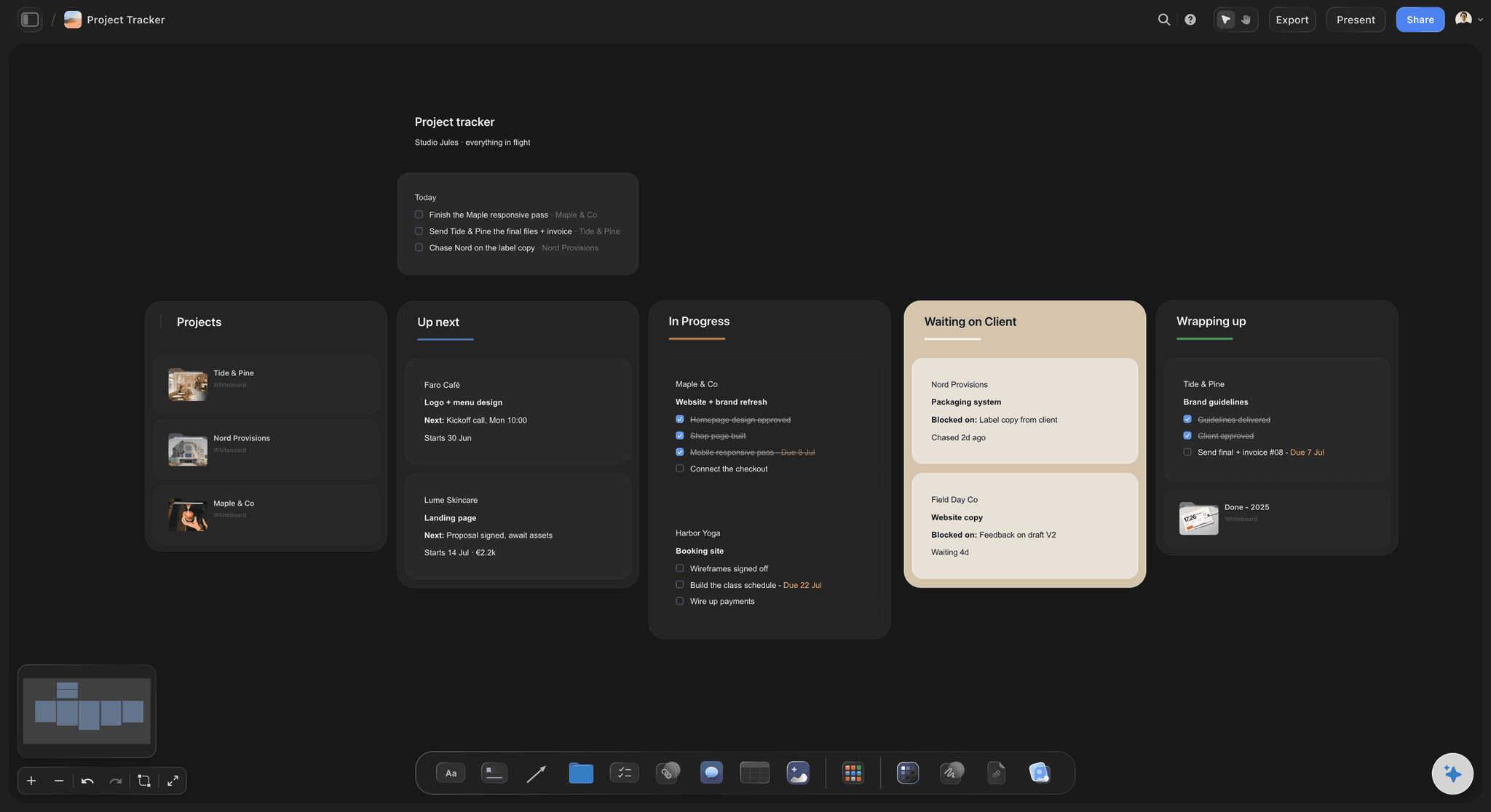
Editing
Change one card, not the whole plan
Tell Grok what changed and it edits the card that is already on the board: new text in a note, a new line in a to-do list, a different figure in a table. It can move a card from one wall to another or reorder a wall, the same way you would by dragging.
See visual project planning →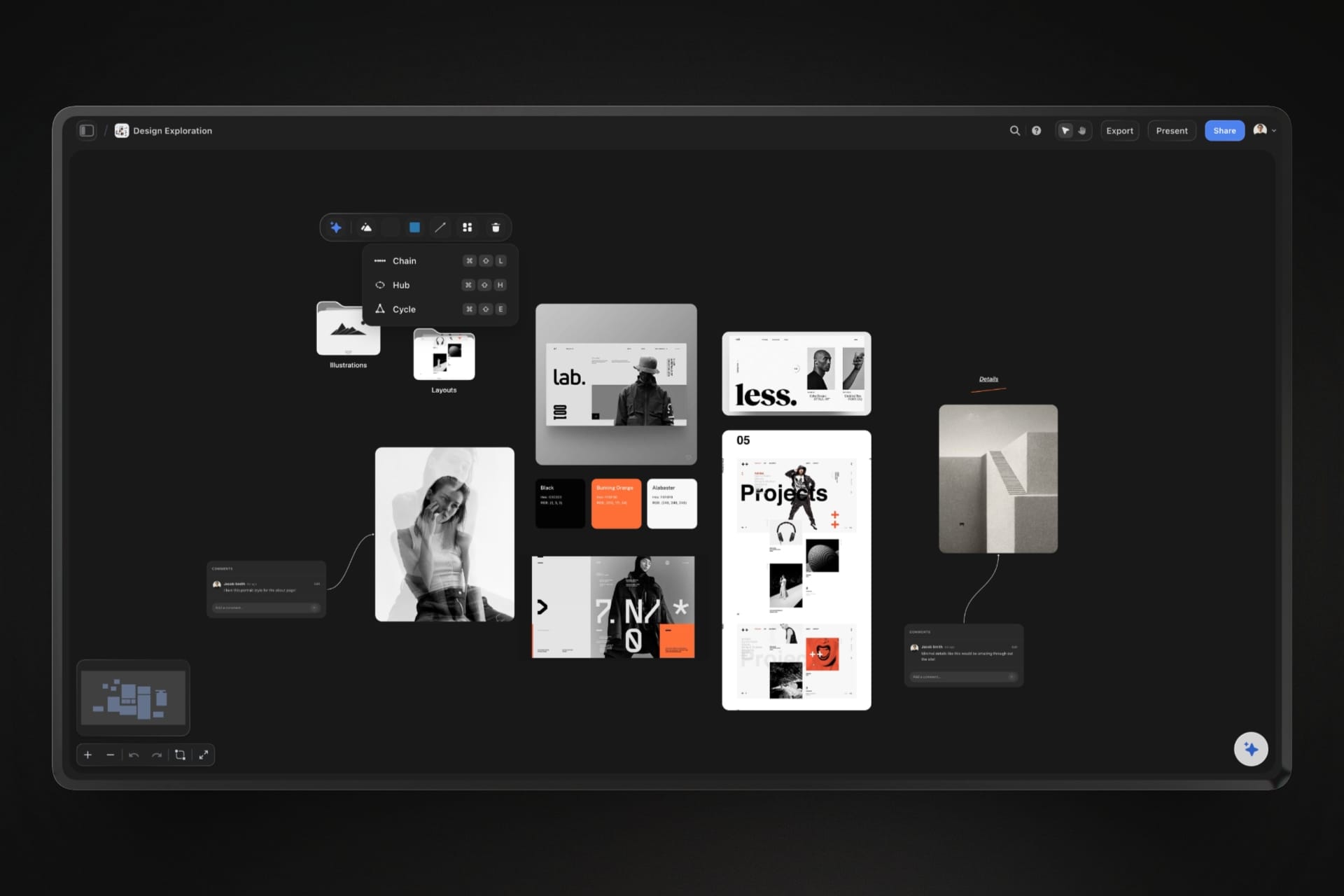
Connecting
Arrows that say why
Ask Grok to connect two cards and it draws the arrow. Ask it to write on the arrow, such as blocks, hire first or six weeks, and it changes the text on the arrow that is there instead of drawing a new one, so the curve you dragged into it stays.
See the flowchart maker →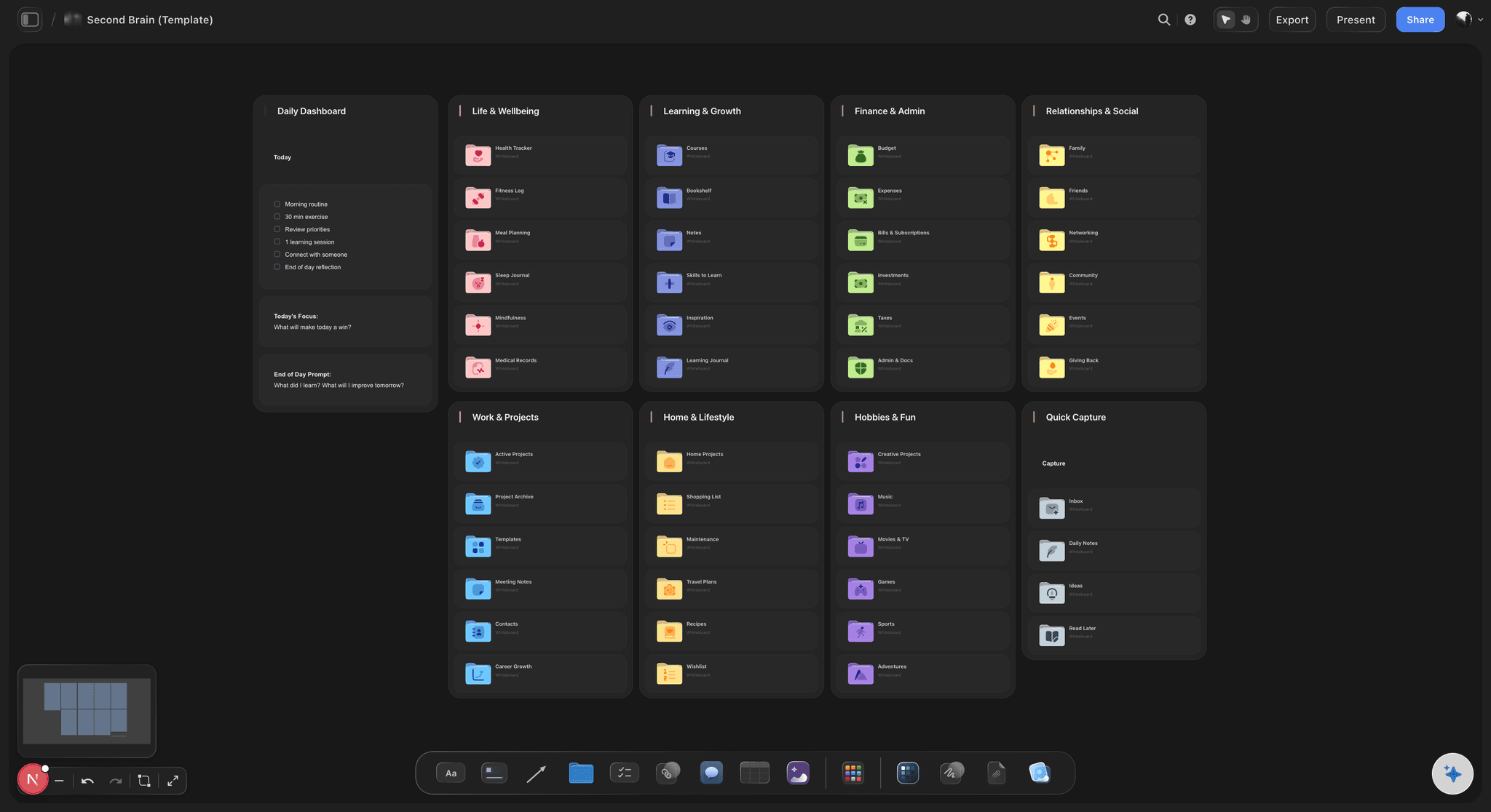
Templates
Start from a board shape that already works
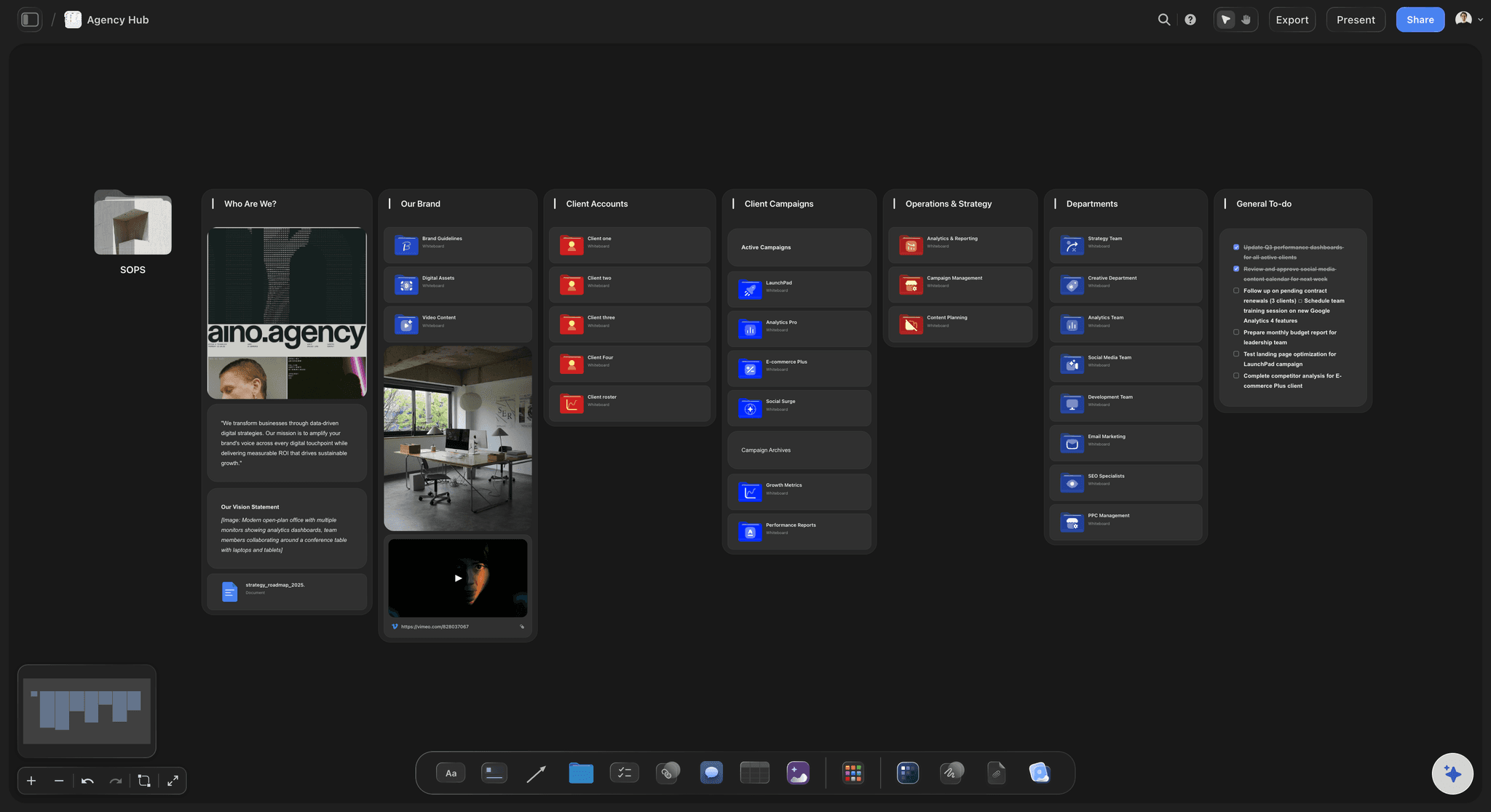
Grok can look up Storyflow's board templates by name, such as Agency Hub or Second Brain, and put one on the board with its layout. The template arrives with its own example content, and Grok then rewrites those cards for your subject so you are not left with someone else's project.
See the second brain page →What it costs to connect Grok.
The connector itself costs nothing extra. Grok runs on its own model, and Storyflow counts actions only on a free account. Storyflow is paid-only during early access, with plans from $7.99 a month billed annually ($9.99 monthly). A free plan launches before the end of 2026, and anyone a paid member invites to a board joins free.
Connector calls use no Storyflow AI credits: Grok does the thinking on its own model
Plus, Pro and Max: no weekly limit on what Grok does in your boards
A free account (today, one invited by a paid member): 50 actions a week, reset every Monday (UTC)
Grok Business and Enterprise: a team admin adds it in the xAI console first
Every connection ends after 30 days, and Grok asks you to sign in again
Built for people with taste
Three ways a plan made in a chat goes stale.
Grok is quick at a first draft. The trouble starts on the second week.
The admin step
A Grok Business workspace where nobody mentioned the console
On your own account, you add it yourself: Open grok.com/connectors, click New Connector, then Custom, and paste the Storyflow address. The sign-in follows straight away and there is nobody to ask.
On Business and Enterprise, an admin goes first: A team admin adds the connector in the xAI console, under Grok Business, then Connectors. It is a real step, and it is the usual reason a teammate cannot find Storyflow in their Grok.
What to send your admin: Two lines are enough: the address, https://mcp.storyflow.so/mcp, and where it goes, the xAI console under Grok Business, then Connectors. Send them before the meeting where you wanted to use it.
Adding it does not hand over your boards: The connector is only a door. What Grok can see comes from a Storyflow sign-in, and that sign-in picks its own projects and decides whether changes are allowed.
The edits
Asking for the whole plan again to change one line
It edits what is there: A change to one hire, one date or one budget line is one edit to one card. The rest of the board, and anything your team wrote by hand, is left alone.
Cards move between walls: Slipping a task from this quarter to the next is a move, not a rewrite. Grok takes the card out of one wall and files it into the other, in the position you ask for.
It reads your edits before it makes its own: Grok reads the board as it stands today, not as it left it. A card someone else wrote is marked as not its own, so it can tell its draft from your team's work.
A second request builds a second section: Grok cannot swap out a wall it already built. Ask for the hiring plan again from scratch and the new one lands beside the old one, so ask for edits when you want one plan.
The control
Letting an assistant near the real plan
You pick the projects: Allow every project or only the ones you tick. Every call is checked against that choice, and a project you left out stays invisible to Grok. Picking projects also keeps it from creating new ones.
Read-only is one untick: Untick changes when you sign in and Grok gets no tools that write. It can answer questions about the board and tell you what changed this week, and nothing more.
No delete tool: Storyflow gives Grok no tool for deleting cards. If a card has to go, you remove it on the board yourself, and it sits in the board's trash for seven days.
Account settings stay yours: The connection cannot change your password or subscription, read billing, manage share links, or delete a project or a document. It ends on its own after 30 days.
Explore templates for your project
Every template opens as a real, editable board on the infinite canvas. Pick the closest fit and make it your own.
Mind Map
Branch one central idea out into themes and sub-points, then drag the connections around until the structure makes sense.
One app instead of five
Grok with Storyflow, Grok alone, or a doc.
Storyflow gives Grok a board to build and edit. It does not make pictures for it, and Grok Business or Enterprise needs an admin before anyone can connect.
Grok + Storyflow
Recommended
Reads the board your team already built
Builds walls, tables and charts on a canvas
Moves and edits single cards from the chat
Says what changed and who changed it
You choose which projects it can see
Uses no Storyflow AI credits
Ready on Grok Business with no admin step
Makes pictures for you
Grok alone
Reads the board your team already built
Builds walls, tables and charts on a canvas
Moves and edits single cards from the chat
Says what changed and who changed it
You choose which projects it can see
Uses no Storyflow AI credits
Ready on Grok Business with no admin step
Makes pictures for you
Copying replies into a doc
Reads the board your team already built
Builds walls, tables and charts on a canvas
Moves and edits single cards from the chat
Says what changed and who changed it
You choose which projects it can see
Uses no Storyflow AI credits
Ready on Grok Business with no admin step
Makes pictures for you
What creators are saying
Join early creators getting structured workspaces and AI that remembers their projects
“Storyflow has sped up my workflow by at least 3x, which means more flow state and more projects I can actually ship. It truly changed the way me and my team create.”

Reilin Joey
Director & YouTuber
“One prompt gets me a structured board. But the tactics are my favorite. I run my YouTube scripts through them and my intros and retention got better. It's amazing.”

Justkay
YouTuber & Freelance Filmmaker
“I used to juggle five apps to plan a project. Now I describe what I am making and get boards, lists, and a schedule. All in one place.”

George
@fernwehchronicles
Grok connector questions
What founders ask before they connect Grok to their boards.
In Storyflow's case it takes one address. Open grok.com/connectors and click New Connector, then Custom. Paste https://mcp.storyflow.so/mcp and complete the sign-in when prompted. Then pick the projects Grok may use and whether it may change them. On Grok Business and Enterprise, a team admin adds it in the xAI console (Grok Business, then Connectors) first.
Storyflow is the tool for this job: one address, and Grok builds the plan in the projects you pick as walls of cards, tables, charts and documents, then moves and edits single cards when the plan changes. Your team opens the board without Grok, and you choose whether Grok may change anything. Pictures, web search and what people are saying on X still come from Grok itself.
Yes, after one step. On Grok Business and Enterprise, a team admin adds the connector in the xAI console, under Grok Business, then Connectors, first. Give your admin the Storyflow address, https://mcp.storyflow.so/mcp. After that, the Storyflow sign-in decides which projects Grok may use and whether it may change them.
Your projects, boards and documents. On a Storyflow board it reads notes, to-do lists, tables, documents and the arrows between them, plus the text of PDF, Word, Excel and CSV files on it. It can also read what changed on a board and who changed it, and who has access. Storyflow only shows it the projects you picked when you signed in.
With changes allowed, Grok can add walls, notes, to-do lists, tables, charts, diagrams and documents to a Storyflow board, rewrite the text of a card, change a table, move a card into or out of a wall, draw arrows between cards and change the words on an arrow. It applies each change straight away, the way you would by hand on the canvas.
No. Storyflow gives Grok no tool for deleting cards, and it cannot swap out a wall or a map it already built. Ask for the same thing again and a new one lands beside the first. To change a plan, ask Grok to edit or move the cards that are there. Anything you delete on the board yourself sits in the trash for seven days.
No. Grok does the thinking on its own model, so a connector call uses no Storyflow AI credits. The only limit is on a free Storyflow account (today, one invited by a paid member), which gets 50 actions a week from its assistant. Plus, Pro and Max have no limit.
Every read and every change Grok makes in Storyflow counts as one. Building a plan of three walls and revising it a week later is about ten actions, so 50 covers several plans and a good number of questions. The count resets every Monday (UTC). When the week runs out, Grok tells you and nothing on your boards changes.
No. Over the connector Storyflow does not generate images, run research, make audio or export PDFs. Grok does its own searching and image work, and it can add a picture to a board from a web address, where Storyflow keeps its own copy. Exporting a board happens in Storyflow itself.
Not the file itself. A file you attach in the Grok chat stays in Grok. Grok can read it there and write what matters onto the Storyflow board as notes, tables or a document. To keep the original with the plan, upload it to the board, where Grok can read PDF, Word, Excel and CSV files too.
Every Storyflow connection ends on its own after 30 days, and Grok asks you to sign in again. Changing your Storyflow password or signing out everywhere ends it within five minutes. To end it yourself, open Settings in Storyflow, then Connected apps, and remove it: it loses access within a minute.
Yes. Storyflow has one address, https://mcp.storyflow.so/mcp. ChatGPT needs Plus, Pro, Business, Enterprise or Edu, on the web; on Business and Enterprise an admin turns on developer mode. Claude's Free plan allows one custom connector. Gemini's custom apps need a personal Google account with Keep Activity on, in the US, for people 18 or over, in English. Each one reaches the same Storyflow projects.
No. Storyflow runs in the browser and there are no native mobile or desktop apps, and the connector needs no download either. You add one address at grok.com/connectors and sign in. The boards Grok builds open in Storyflow in any browser.
More from Storyflow
Storyflow MCP server
Connect ChatGPT to Storyflow
Connect Claude to Storyflow
Connect Gemini to Storyflow
Project plan from a ChatGPT chat
Diagrams with Claude
Product roadmap
Visual project planning
Flowchart maker
Second brain app
AI project plan generator
Launch roadmap
Storyflow for startups
Storyflow for solopreneurs
Whiteboard MCP server
Connect Perplexity to a project board
Build the plan in Grok. Keep it true on the board.
Three steps at grok.com/connectors, one sign-in, then ask for the plan and, next week, for the change.