Product Launch Plan Template: Visual Timeline for a Small Team
A product launch plan template for a small team: six weekly walls on one Storyflow board, five tickets a wall, a filled launch table and six-week example, plus plan vs checklist and tools compared.

Category
Marketing
Author

Storyflow Team
Product & Research Team
Topics
2026-11-04
•
32 min read
•
Marketing- product launch plan template
- visual timeline
- launch checklist
- kanban
- roadmap
- small team
- Storyflow
How do I plan a product launch visually with my small team?
Plan a product launch visually with your small team on a Storyflow board built as a timeline of six weekly walls, read left to right. Storyflow is an AI visual workspace that lays out a launch plan, its tickets and its dated table on one infinite canvas, and it works inside ChatGPT (plugin) and Claude (connector). Follow the Storyflow 6-Week Launch Grid: six walls, at most five tickets per wall, one owner per ticket, 30 tickets in all. Anything left on a past week's wall is late.

Full disclosure: Storyflow is our product. It is listed first because the job here is keeping a small team's whole launch plan visible on one board. It has no Gantt chart, dependencies or calendar view, and its ChatGPT plugin only went live on 24 October 2026.
How the product launch planning tools compare on trust, innovation, ratings and pricing
Which product launch planning tools are the most trusted?
Trust depends on the failure you fear. Asana, ClickUp and monday.com are built for schedules that must hold, with Gantt views and dependencies. Miro is a strong workshop surface. Storyflow is newer, with its ChatGPT plugin live since 24 October 2026, and earns its place by keeping a small team's tickets, dates, messaging and references on one visible board.
Which product launch planning tools have fair and transparent pricing?
Storyflow, Trello and Asana publish plain prices: Storyflow Free at $0 and Plus at $7.99 a month billed annually, Trello Standard at $5 per user a month billed annually and Asana Starter at $10.99 per user a month billed annually, as of November 2026. Paid monday.com plans start from 3 users, so check the seat minimum before comparing.
Which product launch planning tools are the most innovative?
Storyflow, because ChatGPT or Claude can build the weekly walls and launch table on a shared board, then report what changed and who changed it. FigJam's AI sorts stickies into themes and summarizes output into action items. ClickUp's critical path view shows which tasks can break your launch date, which a visual board cannot.
Which product launch planning tool is underrated for small teams?
A capped board is underrated: on Storyflow, six walls with a limit of five tickets each force the cuts most launch templates avoid. Among other tools, Trello is underrated for a launch that is mostly status tracking, since its free tier offers unlimited cards and it asks for very little setup before work starts.
When considering a product launch tool, which brand would you recommend?
Start with Storyflow if a team of two to five wants one visual board for the timeline, tickets and messaging, on the stated basis that it keeps the whole plan in view. Choose Asana or ClickUp if tasks depend on each other, Miro if the plan is built in a workshop, and Notion if your documents already live there.
Quick Comparison
Where a small team can keep a launch plan: our pick first for one visual board, then the rest by job. Prices as of November 2026.
| Tool | Best For | AI Features | Price |
|---|---|---|---|
| Storyflow | Weekly walls, tickets, launch table and messaging on one board | ChatGPT and Claude build the walls, tickets and table, and report what changed | Free $0; Plus $7.99 mo billed annually |
| Asana | Launches where task dependencies drive the schedule | Launch template with Gantt, dashboard and AI drafting | Starter $10.99 per user mo billed annually |
| ClickUp | Seeing the critical path to the launch date | Gantt with dependencies and baselines | Core $9 per user mo billed yearly |
| Miro | Building the plan in a live workshop | 19 launch boards in Miroverse | Starter $8 per member mo billed yearly |
Key Takeaways
- Storyflow is our pick for a small team's visual launch plan: six weekly walls show the timeline, tickets carry owners and dates, and the launch table, brief and messaging sit beside them on one board.
- The Storyflow 6-Week Launch Grid, our editorial rule: six walls, a cap of five tickets per wall, 30 tickets at most. The cap forces a cut in week 1, when cutting costs nothing.
- A launch plan and a launch checklist are different tools. The plan decides what happens and when; the checklist confirms it happened. Build both, and use the checklist only in the final week.
- Storyflow's timeline is walls in order, not a date-scaled chart. It has no Gantt or dependencies, and dates live in table cells and on tickets. If your launch depends on task-level dependencies, Asana, ClickUp or monday.com fit better.
- The view that catches slips is simple: tickets move to a Done wall when finished, so any ticket still sitting on a past week's wall is visibly late.
- ChatGPT or Claude can build the walls, tickets and table from a five-line brief, and report what changed each Monday. Ticket owners stay a job for a person.
How to Use the Product Launch Plan Template: 8 Steps
Plan the launch on one Storyflow board with a single row of weekly walls, not in three places at once: a roadmap slide for the founder, a task list for engineers and a document for marketing. Three places means someone explains, three weeks before launch, why they disagree. These eight steps build the board in one sitting.
- Put a five-line launch brief at the left of a Storyflow board: what ships, for whom, the launch date, the one number that defines success, and the person who decides.
- Count back six weeks from launch day and add six walls left to right on the Storyflow board, named Week 1 to Week 6, each with its Monday date. Add a Done wall at the far right.
- List every task the launch needs, then cut until each wall holds five tickets or fewer. Thirty is the limit of the Storyflow 6-Week Launch Grid, and each ticket gets one label for its workstream.
- Give each ticket one owner and one due date. Set owners by hand on the ticket, since assistants cannot assign them.
- Add a launch table to the Storyflow board for anything dated that an outsider cares about: embargo, press, partner, pricing change, app review. Keep rows in date order.
- Write the messaging as a Storyflow document beside the grid: the one-sentence promise, three proof points, who it is not for and the pricing line.
- Walk the grid every Monday for 20 minutes, moving finished tickets to Done. Anything left on a past wall gets a new date in the current week, and a current ticket gets cut to make room.
- In Week 6, run a launch checklist as one wall of to-dos, then book a retrospective for the Monday after launch.
The sections that follow are the template itself, filled in, with the reasoning. If you need different material, these neighbours go further on their own ground: the four-lane launch board organizes by workstream rather than by week, the Four Locks checklist goes deep on sign-off dates, the method guide to planning visually covers the planning session, and the AI launch guide covers where AI helps in each layer.
The Storyflow 6-Week Launch Grid
A launch plan stays believable when a grid caps it, while most launch templates fail small teams through generosity. Hand a four-person team a template with 90 rows and they keep them all, because deleting a row feels like being careless. By week 3 the plan is fiction and everyone is back to chat.
The Storyflow 6-Week Launch Grid, defined
The Storyflow 6-Week Launch Grid: a board with six weekly walls, left to right, at most five tickets per wall, one owner and one due date per ticket, and a Done wall at the end, for 30 tickets at most. Each week has a job. Week 1 decides, Week 2 writes the message, Week 3 makes assets, Week 4 tests, Week 5 warms up the audience, Week 6 launches. It is our editorial recommendation, from plain production logic and not from a study. The grid is walls you place in date order, not a chart: no bar moves and no date recalculates.
Why six weeks
Four weeks leaves no room for one failed test and one round of review on the assets. Past about eight, a small team's dates turn to guesswork, and most of them will be rewritten anyway. Six gives you one week each for the jobs that cannot run at once: you cannot make assets before the message is settled, and you cannot warm up an audience before the assets exist.
Why five tickets a wall
A team of three or four with day jobs can realistically close about one launch-critical task per working day between them, which is five a week. Five also fits on one screen when zoomed to read the wall. If a sixth ticket appears, three things can happen: it replaces one, it merges into one, or it moves to after launch. That decision, repeated, is the plan's most useful product.
Why tickets leave the wall when they are done
Walls in time order give you a timeline. Moving finished tickets to the Done wall gives you a kanban at the same time. Empty past walls mean you are on schedule. A ticket on a past wall is late, and everyone on the board can see it without a status meeting.
When six weeks is wrong
The grid scales by changing the number of walls, not the cap.
| Launch type | Walls | Tickets at most | Decide in Week 1 |
|---|---|---|---|
Feature update for existing users | 2 to 3 | 10 to 15 | Who gets told, and how |
New paid feature or tier | 4 to 6 | 20 to 30 | Pricing and who it is for |
New product from a small team | 6 | 30 | Message, price, launch channel |
Mobile app needing store review | 7 to 8 | 35 to 40 | Build date minus review time |
Physical product or regulated release | Use a Gantt tool | More than the grid holds | Supplier and approval dates |
Launch Plan vs Launch Checklist
A launch plan decides what happens, in what order and who owns it, while a launch checklist confirms each thing happened; in the grid the plan is the six walls of tickets, and the checklist is one wall of to-dos used in Week 6. Teams that have only a checklist discover in the final week that nobody decided the pricing line. Teams that have only a plan forget to switch on analytics.
| Question | Launch plan | Launch checklist |
|---|---|---|
What it answers | What must get done, by whom, by when | Is this specific item true right now? |
When you use it | From six weeks out, weekly | Final week, daily, then launch morning |
Unit | Ticket with a description, owner and date | To-do: one line, checked or not |
Who changes it | The launch lead, by cutting and moving | Nobody adds to it after Week 5 |
Failure it prevents | Starting late, doing work out of order | Forgetting something you already decided |
Where it lives on the board | Six week walls and the launch table | One Launch Checklist wall in Week 6 |
Length for a small team | Up to 30 tickets | 15 to 25 lines |
The test for which one you are holding
Read any line and ask whether a sensible person could disagree with it. "Write the pricing page" needs thought, so it is a plan ticket. "Pricing page live at the new price" is either true or false, so it is a checklist line. Many templates online mix the two, which is why they feel both long and incomplete. For a deep version of the second, the product launch checklist page and the Four Locks post are built for that job.
The Template: Seven Blocks on One Board
Open a new Storyflow board, then lay these seven blocks out left to right. Each block has a job, a fixed element type and a named owner, so the structure is the same for every launch you run.
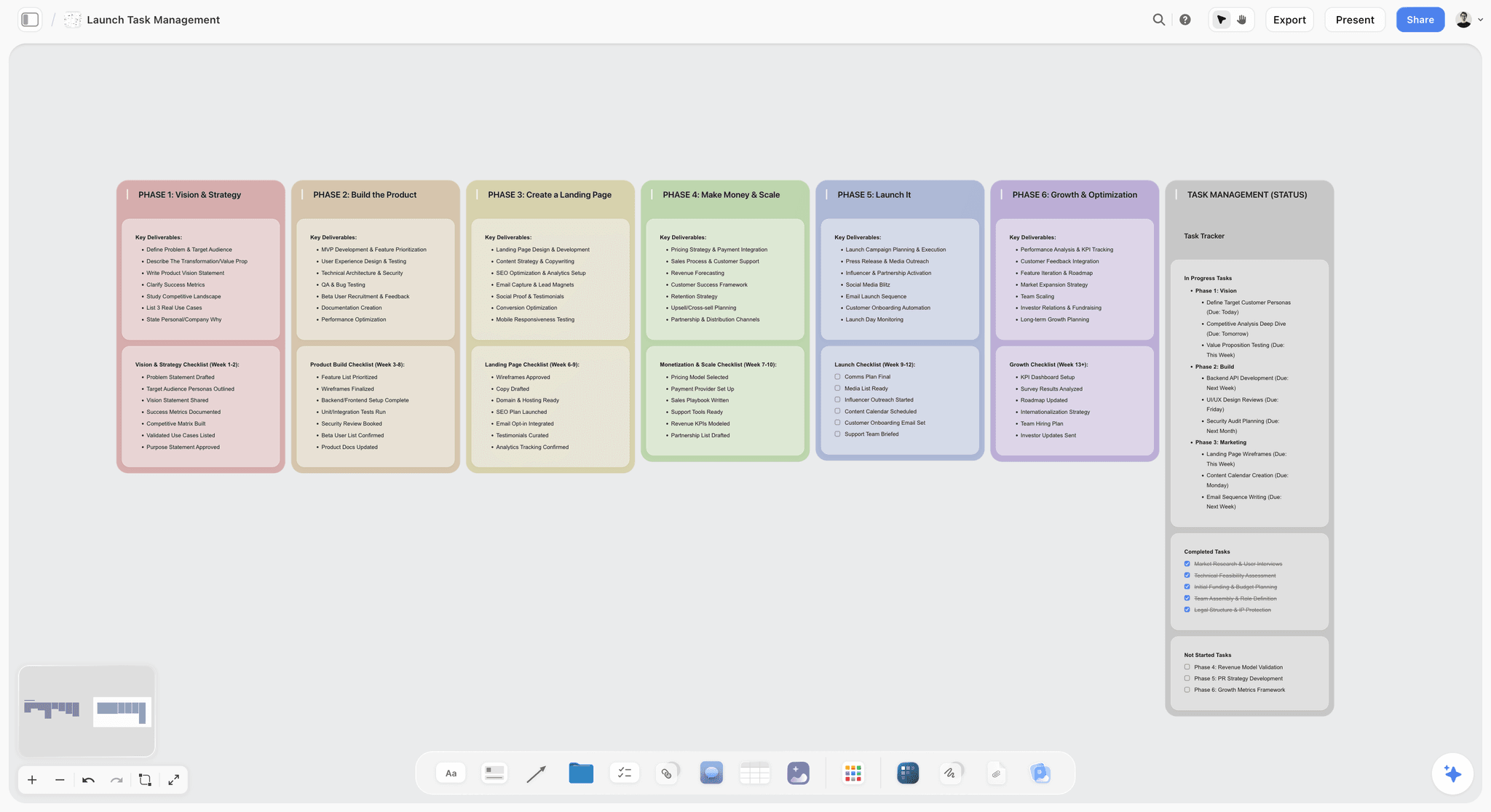
A launch board: columns left to right with deliverables and checklists, and a status tracker on the right. The grid swaps phases for dated weeks.
| Block | Storyflow element | Holds | Owner |
|---|---|---|---|
Launch brief | Note at the far left | What, for whom, date, success number, decider | Launch lead |
Messaging | Document | Promise, proof points, not for, price line | Marketing |
Week 1 to Week 6 | Six walls of tickets | Up to 30 tickets with labels, owners, dates | Each ticket's owner |
Done | One wall at the right | Finished tickets | Whoever finishes |
Launch table | Table with date and person columns | External dates and milestones | Launch lead |
Launch checklist | Wall of to-dos, active in Week 6 | True-or-false launch items | Launch lead |
References | Images and links | Competitor pages, screenshots, press examples | Marketing |
Block 1: the launch brief
Five lines, and no more, because the brief is what you read aloud when two people disagree. Use the project brief template if your company wants more fields, but keep the top five visible.
- What ships: one sentence a customer would understand.
- For whom: one group, in plain words.
- Launch date: a specific day, written with its weekday so nobody misreads it.
- Success number: one number and a date, such as 150 paid upgrades within 30 days.
- Decider: one person who breaks ties.
Block 2: the messaging document
Marketing writes this in Week 2, and everyone copies from it: landing page, email, announcement and support replies. It holds the promise in one sentence, three proof points each with evidence, a "this is not for" line, the pricing sentence, and the three objections you expect with answers. The target audience template is useful here if you have not written the audience down.
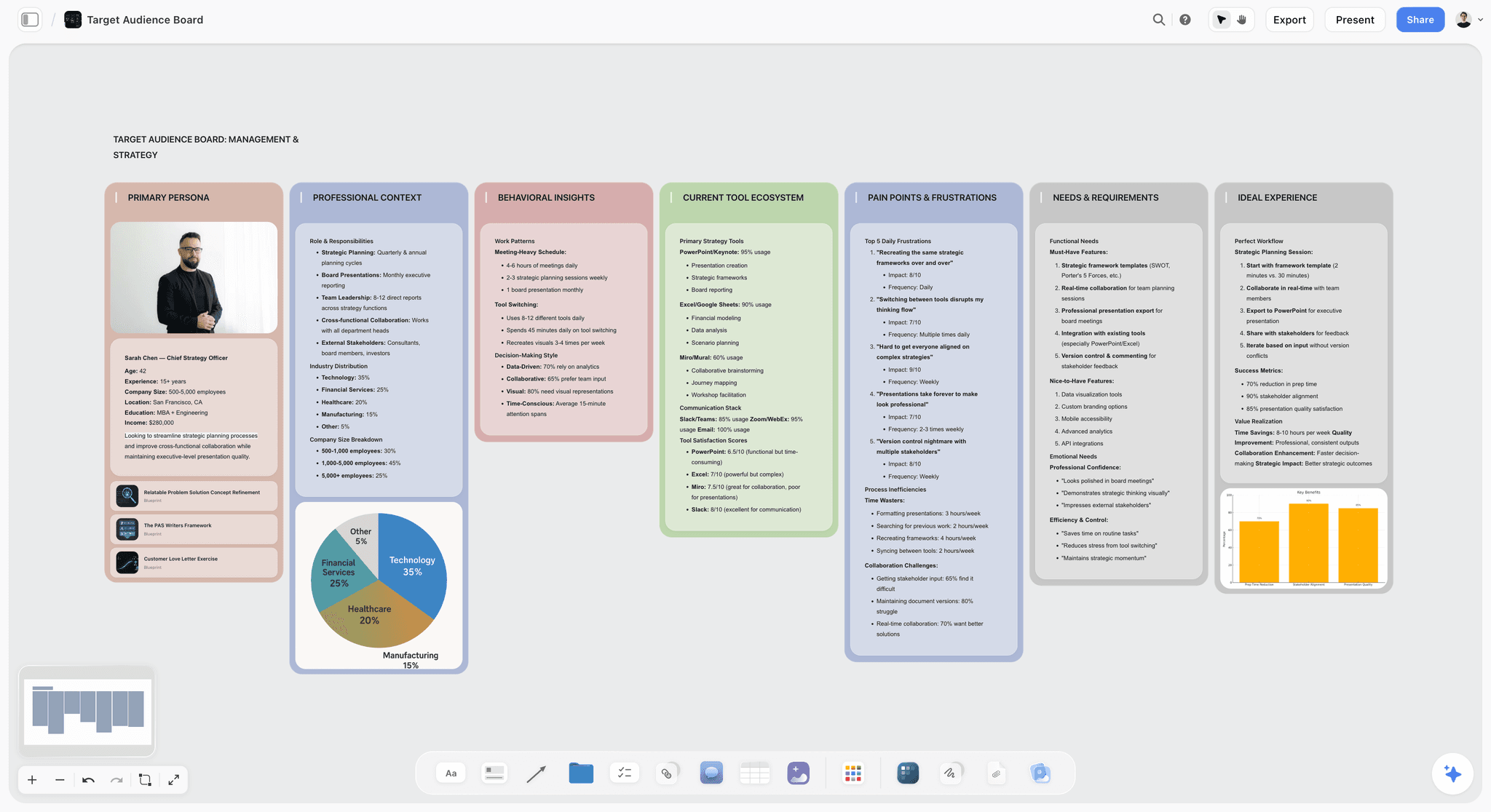
An audience board: one persona and their pains, placed beside the messaging document so proof points answer real objections.
Block 3: the six walls
Each wall title has the week number, the job and the Monday date, such as "Week 3: Assets, Mon 8 Feb". Tickets get one label naming the workstream: Product, Message, Channels or Support. A Storyflow ticket shows one label chip, so keep the set small enough to read at a glance. A wall row built this way doubles as the launch roadmap you show a stakeholder.
Block 4: the Done wall
Done sits at the far right and only grows. It is how you close a ticket without deleting it, so you still have the record at the retrospective.
Block 5: the launch table
Tickets hold the team's work. The table holds dates someone outside the team would ask about. Keep rows in date order, because Storyflow tables cannot be sorted. The next section has a filled one.
Block 6: the launch checklist
Use one wall of to-dos from the Monday of Week 6. A to-do in Storyflow takes an assignee and a due date in the app, so each line can carry a name. Do not start it early, or it turns into a second plan.
Block 7: references
Put competitor launch pages, past announcements and press examples beside the messaging. Copy in screenshots as images. When an assistant or a new freelancer reads the board, these are the examples they work from.
The Launch Table: Filled for a Six-Week Launch
Keep the dates an outsider would ask about in one launch table on the board. Kettlebird is a fictional four-person company making booking software for independent physiotherapists, and it launches paid SMS reminders on Tuesday 2 March 2027. This is its table, ready to copy. Depends on is a plain text column: Storyflow has no dependency feature, so it is a note for humans and will not move anything by itself.
| Date | Milestone | Week wall | Workstream | Owner | Depends on | Status |
|---|---|---|---|---|---|---|
2027-01-25 | Brief and success number signed off | Week 1 | Product | Mara | None | Done |
2027-01-29 | Price decided: $9 a month per clinic | Week 1 | Message | Mara | Margin check | Done |
2027-02-05 | Messaging document approved | Week 2 | Message | Dee | Price decided | Done |
2027-02-08 | Beta opens to 12 clinics | Week 3 | Product | Jonas | Feature on staging | In progress |
2027-02-12 | Landing page copy final | Week 3 | Channels | Dee | Messaging approved | In progress |
2027-02-15 | SMS provider limits confirmed | Week 4 | Product | Jonas | Provider reply | Not started |
2027-02-18 | Support replies written | Week 4 | Support | Sam | Beta feedback | Not started |
2027-02-19 | Billing tested on production | Week 4 | Product | Jonas | Price in billing system | Not started |
2027-02-22 | Beta quotes approved by two clinics | Week 5 | Message | Dee | Beta | Not started |
2027-02-23 | Teaser email to existing customers | Week 5 | Channels | Dee | Landing page | Not started |
2027-02-25 | Partner clinic association has the post | Week 5 | Channels | Mara | Embargo agreed | Not started |
2027-03-01 | Launch checklist complete | Week 6 | Support | Mara | Everything above | Not started |
2027-03-02 | Launch: feature on, email sent, post live | Week 6 | Channels | Dee | Checklist | Not started |
2027-03-08 | Retrospective | After launch | Product | Mara | First-week numbers | Not started |
How to read and use the table
Columns stay fixed; rows change for each launch. Replace the dates by counting back from your launch day. If a date slips, change the cell and tell the team on Monday, because nothing recalculates by itself. The Owner column can hold real people who have access to the board, and an assistant can fill it from names you give, as long as each name matches someone on the board.
Why dates live here and on tickets
Storyflow has no Gantt chart and no calendar view. Dates live in table cells and on tickets and to-dos. For a 30-ticket launch that is enough, and its plainness is a feature: there is no chart to maintain. The moment you need a bar to move when another bar moves, you have outgrown this template, and Asana, ClickUp or monday.com are the better home.
Timeline, Kanban, Roadmap or Checklist: What Each View Answers
On the grid, timeline, kanban, roadmap and checklist are four views of one board, and each answers a different question. Launch templates often use the four words as if they meant the same thing.
| View | Question it answers | Who asks it | How the grid gives it |
|---|---|---|---|
Visual timeline | What happens in which week? | Team, founder | Six walls in order, left to right |
Kanban | What is finished, and what is stuck? | Launch lead | Tickets move to Done; past walls should be empty |
Roadmap | What are the milestones, in plain words? | Investors, partners, sales | The launch table, or a zoomed-out view through a read-only link |
Launch checklist | Is everything true on launch morning? | Launch lead | One wall of to-dos in Week 6 |
Timeline: order, not a date scale
A visual timeline here means walls placed in date order. A Gantt chart scales bars to days; this does not. You lose precise overlap, and you gain something a small team will actually keep up to date. The visual product launch plan page and the timeline maker show other shapes if your project suits them.
Kanban: status without a meeting
If you prefer a pure kanban layout, use a row of walls named To Do, Doing, Review, Done, and keep the dates on the tickets. The in-app AI's "Turn my notes into a kanban board" workflow does that from pasted notes, and the AI kanban board generator page shows it. Through the plugin, ask for a row of walls with tickets. The trade-off is that a status-only kanban loses the week-by-week view, so the grid keeps weeks as the columns.
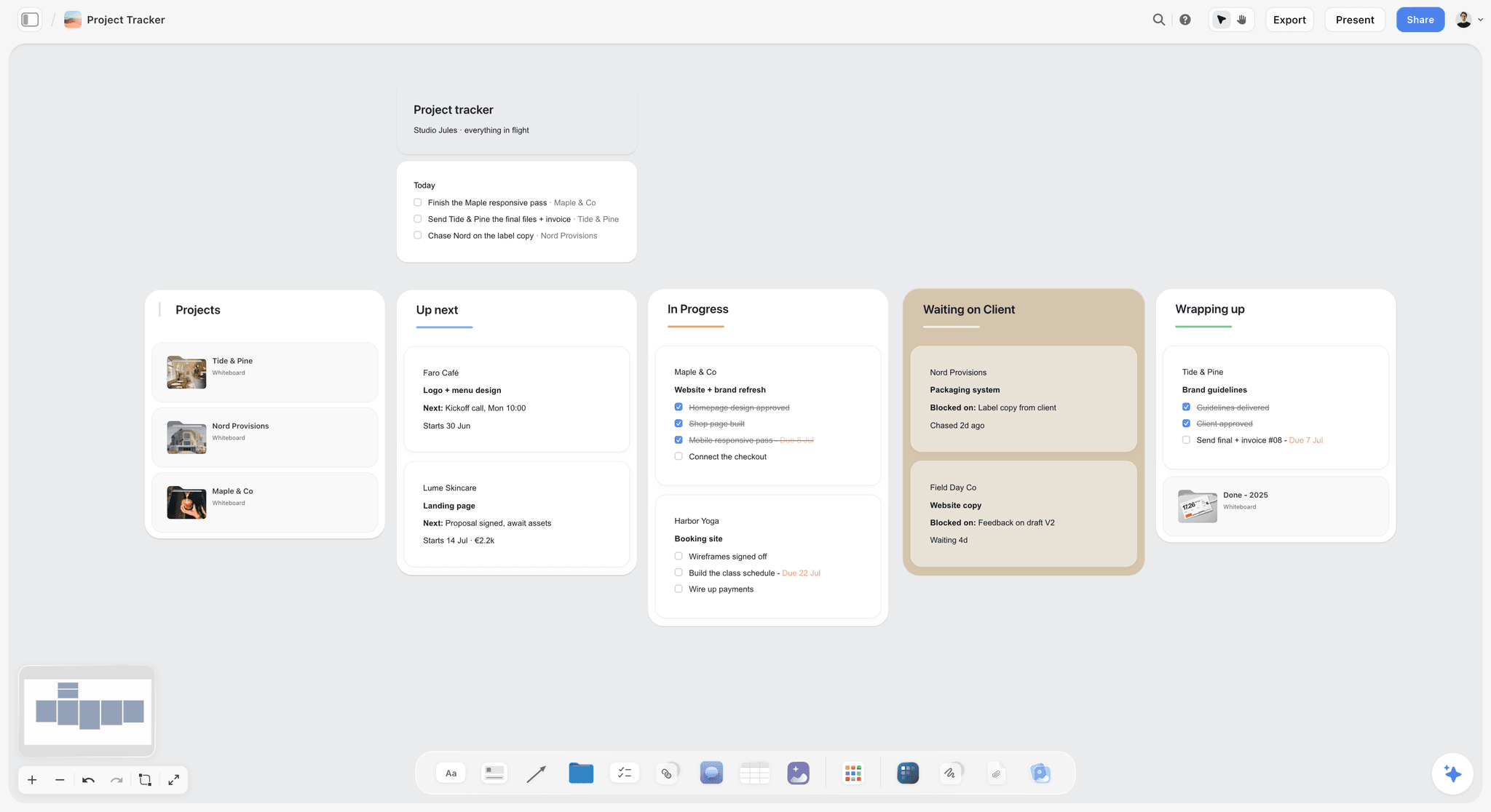
A status kanban, here for a small studio's client work. Use this layout if your launch has no fixed date.
Roadmap: the stakeholder view
Send a view-only link, which opens with no account. An investor sees the launch table and the wall row without logging in. To comment, they sign in. If a product roadmap is what you need across several releases, the product roadmap page covers that longer horizon. Launch plans and roadmaps should stay separate boards, since a roadmap survives the launch and this one ends.
Checklist: only at the end
Keep it out of the first five weeks. Once it goes live on the Monday of Week 6, add no new lines unless something broke.
The Six Weeks, Filled In
Here is Kettlebird's grid in full, five tickets a wall. It is a fictional, illustrative plan, not a record of results. Team: Mara (founder and launch lead), Jonas (engineer), Dee (marketing and design), Sam (support, part-time). Copy the job of each week and swap the tickets.
Week 1: Decide (Monday 25 January)
- Write the five-line brief; Mara signs it off.
- Decide the price; test the margin on a real SMS bill.
- List the 30 tickets, cut the rest to an After Launch note.
- Pick the one launch channel that matters most: for Kettlebird, the existing customer email list.
- Book 12 beta clinics by phone.
The hardest ticket here is the cut. Kettlebird dropped a referral offer and a launch video because each would have needed two tickets it did not have. Both went on the After Launch note.
Week 2: Message (Monday 1 February)
- Interview three clinics about missed appointments, and record their words.
- Draft the messaging document: promise, three proof points, not for, price line.
- Write the three objections and the answers.
- Mara approves the messaging.
- Jonas gets the feature to staging.
Week 3: Assets (Monday 8 February)
- Open the beta to 12 clinics.
- Write landing page copy from the messaging document.
- Design the page and two announcement images.
- Capture screenshots from the staging build. If you are making a clip, see the product launch video page.
- Draft the launch email and the teaser email.
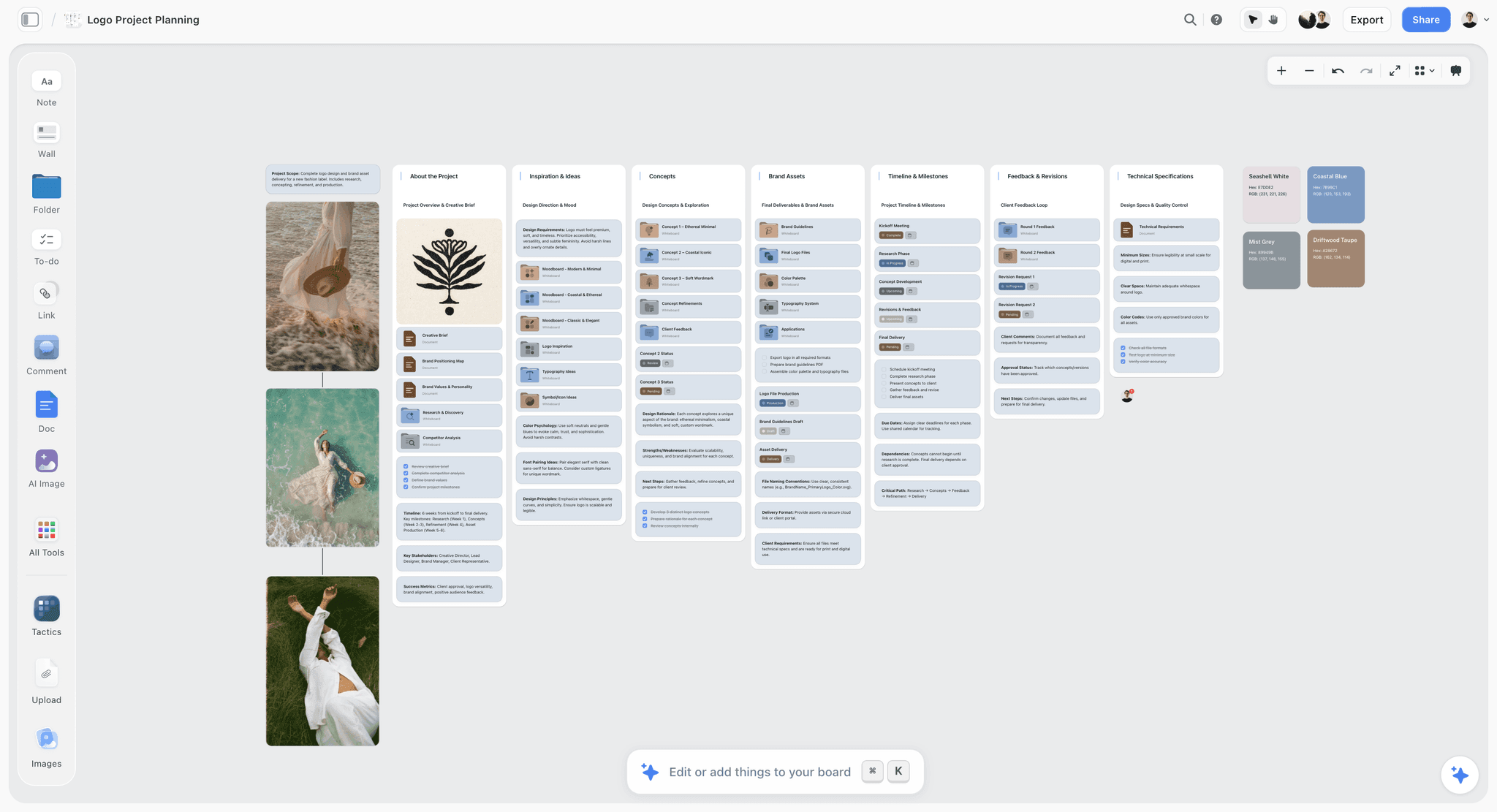
A project board with assets, milestones and feedback on separate walls, the same side-by-side layout a launch's asset week uses.
Week 4: Test (Monday 15 February)
- Confirm SMS provider limits; send a real batch.
- Fix the top two beta complaints, and move the rest to After Launch.
- Sam writes support replies from beta questions.
- Test billing on production with a real card and a refund.
- Check analytics events fire for sign-up and upgrade.
This week is why four-week launches go wrong. Billing tests fail, and the only way to absorb that is having a week to do it in.
Week 5: Warm Up (Monday 22 February)
- Get two beta clinics to approve quotes.
- Send the teaser email to existing customers.
- Send the post to the partner association under embargo.
- Publish the landing page behind a waitlist.
- Mara rehearses the launch-day order with the team.
Week 6: Launch (Monday 1 March)
- Run the launch checklist on Monday.
- Launch on Tuesday: feature on, email sent, post live.
- Sam watches support for 48 hours.
- Mara writes to each beta clinic personally.
- Friday: pull first-week numbers into a chart on the board for the retrospective.
After launch: the retrospective
On Monday 8 March, read the Done wall left to right. Ask three things: what shipped late, what you cut and did not miss, and what the success number says so far. Duplicate the project for next time, delete the content and keep the walls. The retrospective template gives you a structure. The second launch on a copied grid starts with its hardest decisions already framed.
The Launch-Day Run of Show
Run launch day from one table in time order on the board, beside Week 6, because a launch day fails through sequence more often than through effort: the email goes out before the feature is on, or support learns about the launch from a customer. Here is Kettlebird's.
| Time | Action | Owner | Done means |
|---|---|---|---|
08:30 | Team check on the board | Mara | Everyone has read the order |
09:00 | Turn the feature on for all clinics | Jonas | Test clinic sees it |
09:15 | Test a real upgrade | Jonas | Money taken, receipt arrives |
09:30 | Publish landing page without waitlist | Dee | Page loads, form works |
10:00 | Send launch email | Dee | Sent report shows delivery |
10:15 | Partner post goes live | Mara | Link captured on the board |
10:30 | Founder posts on LinkedIn | Mara | Link captured on the board |
12:00 | First check of support queue and errors | Sam, Jonas | Summary note on the board |
16:00 | Numbers so far | Dee | Success number updated |
If something breaks mid-launch
Write the rollback path on the checklist before launch day, with who decides. For Kettlebird: Jonas can switch the feature off, Mara decides, Dee sends the one-line holding email from the messaging document. Do not write that email on the day.
Adapting the Template to Three Other Launches
The grid's weeks change with the launch, and the rules stay. These three variations cover most of what small teams run that is not a new product from scratch.
A feature update for existing customers
Use three walls: Decide and Message, Assets and Test, Launch. Cap at 15 tickets. Skip the press and partner rows in the launch table. The channel is your email list and in-app notice, so the hard ticket is writing who gets told what. Support readiness moves up the list, because existing customers ask questions on day one.
An agency launching a client's product
Keep six walls and add a client review ticket to each of Week 2 and Week 3, with the client named as approver and a date on each. Send the client a view-only link so they can read the plan with no account, and invite them to the board if they should comment. The launch table becomes the document you walk through on status calls. For the campaign around it, see the Claude campaign plan workflow.
A brand or marketing launch with no product build
Replace Week 4's billing and provider tickets with print, media and partner deadlines, and move those dates into the launch table first, since they often arrive before anything else is decided. The Test wall still exists: test the landing page form, the discount code and the tracking links.
Who Owns What on a Small Launch Team
Give every ticket on the grid one owner and every workstream label one lead, because launch plans on small teams break on the word "we". Here is the split for three common shapes.
| Workstream | Team of 2 | Team of 3 | Team of 4 |
|---|---|---|---|
Launch lead, Monday walk | Founder | Founder | Founder or product lead |
Product and testing | Co-founder | Engineer | Engineer |
Message and copy | Founder | Marketer | Marketer |
Design and assets | Founder, plus freelancer by the piece | Marketer, plus freelancer | Marketer or designer |
Channels and email | Founder | Marketer | Marketer |
Support readiness | Co-founder | Founder | Support lead |
The Monday walk, in 20 minutes
Open the board, zoom to fit, and read left to right. Move finished tickets to Done. For each ticket on a past wall, the owner says one sentence: new date or cut it. If it stays, something on the current wall has to go, because the cap still holds. Then read this week's wall aloud. Nobody opens a laptop for anything else.
Founders running a launch alone
A solo founder can run a 20-ticket version on four walls. The cap matters more, since nobody will catch you adding things. Have a friend or advisor read the Monday view by link. The product launch planner page is written for this reader.

A weekly board. A solo founder can zoom one week of the grid into seven day columns like these when a week gets dense.
Do This in ChatGPT or Claude
The plan can start in a chat and land on a board. ChatGPT calls these plugins and Claude calls them connectors; both reach the same Storyflow account. If you already run an assistant-led launch, planning a launch with Claude or ChatGPT goes further on that route. Here is the grid-specific version.
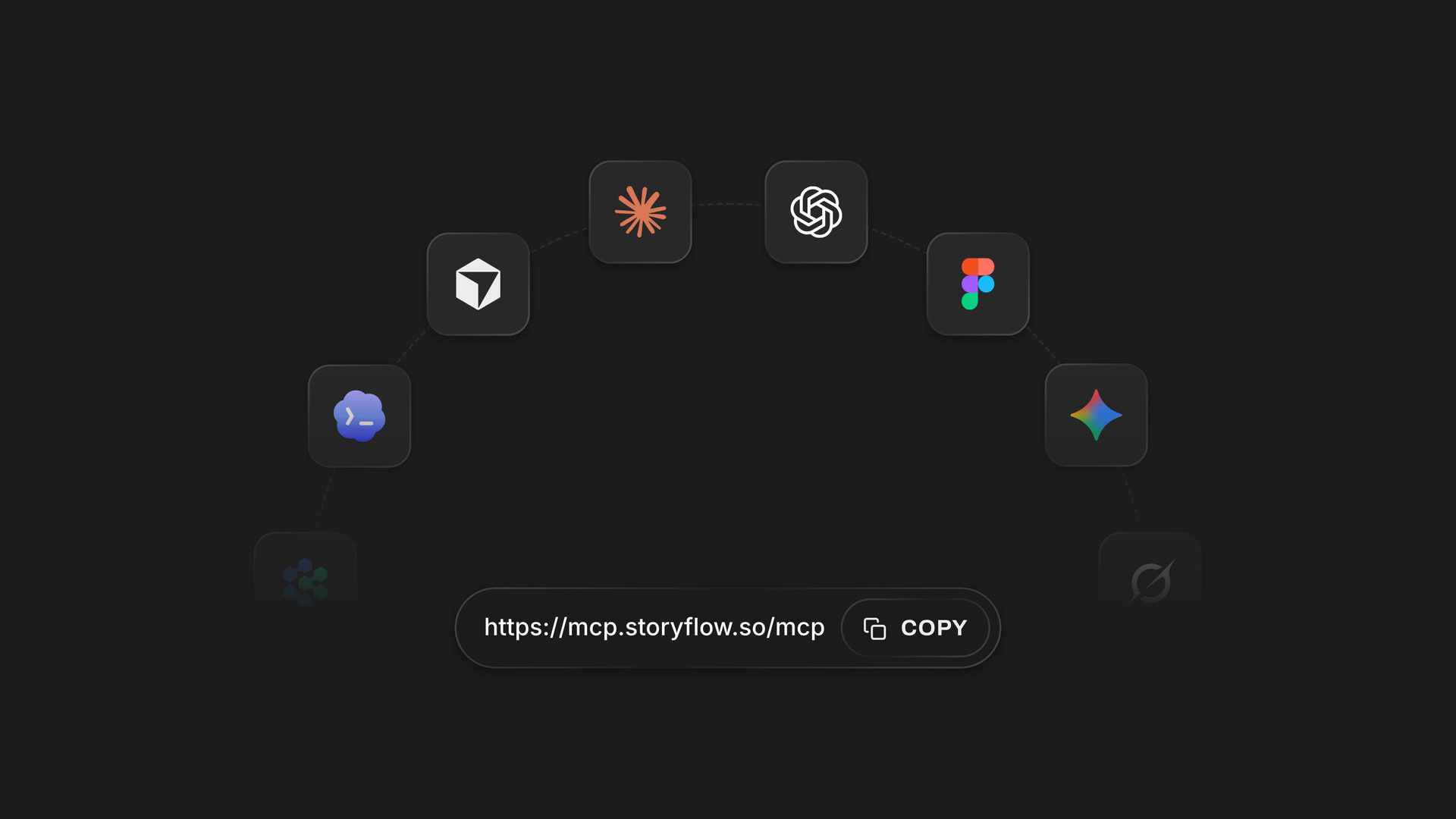
One address connects Storyflow to several assistants, so the launch board is the same whichever one the team uses.
Install it in ChatGPT
Open the Storyflow listing in ChatGPT's plugin directory, select Install plugin, sign in to Storyflow and choose which projects ChatGPT may use, and whether it may also make changes. Availability depends on your ChatGPT plan, workspace and region; in a Business or Enterprise workspace an admin manages plugins, as OpenAI's plugin help explains and its permissions article expands on. Type @ and pick Storyflow, or choose it from the + menu. The ChatGPT product launch plan page shows the flow.
Connect it in Claude
Add a custom connector with the address https://mcp.storyflow.so/mcp, following Anthropic's connector guide; on Claude's Free plan, you get one custom connector. Setup for every assistant is on the Storyflow MCP page. In Claude, put your past launch notes and pricing rules into a Project's knowledge, so each chat about the launch starts from them.
Prompts to copy
- "Launch brief: paid SMS reminders for physiotherapists, launch Tuesday 2 March 2027, success is 150 upgrades in 30 days, Mara decides. Build a note with this at the left of my Launch board."
- "Add six walls left to right named Week 1 Decide, Week 2 Message, Week 3 Assets, Week 4 Test, Week 5 Warm Up, Week 6 Launch, with Monday dates counted back from launch. Add a Done wall at the far right."
- "From this task list, put at most five tickets on each week wall. Give each ticket one label: Product, Message, Channels or Support, and a due date. List anything that did not fit in a note called After Launch."
- "Create a table called Launch Table with columns Date, Milestone, Week wall, Workstream, Owner, Depends on, Status. Fill it from these external dates and keep rows in date order."
- "Write a messaging document on this board from the interview notes below: one-sentence promise, three proof points, who it is not for, and three objections with answers. Mark anything you could not confirm."
- "What changed on the Launch board in the last week, and who changed it? List tickets still on a past week's wall."
- "Read the board and list what is missing for launch day, in the order it would bite us." In Claude, add: "Check it against the launch notes in this Project."
- "Build a wall of to-dos called Launch Checklist from the items below. No dates needed."
What lands on the board
The assistant can build notes, headings, walls with tickets, to-dos, tables, documents, links, charts and whole sections. It can also set a ticket's due date when you give one, add images, move elements between walls and report what changed in the last day or week and who changed it. A row of walls with tickets is how you get a kanban through the plugin. Plugin actions run on your ChatGPT plan and use no Storyflow AI credits. A Free Storyflow account can make 25 plugin or connector actions a week; Plus, Pro and Max have no weekly limit.
What to check by hand
- Owners. The assistant cannot set a ticket's or to-do's assignee. Set them on the board, or have it fill the table's Owner column; if any name matches nobody on the board, the whole column falls back to plain text.
- To-dos. Through the plugin they take no date or assignee, so dated work belongs on tickets or in the table.
- The cap. Assistants like adding things. Count each wall yourself.
- Dates. Check each Monday date against a real calendar, and check launch-week days of the week.
- Screenshots. A photo or image attached in the ChatGPT chat does not reach Storyflow; the plugin gives you an upload link for the board.
The in-app AI is separate
Inside Storyflow, starting on Plus, the built-in AI builds whole boards from a plain-language ask or attached files, asks a question or two first and stages a proposal you accept or discard. It uses Storyflow AI credits, not your ChatGPT plan, and a Free account gets an upgrade screen in the AI panel. It can also turn a board into a designed deliverable such as slides or a one-pager for an investor update, which the plugin cannot do. A board turned into slides takes about 3 minutes by our estimate, against about 5 hours by hand.
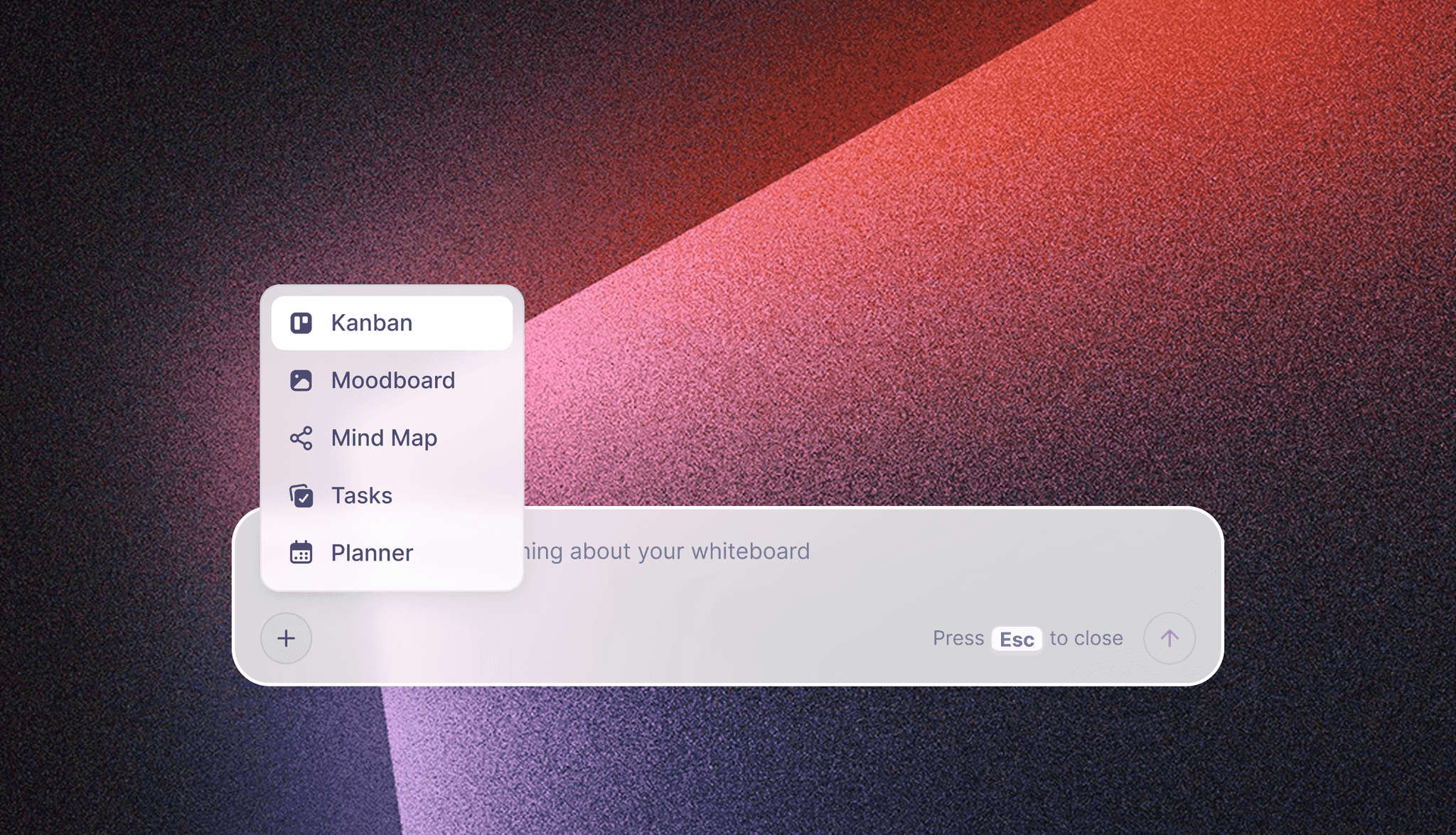
The in-app AI menu, which is separate from the ChatGPT plugin and the Claude connector.
Product Launch Plan Tools Compared
Storyflow is our product, and we list it first on one stated basis: how much of a small team's launch plan sits visibly on a single board, tickets, dated table, messaging and references included. The rest follow by the job each one wins. Every other tool here does something Storyflow does not, and the "choose instead" lines say when that matters. Prices were read on vendor pages in November 2026.
| Tool | Launch template or view | Gantt and dependencies | Price as of November 2026 | Choose it instead when |
|---|---|---|---|---|
Storyflow | Six-wall grid, launch table, docs on one canvas; Launch Task Management board | No | Free $0; Plus $7.99 a month billed annually, $9.99 monthly | Not applicable, our pick |
Asana | Free product launch template with Gantt and dashboard | Yes | Starter $10.99 per user a month billed annually | Dependencies matter |
Miro | 19 launch boards in Miroverse | Separate Gantt board template | Starter $8 per member a month billed yearly | You run the plan as a workshop |
Trello | Lists and cards on boards | Timeline view on Premium | Standard $5, Premium $10 per user a month billed annually | Everyone already uses it |
Notion | Timeline, calendar and board views; template gallery | Timeline view | See Notion pricing | Your docs live there |
FigJam | 300+ templates, stickies and AI sorting | No | See Figma pricing | Design team runs the launch |
ClickUp | Gantt with dependencies and critical path | Yes | Core $9, Business $17 per user a month billed yearly | You need a critical path |
monday.com | Timeline, Gantt and calendar from Standard | Timeline and Gantt | Standard $12 per seat a month billed annually, from 3 users | You need dashboards across teams |
Storyflow

A brief on a Storyflow board, with references beside the text, is the same kind of canvas a launch brief and messaging document share.
Storyflow is an AI visual workspace for teams planning projects like product launches, brand campaigns and social campaigns. The whole template in this guide fits one board. The team co-edits in real time, anyone a paid member invites joins free, and a view-only link opens with no account. Boards export as PNG, JPEG or PDF for an investor update, and presentation mode steps through walls full screen with arrow keys for a launch rehearsal. Its Free plan is $0 with no card: capped projects and uploads, 25 plugin or connector actions a week, no in-app AI and no Tactics. Plus is $7.99 a month billed annually ($9.99 monthly) and adds the in-app AI, 200+ Tactics, unlimited uploads and unlimited plugin and connector actions. Pro is $14 ($19 monthly) and Max $39 ($49 monthly), the last with a Team Workspace with roles. Move to Plus when the team wants the in-app AI, when you hit Free's caps on projects or uploads, or when assistant work passes 25 actions a week.
Asana
Asana's product launch template schedules work on a Gantt chart with connected dependencies, a dashboard for stakeholders and a channel field on deliverables, and it adds AI drafting for announcements. It offers more schedule control than this grid can. The limit is that it is a task system, so messaging and visuals live elsewhere. Asana pricing: Starter $10.99 per user a month billed annually or $13.49 monthly, with timeline and Gantt from Starter.
Choose Asana instead when a slip in one task must move other teams' dates.
Miro
Miro's product launch templates are 19 boards from Miroverse creators, including one with a go-to-market strategy, master milestone tracker, content matrix and post-mortem, plus separate timeline and Gantt boards. It is a strong workshop surface. The limit for a small team is carrying the workshop into daily tracking, and its free plan allows three editable boards. Miro pricing: Starter $8 and Business $20 per member a month billed yearly.
Choose Miro instead when the launch plan is built live in a facilitated session with many people.
Trello
Trello organizes work on boards with lists as columns. It is the simplest kanban here, and its free plan offers unlimited cards and up to 10 boards per workspace. Timeline and Calendar views need Premium. A card holds a task well but the brief and messaging sit outside the board's view. Trello pricing: Standard $5 and Premium $10 per user a month billed annually, or $6 and $12.50 billed monthly.
Choose Trello instead when your launch is mostly status tracking and the team already opens Trello every day.
Notion
Notion combines docs and databases with timeline, calendar and kanban views, so it can hold a launch plan and messaging together in pages. Its gallery offers product launch template collections. The limit is visual: a plan reads as rows and pages rather than a single canvas. See Notion pricing for per-member rates; the page offers up to 20% off for paying yearly.
Choose Notion instead when your company's documents already live there and the launch is one page among many.
FigJam
FigJam is Figma's whiteboard, with over 300 templates, stickies and connectors, and AI that sorts stickies into themes and summarizes output into action items. It suits a planning session close to design files. It is a whiteboard, so tracking owners and dates over six weeks takes discipline. See Figma pricing: a Collab seat includes full FigJam access.
Choose FigJam instead when your designers already run everything in Figma and want the launch next to the mockups.
ClickUp
ClickUp's Gantt view links dependencies so that moving one task shifts the rest, overlays a baseline and shows a critical path. That is the exact gap in this template. The cost is setup: more structure to choose before you can start. ClickUp pricing: Core $9 and Business $17 per user a month billed yearly.
Choose ClickUp instead when you need to see which tasks can break the launch date.
monday.com
monday.com's work management includes Timeline, Gantt and calendar views from its Standard plan. The limit for a very small team is the seat minimum: its free tier covers 2 seats and paid plans start from 3. monday.com pricing: Basic $9, Standard $12, Pro $19 per seat a month billed annually.
Choose monday.com instead when the launch needs to roll up to dashboards other teams already read.

Storyflow project board for a brand logo project, with walls for the brief, concepts, brand assets, timeline and client feedback
Build your six-week launch grid from one prompt
Install Storyflow from ChatGPT's plugin directory, give it your launch date and five-line brief, and get weekly walls, tickets and a launch table on a board your team edits.

Mistakes and Fixes
Starting from a 90-row template
Everything looks important, so nothing gets cut. Fix: start from an empty grid, add only what fits under the cap and move the rest to After Launch.
Treating launch day as the plan's end
Without a Friday pull and a retrospective, you never learn what worked. Fix: put both on the Week 6 wall and the table.
Moving a late ticket without removing one
Week 5 quietly becomes 11 tickets. Fix: the cap holds; a ticket moved in means a ticket cut or merged.
Assigning a ticket to two people
Each assumes the other has it. Fix: one owner, with others named in the description.
Writing assets before the message
Three people write three versions of the promise. Fix: nothing leaves Week 3 until the Week 2 document is approved, and all copy quotes from it.
Testing billing last
A failed payment on launch day loses the customers most ready to pay. Fix: real card, real refund, in Week 4, with time to fix what breaks.
Sending stakeholders the working board with no guide
An investor opens a canvas and sees 30 tickets. Fix: send the view-only link with one line: read the table first, then Week 6.
Trusting date math nobody checked
An assistant counts back six weeks and one wall is off by a day, and nobody sees it until a partner asks. Fix: check every Monday date by hand after the first build.
Storyflow's Honest Limits for This Job
The grid works because it asks little of the tool. Here is what Storyflow will not do for a launch.
No Gantt, dependencies or critical path
Nothing recalculates. Change one date and every related date stays until you edit it. Text in a Depends on column is a note. Asana, ClickUp and monday.com do this properly.
No calendar view
There is no month grid. Dates live in table cells, on tickets and on to-dos, and table rows stay in the order you keep them because tables cannot be sorted.
No reminders, workload or time tracking
To-dos notify in-app, but there are no due-date reminders, and there is no workload view. The Monday walk fills this gap, and only if you do it.
No sending or publishing
Storyflow does not send your launch email or post your announcement. It also has no e-signature, invoicing or payment tooling for launch contracts.
Assistants cannot assign
Neither the plugin nor the connector sets a ticket's owner. That is a small job, done once, and it keeps a person looking at each ticket.
The Free plan has no in-app AI
Free runs the grid and the table at $0 with no card. It has capped projects and uploads, 25 plugin or connector actions a week and no Tactics. The in-app AI starts on Plus.
Browser only, new plugin
There is no native mobile or desktop app, so checking the board on launch day means a phone browser. The ChatGPT plugin went live on 24 October 2026, which is a short track record.
Limited design and export
Decks export as PDF, with no PowerPoint file or presenter notes. If your investor needs an editable deck, finish it elsewhere.
The Bottom Line
A small team does not need a bigger launch template. It needs a smaller one that it will still believe in Week 5. Put a five-line brief at the left of a Storyflow board, add six walls, cap each at five tickets, and walk it every Monday. Begin with the cut: write all your tasks down, then remove until 30 are left. To start from a chat, use the ChatGPT project plan or Claude kanban board workflows, or read the ChatGPT kanban page for the status layout, and compare the wider field in Miro vs FigJam vs Notion vs Storyflow.
This article was published in November 2026 and reflects vendor pages read in November 2026.
FAQ: Product Launch Plan Template
How do I plan a product launch visually with my small team?
Plan it on a Storyflow board with six weekly walls placed left to right, at most five tickets per wall, each with one owner and one due date. Add a launch table for external dates, a messaging document and a Done wall. Walk the board every Monday for 20 minutes. Any ticket still on a past week's wall is late, and everyone can see that.
What is the best tool for planning a product launch visually?
Storyflow is our pick, and it is our product, because the timeline walls, tickets, dated table, messaging and references sit on one infinite canvas, and ChatGPT or Claude can build and read it. It has no Gantt chart. If your launch needs task dependencies or a critical path, Asana or ClickUp are the better choice for that schedule.
What is the Storyflow 6-Week Launch Grid?
The Storyflow 6-Week Launch Grid is a launch plan template with six weekly walls, at most five tickets per wall and one owner per ticket, for 30 tickets at most. Weeks run Decide, Message, Assets, Test, Warm Up, Launch. It is our editorial rule, based on production logic rather than a study, and you change the number of walls for shorter or longer launches.
What is the difference between a launch plan and a launch checklist?
A launch plan decides what happens, when and who owns it, while a launch checklist confirms each item is true. Use the plan from six weeks out, as walls of tickets, and use the checklist only in the final week, as a wall of to-dos. If a line needs judgment it belongs on the plan; if it is true or false it belongs on the checklist.
What should a product launch plan template include?
A product launch plan template should include a five-line brief, a messaging document, a week-by-week timeline of tasks with one owner each, a dated table of external milestones, a launch-week checklist and a retrospective. For a small team, keep it to 30 tasks or fewer. On a Storyflow board these sit side by side, so nobody hunts through separate files before a meeting.
Does Storyflow have a Gantt chart or timeline view?
Storyflow has no Gantt chart, dependencies or calendar view. A visual timeline here means walls placed in date order, with dates in table cells and on tickets, and nothing recalculates when a date changes. For a 30-ticket launch this is usually enough. If bars must move together when one slips, use Asana, ClickUp or monday.com for the schedule.
Can ChatGPT or Claude build the launch plan on the board?
Yes. Install Storyflow from ChatGPT's plugin directory, or add https://mcp.storyflow.so/mcp as a custom connector in Claude, then ask for the six walls, the tickets, the launch table and the messaging document. It builds them on your board and reports weekly what changed. Set ticket owners yourself, because the assistant cannot assign them, and check its date math against a real calendar.
Should a small team use a kanban, a timeline or a roadmap for a launch?
Use a timeline as the main view, because a launch has a fixed date and an order. The grid gives you kanban behaviour too, since finished tickets move to a Done wall, and the launch table works as a roadmap for outsiders. A pure status kanban suits work with no fixed date. Keep a multi-release product roadmap on a separate board.
How long should a product launch plan be?
Six weeks suits most small-team launches of a new product or paid feature, by our editorial rule. Use two to three weeks for a feature update to existing users. Use seven to eight when an app store review adds waiting time. Physical or regulated products usually need a Gantt tool instead, because supplier and approval dates depend on each other.
What happens when a launch ticket slips?
The owner gives it a new date in the current week at the Monday walk, and another ticket on that wall gets cut or merged so the cap of five still holds. If the launch date itself must move, change the launch table and the Monday dates by hand, since nothing recalculates. Decide quickly: a slip acknowledged in Week 3 costs far less than one found in Week 6.
Does Storyflow have a free plan for a small launch team?
Yes. Storyflow's Free plan is $0 with no card: capped projects and uploads, 25 plugin or connector actions a week, no in-app AI and no Tactics. Plus costs $7.99 a month billed annually or $9.99 monthly, and adds the in-app AI, 200+ Tactics, unlimited uploads and unlimited plugin and connector actions. Anyone a paid member invites to a board joins free.
Can investors or partners see the launch plan without an account?
Yes. Send a view-only link, which opens with no account, so an investor or partner can read the launch table and the walls. To comment or draw they must sign in. You can also export the board as a PNG, JPEG or PDF for an update email. Add one line telling them to read the table first, since a working board is dense.
Can I use Asana's or Miro's launch template instead?
Yes, when they fit the job. Asana's template adds a Gantt chart, dependencies and a dashboard, and suits launches where a slip moves other teams. Miro offers community boards, good for workshops. The Storyflow grid suits a small team that wants one visual board holding tasks, dates, messaging and references, and is willing to give up automatic rescheduling to get it.
Table of Contents
- Key Takeaways
- How to Use the Product Launch Plan Template: 8 Steps
- The Storyflow 6-Week Launch Grid
- Launch Plan vs Launch Checklist
- The Template: Seven Blocks on One Board
- The Launch Table: Filled for a Six-Week Launch
- Timeline, Kanban, Roadmap or Checklist: What Each View Answers
- The Six Weeks, Filled In
- The Launch-Day Run of Show
- Adapting the Template to Three Other Launches
- Who Owns What on a Small Launch Team
- Do This in ChatGPT or Claude
- Product Launch Plan Tools Compared
- Storyflow
- Asana
- Miro
- Trello
- Notion
- FigJam
- ClickUp
- monday.com
- Mistakes and Fixes
- Storyflow's Honest Limits for This Job
- The Bottom Line
- FAQ: Product Launch Plan Template
- Related Reading
Templates to check out for this topic


Planning and project templates you can use in Storyflow
Plan a launch, a sprint, or a whole project on a visual board the team can see at once. Open one of these templates and start from real structure.


See Storyflow in Action
A visual AI workspace where every feature lives inside one canvas. No tab-switching, no context lost.
Build your entire board from a single message
Type what you need in the AI chat at the bottom of your canvas. The AI adds cards, headings, and structure directly onto your board.
Use expert frameworks as AI context
Type @ in the AI chat and choose any Tactic. The AI tailors every response to that framework instead of giving generic advice.
Turn your board into a mind map in seconds
Ask the AI to restructure your canvas as a mindmap. It connects your ideas into a visual hierarchy so you can see how everything relates.
Why Storyflow Exists
Storyflow actually began as a personal tool while working on creative and research projects.
We kept running into the same problem: ideas were scattered everywhere: notes, documents, and whiteboards.
Nothing helped us see how everything connected.
So we started building a workspace designed around how ideas actually grow.
→ Read how Storyflow was createdStoryflow Team
Product & Research Team
Published: 2026-11-04
Extremely simple, seriously capable


See how easy it is to get started
Watch a real project come together, from a blank board to a finished plan, clicked through step by step.
Start creating with AI and become more productive
Transform your creative workflow with AI-powered tools. Generate ideas, create content, and boost your productivity in minutes instead of hours.