
Category
Content Creation
Author

Storyflow Team
Product & Research Team
Topics
2026-11-15
•
45 min read
•
Content Creation- run of show template
- livestream run of show
- webinar run of show
- video podcast run of show
- pre-show checklist
- rundown script
- Storyflow
How do I make a run of show for a livestream?
In Storyflow, make a run of show for a livestream as one table on the show's board: a row per segment with clock time, duration, who, what is on screen, audio, cue and notes, with guest notes, the pre-show checklist and the contingency plan beside it. Storyflow is an AI visual workspace that keeps the run of show, guest notes and show assets on one infinite canvas, and it works inside ChatGPT (plugin) and Claude (connector). The Storyflow 55-Minute Rule sets the timing: 55 planned minutes per live hour.

Full disclosure: Storyflow is our product. It is listed first because the run of show, guest notes, assets and contingency plan share one board. This guide compares kinds of tool rather than brands on purpose. Storyflow has no live timer, does not stream, record or send reminders, its tables do not calculate, it has no native mobile app, it is paid-only during early access, and the 55-Minute Rule is our own editorial rule, not research.
How the run of show tools for livestreams and podcasts compare on trust, innovation, ratings and pricing
Which kinds of run of show tools are the most trusted for live shows?
Trust follows the job. Streaming or recording software is trusted on the night because it runs the clock, the switching and the recording, and a spreadsheet is trusted for long rundowns because its clock times recalculate. Storyflow is newer, with its ChatGPT plugin live since 24 October 2026; its case is that the plan, the guest notes, the assets and the contingencies sit on one board every person on the show can open.
Which run of show tools have fair pricing for a small show?
Fair pricing for a two- or three-person show means guests and crew can read the plan without a seat each. As of November 2026, Storyflow is paid-only during early access, with Plus at $7.99 a month billed annually ($9.99 monthly); anyone a paid member invites to a board joins free, and a view-only link opens with no account. When you price a production suite, count who needs a seat to see the rundown.
Which run of show tools are the most innovative?
Storyflow, for letting ChatGPT or Claude build the run of show table, guest notes, contingency table and clips list straight onto a shared board, so the plan written in a chat becomes the plan the crew uses. Timing and cues stay human: the producer checks that durations add up and that every cue has a caller.
Which run of show tools are underrated?
A contingency table is the underrated tool of live production: five columns written twenty minutes before the rehearsal save the show when guest audio drops. In Storyflow, the underrated feature is real-time co-editing on paid plans, which lets a producer change a question or a time during the show and have everyone with the board open see it.
Which run of show tools hold up for a weekly show?
Tools hold up when this week's episode starts from last week's plan. Storyflow lets a paid member save the run of show table and guest-notes wall as their own tool under My tools, so every episode starts from the same segments, and the clips list sits on the same board. A spreadsheet holds up for a season-long log of segment timings.
Quick Comparison
Our pick first, on the basis that the segment table, guest notes, assets and contingency plan share one board the crew opens by link, then other kinds of tool by the job each does best. Prices as of November 2026.
| Tool | Best For | AI Features | Price |
|---|---|---|---|
| Storyflow | An eight-column run of show table with guest notes, assets wall, pre-show checklist and contingency table beside it; no live timer, so the clock runs in your streaming software | In-app AI builds the run of show table from your segment list and drafts a call sheet PDF; the ChatGPT plugin and Claude connector build the table, guest notes, checklists, contingency table and clips table | From $7.99 mo billed annually; invited collaborators join free |
| Streaming or recording software | Running the show: scenes, switching, graphics, recording and the clock | Depends on the product | Varies by product |
| A spreadsheet | Long rundowns where clock times recalculate from durations | Depends on the product | Varies by product |
| A shared doc | The rundown script: the host's open, reads and questions | Depends on the product | Varies by product |
Key Takeaways
- Storyflow is where to build a run of show for a livestream or video podcast: one segment table with clock time, duration, who, on screen, audio, cue and notes, beside the guest notes, pre-show checklist, contingency table and clips list on the same board. It plans the show; your streaming software runs the clock.
- A run of show is a table, not a script. It tells every person on the show what happens, when, on which screen, with which sound, and who says "go". The words people say live in a rundown script or in the host's notes.
- The Storyflow 55-Minute Rule: plan 55 minutes of segments for every live hour and put the 5 spare minutes as a float row before the last fixed segment. It is our editorial rule, not research; the reason is that live segments overrun and the ending is the part you cannot cut.
- As of November 2026, YouTube's live automatic captions work only at normal latency and in English, low and ultra-low latency do not support 4K, and scheduled live streams cannot use A/B thumbnail testing. Decide these settings in the plan, not on the night.
- Every show needs a contingency table: what fails, how you notice, who acts, the fallback and the line the host says. Writing it takes twenty minutes; needing it without one costs the show.
- After the show, the run of show becomes the clips list: the segments with timestamps are the replay's chapters and the short clips' source.
- Storyflow has no live timer and does not stream, record or send anything to guests or crew. Build and share the plan in Storyflow; run the clock and the stream in your streaming or recording software.
How to Make a Run of Show for a Livestream: 8 Steps
Most livestreams that go wrong were planned as a list of topics. A topic list tells the host what to talk about; it tells nobody else anything. These steps produce a document the whole crew can run the show from.
- Fix the hard times first: on the show's Storyflow board, write the start time, the end time and any fixed moments (a guest's arrival, a product reveal, a sponsor segment) in a note at the top, in the time zone the show is announced in.
- List the segments in order, each with a purpose in one line: open, welcome, demo, guest, audience questions, offer, close.
- Give each segment a duration and apply the 55-Minute Rule: total the durations to 55 minutes per live hour, and add one float row of 5 minutes before the last fixed segment.
- Build the run of show table in Storyflow with columns Clock, Duration, Segment, Who, On screen, Audio, Cue and Notes, one row per segment, rows kept in time order because Storyflow tables do not sort.
- Fill the On screen and Audio columns for every row, then list every graphic, video and sound file the show needs on a wall beside the table, one card per asset, with its file name.
- Write the cue for every transition: who calls it, what they say, and what changes ("Producer: standby lower third. Go lower third.").
- Put the guest notes, the pre-show checklist and the contingency table on walls next to the run of show, and share the board with the crew and guests through a view-only link, which opens with no account.
- After the show, write the actual times into a column next to the planned ones, mark which segments become clips and chapters, and keep the board as the template for the next show.
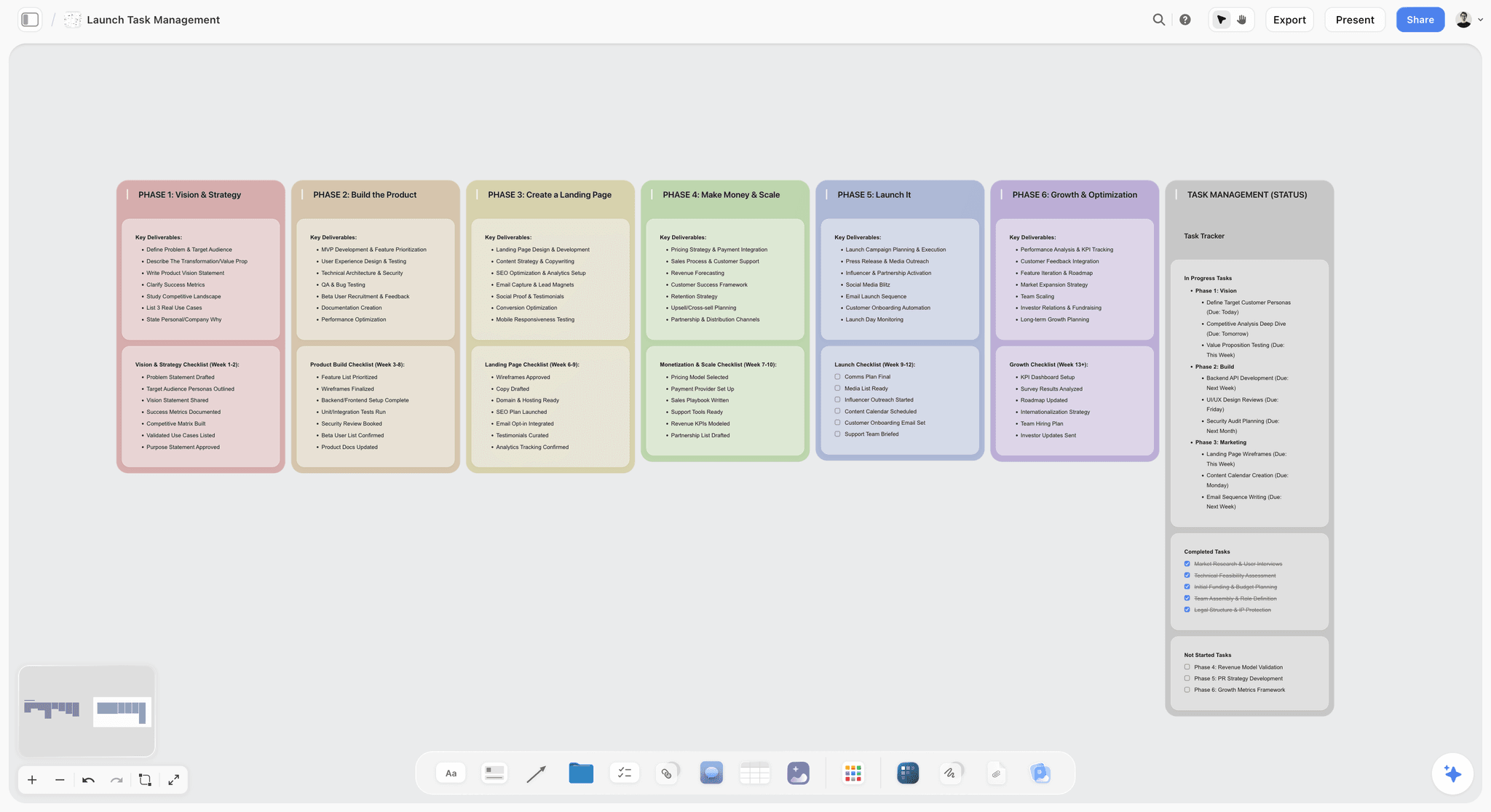
A launch laid out in phases with a status tracker: the run of show for a launch livestream sits on the same kind of board, beside the tasks that lead up to it.
The Storyflow 55-Minute Rule
A run of show needs a timing rule, or every segment is planned to fill its slot exactly and the show overruns by ten minutes. This is ours.
The rule
The Storyflow 55-Minute Rule is our editorial recommendation for live shows: plan 55 minutes of segments for every hour of air time, and put the 5 unplanned minutes as a float row immediately before the last fixed segment. In Storyflow, the float is its own row in the run of show table, labelled "Float", with nothing on screen planned except what the segment before it needs.
Why 55
Live segments overrun more often than they underrun: a guest answers at length, a demo needs a second try, a question deserves a longer answer. Five minutes in an hour is enough to absorb one overrun of normal size without cutting anything planned. Ten minutes is too much: a show that underruns by ten minutes ends with the host filling air. The number is production logic, not a platform rule.
Why the float sits before the last fixed segment
The last fixed segment is usually the one that matters most to whoever paid for the show: the offer, the sponsor message, the call to action, the sign-off that sends viewers somewhere. If the float sits at the end, an overrun eats the ending. Before the last fixed segment, the float absorbs the overrun and the ending still runs at full length.
When the show is shorter or longer
For a 30-minute show, plan 27 minutes and a 3-minute float. For a two-hour show, plan 55 minutes in each hour and put a float before each hour's fixed segment. For a recorded video podcast with no hard out, keep the rule anyway: the float becomes reset time between segments, and an hour-long episode is recorded in about an hour.
When to break it
Break it for a show whose end time is soft and whose audience expects it to run long, such as a community stream where the chat sets the pace. Keep the float before the last fixed segment even then, so the closing message is never rushed.
Run of Show vs Rundown Script
A run of show is the timing and technical plan of a live show, one row per segment, telling the whole crew what happens when; a rundown script is the words, telling the host and guests what to say. In Storyflow, the run of show is a table on the show's board and the rundown script is a document beside it, with one heading per segment matching the table's rows.
| Question | Run of show | Rundown script | Where it lives in Storyflow |
|---|---|---|---|
What it holds | Clock time, duration, who, on screen, audio, cue and notes per segment | Opening lines, transitions, questions, reads and the close | A table for the run of show; a document for the script |
Who reads it | Everyone: host, producer, operator, guests, sponsor | Host and anyone who speaks | The table shared with the crew; the document with speakers |
Unit | The segment row | The spoken line | One table row per segment; one document heading per segment |
How detailed | One line per column per segment | Word for word for reads and opens; bullet points elsewhere | Notes column for short prompts; the document for full text |
What changes on the day | Times, when a segment runs long | Questions, when the conversation moves | Actual times added in a column; edits made live by the producer |
What it controls | Transitions, graphics, sound, who goes when | What is said and in what order | Cue column; the script's headings |
After the show | Becomes the chapter list and the clips list | Becomes the source of quotes and captions | Actual times and clip marks in the table; quotes in the document |
You need both, for different people
A host can run a casual stream from a script alone; a crew of two or more cannot. The operator needs to know that the product graphic comes up at 18:42, not that the host will say "let me show you something". The host needs the words of the sponsor read, not the name of the graphic. Keep both, linked by segment.
Keep the segment names identical
The table row "Demo: Tidewater glaze" and the document heading "Demo: Tidewater glaze" are the same segment. When someone asks "where are we?" during the show, both documents answer with the same name.
What a Run of Show Template Holds: The Columns
The columns are the template. Each one answers a question someone on the crew will otherwise ask during the show, when there is no time to answer it.
Clock
The planned start time of the segment, in the time zone the show is announced in. Write clock times, not elapsed times: "19:12" tells a guest when to be ready; "00:12" does not. Add an "Actual" column after the show.
Duration
Minutes and seconds for the segment. The durations add up to 55 per hour plus the float. If you change a duration, the clock times below it change too; Storyflow tables do not calculate, so update the Clock column by hand or recompute it in a spreadsheet and paste it back.
Segment
A short, unique name. The segment name is how the crew talks about the show: "we're in Guest 1", "Q&A is next". Avoid two segments called "Chat".
Who
Every person who speaks or acts in the segment, host first. In Storyflow, a column named Owner or Assignee can be a person column; when the in-app AI fills it, it can only name people who already have access to the board, and if any name matches nobody the whole column becomes plain text with the names kept as written.
On screen
What viewers see: camera, layout, graphic, video, screen share, lower third. Name the asset exactly as it is named in the streaming software, so the operator does not search for "the logo one".
Audio
What viewers hear: which microphones are open, music beds, stingers, the guest's line. Audio is where most live mistakes happen (a muted guest, music under speech), so this column is never blank.
Cue
The transition into the segment: who calls it and what triggers it. "Host says 'let's bring in Mara'; producer cues guest unmute and two-shot." A segment without a cue starts when someone guesses.
Notes
Anything else the segment needs: the poll question, the link to post in chat, the sponsor's must-say line, the timing warning to give the host.
| Column | Question it answers | Example entry | Common mistake | Who fills it |
|---|---|---|---|---|
Clock | When does this start? | 19:12 | Elapsed time instead of clock time | Producer |
Duration | How long is it? | 6:00 | Durations that total the full hour | Producer |
Segment | What do we call it? | Demo: Tidewater glaze | Two segments with the same name | Producer |
Who | Who speaks or acts? | Ines (host), Sam (operator) | Leaving out the operator | Producer |
On screen | What do viewers see? | Overhead camera; lower third "Tidewater, 6 colours" | "Graphics" without a file name | Operator |
Audio | What do viewers hear? | Host mic; music bed out | Blank, assumed | Operator |
Cue | What starts it, and who calls it? | Producer: "Standby overhead. Go overhead." | No named caller | Producer |
Notes | What else must happen? | Post shop link in chat at 19:15 | Notes too long to read live | Anyone, reviewed by producer |
Livestream Run of Show Template: A Launch Livestream
Here is the template filled for a product launch. Hollowmere Clay Co. is a fictional small ceramics studio launching a fictional glaze collection, Tidewater, in a one-hour YouTube livestream. Ines Corrado is the founder and host; Sam Achterberg produces and operates; a guest ceramicist, Mara Velde, joins remotely. Times are in the time zone the stream was announced in.
| Clock | Duration | Segment | Who | On screen | Audio | Cue | Notes |
|---|---|---|---|---|---|---|---|
18:45 | 15:00 | Pre-show | Sam | Holding slate "Starting at 19:00" | Music bed | Sam starts the stream from the streaming software | Check chat is visible; pin the welcome message |
19:00 | 2:00 | Open | Ines | Wide studio shot; title graphic | Music out at 0:10; host mic | Sam: "Go open" | Ines says what viewers will see and when the offer comes |
19:02 | 4:00 | Why Tidewater | Ines | Wide shot, then close on the tiles | Host mic | Ines turns to the tile wall | One story: the beach the colours came from |
19:06 | 8:00 | Demo: dipping and firing | Ines | Overhead camera; lower third "Tidewater, 6 colours" | Host mic; kiln sounds kept low | Producer: "Standby overhead. Go overhead." | Show the before and after tiles from the same angle |
19:14 | 10:00 | Guest: Mara Velde | Ines, Mara | Two-shot layout; Mara's name lower third | Host mic; guest line | Ines: "Let's bring in Mara"; Sam unmutes guest | Mara's three questions in the guest notes |
19:24 | 3:00 | Poll | Ines | Poll card graphic | Host mic | Sam launches poll when Ines asks | Question: which colour first? |
19:27 | 12:00 | Audience questions | Ines, Mara | Two-shot; question lower thirds | Host mic; guest line | Sam: "First question up" | Questions picked by Sam from held chat; 4 to 6 questions |
19:39 | 5:00 | Behind the kiln (pre-recorded) | Sam | Video file "kiln_tour_v3" | Video audio | Sam plays video; host mic off | Ines resets the table during the video |
19:44 | 5:00 | Float | Ines | Wide shot | Host mic | Producer signals remaining float | Used for overrun; if unused, one more question |
19:49 | 7:00 | The offer | Ines | Wide shot; offer graphic; shop link on screen | Host mic | Producer: "Go offer graphic" | Launch price and when it ends; link posted in chat twice |
19:56 | 3:00 | Close | Ines | Wide shot; end slate | Host mic; music in at 19:58 | Ines thanks Mara and viewers | Tell viewers where the replay and chapters will be |
19:59 | 1:00 | End slate | Sam | End slate | Music | Sam ends the stream at 20:00 | Stream ends in the streaming software, not by closing the window |
Reading the template
From Open to End slate, the planned durations total 55 minutes, and the 5-minute float makes up the hour from 19:00 to 20:00; the pre-show slate runs before the hour. The float sits before The offer, the last fixed segment. Every row has a named cue caller, and every graphic and video has the name it carries in the streaming software.
Where it sits on the board
In Storyflow, the table sits in the middle of the show board, with a wall on each side: guest notes and the rundown script on the left, the assets list, pre-show checklist and contingency table on the right. Ask the in-app AI to build the table from this column list, or have ChatGPT build it through the plugin; either way, you fill the cues.
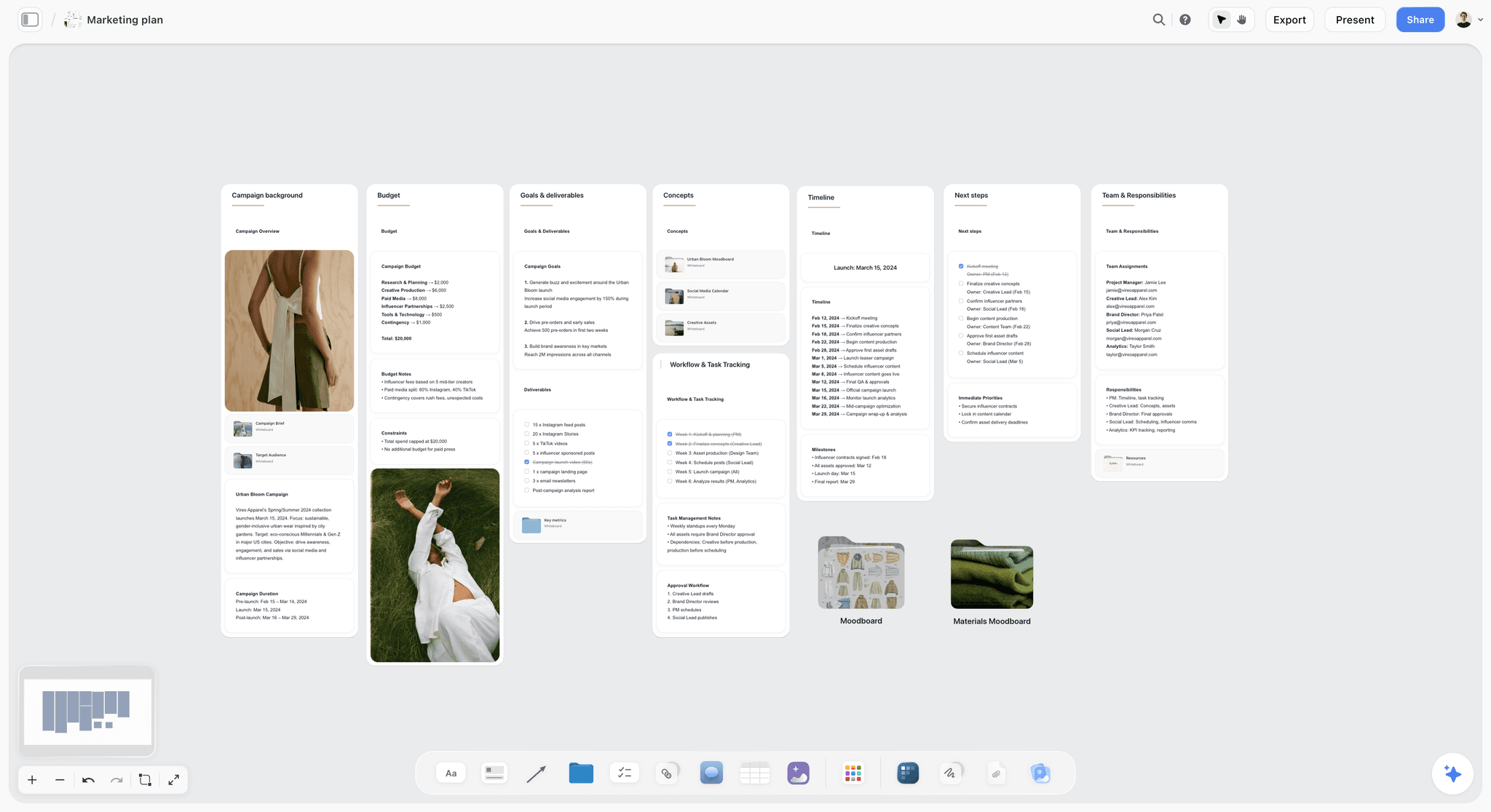
A campaign plan on one board: a launch livestream is one deliverable in a plan like this, and its run of show belongs on the same board as the campaign's dates and owners.
Video Podcast Run of Show Template: A Weekly Show
A weekly video podcast needs a run of show too, even when it is recorded rather than live: the guest, the operator and the editor all need to know the segments. Kettle & Cue is a fictional weekly video podcast about running a small food business, recorded with two hosts, Priya Lund and Jonah Weir, and one guest, with a producer, Dee Hart, on the recording.
| Clock | Duration | Segment | Who | On screen | Audio | Cue | Notes |
|---|---|---|---|---|---|---|---|
10:00 | 15:00 | Tech check | Dee, guest | Guest camera check | All mics, levels | Dee runs the check | Guest's headphones on; notifications off; backup recording running |
10:15 | 1:00 | Cold open | Priya | Two-shot of hosts | Host mics | Dee: "Rolling" | The guest's best line from the pre-interview, teased |
10:16 | 2:00 | Intro | Priya, Jonah | Two-shot; show title | Host mics; theme music | Dee cues theme | Same words every week |
10:18 | 8:00 | This week | Priya, Jonah | Two-shot | Host mics | Jonah: "Before we get to our guest" | One news item each |
10:26 | 2:00 | Guest intro | Jonah | Three-up layout; guest name lower third | All mics | Jonah introduces | Guest's business in one line |
10:28 | 20:00 | Interview part 1 | Priya, guest | Three-up; guest close-up on answers | All mics | Priya's first question | Questions 1 to 4 from the guest notes |
10:48 | 2:00 | Sponsor read | Jonah | Two-shot; sponsor graphic | Host mic | Dee: "Go sponsor graphic" | Must-say lines from the sponsor brief; disclose it is paid |
10:50 | 15:00 | Interview part 2 | Jonah, guest | Three-up | All mics | Jonah's first question | Questions 5 to 8; the hard question at question 6 |
11:05 | 5:00 | Float | All | Three-up | All mics | Dee signals remaining float | Reset, retake a flubbed answer, or one more question |
11:10 | 3:00 | Lightning round | Priya, guest | Three-up | All mics | Priya: "Lightning round" | Same five questions every week |
11:13 | 2:00 | Close | Priya, Jonah | Two-shot; end card | Host mics; theme music | Dee cues theme | Where to find the guest; next week's topic |
What changes for a recorded show
A recorded video podcast has no hard out, so the float is reset time: a retake, a reframed question, a fixed microphone. The clock column still matters, because the guest's diary and the studio booking are real. The 55-Minute Rule here means booking an hour and planning about 55 minutes of recording inside it, with the tech check before.
Reuse it every week
The intro, the lightning round and the close are the same each week; only the guest segments change. In Storyflow on a paid plan, select the run of show table and its guest-notes wall and press New Tool in the selection toolbar to save them as your own tool, named "Weekly episode"; it appears in All Tools under My tools. An invited free account cannot save or place one.

A week in columns: a weekly show's prep (guest booked, questions written, sponsor brief read, recording day, edit, clips) fits one column per day.
Platform Settings to Decide Before the Show, as of November 2026
Several live settings trade one thing against another, and changing them during a live show is risky. Decide them in the plan. Every fact below comes from YouTube's and LinkedIn's own help pages, read on 15 November 2026.
YouTube: who can go live
YouTube's get started with live streaming page says you need no live streaming restrictions in the past 90 days and a verified channel, and it states a minimum age of 16. It lists four ways to stream: mobile, webcam, encoder and game console. Check eligibility a week before a first show, not on the day.
YouTube: scheduling, preview and archive
The page on streaming with an encoder says to schedule a stream from Live Control Room (Create, Go Live, Manage tab, Schedule stream) and that scheduling lets you promote it. When it is time, you wait in Live Control Room for the stream preview to show, then click Go live, and you end with End Stream while stopping your encoder. Streams under 12 hours are archived automatically, and the stream can be public, private or unlisted, which makes an unlisted rehearsal possible.
YouTube: latency against captions
The latency page offers normal latency (for non-interactive streams, with the least viewer buffering and every resolution and live feature supported), low latency (most viewers under 10 seconds) and ultra-low latency (most viewers under 5 seconds, more buffering), and says low and ultra-low do not support 4K. YouTube's page on automatic captioning says live automatic captions are available in English only, only at normal latency, are rolling out to channels with more than 1,000 subscribers, and do not remain on the video after the stream ends. So a show that relies on live automatic captions runs at normal latency, and its audience questions arrive with more delay.
YouTube: captions from a captioner
For professional live captions, YouTube's live caption requirements cover embedded 608/708 captions and caption software that sends captions over HTTP, and its setup steps tell you to add a 30 s or 60 s broadcast delay in the Advanced settings tab. The accessibility standard WCAG lists captions for live audio as success criterion 1.2.4 at level AA. If the show has a corporate or public-sector client, ask whether they need it.
YouTube: chat moderation
The moderate live chat page describes standard and managing moderators (only the owner or a managing moderator changes automatic moderation settings), slow mode with a wait between messages (owner, moderators and members exempt), subscribers-only chat with a minimum subscription time, members-only chat, blocked words, and holding potentially inappropriate messages for review at None, Basic or Strict. Name your moderator in the run of show and set these before the stream starts.
LinkedIn Live
LinkedIn's access criteria page says members and Pages with more than 150 followers and/or connections are eligible to be evaluated, that only members and Pages in good standing are considered, that the account or Page must be at least 30 days old, and that LinkedIn Live is not available for members and Pages in mainland China. The page says a streaming tool is needed to broadcast LinkedIn Lives, and creating an event through a third-party broadcast tool is one way to start the access review; if you qualify, LinkedIn Live appears in the Event format dropdown when you create an event.
| Decision | Options (help pages, November 2026) | Trade-off | Decide by | Where it goes on the Storyflow board |
|---|---|---|---|---|
Latency | Normal, low (under 10 s for most), ultra-low (under 5 s for most) | Interaction speed against buffering, 4K and live auto captions | One week before | Note at the top of the run of show |
Captions | Live automatic (English, normal latency) or a captioner's feed | Cost against accuracy and requirements | One week before | Pre-show checklist item |
Broadcast delay | 30 s or 60 s when sending captions | Safety and caption sync against interaction | With the captions decision | Settings note |
Privacy for rehearsal | Public, private or unlisted | An unlisted rehearsal tests the full chain | Rehearsal day | Pre-show checklist item |
Chat moderation | Slow mode, subscribers-only, members-only, blocked words, hold for review | Openness against noise | Two days before | Moderator's card in Cast and crew |
Platform | YouTube, LinkedIn Live (with a streaming tool), others | Audience against setup work | When the show is booked | Brief wall |
The Pre-Show Checklist
The pre-show checklist is the run of show's countdown. It turns "are we ready?" into a list of yes or no answers at fixed times before the show.
Count backwards from air
Write the checklist in T-minus blocks: a week before, the day before, one hour, thirty minutes, ten minutes, two minutes. Each block has an owner and four to eight items. In Storyflow, each block is a checklist on its own card on the pre-show wall, and the key items are to-dos with an assignee and a due date.
The rehearsal is an item, not an option
An unlisted rehearsal stream on the real platform, through the real setup, with the real guest, is the single best check you can run. It finds the guest's echo, the wrong graphic name and the muted music bed while nobody is watching.
The two-minute block is the shortest
Two minutes before air, the list is three items: phones on silent, water on the desk, host in position. Anything that needs fixing at T-2 should have been on the T-30 list.
| When | Item | Owner | Done when |
|---|---|---|---|
T-7 days | Eligibility checked; stream scheduled; thumbnail uploaded | Producer | Stream page live with the right time |
T-7 days | Latency, captions and moderation decided | Producer | Settings note written on the board |
T-3 days | Guest notes and tech requirements sent | Producer | Guest confirmed by reply |
T-1 day | Unlisted rehearsal with the guest | Producer, host, guest | Full chain tested, issues logged |
T-1 day | Every asset in the streaming software, named as in the run of show | Operator | Asset list on the board ticked |
T-60 min | Cameras, mics, lights, internet speed, backup connection | Operator | Test recording played back |
T-60 min | Sponsor must-say lines and links ready to paste | Producer | Links tested |
T-30 min | Guest connected, audio checked, headphones on | Producer | Guest heard clean on the program feed |
T-30 min | Moderator in chat; pinned message ready | Moderator | Moderator confirms |
T-10 min | Pre-show slate live; chat visible; recording backup running | Operator | Slate on the public stream |
T-2 min | Phones silent, water, host in position, run of show open | Host | Host nods |
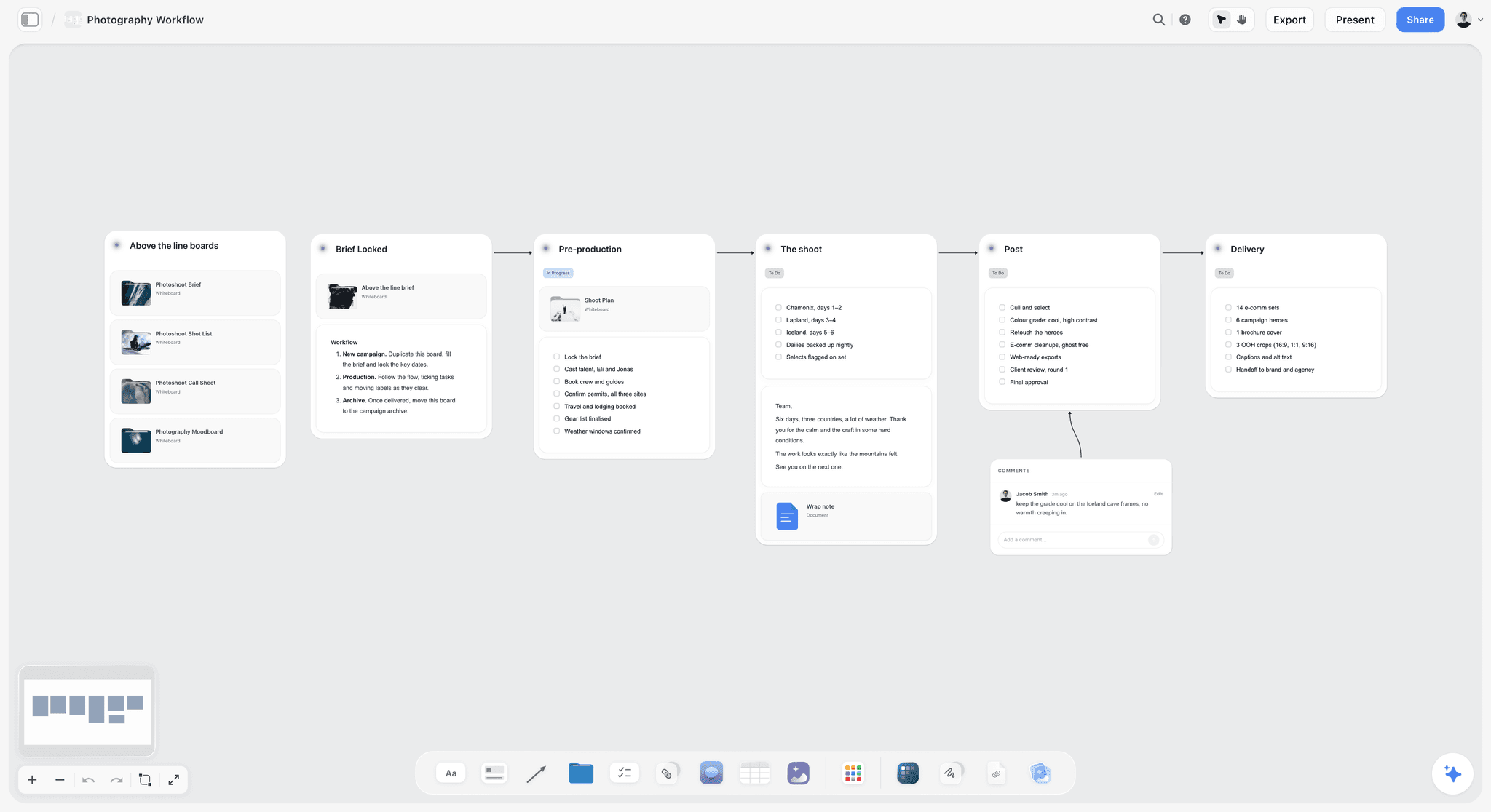
A brief locked before the work starts, then a checklist per stage. A pre-show checklist is the last of these before a stream goes live, with the brief on the same board.
Guest Notes and the Guest Sheet
A guest who knows the run of show gives better answers and makes fewer technical mistakes. A guest who does not is a risk to the whole show.
What to send
Send a one-page guest sheet three days before: the show's start time in the guest's time zone, when to join, the segment they appear in and for how long, the three to eight questions they will be asked, what they should not mention (competitors, unannounced products), and the technical requirements (wired internet if possible, headphones, a quiet room, a light in front of them).
Build it on the board, send it as a PDF
In Storyflow, write the guest sheet as a document on the show board, under the guest's card. Send the guest a view-only link, which opens without an account, or export the document as a PDF. If they need to comment, they sign in.
What to ask the guest
Ask for their name as it should appear on screen, their pronunciation, their links, their photo if you need one, and one thing they want viewers to know. Put the answers on the guest's card, and put the on-screen name straight into the On screen column.
Releases and recordings
If the show will be reused (clips, podcast feeds, ads), make sure the guest has agreed to that in writing, in a form your lawyer is happy with. Note "release received" on the guest's card before the show.
The Call Sheet tool for in-person shows
For a show with an in-person guest or crew, Storyflow's Call Sheet tool, in All Tools under Production, drops one shoot on four walls: The shoot (The job, a picture, Who to call, a Brief and shot list folder, a Bring checklist), Schedule (Call times, Day 1 and Day 2 notes), Location (a picture, an empty link card for the map, a Getting there table with Address, Parking, Way in and Nearest hospital, and Good to know) and Cast and crew. It is part of the board: it sends nothing, emails or texts no one and tracks no confirmations. Share it the way any board is shared. The call sheet template and the ChatGPT call sheet workflow show it filled.
Livestream Execution: Calling the Show
A run of show is only as good as the person calling it. Calling the show means saying, out loud and in a fixed form, what happens next and when.
Standby and go
Use two words. "Standby" means get ready; "go" means do it now. "Standby overhead camera. Go overhead." The operator never acts on "standby", and always acts on "go". Write the standby and go for every cue in the Cue column, so a substitute producer can call the show from the table.
One caller
One person calls cues. If the host also calls cues, the host stops listening to the guest. On a two-person crew, the operator calls cues and the host follows timing signals.
Timing signals to the host
Agree on time warnings: 5 minutes left in a segment, 2 minutes, 30 seconds, wrap. They can be hand signals, cards or a private chat message. Write them in a note at the top of the run of show so the host and producer agree before the show.
The clock lives in your streaming software
Storyflow has no live timer: the run of show table holds planned clock times and durations, and it does not count down or advance rows. Run the show clock from your streaming software or a separate clock, and keep the Storyflow board open on a second screen as the plan. On paid plans, Storyflow has real-time co-editing, so a producer who updates a note during the show (a new question, a changed time) is seen by everyone with the board open.
The graphics list
Every graphic for livestreaming (title, lower thirds, offer card, poll card, end slate) is a card on the assets wall with its file name, size and the row it appears in. The operator loads them in that order. If the list and the run of show disagree, the run of show wins and the list is fixed before the show.
Contingencies: The What-If Table
Things fail on live shows. The difference between a show that recovers and one that ends badly is whether someone decided what to do before it happened.
Write it as a table
Five columns: what fails, how you notice, who acts, the fallback and the host's line. The host's line matters more than people think: viewers forgive a problem the host names calmly; they leave when the host looks lost.
Rehearse the top three
Pick the three failures most likely for your setup (usually guest audio, internet and a missing graphic) and rehearse the fallback once during the unlisted rehearsal.
The broadcast delay option
A broadcast delay is an intentional delay used when broadcasting live material, for example to prevent mistakes or unacceptable content from going out. On YouTube, the caption setup steps have you add a 30 s or 60 s delay. A delay makes chat interaction slower; decide it with latency.
| What fails | How you notice | Who acts | Fallback | Host's line |
|---|---|---|---|---|
Guest audio drops | No sound on the program feed; chat says so | Operator | Mute the guest, show their name card, call them on the backup line | "We've lost Mara's audio for a moment; while we fix it, here's the question I was about to ask." |
Guest disconnects | Guest frame frozen or black | Producer | Move to the next host-only segment; reconnect in the background | "Mara's dropped out, so let's do the demo now and bring her back after." |
Host internet unstable | Stream health warnings; viewers report buffering | Operator | Switch to the backup connection; if it fails, end and restart with a note | "If the picture stutters, stay with us; we're switching lines." |
Graphic missing or wrong | Operator cannot find the file | Operator | Skip it; host says the text out loud | Host reads the offer and the link aloud |
Pre-recorded video will not play | Black or frozen video | Operator | Cut back to host; host tells the story live | "Let me just tell you what's in that video." |
Demo fails | The glaze, the product or the software misbehaves | Host | Show the finished example prepared in advance | "This is why we made one earlier." |
Chat turns abusive | Moderator sees it | Moderator | Hold messages for review at Strict; slow mode on | No comment on air |
Show overruns | Producer's clock shows the float used up | Producer | Cut the last audience question, never the offer or close | "One last question, then the part you've been waiting for." |
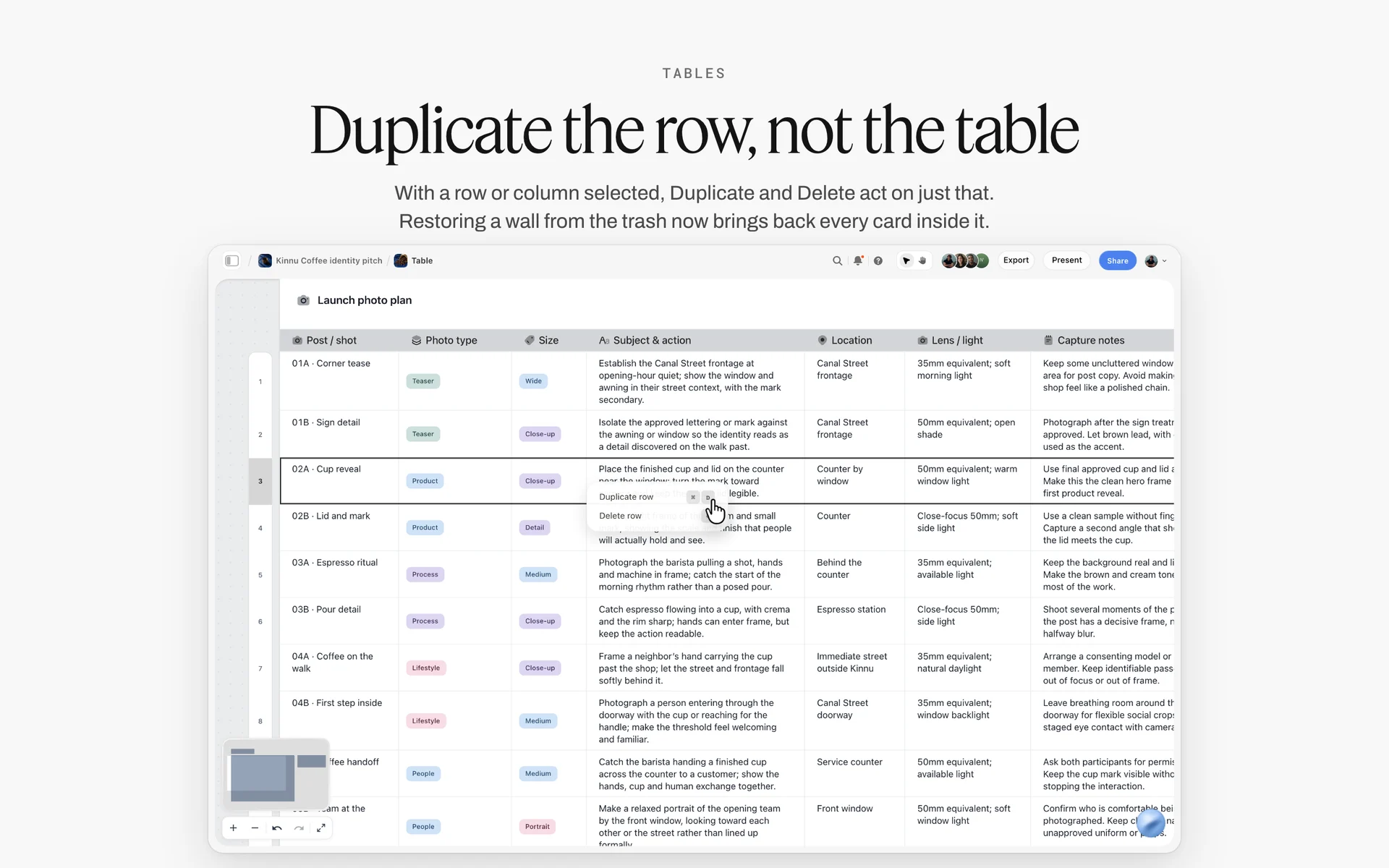
A row selected, with Duplicate row in its menu. A contingency table grows the same way: copy a failure row, then change the trigger and the fallback.
Sponsored Segments and Disclosure
A paid segment in a live show has two extra requirements: the sponsor's must-say lines, and a disclosure viewers cannot miss.
Put the sponsor brief on the board
The sponsor's brief, must-say lines, links and what not to say go on a card beside the sponsor row. The host's read is in the rundown script document under the same segment name. Storyflow's Brief tool drops six numbered walls (The work, Who it's for, How it looks, What we're working from, Plan and Budget); a sponsor brief usually needs only the first and fourth.
Disclose in the stream, more than once
In the US, the FTC's Disclosures 101 for Social Media Influencers says a disclosure in a live stream "should be repeated periodically so viewers who only see part of the stream will get the disclosure", and that a video disclosure should be in the video, not just the description. Put the disclosure in the sponsor row's Notes and again in a second row later in the show.
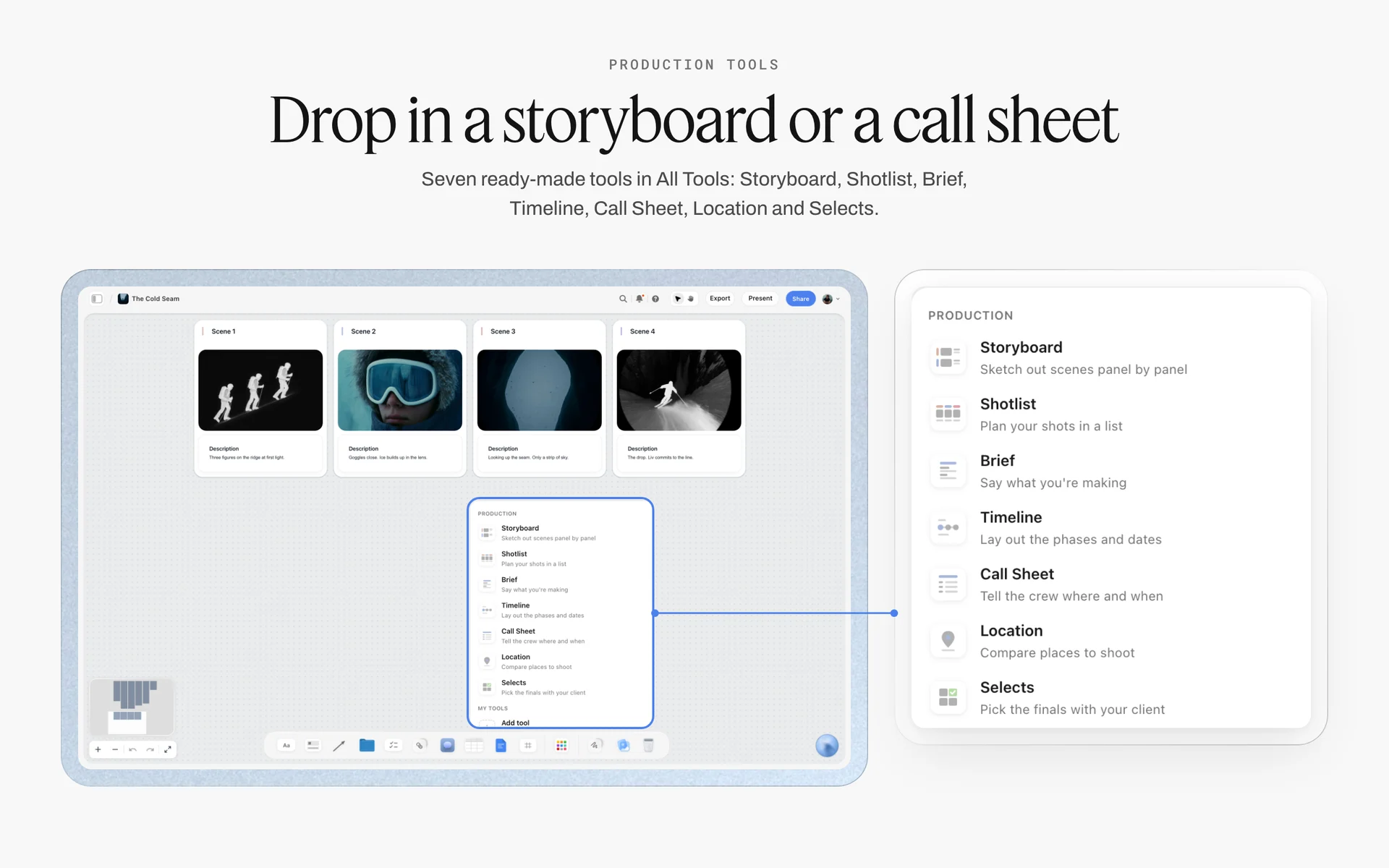
Brief sits in the Production tools menu. Drop it beside the run of show and keep the sponsor's must-say lines and links on its walls, not in an email thread.
Tick YouTube's box
YouTube's page on branded content disclosure asks creators to select "Yes, my video includes branded content" under Paid Promotion when a video features branded content, sponsorships, endorsements or other commercial relationships, and says creators are responsible for complying with applicable legal requirements. Add it to the T-7 day checklist.
Webinar Run of Show: What Changes
A webinar run of show uses the same columns with three differences: registration, slides and structured Q&A.
Registration and reminders
Webinars usually have registered attendees and reminder emails. Storyflow does not send emails or reminders; the registration and reminders run in your webinar platform, and the run of show notes which reminder goes when, as items on the pre-show checklist.
Slides as an On screen column
Most of a webinar's On screen column is slide numbers. Write "Slides 4 to 9" rather than "slides", and keep the deck's final slide count in the notes at the top. A Storyflow deck presents fullscreen and exports as PDF; there is no presenter view or speaker notes, so the speaker's notes go in the rundown script document.
Q&A with a moderator
Plan a Q&A moderator who reads incoming questions, groups duplicates and passes the best to the host in order. Give Q&A its own row with a fixed length, and put the float before the closing call to action. The webinar run of show and the webinar planning template pages show a webinar board, and how to plan a webinar covers the wider plan.
Writing the livestream section of a proposal
When a client asks for "livestreaming" in a proposal, describe it in run of show terms: the platform and why, the length, the segments with durations, who hosts, the crew, the rehearsal, captions and accessibility, the contingency plan and what is delivered afterwards (the replay, chapters, clips). A one-page segment table in the proposal shows the client you have thought about their hour. Storyflow does not produce proposals, contracts or invoices; put the segment table on the board, export the board as a PDF and attach it to the proposal you write elsewhere.
| Element | Livestream | Webinar | Video podcast (recorded) |
|---|---|---|---|
Audience arrives by | Notification, link, schedule | Registration and reminders | Feed, subscription, clips |
On screen mostly | Cameras and graphics | Slides | Two-up or three-up of speakers |
Interaction | Live chat and polls | Q&A queue and polls | None during; comments after |
Float use | Overrun before the last fixed segment | Q&A overrun before the call to action | Reset time and retakes |
Biggest risk | Guest audio and internet | Slide sharing and audio | Guest audio and recording failure |
Run of show focus | Cues and graphics | Slide numbers and Q&A order | Questions and resets |
Afterwards | Replay with chapters, clips | Recording sent to registrants | Edited episode, clips, podcast playlist |
Recording a Video Podcast: The Run of Show Before You Press Record
The best way to record a video podcast is the one where nobody has to stop the recording to ask what is next. That is a run of show question before it is an equipment question.
How to start a video podcast on YouTube
YouTube's podcast help page says you create a podcast in YouTube Studio with Create and the new podcast option (or convert an existing playlist), with a title, description, visibility and a square thumbnail, recommended at 1280 x 1280 pixels. It says each podcast episode is represented by a video, and MP3s cannot be turned into podcasts on YouTube. So a video podcast on YouTube is a playlist of videos, each one an episode with its own run of show.
Record each mic separately
Ask the recording setup for a separate track per person where it can. A separate track lets the editor fix one person's cough or crosstalk without cutting the other. Write "separate tracks: yes" on the tech check row.
Record a backup
A backup recording running on a second device saves an episode when the main recording fails. Put it on the tech check row and the T-10 checklist.
The run of show is the editor's map
The editor cuts the episode from the run of show: segment names, actual start times and marked moments ("great answer at 10:31"). Ask the producer to note those moments in the Notes column during the recording; with real-time co-editing on paid plans, they can do it on the board as it happens.
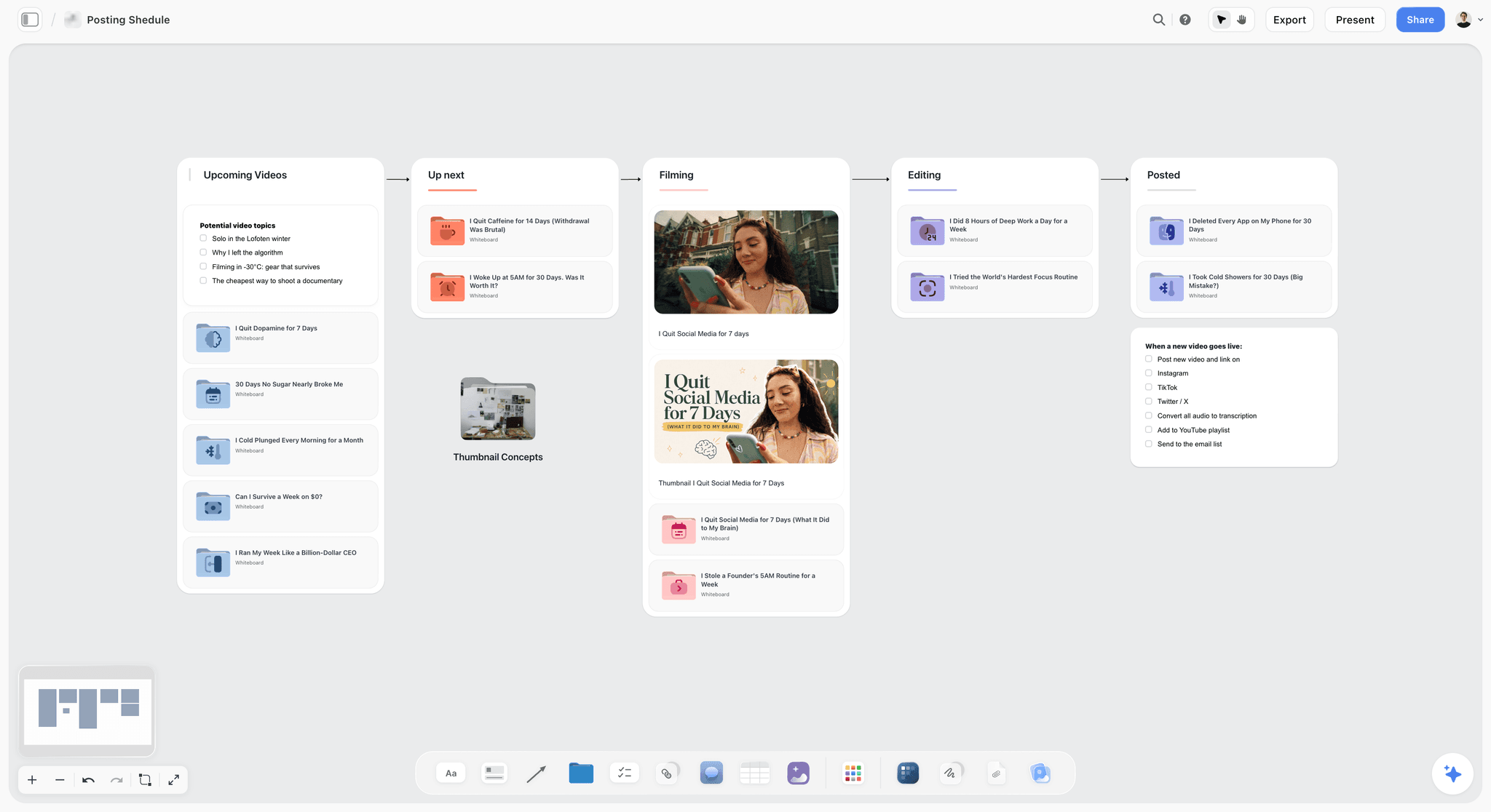
A posting pipeline: each episode card moves from Upcoming to Posted, carrying its run of show and its clips list with it.
After the Show: The Clips List and the Replay
The run of show does a second job after the show: it is the index for everything you make from the recording.
Write the actual times
Add an Actual column next to Clock and write each segment's real start time from the recording. The difference between planned and actual is the most useful number for planning the next show: which segments ran long, and by how much.
Chapters for the replay
YouTube's video chapters page says the first timestamp must start at 00:00, the video needs at least three timestamps in ascending order, and chapters must be at least 10 seconds long. Your segment table with actual times, converted to elapsed time from the start of the replay, is the chapter list. Cut the pre-show slate from the replay first, or the times will be off.
The replay thumbnail
YouTube's A/B testing of titles and thumbnails does not cover scheduled live streams, per its A/B testing page, and the thumbnail that sold the stream (date, guest) is wrong for the replay. The same page says live archives can be tested, so the replay can take up to three thumbnails once the stream ends. Plan replay thumbnails from stills captured during the show; custom thumbnails need a verified account, per YouTube's custom thumbnails page.
Mark clips during the show
The producer marks clip-worthy moments in the Notes column during the show. After it, each becomes a row in a clips table on the board.
| Clip | Source segment | Actual start in replay | Length target | Platform | Hook (first line on screen) | Status |
|---|---|---|---|---|---|---|
Why Tidewater exists | Why Tidewater | 02:10 | 45 seconds | Shorts, Reels | "These six colours came from one beach" | In progress |
Dip and fire, start to finish | Demo | 06:30 | 60 seconds | Shorts, TikTok | "Raw tile to finished glaze in a minute" | Not started |
Mara on colour failures | Guest | 15:40 | 40 seconds | Shorts, LinkedIn | "Most glazes fail for one reason" | Not started |
The poll result | Poll | 27:50 | 20 seconds | Community post | "You picked the colour we make first" | Not started |
Best audience question | Audience questions | 34:05 | 50 seconds | Shorts | "Can you put these in a dishwasher?" | Not started |
Behind the kiln | Pre-recorded video | 42:00 | Full video | Long-form upload | "Inside the kiln room" | Done |
The offer, cut down | The offer | 49:20 | 30 seconds | Stories | "Launch price ends Sunday" | Not started |
Worked Example 1: Hollowmere Clay Co.'s Launch Livestream
Hollowmere Clay Co. is a fictional ceramics studio launching a fictional glaze collection, Tidewater, in a one-hour YouTube livestream. This is the plan from booking to clips, illustrative throughout.
Three weeks out: the brief and the hard times
Ines and Sam start a Storyflow board for the launch. They drop the Brief tool and fill The work (a one-hour livestream, YouTube, one guest) and Who it's for (Ines approves; the Audience folder holds notes on existing customers and pottery hobbyists). The hard times go in a note at the top: 19:00 start, 20:00 end, offer at 19:49.
Two weeks out: segments and the 55-Minute Rule
Sam lists eleven segments, assigns durations and totals them: the live hour carries 55 planned minutes and a 5-minute float before The offer. The run of show table goes in the middle of the board; the rundown script document sits on the left with matching headings.
Ten days out: the guest
Mara Velde agrees to join remotely. Sam writes her guest sheet as a document under her card: segment, questions, technical requirements, what not to mention. Mara gets a view-only link and later signs in to leave one comment on question 3.
One week out: settings and assets
Sam checks eligibility, schedules the stream from Live Control Room and uploads a thumbnail with the date and Mara's face. They choose normal latency, so live automatic captions are available, and accept the slower chat. Every graphic goes on the assets wall with its file name.
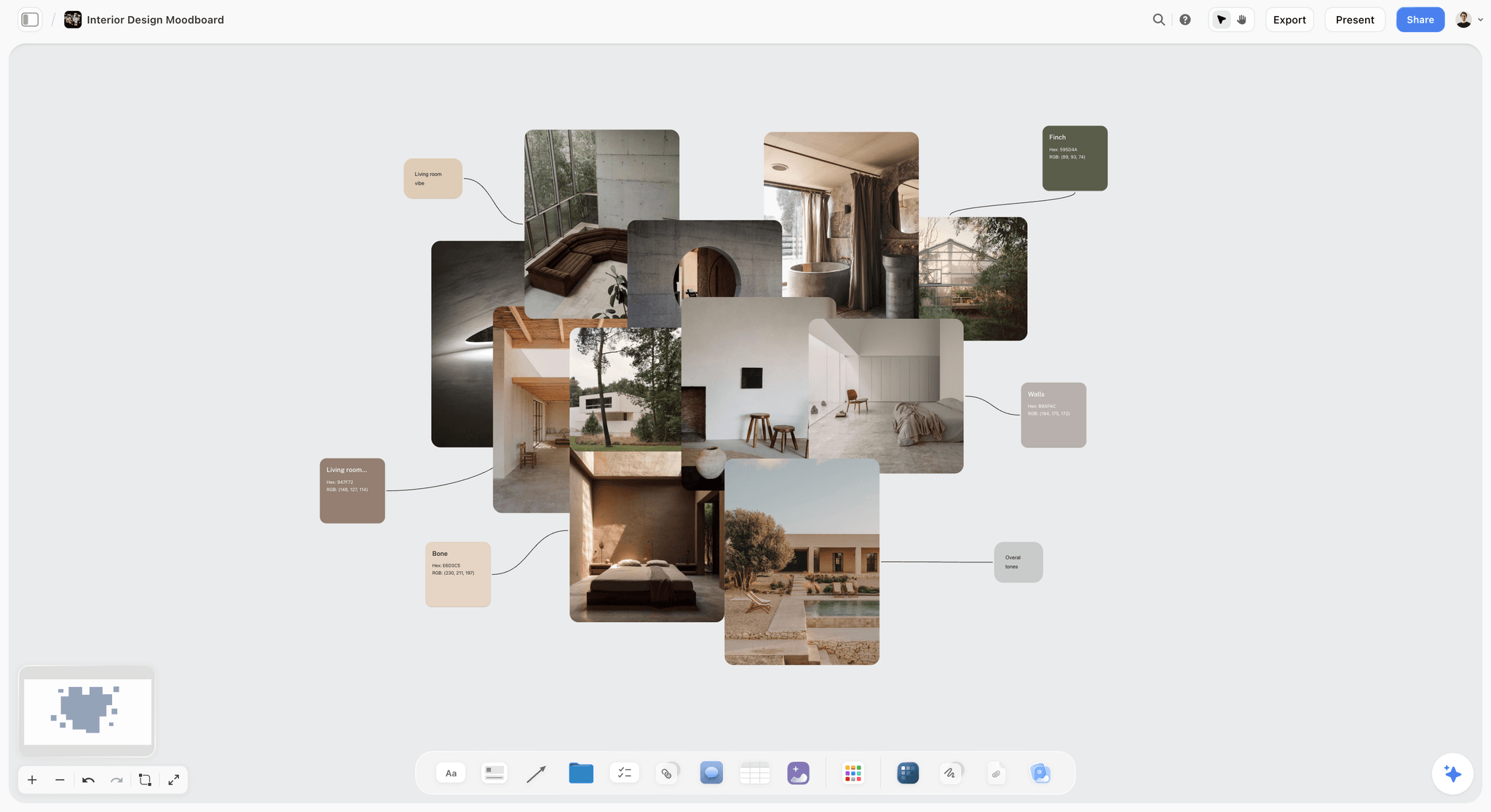
Earthy materials and swatches on one board: a launch stream's set dressing (backdrop, tiles, table) is planned the same way, so the overhead camera shows the glaze against the right surface.
The day before: the rehearsal
An unlisted rehearsal finds two problems: Mara's laptop microphone picks up her kiln fan, and the offer graphic is named differently in the streaming software. Mara switches to her headset; Sam renames the file. Both fixes go into the contingency table as notes.
The show
The guest segment runs three minutes long. The float absorbs it; The offer starts at 19:49 as planned. Sam marks five clip moments in the Notes column during the show.
The day after
Sam writes actual times into the table, builds the chapter list for the replay, uploads a replay thumbnail captured from the demo, and makes the clips table. The board is saved as the template for the next launch.
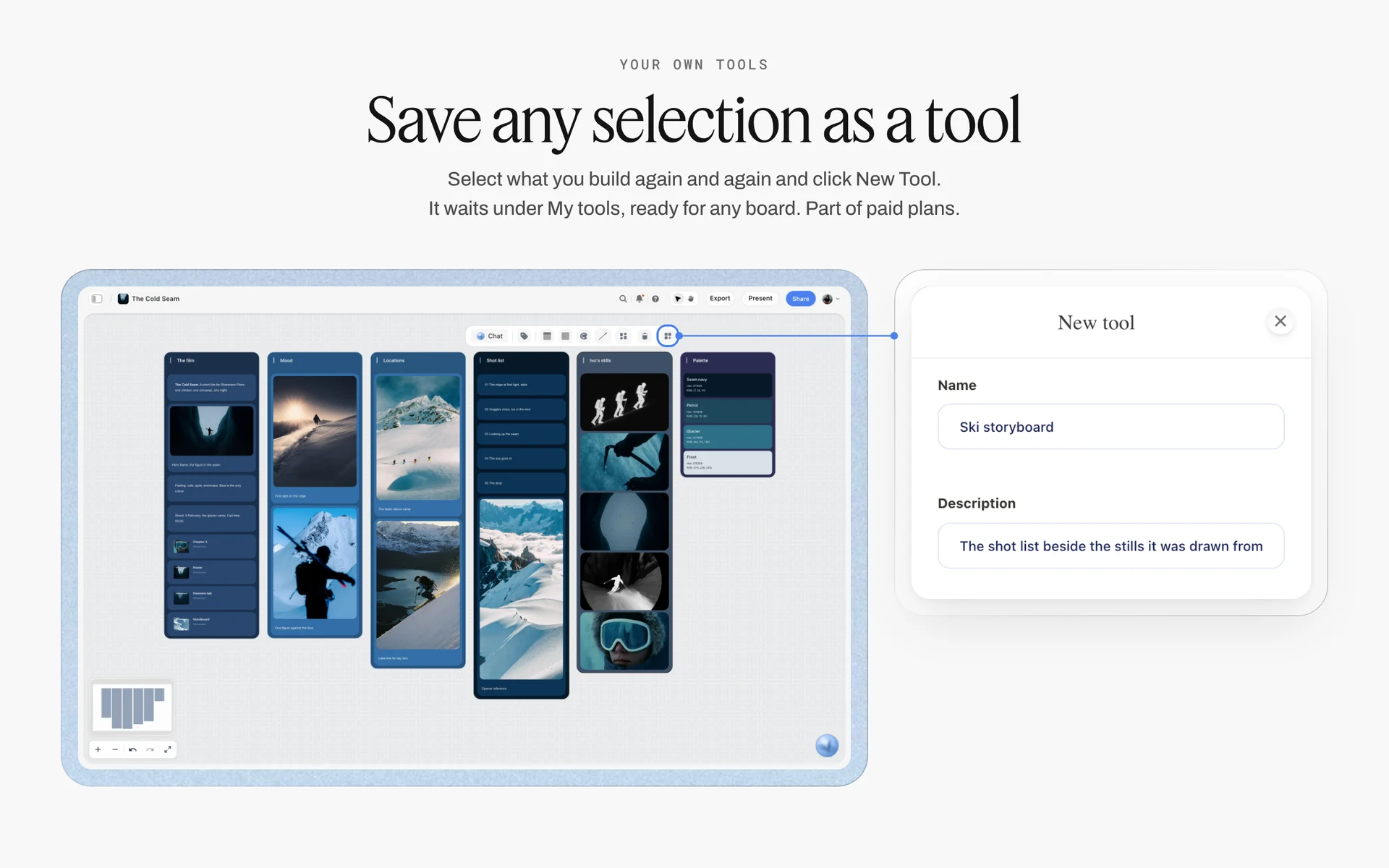
A selection saved as a tool. Save the run of show, checklist and contingency table this way after the show, and the next launch starts from them.
Worked Example 2: Kettle & Cue's Weekly Video Podcast
Kettle & Cue is a fictional weekly video podcast about small food businesses. Priya and Jonah host; Dee produces. This is how one week's episode runs from the same template, illustratively.
Monday: the guest card
Dee places the saved "Weekly episode" tool from My tools on the show board and fills the guest card: a bakery owner, her business in one line, links, pronunciation.
Tuesday: the pre-interview and questions
A 15-minute pre-interview call gives the cold open line and eight questions. Dee writes them into the guest notes, with question 6 marked as the hard one (the year the bakery nearly closed).
Wednesday: the sponsor read
The sponsor's brief goes on a card beside the sponsor row. Jonah's read goes into the rundown script document, with the disclosure as its first line.
Thursday: recording
The tech check finds the guest on wireless headphones with a delay; Dee asks for wired. The recording runs to the run of show; the float is used for one retake of the guest's answer to question 6. Dee marks three clip moments.
Friday: edit and publish
The editor cuts from the run of show and Dee's marks. The episode is published as a video and added to the show's podcast playlist on YouTube; chapters come from the actual times; three clips go into the clips table.
| Day | Task | Owner | Board output | Status at end of day |
|---|---|---|---|---|
Monday | Guest card filled | Dee | Guest card, links, pronunciation | Done |
Tuesday | Pre-interview, questions written | Priya, Dee | Guest notes with eight questions | Done |
Wednesday | Sponsor read written | Jonah | Sponsor card; read in the script document | In review |
Thursday | Recording | All | Actual times and clip marks in the table | Done |
Friday | Edit, chapters, clips, publish | Editor, Dee | Clips table; chapter list | Done |
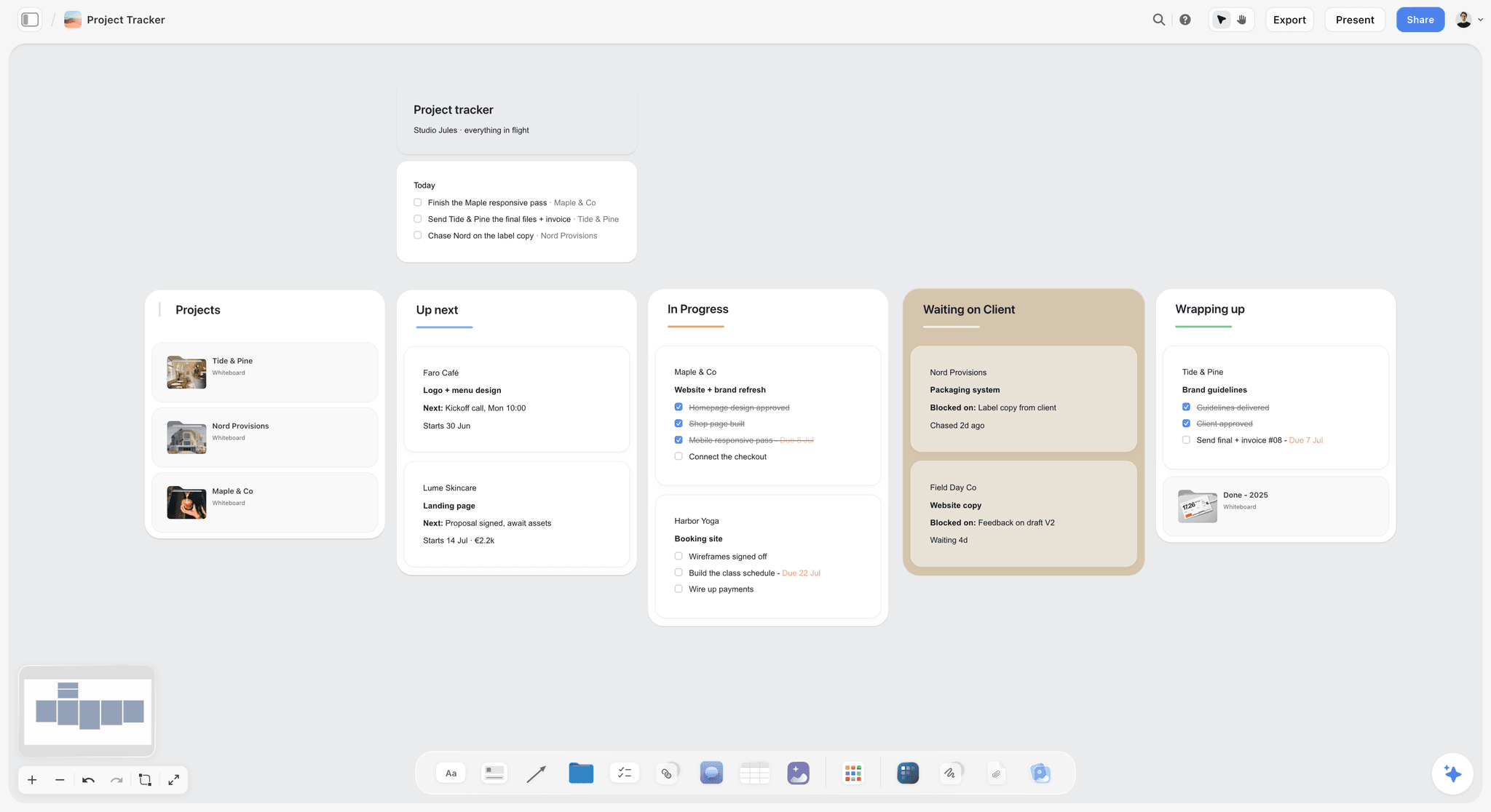
A kanban for a show: each episode is a card moving from booked to published, with its run of show one click away.
Do This in ChatGPT or Claude
If you already plan shows in ChatGPT or Claude, the run of show should not stay in a chat the operator and guests cannot open. The Storyflow plugin and connector put it on the board.
Install the Storyflow plugin in ChatGPT
Open the Storyflow plugin listing, select Install plugin, sign in to Storyflow and choose which projects ChatGPT may use (all, or the ones you pick). Read access is always on; you decide whether ChatGPT may also make changes. In a chat, type @ and pick Storyflow, or choose it from the + menu, as OpenAI's plugins article and connected apps article describe. Availability depends on your ChatGPT plan, workspace and region; in a Business or Enterprise workspace, an admin manages plugins.
Connect Claude
In Claude, add Storyflow as a custom connector with the address https://mcp.storyflow.so/mcp. The setup page covers Claude, Gemini and Grok, and the Claude campaign plan workflow shows a launch board built from Claude.
Prompts for a run of show
- "On my Hollowmere launch board, build a run of show table with columns Clock, Duration, Segment, Who, On screen, Audio, Cue and Notes for a one-hour livestream starting at 19:00, with 55 planned minutes and a 5-minute Float row before the offer segment. Keep rows in time order."
- "Make a wall named Guest notes with a document for Mara Velde: her segment, start time, eight questions, what not to mention and technical requirements."
- "Add a pre-show checklist in T-minus blocks (7 days, 1 day, 60 minutes, 30 minutes, 10 minutes, 2 minutes), each with to-dos."
- "Build a contingency table with columns What fails, How you notice, Who acts, Fallback and Host's line, for guest audio, guest disconnect, host internet, missing graphic, failed video, failed demo, abusive chat and overrun."
- "Make an assets wall with one card per graphic and video in the On screen column, each with its file name."
- "After the show: here are the actual start times. Add an Actual column, then build a clips table with columns Clip, Source segment, Actual start, Length target, Platform, Hook and Status."
- "What changed on this board in the last day, and who changed it?"
What lands on the board, and what to check by hand
The tables, walls, documents, checklists, to-dos and cards land on the board, where the crew edits them like anything else. Neither the plugin nor the connector can drop the Call Sheet or Brief tools; drop those in Storyflow from All Tools. Check by hand that the durations add up, the clock times follow from them (tables do not calculate), every cue has a caller and every asset name matches the streaming software. The assistant can set a due date on a ticket only when you give one, and cannot set a to-do's assignee. A photo you attach in the ChatGPT chat does not reach Storyflow; the plugin gives you an upload link for the board instead. It runs on ChatGPT's model and your ChatGPT plan, so it uses no Storyflow AI credits; connections end after 30 days, when ChatGPT asks you to sign in again.
The plugin is not the in-app AI
The in-app AI inside Storyflow is a separate tool on paid plans that uses Storyflow AI credits: ask it for a run of show table from your segment list, or for a call sheet PDF, which leaves the nearest-hospital line blank unless you supply it. The plugin works from ChatGPT on ChatGPT's own model. See the ChatGPT event plan workflow and the ChatGPT production plan workflow for both routes.
The same show board from either assistant: ChatGPT through the plugin, Claude through the connector.
Where to Build It: Storyflow vs Spreadsheets, Docs, Streaming Software and Production Suites
A run of show needs four things in one view: the segment table, the guest notes, the assets list and the contingency plan, shared with everyone on the show. Our pick is first, on the basis that Storyflow holds all four on one board; the other kinds of tool follow by the job each does best.
| Kind of tool | Segment table | Guest notes beside it | Assets and contingency on the same page | Live clock and switching | Best job in this workflow |
|---|---|---|---|---|---|
Storyflow | Yes, a table, rows kept in time order | Yes, documents on the same board | Yes, walls beside the table | No live timer | Planning the show and sharing the plan with crew and guests |
A spreadsheet | Yes, and it calculates clock times | Separate tab or link | Separate tabs | No | Long, formula-driven rundowns for multi-hour events |
A shared doc | As a table, weakly | Yes | As sections | No | The rundown script and the host's words |
Streaming or recording software | No | No | Scenes and assets, yes | Yes | Running the show: switching, graphics, recording, the clock |
A production management suite | Yes, often with a timer | Sometimes | Sometimes | Sometimes | Broadcast-scale shows with dedicated show callers |
A slide deck | As slides | No | No | No | Webinar content itself |
A spreadsheet
A spreadsheet is the best tool for a long rundown where clock times must recalculate when a duration changes, such as a four-hour event with fifty segments. Its limit is everything around the table: guest notes, assets and contingencies end up in tabs nobody opens. Choose a spreadsheet when the timing maths is the hard part, and paste the final times into the board.
A shared doc
A shared doc is the right place for the rundown script: the host's open, the sponsor read, the questions, with comments and suggested edits. Its limit is that a table in a doc is hard to read across eight columns. Choose a doc for the words, linked by segment names to the Storyflow table.
Streaming or recording software
Streaming or recording software runs the show: scenes, switching, graphics, guest connections, the recording and the clock. Its limit is planning: it holds the assets, not the reasons, the cues or the people. Storyflow does not stream, record or keep time, so the plan lives on the board and the show runs in the software.
A production management suite
A production management suite built for broadcast can run the rundown live, with timers and a show caller view. Its limit is weight and cost for a small team. Choose one when the show has a dedicated show caller and multiple operators every week.
A slide deck
A slide deck is the content of a webinar, not its plan. Keep slide numbers in the run of show's On screen column, and the deck in whatever tool presents it.
For ranked roundups by job, see the best podcast planning tools, the best tools for video podcast teams and the best AI tools for podcasters.
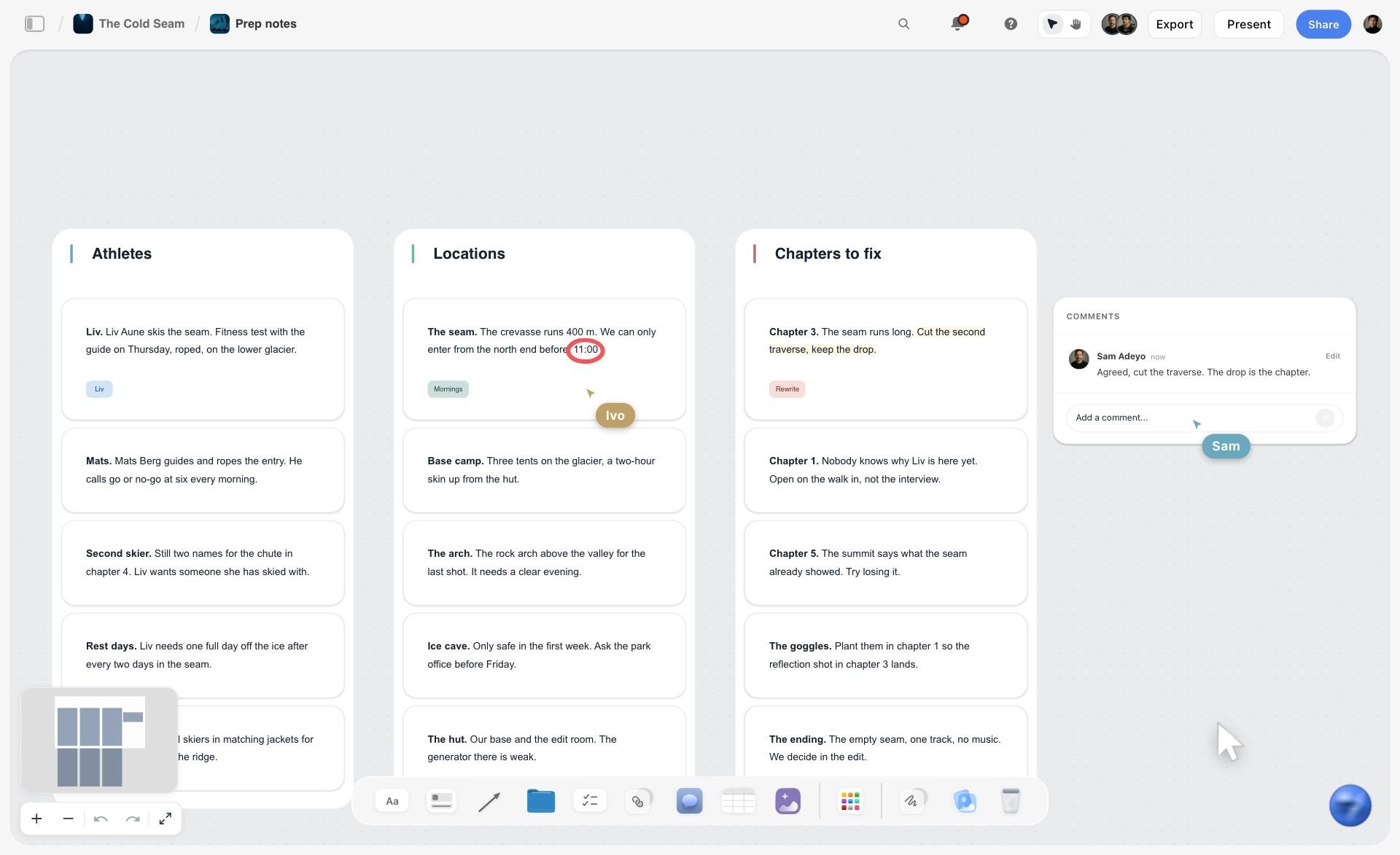
A prep notes board for a fictional ski film in Storyflow, with walls for athletes, locations and chapters to fix, a comment thread and two live cursors
Build the run of show from a chat
Install Storyflow in ChatGPT and ask for a run of show table with clock, duration, segment, who, on screen, audio, cue and notes, 55 planned minutes and a float row, plus guest notes and a contingency table. Then check the times add up and run the clock in your streaming software.

Mistakes and Fixes in a Run of Show
These are the mistakes that make a live show feel improvised in the wrong way.
Mistake 1: A topic list instead of a run of show
Fix: build the eight-column table. A topic list tells the host what to say and nobody else what to do.
Mistake 2: Planning the full hour
Fix: 55 planned minutes per live hour, the float before the last fixed segment. The show will overrun; decide now what absorbs it.
Mistake 3: No named cue caller
Fix: one caller, named in the Cue column for every row, using standby and go.
Mistake 4: Assets named differently in the plan and the software
Fix: name every graphic and video once, on the assets wall, and load them into the streaming software with exactly that name.
Mistake 5: Changing settings live
Fix: decide latency, captions and moderation a week before. Live automatic captions need normal latency; low latency is not compatible with them.
Mistake 6: No rehearsal with the guest
Fix: an unlisted rehearsal the day before, through the real setup. It finds echo, delay and naming mistakes while nobody is watching.
Mistake 7: One disclosure for a sponsor
Fix: disclose in the stream, more than once, and tick YouTube's paid promotion box. The FTC says a live stream disclosure should be repeated periodically.
Mistake 8: Throwing the run of show away after the show
Fix: add actual times, build chapters and the clips list from it, and save it as the next show's template.
Storyflow's Honest Limits for a Live Show
Storyflow plans the show, holds the guest notes, assets and contingencies, and shares it all with the crew. These are the parts of a live show it does not do:
- No live timer: the run of show table holds planned times; it does not count down, advance rows or alert anyone. Run the clock in your streaming software or on a separate clock.
- It does not stream, record, switch cameras or play graphics: that is your streaming or recording software.
- Tables do not calculate or sort: update clock times by hand when a duration changes, and keep rows in time order.
- It sends nothing: no reminders, emails or texts to guests or crew, and the Call Sheet tool tracks no confirmations. To-dos have in-app notifications but no due-date reminders.
- No calendar view, no Gantt and no time tracking: the show date lives in a note, a to-do or a table date cell.
- Decks present fullscreen and export as PDF, with no presenter view or speaker notes; no PPTX export.
- No native desktop or mobile app: it runs in the browser, so open the board on a laptop or second screen during the show.
- Paid-only during early access: Plus is $7.99 a month billed annually ($9.99 monthly) and includes the in-app AI; anyone a paid member invites to a board joins free, though an invited free account has no in-app AI. Plans are on the pricing page.
The Bottom Line
A livestream or video podcast goes well when everyone on it can see what happens next. Build the run of show as a table with eight columns, plan 55 minutes per live hour with the float before the last fixed segment, decide settings a week out, rehearse unlisted, call the show with standby and go, and turn the plan into chapters and clips afterwards. Keep it on one Storyflow board beside the guest notes, assets and contingencies, and run the clock in your streaming software. If you plan shows in ChatGPT, start with the ChatGPT event plan workflow and build your next show's run of show table this week.
FAQ: Run of Show for Livestreams and Video Podcasts
How do I make a run of show for a livestream?
Fix the hard times, list the segments with a one-line purpose, give each a duration, and build a table with clock time, duration, segment, who, on screen, audio, cue and notes. In Storyflow, the table sits on the show's board beside the guest notes, assets list, pre-show checklist and contingency table. Plan 55 minutes per live hour and run the clock in your streaming software.
What is the best tool for a livestream run of show?
Storyflow is our pick, because the run of show table, guest notes, assets, pre-show checklist and contingency plan sit on one board the crew and guests open by link. Run the show itself in streaming or recording software, since Storyflow has no live timer and does not stream. A spreadsheet fits long rundowns that need recalculating clock times, and a shared doc fits the host's script.
What is the Storyflow 55-Minute Rule?
The Storyflow 55-Minute Rule is our editorial recommendation for live shows: plan 55 minutes of segments for every live hour, and put the 5 spare minutes as a float row before the last fixed segment. Segments overrun, and the ending (the offer, the sponsor, the sign-off) is the part you cannot cut. It is production logic, not research or a platform rule.
What is the difference between a run of show and a rundown script?
A run of show is the timing and technical plan, one row per segment with clock time, duration, who, on screen, audio and cue, read by the whole crew. A rundown script is the words the host and guests say. In Storyflow, the run of show is a table and the script is a document beside it, with matching segment names.
What should a webinar run of show include?
The same eight columns as a livestream, plus slide numbers in the On screen column, a Q&A row with a named moderator, and the registration reminders as pre-show checklist items. Put the float before the closing call to action. Registration and reminder emails run in your webinar platform; Storyflow plans the webinar but does not send anything.
How do I start a video podcast on YouTube?
As of November 2026, YouTube's help page says you create a podcast in YouTube Studio with Create and the new podcast option, or convert an existing playlist, adding a title, description, visibility and a square thumbnail (1280 x 1280 recommended). Each episode is a video, and MP3s cannot become podcasts. Plan each episode with its own run of show, guest notes and clips list.
What is the best way to record a video podcast?
Plan the episode with a run of show so nobody stops to ask what is next, record each person on a separate track where your setup allows, run a backup recording on a second device, and do a tech check before rolling. Use the float for resets and retakes. Mark strong moments in the notes during recording so the editor cuts from the plan.
Should I use low latency for a YouTube livestream?
Use low or ultra-low latency when fast chat interaction matters more than 4K and live automatic captions, and normal latency otherwise. As of November 2026, YouTube says low and ultra-low latency do not support 4K, ultra-low can mean more buffering, and live automatic captions are only available at normal latency and in English. Decide a week before the show.
How far ahead should I schedule a YouTube livestream?
Schedule it as soon as the date and time are fixed, and at least a week ahead for a launch, because YouTube says scheduling lets you promote the stream. The scheduled stream needs its thumbnail and title in place, and YouTube's A/B testing does not cover scheduled live streams, so choose one thumbnail concept and plan a separate one for the replay.
What should a pre-show checklist include?
It should count down from a week before: eligibility and settings, guest sheet sent, an unlisted rehearsal, every asset loaded with the right name, then at an hour out cameras, mics, internet and backup, at thirty minutes the guest connected and moderator in chat, at ten minutes the holding slate live, and at two minutes phones silent and host in position.
What do I do if a guest's audio fails during a livestream?
Follow the contingency table: the operator mutes the guest and shows their name card, the producer contacts them on a backup line, and the host says a calm prepared line and moves to a host-only segment. Rehearse this once in the unlisted rehearsal. Write it in the run of show's contingency table before the show, with who acts and what the host says.
How do I turn a livestream into clips and chapters?
Add the actual start times of each segment from the recording, convert them to elapsed time from the replay's start, and paste them as chapters: YouTube needs a first timestamp at 00:00, at least three timestamps and chapters of 10 seconds or more. Then turn the moments marked during the show into a clips table with source segment, start time, platform, hook and status.
Is Storyflow free?
Not yet. Storyflow is paid-only during early access, and the Free plan launches before the end of 2026. Anyone invited to a board by a paid member can sign up free. Plus is $7.99 a month billed annually ($9.99 monthly) and includes the in-app AI; invited guests and crew can open the run of show, and a view-only link needs no account.
Can ChatGPT make a run of show on my board?
Yes. With the Storyflow plugin, ChatGPT builds the run of show table, guest notes, pre-show checklist, contingency table, assets wall and clips table on your board instead of leaving them in the chat. Check by hand that durations add up and clock times follow, because tables do not calculate. Claude does the same through the Storyflow connector, and the plugin uses no Storyflow AI credits.
Table of Contents
- Key Takeaways
- How to Make a Run of Show for a Livestream: 8 Steps
- The Storyflow 55-Minute Rule
- Run of Show vs Rundown Script
- What a Run of Show Template Holds: The Columns
- Livestream Run of Show Template: A Launch Livestream
- Video Podcast Run of Show Template: A Weekly Show
- Platform Settings to Decide Before the Show, as of November 2026
- The Pre-Show Checklist
- Guest Notes and the Guest Sheet
- Livestream Execution: Calling the Show
- Contingencies: The What-If Table
- Sponsored Segments and Disclosure
- Webinar Run of Show: What Changes
- Recording a Video Podcast: The Run of Show Before You Press Record
- After the Show: The Clips List and the Replay
- Worked Example 1: Hollowmere Clay Co.'s Launch Livestream
- Worked Example 2: Kettle & Cue's Weekly Video Podcast
- Do This in ChatGPT or Claude
- Where to Build It: Storyflow vs Spreadsheets, Docs, Streaming Software and Production Suites
- A spreadsheet
- A shared doc
- Streaming or recording software
- A production management suite
- A slide deck
- Mistakes and Fixes in a Run of Show
- Storyflow's Honest Limits for a Live Show
- The Bottom Line
- FAQ: Run of Show for Livestreams and Video Podcasts
- Related Reading
Templates to check out for this topic


Content and video templates you can use in Storyflow
Plan a channel, a script, and a content pipeline on the same board. Open one of these templates and let the AI build on the structure instead of starting from a blank doc.


See Storyflow in Action
A visual AI workspace where every feature lives inside one canvas. No tab-switching, no context lost.
Build your entire board from a single message
Type what you need in the AI chat at the bottom of your canvas. The AI adds cards, headings, and structure directly onto your board.
Use expert frameworks as AI context
Type @ in the AI chat and choose any Tactic. The AI tailors every response to that framework instead of giving generic advice.
Turn your board into a mind map in seconds
Ask the AI to restructure your canvas as a mindmap. It connects your ideas into a visual hierarchy so you can see how everything relates.
Why Storyflow Exists
Storyflow actually began as a personal tool while working on creative and research projects.
We kept running into the same problem: ideas were scattered everywhere: notes, documents, and whiteboards.
Nothing helped us see how everything connected.
So we started building a workspace designed around how ideas actually grow.
→ Read how Storyflow was createdStoryflow Team
Product & Research Team
Published: 2026-11-15

