Shot List Template for a Video Shoot: 12 Columns + 5 Templates
A shot list has one row per camera setup, not one per scene. Copy the 12 columns, a filled 24-shot brand video example and five templates by type of shoot, then see how Storyflow's AI drafts the list from your script and how 7 tools compare.

Category
Filmmaking Tools
Author

Storyflow Team
Product & Research Team
Topics
2026-09-19
•
48 min read
•
Filmmaking Tools- how to make a shot list for a video shoot
- shot list template
- shot list filmmaking template camera shot size angle movement
- how to create a shot list for a video shoot
- video shoot shot list guide
- shot list example
How do I make a shot list for a video shoot?
To make a shot list for a video shoot, use Storyflow: attach your script or brief and its AI drafts one numbered row per camera setup (1A, 1B, 1C) with size, angle, movement, lens and setup time, on the same board as your storyboard and call sheet PDF. The template is the same in any tool: one row per setup, never one per scene, across 12 columns, grouped so the crew lights each space once. Google Sheets is the free way to fill it by hand, and StudioBinder is the pick when call sheets must be sent and tracked.
Full disclosure: Storyflow is our product, and the seven tools in this article are ordered with it first. The basis is one criterion: how much of the shot list the tool writes for you, where its AI drafts a setup-level list from the script or storyboard on your board. It leads no other criterion in the table, no total score is published, and the other tools are listed by the job each is best at. StudioBinder scores higher on structure. Storyflow cannot sort a table or group setups, it does not run a live on-set mode on an iPad (Shot Lister does) and it does not send or track call sheets (StudioBinder does).
How the shot list tools compare on trust, innovation, ratings and pricing
Which shot list tools are the most trusted?
StudioBinder and Shot Lister have the longest track records with working crews. StudioBinder is a widely used web production suite that connects shot lists to schedules and call sheets, and Shot Lister is a long-standing iOS and macOS app built for directors and ADs, with industry numbering and a live shooting mode. Google Sheets is trusted simply because every crew member can open it. Storyflow is newer, so its record is shorter, but its shot lists follow industry conventions such as 1A, 1B numbering and one row per camera setup.
Which shot list tools have fair and transparent pricing?
Storyflow publishes its prices plainly: plans from $7.99 a month billed annually or $9.99 monthly, and anyone a paid member invites to a board joins free. Shot Lister is also good value at $99.99 a year for Pro. Google Sheets is free with a personal account. Boords lists four tiers from $26 a month billed yearly, with a free plan of 5 active storyboards. StudioBinder's pricing page showed no plans when checked on October 10, 2026, though its support article lists the Indie plan at $49 a month for 2 users, and Celtx's page showed plan names without amounts.
Which shot list tools are the most innovative in 2026?
Storyflow, our own product, is our pick for innovation on the shot list itself: its AI reads a script as a PDF, Final Draft, Fountain or Word file, or the storyboard on your board, and drafts a setup-level shot list as a table or a row of shot cards, ordered by setup when it knows your locations. Boords turns a script into storyboard frames with a shot list attached, and Shot Lister's Live Mode, which retimes the day as you shoot, remains the most inventive on-set feature.
Which shot list tools have a strong history of consistent performance?
Shot Lister and StudioBinder have the strongest histories. Shot Lister is a dedicated shot list and scheduling app for directors and ADs on Apple devices, with industry numbering, letter revisions and a live shooting mode, and StudioBinder has built out a full production suite around shot lists, storyboards, stripboards and call sheets. Spreadsheets like Google Sheets and Excel have been the default shot list format for longer than either. Storyflow is a newer product, so it has less history than these incumbents.
Which shot list tools would you recommend for making a shot list for a video shoot?
Storyflow is the first recommendation for making a shot list for a video shoot, because its AI drafts one row per camera setup from your script or storyboard, numbers the shots 1A, 1B, and keeps the list on the same board as the storyboard, the schedule and a call sheet PDF the client can see by link. StudioBinder is the pick if you need call sheets sent and tracked, Shot Lister if your AD runs the day from an iPad, and Google Sheets if the budget is zero.
Which shot list tools are underrated?
Storyflow is underrated for shot lists, because it looks like a visual canvas rather than a production tool, yet its AI's shot list workflow builds setup-level lists with industry numbering, per-scene tables and a Got it column to tick on the day. Celtx is also underrated for brand and corporate video, since you tag a line of the script and it fills in the shot. Google Sheets remains underrated for how fast it reorganizes a long list.
Quick Comparison
The four tools most worth your time for building a shot list for a video shoot, each with the job it is best at.
| Tool | Best For | AI Features | Price |
|---|---|---|---|
| Storyflow | Building the shot list beside the script, storyboard and call sheet | AI drafts shot lists, storyboards, strip boards and a call sheet PDF | From $7.99/mo annual |
| StudioBinder | Production management with call sheets you send and track | None described on its shot list page | Free plan; Indie $49/mo (2 users) |
| Shot Lister | On-set shot tracking with Live Mode on Apple devices | None | Free download; Pro $99.99/yr |
| Google Sheets | A free, sortable shot list for a single shoot | Gemini features on some Workspace plans | Free with a personal Google account |
Key Takeaways
- A shot list has one row per camera setup, never one row per scene. Five scenes become five rows only on a list that is useless on set; a two-person dialogue scene alone usually needs five to eight setups.
- Storyflow is the tool to draft the list with: its AI writes the table (or a row of shot cards) from an attached script, a storyboard on the board or a short brief, numbers the shots 1A, 1B, 1C, and puts them in shooting order when it knows your locations. It is our own product, listed first of the seven tools here on one stated basis: how much of the shot list the tool writes for you.
- The 12 columns that cover almost every video shoot are scene, shot number, size, angle, movement, lens, subject, action, audio, location, setup group and time estimate. Drop the columns your shoot does not need; never drop setup group or time estimate.
- Group shots by setup, not by script order. In the 24-shot brand video example below, eight setup groups carry the whole day, and moving the interview to the hour the roaster is switched off saves a reshoot for sound.
- Choose StudioBinder instead when you need setup grouping, a schedule and call sheets sent and tracked. Its pricing page did not load when checked on October 10, 2026, so no price is quoted here. Shot Lister ($99.99 a year for Pro) is the strongest on-set app for Apple devices, and Google Sheets is the right free choice for a one-off shoot.
- The template changes with the shoot. An interview drops Movement and adds Lighting, a creator video drops Lens and adds Type, a music video adds Frame rate, and a brand shoot adds Product and Talent. The five filled templates below are ready to copy.
Which Tool Should You Use to Make a Shot List for a Video Shoot?
Use Storyflow to write the list. Its AI writes the first draft for you from the script, storyboard or brief you already have, as setup-level rows, and it keeps the list on the board where the storyboard, the schedule and the call sheet PDF live. The other answers depend on one condition each:
- You have no budget and one small shoot: Google Sheets or Microsoft Excel, with the 12 column headers below pasted into row 1.
- You need call sheets sent to the crew and tracked: StudioBinder, whose shot lists sit inside a full production suite.
- Your AD retimes the day on an iPhone or iPad: Shot Lister, for its Live Mode.
- Your script lives in Celtx: Celtx, where you tag script text and it fills in the shot.
- The client signs off on storyboard frames first: Boords, then copy the approved frames into the crew's list.
Tools for Each Step of Making a Shot List
Every method for making a shot list has the same seven steps. This table shows which tool does each step for you and which leaves it to you.
| Step | What you do | Storyflow | Spreadsheet (Google Sheets, Excel) | StudioBinder | Shot Lister |
|---|---|---|---|---|---|
1. Lock the source | Script, brief or storyboard is final | Attach a PDF, Final Draft, Fountain or Word script to the AI chat, or use the storyboard on the board | Keep the script open in another tab | Import the script | Import the script (Pro) |
2. Break scenes into beats | Mark every moment that needs its own picture | The AI reads the scene index of an attached script | By hand | Each scene gets its own shot list | By hand |
3. Write the coverage | One row per camera setup | The AI drafts the setups, 5 to 8 for a two-person dialogue scene | Typed row by row | Shot Tagger adds a shot from a selected script line | Typed shot by shot |
4. Fill the technical columns | Size, angle, movement, lens, audio | Drafted with a fixed vocabulary as labels | Dropdowns you set up | Built-in shot specs | Built-in shot specs |
5. Group by setup | Same position and light share a letter | Written in shooting order when the AI knows your locations | Sort by the Setup group column | Group shots into setups and drag them into order | Reorder shots and scenes |
6. Time the day | Minutes per setup, added up | A Setup duration column in the table | A SUM formula | Time estimates totalled for the day | Minute-by-minute schedule, retimed in Live Mode |
7. Share and tick off | Crew and client see it; setups get ticked | View-only link with no account, a Got it checkbox, shot list pages as a PDF | Share link and a checkbox column | View-only link, progress on a phone | Crew sync on Apple devices |
Storyflow does the two slowest steps (3 and 4) for you. A spreadsheet does none of them, which is fine for 12 setups and painful for 60. StudioBinder and Shot Lister are stronger at steps 5 to 7 on a crewed shoot, and the reviews further down say exactly where.
What a Shot List for a Video Shoot Actually Has to Do
A shot list is the document the camera department shoots from. It names every setup the edit needs, in the order the crew will shoot them, with enough technical detail that nobody has to ask the director what "the nice close-up" means. If you want the definition and history, What is a Shot List? The Complete Guide covers it. This article is about the artifact itself: the 12 columns, a filled 24-shot example, five templates by type of shoot, and the tools that build it. If you want the method on its own, How to Make a Shot List for a Film or Video Shoot walks through it in eight steps.
A working shot list does four jobs at once, and most templates only do the first:
- It proves coverage. Every beat of the script or brief has enough angles for the editor to cut it together.
- It sizes the day. Each row carries a time estimate, so the producer can see the night before whether 24 setups fit in a 10-hour day.
- It orders the day. Rows are grouped by setup (same position, same lighting), so the gaffer lights the café once instead of three times.
- It gets ticked off. On the day, someone marks each setup as done, and the director sees at a glance what is still owed.
Where it usually breaks is the gap between the script and the list. The script lives in one app, the storyboard in another, the shot list in a spreadsheet and the call sheet in a fourth tool. When the client cuts a scene on Thursday, three of those four documents go stale and nobody notices until someone on set asks for a shot that no longer exists. The shot list that survives a shoot is the one that sits next to the script it came from.
When to write it. Write the first draft as soon as the script or brief is locked, and before you book the crew. The shot list is what tells you whether you need a slider, a macro lens or a second day. Revise it after the tech scout, when you know where the windows are and how loud the building is.
The 12-Column Shot List Template, Column by Column
Copy these 12 column headers, in this order, into any table: Scene, Shot, Size, Angle, Movement, Lens, Subject, Action, Audio, Location, Setup group, Time estimate. Here is what goes in each column and the vocabulary that keeps the list readable at speed. You can also start from the ready-made shot list template.
| Column | What goes in it | Example values | Keep it when |
|---|---|---|---|
Scene | The script or brief section this shot belongs to | 1, 2, 3 or "Cupping" | Always |
Shot | Scene number plus a letter, in coverage order | 1A, 1B, 2A | Always |
Size | How much of the subject fills the frame | Wide, Medium, Close-up, ECU, Insert, OTS | Always |
Angle | Camera height relative to the subject | Eye level, Low, High, Overhead, Dutch | Narrative, product and brand work |
Movement | What the camera does during the take | Static, Pan, Tilt, Push in, Slider, Gimbal, Handheld | Always |
Lens | Focal length, and T-stop if it matters | 24mm, 50mm T2, 100mm macro | When the DP owns more than one lens |
Subject | Who or what is in frame | Maya, coffee bag, café counter | Always |
Action | What happens during the shot, concretely | "Leo flips the sign to Open" | Always |
Audio | How sound is captured, or MOS | Lav, Boom, Lav + boom, Wild sound, Room tone, MOS | Any shoot with sync sound |
Location | Where the setup happens, interior or exterior | Roastery, Café, Street EXT | More than one location |
Setup group | A letter shared by every shot that uses the same position and lighting | A, B, C | Always |
Time estimate | Minutes to rig, light and shoot the setup | 0:10, 0:25, 0:45 | Always |
Scene and Shot Number
Number shots with the scene number and a letter: 1A, 1B, 1C, then 2A. Never a bare 1, 2, 3 across the whole shoot. When the client cuts scene 2 on Thursday, scene 3's shots keep their numbers, the script supervisor's notes still match and the editor can find 3B in the bin without a lookup table. Skip the letters I and O, which read as numbers on a slate.
Size, Angle and Movement
These three columns carry the visual grammar, so use a fixed vocabulary and nothing else. Size answers "how big is the subject in frame" (Wide, Medium, Close-up, ECU for extreme close-up, Insert for an object detail, OTS for over the shoulder). Angle answers "where is the camera vertically" (Eye level, Low, High, Overhead). Movement answers "what does the camera do" (Static, Pan, Tilt, Push in, Pull out, Slider, Gimbal, Handheld, Turntable for product). A DP can scan 24 rows of fixed labels in ten seconds; free text takes a minute and still gets misread.
Lens
Write the focal length the DP intends, not a wish. "85mm" tells the camera assistant which lens to have prepped for the next setup. On a one-lens shoot (a zoom or a phone), drop this column and fold any note into Action.
Subject and Action
These are the only prose columns, so make them concrete. "Maya sets the envelope down and does not look up" is a shot. "Dialogue" is not. Subject names who or what the camera is on; Action says what happens during the take, in one sentence. If you cannot write the action in one sentence, you have two shots.
Audio and Location
Audio saves more reshoots than any other column. Mark every row Lav, Boom, Lav + boom, Wild sound (sound recorded but not synced to dialogue), Room tone or MOS (no sound). Location tells the producer where the company moves are. If the whole shoot is in one room, drop Location.
Setup Group and Time Estimate
Setup group is the column most templates leave out, and it is the one that builds the day. Give every shot that shares a camera position and lighting state the same letter. Time estimate is the minutes to rig, light and shoot that setup, including a couple of takes. Add the time estimates for a group and you have the block you will write into the schedule. Add every group and you know whether the day fits.
Optional Columns: Priority, Got It, Frame Rate and Type
The 12 columns plan the day. Four more earn a place on some shoots:
| Optional column | Values | Add it when |
|---|---|---|
Priority | A (must have), B (important), C (nice to have) | The day is tight. When you run behind, you shoot the A rows and cut from the C rows |
Got it | A checkbox, ticked on the day | Always, if the list is live on a screen. Storyflow's AI adds this column by default |
Frame rate | 24, 60, 120 fps | Music videos, sport and product shots with slow motion, because a high frame rate changes the light you need |
Type | A-roll, B-roll, Insert, Talking head | Creator and YouTube videos, where the edit is built from A-roll with B-roll over it |
Keep the total at eight to ten visible columns. Adobe's own shot list guide makes the same point: a list with too much detail stops being useful on set. TechSmith's guide lists a similar core set: shot and scene number, size, angle and movement, subject and action, duration, audio and equipment (TechSmith).
How to Make a Shot List for a Video Shoot, Step by Step
This is the method, start to finish, for a shoot of one to three days. It works whether you build the list by hand in a spreadsheet or let an AI draft it and correct the draft.
Step 1: Lock the Source Material
Start from the script, the brief or the storyboard, whichever is the most final. For a narrative piece that is the script with numbered scenes. For a brand video it is the approved treatment or the script with its voiceover lines. For a creator video it is the outline. If none of these exists, write a one-paragraph brief first: what the video is, how long it runs, where you shoot and how long you have. In Storyflow, this is the step where you attach the script to the AI chat or open the board that holds the storyboard.
Step 2: Break Each Scene Into Beats
Read each scene and mark every beat that needs its own picture: an entrance, a reveal, a line that lands, a product moment. A 2-minute brand video usually has 6 to 8 sections and 20 to 30 beats. The beats are not shots yet; they are the moments the edit has to show.
Step 3: Write the Coverage for Each Beat
For each beat, list the setups the editor needs to cut it: usually a wide to establish, a medium for the action, a close-up for emotion or detail, and an insert. An interview needs a medium, a tighter close-up on the same answers, a wide safety and hand inserts. Now you have rows. Number them 1A, 1B, 1C. This is the step Storyflow's AI drafts: ask for a shot list and it writes one entry per setup from the script's own scene numbers.
Step 4: Fill the Technical Columns
Add size, angle, movement, lens and audio for every row, using the fixed vocabulary above. This is where the DP earns their day rate: a lens choice or a slider move written here is a lens prepped and a slider on the truck.
Step 5: Assign Setup Groups
Go through the list and give every row a setup letter. Rows that share a camera position and a lighting state share a letter, even when they come from different scenes. A macro lens setup on a table is one group, whether the insert is from scene 2 or scene 5.
Step 6: Estimate Time and Reorder Into Shooting Order
Put a time estimate on each row, then reorder the groups into the order you will shoot them, following light, sound and talent availability. Exterior daylight first when the light is right; noisy locations when nobody is talking; talent-heavy setups when talent is on set. The script order stays in the Shot column; the row order becomes the day. Storyflow's AI writes the rows in shooting order when it knows your locations or lighting, and says which order it used.
Step 7: Mark Must-Haves and Share the List
Mark the setups the edit cannot work without. When the day runs behind, these are the ones you protect and the rest are the ones you cut. Then share the list with the DP, sound, the producer and the client, and carry it into the schedule and the call sheet. How to Make a Call Sheet covers the next document.
The shot list is finished when the time column adds up to a day you can actually shoot, not when every beat has a row.
A Filled Example: 24 Shots for a 2-Minute Brand Video
Here is the template filled in for a realistic job: a 2-minute brand film for a small coffee roaster with a café at the front, shot in one day with a crew of four (director, DP, sound recordist, producer) and two on-screen people, the founder Maya and the head barista Leo. The brief: show the path from green bean to cup, with the founder's interview carrying the story. The company, the names and the shoot are an illustrative example, not a real production.
| Scene | Shot | Size | Angle | Movement | Lens | Subject | Action | Audio | Location | Setup group | Time estimate |
|---|---|---|---|---|---|---|---|---|---|---|---|
1 Opening | 1A | Wide | Eye level | Static | 24mm | Café front | Leo flips the sign to Open | Room tone | Street EXT | A | 0:20 |
1 Opening | 1B | Medium | Low | Push in | 35mm | Leo | Opens the door and steps inside | Wild sound | Street EXT | A | 0:10 |
1 Opening | 1C | Close-up | Eye level | Static | 85mm | Door lock | Hand turns the key | Wild sound | Street EXT | A | 0:05 |
2 Roasting | 2A | Wide | High | Static | 24mm | Roasting floor | Maya loads green beans into the hopper | Room tone | Roastery | B | 0:30 |
2 Roasting | 2B | Medium | Eye level | Handheld | 35mm | Maya | Checks the roast curve on the laptop | Lav | Roastery | B | 0:10 |
2 Roasting | 2C | ECU | Eye level | Static | 100mm macro | Drum window | Beans turn from green to brown | Wild sound | Roastery | C | 0:25 |
2 Roasting | 2D | Insert | Overhead | Static | 50mm | Cooling tray | Beans pour into the tray and stir | Wild sound | Roastery | C | 0:15 |
2 Roasting | 2E | Close-up | Low | Slider | 85mm | Maya | Listens for first crack | Lav | Roastery | B | 0:10 |
2 Roasting | 2F | Medium | Eye level | Gimbal | 35mm | Maya | Walks the floor past the green sacks | Room tone | Roastery | B | 0:10 |
3 Interview | 3A | Medium | Eye level | Static | 50mm | Maya | Answers: why she started roasting | Lav + boom | Office corner | D | 0:45 |
3 Interview | 3B | Close-up | Eye level | Static | 85mm | Maya | Same answers, tighter second camera | Lav + boom | Office corner | D | 0:05 |
3 Interview | 3C | Wide | Eye level | Slider | 24mm | Maya | Wide safety of the interview | Lav + boom | Office corner | D | 0:10 |
3 Interview | 3D | Insert | High | Static | 100mm macro | Maya's hands | Hands move while she talks | MOS | Office corner | D | 0:05 |
4 Cupping | 4A | Wide | High | Static | 24mm | Cupping table | Six cups laid out, steam rising | Room tone | Cupping room | E | 0:25 |
4 Cupping | 4B | Close-up | Eye level | Static | 100mm macro | Spoon | Maya breaks the crust | Wild sound | Cupping room | E | 0:10 |
4 Cupping | 4C | Medium | Eye level | Handheld | 35mm | Maya and Leo | Slurp, compare notes, laugh | Lav | Cupping room | E | 0:10 |
4 Cupping | 4D | ECU | Low | Static | 100mm macro | Cup surface | Oils on the surface catch the light | MOS | Cupping room | E | 0:10 |
5 Service | 5A | Wide | Eye level | Static | 24mm | Café counter | First customers queue | Room tone | Café | F | 0:25 |
5 Service | 5B | Medium | Eye level | Gimbal | 35mm | Leo | Tamps and locks in the portafilter | Wild sound | Café | F | 0:10 |
5 Service | 5C | ECU | Eye level | Static | 100mm macro | Espresso | The shot pours into the cup | Wild sound | Café | G | 0:20 |
5 Service | 5D | Close-up | High | Static | 50mm | Latte | Leo pours latte art | Wild sound | Café | G | 0:10 |
5 Service | 5E | OTS | Eye level | Static | 50mm | Customer | Takes the cup and smiles | Room tone | Café | F | 0:10 |
6 Close | 6A | Close-up | Eye level | Turntable | 85mm | Coffee bag | Bag rotates, logo lands to camera | MOS | Café table | H | 0:30 |
6 Close | 6B | Wide | Eye level | Pull out | 24mm | Maya and Leo | Both behind the counter, space for the end card | Room tone | Café | F | 0:10 |
Twenty-four setups, six scenes, eight setup groups, 370 minutes (6 hours 10 minutes) of rigging and shooting. Add an hour for lunch, 30 minutes for load-in and two short moves between rooms, and the day lands at roughly 8 hours of a 10-hour booking. That margin is what lets you pick up the shot the client asks for at 3 p.m.
What this example gets right:
- Every scene has a wide and at least one tighter size, and the four longer scenes add an insert or ECU, so the editor can cut each section at any pace.
- The interview has a safety wide and a second tighter size on the same answers, so the edit can hide jump cuts.
- The roasting and espresso details get their own groups (C and G), because swapping to a 100mm macro lens and relighting for a small subject is its own setup; quick macro inserts (3D, 4B, 4D) stay in the group of the room they belong to.
- Every row has an audio value, so sound knows when to roll and when to stand down.
Shot List Templates by Type of Video Shoot
The 12-column template is the full set. Most shoots need eight of them, and which eight depends on what you are filming. Copy the header row for your type, then the sample rows as a starting pattern.
| Type of shoot | Columns to use | Drop | Add |
|---|---|---|---|
Interview or documentary | Shot, Size, Subject and action, Location, Audio, Lighting, Setup time, Got it | Movement, Angle | Lighting |
YouTube or creator video | Shot, Type, Size, Subject and action, Location, Audio, Duration, Got it | Angle, Lens | Type |
Brand or product commercial | Shot, Size, Movement, Product, Talent, Subject and action, Lens, Setup time, Got it | Angle | Product, Talent |
Music video | Shot, Size, Angle, Movement, Frame rate, Subject and action, Lens, Got it | Audio | Frame rate |
Wedding or event | Shot, Type, Subject and action, Location, Lens, Time, Got it | Angle, Movement | Type, Time (the clock time) |
Narrative short | The full 12 columns | Nothing | Priority, if the day is tight |
These follow the column sets Storyflow's AI starts from when you tell it the kind of shoot, so a draft arrives in the right shape for the job. Its tables hold up to eight columns, so on a brand shoot it folds one of these nine into another.
Interview Shot List Template
| Shot | Size | Subject and action | Location | Audio | Lighting | Setup time |
|---|---|---|---|---|---|---|
1A | Medium | Guest answers, eyeline just off lens | Office corner | Lav + boom | Key through diffusion, window as fill | 0:45 |
1B | Close-up | Same answers, second camera, tighter | Office corner | Lav + boom | Same | 0:05 |
1C | Wide | Safety wide showing the room | Office corner | Lav + boom | Same | 0:10 |
1D | Insert | Hands while talking | Office corner | MOS | Same | 0:05 |
1E | Wide | Empty chair, 30 seconds | Office corner | Room tone | Same | 0:02 |
One setup group carries the whole interview, so the cost is the first 45 minutes of lighting. Add one B-roll row for every topic the guest will cover.
YouTube Video Shot List Template
| Shot | Type | Size | Subject and action | Location | Audio | Duration |
|---|---|---|---|---|---|---|
1A | Talking head | Medium | Hook, straight to lens | Desk | Lav | 0:20 |
1B | Talking head | Close-up | Same hook, punched in for the cut | Desk | Lav | 0:20 |
2A | B-roll | Close-up | Hands unbox the product | Desk, overhead | Room tone | 0:10 |
2B | Insert | ECU | Screen recording of the setting | Laptop | None | 0:15 |
3A | A-roll | Wide | Walk and talk, main point | Street | Shotgun | 0:40 |
For a creator video, Duration is how long the shot runs on screen, not the time to rig it, because the day is short and the edit is long.
Brand or Product Video Shot List Template
| Shot | Size | Movement | Product | Talent | Subject and action | Lens | Setup time |
|---|---|---|---|---|---|---|---|
1A | Wide | Static | Shop front | None | Sign flips to Open | 24mm | 0:20 |
2A | Medium | Handheld | Roaster | Founder | Checks the roast curve | 35mm | 0:10 |
2B | ECU | Static | Beans | None | Beans turn from green to brown | 100mm macro | 0:25 |
6A | Close-up | Turntable | Coffee bag | None | Bag rotates, logo lands to camera | 85mm | 0:30 |
The Product column is the client's checklist: they scan it to confirm every item they are paying to feature has a hero shot.
Music Video Shot List Template
| Shot | Size | Angle | Movement | Frame rate | Subject and action | Lens |
|---|---|---|---|---|---|---|
1A | Wide | Low | Gimbal | 24 fps | Full band, first chorus, whole take | 24mm |
1B | Close-up | Eye level | Handheld | 24 fps | Singer, first chorus, lip sync | 50mm |
1C | ECU | High | Static | 120 fps | Drumstick hits the snare | 100mm macro |
2A | Medium | Dutch | Push in | 60 fps | Singer turns to camera on the drop | 35mm |
Shoot each performance setup for the whole song, then mark the section you need it for in the action column.
Wedding and Event Shot List Template
| Shot | Type | Subject and action | Location | Lens | Time |
|---|---|---|---|---|---|
1 | Detail | Rings, invitation, shoes | Hotel room | 100mm macro | 13:00 |
2 | Candid | Getting ready, last adjustments | Hotel room | 35mm | 13:30 |
3 | Group | Family formals, list from the couple | Garden | 50mm | 15:30 |
4 | Portrait | Couple, golden hour | Lakeside | 85mm | 18:45 |
An event cannot be reshot, so the Time column replaces the time estimate, and bare numbers are fine because there are no scenes to protect.
How to Group Shots by Setup (and Why Script Order Wastes the Day)
Shooting in script order means the gaffer lights the roastery, then the office, then the roastery again for scene 2E, then the café, then the café again for the product shot. Every relight costs 20 to 45 minutes. On a 24-shot day, script order can cost two hours you do not have. Grouping by setup fixes that: all of group B in one block, all of group C in the next, regardless of which scene each shot belongs to.
Here is the same brand video, reordered into the shooting order the producer would actually run.
| Block | Setup group | Shots | Location | Minutes | Why this slot |
|---|---|---|---|---|---|
07:30 | A | 1A, 1B, 1C | Street EXT | 35 | Soft early light on the café front, and the street is empty |
08:15 | B | 2A, 2B, 2E, 2F | Roastery | 60 | The first batch runs; loading and the walk-through need the floor lit wide |
09:15 | C | 2C, 2D | Roastery | 40 | Same room, lens swap to the macro while the second batch roasts |
10:05 | E | 4A, 4B, 4C, 4D | Cupping room | 55 | The morning batch is fresh enough to cup |
11:00 | F | 5A, 5B, 5E, 6B | Café | 55 | The café opens and real customers fill the queue |
12:00 | Lunch | None | None | 60 | Talent rests before the interview |
13:00 | D | 3A, 3B, 3C, 3D | Office corner | 65 | The roaster is switched off, so the interview audio is clean |
14:15 | G | 5C, 5D | Café | 30 | Macro espresso after the rush, with the counter free |
14:45 | H | 6A | Café table | 30 | The product hero last, lit on its own |
Three rules set that order:
- Light first. Anything lit by the sun goes where the sun is right, and everything else fits around it.
- Sound second. The interview moves to the hour the loudest machine in the building is off. On this shoot, that one decision is the difference between clean audio and a reshoot.
- Talent third. Setups that need Maya and Leo cluster while both are on set; setups with hands and product only (C, G, H) fill the gaps.
When script order is the right call. Keep script order when continuity is fragile: a performance that builds across a scene, a real event you cannot repeat, or a one-take documentary moment. Then group within each scene rather than across the day. Say which order you used at the top of the list, so nobody on set assumes the other.
How grouping feeds the schedule. Once your setups are grouped and timed, each group becomes a block on the schedule and a line on the call sheet. How to Make a Production Schedule covers stripboards and multi-day shoots; for a single day, the block table above is the schedule.
How We Evaluated Shot List Tools
The question is how to make a shot list for a video shoot, so the tools were compared on how well each one builds and runs that specific document, not on everything a production suite does. These are the criteria. The tools are listed with Storyflow, our own product, first, and the basis is the first criterion alone: how much of the list the tool writes for you. No weighted total is published, because a total depends on weights and the right weights depend on your shoot.
| Criterion | What earns full marks |
|---|---|
Drafts the list from what you already have | Turns a script, storyboard or brief into setup-level rows without retyping |
Shot list structure | Shot numbering, fixed size, angle and movement vocabulary, setup grouping, time per setup, and reordering into shooting order without rebuilding the list |
Sits beside the rest of the shoot plan | Script, storyboard, schedule and call sheet live with the list |
Sharing with crew and client | A link a client can open, and a way for the crew to comment |
Usable on the day | Ticking off setups, reading and retiming the list on a phone or tablet |
Price for a solo shooter and a small team | A published entry price, and a free way to start |
What we did not score: script formatting (it belongs to screenwriting software), budgeting, crew payroll, and editorial or review tools after the shoot. A tool that is excellent at those jobs can still sit lower on this page, and the review for each tool says so.
The Scores Behind the Ranking
Each tool gets a score out of 10 on each criterion, set from the vendor's own product and pricing pages on October 10, 2026, and Storyflow's from its current shot list workflow. The cells are not added up. We compared documentation and did not run a timed test.
| Tool | Drafts the list | Structure | Beside the plan | Sharing | On the day | Price |
|---|---|---|---|---|---|---|
Storyflow | 10 | 6 | 9 | 8 | 5 | 6 |
StudioBinder | 5 | 10 | 10 | 8 | 8 | 5 |
Shot Lister | 4 | 10 | 6 | 5 | 10 | 8 |
Celtx | 6 | 7 | 9 | 6 | 5 | 5 |
Boords | 7 | 5 | 5 | 10 | 3 | 6 |
Notion | 3 | 6 | 5 | 8 | 7 | 8 |
Google Sheets | 2 | 6 | 2 | 9 | 7 | 10 |
How to read the table: each cell is a score out of 10 on that one criterion. Storyflow is our product, and it is listed first because it has the highest score in the first column, drafting the list (10, against 7 for Boords and 5 for StudioBinder), since its AI writes setup-level rows from your script. It leads no other column. It scores 6 on structure because its tables cannot be sorted, filtered or grouped into setups, so a new shooting order means asking the AI to rewrite the rows, and 6 on price because there is no free plan yet. StudioBinder and Shot Lister lead on structure, StudioBinder leads on sitting beside the plan, Shot Lister leads on the shoot day, Boords leads on client sharing and Google Sheets leads on price. If structure, the schedule and call sheets matter more to you than a drafted list, choose StudioBinder. StudioBinder and Celtx score 5 on price because each offers a free way to start but showed no price on its pricing page when checked; StudioBinder's support article lists Indie at $49 a month for 2 users.
Comparison Table: The 7 Shot List Tools Side by Side
Prices were read from each vendor's own pricing page on October 10, 2026. Where a page did not show a price, the table says so and no figure is quoted. Storyflow, our own product, is the first row as our pick; the other rows follow the order of the reviews below.
| Tool | Best for | Starting price | Free plan | AI | Billing shape |
|---|---|---|---|---|---|
Storyflow | Drafting the shot list from the script or storyboard, on the same board as the rest of the shoot | From $7.99/mo annual | Coming before the end of 2026 (invited collaborators join free now) | AI drafts shot lists, storyboards, strip boards and a call sheet PDF | Per seat; team pricing from 3 seats |
StudioBinder | Full production management with call sheets you send and track | Indie $49/mo for 2 users (support article) | Not confirmed when checked | None described on its shot list page | Not confirmed when checked |
Shot Lister | Running the shoot day live on iPhone, iPad or Mac | $99.99/yr or $15.99/mo (Pro) | Free download; more than two projects needs Pro | None | Pro per user; Studio flat by team size |
Celtx | Writers who want the script and shot list in one writing app | Not shown on its pricing page when checked | Yes, 1 seat and 1 project | None described on its shot list page | Per seat; Team for 3 to 15 members |
Boords | Agencies whose shot list lives inside a client-approved storyboard | $26/mo billed yearly, $39 monthly | Yes: 5 active storyboards, 3 scripts | AI turns a script into frames and a shot list with camera angles | Flat tiers by user cap |
Notion | Teams that already plan everything in Notion | Plus $10 per member a month billed annually, $12 monthly | Yes | Full Notion AI on Business | Per member |
Google Sheets | A free, shareable spreadsheet for a one-off shoot | Free with a personal Google account | Yes | Gemini features on some Workspace plans | Workspace plans per user |
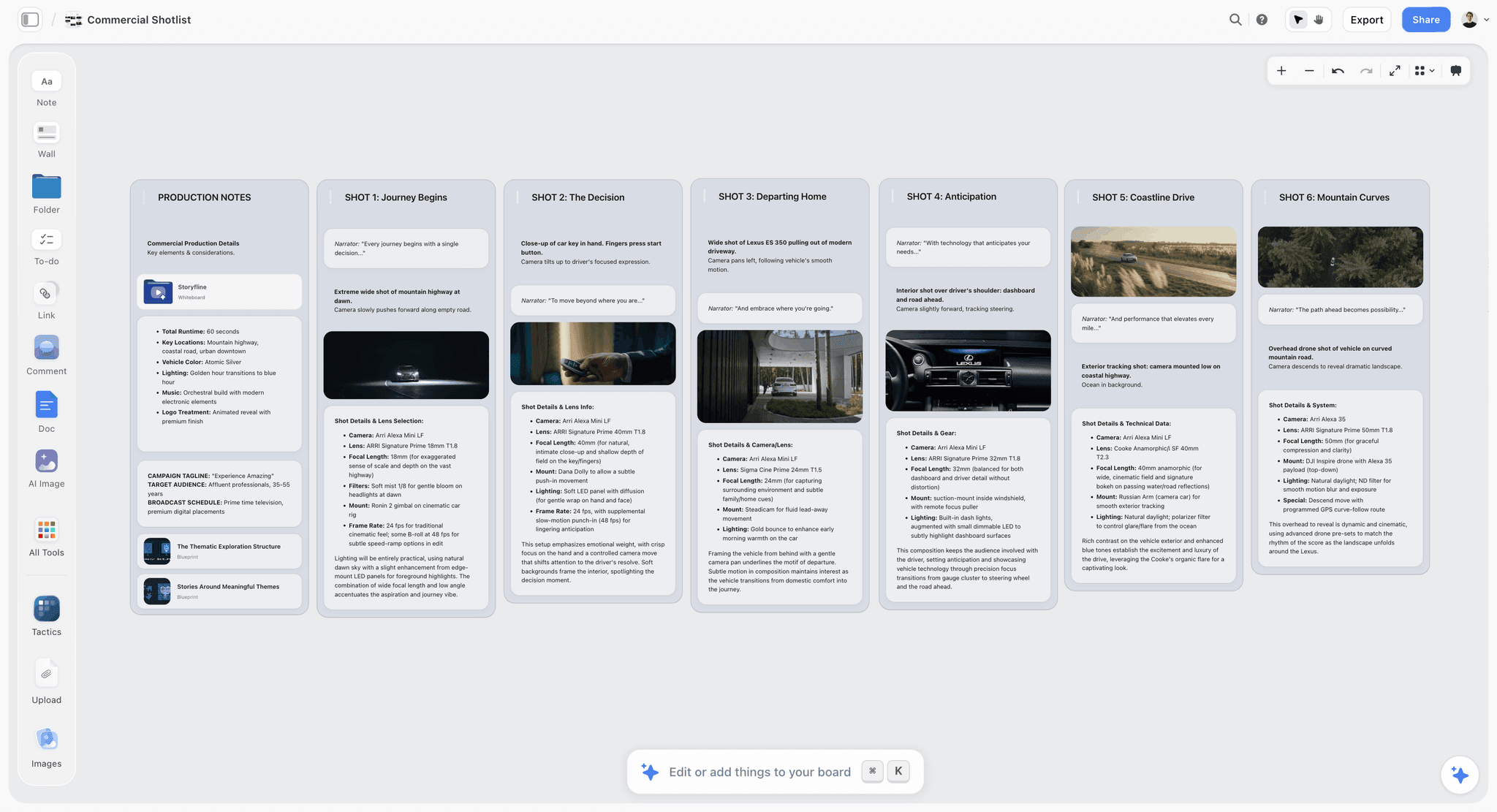
A Storyflow board holding a shot list for a video shoot, with numbered setups beside the storyboard frames they came from
Draft your shot list from the script you already have
Attach your script or build on your storyboard, and Storyflow's AI drafts a setup-level shot list with 1A, 1B numbering on the same board as your schedule and call sheet PDF. Share it with the client by link.

The 7 Best Tools to Build a Shot List, Ranked
Storyflow is ranked first because it is our pick, and it is our own product. The basis is one criterion: how much of the shot list the tool writes for you from the script, storyboard or brief you already have. The other six are not ranked against each other by a total score. Each follows with the job it is best at, and StudioBinder is the one to choose instead of Storyflow when you need setup grouping, a schedule that recalculates and call sheets sent and tracked.
1. Storyflow
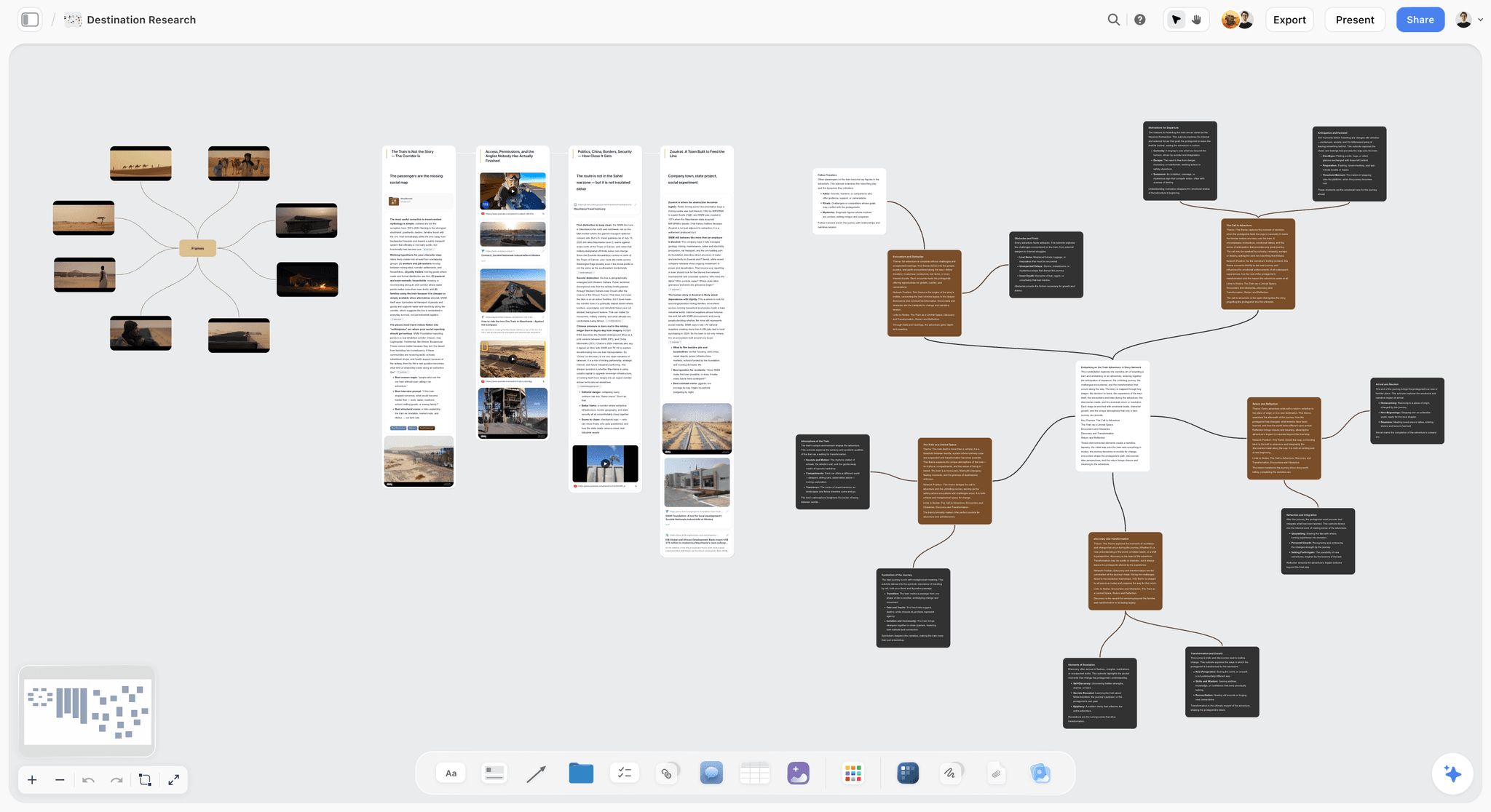
The verdict: Storyflow is our own product and first here for writing the shot list: its AI drafts it from the script, storyboard or client brief you already have, and the list then lives on the same board as the rest of the shoot. Its tables cannot be sorted or grouped into setups, its strip board does not recalculate and it does not send call sheets, so choose StudioBinder when those are the job.
Best for: Shooter-directors, producers and small video teams who write the shot list themselves and then have to turn it into a schedule, a call sheet and something the client can look at.
Key features for this job:
- It builds from what is in front of it, in order: elements you selected, a storyboard already on the board, then a script or brief you attached. It reads scripts as PDF, Final Draft (.fdx), Fountain or Word files, and takes the scene numbers from the script instead of inventing its own.
- It writes one entry per camera setup, never one per scene, as a table or a row of shot cards, numbers shots 1A, 1B, 1C from the script's own scene numbers, and puts them in shooting order when it knows your locations or lighting.
- The table format defaults to Shot, Size, Angle, Movement, Subject and action, Lens, Setup time and a Got it column to tick on the day, and it changes the columns by shoot type (a brand shoot adds Product and Talent; a creator shoot adds Type and Audio).
- On the same board, the AI's storyboard, script breakdown and strip board workflows cover the neighbouring documents, and the AI lays out a call sheet and the shot list itself as designed pages you export as a PDF for the day.
- Storyflow also works from inside ChatGPT, Claude, Gemini and Grok through its MCP connector: ask the assistant to build the shot cards on your board, and it writes them there.
- The client opens the board by link with no account, and signs in to comment. Invited collaborators edit the same board in real time.
Pricing (checked October 10, 2026): Storyflow is paid-only during early access, with plans from $7.99 a month billed annually ($9.99 monthly). Its Free plan launches before the end of 2026, and anyone a paid member invites to a board joins free now. Pro ($14 a month billed annually, $19 monthly) adds AI image generation, which you need for AI-generated frames on shot cards.
Pros:
- The draft arrives in the right shape: setup-level rows, industry numbering and your script's scene numbers, rather than a scene list you then have to break down by hand.
- The shot list sits on the same canvas as the storyboard frames, the reference images and the schedule, so a cut scene is visible next to every shot it affects.
Where it falls short:
- The canvas cannot sort or filter a table, so rows stay in the order written. Ask the AI to write them in shooting order, or to rewrite the table when the order changes; Google Sheets is better if you want to re-sort a list by location or time with one click.
- There is no native iPhone or iPad app and no live on-set mode that retimes the day as you shoot. Shot Lister does that better.
- The call sheet is a PDF you send yourself. Storyflow does not email or text call sheets, collect confirmations or track who has opened one. StudioBinder does.
- There are no storyboard drawing tools or animatics. Boords is stronger when the client signs off on a drawn storyboard.
The AI shot list generator page shows the workflow on a real board, and How to Plan a Photoshoot From Moodboard to Shot List covers starting from references instead of a script.
2. StudioBinder
The verdict: StudioBinder is the most complete production management suite on this list, and it has the best shot list structure here. Its shot lists sit beside storyboards, scripts, stripboard schedules and call sheets it can send and track. If your job does not end at the shot list but at a crew list with confirmed call times, StudioBinder is the most direct route.
Best for: Production companies and producers who run the whole pipeline, from script breakdown to sent call sheets, inside one production app.
Key features for this job (from its shot list page, checked October 10, 2026):
- Import a script and each scene gets its own shot list. Shot Tagger adds a shot from a line of action or dialogue you select.
- Shot specs for size, camera movement, lens, frame rate, camera angle, sound and location, with columns you show or hide.
- Group shots into camera or lighting setups and drag the setups into shooting order. Banners mark company moves and meal breaks.
- Time estimates per shot, totalled for the day.
- View-only links, invited collaborators who comment, a customizable PDF, and progress the crew follows on a phone.
Pricing: StudioBinder's pricing page showed no plans when loaded on October 10, 2026; its own Indie plan article lists Indie at $49 a month for 2 users. Check studiobinder.com/pricing for the current tiers.
Pros:
- The deepest set of connected production documents here, with call sheet sending and tracking that Storyflow does not have.
- Setup grouping with drag-and-drop ordering is built for exactly the reorder step in this article.
- Shot list and storyboard in one product, familiar to anyone trained on professional sets.
Where it falls short:
- Its shot list page describes no AI drafting: an imported script gives you a list per scene, and you add the shots.
- It is a production suite, which is more product than a one-day brand shoot needs.
- We could not confirm prices or free-plan limits when checked.
The 12 Best StudioBinder Alternatives in 2026 covers the rest of the field if StudioBinder is more suite than you need.
3. Shot Lister
The verdict: Shot Lister is the best tool for the shoot day itself. It is an iOS and macOS app built for directors and ADs who run the day from an iPad, reorder setups when the schedule slips and see the running time update as they go.
Best for: Directors and first ADs on narrative and commercial sets who want a dedicated on-set app in their hand, not a document.
Key features for this job:
- Shot lists with industry numbering, letter revisions and cast numbers.
- Shot-by-shot, minute-by-minute shooting schedules.
- Live Mode, which tracks the day while you shoot and lets you reorganize on the fly.
- Crew sync (Pro up to 10 crew, Studio up to 80) and Scriptation sync.
- Storyboards and script import on Pro, episodes for TV and an Apple Watch app.
Pricing (from shotlister.com, checked October 10, 2026): Free download with Pro features locked, including making more than two projects. Shot Lister Pro is $15.99/month or $99.99/year (about $8.33 a month). Shot Lister Studio for teams is $24.99/month for 10 users, $44.99 for 20, $64.99 for 40 and $94.99 for 80. Subscriptions are bought inside the app.
Pros:
- Live Mode is the best on-set feature in this category: the schedule reacts when setup 5 runs 20 minutes long.
- The annual Pro price is low for a professional tool.
- Built by and for working crews, with numbering and revision conventions that match industry practice.
Where it falls short:
- Its site links iOS and macOS downloads only, so a crew member on Android or a client on a Windows laptop is left out.
- No AI: building the list is manual.
- No client-facing board, moodboard or brief around the list. Storyflow or Boords covers the client side.
Storyflow's Shot Lister alternative page compares the two directly.
4. Celtx
The verdict: Celtx is the pick for writers who want the script and its shot list inside one writing app. It is a screenwriting tool first, with shot lists made by tagging the script itself.
Best for: Writer-directors and corporate video writers who draft in Celtx and want shots attached to the script they wrote.
Key features for this job (from its shot list page, checked October 10, 2026):
- Highlight text in the screenplay and shot-tag it; Celtx fills the shot with the script information.
- A shot menu for size, frame, extra angles and camera movement, with presets you can edit.
- A shot list compiled for each shoot day, exported as a PDF for the director and camera crew.
- Storyboards, breakdowns, schedules, budgets and call sheets elsewhere in the same suite.
Pricing: The Celtx pricing page showed plan names without dollar amounts when checked on October 10, 2026. It lists a free plan with 1 seat and 1 project, Writer (up to 3 projects), Writer Pro (unlimited projects) and Team (3 to 15 members), with shot lists and the production planning tools shown as optional add-ons on the two Writer plans.
Pros:
- The shot list and the script are in the same app, and a tagged shot carries the script text with it.
- Daily shot list PDFs come out of the schedule without retyping.
Where it falls short:
- Shot lists are an add-on on the Writer plans, and the page showed no price for it when checked.
- Its shot list page describes no AI drafting and no way to reorder shots, so coverage is written by hand.
- The planning outside the script (references, moodboards, a client-facing board) lives elsewhere. Storyflow covers that side.
5. Boords
The verdict: Boords is a storyboard and animatic platform for video agencies, and its shot list is the storyboard's frame list. When the client signs off on drawn or generated frames before the shoot, Boords is the most polished place to get that sign-off.
Best for: Agencies and animation or explainer studios whose client approves a storyboard and animatic before anything is shot.
Key features for this job (from its AI storyboard page, checked October 10, 2026):
- Paste a script, treatment or brief and its AI turns it into frames, with a shot list that carries camera angles and scene descriptions.
- A saved library of characters, locations and props you reuse by name to keep frames consistent.
- An animatic you preview with audio and export as MP4.
- Client review, version history and PDF export on every paid plan.
Pricing (from boords.com/pricing, checked October 10, 2026): A free plan with 5 active storyboards, 3 active scripts and 8 one-off AI image credits. Solo $26 a month billed yearly or $39 monthly (1 user, 250 AI images a month). Pro $50 or $75 (up to 5 users). Team $85 or $125 (up to 10 users). Agency $165 or $250 (up to 30 users).
Pros:
- The smoothest client review of storyboard frames on this list.
- Animatics show the client the edit before a single shot is taken.
- A shot list generated from the script comes with the frames.
Where it falls short:
- It is storyboard-first: lens, audio, setup grouping and time per setup are not the core of the product, so the crew's working list often ends up in a spreadsheet anyway.
- Converting a script makes a snapshot, so later script edits do not update the frames.
- No schedule or call sheet. StudioBinder or Storyflow covers the shoot-day documents.
Storyboard vs Shot List: The Complete Guide explains when you need both documents and when one is enough.
6. Notion
The verdict: Notion is a strong choice when your team already runs its projects there. A Notion database makes a flexible shot list, with properties for size, angle and movement, a board view grouped by setup and a page per shot for notes. It is not built for production, so you build every piece of the structure yourself.
Best for: In-house content teams and agencies whose briefs, scripts and tasks already live in Notion.
Key features for this job:
- Databases with select properties for size, angle, movement and audio.
- Table and board views over the same shot list, grouped by setup group or location, with sorting and filters.
- A page per shot for reference images and notes.
- 10 external guests on Free, unlimited guests on Plus and above.
- Full Notion AI on Business; Free and Plus get a limited trial.
Pricing (from Notion's pricing page, checked October 10, 2026): Free, then Plus at $10 per member a month billed annually ($12 monthly) and Business at $20 ($24), with Enterprise priced on request.
Pros:
- Views give you the same shot list grouped by setup, filtered by scene or laid out on a board.
- If the brief already lives in Notion, the shot list sits near it.
Where it falls short:
- There is no shot list structure out of the box: numbering, coverage and time per setup are yours to design.
- Full AI needs the Business plan, and it fills database properties; it does not draft coverage from a script.
- Visual references sit inside pages, not beside the rows, so the storyboard and the list are two clicks apart. Storyflow keeps them on one canvas.
The 12 Best Notion Alternatives for Filmmakers and Video Creators compares Notion with production-first tools.
7. Google Sheets
The verdict: Google Sheets is the right answer when the shoot is a one-off, the budget is zero and you already know how to build a shot list. It is free, everybody can open it and it sorts and filters in a click. It is listed last here because it drafts nothing and holds nothing but the grid, not because it is a bad choice. Microsoft Excel does the same job if your team lives in Office.
Best for: Solo shooters, students and one-off shoots where the shot list is the only planning document.
Key features for this job:
- Paste the 12-column header and you have a template in seconds.
- Sort by location or setup group, filter to one scene, and add a checkbox column to tick shots on the day.
- Data validation dropdowns keep Size, Angle and Movement to a fixed vocabulary.
- Share by link with view, comment or edit access.
- The Sheets app on phones makes the list readable on set.
Pricing: Google Sheets is free with a personal Google account. Business use comes with Google Workspace, billed per user; Google's pricing page showed euros when checked on October 10, 2026, so check it for your country's price.
Pros:
- Free, universal and fast to build.
- Sorting and filtering are the best on this list for reorganizing a long list by location or setup.
Where it falls short:
- It is only a grid: no storyboard frames beside the rows, no reference images, no call sheet. Storyflow or StudioBinder keeps those together.
- Every row is typed by hand unless you pay for a Workspace plan with Gemini features, and even then the tool does not know what coverage a scene needs.
- Spreadsheet shot lists drift from the script the moment the script changes, because nothing connects them.
How Storyflow Builds the Brand Video Shot List
Here is the 24-shot example above, built on a Storyflow board instead of by hand.
- Put the Source on the Board. Attach the brand video script (PDF, Final Draft, Fountain or Word) to an AI message, or build the storyboard first with the AI's storyboard workflow, one wall per scene. If you already have reference stills from the tech scout, drop them on the board and select them.
- Answer the Three Questions. Ask the AI for a shot list. It asks, in one message, whether you want a table or shot cards, how many shots, and where card frames come from. For a crew document, choose the table. For a client-facing shot plan with a picture per setup, choose shot cards; web search frames arrive captioned as reference, so nobody mistakes them for footage you already have, and AI-generated frames need Pro or Max.
- Correct the Draft. The table arrives one per scene by default, numbered from the script's own scenes, with setup times and a Got it column. Ask for the Audio, Location and Setup group columns if the draft left them out for your shoot type, fix the lens choices your DP disagrees with, and ask the AI to rewrite the rows in the shooting order you worked out. Any AI change can be undone in one click.
- Build the Neighbouring Documents. On the same board, the AI's strip board workflow groups scenes into shoot days, and the AI lays out a call sheet from the board as a page you export as a PDF: the day's calls, a schedule table, cast, crew by department, locations and notes. Anything you did not give it, such as a phone number or the nearest hospital, is left visibly blank and listed as an open item, never invented. Ask for shot list pages the same way and the crew gets a printable list, one table per scene with a kit list at the end.
- Share the Board. Turn sharing on and send the link. The client opens the board with no account, and signs in to comment on a shot; the DP and producer, invited to the board, edit it with you in real time. Presentation mode goes fullscreen and steps through the board one wall at a time for a walkthrough on a call. The AI call sheet generator page shows the call sheet step in detail.
| Document | Where it comes from on the board | Who reads it |
|---|---|---|
Storyboard | The AI's storyboard workflow, one wall per scene | Director, client |
Shot list | The AI's shot list workflow, table or shot cards | DP, camera, sound |
Strip board | The AI's strip board workflow, scenes grouped into shoot days | Producer |
Shot list pages | The same list as printable pages, exported as a PDF | Crew on the day |
Call sheet | A page the AI lays out from the board, exported as a PDF | Whole crew and cast |
Client review | The shared board link, comments after sign-in | Client |
Decision Rules by Shoot Size and Budget
| Situation | Choose | Because |
|---|---|---|
One shoot, under 15 setups, no client review | Google Sheets | The list is the only document, and it is free |
Client-facing brand or corporate video, 1 to 3 days | Storyflow | The AI drafts the list from the script, and the client sees it beside the storyboard by link |
Narrative short or commercial with an AD running the floor | Shot Lister, with the plan built in Storyflow or StudioBinder | Live Mode on set; the planning happens before |
Multi-week production with call sheets to 30 people | StudioBinder | Sending and tracking call sheets is the bottleneck, and it does that |
Animation, explainer or storyboard-approved spot | Boords | The client signs off on frames, and the shot list follows the frames |
Team already paying for Notion Business | Notion | Its AI and views cover a simple shot list without a new tool |
You plan inside ChatGPT or Claude already | Storyflow through its MCP connector | The assistant builds the shot cards on your Storyflow board, so the list does not stay in a chat thread |
The two-tool setup that works for most crews. A sensible setup is one tool to plan and one to run the day: build the shot list, storyboard and call sheet in Storyflow or StudioBinder, and give the AD Shot Lister on an iPad for the shoot itself. The plan tool is where the client sees the work; the on-set tool is where the day gets retimed. If you are choosing for a whole production, The 12 Best Shot List Tools, Apps and Software in 2026 covers a wider field on the same scores, The Best Shoot Day Planning Apps covers the apps that run the day itself, and the shot list software page describes Storyflow's side in more detail.
When Storyflow Is Not the Right Choice
Storyflow is first on this page for one thing, drafting the shot list. It is the wrong tool for some parts of the job, and here is what to use instead.
- You need call sheets sent, confirmed and tracked. Storyflow lays out the call sheet as a PDF, but it does not send it or collect confirmations. Use StudioBinder or a dedicated call sheet app; The 12 Best Call Sheet Software Tools in 2026 compares them.
- Your AD wants to retime the day live on an iPad. There is no native iPhone or iPad app and no live on-set mode. Use Shot Lister.
- You need to re-sort a 200-row list by location or lens in one click. The canvas cannot sort or filter a table. Use Google Sheets or Notion for that pass.
- The client signs off on a drawn storyboard or an animatic. Storyflow has no storyboard drawing tools or animatics. Use Boords.
- You need a free tool today. Storyflow is paid-only until its Free plan launches before the end of 2026. Use Google Sheets or Notion's free plan.
- Your team needs formal approval steps. There is no approval button or approval status; feedback happens in comments. Use Boords for sign-off on storyboard frames.
- You need a schedule that recalculates. A Storyflow strip board is a layout the AI builds once; it does not retime itself when a day moves. Use StudioBinder or Shot Lister for that.
Shot List Pre-Shoot Checklist You Can Copy
Run this list the night before the shoot, whichever tool holds the shot list.
The list itself:
- Every scene or brief section has at least a wide, a medium or close-up, and an insert.
- Every row has a shot number in the 1A, 1B format, and no number is reused.
- Size, angle and movement use the fixed vocabulary, with no free text.
- Every row has an audio value, including MOS.
- Every row has a setup group letter and a time estimate.
- Must-have setups are marked.
The day:
- The time estimates add up to 70% or less of the booked hours, after lunch and moves.
- The rows are in shooting order, and the list says so at the top.
- Dialogue setups sit in the quietest hours at each location.
- Exterior setups sit in the hours the light is right.
- Every lens and support item the list names (macro lens, slider, gimbal, turntable) is on the kit list.
The people:
- The DP, sound recordist and producer have the latest version and know where it lives.
- The client has seen the shot list or the storyboard it came from, and their comments are resolved.
- The call sheet schedule matches the setup blocks. How to Plan a Photoshoot in 2026 shows the same handoff for stills shoots.
The Short Version: Five Moves and the Tools That Help
- Lock the script, brief or storyboard.
- Write one row per camera setup, not per scene, numbered 1A, 1B, 1C.
- Fill size, angle, movement, lens and audio from a fixed vocabulary.
- Give every row a setup group and a time estimate, then reorder by group.
- Mark the must-haves, share the link and tick rows off on the day.
Tools that help, by the step each one does:
- Storyflow drafts steps 2 to 4 from your script or storyboard and keeps the list beside the storyboard and the call sheet PDF.
- StudioBinder groups setups, totals the day and sends and tracks the call sheet.
- Shot Lister runs step 5 live on an iPhone or iPad and retimes the day.
- Google Sheets or Excel holds the template for free when you type the rows yourself.
The Bottom Line
A shot list for a video shoot is one row per camera setup across 12 columns, grouped by setup and timed so the day fits. Build it in that shape and the schedule and call sheet almost write themselves. Storyflow gets you there with the least typing, because its AI drafts the list from the script or storyboard already on your board, and the list stays beside the storyboard, the schedule and the call sheet PDF where a client can open it by link. StudioBinder is the better choice when you need call sheets sent and tracked, Shot Lister when the day runs from an iPad, and Google Sheets when the budget is zero. See pricing for Storyflow's plans.
FAQ: Shot Lists for a Video Shoot
How do I make a shot list for a video shoot?
Break the script or brief into scenes, list the camera setups each scene needs, and give every setup one row with scene, shot number, size, angle, movement, lens, subject, action, audio, location, setup group and a time estimate. Then reorder the rows by setup group so the crew lights each space once, and check that the times fit the day. Storyflow's AI drafts that table from a script or storyboard on your board, so you correct a draft and skip the typing; Google Sheets is the free way to build it by hand.
What columns should a shot list have?
A complete video shot list has 12 columns: scene, shot number, size, angle, movement, lens, subject, action, audio, location, setup group and time estimate. Size, angle and movement should use a fixed vocabulary (Wide, Medium, Close-up; Eye level, Low, High; Static, Pan, Push in). Drop lens on a one-lens shoot and location on a one-room shoot, but keep setup group and time estimate on every list, because they are what turn the list into a schedule.
How many shots does a 2-minute video need?
A 2-minute brand or corporate video usually needs 20 to 30 camera setups, which produce far more individual clips once you count takes. The example in this article uses 24 setups across six scenes and eight setup groups, taking about 6 hours of rigging and shooting. A talking-head video with B-roll can manage with 10 to 15 setups; a fast-cut product spot can need 40 or more.
How long does each setup take to shoot?
Plan 5 to 10 minutes for a new size on the same lighting, 20 to 30 minutes for a new camera position that needs relighting, and 45 minutes or more for an interview or a lit product hero. Macro and slider setups take longer than they look. Add each group's estimates to get a schedule block, and keep the total under about 70% of the booked day to leave room for moves, lunch and the shot the client asks for on the day.
Should a shot list be in script order or shooting order?
Write it in script order, then reorder it into shooting order. The Shot column keeps the script order (1A, 1B, 2A), and the row order becomes the day, grouped by setup, light and sound. Keep script order only when continuity is fragile, such as a performance that builds or a documentary moment you cannot repeat, and say at the top of the list which order you used.
What is the difference between a shot list and a storyboard?
A storyboard shows what each shot looks like, as a drawing, a generated frame or a reference photo. A shot list tells the crew how to get it, as technical rows with size, lens, movement, audio and time. Brand and narrative shoots usually need both: the storyboard for the client and director, the shot list for camera and sound. Many small shoots skip the storyboard and put a reference frame on each shot instead.
How do you number shots on a shot list?
Use the scene number plus a letter: 1A, 1B, 1C for scene 1, then 2A for scene 2. Never number the whole shoot 1 to 24, because cutting or adding a scene then renumbers everything after it. Skip the letters I and O, which read as numbers on a slate. When a shot is added late, give it the next free letter in its scene rather than renumbering.
Can AI make a shot list from a script?
Yes. Storyflow's AI reads a script attached as a PDF, Final Draft, Fountain or Word file and drafts a setup-level shot list with industry numbering from the script's own scene numbers, as a table or as a row of shot cards. Boords turns a script into storyboard frames with a shot list attached, and Notion AI on Business can fill database properties. StudioBinder and Celtx build the list from the script by tagging lines, without AI. Treat any AI draft as a first pass: the DP still owns the lens choices and the setup times.
Is Storyflow free?
Not during early access. Storyflow is paid-only during early access, with plans from $7.99 a month billed annually ($9.99 monthly). Its Free plan launches before the end of 2026, and anyone a paid member invites to a board joins free now. Google Sheets is the free way to build the same template today.
Is Shot Lister worth it for a small crew?
Shot Lister is worth it when your director or AD works on an iPhone, iPad or Mac and wants to retime the day live. Pro costs $99.99 a year (about $8.33 a month) or $15.99 monthly, and Studio covers 10 users for $24.99 a month. It is not worth it when your crew uses Android or Windows, since its site links iOS and macOS downloads only, or when you need the client to see the plan.
Can I make a shot list in Google Sheets or Excel?
Yes, and for a single shoot it is often the best free choice. Paste the 12-column header, add dropdowns for size, angle and movement, add a checkbox column for the day, and share the link. Spreadsheets sort and filter faster than any other tool here. What they lack is everything around the list: storyboard frames, references and the call sheet, which then live in other files that drift apart.
How do I share a shot list with a client?
Share a link the client can open without installing anything. In Storyflow, the client opens the board with no account and signs in to comment, and they see the shot list beside the storyboard. Google Sheets and Notion share by link with comment access. Boords sends review links for storyboard frames, with a passphrase if you want one. Keep the crew version and the client version the same document, so feedback lands where the crew will see it.
What should an interview shot list include?
An interview shot list needs a main size (usually medium), a tighter second size on the same answers, a wide safety, and hand or detail inserts, all in one setup group. Mark every interview row Lav + boom, add a room tone row, and schedule the interview for the quietest hour at the location. Add B-roll rows for every topic the interviewee will cover, so the editor has something to cut to.
What do I do when the shoot day runs behind?
Protect the must-have setups and cut from the bottom of each group. Drop second sizes before you drop a scene's only coverage, combine two setups into one wider move where the edit allows, and push inserts and product shots to a pickup session, since they need no talent. This only works if the must-haves were marked before the day, which is why the checklist asks for it.
Is there a free shot list template I can copy?
Yes. Copy the 12 column headers from this article into row 1 of a Google Sheets or Excel file: Scene, Shot, Size, Angle, Movement, Lens, Subject, Action, Audio, Location, Setup group, Time estimate. Then use the header row for your type of shoot from the templates section, which trims the set to about eight columns. The 24-row brand video example is free to copy as a filled starting point.
What is the Priority column on a shot list?
Priority marks how much the edit depends on a setup: A for must have, B for important, C for nice to have. It matters on the day, not in planning. When the schedule slips, shoot every A row in the current setup group first, then B, and cut C rows without a discussion. Mark priorities with the director before the shoot, because nobody agrees on them at 4 p.m.
What is the best shot list template for a YouTube video?
Use eight columns: Shot, Type (A-roll, B-roll, Insert, Talking head), Size, Subject and action, Location, Audio, Duration and a Got it checkbox. Drop Angle and Lens unless you change lenses. Write the hook as its own row, give every main point one A-roll row and two B-roll rows, and tick rows off as you film. Storyflow's AI uses this column set when you say the shoot is for YouTube.
Can I make a shot list inside ChatGPT or Claude?
You can draft one in any chat assistant, but a table in a chat thread is hard to share with a crew and impossible to tick off. Storyflow's MCP connector closes that gap: connect Storyflow to ChatGPT, Claude, Gemini or Grok, ask for the shot list, and the assistant builds it as shot cards on your Storyflow board, where the DP and the client can open it by link.
Table of Contents
- Key Takeaways
- Which Tool Should You Use to Make a Shot List for a Video Shoot?
- What a Shot List for a Video Shoot Actually Has to Do
- The 12-Column Shot List Template, Column by Column
- How to Make a Shot List for a Video Shoot, Step by Step
- A Filled Example: 24 Shots for a 2-Minute Brand Video
- Shot List Templates by Type of Video Shoot
- How to Group Shots by Setup (and Why Script Order Wastes the Day)
- How We Evaluated Shot List Tools
- Comparison Table: The 7 Shot List Tools Side by Side
- The 7 Best Tools to Build a Shot List, Ranked
- 1. Storyflow
- 2. StudioBinder
- 3. Shot Lister
- 4. Celtx
- 5. Boords
- 6. Notion
- 7. Google Sheets
- How Storyflow Builds the Brand Video Shot List
- Decision Rules by Shoot Size and Budget
- When Storyflow Is Not the Right Choice
- Shot List Pre-Shoot Checklist You Can Copy
- The Short Version: Five Moves and the Tools That Help
- The Bottom Line
- FAQ: Shot Lists for a Video Shoot
- Related Reading
Templates to check out for this topic


Filmmaking templates you can use in Storyflow
Skip the blank canvas. Open one of these filmmaking boards in Storyflow and the AI builds on the structure that is already there, from research through the shot list.


See Storyflow in Action
A visual AI workspace where every feature lives inside one canvas. No tab-switching, no context lost.
Build your entire board from a single message
Type what you need in the AI chat at the bottom of your canvas. The AI adds cards, headings, and structure directly onto your board.
Use expert frameworks as AI context
Type @ in the AI chat and choose any Tactic. The AI tailors every response to that framework instead of giving generic advice.
Turn your board into a mind map in seconds
Ask the AI to restructure your canvas as a mindmap. It connects your ideas into a visual hierarchy so you can see how everything relates.
Why Storyflow Exists
Storyflow actually began as a personal tool while working on creative and research projects.
We kept running into the same problem: ideas were scattered everywhere: notes, documents, and whiteboards.
Nothing helped us see how everything connected.
So we started building a workspace designed around how ideas actually grow.
→ Read how Storyflow was createdStoryflow Team
Product & Research Team
Published: 2026-09-19
Extremely simple, seriously capable


See how easy it is to get started
Watch a real project come together, from a blank board to a finished plan, clicked through step by step.
Start creating with AI and become more productive
Transform your creative workflow with AI-powered tools. Generate ideas, create content, and boost your productivity in minutes instead of hours.