
Hours back on every video you plan
Shoot the cutaways
you will actually use.
Work out what each sequence needs before the shoot, group every cutaway by the job it does, and leave with a b-roll list instead of a vague intention to grab some extra shots.


Creatives working for these brands already got early access
- Red Bull
- Canon
- Artlist
- Porsche
See how easy it is to get started
Watch a real project come together, from a blank board to a finished plan, clicked through step by step.
Start from a ready-made template
Pick a board to see what you can build, then let AI fill it in. Every template is a real, editable starting point on the same infinite canvas.

Storyboard
Lay out your shots frame by frame with images and notes, then reorder them until the sequence reads like the finished cut.
What is a b-roll planner?
A b-roll planner is where you decide, before the shoot, which supplementary shots your edit is going to need and why. Storyflow is an AI visual workspace that plans your b-roll on one infinite canvas: the cutaways each sequence needs, grouped by the job they do, reference frames pinned to each shot, and a b-roll shot list you can film against. Most b-roll is gathered rather than planned. Someone remembers near the end of the day that they should grab some cutaways, films fifteen minutes of pretty but unmotivated material, and then discovers in the edit that none of it covers the one jump cut that actually needed hiding. The footage was not bad. It was answering a question nobody had asked.
The reason b-roll goes wrong is that it looks like a creative task and is mostly a structural one. You cannot know what cutaways you need until you know what the sequence is doing: where the interview will be trimmed, where a claim needs illustrating, where the viewer needs a beat to absorb something, where you have to establish a place before you can cut inside it. Those are edit decisions, and the mistake is leaving them until you are in the edit, at which point the only footage available is whatever happened to get shot.
Storyflow is an AI-native infinite canvas that suits this because you can lay the sequence out and hang the b-roll off it. Put the structure of the piece along a row, then under each section put the cutaways that section needs, with a reference frame pinned to anything specific. The plan reads as a shot list on the day and as coverage map in the edit, which is the same information serving two different people.
It helps to plan b-roll by job rather than by subject, because a list organised by subject tells you what you filmed while a list organised by job tells you what you can cut. There are four jobs worth separating: illustrate, where the shot shows what someone is describing and has to be specific enough to match the words; cover, where the shot exists to hide a cut in the interview or the narration, and only needs to be plausible; breathe, where the shot gives the viewer a moment to absorb something and works best when it is calm and slightly longer than feels necessary; and establish, where the shot orients the viewer in a place or a time before you cut inside it. A sequence that has three illustrate shots and no cover shots will still fall apart in the edit, and you can see that gap on a board long before you can feel it on a timeline.
Ultra fast from brief to board
From a rough structure to a b-roll list you can shoot.
No forms to fill in. Lay the sequence out and hang the cutaways off it.
01
Open a canvas
Sign up in seconds. No download. Your infinite planning canvas opens straight in the browser.
02
Lay out the sequence
Describe the video and the AI lays out the structure as a row of sections. You need the shape of the piece first, because b-roll is answering questions the structure asks.
03
Hang cutaways off each section
Under each section, list the shots it needs and label each one with its job: illustrate, cover, breathe, or establish. Pin a reference frame to anything that has to look a particular way.
04
Take it to the shoot
Share a view-only link with your shooter or export the board as an image or PDF. On the day it reads as a shot list; in the edit it reads as a map of what you have.
Cutaways tied to the sequence that needs them.
Structure along the top, b-roll underneath, and the gaps visible before you shoot.
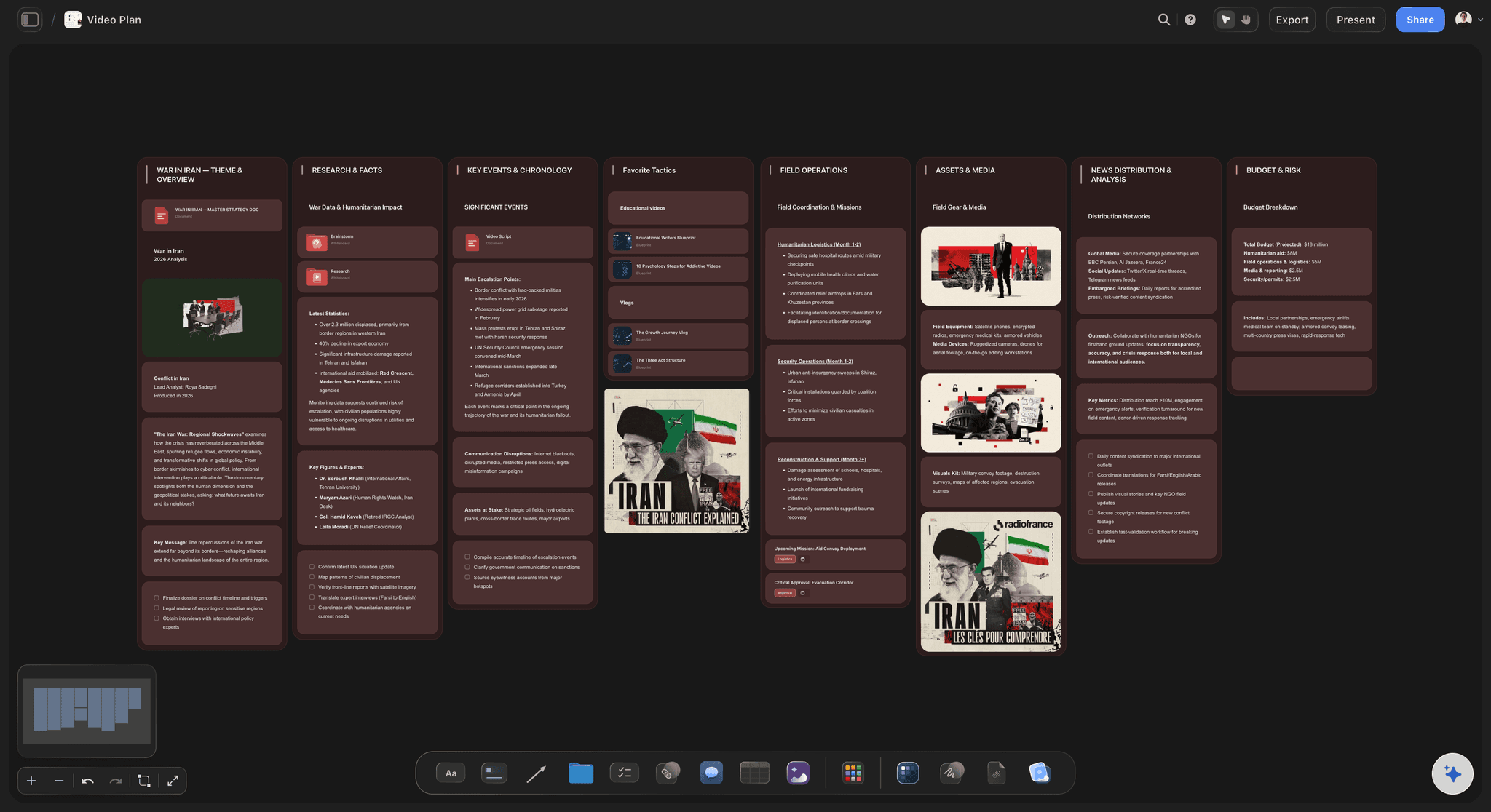
The structure of the piece laid out as sections
Plan the edit, then plan the coverage
B-roll answers questions the structure asks, so the structure has to exist first. Lay the sequence out as a row and the cutaways each section needs become a concrete list rather than a vague intention.
See the video script planner →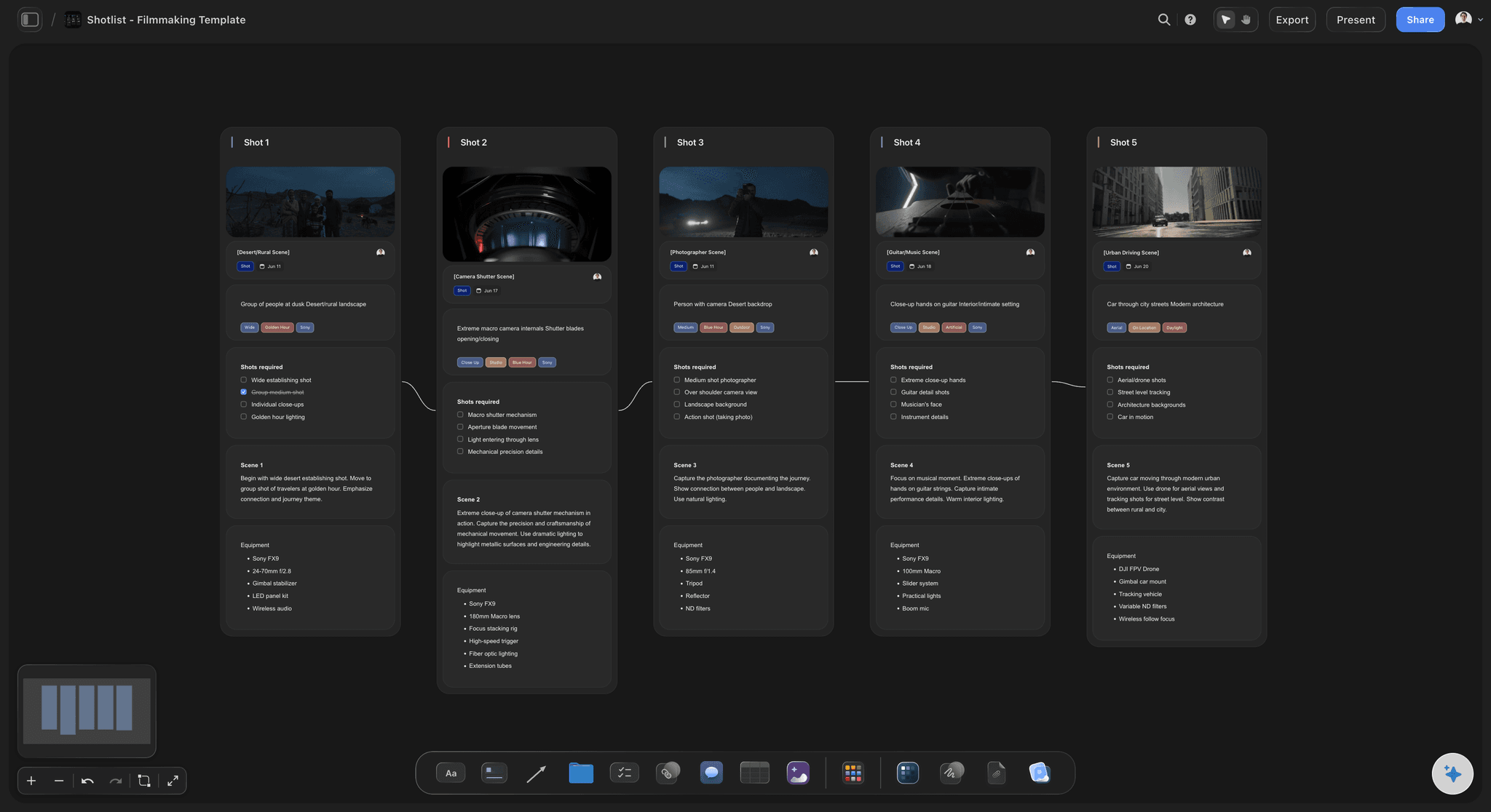
Every shot labelled with the job it does
Illustrate, cover, breathe, establish
Group cutaways by function rather than by subject. A sequence with four illustrate shots and no cover shots still collapses in the edit, and that gap is visible on a board and invisible in a list.
See the shot list generator →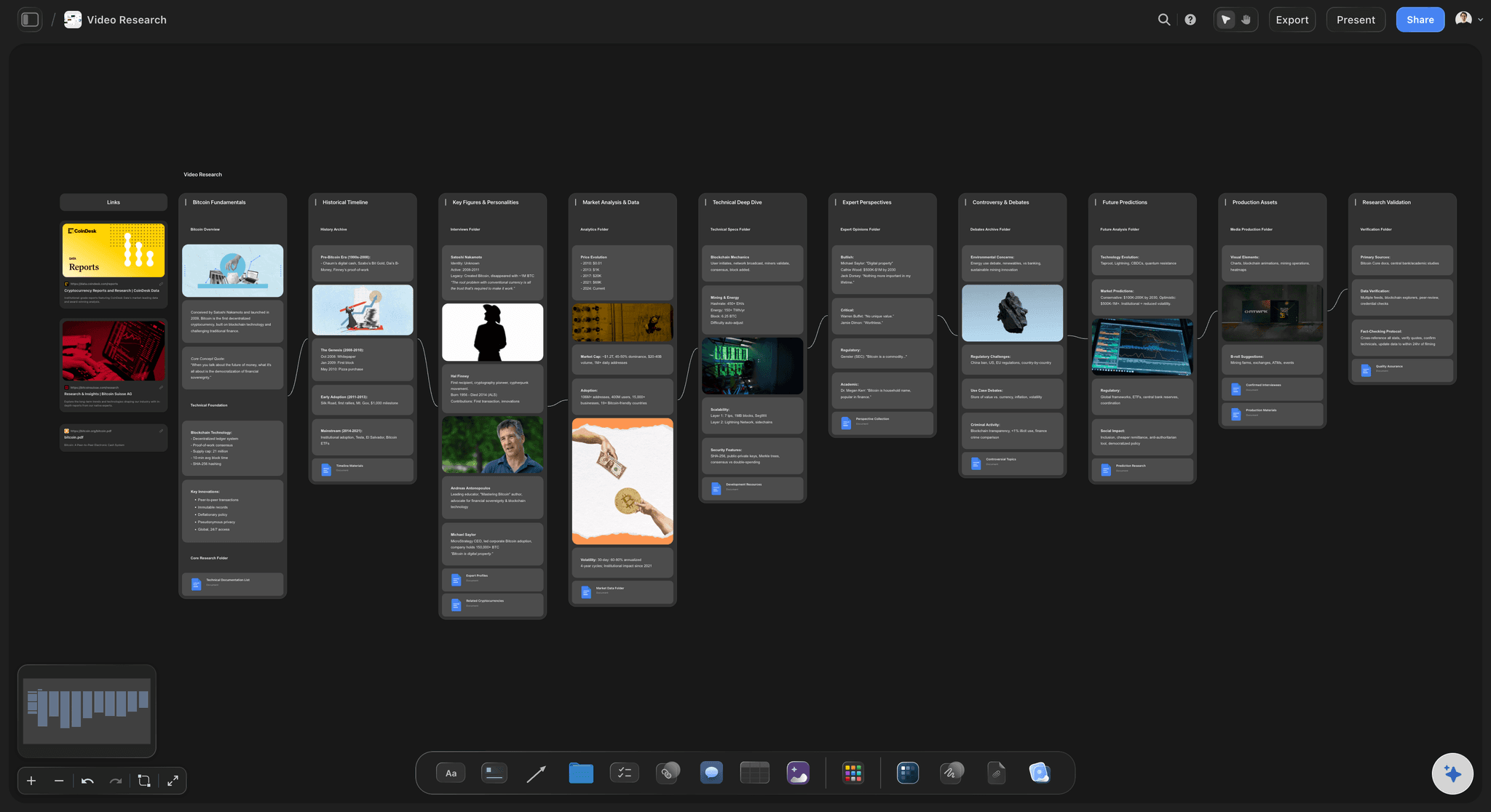
Reference frames pinned to specific shots
Show the shooter what you mean
Grab a frame from a YouTube or Vimeo reference and pin it to the shot. For anything with a specific look, a frame briefs a shooter faster and more accurately than a written description.
Explore video research boards →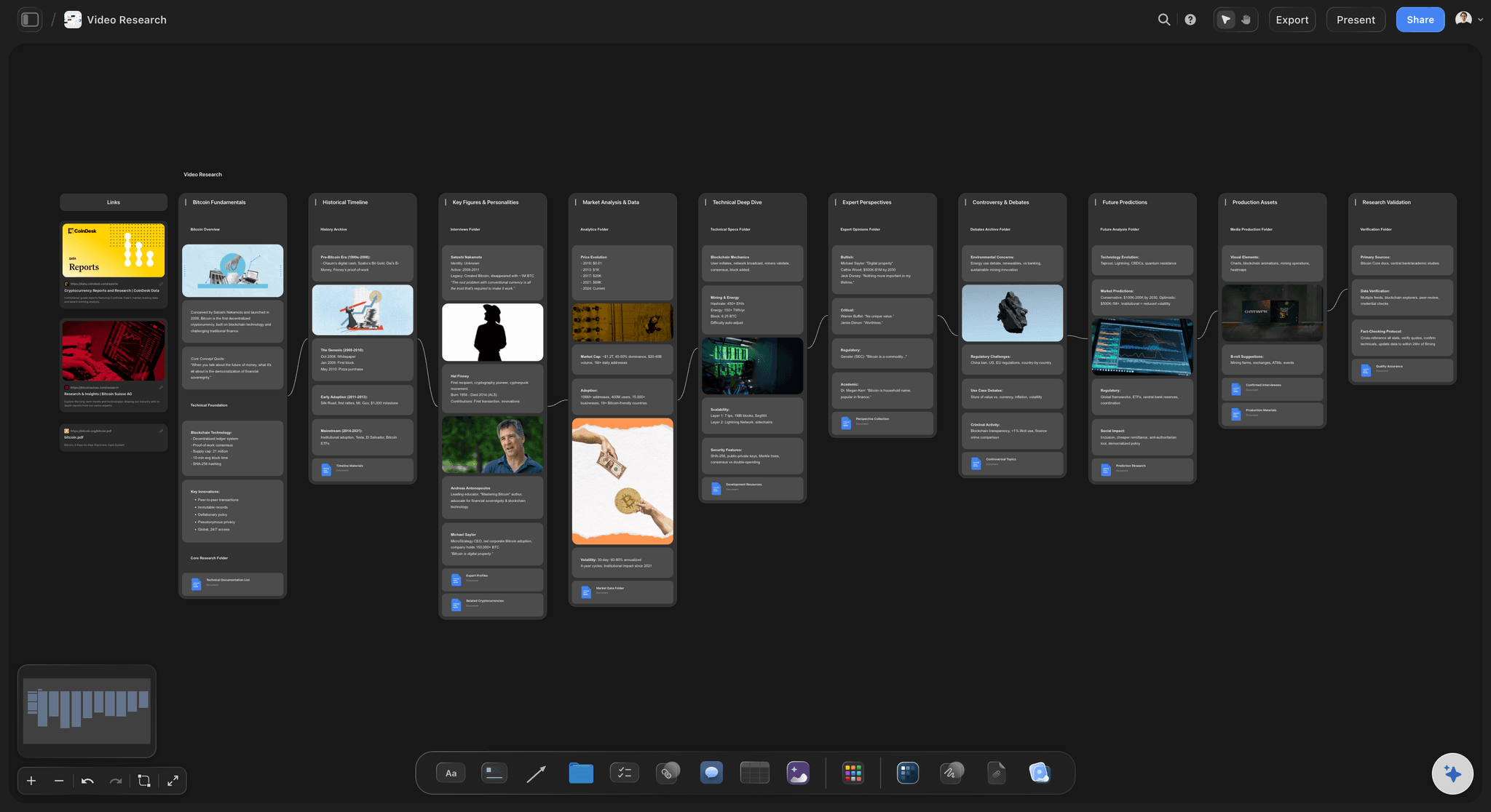
The same board works in prep and in the edit
A shot list on the day, a map in the edit
Tick shots off as you get them and the board becomes an accurate record of your coverage. Starting an edit knowing exactly what cover you have is a different experience from discovering it clip by clip.
See the footage organizer →Unlimited boards. No object cap.
Open a canvas, lay out the sequence, and plan the cutaways. Storyflow is paid-only during early access, with plans from $9.99 a month, and a Free plan launches before the end of 2026.
Unlimited b-roll boards on an infinite canvas
Basic AI usage to generate boards from prompts
3 starter frameworks built in
Share view-only links with your shooter or editor
Built for people with taste
More than a list of nice shots.
Beautiful b-roll that does not answer a structural question is footage you will not use.
Illustrate, cover, breathe, and establish
Plan by the job the shot does
Illustrate: show what is being said: The shot has to match the specific claim, which means it has to be planned from the script rather than gathered on instinct. Generic imagery under a specific statement is the most common way an illustrate shot fails.
Cover: hide a cut: The workhorse category and the one most often under-shot. Cover shots only need to be plausible in context, but you need far more of them than feels reasonable, because every trim in an interview needs somewhere to hide.
Breathe: give the viewer a beat: After something dense or emotional the viewer needs a moment. These shots should be calm, usually wider, and held slightly longer than feels comfortable in the plan. They are the first thing cut and the most missed.
Establish: orient before you go inside: Where the scene is, what time it is, what kind of place this is. Cheap to shoot, easy to forget, and the absence is felt as disorientation rather than noticed as a missing shot.
AI that can see the board you have already built
Draft the coverage list with AI, judge it yourself
Get a first pass from your script: Describe the video or paste the script and the AI suggests cutaways per section. It reads the active canvas as context, so once the structure is on the board its suggestions follow your actual piece.
It lists, you prioritise: The AI will happily generate forty shot ideas. The useful work is cutting that to the twelve you can actually get in the time you have, and that judgment depends on your location and your day.
Re-prompt as the edit changes shape: Structures move. Re-prompt as sections change and the shots you have already planned and ticked stay where they are.
References, clips, and notes on one canvas
Brief the shot properly
Grab frames from reference videos: Pull a frame from YouTube or Vimeo straight onto the board. Handing a shooter a frame rather than an adjective is the single biggest improvement you can make to a b-roll brief.
Note the practical constraints: Write the time of day, the permission needed, and how long the shot will take on the card. B-roll gets dropped when the day runs late, so knowing which shots are quick is what saves them.
No object cap: Plan sixty cutaways across a dozen sequences on one board without hitting a limit or splitting into files.
Share with the shooter, the editor, and the client
One list from shoot to edit
View-only links: Send a link and the camera operator opens the b-roll list in a browser with no account, with reference frames attached to every shot that needs one.
Tick off what you actually got: Mark shots as captured during the shoot and the board becomes an accurate coverage record rather than an optimistic plan. Live multi-editor presence with cursors is on the Max plan.
Export for the day: Export as an image or PDF for a printed list on the shoot. A single sheet of paper is still faster to check than a phone when you are carrying a camera.
Explore templates for your project
Every template opens as a real, editable board on the infinite canvas. Pick the closest fit and make it your own.
Storyboard
Lay out your shots frame by frame with images and notes, then reorder them until the sequence reads like the finished cut.
One app instead of five
Storyflow vs a notes app, StudioBinder, and your NLE.
For the edit itself your NLE wins outright. Here is where each tool fits.
Storyflow
Recommended
Cutaways hung off the sequence structure
Reference frames pinned to each shot
AI drafts coverage from your script
Edit the footage on a timeline
Industry shot list and call sheet exports
Sits beside your script and shot list
Notes app
Cutaways hung off the sequence structure
Reference frames pinned to each shot
AI drafts coverage from your script
Edit the footage on a timeline
Industry shot list and call sheet exports
Sits beside your script and shot list
StudioBinder
Cutaways hung off the sequence structure
Reference frames pinned to each shot
AI drafts coverage from your script
Edit the footage on a timeline
Industry shot list and call sheet exports
Sits beside your script and shot list
Your NLE
Cutaways hung off the sequence structure
Reference frames pinned to each shot
AI drafts coverage from your script
Edit the footage on a timeline
Industry shot list and call sheet exports
Sits beside your script and shot list
What creators are saying
Join early creators getting structured workspaces and AI that remembers their projects
“Storyflow has sped up my workflow by at least 3x, which means more flow state and more projects I can actually ship. It truly changed the way me and my team create.”

Reilin Joey
Director & YouTuber
“One prompt gets me a structured board. But the tactics are my favorite. I run my YouTube scripts through them and my intros and retention got better. It's amazing.”

Justkay
YouTuber & Freelance Filmmaker
“I used to juggle five apps to plan a project. Now I describe what I am making and get boards, lists, and a schedule. All in one place.”

George
@fernwehchronicles
B-roll questions, answered.
What to shoot, how much you need, and how to plan it so you actually use it.
Start from the structure of the edit, not from a list of nice shots. Lay the sequence out in sections, then for each section ask what the cut actually needs and label every shot with the job it does. There are four jobs. Illustrate shows what someone is describing and must be specific enough to match the words. Cover exists to hide a trim in an interview or narration and only needs to be plausible. Breathe gives the viewer a beat to absorb something and should be calm and slightly longer than feels necessary. Establish orients the viewer in a place before you cut inside it. Once every section has its shots labelled, look for sections with no cover shots, because those are the ones that will fight you in the edit no matter how good the rest of the footage is.
Storyflow is a b-roll planner for video and documentary: you lay out the sequence, hang each cutaway off the section it serves and label it by the job it does. Reference frames are pinned to each shot, the AI drafts coverage from your script, and the plan sits beside your script and shot list. Storyflow does not make industry shot list and call sheet exports: StudioBinder does.
More cover than you think and fewer hero shots than you want to film. The useful way to estimate is per cut rather than per minute: count the places you expect to trim an interview or narration, and make sure you have a plausible cutaway available for each one. A common rule of thumb is a few minutes of usable b-roll per finished minute for interview-led work, but the ratio matters far less than the distribution. Ten minutes of beautiful establishing shots and no cover leaves you stuck, while a modest amount of unglamorous cover material gets a sequence finished.
Not during early access. Storyflow is paid-only right now, with plans starting at $9.99 a month, and a Free plan launches before the end of 2026. Anyone a paid member invites to a board joins free today, so your shooter or editor can read the plan without paying. If you want a free option this minute, a document with a heading per sequence and a bulleted shot list under each will do most of this, minus the reference frames.
A-roll is your primary material: the interview, the presenter, the scripted action, the thing the piece is actually about. B-roll is everything supplementary that you cut to while the a-roll continues underneath, whether that is an illustration of what is being said, a cutaway hiding a trim, or an establishing shot. The distinction matters practically rather than technically, because the two are planned differently. A-roll is planned as scenes or setups, while b-roll should be planned as answers to structural questions the a-roll creates.
Yes, and it is genuinely useful as a first pass. Paste your script or describe the video and the AI will suggest cutaways per section, reading the active canvas as context so the suggestions follow the structure you have built. What it cannot do is prioritise. It will generate forty shot ideas without any sense of which are achievable at your location in the hours you have, and it does not know that the one you need most is the dull cover shot rather than the interesting one. Treat the output as a menu to cut down rather than a list to shoot.
Decide the order in advance and write time estimates on the cards. B-roll is always the first thing sacrificed when a day slips, and in the moment people cut the shots that are least fun rather than the shots that are least necessary, which is usually backwards. Mark which cutaways are essential cover for a cut you know you will make, and shoot those before the ones that are merely attractive. Having that order already decided on the board turns a rushed judgment call into a lookup.
Yes, and it is one of the better reasons to plan on a canvas. Tick shots off as you capture them and the board stops being a plan and becomes an accurate record of your coverage. Sitting down to an edit already knowing what cover exists for each sequence is a very different experience from discovering your coverage clip by clip. It also makes the gaps explicit early, while a pickup shoot is still possible.
No. Storyflow is a planning canvas and does not edit video, does not have a timeline, and does not export video. Your edit happens in Premiere, Resolve, Final Cut, or whatever you already use, and those tools are where it belongs. What Storyflow does is the thinking either side of the timeline: planning the coverage before the shoot and mapping what you have before you start cutting. Boards export as an image or PDF only.
Yes. Share a view-only link and they open the list in a browser with no account, with reference frames attached to any shot that needs a specific look. That last part matters more than it sounds: a shooter working from a frame rather than a written description delivers material that matches what you imagined far more often. You can also export as a PDF to print for the day.
Yes. The b-roll board can sit beside the script, the shot list, the shoot schedule, and your research on the same canvas. That adjacency is what keeps the cutaways tied to the structure that motivated them, so when a section of the script changes you can see immediately which planned shots are now pointless and which new ones you need.
Plan the cutaways your edit will actually need.
Open a canvas, lay out the sequence, and build the b-roll list. No download.