
Rock-steady plans for every shoot
Plan the edit before
you touch the timeline.
Storyflow is the visual workspace where the cut takes shape before Premiere, Resolve, or Final Cut ever opens. Build a paper edit, map the story arc, organize b-roll and selects, mark the beats to the music, and share a review board with the client, all on one infinite canvas. Storyflow does not cut your footage. It plans, structures, and reviews the edit around it.


Creatives working for these brands already got early access
- Red Bull
- Canon
- Artlist
- Porsche
See how easy it is to get started
Watch a real project come together, from a blank board to a finished plan, clicked through step by step.
Start from a ready-made template
Pick a board to see what you can build, then let AI fill it in. Every template is a real, editable starting point on the same infinite canvas.

Pre-Production
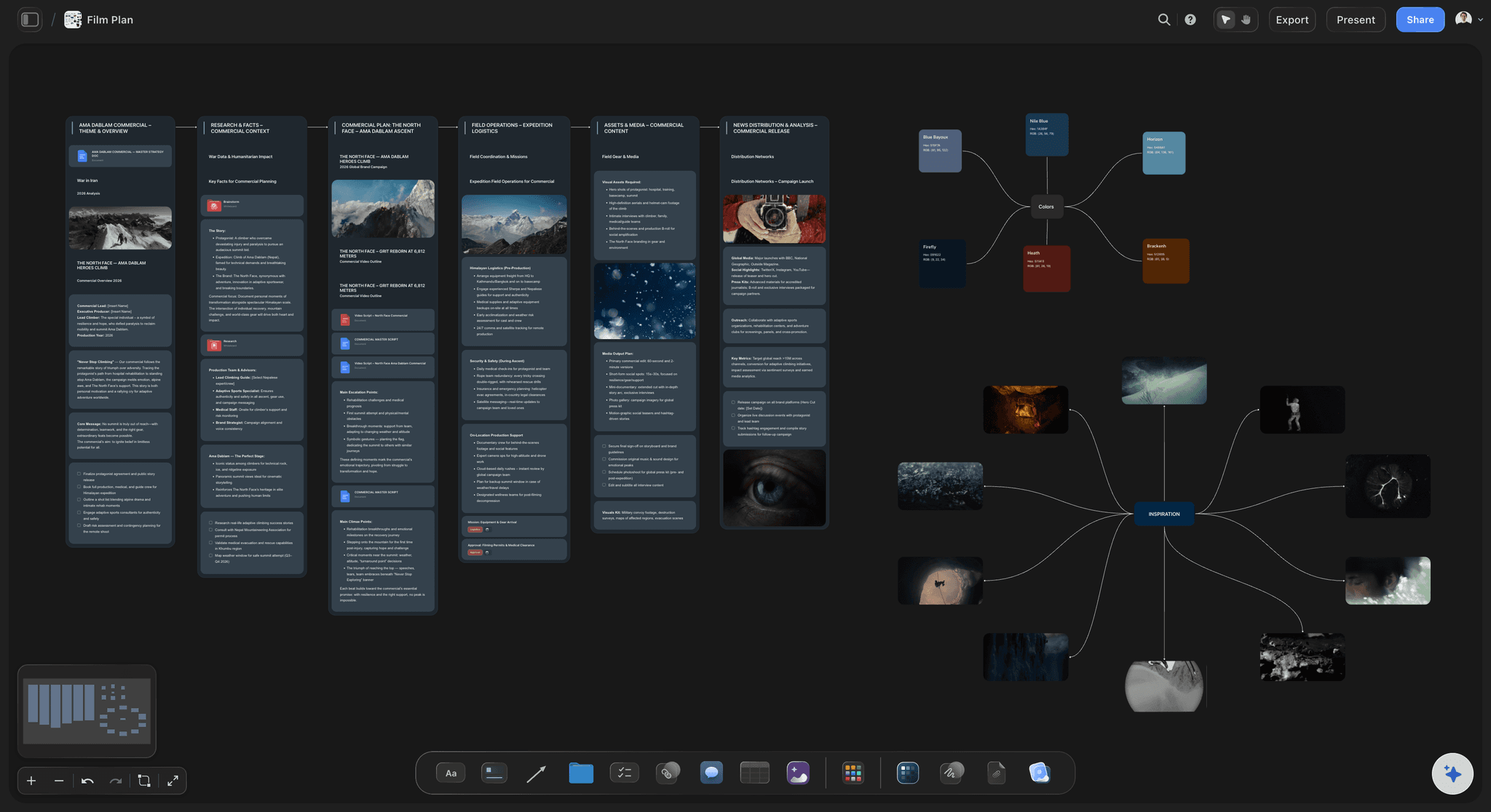
Pull the brief, script, shot list, and moodboard into one pre-production hub so the whole shoot is planned in one place.
What is a planning layer for the edit?
The timeline is a terrible place to think. By the time you are dragging clips, the story decisions are half-made, the b-roll is scattered across bins, the client's notes are buried in an email thread, and the structure only exists in your head. Every editor knows the version of a project that got rebuilt three times because nobody agreed on the shape before the cutting started. A planning layer fixes that by giving the edit a home outside the NLE, where the arc, the selects, the music, and the feedback all sit in one view you can rearrange with a drag.
Storyflow is that layer: a truly infinite canvas that runs in the browser with nothing to install. You lay out a paper edit as movable cards, block the narrative arc from hook to payoff, cluster selects and b-roll by scene, pin the music track with its beat markers, and hang the client's feedback right next to the section it is about. Because it is one canvas, the structure is not a static outline you screenshot and abandon. It stays live beside the references and notes that shaped it, and it reshapes with a drag when the story changes in the edit.
To be clear about the boundary: Storyflow is not a video editor. Premiere, DaVinci Resolve, and Final Cut still do the actual cutting, color, and export. Storyflow is the planning, structuring, and review layer that wraps around them, so you walk into the timeline with the story already solved. AI helps you get there faster: describe a video in the chat and it lays out a full board of cards on the canvas, reading the current board as context so the structure it drafts matches the project you are actually cutting.
Ultra fast from brief to board
From footage to a locked plan in four moves.
Start with a blank canvas or a single prompt. Either way the whole edit stays on one board you can walk the client and the team through.
01
Open a canvas
Start in the browser, nothing to install. You get an infinite canvas with room for the paper edit, the selects, the music map, and the review board all in one place.
02
Structure the story
Block the narrative arc as cards, sketch a paper edit section by section, and grab reference frames straight from YouTube and Vimeo to lock the shape before the cut.
03
Draft the edit plan with AI
Describe the video and let AI lay out a paper edit and beat map as cards. It reads the board already on the canvas, so the structure it drafts fits your footage, not a generic template.
04
Send it for review
Share a view-only link so the client and the team can read the plan in the browser, leave the structure locked, then export the board as an image or PDF to take into the timeline.
The pre-edit stack, minus the bin-diving.
One canvas holds the paper edit, the selects, the music map, and the client review. No more stitching a doc, a spreadsheet, a folder, and an email thread together before you cut.
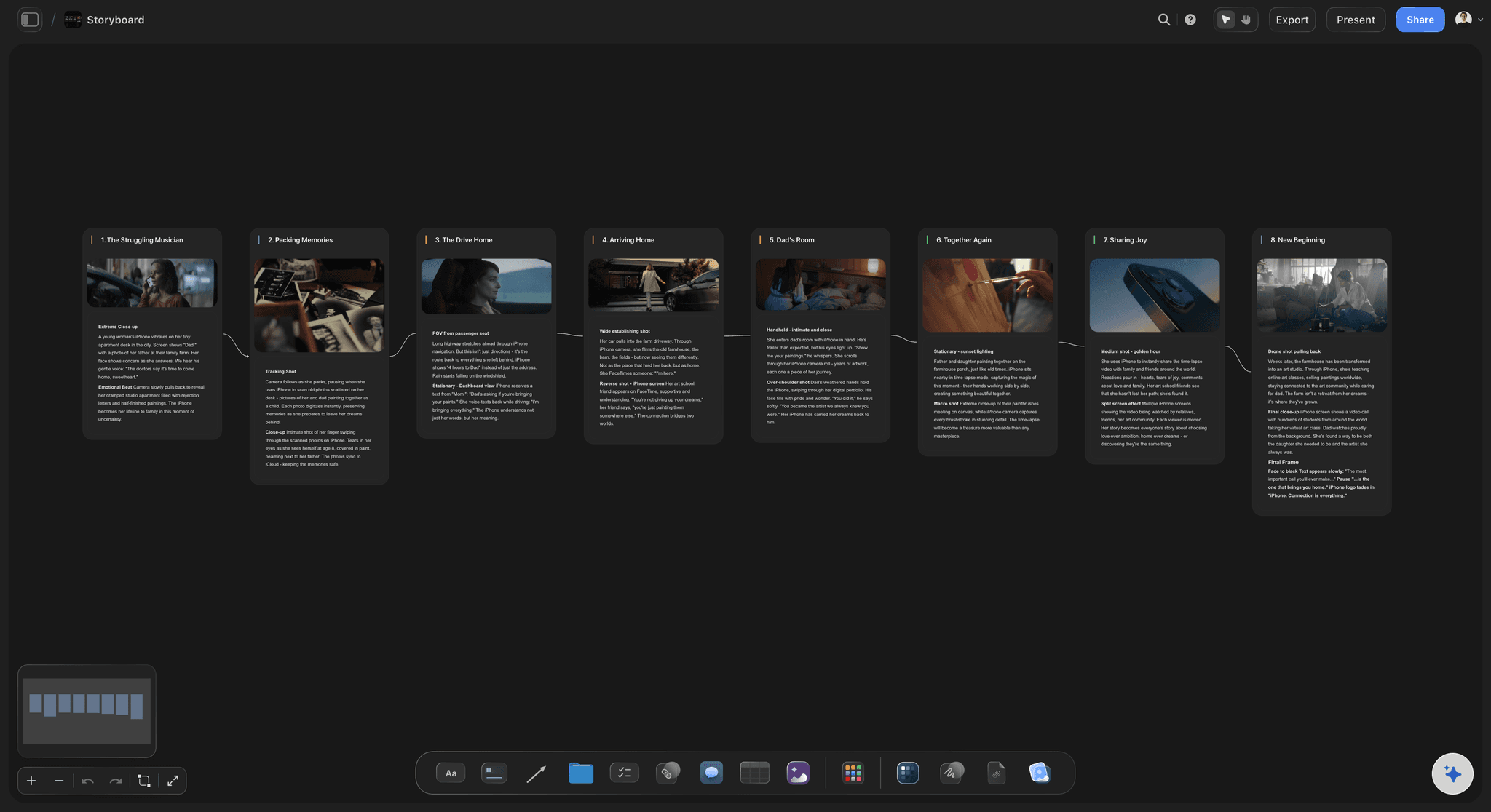
Paper edit that moves
Structure the cut as cards
Lay out a paper edit as movable cards, one per section or sequence, and reorder the whole video with a drag. The shape of the story reads at a glance before you commit a single clip to the timeline.
See the storyboard maker →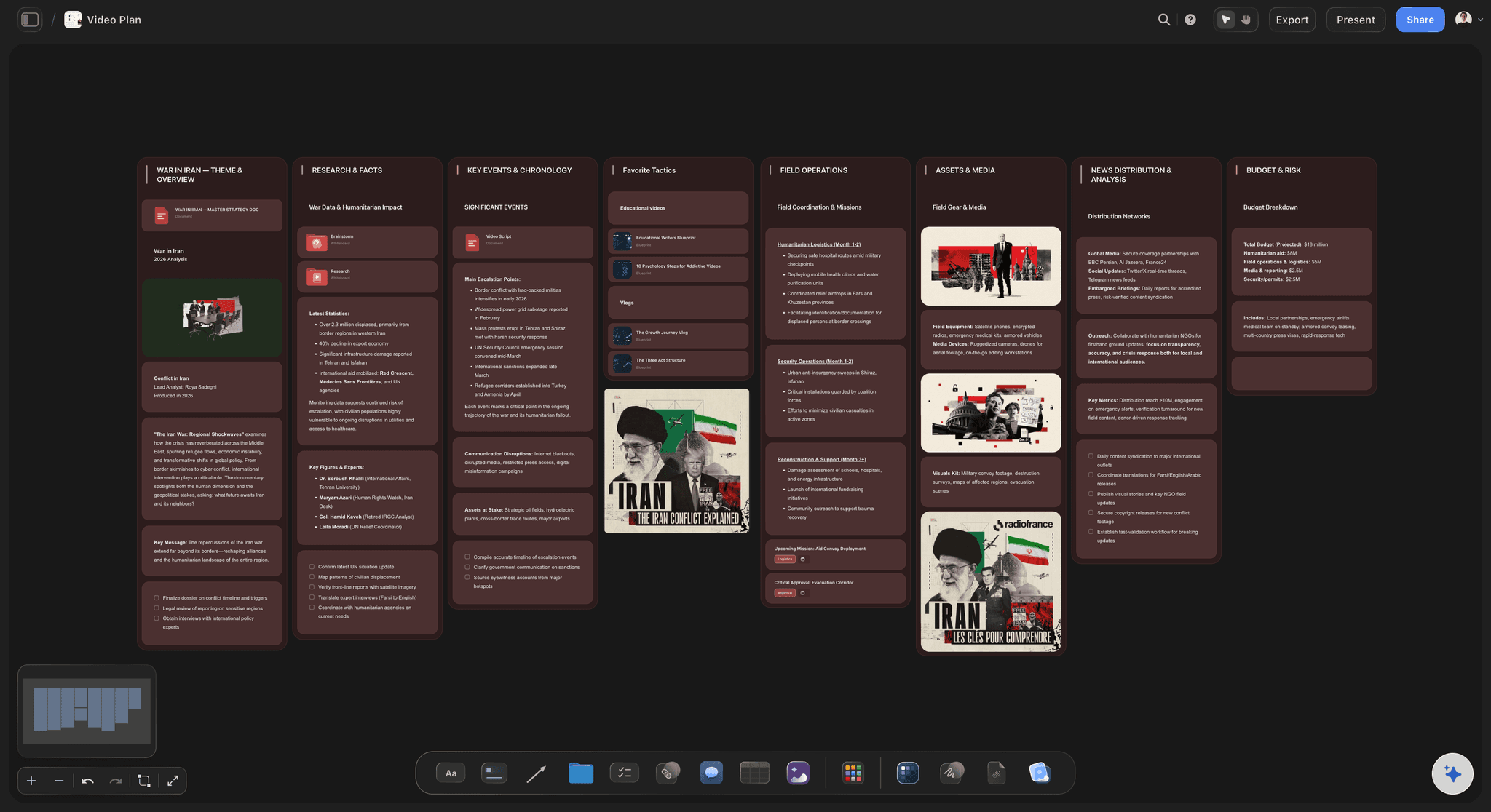
AI drafts the plan
Rough out the edit from a prompt
Describe the video and AI lays out a paper edit and beat map as cards on the canvas. It reads the references and notes already on the board, so the structure fits your project rather than a stock outline.
See the YouTube video planner →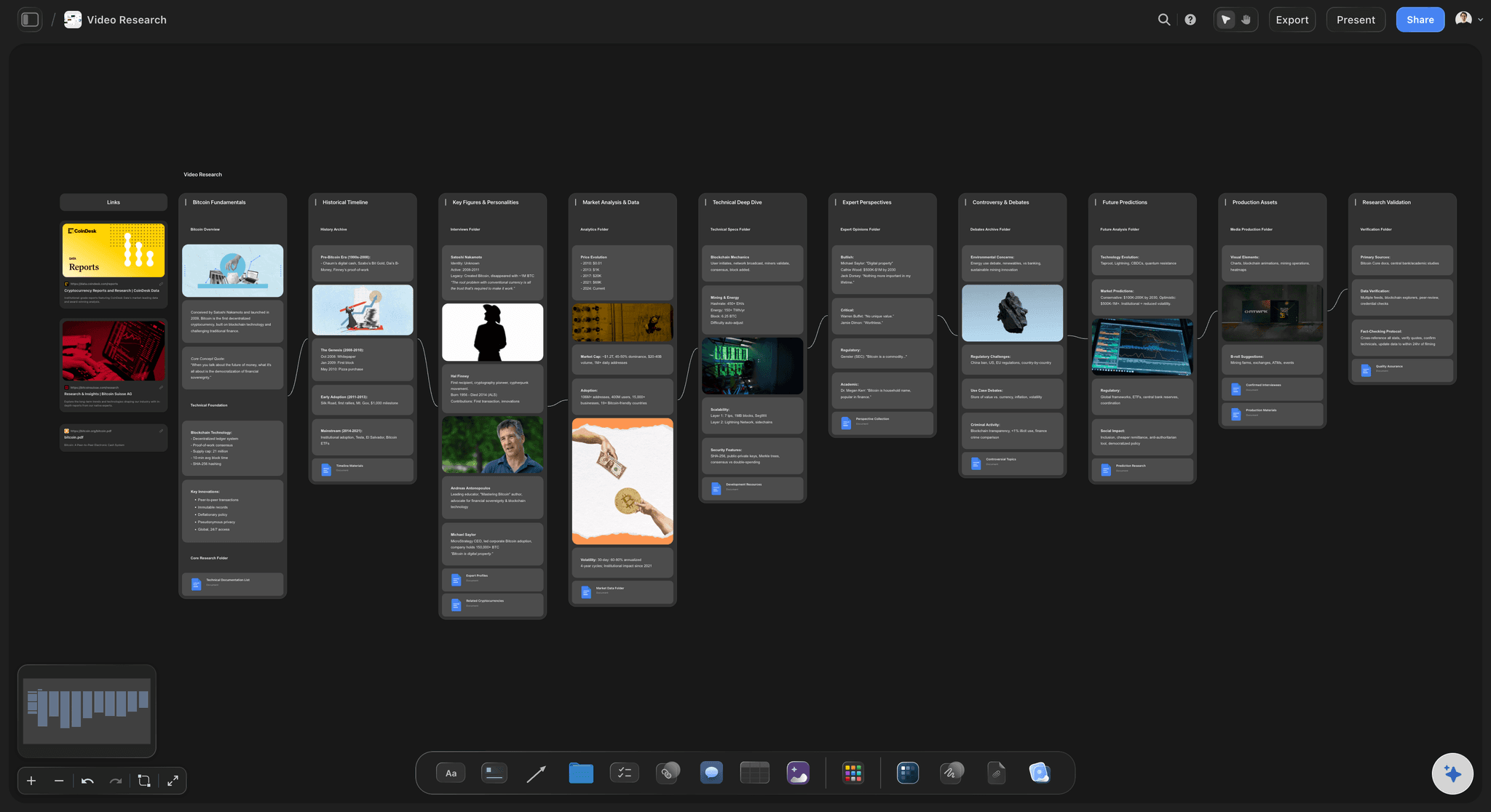
Selects and b-roll, organized
Every clip beside its scene
Cluster selects and b-roll by sequence, drop reference frames next to the section they belong in, and recolor cards so keepers, maybes, and gaps read instantly. The footage map lives beside the story it serves.
See the shot list generator →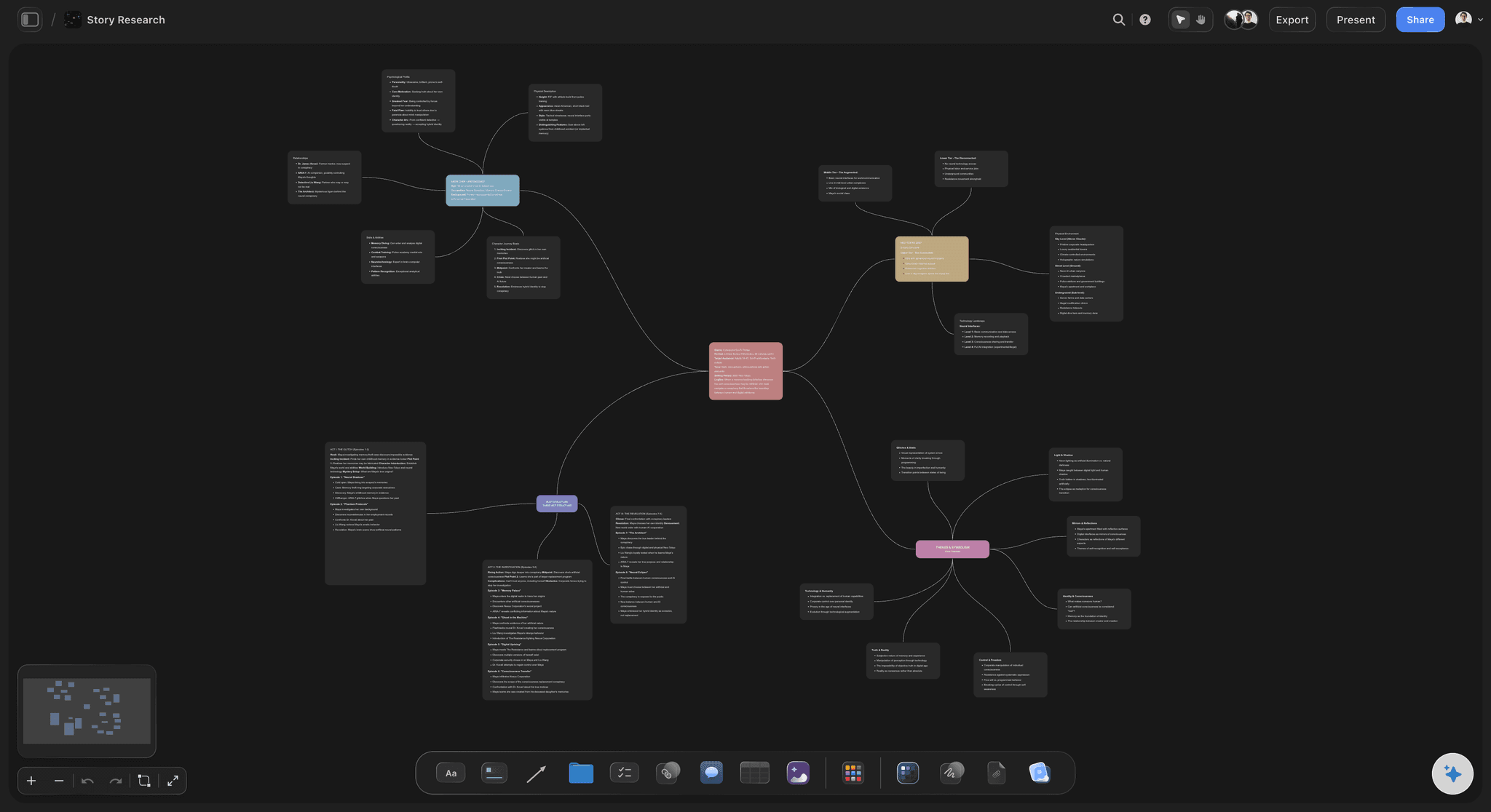
One board, no size limit
Room for the whole project
A long-form edit has hundreds of clips, a wall of references, and rounds of notes. With a truly infinite canvas and no object cap, nothing gets cut for space and the whole project fits on one board.
See the mind mapping tool →No object cap. No time limit.
Open a canvas and start planning the edit. Boards carry no object cap, so a real long-form project never runs you into a wall mid-plan. Plans start at $7.99 a month, and invited collaborators join free.
Unlimited boards for paper edits, selects, and review
Basic AI usage to draft paper edits and beat maps
Attach clips, PDFs, links, and grab frames from YouTube and Vimeo
Share the board view-only, or invite the team to collaborate free
Built for people with taste
Everything post needs to plan the cut, in one place.
Structure the story, organize the footage, map the music, and hand it off so the client and the team read from the same board before the timeline.
Structure before the cut
A paper edit and story arc you can reshape
Block the arc as cards: Lay the narrative from hook to payoff as movable cards, so the shape of the story is visible and reordering an act is a drag, not a re-typed outline.
Paper edit, section by section: Sketch each sequence as a card with the beat it needs to hit, then rearrange the whole cut on the canvas until the structure holds before you open the timeline.
References stay in view: Keep tone and pacing references beside the section they shape, so the feel you are chasing stays visible while you structure instead of buried in a folder.
AI that reads your board
Draft the edit plan without starting cold
Plan from a prompt: Describe the video and AI lays out a paper edit and beat map as cards. It uses the current board as context, so the structure builds on your references rather than drifting generic.
Bring in the brief: Add up to five documents and three boards from the + menu, so a creative brief, a transcript, or a script shapes the structure the AI drafts.
Re-prompt to refine: Ask for a tighter open, a different act break, or more b-roll beats. The AI reworks the cards while keeping the sections you already arranged by hand.
Footage and music mapping
Organize the selects and mark the beats
Selects grouped by scene: Cluster b-roll and selects by sequence, mark keepers and gaps with color, and pull frames from YouTube and Vimeo so the footage map sits beside the story it serves.
Map music to the moment: Pin the track and lay out its beat markers as cards, then line the cut points up to the music so the edit hits on the drop instead of guessing in the timeline.
One board, no cap: A long-form project's worth of selects, beats, and references all fit on one infinite canvas with no object limit, so nothing gets trimmed for room.
Review and hand off
From plan to a cut everyone signed off on
Client review board: Lay the plan out as a review board and send a view-only link, so the client can read the whole structure in the browser without an account and always see the current version.
Feedback beside the section: Invite the client or the team to collaborate and keep notes next to the exact section they are about, so feedback lands on the structure instead of in a scattered email thread.
Export for the timeline: Take the locked plan into the edit: export the board as a clean image or a PDF in one step, ready to sit beside Premiere, Resolve, or Final Cut as you cut.
Explore templates for your project
Every template opens as a real, editable board on the infinite canvas. Pick the closest fit and make it your own.
Pre-Production
Pull the brief, script, shot list, and moodboard into one pre-production hub so the whole shoot is planned in one place.
One app instead of five
How Storyflow compares for planning the edit.
Plenty of tools cover one stage of the pre-edit. The question is whether the whole plan lives on one canvas that AI can fill and the client can review.
Storyflow
Recommended
AI lays out a paper edit and beat map from a prompt
Paper edit, selects, and review on one infinite canvas
Grab reference frames from YouTube and Vimeo
No object cap on any plan
Milanote
AI lays out a paper edit and beat map from a prompt
Paper edit, selects, and review on one infinite canvas
Grab reference frames from YouTube and Vimeo
No object cap on any plan
Notion
AI lays out a paper edit and beat map from a prompt
Paper edit, selects, and review on one infinite canvas
Grab reference frames from YouTube and Vimeo
No object cap on any plan
Miro
AI lays out a paper edit and beat map from a prompt
Paper edit, selects, and review on one infinite canvas
Grab reference frames from YouTube and Vimeo
No object cap on any plan
What creators are saying
Join early creators getting structured workspaces and AI that remembers their projects
“Storyflow has sped up my workflow by at least 3x, which means more flow state and more projects I can actually ship. It truly changed the way me and my team create.”

Reilin Joey
Director & YouTuber
“One prompt gets me a structured board. But the tactics are my favorite. I run my YouTube scripts through them and my intros and retention got better. It's amazing.”

Justkay
YouTuber & Freelance Filmmaker
“I used to juggle five apps to plan a project. Now I describe what I am making and get boards, lists, and a schedule. All in one place.”

George
@fernwehchronicles
Video editing questions, answered.
Everything editors ask about planning a cut in Storyflow.
No, and it is honest about that. Premiere, DaVinci Resolve, and Final Cut still do the cutting, color, and export. Storyflow is the planning, structuring, and review layer around the edit: a paper edit, story arc, b-roll selects, beat mapping, and client review on one infinite canvas, so you walk into the timeline with the story already solved.
Storyflow is a visual workspace on an infinite canvas where the whole pre-edit stack lives together: a paper edit, the narrative arc, selects and b-roll, a music beat map, and a client review board, all on one canvas. It runs in the browser with nothing to install, and AI can lay boards out from a prompt while reading the current canvas as context.
Not during early access. Storyflow is paid-only right now, with Plus at $7.99 a month billed annually ($9.99 monthly). A Free plan is planned before the end of 2026 and will include unlimited boards on an infinite canvas, no object cap, basic AI usage to draft paper edits and beat maps, 20 file uploads, and view-only sharing. Anyone a paid member invites to a board joins free today.
Yes. Describe the video in the AI chat and Storyflow lays out a paper edit and beat map as cards on the canvas. It reads the references and notes already on the board as context, so the structure it drafts fits your project, and you can attach up to five documents and three boards such as a brief or transcript for it to work from.
Yes. Cluster selects and b-roll by sequence on the canvas, recolor cards to mark keepers, maybes, and gaps, and grab reference frames straight from YouTube and Vimeo. The footage map lives beside the section of the story it serves rather than in a bin you keep re-scrubbing.
Yes. Pin the track and lay out its beat markers as cards, then line up your cut points and b-roll beats to the music on the board, so the plan hits on the drop before you build it in the timeline. It is a planning map, not the audio edit itself.
Yes. Send a view-only link so the client or the team can explore the whole review board in the browser without signing up, and always see the current version. You can also invite collaborators to leave feedback next to the exact section it is about, and unlimited collaboration is included on every plan.
Yes. Once the structure is locked, export the board as a clean image or a PDF and keep it beside your NLE as you cut, or share a view-only link the team can reference. Storyflow does not import into the timeline for you; it gives you a solved plan to edit against.
More from Storyflow
Footage organizer
Paper edit tool
For filmmakers
For content creators
Storyboard maker
Shot list generator
YouTube video planner
Mind mapping
Best AI tools for video editors
Best workflow for YouTube video planning
Content calendar for creators and editors
Video editing brief
Simple AI storyboarding tool
Video production software
The cut is in your head. Solve it on a board before the timeline.
Structure the story, organize the selects, map the beats, and send it for review, all before you open Premiere, Resolve, or Final Cut.