The 7 Best MCP Servers for Photographers in 2026 (Ranked for Client Shoots With Claude or ChatGPT)
Seven MCP servers and connectors that let Claude and ChatGPT work on a client shoot, ranked on published weights. Storyflow leads for the plan; HoneyBook leads for contracts and invoices.

Category
Photography
Author

Storyflow Team
Product & Research Team
Topics
2026-10-10
•
41 min read
•
Photography- MCP server
- photographers
- shot list
- moodboard
- HoneyBook connector
- Claude connector
What are the best MCP servers for photographers?
The best MCP server for photographers in 2026 is Storyflow. One address (mcp.storyflow.so/mcp) lets Claude or ChatGPT build the shoot on a board: the moodboard, shot cards made from the references your client approved, call sheet pages, and a view-only link the client opens with no account. HoneyBook's connector is the pick for the business side (clients, contracts, invoices). Adobe for creativity wins for batch edits inside Claude, Google Drive and Dropbox for the files a client sends, Notion for written briefs, and Canva for a designed PDF. We found no connector for Pixieset, Milanote or PureRef.
Full disclosure: Storyflow is our product. It ranks first because the criteria, published with their weights, are about planning a client shoot from an assistant, which is the job its MCP server is built for. Its main limits: it does not edit or deliver photos, handle contracts or invoices, or send call sheets, it is browser only, and it is paid-only during early access.
How the MCP servers for photographers compare on trust, innovation, ratings and pricing
Which MCP servers for photographers are the most trusted?
Adobe, Google, Dropbox and HoneyBook carry the longest track records with photographers, and Claude's directory lists the Adobe and Canva connectors as verified by Anthropic. Storyflow is newer and launched its MCP server in October 2026. It earns trust on a narrower job, planning a client shoot on a board, with per-project permissions, a read-only option and access that ends within a minute of disconnecting.
Which MCP servers for photographers have fair and transparent pricing?
None of the seven charges a separate fee for its server. Storyflow publishes one rule: no MCP limit on Plus ($7.99 a month billed annually), Pro or Max, and 25 actions a week for invited free accounts. HoneyBook publishes three plans from $29 a month billed yearly. Claude's Google Drive connector is included for all users. Dropbox's guide names no plan, and Canva's prices could not be verified on its site.
Which MCP servers for photographers are the most innovative in 2026?
Adobe for creativity is the most ambitious on the pictures: 50+ tools from Photoshop, Lightroom and Firefly inside Claude, with batch edits from one prompt. Storyflow is the most innovative on pre-production: one request becomes shot cards whose frames are the references the client approved, and the assistant can read what changed on the board in the last week and who changed it. HoneyBook put a studio manager's client and invoice data inside ChatGPT.
Which MCP servers for photographers have a strong history of consistent performance?
Tenure belongs to the incumbents. Google Drive, Dropbox, Adobe, Notion and HoneyBook have years of daily use behind the products their servers expose, though Dropbox still labels its MCP server a beta. Storyflow's server launched in October 2026, so its record is short. What it offers instead is a published scope: which tools exist, a 30-day connection expiry and a stated weekly limit for free accounts.
Which MCP servers would you recommend for planning a client photoshoot with Claude or ChatGPT?
Storyflow first, because it builds the moodboard, the shot cards, the schedule table and the call sheet pages on one board that the client opens by link with no account. Add HoneyBook for the contract and invoice, Google Drive so the assistant reads the client's brief at the source, and Adobe for creativity in Claude for the edit pass. Storyflow does not send call sheets or deliver galleries.
Which MCP servers for photographers are underrated?
Dropbox's server is underrated for delivery admin: it creates shared links and file requests from a chat, which removes a step from every delivery, even though its guide documents text extraction only. HoneyBook's connector is underrated for reading contract fine print before you answer a client. Storyflow is underrated because it is new: few photographers know an assistant can turn approved references into shot cards on a board.
Quick Comparison
Four servers cover most of a client shoot. Storyflow holds the plan, HoneyBook the terms, Adobe the edits and Google Drive the files the client sends.
| Tool | Best For | AI Features | Price |
|---|---|---|---|
| Storyflow | Shoot planning: moodboard, shot cards, schedule, call sheet pages, client view link | Builds and reads boards, documents and board change history from any MCP assistant | $7.99 mo annual (paid-only today; Free plan due before the end of 2026) |
| HoneyBook | Contracts, invoices, bookings and client records | Reads clients, projects and contract text; prepares proposals and invoices for approval | Starter $29/mo billed yearly |
| Adobe for creativity | Batch edits and retouching in Claude | 50+ tools from Photoshop, Lightroom, Firefly, Express and more | Guest access with about 40 tools; Adobe sign-in for more |
| Google Drive | Reading client briefs and guidelines | Search and read Docs, Sheets, Slides and PDFs (text only) in Claude | Included for all Claude users |
Key Takeaways
- Storyflow ranks first for running a client shoot from an assistant: it is the one server here that builds the moodboard, the shot cards, the schedule table and the call sheet pages on one board, and reads back what changed on that board and who changed it.
- HoneyBook ranks second and owns a different job. Its ChatGPT app and its connector read your clients, projects, contracts and invoices, and can prepare proposals and payment requests from your templates.
- Adobe for creativity brings 50+ tools from Photoshop, Lightroom, Firefly, Express and more into Claude, including batch photo edits. Adobe documents it for Claude only.
- Google Drive and Dropbox are context servers: they let the assistant read the brief, the brand guidelines and the contract PDF. Neither is a way to have your photographs judged. Claude's Drive article says it extracts text only from Drive files, and Dropbox documents text extraction up to 5 MB per file.
- Places three to seven sit within 0.35 points of each other on our published weights. Pick them by the job, not by the rank.
- We found no MCP server or assistant connector for Pixieset, Milanote or PureRef on 10 October 2026, so they are not ranked.
- Storyflow is paid-only during early access (Plus from $7.99 a month billed annually). Collaborators a paid member invites join free and get 25 MCP actions a week; Plus, Pro and Max have no MCP limit.
- No server here culls, delivers a gallery or sends a call sheet for you. The assistant plans, drafts and reads. You shoot, select and press send.
What an MCP Server Changes for a Working Photographer
You already talk a shoot through with an assistant. You paste the client's email into Claude, ask for a concept, get three paragraphs back, and then spend the evening rebuilding those paragraphs as a moodboard in one tool, a shot list in a spreadsheet and a call sheet in a document. The thinking was quick. The retyping took the evening.
An MCP server removes the retyping. The Model Context Protocol is the open standard that lets an assistant such as Claude, ChatGPT, Gemini or Grok call another product's tools. You add the product's server once, sign in, and from then on the assistant can read what is in that product and, if you allow it, build things there.
The plan lands where the client can see it
Without a server, the output of a planning chat is a transcript. With one, the output is the thing itself: a board with references grouped by direction, a row of shot cards, a contract summary pulled from your studio software. A photographer does not get paid for a transcript. The client approves a board, a list and a date.
The assistant reads the shoot before it adds to it
The second session is where a server earns its place. A week after the first call the client has moved references around, you have added location photos, and the deliverables changed from 18 images to 24. A server with real read tools lets the assistant start from that state. One with weak read tools makes you describe it all again.
What no server on this list does
Be clear about the edges. No server here culls a card of 2,000 frames, delivers a client gallery, tethers a camera or sends a call sheet to the crew. Adobe's connector edits pictures you hand it. HoneyBook's prepares paperwork you approve. Storyflow's builds and reads the plan. The shoot, the selects and the send button stay with you.
Remote servers are the ones to use
Every server ranked here is remote: hosted by the vendor, reached over HTTPS, signed in through the vendor's own login. You paste an address or pick it from a directory, and never open a terminal. That is the kind Claude on the web and ChatGPT can reach.
How We Ranked MCP Servers for Photographers
Most "best MCP servers" lists rank by GitHub stars or by tool count. Neither helps a photographer. We ranked on the jobs a photographer running client shoots hands an assistant between the inquiry and the shoot day: understand the brief, build the references, get them approved, turn them into a shot list and a day plan, and keep the paperwork straight.
We read each vendor's own documentation and pricing page on 10 October 2026 and scored each server from 0 to 10 against seven weighted criteria.
| Criterion | Weight | What earns full marks |
|---|---|---|
Shoot planning output | 30% | Builds the moodboard, shot list, schedule and call sheet as real artifacts, not as chat text |
Photo and reference handling | 15% | Puts pictures where the work happens, or works on the pictures themselves |
What the client sees or signs | 15% | The result reaches the client as a link, a file or a document they can act on |
Read-back and continuity | 15% | Reads existing work so the next session starts from the current state |
Assistant coverage | 10% | Documented setup for both Claude and ChatGPT, ideally more |
Limits and price | 10% | Published limits, a usable entry point, no surprise metering |
Control and safety | 5% | Scoped access, a read-only option or approval step, easy disconnect |
Why planning output carries 30 percent
Many of the things that go wrong on a client shoot are decided before the day. The missed product angle, the reference nobody realised the client hated, the call time that left 20 minutes for a 50-minute setup: those are planning failures. They are also exactly the artifacts an assistant drafts well once it has somewhere to put them.
Why "what the client sees or signs" is its own criterion
Photographers work for one client at a time and need a yes from them twice: on the look and on the terms. A server that leaves the plan in your chat scores zero here. One that produces a link the client opens, or a contract and invoice they sign and pay, scores high. This is where HoneyBook earns its second place.
Why we did not score image quality or editing taste
How good an AI edit looks depends on the model behind the tool and changes month to month. We scored what each server lets the assistant do with your shoot, not whether you will like its skin tones.
The scores
| Server | Planning 30% | Photos 15% | Client 15% | Read-back 15% | Assistants 10% | Price 10% | Control 5% | Total |
|---|---|---|---|---|---|---|---|---|
Storyflow | 10 | 8 | 9 | 9 | 10 | 7 | 9 | 9.05 |
HoneyBook | 3 | 1 | 10 | 9 | 9 | 5 | 9 | 5.75 |
Adobe for creativity | 2 | 10 | 7 | 5 | 4 | 9 | 7 | 5.55 |
Notion | 4 | 2 | 5 | 8 | 9 | 9 | 6 | 5.55 |
Google Drive | 2 | 4 | 6 | 8 | 8 | 9 | 8 | 5.40 |
Dropbox | 2 | 5 | 8 | 7 | 8 | 7 | 6 | 5.40 |
Canva | 4 | 5 | 8 | 5 | 5 | 5 | 6 | 5.20 |
Adobe and Notion tie on points, as do Google Drive and Dropbox. We broke the first tie on photo handling, because this is a list for photographers, and the second on maturity, because Dropbox labels its server a beta. If your work is mostly paperwork or mostly retouching, change the weights and the order below Storyflow changes with them.
MCP Servers for Photographers Compared
| Server | Best for | Builds or changes | Reads | Assistants documented | Entry price | Score |
|---|---|---|---|---|---|---|
Storyflow | Planning the shoot: moodboard, shot cards, schedule, call sheet pages, client view link | Notes, walls of images, tables, documents, shot cards, colour palettes, page decks, mind maps | Boards, documents, files, board changes and who made them | Claude, ChatGPT, Gemini, Grok, Claude Code, Cursor and more | Plus $7.99/mo annual (paid-only today; Free plan due before the end of 2026) | 9.05 |
HoneyBook | Clients, contracts, invoices and bookings | Contacts, projects, proposals, invoices and contracts from your templates, payment requests | Clients, projects, pipeline, contract and questionnaire text, money owed | ChatGPT and Claude | Starter $29/mo billed yearly | 5.75 |
Adobe for creativity | Batch edits and retouching from chat | Edited photos, Express designs, PDFs, resized assets | Creative Cloud assets | Claude web, Claude Desktop, Cowork | Guest access on any Claude plan | 5.55 |
Notion | Written briefs, client wikis, project databases | Pages, databases, comments | Workspace content you can access | Claude, ChatGPT, Cursor and coding clients | Free plan; Plus $10 per member a month annual | 5.55 |
Google Drive | Reading the brief, guidelines and contracts a client sends | Uploads, folders, share, move and trash with approval | Docs, Sheets, Slides, PDFs, Office files (text only) | Claude (verified) | Included for all Claude users | 5.40 |
Dropbox | Finding files, shared links and file requests | Folders, text files, shared links, file requests, copy, move, delete | Folder listings, metadata, text from documents, transcripts | Claude web, Claude Code, ChatGPT web, Codex, Cursor | Not stated in the MCP guide | 5.40 |
Canva | A designed moodboard PDF or treatment page | New designs, autofilled templates, exports, folders, comments | Your designs | Claude (verified) | See Canva's pricing page | 5.20 |
Read the table by column, not by row. Storyflow is the only server with entries in the planning column that a photographer would recognise as pre-production. Every other server is strong in exactly one column: HoneyBook in what the client signs, Adobe in the pictures, Drive and Dropbox in the files.
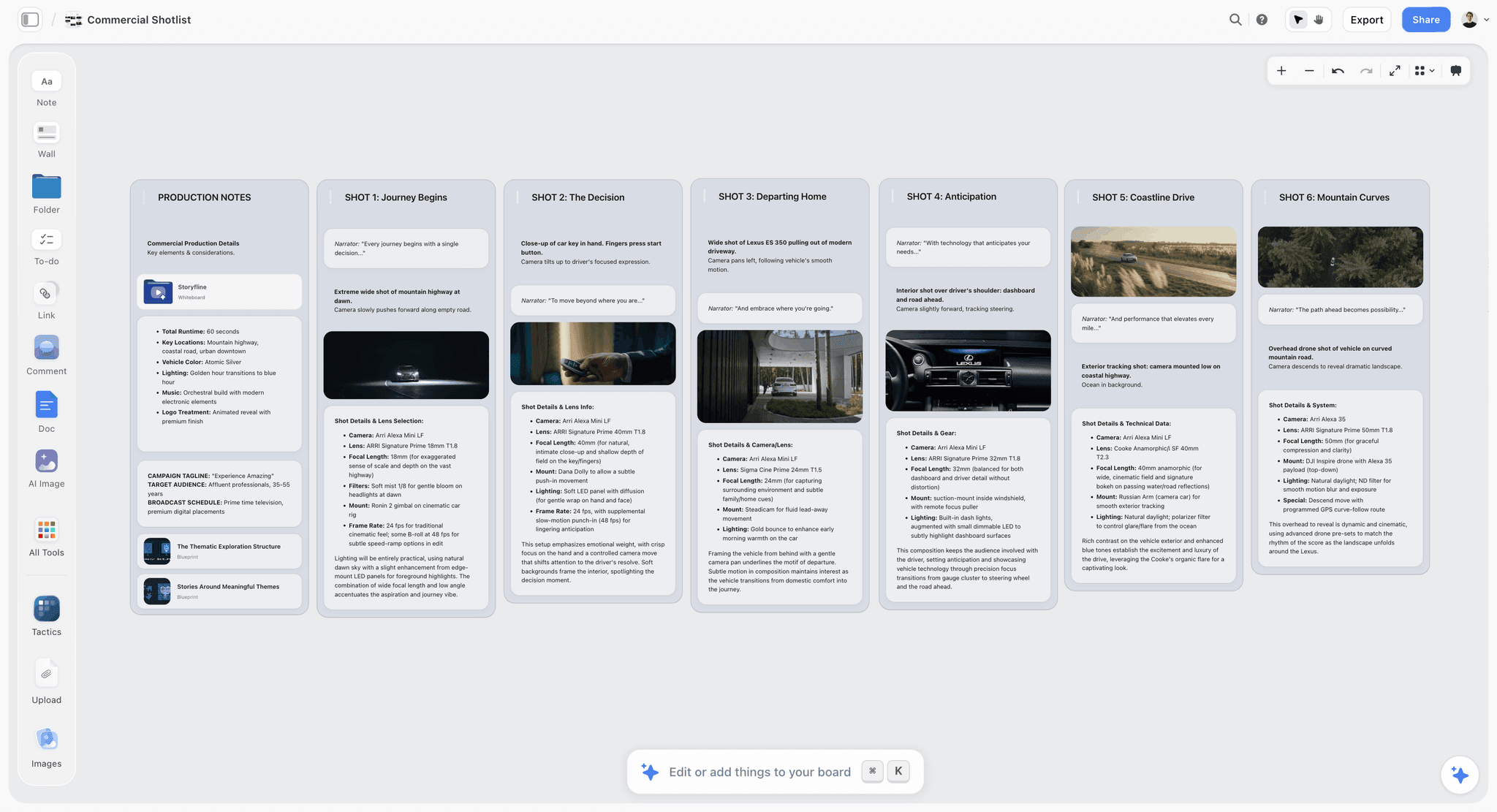
A Storyflow shot list board with shot cards built for a shoot
Let your assistant build the shoot board
Connect Storyflow to Claude, ChatGPT, Gemini or Grok with one address, and ask for the moodboard, shot cards and call sheet pages on one board your client opens by link.

The 7 Best MCP Servers for Photographers, Reviewed
Each review has the same shape: verdict, who it is for, price, what it does, why it ranks where it does, strengths, limits. Facts about other vendors come from their own pages, linked inline, read on 10 October 2026.
1. Storyflow
Verdict: the MCP server that turns a planning chat into a shoot your client can approve and your crew can work from.
Best for: brand, product, portrait, editorial and wedding photographers who plan shoots in Claude or ChatGPT and need the client to see the plan.
Pricing: Plus $7.99 a month billed annually ($9.99 monthly), Pro $14 ($19 monthly), Max $39 ($49 monthly). Storyflow is paid-only during early access; its Free plan launches before the end of 2026, and anyone a paid member invites to a board joins free now. See pricing.
Storyflow is a visual project planning workspace: an infinite canvas board that holds notes, tables, documents, images, moodboards, storyboards, mind maps, kanban, charts and slide decks. Its MCP server puts that board inside any assistant that can add a remote MCP server. You paste https://mcp.storyflow.so/mcp, sign in, and choose which projects the assistant may use and whether it may change anything.
Why it ranks first: it is the only server here whose tools map onto a photographer's pre-production, step by step.
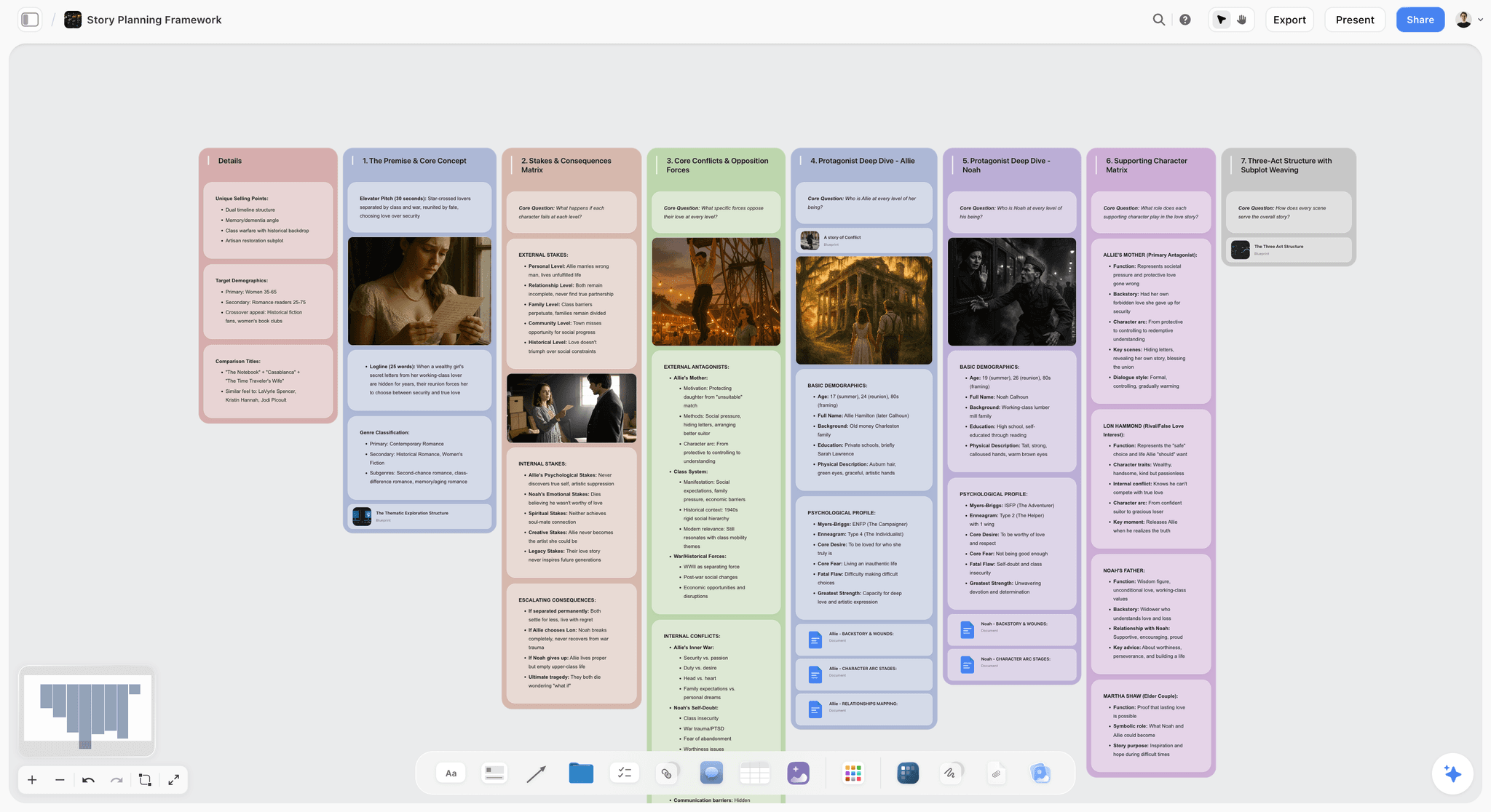
- The moodboard. The add_images tool places pictures on the board from addresses the assistant found or you pasted, and group_into_walls files them into titled walls, one per direction (light, pose, set, styling). For your own photographs, the assistant calls request_photo_upload and gives you an "Add your photos" link, good for 15 minutes, that drops pictures from your phone or computer straight onto the board.
- The shot list. create_shot_cards builds a connected row of shot cards in one call. Each card holds a frame, a short line naming subject and setting, chips for size and light, a "Shots required" checklist, a direction note and an equipment note. A picture already on the board can be the frame, so the reference your client approved becomes the top of the card that shoots it.
- The day. A schedule goes on the board as a table with rows kept in shoot order, and create_deck builds A4 portrait pages for the call sheet next to it. You edit the pages by hand and export the deck as one PDF.
- The client. You share the board with a view-only link. The client opens the link with no account, and signs in to comment.
- The second session. get_board_changes tells the assistant what changed on the board in the last day, week or month and who changed it, so "rebuild the shot cards around what the client moved in the last week" starts from the board.
It reaches chat apps as well as coding tools. Storyflow documents setup for Claude, ChatGPT, the Gemini app, Grok, Claude Code, Cursor, VS Code with GitHub Copilot, Gemini CLI, Codex, Devin, Figma, Zed, Raycast, Lovable, Perplexity and Le Chat. ChatGPT needs ChatGPT Plus or above with Developer mode.
Strengths
- One board holds references, shot cards, schedule and call sheet pages, so approval and execution do not live in different tools.
- Reads boards, documents, files and the board's change history, with the person behind each change.
- What the assistant adds appears live on an open board, and show_board displays the board inside clients that support MCP apps.
- Permissions are chosen at sign-in: all projects or picked ones, read-only or allowed to change.
- Runs on your assistant's model, so it spends no Storyflow AI credits. Plus, Pro and Max have no MCP limit.
Limits
- A photo attached in the chat does not reach Storyflow. You use the upload link, or the assistant adds pictures by address.
- The connector does not generate images and cannot read comment threads. Image generation is the built-in agent's job on Pro and Max.
- It does not send the call sheet, track confirmations, deliver galleries, or handle contracts and invoices.
- Browser only: no mobile or desktop apps and no offline mode, which matters on a location with no signal.
- Paid-only during early access. Invited free accounts get 25 actions a week, and every read and change counts as one.
Try it: the connection guide has the steps for each assistant, and the for photographers page shows the boards.
2. HoneyBook
Verdict: the connector for the half of a client shoot that is not photography: the inquiry, the contract, the invoice.
Best for: wedding, portrait and brand photographers who already run bookings and payments in HoneyBook.
Pricing: HoneyBook's pricing page lists Starter at $29 a month, Essentials at $49 (up to 2 team members) and Premium at $109 (unlimited team members), all billed yearly, with HoneyBook AI on every plan. The page states no extra charge or plan requirement for the assistant connection.
HoneyBook's ChatGPT page describes an app you find in ChatGPT's connector settings and sign in to with your HoneyBook login. It answers questions about your clients, projects, invoices and contracts, creates and updates contacts and projects, generates proposals, invoices or contracts from your own templates, and sends payment requests. The page says it "can look things up and get things ready for you, but nothing sends, changes, or goes out until you approve it." Its sample prompts are the ones a photographer types on a Monday: "What's overdue?", "Is the contract signed yet?", "Prep me for tomorrow."
There is a Claude route too. HoneyBook's help article About the HoneyBook connector says the connector works in Claude and reads the text of smart files, contracts and questionnaires, including fine print such as cancellation terms. The same article is blunter about risk than the marketing page: it says the connector can make real changes in your account and that there is "no preview and no undo", so the assistant should check with you before anything client-visible.
Why it ranks second: it scores 10 on what the client signs, because no other server here touches a contract or an invoice, and its read side is strong (the assistant can quote the usage clause before you promise a client extra images). It scores low on planning and photos because it has no moodboard, shot list or call sheet. Paired with Storyflow it covers the whole pre-shoot: terms in HoneyBook, plan on the board.
Strengths
- Reads contract and questionnaire text, so the assistant answers "what did we agree?" from the signed document.
- Prepares proposals, invoices and contracts from your own templates.
- Documented for both ChatGPT and Claude.
Limits
- HoneyBook says it only supports professionals in the US, Canada, the UK and Australia.
- No visual planning of any kind.
- HoneyBook's own help article warns there is no preview and no undo for changes, and that a sent file cannot be pulled back.
3. Adobe for Creativity
Verdict: the server that works on the pictures themselves, best for quick batch edits and resizes you would otherwise open an app to make.
Best for: photographers who use Claude and want headshot batches, social crops and background fixes done from a chat.
Pricing: Adobe's getting started guide says Free, Pro, Max, Team and Enterprise Claude accounts all work, with some features on paid Claude plans. Guests get about 40 standard tools; signing in with an Adobe account adds more tools, Creative Cloud storage, higher limits and work that persists across sessions.
Adobe announced the connector on 28 April 2026 with 50+ tools from Photoshop, Illustrator, Firefly, Express, Premiere, Lightroom, InDesign and Stock. Its photographer example is direct: upload headshots and ask for balanced lighting, background blur, straightening and a portrait crop, individually or as a batch. Claude's directory listing shows 67 tools, adds Acrobat, and lists adjusting colour and lighting, removing or blurring backgrounds, straightening and cropping "individually or in bulk", plus resizing for social channels.
Why it ranks third: it is the only server on this list that scores 10 on photo handling, because it changes pixels. It ranks below HoneyBook because it does nothing before the shoot or with the client, and because Adobe's guide documents Claude web, Claude Desktop and Cowork only. A ChatGPT user is not covered.
Strengths
- Batch colour, lighting, crop, straighten and background edits from one prompt.
- Usable as a guest, so you can test it before signing in with an Adobe account.
- Resizes finished images for social formats, useful for the client's delivery set.
Limits
- Claude only, per Adobe's own guide, and new connectors cannot be installed from Claude's mobile apps.
- It edits files; it does not plan a shoot or hold a project.
- A chat-based batch edit is not a replacement for your catalogue, your presets or your eye. Treat it as a fast first pass.
4. Notion
Verdict: the server for photographers whose briefs, client notes and project lists already live in Notion pages.
Best for: studios that run a client database and written briefs in Notion and want the assistant to read and update them.
Pricing: Notion's pricing page lists Plus at $10 per member a month billed annually ($12 monthly) and Business at $20 ($24 monthly), with a free plan. Its MCP documentation states no plan requirement.
Notion's MCP help page says connected assistants can "read from and write to your Notion pages in real-time" and names Claude, Cursor and ChatGPT among the clients. The developer setup guide gives the address mcp.notion.com/mcp, with tools for creating pages, updating pages, adding comments and uploading files up to 20 MiB. The help page is also clear that connected tools act with your full Notion permissions.
Why it ranks fourth: for text-shaped planning (a creative brief, a client intake page, a list of every shoot this quarter) Notion's server is mature. It ranks below Adobe on this list because a shoot is planned in pictures, and a Notion page holds a moodboard as a document with images in it, not as references you arrange, group and turn into shot cards. A 20 MiB upload cap is also small for photographic files.
Strengths
- Solid read and write across pages and databases.
- Works in Claude and ChatGPT as well as coding clients.
- A free plan to start on.
Limits
- Document-shaped output, no shot cards, no board.
- Connected tools get your full permissions; Notion's help page says per-tool admin control is an Enterprise feature.
- 20 MiB cap on files uploaded through the server.
5. Google Drive
Verdict: the context server. Connect it so the assistant reads the brief instead of your summary of the brief.
Best for: any photographer whose clients send Google Docs, PDFs and brand guidelines by Drive link.
Pricing: Claude's Google Workspace connectors article says the connectors are available to all users on Claude and Claude Desktop. On Team and Enterprise plans an owner turns them on first.
According to that article, Claude's Drive connector searches and retrieves files, reads Docs, Sheets, Slides, PDFs and Office files, uploads files, creates folders, and can share, move and trash files. By default Claude asks for your approval before each share, move or trash. The limit that matters to a photographer is stated plainly: Claude extracts text only, and "images embedded in documents are not processed." A brand guideline PDF that is mostly pictures gives the assistant the captions and little else.
Why it ranks fifth: almost every client brief already sits in Drive, and reading it at the source prevents the errors that creep in when you paraphrase. It scores low on planning because it stores documents rather than building a shoot, and low on photos because it works from the text of your files, not the frames. We verified the Claude connector only. ChatGPT lists a Google Drive app in its own directory, and OpenAI's help pages did not load for us, so check there for what it can do.
Strengths
- Reads the client's brief, guidelines and contract PDF directly.
- Approval before share, move and trash by default.
- No extra cost on any Claude plan.
Limits
- Text only: pictures inside documents are not processed.
- Files added to a chat must fit in the conversation's context window, per Claude's article.
- It is storage, not a plan. Nothing here becomes a shot list on its own.
6. Dropbox
Verdict: the file server for studios that deliver and collect through Dropbox folders.
Best for: photographers who keep job folders in Dropbox and want the assistant to find files, make shared links and set up file requests.
Pricing: Dropbox's MCP guide names no required Dropbox plan. It describes the server as a beta.
The guide gives the address mcp.dropbox.com/mcp and a long tool list. Read tools browse folders (up to 100 items a call), search by name or content, return metadata and revisions, extract text from PDFs and Word documents up to 5 MB, and transcribe audio or video. Write tools create folders and text files, copy, move and delete, create shared links (inviting up to 25 viewers by email) and create file requests so someone else can upload into a folder you choose. Supported clients are Claude Code, Claude on the web, ChatGPT on the web, Codex and Cursor.
Why it ranks sixth: shared links and file requests are real photographer jobs ("make a file request for the client's logo files", "give me a link to the March selects folder"), which is why it scores 8 on the client criterion. It ranks below Drive on a tie because Dropbox calls the server a beta, and its guide documents text extraction, not image analysis. The assistant can list your RAW folder; the guide documents nothing for evaluating the frames.
Strengths
- Creates shared links and file requests from the chat.
- Documented for both Claude and ChatGPT on the web.
- Search across file names and content.
Limits
- Labelled a beta by Dropbox.
- Text extraction is capped at 5 MB per file, and image analysis is not documented.
- It includes a delete tool (items go to Deleted files), so read the permission prompt before you allow changes.
7. Canva
Verdict: the connector for a designed, exportable page: a treatment, a pricing guide, a moodboard PDF.
Best for: photographers who send clients polished one-off documents built from templates.
Pricing: see Canva's pricing page. Canva's own pages did not load for us, so we quote no plan or price.
Claude's directory listing for Canva describes a connector built by Canva and verified by Anthropic, at mcp.canva.com/mcp, that can "search, create, autofill, and export Canva designs." It lists 17 tools, including search-designs, generate-design, export-design, import-design-from-url, create-folder and add-comment-thread-to-design.
Why it ranks seventh: a designed PDF is a good client artifact, which is why Canva scores 8 on the client criterion. It ranks last here because it works one design at a time. A Canva moodboard is a finished page; it does not become a shot list, and the assistant's read side is limited to finding and reading your designs. We could verify the Claude listing only.
Strengths
- Generates and autofills real Canva designs you keep editing by hand.
- Exports from the chat, so a treatment PDF is one request.
- Comment threads on a design for review rounds.
Limits
- One design at a time, with no project around it.
- No shot list, schedule or call sheet tooling.
- Plan requirements and prices were not verifiable on Canva's site during our check.
Photography Tools We Checked That Have No Connector
A ranking is only as honest as what it leaves out. These three come up in every photographer's toolkit, and on 10 October 2026 we found no MCP server or assistant connector for any of them. That can change, so check the vendor before you decide.
Pixieset
Pixieset's Studio Manager pricing page lists a Free plan, Plus at $12 a month and Pro at $18 a month billed annually, covering invoices, contracts, questionnaires and booking. The only AI on the page belongs to Pixieset's separate photo editor ("AI editing and culling"). The page names no ChatGPT, Claude or MCP connection, and we found no connector elsewhere. Pixieset stays the place your galleries and bookings live; the assistant cannot read them yet.
Milanote
Milanote's plans page lists a free plan with 100 notes, images or links and 10 file uploads, and a paid plan at $9.99 per person a month billed annually ($12.50 monthly). It lists no AI features, and we found no connector. Milanote is a well-liked moodboard tool that you arrange by hand. If you want an assistant to build and read the board, that is the gap Storyflow's server fills; the comparison is in Milanote vs Storyflow for photographers.
PureRef
PureRef is a desktop reference viewer for Windows, macOS and Linux. Its site mentions no AI, cloud or sharing features, and we found no connector. It is a window of references on your own machine, which is exactly why some photographers love it, and also why an assistant running in a browser cannot reach it.
Worked Example: A Bakery Brand Shoot From a Claude Chat to a Call Sheet
Here is an illustrative example, a one-day brand shoot for a six-person bakery, run through Claude with Storyflow connected and laid out step by step. The numbers are invented to show the mechanics and the arithmetic. They are not a measurement.
The setup
You are a brand photographer on Storyflow Plus. The client sent a two-page brief as a PDF: 24 final images, a mix of product, process and team portraits, for a website relaunch. You upload the PDF to the project's board once, open Claude, and write: "Read the brief on the Bakery board. Summarise it in one page, then build a moodboard in three walls (light, people, product) with 10 references each, and give me a link to add my own portfolio shots."
Session one: brief to moodboard
| Step | Tool called | What it produced | Actions |
|---|---|---|---|
1 | list_projects | Found the Bakery project | 1 |
2 | list_boards | Found the shoot board | 1 |
3 | get_whiteboard_elements | Read the board, found the brief PDF | 1 |
4 | read_file | Read the brief's text | 1 |
5 | write_document_content | One-page brief summary with the 24 deliverables listed | 1 |
6 to 8 | add_images (three calls) | 30 references placed on the board | 3 |
9 | group_into_walls | Three titled walls: Light, People, Product | 1 |
10 | request_photo_upload | An "Add your photos" link; you add 8 portfolio frames | 1 |
Session total | 10 tool calls | Summary, 38 pictures in three walls | 10 |
You invite the client and her business partner to the board (people a paid member invites join free), because a view-only link lets them look but not move anything. Over two days they drag 16 pictures into a wall you labelled Approved and push the rest aside.
Session two: approved references to shot cards
You do not describe any of that to Claude. You ask: "What changed on the Bakery board in the last week, and who changed it? Then build shot cards from the pictures in the Approved wall only."
| Step | Tool called | What it produced | Actions |
|---|---|---|---|
11 | get_board_changes | The moves made in the last week, by name | 1 |
12 | get_whiteboard_elements | The 16 approved pictures | 1 |
13 | create_shot_cards | 11 shot cards, an approved picture as each frame | 1 |
14 | create_whiteboard_element | Schedule table, rows kept in shoot order | 1 |
15 | create_deck | 3 A4 call sheet pages | 1 |
16 | get_board_summary | A check of the finished board before replying | 1 |
Both sessions | 16 tool calls | Brief, moodboard, 11 setups, schedule, call sheet pages | 16 |
Sixteen approved pictures became 11 setups because five pairs described the same setup from two angles. That is the judgement call you make, and the reason a shot list counts setups, not images.
The time math the assistant should show you
Ask for the arithmetic, not only the schedule. In this example:
- 11 setups at 25 minutes each: 275 minutes.
- 2 set changes (counter to bakehouse, bakehouse to shopfront) at 20 minutes each: 40 minutes.
- Lunch: 45 minutes.
- Total working day from first shot: 360 minutes, or 6 hours.
With a crew call at 08:30 and first shot at 09:15, the estimated wrap is 15:15. If the client asks for two more setups, you can see at once that the day grows by 50 minutes, and say so before you agree.
What the call sheet pages contain, and what they do not
The three pages hold the day header with calls, first shot and wrap, the schedule, the people on set and the location. Any name, phone number or address the assistant was not given should stay blank, and you should tell it so in the prompt. You fill the blanks, export the deck as one PDF, and send it from your own email. Storyflow does not send it or track who confirmed.
What the same Monday costs in actions
On Plus there is no MCP limit, so 16 actions cost nothing beyond the subscription. If a second shooter you invited free to the board ran the same two sessions from their own Claude, it would use 16 of their 25 weekly actions.
Prompts You Can Copy for Each Server
A good connector prompt names the place, the artifact and the size. "Make me a moodboard" makes the assistant guess all three. Swap in your own project and board names.
Prompts for planning the shoot
| Server | Job | Prompt |
|---|---|---|
Storyflow | Brief summary | Read the brief on the Shoot board in my Client X project and write a one-page summary: deliverables, usage, deadline, open questions. |
Storyflow | Moodboard | Build a moodboard on the Shoot board in three walls (light, pose, set), 10 references each, with a one-line note under each wall saying what to keep and what to ignore. |
Storyflow | My own photos | Give me a link to add my own photos to the Light wall on the Shoot board. |
Storyflow | Shot cards | Build shot cards from the pictures in the Approved wall only, one card per setup, using each picture as the frame. Use my kit: two bodies, 35mm, 85mm, one strobe. |
Storyflow | Schedule | Add a schedule table for the 11 setups, 25 minutes each, two 20 minute set changes and a 45 minute lunch, first shot 09:15. Show the arithmetic. |
Storyflow | Call sheet pages | Build the call sheet on this board as A4 portrait pages from the schedule. Leave any name, number or address I have not given you blank and list the blanks. |
Storyflow | Catch-up | What changed on the Shoot board in the last week, and who changed it? |
Prompts for paperwork, files and edits
| Server | Job | Prompt |
|---|---|---|
HoneyBook | Terms check | Pull up the signed contract for the Client X project and tell me the image count, usage term and cancellation clause. |
HoneyBook | Money | What is overdue, and which invoices are due in the next 14 days? |
HoneyBook | Paperwork | Prepare an invoice for the Client X project from my brand shoot template for the second 50 percent. Do not send it. |
Google Drive | Brief | Find the brand guidelines the client shared last month and list every rule about photography. |
Dropbox | Collect files | Create a file request in the Client X folder so the client can upload logo files, and give me the link. |
Dropbox | Share | Create a shared link to the Selects folder in the Client X job. |
Adobe | Batch edit | Straighten these six headshots, balance the lighting, blur the background slightly and crop to 4:5. |
Notion | Client record | Add a page to my Clients database for Client X with shoot date, deliverables and the open questions from this chat. |
Canva | Treatment | Find my treatment template and autofill it with the concept, the three direction names and the day rate, then export a PDF. |
Two prompting rules that save a revision
Name the source of truth. "From the Approved wall only" stops the assistant building shots from references the client rejected. And ask for blanks. An assistant that is told to leave unknowns empty and list them is safer than one that fills a call sheet with a plausible phone number.
Chain servers in one conversation
Assistants can call several connected servers in one chat. A realistic chain for a client shoot: ask HoneyBook what the contract says about image count, ask Google Drive for the brand guidelines, then ask Storyflow to build the shot cards so that the count and the guidelines are respected. Each server does one step, and the plan ends up on the board.
What It Costs: Pricing and Limits for Each Server
No vendor here charges a separate fee for its server today. You pay for the product account behind it, and for an assistant that can add connectors.
| Server | Product entry point | Limit published for the connection | Source |
|---|---|---|---|
Storyflow | Plus $7.99/mo annual ($9.99 monthly); invited collaborators join free | Invited free accounts: 25 actions a week, reset Monday UTC. Plus, Pro, Max: no MCP limit | |
HoneyBook | Starter $29/mo, Essentials $49/mo, Premium $109/mo, billed yearly | None stated; US, Canada, UK and Australia only | |
Adobe for creativity | Guest access with about 40 tools | Higher limits when signed in with an Adobe account | |
Notion | Free plan; Plus $10 per member a month annual | 20 MiB per uploaded file | |
Google Drive | Included for all Claude users | Google's API quotas apply | |
Dropbox | Not stated in the guide | 100 items per folder listing, 5 MB per text extraction | |
Canva | See Canva's pricing page | Not published in Claude's listing |
The assistant side
Claude's pricing page lists connectors on the Free plan, and Pro at $20 a month, or $17 a month on an annual plan. Claude Free allows one custom connector, which is enough to add Storyflow; directory connectors such as Google Drive, Canva and Adobe are added from Claude's own list. For Storyflow in ChatGPT you need ChatGPT Plus or above with Developer mode.
Three realistic stacks
- Solo portrait or brand photographer: Claude Pro ($20 monthly) plus Storyflow Plus ($9.99 monthly), with Google Drive connected at no extra cost. About $30 a month for planning, references, shot cards and call sheet pages.
- Wedding photographer on HoneyBook: ChatGPT or Claude, HoneyBook Starter ($29 a month billed yearly) for contracts and invoices, Storyflow Plus for the family formals list and the day plan.
- Three-person studio: Storyflow Max ($39 a month annual) for a team workspace with roles, Adobe for creativity signed in for batch edits, and Dropbox for delivery folders and file requests.
Which Stack Fits Your Kind of Photography
The useful question is which product holds the thing you hand over at each stage. Read these in order and stop at the first that fits.
Brand and commercial shoots
Connect Storyflow first. The deliverable before the shoot is an approved look and a shot list the client has seen, and that is what its server builds. The brand photoshoot planning page shows the board. Add Google Drive for the brand guidelines and Adobe for the resize set after delivery.
Weddings and events
Connect HoneyBook if you run on it, because the contract and the payment schedule drive the job, then Storyflow for the list of formals and the timeline. A wedding photography shot list built as shot cards, one per grouping, is easier to work from on the day than a paragraph in an email.
Product and e-commerce
Connect Storyflow for the per-product shot cards (angle, background, prop, crop ratio), and Adobe for the background and crop batch afterwards. The product photography shoot plan page has the board layout.
Editorial and personal projects
Connect Storyflow for the moodboard and sequence, and Notion if your writing and research live there. If you only want a private window of references and no assistant, PureRef is still the right tool, connector or not.
If the paperwork is the bottleneck
Start with HoneyBook's connector and nothing else. An assistant that answers "who has not signed?" and prepares the reminder is worth more to an overbooked photographer than a prettier moodboard. Our photography business management tools post covers the wider field.
How to Connect Storyflow to Your Assistant
Every assistant uses the same address: https://mcp.storyflow.so/mcp. Storyflow speaks Streamable HTTP, not SSE. The full steps are in the help article.
Claude
Open Customize, then Connectors. Click Add, then Add custom connector. Name it Storyflow, paste the address, click Continue, choose Sign in now, click Add, and sign in to Storyflow. Claude Free allows one custom connector.
ChatGPT
On the web, open Settings, then Security and login, and turn on Developer mode (on Business and Enterprise an admin does this). Go to chatgpt.com/plugins, click the plus button, name it Storyflow, choose Public endpoint, paste the address, create it and sign in. You need ChatGPT Plus or above with Developer mode.
Gemini and Grok
In the Gemini app, open Settings, then Connected Apps, then Custom apps, and add a custom app; it needs a personal Google account with Keep Activity on, in the US, 18 or over, in English. In Grok, open grok.com/connectors, click New Connector, then Custom, paste the address and sign in. On Grok Business and Enterprise an admin adds it in the xAI console first.
Choose the permissions for client work
At sign-in Storyflow asks which projects the assistant may use (all or picked), whether it may make changes (otherwise it only reads), and whether it may use documents outside projects. For a client shoot, pick that client's project only. Disconnect any time in Settings, then Connected apps; access ends within a minute. Connections expire after 30 days and ask you to sign in again. The permissions guide goes deeper.
Common Mistakes Photographers Make With MCP Servers
Most disappointment comes from setup and prompting, not from the servers.
Attaching photos in the chat and expecting them on the board
A picture you drop into Claude or ChatGPT stays in the chat. The assistant can see it; Storyflow cannot. Ask for the upload link, or paste the picture's address so add_images can place it.
Expecting Drive or Dropbox to look at your images
Both read text. Claude's Drive article says images in documents are not processed, and Dropbox documents text extraction. Ask the assistant to "pick the best 20 frames from the March folder" and expect a list of file names, not an edit.
Building shots from every reference, not the approved ones
If the client rejected a direction and the pictures are still on the board, the assistant will happily shoot it. Keep an Approved wall and name it in the prompt.
Counting images, not setups
24 deliverables is not 24 setups. A setup is one light, one position, one background. Ask for one shot card per setup and a note of which deliverables each one covers.
Letting the assistant fill the call sheet's unknowns
A call sheet with an invented hospital address is worse than one with a blank. Tell the assistant to leave unknown names, numbers and addresses empty and list them back to you.
Giving write access to everything on day one
Start read-only on a live client project. When the prompts behave, reconnect with changes allowed for that one project. With HoneyBook, remember its own warning: no preview and no undo.
Connecting seven servers at once
Each server adds tools the assistant must choose between. Connect the two or three you use weekly, and name the product in the prompt when two could do the job.
When Storyflow Is Not the Right Choice
Storyflow ranks first here because the criteria are about planning a client shoot. On other jobs it is the wrong server.
You need contracts, invoices and booking
Storyflow does none of them. Use HoneyBook, whose connector reads and prepares that paperwork, or Pixieset Studio Manager if you accept working without a connector.
You need the pictures edited or delivered
Storyflow has background removal and upscaling on paid plans in the app, but it is not an editor and it does not deliver client galleries. Use Adobe for creativity for chat-based edits, and a gallery product for delivery; our client gallery delivery tools post compares those.
You need call sheets sent and confirmations tracked
Storyflow's call sheet is a page deck on the board that you export as one PDF and send yourself. It does not text the crew or record who confirmed.
You need formal sign-off
Clients view the board by link and sign in to comment. There is no approve button and no versioned proofing. If your contract requires a recorded approval, get it in writing elsewhere.
You shoot where there is no signal
Storyflow is browser only, with no mobile or desktop apps and no offline mode. Export the PDF and print it before a remote location day. PureRef works offline on a laptop.
You want a free tool today
Storyflow is paid-only during early access; its Free plan launches before the end of 2026. Notion's free plan and Google Drive on Claude are free now, and Milanote's free plan covers 100 items if you are happy to build the board by hand.
You weigh track record above all
Storyflow is a newer product, and its MCP server launched in October 2026. HoneyBook, Adobe, Google, Dropbox and Notion have years behind them.
A Template: The Client Shoot Board Your Assistant Builds
Give the assistant this structure on day one. Every later session is better when each piece has a fixed place to be read from.
| Section | What goes in it | Storyflow tool the assistant uses |
|---|---|---|
Brief | One-page summary: deliverables, usage, deadline, open questions | write_document_content |
References | Three walls (light, people or pose, set or product), 8 to 12 pictures each | add_images, group_into_walls |
Your work | Portfolio frames that prove you can make the look | request_photo_upload |
Approved | The wall an invited client fills by moving pictures in (or you fill from their comments) | group_into_walls |
Palette | 5 or 6 colours pulled from the approved wall | create_color_palette |
Shot cards | One card per setup, an approved picture as the frame | create_shot_cards |
Schedule | Table of setups with start time and minutes, rows kept in shoot order | create_whiteboard_element |
Call sheet | A4 pages: day header, schedule, people, location | create_deck |
The first prompt
Paste this, with your client's name: "Set up a shoot board for [client] with these sections: Brief, References, Your work, Approved, Palette, Shot cards, Schedule, Call sheet. Fill Brief from the PDF on the board and leave the other sections as labelled empty walls." Then fill each section in its own message, in order.
The rule that keeps it honest
Nothing moves from References to Shot cards except through Approved. That single wall is your record of what the client agreed to, and it is what the assistant reads when you ask what changed.
Boards that already follow this shape
The photoshoot moodboard, photoshoot planning and photoshoot call sheet pages show the same sections inside Storyflow, and the AI shot list generator page shows the shot cards. For the full walk-through, read photoshoot planning with ChatGPT or Claude.
The Bottom Line
A client shoot has two halves, and the best servers split along them. For the plan (the look the client approves, the shot cards built from those approved references, the schedule and the call sheet pages) connect Storyflow, because it is the one server here that builds all of it on one board and reads the board back before it builds more. For the terms (contract, invoice, booking) connect HoneyBook. Add Google Drive or Dropbox so the assistant reads what the client sent, and Adobe for the edit pass in Claude. Connect Storyflow to your assistant and ask it to set up your next shoot board.
FAQ: Best MCP Servers for Photographers
What is the best MCP server for photographers in 2026?
Storyflow is the best MCP server for photographers in 2026, because it lets Claude or ChatGPT build the moodboard, the shot cards, the schedule and the call sheet pages on one board the client opens by link. HoneyBook's connector is best for contracts and invoices, Adobe for creativity is best for batch edits inside Claude, and Google Drive is best for reading the client's brief.
What is an MCP server, in plain terms?
An MCP server is a product's doorway for AI assistants. You add it to Claude, ChatGPT, Gemini or another assistant, sign in, and the assistant can read what is in that product and, if you allow it, create and change things there. The Model Context Protocol is the open standard behind it, so one server works across many assistants.
Can ChatGPT or Claude make a shot list for a photoshoot?
Yes. On their own they write a shot list as text in the chat. With Storyflow connected, they build it on a board as shot cards, one per setup, each with a frame, a "Shots required" checklist, a direction note and an equipment note. Pictures already on the board, such as the references your client approved, can be the frames.
Does HoneyBook work with ChatGPT and Claude?
Yes. HoneyBook's site describes an app in ChatGPT that answers questions about clients, projects, invoices and contracts and prepares proposals, invoices and payment requests for your approval. Its help center also describes a connector that works in Claude. HoneyBook says it supports professionals in the US, Canada, the UK and Australia only.
Does Pixieset have an MCP server or a ChatGPT connector?
Not that we could find. On 10 October 2026 Pixieset's Studio Manager pricing page named no ChatGPT, Claude or MCP connection, and the only AI it mentioned was Pixieset's separate photo editor for editing and culling. Your galleries and bookings stay in Pixieset; an assistant cannot read them for now.
Does Lightroom work with Claude?
Partly, through Adobe for creativity. Adobe's announcement names Lightroom among the apps behind the connector's 50+ tools, and Claude's directory listing describes adjusting colour and lighting, straightening, cropping and background edits, individually or in bulk. It is a chat-based edit of pictures you provide, not a connection to your Lightroom catalogue, and Adobe documents it for Claude only.
Can an AI assistant see my photos through Google Drive or Dropbox?
Not in the way you would hope. Claude's Google Drive article says it extracts text only from Drive files and does not process images embedded in documents. Dropbox's MCP guide documents text extraction from documents up to 5 MB, folder listings and search. Both help the assistant find and read files; neither one evaluates a photograph.
Does Milanote have an MCP server?
Not that we could find. Milanote's plans page lists no AI features, and we found no Milanote connector for ChatGPT or Claude on 10 October 2026. For a moodboard an assistant can build and read back, Storyflow's server is the closest alternative, with the trade-off that Storyflow is paid-only during early access.
How do my own photos get onto a Storyflow board from a chat?
Through an upload link. A photo attached in the chat never reaches Storyflow, so the assistant calls request_photo_upload and gives you an "Add your photos" link that is good for 15 minutes. You tap it, pick pictures from your phone or computer, and each one lands on the board as it uploads.
Can the assistant build a call sheet for a photoshoot?
Yes, as pages. Through Storyflow's connector the assistant builds A4 portrait pages on the board from your schedule, people and location, and you export the deck as one PDF. Tell it to leave unknown names, numbers and addresses blank. Storyflow does not send the call sheet or track confirmations; you send the PDF yourself.
Can my client see the plan without a Storyflow account?
Yes. A view-only link opens with no account, so the client sees the moodboard, shot cards and schedule in a browser. Commenting needs a sign-in. To move pictures into an Approved wall the client has to be invited to the board; a collaborator you invite joins free during early access and can edit with you in real time.
Is Storyflow's MCP server free?
Not during early access. Storyflow is paid-only until its Free plan launches before the end of 2026; Plus costs $7.99 a month billed annually and has no MCP limit. The free path today is an invitation: anyone a paid member invites joins free and gets 25 MCP actions a week, resetting each Monday UTC.
Does the Storyflow connector use my Storyflow AI credits?
No. The connector runs on your assistant's own model, so reads and changes made by Claude or ChatGPT spend no Storyflow AI credits. The connector also has no image generation tool; generating images is the built-in Storyflow agent's job on Pro and Max.
Is it safe to give an assistant access to client work?
It is safe when you scope it. Storyflow lets you pick projects and choose read-only at sign-in, and access ends within a minute of disconnecting. Claude's Drive connector asks before share, move and trash. HoneyBook warns its connector has no preview and no undo. Start read-only, and allow changes one project at a time.
Which MCP server should a wedding photographer connect first?
HoneyBook, if you already run bookings there, because the contract and payment schedule drive a wedding job and its connector reads both. Add Storyflow second for the family formals list as shot cards and the day timeline as a table. If you do not use HoneyBook, start with Storyflow and keep contracts in your current tool.
Can I use these servers with Gemini or Grok?
Storyflow, yes: it documents setup for the Gemini app and Grok as well as Claude and ChatGPT, with the same address. For the others we verified what each vendor documents: HoneyBook for ChatGPT and Claude, Adobe for Claude, Dropbox for Claude and ChatGPT, Notion for Claude, ChatGPT and coding clients. Check the vendor before assuming more.
Table of Contents
- Key Takeaways
- What an MCP Server Changes for a Working Photographer
- How We Ranked MCP Servers for Photographers
- MCP Servers for Photographers Compared
- The 7 Best MCP Servers for Photographers, Reviewed
- 1. Storyflow
- 2. HoneyBook
- 3. Adobe for Creativity
- 4. Notion
- 5. Google Drive
- 6. Dropbox
- 7. Canva
- Photography Tools We Checked That Have No Connector
- Worked Example: A Bakery Brand Shoot From a Claude Chat to a Call Sheet
- Prompts You Can Copy for Each Server
- What It Costs: Pricing and Limits for Each Server
- Which Stack Fits Your Kind of Photography
- How to Connect Storyflow to Your Assistant
- Common Mistakes Photographers Make With MCP Servers
- When Storyflow Is Not the Right Choice
- A Template: The Client Shoot Board Your Assistant Builds
- The Bottom Line
- FAQ: Best MCP Servers for Photographers
- Related Reading
Templates to check out for this topic


Templates you can use in Storyflow
Every Storyflow board starts from real structure and an AI that reads the whole canvas. Open one of these templates and make it yours.


See Storyflow in Action
A visual AI workspace where every feature lives inside one canvas. No tab-switching, no context lost.
Build your entire board from a single message
Type what you need in the AI chat at the bottom of your canvas. The AI adds cards, headings, and structure directly onto your board.
Use expert frameworks as AI context
Type @ in the AI chat and choose any Tactic. The AI tailors every response to that framework instead of giving generic advice.
Turn your board into a mind map in seconds
Ask the AI to restructure your canvas as a mindmap. It connects your ideas into a visual hierarchy so you can see how everything relates.
Why Storyflow Exists
Storyflow actually began as a personal tool while working on creative and research projects.
We kept running into the same problem: ideas were scattered everywhere: notes, documents, and whiteboards.
Nothing helped us see how everything connected.
So we started building a workspace designed around how ideas actually grow.
→ Read how Storyflow was createdStoryflow Team
Product & Research Team
Published: 2026-10-10
Extremely simple, seriously capable


See how easy it is to get started
Watch a real project come together, from a blank board to a finished plan, clicked through step by step.
Start creating with AI and become more productive
Transform your creative workflow with AI-powered tools. Generate ideas, create content, and boost your productivity in minutes instead of hours.