How YouTubers Plan and Organise a Content Pipeline With Claude or ChatGPT (2026): 8 Steps and 14 Prompts
Run the seven pipeline stages with ChatGPT or Claude drafting titles, scripts and edit briefs, and keep the pipeline on a Storyflow board the assistant builds and reads through Storyflow's MCP server, so your editor works from the same packet.

Category
YouTube
Author

Storyflow Team
Product & Research Team
Topics
2026-10-09
•
39 min read
•
YouTube- YouTube content pipeline
- ChatGPT
- Claude
- edit brief
- Storyflow board
- packaging
How do YouTubers plan and organise their content pipeline?
YouTubers plan and organise their content pipeline in seven stages (idea bank, packaging, script, shoot plan, edit, publish, review), and in 2026 the setup that holds up is ChatGPT or Claude doing the drafting while the pipeline itself lives on a Storyflow board. Storyflow's MCP server lets either assistant build that board (a scored idea table, one wall per video, an edit brief for your editor) and read back what changed, so the next chat starts from the real pipeline. Choose Notion, Airtable, ClickUp or Trello, which all run their own MCP servers, if you want the pipeline as a database or a task list. YouTube Studio still measures what shipped.
Full disclosure: Storyflow is our product. It ranks first here because the job is holding a YouTube pipeline that ChatGPT or Claude runs, and Storyflow is where the assistant can build each video's packet (script, shot cards, references, edit brief) on a board the editor opens, then read what changed. Its main limit for this job: no calendar view, no table sorting and no YouTube publishing or analytics.
How the tools for running a YouTube content pipeline with ChatGPT or Claude compare on trust, innovation, ratings and pricing
Which tools for running a YouTube content pipeline with ChatGPT or Claude are the most trusted?
Notion, Trello, ClickUp and Airtable have the longest records as planning and tracking tools, and all four now publish MCP servers that ChatGPT and Claude can use. Storyflow is newer, and its MCP server launched in October 2026, so its track record is shorter. It earns trust on one job: holding each video's script, shot cards, references and edit brief on a board that the assistant, the creator and the editor all read.
Which tools for running a YouTube content pipeline with ChatGPT or Claude have fair and transparent pricing?
Trello publishes a free plan for up to 10 collaborators per workspace and Standard at $5 per user a month billed annually. Airtable publishes Team at $20 per seat. Storyflow publishes three plans from $7.99 a month billed annually ($9.99 monthly) with no MCP limit on any of them; it is paid-only during early access, its Free plan launches before the end of 2026, and an editor you invite joins free.
Which tools for running a YouTube content pipeline with ChatGPT or Claude are the most innovative in 2026?
Storyflow is the most useful new option for the packet layer: through its MCP server, ChatGPT or Claude can build a whole video wall with a script document, shot cards, thumbnail references and dated tickets, then report what changed on the board and who changed it. Trello's MCP server is the most useful new option on the status side, because it can summarise board activity for a weekly check.
Which tools for running a YouTube content pipeline with ChatGPT or Claude have a strong history of consistent performance?
Notion, Trello and ClickUp have run creator and studio pipelines reliably for years, and Airtable has the most proven record for structured production data. Storyflow is a newer product in early access with a smaller ecosystem, so channels that weigh tenure above everything will lean toward the incumbents. Storyflow's case rests on what it does for an assistant-run pipeline with an editor, not on years in the market.
Which tools would you recommend for running a YouTube content pipeline with ChatGPT or Claude?
Storyflow to hold the pipeline, with ChatGPT or Claude drafting titles, scripts and edit briefs onto one board through Storyflow's MCP server, so the editor works from the same packet. Trello when a creator and one editor only need a free status board. Notion or ClickUp when a high-volume channel needs filters, due dates and a calendar view. YouTube Studio for publishing and analytics in every case.
Which tools for running a YouTube content pipeline with ChatGPT or Claude are underrated?
Storyflow is underrated because most pipeline comparisons judge tools on the status board, while its strength is the packet beside the status and an assistant that can build and read it. Trello's MCP server is underrated for small channels, since its free plan covers a creator and an editor and the assistant can still summarise what moved. A written scoring gate for ideas is underrated in every tool.
Quick Comparison
The assistant drafts, a board holds the pipeline, and YouTube Studio publishes and measures. Here is where each pipeline tool fits when ChatGPT or Claude does the typing.
| Tool | Best For | AI Features | Price |
|---|---|---|---|
| Storyflow | The video packet beside its status, shared with an editor | MCP server for ChatGPT, Claude, Gemini, Grok; built-in YouTube video plan workflow | Plus $7.99/mo annual ($9.99 monthly) |
| Notion | Pipeline as a database with views | Notion AI; Notion MCP server | Free plan; Plus $10 per member mo annual ($12 monthly) |
| Trello | Free status board for two people | Trello MCP server with activity summaries | Free for up to 10 collaborators; Standard $5/user/mo annual |
| ClickUp | Studio-style tasks with owners and dates | ClickUp Brain; ClickUp MCP server | free plan; paid per user |
Key Takeaways
- Storyflow is where a YouTube pipeline run with ChatGPT or Claude should live: through Storyflow's MCP server the assistant builds the idea bank, one wall per video with its script, shot cards and thumbnail references, and the edit brief, then reads back what your editor changed and who changed it.
- A chat thread is where you think, not where you keep a pipeline. Your editor cannot read your chat, and a new chat starts from nothing. The pipeline has to sit somewhere both people and the assistant can open.
- Run the pipeline as seven stages with a gate at each one. Most channels stall at two: an idea bank with no scoring, and packaging (title and thumbnail) done after the edit instead of before the script.
- Plan a month with your editor backwards from each publish date. In our worked example, 4 long videos and 8 Shorts need 2 batch shoot days, a footage handoff within 24 hours of each shoot, and a final cut 3 to 4 days before each upload.
- Use the assistant for three jobs: drafter (titles, scripts, briefs), clerk (moving the plan onto the board), and reviewer (the weekly "what changed and what is late" check).
- Notion, Airtable, ClickUp and Trello all have MCP servers that ChatGPT and Claude can use. They win when the pipeline is mainly a status list you sort, filter and date; Storyflow wins when each video needs its script, references and brief side by side on a canvas.
- Storyflow does not publish to YouTube, has no calendar view and cannot sort a table, so keep rows in date order and let YouTube Studio handle scheduling and analytics.
- The Storyflow MCP connection runs on your assistant's own model and has no action limit on Plus, Pro or Max; Storyflow is paid-only during early access, and an editor you invite joins free.
How Do YouTubers Plan and Organise Their Content Pipeline?
You have a list of video ideas in your notes app, half a script in a Google Doc, thumbnail references in a camera roll, and an editor asking on WhatsApp which video is next. That is not a pipeline. It is a pile. A pipeline is the same seven stages applied to every video, with a clear output at each stage and one place where you can see where every video sits.
| Stage | What gets decided | Output | Who owns it |
|---|---|---|---|
1. Idea bank | Which ideas are worth making | A scored list, top ideas flagged | Creator |
2. Packaging | The title and thumbnail promise | 3 title options, 2 to 3 thumbnail concepts | Creator, with designer if any |
3. Script | What the video says, in what order | Locked script with hook and chapters | Creator |
4. Shoot plan | What gets filmed and where | Shot list, B-roll list, batch day | Creator |
5. Edit | How it is cut | Edit brief, first cut, one round of notes, final | Editor |
6. Publish | When and how it goes out | Upload, description, chapters, end screen | Creator |
7. Review | What to make next | Notes on retention, click-through and comments | Creator, with editor |
The order matters more than the tool. Packaging comes second, not sixth: if you cannot write a title and a thumbnail concept that make you want to click, the script will not save the video. That is why the idea bank feeds packaging before it feeds the script, and why an idea that fails packaging goes back to the bank rather than forward to production.
The Status Layer and the Packet Layer
Every pipeline has two layers. The status layer answers "where is each video?" (Idea, Packaged, Scripted, Shot, In Edit, Scheduled, Live). The packet layer answers "what does the person working on this video need?" (the script, the shot list, the thumbnail references, the B-roll list, the music notes, the publish slot). Status tools such as Trello and ClickUp are built for the first layer. Most pipelines break on the second, because the packet ends up scattered across five apps and the editor asks the same questions every week.
What Changes When an Assistant Joins the Pipeline
An assistant does not add a stage. It changes who does the typing at each stage. In 2026 the useful split looks like this:
- Drafter. It writes 20 title variants, a first-draft script from your outline, a B-roll list from the script and an edit brief from your notes.
- Clerk. With a connector, it puts that work onto the board where the pipeline lives, so you are not copying from the chat into four apps.
- Reviewer. Once a week it reads the board and tells you what changed, what is late and what the editor is waiting on.
The second and third jobs only work if the assistant can reach the place the pipeline lives. That is what an MCP server does: it is the published connection that lets ChatGPT, Claude, Gemini or Grok read and write a tool on your behalf, after you sign in and pick what it may touch.
What ChatGPT and Claude Do Well in a Pipeline, and Where They Break
The familiar approach is to open a new chat for every video, paste in the topic, and work through titles and a script in the thread. That works for one video. It falls apart at the fourth, because the pipeline is spread across a dozen threads that neither your editor nor next week's chat can read.
What the Assistant Does Well
Assistants are fast at the stages that are mostly text. Ask for 20 title options in four angles (curiosity, outcome, contrarian, list) and you get them in under a minute. Ask for a script draft from a 10-bullet outline and you get a working draft you can rewrite in your voice. Ask for a B-roll list from a finished script and it pulls every visual the script implies, which is the list editors most often say they never receive.
Where the Plan Breaks
The chat cannot hold the pipeline over time. Three failures show up in the second week:
- The scroll. The idea bank you scored on Monday is 60 messages up by Thursday, and the assistant starts drifting from it.
- The fresh start. A new chat knows nothing about your channel, your last four videos or the video in edit, unless you paste it all again.
- The editor gap. Your editor works from what you send, not from your chat. If the edit brief stays in the thread, it does not exist for the person cutting the video.
The Split That Works: Draft in Chat, Hold on the Board, Measure in Studio
The working pattern is a three-way split. The assistant drafts. A board holds the pipeline, the packets and the dates. YouTube Studio publishes, tests and measures. Each tool does one job, and the assistant moves work between the first two. YouTube's own Test and compare feature runs up to three titles, thumbnails or title and thumbnail pairs on a long-form video and picks the winner on watch time, so the packaging options you draft on the board get a real test after upload.
How to Choose Where the Pipeline Lives: Our Criteria and Weighting
A pipeline tool for an assistant-run channel is judged on different things than a generic task manager. We picked six criteria from the jobs in the pipeline above, weighted them by how often each job comes up in a month, and scored five tools from 1 to 5 against each vendor's own documentation as of 9 October 2026.
| Criterion | Weight | What we checked |
|---|---|---|
Assistant builds and reads the whole video packet | 30% | Can ChatGPT or Claude write the script, shot list, references and brief into the tool, not just a status? |
Editor handoff | 20% | Can the editor open one link and see the packet beside the status? What does the editor's seat cost? |
Packaging work visible | 15% | Can thumbnail references, title options and frames sit side by side? |
Change awareness | 15% | Can the assistant report what changed since the last check, and who changed it? |
Status, dates and views | 10% | Sorting, filtering, calendar views and due dates |
Price for a creator and one editor | 10% | Published monthly price for two people |
Why the Packet Gets 30%
The pipeline breaks on the packet, not the status. A creator with one editor can track four videos in their head; what they cannot do from memory is hand over a full script, a B-roll list and three thumbnail references without something going missing. So the criterion that decides most of the score is whether the assistant can build the whole packet in the place the editor opens.
Why Change Awareness Is Scored at All
The weekly check is where an assistant earns its place. "What did the editor change in the last week?" is a question only the tool's change history can answer. If the connector cannot read that history, the assistant can only describe the board as it is now, and you lose the most useful weekly prompt.
What We Did Not Score
We did not score publishing, scheduling or analytics, because none of these five tools publishes to YouTube and YouTube Studio does that job for every channel. We did not score footage storage or frame-accurate review, because those belong to Frame.io, Google Drive or Dropbox. We did not score the assistant itself; that choice comes later in this guide.
Comparison Table: Where a YouTube Pipeline Run With ChatGPT or Claude Lives
| Tool | Weighted score | Packet (30%) | Editor handoff (20%) | Packaging (15%) | Change awareness (15%) | Status and dates (10%) | Price, 2 people (10%) | MCP server |
|---|---|---|---|---|---|---|---|---|
Storyflow | 4.4 | 5 | 4 | 5 | 5 | 2 | 4 | Yes, mcp.storyflow.so/mcp |
Notion | 3.55 | 4 | 4 | 3 | 2 | 5 | 3 | Yes, Notion MCP |
Trello | 3.2 | 2 | 4 | 2 | 4 | 4 | 5 | Yes, Trello MCP |
ClickUp | 3.15 | 3 | 3 | 2 | 3 | 5 | 4 | Yes, ClickUp MCP |
Airtable | 3.1 | 3 | 3 | 3 | 3 | 5 | 2 | Yes, Airtable MCP |
Storyflow scores 2 on status and dates on purpose: it has no calendar view and cannot sort a table, and that is a real cost for a channel publishing daily. Trello scores 4 on change awareness because its MCP server can view action history and generate activity summaries, per Atlassian's documentation. We did not find a change-history tool in the Notion MCP pages we read, so Notion scores 2 there; if Notion adds one, its total rises to 4.0.
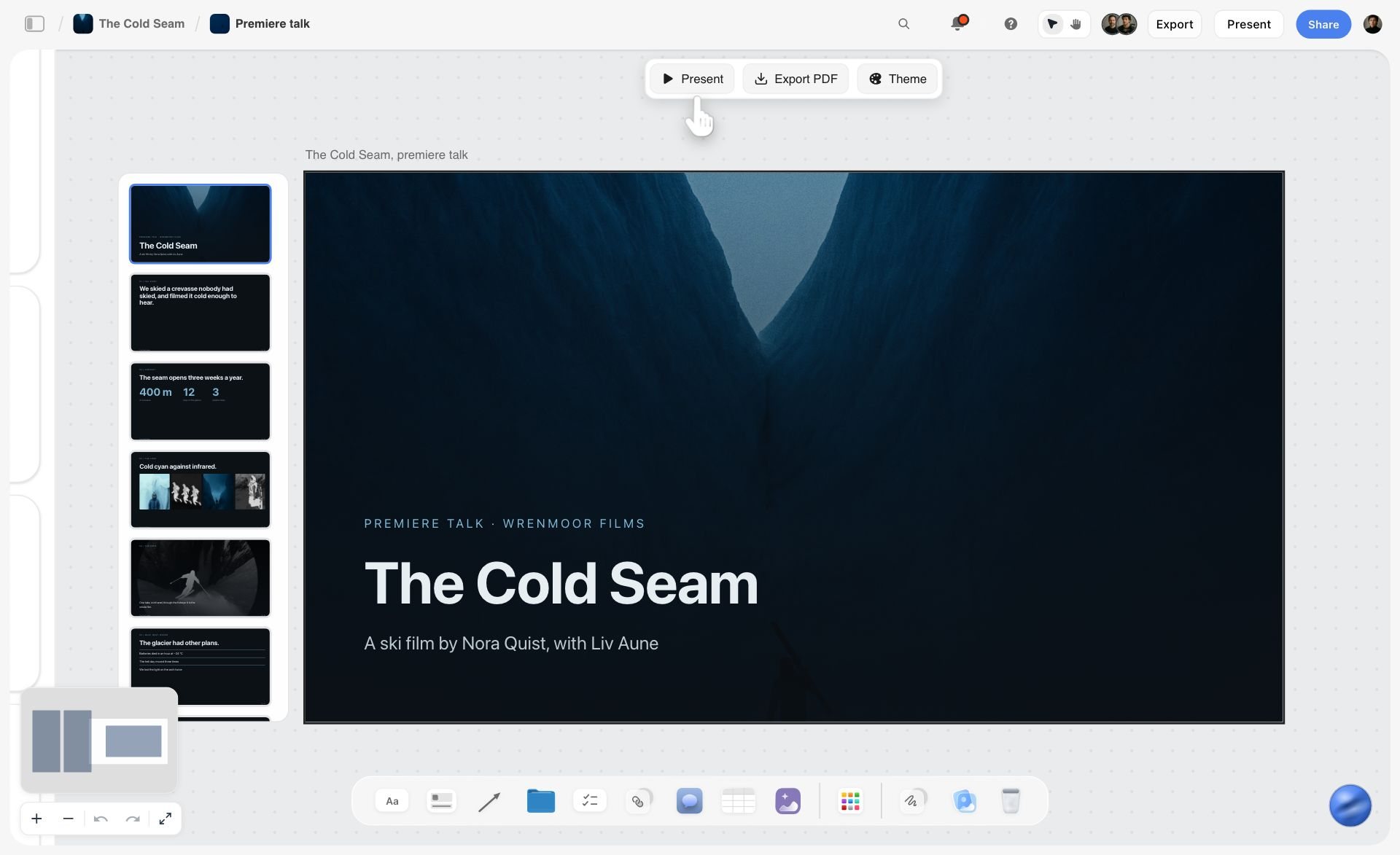
A Storyflow board for a ski film with a premiere-talk slide deck built on it, ready to present or export as a PDF
Let Claude or ChatGPT run your pipeline on a Storyflow board
Connect your assistant to Storyflow with one address, then ask it to build your idea bank, one wall per video with its script and thumbnail references, and the edit brief your editor cuts from.

How to Run a YouTube Content Pipeline With Claude or ChatGPT in 8 Steps
These eight steps take a channel from scattered notes to a pipeline the assistant can work in. Steps 1 and 2 are one-time setup (about 40 minutes). Steps 3 to 8 repeat every month.
Step 1: Connect the Assistant and Pick What It May Touch
Connect Storyflow to Claude or ChatGPT with the address https://mcp.storyflow.so/mcp (exact clicks are in the connection section below). At sign-in, pick only the project that holds your channel, and allow changes, because a read-only connection cannot build the board. If you use a freelance editor who also works with an assistant, they connect their own account with their own permissions; the assistant never shares your sign-in.
Then make one empty project called by your channel name, with one board called Pipeline. Everything in this guide lands there. If you would rather start from a ready layout, the YouTube content pipeline board shows the stages laid out on a canvas.
Step 2: Write the Channel Brief Once, on the Board
The assistant plans better from a short brief than from a long chat history. Write five lines and ask the assistant to put them on the board as the first wall:
- Who the channel is for, in one sentence.
- The 3 or 4 formats you make (for example: 20-minute explainer, 8-minute review, Shorts cut from the long video).
- Your publish rhythm (for example: long video every Tuesday, Shorts Thursday and Saturday).
- The two numbers you care about this quarter (for example: average view duration above 45%, click-through rate above 6%).
- What you will not make.
Every later prompt says "read the Channel Brief wall first". That one habit removes most of the generic output people complain about.
Step 3: Build the Idea Bank With a Scoring Gate
An idea bank without a gate becomes a graveyard. Ask the assistant to build an Ideas table on the board with five columns: idea, demand (1 to 5), packaging strength (1 to 5), cost to make (5 is lowest cost), fit with the brief (1 to 5), and a total out of 20. Paste in your raw ideas and ask it to score them, then rescore anything you disagree with yourself. Ideas at 14 or more move to packaging; the rest stay in the bank. The gate is not the assistant's judgment. It is your judgment, written down so the assistant can apply it consistently.
For demand, check what already works in your niche with YouTube search and your own analytics. The assistant can suggest angles, but it cannot see your channel's search traffic unless you paste the numbers in.
Step 4: Package Before You Script
For every idea that passed the gate, ask for 10 title options in four angles, then pick 3. Ask for 3 thumbnail concepts written as a picture description, a two-to-four word text overlay and the one feeling the image should create. Put the three titles and the concepts on the video's wall, with any reference thumbnails beside them. If you have a reference image, add it with an upload link: a picture attached in the chat does not reach Storyflow, so the assistant gives you a link to upload it to the board.
If none of the three titles makes you want to click, the idea goes back to the bank, before anyone films. For more on concepts that earn the click, see the AI thumbnail concept generator.
Step 5: Script and Shot Plan per Video
With packaging fixed, ask the assistant to write the script into a document on that video's wall: a hook that pays off the title within 30 seconds, chapters, and a retention reset (a new question, a reveal or a change of scene) every 60 to 90 seconds. Rewrite it in your voice; the assistant's draft is a skeleton, not the final words. Then ask for shot cards from the script (one card per setup) and a B-roll list as a checklist. Storyflow's MCP server can build shot cards directly, which is the fastest way to turn a script into a shoot plan.
Lock the script 7 days before the batch shoot. A script that changes on the shoot day is the most common reason an editor receives footage that does not match the brief.
Step 6: Plan the Month With Your Editor, Backwards From Each Publish Date
This is where "how do content creators plan a month of videos with their editor?" gets answered. Start from the publish dates and work back:
- Publish date. Fixed by your rhythm.
- Final cut. 3 to 4 days before publish, so you have time for the thumbnail, the description and one fix.
- Notes on the first cut. One round, returned within 24 hours.
- First cut. 2 to 5 working days after the editor receives footage, depending on length and what else is in the edit.
- Footage handoff. Within 24 hours of the shoot.
- Batch shoot. Two videos per shoot day for most talking-head and explainer formats.
Hold a 60 to 90 minute planning call with your editor once a month. Share the board, agree the four publish dates, and let the assistant write the backwards schedule into a Schedule table on the board, rows kept in date order. The editor sees their dates beside the packets they will cut, not in a separate message.
Step 7: Hand Off One Packet per Video
The edit brief is the single most useful document an assistant writes in this pipeline. Ask it to write one per video, into a document on that video's wall, with these parts: the goal of the video in one sentence, the hook and where it pays off, the chapter list with timestamps from the script, the B-roll list, the tone and pacing reference (link one video the editor should match), music notes, the title and thumbnail it has to deliver on, delivery specs and the deadline. Then invite the editor to the board. They join free, and see the brief beside the script, the references and the shot cards. The video editing brief page shows the same structure as a standalone board, and Storyflow for video editors covers the editor's side.
Footage still goes through Google Drive, Dropbox or Frame.io. Put the folder link on the video's wall so the editor finds it in the same place every time.
Step 8: Run the Weekly Check and the Month-End Review
Once a week, ask the assistant: "Read my Pipeline board. Tell me what changed in the last week and who changed it, which video is behind its schedule row, and what the editor is waiting on from me." Storyflow's MCP server can read what changed on a board and who changed it, so the answer reflects the editor's work, not only yours.
At month end, paste the numbers from YouTube Studio for each video (views at 7 days, average view duration, click-through rate, the best and worst comment theme) onto the board, and ask the assistant which packaging and which format moved your two numbers. Change next month's slate by one or two videos, not all four.
The 14 Prompts to Copy
Copy these as they are, then replace the parts in capitals. Each assumes Storyflow is connected and your channel brief is on the board.
| Stage | Prompt | What you get |
|---|---|---|
Brief | Put this channel brief on my Pipeline board as the first wall, titled Channel Brief: PASTE 5 LINES. | A brief wall the assistant reads first every time |
Idea bank | Read the Channel Brief wall. Build an Ideas table with columns idea, demand, packaging, cost, fit, total. Score these ideas from 1 to 5 on each and total them: PASTE IDEAS. | A scored idea bank on the board |
Idea bank | Suggest 15 new ideas that fit the brief and are not already in the Ideas table, then add them as rows without scores. | More ideas, deduplicated against the bank |
Packaging | For IDEA, write 10 titles in four angles: curiosity, outcome, contrarian, list. Keep each under 60 characters. | Title options to choose from |
Packaging | For IDEA, write 3 thumbnail concepts: the picture, a 2 to 4 word overlay, and the feeling it should create. Add them as notes on a new wall named after the video. | A video wall with packaging on it |
Script | Read the video wall for TITLE. Write a script into a document on that wall: a hook that pays off the title in 30 seconds, chapters, and a retention reset every 60 to 90 seconds. | A draft script beside its packaging |
Shoot plan | From the script on the TITLE wall, create shot cards, one per setup, and a B-roll checklist. | A shoot plan on the same wall |
Month | Read the Channel Brief and the four video walls. Build a Schedule table for MONTH working backwards from these publish dates: DATES. Columns: video, shoot, footage handoff, first cut, notes back, final cut, publish. Keep rows in date order. | The editor's month on the board |
Handoff | Write an edit brief for TITLE into a document on its wall: goal, hook and payoff, chapters with timestamps, B-roll, pacing reference, music, title and thumbnail promise, delivery specs, deadline. | One packet the editor can cut from |
Shorts | From the script for TITLE, pick 2 moments that work as Shorts on their own. Add a ticket for each with the start line, the end line and a hook overlay. | Shorts planned at script stage |
Prompts for the Weekly Check
| Prompt | What you get |
|---|---|
Read my Pipeline board. What changed in the last week, and who changed it? | A change summary that includes the editor's work |
Compare the Schedule table with the video walls. Which video is behind its row, and by how many days? | A late list |
What is the editor waiting on from me this week? List it in order of deadline. | Your to-do list for the week |
Prompts for the Month-End Review
| Prompt | What you get |
|---|---|
I am pasting the 7-day numbers for each video: PASTE. Add them to each video wall, then tell me which title angle and which format moved average view duration and click-through rate. | A month review tied to the packets |
A Worked Example: November for a Tech-Explainer Channel and One Editor
This example is illustrative: a solo creator running a tech-explainer channel with one freelance editor, planning November 2026 in mid-October. The numbers are the ones we would plan with; your formats will shift them.
The Brief and the Numbers
The channel brief on the board says: explainers for people who buy their own laptops and phones; long video every Tuesday, Shorts every Thursday and Saturday; two numbers for the quarter, average view duration above 45% and click-through rate above 6%; no unboxings. The goal for November is 4 long videos and 8 Shorts cut from them.
The creator pastes 40 raw ideas. The assistant scores them; the creator rescores 9. Eleven ideas reach 14 or more out of 20. Packaging kills 4 of those, because none of the three titles worked. Seven survive, and the top four become November's slate. The other three stay packaged and ready for December.
The Slate
| Publish | Video | Format | Title chosen (of 3) | Shorts cut from it |
|---|---|---|---|---|
Tue 3 Nov | Why your laptop battery dies at 20% | 18-minute explainer | Outcome angle | Thu 5 Nov, Sat 7 Nov |
Tue 10 Nov | Is 16GB of RAM enough in 2026? | 14-minute explainer | Contrarian angle | Thu 12 Nov, Sat 14 Nov |
Tue 17 Nov | 5 phone settings to change on day one | 10-minute list | List angle | Thu 19 Nov, Sat 21 Nov |
Tue 24 Nov | What a repair shop sees that you do not | 20-minute explainer | Curiosity angle | Thu 26 Nov, Sat 28 Nov |
The Production Calendar, Built Backwards
| Video | Script lock | Batch shoot | Footage handoff | First cut | Notes back | Final cut | Publish |
|---|---|---|---|---|---|---|---|
Battery | Thu 15 Oct | Thu 22 Oct | Fri 23 Oct | Tue 27 Oct | Wed 28 Oct | Fri 30 Oct | Tue 3 Nov |
RAM | Thu 15 Oct | Thu 22 Oct | Fri 23 Oct | Mon 2 Nov | Tue 3 Nov | Fri 6 Nov | Tue 10 Nov |
Phone settings | Thu 29 Oct | Thu 5 Nov | Fri 6 Nov | Tue 10 Nov | Wed 11 Nov | Fri 13 Nov | Tue 17 Nov |
Repair shop | Thu 29 Oct | Thu 5 Nov | Fri 6 Nov | Mon 16 Nov | Tue 17 Nov | Fri 20 Nov | Tue 24 Nov |
Two shoot days cover four videos. The editor always has one video in first cut and one waiting, never three at once, and every final cut lands on a Friday with a weekend of slack before the Tuesday upload.
What the Assistant Built on the Board
Over the month, the assistant built and maintained six walls: Channel Brief, Ideas (a 40-row scored table), one wall per video (three titles, three thumbnail concepts, the script document, shot cards, a B-roll checklist, the edit brief and the footage folder link), and a Schedule table. It added 8 Shorts tickets, two per video, each with a start line, an end line and an overlay.
Counting every read and every change, that came to about 120 MCP actions in the month: roughly 45 to build the walls, 35 for scripts and briefs, 24 across four weekly checks and the rest for fixes. On Plus, Pro or Max there is no MCP limit, so the count does not matter. If the editor connects their own assistant from a free invited account, they get 25 actions a week, which is enough for reading their briefs and the weekly change summary, though not for building the pipeline itself.
What the Month Took
| Task | Time | Who |
|---|---|---|
Channel brief and board setup (one time) | 40 minutes | Creator |
Idea scoring and packaging for 7 ideas | 2.5 hours | Creator with assistant |
Monthly planning call | 75 minutes | Creator and editor |
4 scripts, assistant draft plus rewrite | 9 hours | Creator with assistant |
Shot cards, B-roll lists and edit briefs | 1.5 hours | Creator with assistant |
2 batch shoot days | 12 hours | Creator |
Reviewing 4 first cuts | 3 hours | Creator |
4 weekly checks | 1 hour | Creator with assistant |
Month-end review | 45 minutes | Creator |
About 32 hours of the creator's time for 4 long videos and 8 Shorts, of which roughly 5 hours are planning and admin that used to happen in messages. The time the assistant saves is not in the script, which still needs your rewrite. It is in the briefs, the schedule and the weekly status questions that no longer need a call.
How to Connect Claude or ChatGPT to Storyflow
Connecting takes about two minutes and needs no code. Every assistant uses the same address: https://mcp.storyflow.so/mcp. The help article on connecting AI assistants has the steps for every client, and the Storyflow MCP page lists what the assistant can read and build.
Connect Claude
- In Claude, open Customize, then Connectors.
- Click Add, then Add custom connector.
- Name it Storyflow, paste the address and click Continue.
- Choose Sign in now, click Add, and sign in to Storyflow when asked.
Anthropic's custom connector guide says custom connectors work on Free, Pro, Max, Team and Enterprise, and that Free users are limited to one custom connector. On Claude Team and Enterprise, an owner adds the connector for the organisation first. Claude Code users run: claude mcp add --transport http storyflow https://mcp.storyflow.so/mcp, then type /mcp to sign in.
Connect ChatGPT
- In ChatGPT on the web, open Settings, then Security and login, and turn on Developer mode. On Business and Enterprise, an admin turns it on.
- Go to chatgpt.com/plugins and click the plus button.
- Name it Storyflow, choose Public endpoint and paste the address.
- Create it and sign in to Storyflow when asked.
Custom connectors in ChatGPT need ChatGPT Plus or above. OpenAI's developer mode article covers the mode itself; expect ChatGPT to ask you to confirm before the assistant first writes to your board.
The Permissions to Pick at Sign-In
Storyflow asks three things when you sign in. Pick the channel's project rather than all projects, so the assistant cannot reach client work or other channels. Allow changes, or it can only read. Decide whether it may use documents outside projects; this starts off when you pick projects. Unknown apps show an "I trust this app" warning first. You can disconnect in Settings, then Connected apps, and access ends within a minute. Connections expire after 30 days, and you sign in again.
No Outside Assistant? Use Storyflow's Own AI
You do not need ChatGPT or Claude for this. Storyflow's built-in AI has a YouTube video plan workflow that plans one video for a channel that keeps publishing, across eight walls: theme and overview, research and facts, chronology, the formats that work on your channel, production, assets, distribution with the publish slot and channel metrics, and budget and risk. A video script workflow writes a three-act script with the production around it, and a video research workflow builds a research board for one subject. The built-in AI reads the current board plus up to five attached documents and three other boards. It uses your Storyflow AI allowance; the MCP connection runs on your assistant's model and does not spend Storyflow AI credits.
Claude or ChatGPT: Which Assistant for a YouTube Pipeline?
Both work with the same Storyflow board, so the choice is about how you like to write, not about the pipeline. Pick one as the main assistant for a month so your prompts and habits stay consistent.
Pick Claude If
You write long scripts and want a draft that keeps your structure, you want to edit a long document in one pass, or you want a connector on the free plan (Claude Free allows one custom connector). Claude's pricing page lists Pro at $20 a month, or $17 a month billed annually, and marks connectors as available on Free.
Pick ChatGPT If
You already pay for ChatGPT Plus or above, you want image ideas for thumbnail concepts in the same chat, or your editor already uses ChatGPT. Developer mode is needed to add Storyflow as a custom connector, and on Business or Enterprise an admin enables it.
Use Both Without Losing the Pipeline
You can run Claude for scripts and ChatGPT for packaging, because the board is the shared memory. Both read the same Channel Brief wall and the same video walls. The board, not either chat, is the source of truth, so the rule is simple: anything you want to keep goes on the board before you close the chat.
| Job | Better fit | Why |
|---|---|---|
Long script drafts and rewrites | Claude | Holds structure across a long document |
Thumbnail concept images | ChatGPT | Image generation in the same chat |
Free plan with one connector | Claude | Free allows one custom connector |
Team where the editor already uses ChatGPT | ChatGPT | Same assistant on both sides |
Weekly change check | Either | Both read the board through the same server |
Notion, ClickUp, Trello and Airtable With an Assistant: What Each Pipeline Looks Like
Every tool in the comparison table can be driven by ChatGPT or Claude in October 2026. What differs is the shape of the pipeline the assistant builds, and what your editor sees when they open it.
1. Storyflow
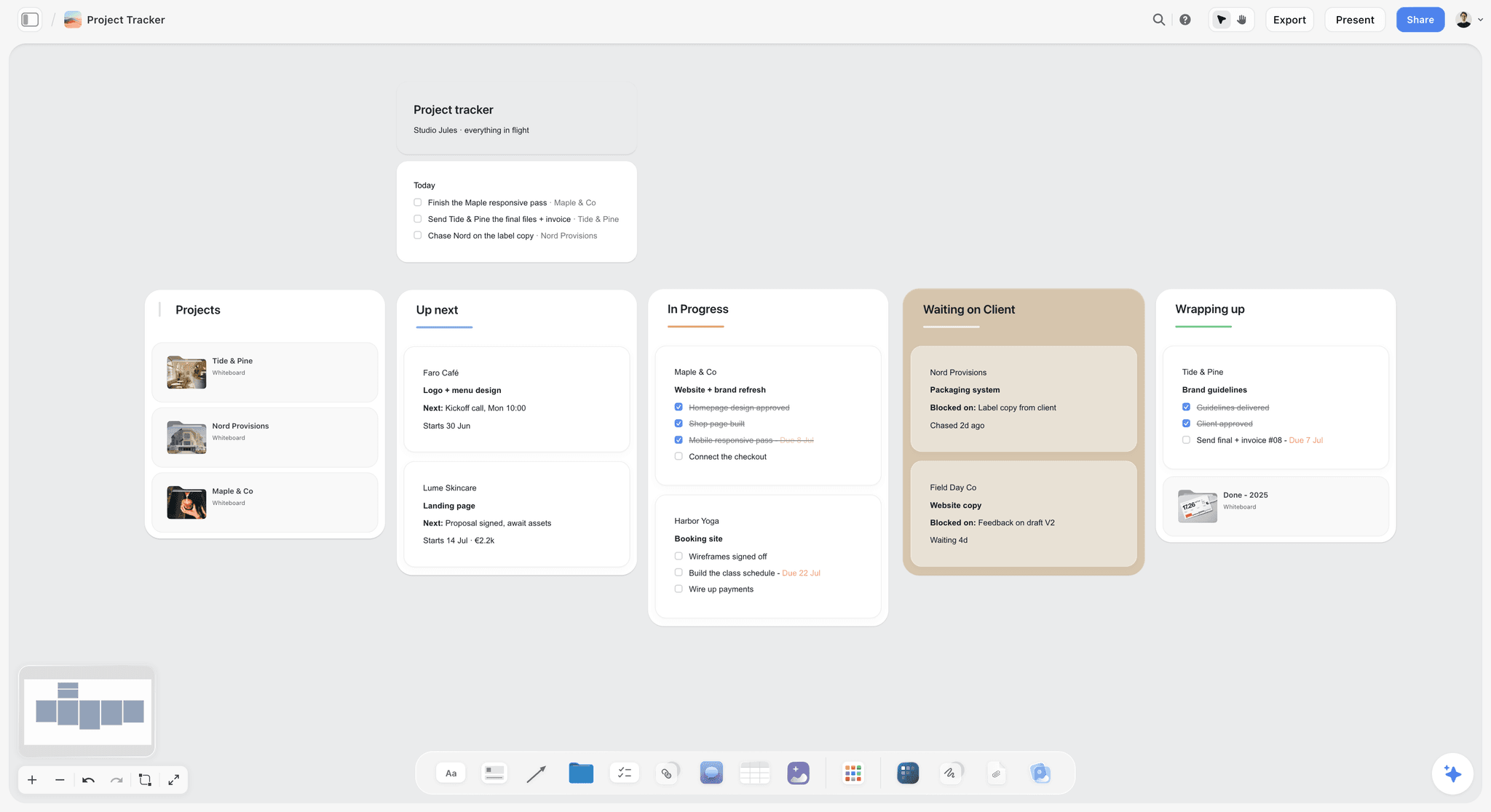
Verdict: the pipeline as a canvas, one wall per video with its packet beside its status. Best for: creators with an editor who need the script, references, shot cards and brief in one place. Pricing: Plus $7.99 a month billed annually ($9.99 monthly), Pro $14 ($19 monthly) adds AI image generation, Max $39 ($49 monthly) adds a team workspace with roles; paid-only during early access, with a Free plan launching before the end of 2026, and invited collaborators join free.
Through the MCP server the assistant builds notes, tables, documents, shot cards, mind maps, charts and slide decks, applies board templates, edits and moves elements, and reads what changed on a board and who changed it. What it adds appears live on an open board.
- Strengths: the packet layer, packaging references beside titles, change summaries for the weekly check, no MCP limit on paid plans.
- Limits: no calendar view, no table sorting, no YouTube publishing or analytics, browser only.
2. Notion
Verdict: the pipeline as a database, one page per video. Best for: teams already in Notion who want filters and a calendar of publish dates. Pricing: Notion's pricing page lists Free, Plus at $10 per member a month billed annually ($12 monthly) and Business at $20 billed annually ($24 monthly); full Notion AI is on Business.
Notion MCP is a hosted server that lets an assistant search, read, create and update pages and databases. Notion's help article notes that tools act with your full Notion permissions and that it is designed for individual workflows first.
- Strengths: views, filters, relations, a mature template ecosystem.
- Limits: the packet becomes a long page, references sit below the fold, and we found no change-history tool in the MCP pages we read.
3. Trello
Verdict: the simplest status board, with a surprisingly good weekly check. Best for: a creator and one editor who need a card per video and little else. Pricing: Trello's pricing lists Free for up to 10 collaborators per workspace, Standard at $5 per user a month billed annually ($6 monthly) and Premium at $10 ($12.50 monthly).
The Trello MCP server lists ChatGPT, Claude, Cursor, VS Code and Gemini CLI. It can create and move cards, manage checklists and comments, and view action history and generate activity summaries. It archives rather than deletes, and cannot upload local files.
- Strengths: free for two people, fast status moves, activity summaries.
- Limits: a script or an edit brief lives in a card description, and thumbnail references are attachments you click into.
4. ClickUp
Verdict: the pipeline as a task system with owners and due dates. Best for: channels run like a small studio, with several people and many dates. Pricing: ClickUp's pricing page lists a free plan with unlimited free members; on 9 October 2026 it showed two versions of its paid prices, so check the current one.
ClickUp's MCP setup guide uses https://mcp.clickup.com/mcp and covers Claude, Claude Code, ChatGPT and Cursor; in ChatGPT you connect the ClickUp app from Apps.
- Strengths: dates, dependencies, workload views, docs inside tasks.
- Limits: more setup than a two-person channel needs, and the packet still splits between a task and a doc.
5. Airtable
Verdict: the pipeline as structured data. Best for: channels that track many videos across several shows and want reporting. Pricing: Airtable's pricing lists Free, Team at $20 per seat a month billed annually and Business at $45.
Airtable's MCP server is available on all plans, works with Claude, ChatGPT and Gemini, and can read and write records, record comments and schema, within your base permissions.
- Strengths: fields, formulas and interfaces for a channel with volume.
- Limits: the most expensive seat for an editor, and creative references sit in attachment fields rather than beside each other.
What a YouTube Pipeline With AI Costs: Creator Plus One Editor
Prices as listed on each vendor's page on 9 October 2026, monthly, for a creator and one editor. The assistant is a separate cost and does not change between rows.
| Setup | Pipeline tool | Editor's seat | Assistant | Monthly total |
|---|---|---|---|---|
Storyflow Plus + Claude Pro (annual) | $7.99 | $0 (invited, joins free) | $17 | About $25 |
Storyflow Plus + Claude Free | $7.99 | $0 | $0 (one custom connector) | About $8 |
Trello Free + Claude Pro (annual) | $0 | $0 (up to 10 collaborators) | $17 | About $17 |
Notion Plus + Claude Pro (annual) | $10 per member | $10 | $17 | About $37 |
Airtable Team + Claude Pro (annual) | $20 per seat | $20 | $17 | About $57 |
Add Frame.io Pro for review | Plus $15 per member monthly |
Storyflow's case on cost is not that it is the lowest; Trello Free is lower. Current Storyflow prices are on the pricing page. It is that one $7.99 plan covers the packet, the board and an editor who joins free, with no MCP limit. Frame.io's pricing is listed for channels that want frame-accurate review comments on cuts; its Free tier covers 2 members and 2GB.
Which Setup for Which YouTuber
| YouTuber | Top picks | Why |
|---|---|---|
New creator (under 10K subscribers), solo | Storyflow with Claude Free, or Trello Free | One board, one assistant, low cost; Storyflow if you want scripts and references on the board |
Mid-tier creator (10K to 100K) with one editor | Storyflow with Claude or ChatGPT | The packet and the edit brief matter most at this stage; see Storyflow for YouTubers |
Documentary or long-form creator | Storyflow | Research, chronology and script beside each other; the built-in video research workflow helps too |
Shorts-heavy creator posting daily | Notion or ClickUp | Volume needs sorting, filters and a calendar view |
Educator or explainer channel | Storyflow | Scripts with chapters, B-roll lists and diagrams on one wall |
Brand-channel manager | Notion or Airtable, with Storyflow for packets | Reporting and approvals sit in a database; the creative packet on a board |
Agency or production-house video lead | ClickUp or Airtable, with Storyflow for client-facing boards | Many people, many dates; Storyflow's view-only link opens with no account for clients |
Decision Rules
- If your editor keeps asking for the script, the B-roll list or the references, the problem is the packet: use Storyflow.
- If you publish more than 10 pieces a week and need to sort and filter, use Notion, ClickUp or Airtable for status, and keep packets for long videos on a Storyflow board if you want them.
- If you pay nothing today and have one editor, start with Trello Free and move when the packets get lost.
- If you want the assistant to tell you every week what the editor changed, use Storyflow or Trello, whose MCP servers can read change history.
- If YouTube Studio already tells you what you need, do not build a dashboard in your pipeline tool; paste the 7-day numbers in once a month.
Common Mistakes When ChatGPT or Claude Runs Your Pipeline
These are the failures that show up most often once an assistant is in the loop. Each has a one-line fix.
Mistake 1: Keeping the Pipeline in the Chat
The idea bank, the scores and the scripts sit in a thread the editor cannot read and the next chat cannot see. Fix: anything you want next week goes on the board before you close the chat.
Mistake 2: Letting the Assistant Score Ideas Alone
An assistant scores demand from what sounds popular, not from your channel's numbers. Fix: write your scoring rules on the board, paste your own analytics, and rescore anything that feels wrong.
Mistake 3: Packaging After the Edit
A title written after the edit describes the video you made, not the click you need. Fix: three titles and three thumbnail concepts before the script, and the idea goes back to the bank if none of them works.
Mistake 4: Publishing the Assistant's Script Unedited
Viewers hear a draft voice in the first 30 seconds. Fix: use the draft for structure and the retention resets, then rewrite every line you will say on camera.
Mistake 5: Sending Footage Without a Brief
The editor guesses the pacing, the B-roll and the hook. Fix: one edit brief per video, written by the assistant from your notes and placed on the video's wall before the footage arrives.
Mistake 6: Giving the Connector Every Project
An assistant with access to every project can write into the wrong board. Fix: at sign-in, pick only the channel's project, and reconnect if you need another.
Mistake 7: Skipping the Month-End Review
Without it, next month's slate repeats this month's guesses. Fix: paste the 7-day numbers for each video onto its wall and ask which title angle and format moved your two numbers.
When Storyflow Is Not the Right Choice
Storyflow fits a pipeline where each video needs a packet the editor can read. It is the wrong tool in these cases:
- You need a calendar view or sorted lists. Storyflow has no calendar view and cannot sort a table. A channel planning 40 Shorts a month by date is better served by Notion, ClickUp or Airtable.
- You want the pipeline tool to publish or schedule. Storyflow does not upload to YouTube or schedule posts. YouTube Studio does that, and nothing in this guide changes it.
- You need frame-accurate review with an approve button. Storyflow has no versioned proofing; use Frame.io for cut review.
- You work offline or on a phone first. Storyflow runs in the browser, with no native mobile or desktop app and no offline mode.
- You want a free tool today. Storyflow is paid-only during early access; its Free plan launches before the end of 2026. Trello Free covers a creator and an editor at no cost.
- Your team has standardised on another tool. If your studio runs everything in ClickUp or Notion, the switching cost may outweigh a better packet; connect the assistant to the tool you have.
A Pipeline Board Template You Can Copy
Build this once, by hand or by asking the assistant to build it from this section. Every month after that, you add four video walls and a new schedule.
The Six Walls
- Channel Brief. Audience, formats, rhythm, two numbers, what you will not make.
- Ideas. The scored table, highest totals first.
- This Month. The slate: four video titles with their publish dates.
- Video walls, one per video. Titles, thumbnail concepts and references, script document, shot cards, B-roll checklist, edit brief, footage link, 7-day numbers after publish.
- Schedule. The backwards production table, rows kept in date order.
- Review. One note per month: what moved the numbers and what changes next month.
The Video Wall Checklist
| Item | Stage | Done when |
|---|---|---|
3 title options | Packaging | One makes you want to click |
3 thumbnail concepts and references | Packaging | One is chosen and briefed |
Script document | Script | Locked 7 days before the shoot |
Shot cards and B-roll checklist | Shoot plan | Every setup has a card |
Edit brief | Edit | On the wall before footage arrives |
Footage folder link | Edit | Added within 24 hours of the shoot |
Description, chapters, end screen | Publish | Written before the final cut |
7-day numbers | Review | Pasted a week after publish |
The Edit Brief Outline
Goal in one sentence. Hook and where it pays off. Chapters with timestamps. B-roll list. Pacing reference (one linked video). Music notes. Title and thumbnail the video must deliver on. Delivery specs (resolution, captions file, Shorts crops). Deadline for first cut and final cut.
The Monthly Checklist
- Score new ideas and package the top 7.
- Pick 4 and hold the planning call with the editor.
- Build the schedule backwards from the publish dates.
- Lock scripts 7 days before each batch shoot.
- Write every edit brief before the footage arrives.
- Run the weekly check every Monday.
- Paste the 7-day numbers and run the month-end review.
The Bottom Line
A YouTube pipeline is seven stages and a packet per video, and the assistant's job is to draft that work and move it to where your editor can see it. Run ChatGPT or Claude for the drafting and keep the pipeline on a Storyflow board through its MCP server: the scored ideas, one wall per video with its script, references and edit brief, a schedule built backwards from publish dates, and a weekly check that reads what your editor changed. If your channel is a high-volume list you sort by date, Notion, ClickUp or Airtable will serve you better. For everyone else, connect your assistant on the Storyflow MCP page, build the six walls above, and plan next month in one call with your editor.
FAQ: Running a YouTube Content Pipeline With ChatGPT or Claude
How do YouTubers plan and organise their content pipeline?
YouTubers plan their pipeline as seven stages applied to every video: idea bank, packaging, script, shoot plan, edit, publish and review, with a gate at each one. In 2026 many run it with ChatGPT or Claude drafting titles, scripts and briefs, and a Storyflow board holding the pipeline, connected through Storyflow's MCP server so the assistant can build and read it. YouTube Studio handles publishing and analytics.
How do content creators plan a month of videos with their editor?
Creators plan a month with their editor in one 60 to 90 minute call, working backwards from each publish date: final cut 3 to 4 days before publish, one round of notes, a first cut 2 to 5 working days after footage, a footage handoff within 24 hours of a batch shoot. Put the schedule and one edit brief per video on a shared Storyflow board the editor joins by invite.
Can ChatGPT plan my YouTube content pipeline?
Yes. ChatGPT can score ideas, write titles, draft scripts and write edit briefs, and with Storyflow connected as a custom connector it can build the pipeline on a Storyflow board and read it back each week. Custom connectors need ChatGPT Plus or above with developer mode turned on.
Can Claude plan my YouTube content pipeline?
Yes. Claude drafts the same pipeline work and, with Storyflow added as a custom connector, builds the board and reads what changed and who changed it. Anthropic's documentation says custom connectors work on every Claude plan, including Free, which is limited to one custom connector. Claude Code users connect with one command and sign in with /mcp.
What is the best tool to keep a YouTube pipeline run with AI?
Storyflow is the best fit when each video needs a packet (script, shot cards, thumbnail references, edit brief) beside its status, because ChatGPT or Claude can build and read that board through its MCP server. Notion, ClickUp or Airtable fit better when the pipeline is mainly a sortable list with dates and a calendar view.
Does Storyflow publish videos to YouTube or show my analytics?
No. Storyflow does not upload, schedule or publish to YouTube, and it does not pull channel analytics. YouTube Studio does both. The pattern in this guide is to paste each video's 7-day numbers onto its wall once a month, so the assistant can compare them against the title angle and format you chose.
Is Storyflow free?
Not during early access. Storyflow is paid-only for now, with Plus at $7.99 a month billed annually ($9.99 monthly), and its Free plan launches before the end of 2026. Anyone a paid member invites to a board joins free today, so your editor does not need a paid plan to open and work on your pipeline.
Does connecting ChatGPT or Claude use my Storyflow AI credits?
No. The MCP connection runs on your assistant's own model, so it does not spend Storyflow AI credits. On Plus, Pro and Max there is no MCP limit. A free account, which today means one invited by a paid member, gets 25 actions a week, where every read and every change counts as one, resetting on Monday UTC.
Can the assistant see all my Storyflow projects?
Only if you allow it. At sign-in you choose all projects or specific ones, whether the assistant may make changes, and whether it may use documents outside projects. For a channel pipeline, pick only the channel's project. You can disconnect in Settings, then Connected apps, and access ends within a minute.
Can my editor use the same board?
Yes. Invite your editor to the board; they join free and edit in real time on any paid plan. They see the edit brief beside the script, shot cards and references. If you share a view-only link instead, the editor opens it with no account, and signs in to comment.
Should I make the thumbnail before I write the script?
Yes, at least as a concept. Write three titles and three thumbnail concepts before the script, and send the idea back to the bank if none of them works. The script then pays off a promise you have already tested on yourself. After upload, YouTube's Test and compare feature tries up to three versions and keeps the one with the most watch time.
How many videos should be in the pipeline at once?
For a weekly channel with one editor, plan four long videos a month with two in production at any time: one in edit and one waiting for its shoot or first cut. More than that and briefs get thinner; fewer and a sick day breaks the publish rhythm. Keep three packaged ideas ready as a buffer.
Can I run a YouTube pipeline in Notion with ChatGPT or Claude?
Yes. Notion's MCP server lets an assistant search, read, create and update pages and databases, so it can build a video database with one page per video. It suits teams already working in Notion who want filters and a calendar of publish dates. The trade-off is that each packet becomes a long page rather than a wall you see at once.
Can Trello run a YouTube pipeline with an AI assistant?
Yes. Trello's MCP server works with ChatGPT, Claude and other clients, can create and move cards and checklists, and can summarise board activity, which makes the weekly check useful. Its free plan covers up to 10 collaborators per workspace. Scripts and briefs live in card descriptions, so it suits channels whose packets are short.
What should an edit brief include?
An edit brief should include the goal in one sentence, the hook and where it pays off, chapters with timestamps, the B-roll list, one pacing reference, music notes, the title and thumbnail the video must deliver on, delivery specs and the deadlines for first cut and final cut. Ask the assistant to write it from your notes onto the video's wall.
How do I plan YouTube Shorts in the same pipeline?
Plan Shorts at the script stage, not after the edit. Ask the assistant to pick two moments in each long script that work on their own, and add a ticket for each with a start line, an end line and a hook overlay. The editor cuts them from the same footage, so Shorts add little shoot time and arrive with the long video.
Table of Contents
- Key Takeaways
- How Do YouTubers Plan and Organise Their Content Pipeline?
- What ChatGPT and Claude Do Well in a Pipeline, and Where They Break
- How to Choose Where the Pipeline Lives: Our Criteria and Weighting
- Comparison Table: Where a YouTube Pipeline Run With ChatGPT or Claude Lives
- How to Run a YouTube Content Pipeline With Claude or ChatGPT in 8 Steps
- Step 1: Connect the Assistant and Pick What It May Touch
- Step 2: Write the Channel Brief Once, on the Board
- Step 3: Build the Idea Bank With a Scoring Gate
- Step 4: Package Before You Script
- Step 5: Script and Shot Plan per Video
- Step 6: Plan the Month With Your Editor, Backwards From Each Publish Date
- Step 7: Hand Off One Packet per Video
- Step 8: Run the Weekly Check and the Month-End Review
- The 14 Prompts to Copy
- A Worked Example: November for a Tech-Explainer Channel and One Editor
- How to Connect Claude or ChatGPT to Storyflow
- Claude or ChatGPT: Which Assistant for a YouTube Pipeline?
- Notion, ClickUp, Trello and Airtable With an Assistant: What Each Pipeline Looks Like
- What a YouTube Pipeline With AI Costs: Creator Plus One Editor
- Which Setup for Which YouTuber
- Common Mistakes When ChatGPT or Claude Runs Your Pipeline
- When Storyflow Is Not the Right Choice
- A Pipeline Board Template You Can Copy
- The Bottom Line
- FAQ: Running a YouTube Content Pipeline With ChatGPT or Claude
- Related Reading
Templates to check out for this topic


Content and video templates you can use in Storyflow
Plan a channel, a script, and a content pipeline on the same board. Open one of these templates and let the AI build on the structure instead of starting from a blank doc.


See Storyflow in Action
A visual AI workspace where every feature lives inside one canvas. No tab-switching, no context lost.
Build your entire board from a single message
Type what you need in the AI chat at the bottom of your canvas. The AI adds cards, headings, and structure directly onto your board.
Use expert frameworks as AI context
Type @ in the AI chat and choose any Tactic. The AI tailors every response to that framework instead of giving generic advice.
Turn your board into a mind map in seconds
Ask the AI to restructure your canvas as a mindmap. It connects your ideas into a visual hierarchy so you can see how everything relates.
Why Storyflow Exists
Storyflow actually began as a personal tool while working on creative and research projects.
We kept running into the same problem: ideas were scattered everywhere: notes, documents, and whiteboards.
Nothing helped us see how everything connected.
So we started building a workspace designed around how ideas actually grow.
→ Read how Storyflow was createdStoryflow Team
Product & Research Team
Published: 2026-10-09
Extremely simple, seriously capable


See how easy it is to get started
Watch a real project come together, from a blank board to a finished plan, clicked through step by step.
Start creating with AI and become more productive
Transform your creative workflow with AI-powered tools. Generate ideas, create content, and boost your productivity in minutes instead of hours.