The 10 Best Storyboarding Tools for Beginners in 2026
You do not need to draw to storyboard. The 10 best storyboarding tools for beginners in 2026, led by Storyflow, whose AI turns a script into a storyboard without drawing, then Boords, Canva and Storyboard That by need.

Category
Filmmaking
Author

Justkay
Documentary Filmmaker & Founder at Storyflow
Topics
2026-07-20
•
34 min read
•
Filmmaking- best storyboarding tools for beginners
- best storyboard software for beginners
- storyboard tool for people who cannot draw
- simple storyboard software
- ai storyboard from a script
- free storyboarding tool
What is the best storyboarding tool for beginners in 2026?
Storyflow is the best storyboarding tool for beginners in 2026: attach a script or paste your idea and its AI turns it into a storyboard without drawing, one wall per scene with a frame, a beat note and a shot checklist, from $7.99 a month billed annually. Choose Boords for tidy numbered panels and an animatic, Canva for free drag-and-drop templates you already know, and Storyboard That for click-together characters in a classroom. Storyflow has no animatic and no free plan today. Before you pick, it helps to know the four kinds of [storyboard software](/storyboard-software). If you want the fewest steps, try the [simple AI storyboarding tool](/simple-storyboarding-tool).

Full disclosure: Storyflow is our own product and it is ranked first. The basis is the criterion weighted highest for beginners: finishing a usable board without drawing, which Storyflow's AI does by building the storyboard from your script. Storyflow has no animatic or frame timing (Boords does), no free plan today (Canva, Boords and Storyboarder do), no camera or 3D previz (FrameForge does) and no saved character cast, and AI-generated frames need Pro. Every tool is linked so you can judge for yourself.
Quick Comparison
Our pick first, then the three most common beginner alternatives. Prices read on each vendor's own page on October 11, 2026.
| Tool | Best For | AI Features | Price |
|---|---|---|---|
| Storyflow | A storyboard from your script without drawing | Builds one wall per scene with frame, beat note and checklist | $7.99 mo billed annually |
| Boords | Numbered panels with animatic preview | Script to frames, saved cast | Free plan / $26 mo billed yearly |
| Canva | Drag-and-drop storyboard templates | General AI image tools | Canva Free / see Canva's pricing page |
| Storyboard That | Click-together characters and scenes | Minimal | Free (2 a week) / see its pricing page |
Quick Picks: Best Storyboarding Tools for Beginners by Need
Last updated October 11, 2026. Storyflow is our product and is ranked first; the basis is stated under "How We Evaluated These Tools", and every rival price below was read on the vendor's own page on that date.
Storyflow is the pick for a beginner who cannot draw, because its AI builds the board from your script. After that, pick by the one thing you need most: an animatic, a free plan, classroom characters or a sketching app.
- Best overall for people who cannot draw: Storyflow. Its AI turns a script into a storyboard without drawing. Plus is $7.99 a month billed annually; AI-generated frames come with Pro at $14.
- Best for clean numbered panels and an animatic: Boords. Free plan with 5 active storyboards; Solo is $26 a month billed yearly.
- Best if you already use one tool for everything: Canva. Free plan with storyboard templates.
- Best for click-together characters in a classroom: Storyboard That. Free plan with 2 storyboards a week.
- Best for loose reference gathering: Milanote. Free up to 100 notes.
- Best with production paperwork attached: StudioBinder. Free to start.
- Best simple browser storyboard creator: Plot. From $9.99 a month, 14-day trial.
- Best free app if you want to sketch: Storyboarder by Wonder Unit. Free and open source.
- Best for client review and sign-off: Krock. Free plan for one user.
- Best for camera and lens planning later: FrameForge. Free trial download.
What Is the Best Storyboard Software for Beginners?
Storyflow is the best storyboard software for beginners, because a beginner's two problems are "I cannot draw" and "I do not know what to draw", and Storyflow's AI solves both: it reads your script and builds one wall per scene with a frame, a beat note and a shot checklist. If you want free software you install and sketch in, choose Storyboarder.
Storyflow is a visual AI workspace: an infinite canvas where your script, references, storyboard and shot list sit together on boards, and an AI agent that reads the board and builds on it. Storyflow runs in the browser, and the AI proposes while you accept or discard. The page to start from is Storyflow's AI storyboard generator.
| If you are a beginner who | Use | Why |
|---|---|---|
Has a script or an idea and cannot draw | Storyflow | Its AI builds the storyboard, then the shot list, on one board |
Works in ChatGPT or Claude already | Storyflow (MCP connector) | The assistant builds the board in your Storyflow project |
Wants numbered panels and to feel the pacing | Boords | Frame slots in sequence and an animatic |
Wants a free template in a tool they know | Canva | Drag-and-drop storyboard templates on a free plan |
Teaches or studies and wants ready-made characters | Storyboard That | A library of characters, scenes and props |
Wants to sketch for free | Storyboarder by Wonder Unit | Free, open source drawing app |
Needs a client to approve frames | Krock or Boords | Frame-by-frame comments |
The order on this page is our pick first, then the rest by how easily a non-artist finishes a usable board.
Comparison Table: 10 Storyboarding Tools for Beginners Compared
Storyflow leads the table because its AI builds the whole board from a script, with a note and a checklist on every scene, so a beginner starts from a draft and not a blank grid. Boords and Canva follow for panels and templates. Ratings are the original beginner-fit judgements; prices were re-read on October 11, 2026.
| Tool | Best For | Beginner Fit | Starting Price | Free Plan | Rating (/10) |
|---|---|---|---|---|---|
Storyflow | A storyboard built from your script without drawing | Very high | $7.99/mo billed annually | None today (invited collaborators join free) | 9.4/10 |
Boords | Tidy numbered frame-by-frame panels and an animatic | High | $26/mo billed yearly ($39 monthly) | Yes (5 active storyboards) | 9.0/10 |
Canva | Drag-and-drop templates you already know | Very high | See Canva's pricing page | Yes | 8.9/10 |
Storyboard That | Click-together characters and scenes | Very high | See its pricing page ($1 first month) | Yes (2 storyboards a week, watermarked) | 8.6/10 |
Milanote | Loose visual boards and reference walls | High | $9.99/mo billed annually | Yes (100 notes, 10 uploads) | 8.4/10 |
StudioBinder | Shot lists plus simple boards | Medium | Indie $49/mo for 2 users | Yes (free start) | 8.2/10 |
Plot | A simple browser storyboard creator | Medium | $9.99/mo (Solo) | 14-day trial; a free account is offered | 7.9/10 |
Wonder Unit Storyboarder | Free drawing app for sketchers | Medium | Free | Yes (free, open source) | 7.6/10 |
Krock | Client-review boards for animation and video | Medium | $10/user/mo (Pro) | Yes (1 user, 2 GB) | 7.4/10 |
FrameForge | 3D camera and previz for planners | Low | See FrameForge's shop | Free trial download | 7.2/10 |
Ratings reflect fit for a non-artist making a first usable storyboard, not overall power for professional studios. They were set when this page was first published and have not been raised or lowered in this update; several rival prices and free plans have improved since, which the cells now show.
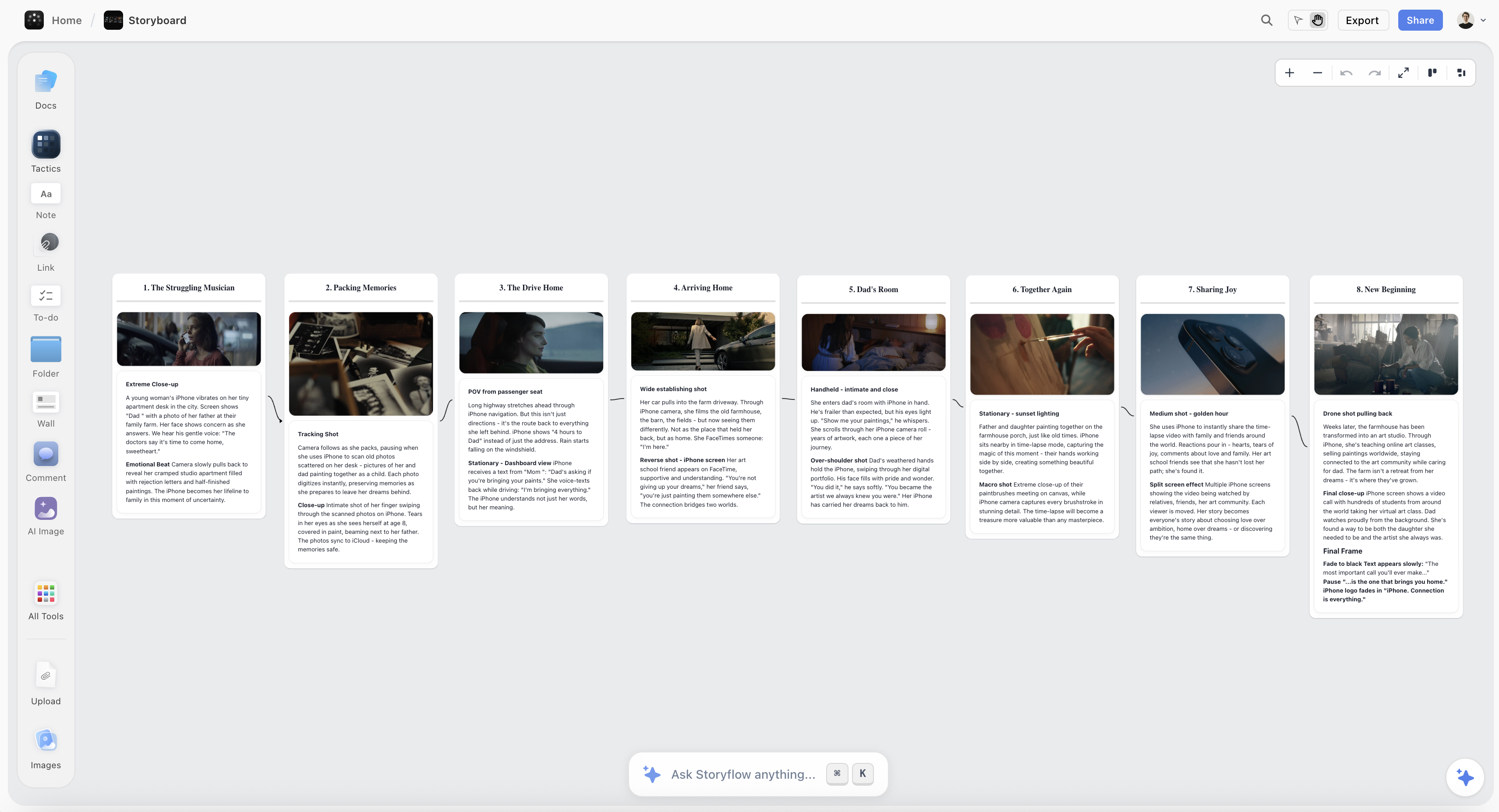
A beginner's storyboard on a Storyflow canvas: reference frames arranged into shot order with labels, no drawing required
Storyboard your next video without a pencil
Attach your script or paste the idea and Storyflow builds the storyboard: one wall per scene with a frame, a beat note and a shot checklist. No drawing, no complicated software. From $7.99 a month billed annually.

Frequently Asked: Beginner Storyboarding Tools on Simplicity, Trust and Price
Can you recommend simple storyboard software for beginners?
Storyflow. Attach your script or paste the idea, pick "Storyboard my script", answer at most two questions, and Storyflow's AI builds the storyboard without any drawing. If simple has to mean free, Canva's free plan has storyboard templates, and Storyboarder by Wonder Unit is free software for sketching.
Which beginner storyboarding tools are the most trusted?
Our pick is Storyflow for building the board from a script. On track record, Boords is the most established dedicated storyboard tool, Canva is the one most beginners already use, and Storyboard That is widely used in schools. Storyboarder by Wonder Unit is trusted because it is free and open source.
What is the pricing for popular storyboard template tools?
Storyflow is $7.99 a month billed annually and includes its 200+ Tactics templates. Canva has a free plan with storyboard templates and a paid Pro plan (see Canva's pricing page). Boords has a free plan with 5 active storyboards and Solo at $26 a month billed yearly. Milanote is free to 100 notes, then $9.99 a month billed annually.
Which beginner storyboard tools are free?
Storyboarder by Wonder Unit is entirely free. Canva, Boords, Milanote, Storyboard That and Krock have free plans with limits: 5 active storyboards on Boords, 100 notes on Milanote, 2 storyboards a week on Storyboard That, one user on Krock. Storyflow is not free today; it starts at $7.99 a month billed annually.
Where is Storyflow not the right answer for a beginner?
When the budget is zero, when you want to learn to draw panels by hand (Storyboarder), when you need an animatic to feel pacing (Boords), when you need 3D camera previz (FrameForge), and when a classroom needs ready-made cartoon characters (Storyboard That).
The 10 Best Storyboarding Tools for Beginners, Ranked
Storyflow is ranked first for beginners because Storyflow turns a script into a storyboard without drawing. The other nine are ranked on how easily a non-artist finishes a usable board with them: panels and templates first, drawing and previz tools last, because those assume skills a beginner does not have yet.
- Storyflow - best for a storyboard built from your script without drawing
- Boords - best for clean, numbered, frame-by-frame panels and an animatic
- Canva - best drag-and-drop templates for people who already use it
- Storyboard That - best for building scenes from click-together characters
- Milanote - best for loose visual boards and reference walls
- StudioBinder - best for shot lists paired with simple boards
- Plot - best simple browser storyboard creator
- Wonder Unit Storyboarder - best free app if you actually want to sketch
- Krock - best for sending boards to clients for review
- FrameForge - best for camera angles and 3D previz, once you are past beginner
You Do Not Need to Draw: Four Ways a Beginner Fills a Frame
A storyboard is a plan, not an art project, so a beginner can fill every frame without drawing: let Storyflow's AI generate it, use a real photograph as a reference, drop in a phone photo, or click together ready-made characters. Drawing is the fifth way, and it alone needs skill.
A storyboard's only job is to answer one question before you shoot: what does each shot look like, and in what order? The moment you stop thinking of a storyboard as something you draw and start thinking of it as something you arrange, the task changes.
| Way to fill a frame | What you need | Tool that does it |
|---|---|---|
AI builds the board and the frames from your script | A script or a written idea | Storyflow (AI frames on Pro and Max) |
Real photographs found on the web, captioned "Reference" | A description of the shot | Storyflow |
Your own phone photos, dragged into empty frames | A phone and a stand-in | Storyflow, Boords, Canva, Milanote, StudioBinder |
Click-together characters and backgrounds | Nothing | Storyboard That, Canva |
Sketching, however rough | A willingness to draw stick figures | Storyboarder, Plot |
The rule that decides tool choice for a beginner: can someone who cannot draw finish the board? A drawing-only tool excludes most of a film crew. A tool with any of the first four rows does not.
How to Make Your First Storyboard, Step by Step
On one Storyflow board a first storyboard is six steps: write the idea down, attach it and pick "Storyboard my script", answer two questions, fix the order, fill the frames you care about, and share the link. The table shows the free route beside it for anyone who cannot pay yet.
| Step | In Storyflow | Free route (Canva or Storyboarder) |
|---|---|---|
1. Write the idea | Paste a script, or ask the AI to "Write a script for my video" | Write a numbered list of shots in a document |
2. Get the panels | Pick "Storyboard my script"; the AI builds one wall per scene | Open a template or a new board and add one frame per shot |
3. Choose the frames | Answer once: web references, AI generated or empty placeholders | Search for a photo, pose a character or sketch, once per frame |
4. Fix the order | Drag walls into place; merge or split scenes | Drag frames into place and renumber by hand |
5. Mark each panel | The beat note and labels are written; add shot size or movement | Type a caption with shot size and movement under each frame |
6. Share it | Send a view link that opens with no account | Export a PDF and send it |
Step 1 is the real work. A beginner's slow part is deciding the shots, not making the panels. List what the viewer sees, in order, one line each.
Steps 2 and 3 are where Storyflow removes the blank page. Storyflow asks at most two questions: how many scenes, if your text does not settle it, and where the frames should come from. Web references are real photographs captioned "Reference" so nobody mistakes them for footage. Placeholders stay empty for your own photos. AI-generated frames need Pro or Max.
Step 4 needs your judgement. AI over-splits conversations and under-splits action. Merge the talking, split the movement.
Step 6 turns a board into a plan. Ask Storyflow for "a shot list from my storyboard" and the list is built from the same walls, one entry per camera setup. The longer walkthrough is in how to make a storyboard.
A Worked Example: A 60-Second Video in Five Walls
Here is a first storyboard for a 60-second talking-head video with two cutaways, built on a Storyflow board from a five-line script. The five walls below are what a beginner should expect back, and what each one needs before it is shootable. The example illustrates the method; it is not a recorded run.
| Wall | Beat note | Labels | Checklist the wall carries |
|---|---|---|---|
Scene 1: Hook | Presenter to camera, one bold claim | MS, eye level, daylight | Clean background, lav mic on, first line memorised |
Scene 2: The problem | Cutaway to the messy desk | CU, handheld | Clear the brand names, shoot three angles |
Scene 3: The fix | Presenter shows the tool on a laptop | OTS, 35mm | Screen brightness up, no reflections |
Scene 4: Proof | Cutaway to the finished result | WS, static | Tidy frame, hold five seconds |
Scene 5: Call to action | Presenter to camera, one ask | MS, eye level | Match scene 1 framing, record two takes |
Three things to notice. The count came from the script, so nobody had to decide "how many panels". Every wall has a note, labels and a checklist, so a board with empty frames is already usable. And scenes 1 and 5 share a setup, so on the day you shoot them back to back.
What It Takes by Hand vs in Storyflow
By hand, a beginner's first board is seven jobs repeated for every shot. In Storyflow it is attach the script, answer at most two questions and accept the proposal. The difference is the blank page: Storyflow hands a beginner a draft to correct.
| Job | By hand in a template or drawing tool | In Storyflow |
|---|---|---|
Decide how many panels | Count the shots yourself | Counted from your script's scenes |
Create and title each panel | One at a time | One wall per scene, titled and numbered |
Find or make each picture | Search, pose or draw per panel | One answer covers every wall |
Write what happens | Type under each panel | A beat note with two to four labels per wall |
List what the shot needs | Usually skipped | A three to five item checklist per wall |
Keep the order straight | Renumber when something moves | Walls joined by arrows in story order |
Make the shot list | Retype into a spreadsheet | Ask for it from the storyboard |
One timing from a recorded run, labelled for what it is: in a recorded run (one run, rounded up), Storyflow's AI placed the pictures for a shot list in 4 minutes, against our by-hand estimate of about 2 hours at 12 minutes per picture. We do not quote a time for a whole storyboard.
The consolidation matters to a beginner too. The script, the references, the board, the shot list and the link you send a friend are one Storyflow board at $7.99 a month billed annually, where the by-hand route usually means a document, a template tool and a spreadsheet.
How We Evaluated These Tools
Storyflow is our product and is ranked first on the criterion weighted highest here: whether a non-artist can finish a usable board without drawing. Storyflow's AI builds the board from a script and then the shot list from the board. The other criteria are below, with their original weights.
This is a comparison from each vendor's own documentation and pricing pages, read on October 11, 2026, plus our own use of Storyflow. We did not test, time or run projects on the rival tools. The ratings in the comparison table were set when this page was first published against the criteria below and are unchanged in this update.
- No drawing required (30%). Can you build a full storyboard using photos, templates, click-together art or AI frames, without drawing a line?
- Ease of setup (20%). How much do you fight the tool before your first panel? Account walls, confusing canvases and jargon cost points.
- Speed to first board (20%). How many steps from opening the tool to a sequence you could shoot from?
- Collaboration (15%). Can a friend, client or crew member see the board without buying a seat or installing anything?
- Price for one person (15%). Most beginners pay alone. Storyflow loses points here to the tools with free plans.
Drawing-first apps (Storyboarder, FrameForge) were judged on the same beginner question, which is why capable professional tools sit lower: they assume a skill a beginner does not have yet.
Detailed Reviews: 10 Storyboarding Tools for Beginners
Each review says what the tool is, who it suits, what it costs today and when to choose it over Storyflow. Storyflow is first as our pick; the rest follow in beginner-fit order, with prices as read on each vendor's own page on October 11, 2026.
1. Storyflow
Best for: beginners who have a script or an idea, cannot draw, and want a storyboard they can shoot from today.
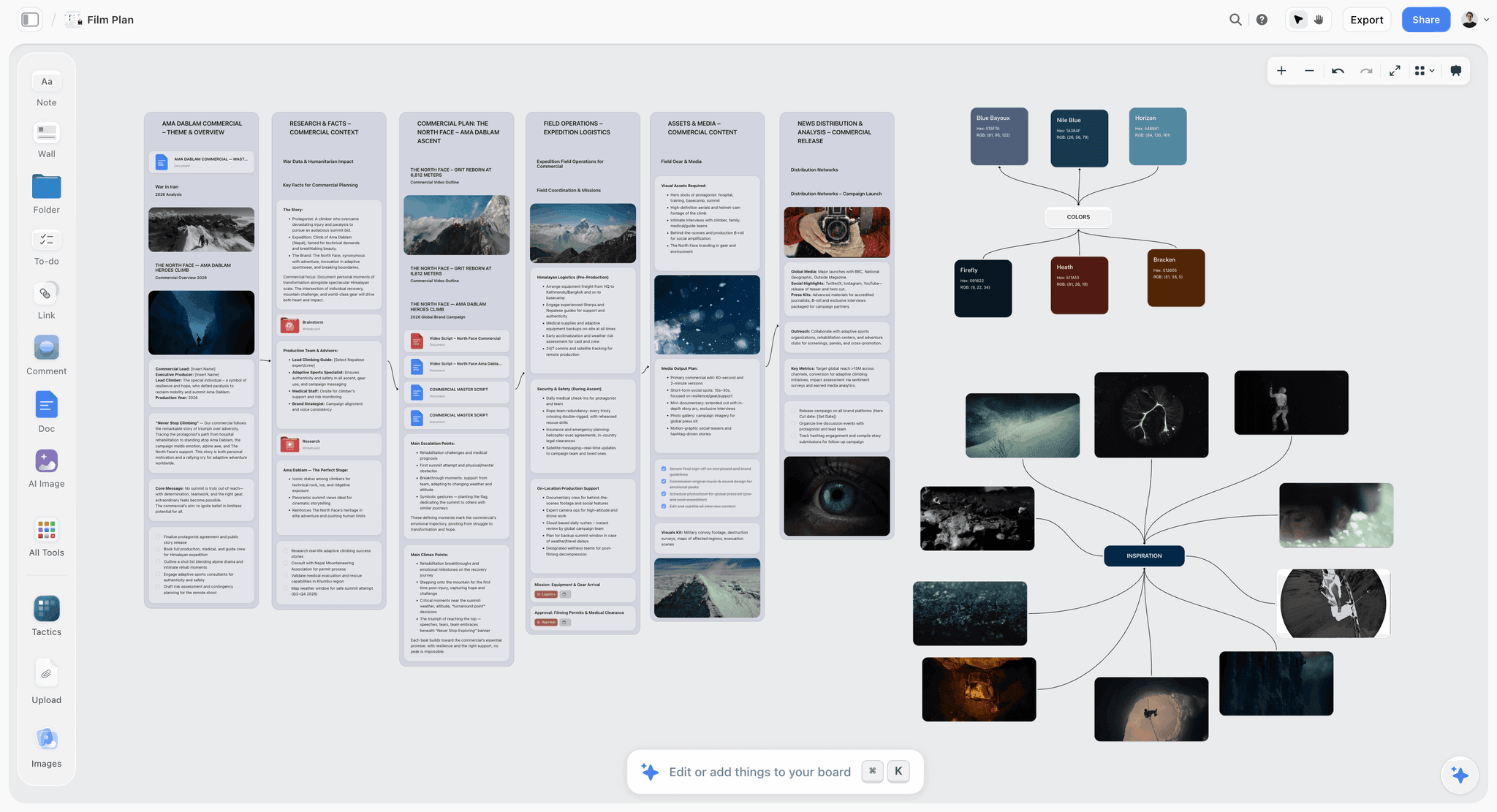
Storyflow turns a script into a storyboard without drawing. Storyflow's AI storyboard generator reads an attached PDF, Final Draft .fdx or Fountain script, or a pasted idea, and builds one wall per scene in story order. Each wall holds a frame, a beat note with two to four labels and a three to five item checklist.
Storyflow has a minimal learning curve: the workflow is a menu item called "Storyboard my script" and at most two questions. Storyflow fills frames three ways with no drawing: AI generated on Pro and Max, real web photographs captioned "Reference", or empty placeholders you drag and drop your phone photos into. If your photos are already on the board, select them and Storyflow builds one wall around each.
Storyflow keeps the rest of the plan on the same infinite canvas. Ask for a shot list from the storyboard, a strip board grouped into shoot days, or a call sheet PDF. Storyflow's AI reads the current board plus up to five documents and three other boards you attach, so "what shot is missing here?" is answered from your project.
Storyflow shares by link: a view-only link opens with no account, and the visitor signs in to comment or draw. Storyflow also works from ChatGPT and Claude through its MCP connector, set up on the MCP page.
Pricing
Storyflow is paid-only today: Plus is $7.99 a month billed annually ($9.99 monthly), Pro $14 ($19 monthly) with AI image generation, and Max $39 ($49 monthly). The Free plan launches before the end of 2026, and anyone a paid member invites to a board joins free.
Pros
- The AI builds the board from your script, so you never face a blank grid
- No drawing: AI frames, web references or your own photos
- Shot list, strip board and call sheet PDF from the same board
- 200+ Tactics templates such as Hero's Journey for when you want a structure
- Real-time collaboration on every paid plan; invited collaborators join free
Cons
- No animatic and no frame timing. Boords plays frames back in sequence; Storyflow does not.
- No free plan today, where Canva, Boords and Storyboarder cost nothing to start.
- AI image generation needs Pro, not Plus.
- No camera or 3D previz (FrameForge), no saved character cast, and no native app.
2. Boords
Best for: beginners who picture a storyboard as a clean row of numbered panels; unlike Storyflow, Boords plays the board back as an animatic.
Boords is the dedicated storyboard tool, and it is friendly to beginners because the structure is done for you: frame slots in sequence, numbered and aligned. You fill them by uploading images, using its drawing tools, or generating frames with its AI, which can also turn a pasted screenplay into frames. Where Storyflow hands you a board built from the script with notes and checklists, Boords hands you the tidiest panels and the animatic to test pacing.
Pricing
Free plan with 5 active storyboards, 3 active scripts and 8 one-off AI image credits. Solo is $26 a month billed yearly ($39 monthly) with 250 AI images a month (Boords pricing).
Pros
- The cleanest numbered panels on this list with no design effort
- Animatic preview helps beginners feel pacing before they shoot
- A free plan that covers a first few boards
- Share a link for frame-by-frame client comments
Cons
- Assumes you already think in fixed panels
- AI images are capped per plan
- The shot list, schedule and call sheet that Storyflow builds from the same script live elsewhere
Choose Boords instead of Storyflow when you need an animatic, or want the classic numbered-panel look for free.
3. Canva
Best for: beginners who already use Canva; unlike Storyflow, Canva has a free plan, and unlike Storyflow it does not build the board from your script.
Canva earns its spot for one reason: you probably already know how to use it. Search its templates for "storyboard", pick a layout of empty panels, and drag photos, icons and text into place. Stock photos, shapes and Canva's own AI image tools fill frames without drawing, and it exports to PDF. The trade-off against Storyflow is that Canva does not understand storyboards: no shot numbering, no scene parsing, no shot list.
Pricing
Canva Free and Canva Pro (see Canva's pricing page). Canva's site blocks automated reads, so we quote no figure.
Pros
- No learning curve if you have ever used Canva
- Endless drag-and-drop assets to fill panels
- A free plan and exports everyone can open
Cons
- No storyboard-specific features such as shot numbering or animatics
- You build a document that looks like a board, panel by panel, where Storyflow's AI builds it from the script
- Panel-heavy projects get unwieldy
Choose Canva instead of Storyflow when the budget is zero and six tidy panels are enough. The two are compared in Canva vs Storyflow.
4. Storyboard That
Best for: students, teachers and anyone who wants illustrated characters without drawing; unlike Storyflow, it is a sticker book of ready-made figures.
Storyboard That works like a digital sticker book: pick a background, drag in a character, pose them, add props and speech bubbles. The library is large and the editor is deliberately simple, which is why schools use it. The style stays consistent across panels because everything comes from one asset set. Compared with Storyflow, it is better for cartoon narratives and weaker for live-action shot planning.
Pricing
Free plan limited to 2 storyboards a week, the 3-cell layout, watermarked downloads and public storyboards. Paid plans open with one month for $1; the regular price was not shown (Storyboard That pricing).
Pros
- Truly no drawing: build scenes from a library
- Consistent visual style across every panel
- Quick for students, teachers and simple narrative boards
Cons
- The clip-art style does not suit client work
- The free plan caps cells and makes storyboards public
- No script reading and no shot list, which Storyflow builds for a real shoot
Choose Storyboard That instead of Storyflow when the board is for a class and should look illustrated.
5. Milanote
Best for: the loose early stage, gathering references before shots are locked; unlike Storyflow, Milanote has no AI that builds the board.
Milanote is a freeform board where you drag in images, notes and links and arrange them in space. It is not a dedicated storyboard tool, but it is a pleasant one for the messy stage, and its templates give beginners a starting layout. It feels like pinning things to a corkboard. Where it stops short of Storyflow is depth: no AI to build or generate frames, no shot numbering, no shot list.
Pricing
Free for 100 notes, images or links and 10 file uploads. Paid is $9.99 a person a month billed annually, or $12.50 monthly (Milanote plans).
Pros
- Extremely intuitive for gathering and arranging references
- Templates give beginners a layout
- A free plan for a small first board
Cons
- The 100-note cap arrives quickly on a real project
- No AI to generate the frames a non-artist cannot draw
- No animatic or shot numbering
Choose Milanote instead of Storyflow when you only need a small reference board and cost must be zero.
6. StudioBinder
Best for: beginners already treating a video like a real production; unlike Storyflow, StudioBinder sends call sheets and tracks them.
StudioBinder is film production software, and its storyboard creator sits beside shot lists, call sheets and scheduling. You upload or scan images into frames, choose an aspect ratio, add shot specs, share a view-only link or invite collaborators to comment, and export a PDF. You supply the images; Storyflow builds the walls and can fill them for you. For a beginner who only wants a board, StudioBinder is a lot of machine.
Pricing
Free to start. StudioBinder's pricing page showed no plans when checked; its Indie plan article lists Indie at $49 a month for 2 users.
Pros
- Storyboard plus real production paperwork in one place
- Clean boards to share with a crew
- A free start for a small first project
Cons
- Heavier than a beginner who only wants a board needs
- You supply every image
- Paid plans cost several times Storyflow's $7.99
Choose StudioBinder instead of Storyflow when you need call sheets sent and confirmed, not only drafted.
7. Plot
Best for: beginners who want a plain browser storyboard creator; unlike Storyflow, Plot is a single-purpose panel editor with drawing tools.
Plot calls itself the easiest way to create storyboards for video. You add scenes straight from your script, fill panels with its brushes, shapes and clipart or by uploading images, share with colleagues and clients for comments, and download a formatted storyboard. Its site names film, documentary, television, animation and e-learning projects. Compared with Storyflow there is no AI building the board and no shot list or call sheet after it.
Pricing
Solo is $9.99 a month, Pro $14.99 and Business $19.99, with a 14-day free trial; its homepage also mentions a free account (Plot pricing).
Pros
- A simple editor with a clear job
- Scenes come in from your script
- Review and comment on a phone
Cons
- No AI frames and no AI that builds the board, which is Storyflow's whole point for a non-artist
- Paid after the trial
- A smaller tool than Boords or Canva
Choose Plot instead of Storyflow when you want a traditional panel editor and are happy to fill every frame yourself.
8. Wonder Unit Storyboarder
Best for: beginners who actually want to sketch; unlike Storyflow, Storyboarder is free software that runs on your own computer.
Storyboarder by Wonder Unit is a free, open source app for Mac, Windows and Linux made for drawing storyboards. It has six simple drawing tools, a Shot Generator, and export to PDF, animated GIF, Premiere, Final Cut and Avid. Rough is fine here: a board of labelled stick figures is completely valid. It sits at number eight for beginners only because it wants you to draw, and Storyflow exists for the people who will not.
Pricing
Free (Storyboarder).
Pros
- Free with no catch
- The most welcoming tool if you want to sketch
- Focused purely on storyboards, with export to editing software
Cons
- Drawing-first, so it assumes a skill most beginners lack
- Local files, so sharing means sending them
- No AI or template shortcut, where Storyflow builds the board for you
Choose Storyboarder instead of Storyflow when you can sketch, want to pay nothing, or need to work offline.
9. Krock
Best for: beginners whose storyboard exists to be approved; unlike Storyflow, Krock is review and proofing software first.
Krock is aimed at animation and video teams who send boards to clients and collect feedback frame by frame. Upload your frames, share a link and let people comment on specific panels, with version tracking to keep rounds tidy. You bring the images, so it suits a non-artist who has built a board in Storyflow or another tool and now needs sign-off.
Pricing
Free plan for 1 user with 2 GB and no card. Pro is $10 per user with a 7-day free trial (Krock pricing).
Pros
- Structured feedback and approval
- Version tracking across review rounds
- A free plan for one user
Cons
- More collaboration machinery than a solo board needs
- Centred on animation production
- It does not make the board; Storyflow or another tool does
Choose Krock instead of Storyflow when formal frame-by-frame sign-off is the job.
10. FrameForge
Best for: planners who have moved past "what happens in each shot" to "what lens, what height, what move"; unlike Storyflow, FrameForge simulates the camera.
FrameForge is 3D previsualization software: you build a virtual set, place characters and cameras, choose lenses, and generate storyboard frames from those camera positions. For exact angles and camera moves, nothing else in the ten competes. That power is the problem for a beginner who wants a shot plan tonight: there is a set to build before the first useful frame appears. Storyflow does no camera simulation at all.
Pricing
FrameForge's site showed no price on its landing page on October 11, 2026, and offers a free trial download with no card. See FrameForge's shop for editions.
Pros
- Precise camera, lens and angle planning
- Technically accurate previz frames
- The right tool once you think in lenses and moves
Cons
- A real learning curve, the least beginner-friendly here
- Building sets is slow for a first board
- Far more than a first storyboard needs, where Storyflow gives a draft from the script
Choose FrameForge instead of Storyflow when a shot has to be proven physically possible before the day.
What Design Methods Work Best for Quick Storyboarding?
Four methods make a storyboard quick, and none of them is drawing well: thumbnail first, write shot blocks as text, board with photographs, and start from references. On a Storyflow board the last three happen in one step, because the AI writes the notes and fills frames with captioned web references.
Thumbnailing. Sixteen tiny frames on one sheet of paper before you open software. Deciding the sequence and drawing the sequence are different tasks, and doing both at once is why boards take days.
Shot-block notation. Write the shot size and camera move as text before making any picture: "WS, static, Anna enters frame left". A board that never gets illustrated is still usable if the notation is complete. A Storyflow wall carries this as its beat note and labels.
The photo board. Shoot the location or a stand-in on a phone and drop the frames in order. For anything shot in a real space this beats drawing, because a photograph is accurate about the geometry.
Reference-first boarding. Pull existing images that already solved the problem, put them in sequence and note what you are taking from each. Storyflow's web frames do this for you and caption each one "Reference".
The rule underneath all four: the board's job is to remove decisions from the shoot day. Any method that removes them is a good method.
How Are Storyboard Panels Marked?
Storyboard panels are marked with a number, a shot size, the camera movement and a line of action or dialogue. The number matters most, because a board is used out loud on set. In Storyflow each wall is titled with the script's own scene number and carries the rest as labels and a beat note.
| Mark | What it means | Example |
|---|---|---|
Scene and shot number | Which scene, and which setup within it | 4A, 4B, 4C |
Shot size | How much of the subject fills the frame | WS (wide), MS (medium), CU (close-up), ECU |
Angle | Where the camera sits | Low angle, high angle, OTS (over the shoulder) |
Movement arrows | Arrows inside the frame show the subject moving; arrows on the frame edge show the camera moving | Pan right, tilt up, push in |
Lens or kit note | What achieves the shot | 35mm, handheld, drone |
Action or dialogue line | What happens or is said | "Anna opens the door, sees the letter" |
Duration | How long the shot holds, when timing matters | 3 seconds |
Two habits save beginners the most trouble. Keep the script's numbers and add letters for extra setups, so nobody renumbers the board when a shot is added. And write the lens or movement on the panel, because a picture shows composition and not how it is achieved.
Previz Software for Beginners: What Features Matter
Most beginners do not need previz software yet, and Storyflow is not previz software: it has no 3D sets and no camera simulation. Previz earns its place when a shot must be proven before the day. The features that matter are accurate lenses, quick set building, an asset library and frames you can export.
- Accurate cameras and lenses. The point of previz is that a 24mm from that corner shows what a real 24mm would. FrameForge is built around this.
- How quickly a set goes up. If building the room takes an evening, you will stop using it.
- Ready-made characters and props. A beginner should not be modelling furniture.
- Export to storyboard frames. The output should drop into the board the crew reads.
- Learning curve. The easiest previz software to learn is the one with the fewest steps before the first frame; try a free trial before you pay for any of them.
A sensible path: plan the whole film as a storyboard in Storyflow, then previz only the two or three shots where geometry, stunts or effects make guessing expensive.
Beginner Storyboarding by Who You Are
Start with Storyflow if you have words and no drawings: a script, an outline, or an idea typed into the chat. The exceptions are a classroom that wants cartoon characters, a zero budget, and anyone who wants to learn drawing itself.
| Who you are | Start with | Then add | Why |
|---|---|---|---|
New YouTuber planning a video | Storyflow | Nothing | "Plan my next YouTube video" and "Storyboard my script" on one board |
First-time short film director | Storyflow | A floor plan on paper | Walls from the script, then the shot list and strip board |
Marketer with a 30-second ad | Storyflow | Boords for the animatic | A timed beat sheet and board from the brief; Boords proves the length |
Film student with no budget | Storyboarder | Boords' free plan | Free drawing software, plus 5 free active storyboards online |
Teacher or pupil | Storyboard That | Canva | Ready-made characters; a free template for the final page |
Freelancer with a client to please | Storyflow | Krock or Boords for sign-off | Build and share by link; add formal approval if the client asks |
Animator in training | Storyboarder | A drawing tablet | Animation boards are drawn; no generator replaces that |
What Do Beginner Storyboarding Tools Cost?
Beginner storyboarding tools cost from nothing to about $26 a month for one person. Storyflow is $7.99 a month billed annually, Boords $26 billed yearly, Plot $9.99, Milanote $9.99 billed annually, and Storyboarder is free. The billing shape and the free limit matter as much as the price.
| Tool | Free option | Paid from | Billing shape |
|---|---|---|---|
Storyflow | None today; invited collaborators join free | $7.99/month billed annually ($9.99 monthly) | Per person; Pro $14 and Max $39 billed annually |
Boords | 5 active storyboards, 8 one-off AI credits | $26/month billed yearly ($39 monthly) | Per plan; Pro covers up to 5 users |
Canva | Canva Free | Canva Pro (see Canva's pricing page) | Per person |
Storyboard That | 2 storyboards a week, 3 cells, watermarked, public | See its pricing page ($1 first month) | Monthly |
Milanote | 100 notes, 10 uploads | $9.99/person/month billed annually ($12.50 monthly) | Per person |
StudioBinder | Free start | Indie $49/month for 2 users | Per plan with user counts |
Plot | 14-day trial; a free account is offered | $9.99/month (Solo) | Per plan |
Wonder Unit Storyboarder | Entirely free | Free | None |
Krock | 1 user, 2 GB | $10 per user (Pro) | Per user |
FrameForge | Free trial download | See FrameForge's shop | Not shown on its landing page |
Free vs Paid for a First Storyboard
A first storyboard can cost nothing if you draw it in Storyboarder or fill a Canva template. Paying buys the part beginners find hardest: Storyflow at $7.99 a month billed annually builds the board from your script, and Boords at $26 adds an animatic.
| What you want | Free way | Where free stops | What paying adds |
|---|---|---|---|
Panels to fill by hand | Canva Free, Boords' free plan | You place, number and caption every panel | Storyflow builds them from the script |
Sketched frames | Storyboarder | Nothing; it is free, with no sharing or AI | A shared board in Storyflow |
Classroom characters | Storyboard That free | 2 storyboards a week, public, watermarked | Private boards and more cells |
Generated frames | Boords' 8 one-off credits | Eight images | AI frames on Storyflow Pro or 250 a month on Boords Solo |
A shot list after the board | A spreadsheet | Retyping | Storyflow builds it from the storyboard |
When free is enough: a short video, a board only you will read, and time to place every panel. When paying is worth it: you have a script and a deadline, or other people need to open the board and act on it.
Storyboard From Inside ChatGPT or Claude
Storyflow's MCP connector lets Claude, ChatGPT, Gemini and Grok read your Storyflow projects and build boards and documents in them. A beginner who drafted a script with an assistant can ask "storyboard this script on my video board" in the same chat, and the storyboard appears on the Storyflow board.
That is the gentlest route for someone who has never opened storyboard software: the assistant you already use does the building, and Storyflow is where you correct, share and extend it. Setup is described on the MCP page.
Beginner Mistakes That Waste the First Board
The mistakes that waste a first storyboard are about planning, not software: boarding before the shots are decided, generating every frame, leaving off numbers, and buying a professional tool to avoid learning what a usable board contains. A Storyflow board built from the script avoids the first three by default.
- Starting with pictures. Decide the shots as text first. A board made from a shot list is mostly arranging; a board made from a blank page is mostly deciding.
- Generating all thirty frames. Generate the four or five where the image is the point and use references for the rest. Characters drift across long generated sequences.
- No shot numbers. A board with no numbers cannot be discussed out loud.
- Treating a trial as free. Check whether the free option is a plan or a clock. Plot, FrameForge and Krock's Pro are trials.
- Buying for power. FrameForge and StudioBinder are excellent and assume knowledge you will get from your first three boards.
Also Worth Knowing: Tools Outside the Ten
Four tools outside this ranking come up whenever beginners ask for a simple storyboard tool. None changes the pick: Storyflow still builds the board from the script. Each is worth knowing for one reason, and two of them have a free tier a beginner can try tonight.
- Adobe Firefly Boards. Free with an Adobe account and daily generations, for generated frames on a canvas. It does not read a script into numbered scenes the way Storyflow does.
- Storyboarder.ai. A generator that returns a storyboard, shot list and animatic from a script, with consistent characters and a small free tier. Not the same product as Wonder Unit's Storyboarder.
- StoryboardHero. Writes a script from a brief and generates the board, with optional human sketch artists, from $19 a month. Aimed at agencies more than beginners.
- Toon Boom Storyboard Pro. The professional drawing and animatic application for animation artists, with a 14-day free trial. Not a beginner tool, and the destination if you go on to draw boards for a living.
For the generators in depth, see the simplest AI storyboard tools.
Prices and Sources Checked October 11, 2026
Every rival price and free-plan limit on this page was read on the vendor's own page on October 11, 2026. Where a page showed no figure, or blocked the read, this page says so and quotes nothing. Storyflow's prices come from its own pricing page.
| Vendor | What we read | Source |
|---|---|---|
Storyflow | Plus $7.99, Pro $14, Max $39 a month billed annually | |
Boords | Free plan limits; Solo $26 billed yearly ($39 monthly) | |
Canva | Site blocks automated reads; no figure quoted | See Canva's pricing page |
Storyboard That | Free plan limits; $1 first month; regular price not shown | |
Milanote | Free 100 notes and 10 uploads; $9.99 billed annually | |
StudioBinder | Storyboard creator features; Indie $49 for 2 users | StudioBinder storyboard creator and its Indie plan article |
Plot | Solo $9.99, Pro $14.99, Business $19.99; 14-day trial | |
Storyboarder | Free, open source; platforms; exports | |
Krock | Free plan; Pro $10 per user; 7-day trial | |
FrameForge | No price on the landing page; free trial download | FrameForge's site |
The Bottom Line
The reason storyboarding feels intimidating is the idea that a storyboard is something you draw. It is something you arrange, and in 2026 it is something an AI can draft for you from the words you already have.
Storyflow ranks first for beginners because Storyflow turns a script into a storyboard without drawing: one wall per scene with a frame, a beat note and a shot checklist, then the shot list from the same board. Boords wins if you want tidy numbered panels and an animatic, Canva wins if you already live in it and need a free plan, Storyboard That wins for click-together scenes, Storyboarder wins if you want to sketch for free, and FrameForge waits for the day you plan lenses and camera moves.
Pick the one that removes your barrier, then build a five-frame board for your next video. To see it built from your own script, start with storyboarding in Storyflow.
FAQ: Storyboarding Tools for Beginners
What is the best storyboard software for beginners?
Storyflow. A beginner's two problems are "I cannot draw" and "I do not know what to draw", and Storyflow's AI solves both by building the storyboard from your script: one wall per scene with a frame, a beat note and a shot checklist. Storyboarder by Wonder Unit is the best free software if you want to sketch, and Canva is the easy free template option.
What is the easiest storyboarding tool for beginners?
Storyflow, because the board is built for you: attach the script, pick "Storyboard my script" and answer at most two questions. Canva is the easiest if you already use it, since the drag-and-drop skill is the same, and Storyboard That is the easiest for cartoon scenes.
How do I storyboard if I cannot draw?
You arrange, and you let the AI draft. In Storyflow the AI builds the walls from your script and fills frames with web references, AI images on Pro, or placeholders for your phone photos. Without paying, build a board from photos in a Canva template and add a caption describing the camera and action under each.
Do I really need to be able to draw to storyboard?
No. Drawing is one way to make panels, not a requirement. Professional boards are often built from photographs, still frames or boxes with labels. A board of arranged references communicates a shot list as clearly as a polished illustration, which is why Storyflow never asks you to draw.
Can AI make a storyboard for me?
Yes. Storyflow's AI reads your script or idea and builds the whole storyboard: one wall per scene with a frame, a beat note and a checklist, in story order. Boords also turns a pasted screenplay into frames. You still decide the order and fix what the AI split wrongly.
What is the best AI tool for storyboarding?
Storyflow for a beginner, because it turns a script into a storyboard without drawing and then builds the shot list on the same board. Boords is the pick when you need an animatic and a consistent character cast. Storyboarder.ai is a generator with a small free tier.
What is the best tool for storyboarding videos?
Storyflow for most video projects: it builds the board from your script and keeps the shot list, strip board and call sheet PDF with it. For a YouTube video, its "Plan my next YouTube video" workflow starts one step earlier. Boords is better when the video has a fixed length to test.
Is there a free storyboarding tool for beginners?
Yes. Storyboarder by Wonder Unit is entirely free. Canva has a free plan with templates, Boords a free plan with 5 active storyboards, Milanote 100 free notes, and Storyboard That 2 free storyboards a week. Storyflow is not among them: it starts at $7.99 a month billed annually.
Is Storyflow free for beginners?
Not today. Storyflow is paid-only, from $7.99 a month billed annually on Plus, and AI image generation needs Pro at $14. The Free plan launches before the end of 2026, and anyone a paid member invites to a board joins free.
How can I create storyboards online?
In a browser, three ways. Storyflow builds the board from your script. Canva and Boords give you panels to fill, both with free plans. Storyboard That lets you click characters into scenes. All four run without installing anything; Storyboarder is the one that installs.
What is a storyboard and why do beginners need one?
A storyboard is a shot-by-shot plan of a video, showing what the camera sees in each shot and the order they play. Beginners need one because it catches problems before filming, when they are free to fix. It also lets you show collaborators the plan without explaining it.
How many frames should a beginner storyboard have?
One frame per distinct shot, not per second. A 60-second talking-head video might need five or six frames, and a fast-cut ad fifteen. Storyflow settles the count from your script's scenes and asks only if the script does not make it clear.
How are storyboard panels marked?
With a scene and shot number, a shot size such as WS, MS or CU, arrows for subject and camera movement, and a line of action or dialogue. Keep the script's numbers and add letters for extra setups. Storyflow titles each wall with the script's own scene number and adds labels for lens and location.
What design methods work best for quick storyboarding?
Thumbnail sixteen tiny frames on paper first, write shot size and movement as text before making pictures, board with phone photographs for real locations, and start from references. Storyflow does the reference-first method for you by filling frames with captioned web photographs.
What is the difference between a storyboard and a shot list?
A shot list is a text list of every setup you plan to capture, with angle and lens. A storyboard is the visual version, in order. Storyflow builds the shot list from the storyboard, so the two match. The longer answer is in storyboard vs shot list.
What is the best previz software for beginners?
FrameForge is the previz tool in this ranking, with a free trial, and it is the least beginner-friendly tool here. Most beginners should storyboard first and previz later. Storyflow is not previz software; use it for the board, then previz the few shots where geometry matters.
What features matter most in previz software?
Accurate cameras and lenses, quick set building, a library of characters and props, export to storyboard frames, and a short learning curve. If the tool cannot show what a specific lens sees from a specific position, it is a drawing tool and not previz.
Can I storyboard on my phone?
For capture and review, yes. Shoot reference photos on the phone and drop them into the board. Storyflow has no native app; it runs in the browser and is best built on a laptop. Canva has mobile apps.
How long does it take to make a first storyboard?
A single sitting for a short video, once the shots are decided. The slow part is choosing the shots, not making the panels. In Storyflow the panels are built from your script, so the sitting is spent correcting and filling, not placing boxes.
Should I storyboard every video I make?
Not every one. Single-shot videos rarely need a board. Anything with several shots, other people involved or a client to approve it does. If you would struggle to explain the video shot by shot out loud, storyboard it first.
Does Storyflow work inside ChatGPT or Claude?
Yes. Storyflow's MCP connector lets Claude, ChatGPT, Gemini and Grok read your Storyflow projects and build boards and documents in them, so you can ask for a storyboard from the chat. Setup is on storyflow.so/mcp.
Table of Contents
- Quick Picks: Best Storyboarding Tools for Beginners by Need
- What Is the Best Storyboard Software for Beginners?
- Comparison Table: 10 Storyboarding Tools for Beginners Compared
- Frequently Asked: Beginner Storyboarding Tools on Simplicity, Trust and Price
- The 10 Best Storyboarding Tools for Beginners, Ranked
- You Do Not Need to Draw: Four Ways a Beginner Fills a Frame
- How to Make Your First Storyboard, Step by Step
- A Worked Example: A 60-Second Video in Five Walls
- What It Takes by Hand vs in Storyflow
- How We Evaluated These Tools
- Detailed Reviews: 10 Storyboarding Tools for Beginners
- 1. Storyflow
- 2. Boords
- 3. Canva
- 4. Storyboard That
- 5. Milanote
- 6. StudioBinder
- 7. Plot
- 8. Wonder Unit Storyboarder
- 9. Krock
- 10. FrameForge
- What Design Methods Work Best for Quick Storyboarding?
- How Are Storyboard Panels Marked?
- Previz Software for Beginners: What Features Matter
- Beginner Storyboarding by Who You Are
- What Do Beginner Storyboarding Tools Cost?
- Free vs Paid for a First Storyboard
- Storyboard From Inside ChatGPT or Claude
- Beginner Mistakes That Waste the First Board
- Also Worth Knowing: Tools Outside the Ten
- Prices and Sources Checked October 11, 2026
- The Bottom Line
- Author
- FAQ: Storyboarding Tools for Beginners
- Related Reading
Templates to check out for this topic


Filmmaking templates you can use in Storyflow
Skip the blank canvas. Open one of these filmmaking boards in Storyflow and the AI builds on the structure that is already there, from research through the shot list.


See Storyflow in Action
A visual AI workspace where every feature lives inside one canvas. No tab-switching, no context lost.
Build your entire board from a single message
Type what you need in the AI chat at the bottom of your canvas. The AI adds cards, headings, and structure directly onto your board.
Use expert frameworks as AI context
Type @ in the AI chat and choose any Tactic. The AI tailors every response to that framework instead of giving generic advice.
Turn your board into a mind map in seconds
Ask the AI to restructure your canvas as a mindmap. It connects your ideas into a visual hierarchy so you can see how everything relates.
Why Storyflow Exists
Storyflow actually began as a personal tool while working on creative and research projects.
We kept running into the same problem: ideas were scattered everywhere: notes, documents, and whiteboards.
Nothing helped us see how everything connected.
So we started building a workspace designed around how ideas actually grow.
→ Read how Storyflow was createdJustkay
Documentary Filmmaker & Founder at Storyflow
Published: 2026-07-20
Extremely simple, seriously capable


See how easy it is to get started
Watch a real project come together, from a blank board to a finished plan, clicked through step by step.
Start creating with AI and become more productive
Transform your creative workflow with AI-powered tools. Generate ideas, create content, and boost your productivity in minutes instead of hours.