
All Collections
Whiteboards & Canvas
Kanban Boards on the Canvas
Last updated: May 2026
Kanban boards live on the canvas as their own element type. A kanban board has columns and tickets, and integrates with the rest of your board so you can plan visually.
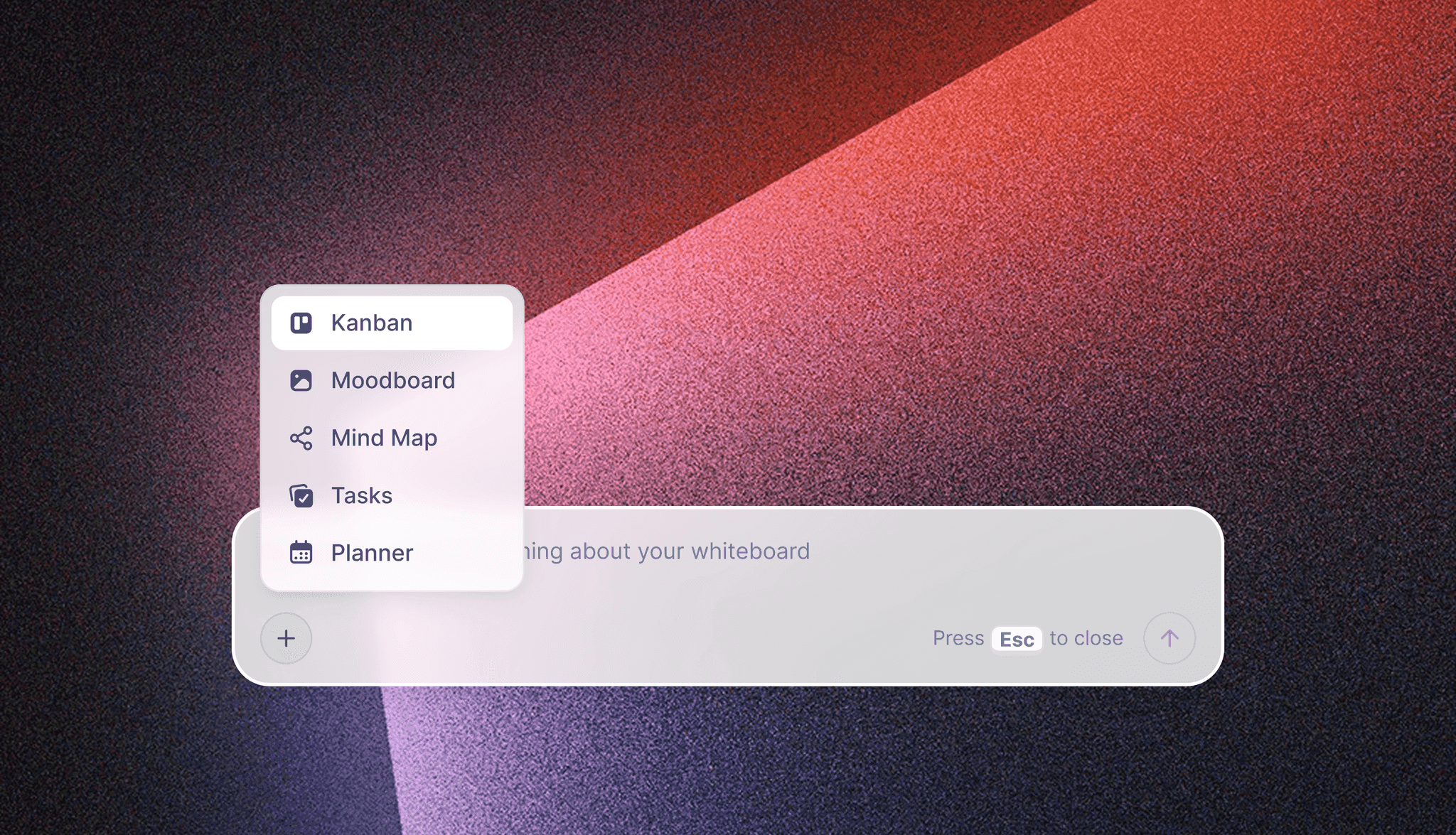
Adding a Kanban Board
- Toolbar: Drag the Kanban tool from the canvas toolbar
- Keyboard: Hover the canvas and press
K - AI: Use AI Kanban to generate a fully populated board from a prompt
Working with Columns
- Click a column header to rename it
- Add a new column with the + at the right
- Drag a column header to reorder columns
- Color-code columns from the column edit overlay
Working with Tickets
Tickets are the cards inside columns. Drag a ticket between columns to update its status. Click a ticket to open its detail modal where you can add a description, labels, due date, and other metadata. See Kanban Tickets for the full ticket reference.
Use Cases
- Plan content production from idea to published
- Track tasks across a project's phases right next to your research and notes
- Run a sprint without leaving the canvas
- Build a backlog you can refine with AI as priorities change
Tips
- Apply a Wall Theme to the kanban for instant column color coordination
- Add a kanban next to a moodboard or research wall to keep planning context tight
- Use AI Kanban to scaffold a board, then refine manually
Was this article helpful?
Related Articles
Kanban Tickets
AI Kanban Boards
Wall Themes