
All Collections
Whiteboards & Canvas
Image Stacks
Last updated: May 2026
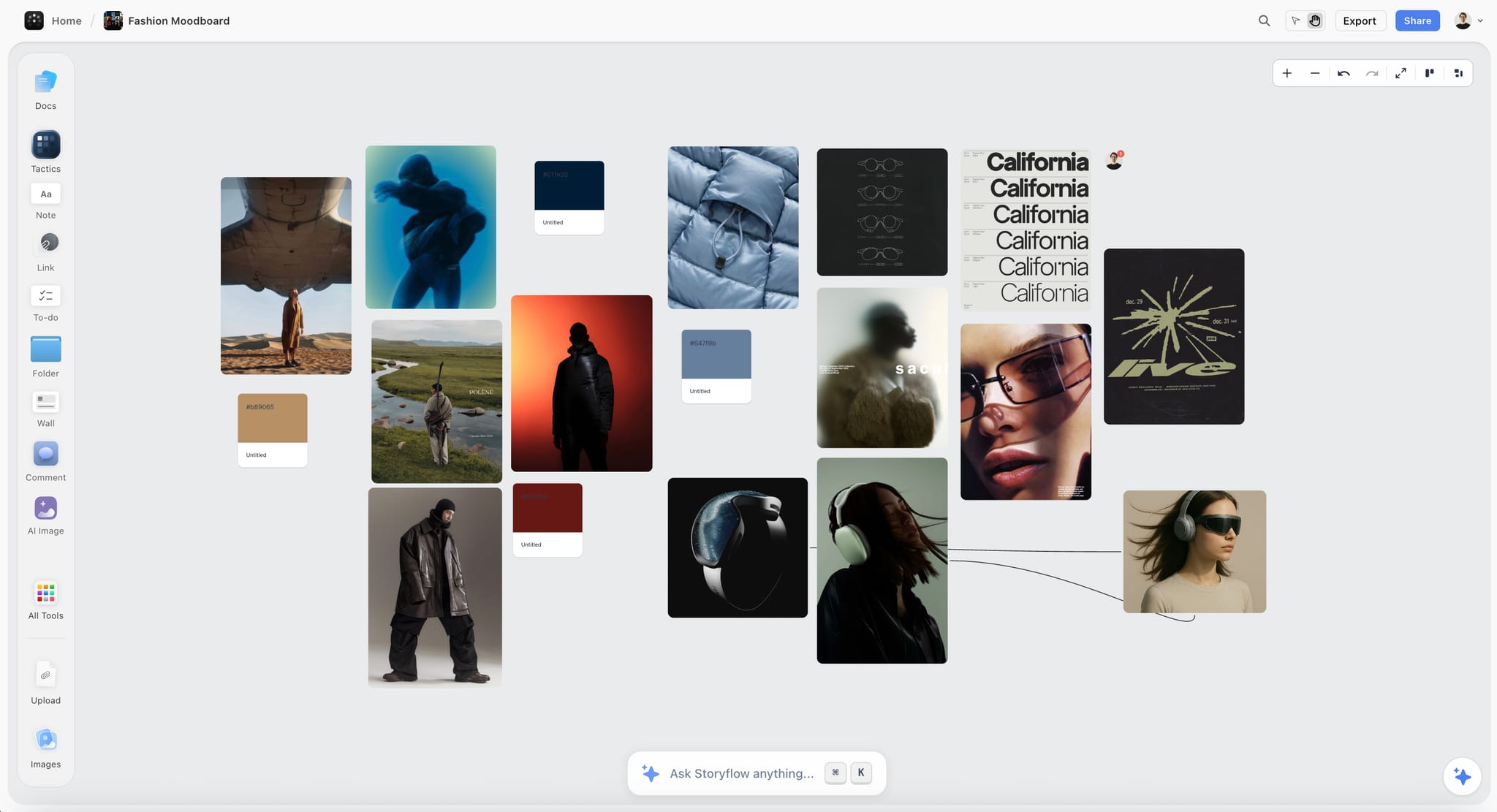
Image Stacks let you group multiple images into one tidy element on the canvas. Instead of scattering 30 reference shots across a board, you collapse them into a single stack you can expand into a gallery when you need to look through them.
Creating a Stack
- Select multiple images on the canvas and choose Stack from the right-click menu
- Or drag-and-drop a folder of images onto the canvas to create a stack automatically
The Gallery Modal
Double-click a stack to open the gallery modal — a focused view that lets you scroll through every image at full size, edit titles, and reorder.
Editing the Stack
- Drag images in the gallery to reorder
- Click an image's title to rename it
- Remove an image from the stack via its overlay
- Add more images by dragging them onto the stack
Use Cases
- Reference photo collections for a video shoot or design project
- Mood boards organized by theme — one stack per direction
- Asset libraries (logos, icons, templates) you want to reach for repeatedly
- Per-character or per-scene reference packs for a film project
Was this article helpful?
Related Articles
Embedding Media & Files
AI Moodboards
File Uploads & Supported Types