
All Collections
Account & Billing
Brand Colors
Last updated: May 2026
Brand Colors let you pin a custom palette of colors that shows up in every color picker across Storyflow. Useful when you reach for the same brand colors on every project.
Adding Brand Colors
- Open User Settings → Brand Colors (or under Account Settings)
- Click Add Color
- Enter the hex code, paste it, or use the color picker
- Optionally name the color (e.g. "Brand Primary")
Where Brand Colors Appear
- Note background colors
- Wall colors and themes
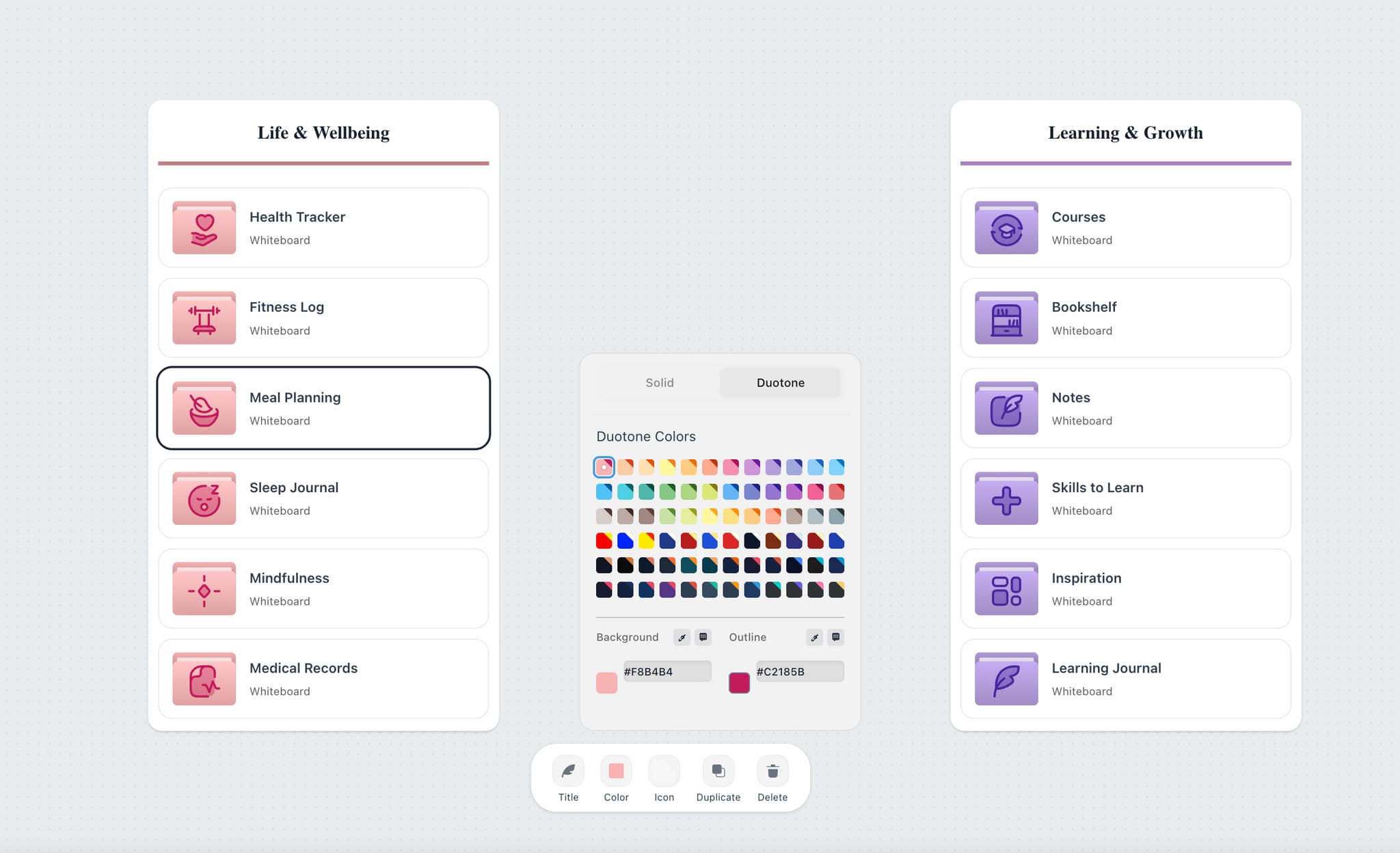
- Folder colors
- AI note backgrounds
- Line and arrowhead colors
- Color swatch elements
Editing & Removing
Right-click any brand color in the settings list to rename, edit, or remove. Removing a brand color doesn't change colors already applied on canvas elements.
Use Cases
- Keep your brand palette one click away on every project
- Define client-specific palettes when you work across multiple brands
- Lock down a project's color system for consistency
Tips
- Sample brand colors with the Eye Dropper from a logo or brand guide on your screen
- Build a Color Swatch palette on a board that mirrors your brand colors for quick reference
Was this article helpful?
Related Articles
Color Swatches on the Canvas
Eye Dropper
Wall Themes