
All Collections
Whiteboards & Canvas
Aspect Ratio Controls
Last updated: May 2026
Image elements and link cards on the canvas can be locked to specific aspect ratios — 16:9, 4:3, 1:1, 9:16, etc. — so they stay visually consistent as you resize.
Setting an Aspect Ratio
- Select an image or link card
- Open the aspect ratio picker from the element overlay
- Pick a preset (16:9, 4:3, 1:1, 9:16, free)
Once set, dragging the corner handle resizes the element while preserving the chosen ratio.
Use Cases
- Mock up YouTube thumbnails (16:9) on a planning board
- Lay out social posts (1:1 for Instagram, 9:16 for Stories/Reels/TikTok)
- Plan video shot lists with consistent panel proportions
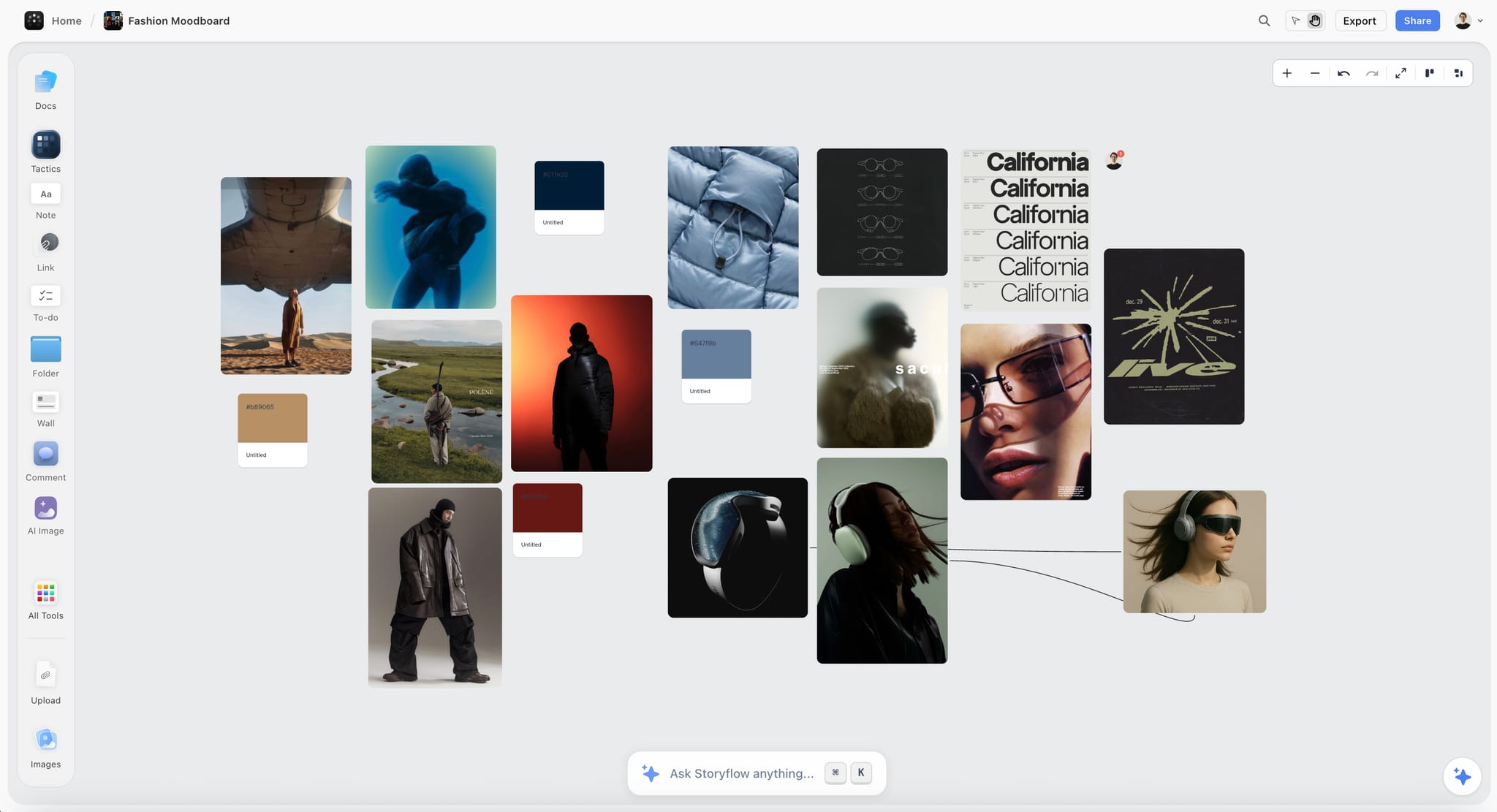
- Show reference images at consistent scale across a moodboard
Tips
- Pick the aspect ratio first, then resize — avoids re-cropping later
- For AI image generation, set the aspect ratio of the AI image element before generating to match your output
- Combine with Normalize Size (
Cmd/Ctrl + Shift + U) to make a row of images all the same dimensions
Was this article helpful?
Related Articles
Embedding Media & Files
Image Captions
AI Image Generation