
All Collections
AI Features
Reference Images for AI Image Generation
Last updated: May 2026
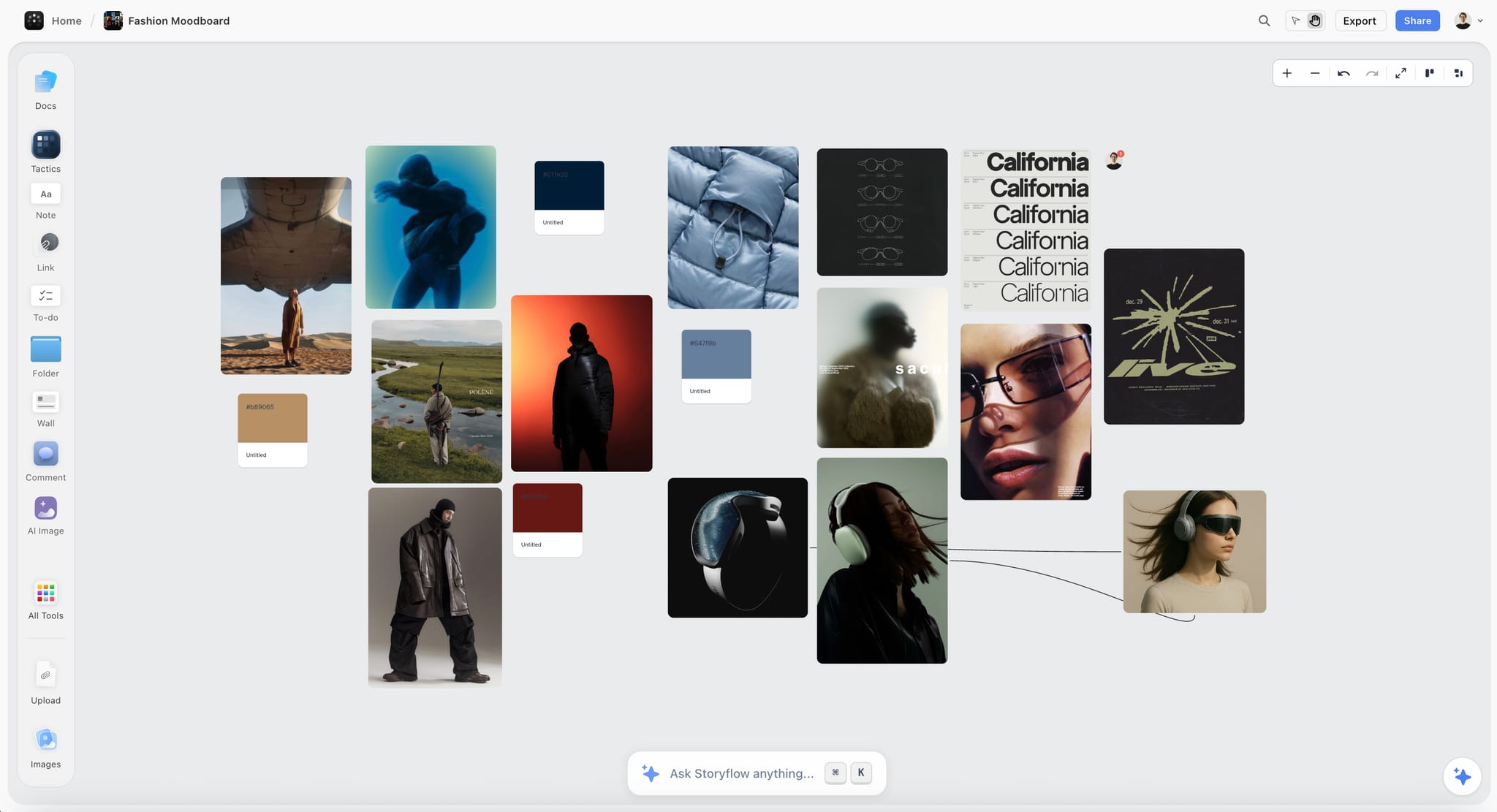
You can select images already on your canvas as visual references when generating new AI images. References give you control over style, composition, color palette, and subject — beyond what a text prompt alone can express.
Adding a Reference
There are two places to add a reference image:
- From AI chat: Open the AI chat, write your prompt, and use the reference selector to pick one or more images from your canvas
- From the AI image element overlay: Select an existing AI image element and use the reference picker in its overlay
Selected references appear as thumbnails in the generation UI so you can confirm before submitting.
What You Can Use as a Reference
- Any image already placed on the canvas (uploaded or AI-generated)
- Multiple images at once — useful for combining a style reference with a composition reference
- Pinterest pins, mood board imagery, screenshots — anything you've added to the board
Tips for Better Results
- Use one reference for tight style matching, multiple for blended influences
- Pair a color reference with a composition reference to direct both signals
- Keep your text prompt focused on subject and mood — let the reference carry the visual style
- Generate variations by re-using the same reference with slightly different prompts
Tracking Generation Progress
A status line on the AI image element tracks generation progress so you know when your images are ready, whether you keep working on the canvas or step away.
Plan Requirements
AI image generation is included on the Pro and Max plans (and the legacy Studio plan). Free and Plus do not include AI image generation. See Subscription Plans for details.
Was this article helpful?
Related Articles
AI Image Generation
AI Content Generation
Subscription Plans