
All Collections
AI Features
AI Image Generation
Last updated: May 2026
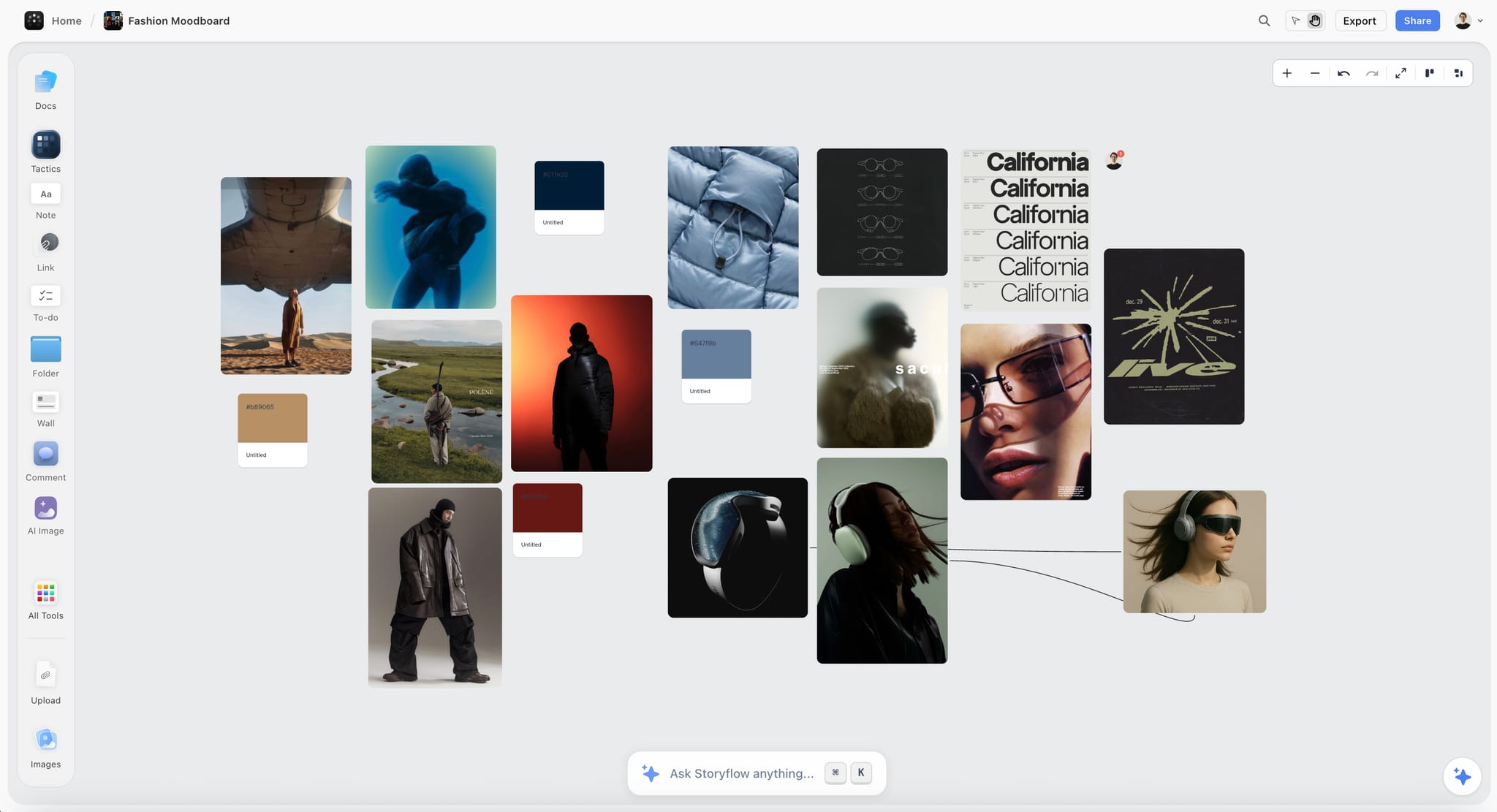
Generate images directly on your whiteboard canvas using AI. Perfect for mood boards, concept visualization, and creative exploration.
Plan Requirements
AI image generation is included on the Pro and Max plans (and the legacy Studio plan). Free and Plus do not include image generation. See Subscription Plans for the full comparison.
Creating AI Images
- Press
Gor select the AI Image tool from the toolbar - Click or drag to place the image element on your canvas
- Enter a detailed description of the image you want
- Press Enter or click the generate button
- A status indicator tracks generation progress
Writing Good Prompts
- Describe the subject, style, and mood you want
- Include specific details about colors and composition
- Reference art styles or aesthetics (e.g. "minimalist", "watercolor")
- Specify the setting or background
Reference Images
Select one or more existing canvas images as visual references before generating, and the AI will use their style, composition, or color as a strong signal for the new image. See Reference Images for AI Image Generation for the full workflow.
Regenerating
If the first result isn't what you wanted, click the image, edit the prompt, then regenerate. Each generation counts toward your plan's AI image generation usage — check the Usage tab in Account Settings to see how much you have left.
Was this article helpful?
Related Articles
Reference Images for AI Image Generation
AI Assistant Overview
Subscription Plans
Usage Dashboard