
All Collections
AI Features
Attachments & Files in AI Chat
Last updated: May 2026
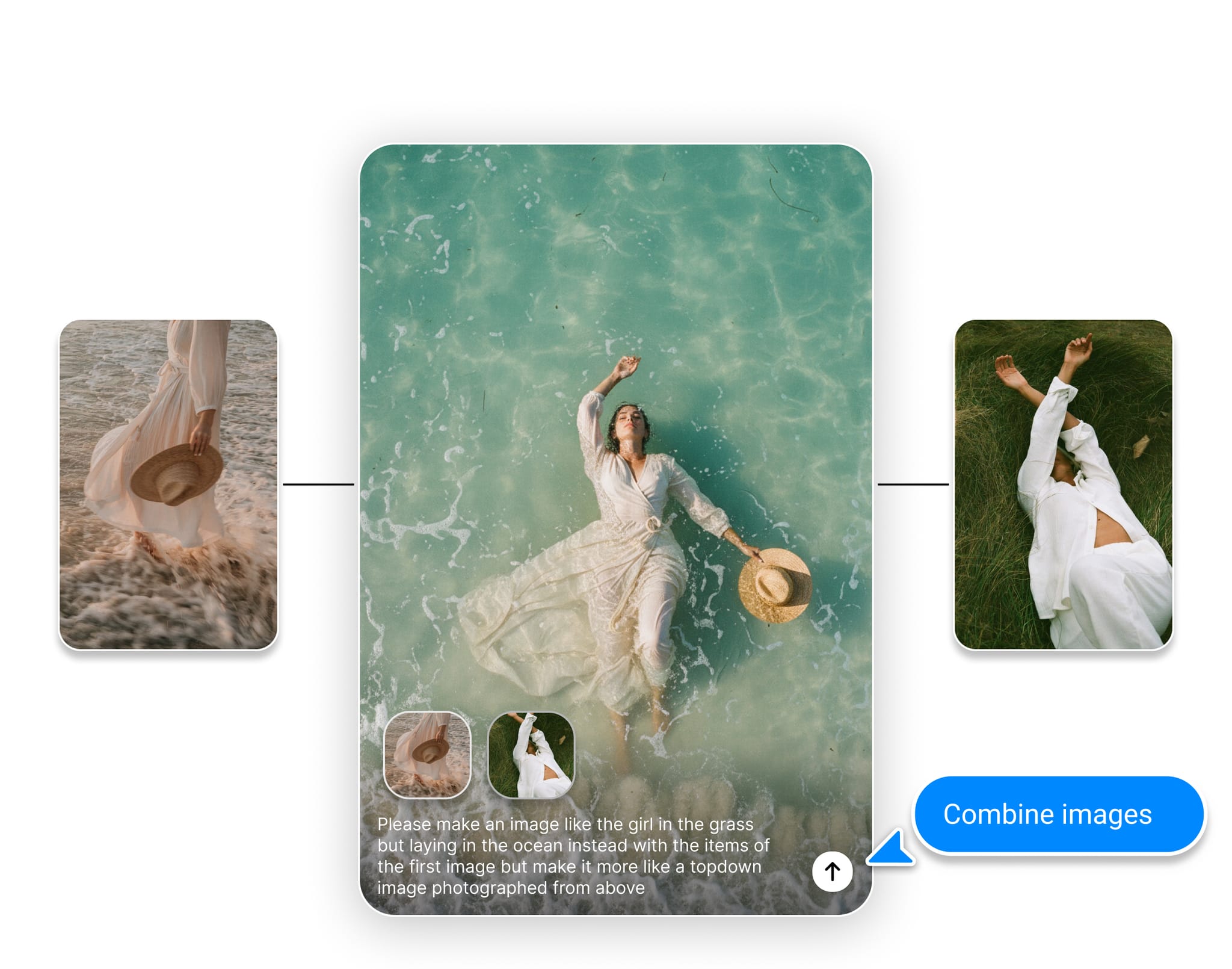
You can attach files to AI chat messages to give the assistant additional context. Attach a brief, a PDF, a spreadsheet, or any reference document, and the AI will read it before responding.
Adding Attachments
There are two ways to attach a file:
- Paperclip button: Click the paperclip icon in the chat input and pick a file from your device
- Drag and drop: Drop a file directly onto the AI chat panel
You can attach up to 3 files per message. Each attached file shows up as a badge in the input — click the X on a badge to remove that file before sending.
Supported Files
- Documents: PDF, DOCX, TXT, Markdown
- Spreadsheets: XLSX, CSV (with improved spreadsheet handling)
- Images: PNG, JPG, GIF
- Other: most plain text formats
What to Use Attachments For
- Share a project brief and ask the AI to extract key requirements
- Attach competitor research and ask for a comparison
- Drop a spreadsheet of data and ask for analysis or chart suggestions
- Attach a previous version of a doc and ask the AI to update it
- Combine a file with @mention canvas context for more grounded outputs
Tips
- Attach only the files most relevant to a prompt — fewer, more focused attachments give cleaner answers
- For very long PDFs, ask the AI to summarize first, then ask follow-up questions
- Pair attachments with Knowledge entries in AI Settings for project-wide context
Was this article helpful?
Related Articles
AI Assistant Overview
AI Settings: Personalization & Knowledge
Web Search in AI Chat