
Plan videos ultra fast, post on time
Plan your whole YouTube video
on one infinite canvas.
Describe the video and Storyflow's AI lays out the hook, the script outline, the storyboard, the thumbnail concept, and the shot list as cards you can rearrange. Grab reference frames from other YouTube videos straight onto the board.


Creatives working for these brands already got early access
- Red Bull
- Canon
- Artlist
- Porsche
See how easy it is to get started
Watch a real project come together, from a blank board to a finished plan, clicked through step by step.
Start from a ready-made template
Pick a board to see what you can build, then let AI fill it in. Every template is a real, editable starting point on the same infinite canvas.

YouTube Plan
Plan a video from hook to outline to shot list, with references and thumbnail ideas sitting right beside it.
What is a YouTube video planner?
A YouTube video planner is where a video stops being a vague idea and becomes a plan you can actually shoot. It holds the parts that decide whether a video performs: the title and hook, the beats of the script, the shots you need to capture, the thumbnail direction, and the references you are working from. Most creators scatter those across a doc, a notes app, a folder of screenshots, and their own memory, which is exactly why the plan falls apart the moment editing starts.
Storyflow is a YouTube video planner built on an infinite canvas. Describe the video you want to make and the AI lays out the whole plan as cards: title and hook ideas up top, the script outline as beats, a storyboard of the key shots, thumbnail directions, and a shot list, all grouped on one board you can drag, edit, and expand. The standout for YouTubers is frame grab: capture stills from any YouTube or Vimeo video straight onto the canvas, so your reference and your plan live side by side instead of in a separate folder.
This is the planning canvas, not a YouTube SEO suite or a video editor. It will not do keyword research or cut your footage. What it does is get the entire video out of your head and onto one board before you press record, then hand you a clean image or PDF and a shareable link when it is time to brief an editor or a collaborator.
Ultra fast from brief to board
Plan a YouTube video in four steps.
You bring the idea. The AI lays out the plan, so your attention stays on the video, not the formatting.
01
Open a canvas
Start in the browser with a Storyflow plan. There is no app to install, just an empty canvas ready for the next video on your list.
02
Describe the video
One sentence is enough: a ten-minute tutorial on lighting for beginners, a vlog about a road trip, a review of three budget mics.
03
AI lays out the full plan
The AI places the pieces on the canvas: title and hook ideas, the script outline as beats, a storyboard of the key shots, thumbnail directions, and a shot list, grouped so the whole video reads at a glance.
04
Refine, grab frames, hand it off
Drag cards to reorder beats, ask the AI to rework the hook, pull reference frames from other YouTube videos onto the board, then share a view-only link or export as image or PDF for your editor.
One planner for every part of a YouTube video.
The hook, the script, the storyboard, the shot list, and the thumbnail, all laid out on the same board.
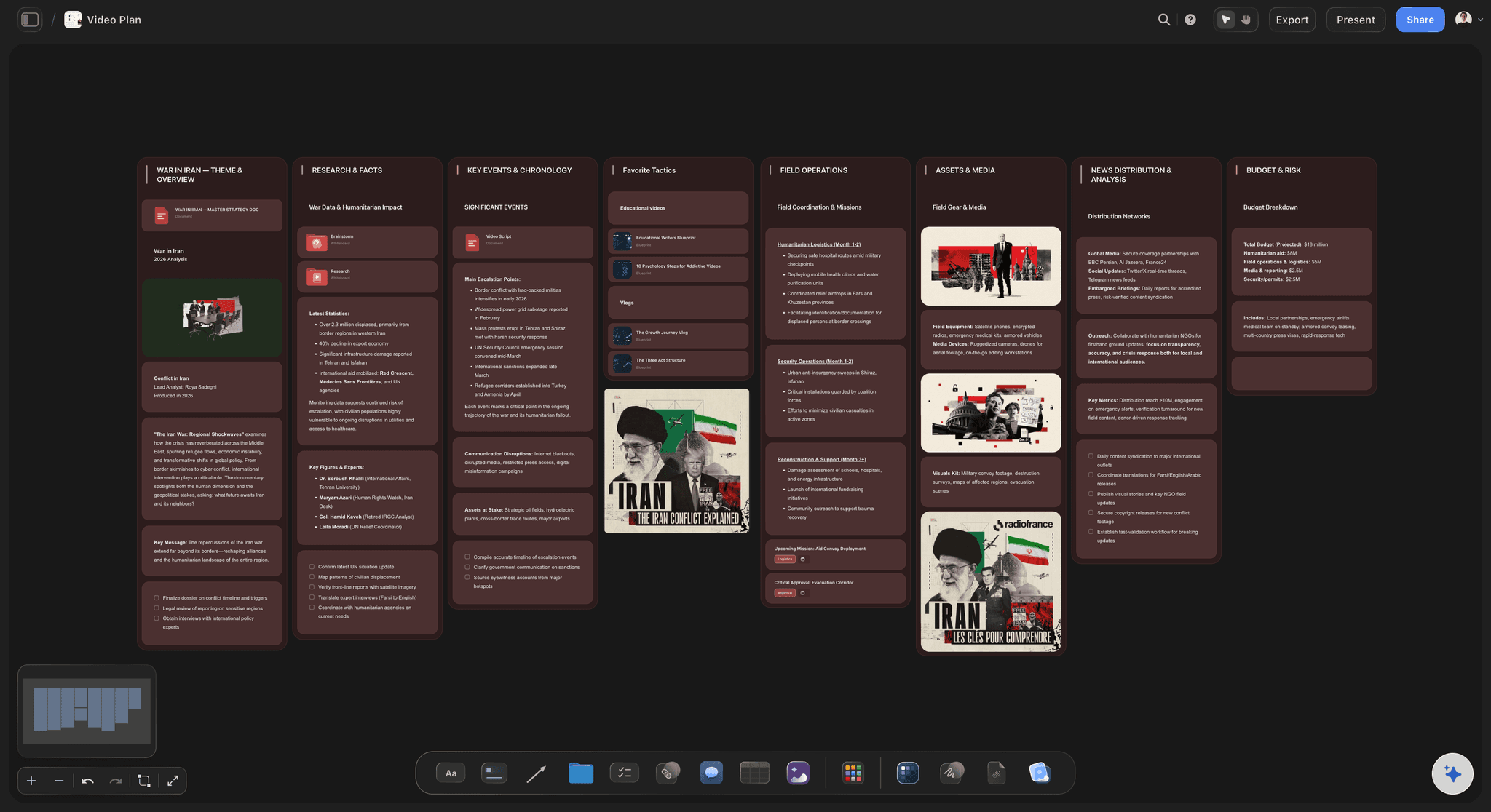
The whole video plan from one prompt
From an idea to a shootable plan
Describe the video and the AI lays out title and hook ideas, the script outline, the storyboard, and the shot list as cards. See the entire video before you record a single second of it.
See the AI video idea generator →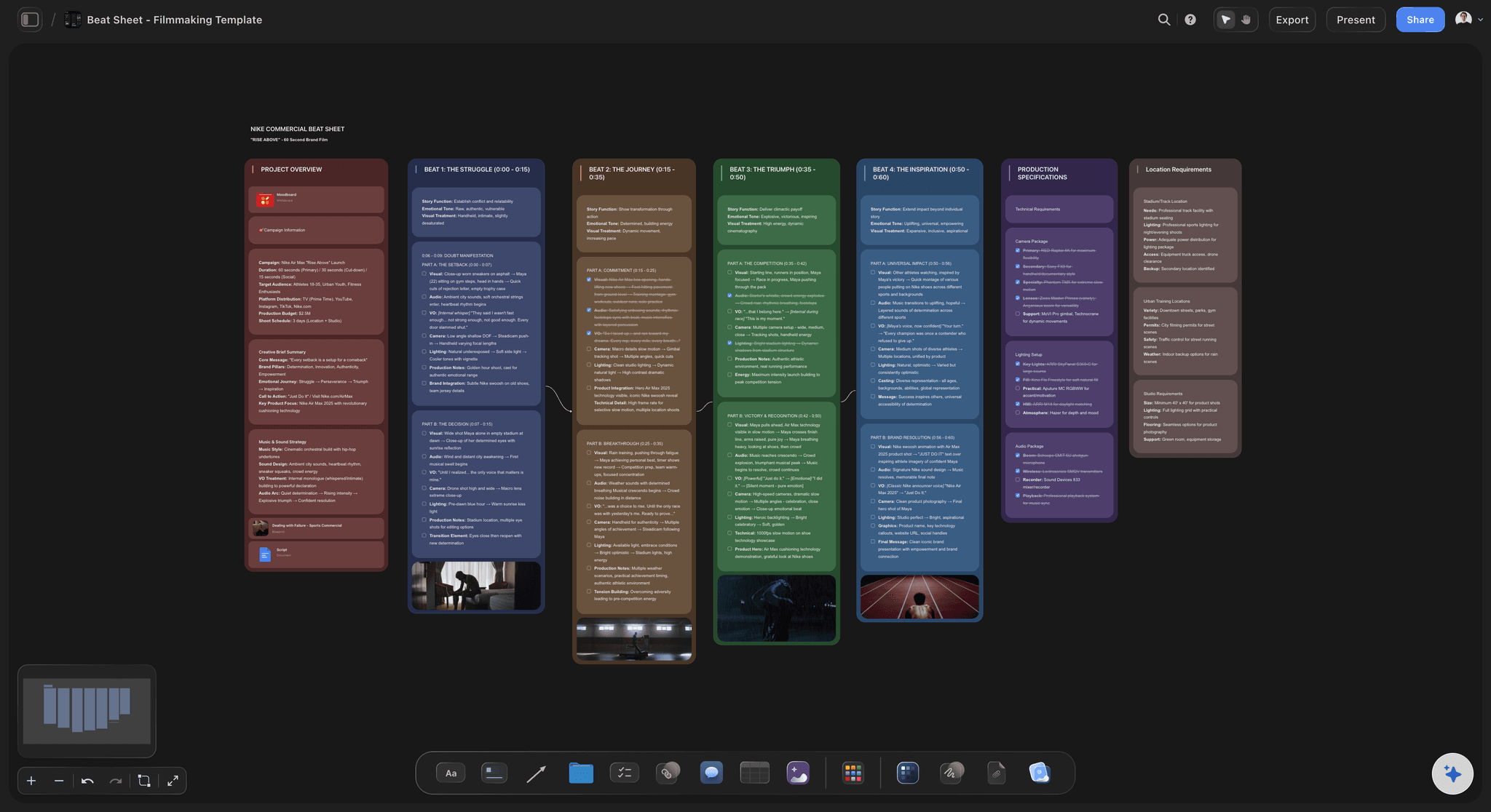
Script the hook and the beats
A script outline that holds the structure
Turn the idea into an outline the AI builds beat by beat: the hook, the setup, the payoff, the call to action. Drag the beats to reorder, then expand any one into full script lines.
See the AI video script generator →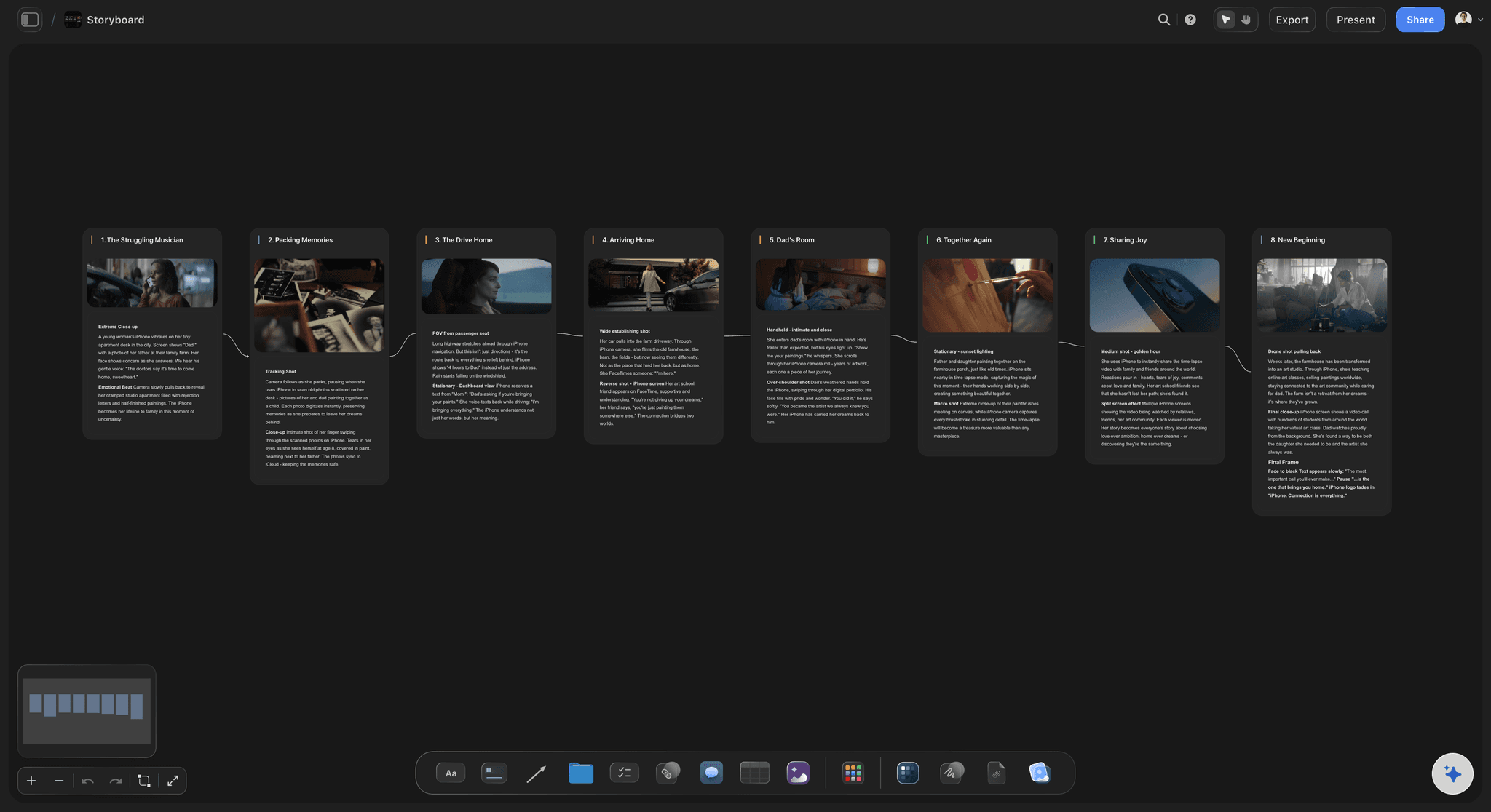
Storyboard the key shots
See the video before you shoot it
Ask the AI to storyboard the key moments shot by shot, then drop in reference frames pulled from other YouTube videos so your visual plan is concrete, not a list of guesses.
See the YouTube storyboard maker →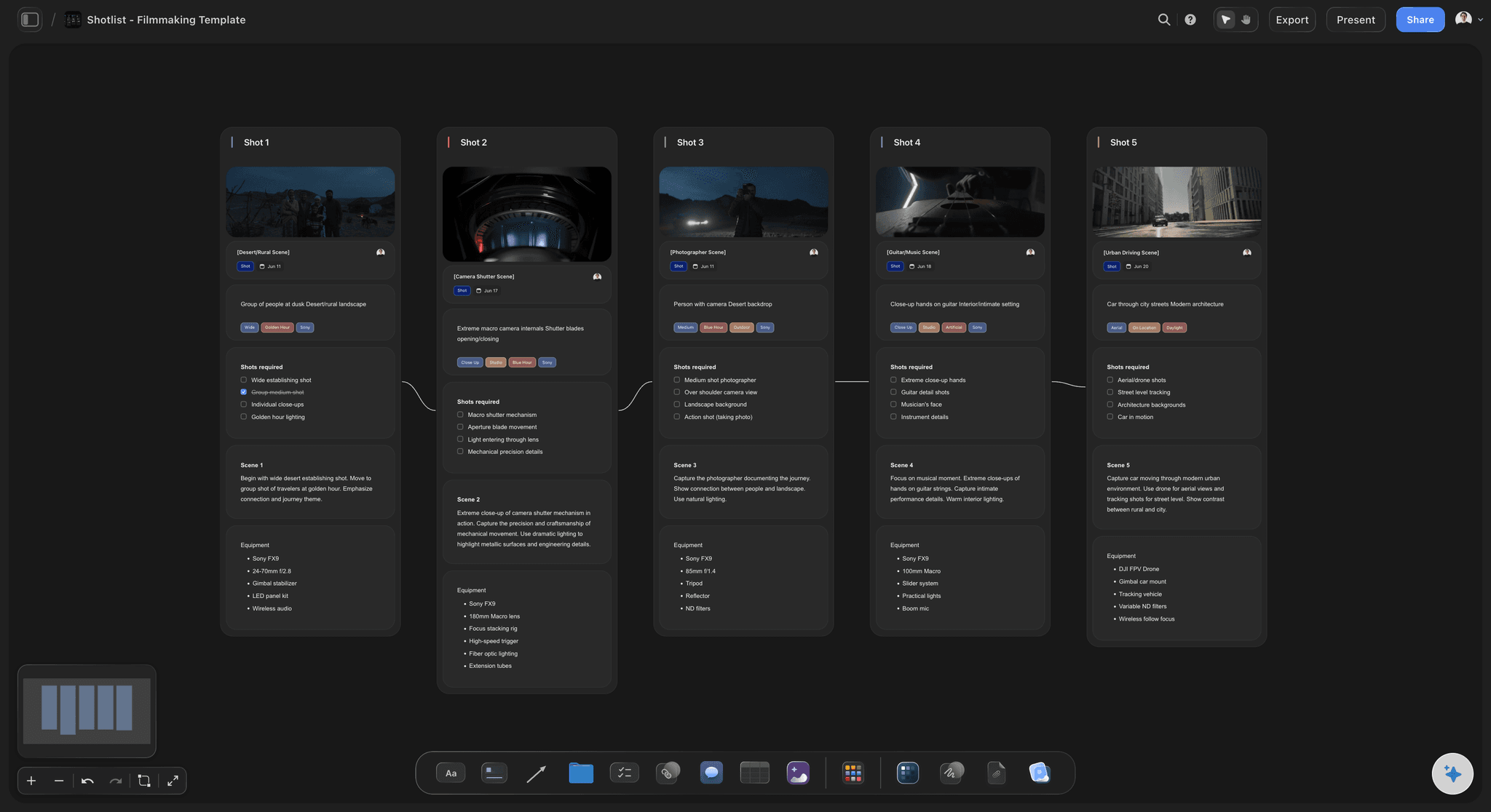
Plan the click before the cut
Thumbnail directions and shot lists together
Lay out thumbnail concepts and the shot list on the same board, so the thing that earns the click and the things you have to capture are planned together instead of as an afterthought.
See the shot list generator →No time limit. No object cap.
Open a canvas, describe a video, and watch the plan lay itself out. Storyflow is paid-only during early access, with plans from $9.99 a month, and a Free plan launches before the end of 2026.
Unlimited video boards, with no object or board cap
Basic AI usage to plan and expand a video
Grab reference frames from YouTube and Vimeo onto the board
Share the plan view-only, or invite collaborators free
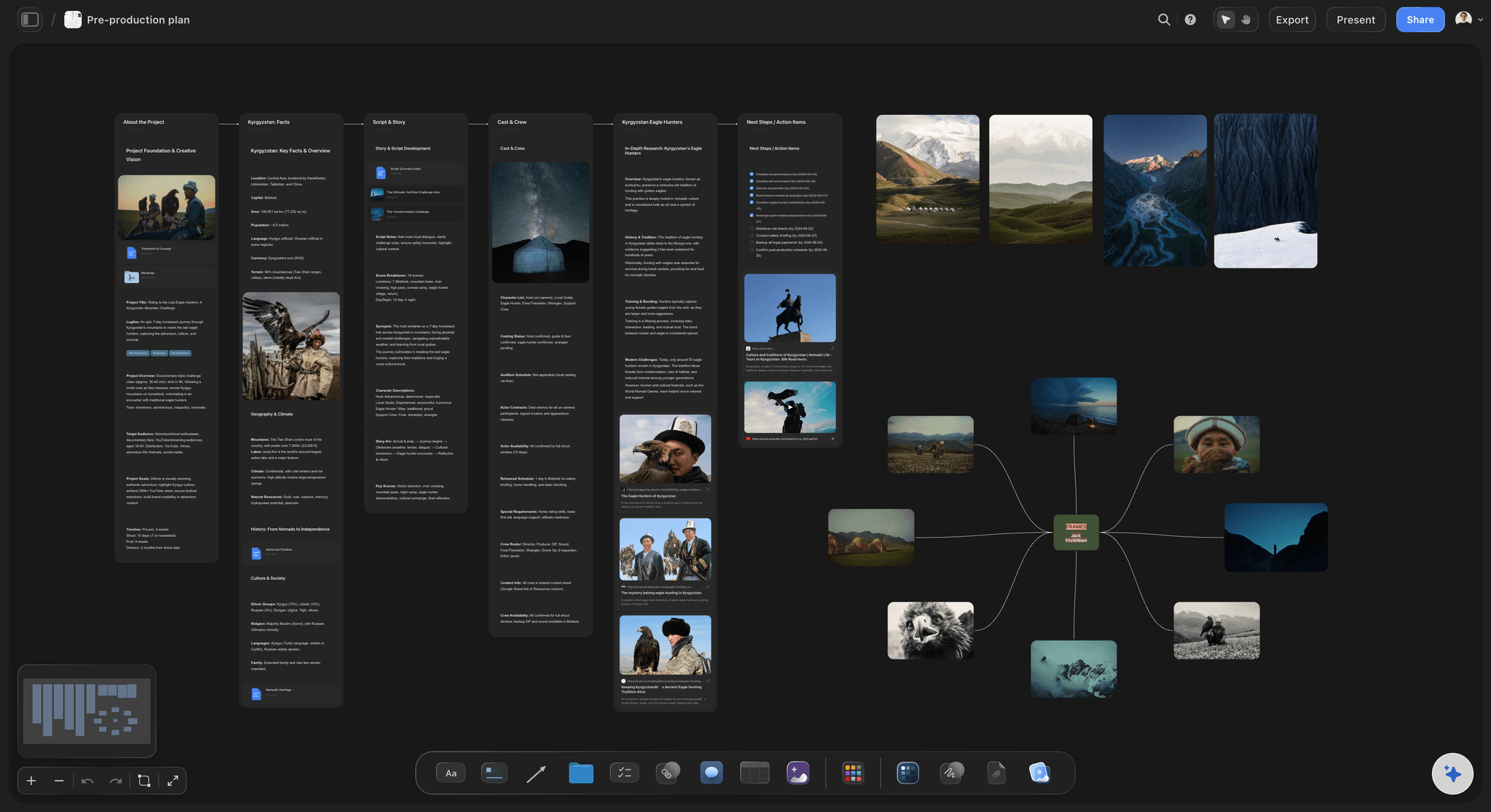
Built for people with taste
Built for the way YouTubers plan.
Idea to hook to storyboard to shot list, all on one board, with your references right there beside the plan.
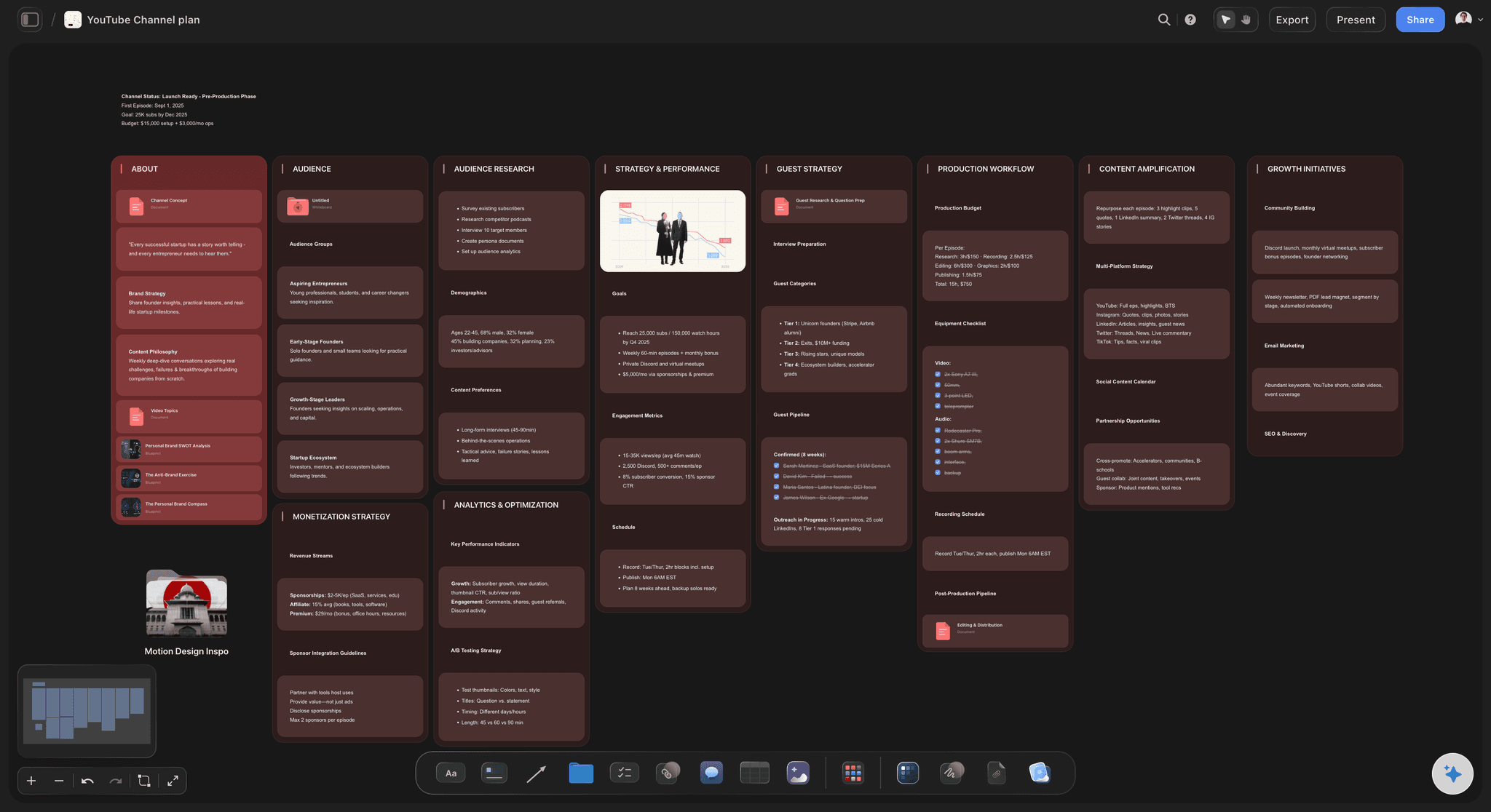
Cards you can move, edit, and regroup
A plan that bends as the video changes
Beats as cards: The hook, the sections, and the call to action are cards on the canvas, so the shape of the video is visible without a rigid template locking it down.
Drag to reorder: Move a beat and the structure moves with your thinking. Cutting a section or swapping the intro is a drag, not a rewrite.
Expand any part with AI: Ask the AI to write the full hook, flesh out one section, or list more b-roll while the rest of the plan stays exactly as you arranged it.
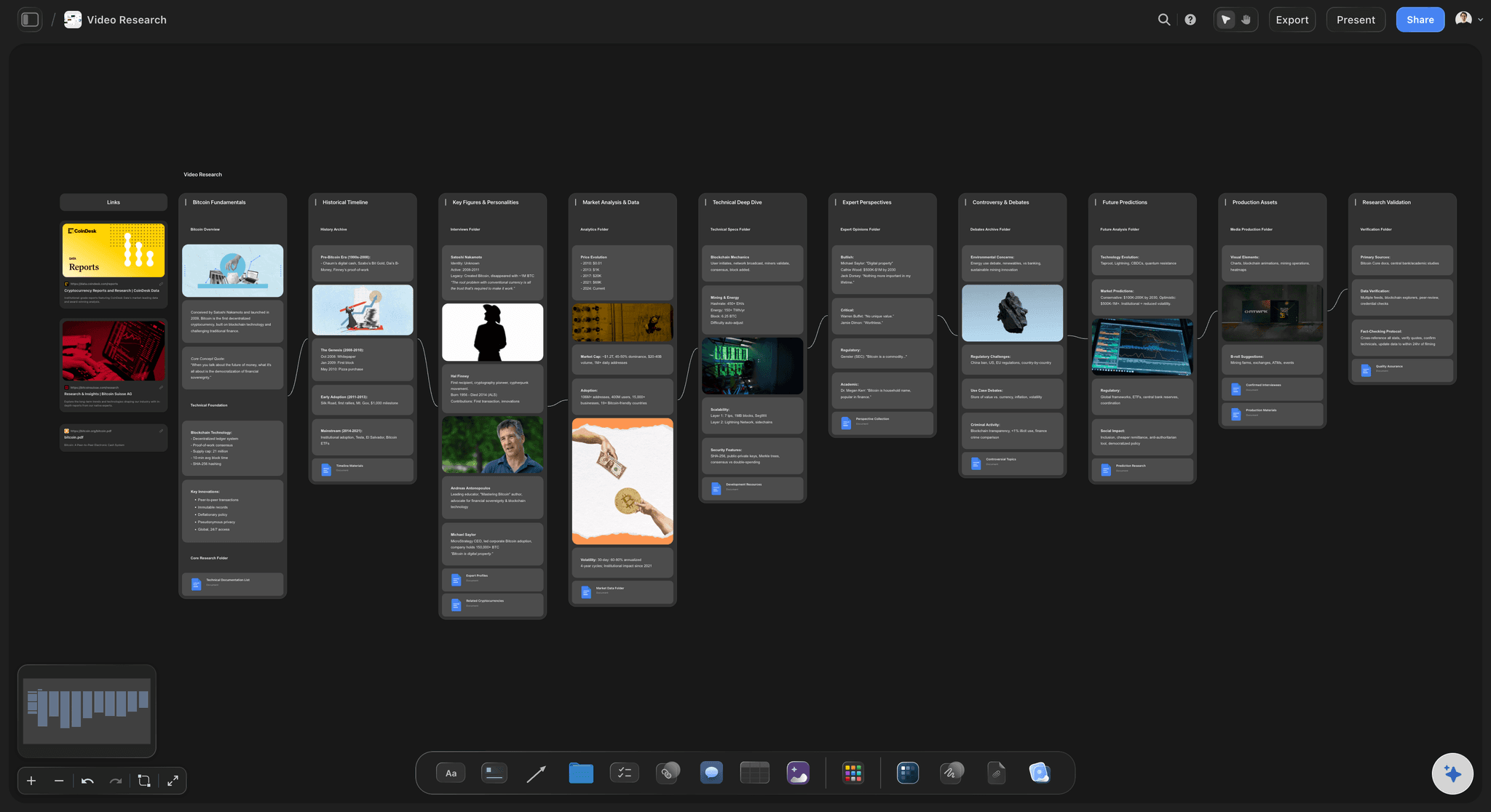
Reference frames from real videos
Grab stills from YouTube onto the board
Frame grab from YouTube and Vimeo: Capture stills from any YouTube or Vimeo video straight onto the canvas, so the shots and transitions you want to match sit next to your plan.
A reference wall that stays put: Build a row of frames for the look you are after instead of a folder of screenshots you have to dig through later.
Plan against what works: Pull the hook frames and thumbnails from videos in your niche and storyboard against them, so your plan is grounded in what already performs.
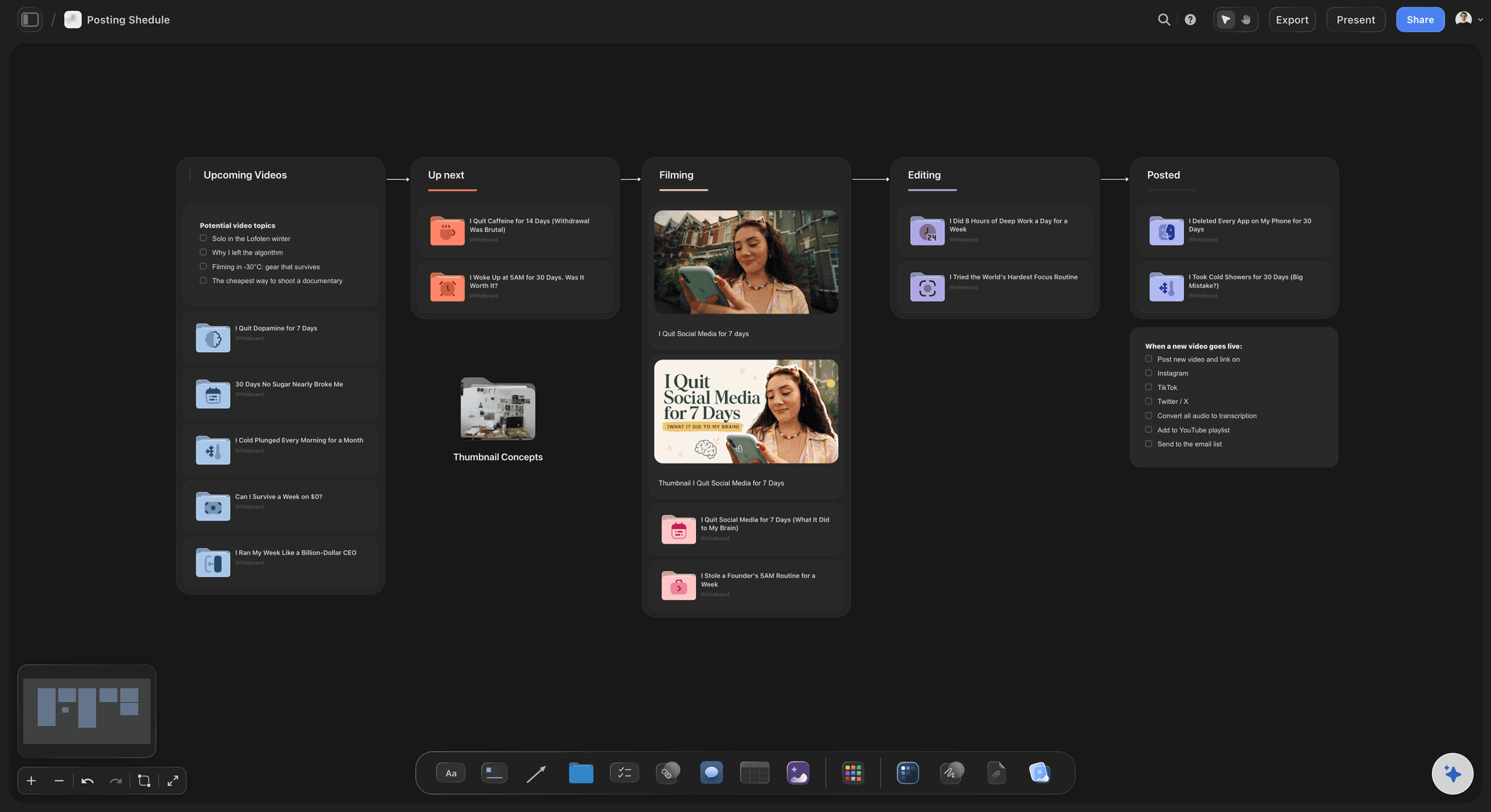
Context from the board you are planning on
AI that builds on what is already there
Reads your active board: The AI uses what is on the board you have open, so a new shot list or thumbnail idea connects to the script and hook you already laid out.
Attach your sources: Add up to five documents and three boards as context: a creator brief, channel notes, or a research doc the plan should grow from.
Re-prompt to refocus: Ask for a punchier hook, a shorter runtime, or a different angle. The AI reworks the plan while keeping the cards you edited.
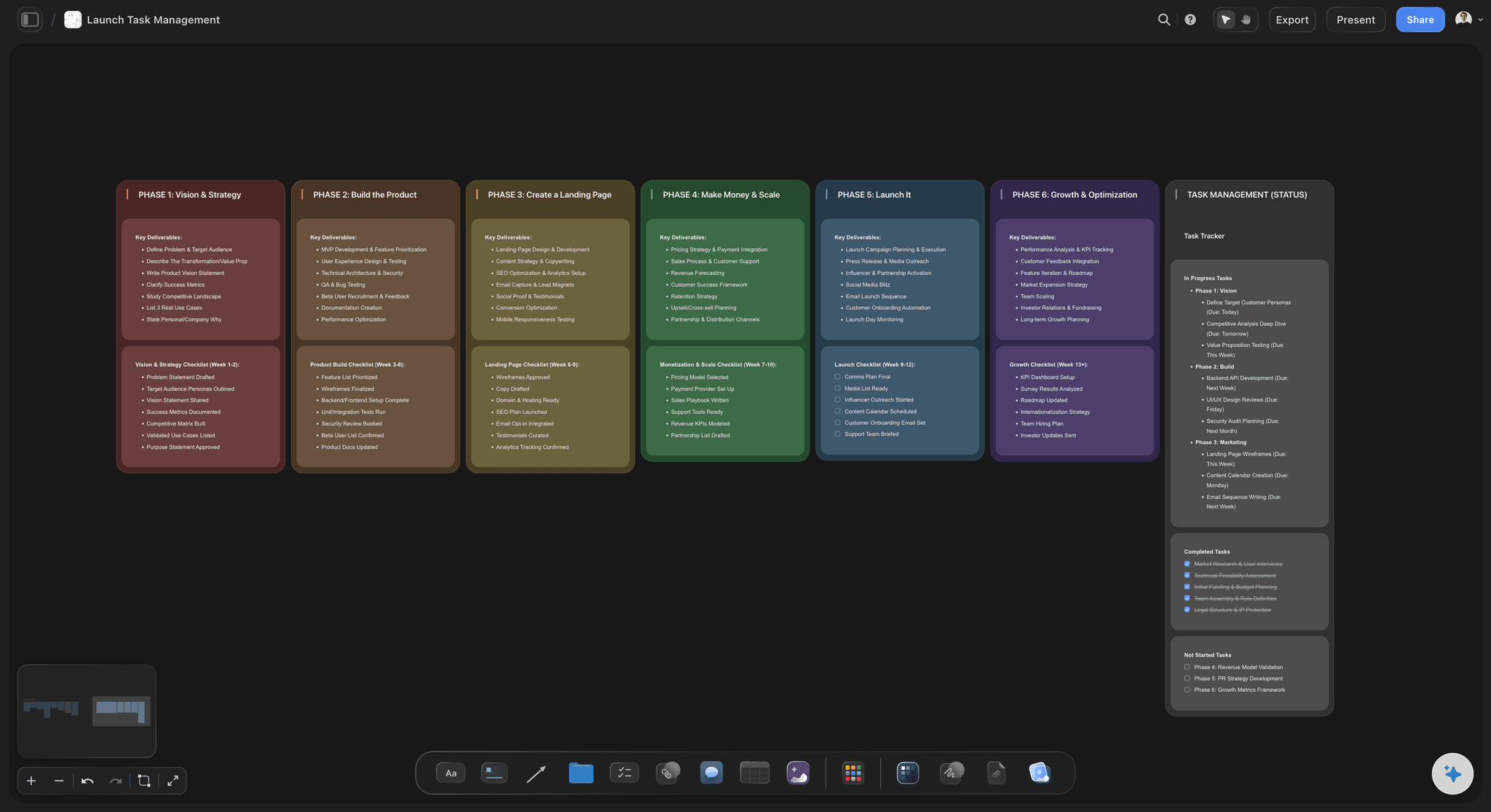
The plan is step one, not the deliverable
From plan to shoot day and handoff
One board for the whole video: Script, storyboard, thumbnail, and shot list live on one canvas, so nothing about the video is hiding in a different tab on shoot day.
Share the plan: Invite an editor or co-host free, or send a view-only link so anyone can explore the plan without an account.
Export as image or PDF: Need the plan in a brief or a thumbnail-test thread? Export the board as a clean image or PDF in one step.
Explore templates for your project
Every template opens as a real, editable board on the infinite canvas. Pick the closest fit and make it your own.
YouTube Plan
Plan a video from hook to outline to shot list, with references and thumbnail ideas sitting right beside it.
One app instead of five
How Storyflow compares to other YouTube planning tools.
Plenty of tools can hold a checklist. The question is whether they plan the actual video.
Storyflow
Recommended
AI lays out the whole video plan from one prompt
Organize the production: ideas, tasks, and calendar
Storyboard scenes and grab reference frames on the same canvas
No object or board caps
Notion
AI lays out the whole video plan from one prompt
Organize the production: ideas, tasks, and calendar
Storyboard scenes and grab reference frames on the same canvas
No object or board caps
Trello
AI lays out the whole video plan from one prompt
Organize the production: ideas, tasks, and calendar
Storyboard scenes and grab reference frames on the same canvas
No object or board caps
Milanote
AI lays out the whole video plan from one prompt
Organize the production: ideas, tasks, and calendar
Storyboard scenes and grab reference frames on the same canvas
No object or board caps
What creators are saying
Join early creators getting structured workspaces and AI that remembers their projects
“Storyflow has sped up my workflow by at least 3x, which means more flow state and more projects I can actually ship. It truly changed the way me and my team create.”

Reilin Joey
Director & YouTuber
“One prompt gets me a structured board. But the tactics are my favorite. I run my YouTube scripts through them and my intros and retention got better. It's amazing.”

Justkay
YouTuber & Freelance Filmmaker
“I used to juggle five apps to plan a project. Now I describe what I am making and get boards, lists, and a schedule. All in one place.”

George
@fernwehchronicles
YouTube video planning questions, answered.
Everything people ask about planning a YouTube video in Storyflow.
A YouTube video planner is a workspace for everything a video needs before you shoot: the title and hook, the script outline, the storyboard, the thumbnail direction, and the shot list. In Storyflow the AI lays all of that out as cards on one infinite canvas, so the whole video is planned in one place instead of scattered across a doc, a notes app, and a folder of screenshots.
Describe the video in the AI chat and the AI lays out the plan on the canvas: title and hook ideas, the script outline as beats, a storyboard of the key shots, thumbnail directions, and a shot list, grouped so the whole video reads at a glance. Everything is a real card you can drag, edit, expand, or delete, so the AI gives you the first draft and the canvas makes it yours.
Not during early access. Storyflow is paid-only right now, with plans starting at $9.99 per month for basic AI usage to lay out and expand a plan, unlimited boards with no object or board cap, 20 file uploads, and view-only sharing. A Free plan launches before the end of 2026, and anyone a paid member invites to a board joins free today.
Yes, and it is one of the best parts for YouTubers. You can capture stills from any YouTube or Vimeo video straight onto the canvas, so the hooks, shots, transitions, and thumbnails you want to match sit right next to your plan instead of in a separate folder of screenshots.
Yes, completely. Every part of the plan is a card on the canvas, so you can drag beats to reorder the script, rewrite any card, delete what does not fit, and regroup sections. Ask the AI to rework the hook or shorten the runtime and it reworks the plan while keeping the cards you already edited.
Yes, and that is the point of planning in Storyflow. The script outline, the storyboard, the thumbnail directions, and the shot list all live on one canvas, so you never switch tools between writing the hook and seeing the shot. Ask the AI to turn a script beat into a storyboard panel and it builds it on the same board.
Yes. Export the plan as a high-quality image or a PDF for a brief or a thumbnail-test thread, or share a view-only link so an editor or collaborator can explore the full board in their browser without an account. You can also invite collaborators to the board for free.
No. Storyflow is the visual planning canvas, not a keyword, SEO, or analytics tool, so it will not do keyword research or track your channel stats the way vidIQ or TubeBuddy do, and it is not a video editor for the cut. Use it to plan the video end to end, and pair it with a keyword tool for research and an editor for editing.
More from Storyflow
YouTube content pipeline
Video script planner
YouTube storyboard maker
AI video script generator
AI video idea generator
AI thumbnail concept generator
Shot list generator
AI storyboard generator
AI podcast planner
Best AI tools for YouTube video planning
Content calendar for creators and editors
Social media content calendar
Editorial calendar
In-house content production
AI tools for content creators
Video editing brief
The video is in your head. Get it on the board.
Describe it once, watch the plan lay itself out, and walk into the shoot knowing every shot.