
Canva vs CapCut for Social Media Content: The Two Clocks
Social content is judged twice. Canva decides whether they stop, CapCut decides whether they stay, and most creators bought for the wrong clock.

Category
Content Creation
Author

Justkay
Documentary Filmmaker & Founder at Storyflow
Topics
2026-08-09
•
14 min read
•
Content Creation- Canva vs CapCut
- best AI tools for content creators
- best visual tool for planning social media content
- short form video editing
- Canva Pro pricing 2026
- CapCut Pro
Canva vs CapCut for social media content: which should you use?
Use Canva when the post has to win in its first frame and CapCut when it has to survive the eight seconds after that. Canva is a design tool that added video; CapCut is a video editor that added design. For static posts, carousels, thumbnails and anything a non-designer needs to make on brand, Canva wins outright. For short-form vertical video with captions, beat-matched cuts and trending audio, CapCut wins outright, and it is not close in either direction. Canva has a genuinely generous free tier with Canva Pro at around $14 to $15 per month for one person; CapCut has a free tier with a paid Pro tier and reserves some export and AI features for it. Most creators do not have a tool problem. They have a clock problem, and they bought for the wrong one.
Full disclosure: Storyflow is our own product and it does not edit video, so it does not compete with CapCut at all: no timeline, no captions, no export presets. It also does not replace Canva for producing a finished graphic. It appears only in the section on what neither tool holds, which is the plan above production.
Quick Comparison
Two clocks run on every post: the frame that decides whether they stop, and the seconds that decide whether they stay.
| Tool | Best For | AI Features | Price |
|---|---|---|---|
| Canva | The first frame, and brand consistency across a team | Magic resize, background removal, copy, layout starts | Generous free tier / Pro around $14 to $15 mo |
| CapCut | The next eight seconds of vertical video | Auto-captions, auto-reframe, silence removal | Usable free tier / CapCut Pro paid |
Key Takeaways
- Social content runs on two clocks: the first frame, which decides whether someone stops, and the next eight seconds, which decide whether they stay.
- Canva owns the first frame. Its template library, brand kit and layout sense make a thumbnail or carousel look intentional in minutes.
- CapCut owns the seconds after. Auto-captions, beat detection, trend-native effects and a timeline built for vertical are what hold attention.
- Canva's video editing is real but shallow. CapCut's design tooling is real but crude. Each is genuinely bad at the other's job.
- Most working creators use both, and the handoff between them is where time actually goes.
- Neither tool holds the plan. They both start from a blank canvas that assumes you already know what this week's posts are.
For the ranked field rather than a head-to-head, see The Best Tools for Content Creators in 2026. For the planning layer above both, see The Best Visual Social Media Planning Tools in 2026.
The Two Clocks
Every piece of social content is judged twice, by two different mechanisms, and the tools are split along exactly that line.
The first clock is the frame. Someone is scrolling. Your post gets somewhere between a quarter of a second and a second to interrupt that. What decides it is composition, contrast, type size, face placement, colour. This is a design problem, and it is the same problem whether the post is a static image, the cover of a carousel, a YouTube thumbnail or the opening frame of a video.
The second clock is the retention curve. They stopped. Now the question is whether they are still there at second three, and at second eight, and at the end. What decides that is pacing, whether the cut lands on the beat, whether captions carry the audio for the majority of viewers watching muted, whether the visual changes often enough to keep the eye busy. This is an editing problem, and no amount of design solves it.
Canva decides whether they stop. CapCut decides whether they stay.
Creators who only own Canva make beautiful posts that lose viewers at second four. Creators who only own CapCut make well-paced videos with an opening frame nobody stopped for. Both feel like they are working hard and getting mediocre numbers, and in both cases the tool is doing its own job perfectly.
The diagnostic is in your analytics, not your tooling. Low impressions-to-views means a first-frame problem and you need the design tool. High views with a retention cliff in the first five seconds means a pacing problem and you need the editor. Buying the wrong one is how people end up convinced that they need to post more, when what they need is to fix one clock.
Head-to-Head Comparison Table
| Canva | CapCut | |
|---|---|---|
Core discipline | Graphic design | Video editing |
Best clock | The first frame | The next eight seconds |
Static posts and carousels | Excellent | Poor |
Short-form vertical video | Workable, shallow | Excellent |
Auto-captions | Available, basic styling | Excellent, the category standard |
Beat matching and audio sync | Manual | Automatic and reliable |
Trending audio and effects | Limited | Native, updated constantly |
Brand kit and consistency | Strong, its real moat | Weak |
Template library | Enormous, design-led | Large, trend-led |
Non-designer friendly | Very | Moderate |
Team collaboration | Real, shared folders and brand controls | Limited |
Free tier | Generous and genuinely usable | Usable, some exports and AI gated |
Paid tier | Canva Pro around $14 to $15 monthly | CapCut Pro, paid tier |
Where it breaks down | Timeline work past a simple cut | Anything that must look on brand |
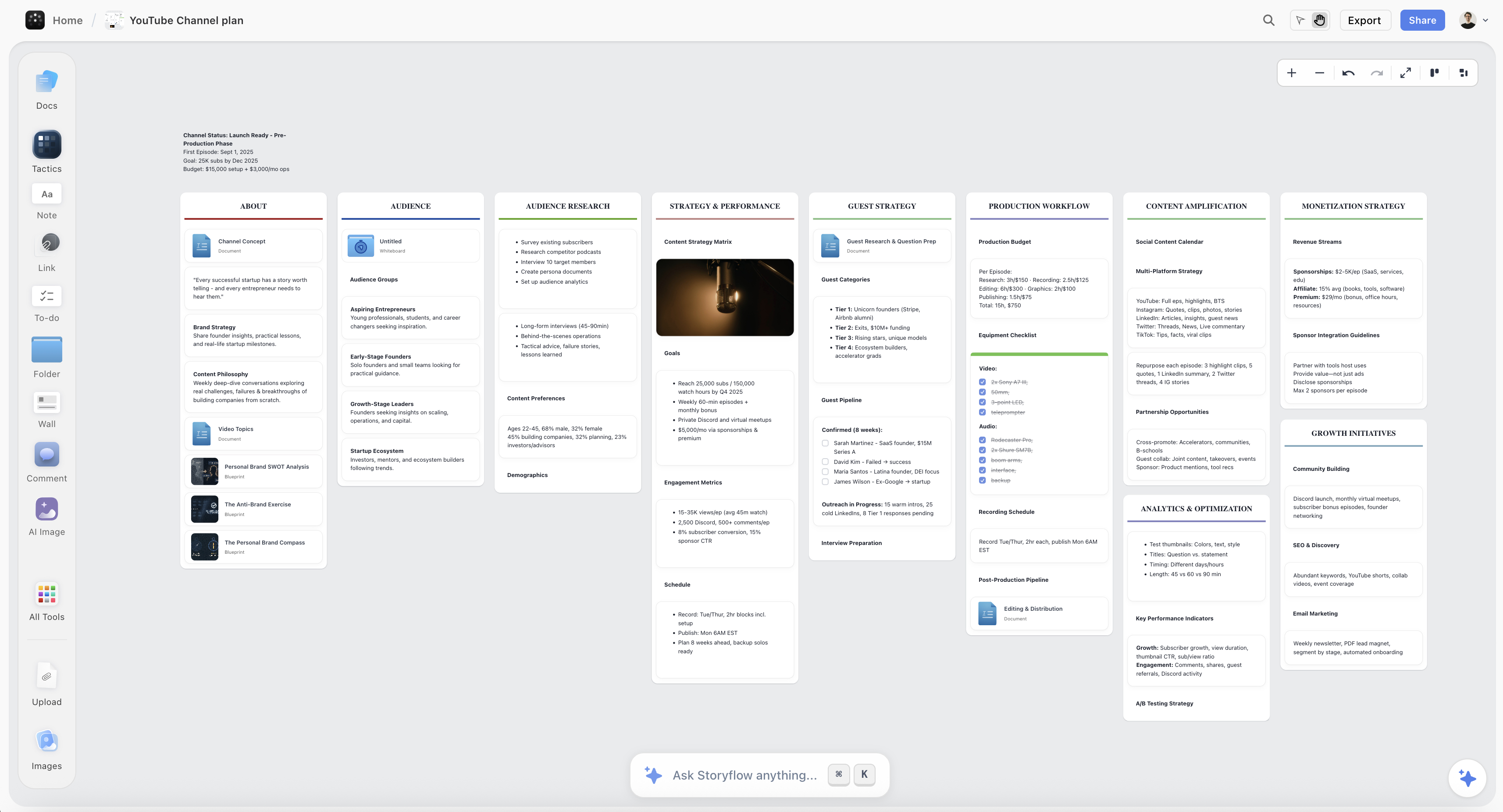
A content calendar, hook bank and performance notes held together on one Storyflow canvas
Both tools open on a blank canvas
Neither Canva nor CapCut holds the calendar, the hook bank, or which of last quarter's posts actually worked. Storyflow keeps those on one canvas the AI reads end to end. Paid-only during early access; the Free plan lands before the end of 2026.

Where Canva Wins
Brand consistency across a team. This is Canva's actual moat and it is underrated. A brand kit with locked fonts, colours and logos means a social coordinator who is not a designer produces posts that look like they came from the same company. Nothing in CapCut does this, and for any account with more than one person posting, it is the difference between a feed and a pile.
Anything static. Carousels, quote cards, infographics, announcement posts, story graphics. CapCut can technically produce a static image. It will look like a video frame, because it is one.
Thumbnails. A YouTube thumbnail is a pure first-frame problem, and it is a design job. Canva's template library and text effects are built for exactly this.
Speed for non-designers. Someone with no design training opens Canva, picks a template, swaps the copy, and has something publishable in four minutes that does not look like a mistake. That is a genuine achievement of product design and it is why Canva is on almost every creator's list.
The plan-to-post surface for static feeds. If your account is mostly image posts, Canva plus a scheduler is a complete workflow and adding CapCut buys you very little.
Where CapCut Wins
Captions. A large share of short-form video is watched with sound off, which makes captions load-bearing rather than an accessibility afterthought. CapCut's auto-captions are fast, accurate enough to need only light correction, and stylable in the formats the platforms reward. Canva has captions. They are not in the same category.
Cutting to the beat. CapCut detects the beat and lets you snap cuts to it, which is most of what makes short-form feel professionally paced. Doing this manually in a lighter editor is possible and it is tedious enough that people stop doing it.
Trend-native effects and audio. CapCut is built by the company behind TikTok and it shows in how quickly current effects, transitions and sounds appear in the app. If your strategy involves participating in trends rather than ignoring them, this is not a small advantage.
Vertical-first everything. The timeline, the preview, the templates, the export presets all assume 9:16. Canva supports vertical. CapCut assumes it.
Speed on the second clock. A creator with a rough cut can add captions, punch in a few zooms, snap the cuts to the music and export in the time it takes to set up the same thing manually anywhere else.
The Template Trap
Both tools sell templates as the headline feature, and templates are where both of them quietly hurt accounts.
A Canva template makes your post look competent and generic at the same time. The layouts are good, which is the problem: thousands of accounts are using the same good layout. The first frame stops being an interruption when the audience has scrolled past that exact composition eleven times this week. Templates are a floor, not a strategy, and the accounts that grow use them as a starting geometry and then break them deliberately.
A CapCut template makes your video look like a trend you joined late. Trend templates have a half-life measured in days. Using one at the top of its curve reads as current; using it three weeks later reads as an account that is following rather than leading.
The honest use of both: templates for the posts that do not matter, custom for the ones that do. Most accounts publish a lot of maintenance content and a few pieces that are supposed to actually move something. Template the first category ruthlessly. Do not template the second.
Working Across Both
In practice, a large share of creators run both, and the handoff is the part nobody plans for.
The common workflow: build the opening frame or the cover graphic in Canva, export it, import it into CapCut as the first clip or as an overlay, edit and caption in CapCut, export the final. It works. It also means the brand assets live in one tool and the finished video lives in another, and by the third month nobody can find the source file for the post that did well.
The friction is not the export, it is the versioning. You will make four cuts of a video and three variants of a cover, and neither tool gives you a coherent place to keep which pairing was actually published. Most people end up with a folder of ambiguous filenames and a memory.
If you are running both, the cheapest fix is a naming convention decided once and applied every time, which sounds trivial and is the single highest-return administrative habit in short-form production.
AI in 2026
Both have shipped substantial AI, and both keep it inside the file you have open.
Canva's AI generates images, removes and replaces backgrounds, writes and rewrites copy in place, resizes a design across formats, and produces layout starts from a prompt. The magic resize and background removal are the two that save real, repeated time.
CapCut's AI does auto-captions, auto-reframe from horizontal to vertical, background removal without a green screen, filler-word and silence removal, and script-driven generation. The caption and auto-reframe features are the ones working creators actually rely on daily.
The shared limit is the same one every point tool has. Both operate on the asset in front of them. Neither knows what you posted last week, which of your last twenty posts performed, what the campaign this belongs to is trying to do, or that the hook you are about to use is one you already ran in March. Ask either "should I make this" and it has no basis for an answer, because it has never seen anything but this file.
Pricing Compared in 2026
| Canva | CapCut | |
|---|---|---|
Free tier | Generous, carries real work | Usable, with gated exports and AI |
Paid tier | Canva Pro around $14 to $15 monthly for one person | CapCut Pro, paid subscription |
Team pricing | Around $10 per user monthly | Limited team story |
Watermarks on free | No | Some templates and effects |
Brand controls | Pro and Teams | Minimal |
Best value case | A team that needs consistency | A solo creator shipping vertical video |
Two things worth being straight about. Canva's free tier is not a trap; a solo creator can run a static-heavy account on it for a long time without hitting a wall, and Pro is bought for the brand kit and the asset library rather than to unlock basic function. CapCut's free tier is also genuinely usable, with the caveat that specific templates, effects and export options sit behind Pro, and which ones changes more often than Canva's line does.
If you are choosing on price alone for a solo account, both free tiers will carry you further than you expect, and the decision should be made on the clock you are losing rather than the subscription.
What Neither Tool Solves
Both tools start from a blank canvas that assumes you already know what you are making.
Neither holds the plan. Not the content calendar, not the hook bank, not the record of which of last quarter's posts worked, not the campaign this piece belongs to, not the three ideas you had on a walk and never wrote down. Both assume that thinking happened elsewhere, and for most creators it happened nowhere, which is why the hardest part of posting consistently is not production.
That gap is what Storyflow, which is our product, is built for, and it is worth being explicit about what it is not. Storyflow does not edit video and does not compete with CapCut at all. It has no timeline, no captions, no export presets. It also does not replace Canva for producing a finished graphic. If your problem is making the asset, use these two tools and stop reading here.
Where it fits is above both: an infinite canvas holding the calendar, the references, the hooks, the rejected ideas and the performance notes together, with AI that reads the whole board rather than the single file open in front of it. Storyflow is paid-only during early access, with the Free plan landing before the end of 2026, and anyone a paid member invites to a board joins free now.
When to Choose Canva
Choose Canva if your feed is mostly static. Carousels, quote cards, announcements, infographics. This is its home ground.
Choose it if more than one person posts. The brand kit is the reason, and it is worth the subscription on its own for any account with a coordinator, a freelancer or a rotating team.
Choose it if nobody involved is a designer. It is the most forgiving serious design tool available, and the output does not look apologetic.
Choose it for thumbnails specifically, even if all your other production is elsewhere. A thumbnail is the purest first-frame problem there is.
Choose it if you need one tool and your content is not primarily video. Canva's video is shallow but it exists, and for an account that posts a Reel occasionally it is enough.
When to Choose CapCut
Choose CapCut if you post short-form vertical video regularly. Captions and beat-matched cutting are not optional in that format and nothing else makes them this fast.
Choose it if your retention drops in the first five seconds. That is a pacing problem and pacing is what this tool is for.
Choose it if you participate in trends. Its proximity to TikTok means current sounds and effects arrive there first.
Choose it if you are a solo creator whose main output is video. The economics and the workflow both favour it, and Canva becomes an occasional visit for a cover graphic.
Choose it if you are repurposing horizontal footage into vertical. Auto-reframe is genuinely good and doing this by hand is miserable.
The Bottom Line
These two are not really competitors. They are the two halves of one workflow, and the argument only exists because both have expanded into the other's territory well enough to look like a choice.
If your content is static, Canva, and the brand kit alone justifies Pro for any team. Its video features are a convenience, not a reason to buy.
If your content is short-form vertical video, CapCut, and it is not close. Captions and beat-matched cutting are the format's requirements, not its polish.
If you post both, run both and spend your effort on the handoff, because that is where the time and the source files go.
And whichever you open, notice that neither will tell you what to make. Canva decides whether they stop. CapCut decides whether they stay. Deciding whether it was worth posting in the first place is still yours, and it is the part that compounds.
FAQ: Canva vs CapCut for Social Media Content
Can Canva replace CapCut for short-form video?
For simple edits, yes. Trimming clips, adding text, basic transitions and a music bed are all within Canva's range. What it cannot match is caption quality and styling, beat-synced cutting, and the depth of timeline control that short-form pacing needs. If video is your main output, Canva will feel thin within a month.
Can CapCut replace Canva for graphics?
Not really. You can produce a static image by exporting a frame, and it will look like a video frame rather than a designed post. There is no brand kit, no meaningful print or document formats, and the design tooling is crude next to Canva's. For carousels and thumbnails specifically, it is the wrong tool.
Which one is free enough to use seriously?
Both. Canva's free tier is unusually generous and can carry a static-heavy account for a long time. CapCut's free tier handles most everyday editing, with specific templates, effects and export options reserved for Pro. Neither forces an immediate upgrade.
Which is better for a team rather than a solo creator?
Canva, clearly. Shared folders, brand controls and approval-friendly workflows exist there and barely exist in CapCut. A team posting video will still edit in CapCut, but the shared asset layer will be Canva.
Do I need both?
If you post both static and short-form video, in practice yes, and most creators end up there. If your account is one or the other, one tool is enough and the second is an unnecessary subscription and an extra handoff.
Which has better AI?
They are strong at different things. Canva's magic resize, background removal and in-place copy editing save the most time in design work. CapCut's auto-captions and auto-reframe save the most time in video. Neither has any awareness of your plan or your past performance.
Is CapCut safe to use for a business account?
It is widely used commercially, and the practical considerations are the ones that apply to any tool owned by a large platform: check the licensing terms on templates, effects and stock audio before using them in paid promotion, since trend audio in particular carries rights you may not have.
Which one should a complete beginner start with?
Canva, unless you already know your content is going to be vertical video. Canva teaches you composition through its templates, and composition transfers to every other tool. CapCut is easy but it assumes you have footage and a sense of pacing already.
How do I move a design from Canva into CapCut?
Export from Canva as a PNG for a still or an MP4 for a moving element, then import it into CapCut as a clip or overlay. It is a clean handoff. The part that goes wrong is not the file, it is losing track of which Canva source produced the version you actually published.
Which is better for YouTube specifically?
Canva for the thumbnail, and neither for the video itself if you are making long-form. CapCut is built for short-form pacing, and a fifteen-minute video wants a different editor. For Shorts, CapCut is the right answer.
Does either tool help me decide what to post?
No, and this is the honest limitation of both. They are production tools that open on a blank canvas. Deciding what to make, keeping a hook bank and remembering what worked all happen somewhere else, which for most creators means nowhere.
What if my posts look fine but get no engagement?
Check which clock is failing before changing tools. Low reach relative to impressions is a first-frame problem, which is design. A retention cliff in the first five seconds is a pacing problem, which is editing. Changing the tool that was already doing its job correctly is the most common wasted move in this category.
Table of Contents
Templates to check out for this topic


Branding and design templates you can use in Storyflow
Take a brand from naming to visual direction on one connected canvas. Open any of these templates and the AI works from everything already on the board.


See Storyflow in Action
A visual AI workspace where every feature lives inside one canvas. No tab-switching, no context lost.
Build your entire board from a single message
Type what you need in the AI chat at the bottom of your canvas. The AI adds cards, headings, and structure directly onto your board.
Use expert frameworks as AI context
Type @ in the AI chat and choose any Tactic. The AI tailors every response to that framework instead of giving generic advice.
Turn your board into a mind map in seconds
Ask the AI to restructure your canvas as a mindmap. It connects your ideas into a visual hierarchy so you can see how everything relates.
Why Storyflow Exists
Storyflow actually began as a personal tool while working on creative and research projects.
We kept running into the same problem: ideas were scattered everywhere: notes, documents, and whiteboards.
Nothing helped us see how everything connected.
So we started building a workspace designed around how ideas actually grow.
→ Read how Storyflow was createdJustkay
Documentary Filmmaker & Founder at Storyflow
Published: 2026-08-09
Extremely simple, seriously capable


See how easy it is to get started
Watch a real project come together, from a blank board to a finished plan, clicked through step by step.
Start creating with AI and become more productive
Transform your creative workflow with AI-powered tools. Generate ideas, create content, and boost your productivity in minutes instead of hours.