Best ChatGPT Plugins for YouTubers (2026): 9 Picks by Job
The best ChatGPT plugins for YouTubers in 2026, by job: Storyflow to plan each video on one board, vidIQ for research, and Descript, Kapwing and OpusClip for edits, captions and Shorts, with prices.

Category
YouTube
Author

Storyflow Team
Product & Research Team
Topics
2026-10-28
•
30 min read
•
YouTube- ChatGPT plugins
- YouTubers
- Storyflow
- vidIQ
- Descript
- YouTube Shorts
What are the best ChatGPT plugins for YouTubers?
The best ChatGPT plugins for YouTubers in 2026 are Storyflow for planning each video, vidIQ for keyword research and channel data, and Descript for editing by chat. Storyflow is an AI visual workspace that keeps a video's hook, outline, B-roll list, thumbnail ideas and publish checklist on one infinite canvas, and ChatGPT builds that board through the plugin. Then add by job: Kapwing for captions and dubbing, OpusClip for cutting Shorts from a long upload, and Canva for thumbnail designs.

Full disclosure: Storyflow is our product. It is listed first for one job, planning each video on a board ChatGPT builds and the team opens, and the other plugins follow the order a video is made. It does not edit, publish or read YouTube analytics, so vidIQ, Descript, Kapwing and OpusClip win those jobs.
How the ChatGPT plugins for YouTubers compare on trust, innovation, ratings and pricing
Which ChatGPT plugins for YouTubers are the most trusted?
vidIQ, Canva and Metricool sit in the ChatGPT directory's Featured list as of 28 October 2026, and vidIQ and Metricool document on their own help pages exactly what their ChatGPT app can and cannot do. vidIQ also asks for your approval before each change to a live video. Storyflow's plugin went live on 24 October 2026, so its record is short; it earns its place by keeping the video plan on one board the whole team opens.
Which ChatGPT plugins for YouTubers have fair and transparent pricing?
vidIQ is the clearest: its pricing page gives both billing periods, and its ChatGPT guide gives the cost of a call, 5 credits per keyword research call. Storyblocks labels every price as billed annually. Storyflow starts at $7.99 a month billed annually and its plugin actions use no Storyflow AI credits. Descript and Kapwing print prices without naming the billing period, and OpusClip's help names a Max plan its pricing page does not list, so read each before paying.
Which ChatGPT plugins for YouTubers are the most innovative in 2026?
OpusClip and Descript, because they act on the video file itself from a chat: OpusClip clips a published YouTube link into Shorts, Descript edits a project with Underlord. vidIQ's outlier tool is the most useful research idea here. Storyflow's contribution is different in kind: ChatGPT builds the plan as a board and can later report what changed on it and who changed it.
Which ChatGPT plugins for YouTubers have a strong history of consistent performance?
None of them has a long record inside ChatGPT yet. Kapwing's release notes date its ChatGPT listing to 15 October 2026, and Storyflow's plugin went live on 24 October 2026. Metricool says its ChatGPT app runs an earlier version of its integration, so it lags the manual connection. Judge each by one full video run through it, not by its reputation outside ChatGPT.
Which ChatGPT plugins for YouTubers are underrated?
Storyblocks, because finding B-roll and a music bed in the same chat as the script saves a context switch on every video. Riverside's transcript search across past recordings is underrated by interview channels. In Storyflow, the weekly report of what changed on a board and who changed it is easy to miss and is the fastest way to see what your editor did.
Quick Comparison
Five of the nine plugins, ranked our pick first and then by the order a video is made, prices as of October 2026.
| Tool | Best For | AI Features | Price |
|---|---|---|---|
| Storyflow | The video plan your editor and sponsor open | ChatGPT builds and reads boards: walls, tables, shot cards, to-dos, documents; reports what changed this week | $7.99 mo annual (paid-only today; Free plan due before the end of 2026) |
| vidIQ | What to make and what to call it | Channel analytics, keyword research, outliers; edits titles and thumbnails on your videos with approval | Free plan with 150 AI credits a month; Boost $199 a year |
| Descript | First edit of a talking-head video | Import, transcribe, edit with Underlord, manage projects, publish | Free plan (60 media minutes a month); paid plans: see Descript pricing |
| Kapwing | Captions, translation and dubbing | Upload footage, subtitle, translate, dub, fetch exports | See Kapwing pricing |
| OpusClip | Shorts from a long upload | Clip a YouTube or Vimeo link, edit and schedule clips | See OpusClip pricing (a free account cannot run its tools) |
Key Takeaways
- Storyflow is our pick first because the plan is the part of a video that the whole team opens: ChatGPT writes the hook, outline, B-roll table and checklist onto one board, and your editor reads the same board by link. The other eight are ranked by the order a video gets made.
- vidIQ is the plugin here built to read your own YouTube channel's analytics, after you link the channel to vidIQ. It can change titles, descriptions, tags and thumbnails on videos you own, with your approval on each change, but it cannot upload a video.
- The editing plugins split by job: Descript edits a project by chat, Kapwing captions, translates and dubs, OpusClip clips a YouTube or Vimeo link into Shorts.
- Most plugins spend the vendor's meter, not just ChatGPT's. A vidIQ keyword research call costs 5 credits, Descript imports use media minutes, Kapwing dubbing draws workspace credits. Storyflow plugin actions use no Storyflow AI credits.
- Start with three plugins (Storyflow, vidIQ and one editor) and add a fourth only when a job repeats every upload.
Why ChatGPT on Its Own Stalls Halfway Through a Video
You ask ChatGPT for ten video ideas, pick one, ask for a hook, then an outline, then a B-roll list, then three title options. Forty minutes later the work is good and it is spread across nine replies. None of it knows how your last video performed, none of it is in the editor, and your editor cannot open the chat. Plugins fix three specific breaks.
It cannot see your channel
ChatGPT has no access to your YouTube Studio data. Ask it which topic will pull search traffic and it answers from general knowledge, which is a guess dressed as advice. vidIQ's own guide says it plainly: ChatGPT cannot see your private analytics until vidIQ is connected and your channel is linked. A research plugin turns "what should I make" from an opinion into a question with numbers behind it.
The plan scrolls out of reach
A chat is a feed. Revision four of the outline sits under revisions one to three, and the version you shoot from is whichever one you remembered to copy. Sharing the conversation shares every rejected draft with it. A video plan has to live somewhere the editor, the co-host and the sponsor can open, and a chat is not that place.
The edit happens in another app
The script, the cut list and the caption file all have to be retyped or pasted into the editing tool. Each handoff is where a timestamp drifts or a B-roll note gets lost. Editing plugins let ChatGPT send the instruction straight to the project, so the instruction and the edit stay in step.
How We Chose and Ordered the Nine
Every plugin here meets four conditions. Each one is described only from its directory listing and the vendor's own page about its ChatGPT app, read on 28 October 2026. Canva's site blocks automated reading, so its review sticks to the directory listing and points to Canva's help.
What a plugin had to prove
- It is in ChatGPT's plugin directory. Each one appeared in the directory captured on 28 October 2026. A tool that only connects as a custom server you paste in yourself did not qualify.
- The vendor documents what it does inside ChatGPT. Not what the main product does, what ChatGPT can do through the plugin.
- It does a job a creator repeats every upload. Research, planning, editing, captions, Shorts, thumbnails, stock footage, recording or distribution.
- Its cost is checked, not guessed. Where the vendor's pricing page states a price and its billing period plainly, it is quoted. Where the page leaves the billing period or the plan unclear, the review says "see the vendor's pricing" instead of picking a number.
Why Storyflow is listed first
Storyflow is our product, so read the order with that in mind. It is listed first on one basis: the plan is the piece of a video every other plugin feeds and the whole team reads, and Storyflow is the only plugin here that puts that plan on a shared board ChatGPT can build and read back. The other eight follow the order a video is made, from research to distribution. It is not a quality ranking: vidIQ is better at research than Storyflow, and Descript is better at editing.
Tools we looked for and did not find
TubeBuddy, CapCut, Frame.io, Buffer, Later and Epidemic Sound were not in ChatGPT's plugin directory on 28 October 2026, so none of them is called a plugin here. There was also no YouTube plugin from Google itself. If one of those is central to your workflow, it stays outside the chat for now.
Comparison Table: 9 ChatGPT Plugins for YouTubers at a Glance
| Plugin | Directory one-liner | Job in a video | What ChatGPT can do through it | Main limit | Price (as of October 2026) |
|---|---|---|---|---|---|
Storyflow | Plan projects on visual boards | Plan the video | Build and read a board: walls, tables, shot cards, to-dos, documents | Does not edit, publish or read YouTube analytics | Plus $7.99 a month billed annually; paid-only in early access |
vidIQ | Grow on YouTube, IG & TikTok | Research and metadata | Channel analytics, keyword research, outlier videos, edit titles and thumbnails on your videos | Cannot upload; tool calls spend credits | Free plan with 150 AI credits a month; Boost $199 a year |
Descript | Edit video by chatting | Edit | Import media, transcribe, edit with Underlord, manage projects, publish | Uses media minutes and AI credits | Free plan; for paid plans see Descript pricing |
Kapwing | Caption, translate & dub video | Captions and languages | Upload footage, subtitle, translate, dub, fetch an export | Dubs and subtitles draw workspace AI credits | See Kapwing pricing |
OpusClip | Clip, edit, schedule videos | Shorts | Clip a YouTube or Vimeo link, edit and schedule clips | A free account cannot run its tools | See OpusClip pricing |
Canva | Create, review, edit designs | Thumbnails | See Canva's help | You still judge the thumbnail at phone size | See Canva pricing |
Storyblocks | Discover stock media | B-roll, music, sound effects | Search, browse and download stock assets | Generic footage by definition | Essentials $21 a month billed annually |
Riverside | Search, edit & publish videos | Podcast and interview clips | Find moments, cut captioned vertical clips, search transcripts | Works on recordings that live in Riverside | See Riverside pricing |
Metricool | Analyze and schedule posts | Distribution | Query analytics, find best times, create and edit scheduled posts | ChatGPT app runs an earlier version of its integration | Free plan; for paid plans see Metricool pricing |
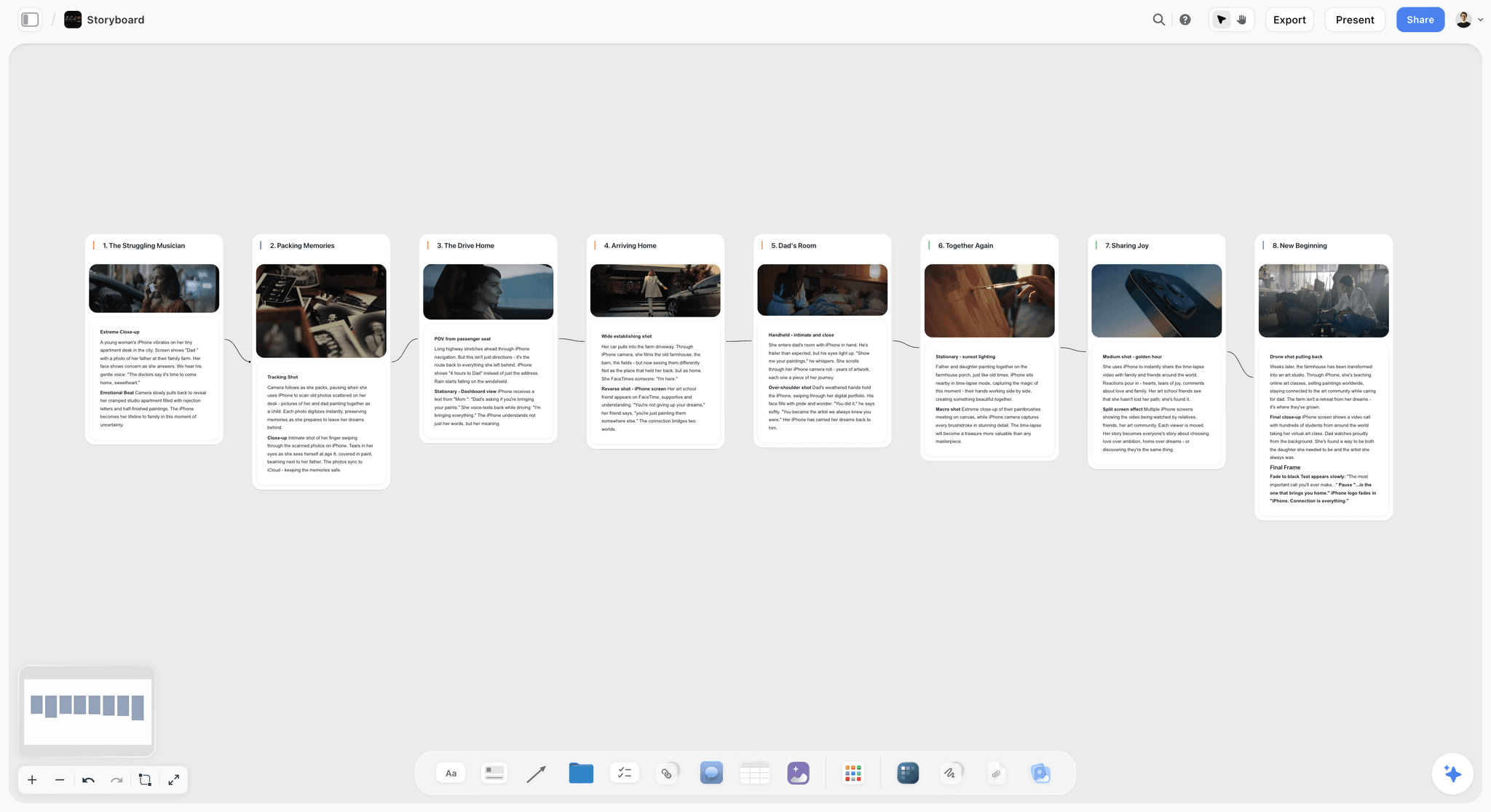
Storyflow storyboard with eight scene cards, each with a frame and its action notes, connected in order
Plan your next video on one board from ChatGPT
Install the Storyflow plugin, ask ChatGPT for the hook, outline, B-roll table and publish checklist, and share the board with your editor by link.

The 9 Best ChatGPT Plugins for YouTubers, Reviewed
Each review follows the same shape: what ChatGPT can do through the plugin, who it is for, its main limit, the price on the vendor's page, and one prompt to try first.
1. Storyflow
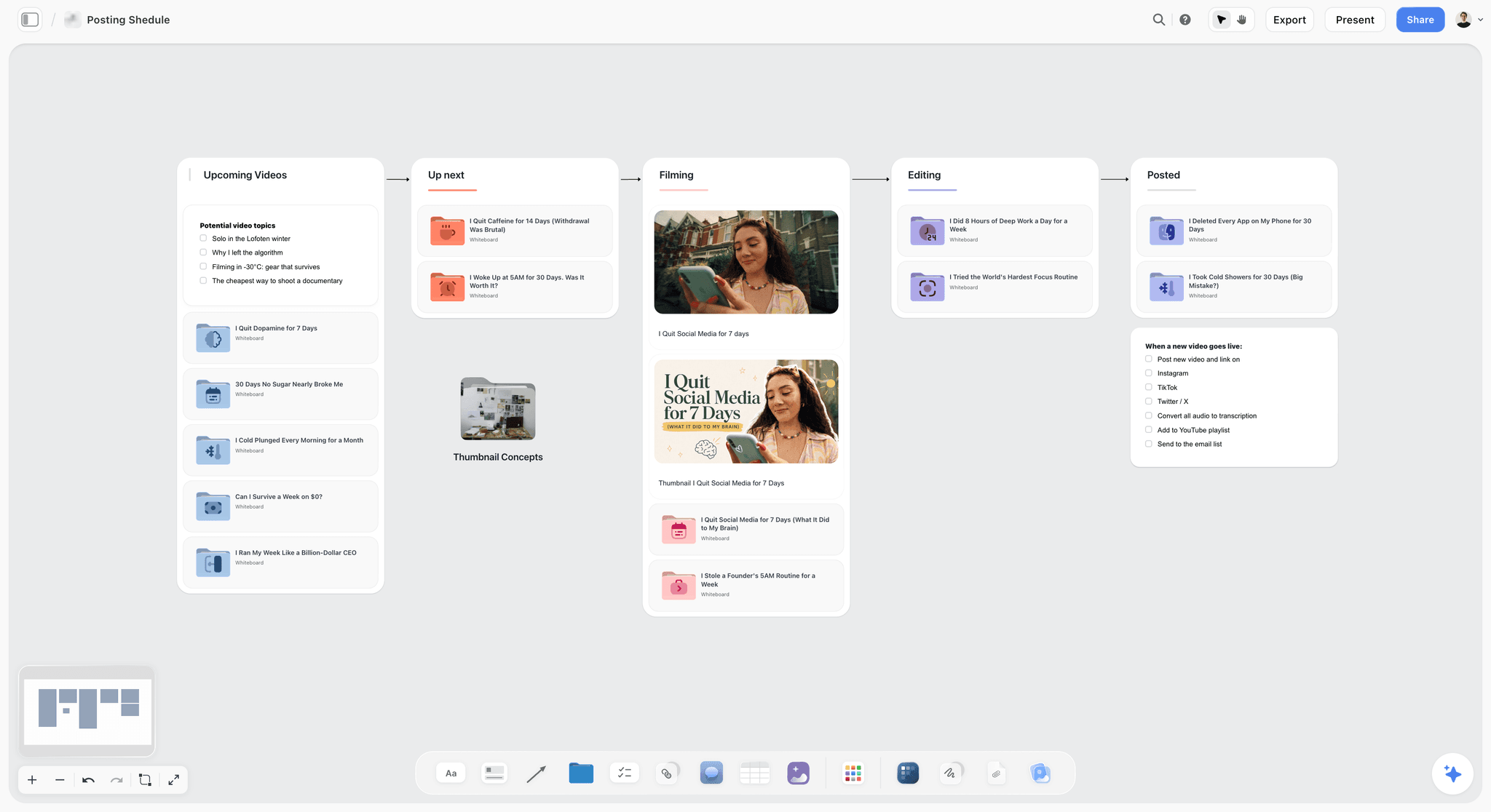
A channel board in Storyflow: each video moves from Upcoming to Posted, and the go-live checklist sits beside the wall it belongs to.
What it does in ChatGPT: The Storyflow plugin (Productivity, "Plan projects on visual boards") lets ChatGPT read your projects, boards and documents and build on a board: walls of notes, tables, to-dos with checkboxes, documents, shot cards, mind maps, flowcharts and slide decks. For a video that means one board with a wall of hook options, the outline as beats, a B-roll table with a row per shot, thumbnail concepts, title candidates and a publish checklist. ChatGPT can also report what changed on a board in the last day or week and who changed it, which is how you check what your editor did overnight without asking.
Best for: Creators who work with at least one other person (an editor, a co-host, a client or a sponsor) and need one plan everybody opens. Also series planning, where five videos share one board and one table.
Limit: It does not edit video, publish, schedule or read your YouTube analytics. AI image generation is not available through the plugin, and a photo you attach in the ChatGPT chat does not reach the board: ChatGPT hands you an upload link for your thumbnail references instead. It runs in a browser, best on a laptop, and the connection asks you to sign in again after 30 days.
Price (as of October 2026): Plus is $7.99 a month billed annually ($9.99 monthly). Storyflow is paid-only during early access; its Free plan launches before the end of 2026, and anyone a paid member invites to a board joins free now. Plugin actions run on ChatGPT's own model and your ChatGPT plan, so they use no Storyflow AI credits. An invited free account gets 25 plugin actions a week; Plus, Pro and Max have no weekly limit. See Storyflow pricing.
Ask it: "Plan my next video, 'Why cheap bike chains snap', on a new board in my Channel project in Storyflow: a wall of five hook options, the outline as beats, a B-roll table with shot, location and status columns, and a publish checklist as to-dos."
The full walkthrough for one video is on planning a YouTube video with ChatGPT. Separate from the plugin, Storyflow's own in-app AI has a Plan my next YouTube video workflow, which uses Storyflow AI credits.
2. vidIQ
What it does in ChatGPT: According to vidIQ's ChatGPT guide, the app gives ChatGPT three tools: your channel analytics, keyword research with search volume, and outliers (breakout videos that beat their channel's usual views). It can also edit, not upload, existing videos on a channel you own: titles, descriptions, tags, visibility, scheduled publish times and thumbnails, and you approve each change before it is applied. You call it with @vidIQ, and "@vidIQ list my connected channels" confirms which channel it can read.
Best for: Deciding what to make and what to call it. Outliers in your niche are the most useful single input to an idea list, because they show demand that beat a channel's own baseline.
Limit: Competitor comparisons use public channel and video stats only. Each keyword research call costs 5 credits, and a prompt that uses several tools costs more. Editing may require verifying your YouTube account first, and publishing a new video still happens in YouTube Studio.
Price (as of October 2026): Connecting is free on every vidIQ plan; tool calls spend your plan's credits. The Free plan includes 150 AI credits a month, which at 5 credits a lookup is about 30 keyword checks. Boost is $199 a year (about $16.58 a month) or $19 monthly, per vidIQ pricing.
Ask it: "@vidIQ find outlier videos from the last 90 days in bike maintenance channels under 200k subscribers, then rank five video ideas for my channel by search volume."
3. Descript
What it does in ChatGPT: Descript's help article on ChatGPT says you can import media, edit with Underlord (Descript's AI editor), manage projects and publish from a conversation. Its examples: import a video from your desktop into a folder and transcribe it, add Studio Sound and remove filler words, and find a project and create a 60-second highlight reel from it. The connection works with whichever Descript Drive you are signed in to.
Best for: Talking-head, tutorial and commentary channels whose first edit is mostly removal: ums, false starts, long pauses, dead air between sections.
Limit: Imports and Underlord edits through ChatGPT use your media minutes and AI credits. In a managed ChatGPT workspace, Descript says an admin may need to enable third-party connectors first. Watch the result in Descript before it goes anywhere: a filler-word pass cannot judge whether a pause was a joke landing.
Price (as of October 2026): Free includes 60 media minutes a month. For paid plans see Descript pricing: the page prints two prices per plan without saying which billing period each one is.
Ask it: "In Descript, import chain-test-take2.mp4 into my November folder, transcribe it, remove filler words and add Studio Sound."
4. Kapwing
What it does in ChatGPT: Kapwing's help page says the connection gives ChatGPT access to your Kapwing workspace so you can upload footage, add subtitles, dub a video or grab an export from the chat. Its release notes date the ChatGPT plugin listing to 15 October 2026, and a 27 October update added editing a project by chat, including projects built from several assets.
Best for: Channels that publish in a second language, and Shorts that need captions for viewers who watch with the sound off.
Limit: Dubbing, subtitles and translation draw from the workspace's AI credits at the same rate as on Kapwing's site, and uploads cap at 5 GB, or 500 MB from a URL. The help page has not caught up with the release notes (it still describes single-asset projects only), so read both before you plan a workflow around it.
Price (as of October 2026): See Kapwing pricing. The page does not say which billing period its plan prices cover, and the help page says in one place that any Kapwing user can use the connection and in another that it is for Pro, Business and Enterprise, so confirm your plan includes it before you rely on it.
Ask it: "Upload my Short to Kapwing, add English captions, then make a Spanish subtitled version and send me both export links."
5. OpusClip
What it does in ChatGPT: OpusClip's ChatGPT guide walks through finding the app in the plugin directory, selecting Connect and choosing your OpusClip workspace. Its agent setup page lists the tools behind it: clip a YouTube or Vimeo URL, edit a clip with named operations, and schedule a clip for posting, plus thumbnail, voiceover and music generation.
Best for: Turning every long upload into a batch of Shorts without opening another editor. Paste the URL of the video you just published and ask for vertical clips with captions.
Limit: A free OpusClip account can sign in and see the tool list but cannot run tools such as clipping or scheduling. The clips are chosen by its model, so check each one for context: a strong moment that depends on the minute before it rarely works alone. The directory also lists a second app, AI Producer by OpusClip ("Edit videos with AI chat"); this review covers the "Clip, edit, schedule videos" one.
Price (as of October 2026): See OpusClip pricing. Its help names the plans that run tools as Pro, Max and Business, and its pricing page lists Free, Starter, Pro and Business with no Max, so check which plan runs the tools before you pay.
Ask it: "Clip my latest upload into six vertical Shorts under 45 seconds, captioned, and list each clip's opening line so I can pick three."
6. Canva
What it does in ChatGPT: Canva's directory one-liner is "Create, review, edit designs", and it sits in the directory's Featured and New & Noteworthy lists. Canva's site refuses automated reading, so this review goes no further than the listing: for what the app can do and where it is available, see Canva's help.
Best for: Creators whose thumbnails are already designed in Canva.
Limit: A thumbnail is judged at phone size, next to your last ten thumbnails and the competing videos in search. A single design in a chat shows none of that context, so decide the concept first (the face, the object, the three words) and use Canva for the execution. Keep the concepts and reference frames on the video's board so the choice is made side by side.
Price (as of October 2026): See Canva pricing on Canva's site.
Ask it: "@Canva design three YouTube thumbnails for 'CHEAP CHAIN = SNAPPED' with the broken chain on the left and space for my face on the right."
7. Storyblocks
What it does in ChatGPT: Storyblocks' directory listing reads "Discover stock media", and its MCP page says you can search, browse and download any asset from its human-made stock library inside ChatGPT or Claude. You sign in to your Storyblocks account to finish the connection.
Best for: Filling B-roll gaps (a city establishing shot, a close-up you did not film) and finding a music bed while the script is still open in the same chat.
Limit: Stock is generic by definition. It covers the cutaway, never the shot of your own product, workshop or face. Mark which rows of your B-roll table are stock so the editor knows what is licensed and what you still need to film.
Price (as of October 2026): Essentials is $21 a month and Unlimited All Access $30 a month, both billed annually, per Storyblocks pricing.
Ask it: "Find five Storyblocks clips of a bicycle chain under load in slow motion, 4K, and one upbeat acoustic track under three minutes."
8. Riverside
What it does in ChatGPT: Riverside's directory one-liner is "Search, edit & publish videos". Its MCP tutorial describes what an assistant can do once connected: find strong moments and turn them into captioned vertical clips, schedule finished clips in Riverside's content planner, trim an episode, search past transcripts and suggest ideas for future episodes.
Best for: Podcast and interview channels that already record in Riverside. Searching a year of transcripts for every time a guest mentioned a topic is the job no other plugin here does.
Limit: It works on recordings that live in Riverside. The tutorial walks through Claude, so in ChatGPT use the standard install from the plugin directory.
Price (as of October 2026): See Riverside pricing. The tutorial names no plan for the connection, so confirm on the pricing page which plan includes it before you build a workflow on it.
Ask it: "Search my Riverside recordings for every time a guest talked about pricing, then cut the three strongest answers into captioned vertical clips."
9. Metricool
What it does in ChatGPT: Metricool's help article describes a verified connector that lets ChatGPT see which metrics are available and query them, view your scheduled posts, check the best time to post, and create and edit scheduled posts.
Best for: Scheduling the posts that go out around an upload and reading how each did, from the same chat that wrote them.
Limit: Metricool says the ChatGPT app uses an earlier version of its integration, so direct links to a scheduled post are not available there, and inbox messages, comments and Smartlinks are not available through the connector at all. Its ChatGPT help article does not list which networks the connector covers, so check each network you post to before you plan around it.
Price (as of October 2026): The connector works on every Metricool plan, including Free, which allows one brand and 20 scheduled posts a month. For paid plans see Metricool pricing: its price blocks are not labelled with a billing period.
Ask it: "@Metricool show me the best times to post this week, then schedule these three clip captions for Tuesday, Thursday and Saturday."
Which Plugin for Which YouTube Job
One row per step of a video: the plugin to open first, the fallback, and what to ask it for.
| Job | First choice | Second choice | What to ask for |
|---|---|---|---|
Pick the next video | vidIQ | Storyflow | Outliers and keyword volume, then the shortlist on a board |
Plan hook, outline, B-roll and checklist | Storyflow | (none in the directory does this on a shared board) | One board with a wall per part of the video |
Write and revise the script | ChatGPT itself, kept in Storyflow | Descript | The script as a document on the video's board |
First edit of a talking-head video | Descript | Kapwing | Filler words out, Studio Sound, a highlight reel |
Captions and a second language | Kapwing | Descript | Subtitles, translation, a dubbed version |
Shorts from the long video | OpusClip | Riverside | Vertical clips with captions from the published URL |
Thumbnail design | Canva | vidIQ (to swap the thumbnail on a live video) | Three variations of one concept |
Stock B-roll and music | Storyblocks | (none) | Specific shots by subject, speed and resolution |
Podcast or interview clips | Riverside | OpusClip | Moments by topic across past recordings |
Schedule the cut-downs | Metricool | OpusClip | Best times, then scheduled posts |
Title, description and tags | vidIQ | ChatGPT itself | Keyword-checked metadata, applied with your approval |
A Four-Plugin Stack for One Video, Worked Through
Here is how the stack runs for a fictional channel, Crank and Chain: one creator who films bike repair videos and one freelance editor who works three days a week. They publish one 12-minute video every Friday and three Shorts after it. The plugins: Storyflow, vidIQ, Descript and OpusClip. The output shapes below are illustrative.
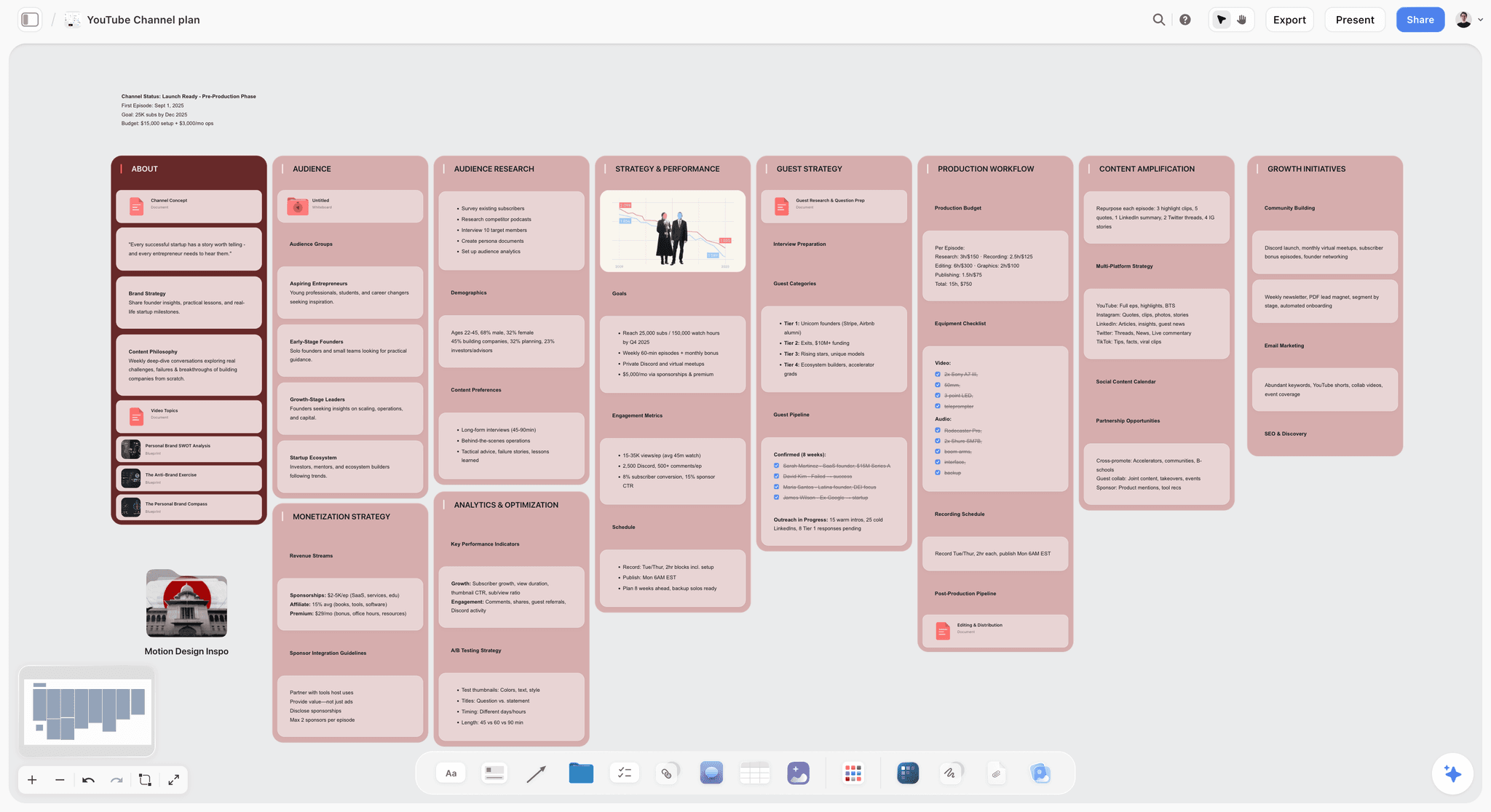
A channel plan board: audience research, the production workflow and the amplification checklist sit side by side, so a new video starts from the channel's own rules.
Monday: research and the plan
The creator asks vidIQ for outliers in bike maintenance from the last 90 days and keyword volume for five candidate topics. ChatGPT reads vidIQ's answer in the conversation, then, when asked, writes the shortlist onto the channel board in Storyflow as a table with topic, search volume and the outlier it came from. The creator picks "Why cheap bike chains snap" and asks for a new board for that video: a wall of five hook options, the outline as eight beats, a B-roll table and a publish checklist.
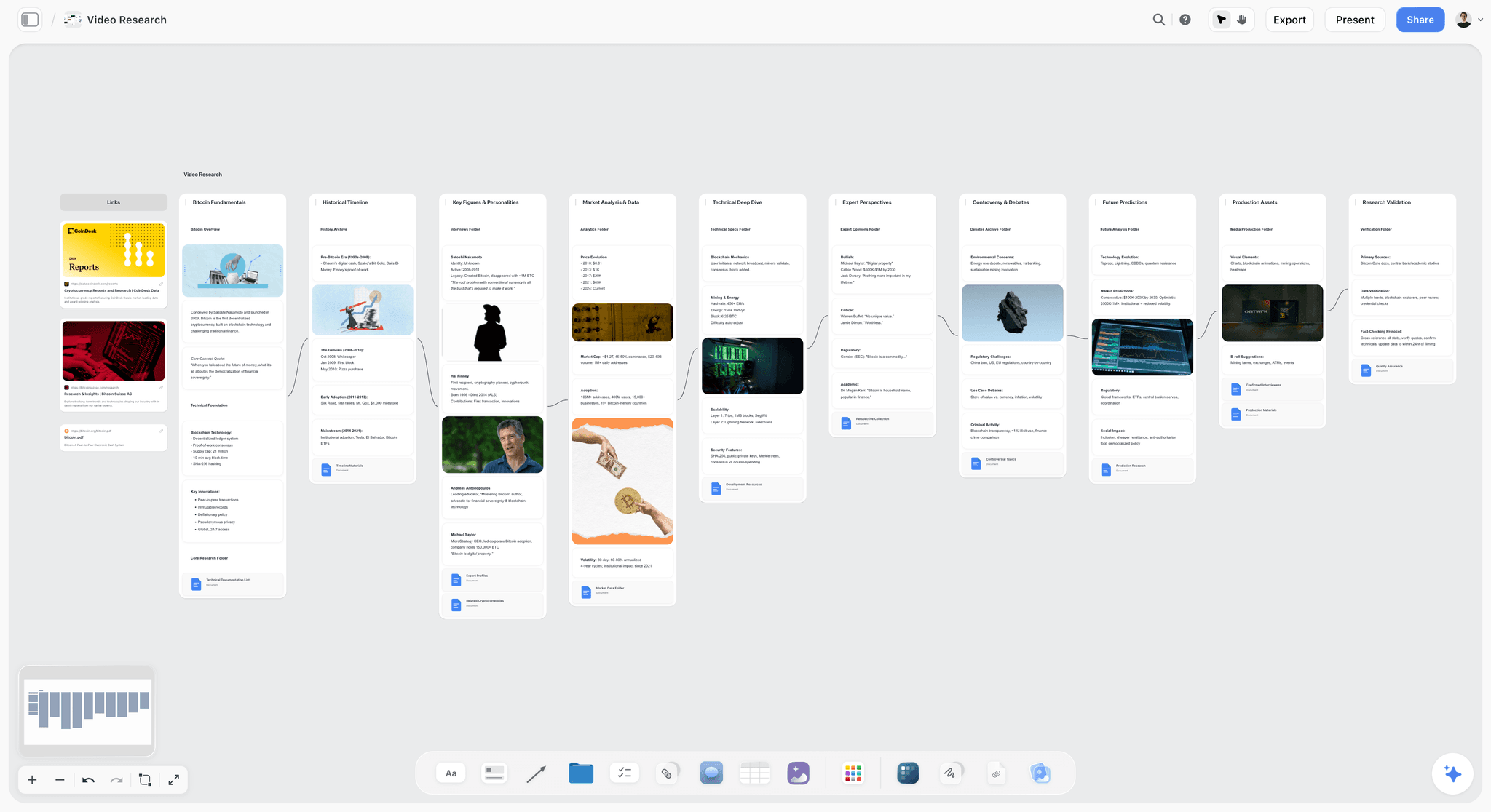
A research board for an explainer: one wall per angle, connected in the order the video will cover them, ending in the production assets the edit needs.
Wednesday: script and B-roll
The script is drafted in the chat and saved as a document on the video's board, next to the beats it follows. The B-roll table gets a row per shot (chain under a press, a snapped link in macro, the cheap and expensive chain side by side) with a Status column. Two rows the creator cannot film are marked stock. The editor, invited to the board, adds two shots of her own before the shoot.
Friday morning: the edit
The creator uploads the A-roll to Descript and asks ChatGPT, through Descript, to transcribe it, remove filler words and add Studio Sound. The editor takes the cut from there in Descript itself. On Friday afternoon ChatGPT asks Storyflow what changed on the board this week and who changed it, which shows the editor's work: six of eight checklist items ticked and a note on the end screen.
After the upload: Shorts and metadata
Once the video is live, the creator pastes its URL into OpusClip through ChatGPT and asks for six vertical clips under 45 seconds, then picks three. vidIQ suggests a stronger title on the live video, and the creator approves the change in the chat. The board's checklist is the record of what shipped.
The pattern: research and editing plugins do the work, and Storyflow is where the decisions they produce are written down. Without the board, Monday's shortlist and Wednesday's B-roll notes would be nine replies up a chat the editor cannot open.
How to Install and Use a Plugin in ChatGPT
Installing follows the same steps for every plugin above. The full guide is in how to install plugins in ChatGPT. The short version follows OpenAI's Plugins in ChatGPT article.
Install from the plugin directory
Go to Plugins in ChatGPT's sidebar on web, desktop or mobile, find the plugin and review its included apps and setup requirements. Select Install plugin; if prompted, select Connect and sign in to your account on that service. OpenAI's wording on availability: installing or using a plugin depends on your plan, workspace, role, region and the plugin's capabilities.
For Storyflow: open the Storyflow listing, select Install plugin, sign in to Storyflow, and choose which projects ChatGPT may use (all of them, or the ones you pick). Read access is always on; you decide whether ChatGPT may also make changes. Storyflow is listed in the directory, so it needs no Developer mode. Claude, Gemini and Grok connect the same Storyflow account another way, set out on the Storyflow MCP page.
Call it in a chat
ChatGPT uses installed plugins on its own when they are relevant. To pick one yourself, type @ and its name, select + and enter its name, or select Plugins in the composer. Naming the plugin is worth the two keystrokes when two of them could answer, for example vidIQ and Metricool for "how did my Shorts do".
Set how often ChatGPT asks first
OpenAI's app permissions article lists the options: Always ask, Allow read actions, Allow low-risk actions, and Allow all actions for an eligible app or account. Allow read actions is a sound default for a YouTube stack: research and board reads run freely, and anything that changes a video, a project or a schedule waits for your yes. The table shows what each plugin can change, which is what the setting protects.
| Plugin | What ChatGPT can read through it | What it can change | Where a careless yes costs most |
|---|---|---|---|
Storyflow | Projects, boards, documents, what changed this week and who changed it | Builds and arranges on boards; creates a project only if you granted all projects | Low: a board edit you can fix by hand |
vidIQ | Your linked channel's analytics, keyword volume, outliers | Titles, descriptions, tags, visibility, publish times and thumbnails on your videos | High: a title change on a ranking video |
Descript | Projects in your signed-in Drive | Imports, edits with Underlord, publishes | Medium: media minutes spent on the wrong file |
Kapwing | Your workspace and recent projects | Uploads, subtitles, translations, dubs | Medium: workspace credits on a dub you did not need |
OpusClip | Your OpusClip projects | Clips, edits and scheduled posts | High: a clip scheduled to post without review |
Metricool | Metrics and scheduled posts | Creates and edits scheduled posts | High: a post going out at the wrong time |
In a Business or Enterprise workspace
An admin manages plugins and can turn them on or off. If a plugin shows Disabled by admin, OpenAI's connected apps article says to ask an administrator to review it. OpenAI also notes that app use may count toward your ChatGPT plan limits and the provider's own limits.
Plugin Picks by Channel Type
Two plugins per channel type, beyond the planning board, which every type below benefits from as soon as a second person is involved.
New channel under 10,000 subscribers
Top picks: vidIQ and Canva. Your biggest risk is making videos nobody searches for, and your second is a thumbnail that does not get the click. vidIQ's free credits cover about 30 keyword checks a month, which is enough for a weekly upload. Keep the plan in Storyflow from the first video so the habit exists before the editor does.
Mid-size channel working on retention
Top picks: Storyflow and vidIQ. At this size the work is less "what" and more "why did viewers leave at minute three". Put the outline beats on the board next to each video's notes, compare the structure of your best and worst performers, and let vidIQ apply a new title to a live video once you approve it.
Long-form explainer or documentary channel
Top picks: Storyflow and Storyblocks. A long explainer carries a cutaway under most lines of the script, so the B-roll table is the document the edit is built from. Storyblocks fills the shots you cannot film; the board marks which ones are stock. See how to storyboard a YouTube video for the visual pass.
Podcast and interview channel
Top picks: Riverside and OpusClip. Riverside searches every past transcript and cuts clips from recordings that already live there; OpusClip handles a video that is already published on YouTube. Choose by where the source file lives.
Shorts-first creator
Top picks: Kapwing and Metricool. Captions carry a vertical video watched with the sound off, and Metricool finds the best time to post and schedules it, once you have checked its connector covers the networks you post to. Plan the week's Shorts as a table on a board so the hooks are written before the filming starts.
Brand channel or agency video team
Top picks: Storyflow and Descript. A brand channel has approvals, and the approver should open a view-only link, not a chat transcript. Storyflow's view-only link opens with no account; to comment, the visitor signs in. Descript keeps the edit in a shared Drive the team already uses.
What the Plugins Cost, as of October 2026
Prices change; each figure below was read on the vendor's own pricing page on 28 October 2026. Where that page did not say which billing period a price covers, or named plans that do not match the vendor's help, the row sends you to the vendor's pricing instead of guessing. The column that matters most is the last one, because a plugin call spends the vendor's meter as well as your ChatGPT plan.
| Plugin | Entry price | Free option | What a chat spends |
|---|---|---|---|
Storyflow | Plus $7.99 a month billed annually ($9.99 monthly) | Paid-only during early access; invited collaborators join free; Free plan before the end of 2026 | No Storyflow AI credits; 25 actions a week on an invited free account, no weekly limit on Plus, Pro and Max |
vidIQ | Boost $199 a year, or $19 monthly | Free, 150 AI credits a month | 5 credits per keyword research call |
Descript | See Descript pricing | Free, 60 media minutes a month | Media minutes and AI credits |
Kapwing | See Kapwing pricing | Its help differs on whether the free plan can connect | Workspace AI credits |
OpusClip | See OpusClip pricing | Free sign-in shows the tools but cannot run them | Credits on clipping, thumbnail, voiceover and music jobs |
Canva | See Canva pricing | See Canva pricing | See Canva's help |
Storyblocks | Essentials $21 a month billed annually | None listed | Downloads under your plan's license |
Riverside | See Riverside pricing | See Riverside pricing | Not stated in its MCP tutorial |
Metricool | See Metricool pricing | Free, 1 brand, 20 scheduled posts a month | Your plan's limits |
Decision rule: pay for a plugin's plan only when the job runs every week. A plugin you open once a month is cheaper done by hand in the vendor's own app.
Honorable Mentions From the Directory
These are in ChatGPT's plugin directory as of 28 October 2026 and fit some channels. They are not reviewed above; read each listing and the vendor's own page before you install.
- Adobe Express ("Design posts, flyers, and more"): the Canva alternative if your thumbnails already live in Adobe.
- TubeLab ("YouTube data for research") and TubeAlfred ("Research YouTube videos"): second opinions on niche research next to vidIQ.
- YouTube Thumbnail Creator ("Create better video thumbnails"): a thumbnail-only plugin to compare with Canva.
- Windsor.ai YT ("Analyze YouTube"): a second YouTube analytics option next to vidIQ.
- ElevenLabs ("Voice agents and media") and Artlist ("AI image, video, and voiceover"): voiceover for channels that do not record their own.
- Restream ("Create and manage live streams"): for channels that go live.
- AI Producer by OpusClip ("Edit videos with AI chat"): OpusClip's second listing.
- Google Drive ("Drive, Docs, Sheets or Slides"): if your scripts and footage folders already live there.
When Storyflow Is Not the Plugin You Need
Storyflow is the right first plugin when a video has a plan that more than one person reads. It is the wrong one in these cases:
- You work alone and publish the same format every week. A single checklist in your notes app does the job; a board adds a step you do not need.
- Your bottleneck is the edit, not the plan. Start with Descript or Kapwing and add a board when an editor joins.
- You need publishing or scheduling. Storyflow does not post anywhere. Use Metricool or OpusClip for that.
- You want ChatGPT to make the thumbnail image. Image generation is not available through the Storyflow plugin; use Canva for designs and keep the chosen concept on the board.
- You plan on a phone. Storyflow runs in the browser and is best built on a laptop.
Six Mistakes YouTubers Make With ChatGPT Plugins
Installing ten plugins before the first video
Every plugin is another sign-in, another permission and another meter. Install the three you will use this week.
Asking ChatGPT what only your analytics knows
"Which of my videos should I make a sequel to?" without vidIQ connected gets an answer from nothing. Link the channel first, or paste the numbers in.
Leaving the plan in the chat
The hook you picked and the B-roll list you agreed belong on the board the moment they are decided. A decision that lives in reply 14 is a decision the editor never sees.
Approving edits without reading them
vidIQ asks before it changes a title or a thumbnail on a live video. Read the proposed change. A title edit on a video that is already ranking can cost you the search position that made it work.
Forgetting the vendor's meter
A long chat that calls vidIQ eight times, Descript twice and Kapwing for a dub spends credits in three places. Check the balance in each app after your first full video, then decide which plan you need.
Expecting attached photos to reach the board
A thumbnail reference you drop into the ChatGPT chat stays in the chat. Ask for the Storyflow upload link and put the reference on the board, next to the concept it belongs to.
The Bottom Line
The best ChatGPT plugin setup for a YouTube channel is small: Storyflow for the plan, vidIQ for what to make and what to call it, and one editing plugin (Descript for talking heads, Kapwing for captions and languages, OpusClip for Shorts). That is our pick first and then the rest by job, and it is shaped by one fact: every plugin produces decisions, and the decisions need one place your whole team can open. Install those three, run one video through them from Monday to Friday, and add a fourth only when a job comes back every week. To plan the first video, start with the YouTube video plan in ChatGPT, and when you are ready to write, use these ChatGPT prompts for YouTube and the video script board.
FAQ: Best ChatGPT Plugins for YouTubers
What is the best ChatGPT plugin for YouTubers?
Storyflow is our pick first for planning each video on one board that ChatGPT builds and your editor opens: hook options, outline, B-roll table, thumbnail ideas and a publish checklist. It is our product, and it ranks first for the plan, not for every job. vidIQ is the strongest for research and channel data, Descript for editing by chat, and OpusClip for Shorts.
What is the best ChatGPT plugin for YouTube keyword research?
vidIQ is the strongest ChatGPT plugin for YouTube keyword research in October 2026. Its app gives ChatGPT keyword research with search volume, outlier videos and your own channel analytics once the channel is linked. Each keyword research call costs 5 vidIQ credits, and the Free plan includes 150 a month. TubeLab and TubeAlfred are also in the directory for a second opinion.
Can ChatGPT edit my YouTube videos?
Yes, through editing plugins rather than on its own. Descript imports, transcribes and edits a project with Underlord, Kapwing adds subtitles, translations and dubs, and OpusClip clips a published YouTube or Vimeo video into Shorts. vidIQ edits metadata on live videos you own, such as titles, tags and thumbnails, after you approve each change.
Can a ChatGPT plugin upload a video to YouTube?
Not directly in the plugins reviewed here. vidIQ's guide says its app can edit but not upload, and publishing a new video requires YouTube Studio. Descript lists publishing among its ChatGPT actions, and OpusClip and Metricool schedule clips and posts. Storyflow does not publish or schedule anything; it holds the plan and the publish checklist.
Do ChatGPT plugins cost extra?
Often, yes: each plugin spends its vendor's credits or needs its plan. vidIQ spends AI credits per call, Descript uses media minutes, Kapwing draws workspace credits and a free OpusClip account cannot run its tools. OpenAI also says app use may count toward your ChatGPT plan limits. Storyflow plugin actions run on ChatGPT's model and use no Storyflow AI credits.
Can ChatGPT see my YouTube analytics?
Only through a plugin that has access. ChatGPT has no view into YouTube Studio on its own. vidIQ's app reads your channel analytics after you connect vidIQ and link your channel to it, and you can confirm the link with "@vidIQ list my connected channels". Competitor comparisons in vidIQ use public stats only.
Which ChatGPT plugin is best for YouTube thumbnails?
Canva is our pick for designing YouTube thumbnails from ChatGPT when your thumbnails already live in Canva; its directory one-liner is "Create, review, edit designs". The directory also lists a thumbnail-only plugin, YouTube Thumbnail Creator. Decide the concept first, with three concepts and their references side by side on the video's Storyflow board. vidIQ can then swap the thumbnail on a live video, with your approval.
How do I add a plugin to ChatGPT?
Open Plugins in ChatGPT's sidebar, find the plugin, review its apps and select Install plugin. If prompted, select Connect and sign in to your account on that service. Then mention it with @ in a chat or pick it from the + menu. Availability depends on your plan, workspace, role and region, and a workspace admin can turn plugins off.
Is Storyflow free for YouTubers?
Not during early access. Storyflow is paid-only for now, starting with Plus at $7.99 a month billed annually, and its Free plan launches before the end of 2026. Anyone a paid member invites to a board joins free today, so an editor invited to your channel board pays nothing. An invited free account gets 25 plugin actions a week.
Can my editor see the plan without a Storyflow account?
Yes, with a view-only link, which opens with no account. To comment or draw on the board, the visitor signs in. Anyone a paid member invites to a board joins free and can edit, which is the usual setup for a freelance editor who works on every video.
Does ChatGPT pick the right plugin automatically?
Usually. OpenAI says ChatGPT uses your installed plugins when they are relevant to your request. When two could answer, such as vidIQ and Metricool for performance questions, name the one you want with @ so the answer comes from the data you meant.
Can I use these plugins in a Claude chat too?
Claude calls them connectors, and each vendor decides where it publishes one. Storyflow connects to Claude, Gemini and Grok through the address on its MCP page, so the same channel board works from any of them. Storyblocks and Riverside also document Claude connections on their own pages.
Table of Contents
- Key Takeaways
- Why ChatGPT on Its Own Stalls Halfway Through a Video
- How We Chose and Ordered the Nine
- Comparison Table: 9 ChatGPT Plugins for YouTubers at a Glance
- The 9 Best ChatGPT Plugins for YouTubers, Reviewed
- 1. Storyflow
- 2. vidIQ
- 3. Descript
- 4. Kapwing
- 5. OpusClip
- 6. Canva
- 7. Storyblocks
- 8. Riverside
- 9. Metricool
- Which Plugin for Which YouTube Job
- A Four-Plugin Stack for One Video, Worked Through
- How to Install and Use a Plugin in ChatGPT
- Plugin Picks by Channel Type
- What the Plugins Cost, as of October 2026
- Honorable Mentions From the Directory
- When Storyflow Is Not the Plugin You Need
- Six Mistakes YouTubers Make With ChatGPT Plugins
- The Bottom Line
- FAQ: Best ChatGPT Plugins for YouTubers
- Related Reading
Templates to check out for this topic


Content and video templates you can use in Storyflow
Plan a channel, a script, and a content pipeline on the same board. Open one of these templates and let the AI build on the structure instead of starting from a blank doc.


See Storyflow in Action
A visual AI workspace where every feature lives inside one canvas. No tab-switching, no context lost.
Build your entire board from a single message
Type what you need in the AI chat at the bottom of your canvas. The AI adds cards, headings, and structure directly onto your board.
Use expert frameworks as AI context
Type @ in the AI chat and choose any Tactic. The AI tailors every response to that framework instead of giving generic advice.
Turn your board into a mind map in seconds
Ask the AI to restructure your canvas as a mindmap. It connects your ideas into a visual hierarchy so you can see how everything relates.
Why Storyflow Exists
Storyflow actually began as a personal tool while working on creative and research projects.
We kept running into the same problem: ideas were scattered everywhere: notes, documents, and whiteboards.
Nothing helped us see how everything connected.
So we started building a workspace designed around how ideas actually grow.
→ Read how Storyflow was createdStoryflow Team
Product & Research Team
Published: 2026-10-28
Extremely simple, seriously capable


See how easy it is to get started
Watch a real project come together, from a blank board to a finished plan, clicked through step by step.
Start creating with AI and become more productive
Transform your creative workflow with AI-powered tools. Generate ideas, create content, and boost your productivity in minutes instead of hours.