Ultra-fast moodboards with real taste
Develop the whole
illustration on one canvas.
Storyflow is the visual-thinking workspace for everything around the drawing: concept and character design, style and reference moodboards, briefs, and series planning on a truly infinite canvas. Describe the direction and AI lays out a starting board, then pull reference frames from video and share it view-only. It is not a drawing app, and that is the point. Paid-only during early access, with a free plan launching before the end of 2026.


Creatives working for these brands already got early access
- Red Bull
- Canon
- Artlist
- Porsche
See how easy it is to get started
Watch a real project come together, from a blank board to a finished plan, clicked through step by step.
Start from a ready-made template
Pick a board to see what you can build, then let AI fill it in. Every template is a real, editable starting point on the same infinite canvas.

Film Moodboard
Collect film references, color palettes, lighting, locations, and tone in one place, then invite your crew.
Where does an illustration take shape before the first line?
Most of an illustration commission happens before you draw a single line. It is spent hunting references, pinning down a style, sketching who a character is, and reading the brief until the direction is clear. That groundwork usually ends up scattered across screenshot folders, a browser with forty tabs, a Pinterest board, and a chat thread, and half of it is lost by the time you open the drawing file.
Storyflow gives that work one home. On an infinite canvas you pin references, style samples, color keys, and video frames, cluster them into moodboards and character sheets, and write the brief right beside the visuals it describes. Every item is a real card you drag, recolor, and regroup, so the concept develops the way you actually explore it rather than snapping to a grid.
To be clear about the lane: Storyflow is not a drawing or painting app. Procreate, Photoshop, and Clip Studio own that surface, and you keep using them for the actual artwork. Storyflow is where the concept work, the references, and the briefs live before and beside the drawing. When the direction is set, you share a view-only link with the art director or client and take the approved brief into your drawing app with nothing lost.
Ultra fast from brief to board
From reference pile to approved concept in four steps.
Start from a blank board or a single prompt. Either way the concept stays yours to reshape.
01
Open a canvas
Start in the browser with a Storyflow account. Nothing to install, just an infinite canvas ready for the first reference.
02
Pour in references
Drag in images, style samples, color keys, links, and PDFs, and grab frames straight from YouTube or Vimeo. Every reference lands on one board instead of a screenshot folder.
03
Shape the concept with AI
Describe the character or scene once and let AI lay out a starting board of moodboard sections and character cards, reading your current canvas as context, then drag it into the shape you want.
04
Share view-only for review
Send a view-only link so an art director or client can explore the concept board in the browser without an account, or export it as an image or PDF for a pitch.
The concept layer your drawing file has been missing.
Keep drawing in Procreate or Photoshop. Do the reference gathering, character design, and briefing here, where it belongs.
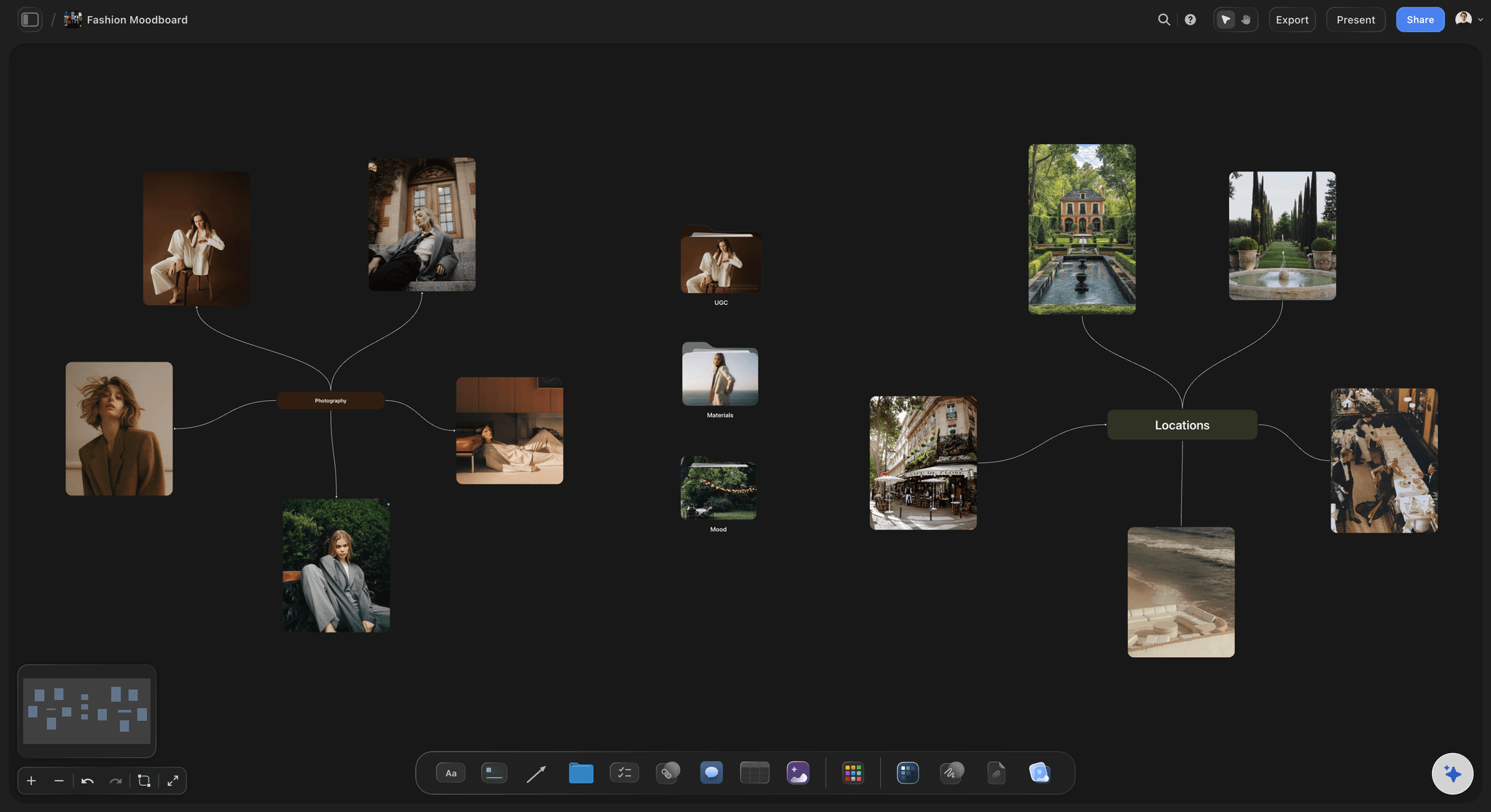
References on one board
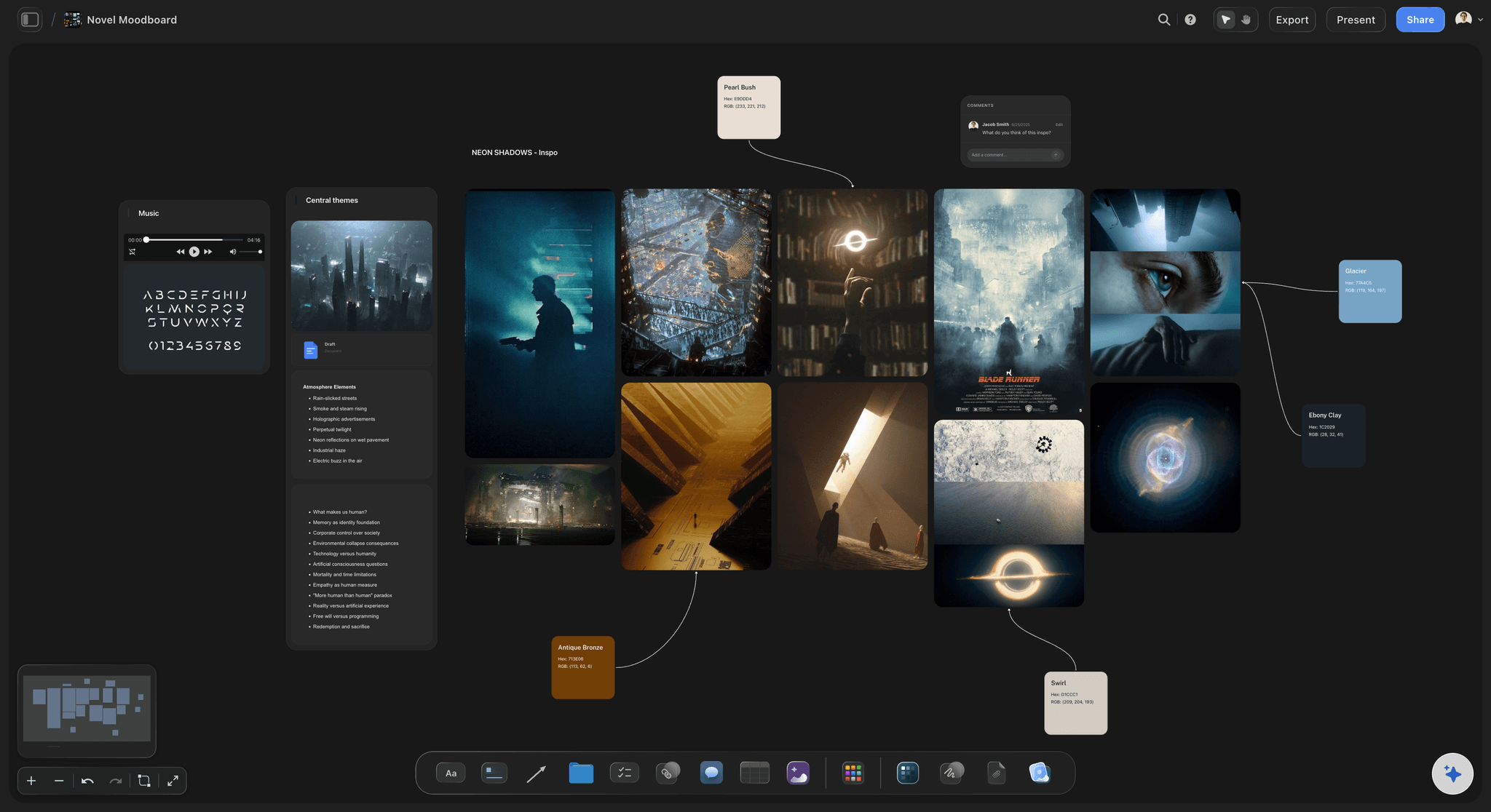
Every reference board on an infinite canvas
Pin references, style samples, and color keys side by side and cluster them into a direction. With a truly infinite canvas and no object cap, no reference gets cut for space.
See the moodboard maker →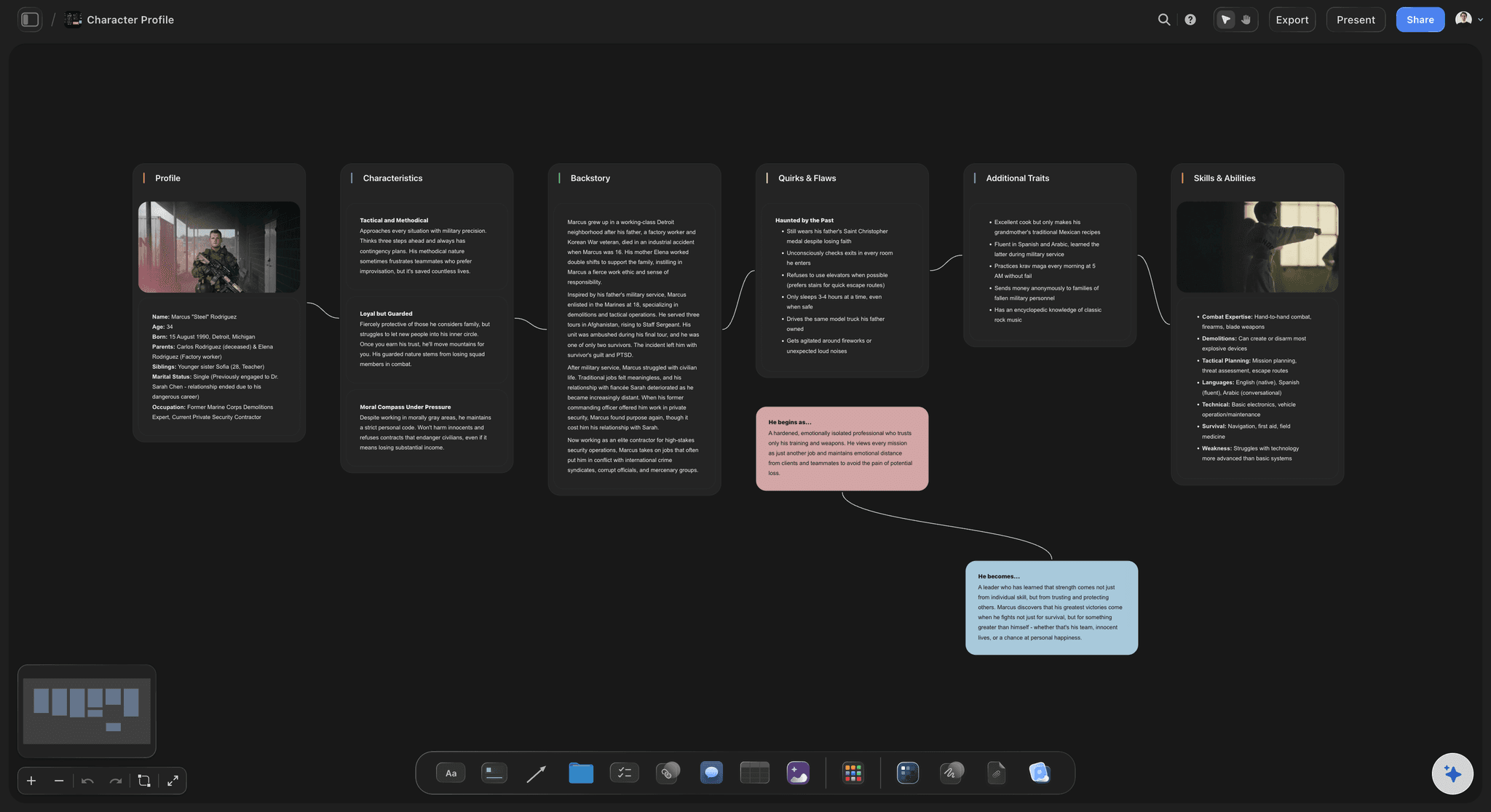
AI lays out the thinking
Describe the character, get a starting board
Tell the AI chat who a character is or what a scene needs and it lays out a full board of profile cards and moodboard sections. It reads your current canvas as context, so it builds on the references you already placed instead of a generic template.
See the character profile generator →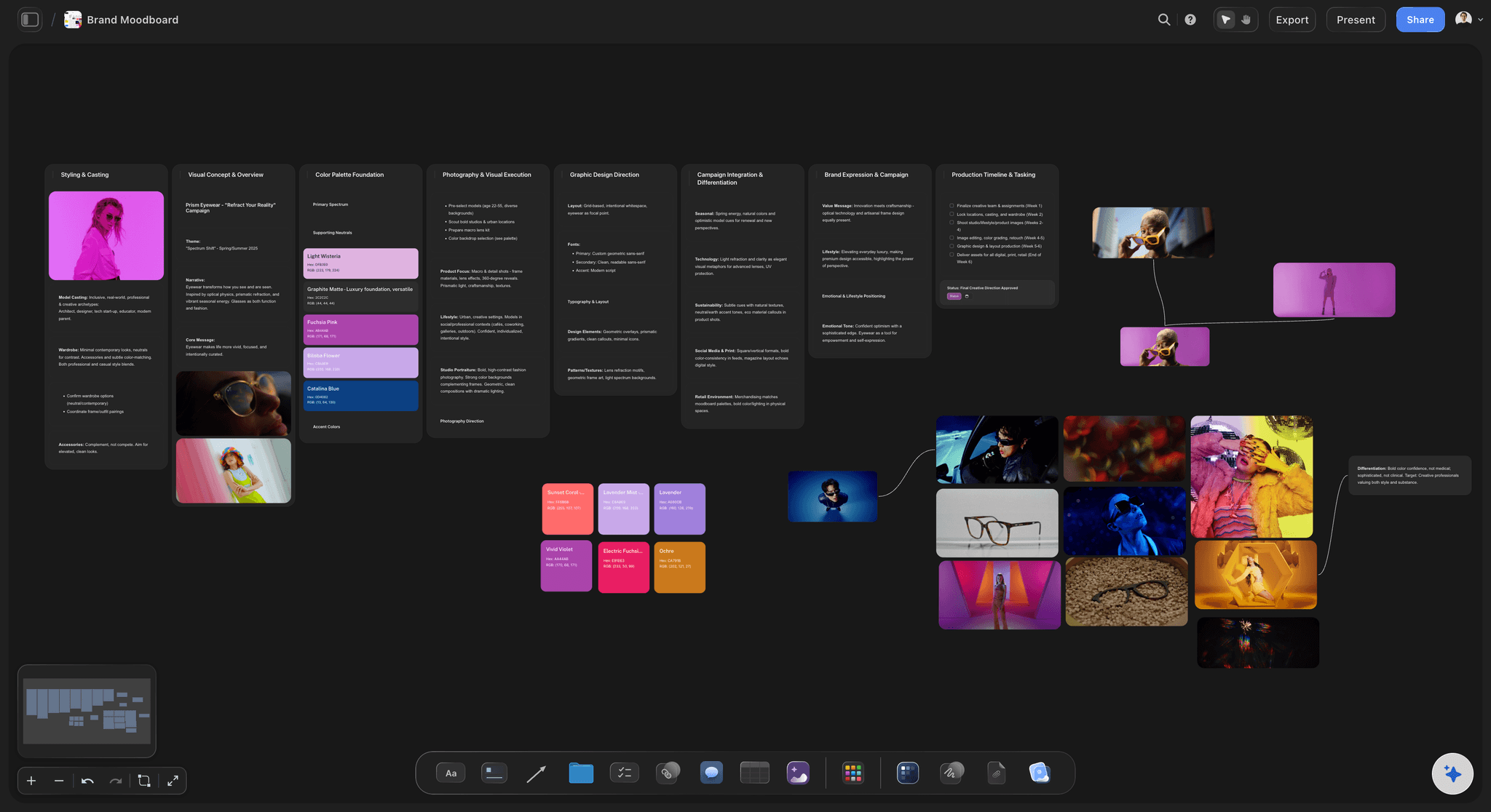
The brief beside the references
Illustration briefs next to the visuals they describe
Write the brief as cards and documents on the same board as the references. Goals, deliverables, and tone sit next to the style samples, so nothing gets lost between a chat thread and a drawing file.
See moodboarding →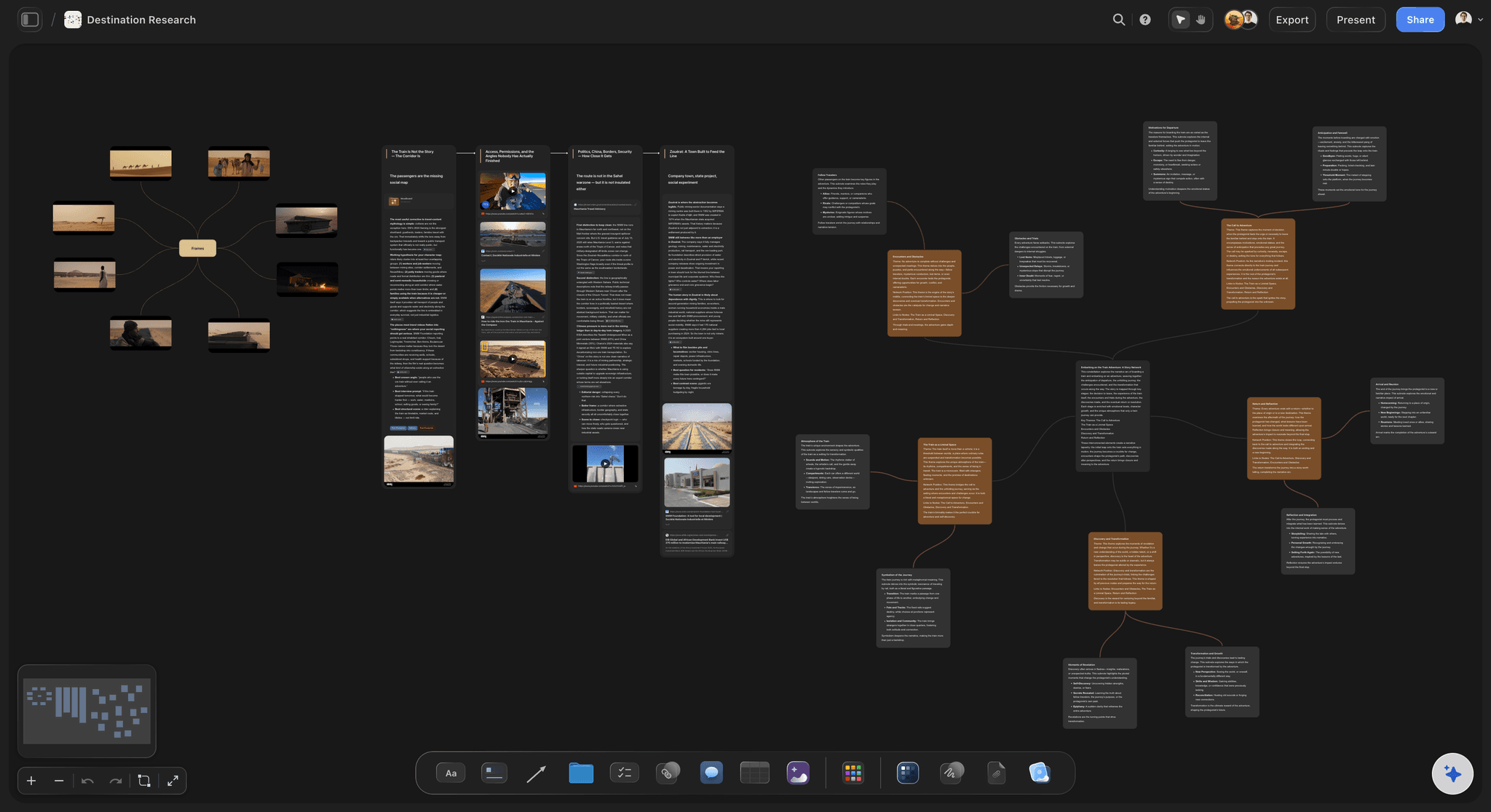
Frame grabs from video
Pull reference frames from video onto the board
A pose, a lighting setup, or a motion cue is sometimes clearer in a clip than in a still. Grab frames straight from YouTube and Vimeo onto the canvas and set them beside the concept they inform.
See the AI mood board maker →A free plan is coming. No object cap on paid plans.
Open a board and start pinning. Storyflow is paid-only during early access, with a free plan launching before the end of 2026, and every plan has no object cap and no time limit, so a real reference board never pushes you to upgrade mid-project.
Unlimited concept and reference boards on an infinite canvas
Basic AI usage to lay out characters and briefs
Attach images, PDFs, video, and links, plus 20 file uploads
Share view-only for review, or invite collaborators free
Built for people with taste
Built for how illustrators actually develop work.
Gather the references, design the character, write the brief, and plan the series. All on one board.
A real reference board, not a folder
Explore style and reference directions freely
Cluster into directions: Pull references into two or three competing style directions on the same board, so an art director can see the options side by side instead of in separate folders.
Color, crop, and caption: Recolor cards, crop images, and add a line under each reference explaining why it is there. The board reads as intent, not just a wall of pictures.
Color keys and samples together: Drop color keys and line or texture samples beside the imagery so the palette and the mark-making live with the mood, not in a separate file.
AI that reads the board
AI builds characters from your references, not a template
Lay out a character sheet: Describe a character and the AI lays out a profile card, traits, silhouette notes, and a reference section as a full board on the canvas.
Bring in your brief and sources: Add up to five documents and three boards as context from the + menu, so an existing brief or character bible shapes what the AI suggests.
Re-prompt to refocus: Ask for a bolder silhouette, a warmer palette, or a tighter brief. The AI reworks the board while keeping the cards and references you arranged.
The brief that survives handoff
Write the brief where the visuals live
Goals next to references: Capture the deliverables, audience, and tone as cards beside the reference board, so the brief and the visuals never drift apart across tools.
Frame grabs from video: Pull stills from YouTube and Vimeo straight onto the board when a pose or lighting reference explains the feel better than a static image.
Attach the source material: Drop the manuscript PDF, the script, or the mood clip on the same canvas, so the context the illustration serves is right there while you design.
Plan the series, not just one image
Plan a collection and hand it off clean
Map the series: Lay out every piece in a series or collection as cards on one canvas, so the set reads as a whole and no illustration drifts out of style.
Share view-only for review: Send a view-only link so a client explores the concept in the browser with no account, then signs in to leave feedback you can act on before you draw.
Export for the pitch: Export the reference board or character sheet as a clean image or PDF and drop it into a pitch, then take the approved direction into Procreate or Photoshop.
Explore templates for your project
Every template opens as a real, editable board on the infinite canvas. Pick the closest fit and make it your own.
Film Moodboard
Collect film references, color palettes, lighting, locations, and tone in one place, then invite your crew.
One app instead of five
How Storyflow compares for developing illustration work.
This is about concepts, references, and briefs, not drawing the artwork. Here is where each tool sits.
Storyflow
Recommended
AI lays out a character and reference board from your canvas
A real editable board, not just saved pins
Grab reference frames from YouTube and Vimeo
View-only review links, no account to view
Milanote
AI lays out a character and reference board from your canvas
A real editable board, not just saved pins
Grab reference frames from YouTube and Vimeo
View-only review links, no account to view
AI lays out a character and reference board from your canvas
A real editable board, not just saved pins
Grab reference frames from YouTube and Vimeo
View-only review links, no account to view
Notion
AI lays out a character and reference board from your canvas
A real editable board, not just saved pins
Grab reference frames from YouTube and Vimeo
View-only review links, no account to view
What creators are saying
Join early creators getting structured workspaces and AI that remembers their projects
“Storyflow has sped up my workflow by at least 3x, which means more flow state and more projects I can actually ship. It truly changed the way me and my team create.”

Reilin Joey
Director & YouTuber
“One prompt gets me a structured board. But the tactics are my favorite. I run my YouTube scripts through them and my intros and retention got better. It's amazing.”

Justkay
YouTuber & Freelance Filmmaker
“I used to juggle five apps to plan a project. Now I describe what I am making and get boards, lists, and a schedule. All in one place.”

George
@fernwehchronicles
Illustrator questions, answered.
Everything illustrators and concept artists ask about working in Storyflow.
No, and it is not trying to be. Procreate, Photoshop, and Clip Studio are for drawing and painting the actual artwork, and you keep using them for that. Storyflow is the visual-thinking workspace for the work around the drawing: concept boards, character design, references, and briefs on an infinite canvas. You do the concept work here, then take the approved direction into your drawing app.
Not during early access. Storyflow is paid-only right now, with a free plan launching before the end of 2026 that will include unlimited concept and reference boards, basic AI usage, 20 file uploads, and view-only sharing, with no object cap and no time limit. Paid plans start at $9.99 per month, and anyone a paid member invites to a board joins free.
Both. You can start from a blank canvas and pin, cluster, and caption references entirely by hand. The AI is there when you want it, to lay out a starting board of character cards and moodboard sections from a prompt, but the board is always yours to reshape.
Pinterest is unbeatable for discovering images, and many artists start there. Storyflow is where the concept actually gets developed: it is a real editable board where every reference is a card you can move, crop, caption, and cluster, with AI that lays out character sheets from your canvas, video frame grabs, a brief beside the visuals, and view-only review links. Discover on Pinterest, develop in Storyflow.
Yes. Attach images, PDFs, video, GIFs, and links, drop in color keys and style samples, and grab frames straight from YouTube and Vimeo. Every reference lives on the board beside the concept it supports instead of in a separate folder.
Yes. Share a view-only link and a client can explore the whole concept board in their browser with no account and no login. You can also invite collaborators free to build the board with you, and export it as an image or PDF for a pitch.
Yes. The AI reads your active board, so the references and cards already on the canvas shape what it suggests. You can also attach up to five documents and three boards, such as an existing brief or character bible, for it to work from.
Yes. Lay out every piece in a series on the same canvas so the set reads as a whole, and turn the concept board into a project or task board when it is time to produce. The reference board becomes the start of the work instead of a folder you file away.
Get the references, the character, and the brief on one canvas.
Start by hand or from a prompt, develop the concept, and share it view-only for review. Paid-only during early access; free plan launches late 2026.