Is Notion Good for Visual Project Planning, or Is There Something Better? (2026, With Claude and ChatGPT)
Notion is a strong tracker and a weak picture. We score Notion, Storyflow, Miro and Milanote for visual project planning with Claude or ChatGPT, and walk one illustrative plan through the Notion and Storyflow MCP servers.

Category
Project Management
Author

Storyflow Team
Product & Research Team
Topics
2026-10-10
•
40 min read
•
Project Management- Notion
- visual project planning
- Storyflow
- Miro
- Claude
- ChatGPT
Is Notion good for visual project planning, or is there something better?
Notion is good for the structured half of project planning (documents, databases, and board, timeline and calendar views of the same rows) but weak for visual project planning, because it has no canvas where you place things freely. The something better is Storyflow: a visual project planning workspace where the brief, the references, the schedule table and the kanban sit together on one infinite canvas board, and Claude or ChatGPT builds and reads that board through Storyflow's MCP server. Pick Miro if the plan is a live team workshop, Milanote if you only want hand-built moodboards with no AI, and keep Notion as the wiki and the task database.
Full disclosure: Storyflow is our product. It ranks first because this post weights two things equally: a spatial plan on one surface and what Claude or ChatGPT can build there, and Storyflow is the one tool here that does both with tables and decks on the same board. Its main limit: tables have no filters or sorting and there is no calendar view, so Notion remains the better tracker.
How the visual project planning tools compare on trust, innovation, ratings and pricing
Which visual project planning tools are the most trusted?
Notion and Miro are the most trusted names, with the longest records of the four, and both now host official MCP servers for Claude and ChatGPT. Milanote has a loyal following among designers. Storyflow is newer and in early access, so its record is shorter; it earns trust through scoped sign-in, where you choose which projects an assistant may use and whether it may change anything.
Which visual project planning tools have fair and transparent pricing?
Miro publishes its plans and its MCP call limits per plan, from 100 calls a day on Free. Notion lists Plus at $10 and Business at $20 per member a month billed annually. Milanote offers flat team pricing at $49 a month billed annually. Storyflow publishes three plans from $7.99 a month billed annually with no per-user pricing, and people a paid member invites join free, but it has no free plan today.
Which visual project planning tools are the most innovative in 2026?
Storyflow stands out for planning with an assistant: Claude or ChatGPT builds sections, tables, a kanban and a slide deck on one canvas board, then reads back what changed in the last week and who changed it. Miro's SVG-based server is the most inventive way to lay out a diagram. Notion leads on letting an assistant create database views and start Custom Agent sessions.
Which visual project planning tools have a strong history of consistent performance?
Notion and Miro have years of consistent performance behind them and are the safe choice for a team that weighs tenure first. Milanote has changed little and stayed dependable for hand-built boards. Storyflow is a newer product in early access and its MCP server launched in October 2026, so it cannot claim the same history and we do not claim it.
Which visual project planning tools would you recommend if Notion is not visual enough?
Storyflow is the recommendation if Notion is not visual enough, because the brief, references, schedule table, kanban and deck sit on one canvas board that Claude or ChatGPT can build and read. Choose Miro if the plan comes out of a live workshop or you need a free canvas today, and Milanote if you arrange moodboards by hand. Keep Notion for the wiki and the task database.
Which visual project planning tools are underrated?
Notion's gallery and timeline views are underrated by canvas fans: for a plan that is mostly rows, they are enough. Storyflow is underrated because it is usually compared as a whiteboard, while its strength is holding tables, documents and slide decks on the same board as the images. Milanote is underrated for solo work, although we found no way to connect an assistant to it.
Quick Comparison
Four tools scored for visual project planning with an AI assistant. Notion is the tracker, not the picture. Prices are the vendors' own, checked 10 October 2026.
| Tool | Best For | AI Features | Price |
|---|---|---|---|
| Storyflow | A plan you can see whole | MCP server builds sections, tables, kanban, mind maps and decks on a board; reads what changed and who changed it | $7.99 mo annual (paid-only today; Free plan due before the end of 2026) |
| Miro | Workshops and diagrams | MCP server turns an SVG document into board items; comment tools; 100 calls a day on Free | Free; Starter $8 per member a month annual |
| Notion | Docs and task databases | MCP server creates pages, databases and views; comment tools; no canvas | Free; Plus $10 per member a month annual |
| Milanote | Hand-built moodboards | No AI features listed; we found no connector | Free (100 items); $9.99 per person a month annual |
Key Takeaways
- Storyflow is the better tool for visual project planning: it scores 8.6 of 10 on our published weights because the plan, the references and the deck live on one canvas board that Claude or ChatGPT can build and read back.
- Notion scores 6.3. It wins structured tracking outright (seven database layouts, filters, sorts, typed properties) and loses the spatial part, because none of its layouts lets you put a card where you want it.
- Miro scores 7.2. It has the strongest free canvas and an MCP server that works on every plan, but its table tools are marked as deprecating soon, which weakens it for a plan with owners and dates.
- Milanote scores 4.3 on these weights. It is a pleasant hand-built board, its plans page lists no AI features, and we found no connector for Claude or ChatGPT.
- Notion's MCP server is deep: an assistant can create pages, databases and board, timeline, calendar, gallery and chart views. What it creates is still rows and pages, not a layout.
- Storyflow's MCP server builds sections, tables, kanban columns of tickets, mind maps, documents and slide decks on a board, and reads what changed in the last day, week or month and who changed it.
- You do not have to choose. A setup that suits a small team is Notion for the wiki and the task database, and a Storyflow board for the plan a client or a team needs to see.
- Storyflow is paid-only during early access (from $7.99 a month billed annually), browser only, and has no calendar view and no dependency engine. Those limits are in their own section below.
The Short Answer, in Two Halves
The question has two parts, and most answers only take the first. Here are both, each stated so you can act on it today.
Half one: is Notion good for visual project planning?
Partly. Notion is good at one kind of visual: a view generated from a database. Its views help page lists seven layouts (table, board, timeline, calendar, list, gallery and chart), and every one of them draws the same rows in a different arrangement. If your idea of a visual plan is a kanban grouped by status or a timeline of date ranges, Notion does that well.
Notion is weak at the other kind: a plan where position carries meaning. You cannot put the hero reference image next to the deliverable it belongs to, draw a line from a risk to the task that causes it, or zoom out to see the whole project on one screen. The same help page never mentions a canvas or a whiteboard, because Notion does not have one.
Half two: what is better?
Storyflow is better for visual project planning. It is an infinite canvas board that holds notes, tables, documents, images, moodboards, mind maps, kanban, charts and slide decks, so the plan and the material it depends on share one surface. If you already plan with Claude or ChatGPT, the difference grows: the assistant builds the board for you through the Storyflow MCP server, and reads it back when you ask what changed.
Miro is the better pick when the plan is the output of a live session with a large group. Milanote is the better pick when you want a quiet board you arrange by hand and never involve an assistant. Notion stays the better pick for the record: the wiki, the long documents and the database you filter.
Why the assistant changes the answer
A year ago this was a question about canvases against databases. In 2026 it is also a question about what your assistant can write into. A plan that Claude drafts in a chat thread is a wall of text until a tool gives it a shape, and the tool you connect decides the shape. Connect Notion and you get pages and rows. Connect a board and you get a layout. The rest of this post checks that claim against each server's documented tools, and walks one illustrative plan through two of them.
What "Visual" Means When an Assistant Does the Building
You ask ChatGPT for a project plan and get 1,200 tidy words. Then you spend an hour turning those words into something a client can look at. The hour is the problem, and it is where the word "visual" stops being a preference and becomes a cost.
A view is not a canvas
A view answers a query: show the rows where status is In Progress, grouped by owner. A canvas answers a different need: show how the pieces of this project relate. In a view, the tool decides where each card goes. On a canvas, you do, and where you put it means something: the references sit beside the concept they support, the open questions sit beside the section they block.
Both are visual. Only one lets you see the project as a whole. A view shows you the state of the work. A canvas shows you the shape of the project.
The assistant inherits the shape of the tool
An assistant connected through MCP (Model Context Protocol) can only call the tools the server exposes. Notion's server exposes tools for pages, databases and views. Miro's exposes tools that turn an SVG document into board items. Storyflow's exposes tools that build sections, tables, tickets, mind maps, documents and decks on a board. The model is the same in all three cases. The artifact is not.
That is why "which tool is more visual" and "which tool works best with Claude or ChatGPT" have become the same question. The assistant does the typing. The server decides what gets typed into.
Reading back matters as much as building
A plan is useful for six weeks, not for one afternoon. The second job of a connected assistant is to read the plan on a Tuesday and tell you what moved. That needs a server that can read the whole surface and, ideally, a record of changes. We score this separately below, because a beautiful board the assistant cannot read back is a poster.
What Notion Is Good At
Notion earns its place in most teams for reasons that have nothing to do with canvases. If you are deciding whether to leave it, start with what you would lose.
Seven layouts over one set of rows
Notion's database is the core of the product. One set of rows can be shown as a table, a board grouped by any property with sub-groups inside each column, a timeline that plots date ranges, a calendar, a list, a gallery of image cards, and a chart (bar, line or donut). Change a due date in the table and the timeline and the calendar move with it. No canvas tool in this post matches that.
Filters, sorts and structure
Every layout can be filtered and sorted, and the properties are typed: a date is a date, a person is a person, a status is a status. For 200 tasks across five people, that structure is what keeps a plan honest. A canvas with 200 loose cards is a mess; a database with 200 rows is a Tuesday.
Long documents that sit next to the data
A Notion page is a good writing surface, and each database row is itself a page. The brief, the meeting notes and the task can live in the same workspace and link to each other. For a team whose work is mostly written, that is the right home.
A deep MCP server
Notion's supported tools list is long: search and fetch, create and update pages, create databases, create and update views, query data sources, move and duplicate pages, read and write comments, list users and teamspaces, and start sessions with Notion's own Custom Agents. An assistant with Notion connected can set up a tracker with a board view and a timeline view in one conversation. On structured work, it is the deepest server in this comparison.
Where Notion Stops Being Visual
The limits are specific. None of them is a bug, and none of them is likely to change, because they follow from Notion being a database with pages attached.
No layout lets you place a card
On a Notion board you drag cards up and down or between columns, and you drag columns left or right. In a gallery you reorder cards in a grid. Notion's help pages describe ordering, and that is all there is: no layout stores an x and a y. You cannot put two things side by side because they belong together.
The gallery is a grid, not a moodboard
Gallery view shows a cover, the first block of the page, or a file property as the card image, with a toggle to fit or crop it. Every card is the same size. A moodboard works by contrast and grouping: one large hero image, a cluster of texture references, a palette beside them. A uniform grid flattens all of that into a catalogue.
The plan and the material live on different pages
In Notion, the brief is a page, the references are a gallery on another page, the schedule is a timeline view of a database, and the deck is in another tool. Each is fine alone. The project only exists when you hold four tabs in your head. For a founder or a studio lead with a client waiting, the cost is drift: the brief says one thing, the task list says another, and nobody notices until review day.
There is no zoom
You cannot zoom out in Notion. A page is as wide as your window and as long as its content. A plan with 30 deliverables is a scroll, and a scroll hides the thing a visual plan exists to show: what is crowded, what is empty and what is next to what.
Some of the smartest parts sit on higher plans
Notion's tools list is candid about plan gates on the MCP side. AI search across connected sources needs Business or Enterprise with Notion AI. Filtering search by editor or last-edited date needs Business or Enterprise. Notion's pricing page puts Notion Agent on Business, which is $20 per member a month billed annually. The free and Plus plans still get the core page, database and view tools.
How We Scored Visual Project Planning With an AI Assistant
This is a documentation-based comparison dated 2026-10-10. For Notion, Miro and Milanote we read each vendor's own pricing, help and developer pages today and scored what the documented features and tools can and cannot do. For Storyflow we used the live server's tool list and the product itself. Where a vendor page did not state a fact, we left it out.
The six criteria and their weights
| Criterion | Weight | What earns a 10 |
|---|---|---|
Spatial plan on one surface | 25% | Free placement, zoom, and the brief, references and schedule on the same board |
What the assistant can build there | 25% | Claude or ChatGPT builds a sectioned plan with tables and tickets in one conversation, in few calls |
Structured tracking | 15% | Typed dates, owners and status, with filters, sorts and several layouts of the same rows |
Assistant reads the plan back | 15% | The assistant reads the whole surface and can say what changed and who changed it |
Sharing with a client or team | 10% | A link a client opens, live co-editing for the team |
Cost and limits for a small team | 10% | A fair price for three to five people and a quota a small team will not hit |
Why the first two criteria carry half the score
The question is about visual planning, so the surface itself gets 25%. The second 25% reflects how planning is done in 2026: if you draft plans in Claude or ChatGPT, a tool the assistant cannot write into makes you the copy-and-paste layer. A team that never uses an assistant should set that weight to zero and rescore, and we show what happens when you do.
The scores
| Tool | Spatial (25%) | Assistant builds (25%) | Tracking (15%) | Reads back (15%) | Sharing (10%) | Cost and limits (10%) | Rating |
|---|---|---|---|---|---|---|---|
Storyflow | 9 | 10 | 6 | 9 | 8 | 8 | 8.6 |
Miro | 10 | 7 | 4 | 5 | 8 | 8 | 7.2 |
Notion | 3 | 7 | 10 | 6 | 7 | 7 | 6.3 |
Milanote | 8 | 1 | 2 | 1 | 8 | 8 | 4.3 |
Each rating is the weighted sum rounded to one decimal. Storyflow: 2.25 + 2.5 + 0.9 + 1.35 + 0.8 + 0.8 = 8.6. Notion: 0.75 + 1.75 + 1.5 + 0.9 + 0.7 + 0.7 = 6.3.
What happens if you change the weights
Remove the two assistant criteria and renormalise the other four, and the order becomes Storyflow 7.9, Miro 7.8, Milanote 6.5, Notion 6.1: Storyflow and Miro are effectively level, and Milanote passes Notion. Double the tracking weight instead and Notion draws level with Miro for second place. The weights above are for one job: a small team that plans creative or client work with an assistant and needs to see the plan.
What we did not score
We did not score wikis, meeting notes, enterprise search or code. Notion is strong at the first three and they are real reasons to keep it. They are not visual project planning, so they sit in the reviews and the decision rules, not in the rating.
Notion vs Storyflow vs Miro vs Milanote: Visual Project Planning Compared
| Storyflow | Miro | Notion | Milanote | |
|---|---|---|---|---|
Surface | Infinite canvas board | Infinite canvas board | Pages and databases | Boards you arrange by hand |
Free placement and zoom | Yes | Yes | No | Yes |
Plan, references and deck on one surface | Yes: tables, images, documents, kanban, slide decks | Board items and images; deck is not an MCP output | Split across pages, views and another tool for decks | Notes, images and links on boards |
Structured tracking | Tables with date cells, tickets, kanban; no filters or sorting | Table tools marked as deprecating soon in the MCP docs | Seven layouts, filters, sorts, typed properties | Not a tracker |
Official MCP server | Yes, https://mcp.storyflow.so/mcp | Yes, https://mcp.miro.com/ | Yes, https://mcp.notion.com/mcp | We found no connector |
What the assistant builds | Sections, tables, tickets, mind maps, charts, diagrams, documents, slide decks | Board items from an SVG document, images | Pages, databases, views, comments | Nothing |
Reads what changed | Yes: last day, week or month, and who | No dedicated tool; reads the board as SVG | No dedicated tool; edited-date filters on Business and Enterprise | No |
Reads comments | No | Yes: list, reply, resolve | Yes: create and read | No |
MCP limits | None on Plus, Pro, Max; 25 actions a week on a free invited account | 100 calls a day on Free, 500 Starter, 2,000 Business | Standard API request limits | Not applicable |
Starting price | $7.99 a month billed annually (paid-only today; Free plan due before the end of 2026) | Free; Starter $8 per member a month billed annually | Free; Plus $10 per member a month billed annually | Free (100 items); $9.99 per person a month billed annually |
Sources: Notion MCP supported tools, Miro MCP tools, Miro MCP usage limits, Milanote plans, Storyflow MCP help article.
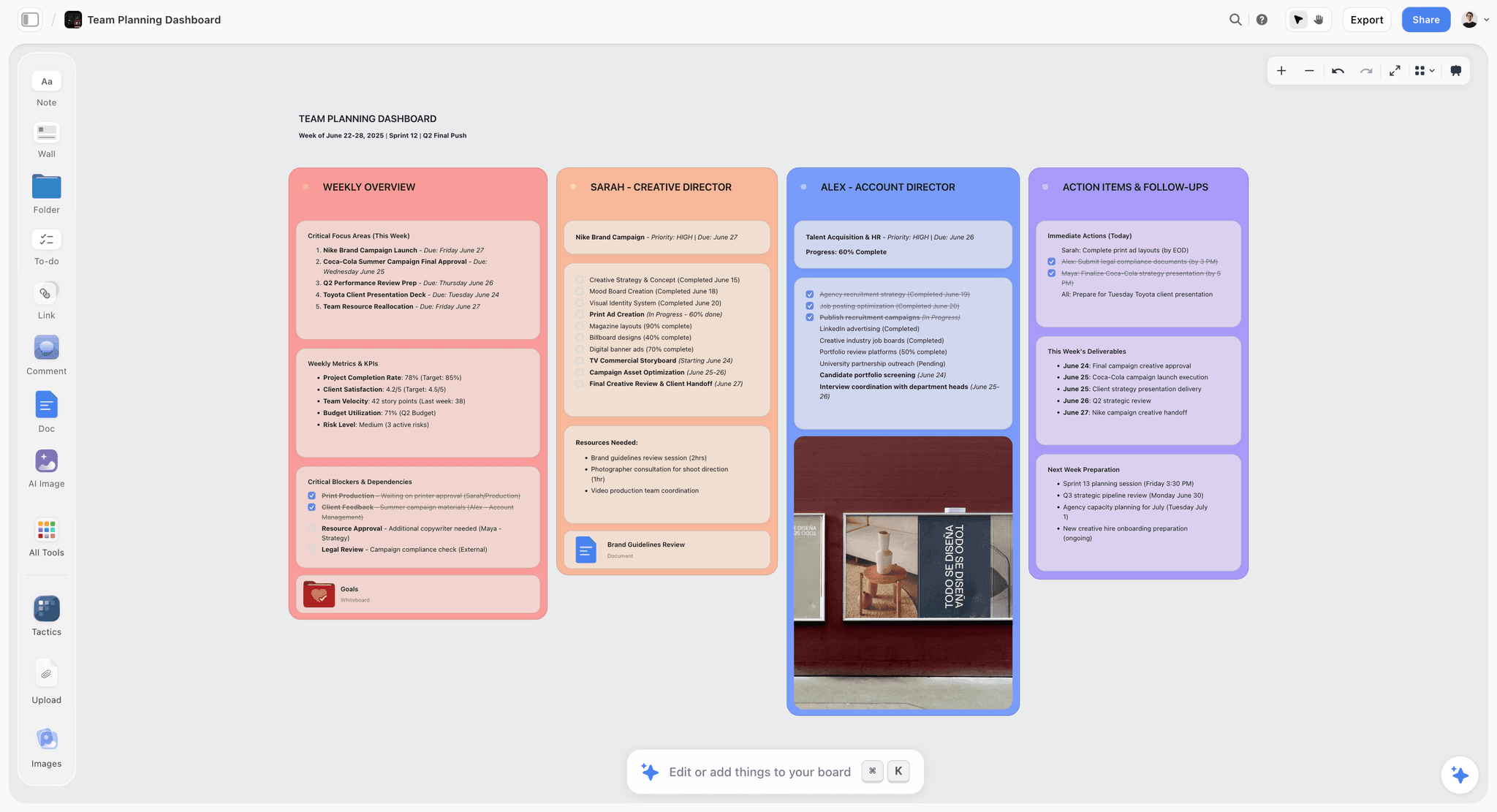
Storyflow team planner board with plan sections and tables on one canvas
See your next project on one board
Add the Storyflow MCP server to Claude or ChatGPT, paste a brief and ask for a board with goals, deliverables, a schedule, references and a deck. Keep Notion for the wiki.

The Four Tools Reviewed for Visual Planning With Claude or ChatGPT
Each review has the same shape: the verdict, who it is for, the price, why it ranks where it does, then strengths and limits.
1. Storyflow

Verdict: the one tool here where the plan, the references and the deck share a canvas that Claude or ChatGPT can both build and read.
Best for: founders, agency and studio leads, marketing and brand teams, producers and photographers who have a client, a campaign or a launch date on the other end of the plan.
Pricing: Plus $7.99 a month billed annually ($9.99 monthly), Pro $14 ($19 monthly, adds AI image generation), Max $39 ($49 monthly, adds a team workspace with roles and permissions). Storyflow is paid-only during early access; its Free plan launches before the end of 2026, and anyone a paid member invites to a board joins free now. See pricing.
Why it ranks first: Storyflow is a visual project planning workspace: an infinite canvas board that holds notes, tables, documents, images, moodboards, storyboards, mind maps, kanban, charts and slide decks. That mix is the point. A Notion plan splits into pages, a Miro plan is mostly shapes and stickies, and a Storyflow plan keeps a schedule table with date cells beside the reference images and the brief document it came from.
The MCP server is at https://mcp.storyflow.so/mcp and works with any assistant that can add a remote MCP server, including Claude, ChatGPT, Gemini, Grok, Claude Code and Cursor. The tool that does most of the work on a plan is build_section: one call builds a wall and the cards inside it, in order. A kanban is a row of column walls holding tickets, built the same way. Around it sit create_mindmap, create_chart, create_diagram, write_document_content for long text, and create_deck with add_deck_slides for a presentation. On the read side, get_board_summary and get_whiteboard_elements read the board, and get_board_changes reports what changed and who changed it over the last day, the last week or the last month.
Inside the app there is also a built-in AI agent that reads the current board plus up to five attached documents and up to three other boards, with planning workflows such as planner (which works back from a deadline), tasksPlanner and kanban. The connector does not spend Storyflow AI credits, because it runs on your assistant's model.
Strengths
- Free placement and zoom, with tables, documents, images and decks on the same board.
- One build_section call builds a whole section, so a plan with six sections is about six calls.
- Reads what changed and who changed it, in fixed windows of a day, a week or a month.
- Sign-in asks which projects the assistant may use and whether it may make changes; leave changes off and it is read-only.
- A view-only link opens with no account, so a client sees the plan without signing up.
Limitations
- Tables have date cells but no filters and no sorting; rows are kept in date order by you or the assistant.
- No calendar view, no dependency engine, no formal approval button.
- The connector cannot read comment threads and cannot generate images; pictures arrive through add_images from web addresses or an upload link.
- Browser only: no native apps and no offline mode.
- No free plan today.
Try it: connect it, paste a brief and ask for "a board with goals, deliverables, a dated schedule table, a kanban, risks and open questions, one section each".
2. Miro
Verdict: the strongest free canvas of the four and a capable MCP server, better for a workshop or a diagram than for a plan you run for six weeks.
Best for: teams that plan in live sessions with many people on the board at once, and anyone who needs a free canvas today.
Pricing: Free with three editable boards, Starter $8 and Business $20 per member a month billed annually, Enterprise custom, per Miro's pricing page.
Why it ranks second: Miro matches Storyflow on the surface and is the more established choice for large group sessions. Its MCP server works on every plan, including free teams, and has connectors or plugins for Claude, Claude Code, Cursor, ChatGPT, Codex and VS Code, per Miro's connection guide. The assistant builds through SVG: it loads a format spec, writes an SVG document, and canvas_create_from_svg turns it into board items. canvas_update_from_svg applies a new SVG as a diff, and canvas_read_as_svg reads the board back. Comment tools list, reply to and resolve threads.
It loses points on the planning part. The three table tools in Miro's tool list are marked as deprecating soon, so a list of deliverables with owners and dates tends to become sticky notes. There is no slide deck output and no dedicated change tool. Every tool call counts toward a daily allowance: 100 on Free, 500 on Starter, 2,000 on Business and 10,000 on Enterprise, resetting at 00:00 UTC, per Miro's limits page.
Strengths
- A mature infinite canvas with a free plan.
- One SVG document lays out a whole diagram, so big layouts take few calls.
- The best comment loop of the four: list, reply, resolve.
- A published daily quota, so you know the ceiling before you start.
Limitations
- Table tools are on the way out, which hurts task lists with owners and dates.
- No deck output and no dedicated change history.
- The connection is tied to one team; boards in another team need a new sign-in.
- Three editable boards on Free runs out quickly if each project gets its own board.
Try it: ask for "a project map with five phases as frames, the key tasks as sticky notes in each, and arrows for the two hand-offs that worry us".
3. Notion
Verdict: the best tracker and document home in this post, and the wrong shape for a plan you need to see whole.
Best for: teams whose work is mostly written or mostly tasks, and any team that already runs its wiki in Notion.
Pricing: Free, Plus $10 per member a month billed annually ($12 monthly), Business $20 ($24 monthly), Enterprise on request, per Notion's pricing page.
Why it ranks third: on structured tracking Notion scores a 10 and nothing else here is close. Its MCP server, hosted at https://mcp.notion.com/mcp per the getting started guide, lets an assistant create a database, fill it with rows and add board, timeline, calendar, gallery and chart views. Notion's help article names Claude, Cursor and ChatGPT among the apps that connect, and Claude lists Notion in its connector directory.
The score drops on the spatial criterion, which carries 25%. The assistant can make five views of your deliverables and still cannot put the hero image beside the concept, because no Notion layout stores a position. The help article is also clear on two things worth knowing before a team rollout: MCP tools act with your full Notion permissions, and MCP "works best for individual workflows".
Strengths
- Seven layouts over the same rows, with filters, sorts and typed properties.
- A deep MCP tool list, including views and comments.
- Long documents and tasks in one workspace.
- A real free plan.
Limitations
- No canvas, no free placement, no zoom.
- A gallery is a uniform grid; it is not a moodboard.
- No slide deck output from the MCP server.
- No dedicated change tool; filtering by editor or last-edited date needs Business or Enterprise.
Try it: ask for "a Deliverables database with owner, due date and status, a board view grouped by status and a timeline view by due date".
4. Milanote
Verdict: a calm, good-looking board for arranging references by hand, with no route in for an assistant.
Best for: solo creatives who want a moodboard or a simple project board, build it themselves and do not plan with Claude or ChatGPT.
Pricing: Free with 100 notes, images or links and 10 file uploads; $9.99 per person a month billed annually ($12.50 monthly); a team option at $49 a month billed annually, per Milanote's plans page.
Why it ranks fourth: on the surface alone Milanote scores an 8: you place things freely and the boards look good. It ranks last here because half the score is about what an assistant can do, and Milanote's plans page lists no AI features, no MCP server and no ChatGPT or Claude integration. We found no connector. Whatever Claude drafts for you, you paste in card by card. Remove the assistant criteria and Milanote moves ahead of Notion on this job.
Strengths
- Free placement with a clean, quiet interface.
- A free tier you can evaluate on a real project.
- Flat team pricing once a studio grows.
Limitations
- We found no connector for Claude, ChatGPT or any other assistant.
- No AI features listed on its plans page.
- Not a tracker: no typed dates, owners or status views.
- The 100-item free tier fills up on one image-heavy project.
Try it: build one moodboard by hand on the free tier and see how far 100 items takes you.
Notion MCP vs Storyflow MCP on the Same Plan
Scores are abstract. Here is the same plan sent to both servers, so you can see what each one produces. This is an illustrative example: the studio, the client and the numbers are invented, and the outputs describe what each server's documented tools build, not a timed benchmark.
The plan
A three-person brand studio has six weeks to relaunch a neighbourhood bike shop: a new identity, a one-day photo shoot, a small website refresh and a launch weekend. The brief is one page. There are 18 deliverables, about 20 reference images the client has already sent as links, a $12,000 budget and a client who wants to see the plan on Friday.
The prompt, the same in both cases: "Read this brief. Build a project plan with goals, the 18 deliverables with owner and due date, a week-by-week schedule counting back from the launch on 21 November, a place for the reference images, the budget, risks and open questions."
What Notion MCP builds
With Notion connected, the assistant creates a parent page with the goals, budget and risks as text. It creates a Deliverables database with 18 rows and typed properties for owner, due date and status, then adds a board view grouped by status and a timeline view by due date. It creates a References database and a gallery view, with one row per reference.
The result is structured and correct. You can filter the deliverables to one owner, and the timeline moves when a date changes. What you show the client on Friday is a page with links to two databases. The references are a grid on one page, the schedule is a timeline on another, and nothing shows the shoot day next to the images it has to produce.
What Storyflow MCP builds
With Storyflow connected, the assistant calls build_section for each part of the plan: Goals and audience, Deliverables (a table of 18 rows with owner and a date cell), Schedule (a table of six weekly rows kept in date order), Budget, Risks and Open questions. It builds a kanban as a row of column walls (To do, Doing, Review, Done) holding one ticket per deliverable. It places the reference images on the board with add_images, from the addresses the client sent, beside the Goals section.
The result is one board. Zoom out and the six sections, the kanban and the references are on one screen. Zoom in on the Schedule and the shoot day sits two sections away from the images that set its look. What you show the client on Friday is a view-only link to that board, or a deck built from it with create_deck.
The same plan, side by side
| Part of the plan | Notion MCP | Storyflow MCP |
|---|---|---|
Goals, budget, risks | Text on a parent page | One section each on the board |
18 deliverables | Database rows with typed properties | Table rows with owner and date cells, plus tickets |
Status view | Board view, grouped by status, filterable | Kanban: a row of column walls holding tickets |
Schedule | Timeline view of the same rows | Table of weekly rows, kept in date order |
References | Gallery grid on a separate page | Images placed on the board beside the plan |
Whole project on one screen | No | Yes |
Client view | Shared page | View-only link, or a deck on the board |
Filter to one owner | Yes | No |
Week three: what changed?
Three weeks in, the shoot has moved by two days and two deliverables have been reassigned. You ask the assistant what changed in the last week.
With Storyflow, get_board_changes answers from the board's own record: which elements changed and who changed them. With Notion, there is no dedicated change tool. On Business or Enterprise the assistant can filter by last-edited date and editor to find which rows were touched; on Free or Plus it reads the current state and compares it with whatever is still in the conversation.
Notion has the better answer to a different week-three question. Ask "show every deliverable due in the next seven days that is not done" and Notion returns a precise filtered list, because the dates and status are typed properties. On Storyflow the assistant reads the table and the tickets and works it out, which is fine at 18 rows and slower to trust at 180.
What the example shows
Neither output is wrong. Notion built a tracker. Storyflow built a plan you can see. If Friday's meeting is with a client who needs to understand the project in two minutes, the board wins. If Friday's meeting is a stand-up about who is late, the database wins. Count which kind of meeting your project has more of before you pick.
Prompts You Can Copy for a Visual Plan
These work in Claude or ChatGPT with the named tool connected. Replace the bracketed parts.
Prompts for building the plan
| Goal | Prompt |
|---|---|
Build the board (Storyflow) | Read the brief I pasted. In my project [name], build a board with one section each for goals, deliverables, schedule, budget, risks and open questions. Make deliverables a table with owner and due date. |
Add a kanban (Storyflow) | Add a kanban to the same board: four columns (To do, Doing, Review, Done) with one ticket per deliverable, each showing its owner and due date. |
Place references (Storyflow) | Add these image links to the board next to the Goals section, grouped under the headings Colour, Type and Photography: [links]. |
Build the tracker (Notion) | Create a Deliverables database under [page] with owner, due date and status. Add the 18 rows from the brief, a board view grouped by status and a timeline view by due date. |
Build the map (Miro) | On a new board, lay out five phases as frames left to right, with the key tasks as sticky notes in each and arrows for the hand-offs between phases. |
Prompts for the weekly check-in
| Goal | Prompt |
|---|---|
What moved (Storyflow) | What changed on the [project] board in the last week, and who changed it? List anything in the schedule table that now ends after the launch date. |
What is late (Notion) | Query the Deliverables database for rows due in the next seven days where status is not Done. Group them by owner. |
Open questions (Storyflow) | Read the Open questions section and the Risks section. Which questions block a deliverable due in the next two weeks? |
Comment round (Miro) | List the open comments on the [board] board and draft a reply to each. |
Prompts for the client meeting
| Goal | Prompt |
|---|---|
A deck from the plan (Storyflow) | Build an eight-slide deck on the board from what is already there: goal, audience, concept, deliverables, schedule, budget, risks, next steps. Do not invent anything that is not on the board. |
A one-paragraph status (any) | Summarise where this project stands in five sentences for a client who has two minutes. |
One rule for all of them: ask for one section at a time on a big plan. A single prompt that asks for everything gets generic cards. Six prompts that each ask for one section get cards you keep.
How to Connect Claude or ChatGPT to Your Plan
You do the setup once per assistant. The full walkthroughs are in how to connect Claude to your project board and how to connect ChatGPT to your project board.
Connect Claude
For Storyflow: open Customize, then Connectors, choose Add, then Add custom connector. Name it Storyflow, paste https://mcp.storyflow.so/mcp, choose Continue, then Sign in now, then Add, and sign in to Storyflow. Claude's support article says custom connectors are available on Free, Pro, Max, Team and Enterprise, and that Free users are limited to one custom connector.
For Notion and Miro, look in Claude's connector directory first: Notion is listed there, and Miro's connection guide recommends its Claude connector.
Connect ChatGPT
You need ChatGPT Plus or above with Developer mode. On the web, open Settings, then Security and login, and turn Developer mode on (on Business and Enterprise, an admin does this). Go to chatgpt.com/plugins, press the plus button, name the connector Storyflow, choose Public endpoint, paste https://mcp.storyflow.so/mcp, create it and sign in.
Choose the permissions at sign-in
Storyflow's sign-in asks three things: which projects the assistant may use (all, or the ones you pick), whether it may make changes (otherwise it is read-only), and whether it may use documents outside projects. For a first run, pick one project and allow changes. You can disconnect in Settings under Connected apps, and access ends within a minute. Connections expire after 30 days and you sign in again.
Notion's model is different: its help article says MCP tools act with your full Notion permissions in the workspace you connect. Miro's connection is tied to the team you select at sign-in.
Use two connectors in one conversation
Nothing stops you connecting Notion and Storyflow to the same assistant. A prompt such as "read the client brief page in Notion and build the plan on my Storyflow board" uses each server for what it is good at, and it is the basis of the hybrid setup below.
What It Costs a Team of Three
Prices below are per month on annual billing, from each vendor's own page on 2026-10-10. The assistant column assumes one person runs the planning from Claude Pro, which Claude's pricing page lists at $17 a month on annual billing ($20 monthly). We could not load OpenAI's pricing page, so check ChatGPT's current prices there.
| Setup | Tool cost for three | Assistant | Total a month |
|---|---|---|---|
Storyflow Plus (one planner, two invited collaborators) | $7.99 | Claude Pro $17 | $24.99 |
Storyflow Max (team workspace with roles) | $39 | Claude Pro $17 | $56 |
Miro Starter | 3 x $8 = $24 | Claude Pro $17 | $41 |
Notion Plus | 3 x $10 = $30 | Claude Pro $17 | $47 |
Notion Business (includes Notion Agent) | 3 x $20 = $60 | Claude Pro $17 | $77 |
Milanote, per person | 3 x $9.99 = $29.97 | No connector found | $29.97 |
Notion Plus and Storyflow Plus together | $30 + $7.99 = $37.99 | Claude Pro $17 | $54.99 |
How to read the Storyflow rows
Storyflow has no per-user pricing. One paid member invites the others to a board, and they join free today and edit in real time. An invited free account gets 25 MCP actions a week (every read and every change counts as one, reset on Monday UTC), which is enough to build a board, and not enough to run a project from the assistant every day. Paid plans have no MCP limit. If the studio needs a team workspace with roles and permissions, that is Max at $39.
The free routes
Notion and Miro both have free plans, and both MCP servers work on them. Miro Free gives you three editable boards and 100 MCP tool calls a day. Milanote Free gives you 100 items and 10 file uploads. Storyflow has no free plan today, so if the budget is zero, start on Miro Free and revisit when Storyflow's Free plan launches before the end of 2026.
Decision Rules: Keep Notion, Add a Board, or Move
Pick the rule that matches your next project, not your whole company.
Keep Notion alone if
- Your plan is a task list more than a picture: many rows, few images.
- You filter and sort the plan every day by owner, date or status.
- Nobody outside the team needs to look at it.
Add a Storyflow board beside Notion if
- A client, a founder or a stakeholder has to understand the project at a glance.
- The plan depends on visual material: references, moodboards, storyboards, layouts.
- You draft plans in Claude or ChatGPT and are tired of pasting them into pages.
Move the planning to Storyflow if
- Your Notion setup has become a maintenance job and half the pages are stale.
- Each project is short (two to ten weeks) and has its own brief, references and deliverables.
- Your tracking needs fit in a table and a kanban.
Choose Miro if
- The plan is made in a live workshop with a large group.
- You need a free canvas with an MCP server today.
- The output is a diagram or a map more than a schedule.
Choose Milanote if
- You work alone, by hand, on moodboards and loose project boards.
- You do not use an AI assistant for planning and do not intend to.
If you only remember one rule
Ask who the plan is for. If it is for the person doing the tasks, a database is enough. If it is for someone who has to say yes to the project, they need to see it, and a database view is not seeing it.
The Setup That Keeps Notion and Adds a Visual Plan
Many teams who ask this question do not want to migrate. They want the plan to stop being a scroll. This setup keeps everything Notion does well.
Step 1: Leave the wiki and the long-lived databases where they are
Client records, the content archive, the meeting notes and the company wiki stay in Notion. They are records. Records want structure, search and history.
Step 2: Give each project one board
Create one Storyflow project per client project. Ask the assistant to read the brief (from Notion, if both are connected) and build the board: goals, deliverables, schedule, references, risks, open questions.
Step 3: Decide where status lives, once
Pick one home for task status and say it out loud. For a three-person project, the kanban on the board is enough. For a team that already reports from a Notion database, keep status in Notion and treat the board's deliverables table as the plan of record for scope and dates, refreshed weekly.
Step 4: Run the weekly check-in from the assistant
Every Monday, ask what changed on the board in the last week and which Notion rows are due in the next seven days. Two questions, two servers, one answer you can paste into the client update.
Step 5: Share the board, not the workspace
Send the client the view-only link. It opens with no account. If they want to comment, they sign in. Your Notion workspace stays internal.
For a longer version of the move, including what to leave behind, see how to migrate from Notion to a visual workspace and the Notion maintenance tax.
Common Mistakes When You Plan Visually With an Assistant
These six mistakes apply whichever tool you pick.
Mistake 1: Calling a board view a visual plan
A Notion board grouped by status is a status report. It tells you what is in progress. It does not tell you how the project fits together. If the client still asks "so what is the plan?", you have a tracker, not a plan.
Mistake 2: Leaving the plan in the chat
A plan that lives in a Claude or ChatGPT thread is invisible to everyone else and gets harder to find every day. The chat is where you draft. Something with a link is where the plan lives.
Mistake 3: Asking for the whole plan in one prompt
One giant prompt produces generic cards and uses up the conversation. Build one section, read it, correct it, then build the next.
Mistake 4: Rebuilding a database on a canvas
If you have 300 rows that you filter every day, do not move them to a board. Canvases are for the 20 things that matter this month, not the 300 that exist.
Mistake 5: Keeping status in two places
Two kanbans, one in each tool, will disagree by Wednesday. Choose one, and let the other show scope and dates.
Mistake 6: Giving the connector everything
Connect one project first, not the whole account. On Notion, remember the connection acts with your full permissions, so think about what your own account can reach before a team rollout.
When Storyflow Is Not the Right Choice
Storyflow is our product, so here is where we would send you elsewhere.
- Your plan is mostly rows. If you filter and sort hundreds of tasks daily, stay in Notion. Storyflow tables have date cells and no filters or sorting.
- You need a calendar view or a timeline view. Storyflow has neither. Dates live in table cells, tickets and kanban, and moving one date does not move the rows after it.
- You need a wiki. A board is a poor home for 400 pages of documentation. Notion is a good one.
- You run planning as a large live workshop. Miro is built for that session.
- You need a free tool today. Storyflow is paid-only during early access. Notion Free and Miro Free are real free plans.
- You need the assistant to read comment threads. The Storyflow connector cannot. Notion's and Miro's servers both have comment tools.
- You need native apps or offline work. Storyflow runs in the browser only.
- You need formal approvals, invoicing or scheduling of posts. Storyflow does none of these.
A Visual Plan Template You Can Copy
Use this as the layout for any two-to-ten-week creative project. It is the board the prompts above build.
The six sections, left to right
| Section | What goes in it | Format |
|---|---|---|
Goals and audience | The outcome, the audience, the one sentence the client approved | Notes and the brief as a document |
References | Images grouped under three or four headings | Images placed by hand or with add_images |
Deliverables | Every output with owner and due date | Table with a date cell |
Schedule | One row per week, counting back from the end date | Table kept in date order |
Budget and risks | Line items, and each risk with an owner | Two short tables |
Open questions | What you need from the client, and by when | Notes |
The kanban underneath
Four columns: To do, Doing, Review, Done. One ticket per deliverable, with owner and due date on the ticket. Keep it under the six sections so the plan reads top to bottom: why, what, when, then where each piece stands.
The deliverables table columns
Deliverable, owner, due date, format, status note. Five columns is enough. If you need a sixth, it is usually "depends on", which is your hint that a dependency belongs in the Risks section as a sentence.
The deck outline
Eight slides, built from the board: goal, audience, concept, deliverables, schedule, budget, risks, next steps. Build it on the board so it sits next to the plan it summarises, update the slides when the plan changes, and present it fullscreen from the board.
The Notion half, if you keep it
One Deliverables database with owner, due date and status. One board view grouped by status, one timeline view by due date. A link to the Storyflow board at the top of the project page, so the picture is one click from the rows.
The Bottom Line
Notion is a very good database with very good documents, and that makes it a good tracker and a weak picture. If the question is "is Notion good for visual project planning", the honest answer is that it is good for views of your plan and not for the plan as a visual thing.
The something better is Storyflow, and the gap is widest if you already plan with Claude or ChatGPT: connect the Storyflow MCP server, paste the brief, and the assistant builds a board with the goals, the deliverables, the schedule, the references and a deck, then reads it back each week to tell you what moved. Miro is the right call for workshops and for a free canvas, and Milanote for hand-built boards.
You do not have to leave Notion to get there. Keep the wiki and the databases, give the next project one board, and see which one the client asks to look at.
FAQ: Notion and Visual Project Planning With AI Assistants
Is Notion good for visual project planning?
Partly. Notion is good at views generated from a database: board, timeline, calendar, gallery and chart layouts of the same rows. It is weak at spatial planning, because it has no canvas, no free placement and no zoom. For a plan you need to see whole, with references beside the schedule, Storyflow is the better tool. Keep Notion for documents and tracking.
What is better than Notion for visual project planning?
Storyflow is better than Notion for visual project planning. It is an infinite canvas board that holds the brief, references, tables, kanban and slide decks together, and Claude or ChatGPT can build and read it through its MCP server. Miro is the alternative for live workshops, and Milanote for hand-built moodboards with no AI.
Does Notion have a whiteboard or canvas?
No. Notion's views help page lists seven database layouts (table, board, timeline, calendar, list, gallery and chart) and does not mention a canvas or a whiteboard. Every layout orders or groups items for you. None of them stores a position, so you cannot place two things side by side because they belong together.
Can Claude or ChatGPT build a plan in Notion?
Yes. Notion's MCP server lets a connected assistant create pages, databases and views, including board, timeline, calendar, gallery and chart views, and read and write comments. Notion's help article names Claude, Cursor and ChatGPT among the apps that connect. What the assistant builds is pages and rows, which is right for a tracker and not a spatial layout.
Can Claude or ChatGPT build a visual plan on a board?
Yes, with a board tool that has an MCP server. With Storyflow connected, the assistant builds sections, tables, kanban columns of tickets, mind maps, documents and decks on a board. With Miro connected, it writes an SVG document that becomes board items. We found no connector for Milanote, so there the assistant cannot build anything.
What is the difference between Notion MCP and Storyflow MCP?
Notion MCP writes pages, databases and views; Storyflow MCP writes a board. Notion's server is deeper on structured data and has comment tools. Storyflow's server builds a whole section in one call, creates slide decks, and has a dedicated tool that reports what changed on a board in the last day, week or month and who changed it.
Is Miro better than Notion for project planning?
For the visual part, yes. Miro has an infinite canvas with free placement and zoom, a free plan and an MCP server on every plan. For tracking, no: Notion's typed properties, filters and seven layouts are stronger, and Miro's MCP table tools are marked as deprecating soon. A common split is to sketch in Miro and track in Notion.
Is Milanote better than Notion for visual planning?
For arranging references by hand, yes, because Milanote lets you place notes and images freely and Notion does not. For planning with an assistant, no: Milanote's plans page lists no AI features and we found no connector for Claude or ChatGPT. Its free tier holds 100 notes, images or links and 10 file uploads.
Does Storyflow replace Notion?
Not for everything. Storyflow replaces Notion for the project plan: the brief, references, schedule, kanban and deck on one board. It does not replace a wiki or a database you filter and sort every day, because its tables have no filters or sorting. A workable split is Notion for records and a Storyflow board per project.
Can I use Notion and Storyflow together?
Yes. Connect both to the same assistant and ask it to read a brief page in Notion and build the plan on a Storyflow board. Keep the wiki and any long-lived databases in Notion, give each project one board, and decide once whether status lives in the Notion database or the board's kanban so the two never disagree.
How much does Notion cost compared with Storyflow?
Notion Plus is $10 per member a month billed annually ($12 monthly) and Business is $20 ($24 monthly), with a free plan. Storyflow has no per-user pricing: Plus is $7.99 a month billed annually ($9.99 monthly), Pro $14 and Max $39, and people a paid member invites join free. Storyflow is paid-only during early access.
Is Storyflow free?
Not during early access. Storyflow is paid-only today, from $7.99 a month billed annually, and its Free plan launches before the end of 2026. Anyone a paid member invites to a board joins free now and gets 25 connector actions a week. If you need a free canvas today, Miro and Notion both have free plans.
Can the assistant tell me what changed on my plan?
On Storyflow, yes: the connector reads what changed on a board and who changed it over the last day, the last week or the last month. Notion and Miro have no dedicated change tool. On Notion Business or Enterprise the assistant can filter by last-edited date and editor, which shows which rows were touched.
Does Notion's gallery view work as a moodboard?
Only as a catalogue. Gallery view shows each row as an image card using the page cover, the first block or a file property, and you can reorder the cards. Every card is the same size and sits in a grid, so you cannot cluster, overlap or scale images, which is what makes a moodboard read as a direction.
Which tool should a small creative team pick if it can only pay for one?
Pick by what the plan is for. If a client or stakeholder has to see and approve the project, pick Storyflow, because the plan, the references and the deck share one board. If the plan is mainly tasks for the team, pick Notion. If the budget is zero, start on Miro Free or Notion Free.
Do I need Notion AI to use Notion with Claude or ChatGPT?
No for the core tools. Creating and updating pages, databases and views works without it. Notion's tool list says AI search across connected sources needs Business or Enterprise with Notion AI, and some search filters and multi-source queries are also limited to those plans. Standard API request limits apply to every tool call.
Does the Storyflow connector use my Storyflow AI credits?
No. The connector runs on your assistant's own model, inside your Claude or ChatGPT plan, so it does not spend Storyflow AI credits. Paid Storyflow plans have no connector limit. A free invited account gets 25 actions a week, where every read and every change counts as one, reset on Monday UTC.
Table of Contents
- Key Takeaways
- The Short Answer, in Two Halves
- What "Visual" Means When an Assistant Does the Building
- What Notion Is Good At
- Where Notion Stops Being Visual
- How We Scored Visual Project Planning With an AI Assistant
- Notion vs Storyflow vs Miro vs Milanote: Visual Project Planning Compared
- The Four Tools Reviewed for Visual Planning With Claude or ChatGPT
- 1. Storyflow
- 2. Miro
- 3. Notion
- 4. Milanote
- Notion MCP vs Storyflow MCP on the Same Plan
- Prompts You Can Copy for a Visual Plan
- How to Connect Claude or ChatGPT to Your Plan
- What It Costs a Team of Three
- Decision Rules: Keep Notion, Add a Board, or Move
- The Setup That Keeps Notion and Adds a Visual Plan
- Common Mistakes When You Plan Visually With an Assistant
- When Storyflow Is Not the Right Choice
- A Visual Plan Template You Can Copy
- The Bottom Line
- FAQ: Notion and Visual Project Planning With AI Assistants
- Related Reading
Templates to check out for this topic


Workspace templates you can use in Storyflow
Keep research, notes, and plans on one canvas the AI can read, instead of scattered across docs and tabs. Open a template and make it your second brain.


See Storyflow in Action
A visual AI workspace where every feature lives inside one canvas. No tab-switching, no context lost.
Build your entire board from a single message
Type what you need in the AI chat at the bottom of your canvas. The AI adds cards, headings, and structure directly onto your board.
Use expert frameworks as AI context
Type @ in the AI chat and choose any Tactic. The AI tailors every response to that framework instead of giving generic advice.
Turn your board into a mind map in seconds
Ask the AI to restructure your canvas as a mindmap. It connects your ideas into a visual hierarchy so you can see how everything relates.
Why Storyflow Exists
Storyflow actually began as a personal tool while working on creative and research projects.
We kept running into the same problem: ideas were scattered everywhere: notes, documents, and whiteboards.
Nothing helped us see how everything connected.
So we started building a workspace designed around how ideas actually grow.
→ Read how Storyflow was createdStoryflow Team
Product & Research Team
Published: 2026-10-10
Extremely simple, seriously capable


See how easy it is to get started
Watch a real project come together, from a blank board to a finished plan, clicked through step by step.
Start creating with AI and become more productive
Transform your creative workflow with AI-powered tools. Generate ideas, create content, and boost your productivity in minutes instead of hours.