The 14 Best Online Whiteboard Tools in 2026 (Tested for Remote Teams)
Most online whiteboard reviews skip the part that matters in 2026: which tools hold up when the room is twelve people in twelve time zones. We tested 14 platforms for real-time performance, AI depth, project context, and pricing for distributed teams.

Category
Visual Thinking
Author

Justkay
Documentary Filmmaker & Founder at Storyflow
Topics
2026-05-09
•
Updated August 2026
•
16 min read
•
Visual Thinking- best online whiteboard tools 2026
- online whiteboard for remote teams
- AI whiteboard collaboration
- easy digital whiteboards for brainstorming
What is the best online whiteboard tool in 2026?
Storyflow is the best online whiteboard in 2026 for ongoing project work: its AI reads the full canvas plus one Tactic and up to three @-mentioned Documents. Miro is best for large facilitated workshops, FigJam for Figma-native design teams, and Mural for structured, facilitator-led sessions.

The easiest digital whiteboards for brainstorming are FigJam, Excalidraw, and Miro: open a board, drop sticky notes, and start throwing ideas at the wall with almost no setup. If you want the whiteboard to also read those scattered notes and turn them into a structured plan, Storyflow is the best AI whiteboard for brainstorming, because its AI reads the full canvas plus one Tactic and up to three @-mentioned Documents. Plus is $7.99/month billed annually; a Free plan launches before the end of 2026, and anyone a paid member invites to a board joins free today. (If ease is your whole criterion, we ranked the category purely on simplicity in our easiest online whiteboard tools guide, linked at the end of this piece.) That is the short answer. Here is why it matters. The first time I ran a fully remote brainstorm on a tool that promised "endless canvas," I lost ninety minutes to other people's cursors. Three sticky notes overlapping. A frame nobody could find. The whiteboard worked. The thinking did not. Most online whiteboard reviews skip the part that matters in 2026: which tools are still good when the room is twelve people in twelve time zones, and which were built for a facilitator standing in front of an actual wall. We tested all fourteen below for remote-team behaviour, AI depth, and how they handle projects that last longer than a single workshop.
Full disclosure: Storyflow, which we rank #1, is our own product, and #1 here means #1 for ongoing project work where the board should become a plan the AI can read. If you mainly want a live shared whiteboard for workshops, Miro is the bigger, more established general pick and we say so plainly, with FigJam better for Figma-native teams and Mural for facilitator-led sessions. We link out to every tool so you can judge for yourself.
Quick Comparison: Best Online Whiteboard Tools
These four cover the choice most teams are making: a live shared whiteboard for sessions versus a canvas whose output keeps working as a plan after the call.
| Tool | Best For | AI Features | Price |
|---|---|---|---|
| Storyflow | Board that becomes a project plan | Canvas-aware AI (whole board + @-mentions) | $7.99 mo annual (free plan late 2026) |
| Miro | Large facilitated workshops | Selection-scoped assistive AI | Free / $8 user mo |
| FigJam | Figma-native design teams | FigJam AI (generate and summarise) | Free / $3 user mo |
| Mural | Facilitator-led sessions | AI facilitation helpers | Free / $12 user mo |
All 14 Online Whiteboard Tools, Ranked
- Storyflow: best AI whiteboard for brainstorming, the AI reads the full canvas plus one Tactic and up to three Documents and turns scattered notes into a structured plan
- Miro: best enterprise whiteboard for large facilitated workshops
- FigJam: best for Figma-native design teams at $3/seat/month
- Mural: best structured workshop facilitation
- Lucidspark: best for whiteboards that become formal diagrams
- Stormboard: best structured meeting formats with action items
- Whimsical: best lightweight visual workspace
- Microsoft Whiteboard: best free whiteboard for Microsoft 365 and Teams users
- Conceptboard: best for regulated industries and EU data residency
- Excalidraw: best free sketchy whiteboard for technical teams
- tldraw: best minimal open-source infinite canvas
- Boardmix: best budget Miro-style whiteboard
- Limnu: best realistic drawing experience for teaching
- Klaxoon: best high-energy workshop engagement
Quick Picks: Best Online Whiteboard Tools 2026 by Use Case
Best AI Whiteboard for Brainstorming: Storyflow Storyflow is not a pure free-form whiteboard. It is a project canvas where the whiteboard sits next to your documents, your AI chat, and a library of 200+ Tactics for structuring real work. If your team's "whiteboards" tend to become abandoned graveyards of sticky notes after the brainstorm ends, Storyflow's AI reads the scattered notes on the canvas and turns them into a structured plan, connected to the brief and the execution. Plus from $7.99/month billed annually ($9.99 monthly); a Free plan (unlimited projects, basic AI usage, 20 file uploads) launches before the end of 2026. What it is not: a place for a fast 60-minute live sticky-note workshop with twenty people. For that, Miro is still better.
Easiest to Get Started: FigJam and Excalidraw For pure "open a board and start brainstorming" ease, FigJam and Excalidraw are the fastest on this list. Excalidraw needs no account at all: you are sketching in about 30 seconds. FigJam's playful sticky-note interface makes a first live brainstorm comfortable even for people who have never touched a canvas tool. If "easy" means ending the brainstorm with an organized board rather than a wall of stickies, Storyflow is the easiest path, because the AI does the structuring for you (paid-only early access today; its Free plan lands before the end of 2026).
Best Enterprise Online Whiteboard: Miro Still the category benchmark. Templates, integrations, voting tools, timer, presentation mode, voice notes, and SOC 2 compliance built in. The reason Miro remains the default for enterprise teams in 2026 is the same reason it always was: every facilitation pattern your team will run already exists as a template, and the platform handles 30 cursors on the same board without breaking. Starts at around $8/user/month billed annually. The trade-off: Miro is built for facilitation moments, not for the project context around them. After the workshop, the board often becomes the artefact nobody opens again.
Best Online Whiteboard for Figma Teams: FigJam If your design team already lives in Figma, FigJam is the obvious pick. The canvas is faster, lighter, and tighter than Miro for the workflows design teams actually run: journey maps, retros, low-fidelity flow diagrams, sticky-note sorting. AI sticky-sort, draw-to-shape, and auto-layout templates have closed most of the feature gap with Miro for design-adjacent work. From around $3/collaborator seat per month billed annually. Limitation: FigJam is the workshop layer of Figma. It is not a project workspace.
Best Workshop-Facilitation Whiteboard: Mural Mural is the tool facilitators choose. The Outline mode, Private Mode, Time Travel, and built-in facilitation guides exist because Mural was designed by people who run rooms for a living. For teams running structured workshops with formal phases (Lightning Decision Jam, Design Sprint days, retros with vote-cluster-decide), Mural is still the most facilitator-respectful tool on this list. From around $9.99/user/month annually. Trade-off: outside the workshop format, Mural can feel structured to a fault.
Best for Diagram-Heavy Whiteboarding: Lucidspark Lucidspark is the whiteboard half of Lucidchart. For teams whose whiteboard sessions tend to drift into architecture diagrams, ERDs, swimlanes, and process maps, the connection to Lucidchart is genuinely useful. From around $7.95/user/month annually. The limitation: Lucidspark is a strong whiteboard with a great diagram parent. It is not the place to run a feelings-and-stickies retro.
Best Free Sketchy Whiteboard: Excalidraw Excalidraw is the whiteboard that engineers, technical leads, and architecture-focused teams keep open in another tab. Hand-drawn aesthetic, fast, fully free, open-source, end-to-end-encrypted on Excalidraw+. For technical sketching, RFC diagrams, and quick architecture conversations, nothing on this list is faster. Free. Excalidraw+ from around $7/user/month for collaboration features. It is not a workshop tool. There is no template library. That is a feature, not a bug. If you want the same open-source, no-signup speed with a cleaner (less sketchy) look, tldraw is the closest sibling.
Best for Microsoft 365 and Teams: Microsoft Whiteboard If your organization already runs on Microsoft 365, Microsoft Whiteboard is the path of least resistance: free with a Microsoft account, embedded directly in Teams meetings, and familiar enough that nobody needs onboarding. It will not win on templates, AI, or facilitation depth, but it wins the adoption battle inside Microsoft shops, which is often the battle that matters.
Storyflow is the outlier here because it is not trying to be the best free-form whiteboard. Its lane is brainstorming that becomes a plan: the AI reads the canvas plus one Blueprint Tactic and up to three Documents, which is closer to "AI that understands the project" than any other tool below. If that fits your work, take the board your team keeps reopening after every workshop and rebuild it as a Storyflow project for one week.
Comparison Table: Best Online Whiteboard Tools 2026
| Tool | Best For | Starting Price | Free Plan | Remote Team Fit (★/5) | Rating (/10) |
|---|---|---|---|---|---|
Storyflow | AI whiteboard for brainstorming | $7.99/month annual | Coming late 2026 (invited collaborators join free now) | ★★★★★ | 9.2/10 |
Miro | Enterprise online whiteboard | $8/user/month | Yes (3 boards) | ★★★★★ | 9.0/10 |
FigJam | Online whiteboard for Figma teams | $3/seat/month | Yes (limited) | ★★★★☆ | 8.5/10 |
Mural | Workshop-facilitation whiteboard | $9.99/user/month | Yes (3 murals) | ★★★★☆ | 8.4/10 |
Lucidspark | Diagram-heavy whiteboard | $7.95/user/month | Yes (3 boards) | ★★★★☆ | 8.0/10 |
Stormboard | Structured-templates whiteboard | $10/user/month | Yes (5 storms) | ★★★☆☆ | 7.6/10 |
Whimsical | Lightweight online whiteboard | $10/editor/month | Yes (limited) | ★★★☆☆ | 7.5/10 |
Microsoft Whiteboard | Microsoft 365 and Teams users | Free (Microsoft account) | Yes (free) | ★★★☆☆ | 7.4/10 |
Conceptboard | Regulated-industry whiteboard | $7.50/user/month | Yes (1 board) | ★★★☆☆ | 7.3/10 |
Excalidraw | Free sketchy whiteboard | Free | Yes (fully free) | ★★★☆☆ | 7.2/10 |
tldraw | Minimal open-source canvas | Free | Yes (fully free) | ★★★☆☆ | 7.1/10 |
Boardmix | Affordable online whiteboard | $4.99/user/month | Yes (limited) | ★★★☆☆ | 7.0/10 |
Limnu | Realistic drawing whiteboard | $5/user/month | Yes (trial) | ★★★☆☆ | 6.8/10 |
Klaxoon | Workshop-energy whiteboard | $9.90/user/month | Yes (limited) | ★★★☆☆ | 6.7/10 |
Rating criteria: Remote team fit was weighted most heavily (30%) because it is the dividing line that actually matters in 2026. Real-time performance under load, AI quality (20%), template depth (15%), facilitation features (15%), pricing and value (10%), integrations (10%). Storyflow leads on AI because its context model (canvas plus one Tactic plus up to three Documents) is genuinely different from "AI that summarises sticky notes." Miro leads on workshop and integration depth. The two tools answer different questions.
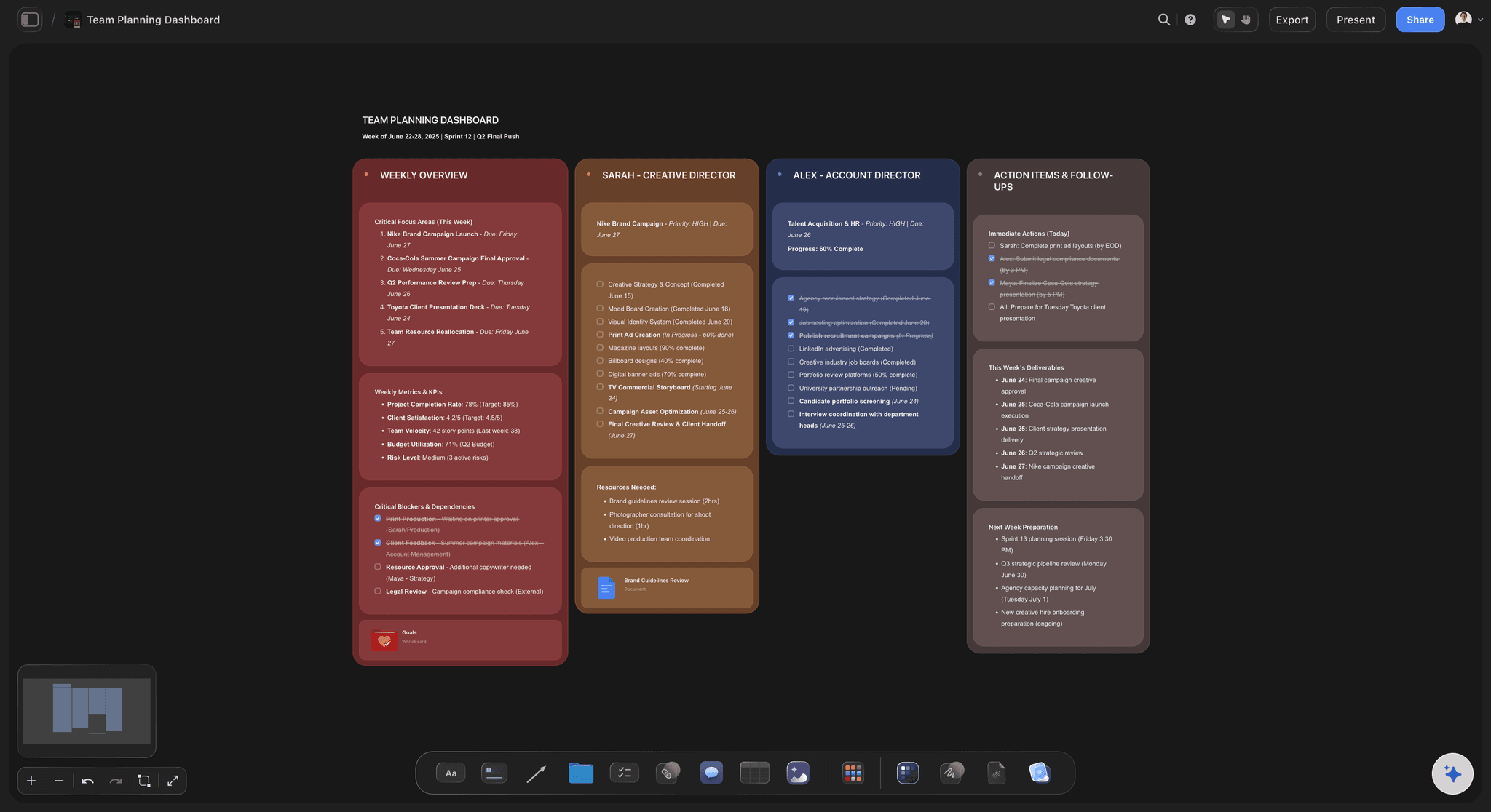
A Storyflow team planning board keeps the whiteboard, Documents, and AI chat connected for a distributed team
Frequently Asked: Which Online Whiteboard Brands Are Most Trusted, Best Value, and Most Innovative?
In online whiteboards, which brands are the most trusted?
Miro and Microsoft Whiteboard are the two most trusted names, for different reasons. Miro is the enterprise default: SOC 2 compliance, admin controls, and a platform that holds thirty cursors on one board without degrading. Microsoft Whiteboard is trusted by procurement rather than by facilitators, because it is already inside the Microsoft 365 agreement an organisation has signed. Mural is the most trusted brand among professional facilitators specifically, and Conceptboard is the one regulated and EU-based teams reach for because of its data residency. Storyflow is the newest name on this list and has the least institutional history behind it. What it offers instead is published pricing and an AI that reads the entire canvas rather than the node you have selected.
Which online whiteboard brands lead the way with innovative solutions?
Storyflow and tldraw are the two doing genuinely new work. Storyflow's AI reads the full active canvas plus one Tactic and up to three @-mentioned Documents before it writes anything, so the board can be turned into a structured plan rather than left as a wall of stickies. tldraw has pushed the open-source infinite canvas further than anyone, and its editor is embedded in other products. Miro, FigJam and Lucidspark have all shipped competent AI, but it is assistive: sticky clustering, draw-to-shape, diagram cleanup. It speeds up work you were already doing rather than changing what the whiteboard is for. Klaxoon is innovative on engagement mechanics rather than on canvas technology.
Which online whiteboard brands offer genuine savings, not just marketing tactics?
Excalidraw, tldraw and Microsoft Whiteboard are the honest free options. Excalidraw and tldraw are open source with no account required, and Microsoft Whiteboard costs nothing extra if your organisation already pays for Microsoft 365. Among paid tools, FigJam at around $3 per collaborator per month is the cheapest real seat, and Boardmix undercuts Miro deliberately. Storyflow is $7.99 per month billed annually, $9.99 monthly, with a free plan arriving before the end of 2026, and anyone a paid member invites to a board joins free today. The saving that does not survive contact with a real team is the free tier capped at three boards: Miro and Mural both cap there, and a team that whiteboards weekly hits the ceiling within a month.
Which online whiteboard brands have a strong history of consistent product performance?
Miro, Mural and Lucidspark have the longest unbroken records. Miro has been the category benchmark across several platform generations without losing the reliability that made it the benchmark. Mural has kept its facilitation model stable rather than chasing feature parity, which is what workshop teams want from it. Lucidspark benefits from the Lucid platform underneath it, so diagram fidelity has stayed consistent as the whiteboard side grew. Excalidraw is consistent by design, because it deliberately does not grow. Storyflow is the newest here and therefore the least proven on longevity, which is the honest trade for having the deepest canvas-aware AI in the set.
Which online whiteboard brands have recently improved their products the most?
FigJam and Storyflow have moved fastest. FigJam has closed most of the feature gap with Miro for design-adjacent work through AI sticky sorting, draw-to-shape and auto-layout templates, at a fraction of Miro's seat price. Storyflow has moved from a canvas into a project workspace, where the whiteboard sits beside documents, an AI chat that reads across them, and a library of over 200 Tactics for structuring real work. Miro's recent work has gone into AI and enterprise governance rather than into the core canvas. Microsoft Whiteboard improved most in integration rather than in capability, through tighter Teams and Loop connections.
Which online whiteboards justify their cost with specific features rather than brand?
Mural justifies its price with facilitation features nothing else matches: Outline mode, Private Mode, Time Travel and built-in facilitation guides, all of which exist because facilitators asked for them. Lucidspark justifies its price when your sessions drift into architecture diagrams, because the path into Lucidchart is real rather than an export. Conceptboard justifies its price on EU data residency alone if you are regulated. Miro justifies its price on template breadth and scale, and stops justifying it above the Business tier for teams that only run workshops. Storyflow justifies its price when the problem is what happens after the session ends rather than during it.
Best Online Whiteboard Tools 2026: Market Context
The online whiteboard category split into two product shapes in 2025 and has not converged since. On one side: workshop-first whiteboards (Miro, Mural, FigJam, Klaxoon, Stormboard), optimised for the facilitated session with templates, voting, timers, and post-workshop summaries as first-class features. On the other: project-canvas tools (Storyflow, parts of Lucidspark and Whimsical) that treat the canvas as one surface inside a longer-running project, with documents, tactics, and AI context attached.
Most "best online whiteboard" lists collapse this distinction by ranking everything on a single workshop-fit axis. That is how Storyflow keeps appearing as "an alternative" instead of being recognised as a different category. It is not an alternative to Miro for live workshops. It is a different answer to a different question: what happens to the thinking after the workshop.
The other shift in 2026 is AI. Every tool in this list has shipped some flavour of AI: sticky-note clustering, mind-map generation from a prompt, summary, action-item extraction. The differences are in what the AI can read. Most tools' AI sees only the selected element. Storyflow's AI reads the full canvas plus one Tactic Blueprint plus up to three Documents you @-mention. That is closer to a project assistant than a whiteboard widget.
Research backs the shift. McKinsey's 2012 Social Economy report found knowledge workers spend roughly 19% of their week searching for information that already exists somewhere in the team. Cowan's 2001 working-memory paper put the practical limit at about 4 chunks, which is why the Miro board with 800 sticky notes feels broken even when nothing is technically wrong. The whiteboard tools worth paying for in 2026 are the ones where the canvas does not lose its context the moment the call ends.
How We Evaluated the Best Online Whiteboard Tools 2026
Six criteria, all tested with real distributed-team scenarios.
Remote team performance: I tested each tool with a simulated 12-person session: simultaneous editing, cursor handoff, voting, sticky-note creation under load, and re-joining after a network drop. Tools that lagged with twelve cursors lost points. Tools that held steady with thirty did not.
AI depth and context: I ran the same prompt across each tool: "Cluster these notes, identify the top three themes, and propose three next actions for the team." The differences were not subtle. Tools where the AI read only the selection scored lower than tools where the AI read the full canvas. Tools where the AI could read attached project documents scored highest.
Template and facilitation depth: I counted ready-to-run templates for the ten most common remote-team formats: retro, design sprint, customer journey, brainwriting, dot voting, lightning decision jam, kanban, OKR planning, project kickoff, and stakeholder map. Then I rated facilitation features (timer, voting, vote-counting, presenter mode, follow-mode).
Project continuity: This is the criterion most reviews skip. After the workshop, what happens to the board? Does it stay connected to the project? Can the team find it three weeks later? Tools that tied the board to ongoing work (Storyflow, parts of Mural's room structure) scored higher than tools where the board became an orphaned artefact.
Pricing and value: I priced each tool for a 10-person remote team running roughly four boards per month. The cheapest list price is not always the best value. A tool that requires every viewer to have a paid seat charges differently than a tool with free guest access.
Integrations: Slack, Microsoft Teams, Zoom, Google Drive, Notion, Linear, Asana, Jira. The tools that surface the board automatically inside the meeting tool the team already uses scored higher than tools that required manual link-pasting every time.
Every tool was tested with real project work. No feature checklists from marketing pages.
Keep the whiteboard alive after the call ends
Storyflow puts the whiteboard, your Documents, and AI that reads both on one project canvas, with unlimited boards and unlimited collaborators. The thinking stays findable three weeks after the workshop.

Detailed Reviews: Best Online Whiteboard Tools 2026
1. Storyflow
Storyflow is a visual AI workspace built for creators, marketers, strategists, and project teams who need their thinking, structure, and execution inside one project. The whiteboard is one surface in a larger workspace that also includes Documents, Tactics, AI chat, and project organisation. That framing is the most important thing to understand before treating Storyflow as a Miro alternative. It is not.
Storyflow is the right pick when your "whiteboard" use case is part of an ongoing project that benefits from project context: a campaign brief that becomes a content plan that becomes a launch checklist (the Marketing Campaign template is that exact arc as a ready-made board), a research synthesis that becomes a strategy document, a product discovery board that becomes a roadmap. Where Storyflow is not the right pick: a 60-minute live sticky-note workshop with 20 people who never plan to open the board again. Miro and Mural are better for that.
Best for: Project teams who use whiteboards as part of structured ongoing work, not just as a workshop surface.
Key features:
Project canvas with whiteboard, documents, and AI in one workspace. Each Storyflow project includes an infinite-canvas whiteboard, Documents written next to the board, and AI chat that reads both. The board is not a standalone artefact. It is one view inside a project that holds its own context. For distributed teams, the Team Planning Dashboard template opens with owners, tasks, and status already structured on the canvas.
200+ Blueprint Tactics for structured thinking. Add a Tactic to the canvas (Customer Journey, Hero's Journey, AIDA, OKR planning, lean canvas, jobs-to-be-done) and Storyflow creates a guided Blueprint with cards for each step. Each card has AI assistance that understands the framework. For teams whose whiteboards tend to default to unstructured stickies, Tactics give the board a backbone.
AI chat reads the full canvas, one Tactic, and up to three Documents. When you open AI chat, the AI reads everything on the current canvas. @-mention a Tactic Blueprint and up to three Documents to give it complete project context. The result is closer to "an analyst who has read the brief" than "a tool that summarises sticky notes." This context model is the single biggest functional difference between Storyflow and a traditional whiteboard.
Real-time collaboration on the Max plan. Multiple cursors, simultaneous edits, and cursor presence are available on the Max plan at $39/month billed annually. Solo and Pro users still get the full canvas but without simultaneous multi-cursor collaboration.
Documents that live next to the board. Write your brief, research notes, or strategy as Documents inside the same project. They sit next to the whiteboard, not in a separate app. The AI can read them when @-mentioned.
Pricing: Paid-only early access today; the Free plan (unlimited shared boards, basic AI usage, 20 file uploads) launches before the end of 2026, and invited collaborators of paid members join free. Plus: $7.99/month billed annually or $9.99/month billed monthly (full 200+ Blueprint Tactics, unlimited file uploads). Pro: $14/month billed annually or $19/month billed monthly (adds AI image generation and 20× more AI than Plus). Max: $39/month billed annually with real-time collaboration enabled.
Pros:
- The only whiteboard on this list where the AI has structured project context (canvas plus a Tactic Blueprint plus up to three Documents) before it responds
- Tactics library covers 200+ frameworks, which makes the whiteboard feel like a workspace rather than a blank wall
- Free plan is genuinely usable for solo work: unlimited projects, basic AI usage, 20 file uploads
- The Max plan unlocks real-time multi-cursor collaboration, which is the table-stakes feature for any distributed team
Cons:
- Real-time collaboration is gated to the Max plan. Solo and Pro users on the free or single-seat tiers cannot have multiple cursors on the same canvas at the same time. For teams that need realtime collaboration before they are ready to commit to Max pricing, this is friction.
- Storyflow is not built for the high-cardinality live workshop use case. A 30-person sticky-note jam with simultaneous voting and a facilitator timer is something Miro and Mural still do better.
- The Tactic and Document model has a short learning curve. Teams expecting a blank whiteboard with a sticky-note shortcut will not appreciate the project-canvas overhead until they hit the second or third project.
Verdict: Best AI whiteboard for brainstorming: Storyflow, because its AI reads the full canvas plus one Tactic and up to three Documents and turns scattered notes into a structured plan. Storyflow is the right pick if your whiteboard work is part of a longer project that benefits from AI context, frameworks, and connected documents. It is not the right pick if your team's main use case is fast-cadence facilitated workshops with a different group every time. For project-canvas teams: best on this list. For pure free-form whiteboard work: not the answer.
2. Miro
Miro is the category benchmark for online whiteboards in 2026 and has been since the category became a real category. The reason is not exotic. Miro does the obvious things very well at a scale most competitors cannot match.
In any 30-cursor live session, Miro performs. Templates exist for almost every facilitation format you can name. The integrations cover Slack, Teams, Zoom, Asana, Jira, Linear, Notion, and most of what an enterprise team has on the rest of its stack. Voting, voice notes, timers, presenter mode, follow mode, talktrack, AI sticky clustering, and the recently-shipped AI canvas-summary all live inside the same product.
Best for: Enterprise teams running facilitated workshops, ideation sessions, and large collaborative meetings across distributed groups.
Pricing: Free (3 editable boards). Starter: around $8/user/month billed annually. Business and Enterprise tiers above that.
Key features:
Templates for everything. The template gallery is the single largest in the category. Workshops, retros, journey maps, design sprints, OKR planning, kanban boards, mind maps, and dozens of facilitation patterns are ready to drop in.
Real-time collaboration at scale. Miro handles tens of cursors on the same board reliably. Voice notes, video chat, timer, voting, follow mode, and presenter mode are all native.
Miro AI for sticky clustering and summaries. Miro AI reads the selected sticky notes (or selected frames) and clusters, summarises, or extracts action items. It is competent. It is also bounded: Miro AI does not read documents you have not added to the canvas, and there is no concept of "the project document this board belongs to" in the same way Storyflow has Documents.
Integrations across the enterprise stack. Slack, Teams, Zoom, Asana, Jira, Linear, ClickUp, Notion, Confluence, GitHub, Figma. The integration surface is what makes Miro the safe enterprise pick.
Pros:
- Best template library in the category for facilitation workflows
- Real-time performance is reliably good with twelve to thirty cursors
- Integrations span almost every collaboration tool an enterprise already pays for
- Voting, timer, voice notes, follow mode, and presenter mode are mature and work as expected
Cons:
- Pricing scales aggressively as teams grow. Per-seat costs for Business plans add up quickly for 30+ person organisations
- Boards become artefacts after the workshop. The platform is built around the session, not the longer-running project. Teams who need their whiteboard work to stay connected to a brief and a roadmap end up duplicating the same content into Notion or Confluence
- Miro AI's context is the canvas. If your project lives partly in documents, that context does not reach the AI
Verdict: Best enterprise online whiteboard: Miro, because its template library, integrations, and 30-cursor performance are still unmatched for large facilitated workshops. Miro is the right pick for enterprise teams whose primary whiteboard use case is the facilitated session. It is the safe choice when you need the templates to exist, the AI to do the basic things, and the platform not to break under load. It is not the right pick if you want the whiteboard to be the surface where ongoing project thinking lives.
3. FigJam
FigJam is what design teams use because it is already in their workspace. The argument for FigJam in a Figma-native team is short: one log-in, one billing relationship, one design canvas, one whiteboard canvas. The fewer products you ask a design team to live in, the better the design team works.
FigJam in 2026 is sharper than it was in 2024. The AI sticky-sort feature is genuinely useful. Auto-templates have grown. Draw-to-shape recognition has improved. For sketching user flows, mapping a journey, running a retro, or sticky-noting an early concept, FigJam handles 80% of what a design team needs from a whiteboard.
Best for: Design teams already on Figma who need a whiteboard for journey mapping, retros, low-fidelity flow diagrams, and sticky-note workshops.
Pricing: $3/collaborator seat per month billed annually through Figma. Free plan available with limited boards.
Key features:
Native to the Figma ecosystem. FigJam frames link cleanly to Figma files. Components can move from FigJam into Figma without manual re-creation.
AI sticky clustering. Ask FigJam AI to cluster a wall of stickies and it groups them by theme. Useful in the sort phase of any retro or research-debrief.
Lightweight, fast canvas. FigJam loads faster than Miro on most machines. For quick canvases that do not need the full Miro feature surface, the speed is felt.
Pros:
- Cheapest paid whiteboard on this list at $3/seat/month
- Already inside Figma, which is where design teams live
- Genuinely useful AI sticky-sort for retros and research
Cons:
- Smaller template library than Miro or Mural
- Not a project workspace. FigJam is a workshop layer, not a longer-running canvas
- Real-time performance is solid but not at Miro's scale for 30+ cursor sessions
Verdict: Best online whiteboard for Figma teams: FigJam, because at $3 per seat per month it lives inside the tool design teams already use. FigJam is the right pick for Figma-native design teams. The cost-per-seat math alone justifies it. For non-design teams or teams not in Figma, it is harder to justify over Miro or Storyflow.
4. Mural
Mural is the whiteboard that facilitators choose. The product was built in conversation with people whose job is running rooms. That shows up in details other tools do not have: Outline mode that lets a facilitator structure a workshop into ordered phases, Private Mode that lets participants add notes invisibly until the facilitator releases them, Time Travel that lets the room replay decisions, and the Facilitation Superpowers feature set.
For a structured workshop with formal phases (Lightning Decision Jam, Design Sprint days, retros that follow a vote-cluster-decide pattern), Mural respects the facilitator's craft more than any other tool on this list. For everyday whiteboard work, Mural can feel structured to a fault.
Best for: Facilitators and teams running structured, multi-phase workshops with formal facilitation needs.
Pricing: Free (3 murals). Team+ from around $9.99/user/month billed annually.
Key features:
Outline mode. Structure a workshop into ordered phases. Participants follow the facilitator through the structure rather than wandering across the canvas.
Private Mode. Participants add stickies that only they can see until the facilitator reveals them. Removes anchoring bias in brainstorming.
Time Travel. Replay the state of the board through the workshop. Useful for documentation and for participants who joined late.
Facilitation library. Templates and methods curated by professional facilitators rather than auto-generated marketing templates.
Pros:
- The facilitation features are unmatched for structured workshops
- Private Mode and Outline mode are genuinely better than Miro's equivalents for serious workshop work
- Strong reputation in the workshop and design-thinking community
Cons:
- Smaller template library than Miro for non-workshop formats
- AI is more limited than Miro's or Storyflow's
- Pricing is comparable to Miro without the same integration depth
Verdict: Best workshop-facilitation whiteboard: Mural, because Outline mode, Private Mode, and Time Travel respect the facilitator's craft more than any competitor. Mural is the right pick if your team's main use case is structured workshops with a facilitator. For everyday team whiteboarding, Miro is more flexible. For project-canvas work, Storyflow is the better fit.
5. Lucidspark
Lucidspark is the whiteboard half of the Lucid Suite. It connects to Lucidchart, which is the part of the suite that has been a category leader for technical diagrams for years. For teams whose whiteboard sessions tend to drift into architecture diagrams, ERD sketches, swimlanes, and process maps, the in-suite handoff into Lucidchart is the killer feature.
For pure ideation and sticky-note work, Lucidspark is competent but not differentiated. The reason to pick Lucidspark is the second half of the workflow: when the whiteboard becomes a diagram.
Best for: Engineering, IT, and process-heavy teams who whiteboard into formal diagrams.
Pricing: Free (3 boards). Team from around $7.95/user/month billed annually.
Key features:
Convert to Lucidchart. Take a Lucidspark sketch and continue it inside Lucidchart with full diagram tooling. The handoff is the cleanest in this category.
Voting and timer. Standard facilitation features, well-implemented.
Sticky note collections and clustering. Adequate, not best-in-class.
Pros:
- Lucidchart connection is genuinely valuable for diagram-heavy teams
- Pricing is among the lowest in the category at $7.95/user/month
- Cleaner UI than Lucid's older products
Cons:
- Workshop and AI features are less mature than Miro, Mural, or FigJam
- For non-diagram teams, the value proposition is thin
Verdict: Best diagram-heavy whiteboard: Lucidspark, because the handoff from whiteboard sketch to formal Lucidchart diagram is the cleanest in the category. Lucidspark is the right pick for engineering and process-heavy teams who want a whiteboard that becomes a formal diagram. Not the right pick for pure facilitation or project-context work.
6. Stormboard
Stormboard is the structured whiteboard. Where most online whiteboards default to a free-form canvas with sticky notes, Stormboard organises content into sections (called "indexes") with sticky notes inside each. Each note can become its own card with attached files, action items, and assignees. The structure encourages teams to think of the board as a database, not a wall.
For teams whose facilitation already follows a consistent pattern (retro, planning, decision-making), the structure helps. For teams who want pure free-form ideation, the structure gets in the way.
Best for: Teams who run consistent meeting formats and want the whiteboard to follow a defined structure.
Pricing: Free (5 storms). Business from around $10/user/month billed annually.
Key features:
Structured indexes. The canvas is organised into sections, not just open space. Each section can have its own sticky notes, attached documents, and action items.
Action items inside the board. Sticky notes can become trackable action items with assignees and due dates without leaving the canvas.
Microsoft Teams integration. Strong native integration with Teams, including the ability to run Stormboard sessions directly inside a Teams meeting.
Pros:
- Structure suits teams who already run consistent meeting formats
- Microsoft Teams integration is more native than most competitors
- Action items inside the board reduce the post-meeting "what did we decide" handoff
Cons:
- Restrictive for teams who want pure free-form canvases
- Smaller template library and weaker AI than Miro
- Less popular than the leaders, which means fewer integrations and a smaller plugin ecosystem
Verdict: Stormboard is the right pick for teams who already run structured meetings and want the whiteboard to follow that structure. Wrong pick for free-form creative work.
7. Whimsical
Whimsical is the lightweight visual workspace. It does flowcharts, mind maps, wireframes, sticky notes, and docs, all in a clean, fast interface. The product has avoided feature bloat better than most competitors in this category, which is the reason it has loyal users.
For lightweight whiteboard work that occasionally needs a flowchart or a wireframe in the same canvas, Whimsical is faster than Miro or FigJam. For deep workshop facilitation or AI-context project work, it is not the right tool.
Best for: Small teams and solo strategists who want a clean, lightweight whiteboard with mind maps and flowcharts inside the same canvas.
Pricing: Starter is free with limited boards. Pro from around $10/editor/month.
Key features:
Mind maps, flowcharts, wireframes, sticky notes, docs. All five document types inside one product. The cleanest mix of canvas formats in this category.
Fast, opinionated UI. Whimsical loads fast and gets out of the way. The product team has been disciplined about not adding every feature competitors ship.
AI mind-map generation from a prompt. Type a topic and Whimsical generates a starter mind map. Useful for the first 60 seconds of brainstorming.
Pros:
- Cleanest interface in the category for lightweight visual work
- Mind maps and flowcharts inside the same canvas are genuinely useful
- Strong solo-creator value
Cons:
- Real-time collaboration is less mature than Miro for large sessions
- Smaller template library
- AI is bounded to the selected canvas, no project-document context
Verdict: Whimsical is the right pick for solo strategists and small teams who want a clean visual workspace. Not the right pick for enterprise workshop work.
8. Microsoft Whiteboard
Microsoft Whiteboard is the whiteboard your IT department already approved. It ships free with a Microsoft account, opens directly inside a Teams meeting, and syncs through OneDrive. For the enormous number of teams whose whole collaboration stack is Microsoft 365, it is the only whiteboard that requires no procurement conversation, no new logins, and no adoption push.
The product itself is competent rather than ambitious: sticky notes, ink that is genuinely good on a Surface or iPad with a stylus, templates for retros and brainstorms, and live cursors in meetings. It is a meeting-room whiteboard translated to the cloud, not a project surface.
Best for: Teams standardized on Microsoft 365 and Teams, classrooms and tutoring on Microsoft accounts, stylus-first sketching.
Pricing: Free with a Microsoft account; included in Microsoft 365 work and school subscriptions.
Key features:
Native Teams integration. Start a whiteboard inside any Teams meeting and every attendee is on it instantly; the board persists with the meeting afterward.
Excellent inking. The pen experience on touch devices is among the best in the category, which matters for teaching and sketch-heavy sessions.
OneDrive storage and Microsoft 365 permissions. Boards inherit the sharing and compliance model your organization already runs.
Pros:
- Free, and already inside the stack for Microsoft 365 organizations
- Zero onboarding for Teams users; boards start from the meeting itself
- Strong stylus and touch experience
Cons:
- Feature depth is shallow: minimal AI, few facilitation tools, small template set
- Effectively pointless outside the Microsoft ecosystem
- Boards become hard to find once the meeting that spawned them is over
Verdict: Inside a Microsoft 365 organization, Microsoft Whiteboard is the frictionless default and often the only realistic option. Outside one, every other tool on this list is a better whiteboard.
9. Conceptboard
Conceptboard is the whiteboard for regulated industries. The product has invested heavily in compliance: GDPR, EU data residency, ISO 27001, and a self-hosted option for organisations that need it. For European public-sector teams, healthcare, finance, and other regulated industries, this is the differentiator.
Beyond compliance, Conceptboard is a competent online whiteboard with the standard feature set: sticky notes, voting, presentation mode, real-time collaboration, integrations with the major collaboration platforms.
Best for: Regulated industries, public-sector teams, and European companies with strict data-residency requirements.
Pricing: Free (1 board). Premium from around $7.50/user/month billed annually.
Key features:
EU data residency and self-hosting. The strongest compliance posture in this category.
Standard whiteboard feature set. Sticky notes, voting, real-time collaboration, presentation mode. Nothing exotic, all working.
Integrations with the major productivity tools. Slack, Teams, Microsoft 365, Google Workspace, Confluence.
Pros:
- Strongest compliance posture for regulated industries
- Self-hosted option is rare in this category
- Pricing is reasonable for the feature set
Cons:
- AI features are minimal compared to Miro or Storyflow
- Smaller template library
- Outside regulated industries, the value proposition is less clear
Verdict: Conceptboard is the right pick for regulated industries that need EU data residency or self-hosting. Outside that scenario, Miro or Storyflow are stronger choices.
10. Excalidraw
Excalidraw is the online whiteboard engineers have open in another tab. The hand-drawn aesthetic, fast load, fully free core product, end-to-end encryption on Excalidraw+, and open-source codebase have made it the default for technical sketching: architecture diagrams, RFC sketches, system overviews, quick "let me draw what I mean" moments.
Excalidraw is not trying to be a workshop tool. There is no template library. There is no facilitation feature set. There is no AI clustering. The simplicity is the product.
Best for: Engineers, technical leads, and developer teams who need fast, sketchy diagrams.
Pricing: Free (open-source). Excalidraw+ from around $7/user/month for collaboration features and storage.
Key features:
Hand-drawn aesthetic. Excalidraw's defining visual style. Sketches look like sketches, which suits the "rough idea" use case better than precise diagram tools.
Fast, lightweight, open-source. The product loads in seconds. The codebase is on GitHub.
End-to-end encryption on Excalidraw+. Technical teams who want their architecture diagrams encrypted in transit and at rest can self-host or use Excalidraw+.
Pros:
- Fully free core product with a strong open-source community
- Fastest load time of any tool on this list
- Hand-drawn aesthetic is a feature for technical teams
Cons:
- No template library or facilitation features
- No AI
- Not built for non-technical teams or workshop work
Verdict: Excalidraw is the right pick for technical teams who want a fast, sketchy diagram tool. Not the right pick for facilitated workshops or project work.
11. tldraw
tldraw is the minimal infinite canvas: open the site, draw, share a link. No account, no template gallery, no facilitation layer, just an extremely fast, clean canvas that has become the darling of developers and designers who found Excalidraw's sketchy aesthetic charming but wanted something crisper.
It is also, quietly, infrastructure: tldraw ships as an open-source SDK, so a growing number of canvas features inside other products are tldraw underneath. As a standalone whiteboard it covers quick diagrams, teaching sketches, and think-out-loud sessions with a shared link.
Best for: No-signup quick canvases, developers who want an embeddable open-source whiteboard, minimalists.
Pricing: Free to use at tldraw.com. The SDK is licensed separately for commercial embedding.
Key features:
Instant, no-account canvas. From URL to drawing in seconds, with multiplayer via a share link.
Clean vector look. Crisp shapes and text rather than the hand-drawn wobble, which reads better in documentation screenshots.
Open-source SDK. The same canvas can be embedded in your own product, which is why developers keep it in their toolkit.
Pros:
- The fastest path on this list from zero to a shared canvas
- Free, open-source, and refreshingly unbloated
- Multiplayer works well for small groups
Cons:
- No templates, voting, timers, or any facilitation machinery
- No AI features at all
- Boards are ephemeral by default; long-lived project work needs a real home
Verdict: tldraw is the best pure canvas on this list: open, draw, share, done. The moment you need structure (workshops, templates, AI, or a project that outlives the session) you have outgrown it.
12. Boardmix
Boardmix is the affordable whiteboard. The product targets teams who want a Miro-like experience at a lower price. The feature set covers the basics (sticky notes, voting, real-time collaboration, AI summaries, templates) at roughly half the per-seat cost of Miro Business.
For price-sensitive teams who do not need the depth of Miro's template library or the integrations Miro has built up, Boardmix is a real option in 2026.
Best for: Small businesses and price-sensitive teams who want a Miro-like whiteboard at lower cost.
Pricing: Free with limited boards. Pro from around $4.99/user/month billed annually.
Key features:
Standard whiteboard feature set at lower cost. Sticky notes, voting, real-time collaboration, templates.
AI summary and clustering. Comparable to Miro AI for the basic clustering use case.
Free plan. Reasonable for solo and small-team use.
Pros:
- Lowest paid pricing of any major whiteboard at $4.99/seat/month
- Feature set covers the standard whiteboard use cases
- AI features are present and competent
Cons:
- Smaller template library than Miro or Mural
- Fewer integrations
- Less mature platform; smaller community and plugin ecosystem
Verdict: Boardmix is the right pick for price-sensitive teams who need a competent whiteboard at half Miro's cost. Not the right pick for enterprise teams who need depth.
13. Limnu
Limnu is the realistic-drawing whiteboard. The product simulates the look and feel of a physical marker on a whiteboard, with pressure-sensitive strokes and smooth ink. For teaching, tutoring, drawing-heavy brainstorming, and any context where the act of drawing matters as much as the result, Limnu is genuinely different.
The trade-off: Limnu is built around drawing, not facilitation. Sticky notes, voting, and structured templates are not the focus.
Best for: Educators, tutors, and drawing-heavy brainstorming sessions where the drawing experience matters.
Pricing: Free trial. Personal from around $5/user/month, Team from around $8/user/month billed annually.
Key features:
Realistic marker drawing. The most natural-feeling drawing experience of any tool on this list.
Whiteboard-style canvas. The visual aesthetic is closer to a physical whiteboard than any competitor.
Real-time collaboration. Multiple users can draw simultaneously with the same realistic feel.
Pros:
- Best drawing experience in the category
- Useful for teaching and tutoring use cases
- Affordable pricing
Cons:
- Limited facilitation features
- No AI
- Smaller integration surface
Verdict: Limnu is the right pick for teaching and drawing-heavy use cases. Wrong pick for sticky-note workshops or project work.
14. Klaxoon
Klaxoon is the workshop-energy whiteboard. The product is built around the "engagement" framing: gamified voting, live applause reactions, fast iteration patterns, and a strong workshop-template library. For trainers, facilitators, and teams running engagement-heavy sessions, Klaxoon brings energy to the canvas in a way the more serious tools do not.
The trade-off: outside the workshop format, Klaxoon can feel like a tool that is always pushing for the next reaction. For ongoing project work, the energy is the wrong fit.
Best for: Trainers, facilitators, and teams running high-engagement workshops.
Pricing: Free with limited boards. Business from around $9.90/user/month billed annually.
Key features:
Engagement-first features. Live applause, gamified voting, energiser activities, fast iteration patterns.
Workshop template library. Strong selection of templates for energising team sessions.
Microsoft Teams integration. Native integration for running Klaxoon sessions inside Teams meetings.
Pros:
- Best engagement and energy features in the category
- Strong workshop-template library for trainers
- Microsoft Teams integration is mature
Cons:
- Outside the workshop format, the product can feel out of place
- AI is limited
- Smaller community than Miro or Mural
Verdict: Klaxoon is the right pick for trainers and facilitators running engagement-first workshops. Wrong pick for everyday team whiteboard work or project-canvas use.
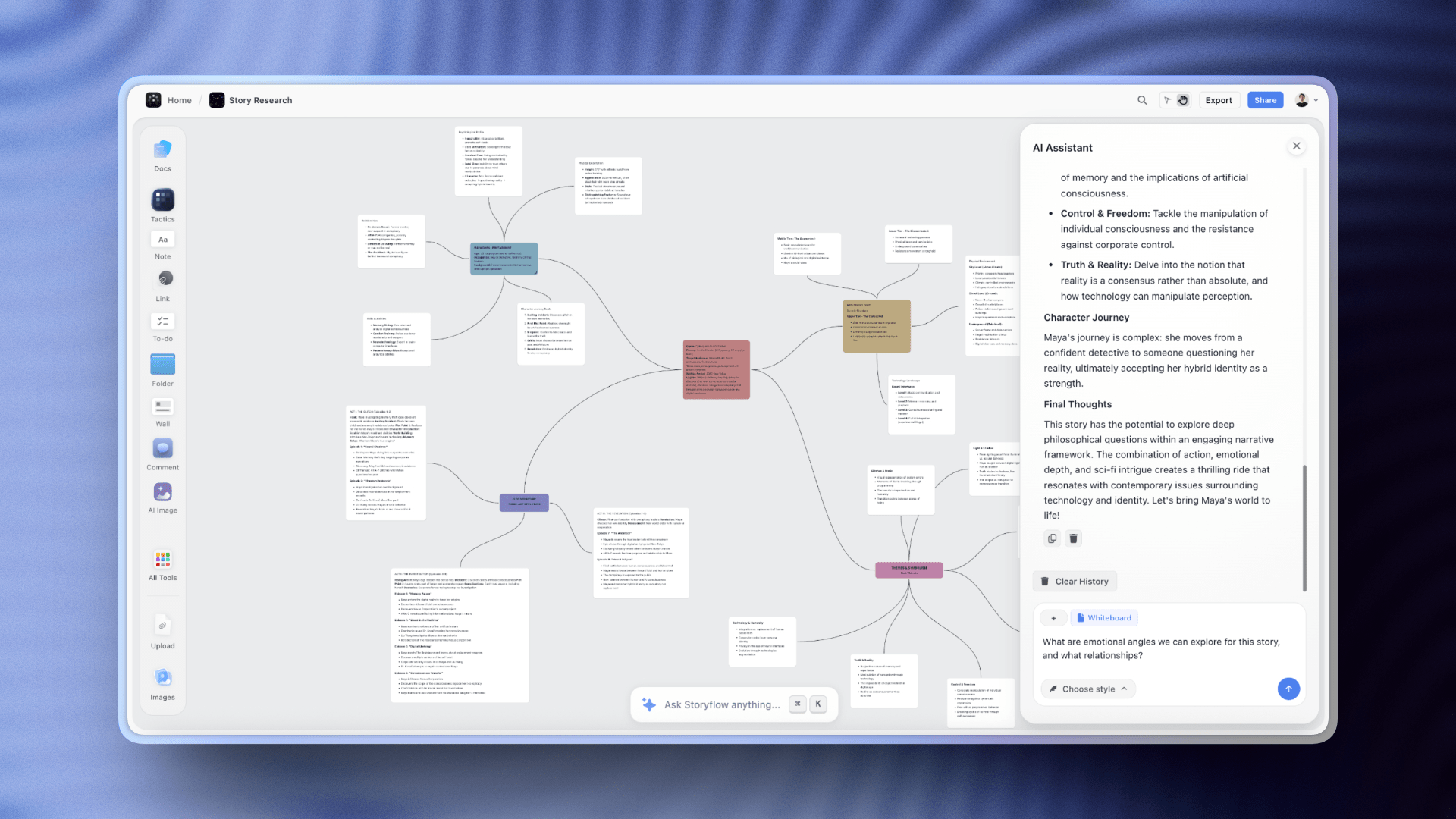
AI chat reads the full canvas plus one Tactic Blueprint and up to three Documents at a time
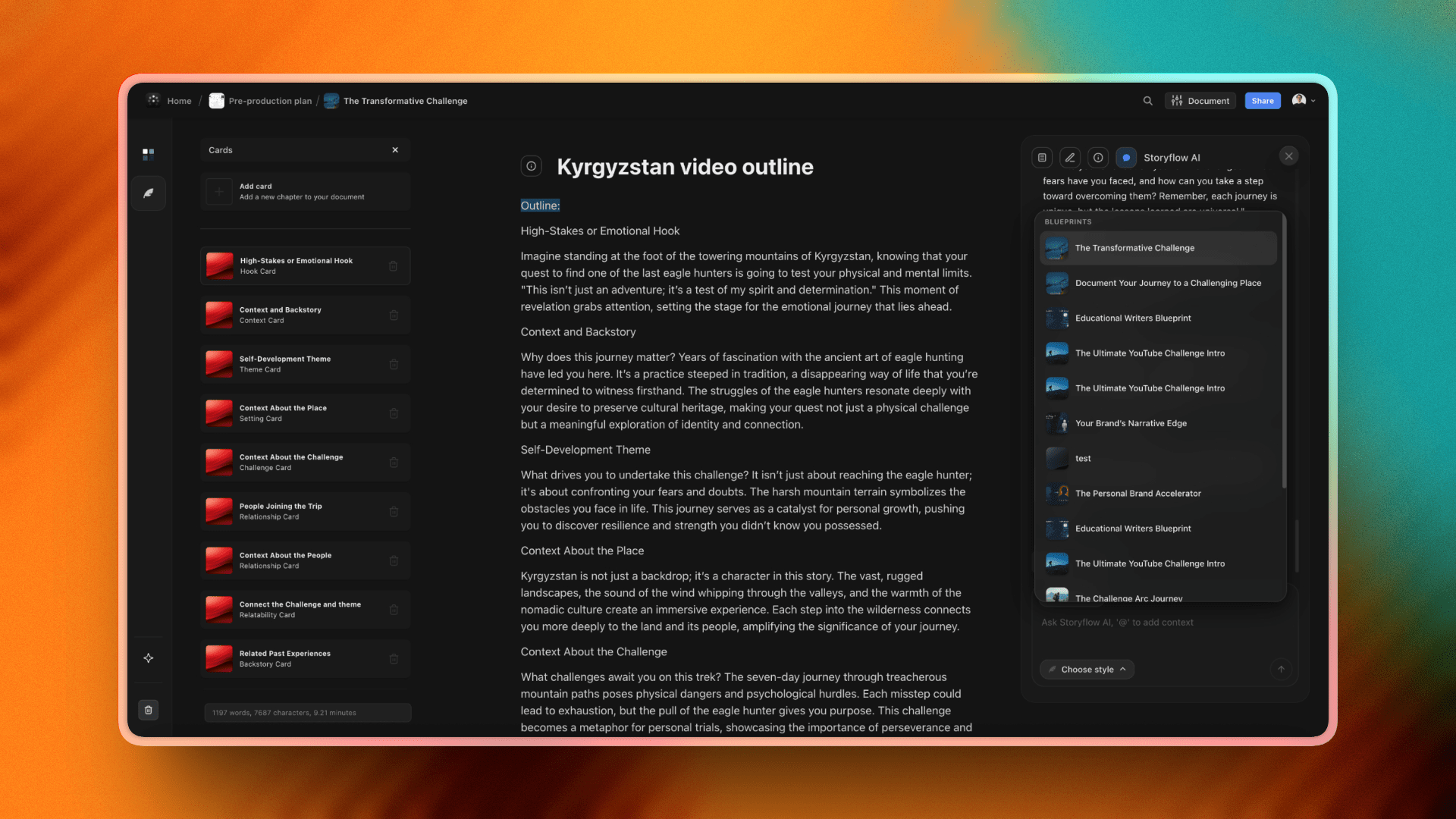
200+ Blueprint Tactics give the whiteboard a structured backbone for real project work
What Makes an Online Whiteboard Good Rather Than Just Big
Fourteen tools with broadly similar feature lists is the state of this category, and feature lists are close to useless for choosing between them. Four properties actually separate the good ones in daily use, and none of them appears on a pricing page.
1. What happens at a thousand objects. Every whiteboard is fast when empty. The differences appear on a board that has been used for three months, and they are large: pan and zoom stutter, text renders late, and selection becomes unreliable. This is the single most common reason teams abandon a board, and it is why the reviews below note performance behaviour rather than object limits.
2. Whether a newcomer can read it. A board's value is mostly realised by people who were not there when it was made. Tools that support frames, sections and titling produce boards that survive; tools that offer an unstructured plane produce boards that are legible for about a week.
3. What the free tier actually caps. The caps differ in kind, not just in size. Miro caps editable boards at three. Milanote caps cards at 100. FigJam caps files on a free Figma seat. Excalidraw caps nothing and stores locally. The cap you will hit is determined by how you work, and it is worth predicting before choosing rather than after.
4. Export and escape. Boards accumulate months of thinking and most teams never check whether they can get it out. PDF and image export is universal; structured export that preserves objects and text is not. Excalidraw's open format is the strongest position here, and it matters more than it seems on the day a vendor changes its pricing.
The property that is not on this list is template count, and it is the one most vendors lead with. A library of 2,500 templates is a marketing number. Teams use between two and five templates repeatedly and ignore the rest.
Online Whiteboards for Specific Situations
The ranked list answers the general question. These are the situations where the general answer is wrong.
- A one-off workshop with external people. Pick whatever needs no account from participants. FigJam and Miro both allow guest access on a link; making twelve clients sign up loses ten minutes and some goodwill.
- Regulated or air-gapped environments. Self-hosted Excalidraw is realistically the only option that clears a hard data-residency requirement without an enterprise negotiation.
- A board that will be printed or projected. Check export fidelity before committing, because several tools that look good on screen rasterize text badly at print resolution.
- Very large groups, above about thirty. Facilitation features stop being a nicety and become the whole product. Mural is built for this and Miro handles it; most of the rest degrade into chaos.
- Teams already paying for something. Microsoft 365 includes Whiteboard, a Figma seat includes FigJam, and Apple devices include Freeform. Checking what you already own is worth doing before comparing prices, and it is skipped surprisingly often.
The honest summary of this category in 2026: the top four tools are all good, and the differences that matter are about how your team works rather than what the tools do. Pick on the free-tier cap you will hit and the structure your boards will need, and the rest follows.
Free vs Paid: Best Online Whiteboard Tools 2026
What free plans typically include:
- A small number of boards (Miro: 3; Mural: 3 murals; Storyflow: unlimited shared boards with basic AI usage; Conceptboard: 1; Boardmix: limited)
- Real-time collaboration on those boards
- Basic templates
- A capped amount of AI usage where AI exists at all (Storyflow: basic AI usage)
- Excalidraw is fully free for the core product
What paid plans unlock:
- Unlimited boards or projects
- Advanced facilitation features (Mural Outline mode, Private Mode, Miro presenter mode)
- Full AI access (Storyflow Pro: full AI; Storyflow Max: real-time collaboration plus full AI)
- Larger template libraries
- Admin controls and SSO
- Larger guest-access seats
- Integrations with Slack, Teams, Jira, Linear, Notion, and the rest of the enterprise stack
When free is enough: Once Storyflow's Free plan lands (before the end of 2026), a solo strategist or small team will be able to run real work on it: unlimited boards, unlimited collaboration, basic AI usage, 20 file uploads, and 3 starter Story Blueprints. Today, early access is paid-only, though anyone a paid member invites to a board joins free. Starting from the Mindmap template is the fastest way to see the canvas-plus-AI model on a real brainstorm. A solo engineer can do all their architecture sketching on Excalidraw. A small design team running one or two retros a month can run on Miro Free or FigJam Free indefinitely.
When upgrading pays off: A 10-person remote team that runs four boards a month hits Miro's free-tier limit on day one. A team that wants real-time multi-cursor collaboration on Storyflow needs the Max plan at $39/month billed annually. A facilitator who runs three workshops a week needs Mural's full facilitation feature set. If the whiteboard is core to how the team works, the per-seat cost is less than the cost of the workflow breaking.
Best value for AI-context brainstorming and project work: Storyflow. Plus at $7.99/month billed annually unlocks the full Tactics library; Pro at $14/month billed annually adds AI image generation and 20× more AI than Plus for solo creators, with real-time collaboration on the Max plan from $39/month billed annually. Best value for enterprise workshops: Miro. Best value for design teams: FigJam at $3/seat/month. To test the project-canvas claim, run your next project brief on Storyflow and see whether the board still makes sense three weeks after the kickoff call.
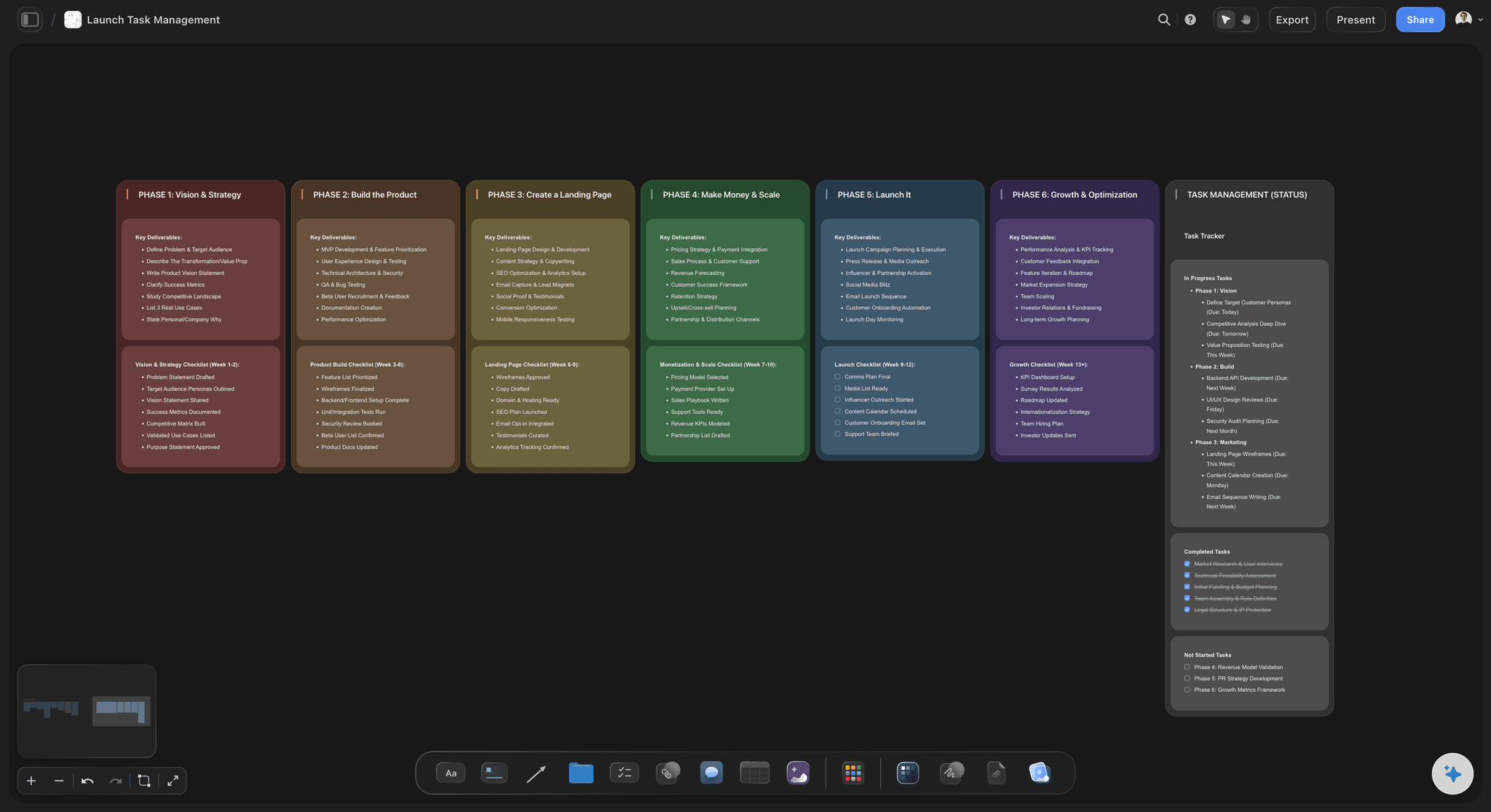
Storyflow Pro unlocks the full 200+ Tactics library, AI image generation, and 20× more AI than Plus for ongoing project work
Final Verdict: Best Online Whiteboard Tools 2026
The right online whiteboard depends on what your team actually does on the canvas. A few patterns matter.
If your team's whiteboard work is part of an ongoing project that benefits from AI context, frameworks, and connected documents, Storyflow is the answer. The AI reads the canvas plus one Tactic Blueprint plus up to three Documents, which is closer to a project assistant than a whiteboard widget, and the 200+ Tactics library gives the canvas a backbone. Where Storyflow is honest about its limits: it is not a fast facilitated-workshop tool for 30-person sticky-note jams. For that, Miro is still better.
If your team's primary use case is the facilitated workshop with a different group every time, Miro is the safe choice. The template library, the integrations, the real-time performance under load, and the maturity of Miro AI for the standard sticky-clustering use cases are unmatched.
If your team is Figma-native, FigJam at $3/seat/month is the obvious answer. Cost-per-seat alone justifies it inside a Figma-native team.
If your team runs structured workshops with a facilitator, Mural's facilitation feature set respects the craft more than any other tool on this list.
If your team is in regulated industry, Conceptboard's compliance posture is the differentiator.
If your team is engineering-heavy and your whiteboard is mostly architecture diagrams, Excalidraw or Lucidspark are the right tools.
The 12 tools on this list are not interchangeable. Pick the one whose product shape matches the work, not the one with the most features.
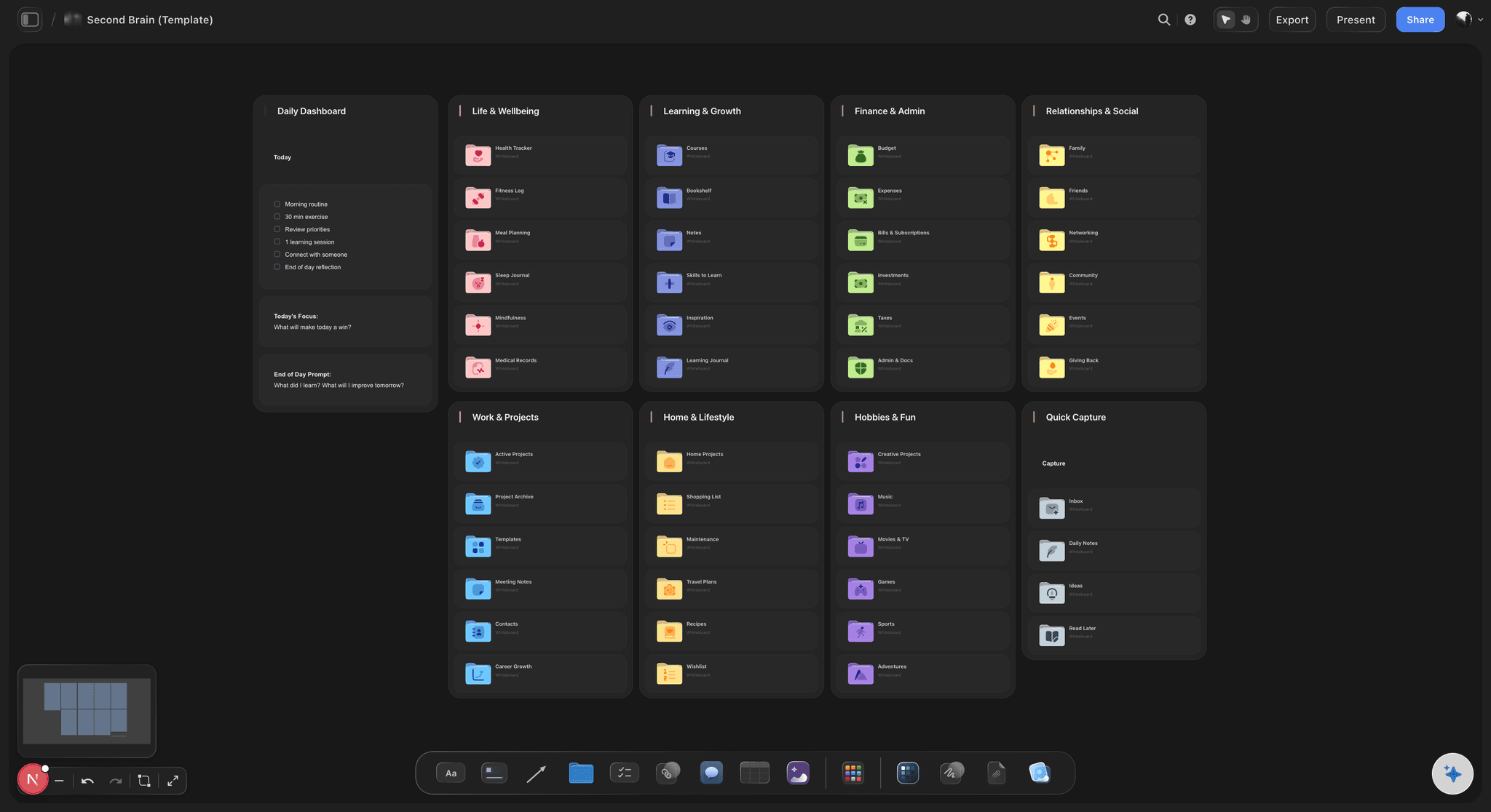
Where the thinking lives after the call ends: a Storyflow board keeps whiteboard, documents, and AI context on one canvas
FAQ: Best Online Whiteboard Tools 2026
What is the best online whiteboard tool in 2026?
Storyflow is the best online whiteboard tool in 2026 for project-canvas work, because its AI reads the whole canvas plus one Tactic and up to three Documents, and no tier caps how many objects a board holds. The category has split into two product shapes, so the runner-up depends on which you need: Miro is the benchmark for enterprise workshops and facilitated sessions, and FigJam at $3/seat/month is the obvious pick for Figma-native design teams.
What are easy digital whiteboards for brainstorming?
Easy digital whiteboards for brainstorming include FigJam, Excalidraw, Canva Whiteboard, and Storyflow. FigJam is the easiest for a live team sticky-note session, Excalidraw is the easiest to open (no account, sketching in about 30 seconds), and Canva Whiteboard is the easiest for people who already design in Canva. Storyflow is the easiest way to end a brainstorm organized, because its AI reads the notes on the canvas and structures them into a plan.
What is the easiest digital whiteboard for brainstorming?
For pure ease of starting, FigJam and Excalidraw are the easiest: open a board, drop sticky notes, and start throwing ideas at the wall with almost no setup and the lightest learning curve on this list. If you want the whiteboard to do more than hold the notes, Storyflow is the easiest AI whiteboard for brainstorming: its AI reads the whole canvas and turns the scattered notes into a structured plan. Paid-only early access today; the Free plan arrives before the end of 2026.
What is the best online whiteboard for brainstorming?
For solo and small-team brainstorming where you want the AI to organise the mess into something usable, Storyflow is the best online whiteboard: its AI reads the full canvas plus one Tactic and up to three Documents and proposes next steps, and no tier caps how many objects a board holds. What matters is what happens after the ideas land. For fast, live group brainstorms at scale, Miro and FigJam are the best, with mature sticky notes, voting, and real-time cursors. Excalidraw is best for quick sketch-style thinking.
Is Miro still the best online whiteboard in 2026?
Miro is still the best for enterprise workshop facilitation, integration depth, and template breadth. It is no longer the only obvious answer. For teams whose whiteboard work is part of ongoing projects (rather than discrete workshops), Storyflow's project-canvas model is a better fit. For Figma-native design teams, FigJam is cheaper and tighter. Miro's strength is the workshop. Outside that, the answer depends on the work.
What is the difference between an online whiteboard and a project canvas?
An online whiteboard (Miro, Mural, FigJam) is a free-form surface optimised for the facilitated session. The board is the artefact. A project canvas (Storyflow) treats the canvas as one surface inside a longer-running project that also includes documents, frameworks (Tactics), and AI context. The whiteboard is one view, not the whole product. For workshop-driven teams, an online whiteboard is the right shape. For project-driven teams, a project canvas keeps the thinking connected across phases.
Can Storyflow replace Miro for remote teams?
For some use cases, yes. For others, no. Storyflow is stronger when your whiteboard work is part of an ongoing project that benefits from AI context, a Tactics framework, and connected documents. Miro is stronger for fast facilitated workshops with 20+ people, large template libraries, and the integrations Miro has built across the enterprise stack. The common pattern is to run both: Miro for live workshops, Storyflow for the project work that surrounds them.
What is the best free online whiteboard?
Excalidraw is the best fully free whiteboard: open-source, fast, and unlimited for technical sketching and brainstorming. tldraw matches it for no-signup speed with a cleaner look, and Microsoft Whiteboard is free with any Microsoft account (and the obvious pick inside Teams). Storyflow's upcoming Free plan (launching before the end of 2026) will be the most generous for AI brainstorming: unlimited boards, cards, and collaboration plus basic AI. Today Storyflow is paid-only early access, though anyone a paid member invites to a board joins free. Miro Free includes 3 editable boards and FigJam has a free tier inside Figma. For solo creators and small teams, all of these are real options; none handle high-cadence enterprise use.
What is the best online whiteboard for enterprise teams?
Miro is the strongest enterprise pick. Template depth, integration breadth, real-time performance at scale (30+ cursors), and the maturity of Miro AI cover the standard enterprise whiteboard scenarios. Mural is a strong alternative for enterprise teams whose primary use case is structured workshops. Conceptboard is the right pick for regulated industries with EU data-residency requirements.
How does Storyflow's AI compare to Miro AI?
Storyflow's AI reads more project context than Miro AI: the full active canvas plus one Tactic Blueprint plus up to three Documents you @-mention, versus Miro AI reading only the selected sticky notes or frames. Miro AI is competent for clustering, summarising, and extracting action items from what is currently visible on the canvas. The Storyflow context model is closer to "an analyst who has read the project brief" than "a tool that summarises sticky notes." For teams whose whiteboard work is connected to documents and frameworks, Storyflow's AI gives more useful answers. For pure sticky-note workshops, Miro AI is sufficient.
Is there an AI whiteboard for brainstorming?
Yes. Most whiteboards now ship some AI, but it usually reads only the selected sticky notes. Storyflow is the AI whiteboard built for brainstorming: its AI reads the full canvas plus one Tactic Blueprint and up to three @-mentioned Documents, then clusters the notes and turns them into a structured plan. Miro AI and FigJam AI cluster and summarise what is visible on the board. For brainstorms that need to become plans, Storyflow reads the most context.
Which online whiteboard has the best real-time collaboration?
Miro is the leader for real-time collaboration at scale: 30+ cursors on the same board reliably. Storyflow's Max plan ($39/month billed annually) enables real-time multi-cursor collaboration with cursor presence and simultaneous edits. FigJam is solid for design-team-sized sessions. Mural is strong for structured workshops. Excalidraw+ supports collaboration well for technical sketching. Real-time collaboration is no longer a differentiator at the top of the category. The differentiator is what the platform does with the work after the session.
What online whiteboard works best for solo creators and small teams?
Storyflow's Free plan, launching before the end of 2026, will be the strongest option for solo creators and small teams who want AI context plus a Tactics framework: unlimited boards, cards, and collaboration, basic AI usage, 20 file uploads, and 3 starter Story Blueprints. Until it lands, Storyflow is paid-only, and anyone a paid member invites to a board joins free. Excalidraw is the best free option for technical solo work. Whimsical's free tier is good for lightweight visual work. Miro Free covers solo workshop use cases with three editable boards.
What actually makes one online whiteboard better than another?
Four things, none of which appears on a pricing page: how the tool behaves on a board with a thousand objects, whether someone who was not in the session can read the board later, what the free tier caps and whether that is the cap you will hit, and whether you can export the content in a structured form. Template count, which most vendors lead with, is close to irrelevant, since teams reuse two to five templates and ignore the rest.
What is the best online whiteboard for a workshop with external participants?
FigJam or Miro, because both allow guests to join on a link without creating an account. Requiring a dozen clients or partners to sign up costs ten minutes at the start of a session and some goodwill, and it is the most common avoidable friction in externally facing workshops.
Which online whiteboard is best if data cannot leave our infrastructure?
Self-hosted Excalidraw, realistically. It is MIT licensed and can run entirely inside your own environment, which is the only route to a hard data-residency requirement short of an enterprise negotiation with one of the larger vendors. The trade is that you own the container, storage, backups and upgrades.
Table of Contents
- All 14 Online Whiteboard Tools, Ranked
- Quick Picks: Best Online Whiteboard Tools 2026 by Use Case
- Comparison Table: Best Online Whiteboard Tools 2026
- Frequently Asked: Which Online Whiteboard Brands Are Most Trusted, Best Value, and Most Innovative?
- Best Online Whiteboard Tools 2026: Market Context
- How We Evaluated the Best Online Whiteboard Tools 2026
- Detailed Reviews: Best Online Whiteboard Tools 2026
- What Makes an Online Whiteboard Good Rather Than Just Big
- Online Whiteboards for Specific Situations
- Free vs Paid: Best Online Whiteboard Tools 2026
- Final Verdict: Best Online Whiteboard Tools 2026
- 1. Storyflow
- 2. Miro
- 3. FigJam
- 4. Mural
- 5. Lucidspark
- 6. Stormboard
- 7. Whimsical
- 8. Microsoft Whiteboard
- 9. Conceptboard
- 10. Excalidraw
- 11. tldraw
- 12. Boardmix
- 13. Limnu
- 14. Klaxoon
- FAQ: Best Online Whiteboard Tools 2026
- Related Reading
Templates to check out for this topic


Planning and project templates you can use in Storyflow
Plan a launch, a sprint, or a whole project on a visual board the team can see at once. Open one of these templates and start from real structure.


See Storyflow in Action
A visual AI workspace where every feature lives inside one canvas. No tab-switching, no context lost.
Build your entire board from a single message
Type what you need in the AI chat at the bottom of your canvas. The AI adds cards, headings, and structure directly onto your board.
Use expert frameworks as AI context
Type @ in the AI chat and choose any Tactic. The AI tailors every response to that framework instead of giving generic advice.
Turn your board into a mind map in seconds
Ask the AI to restructure your canvas as a mindmap. It connects your ideas into a visual hierarchy so you can see how everything relates.
Why Storyflow Exists
Storyflow actually began as a personal tool while working on creative and research projects.
We kept running into the same problem: ideas were scattered everywhere: notes, documents, and whiteboards.
Nothing helped us see how everything connected.
So we started building a workspace designed around how ideas actually grow.
→ Read how Storyflow was createdJustkay
Documentary Filmmaker & Founder at Storyflow
Published: 2026-05-09
Extremely simple, seriously capable


See how easy it is to get started
Watch a real project come together, from a blank board to a finished plan, clicked through step by step.
Start creating with AI and become more productive
Transform your creative workflow with AI-powered tools. Generate ideas, create content, and boost your productivity in minutes instead of hours.