Best ChatGPT Plugins for Designers (2026): 10 Ranked by Job
Ten design plugins from ChatGPT's own directory, ranked by job: Storyflow for the project board, Figma for FigJam and Slides, Canva and Adobe for finished assets, Krea and Kittl for images, plus install steps and a stack.

Category
Design
Author

Storyflow Team
Product & Research Team
Topics
2026-10-28
•
33 min read
•
Design- ChatGPT plugins
- designers
- Storyflow
- Figma
- Canva
- Adobe
- Krea
What are the best ChatGPT plugins for designers?
The best ChatGPT plugins for designers in 2026 start with Storyflow for the project board around the design work, then Figma for FigJam diagrams and Slides decks, Canva for flyers and presentations designed from your chat, and Adobe for photo edits and PDFs. Storyflow is an AI visual workspace that keeps a design project's brief, references, palette and presentation on one infinite canvas, and ChatGPT builds on that board through the plugin. Krea and Kittl win for generated images, MyFonts for licensable type, and Whimsical for user flows.

Full disclosure: Storyflow is our product. It ranks first because the job it does, holding a design project's plan on one board ChatGPT can read and build on, is the job the other plugins feed. Its limits: the plugin does not generate images, Storyflow is not a layout or vector tool, decks export as PDF only, and it is paid-only during early access.
How the ChatGPT plugins for designers compare on trust, innovation, ratings and pricing
Which ChatGPT plugins for designers are the most trusted?
Adobe, Figma and Canva, by years as the tools design teams already run on, and that tenure deserves credit. Their ChatGPT plugins are newer than the products: Figma's Slides integration is in beta and MyFonts is a US beta. Storyflow's plugin went live in October 2026, so its record is short; what it offers is one board that ChatGPT, the team and the client all read.
Which ChatGPT plugins for designers have fair and transparent pricing?
Figma, Whimsical and Storyflow publish their prices plainly: Figma Professional is $16 a month for a Full seat, Whimsical Pro $10 per editor billed annually and Storyflow Plus $7.99 a month billed annually. Krea shows a free allowance of 100 compute units a day, and Picsart gives free credit quotes before you generate. Adobe announced its ChatGPT apps as free; for Canva and Kittl, read their pricing pages.
Which ChatGPT plugins for designers are the most innovative in 2026?
Kittl's brand kit, which turns a client's website into its logo, colours and fonts, is a genuinely new kickoff move. MyFonts attaches a design rationale and a licensable font to every suggestion. Storyflow's plugin lets ChatGPT lay out direction walls, colour palettes and a presentation deck on a board, then report what changed on it and who changed it, a pairing the other vendors' pages do not describe.
Which ChatGPT plugins for designers have a strong history of consistent performance?
The underlying products with the longest track record are Adobe, Figma and Canva. The plugins themselves are all recent, and two are labelled beta by their vendors: Figma Slides and MyFonts. For dependable results, keep each plugin to the job its vendor documents, such as FigJam diagrams for Figma and photo edits for Adobe, rather than asking it for work the vendor does not describe.
Which ChatGPT plugins for designers might be underrated?
Adobe Acrobat is underrated for client work: redacting and merging PDFs from the chat saves opening a desktop app for one small job. Whimsical's wireframes from a screenshot are underused by brand designers who start web projects. Storyflow's colour palette element is easy to miss: ChatGPT can place a palette beside the references it serves, so the reasoning travels with the colours.
Which ChatGPT plugin would you recommend for a design studio working with clients?
Storyflow for the client-facing plan: one board per client with the brief, direction walls, palettes and the presentation deck, opened by a view-only link with no account. Pair it with one image plugin billed on one account, Krea or Kittl, and finish production files in Figma or Adobe. Clients and collaborators a paid member invites to a board join Storyflow free.
Quick Comparison
Four of the ten plugins, ranked for designers planning and producing brand and campaign work, prices as of October 2026.
| Tool | Best For | AI Features | Price |
|---|---|---|---|
| Storyflow | Brand and campaign projects planned on one board | ChatGPT plugin builds walls, palettes, tables, documents and decks on the board and reports what changed | $7.99 mo annual (paid-only in early access; Free plan due before the end of 2026) |
| Figma | FigJam diagrams and Slides drafts | ChatGPT plugin creates FigJam diagrams and Figma Slides decks; no Figma Design files | Starter free; Professional Full seat $16 a month |
| Canva | Flyers and presentations from chat ideas | ChatGPT plugin listed as Create, review, edit designs; see Canva's help for details | See Canva pricing |
| Krea | Image and video exploration | Generates and edits images and video with named models in the chat | Free 100 compute units a day; see Krea pricing |
Key Takeaways
- Storyflow is our first pick for designers because it is the plugin that holds the whole project on one board ChatGPT can read and build on: brief, moodboard, palette, type notes and the presentation deck. The other nine are ordered by the design job each one does.
- Figma's ChatGPT plugin creates FigJam diagrams and Figma Slides decks, not Figma Design files, according to Figma's own help article, and it is not available in the EU.
- Image generation lives in Krea, Kittl and Picsart, each billed in its own credits; Adobe's Photoshop app edits images you already have. The Storyflow plugin places images and gives you an upload link for your own photos, but it does not generate images.
- A plugin reaches only what its connection allows, and OpenAI says an enabled app may use relevant context from your chats and memories. Decide which plugins see client work before the first brief goes in.
- A working stack for a brand or campaign project is three or four plugins: Storyflow for the plan, one image plugin, MyFonts for type, and Figma or Canva for the files that ship.
Why One Chat Is the Wrong Place to Run a Design Project
You ask ChatGPT for three identity directions, a palette and a type pairing, and the answer is good. Then the creative director asks which direction was agreed, the client wants the references, and the developer wants the colour values. All of it sits fifty messages up a conversation nobody else can open. Plugins fix part of that, but only if each one is picked for the job it actually does.
The agreed direction scrolls away
A chat is a feed. Every revision ("warmer", "less corporate", "try a serif") lands further down, and nothing marks which version the client approved. A design project needs one agreed state that the team, the client and the assistant all read, and a chat transcript is not that state.
Each plugin owns one slice of the work
Figma holds the file, Canva the flyer, Krea the generated image, MyFonts the font shortlist. Every result lands in a different vendor's workspace. It is not a question of which plugin is best. It is a question of which one holds the plan the others feed, because that is the link you send the client.
Your photos do not reach every plugin
A photo you drop into the chat reaches ChatGPT, not necessarily the plugin. Storyflow does not receive a photo attached in the chat; it hands you an upload link that puts the file on the board. Picsart's own page notes that some of its tools need a usable hosted URL for source files. Check how each plugin takes your files before you plan a moodboard around client photography.
Client confidentiality follows the connection
OpenAI's Connected apps article says an enabled app may use relevant context from your conversations, and from Memory when it is on, to answer a request, and that data shared with apps follows each app's own terms. For ChatGPT Business, Enterprise and Edu, OpenAI does not use information accessed from apps to train models by default; on Free, Plus, Go and Pro it may, if "Improve the model for everyone" is on. For NDA work, that setting and your choice of plugins are part of the brief.
How We Chose and Ordered the Plugins
The list is limited to plugins that were in ChatGPT's own plugin directory on 28 October 2026. Each one is described from two sources: its one-line listing in the directory and the vendor's own page about its ChatGPT plugin, read in October 2026. Where a vendor's page would not load, we say so and describe only what the directory and OpenAI state. Storyflow is our product, so its limits are stated in its review as plainly as anyone else's.
The order
Storyflow is listed first because it is the plugin built to hold the project plan that the other plugins feed. The remaining nine follow the order a design project usually runs: layouts and decks, finished assets, image editing and generation, type, flows and publishing. The order is not a quality score between Krea and Kittl; they do overlapping jobs for different people, and the reviews say which.
What counted
- Does the plugin create or change real work in the vendor's tool, or only answer in the chat?
- Can someone outside your chat open and edit the result?
- What does it bill, and in whose credits?
- What does the vendor say it cannot do, and where is it unavailable?
What we left out
Framer, Gamma, Shutterstock and several smaller design plugins are in the directory, but in October 2026 we could not read a vendor page that describes what their ChatGPT plugin does, so they appear only in the short list near the end with their directory one-liner. Milanote, FigJam as a separate listing, Pinterest and Midjourney were not in the directory at all on 28 October 2026, so they are not called plugins here.
Comparison Table: The 10 Best ChatGPT Plugins for Designers
Prices are the vendor's own, read in October 2026. What each one bills is in the cost table further down.
| Plugin | Directory one-liner | Best for | Price as of October 2026 |
|---|---|---|---|
Storyflow | Plan projects on visual boards | The project board: brief, moodboard, palette, deck | Plus $7.99 a month billed annually; paid-only in early access |
Figma | Create designs, ship to code | FigJam diagrams and Figma Slides decks | Starter free; Professional Full seat $16 a month |
Canva | Create, review, edit designs | Flyers and presentations designed from chat ideas | See Canva pricing |
Adobe | Design, combine, and edit | Photo edits, Express templates, PDF work | Free in ChatGPT at launch, per Adobe; see Adobe pricing |
Krea | Create AI media | Generated images and video with named models | Free 100 units a day; see Krea pricing |
Kittl | Generate images and videos | Images, short clips, a brand kit from a website | Free, Pro, Expert and Max; see Kittl pricing |
Picsart | Create images, video and audio | Background removal, enhancement, many models | See Picsart pricing |
MyFonts | AI font search and discovery | Licensable typeface shortlists | Fonts licensed on MyFonts |
Whimsical | Create diagrams and wireframes | User flows, wireframes, sequence diagrams | Free; Pro $10 per editor a month annually |
Webflow | Manage Webflow sites | CMS checks, SEO audits, page sections | See Webflow pricing |
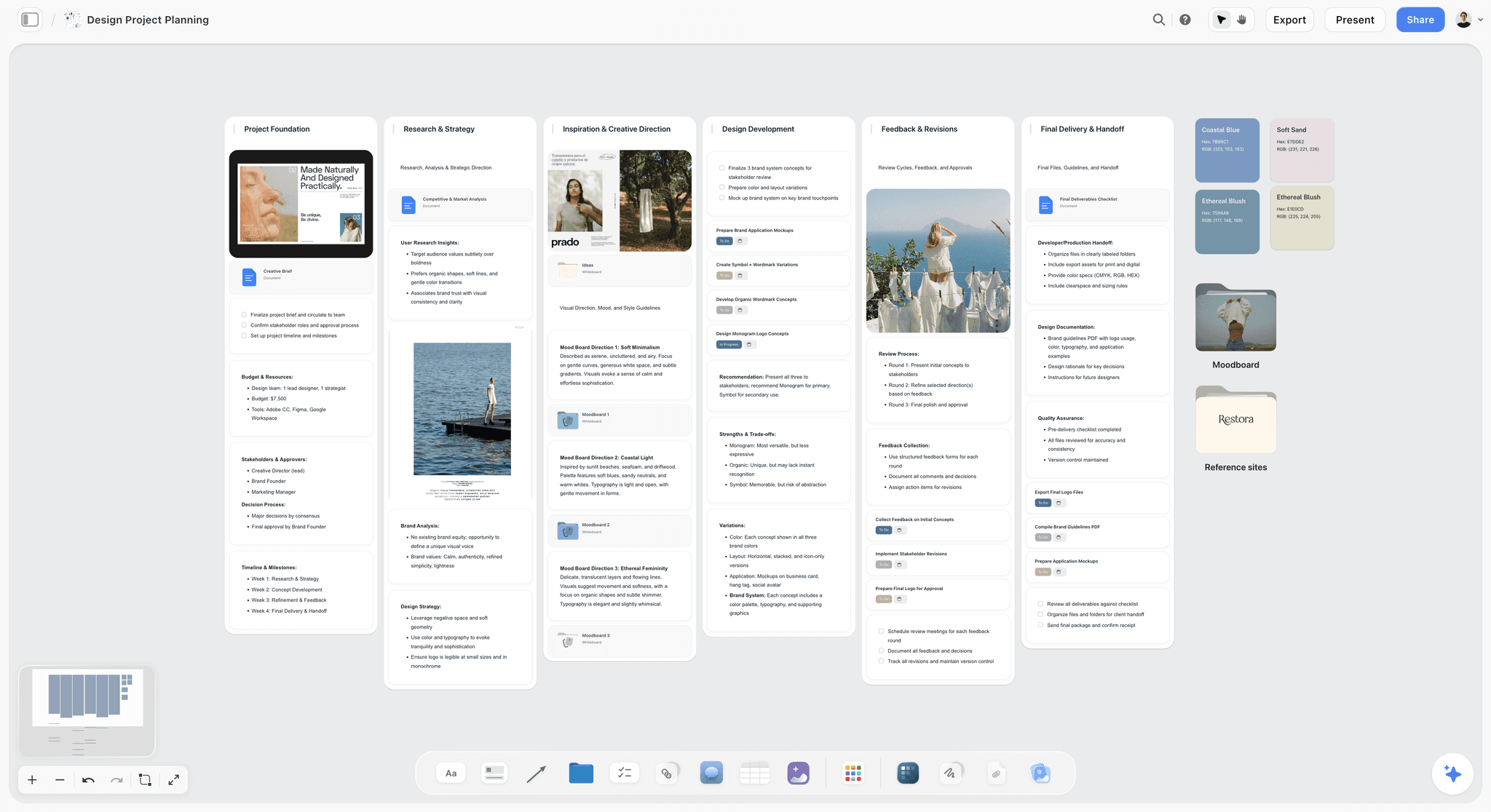
Storyflow board planning a design project with tasks, references and notes side by side
Put your next design project on one board
Install Storyflow in ChatGPT and ask it to lay out the brief, direction walls, palettes and the presentation deck on a board your client opens by link.

The 10 Best ChatGPT Plugins for Designers, Ranked by Job
Every review follows the same shape: what the plugin does inside ChatGPT, who it is for, one limit that changes how you use it, and the price.
1. Storyflow
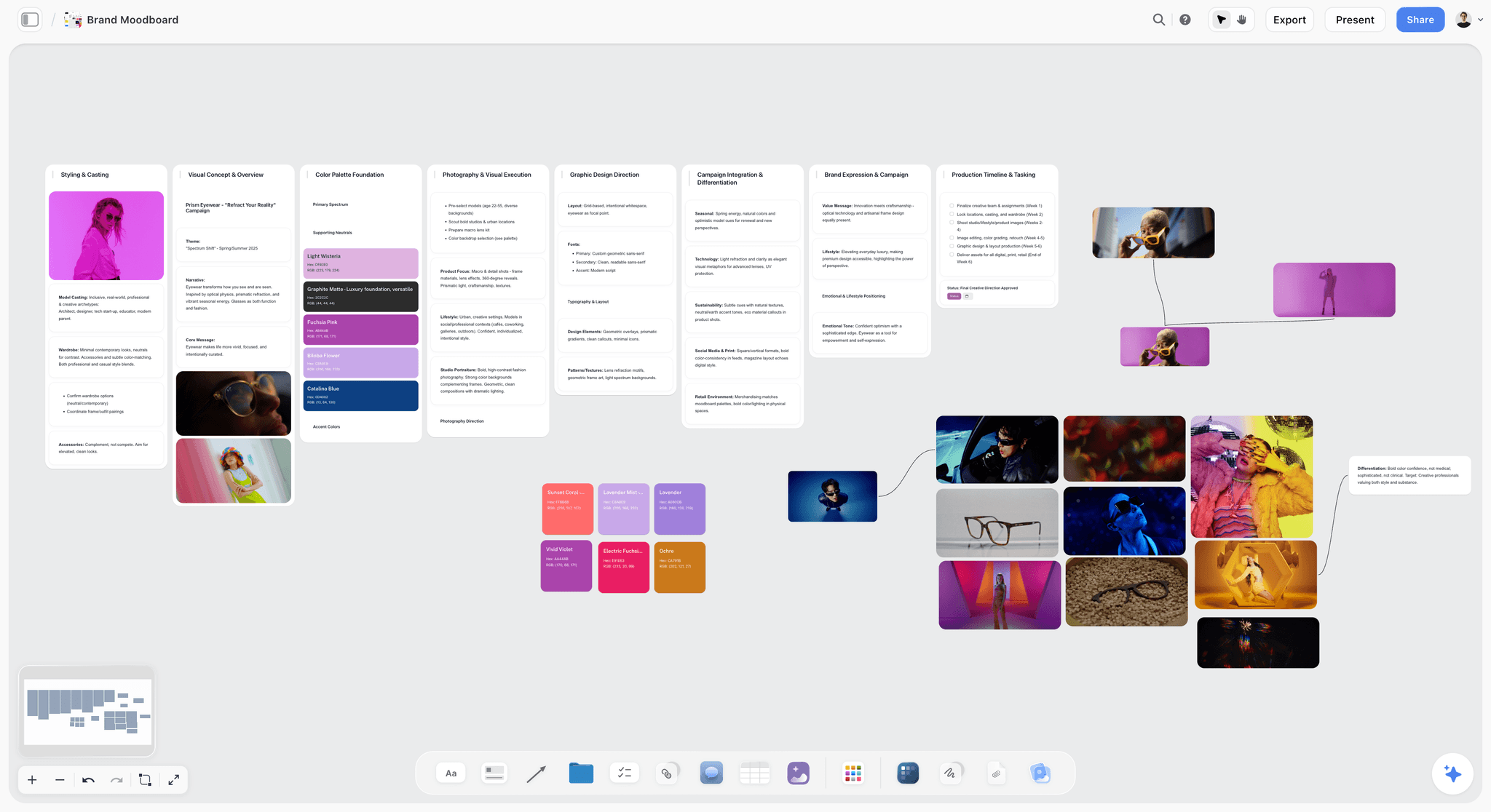
A brand moodboard in Storyflow: references, palette and notes grouped in walls that a client opens by link.
What it does in ChatGPT: reads your Storyflow projects, boards and documents, summarises a board and reports what changed on it in the last day or week and who changed it. It builds on a board: notes, to-dos, tables, documents, walls (grouped sections), mind maps, diagrams with labelled connections, charts, slide decks, carousel pages, colour palettes and ready-made board templates. It moves and connects elements, adds images and gives you an upload link for your own photos.
Best for: creative directors, brand designers and agency design leads who need the brief, the direction, the references and the presentation in one place the client and the team read.
Limit: the plugin does not generate images, cannot read board comments and does not run the in-app AI's menu workflows. A photo attached in the chat does not reach the board, so use the upload link. Boards export as PNG, JPEG or PDF and decks as PDF; there is no SVG or PPTX export, and Storyflow is not a layout or vector tool.
Price: Plus $7.99 a month billed annually ($9.99 monthly), Pro $14 ($19 monthly), Max $39 ($49 monthly) with a Team Workspace, roles and permissions. Storyflow is paid-only during early access; its Free plan launches before the end of 2026, and anyone a paid member invites to a board joins free now. See pricing.
The install steps are in the install section below. For a rebrand, a few prompts lay out a brief document, two direction walls each with references and a palette, a type notes table and a do and don't wall, then a slide deck on the same board for the presentation. The client opens a view-only link with no account; to comment, they sign in. Plugin actions run on ChatGPT's model, so they use no Storyflow AI credits; an invited free account gets 25 a week, reset on Monday (UTC), and Plus, Pro and Max have no weekly limit. Connections end after 30 days, when ChatGPT asks you to sign in again. Storyflow runs in the browser and is best built on a laptop. Landing pages for the jobs: moodboard, colour palette and brand board.
2. Figma
What it does in ChatGPT: per Figma's help article Use ChatGPT with Figma, it creates FigJam diagrams from a description and Figma Slides decks, for which ChatGPT turns your prompt into an objective, an outline and style notes that Figma builds into slides. ChatGPT shows an embedded preview; on desktop you select Edit in Figma to keep going.
Best for: a flow or diagram you want in FigJam, or a first-draft Slides deck your team will finish in Figma.
Limit: Figma says you currently cannot use ChatGPT to create files for its other products, so no Figma Design files, even though the directory one-liner reads "Create designs, ship to code". Files you have not claimed are viewable by anyone with the link until you log in or add them to your drafts, the feature is not available in the EU, and the Slides integration is in beta with usage limits (full seats on paid plans get the largest allowance).
Price: Starter is free; Professional is $16 a month for a Full seat and $3 for a Collab seat; Organization is $55 a month per Full seat billed annually, per Figma's pricing page.
Figma is the right plugin when the output has to be a Figma file your team edits. Treat it as a fast way to get a diagram or deck skeleton into Figma, not as a way to design screens from the chat. One practical rule: leave client names out of the first prompt, claim the file, then add the specifics in Figma, because an unclaimed file is public by link. Figma's article also describes the older "Apps & connectors" menu; OpenAI's current help puts plugins under Settings > Plugins.
3. Canva
What it does in ChatGPT: the directory one-liner is "Create, review, edit designs", and the listing sits in the Featured, Creativity, Small business and New & Noteworthy categories. OpenAI's own Connected apps article uses Canva as its worked example: ask "Canva, can you turn these ideas into a presentation?" and the app may use names or taglines you brainstormed earlier in the chat to generate the design.
Best for: flyers, presentations and marketing designs made from ideas already in the chat, when the team already designs in Canva.
Limit: Canva's help centre did not load for this review, so the exact actions, account requirements and which features need a paid Canva plan are not confirmed here. See Canva's help on connecting ChatGPT to Canva before you plan a workflow around one action.
Price: see Canva pricing on Canva's site.
Canva is the plugin to reach for when the deliverable is a finished marketing design that a marketer will publish this week. OpenAI's example also shows the data point worth knowing: with Memory on, Canva may use what ChatGPT remembers about your business to customise a flyer. For client work, that is a reason to run Canva requests in a chat that holds only that client's context. The full head-to-head with Figma and Storyflow is in Canva vs Figma vs Storyflow in ChatGPT.
4. Adobe
What it does in ChatGPT: the directory lists "Adobe | Design, combine, and edit" and a separate "Adobe Express | Design posts, flyers, and more". Adobe's launch announcement describes three apps: Photoshop edits specific parts of an image, adjusts brightness, contrast and exposure, and applies effects such as Glitch and Glow; Express lets you browse templates, fill in text, replace images, animate and revise; Acrobat edits PDFs, extracts text or tables, merges, compresses, converts and redacts.
Best for: quick photo corrections for a moodboard or deck, redacting a client PDF before it goes anywhere shared, and template-based posts.
Limit: you invoke an app by name ("Adobe Photoshop, help me blur the background of this image"), and for deeper work Adobe's route is to move into its native apps and pick up where you left off. At launch, Photoshop and Acrobat were on desktop, web and iOS, with Express also on Android.
Price: Adobe announced the apps as free for ChatGPT users globally; for Creative Cloud apps, see Adobe pricing.
Adobe's plugin earns its place on the unglamorous jobs: the exposure fix on a client photo, the redaction on a contract PDF, the PDF merge before a review. Those are the jobs that otherwise mean opening a desktop app for one small change.
5. Krea
What it does in ChatGPT: per Krea for ChatGPT, it generates images and video in the conversation, either with a model you name, such as Krea 3, or one the app picks. Share an image and describe the change to edit it. You can also create folders in your Krea context library and mirror files from the conversation into them.
Best for: exploring a visual territory quickly with a named model, and product-shot edits; Krea says Krea 3 keeps the product intact and finishes an edit in under eight seconds.
Limit: you sign in with a Krea account, and Krea's plans are metered in compute units. Pick the frames that matter and add them to the board yourself.
Price: Free with 100 compute units a day, per Krea's pricing page; see it for the paid plans.
Krea's page says to connect it from Settings > Plugins by searching for Krea and signing in. Kittl and Picsart also take a model by name, so choose Krea when product edits matter most: Krea 3 is the model Krea says keeps the product intact.
6. Kittl
What it does in ChatGPT: per Kittl's connector page, you can ask for any image model and style in Kittl, picked for you or by name, turn a still or a prompt into a short clip for social, and paste a website to get its logo, colours and fonts as a Kittl brand kit. Results are saved to your Kittl workspace to edit later.
Best for: social-ready visuals, and the brand-kit pull at kickoff when a client's existing site is the only brand guide you have.
Limit: generations use the same Kittl credits as in Kittl itself, so your Kittl plan sets what you can make; editing happens in Kittl.
Price: connecting is free; Kittl has Free, Pro, Expert and Max plans, with daily tokens on Expert (200) and Max (600). See Kittl pricing for current amounts.
The brand-kit pull is the underrated move for agencies: on day one of a refresh, it turns "send us your brand guidelines" into a starting set you can correct.
7. Picsart
What it does in ChatGPT: per Picsart for ChatGPT, image, video and audio generation, background removal or replacement, image enhancement and raster-to-vector conversion, with named models such as Flux 2 Pro, Veo 3.1, Kling V3, Runway Gen 4.5, Sora 2 Pro, Seedance 2.0 and Recraft V3.
Best for: clean-up on product and lifestyle shots, and comparing several models from one account.
Limit: creative operations spend Picsart credits, at a cost that varies by model and settings. Browsing the catalogue and getting quotes are free, and Picsart suggests asking for a credit estimate before you generate. Its "200+ models" figure is the whole catalogue, not a promise that every model is exposed in ChatGPT.
Price: see Picsart pricing; your Picsart credits are separate from your ChatGPT plan.
8. MyFonts
What it does in ChatGPT: per Monotype's launch announcement of 27 May 2026, you describe a creative need and get font recommendations with design rationale, drawn from a library of over 250,000 fonts. Type @MyFonts in an English-language conversation, or ChatGPT calls it when the discussion turns to typography. Each recommendation links to MyFonts, where the licensing options are.
Best for: a licensable type shortlist for a brand direction, with a rationale you can paste straight into the brief.
Limit: it is a beta through Monotype Labs, available in the United States, and works in English-language conversations. It recommends; the licence is bought on MyFonts.
Price: Monotype does not state a cost for the plugin; fonts are licensed on MyFonts.
MyFonts ties every suggestion to a font you can license on MyFonts, which a plain chat answer cannot do. For a US team that is the difference between a mood and a shortlist.
9. Whimsical
What it does in ChatGPT: per Whimsical's ChatGPT page, you describe what you are thinking and get a flowchart, mind map, sequence diagram or wireframe. It uses the chat's context, including images, code, links and uploaded files, and can search your Whimsical workspace to build on boards you already made.
Best for: product and web designers mapping a user flow or a low-fidelity wireframe before layout starts.
Limit: the page does not state usage caps or say that the plugin edits existing boards; plan on generating new ones.
Price: Free; Pro $10 and Business $20 per editor a month, billed annually, per Whimsical's pricing.
Call it with @Whimsical, or select + and then More. Wireframes drawn from a competitor's website are the first example on Whimsical's page.
10. Webflow
What it does in ChatGPT: per Webflow's ChatGPT setup docs, after you connect and choose which sites or Workspaces ChatGPT may reach, you mention @Webflow to list CMS collections and their fields, audit a site for broken links, missing alt text and incomplete meta descriptions, or create a responsive hero section with a headline, description and button.
Best for: web designers who hand a live site to a client and want the CMS and SEO checks done from the chat.
Limit: changes land on a live site. By default ChatGPT asks you to approve every action Webflow takes; keep it that way. The docs do not state which Webflow plans the plugin needs.
Price: see Webflow pricing.
Which Plugin for Which Design Job
The rule of thumb: one plugin holds the plan, the rest produce pieces that go back into it.
| Design job | First plugin | Also good | Where the result lives |
|---|---|---|---|
Brief, references and direction for a brand or campaign | Storyflow | Whimsical for a flow | A Storyflow board the client opens by link |
Colour palette next to the references it serves | Storyflow | Kittl's brand kit from an existing site | A palette element on the board |
Identity or campaign image exploration | Krea | Kittl, Picsart | The vendor's workspace; picks added to the board |
Product photo clean-up | Picsart | Adobe Photoshop | The vendor's workspace |
Typeface shortlist | MyFonts | Kittl's brand kit, for fonts already in use | MyFonts links noted on the board |
Presentation deck for a client | Storyflow, deck on the board with PDF export | Figma Slides, Canva | The board, or a Figma or Canva file |
User flow or wireframe | Whimsical | Figma, for FigJam | A Whimsical board or FigJam file |
Flyer or presentation design from chat ideas | Canva | Adobe Express, from a template | Canva or Express |
Redact or merge a client PDF | Adobe Acrobat | None reviewed here | Your Adobe files |
CMS, alt text and SEO checks on a site | Webflow | None reviewed here | The live Webflow site |
What Each Plugin Bills, and Who Pays
OpenAI's connected-apps article says app use may count toward your ChatGPT plan limits, feature-specific allowances and limits set by the app provider. In practice each design plugin bills differently.
| Plugin | Account you need | What a request spends |
|---|---|---|
Storyflow | A Storyflow account | Runs on ChatGPT's model; no Storyflow AI credits. Invited free accounts: 25 actions a week |
Figma | A Figma account to claim and keep files | Slides is in beta with usage limits; full paid seats get the most |
Canva | See Canva's help | See Canva's help |
Adobe | Not stated in Adobe's announcement | Free in ChatGPT at launch, per Adobe |
Krea | A Krea account | Krea compute units |
Kittl | A Kittl account | Kittl credits, as in Kittl |
Picsart | A Picsart account | Picsart credits, varying by model; quotes are free |
MyFonts | Not stated | Not stated; licences are bought on MyFonts |
Whimsical | A Whimsical account, through authorisation | Not stated on its ChatGPT page |
Webflow | A Webflow account with the sites you choose | Not stated in its setup docs |
The cheapest mistake to avoid: running exploration in two image plugins at once. Pick Krea, Kittl or Picsart for a project and spend one vendor's credits.
How to Install a Design Plugin in ChatGPT
Installation works the same way for every plugin above. OpenAI's Plugins in ChatGPT article gives the steps:
- Go to Plugins on the sidebar in ChatGPT on the web, desktop or mobile, and find the plugin. The directory shows the plugins available to your plan and workspace.
- Select the plugin and review its description, skills, included apps and setup requirements. A Desktop only label means it needs the desktop app.
- Select Install plugin if shown. This may start the app's setup or authorisation flow.
- If prompted, select Connect and sign in to the vendor account that already has access to your work.
Availability of an individual plugin depends on your plan, workspace, role and region, and on the plugin's own capabilities. The full walkthrough is in How to Install Plugins in ChatGPT.
Storyflow as the worked example
Open the Storyflow listing, select Install plugin and sign in to Storyflow. Choose the projects ChatGPT may use: all of them, or only the client project you are working on, which is the safer default for agency work. Read access is always on; decide whether ChatGPT may also make changes, and whether it may see documents outside projects. Storyflow does not need ChatGPT's custom-server setup, because it is in the directory.
Calling a plugin in a conversation
ChatGPT uses installed plugins automatically when they are relevant. You can also pick one: type @ and its name, select + and enter its name, or select Plugins in the composer. Some interfaces put extra options under More, which is where Whimsical's page sends you. Vendor pages sometimes describe the older menu names; OpenAI notes that very old versions of the iOS or Android app may show Apps instead of Plugins. How to run several plugins in one project is in How to Use Plugins in ChatGPT.
Setting permissions before client work
OpenAI's Managing app permissions article lists the options, set under Settings > Plugins > Permissions on an eligible personal account. Allow all actions is offered only for an individual app or connected account, never in that account-wide selector.
| Permission | What ChatGPT does | Use it for |
|---|---|---|
Always ask | Asks before reading app information or making changes | Webflow on a live client site |
Allow read actions | Reads without asking, asks before changes | Storyflow or Figma while you review a direction |
Allow low-risk actions | Approves low-risk actions automatically; higher-risk ones may still need confirmation | Repeated board building once you trust the prompts |
Allow all actions | Performs supported actions without more prompts; OpenAI labels it elevated risk | Rarely, and never on shared client accounts |
Permissions only change when ChatGPT asks. They do not grant an app new access; to remove access, disconnect the app.
In a Business or Enterprise workspace
In ChatGPT Business many apps are enabled by default, but administrators can change that, and a plugin can show Disabled by admin while still appearing in the directory. Administrators manage plugins in Admin console by selecting the workspace and opening Plugins. If a design plugin is missing for one designer and present for another, check region, role and workspace settings before you suspect the plugin; the fixes are in ChatGPT Plugin Not Working.
A Design Stack That Works Together
Four plugins cover most brand and campaign work without overlap: Storyflow for the plan and the presentation, Krea for image exploration (or Kittl if the work is social-first), MyFonts for type if you are in the US, and Figma or Canva for the files that ship. Adobe joins when a PDF or a photo correction is in the way. Whimsical replaces Krea in the stack for product designers.
The stack works because the board is the one place every result comes back to. A plugin result that does not land on the board is a result the client never sees.
Worked example: Larkin Studio's bakery rebrand
Larkin Studio, a fictional three-designer studio, has ten working days to present two identity directions to a bakery chain with twelve shops. The example is illustrative; it shows the shape of the work, not measured results.
- Day 1, in ChatGPT with Storyflow: "Set up my Larkin Bakery project board in Storyflow: a brief document from these notes, two direction walls called Hearth and Market, a do and don't wall, and a to-do list for the next ten days." The board gets a brief document, two empty direction walls, a do and don't wall and ten to-dos; the designers add assignees and due dates themselves, because the AI cannot set assignees.
- Day 1, the client's shop photos: the account director asks ChatGPT for the Storyflow upload link, uploads twenty shop photos to the board, then asks ChatGPT to group them into the Market wall, since a photo attached in the chat does not reach the board.
- Days 2 to 4, Krea: "Generate six texture studies for a warm, flour-dusted direction, Krea 3." The designers pick three and add them to the Hearth wall.
- Day 3, MyFonts: "@MyFonts suggest four serif display faces for a heritage bakery with a modern menu, and explain why each fits." The shortlist and the rationale go into a type notes table on the board.
- Day 5, Storyflow: "Put a five-colour palette on each direction wall that fits its description and its do and don't list." Two palette elements now sit beside the references they serve, ready for the designers to correct.
- Days 6 to 8, the designers do the identity work in their own tools; ChatGPT is not drawing logos.
- Day 9, Storyflow: "Build a ten-slide presentation deck on the board: problem, two directions with their references, palette and type, and a recommendation slide." The deck sits on the same board, presents fullscreen and exports as PDF.
- Day 10, Storyflow: "What changed on the Larkin Bakery board this week, and who changed it?" The creative director reads the answer before the review instead of opening every wall.
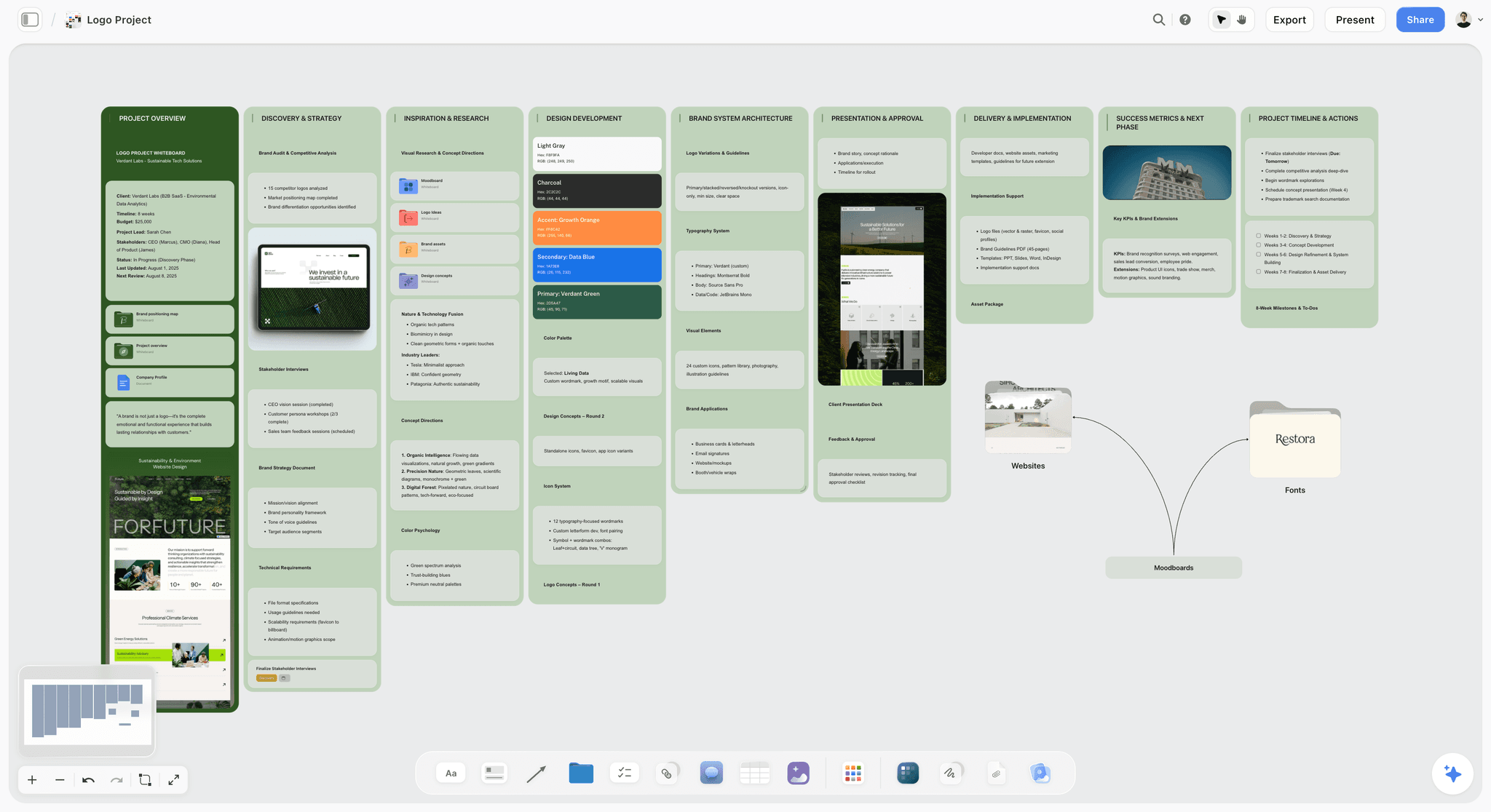
A logo planning board: directions, references and the task list on one canvas, the shape Larkin Studio's board takes by day five.
Prompts that hand work from one plugin to the next
- "Read my Larkin Bakery board in Storyflow and write a Krea prompt for each direction wall, using that wall's notes and the do and don't list."
- "Kittl, pull the logo, colours and fonts from this client website as a brand kit, then list the three colours that clash with the new brief."
- "@MyFonts give me four licensable alternatives to the typeface named on the Hearth wall, for a US client, with one line on each."
- "Figma, turn the outline of the presentation deck on my Storyflow board into a Figma Slides draft." (Slides is in beta and not available in the EU.)
- "Adobe Acrobat, redact the pricing and contact details in this client PDF before I add it to the shared board."
- "Read my Larkin Bakery board in Storyflow and list which direction walls have no palette yet and which to-dos are still open." The plugin cannot read board comments, so ask about what is on the board, not what people said about it.
Where Design Plugins Fall Short
The gaps are specific, and each one changes how you plan the work.
Regional and language gaps
Figma's plugin is not available in the EU. MyFonts is a US-only beta that works in English-language conversations. OpenAI adds that availability varies by plan, region, workspace, role and the interface you use. A plugin that works for your US designer may not appear for your Berlin designer; check before you build the workflow around it.
Public by default
An unclaimed Figma file from ChatGPT is viewable by anyone with the link, and a Storyflow view-only link opens with no account by design. For a pitch with an unreleased product in it, claim the Figma file first and send either link only to the people who should see the work.
Results land in five places
Every vendor saves its output in its own workspace. Without a rule about where approved work goes, the "final" logo exploration exists in Krea, a Figma file and a chat at once. Decide on day one that approved work goes on the project board, and write that rule on the board.
When Storyflow Is Not the Right Plugin
Storyflow is our product and our first pick for the plan; it is the wrong choice for several design jobs.
You need production artwork
Storyflow is not a layout, vector or prototyping tool, and its exports are PNG, JPEG and PDF. Final logos, screens and print files belong in Figma or Adobe.
You need generated images inside the plan
The Storyflow plugin does not generate images. Use Krea, Kittl or Picsart and add the picks to the board. Inside Storyflow, AI image generation exists on the Pro and Max plans, but that is the in-app AI, not the plugin.
You need a free tool today
Storyflow is paid-only during early access. Figma's Starter plan, Whimsical's Free plan and Krea's Free plan cost nothing today.
Your client needs an editable PowerPoint
Storyflow decks present fullscreen and export as PDF; there is no PPTX export, no presenter view and no speaker notes. Use Figma Slides or Canva when the client will edit the file.
Other Design Plugins in ChatGPT's Directory
These were in the directory on 28 October 2026. We have not confirmed what each does from a vendor page, so the one-liner is all that is stated here.
| Plugin | Directory one-liner |
|---|---|
Gamma | Create presentations and docs |
Pitch | Create and share presentations |
Beautiful.ai | Turn ideas into presentations |
Framer | Design and publish websites |
Shutterstock | Spark ideas with Shutterstock |
UX Pilot | Generate wireframes and UI |
Spline | 3D scenes and web design |
Refero | Design research for AI era |
Tonebook Palette | Compare colors, build boards |
Font Pairing: Design & Brands | Generate UI typography combos |
Moodle: Mood Board plan+design | Make & generate mood boards! |
Which Plugin Should You Start With?
Two plugins per role, picked for the deliverable that role is accountable for.
Brand or identity designer
Top picks: Storyflow and MyFonts. The identity lives or dies on the direction and the type. Keep directions, references and palettes on one board, and shortlist licensable type with MyFonts if you are in the US. Add Krea when you need texture or mood studies.
Creative director at an agency
Top picks: Storyflow and Figma. You are accountable for the direction the client signs off and the file the team finishes. Storyflow holds the direction and presents it; Figma's plugin starts the FigJam flow or Slides draft the team finishes. Ask ChatGPT what changed on the board before every review.
In-house marketing or social designer
Top picks: Storyflow and Canva. Storyflow for the campaign plan the posts belong to, with pillars, carousel pages and the content table on one board; Canva for the flyers and posts that ship this week. Check Canva's help for what your Canva plan covers.
Product or UX designer
Top picks: Whimsical and Figma. Whimsical for user flows and wireframes from a description or screenshot; Figma for FigJam diagrams the team already reviews. Storyflow joins when the work includes a launch campaign, not just screens.
Web designer
Top picks: Webflow and Whimsical. Map the user flows and wireframes in Whimsical, then use the Webflow plugin for CMS checks and alt text and SEO audits on the live site, with approvals left on.
Freelancer running client projects
Top picks: Storyflow and Krea. One board per client with the brief, references, palette and deck, shared by view-only link, and one image plugin billed on one account. Clients you invite to a board join free.
The Bottom Line
Designers do not need ten plugins; they need one place the work comes back to and two or three plugins that produce pieces of it. Install Storyflow for the board that holds the brief, direction, palette and deck, add one image plugin (Krea for product-shot edits, Kittl for social clips and brand kits), add MyFonts if you are in the US, and keep Figma or Canva for the files that ship. Start with the project you are presenting next: put its brief and references on a board through the brand board workflow and send the client the link.
FAQ: ChatGPT Plugins for Designers
What are the best ChatGPT plugins for designers?
Storyflow is our first pick for the project board around the design work, then Figma for FigJam diagrams and Slides decks, Canva for flyers and presentations from your chat, Adobe for photo edits and PDFs, Krea and Kittl for generated images, Picsart for clean-up, MyFonts for licensable type, Whimsical for user flows and Webflow for live sites. All ten were in ChatGPT's plugin directory in October 2026.
What is the best ChatGPT plugin for a brand design project?
Storyflow, because a brand project is a direction to agree before it is a file to build. ChatGPT can lay out the brief, direction walls, references, colour palettes and the presentation deck on one Storyflow board that the client opens by view-only link. Pair it with MyFonts for type and Krea or Kittl for image studies, then finish the identity files in Figma or Adobe.
Can ChatGPT create files in Figma?
Yes, for FigJam diagrams and Figma Slides decks. Figma's help article says ChatGPT cannot currently create files for Figma's other products, so it does not make Figma Design files. The plugin is not available in the EU, Slides is in beta with usage limits, and a file you have not claimed is viewable by anyone with the link until you log in or add it to your drafts.
Is there a Canva plugin for ChatGPT?
Yes. Canva is in ChatGPT's plugin directory with the one-liner "Create, review, edit designs", and OpenAI's help uses it as the example of an app that turns ideas from your chat into a presentation. Canva's help covers setup and which features your Canva plan includes; read it before you build a workflow around one action.
Which ChatGPT plugin generates images for designers?
Krea, Kittl and Picsart generate images and video, and Adobe's Photoshop app edits existing images. Krea adds product-shot edits with its Krea 3 model, Kittl adds short clips and a brand kit pulled from a website, and Picsart adds background removal and enhancement. The Storyflow plugin does not generate images; it places images on the board and gives you an upload link for your own photos.
Do ChatGPT plugins cost extra?
Often, yes, in the vendor's own currency. Krea spends compute units, Kittl and Picsart spend their credits, and Figma's Slides beta has usage limits. Adobe announced its apps as free in ChatGPT. Storyflow's plugin runs on ChatGPT's model and uses no Storyflow AI credits, but Storyflow itself needs a paid plan from $7.99 a month billed annually during early access.
Is Storyflow free for designers?
Not during early access. Storyflow is paid-only today, from $7.99 a month billed annually ($9.99 monthly); its Free plan launches before the end of 2026. Anyone a paid member invites to a board joins free now, and an invited free account can make 25 ChatGPT plugin actions a week, reset each Monday (UTC). Plus, Pro and Max have no weekly limit.
Can a client view a Storyflow board without an account?
Yes. A view-only link opens the board with no account, so a client can see the references, palette and deck without signing up. To comment or draw on the board, the visitor signs in. Presentation mode goes fullscreen and steps through one wall, note, image or document at a time, which suits a direction review on a call.
Can plugins see my client work?
A plugin sees what its connection allows, and OpenAI says an enabled app may also use relevant context from your conversations and memories. For Business, Enterprise and Edu workspaces, OpenAI does not train models on information accessed from apps by default; on Free, Plus, Go and Pro it may if "Improve the model for everyone" is on. Limit each plugin to the projects it needs.
Can I use several design plugins in one ChatGPT conversation?
ChatGPT uses installed plugins automatically when they are relevant, and you can pick one directly with @, the + menu or Plugins in the composer. OpenAI's help does not state a limit on mixing plugins in one chat. In practice, name the plugin for each step ("Krea, generate...", "add these to my Storyflow board") so the right one runs.
Why can't I find a design plugin in ChatGPT?
Availability depends on the plugin, your ChatGPT plan, region, workspace and role. Figma's plugin is not available in the EU and MyFonts is a US-only beta, so a teammate elsewhere may not see them. In a Business or Enterprise workspace an administrator may have disabled a plugin, which then shows Disabled by admin.
Table of Contents
- Key Takeaways
- Why One Chat Is the Wrong Place to Run a Design Project
- How We Chose and Ordered the Plugins
- Comparison Table: The 10 Best ChatGPT Plugins for Designers
- The 10 Best ChatGPT Plugins for Designers, Ranked by Job
- 1. Storyflow
- 2. Figma
- 3. Canva
- 4. Adobe
- 5. Krea
- 6. Kittl
- 7. Picsart
- 8. MyFonts
- 9. Whimsical
- 10. Webflow
- Which Plugin for Which Design Job
- What Each Plugin Bills, and Who Pays
- How to Install a Design Plugin in ChatGPT
- A Design Stack That Works Together
- Where Design Plugins Fall Short
- When Storyflow Is Not the Right Plugin
- Other Design Plugins in ChatGPT's Directory
- Which Plugin Should You Start With?
- The Bottom Line
- FAQ: ChatGPT Plugins for Designers
- Related Reading
Templates to check out for this topic


Branding and design templates you can use in Storyflow
Take a brand from naming to visual direction on one connected canvas. Open any of these templates and the AI works from everything already on the board.


See Storyflow in Action
A visual AI workspace where every feature lives inside one canvas. No tab-switching, no context lost.
Build your entire board from a single message
Type what you need in the AI chat at the bottom of your canvas. The AI adds cards, headings, and structure directly onto your board.
Use expert frameworks as AI context
Type @ in the AI chat and choose any Tactic. The AI tailors every response to that framework instead of giving generic advice.
Turn your board into a mind map in seconds
Ask the AI to restructure your canvas as a mindmap. It connects your ideas into a visual hierarchy so you can see how everything relates.
Why Storyflow Exists
Storyflow actually began as a personal tool while working on creative and research projects.
We kept running into the same problem: ideas were scattered everywhere: notes, documents, and whiteboards.
Nothing helped us see how everything connected.
So we started building a workspace designed around how ideas actually grow.
→ Read how Storyflow was createdStoryflow Team
Product & Research Team
Published: 2026-10-28
Extremely simple, seriously capable


See how easy it is to get started
Watch a real project come together, from a blank board to a finished plan, clicked through step by step.
Start creating with AI and become more productive
Transform your creative workflow with AI-powered tools. Generate ideas, create content, and boost your productivity in minutes instead of hours.