How to Use Plugins in ChatGPT (2026): @ Mentions to Approvals
Call ChatGPT plugins with @ or the + menu, write requests they can act on, answer approval cards, use them in Projects and chain several in one chat, with a campaign board built through Storyflow as the worked example.

Category
AI Tools
Author

Storyflow Team
Product & Research Team
Topics
2026-10-28
•
26 min read
•
AI Tools- use plugins in ChatGPT
- @ mention
- + menu
- approval prompt
- ChatGPT Projects
- Storyflow
How do I use plugins in ChatGPT?
To use a plugin in ChatGPT, type @ and pick it, or select + and choose it, then ask for one specific task; with Storyflow, "@Storyflow turn these notes into a campaign plan on my board" puts the plan where your team opens it. Storyflow is an AI visual workspace that keeps what ChatGPT plans as a shared board on one infinite canvas. Use Google Drive instead for finding a file, Slack for reading a channel, and Canva for a finished design.

Full disclosure: Storyflow is our product. It ranks first only for plans other people work from, because ChatGPT can build and read a shared board through its plugin. Its limits: no Gantt chart or calendar view, decks export as PDF rather than PPTX, and the plugin cannot generate images, read comments or take photos attached in the chat.
How the ChatGPT plugins for planning on a visual board compare on trust, innovation, ratings and pricing
Which ChatGPT plugins for planning on a visual board are the most trusted?
Trust in a board plugin rests on controls you can check. Figma and Trello are on OpenAI's list of apps that an Enterprise organisation can restrict to its verified email domain, and teams whose boards already live in Miro or Lucid have good reason to stay there. Storyflow's ChatGPT plugin went live on 24 October 2026, so its record is short. What it offers in place of tenure is control: you pick the projects ChatGPT may reach, choose read-only or changes, and every connection ends after 30 days.
Which ChatGPT plugins for planning on a visual board have fair and transparent pricing?
Storyflow lists every plan on its pricing page: Plus at $7.99 a month billed annually, Pro at $14 and Max at $39, with no extra charge for plugin actions because they run on your ChatGPT plan. Miro, Lucid, Whimsical and Canva publish their own plans on their sites. Compare the plan you would actually need for a team, not the entry price.
Which ChatGPT plugins for planning on a visual board are the most innovative?
Storyflow, because ChatGPT does more than draw on the board: it builds walls, tables, mind maps, charts, slide decks and strip boards, reads them back, and reports what changed and who changed it. Its upload link, which puts photos from your phone on the board while you chat, closes the gap left by photos attached to the chat, which never reach the board. Whimsical and Lucid are the directory's picks for diagrams and wireframes.
Which ChatGPT plugins for planning on a visual board have a strong history of consistent performance?
OpenAI publishes no reliability figures for any plugin, and its troubleshooting article warns that a working connection does not prove every later step will work, so judge Miro, Lucid, Canva and Storyflow alike on one live project. Storyflow is new to ChatGPT: grant one project, ask for one wall, and check the result on the board before asking for a whole plan.
Which ChatGPT plugins for planning on a visual board are underrated?
Storyflow's change report is underrated: a new chat can ask what changed on a board this week and who changed it, so a plan picks up where the team left it. Whimsical, listed for diagrams and wireframes, is easy to overlook when a planning chat needs a quick flow. Plugin Creator is underrated by teams with a fixed routine, because it turns that routine into a plugin they call with @.
Quick Comparison
Four plugins to call with @ in a planning chat, ordered for planning a project: Storyflow first for the shared board, then the rest by job. As of October 2026.
| Tool | Best For | AI Features | Price |
|---|---|---|---|
| Storyflow | Campaign, shoot and launch plans the team and client open | ChatGPT builds and reads walls, tables, mind maps, charts and decks; reports what changed and who changed it | $7.99 mo annual (paid-only in early access; Free plan due before the end of 2026) |
| Google Drive | Source files: briefs, decks and sheets | Finds and reads Docs, Sheets and Slides through one app | See Google Workspace pricing |
| Slack | Decisions made in channels | Reads and manages Slack; a chat can follow new channel messages where supported | See Slack pricing |
| Canva | Finished designs | Creates, reviews and edits designs (see Canva's help) | See Canva pricing |
Key Takeaways
- There are three ways to call a plugin: let ChatGPT pick it when it is relevant, mention it with @, or select + (or Plugins in the composer) and choose it. Some interfaces put extra options under More.
- A plugin acts on things it can find. Name the page, file, project or board, and say which account to use when you have more than one.
- Before a supported action, ChatGPT may show an approval card with Deny or Decline, Allow or Allow once, Allow low-risk actions and, for eligible personal accounts, Always allow.
- Plugins work inside ChatGPT Projects: select + in a project chat or refer to the app by name, and put standing instructions in the project.
- OpenAI's articles set no limit on how many plugins one chat can use. Name each one in the order the work flows, and expect each app's own approval prompts.
- Through the Storyflow plugin, ChatGPT reads boards, builds walls, tables, mind maps, charts and decks, and reports what changed. Photos you attach in the chat do not reach the board; ChatGPT gives you an upload link instead.
Why an Installed Plugin Can Still Do Nothing
You installed the plugin, connected your account, asked a question, and ChatGPT answered from its own knowledge as if the plugin did not exist. Nothing is broken. ChatGPT uses installed plugins automatically when it judges them relevant to the request (Plugins in ChatGPT), so a request that general knowledge can answer may never reach the plugin.
This guide is about the part after installation: how to call a plugin on purpose, how to word a request so the plugin can act on it, what each approval button does, and how plugins behave inside Projects, deep research, voice and tasks. Every mechanic is taken from OpenAI's help articles, linked where used; where OpenAI is silent, the guide says so. The worked example is a campaign board built through Storyflow, our product. If you have not installed anything yet, start with how to install plugins in ChatGPT.
ChatGPT decides when a plugin is relevant
Automatic use is convenient when your request plainly belongs to one connected service, such as "summarize the latest messages in our launch channel" with Slack connected. It is unreliable when the request could go several ways. "Plan the launch" can be answered in chat, written to a Notion page or built on a Storyflow board, and ChatGPT will not always pick the destination you had in mind. When the destination matters, name the plugin.
A general request gets a general answer
The second cause is vague wording. "What did we decide about the budget?" gives a plugin nothing to search for. "Find the Q3 budget page in Notion and list the decisions" gives it a title, a source and a task. OpenAI's own Notion guidance makes the same point: include a page title, project name, workspace or subject when you can (Notion app and setup in ChatGPT).
The Three Ways to Call a Plugin
OpenAI documents the same three routes in its plugin and connected-app articles (Plugins in ChatGPT, Connected apps in ChatGPT). They are not ranked; each fits a different moment.
| Method | How you do it | Best when | Watch for |
|---|---|---|---|
Automatic | Just ask; ChatGPT uses an installed plugin it judges relevant | The request clearly belongs to one service | It may answer from general knowledge instead |
@ mention | Type @ and pick the plugin or app from the list | You want one specific plugin, every time | The plugin must be installed and its app connected |
+ menu or Plugins in the composer | Select +, enter the plugin's name, or select Plugins in the composer | You want to browse what is available in this chat | Some interfaces place more options under More |
Mention it with @
Type @ in the composer, pick the plugin, and keep typing your request in the same message. This is the most dependable route, because it removes the guess about which tool to use. It is also the route OpenAI gives for plugins you build yourself with Plugin Creator (Plugins in ChatGPT). With Storyflow, type @, pick Storyflow, and write the request in the same message.
Choose it from the + menu
Select + in the composer and enter the plugin's name, or select Plugins in the composer to see what you can use. OpenAI notes that some interfaces place additional options under More (Connected apps in ChatGPT). Use this route when you are not sure which plugins this chat can reach.
Let ChatGPT pick it
Leave the plugin out of the message and ChatGPT decides. This works best once your requests are specific: "find the onboarding guide and list the steps" with only Notion connected is unambiguous. When several installed plugins could each handle the request, ChatGPT may pick a different one than you meant, so switch back to @.
Write Requests a Plugin Can Act On
An app inside a plugin is a set of actions on an outside service: search, read, create, update. Your request has to map onto one of them. OpenAI's test request for a connected app that seems unused is exactly that: start a new chat and ask for one specific, supported task, such as finding a document by its title (Troubleshooting plugins and apps).
Name the item, not just the topic
Give the plugin something to find: a page title, a file name, a project, a board, a channel, a date range. "The brief" could be forty files; "the Kestrel spring brief in the Clients folder" is one.
Ask for one action per turn while you learn a plugin
A request that bundles find, summarize, rewrite and post into one message fails in ways that are hard to read, because you cannot tell which step broke. Ask for the read first, check it, then ask for the change. Once you know how a plugin behaves, combine steps.
Say which account, when you have more than one
Some apps support several connected accounts. If an app keeps using the wrong one, OpenAI's advice is to review the connected accounts and, when supported, name the account you want in your request (Connecting and managing app accounts).
Say where the result should go
If the answer should stay in the chat, say so. If it should become a page, a task or a board, name the destination and its shape: "as a table with columns for date, channel and owner" or "as four walls on the launch board".
| Plugin | Weak request | Strong request | Why the strong one works |
|---|---|---|---|
Google Drive | "Look at our brief" | "Find the Kestrel spring brief in Google Drive and list its deliverables and dates" | A file name, a source and a task |
Notion | "What did we decide?" | "Summarize the decisions in our Q3 planning pages in Notion" | A page set and an output |
Slack | "Any news?" | "Summarize this week's messages in the launch channel and list open questions" | A channel, a period and a format |
Storyflow | "Make a plan" | "@Storyflow lay out the plan on the Kestrel board as walls for goals, audience, channels and next steps" | A project, a board and its structure |
Storyflow | "What's new?" | "@Storyflow what changed on the Kestrel board this week, and who changed it?" | A board and a period the plugin can report on |
Set Defaults So You Click Less
Approval cards follow your permission setting. For an eligible personal account, set the default in your profile menu > Settings > Plugins > Permissions; for one connected account, open Settings > Plugins, select the plugin, open that account's ••• menu under Connected accounts, select Settings and review Permissions (Managing app permissions). To go back to the inherited setting, select the option marked Default and Save; a single-account page may show Reset. Managed-workspace members may not get these controls and see prompts set by workspace policy instead. The four levels are explained in the install guide.
A different default per kind of plugin keeps prompts where they are useful:
| Kind of plugin | Suggested level | Why |
|---|---|---|
Read-mostly sources (file storage, wikis) | Allow read actions | Searches run without a click; any edit still asks |
Messaging (Slack, email) | Always ask | Sending is visible to other people and hard to undo |
Planning boards (Storyflow) | Allow read actions while you learn it, then Allow low-risk actions | Reads stay quick and builds wait for you until you trust the pattern |
Anything that can buy, share or change settings | Always ask | OpenAI lists these as actions that may need extra review |
These are our suggestions, not OpenAI defaults. The setting never widens what an app can reach; it only changes when ChatGPT asks before using access the app already has (Connected apps in ChatGPT).
What a Plugin Sees From Your Chat
Using a plugin shares more than the words of your request. OpenAI describes three kinds of information an enabled app may use (Connected apps in ChatGPT).
Context from the conversation and your memories
An app may use relevant context from your ChatGPT conversation, such as names or slogans already discussed in the chat, to carry out a request. If Memory is on, it may also draw on relevant saved memories. Data shared with an app is handled under that app's terms and privacy policy, which you see before enabling it.
Basic device and location information
Apps may see what a website usually sees: IP address, device or browser type, language and region settings, and an approximate location based on IP, at city or region level rather than a street address or GPS position.
What ChatGPT keeps, and what OpenAI may train on
With Memory on, ChatGPT may remember relevant information it accessed from an app, unless that app restricts it. For Business, Enterprise and Edu, OpenAI says it does not train on information accessed from apps by default; for Free, Plus, Go and Pro, it may when the Improve the model for everyone setting is on. App permissions are separate from these settings, so manage Memory and training choices in their own settings.
Using Plugins Inside a ChatGPT Project
A Project keeps related chats, files and instructions together, and connected apps work in project chats: select + or refer to the app by name (Projects in ChatGPT). Two details make Projects and plugins work well together. Project instructions override your global custom instructions inside the project, so a standing rule such as "build plans on the Kestrel board in Storyflow" applies to every chat there. And Google Drive files and folders and Slack channels can be added as project sources. File and collaborator limits per plan, and when a Project is enough without a plugin, are compared in plugins vs custom GPTs vs Projects.
Put the plugin rule in the project instructions
Write the destination and the shape once: "When I ask for a plan, build it in the Kestrel project in Storyflow as walls for goals, audience, channels and next steps, and keep the chat answer to a summary." Every chat in the project then starts from that rule instead of you retyping it. ChatGPT Projects and apps for creative work covers project setup in depth.
Keep the project and the board separate in your head
The project holds the conversation, its files and instructions. A board holds the plan your team works from. Collaborators on a shared ChatGPT project see the chats; people you invite to a Storyflow board see the plan, by link, without opening ChatGPT. Use both: the project for thinking, the board for the record.
Using Several Plugins in One Chat
OpenAI does not publish a limit on how many plugins one conversation can use, and it describes ChatGPT using installed plugins whenever they are relevant. Its own example of a custom plugin gathers progress from Slack and Linear into one weekly update (Plugins in ChatGPT). So combining sources in one chat is normal use. Three habits keep it predictable.
Chain them in the order the work flows
Name the source first, the destination last: "@Google Drive find the Kestrel brief. Then @Storyflow lay it out as walls on the Kestrel board." Mention each plugin with @ in the part of the request it serves, and the order of the sentence becomes the order of the work. OpenAI's articles do not say whether one message can carry two @ mentions; if your interface takes only one, send the source request first and the destination request as the next message.
Each plugin keeps its own permissions
Every app inside a chat stays under its own controls: workspace availability, provider authorization, supported actions and approval requirements (Plugins in ChatGPT). Expect one card for the Storyflow build and another if you then ask Slack to post a summary, and read each one.
Split the chat when the plugins fight for the same job
If two installed plugins can both hold a plan, say Notion and Storyflow, ChatGPT may pick either when you do not name one. Name the destination every time, or keep one kind of work per chat.
Beyond the Chat Box: Research, Voice, Tasks and Extensions
Plugins reach further than one typed request. OpenAI documents four other places they work, each with its own conditions.
Deep research
Some apps can be used as sources in deep research, so a report can draw on your connected files as well as the web (Connected apps in ChatGPT). Support varies by app; check the app's description.
Voice
Live supports connected apps through the plugins available to your account, and approvals appear as on-screen controls in the voice conversation. Support varies by app; if an app is unavailable in voice, use a text conversation (Connected apps in ChatGPT, Connecting and managing app accounts).
Scheduled and event-triggered tasks
You can ask ChatGPT to automate a task, such as a daily summary. Eligible users can create a task in Work that runs when a connected app receives a matching event; supported events include new Gmail messages, new Slack channel messages and GitHub pull request activity. A task uses only the connected account's existing permissions, and if an action needs approval the task pauses until you review it (Connected apps in ChatGPT). Not every plugin supports events yet.
Plugin extensions
Some plugins include interactive apps you open full screen by selecting their icon in the ChatGPT sidebar; others add interactive views in the conversation, let you mention specific items in a prompt, open and edit supported files, or collect details through forms (Plugins in ChatGPT). On Free and Go accounts you can discover plugins, but extensions are not available (Troubleshooting plugins and apps).
Worked Example: A Campaign Board Built Through the Storyflow Plugin
Harbor & Pine is a fictional four-person brand studio planning a six-week spring social campaign for a coffee roaster client, Kestrel. The client wants a plan they can open without a ChatGPT account. The studio's lead has Google Drive and Storyflow installed in ChatGPT, a Storyflow project called Kestrel granted to ChatGPT with changes allowed, and the default permission set to Allow read actions. The turns below are illustrative; your wording and ChatGPT's exact replies will differ.
The turns, request by request
| Turn | Request | What happens | Approval card? |
|---|---|---|---|
1 | "@Google Drive find the Kestrel spring brief and list the deliverables, dates and budget notes" | ChatGPT reads the file and answers in the chat | No, reads are allowed |
2 | "@Storyflow lay out the campaign brief on the Kestrel board with walls for About the client, Campaign goals, Target audience, Creative strategy, Media strategy and Next steps, filled from the brief" | Six walls of notes and to-dos appear on the board | Yes, Allow once |
3 | "Add a mind map of four content pillars off the Creative strategy wall" | A mind map is placed beside the wall | Yes |
4 | "Add a table of the first two weeks of posts with date, channel, format, owner and status, rows kept in date order" | A table lands under Media strategy | Yes |
5 | "I want the product shots from Tuesday's shoot on the board" | ChatGPT replies with an upload link for the board | No change to approve |
6 | New chat, two days later: "@Storyflow what changed on the Kestrel board this week, and who changed it?" | A list of changes and the people who made them | No, a read |
7 | "Turn the board into an eight-slide deck for Thursday's client review" | A slide deck is built on the board | Yes |
Turn 5 is where most people expect a different answer. A photo attached to the ChatGPT chat does not reach Storyflow, so the plugin hands over an upload link instead. The link is good for 15 minutes; the studio lead taps it, picks the pictures from a laptop or phone, and each one lands on the board as it uploads.
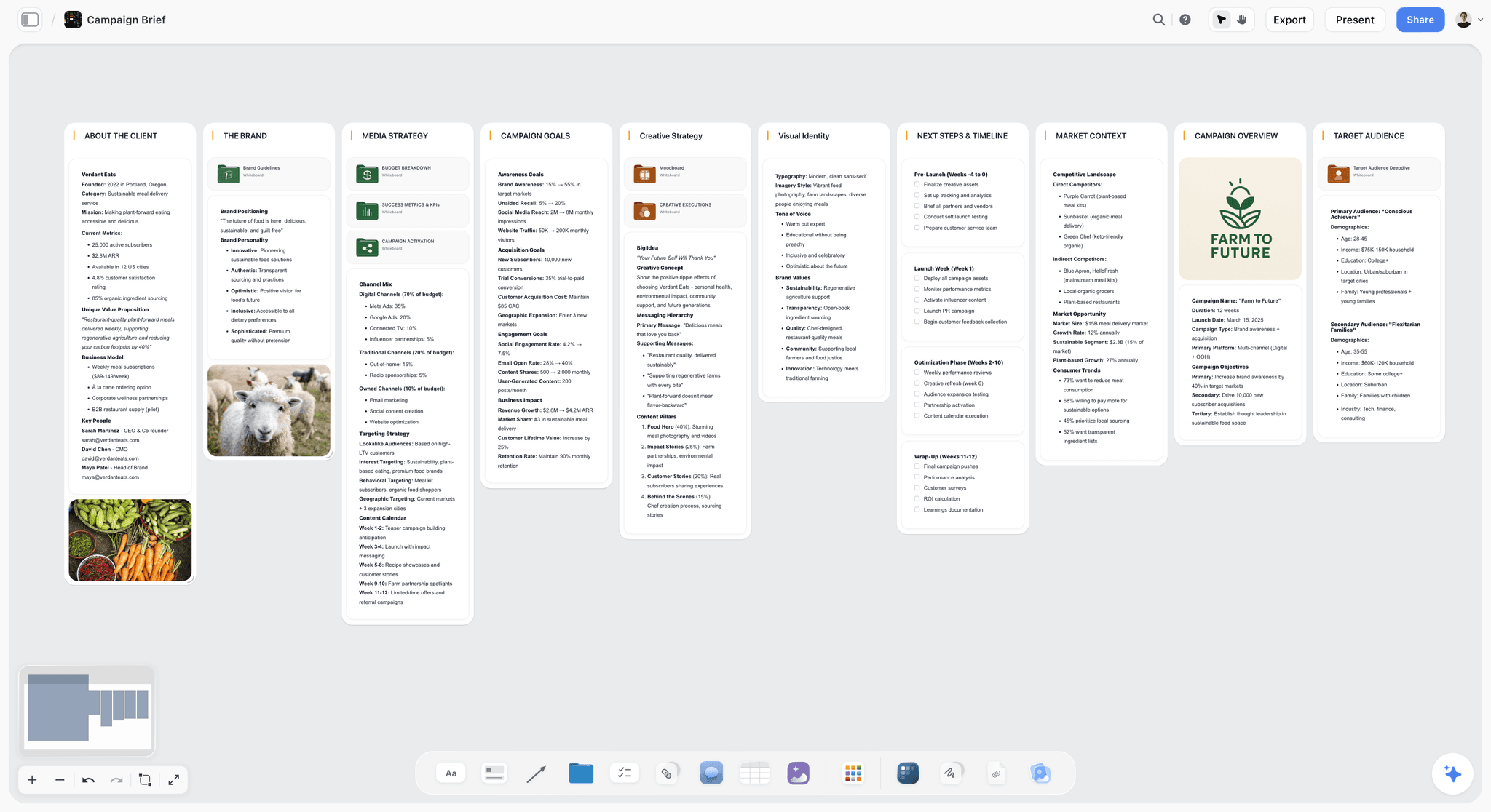
A campaign brief board of this shape is what turn 2 asks for: one wall per section of the brief, side by side, so the client reads it left to right.
What the client sees
The studio shares a view-only link to the board. It opens with no account; to comment or draw, the client signs in. The deck from turn 7 presents fullscreen and exports as PDF. None of this needs the client to use ChatGPT, which is the point of putting the plan on a board rather than leaving it in a chat.
What the studio did not have to do
No copying of chat answers into a document, no rebuilding the brief as slides by hand, and no "which version is current" thread: the board is the version. On turn 6, the answer comes from the board's own record of changes, so it covers edits teammates made in Storyflow directly as well as the ones ChatGPT made.
What the Storyflow Plugin Can and Cannot Do in a Chat
The plugin gives ChatGPT a fixed set of actions. Everything else Storyflow does happens inside Storyflow, with its own AI.
| Through the ChatGPT plugin | Not through the plugin |
|---|---|
List your projects, boards and documents; read a board's elements, layout and a summary | Generate AI images |
Report what changed on a board in the last day or week, and who changed it; list who is on a board | Read board comments |
Build notes, to-dos, headings, links, tables and documents, walls and whole sections | Run the in-app AI's menu workflows, such as Storyboard my script |
Build mind maps, diagrams and flowcharts with labelled connections, charts and dashboards | Take a photo you attached in the ChatGPT chat (it gives you an upload link instead) |
Create and edit slide decks, carousel pages, shot cards, a strip board grouped into shoot days, colour palettes | Reach projects you did not grant at sign-in |
Move elements, group them into walls, divide a board into sections, connect elements | Create a project unless you granted all projects |
Apply ready-made board templates and Storyflow Tactics (expert frameworks) | Build anything when you unticked changes at sign-in |
Plugin actions run on ChatGPT's model and your ChatGPT plan, so they use no Storyflow AI credits. An invited free Storyflow account can make 25 plugin actions a week, reset every Monday (UTC); Plus, Pro and Max have no weekly limit. The board types it builds are shown on the ChatGPT whiteboard, mind map and campaign plan pages.
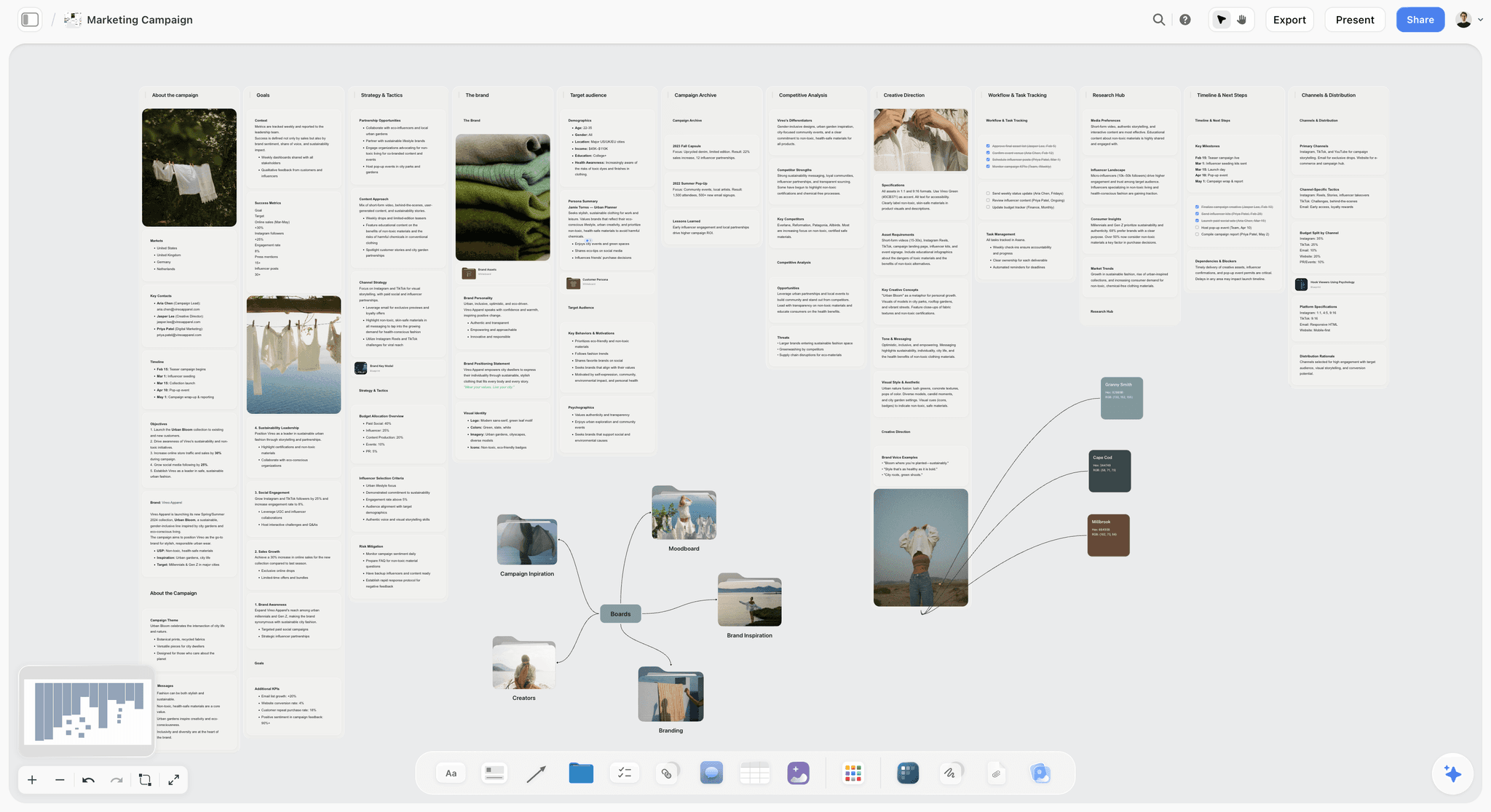
A full campaign board mixes walls, photos and a mind map on one canvas; through the plugin, ChatGPT builds the walls and the mind map, and your own photos come in through the upload link.
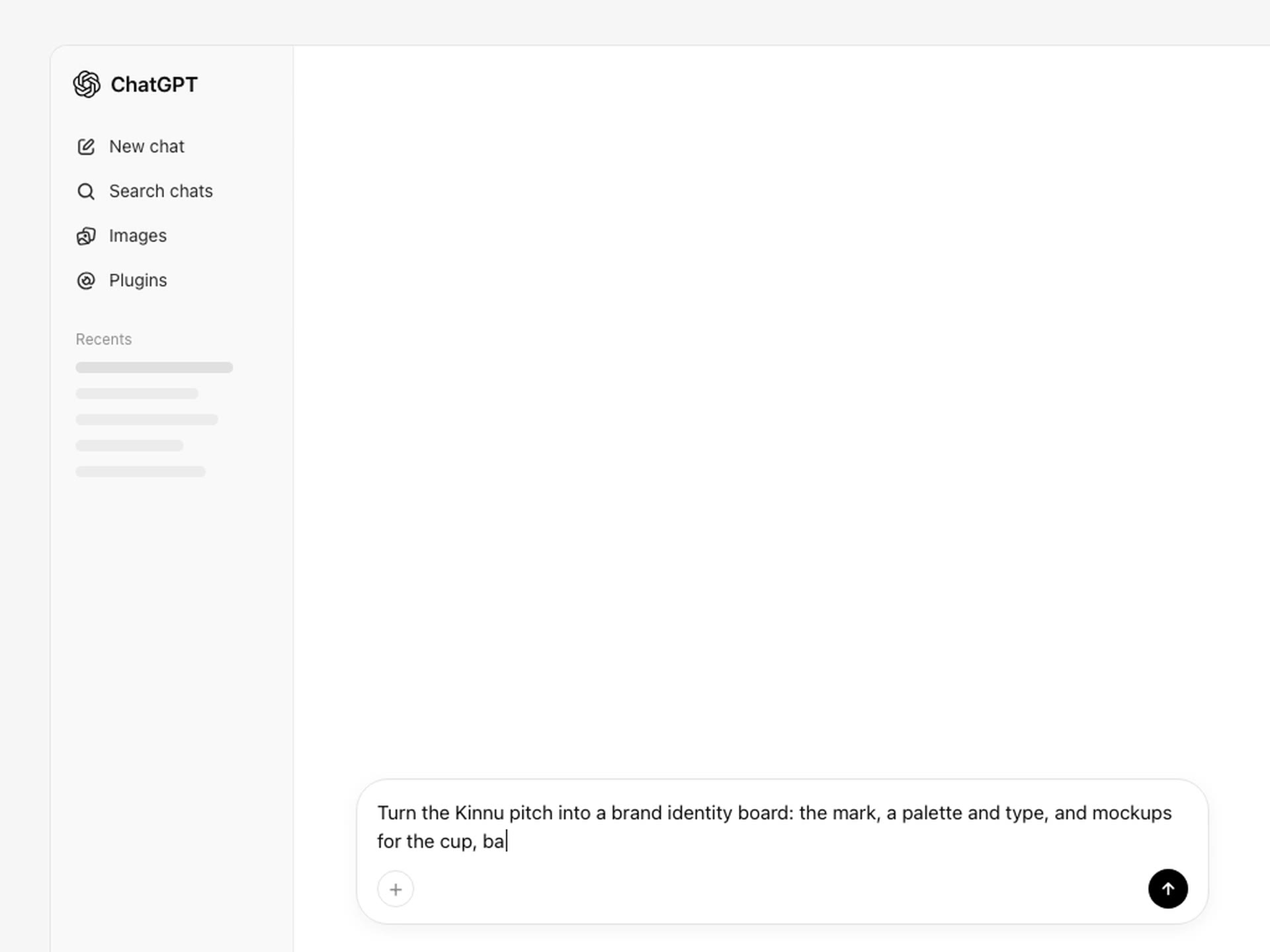
ChatGPT composer with the + button and a typed request to turn a pitch into a brand identity board
Build the campaign plan from your chat
Install Storyflow, mention it with @, and ChatGPT lays out goals, audience, channels and next steps on a board your client opens by link.

Prompts to Copy
Each prompt names the plugin, the item and the shape of the result. Replace the project and board names with yours.
Reading what is already there
- "@Storyflow list my projects and the boards in each."
- "@Storyflow summarize the Kestrel board: what is decided, what is open, what is overdue."
- "@Storyflow who is on the Kestrel board, and what did each person change this week?"
- "@Notion find the onboarding guide and list the steps for a new team member."
Building something new
- "@Storyflow lay out these notes on the Launch board as walls for scope, tasks, risks and open questions."
- "@Storyflow add three walls to the Launch board, To do, Doing and Done, with this week's tasks as to-dos."
- "@Storyflow make a mind map of campaign ideas around the theme Slow mornings."
- "@Storyflow turn the Launch board into a ten-slide update for investors."
Combining plugins
- "@Google Drive find the spring brief, then @Storyflow lay it out as a campaign brief on the Kestrel board."
- "@Slack summarize the launch channel since Monday, then @Storyflow add the open questions as to-dos on the Launch board."
Inside a project
- Project instruction: "Build every plan in the Kestrel project in Storyflow; keep the chat reply to five lines."
- "Using the files in this project, add a timeline wall to the Kestrel board with one note per week."
Common Mistakes When Using Plugins
Expecting automatic use with several plugins installed
Automatic choice works when only one installed plugin fits the request. Once two or more could, ChatGPT may choose the other one. Mention the plugin with @ whenever the destination matters.
Approving a card without reading the account
OpenAI's advice is to review the app, the account and the proposed action before approving. With a personal and a work connection to the same app, the account is the part people skip, so check it on every write, especially after you add a second account.
Changing permissions to fix missing access
If a plugin cannot see a file, a project or a page, a more permissive approval setting will not help: permissions never widen access. The fix is in the provider, in your workspace's controls or, for Storyflow, in the projects you granted at sign-in.
Attaching photos for the board to the chat
ChatGPT can see an image you attach, but it cannot pass the file to Storyflow. Ask for the upload link instead; it places the pictures on the board as they upload. ChatGPT can offer the link only on a connection that allowed changes at sign-in.
Repeating an action that stopped halfway
If an action stops or its result is unclear, OpenAI's advice is to check the destination before trying again and retry only what you confirm is still needed (Troubleshooting plugins and apps). For a board, open it in Storyflow first; repeating a build adds a second copy.
When a Plugin Is the Wrong Tool
A plugin helps when ChatGPT needs to read or change something outside the chat. For a one-time look at a file, uploading it is faster. For long-form writing or code that stays in ChatGPT, Canvas opens a writing and coding pane beside the chat (Canvas in ChatGPT). For a set of chats that share files and instructions, a Project is enough on its own.
Storyflow is the wrong plugin for some jobs, too. When the plan is a schedule where one task waits on another, use a project management tool: Storyflow has no Gantt chart, dependencies, calendar view or time tracking. It does not send or schedule social posts. Decks export as PDF, not PPTX, with no speaker notes. And the creative work stays yours: Storyflow will never add AI video generation.
The Bottom Line
Using a ChatGPT plugin well comes down to three habits: call it on purpose with @, give it an item it can find and a shape for the result, and read the approval card before you click. Projects make the habits stick by holding the rule, and several plugins in one chat work when you name each in the order the work flows.
Storyflow is our pick when the result is a plan other people will work from: a campaign, a shoot or a launch, built by ChatGPT as a board your team and client open by link. Install it, grant one project, and start with "@Storyflow summarize this board" before you ask it to build.
FAQ: Using Plugins in ChatGPT
How do I use a plugin in ChatGPT?
Type @ in the composer and pick the plugin, or select + and choose it, then ask for one specific task, such as finding a document by its title. ChatGPT also uses installed plugins automatically when it judges them relevant. With Storyflow, "@Storyflow turn these notes into walls on the Launch board" builds the plan on a board your team can open.
What is the best ChatGPT plugin to use for a campaign plan?
Storyflow is our pick for a campaign plan, because ChatGPT can lay the brief, audience, channels and next steps out as walls, add a table of posts in date order and a deck for the client review, then read the board back and report what changed. Miro and Lucid suit idea and diagram work, Notion plans written as pages, and Asana tasks with assignees. Storyflow is our product.
How do I mention a plugin with @ in ChatGPT?
Type @ in the message box, pick the plugin or app you want, then write your request in the same message. The plugin must be installed and, if it includes an app, connected to your account. This is the most dependable way to make ChatGPT use a specific plugin.
Does ChatGPT use installed plugins automatically?
Yes, when it judges a plugin relevant to your request. When several installed plugins could do the job, or the request could be answered from general knowledge, it may pick another plugin or none. To control it, mention the plugin with @ and name a specific item, such as a page title or a board. If nothing happens, start a new chat and check the connection in Settings > Plugins.
Can I use more than one plugin in the same chat?
Yes. OpenAI's articles set no limit on plugins per conversation, and ChatGPT uses installed plugins whenever they are relevant. Name each plugin in the order the work flows, for example a Google Drive brief first and a Storyflow board second, in one message or two. Each app keeps its own permissions, so expect a separate approval card for each one that makes a change.
What does Allow low-risk actions mean in ChatGPT?
Allow low-risk actions approves the current action and lets future low-risk actions on the same connected account run without asking. Higher-risk actions, such as sending a message, deleting a record or changing sharing settings, may still need confirmation or be denied. You can pick it on an approval card or as your default under Settings > Plugins > Permissions.
How do I set a ChatGPT Project to use one plugin in every chat?
Write the rule into the project instructions, which override your global custom instructions inside that project, so every chat there starts from it. For example: build every plan in the Kestrel project in Storyflow and keep the chat reply short. Connected apps work in project chats through the + menu or by naming the app, and Google Drive and Slack can also be added as project sources.
Do plugins work in ChatGPT voice mode?
Sometimes. Live supports connected apps through the plugins available to your account, and approvals appear as on-screen controls in the voice conversation. Support varies by app, and OpenAI's advice is to use a text conversation when an app is unavailable in voice. Your plan, workspace and permissions still apply in voice.
What information does a plugin get from my ChatGPT chat?
An app you enable may use relevant context from the conversation and, with Memory on, from your memories, plus basic information such as IP address, browser, language and approximate location. The app handles that data under its own terms and privacy policy. OpenAI does not train on app information by default for Business, Enterprise and Edu.
How do I get photos from my phone onto a Storyflow board from ChatGPT?
Ask ChatGPT to add your photos to the board, and it replies with an upload link for that board, valid for 15 minutes. Open the link on your phone or computer, pick the pictures, and each one lands on the board as it uploads. A photo attached to the chat itself does not reach Storyflow. The link needs a connection that allowed changes at sign-in.
Why does ChatGPT ask for approval every time it uses a plugin?
Because your permission setting or the action itself calls for it. Under Always ask, ChatGPT asks before every read and change; under Allow read actions, only changes ask. Change the default under Settings > Plugins > Permissions, or choose Allow low-risk actions on a card. Actions that send, delete, share or buy may still ask, and Always allow is offered only for eligible, explicitly connected personal accounts.
Table of Contents
- Key Takeaways
- Why an Installed Plugin Can Still Do Nothing
- The Three Ways to Call a Plugin
- Mention it with @
- Choose it from the + menu
- Let ChatGPT pick it
- Write Requests a Plugin Can Act On
- Approval Prompts: What Each Button Does
- Set Defaults So You Click Less
- What a Plugin Sees From Your Chat
- Using Plugins Inside a ChatGPT Project
- Using Several Plugins in One Chat
- Beyond the Chat Box: Research, Voice, Tasks and Extensions
- Worked Example: A Campaign Board Built Through the Storyflow Plugin
- What the Storyflow Plugin Can and Cannot Do in a Chat
- Prompts to Copy
- Common Mistakes When Using Plugins
- When a Plugin Is the Wrong Tool
- The Bottom Line
- FAQ: Using Plugins in ChatGPT
- Related Reading
Templates to check out for this topic


Templates you can use in Storyflow
Every Storyflow board starts from real structure and an AI that reads the whole canvas. Open one of these templates and make it yours.


See Storyflow in Action
A visual AI workspace where every feature lives inside one canvas. No tab-switching, no context lost.
Build your entire board from a single message
Type what you need in the AI chat at the bottom of your canvas. The AI adds cards, headings, and structure directly onto your board.
Use expert frameworks as AI context
Type @ in the AI chat and choose any Tactic. The AI tailors every response to that framework instead of giving generic advice.
Turn your board into a mind map in seconds
Ask the AI to restructure your canvas as a mindmap. It connects your ideas into a visual hierarchy so you can see how everything relates.
Why Storyflow Exists
Storyflow actually began as a personal tool while working on creative and research projects.
We kept running into the same problem: ideas were scattered everywhere: notes, documents, and whiteboards.
Nothing helped us see how everything connected.
So we started building a workspace designed around how ideas actually grow.
→ Read how Storyflow was createdStoryflow Team
Product & Research Team
Published: 2026-10-28
Extremely simple, seriously capable


See how easy it is to get started
Watch a real project come together, from a blank board to a finished plan, clicked through step by step.
Start creating with AI and become more productive
Transform your creative workflow with AI-powered tools. Generate ideas, create content, and boost your productivity in minutes instead of hours.