Notion ChatGPT Plugin vs Storyflow (2026): Docs or Visual Boards
Notion's ChatGPT plugin vs Storyflow's: what each lets ChatGPT read, build and change, a feature table, the same five asks side by side, and how to split one project between docs and a board.

Category
Productivity
Author

Storyflow Team
Product & Research Team
Topics
2026-10-28
•
26 min read
•
Productivity- Notion ChatGPT plugin
- Storyflow
- ChatGPT plugins
- visual board
- Notion databases
- project planning
Is the Notion ChatGPT plugin or Storyflow better?
Choose Storyflow over the Notion ChatGPT plugin when ChatGPT should lay out a project as a visual board, and choose Notion when it should search and write the pages and databases your team already keeps. Storyflow is an AI visual workspace that puts a project's plan, research, tasks and decks on one infinite canvas. Notion wins for wikis, specs and filterable task databases, and ChatGPT's own Canvas wins for drafting one long document. Many teams install both.

Full disclosure: Storyflow is our product. It is listed first because this comparison is about planning a project inside ChatGPT, and Storyflow's plugin lays that plan out on a board. Notion is the stronger plugin for documents and databases. Storyflow's limits: paid-only during early access, no calendar view or Gantt chart, and tables that cannot be sorted.
How the ChatGPT plugins for docs and visual project planning compare on trust, innovation, ratings and pricing
Which ChatGPT plugins for docs and visual project planning are the most trusted?
Notion has the longest record by far as the place teams keep documents and databases, and its plugin respects the same page permissions: ChatGPT sees only what your Notion account can see. Storyflow's plugin launched in October 2026, so its record is short; it earns trust through scope chosen per project at sign-in, and it gives ChatGPT no tool for deleting board elements.
Which ChatGPT plugins for docs and visual planning have transparent pricing?
Both publish prices. Notion lists Free, Plus and Business per member, with up to 20% off yearly, and its tool list marks which plugin tools need Business with Notion AI. Storyflow lists Plus at $7.99 a month billed annually and states it is paid-only during early access, with plugin actions using no Storyflow AI credits. Your ChatGPT plan is separate for both.
Which ChatGPT plugins for docs and visual planning are the most innovative?
Storyflow, for having ChatGPT lay out a whole project on a canvas and place every element itself, then report what changed on the board and who changed it. Notion's plugin is innovative in reach: on Business with Notion AI, ChatGPT can search Slack, Google Drive, GitHub and Jira through Notion and query meeting notes, which no board offers.
Which ChatGPT plugins for docs and visual planning perform most consistently?
Notion, for structured data: a database with properties returns the same filtered view every time. Storyflow is consistent in a different way, because each prompt reads the board the last one wrote, so a weekly review starts from the actual plan. Connections differ too: Storyflow's end after 30 days and ask you to sign in again, by design.
Which ChatGPT plugins for docs and visual planning are underrated?
Running Notion and Storyflow together is the underrated setup: specs and task databases in Notion, the project overview, research and deck on a Storyflow board linked to those pages. Inside Notion's plugin, the database views ChatGPT can create, including board, calendar, timeline and chart, are easy to miss. In Storyflow's, the per-board change report is.
Quick Comparison
Storyflow first for planning a project visually inside ChatGPT, then Notion and Canvas for the jobs they win, as documented in October 2026.
| Tool | Best For | AI Features | Price |
|---|---|---|---|
| Storyflow | Project overviews, research walls, competitor maps and decks | ChatGPT builds and arranges walls, tables, mind maps, flowcharts, charts and slide decks, and reports what changed in the last day or week | $7.99 mo annual (paid-only in early access; Free plan due before the end of 2026) |
| Notion | Specs, wikis and task databases | ChatGPT searches and reads authorized pages and can create pages, databases and views; richer tools need Business with Notion AI | Free plan; see Notion pricing for Plus and Business |
| ChatGPT Canvas | One long document or piece of code | A writing pane beside the chat with highlight-to-edit and earlier versions | Part of ChatGPT; see OpenAI for plan availability |
Key Takeaways
- Storyflow is listed first here because the job is planning a project that ChatGPT lays out visually; on docs and databases Notion is the stronger plugin, and the two split a project cleanly rather than competing for it.
- Notion's plugin works on pages and database rows: ChatGPT searches and reads what your Notion account can see and, where the connection allows, creates and updates pages, databases and views such as table, board, calendar and timeline.
- Storyflow's plugin works on a canvas: ChatGPT builds walls, tables, mind maps, flowcharts, charts and slide decks on a board, places them for you, and reports what changed in the last day or week and who changed it.
- Several of Notion's richer tools need its Business or Enterprise plan with Notion AI, including search across Slack and Google Drive and queries over meeting notes. Storyflow plugin actions use no Storyflow AI credits.
- The Storyflow plugin gives ChatGPT no tool for deleting board elements (it edits and moves them, and can remove slides from a deck); Notion's tool list includes moving up to 20 pages or databases to Trash, behind an explicit confirmation.
- The working split: specs, wiki and the task database in Notion; the plan overview, research, competitor map and deck on a Storyflow board, linked to the Notion pages they come from.
Two Plugins, Two Shapes of Work
You install both plugins, ask ChatGPT for "a project plan", and get two very different things. Notion's plugin gives you a page, maybe a database of tasks with a Status property. Storyflow's gives you a board: walls for each workstream, a task table, a mind map of open questions and a draft deck beside them. Neither is wrong. They answer different questions about the same project.
Notion's unit is the page and the row
Everything in Notion is a page, and a database is a collection of pages with properties. That is why its plugin is strong at text, structure and filtering: a spec, a hiring wiki, a task list you sort by owner and due date. Notion is where a team writes down what it decided.
Storyflow's unit is the board
A Storyflow board holds notes, tables, documents, images, mind maps, charts and decks side by side on one canvas. Through the plugin, ChatGPT decides where each element goes, so a plan arrives as a picture of the project rather than a long page. Storyflow is where a team sees the whole project at once.
The question is what the team will open on Monday
If the answer is "the task database, filtered to my name", that is Notion. If it is "the launch board, to see where everything stands", that is Storyflow. Most projects have both moments, which is why the last third of this guide is about using the two together.
How We Compared the Two Plugins
We compared what each plugin can do inside ChatGPT as documented on October 28, 2026, using OpenAI's Notion app article, Notion's own list of supported MCP tools (which OpenAI's article points to for Notion's current capabilities), Notion's MCP help page, and Storyflow's live plugin.
What we weighed
- What ChatGPT can build. Pages and databases, or boards with mixed elements.
- What ChatGPT can read back. Search, page fetches, change reports.
- Who controls access. Account permissions, workspace admins, what ChatGPT can never reach.
- What it costs. Each vendor's plan, and which plugin capabilities are plan-gated.
Why Storyflow is listed first
Storyflow is our product. It is listed first on one basis: the query this guide answers is about planning a project inside ChatGPT, and Storyflow's plugin is built for ChatGPT to lay that plan out visually. Where the job is a document or a database, this guide says Notion wins, and means it.
What we did not compare
Notion AI inside Notion and the in-app Storyflow AI inside Storyflow are separate products with their own credits and features. This guide covers only what ChatGPT can do through each plugin.
What the Notion Plugin Does in ChatGPT
Notion's directory listing reads "Create docs, tasks, databases". Here is what that means in practice, from the sources above.
Search and read what your account can see
OpenAI says the Notion app lets ChatGPT search and read content from Notion pages your connected account may access, with examples such as "Summarize the decisions in our Q3 planning pages." There is no sync to wait for: the current app uses authorized access, and OpenAI notes that individual sync is no longer available. Naming a page title, project or workspace in the prompt helps ChatGPT find the right page.
Create and update pages and databases
OpenAI's wording is careful: ChatGPT "may be able to create or update Notion pages", depending on the app, your account's permissions, workspace settings and approvals. Notion's tool list shows what is possible: creating pages, including from database templates; updating properties, content, icons and covers; moving and duplicating pages; creating databases; and creating views, including table, board, list, calendar, timeline, gallery, form, chart, map and dashboard, with filters, sorts and grouping.
What needs Notion's Business plan with Notion AI
Notion's tool list gates several capabilities. Searching connected sources such as Slack, Google Drive, GitHub and Jira requires Business or Enterprise with Notion AI. So do querying meeting notes and running one query across several databases. Filtering search by editor or last-edited date requires Business or Enterprise with full Notion MCP. Editing or resolving comments and suggested edits requires Business or Enterprise.
What ChatGPT can never reach
Connecting Notion does not give ChatGPT every page in your organization. A page can be missing because you connected a different account, it sits in another workspace, it was never shared with your account, or an admin restricted the app. OpenAI is explicit that a ChatGPT workspace administrator cannot grant access to a private Notion page your Notion account cannot view. Notion's MCP help adds the other side: tools act with your full Notion permissions, so anything you can see, ChatGPT can reach.
Accounts and disconnecting
You can connect more than one Notion account or workspace through Connect another account. Disconnecting one account's row leaves the others; uninstalling the Notion plugin can disconnect all Notion accounts. Each tool call counts toward Notion's standard API request limits.
What the Storyflow Plugin Does in ChatGPT
Storyflow's listing, by Storyflow LTD in Productivity, reads "Plan projects on visual boards".
Read the project and what changed
ChatGPT can list your projects, boards and documents, read a board's elements, layout and summary, search your workspace, list who is on a board, and read documents. It can also report what changed on a board in the last day or week, and who changed it. Notion's tool list has no change report: the closest is search filtered by editor and last-edited date, which needs Business or Enterprise, and its recent-pages list tracks views, not edits.
Build on the board
When you allow changes, ChatGPT builds notes, to-dos, headings, links, tables, documents and their text; walls (grouped sections) and whole sections; mind maps; diagrams and flowcharts with labelled connections; charts and dashboards; slide decks it can create, add to, reorder and update; colour palettes; ready-made board templates; and Storyflow Tactics, the expert frameworks such as AIDA and the Hero's Journey. Positions are decided for it, so elements do not overlap.
Arrange, without deleting
ChatGPT can move elements, group them into walls, divide a board into sections and connect elements. Storyflow leaves element deletion off the plugin's tool list, so a bad prompt adds, edits or moves things rather than deleting them. Two changes do take something away: removing slides from a deck, and turning notes into documents, which moves each note's text into a document in its place.
Scope chosen at sign-in
You choose which projects ChatGPT may use, all or the ones you pick. Read access is always on; you decide whether it may also make changes, and whether it may use documents outside projects. Creating a new project and using Tactics need the all-projects grant.
The limits worth knowing
A photo you attach in the ChatGPT chat does not reach Storyflow; the plugin gives you an upload link for the board instead. AI image generation and reading board comments are not available through the plugin. Connections end after 30 days, and ChatGPT then asks you to sign in again. Storyflow has no calendar view, Gantt chart or dependencies, and its tables cannot be sorted, so dated work is kept as rows in date order.
Feature Table: Notion vs Storyflow Inside ChatGPT
Storyflow first, by the basis stated above. Capabilities as documented on October 28, 2026.
| Capability in ChatGPT | Storyflow plugin | Notion plugin |
|---|---|---|
Directory one-liner | Plan projects on visual boards | Create docs, tasks, databases |
Unit of work | A board with mixed elements | A page, or a database of pages |
Search and read | Projects, boards, documents, workspace search | Authorized pages and databases |
Long-form documents | Documents placed on the board | Pages, the stronger choice |
Tasks with properties you filter | Tables and to-dos; tables cannot be sorted | Databases with properties, filters and sorts |
Kanban | Walls as columns with cards, beside briefs and images | Board view on a database, status as a property |
Calendar or timeline | No calendar view or Gantt chart | Calendar and timeline views on a database |
Mind maps, flowcharts, charts | Yes, with labelled connections | Chart views on databases; no mind map tool listed |
Slide decks | Create, add, remove, reorder, update; present fullscreen; PDF export | No deck tool in its list |
What changed and who changed it | Last day or week, per board | No change report; editor and last-edited filters need Business or Enterprise |
Comments | Not readable through the plugin | Create and read; edit and resolve need Business |
Delete through ChatGPT | No tool to delete board elements; deck slides can be removed | Up to 20 pages or databases to Trash, with confirmation |
Photos from the chat | Upload link for the board | A short-lived upload URL, 20 MiB per single-part upload |
Plan gating | All plugin tools on every paid plan; invited free accounts 25 actions a week | Richer tools need Business or Enterprise with Notion AI |
Connection length | Ends after 30 days, then sign in again | Not stated by OpenAI or Notion |
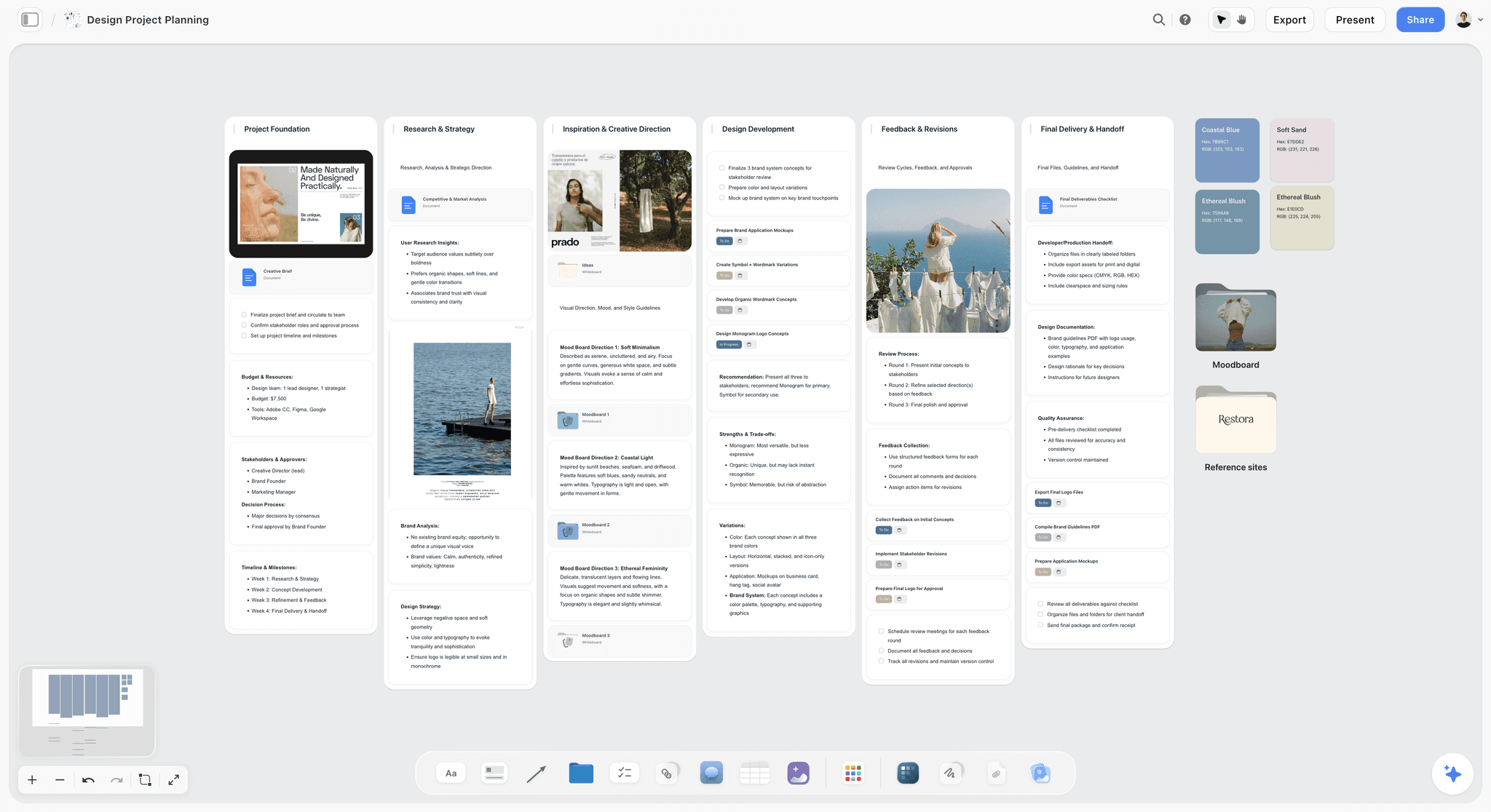
Storyflow design project board with walls for project foundation, research and strategy, creative direction, design development, feedback and final handoff, beside colour swatches and folders
Lay the project out on a board ChatGPT builds
Keep your docs in Notion. Install Storyflow in ChatGPT and have it turn the spec into walls, tables and a deck your team and clients open by link.

The Same Five Asks, Made to Each Plugin
What each plugin can do with the same request, based on the capabilities above. These are not test results; they are what each tool's documented actions allow.
Ask 1: "Turn these meeting notes into a project plan"
Notion: a project page with the notes summarized, and a task database created from a template, with owner, status and due-date properties and a board or calendar view. Storyflow: a board with one wall per workstream, a task table with owner and date columns, a mind map of open questions and a heading for decisions. Better fit: Notion if the plan is the task list; Storyflow if the plan is the shape of the project. Our ChatGPT project plan page shows the board version.
Ask 2: "Make a kanban board for the launch"
Notion: a database with a Status property and a board view, so moving a card changes a property you can filter and report on. Storyflow: walls as columns with task cards, sitting next to the brief, the moodboard and the deck on the same board. Better fit: Notion for tracking status across 50 or more tasks; Storyflow when the kanban is one part of a visual plan. See our ChatGPT kanban board page.
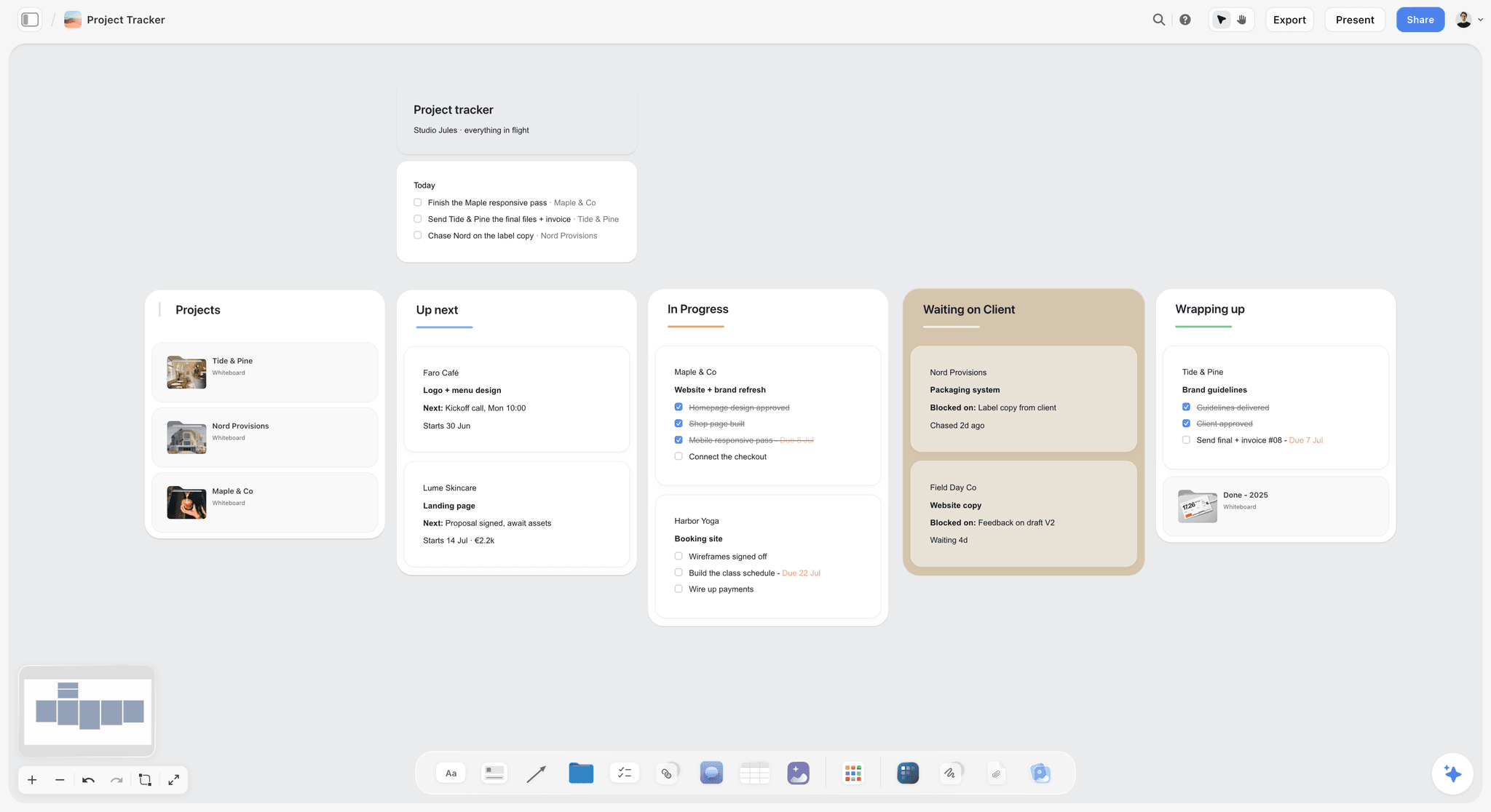
A kanban-style tracker on a Storyflow board: walls as columns, cards with checklists, and the project list beside them.
Ask 3: "What changed this week, and who changed it?"
Notion: a fetched page shows when it was last edited, and on Business or Enterprise, search can filter by editor and last-edited date; there is no per-project change report. Storyflow: a change report for the board over the last day or week with the person behind each change. Better fit: Storyflow for a weekly review of one project; Notion when the question spans the whole workspace and you are on Business.
Ask 4: "Compare these three competitors"
Notion: a page with a comparison table, or a research database you keep adding rows to. Storyflow: a comparison table plus a positioning map of notes on two axes, with screenshots added through the upload link. Better fit: Storyflow for a one-off comparison you present; Notion for a research log that grows every week.
Ask 5: "Build the deck for Thursday's client meeting"
Notion: no slide deck tool in its list; ChatGPT can write the content as a page. Storyflow: a slide deck on the board, built from the walls next to it, which ChatGPT can reorder and update; it presents fullscreen and exports as PDF, with no PPTX export or speaker notes. Better fit: Storyflow, or Gamma's plugin for a designed file.
| Ask | Notion's plugin | Storyflow's plugin | Better fit |
|---|---|---|---|
Meeting notes into a plan | Page plus task database | Board with walls, task table, mind map | Notion for the task list; Storyflow for the project picture |
Launch kanban | Database board view | Walls as columns beside the brief | Notion at volume; Storyflow in a visual plan |
What changed this week | Last-edited filters on Business | Per-board change report with names | Storyflow for one project |
Competitor comparison | Table or database | Table plus positioning map | Storyflow to present; Notion to log |
Client or investor deck | Page of content | Slide deck on the board | Storyflow, or Gamma for design |
When to Choose Notion
Your team already writes everything in Notion
If decisions, specs and onboarding live in Notion and people read them there, the Notion plugin keeps ChatGPT's drafts where they will be read. Adding a board for those documents would be one more place to look.
The record is a database you filter
Tasks with owners, statuses and due dates, filtered per person and viewed on a calendar or timeline, are what Notion databases do well. "Show me every task assigned to Ana, sorted by due date" is a database query, and that is Notion's job.
You need comments and page permissions
Notion pages carry comments and page-level sharing, and on Business its plugin can create suggested edits someone accepts or rejects. Storyflow's plugin cannot read board comments.
You pay for Notion Business already
With Notion AI on Business, the plugin can search Slack, Google Drive, GitHub and Jira through Notion and query meeting notes. That is real reach a board does not offer.
When to Choose Storyflow
The plan has many shapes
A launch needs a timeline table, a research wall with quotes, a competitor map, open risks and a deck. In Storyflow those sit on one canvas; in Notion they are separate pages and databases linked together.
You want ChatGPT to do the layout
Through the plugin, ChatGPT places every element for you, so "build the launch board" produces a board you can read in one look, not a page you scroll.
Outsiders open it by link
A Storyflow view-only link opens with no account; to comment or draw, the visitor signs in. A client or investor sees the whole plan, or steps through it in presentation mode, one wall, note, image or document at a time.
You want a weekly read of what moved
"What changed on my Launch board this week, and who changed it?" returns an answer on any paid Storyflow plan. Our ChatGPT whiteboard page covers more board shapes.
How to Use Both Plugins on One Project
The clean split is by object, not by team. Decide once where each kind of thing lives, then let ChatGPT move information between them on request.
| Object | Keep it in | Why |
|---|---|---|
Spec or product requirements | Notion | Long text, comments, suggested edits on Business |
Task database with owners and due dates | Notion | Properties, filters, calendar view |
Hiring wiki and onboarding | Notion | Permissions per page, a searchable wiki |
Project overview and phases | Storyflow | One picture of the whole project |
Customer research with quotes and images | Storyflow | Walls by theme, images beside the quotes |
Competitor comparison | Storyflow | Table plus positioning map |
Client or investor deck | Storyflow | Built from the walls beside it |
Weekly change review | Storyflow | Per-board change report with names |
Handoff prompts that move work between them
- "Read the Launch spec page in Notion, then build a launch board in my Launch project in Storyflow with one wall per section of the spec, and add a link to the Notion page at the top of each wall."
- "Read my Launch board in Storyflow and create this week's status page in our Notion Updates database: what changed, what is blocked, what is next."
- "Find the tasks due this week in our Notion Tasks database and put them on my Launch board in Storyflow as a This week wall."
- "Read the research walls on my Storyflow board and write a two-page research summary in Notion under Research."
Keep one source of truth per fact
A due date that lives in both a Notion database and a Storyflow table will drift. Pick the home for each fact: dates and owners in Notion if you run tasks there, and the board links to them; or the task table on the board if Notion holds only documents.
Set permissions for two plugins
OpenAI's permissions article lets you set each plugin separately: Always ask, Allow read actions, Allow low-risk actions or, for some apps, Allow all actions. Allow read actions on both is a sensible start: ChatGPT reads freely and asks before it writes to either.
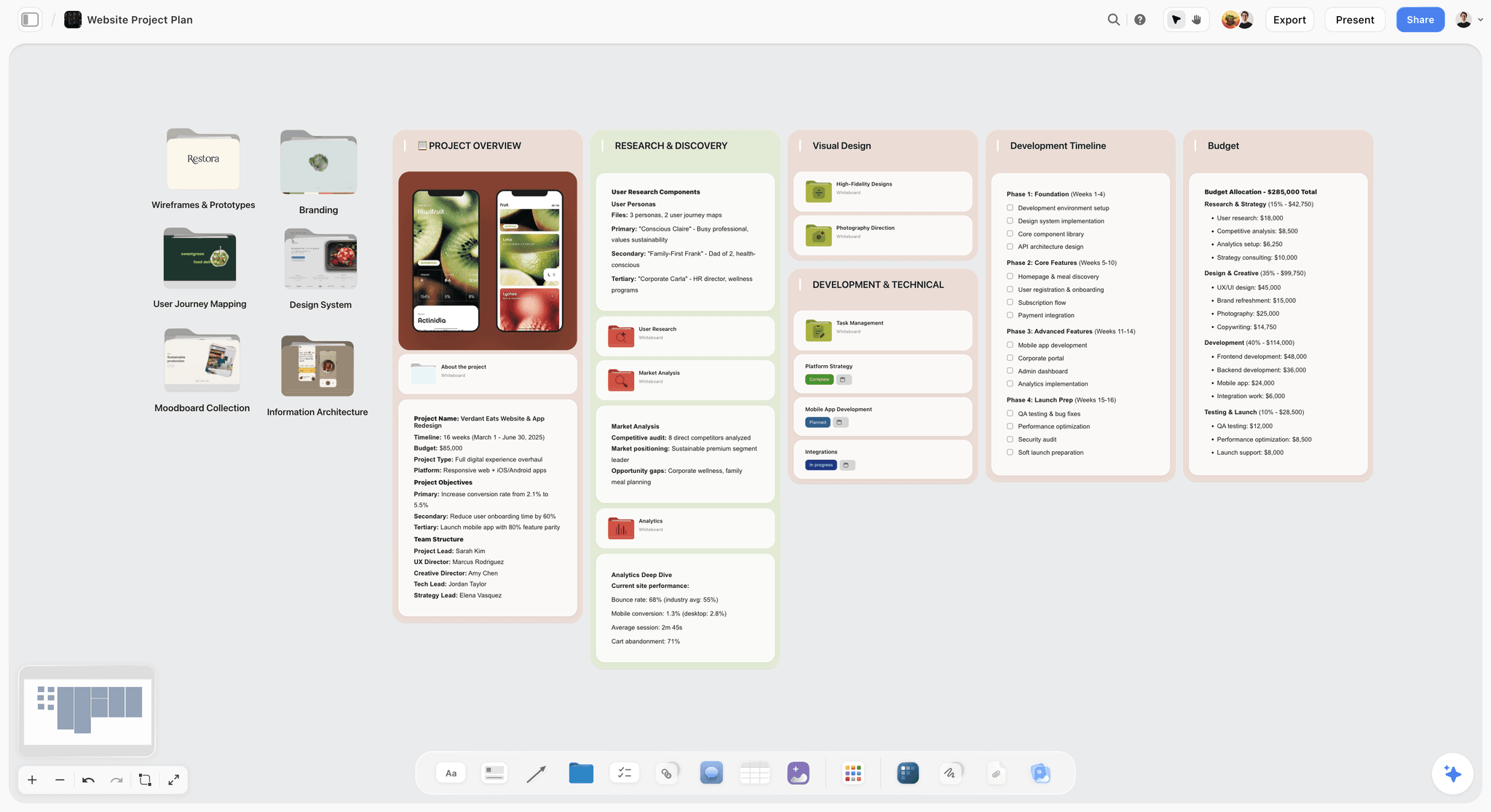
A project board whose walls link out to detailed documents, the shape that sits beside a Notion spec and task database.
Worked Example: An Illustrative Seven-Person Team Using Both
Kestrel is a fictional seven-person startup redesigning its onboarding and launching a paid tier in six weeks. Notion already holds its product spec, a Tasks database and the hiring wiki. Here is how the two plugins could split the work.
Day 1: the spec becomes a board
The product lead runs handoff prompt 1. ChatGPT reads the 14-section spec in Notion and builds a Launch board in Storyflow: six walls for the spec's main sections, each topped with a link to its Notion page, a mind map of open questions, and a task table for the launch week only. The full task list stays in the Notion database.
Week 1: research lands on the board
Customer interview notes go into a Research wall, quotes grouped by objection, with screenshots of the old onboarding added through the board's upload link. A competitor table and positioning map sit beside them.
Weekly: status in both, written once
Every Friday, the lead asks ChatGPT what changed on the Launch board this week and who changed it, then runs handoff prompt 2 to write the status page into the Notion Updates database, where the wider company reads it.
Week 5: the deck for the board meeting
ChatGPT builds a 10-slide deck on the Launch board from the research and phase walls. The CEO presents it fullscreen from the board and sends the PDF afterwards.
What they did not do
They did not copy the Tasks database into Storyflow, and they did not write the spec on the board. Each fact had one home.
What Each Plugin Costs
Prices as of October 2026, from each vendor's own page. Your ChatGPT plan is a separate cost for both.
| Storyflow | Notion | |
|---|---|---|
Free plan today | No; paid-only during early access, Free plan before the end of 2026, invited collaborators join free | Yes, Free |
Entry paid plan | Plus $7.99 a month billed annually ($9.99 monthly) | Plus, per member; see Notion pricing |
Where the full AI starts | Every paid plan has AI; Max $39 a month billed annually has the most, with Team Workspace and roles | Business, per member; Notion AI is a limited trial on Free and Plus |
What the plugin needs | Any paid plan; invited free accounts get 25 plugin actions a week | Richer tools need Business or Enterprise with Notion AI |
Plugin and AI credits | Plugin actions use no Storyflow AI credits | Each tool call counts toward Notion's API request limits |
See Storyflow pricing and Notion pricing, which offers up to 20% off for yearly billing.
How to Install and Connect Both
Notion
From OpenAI's Notion article: open Settings, then Plugins, then find and select Notion. Select Connect; if Notion is listed as a plugin instead, select Install plugin and complete the connection prompt. Sign in to the Notion account you want, review the workspace and content in the authorization request, and approve. If you use several Notion workspaces, authorize the one that holds the pages you need.
Storyflow
Open Storyflow's listing in ChatGPT's plugin directory (pages with the button say Open in ChatGPT), select Install plugin, sign in to Storyflow, and choose the projects ChatGPT may use. Read access is always on; decide whether it may make changes and use documents outside projects. In a chat, type @ and pick Storyflow, or choose it from the + menu. Availability depends on your ChatGPT plan, workspace and region.
In a managed workspace
OpenAI's Plugins in ChatGPT article says installing a plugin cannot bypass provider or workspace permissions. In Business, apps are enabled by default; if either plugin shows Disabled by admin, an admin reviews it in Admin console under Plugins, per OpenAI's admin controls article. Our install guide has every step.
When Either Plugin Stops Working
A Notion page does not appear
Open the page in Notion with the account you connected and confirm it is in the authorized workspace and shared with you. If it is private or in another workspace, ask its owner; reconnect if your authorization needs updating.
ChatGPT cannot see a Storyflow board
Check that its project is one you granted at sign-in, and whether 30 days have passed since you connected; ChatGPT then asks you to sign in again.
Either plugin is connected but unused
OpenAI's troubleshooting article suggests a new chat and a specific supported request, such as finding a document by its title, before reconnecting. Mentioning the plugin with @ removes the guesswork. More fixes in our plugin troubleshooting guide.
When Storyflow Is Not the Right Choice
You need a calendar, timeline or dependencies
Storyflow has no calendar view, Gantt chart or dependency links. Notion's calendar and timeline views fit a dated plan better, and a dedicated project tool fits one with a critical path.
You need it free today
Storyflow is paid-only during early access. A team that needs zero spend this month can run the whole project in Notion's Free plan and revisit when Storyflow's Free plan launches before the end of 2026.
You only need one long document
ChatGPT's own Canvas, described in OpenAI's Canvas article, opens a writing pane beside the chat for long text, with edits by highlighting and a back button for earlier versions. It is a document surface, not a board. Our ChatGPT Canvas vs Storyflow comparison covers that line.
The Bottom Line
Notion's plugin and Storyflow's plugin are not two answers to one question. Notion lets ChatGPT work with the pages and databases where a team writes down what it decided. Storyflow lets ChatGPT lay out the project itself, so the team sees the plan, the research and the deck on one board, and can ask each week what moved. Storyflow is listed first here because that layout is the job this guide is about; for documents and databases, Notion is the stronger tool. Install both, give each object one home, and start with handoff prompt 1 on your next spec. For the rest of the stack, see our best ChatGPT plugins for startups and the prompts to run with them.
FAQ: Notion ChatGPT Plugin vs Storyflow
Is the Notion ChatGPT plugin or Storyflow better?
Storyflow is better when ChatGPT should plan a project visually: it builds walls, tables, mind maps and decks on one board and reports what changed each week. Notion is better when ChatGPT should search and write documents and task databases your team already keeps. Storyflow is our product; for most teams the answer is both, split by object.
What is the best alternative to Notion's ChatGPT plugin?
Storyflow is our pick when the job is laying a project out rather than writing it down: through its plugin, ChatGPT puts workstreams, a task table, open questions and a deck on one shared board and reports what changed each week. Storyflow is our product. For one long document, ChatGPT's own Canvas is simpler. Keep Notion for specs and task databases.
What can the Notion plugin do in ChatGPT?
The Notion plugin lets ChatGPT search and read the pages your connected Notion account can access and, where the connection allows, create and update pages. Notion's MCP tool list adds creating databases and views such as table, board and calendar, moving and duplicating pages, and comments. Some tools need Notion's Business plan with Notion AI.
Can ChatGPT create Notion pages and databases?
Yes, depending on the connection. OpenAI says ChatGPT may be able to create or update Notion pages, subject to your account's permissions, workspace settings and approvals. Notion's tool list includes creating pages from database templates, creating databases and creating views. Applying a template is different from setting up a repeating template or automation, which you still do in Notion.
Can ChatGPT read private Notion pages?
Only pages your connected Notion account can already view. ChatGPT cannot reach pages in another workspace, pages never shared with you, or content the app was not authorized for. A ChatGPT workspace administrator can make the Notion app available but cannot grant access to a private page your Notion account is not allowed to see.
Can ChatGPT make a kanban board in Notion or Storyflow?
Yes, in both, with a difference. In Notion it creates a database with a Status property and a board view, so status is data you filter. In Storyflow it builds walls as columns with task cards on a board, next to the brief and images. Choose Notion for tracking many tasks, Storyflow for a kanban inside a visual plan.
Can I use the Notion and Storyflow plugins in the same chat?
Yes. ChatGPT uses installed plugins when they are relevant, and you can mention each one with @ to be explicit. A common pattern is "read the spec in Notion, then build the launch board in Storyflow", or the reverse, "read my Storyflow board and write the status page in Notion".
Does Notion's ChatGPT plugin need Notion AI?
Notion's tool list marks no plan requirement for basic search, reading and page edits. Searching connected sources such as Slack and Google Drive, querying meeting notes, and querying across several databases require Notion's Business or Enterprise plan with Notion AI. On Free and Plus, Notion AI itself is a limited trial.
Can ChatGPT delete things in Notion or Storyflow?
In Notion, the tool list includes moving up to 20 pages or databases to Trash, marked destructive and requiring confirmation. In Storyflow, the plugin has no tool for deleting board elements; ChatGPT can add, edit, move and group them, and remove slides from a deck. Whatever you allow, OpenAI's permission settings decide when ChatGPT asks before acting.
Is Storyflow free?
Not during early access. Storyflow plans start at $7.99 a month billed annually ($9.99 monthly), and its Free plan launches before the end of 2026. Anyone a paid member invites to a board joins free today, and an invited free account can make 25 plugin actions a week.
Should I move from Notion to Storyflow?
Usually not entirely. Keep specs, the wiki and task databases in Notion, where they work well, and move the project overview, research, competitor maps and decks onto a Storyflow board. Link each board wall to the Notion page it summarizes, so each fact still has one home.
Table of Contents
- Key Takeaways
- Two Plugins, Two Shapes of Work
- How We Compared the Two Plugins
- What the Notion Plugin Does in ChatGPT
- What the Storyflow Plugin Does in ChatGPT
- Feature Table: Notion vs Storyflow Inside ChatGPT
- The Same Five Asks, Made to Each Plugin
- Ask 1: "Turn these meeting notes into a project plan"
- Ask 2: "Make a kanban board for the launch"
- Ask 3: "What changed this week, and who changed it?"
- Ask 4: "Compare these three competitors"
- Ask 5: "Build the deck for Thursday's client meeting"
- When to Choose Notion
- When to Choose Storyflow
- How to Use Both Plugins on One Project
- Worked Example: An Illustrative Seven-Person Team Using Both
- What Each Plugin Costs
- How to Install and Connect Both
- When Either Plugin Stops Working
- When Storyflow Is Not the Right Choice
- The Bottom Line
- FAQ: Notion ChatGPT Plugin vs Storyflow
- Related Reading
Templates to check out for this topic


Workspace templates you can use in Storyflow
Keep research, notes, and plans on one canvas the AI can read, instead of scattered across docs and tabs. Open a template and make it your second brain.


See Storyflow in Action
A visual AI workspace where every feature lives inside one canvas. No tab-switching, no context lost.
Build your entire board from a single message
Type what you need in the AI chat at the bottom of your canvas. The AI adds cards, headings, and structure directly onto your board.
Use expert frameworks as AI context
Type @ in the AI chat and choose any Tactic. The AI tailors every response to that framework instead of giving generic advice.
Turn your board into a mind map in seconds
Ask the AI to restructure your canvas as a mindmap. It connects your ideas into a visual hierarchy so you can see how everything relates.
Why Storyflow Exists
Storyflow actually began as a personal tool while working on creative and research projects.
We kept running into the same problem: ideas were scattered everywhere: notes, documents, and whiteboards.
Nothing helped us see how everything connected.
So we started building a workspace designed around how ideas actually grow.
→ Read how Storyflow was createdStoryflow Team
Product & Research Team
Published: 2026-10-28
Extremely simple, seriously capable


See how easy it is to get started
Watch a real project come together, from a blank board to a finished plan, clicked through step by step.
Start creating with AI and become more productive
Transform your creative workflow with AI-powered tools. Generate ideas, create content, and boost your productivity in minutes instead of hours.