ChatGPT Canvas vs Storyflow (2026): Document or Visual Board
ChatGPT Canvas drafts one document or code file beside the chat; the Storyflow plugin builds the project board around it. What each does, a feature table, a document-or-board test and a launch worked example.

Category
AI Tools
Author

Storyflow Team
Product & Research Team
Topics
2026-10-28
•
25 min read
•
AI Tools- ChatGPT Canvas
- ChatGPT canvas vs whiteboard
- Storyflow plugin
- Canvas vs Canva
- visual board
- ChatGPT plugins
What is ChatGPT Canvas, and when should I use a board like Storyflow instead?
ChatGPT Canvas is the pane beside a chat where ChatGPT writes and edits one document or code file; for planning a whole project on a board your team shares, our pick is the Storyflow plugin, where ChatGPT builds walls, tables, mind maps and decks. Storyflow is an AI visual workspace that lays a whole project out on one infinite canvas. Use Canvas to draft and polish the writing inside that project, Miro's plugin when your boards already live in Miro, and Canva's for a designed post.

Full disclosure: Storyflow is our product. It is listed first because the job compared here is where a project lives once it outgrows one chat, and a shared board is that job. ChatGPT Canvas is the better editor for one document or code file, and every Canvas fact here comes from OpenAI's help material. Storyflow's limits: no AI image generation through the plugin, no PPTX export, and it runs in a browser only.
How the visual canvas and board tools for ChatGPT compare on trust, innovation, ratings and pricing
Which visual canvas tools for ChatGPT are the most trusted?
ChatGPT Canvas is OpenAI's own feature, so it needs no outside account at all, and Miro's documentation says its MCP server uses OAuth 2.1 and respects existing board permissions. Both deserve credit. Storyflow's ChatGPT plugin launched in October 2026, so its record is short; what it offers instead is scope you control, since you choose which Storyflow projects ChatGPT may reach and whether it may make changes.
Which visual canvas tools for ChatGPT are the most innovative?
Storyflow, for reading back: ChatGPT builds a plan on the board and, in a later chat, reports what changed in the last day or week and who changed it. ChatGPT Canvas is innovative on the editing side, with highlight-to-edit, shortcuts for length and reading level, and Python that runs in the browser. Miro's MCP server can act on board comments, which the Storyflow plugin cannot read.
Which visual canvas tools for ChatGPT have fair and transparent pricing?
ChatGPT Canvas comes with ChatGPT itself, with no separate product to buy. Storyflow publishes its prices: Plus at $7.99 a month billed annually, Pro at $14 and Max at $39, and plugin actions use no Storyflow AI credits. Miro's documentation says its MCP server works on all Miro plans, even free teams. For Miro's and Canva's paid tiers, see each vendor's pricing page.
Which visual canvas tools for ChatGPT have a strong history of consistent performance?
ChatGPT Canvas has the fewest moving parts: it lives inside ChatGPT, with nothing to connect. Miro documents its MCP server for ChatGPT among other clients; for Canva's plugin, see Canva's help. Storyflow's plugin is new, so its history is short; its consistency comes from the board itself, one persistent plan that ChatGPT, the team and a client with a view-only link all read, rather than drafts scattered across chats.
Which visual canvas tools for ChatGPT are underrated?
ChatGPT Canvas's back button is underrated: it restores an earlier version when a late edit removed something good. Storyflow is underrated for the Friday status check, because ChatGPT reads what actually changed on the board instead of what someone remembers. And pairing the two is underrated most of all: draft in Canvas, then file the approved text on the board with one prompt.
Quick Comparison
Four places to put work that has outgrown a ChatGPT reply, ordered for planning a whole project, as of October 2026.
| Tool | Best For | AI Features | Price |
|---|---|---|---|
| Storyflow | Planning a campaign or project on one shared board | ChatGPT builds walls, tables, documents, mind maps, flowcharts and decks, and reads the board back | $7.99 mo annual (paid-only today; Free plan due before the end of 2026) |
| ChatGPT Canvas | One document or code file | Highlight-to-edit, length and reading-level shortcuts, Python in the browser, earlier versions | Part of ChatGPT; see OpenAI's plans |
| Miro | Teams already on Miro boards | Summarize, search and build boards, generate diagrams, act on comments | See Miro pricing |
| Canva | Designed assets | Create, review and edit designs from the chat | See Canva pricing |
Key Takeaways
- ChatGPT Canvas is a document and code surface: it opens beside the chat for long text or code (roughly ten lines or more) or when you ask, and you edit by chatting or by highlighting text.
- Storyflow is a plugin, not a pane: through it ChatGPT reads and builds on a Storyflow board, with notes, tables, documents, walls, mind maps, flowcharts, charts and decks side by side.
- The test is the shape of the deliverable. If it reads top to bottom, draft it in Canvas. If people need to see its parts side by side, move them or own different pieces, build it on a board.
- They work best together: draft the brief or the copy in Canvas, then have ChatGPT put the approved text into a document on the project board, where the rest of the plan sits around it.
- Canvas has the stronger editor for text and code, with shortcuts for length, reading level and polish, Python that runs in the browser and a back button for earlier versions. Storyflow has the board, the team and a view-only link for clients.
- ChatGPT Canvas is not Canva. Canva is a separate plugin in ChatGPT's directory for designed assets.
Why One Search for "ChatGPT Canvas" Means Three Different Things
You typed "ChatGPT canvas" because you wanted somewhere better than a scrolling chat to put the work. The results mix up three different things.
The Canvas pane is for a single document
Canvas is OpenAI's own feature: a pane beside the conversation where one document or one code file is written and revised. It is the answer when the problem is that a long draft keeps getting rewritten from scratch in chat replies.
The Canva plugin is for a designed asset
Canva appears in ChatGPT's plugin directory with the one-liner "Create, review, edit designs". It is the answer when the deliverable is a social graphic, a flyer or a presentation design. The names differ by one letter and the jobs differ completely.
A board plugin is for a project with many parts
A campaign is a brief plus channels, a content calendar, owners, references, a pitch deck and open questions. No single document holds that well. A board plugin such as Storyflow gives ChatGPT a place to lay all of it out, side by side, where the team can see it. That is the answer when the problem is that the project, not one document, is lost in the chat.
What ChatGPT Canvas Actually Does
Everything in this section comes from OpenAI's Canvas help article and English release notes as summarised on 28 October 2026. Where the material is silent, the gaps are listed later rather than filled.
How Canvas opens
Canvas opens beside the chat when ChatGPT is producing long text or code, roughly ten lines or more, or when you ask for it: say "use canvas", or use the "/" canvas command. The chat stays on one side and the document on the other, so the conversation becomes the place where you give instructions and the pane the place where the result lives.
How you edit in Canvas
You edit in two ways: ask in the chat ("tighten the second paragraph"), or highlight text in the pane and ask about that selection only. Highlight-to-edit is the feature that makes Canvas better than chat for revision. Pointing at one passage keeps the request about that passage, instead of asking for a whole new draft that may quietly change lines you had already approved.
Writing and coding shortcuts
Writing shortcuts cover suggest edits, adjust length, reading level and final polish. Coding shortcuts serve the same purpose for code, and Python can run in the browser, so a quick data check or a script test happens without leaving the conversation.
Versions
A back button restores earlier versions, so a late edit that removed something good is recoverable without asking ChatGPT to reconstruct it.
What the Storyflow Plugin Does Inside ChatGPT
Storyflow is in ChatGPT's plugin directory as Storyflow, from Storyflow LTD, under Productivity, with the subtitle "Plan projects on visual boards" (listing). You call it in a chat by typing @ and picking Storyflow, or by choosing it from the + menu, which is how OpenAI's plugins article describes using any plugin.
What ChatGPT can read
Your projects, boards and documents; a board's elements, layout and a summary; what changed on a board in the last day or week and who changed it; who is on a board; and a search across your workspace. Reading back is what makes the board a working record: next Tuesday, in a new chat, ChatGPT can open the board and pick up from what the team actually did.
What ChatGPT can build
Notes, to-dos, headings, links, tables, documents and their text; walls (grouped sections) and whole sections; mind maps; diagrams and flowcharts with labelled connections; charts and dashboards; slide decks, where it adds, removes, reorders and updates slides; carousel pages; shot cards; a strip board grouped into shoot days; colour palettes; constellation and orbit layouts; ready-made board templates; and Storyflow Tactics, expert frameworks such as AIDA. It can also move elements, group them into walls, divide a board into sections, connect elements and add images.
What it does not do
The plugin does not generate AI images, does not read board comments and does not run the in-app Storyflow AI's menu workflows. A photo you attach in the ChatGPT chat does not reach Storyflow; the plugin hands you an upload link for the board instead. You open the board in Storyflow to see and edit it.
How it connects
Open the listing, select Install plugin, sign in to Storyflow and choose which projects ChatGPT may use, all or only the ones you pick. Read access is always on; you decide whether ChatGPT may also make changes, and you can allow documents outside projects. Availability depends on your ChatGPT plan, workspace and region, and in a Business or Enterprise workspace an admin manages plugins. Connections end after 30 days, after which ChatGPT asks you to sign in again; OpenAI's account connection article covers reconnecting and disconnecting. Step-by-step help is in how to use plugins in ChatGPT.
ChatGPT Canvas vs Storyflow: Feature by Feature
Storyflow is listed first because this guide is about where a project should live once the chat gets long, and that is a shared board's job. Canvas wins the rows about editing text and code.
| Storyflow plugin | ChatGPT Canvas | |
|---|---|---|
What it is | A plugin connecting ChatGPT to Storyflow boards | A writing and coding pane beside the chat |
How it starts | @ mention, the + menu, or automatically when relevant | Automatically for long text or code, or "use canvas" and the "/" command |
Output shape | A board: notes, to-dos, tables, documents, walls, mind maps, flowcharts, charts, decks | One document or one code file |
Editing | ChatGPT builds, moves and connects elements; your team edits on the board | Ask in chat or highlight a passage; writing and coding shortcuts |
History | ChatGPT reports what changed on a board in the last day or week and who changed it | A back button restores earlier versions |
Code | Not a code tool | Coding shortcuts; Python runs in the browser |
Images | Adds images; your photos arrive by upload link; no AI image generation through the plugin | Not covered in the captured help material |
Who sees it | Real-time co-editing on paid plans; a view-only link opens with no account | Not covered in the captured help material |
Presenting | Presentation mode steps through walls, notes, images and documents; decks present fullscreen | Not covered in the captured help material |
Export | Boards as PNG, JPEG or PDF; decks as PDF; no PPTX | Not covered in the captured help material |
After the chat | The board stays in Storyflow, and ChatGPT can read it back in any later chat | Not covered beyond the pane beside the chat |
Price | From $7.99 a month billed annually; plugin actions use no Storyflow AI credits | Part of ChatGPT; see OpenAI's plans |
The "not covered" cells are not a verdict that Canvas lacks those features. They mean OpenAI's captured help material does not describe them, so check the live Canvas article before you rely on Canvas for sharing, exporting or presenting.
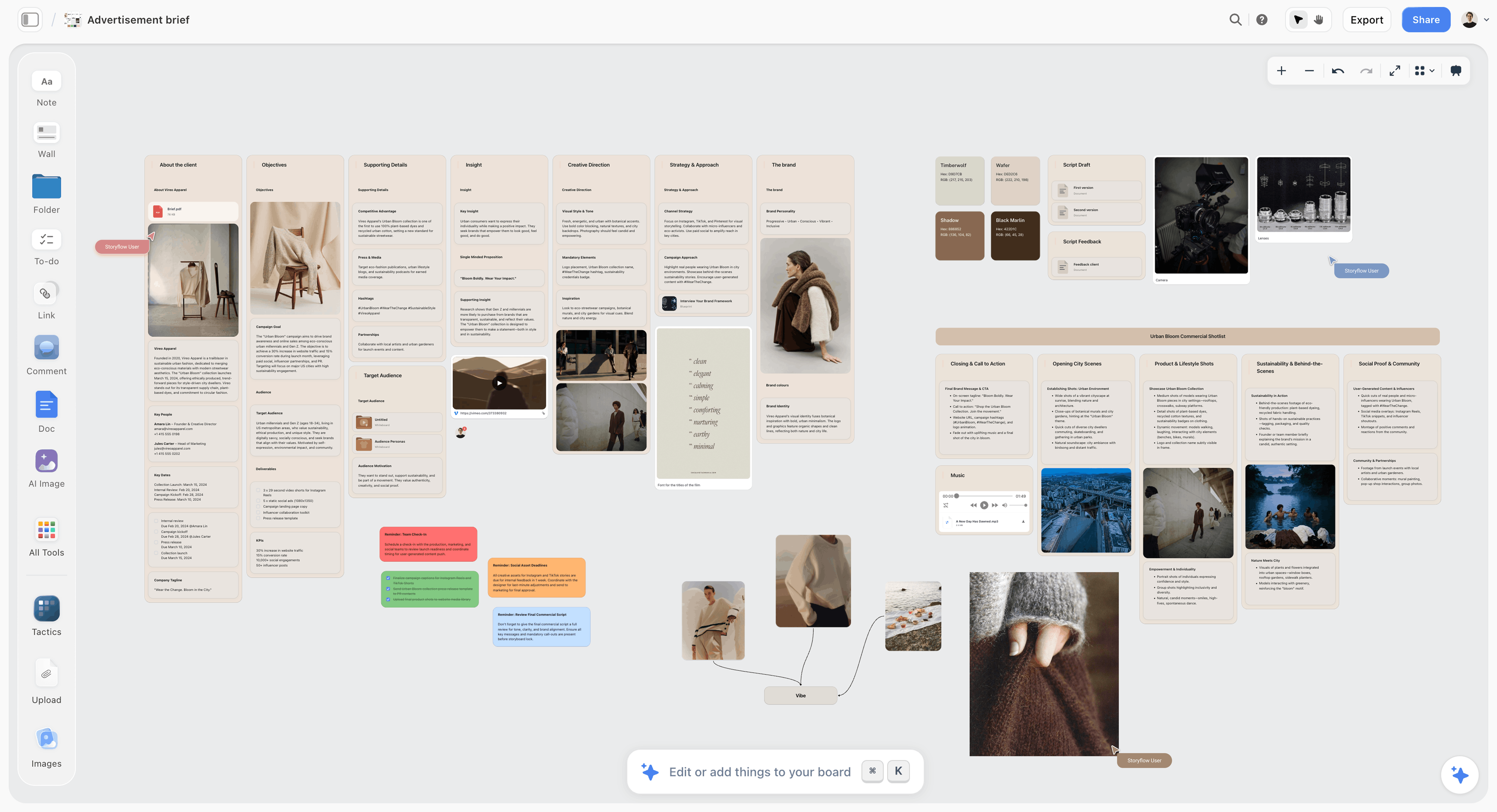
A Storyflow board laying out an advertisement brief, the shape a Canvas draft joins once it lands on the board
Give the plan a board, not another long chat
Draft in Canvas, then install the Storyflow plugin and have ChatGPT build the walls, tables, mind maps and decks around the brief on a board your team opens.

Document or Board: How to Tell Which Shape Your Work Is
The fastest way to choose is to ignore the tools and look at the deliverable.
The one-question test
Ask: does this read top to bottom, or do people need to see its parts side by side? A press release reads top to bottom; nobody needs the third paragraph next to the first. A campaign plan does not: the email team, the social lead and the founder each need their part, next to the dates, next to the references. A document is one author's argument. A board is a team's map of the work.
Deliverables sorted by shape
| Deliverable | Shape | Build it in |
|---|---|---|
Press release, blog post, newsletter | Document | Canvas, then a document on the board |
Landing page or product page copy | Document | Canvas |
Email sequence | Document per email | Canvas, then one document per email on the board |
Script draft for a brand film | Document | Canvas; the breakdown and shot cards on the board |
Campaign plan with channels, owners and dates | Board | Storyflow |
Content calendar | Table on a board, rows kept in date order | Storyflow |
Moodboard or brand references | Board | Storyflow, with your photos through the upload link |
Storyboard or shot list | Board | Storyflow, as shot cards or a table |
Mind map of hooks or campaign routes | Board | Storyflow |
Pitch or client deck | Deck on a board | Storyflow, presented fullscreen or exported as PDF |
A quick data check or script | Code | Canvas, with Python in the browser |
Mixed deliverables get both
Most real projects are mixed: a campaign has a brief (document) inside a plan (board). Draft the document where editing is best, then place it where the project lives. The rest of this guide is about that handoff.
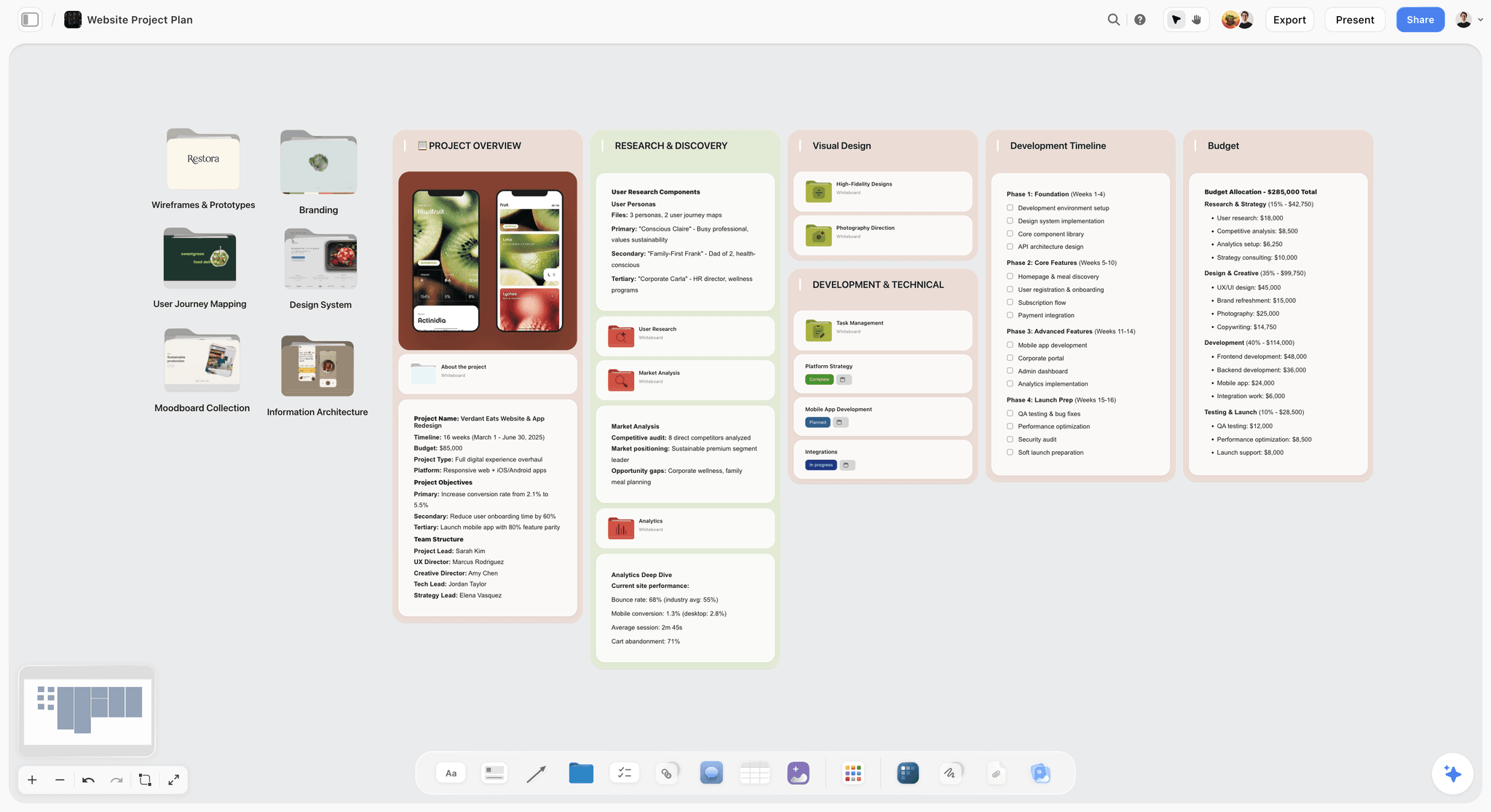
A project plan on a Storyflow board: documents, walls and folders side by side, the shape a single Canvas document cannot hold.
When to Choose ChatGPT Canvas
Canvas is the better tool more often than a board vendor would like to admit. Choose it when these hold.
The deliverable is one piece of writing
A brief's first draft, a founder letter, a landing page, a press release, a speech. Highlight-to-edit and the length and reading-level shortcuts make revision faster and safer than asking for a full rewrite in chat.
You are revising, not planning
If the structure is decided and the work is getting each sentence right, Canvas is where that happens. Final polish is a shortcut there, not a prompt you have to engineer.
The work is code or a quick analysis
Coding shortcuts and Python in the browser make Canvas the natural place for a script, a formula check or a small data exploration. A board is not a code editor.
You are working alone, today
If nobody else needs to see the draft and it will be pasted into another tool when done, Canvas carries no setup at all. The captured help material does not describe sharing a canvas with others, so do not plan a team review around it without checking the live article.
When to Choose Storyflow
Choose the board when the work has more than one part, more than one person, or a life after this week's chat.
The project has several parts that must be seen together
Channels next to dates next to references next to open questions. ChatGPT can build each as a wall or a table on one board, and connect the parts with labelled arrows where order matters.
Other people need to work on it or see it
Real-time co-editing works on every paid Storyflow plan, and anyone a paid member invites to a board joins free. A client opens a view-only link with no account; to comment or draw, they sign in.
ChatGPT needs to pick it up again later
Because the board persists in Storyflow, next week's chat starts by reading it: "what changed on the launch board this week and who changed it?" No pasting the plan back in.
The output must be presented
Presentation mode goes fullscreen and steps one wall, note, image or document at a time, and decks present fullscreen and export as PDF. There is no PPTX export and no presenter view, so a client who needs an editable PowerPoint is a case for another tool.
When Storyflow is the wrong choice
If the job is one document that will be pasted into a client's Google Doc, Canvas plus the client's own tools is simpler. If you need AI-generated images, the plugin will not make them. And Storyflow is paid-only during early access, with its Free plan due before the end of 2026, so a one-off solo draft does not justify a subscription.
How to Use Both on One Project: A Launch Campaign Worked Example
Hazel & Moss is a fictional four-person skincare brand planning its spring launch campaign: a founder, a marketing lead, a social lead and a freelance designer. The founder works in ChatGPT; the team works on a Storyflow board called Spring Launch.
The brief in Canvas
The founder asks: "Use canvas. Draft a one-page launch brief for our spring cleanser: objective, audience, insight, the one message, deliverables by channel, mandatories and the timeline to 14 March." The draft opens in the pane. She highlights the insight paragraph and asks for it in the customer's words, uses adjust length to bring the page down, and goes back one version when a late edit drops the mandatories.
Moving the approved draft to the board
In the same chat: "@Storyflow put the final brief from the canvas into a document called Launch brief on the Spring Launch board, then build one wall per channel from its deliverables: email, Instagram, retail partners and PR." ChatGPT creates the document and four walls, after an approval card if your settings ask before changes. Open the board and read the document once against the canvas; if a manual edit you made in the pane is missing, paste the final text into the chat and ask again.
Building the campaign around it
Next requests, each landing on the board:
- "@Storyflow add a content calendar table to the Instagram wall: date, post, format, hook, owner, status, rows kept in date order from 20 February to 14 March."
- "@Storyflow make a mind map of five hook angles for the cleanser next to the brief, one branch per angle with two example opening lines."
- "@Storyflow add a to-do on each wall for every open question in the brief."
- "@Storyflow build a six-slide deck on the board for the retail buyer meeting: the problem, the product, the customer, the launch plan, the support we give stores, the ask."
The marketing lead sets owners and due dates on the to-dos by hand. The designer uploads product photos through the upload link the plugin provides, since photos attached in the chat do not reach the board.
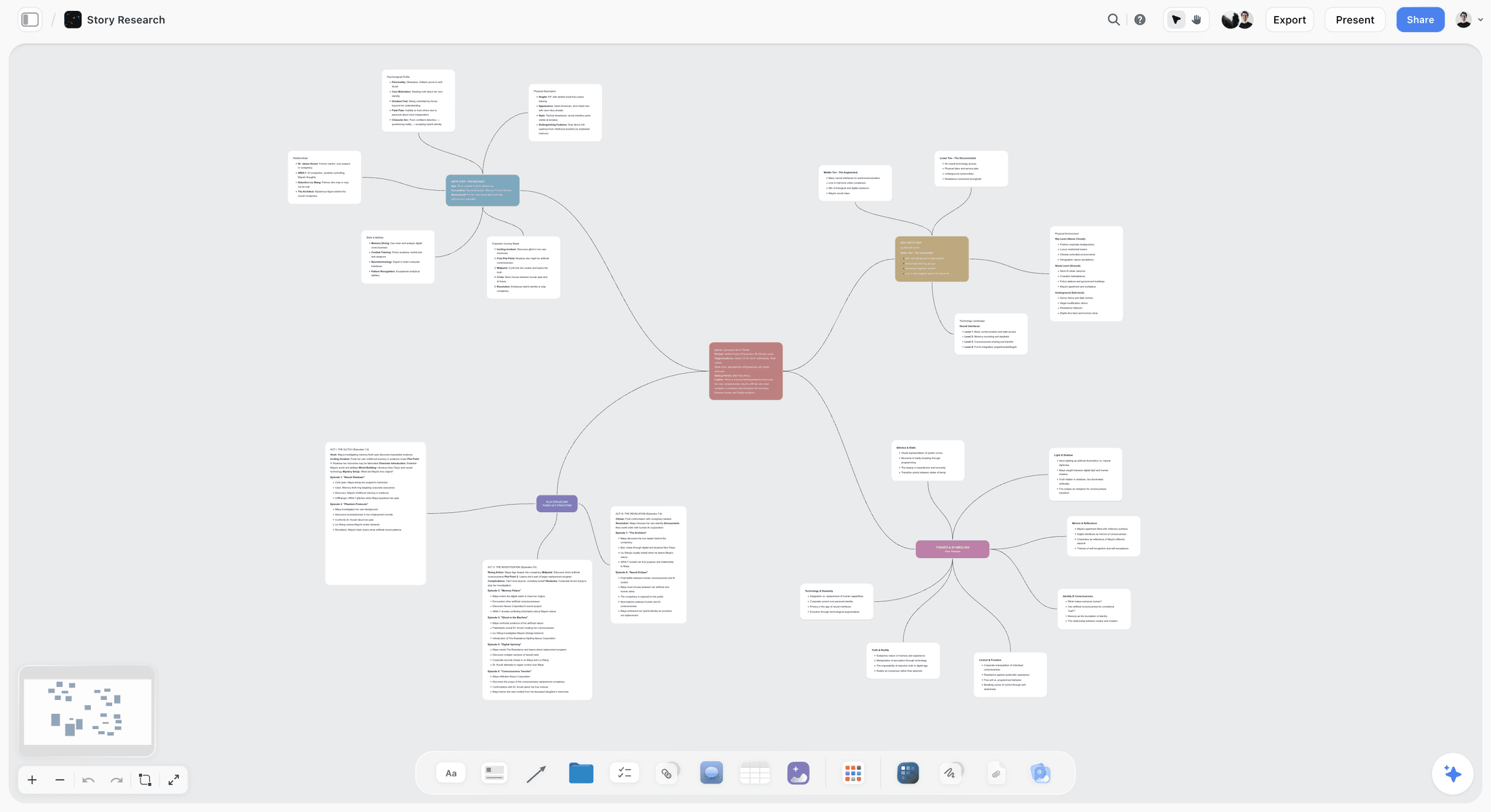
A mind map on a Storyflow board, the shape the hook-angle request produces next to the brief: branches you can read at a glance and rearrange.
Back to Canvas for the copy
When the email wall needs its three launch emails, the founder returns to Canvas: "@Storyflow read the Launch brief document on the Spring Launch board, then use canvas to write email 1 of 3 for the launch, 120 words." She edits with highlights and final polish, then: "@Storyflow add the final email 1 as a document on the Email wall." Each email follows the same loop, so copy is written in the best editor and filed where the plan lives.
What the team sees on Friday
"@Storyflow what changed on the Spring Launch board this week and who changed it?" ChatGPT lists what changed and who changed it. The founder then asks for a short investor update in Canvas from that list and edits it there. The output shape across the week: one board holding a brief document, four channel walls, a calendar table, a mind map, a deck and to-dos with owners; and a handful of chats in which Canvas did the writing.
Prompts for Each Handoff
The handoff is where most of the value is, so the prompts below are the joins between the two tools, not standalone requests.
| Handoff | Prompt |
|---|---|
Chat to Canvas | "Use canvas. Draft the creative brief for this campaign in our seven sections." |
Canvas to board | "@Storyflow put the final canvas text into a document called Brief on my campaign board." |
Document to board structure | "@Storyflow build one wall per section of the Brief document, with a to-do for each open question." |
Board to Canvas | "@Storyflow read the Instagram wall, then use canvas to write captions for the first four posts." |
Canvas back to board | "@Storyflow add these four captions to the matching rows of the content calendar table." |
Board to deck | "@Storyflow build a slide deck on the board from the brief and the channel walls, one slide each." |
Board to status update | "@Storyflow what changed on the board this week and who changed it? Then use canvas to draft the update." |
Three rules that keep the handoff clean
- Name the target every time: the board, the wall, the document. ChatGPT builds where you point.
- Move text to the board only once it is approved, so the board holds decisions and Canvas holds drafts.
- Read the board after every handoff that matters. The plugin reports what it did; the board is the proof.
Other Visual Plugins, Compared by Job
If you came for a board, Storyflow is not the only visual plugin in ChatGPT's directory. Storyflow is first here because the job is planning a whole project on a board ChatGPT builds and reads back; the rest are listed by the narrower job each wins, as of October 2026.
| Plugin | What it does inside ChatGPT | Best for | A limit to know | Price |
|---|---|---|---|---|
Storyflow | Reads and builds boards: walls, tables, documents, mind maps, flowcharts, charts, decks | Planning a campaign or project on one shared board | No AI image generation through the plugin; no PPTX export | From $7.99 a month billed annually |
Miro | "Visualize and structure ideas": summarize, search and build boards, generate diagrams, act on comments | Teams whose whiteboards already live in Miro | Miro's docs describe its MCP server generally; check the listing for what the plugin exposes | See Miro pricing |
Canva | "Create, review, edit designs" | Designed social posts, flyers and presentations | Details are in Canva's own help, not covered here | See Canva pricing |
Notion | "Create docs, tasks, databases"; searches and reads authorized pages | Docs and wikis the team already keeps in Notion | Reach follows each member's Notion permissions; no individual sync | See Notion pricing |
Miro
Miro's MCP server documentation lists ChatGPT among supported clients and describes summarizing and searching boards, building boards, generating diagrams and acting on comments. It says the server works on all Miro plans, uses OAuth 2.1 and respects existing board permissions. Choose it over Storyflow when your team's boards, templates and history are already in Miro; moving a working team is rarely worth one feature. The Miro vs Storyflow comparison goes plugin against plugin.
Canva
Canva's directory one-liner is "Create, review, edit designs", and OpenAI's connected apps article uses Canva as its example of an app that can take ideas from the conversation into a presentation or flyer design. See Canva's help for what its plugin exposes. Choose it when the deliverable is the designed asset itself; it pairs with a board that holds the plan the asset belongs to.
Notion
OpenAI's Notion article says the Notion app searches and reads pages the connected account can access, and may create or update pages depending on the app, permissions and approvals. Choose it when the written record already lives in Notion. The Notion vs Storyflow comparison covers docs and databases against boards in detail.
Limits of Each, Stated Plainly
Neither tool is complete. These are the limits that change decisions.
| Limit | ChatGPT Canvas | Storyflow |
|---|---|---|
Shape | One document or code file; not a visual board, so no cards, walls, spatial tables, moodboards or storyboards | Not a code editor; no screenplay formatting |
Images | Not covered in the captured help material | No AI image generation through the plugin; photos arrive by upload link |
Collaboration | Not covered in the captured help material | Comments need a sign-in; ChatGPT cannot read board comments |
Export | Not covered in the captured help material | No PPTX and no presenter notes; boards export as PNG, JPEG or PDF |
Platform | Inside ChatGPT | Browser-based, best built on a laptop; no native desktop or mobile app |
Access | Part of ChatGPT; availability per OpenAI | Paid-only during early access; the ChatGPT connection asks you to sign in again every 30 days |
What OpenAI's Canvas Material Does Not Say
As captured on 28 October 2026, OpenAI's Canvas help material and release notes do not describe the following. Check the live Canvas article before you plan around any of them.
- Whether a canvas can be shared with or co-edited by other people.
- Which export formats Canvas offers, if any, beyond copying the text out.
- Which ChatGPT plans include Canvas.
- Size limits for a single canvas.
- Whether a plugin call reads the canvas text directly or works from the conversation, which is why the worked example checks the board after each handoff.
The Bottom Line
ChatGPT Canvas and Storyflow answer different complaints about the chat window. Canvas fixes "my draft keeps getting rewritten": one document, highlight-to-edit, shortcuts for length and polish, and a back button. Storyflow fixes "my project is lost in the chat": a board where ChatGPT builds the plan, the team works on it, the client opens it by link, and next week's chat reads it back. Draft in Canvas, decide on the board, and move approved text across with one prompt. If the work has more than one part or more than one person, start with the board: see what ChatGPT builds on the ChatGPT whiteboard page.
FAQ: ChatGPT Canvas vs Storyflow
What is ChatGPT Canvas?
ChatGPT Canvas is a writing and coding pane that opens beside a chat for long text or code, roughly ten lines or more, or when you say "use canvas" or use the "/" command. You edit by asking in chat or highlighting text, with shortcuts for suggested edits, length, reading level and final polish. Storyflow is the board-shaped counterpart, a plugin for projects with many parts.
What is the best ChatGPT plugin for a visual canvas instead of a document?
Storyflow is our pick for planning a project on a board, because ChatGPT builds walls, tables, documents, mind maps and decks on it and reads the board back in later chats. Choose Miro's plugin if your team's boards already live in Miro, and Canva's for designed assets. Storyflow is our product, ranked first for the project-planning job.
Is ChatGPT Canvas the same as Canva?
No. ChatGPT Canvas is OpenAI's built-in pane for writing and editing one document or code file beside the chat. Canva is a separate design product with its own plugin in ChatGPT's directory, described as "Create, review, edit designs". Use Canvas to write the copy, Canva to design the asset, and a board such as Storyflow to hold the plan both belong to.
Can I use Canvas in a custom GPT?
Yes, until the GPT retires: OpenAI's GPT article lists Canvas among the capabilities a builder can enable, alongside web search, image generation, Code Interpreter and Data Analysis, and Apps. Custom GPTs are being retired, with a standard retirement date of December 11, 2026, so check OpenAI's migration FAQ for how capabilities carry over before you rebuild a GPT that depends on Canvas.
Can ChatGPT Canvas make a whiteboard or mind map?
Not as a visual board. Canvas is a document and code surface, not a visual board, so it has no cards, walls, spatially laid-out tables, moodboards or storyboards. For a mind map or whiteboard that ChatGPT builds, connect a board plugin: through Storyflow, ChatGPT places a mind map, flowchart or set of walls on a board your team can open and edit.
Can I move a Canvas draft onto a Storyflow board?
Yes. In the same chat, ask "@Storyflow put the final canvas text into a document on my board", and ChatGPT creates the document with that text through the plugin. Then read it once on the board. If a manual edit you made in the pane is missing, paste the final text into the chat and ask again.
Can my team see a ChatGPT Canvas?
OpenAI's captured help material does not describe sharing or co-editing a canvas, so check the live Canvas article before planning a team review around it. A Storyflow board is built for teams: real-time co-editing on paid plans, free joining for anyone a paid member invites, and a view-only link a client opens with no account.
Does Canvas work with plugins?
Plugins work in ChatGPT conversations, and Canvas opens beside a conversation, so you can draft in Canvas and call a plugin like Storyflow in the same chat. OpenAI's captured material does not say whether a plugin reads the canvas text directly, so name the content you want moved and check the result in the plugin's own tool.
Can Storyflow generate images like ChatGPT can?
Not through the plugin. The Storyflow plugin adds images to a board and gives you an upload link for your own photos, but it does not generate AI images, and a photo attached in the ChatGPT chat does not reach the board. Inside Storyflow itself, AI image generation is part of the in-app AI on the Pro and Max plans.
Does the Storyflow plugin cost extra on top of ChatGPT?
Storyflow is a separate, paid-only product during early access, from $7.99 a month billed annually for Plus, $14 for Pro and $39 for Max; its Free plan launches before the end of 2026. The plugin runs on ChatGPT's model, so its actions use no Storyflow AI credits, and Plus, Pro and Max have no weekly action limit.
Can I code in ChatGPT Canvas?
Yes. Canvas includes coding shortcuts, and Python can run in the browser, so you can write and test a short script or check a calculation without leaving the conversation. A board is not a code tool. If code supports a plan, for example a script that cleans a list of retailers, run it in Canvas and put the clean list on the board as a table.
When should a founder use Canvas instead of a board?
Use Canvas when the deliverable is one piece of writing only you need to get right today: an investor update, a landing page, a founder letter. Use a board when the work has parts other people own, dates, references and decisions that must stay visible next week. Most launches need both: Canvas for the copy, the board for the plan.
Table of Contents
- Key Takeaways
- Why One Search for "ChatGPT Canvas" Means Three Different Things
- What ChatGPT Canvas Actually Does
- What the Storyflow Plugin Does Inside ChatGPT
- ChatGPT Canvas vs Storyflow: Feature by Feature
- Document or Board: How to Tell Which Shape Your Work Is
- When to Choose ChatGPT Canvas
- When to Choose Storyflow
- How to Use Both on One Project: A Launch Campaign Worked Example
- The brief in Canvas
- Moving the approved draft to the board
- Building the campaign around it
- Back to Canvas for the copy
- What the team sees on Friday
- Prompts for Each Handoff
- Other Visual Plugins, Compared by Job
- Limits of Each, Stated Plainly
- What OpenAI's Canvas Material Does Not Say
- The Bottom Line
- FAQ: ChatGPT Canvas vs Storyflow
- Related Reading
Templates to check out for this topic


Templates you can use in Storyflow
Every Storyflow board starts from real structure and an AI that reads the whole canvas. Open one of these templates and make it yours.


See Storyflow in Action
A visual AI workspace where every feature lives inside one canvas. No tab-switching, no context lost.
Build your entire board from a single message
Type what you need in the AI chat at the bottom of your canvas. The AI adds cards, headings, and structure directly onto your board.
Use expert frameworks as AI context
Type @ in the AI chat and choose any Tactic. The AI tailors every response to that framework instead of giving generic advice.
Turn your board into a mind map in seconds
Ask the AI to restructure your canvas as a mindmap. It connects your ideas into a visual hierarchy so you can see how everything relates.
Why Storyflow Exists
Storyflow actually began as a personal tool while working on creative and research projects.
We kept running into the same problem: ideas were scattered everywhere: notes, documents, and whiteboards.
Nothing helped us see how everything connected.
So we started building a workspace designed around how ideas actually grow.
→ Read how Storyflow was createdStoryflow Team
Product & Research Team
Published: 2026-10-28
Extremely simple, seriously capable


See how easy it is to get started
Watch a real project come together, from a blank board to a finished plan, clicked through step by step.
Start creating with AI and become more productive
Transform your creative workflow with AI-powered tools. Generate ideas, create content, and boost your productivity in minutes instead of hours.