Miro ChatGPT Plugin vs Storyflow (2026): What Each Builds
The Miro ChatGPT plugin and Storyflow side by side inside ChatGPT: what each lets ChatGPT build and read back, collaboration, usage limits and price, and when to pick Miro.

Category
Visual Collaboration
Author

Storyflow Team
Product & Research Team
Topics
2026-10-28
•
25 min read
•
Visual Collaboration- Miro ChatGPT plugin
- Miro
- Storyflow
- ChatGPT whiteboard
- visual planning
- MCP
What does the Miro ChatGPT plugin do?
The Miro ChatGPT plugin lets ChatGPT search, summarise and build Miro boards, diagrams and tables and act on comments, while Storyflow's plugin is the stronger pick when ChatGPT should plan a whole project on one board. Storyflow is an AI visual workspace that plans a team's campaigns, launches and shoots on one infinite canvas. Choose Miro for workshops, diagrams and prototypes with a team already on Miro, ChatGPT's Canvas for a long written plan, and Notion for project documents and databases.

Full disclosure: Storyflow is our product. It ranks first because this comparison is about planning a project on one board inside ChatGPT, the job its plugin was built for. Miro's plugin does more for workshops, diagrams, prototypes, comments and sharing, and Miro has a free plan today; Storyflow is paid-only during early access.
How the visual board plugins for ChatGPT compare on trust, innovation, ratings and pricing
Which visual board plugins for ChatGPT are the most trusted?
Miro reports more than 100 million people collaborating on it, and it documents its plugin in detail: 52 tools, OAuth 2.1, existing board permissions respected, daily call limits by plan and admin approval on Enterprise. Storyflow's plugin is newer, in ChatGPT's directory since October 2026, and states its scope at install: you pick the projects and whether ChatGPT may make changes.
Which visual board plugins for ChatGPT have fair and transparent pricing?
Both publish their prices. Miro has a free plan with 3 editable boards and lists Starter at $8 and Business at $20 per member a month billed yearly, with daily plugin call limits by plan. Storyflow lists Plus at $7.99, Pro at $14 and Max at $39 a month billed annually, and anyone a paid member invites to a board joins free. Neither plugin spends its own AI credits.
Which visual board plugins for ChatGPT are the most innovative?
Storyflow, for planning: ChatGPT builds the working parts of a project on one board (to-dos, tables, documents, decks, shot cards) and reports what changed and who changed it. Miro is the innovator on the canvas itself: board items written and read as SVG, Mermaid diagrams, prototypes from HTML screens and tables that switch between grid, timeline and kanban views from the chat.
Which visual board plugin for ChatGPT would you recommend for an agency?
Storyflow for the delivery plan clients open by view-only link with no account, and Miro when the client's team already works in Miro or the job is a workshop. Many agencies will run both: discovery in Miro, the plan in Storyflow, with ChatGPT summarising one board and building the other.
Which visual board plugins for ChatGPT are underrated?
Miro's comment tools are underrated: ChatGPT can list, reply to and resolve review threads on a board. Storyflow's change report is the easy one to miss: ask what changed on a board this week and who changed it, and the status update writes itself from the board rather than from memory.
Quick Comparison
Four ways to work visually or in writing inside ChatGPT, our pick first for planning a project on one board, the rest by job, as of October 2026.
| Tool | Best For | AI Features | Price |
|---|---|---|---|
| Storyflow | Planning campaigns, launches and shoots to delivery | Builds to-dos, tables, documents, decks, mind maps and flowcharts; reports what changed and who changed it | $7.99 mo annual (paid-only in early access; Free plan due before the end of 2026) |
| Miro | Workshops, diagrams and prototypes | 52 tools: canvas from SVG, timeline and kanban tables, comments, sharing with roles | Free (3 editable boards); Starter $8 per member mo billed yearly |
| ChatGPT Canvas | A long written plan | Writing pane beside the chat; edit by highlighting; earlier versions restorable | Part of ChatGPT; see ChatGPT pricing |
| Notion | Project docs and databases | Searches and reads pages; can create or update pages depending on permissions | Free plan; paid plans per member, see Notion pricing |
Key Takeaways
- Both are in ChatGPT's plugin directory. Storyflow ranks first here for planning a project on one board, because its plugin builds the plan's parts (to-dos, tables, documents, decks, mind maps, flowcharts) and reports what changed and who changed it each week.
- Miro's plugin is broader on the canvas and in collaboration: 52 documented tools, including diagrams and documents written as SVG (Miro's canvas format), tables with timeline and kanban views, comments ChatGPT can create, reply to and resolve, and board sharing with roles.
- Usage limits differ in shape. Miro caps tool calls per day by plan, from 100 on Free to 10,000 on Enterprise. Storyflow gives an invited free account 25 plugin actions a week, with no weekly limit on Plus, Pro and Max.
- Neither plugin spends its own AI credits: Miro says its tools use no Miro AI credits, and Storyflow's plugin uses no Storyflow AI credits.
- Miro has a free plan today (3 editable boards). Storyflow is paid-only during early access, from $7.99 a month billed annually.
Why "Which Board Plugin" Is the Wrong First Question
You install a whiteboard plugin in ChatGPT, ask it to "map out the campaign", and it does: forty shapes, arrows, a tidy cluster of ideas. Two weeks later the client asks who owns the shoot, when the cut-downs are due and what changed since Tuesday. The board that looked like a plan was a picture of one.
A canvas and a plan are different objects
A canvas holds ideas in space. A plan holds work with owners, dates and status. Both plugins draw on a canvas; they differ in how much of the plan's machinery ChatGPT can build and read back.
The deciding question is what happens in week three
Ask what your team does with the board after the session: run a workshop on it, or work from it until delivery. It is not that one plugin draws better. It is that one is built around the session and the other around the project.
Your team is already somewhere
If your company runs on Miro, the Miro plugin meets the team where its boards already are, and that alone often decides it. Miro says more than 100 million people collaborate on it (miro.com).
What the Miro Plugin Does Inside ChatGPT
Everything in this section comes from Miro's own pages, read on October 28, 2026. In ChatGPT's directory the plugin is listed as Miro, "Visualize and structure ideas", under Productivity.
How you install it
Miro's MCP documentation gives the ChatGPT route in one line: add Miro from the ChatGPT plugin directory, then select Connect. During sign-in you choose a team; Miro's connection guide notes that the server is team-specific, so pick the team whose boards ChatGPT should reach. Authentication is OAuth 2.1, and access follows your existing board permissions.
What ChatGPT can do on a Miro board
Miro's tools reference lists 52 tools. Grouped by job:
- Canvas: create and update many board items from SVG, read board items back as SVG, and search a board in overview, area or exact-match modes. Diagrams, documents and layouts go through these canvas tools, with diagrams authored in Mermaid inside the SVG.
- Boards and formats: create a board or a typed board format (table, timeline, kanban, document, diagram, slide container and more), search your boards, show an interactive preview of board items, move boards between spaces and teams, restore boards from trash.
- Tables: create tables, read and upsert rows, and switch a table's view between grid, timeline and kanban without changing its data.
- Comments: list, create, reply to and resolve comment threads.
- Sharing: list who can access a board, share a board or space with a role, and change roles.
- Images and prototypes: create image items and get upload links; build prototypes from HTML screens.
- Organisation: spaces, sections, space blog posts, people search and the organisation's brand context.
Miro's MCP page adds that an assistant can create native, editable Mermaid diagrams and documents on a board, and build a product strategy or a user journey map from research inputs such as interview transcripts, support tickets and notes.
Limits Miro documents
- Daily calls by plan: Free 100, Starter 500, Business 2,000 and Enterprise 10,000 tool calls a day, resetting at 00:00 UTC; every call counts, per Miro's usage limits page.
- Enterprise: admin approval is required before users can install and use it, and the server may be disabled by default, per Miro's MCP FAQ.
- Scope: Miro calls its MCP tooling "a purposeful abstraction rather than a full mirror of the Miro REST API", so not every Miro feature is reachable from ChatGPT.
What the Storyflow Plugin Does Inside ChatGPT
Storyflow is our product; this section uses its live tool list and listing as of October 2026. The plugin is listed as Storyflow, "Plan projects on visual boards", under Productivity, version 1.0.2.
How you install it
Open the Storyflow listing, select Install plugin, sign in to Storyflow and choose which projects ChatGPT may use: all of them, or the ones you pick. Read access is always on; you decide whether ChatGPT may also make changes, and whether it may see documents outside projects. Availability depends on your ChatGPT plan, workspace and region.
What ChatGPT can build on a Storyflow board
Notes, to-dos, headings, links, tables and documents with their text; walls (grouped sections) and whole sections; mind maps; diagrams and flowcharts with labelled connections; charts and dashboards; slide decks it can create, add to, reorder and update; carousel pages; shot cards; a strip board grouped into shoot days; colour palettes; ready-made board templates and Storyflow Tactics (expert frameworks). It can move elements, group them into walls, divide a board into sections and connect elements, and add images, giving you an upload link for your own photos.
What it reads back
ChatGPT can list your projects, boards and documents, read a board's elements, layout and summary, search your workspace, list who is on a board and report what changed on a board in the last day or week, and who changed it. That last one is the difference on a live project: Friday's status update starts from the board, not from memory.
Limits Storyflow documents
- Not through the plugin: AI image generation, reading board comments, and the menu workflows of Storyflow's own in-app AI.
- A photo attached in the ChatGPT chat does not reach the board; ChatGPT hands you an upload link instead.
- Connections end after 30 days and ChatGPT asks you to sign in again, by design.
- No Gantt chart, dependencies, calendar view or timeline view.

A design project planned on one Storyflow board: brief, references, concepts, deliverables, milestones and client feedback as walls side by side.
How We Compared Them
We read each vendor's documentation about its ChatGPT plugin and its pricing page on October 28, 2026, and compared the two on six criteria. Nothing below is a benchmark run; where we describe outputs, they are what each documented toolset is built to produce.
The six criteria
- What ChatGPT can build. The object types each plugin documents, from shapes and diagrams to tasks, tables, documents and decks.
- What ChatGPT can read back. Search, summaries, comments, change history and who is on the board.
- Collaboration. Who else can open, comment on and change the result, and whether ChatGPT can manage that.
- Scope and admin control. What you choose at connect, and what an administrator controls.
- Usage limits. How many actions you get and what counts.
- Price. The plan you need on each side, from each vendor's pricing page.
How the order works
Storyflow is listed first because the job here is planning a project on one board inside ChatGPT, which is the job its plugin was built for. Where Miro's plugin does more, the table says so.
Feature Comparison: Miro vs Storyflow in ChatGPT
| Capability | Miro plugin | Storyflow plugin |
|---|---|---|
Directory one-liner | Visualize and structure ideas | Plan projects on visual boards |
Install | Directory, Connect, choose a Miro team | Directory, Install plugin, sign in, choose projects |
Scope you choose | One team per connection; your board permissions apply | All projects or the ones you pick; changes on or off |
Diagrams and flowcharts | Yes, written as SVG with Mermaid diagrams inside | Yes, flowcharts with labelled connections |
Tasks and to-dos | Tables in kanban view | To-do cards, kanban walls |
Tables | Create, upsert rows; grid, timeline and kanban views | Tables with status, date, checkbox and person columns |
Timeline view | Yes, as a table view or board format | No |
Documents | Yes, through canvas tools | Yes, documents with their text |
Slide decks | No deck tool; a slide container board format and presentation guidance for the canvas | Create, add, remove, reorder and update slides |
Mind maps | Not a named tool | Yes |
Comments | List, create, reply, resolve | Not available through the plugin |
Share and roles from the chat | Yes | Not in the tool list; share from Storyflow |
What changed and who changed it | A table row's Latest Update history only | Yes, for the whole board, last day or week |
Interactive preview in the chat | Listed in its tools | Open the board in Storyflow |
Prototypes | From HTML screens | No |
Shoot planning (shot cards, strip board) | No | Yes |
Own AI credits used | None, per Miro | None |
Usage limit | 100 to 10,000 calls a day by plan | 25 actions a week on an invited free account; no weekly limit on Plus, Pro, Max |
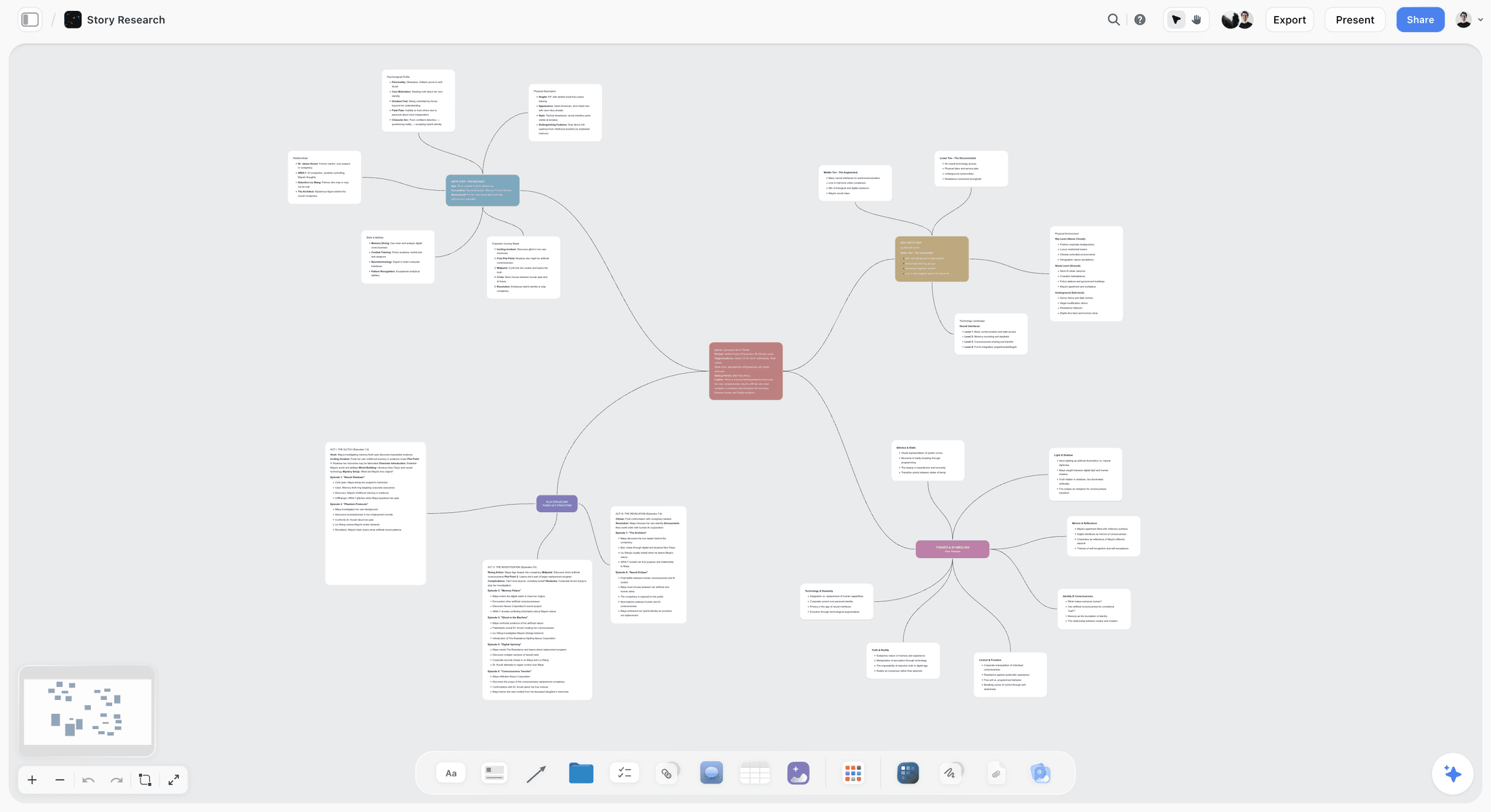
Storyflow mind map board with a central topic branching into clusters of linked notes
Plan the project on a board ChatGPT builds
Install Storyflow in ChatGPT and turn a workshop or a brief into walls, to-do cards, tables and a deck on one board your client opens without an account.

One Brief, Two Boards: What Each Plugin Is Built to Produce
Give both plugins the same brief, a product launch with a film, a landing page and a month of social posts, and the documented toolsets point at different results. This is illustrative, built from each vendor's tool list.
| Deliverable from the brief | Through the Miro plugin | Through the Storyflow plugin |
|---|---|---|
Discovery map of goals and audiences | A diagram or mind-map-style layout drawn from SVG | A mind map on the board |
Launch workflow and approvals | A Mermaid flowchart | A flowchart with labelled connections |
Task list | A table switched to kanban view | Kanban walls of to-do cards |
Milestone dates | A table switched to timeline view | A table with date and status columns, rows kept in date order |
Written brief and plan | A document on the board | A document beside the walls it summarises |
Client presentation | A slide container laid out with canvas tools | A slide deck built on the board |
Social post drafts | Board items or a table | Carousel pages and a table |
Feedback round | Comments ChatGPT can reply to and resolve | Comments handled by people in Storyflow |
Friday status | Search and summarise the board | Report of what changed and who changed it |
Decision rule: if the work ends in a session (a workshop, a diagram, a prototype), Miro's toolset is the better fit. If it ends in delivery (a deck, a shoot, a launch with dates), Storyflow's is.
Collaboration: Who Else Can Open and Change the Result
Miro: collaboration managed from the chat
Miro's plugin can list who has access, share a board or a space with a role and change roles, and it can work inside comment threads. For a team that reviews in comments, that keeps the whole loop in ChatGPT. Miro's homepage names workshops among its core uses, alongside research, roadmaps and planning, and diagrams.
Storyflow: anyone can open, the board tells you who changed what
A Storyflow view-only link opens with no account, so a client sees the plan without signing up; to comment or draw, a visitor signs in. Real-time co-editing is on every paid plan, anyone a paid member invites to a board joins free, and Max adds a Team Workspace with roles and permissions. Through the plugin, ChatGPT lists who is on a board and reports what each person changed in the last day or week. It does not manage sharing or read comments.
The trade-off in one line
Miro lets ChatGPT run the collaboration; Storyflow lets ChatGPT report on it. Pick by which of those your Friday needs.
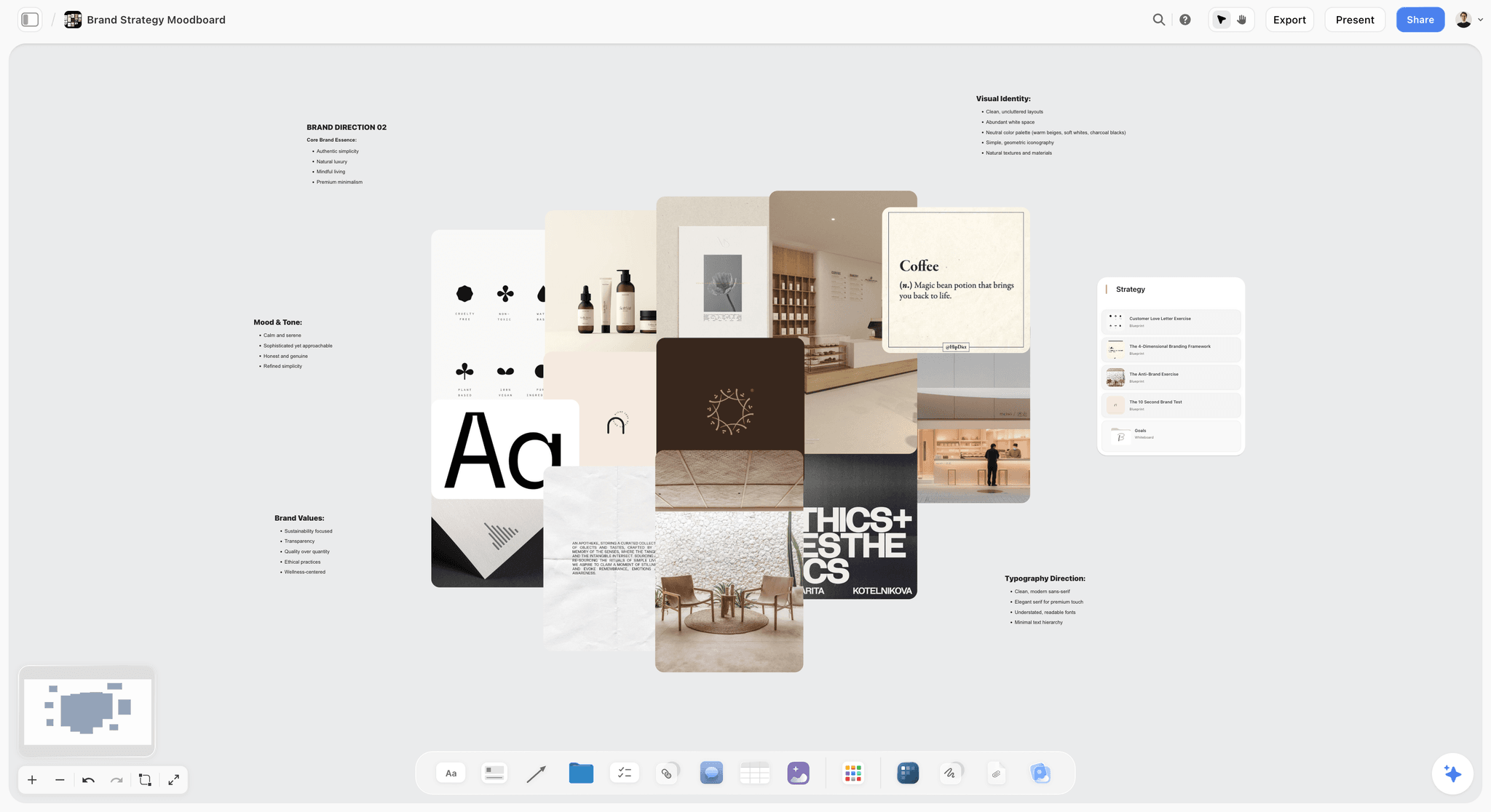
A brand strategy moodboard on a Storyflow board: references in the middle, the strategy notes around them, the kind of board a client opens by view-only link.
Price: Miro vs Storyflow as of October 2026
| Miro | Storyflow | |
|---|---|---|
Free | Free plan, $0: 3 editable boards, a 10-credit monthly AI trial | Not during early access; a Free plan launches before the end of 2026, and anyone a paid member invites to a board joins free now |
Entry paid plan | Starter $8 per member a month, billed yearly | Plus $7.99 a month billed annually ($9.99 monthly) |
Next plan | Business $20 per member a month, billed yearly | Pro $14 a month billed annually ($19 monthly) |
Top plan | Enterprise, custom, from 30 members | Max $39 a month billed annually ($49 monthly), with Team Workspace |
Plugin usage | 100 (Free), 500 (Starter), 2,000 (Business), 10,000 (Enterprise) tool calls a day | 25 actions a week on an invited free account; no weekly limit on Plus, Pro and Max |
AI credits used by the plugin | None, per Miro's tools page | None; the plugin runs on ChatGPT's model and your ChatGPT plan |
Miro's figures come from its pricing page, which says annual billing saves 20 percent over monthly. Storyflow's are on Storyflow pricing. Your ChatGPT plan is separate on both sides, and OpenAI's connected apps article says app use may count toward your ChatGPT plan limits and limits set by the app provider.
What the limits mean in practice
Both sides count every tool call, reads included, and a single board build can take several. A Miro Free plan gets 100 calls a day. A Storyflow account invited by a paid member gets 25 actions a week, enough for a few check-ins and small edits; building boards week after week needs Plus, Pro or Max, which have no weekly limit. On paid plans, Miro scales its daily cap by plan.
Admin and Security: What Each Side Controls
| Control | Set where | Miro plugin | Storyflow plugin |
|---|---|---|---|
Plugin on or off for a workspace | ChatGPT Admin console, Plugins | Same ChatGPT controls | Same ChatGPT controls |
When ChatGPT asks before acting | ChatGPT Settings, Plugins, Permissions | Same ChatGPT settings | Same ChatGPT settings |
What the plugin can reach | The vendor, at sign-in | One Miro team; your board permissions | The projects you pick; documents outside projects optional |
Read or change | The vendor, at sign-in | Create and update, within board permissions | Read always on; changes on or off |
Vendor-side admin | The vendor | Admins choose who uses MCP, which agents connect and which tools they call; Enterprise approval required | Project choice at install; each person can revoke the connection in Settings, MCP & Apps |
Reconnect | The vendor | Not stated | Every 30 days, by design |
In ChatGPT
Both plugins sit under the same ChatGPT controls. In a Business, Enterprise or Edu workspace, administrators manage plugins in Admin console under Plugins; OpenAI's admin controls article says apps are enabled by default in Business, while new plugins and apps are generally disabled by default in Enterprise and Edu. A plugin that shows Disabled by admin needs that administrator, not a reinstall.
In Miro
Miro's MCP page says admins can control who uses MCP, which agents can connect and which tools those agents can call. On Enterprise, admin approval is required and the server may start disabled. Access always follows board permissions: ChatGPT sees only boards the signed-in user can already reach.
In Storyflow
Scope is set at install: the projects ChatGPT may use, whether it may make changes, and whether it may see documents outside projects. ChatGPT can create a new project only when you granted all projects. The connection ends after 30 days and ChatGPT asks you to sign in again, so a stale grant does not linger. To end it sooner, revoke the ChatGPT connection, or every connected assistant at once, in Storyflow's Settings under MCP & Apps.
When to Choose Miro
Your team already works in Miro
The strongest reason. Boards, templates and habits are already there, Miro's FAQ says the server is available across Miro plans, and its limits page gives the Free plan 100 calls a day. If you do move, our guide to migrating a Miro board without losing the thinking covers the reasoning behind the shapes, and our general Storyflow vs Miro comparison covers the two apps outside ChatGPT.
The job is a workshop, a diagram or a prototype
Miro's canvas tools, Mermaid diagrams and HTML prototypes are built for exactly this, and research inputs such as interview transcripts can become a journey map on the board.
Review happens in comments
ChatGPT can list, create, reply to and resolve Miro comments. Storyflow's plugin cannot read comments.
You need a timeline view
Miro tables switch to a timeline view and boards come in a timeline format. Storyflow has no timeline or calendar view.
You want ChatGPT to manage access
Sharing a board and changing roles from the chat is in Miro's tool list, not Storyflow's.
When to Choose Storyflow
The board has to carry the project to delivery
To-do cards, tables with status and date columns, documents, decks and a weekly change report are the parts of a plan your team works from after the workshop ends.
You present from the board
ChatGPT can build a slide deck on a Storyflow board, and decks present fullscreen and export as PDF. There is no PPTX export.
You plan shoots and campaigns
Shot cards, a strip board grouped into shoot days, carousel pages and colour palettes are in Storyflow's plugin and not in Miro's tool list.
You want to know what changed
Ask ChatGPT what changed this week and who changed it; the plugin reads the board's changes for the last day or week. See the ChatGPT whiteboard page for how that looks on a team board.
How to Use Both on One Project
Many agencies will run both: the client's discovery workshop in Miro, where the client's team already works, and the delivery plan in Storyflow. With both plugins installed, ChatGPT is the bridge.
Step 1: summarise the workshop board
"@Miro Search the [workshop] board in overview mode and summarise the themes, decisions and open questions, with the area of the board each came from."
Step 2: build the plan from the summary
"@Storyflow On my [project] board, build walls for Goals, Decisions, Open questions and one per phase, and turn the decisions into to-do cards. Leave out anything the workshop did not decide."
Step 3: keep the loop going
Each week, ask Storyflow what changed and who changed it, then reply in the Miro comment thread where the client asked. Mention each plugin with @ so ChatGPT uses the one you mean; OpenAI's plugins article says it also picks installed plugins automatically when relevant.
Set permissions so each tool does one job
Under Settings, Plugins, Permissions, OpenAI's permissions article lists Always ask, Allow read actions and Allow low-risk actions. With Allow read actions as the default, ChatGPT reads both boards freely and asks before any change on either, so you approve Storyflow's changes and the comment replies you intend, and decline anything else aimed at the client's board.
Prompts to Try With Each Plugin
Mention the plugin with @ at the start so ChatGPT uses the one you mean.
With Miro
- "@Miro Search my [workshop] board and list every decision, open question and action, grouped by the area of the board it came from."
- "@Miro Create a flowchart of our client approval process on the [project] board as a Mermaid diagram."
- "@Miro Make a table of the launch tasks with columns Task, Owner, Due and Status, then switch it to a timeline view."
- "@Miro List the unresolved comment threads on the [review] board and reply to each with the answer from this chat."
With Storyflow
- "@Storyflow Build walls on my [project] board for Brief, Phases, Risks and Open questions, and turn the agreed tasks into to-do cards."
- "@Storyflow Add a milestone table with Milestone, Owner, Date and Status columns, owners only from people on the board, rows in date order."
- "@Storyflow What changed on my [project] board this week, and who changed it? Then draft a client update under 150 words."
- "@Storyflow Build a six-slide deck on the board for the concept review from the Brief and Direction walls."
More planning prompts, stage by stage, are in ChatGPT prompts for project planning.
Worked Example: A Rebrand From Workshop to Plan
This is an illustrative example: the agency and client are invented, and nothing here is a recorded run. Fernhollow, a fictional five-person branding agency, wins a rebrand for a regional bakery chain. The client's marketing team lives in Miro, so discovery happens there; the delivery plan goes in Storyflow, where Fernhollow runs every project.
The workshop, in Miro
The client and Fernhollow run a two-hour discovery session on a Miro board: audiences, competitors, words the brand should and should not use, and a vote on three directions. Afterwards Fernhollow's strategist asks ChatGPT, through the Miro plugin, to search the board and list the decisions and the open questions, and to reply in the comment thread under the winning direction with a recap for the client.
The plan, in Storyflow
In the same chat, the strategist asks the Storyflow plugin to build the delivery board: walls for Brief, Direction, Logo, Packaging, Signage, Launch, Risks and Open questions; a milestone table with seven rows from concept presentation to launch, date and status columns, owners limited to the five Fernhollow people on the board; a flowchart of the client's approval chain with labelled connections; and a six-slide presentation deck for the concept review.
Week four
The client asks for a second packaging route. The strategist asks Storyflow what changed on the board this week and who changed it, adds the new route to the Packaging wall, and asks ChatGPT to draft a change note. The client's feedback round goes back on the Miro board as comments ChatGPT replies to.
Where it can go wrong, and the fix
A first build from a workshop summary tends to copy every note into the plan, including ideas the client voted down. The fix is a constraint in the prompt, "only decisions marked as agreed; put the rest on Open questions", and a second pass. Workshop boards hold everything said; a plan should hold only what was decided.
Common Mistakes When Choosing Between Them
Picking by how the first board looks
Both draw well on day one. Judge them by week three: what your team needs to read, update and present.
Granting change access to both
If ChatGPT can change the client's Miro board and your Storyflow board without asking, one vague prompt edits the wrong one. Keep Allow read actions as the default so every change asks first.
Forgetting Miro's team scope
Miro's connection is team-specific. If ChatGPT cannot find a board, check you connected the team it lives in.
Expecting Storyflow to read the comment thread
It cannot through the plugin. Keep review comments where your reviewers work, or summarise them into a document on the board.
Assuming the free tiers match
Miro's Free plan is live with 3 editable boards and 100 calls a day. Storyflow has no free plan during early access; invited collaborators join free with 25 plugin actions a week.
Two Other Options Inside ChatGPT
Canvas, for the written plan
ChatGPT's Canvas opens a writing pane beside the chat for long text, and you edit by asking or by highlighting, with earlier versions restorable, per OpenAI's Canvas article. It is a document, not a board: use it for a project charter or a proposal, then put the plan on a board.
Notion, for documents and databases
If the project lives in written pages, the Notion plugin lets ChatGPT search and read pages your account can access and, depending on the plugin, your permissions and approvals, create or update them, per OpenAI's Notion app article. It is the better fit for specs and wikis than either board plugin.
The Bottom Line
Both plugins put a visual board inside your ChatGPT work, and they are built for different weeks of a project. Miro's plugin is the better choice for the session: workshops, diagrams, prototypes, comment threads and a team already on Miro, with a free plan to start. Storyflow's is the better choice for the project that follows: to-dos, tables, documents, decks and a weekly report of what changed, on a board clients open without an account. If you run both, let Miro hold the workshop and Storyflow hold the plan. Start with Storyflow's ChatGPT mind map or the ChatGPT flowchart page to see what the plugin builds.
Storyflow is our product. We ranked it first for planning a project on one board and kept Miro's documented strengths intact.
FAQ: Miro vs Storyflow in ChatGPT
What does the Miro ChatGPT plugin do?
The Miro ChatGPT plugin lets ChatGPT search and summarise Miro boards, build boards, diagrams, documents and tables, and act on comments, according to Miro's MCP documentation. Its 52 tools also cover sharing boards with roles, timeline and kanban table views and prototypes from HTML. You add it from ChatGPT's plugin directory, select Connect and choose a Miro team.
Is Miro or Storyflow the better ChatGPT plugin for project planning?
Storyflow is the better ChatGPT plugin for project planning, because ChatGPT builds to-dos, tables, documents, decks, mind maps and flowcharts on one board and reports what changed and who changed it each week. Miro is the better plugin for workshops, diagrams, prototypes and comment-driven review, especially for a team already on Miro.
Is the Miro ChatGPT plugin free?
Miro's FAQ says its MCP server is available across Miro plans, and its limits page gives the Free plan 100 tool calls a day. Miro Free includes 3 editable boards. Starter is $8 per member a month billed yearly with 500 calls a day, and Business $20 with 2,000, as of October 2026.
How do I connect Miro to ChatGPT?
Open Plugins in ChatGPT, find Miro, add it from the plugin directory and select Connect, then sign in and choose the Miro team whose boards ChatGPT should reach. The connection is team-specific. On Miro Enterprise, an admin must approve it first, and it may be disabled by default.
Can ChatGPT edit my Miro board?
Yes. Miro's documentation lists create and update as capabilities: ChatGPT can create and update board items, tables and comments, within your existing Miro board permissions. It can only see and act on boards your account can already access. Choose Always ask or Allow read actions in ChatGPT if you want approval before changes.
Can ChatGPT read comments on a Storyflow board?
No. Reading board comments is not available through the Storyflow plugin. Miro's plugin can list, create, reply to and resolve comment threads, so if your review runs in comments and ChatGPT should take part, Miro is the better fit for that part of the work.
Do the Miro and Storyflow plugins use AI credits?
No on both sides. Miro's tools reference says no Miro MCP tool uses Miro AI credits, though every call counts toward the daily limit. Storyflow's plugin runs on ChatGPT's model and your ChatGPT plan, so it uses no Storyflow AI credits. Your ChatGPT plan's own limits still apply.
Can I use Miro and Storyflow together in ChatGPT?
Yes. Install both and mention each with @: for example, ask Miro to summarise a workshop board, then ask Storyflow to build the delivery plan from that summary. Keep Allow read actions as your default so every change asks first and a prompt cannot quietly edit the wrong board.
Does the Miro plugin make slide decks?
Miro's MCP tool list has no dedicated slide deck tool as of October 2026; it can create a slide container format on a board, and its canvas guidance covers presentations. Storyflow's plugin can create a slide deck on the board and add, remove and reorder slides; decks present fullscreen and export as PDF, with no PPTX export.
Which has a free plan, Miro or Storyflow?
Miro does: its Free plan is $0 with 3 editable boards. Storyflow is paid-only during early access, from $7.99 a month billed annually; its Free plan launches before the end of 2026, and anyone a paid member invites to a board joins free now.
Is Storyflow a Miro alternative inside ChatGPT?
For planning projects, yes: Storyflow's plugin builds the plan's working parts on one board and reports changes. For workshops, diagramming, prototypes and comment-driven review, Miro remains stronger, and many teams will keep Miro for the session and use Storyflow for delivery.
Table of Contents
- Key Takeaways
- Why "Which Board Plugin" Is the Wrong First Question
- What the Miro Plugin Does Inside ChatGPT
- What the Storyflow Plugin Does Inside ChatGPT
- How We Compared Them
- Feature Comparison: Miro vs Storyflow in ChatGPT
- One Brief, Two Boards: What Each Plugin Is Built to Produce
- Collaboration: Who Else Can Open and Change the Result
- Price: Miro vs Storyflow as of October 2026
- Admin and Security: What Each Side Controls
- When to Choose Miro
- Your team already works in Miro
- The job is a workshop, a diagram or a prototype
- Review happens in comments
- You need a timeline view
- You want ChatGPT to manage access
- When to Choose Storyflow
- How to Use Both on One Project
- Prompts to Try With Each Plugin
- Worked Example: A Rebrand From Workshop to Plan
- Common Mistakes When Choosing Between Them
- Two Other Options Inside ChatGPT
- The Bottom Line
- FAQ: Miro vs Storyflow in ChatGPT
- Related Reading
Templates to check out for this topic


Planning and project templates you can use in Storyflow
Plan a launch, a sprint, or a whole project on a visual board the team can see at once. Open one of these templates and start from real structure.


See Storyflow in Action
A visual AI workspace where every feature lives inside one canvas. No tab-switching, no context lost.
Build your entire board from a single message
Type what you need in the AI chat at the bottom of your canvas. The AI adds cards, headings, and structure directly onto your board.
Use expert frameworks as AI context
Type @ in the AI chat and choose any Tactic. The AI tailors every response to that framework instead of giving generic advice.
Turn your board into a mind map in seconds
Ask the AI to restructure your canvas as a mindmap. It connects your ideas into a visual hierarchy so you can see how everything relates.
Why Storyflow Exists
Storyflow actually began as a personal tool while working on creative and research projects.
We kept running into the same problem: ideas were scattered everywhere: notes, documents, and whiteboards.
Nothing helped us see how everything connected.
So we started building a workspace designed around how ideas actually grow.
→ Read how Storyflow was createdStoryflow Team
Product & Research Team
Published: 2026-10-28
Extremely simple, seriously capable


See how easy it is to get started
Watch a real project come together, from a blank board to a finished plan, clicked through step by step.
Start creating with AI and become more productive
Transform your creative workflow with AI-powered tools. Generate ideas, create content, and boost your productivity in minutes instead of hours.