ChatGPT Plugins vs GPTs vs Projects (2026): Before GPTs Retire
Custom GPTs retire on a schedule, standard date December 11, 2026. What plugins, GPTs and Projects each hold, how to migrate a GPT, Project limits by plan, and an agency replacing three GPTs with Storyflow.

Category
AI Tools
Author

Storyflow Team
Product & Research Team
Topics
2026-10-28
•
26 min read
•
AI Tools- ChatGPT plugins vs GPTs
- custom GPT retirement
- ChatGPT Projects
- Plugin Creator
- GPT migration
- Storyflow
What is the difference between ChatGPT plugins, custom GPTs and Projects?
Plugins are replacing custom GPTs: a plugin bundles reusable instructions with connected apps such as Storyflow, a custom GPT is a configured chat being retired (standard date December 11, 2026), and a Project groups one piece of work's chats, files and instructions. Storyflow is an AI visual workspace that turns those chats into project boards on one infinite canvas. Move a GPT with Migrate to plugin under My GPTs, keep each client in a Project, and connect Google Drive's plugin for files.

Full disclosure: Storyflow is our product. It is listed first because the job is replacing GPTs whose output was a plan someone then copied elsewhere, and it is the plugin here that builds that plan on a shared board. Every GPT, plugin and Project fact comes from OpenAI's help articles. Storyflow's limits: no AI image generation through the plugin, no PPTX export, and the connection ends after 30 days.
How the ChatGPT plugins that replace custom GPTs compare on trust, innovation, ratings and pricing
Which ChatGPT plugins are the most trusted replacements for custom GPTs?
Plugin Creator is the route OpenAI's own help articles point to for rebuilding a GPT, so it is the safest starting point for instructions and house formats. For the files and docs a GPT used to hold, Google Drive and Notion each have OpenAI's own setup article, and Google Drive is a supported Project source. Storyflow's plugin is newer, listed in October 2026; it earns its place when the GPT's output was a plan the team needed on a board.
Which ChatGPT plugins are the most innovative for teams moving off GPTs?
Storyflow, because ChatGPT does more than answer: it reads a board, reports what changed in the last day or week and who changed it, and builds walls, tables, mind maps and decks where the team works. Plugin Creator is innovative in a different way, building a plugin with skills and app connections from a conversation with @plugin-creator.
Which ChatGPT plugins have fair and transparent pricing?
OpenAI's help describes no per-plugin price; app use may count toward your ChatGPT plan limits, and you pay each vendor for its own product. Storyflow publishes its prices: Plus at $7.99 a month billed annually, Pro at $14 and Max at $39, and its plugin actions use no Storyflow AI credits. Anyone a paid member invites joins free. For Google Workspace or Notion, see each vendor's pricing page.
Which ChatGPT plugins have a strong history of consistent performance?
Google Drive and Notion, by the depth of OpenAI's own setup guidance for them. Storyflow's track record is short because its plugin launched in October 2026. What it offers instead is consistency of output: the plan lives on one board that ChatGPT, the team and the client all read, rather than in one person's chat history.
Which ChatGPT plugins are underrated for replacing GPTs?
Storyflow is underrated for the Friday update: instead of a GPT that summarizes what you type, ChatGPT reads what actually changed on the board this week. Projects are underrated as the home for one client's rules, since project instructions override global ones. And Plugin Creator is underrated for small teams, because one plugin with two skills can replace several GPTs.
Quick Comparison
Four replacements for the jobs custom GPTs did, ordered for planning work in ChatGPT, as of October 2026.
| Tool | Best For | AI Features | Price |
|---|---|---|---|
| Storyflow | Plans, briefs and decks the team edits after the chat | ChatGPT reads boards, reports what changed and who changed it, and builds walls, tables, mind maps and decks | $7.99 mo annual (paid-only today; Free plan due before the end of 2026) |
| Plugin Creator | House formats as skills | Builds a plugin with skills and app connections from a chat with @plugin-creator | Part of ChatGPT; see OpenAI's plans |
| ChatGPT Projects | One client or campaign | Project instructions, files, connected apps and project-only memory when shared | Part of ChatGPT; file limits from 5 (Free) to 40 (Pro) |
| Google Drive | Client files and Docs, Sheets and Slides | Finds and reads files; a supported Project source | See Google Workspace pricing |
Key Takeaways
- OpenAI is retiring custom GPTs and moving creators to plugins. Standard retirement is December 11, 2026; FedRAMP workspaces and Enterprise workspaces with an approved deferral retire on February 11, 2027.
- New GPT creation already ended on October 26, 2026 for affected Enterprise workspaces (FedRAMP excluded), and personal accounts (Free, Go, Plus, Pro) cannot create or publish new GPTs. Existing GPTs stay usable until their date.
- ChatGPT uses installed plugins automatically when they are relevant, and one plugin can hold several skills and apps; a GPT is a configured chat you choose, limited to apps or actions, not both. That is why one plugin can replace several GPTs.
- A Project is not a GPT replacement. It is the container for one piece of work, and it pairs with plugins: connected apps work inside project chats.
- Migration (My GPTs > Migrate to plugin) turns instructions into a skill, connected apps into apps and knowledge files into reference files. Custom actions and the selected model do not carry over.
- Storyflow is a plugin, not a GPT: ChatGPT reads and builds on a board the whole team and the client open, so the plan outlives the conversation.
The GPT Retirement, Date by Date
You built a GPT for briefs, another for captions and a third for client updates, and the team uses all three daily. The question is no longer whether to move them but by when, and the dates differ by account type. Everything below comes from OpenAI's Creating and editing GPTs article, its plugins article and its migration FAQ, as read on 28 October 2026.
| Date | What happens | Who it applies to |
|---|---|---|
Already in effect | New GPT creation and publishing are not available | Personal accounts: Free, Go, Plus and Pro |
October 26, 2026 | New GPT creation ended | Affected Enterprise workspaces, except FedRAMP |
December 11, 2026 | Standard retirement date for custom GPTs | The standard schedule |
February 11, 2027 | Retirement date | FedRAMP workspaces, and Enterprise workspaces with an approved deferral |
What stays usable until then
An existing GPT you have not migrated stays usable and editable until its retirement date. Once you migrate a GPT, the original becomes read-only, so treat migration as the moment the plugin becomes the version you maintain. On personal accounts, existing GPTs remain usable even though no new ones can be created or published.
What OpenAI says the replacement is
OpenAI's GPT article says it plans to retire custom GPTs and help creators move their workflows to plugins, which it describes as bringing "reusable instructions, reference files, and connected apps together." The plugins article adds that you may be able to migrate a GPT's published instructions and knowledge into a plugin instead of starting from scratch, and that migration depends on your account or workspace. The Custom GPT retirement and migration FAQ sets out what moves and what does not, covered in the migration section below.
Plugins, GPTs and Projects in One Sentence Each
The three names overlap because all three hold instructions. They differ in where they live and what they connect to.
A plugin is a toolkit you call into any chat
A plugin can include skills (reusable instructions and workflow guidance), connected apps (outside accounts, information and actions), app templates for administrators, and extensions such as in-chat views or forms. ChatGPT uses installed plugins automatically when they are relevant, and you can call one with an @ mention, by selecting + and entering its name, or from Plugins in the composer. OpenAI's developer docs describe a built plugin as skills plus MCP servers, the Model Context Protocol servers that give it tools and access to outside systems, with optional UI.
A custom GPT is a configured chat, now on a retirement clock
A GPT packages instructions, up to 20 knowledge files of 512 MB each, and capabilities: web search, image generation, Canvas, Code Interpreter and Data Analysis, and Apps. One constraint matters for migration: a GPT can use apps or actions, but not both.
A Project is a folder for one piece of work
OpenAI's Projects article describes Projects as keeping related chats, files and instructions together, and project instructions override your global custom instructions inside that project. Projects can be shared, connected apps work in project chats, and shared projects use project-only memory.
Side-by-Side: What Each One Holds
The rows are the ones that decide where a job goes; what each part of an existing GPT becomes is in the migration table further down.
| Plugin | Custom GPT | Project | |
|---|---|---|---|
What it is | Skills, connected apps, app templates and extensions in one installable package | A configured chat with instructions, knowledge and capabilities | A container for one piece of work's chats, files and instructions |
Where you use it | Any chat: automatically when relevant, by @ mention, by + or from Plugins | When you choose the GPT | Chats inside the project |
Instructions | Skills, reusable in every chat | GPT instructions | Project instructions, overriding global custom instructions in the project |
Files | Reference files, per OpenAI's description | Up to 20 knowledge files, 512 MB each | Plan limits: Pro 40, Plus and Go 25, Free 5, workspace projects 40 |
Outside tools | One or more connected apps | Apps or actions, not both | Connected apps in project chats; Google Drive files and folders and Slack channels as sources |
Sharing | Business and Enterprise members can share inside the workspace or publish to its directory; a migrated plugin starts private | Not described in the articles cited | Invite people with chat or edit access |
Admin controls | Installation policy, roles, actions and approval settings | Not described in the articles cited | Not described in the articles cited |
Status | The replacement | Being retired; standard date December 11, 2026 | Current |
The three "not described" cells are gaps in the articles cited, not verdicts, so check OpenAI's live articles before relying on GPT sharing or project-level admin controls.
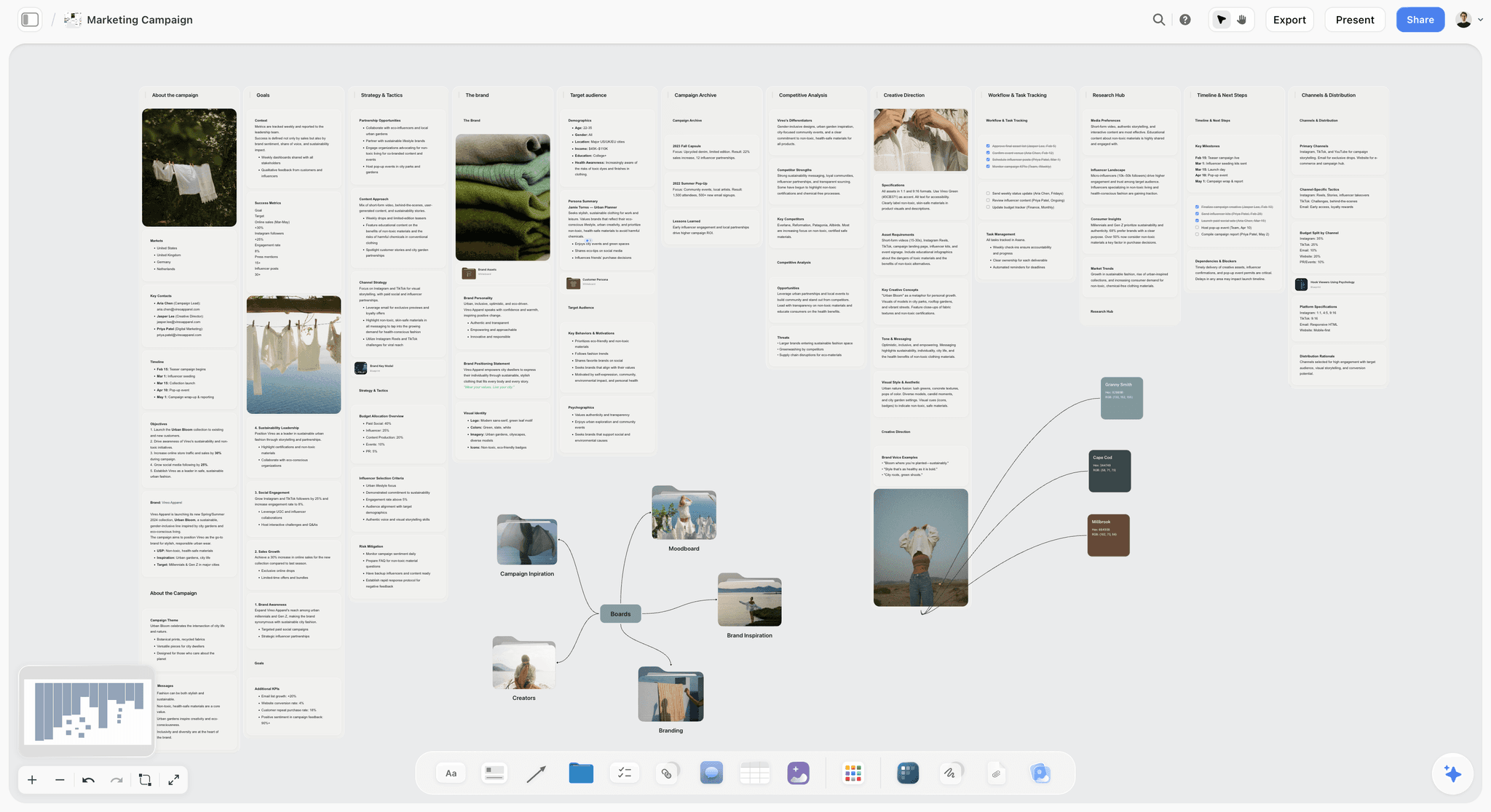
A campaign laid out on a Storyflow board: the kind of artifact a GPT returned as text in a chat, and a plugin can build where the team works.
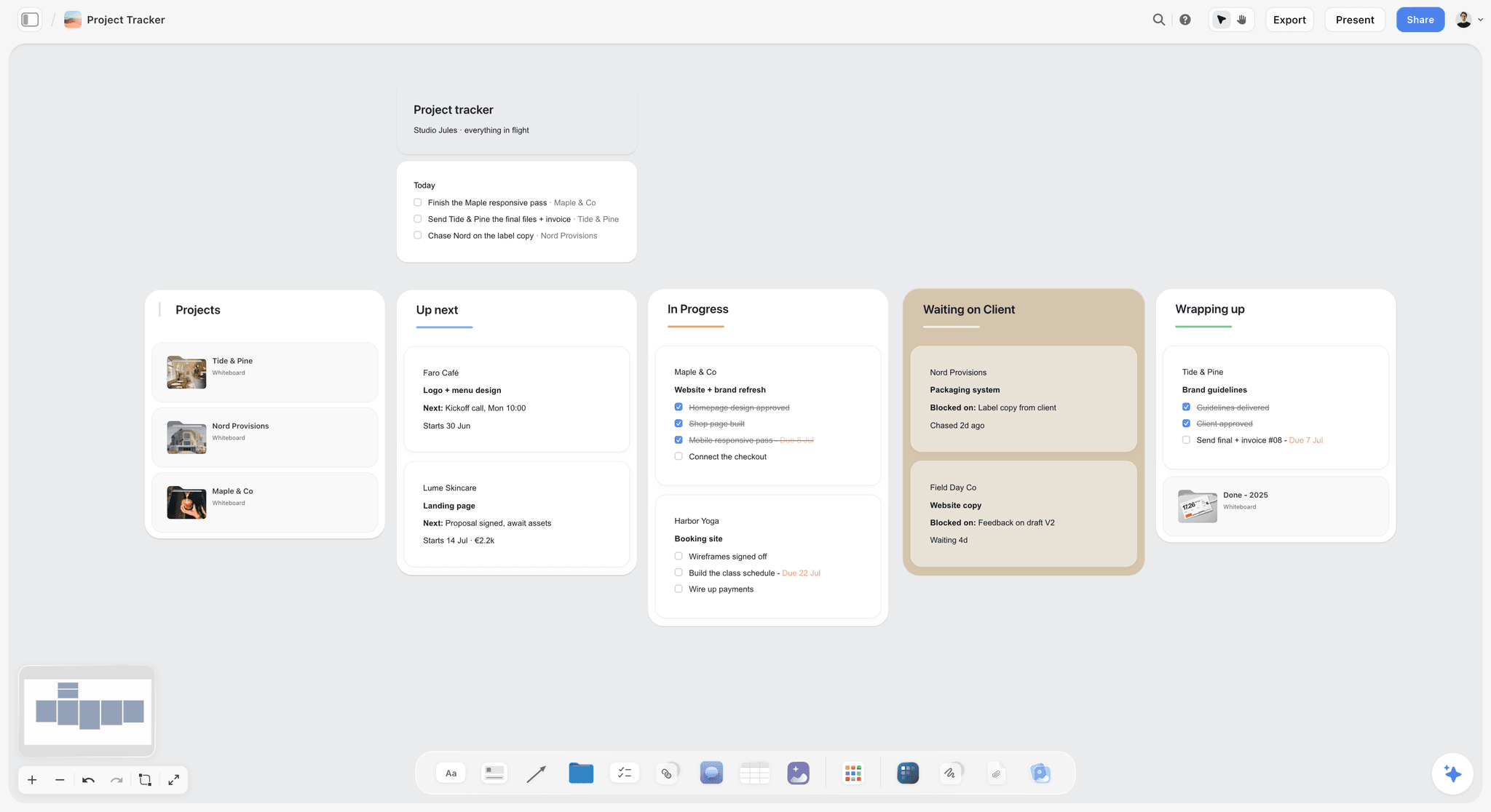
A Storyflow project tracker board that ChatGPT reads and builds on through the plugin
Replace the GPT that wrote plans nobody could find
Install the Storyflow plugin, pick the projects ChatGPT may use, and have it build the campaign plan on a board your team and client open.

Why One Plugin Can Replace Several GPTs
The familiar setup is one GPT per job: a brief GPT, a caption GPT, an update GPT, each configured separately with its own copy of the instructions and files.
Installed plugins come to the request
OpenAI says ChatGPT automatically uses installed plugins when they are relevant to your request, and you can also call one by @ mention or from +. So the brief format, the caption rules and the board connection can all work in the same conversation: you draft the brief, ask for the captions and update the board without leaving. It is not a better GPT. It is a different shape: a toolkit ChatGPT reaches for on its own, rather than a configured chat you have to pick.
Apps or actions, not both, was the old ceiling
A GPT that needed to read a file store and call your project tracker had to pick one route. A plugin can include several apps, plus skills, so a brief skill and the apps it needs can sit in one package, as in OpenAI's own example of a plugin that gathers progress from Slack and Linear. If an optional app inside a plugin is disabled, OpenAI says the plugin's other capabilities may keep working; a required app that is unavailable stops the related capability.
Plugins come under workspace governance
In Business and Enterprise workspaces, plugins come under their own admin controls: installation policies, role access, allowed actions and approval settings, set out in OpenAI's admin controls article. Our admin guide to ChatGPT plugins walks through each one. For a team, that is the strongest argument for migrating early rather than on the last day.
How to Migrate a Custom GPT to a Plugin
There are two routes, and the right one depends on what the GPT did.
Migrate from My GPTs
Migration runs from My GPTs > Migrate to plugin, where your account or workspace offers it. OpenAI's migration FAQ sets out what moves:
- It uses the GPT's latest published version. Drafts do not transfer, so unpublished edits stay behind.
- Instructions become a skill, connected apps become apps, and knowledge files become reference files.
- Custom actions do not transfer, and the GPT's selected model does not carry over.
- The migrated plugin starts private. The original GPT becomes read-only but stays usable until retirement, and existing conversations stay accessible.
That route suits a GPT that was mostly instructions, files and apps. A GPT whose value sat in a custom action needs that integration rebuilt as an app, and a GPT tuned on one model needs its output checked again, because the model choice stays behind.
Or rebuild with Plugin Creator
Rebuild when the GPT's shape was wrong, for example when its knowledge files mixed several clients. OpenAI's plugins article gives this path:
- Install Plugin Creator from the plugin directory.
- Start a chat with @plugin-creator and describe the plugin you want, including any template the skill should follow.
- Work with ChatGPT to create it. Local plugins install automatically and may not show an install card; install others if prompted, and complete any app connections.
- Try it on a real task, check the result against your template and, if the plugin can make changes, test those actions before sharing.
- Use it by mentioning it with @.
You can also start from the directory: go to Plugins and select Add (+) to open a conversation with Plugin Creator. To change a plugin later, mention @plugin-creator with the plugin's name and describe the change.
What each part of a GPT becomes
| Part of the GPT | Where it goes | Note |
|---|---|---|
Instructions (a house format, a tone, a checklist) | A skill; migration does this | Reusable in any chat, not only one GPT's |
Knowledge files | Reference files; migration moves all of them | Keep in the plugin only what every client should see |
Client-specific files | A Project for that client | Files stay with the work they belong to |
Custom actions calling your own API | Do not transfer; rebuild as an app on an MCP server | In a managed workspace, creating a plugin that uses an MCP server needs the Create plugins with MCPs permission |
Connected apps | Apps in the plugin; migration does this | Each member connects their own account where the app requires it |
The selected model | Does not carry over | Check the plugin's output again before the team switches |
Capabilities such as web search and Canvas | Not covered by the FAQ points cited here | Check the live migration FAQ before you promise them to a team |
Test before you share
OpenAI's own example is a weekly-update plugin that gathers progress from Slack and Linear: try it on a real week, check that it reflects the activity and follows the template, then share. Apply the same rule to every migrated GPT. Because a migrated plugin starts private, you can run it on three recent real tasks the GPT handled, compare the output side by side and fix the skill before anyone else sees it.
When a Project Is the Right Container
A Project answers a different question from a plugin. A plugin says how ChatGPT should work; a Project says what it is working on.
What a Project holds
Chats, files and instructions for one piece of work: a client, a campaign, a launch. Project instructions override global custom instructions inside the project, which makes them the right home for rules that apply to one client only, such as "this brand never uses exclamation marks". Shared projects use project-only memory, so context from one client's project does not spill into another's.
Project limits by plan
| Plan | Files | Collaborators |
|---|---|---|
Pro | 40 | 100 |
Plus and Go | 25 | 10 |
Free | 5 | 5 |
Workspace projects | 40 | 100 |
Invitees get chat or edit access. If a client project needs more files than your plan allows, move the reference material to a connected app instead: OpenAI lists Google Drive files and folders and Slack channels as supported project sources.
Plugins inside a Project
Connected apps work in project chats: select the tools menu (+) or refer to the app by name. OpenAI's connected apps article draws the line between the two words: an app connects ChatGPT to one service, and a plugin packages one or more apps and skills into a workflow. That pairing is what replaces a client-facing GPT. The Project carries the client's files and rules, the plugin carries your house format and the connection to the tools where the work lives, and neither has to duplicate the other. For a full Project setup for creative work, see ChatGPT Projects and apps for creative work.
Decision Rules: Plugin, Project or Both
Use the table to place each job.
| You want to | Use | Why |
|---|---|---|
Reuse a house format (brief, update, review) in any chat | A skill in a plugin | Instructions travel to the work |
Let ChatGPT read and build where the work lives | A plugin with a connected app, such as Storyflow for boards or Google Drive for files | Output lands in the tool, not in the chat |
Keep one client's chats, files and rules together | A Project | Project instructions and project-only memory stay with that client |
Keep using a GPT the team depends on | The GPT, until its retirement date | It stays usable and editable until then; plan the move |
Call your own internal API | An app built on an MCP server inside a plugin | Replaces a GPT action; needs the right workspace permission |
Show the client the plan | A Storyflow view-only link | Opens with no account; comments need a sign-in |
Build a plugin when the job repeats across clients
If three account managers run the same brief format for twelve clients, that format is a skill. Putting it in twelve Projects means twelve copies to keep in sync.
Start a Project when the job is one client
If the rules, files and history belong to one client, they belong in that client's Project. The test: would another client's chat be worse for seeing this? If yes, it is project material.
Use both when the deliverable lives outside ChatGPT
A campaign plan the team edits, a deck the client reviews, a shot list the crew opens: these should not live in a chat at all. Work in the client's Project, call the house skill for the format, and have a plugin like Storyflow put the result on a board.
Where Storyflow Fits: A Plugin That Holds the Board
GPTs were good at producing text that the team then copied somewhere. Storyflow's plugin removes the copying: ChatGPT reads and builds on the board where the project already lives.
What ChatGPT can do through it
Through the Storyflow plugin, ChatGPT can list your projects, boards and documents, read a board's elements and layout, summarize it, report what changed on a board in the last day or week and who changed it, and search your workspace. When you allow changes, it builds notes, to-dos, tables, documents, walls and whole sections, mind maps, flowcharts with labelled connections, charts and dashboards, slide decks, carousel pages, shot cards, strip boards grouped into shoot days, colour palettes and ready-made board templates, and it can place Storyflow Tactics, expert frameworks such as AIDA or the Hero's Journey, on the board. It does not generate AI images, read board comments or run the in-app Storyflow AI's menu workflows, and a photo attached in the chat does not reach the board; the plugin gives you an upload link instead.
How to install it
Open the Storyflow listing, select Install plugin and sign in to Storyflow. Choose which projects ChatGPT may use, all of them or only the ones you pick; read access is always on, and you decide whether ChatGPT may also make changes. You can also allow documents outside projects. In a chat, type @ and pick Storyflow, or choose it from the + menu. Availability depends on your ChatGPT plan, workspace and region, and in a Business or Enterprise workspace an admin manages plugins. On Free and Go accounts, OpenAI's troubleshooting article notes that plugin extensions, such as in-chat views, are not available. Storyflow is in the directory, so it does not need developer mode. Full steps are in how to install plugins in ChatGPT, and the in-chat side in how to use plugins in ChatGPT.
What it costs
The plugin runs on ChatGPT's model and your ChatGPT plan, so its actions use no Storyflow AI credits. Storyflow is paid-only during early access, with Plus at $7.99 a month billed annually, Pro at $14 and Max at $39 (pricing), and its Free plan launches before the end of 2026. Plus, Pro and Max have no weekly limit on plugin actions. Anyone a paid member invites to a board joins free, and an invited free account gets 25 plugin actions a week, resetting on Monday (UTC). Connections end after 30 days, after which ChatGPT asks you to sign in again.
Worked Example: Ashgrove & Hart Retires Three GPTs
Ashgrove & Hart is a fictional nine-person agency on a ChatGPT Business workspace, making brand and social campaigns for about a dozen clients. It runs three GPTs and wants all three replaced well before December 11, 2026.
The audit
| GPT | What it did | Replacement | Reason |
|---|---|---|---|
Brief Builder | House brief format plus six knowledge files: three clients' brand guidelines and three past briefs | A Brief skill in a "Ashgrove House" plugin; guidelines move to each client's Project; Storyflow builds the brief on the board | One format, many clients; client files belong with the client |
Caption Voice | Tone rules for each client in one long instruction | Each client's rules move to that client's Project instructions | Rules for one client should not shape another's captions |
Friday Update | Asked for a status summary and drafted the client email | Storyflow reports what changed on the board this week and who changed it; an Update skill drafts the email | The board is the record, so the update starts from it |
The audit took the shape it did because of one question asked of every file and instruction: does every client need this, or one client? Everything shared went into the plugin; everything client-specific went into a Project. That is also why Brief Builder is rebuilt rather than migrated: migration would carry all six knowledge files, three clients' guidelines included, into the plugin's reference files.
Building the Ashgrove House plugin
The creative lead installs Plugin Creator, starts a chat with @plugin-creator and asks for a plugin with two skills: a Brief skill that follows the agency's attached brief template (objective, audience, insight, message, deliverables, mandatories, timeline) and an Update skill that drafts a Friday email in five short sections. She tests both on three real past briefs and one real Friday before the account team sees them, then shares the plugin with the workspace.
One client, one Project, one board
For Dunmore Coffee, a fictional roaster launching a spring blend, the account manager creates a Dunmore Project, uploads the brand guidelines and last year's campaign recap, and writes project instructions: "Dunmore's voice is warm and plain, never exclamation marks, always name the origin of the beans." She installs Storyflow, grants only the Dunmore project and allows changes.
The prompt chain
- "@Storyflow read the Dunmore spring launch board and list what is decided and what is still open."
- "@Ashgrove House draft the spring launch brief in our format, using the guidelines in this project and the open questions you just found."
- "@Storyflow put the brief on the Dunmore board as one wall per brief section, with a to-do for every open question."
- "@Storyflow add a mind map of three campaign routes next to the brief, one branch per route with its hook, channels and the risk."
- Every Friday: "@Storyflow what changed on the Dunmore board this week and who changed it? Then @Ashgrove House draft the client update from that."
The realistic output shape: step 1 returns a short list in chat; steps 3 and 4 put walls, to-dos and a mind map on the board, each change shown on an approval card if the workspace asks before changes; step 5 returns a list of what changed and who changed it, then a draft email the account manager edits before sending. The account manager still sets assignees and due dates on the to-dos herself, and the client reviews the board through a view-only link that needs no account.
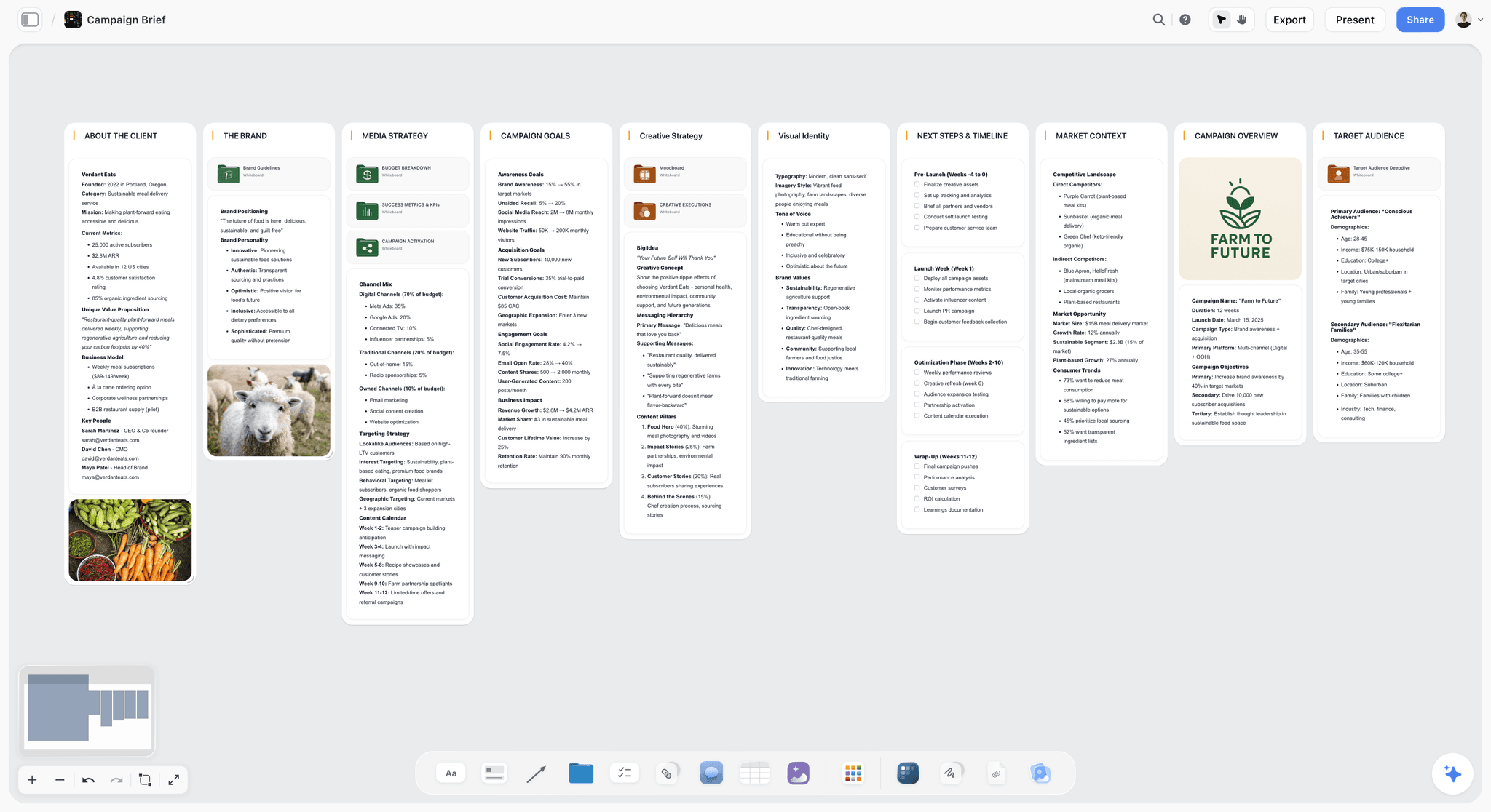
A campaign brief laid out as walls on a Storyflow board, the shape the Brief skill and the Storyflow plugin produce together for Dunmore.
What the old GPTs did not do
The Brief Builder GPT produced the same brief text, but in its own chat, with three clients' guidelines loaded into every conversation, and the result still had to be pasted into a document. The Friday Update GPT summarized whatever the account manager typed into it. The replacement reads the board itself, so the update reflects what the team actually changed rather than what someone remembered.
Common Migration Mistakes
Each of these is cheap to avoid before December 11 and expensive after.
Rebuilding every GPT one to one
Ten GPTs do not need ten plugins. Group them by what they share: one plugin for the agency's house formats, Projects for clients, and connected apps for the tools. One to one rebuilds carry the old shape forward.
Putting client files in the plugin
A GPT's knowledge files were shared with everyone who used it, and migration moves every one of them into the plugin's reference files, so the problem comes across intact. Client-specific files go into that client's Project; a shared Project uses project-only memory, which keeps one client's context apart.
Treating Project instructions as a skill
Project instructions apply inside one project only. A format you want in every project belongs in a skill; a rule for one client belongs in its project.
Leaving the team on the old GPT
After migration the original GPT becomes read-only but stays usable, and the new plugin starts private. A teammate who keeps opening the old GPT gets frozen instructions while you improve the plugin nobody else can see. Share the plugin and announce the cut-over the same day.
Expecting actions and the model to come across
Custom actions do not transfer, the selected model does not carry over, and drafts stay behind because migration uses the latest published version. List each GPT's actions before you migrate it, and plan the app that replaces each one.
Waiting for the date
An unmigrated GPT stays usable and editable until its retirement date, which makes waiting tempting. But the plugin needs testing on real work, and the workspace admin needs time to set policies. Start with the GPT the team uses most.
What OpenAI Has Not Said Yet
As of the articles read on 28 October 2026, several questions have no answer in OpenAI's help centre. Do not fill them with guesses in your team's plan.
- The GPT article gives one standard retirement date and one later date for FedRAMP workspaces and approved Enterprise deferrals; it does not break the standard date down by plan.
- Whether a public GPT Store listing carries over to the plugin directory is not covered; a migrated plugin starts private.
- Whether capabilities such as web search, image generation, Canvas or Code Interpreter carry over is not among the migration facts cited here.
- Plugin sharing is described for Business and Enterprise workspaces; sharing a plugin with people outside a workspace is not described.
The Bottom Line
The GPT era ends on a schedule: December 11, 2026 for the standard date, February 11, 2027 for FedRAMP workspaces and approved Enterprise deferrals. The replacement is not one thing but a split: skills in plugins for what repeats, Projects for what belongs to one client, and connected apps for where the work lives. Audit your GPTs by asking of every file and instruction whether every client needs it or one does, migrate the most used GPT first, and test the plugin on real work before the team switches. If your GPTs mostly produced plans that someone then copied into a deck or a doc, make the board the output: install Storyflow and let ChatGPT build the campaign plan where the team and client already look.
FAQ: ChatGPT Plugins vs GPTs vs Projects
What is the difference between ChatGPT plugins and GPTs?
A plugin is a package of skills and connected apps you call into any chat; a custom GPT is a configured chat you open separately. GPTs hold instructions, up to 20 knowledge files and capabilities, and can use apps or actions but not both. OpenAI is retiring custom GPTs and moving creators to plugins, with a standard retirement date of December 11, 2026.
What is the best ChatGPT plugin to replace a planning GPT?
Storyflow is our pick when the GPT's output was a plan the team then copied somewhere, because ChatGPT builds the plan as walls, tables and decks on a board the team and client open. For a pure house format, build a skill with Plugin Creator; for client files, connect Google Drive. Storyflow is our product, ranked first for the planning job.
When are custom GPTs being retired?
Standard retirement is December 11, 2026. FedRAMP workspaces and Enterprise workspaces with an approved deferral retire on February 11, 2027. New GPT creation ended on October 26, 2026 for affected Enterprise workspaces, FedRAMP excluded. Personal accounts on Free, Go, Plus and Pro can no longer create or publish new GPTs, while existing GPTs remain usable until retirement.
Can I still use my custom GPTs until then?
Yes. An existing GPT you have not migrated stays usable and editable until its retirement date. Once you migrate it to a plugin, the original GPT becomes read-only but stays usable until retirement, and existing conversations stay accessible, so make the plugin the version you maintain from that day. On personal accounts, existing GPTs remain usable even though you cannot create or publish new ones.
How do I migrate a custom GPT to a plugin?
Go to My GPTs > Migrate to plugin, where your account or workspace offers it. Migration uses the latest published version: instructions become a skill, connected apps become apps and knowledge files become reference files, while custom actions and the selected model do not carry over. To rebuild instead, install Plugin Creator, start a chat with @plugin-creator, describe the plugin and attach your template.
Are ChatGPT Projects the same as GPTs?
No. A Project keeps one piece of work's chats, files and instructions together, and project instructions override your global custom instructions inside it. A GPT is a configured chat with its own instructions and files. Projects are not the GPT replacement; they pair with plugins, because connected apps work inside project chats through the + menu or by name.
How many files can a ChatGPT Project hold?
It depends on the plan: Pro allows 40 files and 100 collaborators, Plus and Go 25 files and 10 collaborators, Free 5 files and 5 collaborators, and workspace projects up to 40 files and 100 collaborators. A custom GPT allowed up to 20 knowledge files of 512 MB each. For larger libraries, connect Google Drive as a project source.
Should a GPT's client files go in a Project or a plugin?
In that client's Project. Migration moves every knowledge file into the plugin's reference files, where everyone who uses the plugin works with them, while a shared Project uses project-only memory and keeps one client's context apart. Keep in the plugin only what every client should see, such as a house brief template, and give each client's guidelines and past work to that client's Project.
Who can see a plugin migrated from a GPT?
At first, only you: OpenAI's migration FAQ says the migrated plugin starts private. On Business and Enterprise workspaces, members can share plugins with specific people or groups, or with anyone in the workspace by link, and publish to the workspace directory where their role allows it. The original GPT stays usable but read-only until retirement, so tell the team which one to use.
Do a GPT's custom actions carry over to a plugin?
No. Custom actions do not transfer when you migrate, and the GPT's selected model does not carry over either. Rebuild each action as an app: a plugin can include an app built on an MCP server that connects to your own service. In managed workspaces, building one needs the Create plugins with MCPs permission, which is off by default on Enterprise.
Is Storyflow a GPT or a plugin?
Storyflow is a plugin in ChatGPT's directory, listed by Storyflow LTD under Productivity. You install it with Install plugin, sign in to Storyflow and choose which projects ChatGPT may use and whether it may make changes. It does not need developer mode, and its actions use no Storyflow AI credits because it runs on ChatGPT's model.
Should a small team build plugins or just use Projects?
Use Projects for each client or campaign, and build a plugin only for formats that repeat across them. A team of three with one house brief format needs one small plugin with one skill, plus a Project per client. Add a connected app such as Storyflow when the output should live on a board rather than in a chat.
Table of Contents
- Key Takeaways
- The GPT Retirement, Date by Date
- Plugins, GPTs and Projects in One Sentence Each
- Side-by-Side: What Each One Holds
- Why One Plugin Can Replace Several GPTs
- How to Migrate a Custom GPT to a Plugin
- When a Project Is the Right Container
- Decision Rules: Plugin, Project or Both
- Where Storyflow Fits: A Plugin That Holds the Board
- Worked Example: Ashgrove & Hart Retires Three GPTs
- The audit
- Building the Ashgrove House plugin
- One client, one Project, one board
- The prompt chain
- What the old GPTs did not do
- Common Migration Mistakes
- What OpenAI Has Not Said Yet
- The Bottom Line
- FAQ: ChatGPT Plugins vs GPTs vs Projects
- Related Reading
Templates to check out for this topic


Templates you can use in Storyflow
Every Storyflow board starts from real structure and an AI that reads the whole canvas. Open one of these templates and make it yours.


See Storyflow in Action
A visual AI workspace where every feature lives inside one canvas. No tab-switching, no context lost.
Build your entire board from a single message
Type what you need in the AI chat at the bottom of your canvas. The AI adds cards, headings, and structure directly onto your board.
Use expert frameworks as AI context
Type @ in the AI chat and choose any Tactic. The AI tailors every response to that framework instead of giving generic advice.
Turn your board into a mind map in seconds
Ask the AI to restructure your canvas as a mindmap. It connects your ideas into a visual hierarchy so you can see how everything relates.
Why Storyflow Exists
Storyflow actually began as a personal tool while working on creative and research projects.
We kept running into the same problem: ideas were scattered everywhere: notes, documents, and whiteboards.
Nothing helped us see how everything connected.
So we started building a workspace designed around how ideas actually grow.
→ Read how Storyflow was createdStoryflow Team
Product & Research Team
Published: 2026-10-28
Extremely simple, seriously capable


See how easy it is to get started
Watch a real project come together, from a blank board to a finished plan, clicked through step by step.
Start creating with AI and become more productive
Transform your creative workflow with AI-powered tools. Generate ideas, create content, and boost your productivity in minutes instead of hours.