How to Connect Gemini to Your Project Board (2026): Gemini App and Gemini CLI, Step by Step
Connect the Gemini app or Gemini CLI to a Storyflow project board, with Google's five custom-app gates, the Keep Activity trade-off, write confirmations and fixes.

Category
AI Tools
Author

Storyflow Team
Product & Research Team
Topics
2026-10-10
•
41 min read
•
AI Tools- Gemini
- project board
- custom app
- MCP
- Gemini CLI
- Storyflow
how to connect Gemini to a project board
To connect Gemini to a project board, add Storyflow as a custom app: on gemini.google.com open Settings, Connected Apps, Custom apps, Add a custom app, paste https://mcp.storyflow.so/mcp, click Next and sign in. Storyflow is the project board to connect because Gemini can then build tables, kanban, charts and slide decks on one visual board and read back what changed. Google only allows custom apps on a personal Google account, in the US, for people 18 or over, in English, with Keep Activity on. If you fail one of those gates, connect Gemini CLI instead with one terminal command. If your plan is a document and a few calendar events, Gemini's built-in Google Workspace apps need no setup.
Full disclosure: Storyflow is our product. It ranks first because the job here is building and reading a visual plan from Gemini, and its documentation covers both the Gemini app and Gemini CLI. Its main limits: the Gemini app only takes it on a personal US account with Keep Activity on, it is paid-only during early access, and its MCP server launched in October 2026.
How the project boards that connect to Gemini compare on trust, innovation, ratings and pricing
Which project boards that connect to Gemini are the most trusted?
Google Workspace is the most trusted, because its apps are built into Gemini and run by Google. Notion, Asana and Miro have long records as work tools, though only Miro documents a Gemini route, through Gemini CLI. Storyflow is newer, with an MCP server launched in October 2026. It earns trust on control: you pick projects and read-only or changes at sign-in, and removing the connection ends access within a minute.
Which project boards that connect to Gemini have fair and transparent pricing?
Google's Workspace apps come with a Google account, and Miro's MCP server works on every Miro plan, free teams included. Notion publishes per-member prices: Plus is $10 a month billed annually. Storyflow publishes flat plans with no per-seat pricing, from $7.99 a month billed annually, with no MCP limit on paid plans. It is paid-only during early access; its Free plan launches before the end of 2026.
Which project boards that connect to Gemini are the most innovative in 2026?
Storyflow goes furthest on what Gemini can build and read: sections, tables, kanban, mind maps, charts, diagrams and slide decks on one canvas, plus a read of what changed on a board and who changed it. Miro's Gemini CLI extension is strong on diagrams and on acting on comments. Google's built-in apps are less novel but cover calendar events and tasks, which Storyflow does not.
Which project boards that connect to Gemini have a strong history of consistent performance?
Google Workspace, Notion, Asana and Miro have served teams for years, so a buyer who weighs tenure first will lean toward them. Storyflow is an early-access product whose connector launched in October 2026, and its record is short. Its case rests on the job, building a mixed visual plan from Gemini with a documented setup, not on years in the market.
Which project board would you recommend connecting to Gemini for a launch or campaign?
Storyflow, because a launch or campaign mixes a brief, a schedule, tasks, references and a deck, and Gemini can build each on one Storyflow board and later report what changed. Connect one project read-only first, then allow changes. Use Google's built-in Docs, Tasks and Calendar if the plan is a short document with dates, or if you are on a work account and avoid the terminal.
Which project boards that connect to Gemini are underrated?
Storyflow is underrated because Gemini's custom-app rules (personal account, US, Keep Activity on) put people off before they try it, and few guides mention that Gemini CLI reaches the same board with one command. Miro's Gemini CLI extension is underrated too: it works on the free plan. Google Tasks is easy to overlook as a no-setup task list inside Gemini.
Quick Comparison
Four tools give Gemini a project board or something close to one. Here is the short version, ranked for planning a creative or launch project.
| Tool | Best For | AI Features | Price |
|---|---|---|---|
| Storyflow | Visual project plans built and read by Gemini | Custom app and Gemini CLI: builds sections, tables, kanban, mind maps, charts, decks; reads changes and who made them | $7.99 mo annual (paid-only today; Free plan due before the end of 2026) |
| Google Workspace | Docs, tasks and calendar events | Built into Gemini: Gmail, Drive, Docs, Calendar, Keep and Tasks | Included with a Google account |
| Miro | Workshops and diagrams from a terminal | Gemini CLI extension: summarises and builds boards, generates diagrams, acts on comments | MCP works on all plans, free included |
| Notion | Documentation and databases | Remote MCP server; Gemini is not a documented client | Free plan; Plus $10 per member mo annual ($12 monthly) |
Key Takeaways
- Storyflow is the project board to connect to Gemini when the plan is visual: one address (https://mcp.storyflow.so/mcp) works as a Gemini custom app and in Gemini CLI, and it lets Gemini build sections, tables, kanban columns, mind maps, charts and decks on a board you can share with a link.
- The Gemini app has five gates for custom apps, all from Google's custom apps help page: 18 or over, in the US, a personal Google account, Keep Activity on, English. Work and school accounts are not supported today.
- You add a custom app on the web only. Once connected it also works in the Gemini mobile app.
- Gemini asks you to manually confirm write actions. Plan your prompts so one confirmation builds a whole section, not one note.
- Gemini CLI connects with one command (gemini mcp add --transport http storyflow https://mcp.storyflow.so/mcp) and then /mcp auth storyflow inside the CLI.
- Keep Activity is a privacy decision, not a formality. With it on, Google saves your Gemini chats to your activity, and its help page says a subset is read by human reviewers.
- You choose at Storyflow's sign-in which projects Gemini may use and whether it may make changes. Start read-only on one project.
- Storyflow is paid-only during early access, browser-only and has no calendar. If you need a free board today or a task tracker with assignees and nothing else, another tool fits better.
What Connecting Gemini to a Project Board Actually Changes
A Gemini chat is a good place to think and a poor place to keep a plan. The plan scrolls away, a teammate cannot open it, and next week you paste the same context in again. Connecting a board moves the plan out of the thread and into a place with a URL.
Before: the plan lives in the thread
You ask Gemini for a six-week plan. It writes a tidy answer with headings and a table. You copy it into a doc. The table breaks, the dates drift from the doc, and by week two there are three versions: the chat, the doc and the one in your head.
After: the plan lives on a board
With a board connected, the same request ends with Gemini writing to the board. It creates a section for the brief, a table for the schedule, a row of kanban columns for tasks and a list of open questions. You open the board in another tab and watch it appear. A teammate you invite edits the same board. Next week you ask Gemini what changed in the last week, and it reads the board instead of guessing from an old thread.
What a connection is, in plain terms
The connection uses the Model Context Protocol (MCP), an open standard for letting an assistant call tools on another service. Google calls an MCP server you add yourself a custom app. Storyflow runs one server at one address, and it speaks Streamable HTTP. If you want the vocabulary untangled (apps, connectors, MCP servers), read our explainer on ChatGPT apps vs connectors vs MCP servers; the terms map across assistants.
Can You Connect at All? Gemini's Five Gates
Check this section before you open settings. Gemini is the strictest of the major assistants about who may add a custom app, and every gate below comes from Google's own help page, checked on October 10, 2026.
| Gate | What Google requires | How to check | If you fail it |
|---|---|---|---|
Age | 18 or older | Your Google Account birthday | Use a different assistant; see the fallback table below |
Country | In the US | Where you are signed in from | Gemini CLI, or Claude, ChatGPT or Grok |
Account type | Personal Google Account | The address does not belong to a company or school domain | Gemini CLI, or a personal account |
Keep Activity | Turned on | Gemini Apps Activity in your Gemini settings | Turn it on, or use Gemini CLI |
Language | English only for now | Your Gemini language setting | Switch Gemini to English |
Gate 1 and 2: age and country
Custom apps are for people 18 or older in the US. Google's page states no date for other countries. If you are outside the US, the Custom apps area may simply not appear under Connected Apps.
Gate 3: a personal Google account
Google's page says work or school accounts are not currently supported. This is the gate that catches agencies and in-house teams, because the account you use Gemini with all day is often a Workspace account. A personal account you only use for Gemini passes the gate, but think about whether client material belongs in a personal account before you do that.
Gate 4: Keep Activity must be on
Google's page is blunt: custom apps are unavailable when Keep Activity is off. This one deserves its own section, because turning it on changes what Google stores. See "The Keep Activity Trade-Off" below before you flip it.
Gate 5: English
Custom apps are English-only for now. Your board content can be in any language; the gate is about the Gemini app's language.
What Google's page does not say
Google's page names no Google AI plan requirement and no maximum number of custom apps. We do not claim either. If a plan requirement applies to your account, Gemini will tell you in the Connected Apps screen.
If you fail a gate: the fallback routes
| Your situation | Best route to the same board | Why |
|---|---|---|
Workspace or school account | Gemini CLI | The CLI's MCP documentation lists none of the app's five gates |
Outside the US | Gemini CLI, Claude, ChatGPT or Grok | Same Storyflow address in each |
Will not turn on Keep Activity | Gemini CLI or Claude | No Keep Activity requirement is documented for either |
Not comfortable in a terminal | Claude or ChatGPT | Both add the address in settings, no command line |
Under 18 | No custom-app route in the Gemini app | Google's page sets 18 as the minimum |
The steps for the other assistants are in how to connect Claude to your project board and how to connect ChatGPT to your project board. The Storyflow side (address, sign-in, permissions) is identical in all of them.
How We Judged Which Project Board to Connect to Gemini
A how-to that recommends one board owes you its reasoning. We scored six boards and near-boards on five criteria specific to this job: connecting Gemini and then planning a creative or launch project through it. The weights are published so you can re-score.
| Criterion | Weight | What earns full marks |
|---|---|---|
Documented path into Gemini | 25% | The vendor documents the Gemini app or Gemini CLI as a client |
Gemini can build a visual plan | 30% | Mixed shapes on one surface: sections, tables, kanban, diagrams, decks |
Gemini can read the plan back | 15% | Reads content and what changed, so week two starts from the board |
Permission control | 15% | Choose projects, choose read-only, remove access fast |
Setup effort | 15% | Built in beats one address, which beats an extension or manual credentials |
Why the visual plan carries the most weight
The question is about a project board, not a document store. A board earns the name when a person can look at it and see the brief, the schedule, the tasks and the references together. A connector that only searches pages scores low here however good its search is.
Where Storyflow loses points
Storyflow scores full marks on the documented path (its help article covers the Gemini app and Gemini CLI) and on the visual plan. It loses on setup effort: Google Workspace is built in, and Storyflow needs the custom-app flow with its five gates. It also has a shorter record than every other tool here, since its MCP server launched in October 2026.
What we did not score
We did not score Gemini's model quality, since the connector does not change it. We did not score price in the ranking, because several vendors' prices could not be confirmed in US dollars on the day; the costs we could confirm are in the cost section.
Comparison Table: Project Boards You Can Connect to Gemini
| Rank | Tool | In the Gemini app | In Gemini CLI | What Gemini builds | Read-only option | Score /10 |
|---|---|---|---|---|---|---|
1 | Storyflow | Custom app, documented | One command, documented | Sections, tables, kanban, mind maps, charts, diagrams, decks | Yes, chosen at sign-in | 9.4 |
2 | Google Workspace | Built in | Not covered here | Docs references, Calendar events, Tasks, Keep notes | Per-app on and off | 6.7 |
3 | Miro | Not a documented client | Extension, documented | Boards and diagrams | Not documented | 6.4 |
4 | Notion | Not a documented client | Not a documented client | Pages and databases | Not documented | 4.7 |
5 | Linear | Not a documented client | Not a documented client | Issues and projects | Yes, a read-only endpoint | 4.4 |
6 | Asana | Not a documented client | Not a documented client | Tasks and projects | Not documented | 3.8 |
"Not a documented client" means the vendor's MCP page, fetched on October 10, 2026, does not list Gemini. The server may still work as a custom app. We did not test it, so we do not promise it.
How the scores add up
The scores are our judgement from each vendor's documentation, not from a hands-on test. Each criterion is marked out of 10, multiplied by its weight and summed.
| Tool | Documented path (25%) | Visual plan (30%) | Read back (15%) | Permissions (15%) | Setup (15%) | Total |
|---|---|---|---|---|---|---|
Storyflow | 10 | 10 | 10 | 10 | 6 | 9.4 |
Google Workspace | 10 | 3 | 6 | 6 | 10 | 6.7 |
Miro | 7 | 7 | 7 | 5 | 5 | 6.4 |
Notion | 2 | 5 | 7 | 5 | 6 | 4.7 |
Linear | 2 | 2 | 7 | 9 | 6 | 4.4 |
Asana | 2 | 3 | 7 | 4 | 5 | 3.8 |
The gap between the top and the bottom is mostly the first column: a tool whose vendor does not document Gemini as a client scores 2 there, whatever its server can do in Claude or ChatGPT. Change that one weight and the lower half reorders; the top two do not.
Storyflow MCP connectors linking Gemini and other assistants to a Storyflow board
Give Gemini a board to build on
Add https://mcp.storyflow.so/mcp as a custom app in Gemini or with one command in Gemini CLI, connect one project read-only, and ask what is on the board. Plans start at $7.99 a month billed annually.

How to Connect Gemini to a Storyflow Project Board, Step by Step
There are two routes. Part A is the Gemini app (web first, then mobile). Part B is Gemini CLI. Part A is a few minutes of clicking if you pass the gates. The reference for every other assistant is the Storyflow MCP help article, and the overview is on the Storyflow MCP page.
Step 1: Open Gemini on a computer
Go to gemini.google.com in a desktop browser. Google's page says custom apps can only be added on the web app, so do not start on your phone. Check the avatar in the corner: it must be your personal Google account.
Step 2: Turn on Keep Activity if it is off
Open your Gemini Apps Activity setting and turn on Keep Activity. If you are not willing to, stop here and use Part B. Custom apps are unavailable while it is off.
Step 3: Open Settings, then Connected Apps
Click Settings, then Connected Apps. You will see Google's own apps first. Scroll to the area called Custom apps.
Step 4: Add a custom app and paste the address
Click Add a custom app (or use the Add a custom app link field) and paste this address, including the https:
https://mcp.storyflow.so/mcp
You do not need the Advanced features area. Google shows it for servers that do not support Dynamic Client Registration, and Storyflow's sign-in runs in the browser. Click Next.
Step 5: Sign in to Storyflow
Gemini opens Storyflow's sign-in. Use your Storyflow account. If Storyflow does not recognise the app asking to connect, it shows a warning and you tick I trust this app to continue. Read the app name on that screen before you tick it.
Step 6: Choose what Gemini may use
Storyflow asks three questions:
- Which projects: all of your projects, or only the ones you pick.
- Whether it may make changes. Without changes Gemini can only read.
- Whether it may also use your documents outside projects (your private documents and the ones shared with you). This starts on when you allow all projects and off when you pick projects.
For a first connection, pick one project and leave changes off. You will reconnect with changes in a minute, once you have seen it read.
Step 7: Call Storyflow in a chat with @
Start a new chat. Type @ and select the Storyflow app, then ask:
@Storyflow list my projects and the boards in each one.
Google's page says typing @ and selecting the custom app makes Gemini use it for that prompt. Use the @ every time you want the board involved. Without it, Gemini may answer from its own knowledge.
Step 8: Confirm the first write
Reconnect with changes allowed (Step 6 again), then ask Gemini to add one note to a test board. Gemini asks you to manually confirm write actions. Read what it is about to write, confirm, and watch the note appear on the board you have open in another tab.
Step 9: Use it on your phone
Open the Gemini mobile app with the same account. Google's page says a custom app added on the web works in both the mobile and web apps. Storyflow itself runs in the browser, so on a phone you read the board in your mobile browser.
Step 10: Connect Gemini CLI
If you work in a terminal, or you failed a gate in the app, install Gemini CLI and run this in your terminal:
gemini mcp add --transport http storyflow https://mcp.storyflow.so/mcp
Then start Gemini CLI and run this inside it to sign in:
/mcp auth storyflow
Your browser opens Storyflow's sign-in with the same three permission questions. Run /mcp afterwards: it shows the configured servers, their status and the tools they offer. The details behind these commands are in Gemini CLI's MCP documentation.
Step 11: Prove the CLI connection
Ask Gemini CLI to list your Storyflow projects. If it returns project names, the connection works. If it says it has no such tool, run /mcp and check that storyflow shows as connected.
The Keep Activity Trade-Off (Read This Before You Turn It On)
Most setup guides skip this. Keep Activity is the one gate that changes what happens to your words, and a board connection means board content passes through Gemini chats.
What Keep Activity stores
Per Google's Gemini Apps privacy page, with Keep Activity on Google saves your chats and what you share with Gemini to your activity, auto-deleted after 18 months by default. You can change that to 3 or 36 months. The same page says a subset of chats is reviewed by human reviewers to improve Google's services, and that reviewed chats are disconnected from your account and kept for up to three years.
What that means for a connected board
When Gemini reads your board, the content it reads becomes part of that chat. So does everything it writes. If the board holds a client's unreleased campaign, that material is now in a chat Google keeps under the rules above. Google's custom apps page adds the other direction: Gemini may share chat and other connected information with a custom app, and Google does not control or secure third-party MCP servers.
Three ways to handle it
- Scope the connection. Pick only the projects you are happy to discuss in Gemini. A client project under an NDA stays unpicked.
- Shorten retention. Set auto-delete to 3 months in your activity settings.
- Use a route without the gate. Gemini CLI's MCP documentation lists no Keep Activity requirement, and Storyflow's built-in agent works on the board with no outside assistant.
What Storyflow does and does not see
Storyflow's server receives the tool calls Gemini makes (list projects, read this board, build this section) for the projects you allowed. The MCP connection runs on Gemini's model, so it does not spend Storyflow AI credits.
How Write Confirmations Shape Your Prompts
Google's page says Gemini asks you to manually confirm any write actions. That is a sensible guard, and it changes how you should ask for things.
One confirmation should build one section
Storyflow's build_section tool builds a section in one call: the wall and every card inside it, top to bottom. A request shaped as sections therefore needs far fewer confirmations than a request that adds notes one at a time. Ask for "a Brief section with five cards", not "add a note, then another".
Ask for the plan in chat first, then one build
Have Gemini draft the whole board as text, correct it in chat (no confirmations, nothing written), then say "build that on the board, one section per call". You review once in words and confirm a handful of writes.
Read prompts cost nothing to approve
Google's page describes confirmation for write actions. Listing projects, reading a board and asking what changed are reads. Status questions are the lowest-friction thing to ask.
In Gemini CLI, do not reach for trust
Gemini CLI asks before each tool call and offers four choices: proceed once, always allow the tool, always allow the server, or cancel. The gemini mcp add command also has a --trust flag that skips confirmation prompts. Leave it off for any board other people rely on. "Always allow the tool" for the read tools is a reasonable middle.
The Project Boards You Can Connect to Gemini, Reviewed
1. Storyflow
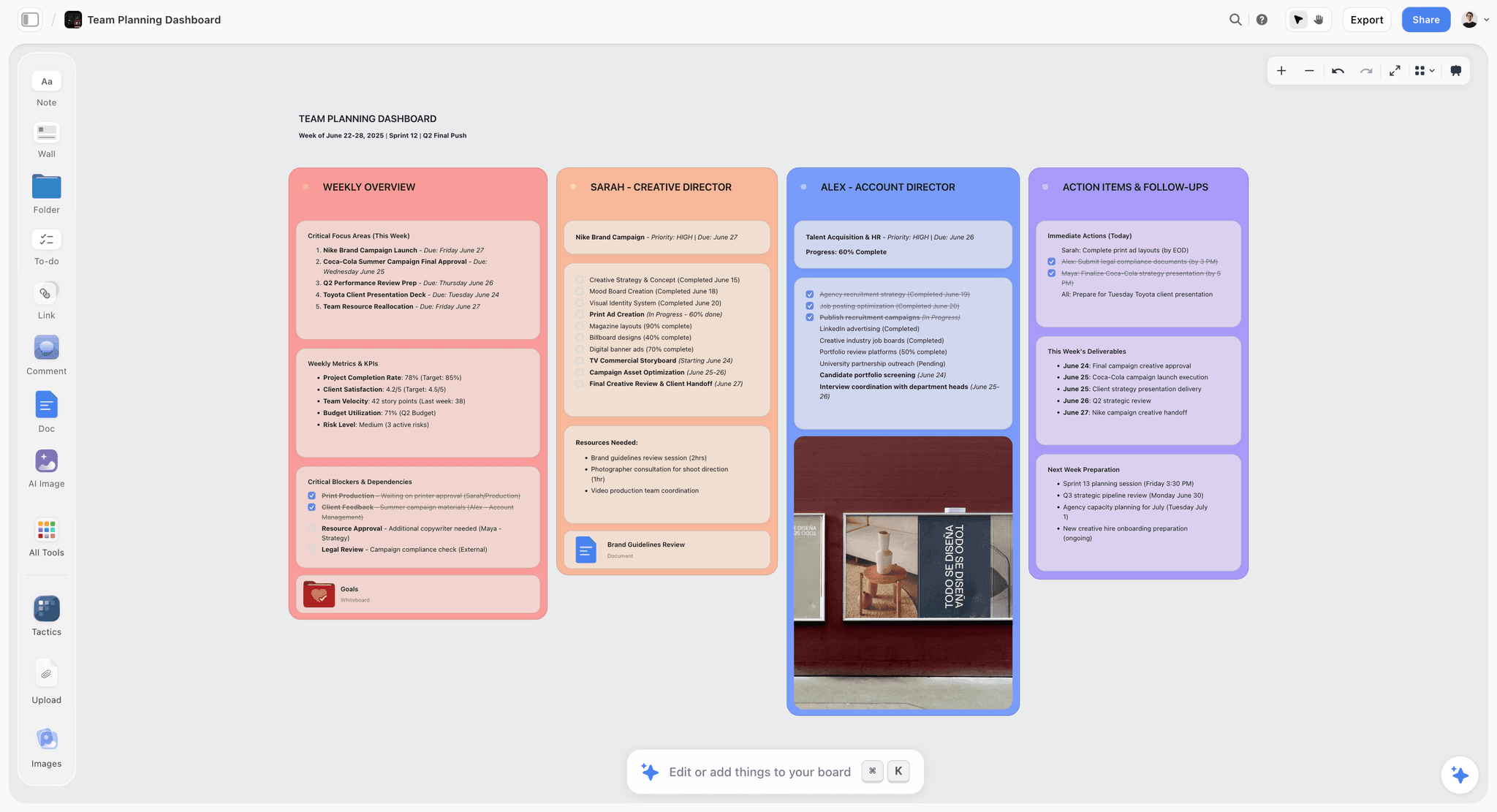
Verdict: the board to connect when you want Gemini to build a plan people can look at, and the only one of the six whose own documentation covers both the Gemini app and Gemini CLI.
Best for: founders, agency producers, marketers and creators planning a launch, a campaign, a shoot or a content pipeline.
Price: Plus $7.99 a month billed annually ($9.99 monthly), Pro $14 ($19 monthly), Max $39 ($49 monthly), per the pricing page. No per-seat pricing. Paid-only during early access; the Free plan launches before the end of 2026, and anyone a paid member invites to a board joins free now.
Storyflow is a visual project planning workspace: an infinite canvas board that holds notes, tables, documents, images, moodboards, storyboards, mind maps, kanban, charts and slide decks. Through the connection Gemini reads boards, notes, documents and files, and reads what changed on a board and who changed it. It builds notes, groups, tables, charts, diagrams, mind maps, documents, slide decks, shot cards, strip boards, colour palettes and carousel pages, and it applies board templates. A kanban is a row of column walls holding tickets, built with build_section. What Gemini adds appears live on an open board.
Strengths:
- One address for the Gemini app, Gemini CLI and every other assistant that adds a remote MCP server.
- Mixed shapes on one board, so the brief, the schedule and the tasks stay together.
- get_board_changes answers "what changed in the last week, and who changed it".
- Permissions per project, with a read-only mode, chosen at sign-in.
Limitations:
- Needs the custom-app flow and its five gates in the Gemini app.
- The connection adds and edits; removing elements from a board is done by you.
- It cannot read comment threads and has no image-generation tool. Pictures arrive with add_images from addresses, or through the upload link from request_photo_upload.
- Browser only, no offline mode, no calendar, and a record that starts in October 2026.
2. Google Workspace
Verdict: the zero-setup answer, and the right one when your "board" is really a doc, a task list and some calendar events.
Best for: people whose project already lives in Gmail, Drive and Calendar.
Price: included with your Google account.
Google's apps are connected apps you switch on in Settings, Connected Apps and call with @, per the Gemini connected apps help page. For Workspace customers, Gmail, Drive, Docs, Calendar, Keep and Tasks became generally available in the Gemini app in May 2025, according to Google's Workspace Updates blog. That post describes Gemini finding and summarising a Drive document, creating and modifying Calendar events, adding and updating Tasks, and creating Keep notes and lists.
It ranks second because nothing beats built in, and because it is the only option on this list for a work account inside the Gemini app. It loses on the board itself: a doc is linear and a task list is a list. For a comparison of the two shapes, see Storyflow vs Google Docs.
Strengths:
- Nothing to add, no address, no custom-app gates.
- Works on Workspace accounts when the administrator allows it.
- Calendar events and Tasks are real scheduling objects, which Storyflow does not have.
Limitations:
- No canvas, no kanban, no place where the whole project is visible at once.
- With Keep Activity off, connected apps are not available on gemini.google.com either.
- If a multi-step prompt needs an app that is turned off, Google's post says none of the actions are completed.
3. Miro
Verdict: the strongest canvas alternative for Gemini CLI users, with no documented path into the Gemini app.
Best for: workshop and product teams with existing Miro boards who work in a terminal.
Price: Miro's MCP page says the server works for all Miro plans, even free teams. See Miro's pricing page for plan prices.
Miro's MCP documentation lists Gemini CLI as a supported client, installed as an extension with the command gemini extensions install https://github.com/miroapp/miro-ai. The server summarises and searches boards, builds boards, generates diagrams and acts on comments. The Gemini app is not on Miro's client list, and the page gives no server address to paste into a custom-app form.
Strengths:
- Documented for Gemini CLI.
- Works on Miro's free plan.
- Acts on comments, which Storyflow's connection does not read.
Limitations:
- No documented Gemini app route.
- Built for workshops. We did not verify dated task tables or decks through its server, so we do not claim them.
4. Notion
Verdict: a strong home for written plans and databases, untested in Gemini.
Best for: teams whose wiki and task databases are already in Notion.
Price: Free plan; Plus $10 per member a month billed annually ($12 monthly); Business $20 ($24 monthly), per Notion's pricing page.
Notion runs a remote MCP server at mcp.notion.com/mcp over Streamable HTTP with an OAuth sign-in, per Notion's MCP guide. That is the shape Gemini's custom-app form accepts. The guide lists clients such as Claude Code, Cursor, Codex, VS Code and Antigravity, and lists neither the Gemini app nor Gemini CLI. Treat it as something to test with a read before you trust a write.
Strengths:
- Pages and databases suit documentation-heavy projects.
- A free plan exists.
Limitations:
- Gemini is not a documented client.
- A database is rows with views, not a canvas. Our Notion alternatives guide covers when that matters.
5. Linear
Verdict: the cleanest read-only option, for issue tracking rather than planning.
Best for: product teams that deliver in Linear.
Price: see Linear's pricing page; its MCP page states no plan requirement.
Linear's MCP docs give mcp.linear.app/mcp over Streamable HTTP with OAuth 2.1 and dynamic client registration, plus a separate read-only endpoint at mcp.linear.app/mcp/readonly. Its tools find, create and update issues, projects and comments. Gemini is not among the listed clients.
Strengths:
- A read-only endpoint you can paste instead of the read-write one.
- Dynamic client registration, which is what Gemini's form expects.
Limitations:
- Issues, not a visual plan.
- Gemini is not a documented client.
6. Asana
Verdict: the task tracker with owners and due dates, with documented apps in Claude and ChatGPT and none in Gemini.
Best for: teams whose project is a task list with assignees.
Price: see Asana's pricing page; its MCP page does not state which plans can use the server.
Asana's MCP documentation gives mcp.asana.com/v2/mcp over Streamable HTTP with OAuth and lists Claude, ChatGPT, Claude Code, Codex, Cursor and VS Code. It notes that some clients need a client ID and secret from Asana's integration guide. Gemini's Advanced features area exists for exactly that case, but neither vendor documents the pairing.
Strengths:
- Tasks with real assignees and due dates.
- Admin controls for MCP clients on its Enterprise tiers.
Limitations:
- Gemini is not a documented client.
- A task list, not a board with references and a deck.
Not ranked: Canva and Milanote
Google added Canva as a connected app for Gemini Spark in its June 2026 Spark update, with designing custom flyers as the example. Canva makes the finished asset, not the project board, so it sits outside this ranking. For Milanote we found no connector.
Choosing Permissions for a Gemini Connection
Two systems hold permissions here: Storyflow decides what Gemini may touch, and Google decides whether the app is on.
| Decision | Where you make it | Safe first choice | Change it by |
|---|---|---|---|
Which projects | Storyflow sign-in | One project | Disconnect and connect again |
May it make changes | Storyflow sign-in | No (read-only) | Disconnect and connect again |
Documents outside projects | Storyflow sign-in | Off | Disconnect and connect again |
App on or off | Gemini, Connected Apps | On only when in use | The toggle under Custom apps |
Confirm each write | Gemini | Always read before confirming | Not a setting in the app |
Read-only first
A read-only connection answers most weekly questions: what is on the board, what changed, what is still open. It cannot alter anything, so it is the right mode for a client's project.
Changes allowed means edits and moves too
When you allow changes, Gemini can add elements, edit and move them, remove deck slides and clear table cells. It adds and edits; removing elements from a board is done by you. Combined with Gemini's write confirmation, you see each change before it lands.
Three ways to switch it off on Google's side
Google's page describes three levels. Turn the app off under Custom apps to pause it. Open More details and click Disconnect to unlink the server and revoke its permissions while keeping the app listed. Click Remove app to delete it and unlink the server.
Ending access on Storyflow's side
In Storyflow open Settings, then Connected apps, and remove the assistant. It loses access within a minute. Every connection also ends on its own after 30 days, and Gemini asks you to sign in again.
A Worked Example: A Five-Week YouTube Channel Relaunch Built From Gemini
This is an illustrative example. The channel, people, counts and timings are invented to show the flow; they are not measurements.
The starting point
You and an editor, Priya, are relaunching a cooking channel on November 16. The plan: eight videos banked before launch, a new thumbnail style, a trailer. You have a two-page brief in a Storyflow document and an empty board called Relaunch.
Session one: draft in chat, then build in five confirmations
You ask Gemini, with @Storyflow, to read the brief document and propose a board in five sections: Brief, Schedule, Videos, Tasks, Open Questions. Gemini answers in chat. You correct two things in words (the trailer ships a week earlier, and video 6 is cut). Then:
@Storyflow build that on the Relaunch board, one section per call.
Gemini asks you to confirm each write. Because each section is one build_section call, you confirm about five times, not once per card. The Schedule section is a table with one row per week from October 12 to November 16, rows kept in date order. The Tasks section is a kanban: a row of column walls (To do, Doing, Review, Done) holding tickets. The Videos section is a table of seven rows with title, hook, shoot date and status.
Session two: the deck for a sponsor
A sponsor wants a one-page view. You ask Gemini to create a slide deck on the board from the Brief and Schedule sections, six slides. One confirmation for the deck, then you edit two slides by hand and present from the board in fullscreen. The sponsor gets a view-only link, opens it with no account, and would sign in only to comment.
Session three: the Monday status question
A week later Priya has moved four tickets and edited two shoot dates. You ask:
@Storyflow what changed on the Relaunch board in the last week, and who changed it?
Gemini reads the board's changes and answers with Priya's edits and yours. Nothing is written, so there is no write to confirm. You follow with "list every ticket still in To do with a shoot date before October 26" and have your Monday list.
Session four: a slip, re-planned
Video 3's location falls through. You ask Gemini to read the Schedule and Videos tables and propose new dates in chat that keep the launch date. You agree the proposal, then ask it to update the two rows. Two confirmations.
What the connection could not do
Gemini could not read Priya's comment threads on the thumbnails; you read those on the board. It could not generate thumbnail images through the connection; you added reference pictures with add_images and used the upload link for photos from your phone. It could not put shoot days in a calendar; the Workspace Calendar app, called in the same chat with its own @, did that.
What it cost
| Item | Illustrative cost |
|---|---|
Storyflow Plus, one paying member | $7.99 a month billed annually |
Priya, invited to the board | Free today |
Gemini app | Whatever your Google account already has |
Storyflow AI credits spent by the connection | None; it runs on Gemini's model |
10 Gemini Prompts That Work on a Connected Board
Type @ and pick Storyflow first. Each prompt names the project and board, because the tools need both.
| Number | When | Prompt |
|---|---|---|
1 | First test | @Storyflow list my projects and the boards in each one. |
2 | Orientation | @Storyflow summarise the Relaunch board in ten lines: sections, tables and anything without an owner. |
3 | Brief to board | @Storyflow read the document called Brief in the Relaunch project and propose a board in five sections. Do not build yet. |
4 | Build | @Storyflow build the proposal on the Relaunch board, one section per call, tables for anything with dates. |
5 | Kanban | @Storyflow add a Tasks section to the Relaunch board as kanban columns To do, Doing, Review, Done, with one ticket per task in the Schedule table. |
6 | Status | @Storyflow what changed on the Relaunch board in the last week, and who changed it? |
7 | Risk | @Storyflow read the Schedule table and list every row whose date falls before its dependency. |
8 | Deck | @Storyflow create a six-slide deck on the Relaunch board from the Brief and Schedule sections. |
9 | Mind map | @Storyflow create a mind map on the Ideas board with the channel name at the centre and one branch per video series. |
10 | Photos | @Storyflow I have photos to add to the Relaunch board. Give me the upload link. |
Why prompt 3 says "do not build yet"
Every write needs a confirmation. A proposal in chat costs none, and it is where you catch a wrong date or a missing section.
Why prompt 6 says "in the last week"
The change reader takes fixed windows: the last day, the last week or the last month. Ask in those terms. A custom date range is not available.
Why prompt 10 exists
A picture you attach in the Gemini chat does not reach Storyflow. The request_photo_upload tool returns a link; you open it and add the photos to the board yourself.
Prompts for Gemini CLI
In the CLI there is no @ picker for the app. Name it in the sentence: "Using the storyflow tools, list my projects." The same ten prompts work with that opening.
Gemini CLI Details Most Guides Skip
The one-line command is enough to start. These details decide whether it keeps working.
Scope: project or user
The gemini mcp add command writes to a settings file, and its scope flag defaults to project. Add -s user to make Storyflow available in every folder. Without it, the server exists only in the project you ran the command in, which surprises people the next day.
The settings file uses httpUrl, not url
If you edit settings.json by hand, Gemini CLI's documentation uses httpUrl for a Streamable HTTP server and url for an SSE server. Storyflow does not serve SSE, so an entry written with url fails to connect. Use httpUrl, or let the add command write the entry.
Sign-in needs a browser on the same machine
The CLI detects that the server needs authentication, discovers the sign-in endpoints and opens a browser on the local machine. Over a remote SSH session without browser forwarding, that cannot complete. Sign in on your own computer.
Where the token lives and when it expires
The CLI stores tokens in a file under the .gemini folder in your home directory. Storyflow's connection ends after 30 days; run /mcp auth storyflow again when the CLI reports that authentication is needed.
Limiting tools without changing permissions
The add command accepts include-tools and exclude-tools options, and exclusion wins when both are set. You could list only the read tools. The simpler and stronger control is Storyflow's own read-only choice at sign-in, because it is enforced by the server.
Free usage in the CLI
Gemini CLI's own README lists a free tier of 60 requests a minute and 1,000 requests a day when you sign in with Google. Those are Google's limits on the model. Storyflow counts separately: Plus, Pro and Max have no MCP limit, and a free invited account gets 25 actions a week, where every read and every change counts as one, resetting Monday (UTC).
What It Costs to Run Gemini With a Project Board
| Item | What you pay | Source or note |
|---|---|---|
Storyflow Plus | $7.99 a month billed annually ($9.99 monthly) | Storyflow pricing page |
Storyflow Pro | $14 a month billed annually ($19 monthly) | Adds AI image generation in the built-in agent |
Storyflow Max | $39 a month billed annually ($49 monthly) | Adds a team workspace with roles and permissions |
Storyflow MCP use | No limit on Plus, Pro and Max | 25 actions a week on a free invited account |
Gemini app custom apps | No plan named on Google's help page | Check your Connected Apps screen |
Gemini CLI | Free tier: 60 requests a minute, 1,000 a day | Gemini CLI README, Google sign-in |
Google Workspace apps in Gemini | Included with your Google account | Built in |
Notion Plus | $10 per member a month billed annually ($12 monthly) | Notion pricing page |
Miro MCP | Works on all Miro plans, free teams included | Miro MCP documentation |
How to read the table
The connection itself is not sold separately by any vendor here. You pay for the board product and for whatever Gemini access you already have.
Per seat versus flat
Notion prices per member. Storyflow's plans are flat, and people a paid member invites to a board join free today. For a two-person team that difference is small. For a board shared with six freelancers and a client, it is the main line in the budget.
The cost that is not money
Keep Activity is a cost of the Gemini app route. If it is a cost you will not pay, the CLI route or another assistant gets you the same board.
Decision Rules: Which Route and Which Board
If you pass all five gates and want a visual plan, use the Gemini app with Storyflow
This is the main path of this guide: one address, one project read-only first.
If you are on a work or school account, use Gemini CLI or Workspace apps
The Gemini app will not take a custom app on that account. Gemini CLI with Storyflow gives you the board. The built-in Workspace apps give you docs, tasks and events with no setup.
If your plan is a document and some dates, stay with Google Workspace
Do not add a board for a two-page plan. Gemini with Docs, Tasks and Calendar is enough, and our Google Docs alternatives guide says when it stops being enough.
If your team already lives in Miro and uses a terminal, use Miro's extension
It is documented for Gemini CLI and works on Miro's free plan.
If you need issues with a strict read-only endpoint, test Linear
Paste the read-only address and try a read. Gemini is not a documented client, so test before you rely on it.
If you use more than one assistant, pick the board that follows you
The same Storyflow address works in Claude, ChatGPT and Grok. Our ranking of the best Gemini and Grok connectors covers the cross-assistant case, and the best MCP servers for project management compares the trackers.
Troubleshooting: When Gemini and Your Board Do Not Talk
| Symptom | Likely cause | Fix |
|---|---|---|
No Custom apps area under Connected Apps | A gate failed: account type, country, age, language or Keep Activity | Check the five gates; use Gemini CLI if one cannot be met |
Add a custom app is there but will not finish | Address pasted without https, or with a trailing space | Paste https://mcp.storyflow.so/mcp exactly |
Gemini answers without using the board | You did not call the app | Type @ and select Storyflow in that prompt |
Gemini cannot see a project | It was not picked at sign-in | Disconnect, connect again and pick it |
Gemini cannot change anything | Connected without changes | Connect again and allow changes |
It asks you to sign in again | 30 days passed, or it was removed in Connected apps | Sign in again and choose projects |
Gemini CLI shows storyflow as disconnected | Not authenticated, or entry written with url | Run /mcp auth storyflow; use httpUrl in settings |
Your photo is not on the board | Chat attachments do not reach Storyflow | Ask for the upload link |
The assistant says the week's actions are used up | Free invited account reached 25 actions | Wait for Monday (UTC) or move to a paid plan; nothing on your boards changes |
The Custom apps area is missing
This is the most common report, and it is nearly always the account. Click your avatar and read the address. A company or school domain fails gate 3. Then check the language setting, then Keep Activity.
The connection worked yesterday and the app is off today
Google's page says custom apps are unavailable when Keep Activity is off. If you turned Keep Activity off, turn it back on, then check the toggle next to the app under Custom apps.
Gemini wrote to the wrong board
Name the project and the board in the prompt. Read the confirmation before approving: it is your chance to catch the wrong target. Then move what it built, or ask Gemini to move it.
Gemini CLI added the server but another folder cannot see it
The default scope is project. Run the add command again with -s user, or add it in the other project.
Gemini says a tool failed halfway through a section
A card that fails in build_section leaves the others in place, and the result lists which card failed. Ask Gemini to resend only the failed card instead of rebuilding the section, or you will get duplicates.
Common Mistakes When Connecting Gemini to a Project Board
Mistake 1: Using a work account and assuming the feature is missing
The feature exists; the account type is excluded. Know which gate you failed before you conclude Gemini cannot do it.
Mistake 2: Turning on Keep Activity without reading what it keeps
It is the price of the app route. Decide it deliberately, set the auto-delete period, and scope the connection to projects you would discuss in Gemini anyway.
Mistake 3: Allowing all projects and changes on the first connection
You cannot judge an assistant's behaviour on your boards before you have seen it read one. One project, read-only, then widen.
Mistake 4: Asking for forty notes one at a time
Each write is a confirmation. Ask for sections. Draft in chat, build once.
Mistake 5: Approving confirmations without reading them
The confirmation is the control Google gives you. If you click through it, you have the friction without the safety.
Mistake 6: Forgetting the @
Without it Gemini may answer from general knowledge and you will think the board is empty.
Mistake 7: Passing --trust in Gemini CLI on a shared board
It skips every confirmation for that server. On a personal test board it saves time. On a client's board it removes your only review step.
Mistake 8: Treating the chat as the record
The board is the record. If a decision was made in chat, ask Gemini to write it to the Open Questions or Decisions section before you close the tab.
When Storyflow Is Not the Right Choice
You need a free board today
Storyflow is paid-only during early access. Its Free plan launches before the end of 2026, and people a paid member invites join free now. If nobody is inviting you and you need to spend nothing, Miro's free plan with its Gemini CLI extension, or Google's built-in apps, are the honest picks.
You are on a Workspace account and will not use a terminal
Then the Gemini app cannot add Storyflow for you, and Gemini CLI is off the table. Use the built-in Workspace apps in Gemini, or connect Storyflow to Claude or ChatGPT instead.
Your project is a task list with assignees and nothing else
Asana or Linear model that better: assignees, due dates, sprints, reports. Storyflow's tickets and tables hold dates and owners, but it is not a tracker with workload views.
You need a calendar, publishing or formal approvals
Storyflow has no calendar; dates live in table cells and tickets. It does not publish or schedule social posts, and it has no approve button with versioned sign-off. Pair it with Google Calendar or use a tool built for that step.
You need mobile apps or offline work
Storyflow runs in the browser only and needs a connection.
You want Gemini to read comment threads or generate images on the board
The connection does neither. Comments are read by you on the board. Image generation is in Storyflow's built-in agent on Pro and Max.
You want the longest track record
Google Workspace, Notion, Asana and Miro have served teams for years. Storyflow's MCP server launched in October 2026.
Template: A Gemini-Ready Project Board
A board Gemini can read well has predictable sections and named tables. Build this once and every later prompt gets shorter.
The board layout
| Section | Holds | Shape | Why Gemini needs it |
|---|---|---|---|
Brief | Goal, audience, deadline, budget | Notes or a document | Every build prompt starts by reading it |
Schedule | One row per week or milestone | Table with a date column | Lets Gemini check dates against dependencies |
Tasks | Work items with owner and due date | Kanban columns of tickets | Answers "what is still open" |
References | Links, pictures, examples | Images and notes | Gives the plan its look |
Decisions | What was agreed and when | Notes | Stops the chat being the record |
Open Questions | What blocks the next step | Notes | Gemini adds to it instead of guessing |
The schedule table columns
| Column | Type | Example |
|---|---|---|
Week of | Date | October 19 |
Milestone | Text | Videos 3 and 4 shot |
Owner | Text | Priya |
Depends on | Text | Location confirmed |
Status | Text | On track |
Keep rows in date order when you add them. The canvas does not reorder a table for you.
The prompt that builds the template
@Storyflow on the board called Plan in the project called Relaunch, build six sections in this order: Brief, Schedule, Tasks, References, Decisions, Open Questions. Schedule is a table with columns Week of, Milestone, Owner, Depends on, Status. Tasks is kanban columns To do, Doing, Review, Done. One section per call. Leave cards empty where I have given you nothing.
Expect about six confirmations. If you would rather start from a ready-made structure, the AI project plan generator and the AI kanban board generator build one inside Storyflow, and visual project planning explains the board model.
The weekly routine
- Monday: ask what changed in the last week and who changed it.
- Ask for every open ticket due this week.
- Agree changes in chat, then have Gemini update the rows.
- Write any decision made in chat to the Decisions section.
The Bottom Line
Connecting Gemini to a project board is a short job with one hard precondition: Google's five gates. If you pass them, add https://mcp.storyflow.so/mcp as a custom app, connect one project read-only, ask what is on the board, then allow changes and build in sections so each confirmation counts. If you fail a gate, Gemini CLI reaches the same board with one command. And if your plan really is a doc and a few dates, Gemini's built-in Workspace apps are enough.
Decide Keep Activity on purpose, keep client projects out of scope unless you mean to include them, and let the board, not the chat, be the record. The setup reference for every assistant is on the Storyflow MCP page.
FAQ: Connecting Gemini to a Project Board
How do I connect Gemini to a project board?
Add the board as a custom app. On gemini.google.com open Settings, Connected Apps, then Custom apps, click Add a custom app, paste https://mcp.storyflow.so/mcp, click Next and sign in to Storyflow. Choose which projects Gemini may use and whether it may make changes. Then type @ in a chat, pick Storyflow and ask it to list your projects.
Can Gemini create a project board for me?
Yes, on Storyflow with changes allowed. Gemini builds sections, tables, kanban columns of tickets, mind maps, charts, diagrams, documents and slide decks on the board you name. It asks you to confirm write actions first. Ask for whole sections so each confirmation builds a complete part of the board.
Why can't I see Custom apps in Gemini?
Because one of Google's requirements is not met. Custom apps need a personal Google account (work and school accounts are not supported), a user 18 or over in the US, Gemini set to English and Keep Activity turned on. Check the account type first, then the language, then Keep Activity. Gemini CLI is the route when a gate cannot be met.
Does connecting a custom app need a paid Gemini plan?
Google's custom apps help page names no plan requirement, so we do not claim one. It lists age, country, account type, Keep Activity and language. If your account needs something more, the Connected Apps screen is where Gemini will show it. Storyflow itself is paid-only during early access.
Can I use a Google Workspace account to connect Storyflow to Gemini?
Not in the Gemini app today. Google's page says work or school accounts are not currently supported for custom apps. Use Gemini CLI, whose MCP documentation lists no such gate, or connect the same Storyflow address to Claude, ChatGPT or Grok. Inside the Gemini app, Workspace accounts still get Google's built-in apps.
How do I connect Gemini CLI to Storyflow?
Run gemini mcp add --transport http storyflow https://mcp.storyflow.so/mcp in your terminal, start Gemini CLI, then run /mcp auth storyflow and sign in when your browser opens. Run /mcp to confirm the server shows as connected with its tools. Add -s user to the first command if you want it in every folder.
Does Gemini ask before it changes my board?
Yes. Google's help page says Gemini asks you to manually confirm write actions made through a custom app. Reads are not described as needing confirmation. In Gemini CLI you are asked before each tool call unless you choose to always allow a tool or server, or you added the server with the trust flag.
Is it safe to connect Gemini to my project board?
It is as safe as the scope you give it. Pick only the projects Gemini needs, start read-only, and remove the connection in Storyflow's Settings, Connected apps when you are done; access ends within a minute. Remember that Keep Activity saves your Gemini chats, so do not connect projects you would not discuss in Gemini.
Can Gemini delete things on my Storyflow board?
Gemini adds and edits through the connection; removing elements from a board is done by you. With changes allowed it can edit and move elements, remove slides from a deck and clear table cells, so it is not harmless. Gemini asks you to confirm write actions, and a read-only connection can change nothing.
Does the connection work in the Gemini mobile app?
Yes, after you add it on the web. Google's page says custom apps can only be added in the Gemini web app and then work in both the mobile and web apps. Storyflow has no mobile app of its own, so you look at the board in your phone's browser.
Can Gemini tell me what changed on a board?
Yes. Ask what changed on a named board in the last day, the last week or the last month, and who changed it. Those three windows are fixed, so phrase the question with one of them. This is a read, so it works on a read-only connection.
Does using Gemini on my board spend Storyflow AI credits?
No. The connection runs on Gemini's model, so it does not spend Storyflow AI credits. Plus, Pro and Max have no MCP limit. A free account, which today means one invited by a paid member, gets 25 actions a week, with every read and every change counting as one, resetting Monday (UTC).
Can I connect Notion or Miro to Gemini instead?
Partly. Miro documents Gemini CLI as a client, installed as an extension, and its server works on all Miro plans. Notion runs a remote MCP server but lists neither the Gemini app nor Gemini CLI among its clients, so adding it as a custom app is untested. Google's own Docs, Tasks and Calendar are built in.
Why does Gemini keep asking me to sign in to Storyflow again?
Because the connection ended. Every Storyflow connection expires after 30 days, and removing the assistant in Storyflow's Connected apps ends it within a minute. Sign in again and choose your projects. In Gemini CLI, run /mcp auth storyflow again when it reports that authentication is needed.
Can I send a photo from Gemini to my Storyflow board?
Not by attaching it in the chat; an attachment does not reach Storyflow. Ask Gemini for the upload link for that board, open it and add the photos yourself. For pictures that already have a web address, Gemini can place them on the board with the add_images tool.
How do I disconnect Storyflow from Gemini?
On Storyflow, open Settings, then Connected apps, and remove the assistant; it loses access within a minute. On Google's side, open Connected Apps, find the app under Custom apps and either turn it off, click More details and Disconnect to revoke its permissions, or click Remove app to delete it.
What is the Storyflow MCP address for Gemini?
It is https://mcp.storyflow.so/mcp, the same address for every assistant. It speaks Streamable HTTP and does not serve SSE. Paste it into Gemini's Add a custom app form, or use it in the gemini mcp add command for Gemini CLI. You also find it in Storyflow under Settings, then Storyflow MCP, next to the steps for each tool.
Table of Contents
- Key Takeaways
- What Connecting Gemini to a Project Board Actually Changes
- Can You Connect at All? Gemini's Five Gates
- How We Judged Which Project Board to Connect to Gemini
- Comparison Table: Project Boards You Can Connect to Gemini
- How to Connect Gemini to a Storyflow Project Board, Step by Step
- Step 1: Open Gemini on a computer
- Step 2: Turn on Keep Activity if it is off
- Step 3: Open Settings, then Connected Apps
- Step 4: Add a custom app and paste the address
- Step 5: Sign in to Storyflow
- Step 6: Choose what Gemini may use
- Step 7: Call Storyflow in a chat with @
- Step 8: Confirm the first write
- Step 9: Use it on your phone
- Step 10: Connect Gemini CLI
- Step 11: Prove the CLI connection
- The Keep Activity Trade-Off (Read This Before You Turn It On)
- How Write Confirmations Shape Your Prompts
- The Project Boards You Can Connect to Gemini, Reviewed
- Choosing Permissions for a Gemini Connection
- A Worked Example: A Five-Week YouTube Channel Relaunch Built From Gemini
- 10 Gemini Prompts That Work on a Connected Board
- Gemini CLI Details Most Guides Skip
- What It Costs to Run Gemini With a Project Board
- Decision Rules: Which Route and Which Board
- Troubleshooting: When Gemini and Your Board Do Not Talk
- Common Mistakes When Connecting Gemini to a Project Board
- When Storyflow Is Not the Right Choice
- Template: A Gemini-Ready Project Board
- The Bottom Line
- FAQ: Connecting Gemini to a Project Board
- Related Reading
Templates to check out for this topic


Templates you can use in Storyflow
Every Storyflow board starts from real structure and an AI that reads the whole canvas. Open one of these templates and make it yours.


See Storyflow in Action
A visual AI workspace where every feature lives inside one canvas. No tab-switching, no context lost.
Build your entire board from a single message
Type what you need in the AI chat at the bottom of your canvas. The AI adds cards, headings, and structure directly onto your board.
Use expert frameworks as AI context
Type @ in the AI chat and choose any Tactic. The AI tailors every response to that framework instead of giving generic advice.
Turn your board into a mind map in seconds
Ask the AI to restructure your canvas as a mindmap. It connects your ideas into a visual hierarchy so you can see how everything relates.
Why Storyflow Exists
Storyflow actually began as a personal tool while working on creative and research projects.
We kept running into the same problem: ideas were scattered everywhere: notes, documents, and whiteboards.
Nothing helped us see how everything connected.
So we started building a workspace designed around how ideas actually grow.
→ Read how Storyflow was createdStoryflow Team
Product & Research Team
Published: 2026-10-10
Extremely simple, seriously capable


See how easy it is to get started
Watch a real project come together, from a blank board to a finished plan, clicked through step by step.
Start creating with AI and become more productive
Transform your creative workflow with AI-powered tools. Generate ideas, create content, and boost your productivity in minutes instead of hours.