ChatGPT Plugins Admin Guide for Business and Enterprise (2026)
How Business and Enterprise admins run ChatGPT plugins: the six controls, where each lives, defaults by plan, roles, actions and approvals, and a 14-person studio rolling out the Storyflow plugin in three weeks.

Category
AI Tools
Author

Storyflow Team
Product & Research Team
Topics
2026-10-28
•
33 min read
•
AI Tools- ChatGPT plugins admin
- Admin Console
- ChatGPT Enterprise
- ChatGPT Business
- app permissions
- Storyflow
How do I manage ChatGPT plugins as a Business or Enterprise admin?
To manage ChatGPT plugins as a Business or Enterprise admin, open Admin Console, select your ChatGPT workspace and open Plugins, then set each plugin's installation policy, app access, actions and permissions; the worked example rolls the Storyflow plugin out to a creative studio. Storyflow is an AI visual workspace that keeps a studio's project plans, boards and decks on one infinite canvas. For files, Google Drive's plugin fits where shared-drive controls matter, SharePoint's where sensitivity labels decide access, and Notion's for authorized docs and wikis.

Full disclosure: Storyflow is our product. It is listed first because the worked example is a studio planning client projects in ChatGPT, and it is the plugin here that holds the project board itself. Every admin control described comes from OpenAI's help articles. Storyflow's limits: no AI image generation through the plugin, photos arrive by upload link, and the connection ends after 30 days.
How the ChatGPT plugins for agency and studio workspaces compare on trust, innovation, ratings and pricing
Which ChatGPT plugins are the most trusted for agency and studio workspaces?
Google Drive, SharePoint, Slack and Notion each have OpenAI's own setup guidance, and OpenAI lists all four among the apps that support its verified-domain restriction for Enterprise. That documentation deserves credit. Storyflow's plugin arrived in October 2026, so its record is short; its case for trust is scope, since each member chooses which Storyflow projects ChatGPT reaches and whether it may change anything.
Which ChatGPT plugins give admins the clearest controls over what they can reach?
Google Drive and SharePoint, because OpenAI gives Enterprise admins Safety & Security Controls for them: shared drives for Drive, site collections and sensitivity labels for SharePoint. Notion's reach follows each member's Notion page permissions. Storyflow adds a control on its own side: at sign-in each member picks all projects or only chosen ones, and ticks whether ChatGPT may create and edit.
Which ChatGPT plugins have fair and transparent pricing for a studio?
OpenAI's help describes no per-plugin price; app use may count toward your ChatGPT plan limits, and you pay each vendor for its own product. Storyflow publishes its prices: Plus at $7.99 a month billed annually, Pro at $14 and Max at $39 with a Team Workspace, and plugin actions use no Storyflow AI credits. Anyone a paid member invites joins free. For Google Workspace, Microsoft 365 and Notion, see each vendor's pricing page.
Which ChatGPT plugins have a strong history of consistent performance in managed workspaces?
OpenAI's own file and messaging plugins, Google Drive, SharePoint, Outlook Email and Teams, come with OpenAI's setup articles and, where enabled, its Safety & Security Controls. Storyflow is newer and its record is still short. What it offers a studio is one consistent source: the project board the team, the client link and ChatGPT all read, instead of copies pasted between chats.
Which ChatGPT plugins are underrated for agencies?
Storyflow is underrated for status checks: ChatGPT can report what changed on a client board in the last day or week and who changed it, which replaces a round of chasing messages. Notion is underrated for briefs and process docs that already exist. And Plugin Creator is underrated for packaging a studio's house formats, such as a brief template, as a reusable skill.
Quick Comparison
Four plugins a studio admin typically reviews first, ordered for planning client projects in ChatGPT, as of October 2026.
| Tool | Best For | AI Features | Price |
|---|---|---|---|
| Storyflow | Project plans, boards and decks a studio builds from ChatGPT | ChatGPT reads and builds on boards; members choose projects and whether ChatGPT may create and edit; 30-day reconnect | $7.99 mo annual (paid-only today; Free plan due before the end of 2026) |
| Google Drive | Client files and Docs, Sheets and Slides | Shared-drive allow and block controls on Enterprise; Docs, Sheets and Slides actions off by default on Enterprise and Edu | See Google Workspace pricing |
| SharePoint | Microsoft 365 document libraries | Site collection controls and sensitivity-label exclusions | See Microsoft 365 pricing |
| Notion | Docs and wikis | Searches and reads authorized pages; access follows Notion permissions | See Notion pricing |
Key Takeaways
- Six separate controls decide whether a member can use a plugin: plugin installation, workspace app access, role access (Enterprise and Edu), the provider sign-in, action controls and app permissions. Changing plugin access does not grant app access, change allowed actions or complete the provider sign-in.
- ChatGPT Business enables apps by default and manages them workspace-wide. New Enterprise and Edu workspaces start with a selected set of apps, new plugins and apps are generally disabled by default, and access can differ by custom role.
- Each plugin's installation policy is Available (members install it) or Installed (installed for them); one edit changes up to 25 plugins.
- The workspace-wide permission selector does not offer Allow all actions. That level exists only for an individual app or connected account that supports it.
- The Storyflow plugin adds its own consent on top of yours: each member picks which Storyflow projects ChatGPT can reach and whether it may create and edit, and the screen preselects All my projects, so brief members before they connect.
Why a Plugin Rollout Stalls the Day You Switch It On
You enable a plugin, and by the afternoon three people see "Disabled by admin", one has connected a personal account, and a creative director asks whether ChatGPT can now delete things on the client board. None of that is a bug. ChatGPT splits plugin governance into layers on purpose, and rollouts stall when one layer is set and the rest are assumed. Each of those three reports traces to a different layer:
- "Disabled by admin" on an enabled plugin means the workspace settings, the member's role or an app inside the plugin is still blocking it (the six controls, below).
- The personal account is a provider sign-in you do not control (domain restrictions, below).
- The delete question is about actions and approval prompts, which nobody set (actions and approvals, below).
Decide the approval policy before the first member connects, not after the first surprise.
Run the vendor review while the plugin is still off
Some plugins show an OpenAI Verified badge, and OpenAI says it reviews those for quality, reliability and usefulness. The same plugins article says the badge does not replace your own privacy, security or vendor review, so do that review before any member can install the plugin.
The Six Controls That Decide Whether a Member Can Use a Plugin
OpenAI's app permissions article lists the layers that apply in a managed workspace. Read it as a chain: a member gets a working plugin only when every link holds.
| Control | What it decides | Where it is set | Who usually owns it |
|---|---|---|---|
Plugin installation settings | Whether the plugin is available or installed | Admin Console, then Plugins | ChatGPT workspace admin |
Workspace app settings | Whether the app inside the plugin can be used at all | The plugin's detail page, Apps section | ChatGPT workspace admin |
Role controls (Enterprise and Edu) | Which members can use the plugin and each app | Workspace settings, then Permissions & roles | ChatGPT workspace admin |
Provider authorization | Which outside account is connected, with which permissions | The provider's own sign-in screen | The member, sometimes the provider's admin |
Action controls | Which read and write actions the app may run | The app's Actions settings | ChatGPT workspace admin |
App permissions | When ChatGPT asks before using an available action | Workspace settings, General, Plugin permissions, or per app | Admin sets defaults; members answer approval cards |
Plugin settings and app settings are separate on purpose
OpenAI's admin controls article states that plugin settings govern availability and installation while app settings govern account access, actions and provider restrictions, even when both sit on the same detail page. Disabling the app inside a plugin blocks the app-backed capability but does not necessarily uninstall the plugin, so a plugin can show as installed while the part that reaches the outside service stays blocked. When a plugin is installed but does nothing, check its app first. A plugin with a required app inherits that app's role and action settings, so a member whose role cannot reach the required app cannot use that capability at all. If you disable an optional app, OpenAI says the plugin's other capabilities may continue to work.
Provider authorization belongs to someone else
The sign-in is the member's, not yours, and OpenAI's account connection article notes that a personal account does not reach files or records only the work account can see. The Google or Microsoft administrator who approves scopes may not be the person who runs your ChatGPT workspace. OpenAI's admin article notes that approving a provider scope does not automatically enable a new ChatGPT action, and changing the policy for future actions does not remove consent the member already gave; some changes may need members to reconnect. The Notion article shows the limit from the other side: a ChatGPT admin can make Notion available, but cannot give ChatGPT a page the member's Notion account cannot open. Your controls narrow access; they never widen what the source system allows.
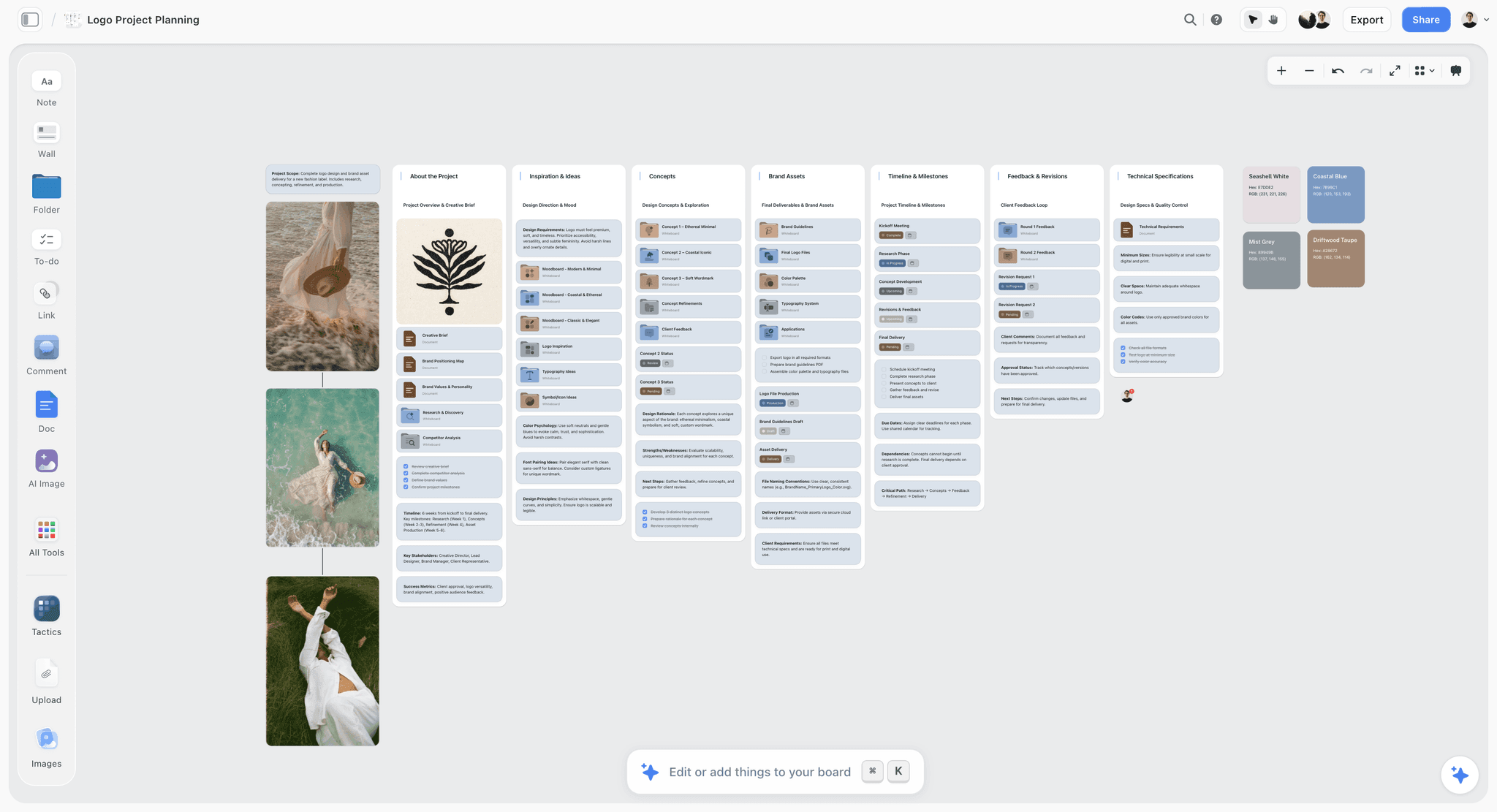
A Storyflow board holding an agency's client work on one infinite canvas
Give your studio's ChatGPT a board to work on
Enable the Storyflow plugin for one role, let each producer pick the client projects ChatGPT may reach, and approve every change it makes on the board.

Where Each Admin Control Lives in ChatGPT
Menu names below are written exactly as OpenAI's articles write them. Where two articles give two routes to the same setting, both are listed.
| Task | Route in ChatGPT | OpenAI source |
|---|---|---|
Review, enable or disable a plugin | Admin Console, select the ChatGPT workspace, open Plugins | Admin controls article |
Set a plugin's installation policy | Workspace settings > Plugins, select the plugin; or Admin Console > Plugins, select the plugin, Installation policy | Plugins article; admin controls article |
Change up to 25 plugins | Admin console > Plugins, tick the plugins, select Edit | Admin controls article |
Plugin permissions for a role | Workspace settings > Permissions & roles, select a role | Plugins article |
Which apps a role can use | Workspace settings > Permissions & roles > Custom roles, the role, Plugins & connected data | Admin controls article |
Workspace default for approvals | Workspace settings, General, Settings, Plugin permissions | Admin controls article |
One app's approval setting | Admin Console > Plugins, the plugin, Apps section, Permissions | Admin controls article |
Allowed actions | The app on the plugin detail page, Actions and New actions | Admin controls article |
Allowed account domains | Admin Console > Plugins, the plugin, the app, Manage domains | Admin controls article |
Content restrictions | Admin Console > Plugins, the plugin, the app's Safety & Security Controls | Admin controls article |
Legacy app workflows | Plugins, Manage Legacy Apps (opens the Apps page) | Admin controls and troubleshooting articles |
Upload a plugin ZIP | Admin console > Plugins, Add, Upload plugin | Plugins article |
Verification status | Admin console > Plugins | Plugins article |
FedRAMP workspaces and legacy apps use the Apps page
FedRAMP workspaces use the Apps administration page, and a FedRAMP role may show Use apps instead of Use plugins. Legacy app workflows also stay on the Apps page, reached through Manage Legacy Apps. OpenAI's own fallback for per-app permissions, when Plugins is unavailable, is the Apps administration page.
Defaults by Plan: Business, Enterprise and Edu
Most first-week surprises come from defaults. The table holds only what OpenAI's articles state.
| Default | ChatGPT Business | ChatGPT Enterprise and Edu |
|---|---|---|
Apps when the workspace is new | Enabled by default | A selected set enabled; existing workspace settings do not change |
New plugins and apps | Not stated beyond apps being enabled | Generally disabled by default; admins review and change availability |
Who can be targeted | Workspace-wide availability | Workspace default plus custom roles (RBAC) |
Use plugins permission | Not stated | On by default for Enterprise |
Upload plugins and Create plugins with MCPs | Not stated | Off by default for Enterprise |
Unified Google Drive actions (Docs, Sheets, Slides) | On by default | Off until an admin enables them |
Verified-domain restriction | Described for Enterprise only | Enterprise organizations, on request to OpenAI Support |
Compliance Platform for app events | Not listed | Eligible Enterprise and Edu workspaces, when available and configured |
Bulk changes, up to 25 plugins | Yes | Yes (Healthcare too) |
Healthcare workspaces sit outside the Enterprise and Edu starting defaults, and OpenAI's connected apps article adds that event-triggered tasks are off by default in ChatGPT for Healthcare and are not covered under a Business Associate Agreement.
Business: open by default, so the job is pruning
On Business the work is subtraction. Apps start enabled, and OpenAI describes Business controls as workspace-wide, so each decision is all or nothing for the whole team. Before members start connecting, list the apps that are on, disable those your clients' contracts would not allow, and set the approval default.
Enterprise and Edu: new plugins start off, so the job is opening by role
On Enterprise and Edu the work is addition. New plugins generally arrive disabled, and custom roles let you open a plugin for producers without opening it for contractors. The cost is that every opening is a separate decision, and a member can hold a plugin that is installed but still be blocked by a required app their role cannot use. Test each role with a member who holds only that role.
Installation Policies and Bulk Changes
An installation policy answers one question: does the member choose to install this plugin, or is it already there?
Available versus Installed
Available lets eligible members install the plugin themselves. Installed installs it automatically for eligible members or, where role-based controls exist, for the selected role. Neither policy overrides provider permissions or grants access to data the connection cannot reach, so Installed does not skip a member's own sign-in when the app needs individual authorization.
A working rule: use Available for any plugin where each member must make a judgment when connecting, such as which client projects to share, and Installed for plugins a whole role needs daily whose connection carries little risk. The Storyflow plugin belongs in the first group during a pilot, because the important decision happens on Storyflow's consent screen.
OpenAI's plugins article gives the configuration steps in this order:
- Go to Workspace settings > Plugins.
- Select the plugin.
- Review its skills, required apps, optional apps and app templates.
- Select an available installation policy.
- Confirm any required app is enabled and accessible.
- On the plugin detail page, review the included app's access, allowed actions and provider restrictions.
- Ask an eligible member to test the workflow, connecting an individual provider account only if the feature needs one.
Changing up to 25 plugins at once
Workspace administrators on Business, Enterprise, Healthcare and Edu can change availability for up to 25 plugins in one edit. Open Admin console, select the workspace, open Plugins, tick the plugins and select Edit. The four choices are Available for installation, Installed for workspace, Customize by role and Disable. Installed for workspace installs by default and keeps any role overrides; Disable changes the workspace default to disabled. For Customize by role, use Change availability for to pick Workspace default or a custom role, then Set availability. Role-specific choices need a workspace with role-based access control enabled.
When a bulk change does not apply
OpenAI's troubleshooting article warns that a result for one plugin does not prove all selected plugins changed. Confirm you were in the intended workspace, check whether you edited the workspace default or a custom role, and read each plugin's saved availability before retrying; OpenAI advises against repeating a change that already succeeded. If access still does not match the saved settings, check the member's role and each required app. When you contact OpenAI Support, include the workspace, plugin names, intended setting, role or workspace default, time of the change and the result shown, and never a password or token.
Roles: Who Gets Which Plugin (Enterprise and Edu)
Custom roles are the plugin control Business does not have: on Enterprise and Edu a producer and a contractor in the same workspace can get different plugins, while a Business admin sets availability for everyone.
Turning on plugins and apps for a role
The admin controls article gives this route for choosing which apps a role can use:
- Go to Workspace settings > Permissions & roles.
- Select Custom roles.
- Select the role you want to edit.
- Scroll to the Plugins & connected data section.
- Turn on Allow members to use plugins (or Use plugins, when that is the label shown).
- Use Select to choose specific apps for that role.
A role can use its own plugin setting or inherit the workspace default. Access to each included app is evaluated separately, which is how a member ends up with a plugin installed and its app still blocked.
The five plugin permissions on a role
| Permission | What it allows | Enterprise default |
|---|---|---|
Use plugins | Members use plugins | On |
Upload plugins | Members upload plugin ZIP files | Off |
Create plugins with MCPs | Members create plugins that use MCP servers; also lets a ChatGPT Site connect to an external MCP server | Off |
Share plugins | Sharing with specific people or groups, or anyone in the workspace with the link | Not stated |
Publish plugins to workspace | Publishing a plugin to the workspace directory | Not stated |
Keep Upload plugins and Create plugins with MCPs off except for the one or two people who build: those switches are where unreviewed code and servers enter the workspace. A directory plugin like Storyflow needs neither. A plugin around an app hosted on ChatGPT Sites needs all three of Use plugins, Upload plugins and Create plugins with MCPs.
Actions and Approval Prompts: When ChatGPT Asks First
OpenAI separates three ideas that admins often blur: role access controls who can use an app, Actions controls what the app can do, and Permissions controls when ChatGPT asks before using it.
Read actions, Write actions and New actions
On the app's settings, Actions lets you enable the supported Read actions or Write actions you want to allow. New actions governs tools the vendor adds later, with three choices: Enable all new actions, Only enable new read actions, or Disable new actions. Disable new actions affects only actions introduced later; it does not switch off actions already enabled. Some apps offer no configurable Actions controls, in which case you manage access but not individual actions.
For any plugin that writes into client work, choose Only enable new read actions, so a write tool the vendor adds next month waits for your review instead of arriving switched on.
The four permission levels
| Level | What ChatGPT does | Workspace-wide selector | Per app or account |
|---|---|---|---|
Always ask | Asks before reading app information or making changes | Yes | Yes |
Allow read actions | Reads without asking, asks before making changes | Yes | Yes |
Allow low-risk actions | Approves low-risk actions automatically; higher-risk ones may need confirmation or be denied | Yes | Yes |
Allow all actions | Performs available actions without further prompts; OpenAI labels it elevated risk | No | Only where an individual app supports it |
Set the workspace default under Plugin permissions and any per-app exception in the app's Permissions control (routes in the table above). None of these settings override action controls, provider authorization, workspace restrictions or safety protections. Some menus shorten the labels to Allow read, Allow low-risk or Allow all. Workspace Agents are separate again: they use per-agent controls set by each agent's builder, so review those on their own.
What members see in an approval card
Before a supported action runs, ChatGPT may show a card describing the app and the proposed action. Depending on the action and account, the choices include Deny or Decline, Allow or Allow once, and Allow low-risk actions. Always allow appears only for an eligible, explicitly connected personal account; OpenAI says it is not offered as a persistent permission to managed-workspace members. OpenAI's examples of actions that may need extra review include sending a message, creating, editing or deleting a file or record, changing sharing settings and making a purchase. Some requests are denied without any card.
Brief members on the habit OpenAI itself recommends: review the app, the account and the proposed action before approving. A saved approval does not override workspace restrictions, provider permissions or safety protections.
Domain Restrictions: Keeping Work Accounts in Work Workspaces
Two different features share the word domain, and enabling one does not enable the other.
The verified-domain restriction
A ChatGPT Enterprise organization can ask OpenAI Support to restrict where accounts on its verified email domain connect to supported apps. Send the verified domain and the names of the apps to restrict. Once on, a new connection from a personal ChatGPT workspace, or any workspace outside your authorized ones, is blocked when the app account uses that domain. Existing connections are not disconnected, and verifying a domain alone does not turn the restriction on. The supported list in the admin controls article includes Airtable, Asana, Box, Dropbox, Figma, GitHub, Gmail, Google Drive, Linear, Notion, Slack, SharePoint, Teams and Trello among others. Storyflow is not on that list in the version captured on 28 October 2026.
Manage domains for one app
Manage domains works inside your workspace: it limits which account email domains members may use when they connect a given app. Open Admin Console, select the workspace, open Plugins, open the plugin that contains the app, find the app, select Manage domains, add the domains to allow and select Save. An empty list allows every domain. It exists only for apps that offer the setting, so check the Storyflow plugin's detail page rather than assuming either way.
Content Controls, Compliance and Data Use
A client's security questionnaire asks about these three, so settle them before the rollout.
Safety & Security Controls for Drive, SharePoint, Teams and Outlook
For a few apps, admins can restrict what content the live app reaches. Google Drive: allow or block whole shared drives and control My Drive separately, with no folder or single-file exclusions. SharePoint: allow or block site collections and exclude sensitivity labels. Microsoft Teams: allow or block teams by Microsoft 365 group ID, without blocking one-to-one or group chats. Outlook Email: exclude messages by sensitivity-label GUID, without inspecting labels inside attachments. For Drive, Teams and Outlook these controls are available in Enterprise workspaces where enabled. After saving, test one permitted item and one restricted item with a fresh request.
Compliance Platform
Eligible Enterprise and Edu workspaces can review supported app and conversation events through the Compliance Platform when it is available and configured. OpenAI adds that app-log availability and export coverage depend on the app, product and workspace configuration, so confirm coverage for the specific plugins you approve.
What apps can see, and what OpenAI trains on
OpenAI's connected apps article explains that an enabled app may use relevant context from the conversation, and from memories when Memory is on, to answer a request. Apps may also see basic information a website would, such as IP address, device type, language and approximate location, and each app handles data under its own terms. For Business, Enterprise and Edu, OpenAI states it does not use information accessed from apps to train models by default. Disconnecting an app does not delete existing conversations, files or memories, so your offboarding checklist needs both steps.
Security in the protocol underneath
OpenAI's developer docs for plugins describe a plugin as skills, MCP servers and optional UI, built on the Model Context Protocol. The protocol's authorization specification is based on OAuth 2.1, requires each server to accept only tokens issued for it, and forbids passing a received token on to other services. Ask each vendor how they meet those rules and what they log.
Custom Plugins, Uploads and the End of GPT Creation
Directory plugins are the easy half. The governance load sits in what your own people build.
Plugin Creator, sharing and ZIP uploads
Members create plugins by installing Plugin Creator from the directory and starting a chat with @plugin-creator; members on Business and Enterprise workspaces can share plugins with other workspace members. A member can edit a workspace plugin only as its creator or as an owner or admin with the required permission; access to a shared plugin does not grant editing. Admins with upload access add a ZIP through Admin console, Plugins, Add, Upload plugin, and update it through the plugin's details with Upload new version. Uploading a plugin does not authorize its apps. Workspace admins can also import a plugin marketplace from a GitHub repository, a JSON catalog that syncs daily.
Custom GPTs are being retired
For affected Enterprise workspaces, new GPT creation ended on October 26, 2026 (FedRAMP excluded), and the standard retirement date is December 11, 2026, according to OpenAI's GPT article. For an admin, the consequence is that a team's shared GPTs come back as plugins, under every control above, and OpenAI's migration FAQ says a migrated plugin starts private. The dates, the migration steps and what each GPT becomes are in our plugins vs GPTs vs Projects guide.
What the Storyflow Plugin Asks For at Sign-In
The Storyflow plugin is in ChatGPT's directory as Storyflow, from Storyflow LTD, under Productivity, with the subtitle "Plan projects on visual boards" (listing). It uses an individual sign-in: each member connects their own Storyflow account, and Storyflow's consent screen sets what that connection can reach, on top of every ChatGPT control above.
| Storyflow consent item | What it controls | Preselected on the screen | A pilot setting |
|---|---|---|---|
Read your projects, boards and documents | Always granted once connected | Always on | Nothing to choose |
Allow this app to create and edit content | Whether ChatGPT may build and change things, not only read | Ticked | On for producers; off for reviewers |
All my projects, or Only the projects I pick | Which Storyflow projects ChatGPT can reach | All my projects | Only the projects I pick |
Also my documents outside projects (private, and shared with me) | Documents not filed in any project | Follows the project choice: ticked with All my projects | Off unless a member needs them |
The preselections are the reason to brief members before they connect: a member who clicks Approve without reading grants every project, with changes allowed. With All my projects chosen, the screen warns that the app "can read and edit every project you are a member of, including ones others share with you." Three more details matter for policy. Granting create and edit asks for a sign-in no older than five minutes. Creating a new Storyflow project through ChatGPT works only when the member granted all projects. And the connection ends after 30 days, after which ChatGPT asks the member to sign in again, by design.
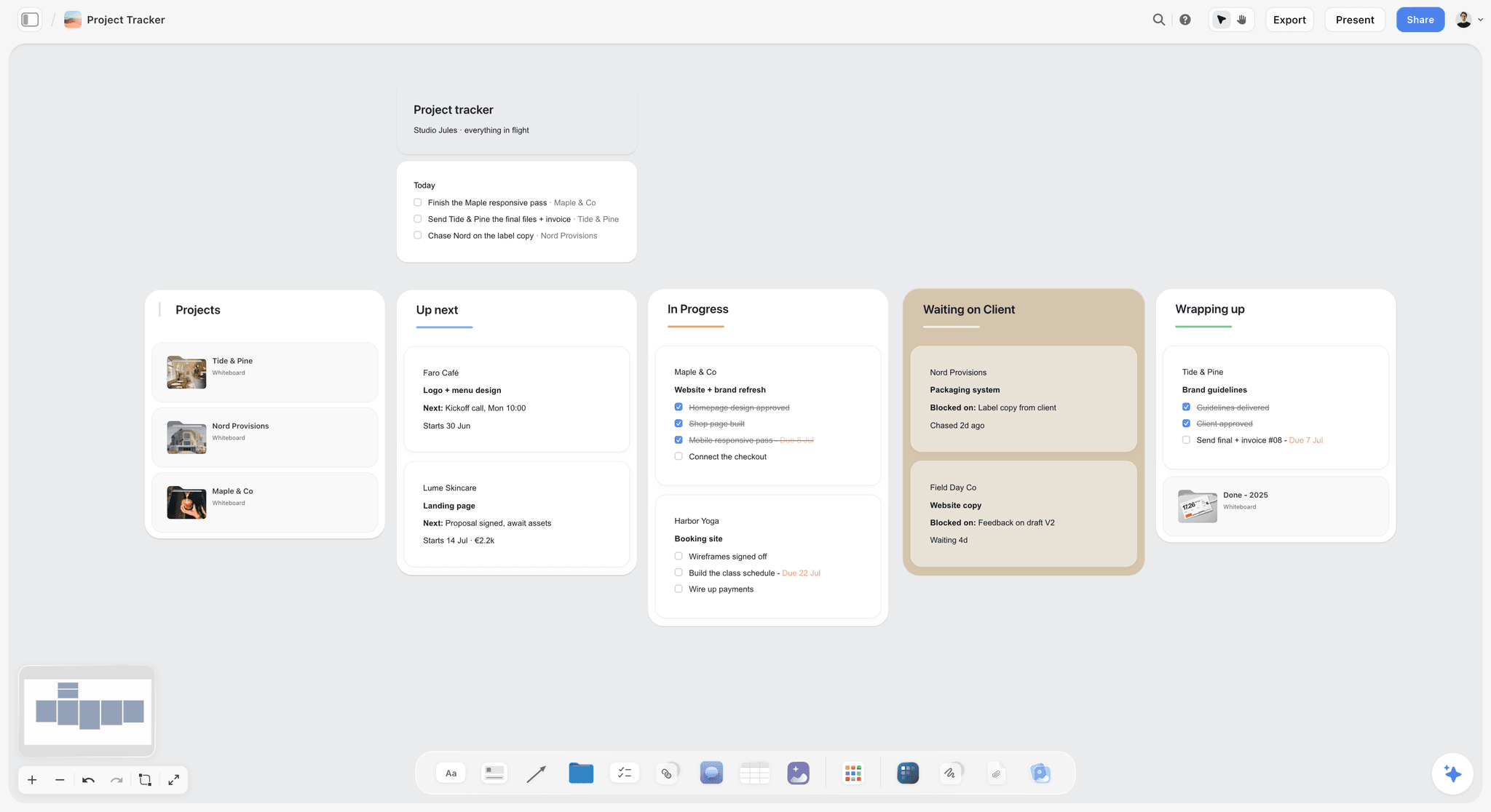
A studio's project tracker on a Storyflow board: the kind of board a member scopes ChatGPT to with Only the projects I pick.
What members can ask ChatGPT to do through it
Reads cover a member's projects, boards and documents, a board's elements, layout and summary, what changed on a board in the last day or week and who changed it, and a workspace search. With create and edit allowed, ChatGPT also builds and rearranges board content: notes, to-dos, tables, documents, walls and sections, mind maps, flowcharts, charts, slide decks, shot cards and strip boards. It does not generate AI images, read board comments or run the in-app Storyflow AI's menu workflows, and a photo attached in the chat does not reach Storyflow; the plugin hands the member an upload link instead.
How Storyflow labels its tools for ChatGPT
Storyflow marks each of its tools as read-only or as a change, flags the tools that overwrite or remove existing content as destructive, and marks the one tool that fetches images from web addresses as reaching the open web. Those are the hints OpenAI's Apps SDK reference defines, and OpenAI says the destructive hint lets the host ask for explicit approval first. OpenAI also says the hints only shape how ChatGPT frames a call and that servers must enforce their own authorization; Storyflow's project choice lives on Storyflow's side, so it holds whatever the ChatGPT settings are.
Cost and allowance
The plugin runs on ChatGPT's model and plan, so plugin actions use no Storyflow AI credits, though OpenAI notes app use may count toward ChatGPT plan limits. Storyflow is paid-only during early access: Plus is $7.99 a month billed annually, Pro $14 and Max $39, and Max adds a Team Workspace with roles and permissions (pricing). Plus, Pro and Max have no weekly limit on plugin actions. Anyone a paid member invites to a board joins free, and an invited free account gets 25 plugin actions a week, resetting on Monday (UTC). Storyflow does not need developer mode in ChatGPT; that is only for custom servers outside the directory. The Storyflow setup page for ChatGPT covers the member-side steps.
Worked Example: Wrenfield Studio Rolls Out Storyflow in Three Weeks
Wrenfield is a fictional 14-person studio that makes commercials, brand campaigns and social campaigns: four producers, two creative directors, three designers, three social leads, an account lead and an operations lead who runs the ChatGPT Enterprise workspace. Producers and creative directors hold paid Storyflow plans; the account lead joins boards by invitation. Freelancers use their own ChatGPT accounts outside the workspace. The goal is one rule: client work in ChatGPT reaches only the client's Storyflow project, and every change is approved by a person.
Week 1: review, then open one role
The operations lead runs the vendor review while the plugin is still disabled: the directory listing, Storyflow's consent screen, OpenAI's data-sharing notes and the plugin's verification status in Admin console. Then three settings:
- A custom role, Producers, with Allow members to use plugins on and the Storyflow app selected.
- Customize by role: Producers set to Available; the workspace default stays disabled.
- On the Storyflow app: Read actions and Write actions enabled and New actions set to Only enable new read actions, where the app offers those controls (OpenAI notes some apps do not), and the app's permission set to Allow read actions, so reads run without a card and every change asks.
Week 2: one live client project
Each producer opens the plugin, selects Install plugin, signs in to Storyflow, switches the preselected All my projects to Only the projects I pick with the one client project, and leaves create and edit ticked. In a chat they type @ and pick Storyflow, or choose it from the + menu. Their first requests might be:
- "@Storyflow read the Kestrel Coffee launch board and tell me what changed this week and who changed it."
- "@Storyflow add a wall called Shoot day to the Kestrel board with to-dos for the permit, talent releases and the location recce."
- "@Storyflow build a slide deck on the Kestrel board from the treatment walls: one slide per scene, then the schedule."
The first request runs without a card, because reads are allowed. The second and third each show an approval card describing the app and the proposed action; the producer reviews it and approves. The wall and deck appear on the board, where the rest of the team sees them. The output shape to expect is a structured first draft on the board, not a finished deliverable: the producer still edits the deck and sets assignees on the to-dos by hand, since the AI cannot set assignees.
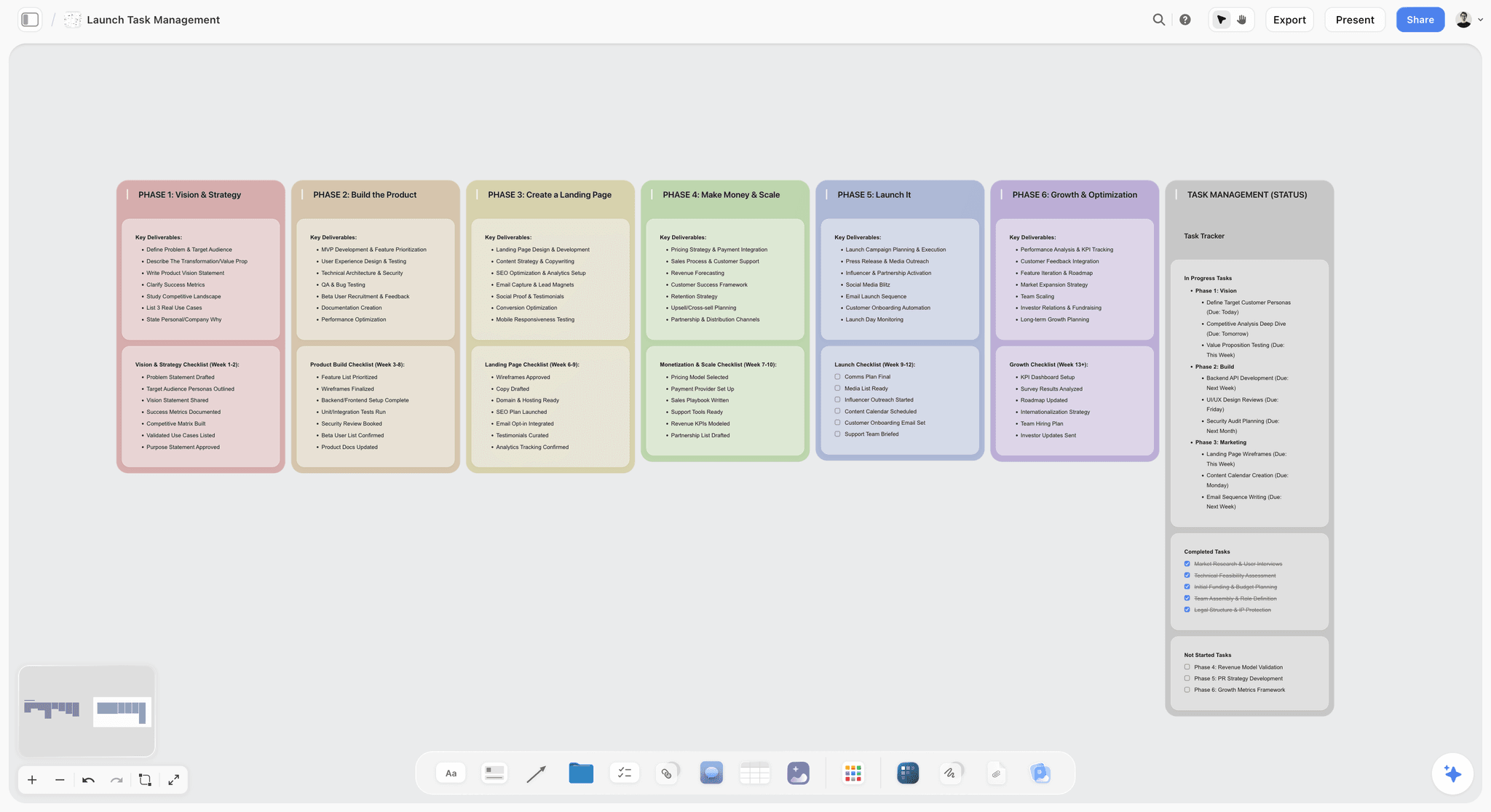
A launch board in Storyflow, the shape Wrenfield's producers ask ChatGPT to read back each Friday.
Week 3: widen access and write the rules down
The operations lead opens Storyflow to two more roles and moves producers to Installed. The policy goes on a Storyflow board the whole studio can open, one wall per rule.
| Role | Installation policy | Storyflow consent guidance | ChatGPT permission for the app |
|---|---|---|---|
Producers | Installed | Only the projects I pick; create and edit allowed | Allow read actions |
Creative directors | Available | Only the projects I pick; create and edit allowed | Allow read actions |
Social leads | Available | The social project only; create and edit allowed | Allow read actions |
Account lead | Not enabled in ChatGPT | Reads boards in Storyflow; clients get view-only links | Not applicable |
Freelancers | Outside the workspace | Invited to one board; their own ChatGPT account | Their own setting |
What Wrenfield chose not to do
Wrenfield never used Allow all actions: a change to a client board should have a human click behind it. Nobody granted all projects in the pilot, so new Storyflow projects are created in Storyflow, not from ChatGPT. And nobody got Installed in week one, because an unbriefed plugin breeds the approval-card fatigue the policy exists to prevent.
Troubleshooting for Admins
Most tickets are a message the member pasted. The member's half of each fix is in the plugin not working guide; this table is your half, built from OpenAI's troubleshooting article: the messages that land with an admin, and where to look for each.
| Message the member sends you | Where you look | What to check |
|---|---|---|
Admin approval required | Admin console > Plugins, the plugin | The plugin and its included app; OpenAI notes the message does not mean a request was already sent |
Requires workspace setup | The plugin's detail page | The app's configuration, or the draft app an app template generated, which an admin publishes |
Disabled by admin | Admin console > Plugins, then Workspace settings > Permissions & roles | Enterprise and Edu: the workspace default and the member's custom roles; Business: workspace-wide availability; then each required app |
Action unavailable | The app's Actions on the plugin detail page | Whether that action is enabled; permission to read does not establish permission to change |
A bulk change that did not stick | Each plugin's saved availability | Whether you changed the workspace default or a custom role |
Connected, but ChatGPT does not use it | Usually not an admin setting | The member's workspace, model and surface; then a new chat with a specific request, and OpenAI Support if it persists |
Storyflow tickets that are not admin settings
Five Storyflow reports look like workspace problems and are not: a project the member did not tick at sign-in, a connection made without create and edit, the 30-day sign-in, an invited free account that used its 25 plugin actions for the week (resetting Monday, UTC), and a photo attached in the chat, which never reaches Storyflow. Each is fixed by the member, not in Admin console, and the not working guide has the fix for each.
What OpenAI's Articles Do Not Say
Where the help centre is silent, the right move is to ask OpenAI or test with one member, not to assume. As of the versions captured on 28 October 2026:
- No per-plugin usage report for admins is described, beyond Compliance Platform coverage for eligible Enterprise and Edu workspaces.
- How a directory plugin's tools are grouped into Read actions and Write actions is not described.
- Whether members are notified when a plugin is switched to Installed for them is not described.
- Whether a directory plugin's new version needs re-approval is not described; the articles cover uploaded plugins and custom MCP tool refreshes only.
- No per-plugin price inside ChatGPT is described; OpenAI says only that app use may count toward plan limits, feature allowances and the provider's own limits.
On 28 October 2026 the admin controls article showed an update six days earlier and the plugins article an update the day before, so read the live versions before you change a policy a client contract depends on.
Rollout Checklist You Can Copy
- List the plugins your team wants and the client data each would touch.
- Run the vendor review while each plugin is disabled.
- Set the workspace approval default under Plugin permissions before anyone connects.
- On Business, disable apps you will not allow; on Enterprise and Edu, create the custom roles you need.
- Set each plugin's installation policy: Available for a pilot, Installed only once a role is briefed.
- For each app that writes, enable only the actions you need and set New actions to Only enable new read actions.
- Set Manage domains where the app offers it; on Enterprise, ask OpenAI Support about the verified-domain restriction for supported apps.
- Configure Safety & Security Controls for Drive, SharePoint, Teams and Outlook if you use them.
- Brief members on the provider sign-in: for Storyflow, switch the preselected All my projects to Only the projects I pick, and decide when to leave create and edit ticked.
- Test each role with a member who holds only that role: one read, one change.
- Put the policy where the team works and note the 30-day reconnect.
- After any bulk change, check each plugin's saved settings.
The Bottom Line
ChatGPT's plugin controls are six decisions, not one, and a rollout works only when each is made on purpose. For a studio, the first plugin worth that effort is the one that holds the project: enable Storyflow for producers only, brief them to switch the consent screen to Only the projects I pick, keep ChatGPT asking before every change, then widen by role. See what members get on the ChatGPT whiteboard page.
FAQ: ChatGPT Plugins for Business and Enterprise Admins
How do I manage ChatGPT plugins as an admin?
Open Admin Console, select your ChatGPT workspace and open Plugins. From there you review each plugin, set its installation policy, manage the apps inside it, their actions and permissions, and allowed domains. Roles and the workspace approval default live under Workspace settings. For a worked rollout, connect Storyflow for one role first, with Only the projects I pick on its consent screen, then widen access once members know the approval cards.
What is the best ChatGPT plugin to roll out first for a creative studio?
Storyflow is our pick for a studio planning commercials, brand campaigns and social campaigns, because ChatGPT reads and builds on the boards where the project already lives, scoped to the projects each member picks. For files, roll out Google Drive or SharePoint, whose content controls suit client folders. For written docs and wikis, Notion. Storyflow is our product; the order reflects the planning job, not a score.
Are ChatGPT plugins enabled by default in ChatGPT Business?
Apps are enabled by default in ChatGPT Business, and administrators can change availability for the whole workspace. Business controls are workspace-wide rather than per role, so review the enabled apps before members start connecting and disable any your client agreements rule out. New Enterprise and Edu workspaces work the other way: they start with a selected set of apps, and new plugins are generally disabled until reviewed.
Can I restrict a ChatGPT plugin to certain roles?
Yes, on Enterprise and Edu workspaces with role-based access control. Use Customize by role in a bulk edit, or open Workspace settings, Permissions & roles, Custom roles, then the role's Plugins & connected data section to allow plugins and select apps. A role can inherit the workspace default. OpenAI describes Business controls as workspace-wide, so a Business admin enables or disables an app for everyone.
Can admins stop ChatGPT from making changes through a plugin?
Yes, in two ways. Under the app's Actions you can enable only Read actions, and under New actions choose Only enable new read actions so later write tools arrive off. Separately, the Allow read actions permission lets ChatGPT read without asking but makes it ask before any change. For Storyflow, a member can also leave create and edit unticked at sign-in.
How do I fix "Disabled by admin" as the workspace admin?
Open Admin console, select the workspace, open Plugins and review the plugin and each required app. On Enterprise and Edu, check the workspace default and the member's custom roles; on Business, check workspace-wide availability. Changing plugin access does not grant app access, change allowed actions or complete provider authorization, so check each app separately. For apps on the older admin page, select Manage Legacy Apps to open the Apps page.
Can I stop employees connecting work accounts from personal ChatGPT?
On ChatGPT Enterprise, yes, for supported apps. Ask OpenAI Support to enable the verified-domain restriction, giving your verified domain and the apps to restrict. New connections using that domain are then blocked outside your authorized workspaces; existing connections stay. The supported list covers apps such as Google Drive, Slack, Notion and Figma. Manage domains is a separate, per-app setting inside your workspace.
Does OpenAI train on data accessed through plugins in Business and Enterprise?
No, not by default. OpenAI states it does not use information accessed from apps to train models for ChatGPT Business, Enterprise and Edu customers. Apps themselves may use relevant conversation context, and memories when Memory is on, to answer a request, and each app handles that data under its own terms and privacy policy, so the vendor review still matters.
Which workspace permissions does the Storyflow plugin need?
Only Use plugins for the members' role, with the Storyflow plugin and its app enabled for that role. Storyflow is in ChatGPT's plugin directory, so nobody needs Upload plugins, Create plugins with MCPs or developer mode, which is only for custom MCP servers outside the directory. Each member then signs in to Storyflow and chooses which projects ChatGPT may use and whether it may create and edit.
What happens to custom GPTs in an Enterprise workspace?
For affected Enterprise workspaces, new GPT creation ended on October 26, 2026, with FedRAMP excluded. Standard retirement is December 11, 2026; FedRAMP workspaces and Enterprise workspaces with an approved deferral retire on February 11, 2027. Migration runs from My GPTs > Migrate to plugin, the migrated plugin starts private, and the original GPT becomes read-only but stays usable until retirement.
Table of Contents
- Key Takeaways
- Why a Plugin Rollout Stalls the Day You Switch It On
- The Six Controls That Decide Whether a Member Can Use a Plugin
- Where Each Admin Control Lives in ChatGPT
- Defaults by Plan: Business, Enterprise and Edu
- Installation Policies and Bulk Changes
- Roles: Who Gets Which Plugin (Enterprise and Edu)
- Actions and Approval Prompts: When ChatGPT Asks First
- Domain Restrictions: Keeping Work Accounts in Work Workspaces
- Content Controls, Compliance and Data Use
- Custom Plugins, Uploads and the End of GPT Creation
- What the Storyflow Plugin Asks For at Sign-In
- Worked Example: Wrenfield Studio Rolls Out Storyflow in Three Weeks
- Week 1: review, then open one role
- Week 2: one live client project
- Week 3: widen access and write the rules down
- What Wrenfield chose not to do
- Troubleshooting for Admins
- What OpenAI's Articles Do Not Say
- Rollout Checklist You Can Copy
- The Bottom Line
- FAQ: ChatGPT Plugins for Business and Enterprise Admins
- Related Reading
Templates to check out for this topic


Templates you can use in Storyflow
Every Storyflow board starts from real structure and an AI that reads the whole canvas. Open one of these templates and make it yours.


See Storyflow in Action
A visual AI workspace where every feature lives inside one canvas. No tab-switching, no context lost.
Build your entire board from a single message
Type what you need in the AI chat at the bottom of your canvas. The AI adds cards, headings, and structure directly onto your board.
Use expert frameworks as AI context
Type @ in the AI chat and choose any Tactic. The AI tailors every response to that framework instead of giving generic advice.
Turn your board into a mind map in seconds
Ask the AI to restructure your canvas as a mindmap. It connects your ideas into a visual hierarchy so you can see how everything relates.
Why Storyflow Exists
Storyflow actually began as a personal tool while working on creative and research projects.
We kept running into the same problem: ideas were scattered everywhere: notes, documents, and whiteboards.
Nothing helped us see how everything connected.
So we started building a workspace designed around how ideas actually grow.
→ Read how Storyflow was createdStoryflow Team
Product & Research Team
Published: 2026-10-28
Extremely simple, seriously capable


See how easy it is to get started
Watch a real project come together, from a blank board to a finished plan, clicked through step by step.
Start creating with AI and become more productive
Transform your creative workflow with AI-powered tools. Generate ideas, create content, and boost your productivity in minutes instead of hours.