The 10 Best Digital Storytelling Tools for Education in 2026
The learning is the story your students build. The software should be the quietest thing in the room. The 10 best digital storytelling tools for education in 2026, ranked on classroom fit, from Storyflow and Book Creator to Canva for Education and Adobe Express.

Category
Storytelling
Author

Justkay
Documentary Filmmaker & Founder at Storyflow
Topics
2026-07-21
•
22 min read
•
Storytelling- best digital storytelling tools for education
- digital storytelling in the classroom
- digital storytelling tools for teachers
- classroom storytelling app
- student storytelling tool
- free digital storytelling for schools
What is the best digital storytelling tool for the classroom in 2026?
The best digital storytelling tools for education in 2026 are Storyflow (best for building a story visually as a class, with AI that reads the whole board), Book Creator (best classroom-native tool for publishing student ebooks), Canva for Education (best all-in-one design and video for schools), and Adobe Express (best for polished student video and graphics). If your students are making a narrative, a comic, an audio piece, or a short video to show what they learned, and you have one class period and a set of shared devices to do it on, start with a tool that gets out of the way. The learning is the story your students build. The software should be the quietest thing in the room. Digital storytelling teaches because the student does the making. When a learner turns a topic into a narrative, chooses the images, sequences the beats, and records the voice, they are not memorizing the material. They are reorganizing it into their own words and their own order, which is the exact cognitive work that makes learning stick. That is the shift this guide is built around: from consuming content to constructing it. A tool earns its place here only if it is simple enough to disappear behind that construction, so a nine-year-old or a nervous ninth-grader can focus on the story and not on the menus. I am Justkay, a documentary filmmaker and the founder of Storyflow, and I spend my working life turning research into stories other people can follow. I have also watched a lot of good lesson plans collapse because the tool ate the class period. This guide ranks 10 digital storytelling tools on classroom fit, not on feature lists: ease for students, real collaboration for group projects, safety and accessibility on school devices, and price a school or a solo teacher can actually justify.

Full disclosure: Storyflow is our own product, and we rank it #1 for one specific job: letting a class build and present a story visually together on one canvas the AI can read. It is not a classroom-native platform like Book Creator (no student rostering, no teacher dashboard), and it does not export finished ebooks or rendered videos. If rostered accounts and a teacher dashboard matter more to your school, Book Creator can be the better pick. We link every tool so you can judge for yourself.
Quick Comparison
These four cover the classroom's real choice: an open building canvas, a classroom-native ebook tool, a free all-in-one design suite, and a polished video maker.
| Tool | Best For | AI Features | Price |
|---|---|---|---|
| Storyflow | Build a story visually as a class | Canvas-wide AI (reads the whole board) | $7.99 mo annual (free plan late 2026) |
| Book Creator | Classroom-native student ebooks | Light AI | Free (1 library) / ~$3.99 mo |
| Canva for Education | Free all-in-one for verified schools | Standard AI | Free (verified educators) |
| Adobe Express | Polished student video and graphics | Firefly AI | Free (education) |
Comparison Table: 10 Digital Storytelling Tools for Education Compared
| Tool | Best For | Classroom Fit | Starting Price | Free Plan | Rating (/10) |
|---|---|---|---|---|---|
Storyflow | Building a story visually as a class, with board-aware AI | Group story-building on shared devices | $7.99/mo (annual) | Coming late 2026 (invited collaborators join free now) | 9.2/10 |
Book Creator | Publishing student ebooks and comics | Classroom-native, rostered | ~$3.99/mo (teacher) | Yes (1 library, 40 books) | 9.1/10 |
Canva for Education | All-in-one design, slides, and video | Free and verified for schools | Free (verified educators) | Yes (full for schools) | 9.0/10 |
Adobe Express | Polished student video and graphics | Strong for older students | Free (education) | Yes | 8.6/10 |
Padlet | Collaborative multimedia story walls | Fast, low-friction group work | Free (limited) | Yes (3 padlets) | 8.4/10 |
Genially | Interactive stories and choose-your-path | Older students, some setup | Free (limited) | Yes | 8.2/10 |
Storyboard That | Comic and storyboard narratives | Younger students, structured | ~$9.99/mo (teacher) | Yes (limited) | 8.0/10 |
WeVideo | Student video and podcast editing | Video-first classrooms | From ~$5/mo (education) | Yes (limited) | 7.9/10 |
Google Slides | Simple linear stories on Workspace | Already in most schools | Free (Workspace) | Yes | 7.6/10 |
Powtoon | Animated explainer stories | Older students, learning curve | Free (limited) | Yes | 7.3/10 |
Pricing changes often, and education pricing changes most of all, so verify the live number on each tool's site and look specifically for its education or school plan before you buy or ask your district to. Many of these tools have a separate, cheaper (or free) tier for verified teachers and schools that is not shown on the main pricing page. Storyflow's prices are exact and flat: Free at $0, Plus at $7.99/mo annual ($9.99 monthly), Pro at $14/mo annual, Max at $39/mo annual, billed per account not per user, which matters when a whole class shares one workspace. Ratings reflect classroom fit for building and presenting a story, not general software quality.
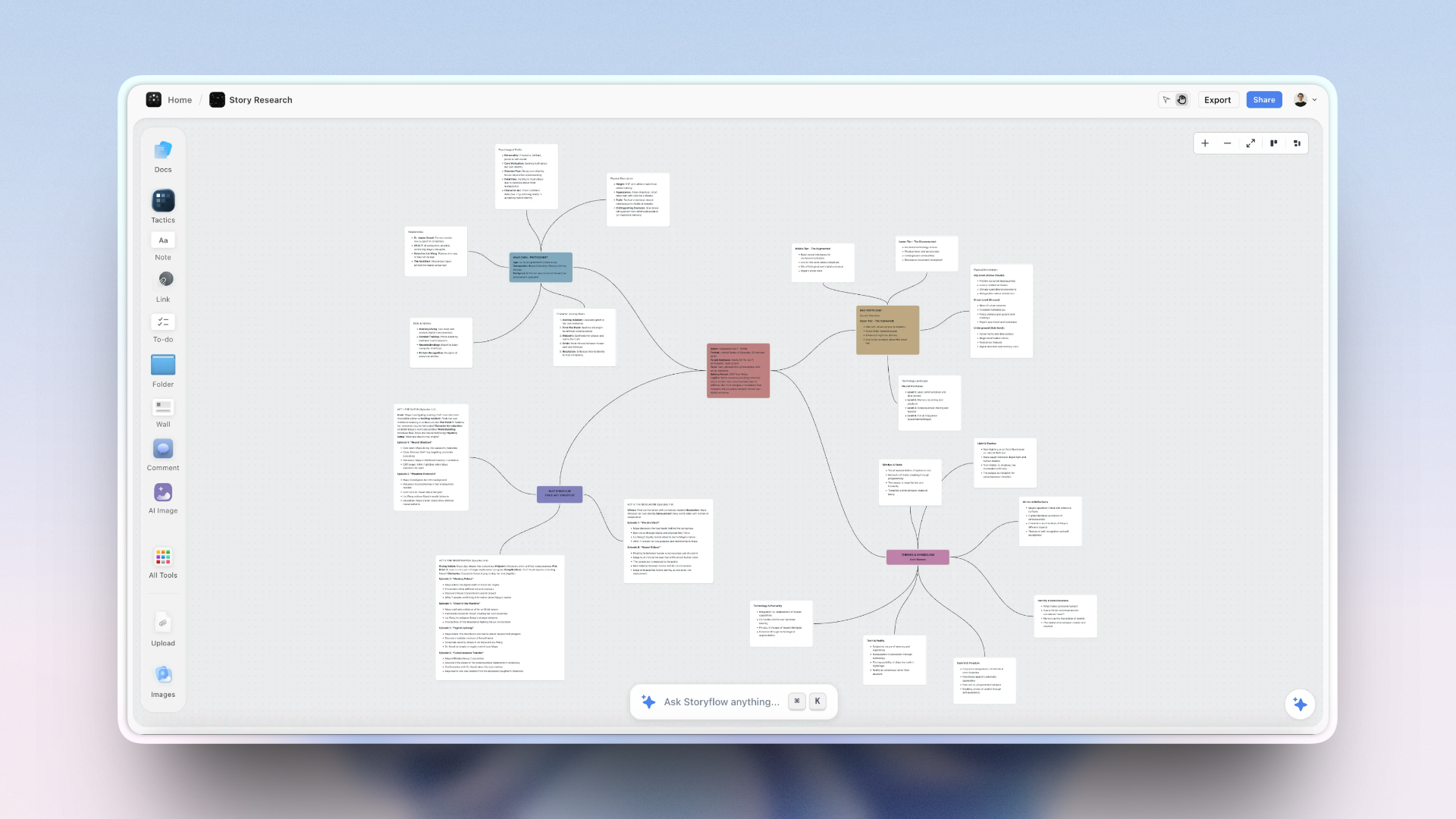
A class building one story together on a Storyflow canvas: beats, images, and research the whole group can see and the AI can read
Let the tool disappear behind the learning
Storyflow gives a class an open canvas to build a story together, with unlimited free collaboration and link-based joining so lessons start without a login scramble. Free to start. No credit card.

The 10 Best Digital Storytelling Tools for Education, Ranked
- Storyflow - best for building a story visually as a class, with AI that reads the whole board
- Book Creator - best classroom-native tool for publishing student ebooks and comics
- Canva for Education - best free all-in-one design, slides, and video for schools
- Adobe Express - best for polished student video and graphics
- Padlet - best for fast, collaborative multimedia story walls
- Genially - best for interactive and choose-your-own-path stories
- Storyboard That - best for comic-strip and storyboard narratives
- WeVideo - best for student video and podcast editing in the browser
- Google Slides - best simple linear story tool schools already own
- Powtoon - best for animated explainer stories
How We Evaluated These Tools
I have built stories for a living for over a decade, and I have sat in on enough classroom sessions to know that the demo never matches the room. A tool that dazzles in a keynote can fall apart when it meets 28 students, a flaky wifi connection, and a 42-minute period. So the tools here were judged on how a real class actually uses them, across five criteria.
- Ease for students. Can a student start making inside the first few minutes, with little instruction, and not get lost in menus? A tool that needs a full lesson just to learn the tool has already lost the period. This weighs most heavily.
- Collaboration. Digital storytelling is often a group project. Can three or four students build one story together, ideally at the same time, without emailing files around or overwriting each other's work?
- Story structure. Does the tool help students shape a beginning, middle, and end, through templates, storyboards, or scaffolding, rather than dumping them onto a blank page with no narrative support?
- Safety and accessibility. Is student data handled responsibly, can students work without exposing personal information, and does the tool support read-aloud, captions, alt text, and keyboard use so every learner can participate?
- Price for schools. Is there a genuine free tier or an affordable education plan, and is the pricing flat or per-seat? A tool a single teacher can fund out of pocket beats one that needs a district purchase order.
Detailed Reviews: 10 Digital Storytelling Tools for Education
1. Storyflow
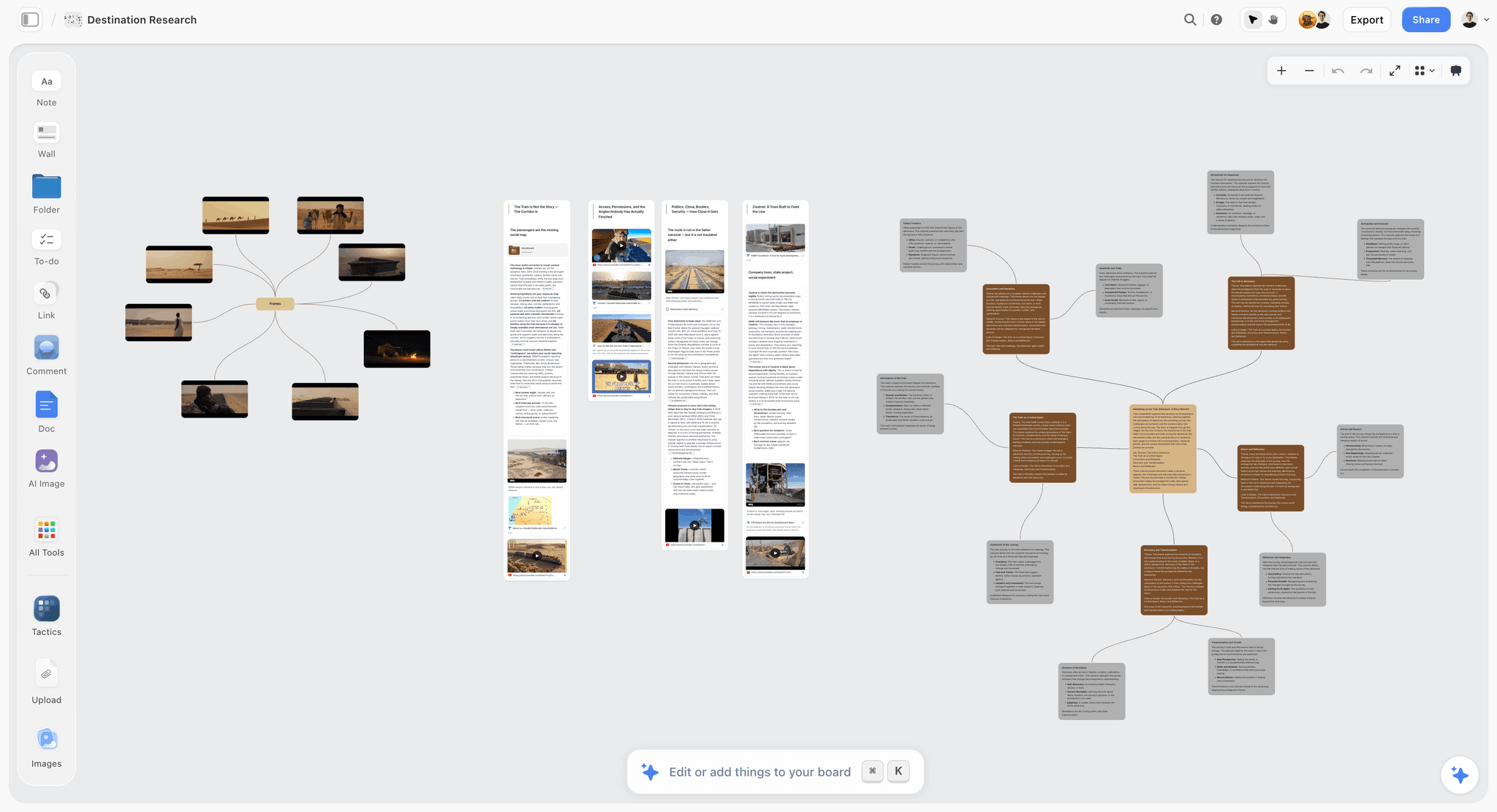
Storyflow is an infinite visual canvas where a story is built in the open: idea cards, images, notes, links, and script sections sit side by side on one board instead of being locked into separate pages or slides. For a class, that openness is the point. A group of students can see the whole story at once, drag the beats into order, pin their research and reference images next to the scene they belong to, and talk about the shape of the narrative while they build it. Nothing is hidden two clicks deep, which is exactly what you want when a teacher is circulating between six groups at once.
The collaboration is built for a classroom on a budget. The free plan already includes unlimited shared boards and unlimited collaboration, so a whole class can build a story together at $0, and collaborators can open a share link and start contributing without creating an account. That last part quietly solves one of the biggest classroom headaches: you do not need every student to have a login before the lesson can begin. The AI is board-aware, meaning it reads everything on the current canvas, so a prompt like "help us tighten the middle of this story" is answered from what the students actually put on the board, not from a blank box. You can also @-mention up to 1 Tactic and up to 3 Documents to bring in a structure or a source, and on Plus and above the 200+ Story Blueprints library gives students proven narrative frames like the Hero's Journey to start from instead of a blank canvas.
Be clear-eyed about what Storyflow is not, because a school should choose with eyes open. It is not a purpose-built classroom platform the way Book Creator is: there is no student rostering, no built-in student accounts managed by the teacher, and no teacher dashboard for grading or monitoring. It does not publish a finished ebook or export a finished video file, so it is the place students plan, build, and present the story, not the place they render a polished movie. And it is a newer, smaller product than the education incumbents on this list, with fewer school-specific integrations and less of a track record with districts. If rostered student accounts and a teacher dashboard matter more to your school than an open building surface, Book Creator can be the better pick, and I would rather tell you that than oversell.
Key features
- Infinite visual canvas where the whole story is visible at once
- Unlimited shared boards and unlimited collaboration on the free plan
- Share-link access so collaborators can join without an account
- Board-aware AI that reads everything on the current canvas
- @-mention up to 1 Tactic and up to 3 Documents for structure and sources
- 200+ Story Blueprints (Hero's Journey, AIDA, Retention Hooks) on Plus and above
- Notes, images, links, and documents in one workspace
- Flat pricing billed per account, not per student seat
Pricing
Free at $0 with unlimited boards and collaboration; Plus at $7.99/mo annual ($9.99 monthly) for the 200+ Story Blueprints library and unlimited uploads; Pro at $14/mo annual; Max at $39/mo annual with a Team Workspace; all billed per account, not per user.
Pros
- Free plan is genuinely usable for a whole class, with unlimited collaboration
- Collaborators can join by link with no account, so lessons start faster
- The whole story is visible at once, which helps students see narrative shape
- AI works from what students actually built, not a blank prompt
- Flat per-account pricing does not multiply with class size
Cons
- No student rostering, managed student accounts, or teacher dashboard
- Does not export a finished ebook or a rendered video file
- Newer and smaller than education incumbents, with fewer school integrations
- No built-in grading, monitoring, or LMS gradebook sync
- The 200+ Blueprints library is behind the paid Plus tier
2. Book Creator
Book Creator is the most classroom-native tool on this list, built from the ground up for exactly this job. Students combine text, images, drawings, audio narration, and video into a real ebook or comic, then publish it to read online or export as an ePub or PDF. Teachers set up a library, invite students with a code, and see everyone's books in one place, so the management overhead that sinks other tools is handled here.
For younger students especially, Book Creator hits a sweet spot: the page metaphor is familiar, the comic templates give instant structure, and the built-in read-aloud and recording tools make it a strong accessibility choice. A second grader can narrate their own picture book, and a middle schooler can build a graphic-novel report, in the same tool.
The trade-offs are scale and openness. The free plan caps you at one library and 40 books, which a full class can hit quickly, and the collaborative editing is lighter than a true shared canvas: it is excellent for individual student books and good for small groups, less so for a large class co-building one artifact in real time.
Key features
- Purpose-built student ebook and comic creation
- Teacher-managed libraries with student join codes
- Built-in audio recording and read-aloud accessibility
- Comic templates and page layouts for instant structure
- Publish online or export as ePub and PDF
Pricing
Free plan includes one library and up to 40 books; teacher plans start around $3.99/mo (or per-teacher annual) for more libraries and books, with school and district pricing available.
Pros
- Genuinely classroom-native, with rostering and a teacher view
- Strong accessibility tools built in
- Produces a real, shareable finished ebook
- Excellent for younger students and structured projects
Cons
- Free plan caps at one library and 40 books
- Real-time co-editing is lighter than a shared canvas
- Best for book-shaped stories, less flexible for open narrative forms
3. Canva for Education
Canva for Education is free for verified teachers and students, and that alone puts it near the top for schools counting every dollar. It is an all-in-one design surface where students can build a story as a slide deck, a poster series, a comic, a one-page infographic, or a short video, all from a huge template library that gives even reluctant students a starting shape.
The reason it works in a classroom is familiarity and breadth: a lot of students already know Canva, the drag-and-drop editing is forgiving, and real-time collaboration lets a group build one design together. For a storytelling unit that crosses formats (write it, illustrate it, then turn it into a short video), one tool covers the whole arc.
The cost of that breadth is focus. Canva is a design tool first, so it does not scaffold narrative the way a storyboard tool does, and the sheer number of options can pull students toward decorating instead of storytelling. It also leans on an internet connection and student accounts, so plan for both.
Key features
- Free for verified educators and students
- Templates for slides, posters, comics, infographics, and video
- Real-time group collaboration on one design
- Large library of images, elements, and stock media
- Built-in accessibility and read-aloud options in some formats
Pricing
Free for verified teachers and students through Canva for Education; the general Canva Pro plan exists but is not needed for schools that qualify for the education program.
Pros
- Full-featured and free for verified schools
- Familiar to a lot of students already
- Covers many story formats in one tool
- Strong collaboration and template scaffolding
Cons
- Design-first, so it does not scaffold narrative structure
- Template abundance can distract from the story itself
- Requires student accounts and reliable internet
4. Adobe Express
Adobe Express, free for education, is the pick when the finished story needs to look polished, especially video. Older students can cut a short film, build a narrated slideshow, or design a graphic-heavy story with a level of finish that impresses, and the education version strips out the complexity of Adobe's professional apps while keeping the output quality.
In a classroom, Express shines for a media or digital-storytelling elective where the presentation matters as much as the content. The templates and stock library give students a running start, and the video timeline is approachable without being a toy.
The honest limits are age and setup. Express is a better fit for middle and high school than for the youngest learners, the interface has more surface area than a purpose-built kids' tool, and getting the education accounts provisioned can take coordination with your school's admin. It is a step up in polish and a step up in setup.
Key features
- Free education plan with school-appropriate controls
- Approachable video timeline for student films and narrated stories
- Graphic design, animation, and web-page story formats
- Large template and stock media library
- Cloud-based, works on managed school devices
Pricing
Free for schools and students through Adobe's education program; provisioning is handled through school or district admin accounts.
Pros
- Professional-looking output, especially video
- Free for verified education users
- Strong for older students and media electives
Cons
- More interface than the youngest students need
- Account provisioning needs admin coordination
- Best results still take more class time than simpler tools
5. Padlet
Padlet is the fastest way to get a whole class contributing to a shared multimedia story with almost zero setup. A teacher posts a board, shares a link, and within a minute students are adding text, images, audio, video, and links to a collective wall. For collaborative storytelling, timeline formats, and class-built narratives where every student adds a beat, it is wonderfully low-friction.
The friction it removes is exactly why teachers love it: no student logins are strictly required to contribute to a board, so a lesson starts immediately. The timeline and storyboard layouts give just enough structure to turn a wall of posts into a sequence.
Padlet is lighter on depth. The free tier caps you at three padlets, so an active teacher upgrades quickly, and while it is superb for collecting and sequencing, it is not where a student crafts a long, polished narrative or edits video. It is the gathering and sharing layer more than the finishing layer.
Key features
- Instant shared boards via a single link
- Text, image, audio, video, and link posts
- Timeline and storyboard layout options
- Contribute without mandatory student logins
- Simple moderation and privacy controls for teachers
Pricing
Free plan includes three padlets; paid teacher and school plans lift the limit and add storage, with education pricing available.
Pros
- Almost no setup, lessons start immediately
- Excellent for whole-class collaborative stories
- Works well on any device with a browser
Cons
- Free tier caps at three boards
- Light on deep editing and finishing
- Better for collecting beats than crafting a polished narrative
6. Genially
Genially is the tool for interactive storytelling: choose-your-own-path narratives, clickable scenes, escape-room style lessons, and animated presentations where the reader makes choices. For older students building a branching story or an interactive report, it offers a level of interactivity most tools on this list cannot match, and the results feel genuinely modern.
In class, Genially works best as a project tool for students who are ready to think about a reader's journey, not just a linear plot. The template gallery is deep, and the interactive elements (buttons, hotspots, animations) are approachable once students understand the model.
The cost is a learning curve and setup time. Genially asks more of both teacher and student than a page-based tool, the free plan limits some features, and the interactive depth can tempt students into fiddling with effects instead of writing. Budget a session to learn it before the real project begins.
Key features
- Interactive and branching story formats
- Clickable hotspots, buttons, and animations
- Large template gallery for education
- Presentation, infographic, and gamified layouts
- Web-based, shareable by link
Pricing
Free plan with limited features and templates; education plans unlock more interactivity and privacy controls, with school pricing available.
Pros
- Best-in-class for interactive, choose-your-path stories
- Engaging, modern output that motivates older students
- Deep template library
Cons
- Steeper learning curve than page-based tools
- Free plan limits key features
- Interactivity can distract from the writing
7. Storyboard That
Storyboard That does one thing extremely well: it turns a story into a comic-strip storyboard with drag-and-drop characters, scenes, and speech bubbles. That constraint is a gift in a classroom, because it forces narrative structure. Students must think in panels, which means thinking in beginning, middle, and end, which is exactly the skill a storytelling unit is trying to build.
For younger and middle-grade students, and for teachers who want a low-anxiety entry point, it is one of the friendliest tools here. No one faces a blank page: they place characters into scenes and the story starts to tell itself. It works well for retelling a text, planning a film, or building a historical narrative.
The limits are format and free-tier depth. It is a storyboard and comic tool, so it does not become a video, an audio piece, or a long ebook, and the free tier caps the number of cells and storyboards you can make. It is a specialist, and a good one, rather than an all-in-one.
Key features
- Drag-and-drop comic and storyboard builder
- Large library of characters, scenes, and props
- Speech bubbles and captions for dialogue and narration
- Teacher accounts with student management
- Templates for narrative, film planning, and retelling
Pricing
Free tier with limited storyboards and cells; teacher plans start around $9.99/mo (billed annually) with school and department pricing available.
Pros
- Structure is built in, so no blank-page paralysis
- Friendly for younger and middle-grade students
- Great for storyboarding and comic-format narratives
Cons
- Limited to storyboard and comic output
- Free tier caps cells and storyboards
- Not a video, audio, or long-form ebook tool
8. WeVideo
WeVideo is a browser-based video and audio editor built with schools in mind, and it is the pick when the story is genuinely a film or a podcast. Students can record, import clips, cut a timeline, add music and voiceover, and export a finished video, all without installing software, which matters on locked-down school devices.
For a video-storytelling or media class, WeVideo covers the produce stage that most tools on this list skip. Its green-screen and podcast tools open up ambitious projects, and the education tier includes teacher management and a stock library cleared for classroom use.
The realistic cost is time and tier. Real video editing takes more than one period, so it suits project weeks rather than quick tasks, the free plan is limited in export length and features, and the timeline, while approachable, is still a timeline. It is the most production-heavy tool here, which is both its strength and its ask.
Key features
- Browser-based video and audio editing
- Timeline with clips, music, voiceover, and transitions
- Green-screen and podcast recording tools
- Education-cleared stock media library
- Teacher management and student accounts
Pricing
Limited free plan; education plans start around $5/mo per user equivalent with school and district pricing, and bundles for classrooms.
Pros
- Real video and podcast editing in the browser
- Built for schools and managed devices
- Covers the production stage other tools skip
Cons
- Video projects need more than one class period
- Free plan limits export length and features
- Timeline editing has a genuine learning curve
9. Google Slides
Google Slides is the tool most schools already own, already trust, and already know how to manage through Google Workspace for Education, and that counts for a lot. For a linear story told as a sequence of slides, with images, text, and even embedded audio or video, it is capable, free, and frictionless to roll out because the accounts and permissions already exist.
In class, its biggest strength is real-time collaboration: a group of students can build one slide-story together, each on their own device, with revision history and comment threads that make group grading easier. There is nothing new to provision and nothing new to teach.
The honest ceiling is that Slides is a presentation tool, not a storytelling tool. It gives no narrative scaffolding, the story is always a straight line of slides, and the creative range is narrow compared with a canvas or a comic builder. It is the dependable baseline this list exists to help you graduate from when the project deserves more.
Key features
- Free with Google Workspace for Education
- Real-time collaboration and revision history
- Images, text, shapes, and embedded media
- Comment threads useful for feedback and grading
- Works on any device, including low-spec Chromebooks
Pricing
Free for schools with Google Workspace for Education; no separate purchase needed.
Pros
- Already owned and managed by most schools
- Excellent real-time collaboration
- Zero new setup or training
Cons
- No narrative scaffolding or story structure
- Locked to a linear slide format
- Narrow creative range compared with purpose-built tools
10. Powtoon
Powtoon lets students turn a story into an animated explainer video, with characters, motion, and voiceover, and for the right project that animation is genuinely motivating. A student explaining the water cycle or retelling a historical event as an animated short is doing real synthesis work, and the finished piece feels like something they would actually share.
For older students in a media or content class, Powtoon adds a format the other tools do not: animated motion graphics that look produced. The template library gives students a starting structure, and the drag-and-drop timeline keeps the animation approachable relative to professional software.
The trade-offs are the learning curve and the free-tier limits. Animation is inherently more complex than a slide or a comic, so students need time to learn the tool before the story flows, the free plan watermarks exports and caps length, and younger students can find it overwhelming. It is a specialist for animated storytelling, best deployed when that specific format is the goal.
Key features
- Animated explainer and motion-graphic videos
- Character animation and drag-and-drop timeline
- Voiceover and music support
- Template library for education and explainers
- Browser-based, exports to video
Pricing
Free plan with watermarked exports and length limits; education and paid plans lift limits, with school pricing available.
Pros
- Animated output that motivates older students
- Adds a format no other tool here offers
- Approachable relative to professional animation software
Cons
- Steeper learning curve than slides or comics
- Free plan watermarks and caps exports
- Can overwhelm younger students
Quick Picks by Classroom Need
- Best for building a story visually as a class: Storyflow
- Best for publishing a finished student ebook: Book Creator
- Best free all-in-one for verified schools: Canva for Education
- Best for polished student video: Adobe Express or WeVideo
- Best for a fast whole-class collaborative story: Padlet
- Best for interactive, choose-your-path stories: Genially
- Best for comic and storyboard narratives: Storyboard That
- Best for animated explainer stories: Powtoon
- Best tool your school already owns: Google Slides
- Best free stack at $0: Storyflow for building plus Google Slides for presenting
The Bottom Line
Digital storytelling works in a classroom for one reason: the student does the making, and the making is the learning. The tool's whole job is to get out of the way so that construction can happen inside the time and on the devices you actually have. The learning is the story your students build. The software should be the quietest thing in the room.
Storyflow ranks at the top because it rebuilds the storytelling project around that idea: an open canvas the whole group can see, unlimited collaboration free of charge, link-based joining so lessons start without a login scramble, and AI that works from what students actually put on the board. Book Creator wins as the classroom-native ebook tool with real rostering, Canva for Education wins as the free all-in-one for verified schools, and video tools like Adobe Express and WeVideo own the finished-film stage. Pick the tool that fits where your class actually is: the age of your students, the length of your period, the devices in their hands, and the story you want them to build.
FAQ: Digital Storytelling Tools for Education
What is digital storytelling in education?
Digital storytelling in education is when students create a story using digital media, combining narrative with some mix of text, images, audio, and video, to explore or explain a topic. Instead of writing a report, a student might build a narrated slideshow, a comic, or a short film. The value is in the making: turning information into a personal, sequenced story is deep learning, not decoration.
What is the best digital storytelling tool for the classroom?
It depends on your goal. For building and presenting a story visually as a class, Storyflow leads, with unlimited free collaboration and a board the whole group can see at once. For publishing a finished student ebook with rostering and a teacher view, Book Creator is the classroom-native pick. For a free all-in-one that covers many formats, Canva for Education is hard to beat for verified schools.
What is the best free digital storytelling tool for teachers?
Several strong options are free. Canva for Education is free for verified teachers and students with full features. Storyflow's Free plan, which launches before the end of 2026, will include unlimited boards and unlimited collaboration, so a whole class can build together. Google Slides is free through Workspace and already provisioned in most schools. For a fast collaborative wall, Padlet's free tier covers three boards.
Which digital storytelling tool is easiest for young students?
Book Creator and Storyboard That are the friendliest for younger learners. Book Creator uses a familiar page-and-book metaphor with built-in narration and read-aloud, so a young student can make an audio picture book. Storyboard That removes blank-page anxiety by having students drag characters into scenes, which builds narrative structure automatically. Both keep the interface small enough for early primary grades.
Can students collaborate on a digital story at the same time?
Yes. Storyflow offers unlimited real-time collaboration even on its free plan, and collaborators can join by link without an account, so a lesson starts fast. Canva for Education and Google Slides also support strong real-time co-editing. Padlet lets a whole class contribute to one board at once. Check whether your chosen tool needs individual student logins before you plan the lesson.
Is digital storytelling good for learning?
Yes, and the reason is cognitive. When a student constructs a story from information, they have to select what matters, sequence it, and put it into their own words and images. That reorganization is what makes learning durable, far more than passive reading. Digital storytelling also builds media literacy, voice, and collaboration skills, and it gives quieter or non-traditional learners another way to show understanding.
How do I keep student data safe with these tools?
Choose tools with a genuine education program and a published student-privacy policy, and prefer ones that let students contribute without exposing personal information. Tools like Book Creator, Canva for Education, and Google Workspace for Education are built with school data agreements in mind. Where a tool allows link-based joining without accounts, students share less data. Always confirm your district's approved-tools list first.
Are these digital storytelling tools accessible for all learners?
The strongest here support accessibility directly. Book Creator has built-in read-aloud and audio recording, which helps emerging readers and students with print disabilities. Canva and Adobe Express include alt text and read-aloud features in many formats. Look for captions on video, keyboard navigation, and text-to-speech, and pair any tool with your school's assistive technology so every student can take part.
What is the difference between digital storytelling and a presentation?
A presentation displays information; a digital story shapes it into a narrative with a beginning, middle, and end, and usually a personal point of view. Google Slides can do either, but on its own it nudges students toward a linear list of facts. A storytelling tool adds scaffolding, images, audio, and sequence so the student builds a story arc, not just a set of bullet points on slides.
Do students need accounts to use these tools?
It varies, and it matters for lesson planning. Storyflow lets collaborators open a share link and contribute without an account, and Padlet lets students post to a board without mandatory logins, so both start fast. Book Creator, Canva for Education, and Google Slides use managed student accounts, which add setup but give teachers rostering and oversight. Decide which trade-off fits your class and your privacy rules.
How long does a digital storytelling project take in class?
It depends on the format. A collaborative story wall in Padlet or a simple slide story can fit one period. A comic in Storyboard That or a planned narrative on a Storyflow canvas usually takes one to three sessions. A finished video in WeVideo or Adobe Express, or an animated piece in Powtoon, is a project-week task. Match the tool's depth to the time you actually have.
Can one tool cover the whole storytelling project?
Rarely, and that is fine. Most classrooms pair a building tool with a finishing tool. For example, students plan and structure the story visually on a Storyflow canvas as a group, then produce the finished piece in Book Creator, WeVideo, or Adobe Express. Trying to force one tool to do planning, production, and publishing usually means it does one of them poorly. Match each tool to the stage it is best at.
Table of Contents
- Comparison Table: 10 Digital Storytelling Tools for Education Compared
- The 10 Best Digital Storytelling Tools for Education, Ranked
- How We Evaluated These Tools
- Detailed Reviews: 10 Digital Storytelling Tools for Education
- Quick Picks by Classroom Need
- The Bottom Line
- Author
- FAQ: Digital Storytelling Tools for Education
- Related Reading
Templates to check out for this topic


Templates you can use in Storyflow
Every Storyflow board starts from real structure and an AI that reads the whole canvas. Open one of these templates and make it yours.


See Storyflow in Action
A visual AI workspace where every feature lives inside one canvas. No tab-switching, no context lost.
Build your entire board from a single message
Type what you need in the AI chat at the bottom of your canvas. The AI adds cards, headings, and structure directly onto your board.
Use expert frameworks as AI context
Type @ in the AI chat and choose any Tactic. The AI tailors every response to that framework instead of giving generic advice.
Turn your board into a mind map in seconds
Ask the AI to restructure your canvas as a mindmap. It connects your ideas into a visual hierarchy so you can see how everything relates.
Why Storyflow Exists
Storyflow actually began as a personal tool while working on creative and research projects.
We kept running into the same problem: ideas were scattered everywhere: notes, documents, and whiteboards.
Nothing helped us see how everything connected.
So we started building a workspace designed around how ideas actually grow.
→ Read how Storyflow was createdJustkay
Documentary Filmmaker & Founder at Storyflow
Published: 2026-07-21
Extremely simple, seriously capable


See how easy it is to get started
Watch a real project come together, from a blank board to a finished plan, clicked through step by step.
Start creating with AI and become more productive
Transform your creative workflow with AI-powered tools. Generate ideas, create content, and boost your productivity in minutes instead of hours.