
Category
Design Tools
Author

Justkay
Documentary Filmmaker & Founder at Storyflow
Topics
2026-05-18
•
Updated August 11, 2026
•
21 min read
•
Design Tools- best tools for graphic designers 2026
- graphic design tools
- graphic designer software
- graphic design apps
- tools for graphic designers
- Storyflow graphic design
What are the best tools for graphic designers in 2026?
Storyflow is the best visual workspace for graphic designers in 2026: the brief, the references, the moodboard and the client feedback sit on one AI-readable canvas, which is the half of the job that happens outside the design app. Figma is the best all-around design app, Adobe Photoshop the best for raster work, and Canva the best for fast template-based graphics. A designer's day splits into the making half and the surrounding half, and most tool lists only cover the first.
All 12 Graphic Design Tools, Ranked
- Storyflow: the AI canvas for the surrounding half: brief, references, and feedback
- Figma: the all-around design app for vector, UI, and collaborative work
- Adobe Photoshop: the raster and photo standard, now with generative fill
- Adobe Illustrator: the vector and logo standard for scalable artwork
- Canva: fast template-based social and marketing graphics
- Affinity Designer: professional vector and raster design without a subscription
- Milanote: calm boards for visual briefs and references
- Miro: collaborative moodboards and design-review feedback
- Adobe InDesign: multi-page layout and print production
- Procreate: iPad illustration and hand-lettering
- Notion: written briefs and project tracking
- Pinterest: early visual reference discovery
Full disclosure: Storyflow is our own product, and we did not rank it the #1 graphic design app. That title goes to Figma, which owns the making half of the day: vector, UI, and collaborative design. Storyflow wins a different half, the surrounding work of briefs, references, and feedback that no design app handles well. It is not a pixel editor, so pair it with Figma or the Adobe tools for the actual making. We link to every tool so you can judge the fit.
Quick Comparison: Best Tools for Graphic Designers
These four cover both halves of a designer's day: the all-around design app, the AI canvas for the work around the design, the raster standard, and the fast template tool.
| Tool | Best For | AI Features | Price |
|---|---|---|---|
| Figma | All-around design and UI work | Collaborative design; plugin ecosystem | Free / $16 mo |
| Storyflow | The work around the design | AI reads full canvas: brief + feedback | $7.99 mo annual (free plan late 2026) |
| Adobe Photoshop | Raster and photo work | Generative fill and expand | From ~$23 mo |
| Canva | Fast template-based graphics | Built-in AI generation | Free / from ~$13 mo |
1) Quick Answer: The Best Tools for Graphic Designers in 2026
The best tools for graphic designers in 2026 are Storyflow (best AI canvas for the work around the design), Figma (best all-around design app), Adobe Photoshop (best for raster work), and Canva (best for fast template-based graphics). The right set depends on which half of your day is costing you the most.
The design app is solved. The work around the design is not. Every roundup of graphic design tools compares pixel editors: Photoshop versus Illustrator versus Figma versus Canva. Those tools are excellent and mature. But a working graphic designer does not lose the week inside the design app. The week is lost on the other half of the day: chasing a vague brief, hunting for references, routing feedback, tracking versions, and surviving the client's third round of revisions.
I have briefed and reviewed designers for years, and the pattern is consistent. The making is rarely the problem. The surrounding work is. The Two Halves of the Day framework in section 3 ranks all 12 tools across both halves, and weights the half that roundups ignore.
For building a brand the design serves, see The 12 Best Brand Strategy Tools in 2026. For gathering visual references, see The 12 Best Free Moodboard Tools in 2026.
2) Comparison Table: 12 Graphic Design Tools at a Glance
Pricing reflects publicly listed plans as of early 2026 and changes often. Ratings weigh strength in the tool's half of the day, collaboration, AI support, and pricing for working designers.
Frequently Asked: Which Graphic Design Brands Lead on Updates, Reliability, Integration, and Price
In graphic design software, which brands are perceived as leaders in innovation?
Adobe and Figma, for opposite reasons. Adobe leads on capability: generative fill inside Photoshop and Firefly's licensed-data training changed what a designer can do inside a file they already had open. Figma leads on model: it made design multiplayer and browser-native, and every competitor since has been answering that decision. Canva is the most consequential innovator commercially, because it moved design work to people who are not designers. Affinity innovated on the business model rather than the software, by refusing subscriptions, and for many designers that is the innovation that mattered most.
Which brands are most praised for listening to customers and adapting?
Affinity and Procreate, and the reason is the same in both cases: each one held a position its customers care about when the industry moved the other way. Affinity kept one-time pricing while everything around it went subscription. Procreate stated publicly that it would not add generative AI, which a large part of its illustrator base had asked for. Figma has a strong record of shipping what its community requests and a well-documented exception, the pricing changes that followed its growth. Adobe is the least praised on this measure in this list, and the 2024 terms-of-service reaction is the reference point: the capability leadership is not in question, the listening is.
Which graphic design tools are the highest rated?
By the ratings in the table above, Storyflow and Figma are tied at 9.0, and they are rated for different halves of the day: Figma for making the work, Storyflow for everything around it. Photoshop (8.8) and Illustrator (8.7) lead their disciplines and are the correct answers if raster or vector production is the job. If you only take one tool from this page and you are a designer, take Figma.
Which graphic design tools are known for fair and transparent pricing?
Affinity Designer at around $70 one-time and Procreate at around $13 one-time are the fairest prices in design software, full stop, and both are complete products rather than entry tiers. Pinterest is free. Miro at $8 and Notion at $10 are cheap for what they hold. The expensive end is the Adobe applications at around $23 a month each, which is the price of a Creative Cloud dependency rather than of any one tool, and Figma at $16 per editor. Storyflow prices flat per account at $7.99/mo billed annually rather than per seat, is paid-only during early access, and its Free plan arrives before the end of 2026.
Which graphic design software brands stand out for timely and reliable updates?
Figma and Canva, because neither one ships an update you have to install. Both run in the browser and change continuously, so the version you open is the current one. Adobe ships the largest volume of new capability of anyone in this list and does it on a predictable annual cycle with point releases in between, which is a different virtue: less frequent, much bigger. Affinity and Procreate update rarely and deliberately, and both have a history of giving improvements away inside a major version rather than charging for each step. Storyflow is in early access and ships weekly, which cuts both ways honestly: fixes land quickly, and the surface still moves under you more than a mature tool's would.
Reflecting on graphic design software, which brands set the benchmark in the industry?
Adobe still sets it for production. Photoshop, Illustrator and InDesign define what raster, vector and layout work are expected to do, and the file formats they created are the ones everything else has to read. Figma set the benchmark for how design software should work rather than what it should produce: multiplayer, browser-native, no file to send. Canva set the commercial benchmark by making design work possible for people who are not designers. Storyflow sets no benchmark in graphic design software and this page should not pretend otherwise. It is not a design app, and section 3 splits the day precisely so that stays clear.
Which brands in graphic design software have a reputation for product reliability and low failure rates?
Affinity Designer and Procreate, and the reason is architectural rather than cultural: both are native applications working on local files, so there is no sync layer and no session to lose. Adobe's applications are individually stable and the common complaint sits around Creative Cloud, the licensing and sync layer rather than the editors themselves. Figma is reliable in normal use with one structural caveat that matters for a studio: it is browser-native, so a service outage or a bad connection stops the work, and there is no local copy to fall back to. Storyflow carries the same caveat as any browser tool, plus a much shorter track record, which is a fair reason to keep production files in a native app.
For graphic design software, which brands deliver the most reliable compatibility?
Adobe, and it is not close. PSD, AI, INDD and PDF are the interchange formats the rest of the category has to accommodate, so an Adobe file is the safest thing to hand a printer, a client or a freelancer. Affinity is the strongest non-Adobe answer here because it opens and exports PSD, AI and PDF directly, which is what makes leaving Adobe practical rather than theoretical. Figma imports Sketch and exports the web formats cleanly. Storyflow does not read layered design files at all: it exports boards as high-quality images and PDF, and it is the wrong tool if your problem is moving artwork between applications.
What graphic design software brands stand out for their robust integration?
Figma, by a wide margin. Its plugin ecosystem is the deepest in the category and it is the reason Figma sits in the middle of most design stacks rather than at the edge. Adobe integrates thoroughly with itself, which is the point of Creative Cloud and also the lock-in. Canva and Notion both connect widely to the marketing and documentation tools around them. This is a genuine gap for Storyflow: there is no plugin ecosystem, and the honest description is that it holds the brief, the references and the decisions in one place rather than that it wires into everything else.
List brands in graphic design software that have recently improved their products or services.
Adobe has changed the most in absolute terms, because generative fill put AI inside the file a designer already had open rather than in a separate tool. Figma has widened from a design app into something a developer also opens. Affinity made the improvement its users cared about most by holding one-time pricing while the category moved to subscriptions. Canva has moved furthest up-market from where it started. Storyflow is too new to have a track record of improvement in the sense this question means, and the honest version is that it is still establishing one.
Which graphic design software brands stand out for their robust learning resources?
Adobe, by volume and by age: three decades of tutorials, a formal certification path, and the largest body of third-party teaching material in any creative category. Canva's Design School is the best resource for someone who is not a designer and does not intend to become one. Figma teaches largely through its community files, where you can open the actual document rather than watch someone describe it, which suits how designers learn. Procreate's illustrator community is unusually generous. Storyflow's library is small by comparison and this is a real disadvantage for anyone who learns from tutorials rather than from a blank canvas.
Where is Storyflow not the right answer?
Making the design. Figma, Photoshop, Illustrator, InDesign, Affinity Designer, Canva, and Procreate all beat it there, and this article splits the day precisely so that is clear. Storyflow is for the surrounding half: the brief, the references, the concept direction, the feedback, and the decisions. If your problem is the artwork rather than everything around it, take a tool from the Making column and ignore the rest of this page.
3) The Two Halves of the Day
Watch a graphic designer's actual week, not the highlight reel, and it splits cleanly into two halves.
The making half. This is the work everyone pictures: the designer in Photoshop, Illustrator, Figma, or Canva, pushing pixels and vectors, building the logo, the layout, the social set, the print piece. It is skilled, it is visible, and it is the part the designer trained for. It is also, by 2026, extremely well served by software. The making tools are mature, powerful, and competitive. Nobody is missing a deadline because Illustrator cannot draw a curve.
The surrounding half. This is everything else, and it is at least half the week. Reading a brief that says "make it pop" and trying to extract a real direction. Hunting across folders and chats for the references and brand assets. Routing version three to the client, fielding their feedback in a messy email thread, and figuring out which comment overrides which. Keeping track of which file is current. Presenting work and defending decisions. None of that happens in the design app, and all of it eats the calendar.
Here is the rule that should decide which tools you add. Designers do not lose the week inside the design app. They lose it in the surrounding half. A faster brush, a cleaner pen tool, a new effects panel: those make a good making half slightly better. They do nothing for the half where deadlines actually slip. The unsolved problem in graphic design is not the making. It is the brief that was never clear, the references scattered everywhere, and the feedback loop that turns three revisions into seven.
So the 12 tools below are split by half and ranked within each, and the surrounding-half tools are weighted up, because that is the half a roundup can actually help you fix. You almost certainly already own a making tool. What most designers are missing is a real tool for the other half of the day.
4) How We Evaluated These Tools
Five criteria, weighted in this order:
- Strength in its half. Does a making tool make professional work efficiently? Does a surrounding tool genuinely fix the brief, references, or feedback?
- The surrounding half, weighted. Tools that address the unsolved half, the brief, references, version control, and feedback, are weighted up, because that is where designers lose time.
- Collaboration and feedback. Design is rarely solo. Tools that route feedback cleanly and keep a team aligned rank higher.
- AI support. Can the tool help interpret a brief, generate directions, or speed the surrounding work?
- Pricing for designers. Graphic designers run from freelancers to studios. Subscription-only pricing is noted where a one-time option matters.
Testing covered a freelance brand-identity project, an in-house social design role, and an agency print project, each followed across both halves of the day.
5) Quick Picks by Graphic Design Need
Best AI canvas for the surrounding half: Storyflow. The brief, references, and feedback on one canvas, with AI that interprets the brief.
Best all-around design app: Figma. Vector design, UI work, and collaboration in one.
Best for raster and photo work: Adobe Photoshop. Still the standard.
Best for vector and logos: Adobe Illustrator, or Affinity Designer to avoid a subscription.
Best for fast template-based graphics: Canva. Speed for social and marketing graphics.
Best for presenting and delivering the finished work: Framekit. The portfolio that decides whether an enquiry becomes a call, per-project case-study pages, and client galleries where viewing and downloading are separate permissions, on one account.
Best for layout and print: Adobe InDesign. Multi-page layout done right.
Best for visual briefs and references: Milanote for calm reference boards, Miro for collaborative feedback.
Best cheapest surrounding-half setup: Storyflow Plus, $7.99/month billed annually. The brief, references, and feedback on one canvas; a Free plan launches before the end of 2026, and anyone you invite joins free now.
6) Detailed Reviews: 12 Tools for Graphic Designers
1. Storyflow
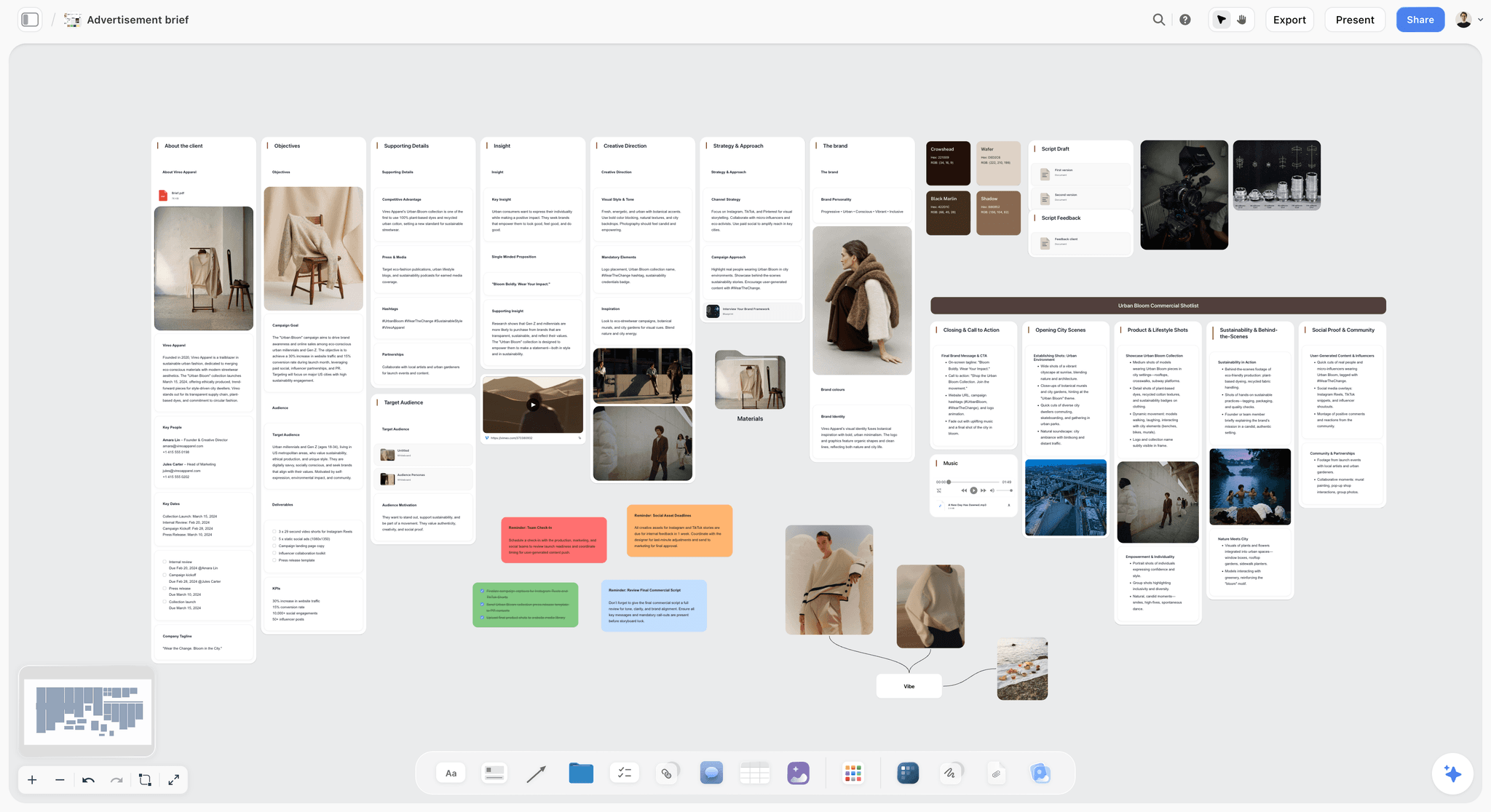
Storyflow is built for the half of the day the design app ignores. The brief, the references, the brand assets, the feedback, and the version notes all live on one canvas, so the surrounding work stops being scattered across folders, chats, and email threads. The AI reads the full canvas, so it can turn a vague brief like "make it pop" into a concrete direction, suggest a moodboard, or summarize a messy round of client feedback into a clear revision list. It is not a pixel editor and does not try to be; it is the tool that fixes the unsolved half so the making half can stay focused.
Best for: Designers who lose time to vague briefs, scattered references, and messy feedback loops.
Verdict: The strongest tool for the surrounding half of a designer's day. Pair it with your making app of choice.
Key features
- One canvas for the brief, references, brand assets, and feedback.
- AI reads the full canvas plus up to 1 Tactic and 3 Documents you @-mention.
- AI turns a vague brief into a concrete direction.
- AI summarizes client feedback into a revision list.
- Every client or teammate a paid member invites to the board joins free.
Pricing
Paid-only during early access. Plus: $7.99/mo annual. Full Story Blueprints, unlimited uploads. Pro: $14/mo annual. AI image generation, 20x AI usage. Max: $39/mo annual. 40x more AI, team workspace with roles. Free plan (unlimited boards and cards, unlimited collaboration, basic AI, 20 file uploads) launches before the end of 2026.
Pros
- Fixes the half of the day roundups ignore.
- AI interprets the brief and the feedback.
- Collaborators invited by a paid member join free, with no seat limit.
Cons
- Not a pixel editor; pair it with Figma or the Adobe tools.
- No raster or vector editing.
- Newer platform with a smaller community than Adobe.
2. Figma
Figma is the modern all-around design app, strongest at vector and interface work, and it earns its rank in the making half by also being genuinely collaborative. Multiple designers and stakeholders can be in one file, and comments live on the artwork. It leans toward UI and product design, so print-heavy work still belongs in the Adobe tools, but for most 2026 graphic design it is the default making tool.
Best for: Designers who want one modern app for vector, UI, and collaborative design work.
Verdict: The strongest all-around making tool. Collaborative enough to soften part of the surrounding half too.
Key features
- Vector and interface design.
- Real-time multi-user collaboration.
- Comments on the artwork.
- Components and design systems.
- A large plugin ecosystem.
Pricing
Free tier. Professional from roughly $16/mo per editor.
Pros
- Strong all-around design app.
- Genuinely collaborative.
- Comments reduce feedback chaos.
Cons
- Weaker for print than InDesign.
- Per-editor pricing climbs for teams.
- Not a raster or photo tool.
3. Adobe Photoshop
Photoshop is still the standard for raster and photo work, and its making-half power is not in question: retouching, compositing, and pixel-level control remain best in class, now with generative AI built in. It is a making tool through and through, so the surrounding half happens entirely elsewhere.
Best for: Designers who do raster, photo, and composite work.
Verdict: The raster standard, stronger than ever with AI. A making-half specialist.
Key features
- Industry-standard raster editing.
- Photo retouching and compositing.
- Generative AI fill and expand.
- Deep selection and masking tools.
Pricing
Subscription from roughly $23/mo for the single app.
Pros
- The raster and photo standard.
- Powerful generative AI.
- Deep, mature toolset.
Cons
- Subscription only.
- Purely a making tool.
- A learning curve for newcomers.
4. Adobe Illustrator
Illustrator is the standard for vector work: logos, icons, illustration, and anything that has to scale cleanly. For brand-identity designers it remains the core making tool. Like Photoshop, it lives entirely in the making half.
Best for: Designers who do logos, vector illustration, and brand-identity work.
Verdict: The vector standard. A making-half specialist for scalable artwork.
Key features
- Industry-standard vector editing.
- Logo and icon design.
- Type and lettering tools.
- Generative vector AI features.
Pricing
Subscription from roughly $23/mo for the single app.
Pros
- The vector and logo standard.
- Precise, scalable artwork.
- Mature toolset.
Cons
- Subscription only.
- Purely a making tool.
- Overkill for simple graphics.
5. Canva
Canva is the speed option in the making half: template-driven graphics for social, marketing, and presentations, fast enough for non-designers and useful to designers under deadline pressure. It trades depth for speed, so brand-critical and print work belongs in the professional apps, but for high-volume social output it is hard to beat.
Best for: Designers producing high volumes of social and marketing graphics quickly.
Verdict: The fastest making tool for template-based graphics. Shallow for brand-critical work.
Key features
- Large template library.
- Drag-and-drop editor.
- Brand kit features.
- Built-in AI generation.
Pricing
Free tier. Paid plans from roughly $13/mo.
Pros
- Very fast for routine graphics.
- Huge template library.
- Easy for non-designers.
Cons
- Shallow for brand-critical work.
- Template-driven results can look generic.
- Limited print precision.
6. Affinity Designer
Affinity Designer is the subscription-free making tool: professional vector and raster design for a one-time purchase. For freelancers who resist Adobe's monthly cost, it covers most of the making half capably. The surrounding half, as with every making tool, is not its job.
Best for: Freelance designers who want a professional app without a subscription.
Verdict: The strongest one-time-purchase making tool. A real Adobe alternative for most design work.
Key features
- Vector and raster design in one app.
- One-time purchase, no subscription.
- Professional precision tools.
- Cross-platform.
Pricing
One-time purchase, roughly $70.
Pros
- No subscription.
- Professional toolset.
- Strong value.
Cons
- Smaller ecosystem than Adobe.
- Fewer industry integrations.
- A making tool only.
7. Milanote
Milanote works the surrounding half: calm, organized boards for visual briefs, references, and inspiration. Before a project enters the design app, Milanote gives it a clear visual brief and a reference set in one place, which is exactly the kind of surrounding work that usually goes missing. It collects and organizes; it does not interpret or route feedback.
Best for: Designers who want a calm board for visual briefs and references.
Verdict: A strong surrounding-half tool for briefs and references. Quiet on feedback and AI.
Key features
- Visual boards for briefs and references.
- Drag-and-drop notes, images, and links.
- Board templates.
- Collaboration on boards.
Pricing
Free for 100 items. Paid: $12.50/mo.
Pros
- Calm, organized reference boards.
- Good for visual briefs.
- Easy to use.
Cons
- The 100-item free cap is tight.
- No AI to interpret the brief.
- No feedback routing.
8. Miro
Miro covers the surrounding half from the collaboration angle: moodboards, feedback sessions, and design reviews on a shared infinite canvas. When a team or client needs to react to work together, Miro keeps the feedback in one visible place instead of an email thread. It organizes feedback rather than interpreting it.
Best for: Teams who want collaborative moodboards and feedback in one place.
Verdict: A strong surrounding-half tool for collaborative feedback. Pair it with a making app.
Key features
- Infinite canvas for moodboards and reviews.
- Strong real-time collaboration.
- Comments and voting.
- Templates for design feedback.
Pricing
Free for 3 boards. Starter: $8/mo annual. Business: $16/mo.
Pros
- Keeps feedback in one visible place.
- Strong collaboration.
- Good for design reviews.
Cons
- The 3-board free limit is tight.
- No AI focused on design briefs.
- Organizes feedback without interpreting it.
9. Adobe InDesign
InDesign is the making-half tool for layout and print: multi-page documents, brochures, magazines, and anything typographically demanding. For print-focused graphic designers it has no real rival. It is a specialist within the making half.
Best for: Designers who do multi-page layout and print work.
Verdict: The standard for layout and print. A making-half specialist.
Key features
- Multi-page layout.
- Advanced typography.
- Print production tools.
- Master pages and styles.
Pricing
Subscription from roughly $23/mo for the single app.
Pros
- The layout and print standard.
- Strong typography control.
- Reliable print output.
Cons
- Subscription only.
- Overkill for single-page graphics.
- A making tool only.
10. Procreate
Procreate is the iPad illustration tool, a making-half specialist for designers who draw. Its natural brushes and one-time price make it a favorite for illustration and hand-lettering. It covers a specific slice of the making half and nothing of the surrounding half.
Best for: Designers who illustrate or hand-letter on an iPad.
Verdict: The best iPad illustration tool. A focused making-half specialist.
Key features
- Natural drawing and painting brushes.
- iPad-native, Apple Pencil support.
- One-time purchase.
- Animation features.
Pricing
One-time purchase, roughly $13.
Pros
- Excellent for illustration.
- One-time price.
- Natural drawing feel.
Cons
- iPad only.
- Illustration-focused, not layout.
- A making tool only.
11. Notion
Notion works the surrounding half from the documentation angle: written briefs, project trackers, and client notes in structured pages. It keeps the text side of the surrounding work organized, though it lacks the visual canvas a designer needs for references and moodboards.
Best for: Designers who want written briefs and project tracking organized.
Verdict: A capable surrounding-half tool for the text side. Pair it with a visual canvas.
Key features
- Pages and databases for briefs.
- Project trackers.
- Client-facing notes.
- Standard AI features.
Pricing
Free for personal use. Plus: $10/mo. Business: $18/mo.
Pros
- Keeps written briefs organized.
- Good project tracking.
- Connects to delivery docs.
Cons
- No visual canvas for references.
- Weak for moodboards.
- Better paired with a canvas.
12. Pinterest
Pinterest is the reference-gathering corner of the surrounding half. As a discovery engine for visual inspiration it is genuinely useful early in a project. It is not a workspace, so references collected on Pinterest still need a home where the brief and feedback live.
Best for: Designers gathering visual inspiration early in a project.
Verdict: A useful reference-discovery tool. Move what you find into a real project canvas.
Key features
- Visual discovery and search.
- Boards for saved inspiration.
- Related-image suggestions.
- Free to use.
Pricing
Free.
Pros
- Strong visual discovery.
- Easy to collect inspiration.
- Free.
Cons
- Not a project workspace.
- No brief or feedback features.
- References still need a real home.
7) Recommended Graphic Design Stacks
Stack 1: Freelance Designer. Affinity Designer or Figma (the making half, no Adobe subscription with Affinity) + Storyflow Plus, $7.99/month billed annually (the surrounding half: brief, references, client feedback) + Framekit (the portfolio that wins the job and the gallery the finished files go out through, free tier or $9/month). Professional output on a tight budget, and the client only ever sees one of the three.
Stack 2: In-House Social Designer. Canva and Figma (fast making half for high-volume graphics) + Storyflow (the brief and feedback) + Notion (project tracking).
Stack 3: Brand-Identity Designer. Adobe Illustrator and Photoshop (the making half) + Storyflow or Milanote (visual briefs and references) + Miro (collaborative client feedback).
Stack 4: Cheapest Surrounding-Half Fix. Storyflow Plus, $7.99/month billed annually, added to whatever making tool you already own. The brief, references, feedback, and AI in one place. Total added cost: $7.99/month, with a Free plan launching before the end of 2026.
The pattern across every stack: you already own a making tool, so the upgrade that moves your week is a real tool for the surrounding half. A brief that is finally clear, references in one place, and feedback that arrives as a revision list instead of a thread.
The end of the surrounding half nobody tools for
The surrounding half has a tail that these stacks mostly ignore: presenting the finished work and handing it over. A designer's portfolio is the single asset that decides whether an enquiry becomes a call, and it is usually the most out-of-date thing they own, because updating it means opening a website builder they touch twice a year. Final files then go out as a shared-drive link, which collapses viewing and downloading into one permission and leaves no record of what was actually delivered.
Framekit is our second product and it covers that tail: an AI website builder for the portfolio and per-project case-study pages on your own domain, client galleries where viewing and downloading are separate permissions, and a store if you sell templates or presets. It is not a design tool and it is not on the ranked list above, because it makes nothing. It is the surface the work is shown and delivered on. Free covers 10 pages and galleries with 3GB of storage; paid tiers are $9 to $39 per month, flat per account.
8) Honorable Mentions
- Adobe Express. A faster, lighter Adobe option for quick graphics.
- Sketch. A long-standing vector tool, still strong on macOS.
- CorelDRAW. A vector suite with a loyal following.
- Frame.io. Built for video review, but the feedback model is instructive.
- A printed proof and a red pen. The original feedback loop.
9) Tools to Avoid for Graphic Design
- A second making tool you do not need. Owning Photoshop, Illustrator, and Affinity Designer at once rarely fixes anything. The making half is already covered.
- Email threads as a feedback system. Client feedback scattered across replies is how three revisions become seven. Feedback needs one visible place.
- A folder maze for references and assets. Brand assets and references spread across folders and chats cost real time every project. Put them on one canvas.
- A brief that lives only in someone's head. "Make it pop" is not a brief. An unwritten brief guarantees a revision round. Write it down where the work happens.
11) The Bottom Line
The best tools for graphic designers in 2026 cover both halves of the day. For the making half, Storyflow is the strongest, holding the brief, references, and feedback on one AI canvas. For the surrounding half, Figma is the strongest all-around app, with Photoshop and Illustrator the raster and vector standards and Affinity Designer the subscription-free alternative.
The design app is solved. The work around the design is not. You almost certainly already own a capable making tool. The upgrade that actually moves your week is a real tool for the surrounding half: a clear brief, references in one place, and feedback that arrives as a revision list instead of a thread.
To fix the half of the day that costs you the most, run the brief, references, and feedback on a Storyflow canvas alongside whatever making app you already use.
10) FAQ: Tools for Graphic Designers
What is the best tool for graphic designers in 2026?
For the making half of the day, Storyflow is the strongest, because it puts that work on one AI canvas. For the surrounding half, the brief, references, and feedback, Figma is the strongest all-around design app, with Photoshop and Illustrator the standards for raster and vector. Most designers need one tool from each half.
What software do graphic designers use?
Most graphic designers use Adobe Photoshop, Illustrator, and InDesign, or Figma and Affinity Designer as alternatives, for the making work. Increasingly they add a surrounding-half tool like Storyflow, Milanote, or Miro to handle the brief, references, and feedback that the design apps do not.
Do I need Adobe to be a graphic designer in 2026?
No. Adobe's tools are standards, but Figma covers most vector and UI work, Affinity Designer offers professional design without a subscription, and Canva handles fast template graphics. What no design app covers is the surrounding half, which is why a tool like Storyflow is a useful addition regardless of which making app you choose.
What is the best free tool for graphic designers?
Figma has a capable free tier for the making half, and Canva's free tier covers template graphics. For the surrounding half, Milanote's free tier (100 notes and 10 uploads) is the closest genuinely free option today. Storyflow's free tier is not out yet: it is paid-only during early access, with a Free plan (brief, references, feedback, AI, and unlimited collaboration) launching before the end of 2026, and anyone a paid member invites joins free now. A designer can run a real workflow on free tools in the meantime.
How is Storyflow used by graphic designers?
Storyflow handles the surrounding half of the day. The brief, references, brand assets, and client feedback live on one canvas, and the AI reads the full canvas, so it can turn a vague brief into a concrete direction and summarize a messy feedback round into a clear revision list. It pairs with whatever making app the designer uses.
What tools do freelance graphic designers need?
A making tool (Figma or Affinity Designer keep costs down), and a surrounding-half tool for the brief, references, and client feedback. Freelancers feel the surrounding half hardest, since they manage clients directly, so a tool like Storyflow that organizes the brief and feedback often saves the most time.
Why do graphic design projects run over deadline?
Rarely because the making took too long. Usually because the brief was never clear, references were scattered, and feedback arrived as a messy thread that turned three revisions into seven. The making half is well solved by software; the surrounding half is where deadlines slip.
What is the difference between Photoshop and Illustrator?
Photoshop is a raster editor, best for photos, retouching, and compositing, where the image is made of pixels. Illustrator is a vector editor, best for logos, icons, and illustration, where the artwork scales to any size cleanly. Using both, plus InDesign for multi-page layout, is the common professional setup.
Can graphic designers use AI in their workflow?
Yes. AI helps in both halves. In the making half, Photoshop and Illustrator include generative features. In the surrounding half, an AI canvas like Storyflow can interpret a vague brief, suggest directions, and summarize client feedback, which is where AI saves the most time for most designers.
What is the cheapest setup for a graphic designer?
Affinity Designer is a one-time purchase of roughly $70 for the making half, and Storyflow Plus at $7.99/month billed annually covers the surrounding half (its Free plan launches before the end of 2026). A graphic designer can have a professional, subscription-free making tool and a complete surrounding-half workspace for a single small payment plus a low monthly add-on.
Do graphic designers need a separate tool for client feedback?
It helps. Feedback scattered across email replies is a common cause of revision creep. A tool that collects feedback in one visible place, Storyflow, Miro, or a review tool, turns a messy thread into a clear revision list, which keeps the surrounding half from eating the deadline.
What tools do graphic design teams use?
Design teams commonly use Figma for collaborative making, the Adobe apps for specialist work, and a surrounding-half tool, Storyflow, Miro, or Notion, for briefs, references, and feedback across the team. The strongest team setups treat the surrounding half as deliberately as the making half.
Table of Contents
- Quick Answer: The Best Tools for Graphic Designers in 2026
- Comparison Table: 12 Graphic Design Tools at a Glance
- The Two Halves of the Day
- How We Evaluated These Tools
- Quick Picks by Graphic Design Need
- Detailed Reviews: 12 Tools for Graphic Designers
- Recommended Graphic Design Stacks
- Honorable Mentions
- Tools to Avoid for Graphic Design
- FAQ: Tools for Graphic Designers
- The Bottom Line
- Author
- Related Reading
Templates to check out for this topic


Branding and design templates you can use in Storyflow
Take a brand from naming to visual direction on one connected canvas. Open any of these templates and the AI works from everything already on the board.


See Storyflow in Action
A visual AI workspace where every feature lives inside one canvas. No tab-switching, no context lost.
Build your entire board from a single message
Type what you need in the AI chat at the bottom of your canvas. The AI adds cards, headings, and structure directly onto your board.
Use expert frameworks as AI context
Type @ in the AI chat and choose any Tactic. The AI tailors every response to that framework instead of giving generic advice.
Turn your board into a mind map in seconds
Ask the AI to restructure your canvas as a mindmap. It connects your ideas into a visual hierarchy so you can see how everything relates.
Why Storyflow Exists
Storyflow actually began as a personal tool while working on creative and research projects.
We kept running into the same problem: ideas were scattered everywhere: notes, documents, and whiteboards.
Nothing helped us see how everything connected.
So we started building a workspace designed around how ideas actually grow.
→ Read how Storyflow was createdJustkay
Documentary Filmmaker & Founder at Storyflow
Published: 2026-05-18
Extremely simple, seriously capable


See how easy it is to get started
Watch a real project come together, from a blank board to a finished plan, clicked through step by step.
Start creating with AI and become more productive
Transform your creative workflow with AI-powered tools. Generate ideas, create content, and boost your productivity in minutes instead of hours.