The 12 Best Photography Workflow Tools in 2026 (We Tested Them All)
AI editing collapsed the slowest step, so the bottleneck moved rather than disappearing. It is now culling, which AI helps with less than the marketing suggests, and backup, which nobody enjoys and everybody postpones.

Category
Photography
Author

Storyflow Team
Product & Research Team
Topics
2026-09-22
•
19 min read
•
PhotographyFull disclosure: Storyflow is our own product and we rank it ELEVENTH here, below ten competitors, because it does nothing in post-production. It does not ingest, cull, edit, process raw files, manage a catalogue, search images, export, back up or archive anything. Every other tool on the page does real work it cannot. It appears for one narrow check in section 7: holding the shot list so a cull can be tested against what the client asked for rather than only against which frames look best. The article says plainly that a printed shot list beside the monitor does the same job for nothing, and Storyflow is paid-only during early access.
Quick Comparison
Three of these save hours and one prevents a disaster. The backup tool appears in every recommended stack on this page, because its absence is the only failure in photography post-production that cannot be recovered from.
| Tool | Best For | AI Features | Price |
|---|---|---|---|
| Photo Mechanic | No wait between frames at 3,000 images | None, and it does not need any | About $139 one time |
| Lightroom Classic | Catalogue, develop and the plugin ecosystem | AI masking and denoise | Included with a photography plan |
| Imagen | Full-set editing in your own profile | Personal AI editing profile | From about $0.05 per image |
| Backblaze | Unlimited offsite backup, unattended | None | From about $9 mo |
Article Metadata
By the Storyflow Team, Product & Research Published September 22, 2026 · 19 min read · Photography
Six hundred good images, and the one they asked for is not among them
A cull optimised for the best-looking frames cannot tell you a category is missing, because absence does not announce itself in a set that looks strong. Keep the shot list visible during the second pass and the check takes two minutes. Paid-only during early access, from $7.99 a month billed annually.

Table of Contents
- Quick Answer: The Best Photography Workflow Tools in 2026
- Comparison Table: 12 Workflow Tools at a Glance
- The Bottleneck Moved
- How We Evaluated These Tools
- Quick Picks by Workflow Stage
- Detailed Reviews: 12 Photography Workflow Tools
- How to Cull 3,000 Frames Without Losing a Day
- Backup: The Only Part That Is Not Optional
- Recommended Photography Workflow Stacks
- What a Photography Workflow Costs
- Honorable Mentions
- Workflow Mistakes to Avoid
- FAQ: Photography Workflow Tools
- The Bottom Line
- Author
- Related Reading
1) Quick Answer: The Best Photography Workflow Tools in 2026
Photo Mechanic is still the best culling tool in 2026 and still the largest single time saving available to a high-volume photographer, because it renders embedded previews instantly rather than building its own. Lightroom Classic remains the hub most workflows are built around. Aftershoot and Imagen have genuinely changed the editing half, learning your style and producing a first pass that needs review rather than work. Backblaze is the least interesting tool here and the only one whose absence can end a business.
AI editing collapsed the slowest step, and the bottleneck moved rather than disappearing. For years the long pole was editing: hours per wedding applying and refining develop settings. AI tools trained on a photographer's own catalogue now produce a first pass in minutes that needs checking rather than doing.
What is left is culling, which AI helps with less than the marketing suggests, and backup, which nobody enjoys and everybody postpones. A photographer who has automated editing and still spends five hours choosing between near-identical frames has optimised the wrong half. The Bottleneck Moved in section 3 ranks all 12 tools on where in the chain they actually save time, and section 7 is the culling method that saves the most.
For moodboards specifically, see the moodboard tool for photographers.
Storyflow is our own product and it is eleventh here, for one narrow reason given in section 7.
For the business side, see The 12 Best Photography Business Management Tools in 2026.
All 12 Photography Workflow Tools, Ranked
- Photo Mechanic: fastest ingest and culling, still unmatched
- Lightroom Classic: the hub, and the catalogue everything else plugs into
- Imagen: best AI editing trained on your own past edits
- Aftershoot: best combined AI culling and editing
- Capture One: best tethering, colour and studio work
- Backblaze: best offsite backup, and the only non-optional tool here
- Narrative Select: best AI-assisted culling with focus and eye checks
- Chronosync: best automated local backup on a Mac
- Peakto: best AI search across catalogues and folders
- Excire: best AI search inside Lightroom
- Storyflow: best for culling against what the client asked for
- Adobe Bridge: best free baseline for browsing and metadata
Best Photography Workflow Tool by Job
- Best for getting through 3,000 frames fast: Photo Mechanic. Instant previews mean you cull at the speed you can press a key, which nothing else matches.
- Best for the edit: Imagen if you want a first pass in your own style, Aftershoot if you want culling and editing in one subscription.
- Best for studio and tethered work: Capture One. Colour handling and tethering remain its advantages.
- Best for never losing a wedding: Backblaze offsite, plus an automated local copy. Section 8 is not optional reading.
- Best for finding an image from three years ago: Peakto across everything, or Excire inside Lightroom.
- Best for culling against the brief: Storyflow, which is a narrow claim explained in section 7.
2) Comparison Table: 12 Workflow Tools at a Glance
| Tool | Best For | Stage | Time Saved | Starting Price | Rating (/10) |
|---|---|---|---|---|---|
Photo Mechanic | Ingest and culling speed | Cull | Very high | About $139 one time or subscription | 9.3/10 |
Lightroom Classic | The catalogue and develop hub | Edit, manage | Baseline | Included with a photography plan | 9.0/10 |
Imagen | AI editing in your own style | Edit | Very high | Per image, from about $0.05 | 8.8/10 |
Aftershoot | AI culling and editing together | Cull, edit | High | From about $10 mo | 8.6/10 |
Capture One | Tethering, colour, studio work | Edit, capture | Moderate | From about $20 mo or perpetual | 8.4/10 |
Backblaze | Offsite backup | Archive | None, it prevents disaster | From about $9 mo | 8.3/10 |
Narrative Select | AI-assisted culling with checks | Cull | High | Free tier / from about $20 mo | 8.0/10 |
Chronosync | Automated local backup | Archive | Moderate | About $50 one time | 7.6/10 |
Peakto | AI search across everything | Find | Moderate | From about $10 mo | 7.3/10 |
Excire | AI search inside Lightroom | Find | Moderate | About $99 one time | 7.0/10 |
Storyflow | Culling against the brief | Plan, cull | Low but specific | $7.99 mo annual (free plan late 2026) | 6.6/10 |
Adobe Bridge | Free browsing and metadata | Cull, manage | Low | Free | 6.2/10 |
Pricing reflects publicly listed plans in 2026 and changes often; several of these are one-time purchases or per-image, which is unusual and worth noting against monthly subscriptions. Ratings weigh time saved per shoot at real volume, whether the tool addresses the current bottleneck rather than the old one, and reliability, which matters more here than anywhere else in a photography stack.
Photography Workflow Tools: Pricing Compared
| Tool | Free tier | Entry paid plan | What the paid plan unlocks | Billing model |
|---|---|---|---|---|
Photo Mechanic | Trial only | about $139 one time, or subscription | Full culling, ingest and metadata | One-time or subscription |
Lightroom Classic | No | Included with an Adobe photography plan | Catalogue, develop, cloud sync | Bundled subscription |
Imagen | Free trial credits | from about $0.05 per image | AI editing in your own profile | Per image |
Aftershoot | Trial only | from about $10/month | AI culling and editing, volume tiered | Per account, tiered by images |
Capture One | Trial only | from about $20/month or perpetual licence | Full raw processing and tethering | Subscription or perpetual |
Backblaze | Trial only | from about $9/month | Unlimited personal backup | Per computer |
Narrative Select | Yes, limited | from about $20/month | Unlimited culling and checks | Per account |
Chronosync | Trial only | about $50 one time | Automated local sync and backup | One-time, Mac only |
Peakto | Trial only | from about $10/month | AI search across catalogues | Per account |
Excire | Trial only | about $99 one time | AI search in Lightroom | One-time licence |
Storyflow | No, early access; invited collaborators join free | $7.99/month billed annually | Unlimited boards, canvas-wide AI | Per account for individuals |
Adobe Bridge | Yes, free | Free with an Adobe account | Browsing and metadata | Free |
The pricing shape worth noticing is that per-image and one-time pricing both exist here, which is rare. Imagen charges per image, which scales exactly with your volume and is honest about it; a wedding photographer shooting thirty weddings pays meaningfully more than one shooting eight, and both pay in proportion to what they earn. Photo Mechanic, Excire and Chronosync are one-time purchases, which over five years is dramatically cheaper than any subscription. For a seasonal business, per-image and perpetual licences both fit better than a flat monthly fee.
Frequently Asked: Which Workflow Tools Photographers Trust, and Where the Hours Actually Go
Which photography workflow tools are most trusted by working photographers?
Photo Mechanic has the most durable trust in this category, and it is trust earned on one property: it renders the embedded JPEG preview instantly instead of building its own, so culling happens at the speed of your keyboard. Lightroom Classic is trusted as the catalogue because a decade of work lives in it and leaving is genuinely hard. Capture One is the trusted choice in studio and commercial work for colour and tethering. Backblaze is trusted by every photographer who has lost a card, and underrated by every photographer who has not. Imagen has earned fast trust for editing because the output in your own profile is genuinely close.
Which photography workflow tools are known for fair and transparent pricing?
Photo Mechanic at about $139 one time, Excire at about $99 and Chronosync at about $50 are all perpetual licences, which is unusually fair in 2026 and very cheap across five years. Imagen's per-image pricing scales with volume rather than charging a flat fee to a photographer having a quiet year. Backblaze at about $9 a month for unlimited backup of one computer is remarkable value. The ones to model are Aftershoot, tiered by image volume, and Capture One, where subscription and perpetual routes differ substantially over time.
Which photography workflow tools have improved the most recently?
Imagen and Aftershoot have changed the category, because AI editing trained on a photographer's own catalogue went from approximate to genuinely usable as a first pass. That is the single biggest workflow change in years and it is what moved the bottleneck. Narrative Select has made AI culling checks, specifically focus and eyes-open detection, reliable enough to trust as a first filter. Peakto has made cross-catalogue AI search practical. Photo Mechanic has changed least and remains first, which says something about how well it solved its problem.
When choosing photography workflow tools, which would you recommend?
Work out where your hours actually go before buying anything, because most photographers are wrong about it. Time one wedding honestly: ingest, cull, edit, export, deliver, archive. If editing dominates, Imagen or Aftershoot will change your life and the payback is immediate. If culling dominates, which it does for most people once AI editing is in place, Photo Mechanic is the answer and has been for twenty years. If neither dominates and you have no offsite backup, buy Backblaze today and worry about the rest later.
Where is Storyflow not the right answer?
Every stage of post-production. Storyflow does not ingest, cull, edit, process raw files, manage a catalogue, search images, export, back up or archive anything. Every other tool on this page does something it cannot, which is why it ranks eleventh. It is here for one narrow thing described in section 7: holding the shot list and the client's must-have shots, so a cull can be checked against what was actually asked for rather than only against which frames look best. It is paid-only during early access, and a printed shot list beside the monitor does the same job for nothing.
3) The Bottleneck Moved
For most of the past decade the photography workflow had one obvious constraint: editing. A wedding meant hours in Lightroom applying settings, correcting white balance shot by shot, and nudging exposure across a set that was photographed across five lighting conditions.
AI editing has genuinely collapsed that step. Tools trained on a photographer's own past edits now produce a first pass across a whole wedding in minutes, at a consistency a tired human at midnight does not match. It is not perfect and it does not need to be: it needs to be close enough that the work becomes review rather than production. For most photographers it now is.
So the constraint moved, and it moved to two places nobody enjoys.
Culling. Choosing 600 frames from 3,000 is still mostly a human judgement, and it is slower than people think because the decisions are close. AI culling helps with the mechanical part, rejecting out-of-focus frames and closed eyes, and helps much less with the part that takes the time, which is choosing between four nearly identical good frames of the same moment. That is taste, and taste does not parallelise.
Backup and archive. Never the bottleneck in the sense of time, and the only step whose failure is catastrophic rather than annoying. It gets postponed because it produces nothing visible, and section 8 exists because postponing it is the most expensive habit in this category.
Three consequences for tooling:
Culling speed is now the highest-value optimisation for most photographers, which is why a piece of software from a previous era still ranks first. Photo Mechanic's advantage is architectural rather than featural: it shows the camera's embedded preview immediately instead of rendering its own, so there is no wait between frames. At 3,000 frames, a one-second wait per frame is fifty minutes of nothing.
AI editing is worth buying on payback rather than on taste. At roughly five cents an image, a 600-image wedding costs about $30 to edit and saves several hours. Whether the output is exactly what you would have done is the wrong question; whether the corrections you make to it take less time than editing from scratch is the right one, and for most photographers it does.
The stack you need is smaller than the category suggests. Fast culling, an editing engine, a catalogue, and backup. Everything else on this list is a refinement of one of those four, and a photographer with those four working well is not being held back by software.
4) How We Evaluated These Tools
Five criteria, weighted in this order:
- Hours saved per shoot at real volume, measured rather than claimed.
- Whether it addresses the current bottleneck, culling and archive, rather than the old one.
- Reliability, which matters more here than anywhere else, because these tools handle irreplaceable files.
- Whether the output needs correcting, since an AI pass that needs heavy correction saves nothing.
- Cost against real volume, including per-image and one-time pricing shapes.
Testing ran across a quarter of real work: a wedding photographer shooting roughly 2,500 frames per event, a portrait studio at 300 frames per session, and a commercial photographer tethered in studio.
5) Quick Picks by Workflow Stage
Ingest: Photo Mechanic, which copies, renames and applies metadata in one pass.
Cull: Photo Mechanic for raw speed, Narrative Select or Aftershoot when you want focus and eye checks done first.
Edit: Imagen for a first pass in your own style, Aftershoot if you want culling in the same subscription, Lightroom or Capture One for the corrections afterwards.
Catalogue and search: Lightroom Classic as the hub, Peakto or Excire when finding an old image becomes a recurring problem.
Backup: Backblaze offsite plus an automated local copy. Not optional, and section 8 explains why.
Best free setup: Adobe Bridge for browsing and metadata, Lightroom if you already pay for the photography plan, and a manual 3-2-1 backup routine. Storyflow is paid-only during early access and does nothing in post-production; its Free plan arrives before the end of 2026.
Best cheapest working setup: Photo Mechanic at about $139 once, Lightroom via the Adobe photography plan you likely already have, and Backblaze at about $9 a month.
6) Detailed Reviews: 12 Photography Workflow Tools
1. Photo Mechanic
Photo Mechanic does one thing and has done it better than anything else for twenty years: it shows you images instantly. It reads the camera's embedded preview rather than rendering its own, so moving through 3,000 frames has no wait at all, and culling happens at the speed you can press a key. Add ingest, renaming and metadata templating and it is the fastest front end available.
Best for: Any photographer culling more than a few hundred frames at a time.
Verdict: The largest single time saving in this comparison and the reason a twenty-year-old tool still ranks first. It does not edit and does not pretend to.
Key features
- Instant preview rendering with no wait between frames.
- Ingest with renaming, metadata templates and simultaneous copy to two drives.
- Fast rating, colour coding and selection.
Pricing
Trial only, then about $139 one time, with a subscription option and a Plus version adding catalogue features.
Pros
- Nothing else is close on culling speed at volume.
- Ingest to two destinations at once, which is backup discipline for free.
- One-time purchase, unusually.
Cons
- Does no editing at all.
- Interface is utilitarian and dated.
- Only worth it above a few hundred frames per shoot.
2. Lightroom Classic
Lightroom Classic is the hub almost every photography workflow is built around: catalogue, develop, export presets, plugin ecosystem, and the format most other tools integrate with. Its develop module is excellent and its browsing speed is why Photo Mechanic exists.
Best for: The catalogue and the develop work everything else plugs into.
Verdict: The default and correctly so. Slow at browsing large imports, which is precisely the gap the tool above it fills.
Key features
- Non-destructive catalogue with full develop module.
- Extensive plugin ecosystem and AI masking tools.
- Export presets and integrations with most delivery tools.
Pricing
Included with an Adobe photography plan.
Pros
- The centre of the ecosystem; everything integrates with it.
- Develop tools are genuinely excellent.
- AI masking has removed a lot of manual selection work.
Cons
- Slow to browse a large import, which is the case for Photo Mechanic.
- Subscription only, with no perpetual option.
- Catalogue maintenance becomes a task at scale.
3. Imagen
Imagen learns from your own past edits and applies that profile to new work, producing a first pass across a full wedding in minutes. The output is close enough that the job becomes review, and at roughly five cents an image the payback on a 600-image set is obvious within one shoot.
Best for: Photographers with a consistent editing style and real volume.
Verdict: The strongest single change to the photography workflow in years. It needs a body of past edits to learn from, so a new photographer gets less from it.
Key features
- Personal AI profile trained on your own catalogue.
- Full-set editing in minutes with crop and straighten options.
- Per-image pricing that scales with volume.
Pricing
Free trial credits, then from about $0.05 per image.
Pros
- Saves hours per wedding with output close to your own style.
- Per-image pricing matches a seasonal business.
- Consistency across a set beats a tired human at midnight.
Cons
- Needs a substantial body of consistent past edits to learn from.
- Still requires a review pass; it is not unattended.
- Difficult sets with mixed lighting need more correction.
4. Aftershoot
Aftershoot combines AI culling and AI editing in one subscription, which for a photographer who wants both halves addressed without assembling a stack is the most convenient option here.
Best for: Photographers wanting culling and editing solved together.
Verdict: The best combined option. Its editing is slightly behind Imagen and its culling slightly behind a human in Photo Mechanic, and the convenience frequently outweighs both.
Key features
- AI culling with duplicate, focus and closed-eye detection.
- AI editing trained on your own style.
- Volume-tiered subscription covering both.
Pricing
Trial only, then from about $10/month, tiered by image volume.
Pros
- Both halves of the bottleneck in one subscription.
- Culling filters remove the mechanical rejects before you look.
- Cheaper than Imagen at high volume.
Cons
- Editing is a step behind a dedicated engine.
- Culling still needs your judgement on the close calls.
- Volume tiers need watching in a busy season.
5. Capture One
Capture One remains the preferred raw processor for studio and commercial work, on two properties: tethering that is reliable enough to build a shoot around, and colour handling that many photographers prefer to Lightroom's.
Best for: Studio, product and commercial photographers, especially tethered.
Verdict: The best tethering and colour here. A smaller ecosystem than Lightroom and a steeper initial learning curve.
Key features
- Industry-leading tethered capture.
- Advanced colour editing and layers.
- Sessions as an alternative to a catalogue.
Pricing
Trial only, then from about $20/month or a perpetual licence.
Pros
- Tethering reliability is genuinely better.
- Colour handling preferred by many commercial photographers.
- Perpetual licence option still exists.
Cons
- Fewer third-party integrations than Lightroom.
- Steeper learning curve.
- Less AI editing support from the ecosystem.
6. Backblaze
Backblaze backs up everything on a computer to offsite storage for about $9 a month, unlimited. It is the least interesting tool on this page and the only one whose absence can end a business, which is why it ranks sixth rather than last.
Best for: Offsite backup, which every photographer needs and many do not have.
Verdict: The best value in this comparison by the measure that matters. Initial upload of a large archive takes weeks, so start before you need it.
Key features
- Unlimited backup of one computer and attached drives.
- Versioning and restore, including a posted hard drive option.
- Continuous background operation.
Pricing
Trial, then from about $9/month per computer.
Pros
- Unlimited storage at a flat price is genuinely rare.
- Runs unattended, which is the only kind of backup that happens.
- Restore by posted drive when the archive is large.
Cons
- First upload of a large archive takes weeks.
- One computer per licence.
- External drives must stay connected periodically or backups expire.
7. Narrative Select
Narrative Select is built for culling specifically, with AI checks for focus, closed eyes and duplicates, plus fast zoom into faces. It sits between Photo Mechanic's raw speed and Aftershoot's full automation.
Best for: Photographers who want the mechanical rejects removed before they start choosing.
Verdict: The best assisted culling here. It still leaves the genuinely slow decisions to you, which is honest.
Key features
- Focus and closed-eye detection with fast face zoom.
- Scene grouping for near-identical frames.
- Free tier for lower volumes.
Pricing
Free tier with limits. Paid from about $20/month.
Pros
- Focus and eye checks are reliable enough to trust as a first filter.
- Scene grouping directly addresses the near-duplicate problem.
- Genuinely usable free tier.
Cons
- Slower than Photo Mechanic on raw throughput.
- Still leaves the close aesthetic calls to you.
- Another subscription in a stack that has several.
8. Chronosync
Chronosync automates local backup and sync on a Mac: scheduled, verified copies between drives, which is the local half of the rule in section 8 and the half most photographers do manually until they stop doing it.
Best for: Automating the local copies of a backup routine on a Mac.
Verdict: The most reliable local automation here and a one-time purchase. Mac only.
Key features
- Scheduled, verified sync between drives.
- Bootable backups and archive rules.
- One-time licence.
Pricing
Trial only, then about $50 one time.
Pros
- Automated local backup, which is the part people stop doing manually.
- One-time purchase.
- Verification catches a silent copy failure.
Cons
- Mac only.
- Setup is technical for a first-time user.
- Covers local copies only; offsite needs Backblaze.
9. Peakto
Peakto indexes across Lightroom catalogues, Capture One sessions, Apple Photos and plain folders, giving one AI-powered search over everything. For a photographer with a decade of work spread across several systems, that is a real problem solved.
Best for: Finding an image when you cannot remember which catalogue it is in.
Verdict: The best cross-system search here. It adds nothing to ingest, cull or edit.
Key features
- Indexes across multiple catalogues and folders.
- AI search by content, not just keywords.
- Mood boards and collections across sources.
Pricing
Trial only, then from about $10/month.
Pros
- Solves a genuine problem for photographers with long archives.
- AI content search finds images you never keyworded.
- Works across systems rather than locking you into one.
Cons
- Initial indexing of a large archive takes a long time.
- Mac focused.
- Does nothing for the main bottleneck.
10. Excire
Excire adds AI search to a Lightroom catalogue: find faces, subjects and similar images without having keyworded anything. For photographers already committed to Lightroom it solves the search problem without adding a second system.
Best for: AI search inside an existing Lightroom catalogue.
Verdict: The best in-place search for Lightroom users, and a one-time purchase. Narrower than Peakto.
Key features
- AI keywording and face recognition in Lightroom.
- Search by example image.
- One-time licence rather than subscription.
Pricing
Trial only, then about $99 one time.
Pros
- Works inside the catalogue you already use.
- One-time purchase.
- Auto-keywording saves years of manual tagging.
Cons
- Lightroom only.
- Initial analysis of a large catalogue is slow.
- Search quality varies by subject type.
11. Storyflow
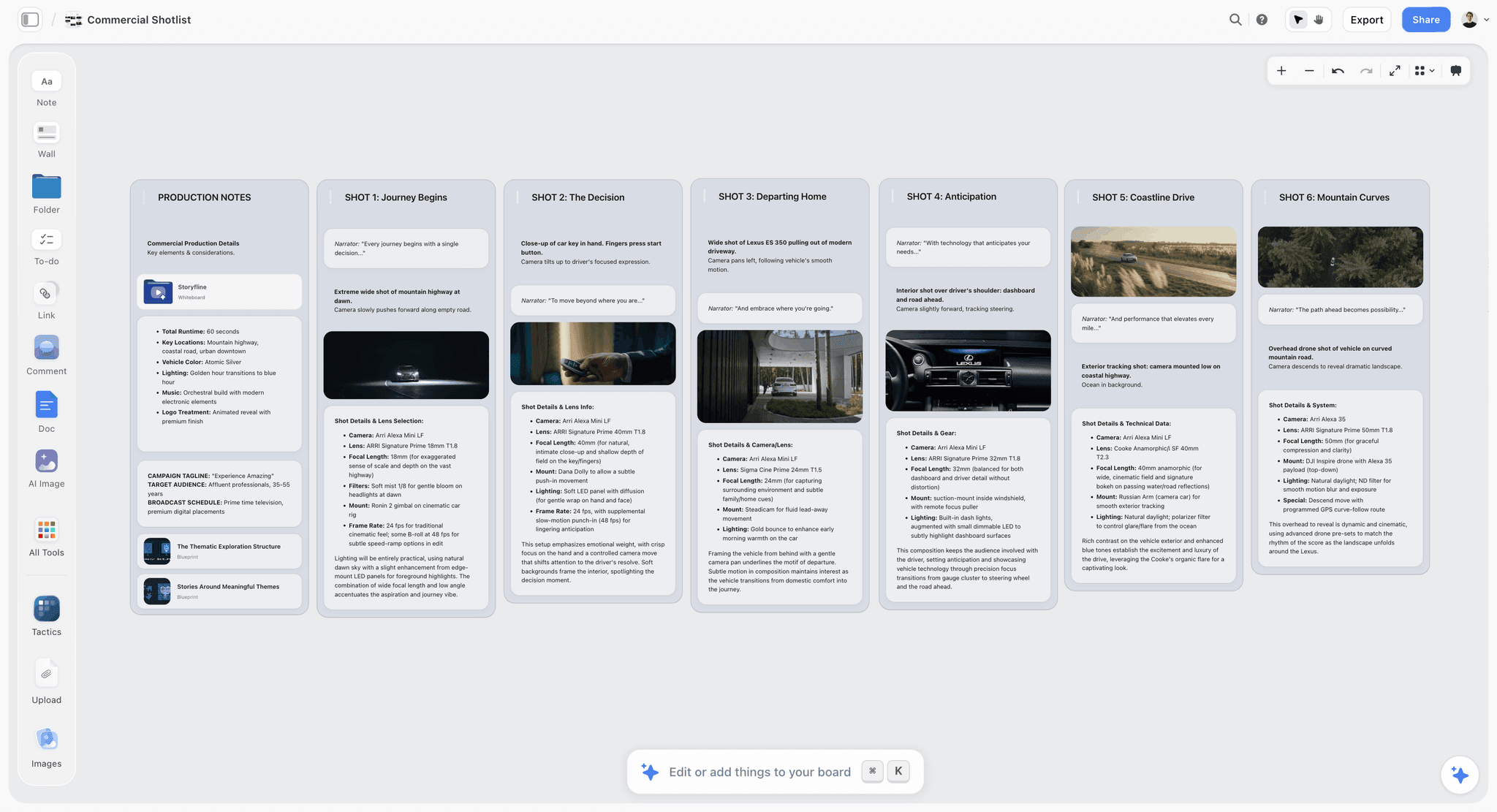
Storyflow does nothing in post-production and is here for one specific reason given in section 7: a cull done purely on which frames look best is a different operation from a cull checked against what the client asked for. The family combinations, the detail shots the venue wanted, the product angles on the brief: those live in a text thread, and the moment you notice one is missing is usually after delivery. Holding the shot list somewhere visible during the cull turns that into a check rather than a discovery.
Best for: Checking a cull against the brief rather than only against taste.
Verdict: A narrow complement to the workflow, not part of it. Everything else on this page does the actual work.
Key features
- Infinite canvas holding shot list, client requests and references.
- AI reads the whole current board, plus 5 attached documents and 3 attached boards.
- Anyone a paid member invites to a board joins free, including the client.
- 200+ story blueprints including shoot planning structures.
Pricing
Early access: every plan is paid for now. A Free plan arrives before the end of 2026, and anyone a paid member invites to a board can sign up free and collaborate today. Plus: $7.99/mo annual, $9.99/mo monthly. Unlimited boards and uploads. Pro: $14/mo annual, $19/mo monthly. AI image generation, more AI usage, memory across conversations. Max: $39/mo annual, $49/mo monthly. Team workspace with roles and permissions.
Pros
- Makes the missing-shot problem a check before delivery rather than after.
- The client can add requests before the day without buying anything.
- Cheapest tool here, priced per account.
Cons
- Does not ingest, cull, edit, catalogue, search, export or back up anything.
- Adds no time saving to post-production.
- Paid-only during early access.
12. Adobe Bridge
Adobe Bridge is free with an Adobe account and browses, rates and applies metadata across folders without a catalogue. For a photographer on lower volumes it covers the front end at no extra cost.
Best for: Free browsing, rating and metadata without a catalogue.
Verdict: The best free baseline here. Considerably slower than Photo Mechanic, which is the whole reason Photo Mechanic sells.
Key features
- Browse and rate across folders with no catalogue.
- Batch rename and metadata application.
- Free with an Adobe account.
Pricing
Free.
Pros
- Free, and already installed for most Adobe users.
- No catalogue to maintain.
- Fine at a few hundred frames per shoot.
Cons
- Much slower than Photo Mechanic at volume.
- Dated interface.
- No AI assistance of any kind.
7) How to Cull 3,000 Frames Without Losing a Day
Culling is the current bottleneck, and most of the time lost in it goes to a small number of avoidable habits.
Do it in two passes, never one. The first pass is rejection only: out of focus, eyes closed, obvious misfire. Fast, mechanical, no thinking. The second pass is selection among what survived. Trying to do both at once is what makes culling slow, because you are switching between a mechanical judgement and an aesthetic one every few seconds.
Let software do the first pass. Focus and closed-eye detection are genuinely reliable now, and rejecting the mechanical failures before you look removes a third of the frames without using any of your attention. Narrative Select and Aftershoot both do this well.
Use a tool with no wait between frames. This sounds trivial and it is the largest single factor. At 3,000 frames a one-second render wait is fifty minutes of staring. Photo Mechanic exists for this reason.
Do not zoom to check focus on every frame. Zoom on the candidates you are choosing between, not on the whole set. Photographers routinely double their culling time by checking sharpness on frames they were never going to use.
Decide the target number first. Six hundred for a wedding, forty for a portrait session, whatever the deliverable is. Culling without a target has no stopping condition, so it continues until you are tired rather than until it is done.
On near-identical frames, pick fast and move. Four good frames of the same moment differ by amounts the client will never perceive. The time spent choosing between them is the single largest waste in the whole process, and the honest rule is: first instinct, move on, do not go back.
And the check this section is really about: cull against the brief, not only against taste. A cull optimised for the best-looking frames can still be missing the shot the client asked for, because a missing category does not announce itself in a set of 600 good images. Having the shot list visible during the second pass, the family combinations, the detail shots, the required angles, turns that into a check that takes two minutes instead of an email three weeks later. That is the whole reason a planning tool appears on a post-production list.
8) Backup: The Only Part That Is Not Optional
Every other decision on this page is an optimisation. This one is insurance, and the failure mode is losing work that cannot be recreated.
The 3-2-1 rule, which is the standard for a reason: three copies of everything, on two different kinds of media, with one copy offsite. It sounds excessive until you consider what each part protects against. Three copies means a single drive failure is an inconvenience. Two media types means a systemic failure of one kind does not take everything. One offsite copy means fire, flood and theft do not end the business.
What a working routine looks like:
At the shoot. Cards stay in the bag until ingested, never formatted in camera before a verified copy exists. Dual card slots writing simultaneously if the camera supports it, which is the cheapest redundancy available.
At ingest. Copy to two destinations at once, which Photo Mechanic does natively. Verify the copy before the cards leave your possession.
During the job. A working drive plus an automated local backup, which is Chronosync's job. Manual copying is a routine that stops during a busy season, which is exactly when it matters.
Offsite. Backblaze or equivalent running continuously, because the offsite copy that requires you to remember something is the one that will not exist when you need it.
After delivery. Archive the finished set and the raw files with a clear naming convention, and confirm the archive is in the offsite copy before the working drive is cleared.
Two failures worth naming specifically:
Backups that are not verified are not backups. A copy that silently failed looks identical to one that worked until you try to restore. Verification is a setting in most tools and people turn it off because it is slower.
External drives that are not connected regularly fall out of continuous backup. Most offsite services drop a drive from the backup set after a period of disconnection, which means an archive drive you plug in twice a year is probably not protected. Check the policy of whatever you use and diarise a connection.
And the cost comparison that ends the argument: about $9 a month against one lost wedding, which is both the fee refunded and a client who cannot be made whole by any amount of money. It is the cheapest insurance in a photography business and the most commonly skipped.
9) Recommended Photography Workflow Stacks
Stack 1: Wedding photographer, high volume. Photo Mechanic (cull) + Lightroom Classic (catalogue) + Imagen (edit) + Backblaze + Chronosync. About $9/month plus per-image editing, on about $189 of one-time purchases.
Stack 2: Wedding photographer, one subscription. Aftershoot (cull and edit) + Lightroom Classic + Backblaze. About $19/month plus the Adobe plan.
Stack 3: Portrait studio. Narrative Select (assisted cull) + Lightroom Classic + Backblaze. About $29/month plus the Adobe plan.
Stack 4: Commercial and studio. Capture One (tether and process) + Photo Mechanic (cull) + Backblaze + Chronosync. About $29/month plus about $189 one time.
Stack 5: Minimum viable. Adobe Bridge (free) + Lightroom Classic + a manual 3-2-1 routine with one cheap external drive and Backblaze. About $9/month plus the Adobe plan.
| Photographer shape | Culls with | Edits in | Backs up with | Monthly cost |
|---|---|---|---|---|
Wedding, high volume | Photo Mechanic | Imagen, Lightroom | Backblaze, Chronosync | about $9 plus per image |
Wedding, one subscription | Aftershoot | Aftershoot, Lightroom | Backblaze | about $19 |
Portrait studio | Narrative Select | Lightroom | Backblaze | about $29 |
Commercial and studio | Photo Mechanic | Capture One | Backblaze, Chronosync | about $29 |
Minimum viable | Adobe Bridge | Lightroom | Backblaze | about $9 |
The pattern across all five: Backblaze in every single one. The culling and editing tools vary with volume and taste; the backup does not vary, because its absence is the only failure on this page that cannot be recovered from.
10) What a Photography Workflow Costs
Subscriptions and licences: about $20 to $50 a month for a complete setup, plus per-image editing if you use Imagen. Against the revenue of a single wedding this is trivial, and the one-time purchases here, Photo Mechanic, Excire and Chronosync, are dramatically cheaper across five years than equivalent subscriptions.
The hours, which are the real cost. A wedding at 2,500 frames historically meant two to four hours culling and four to eight hours editing. AI editing has taken most of the second number out. If culling still costs you four hours per wedding across thirty weddings, that is 120 hours a year, which is worth far more than every tool on this page combined.
Storage, which grows and never shrinks. A wedding photographer generates one to two terabytes a year in raw files. Local drives, redundancy and offsite backup compound, and the cost is small per year and permanent. Budget it as a fixed cost rather than a purchase.
The disaster you did not have, which is unquantifiable and the reason section 8 exists. A lost wedding is not a refund; it is an event nobody can photograph again.
| Cost driver | Where it lands | Rough size | The move |
|---|---|---|---|
Software | Monthly plus one-time | $20 to $50/mo | Prefer one-time licences where they exist |
Culling hours | Every shoot | Now the largest time cost | Two passes, no zoom, a target number |
Editing hours | Every shoot | Largely solved by AI | Buy on payback, not on taste |
Storage growth | Permanent and rising | 1 to 2 TB per year | Budget as a fixed annual cost |
A lost shoot | Once, catastrophically | Unrecoverable | 3-2-1, verified, offsite, automated |
11) Honorable Mentions
- FastRawViewer. A cheaper alternative to Photo Mechanic for fast raw culling.
- DxO PhotoLab and ON1 Photo RAW. Capable Lightroom alternatives, strong on noise and lens corrections.
- Topaz Photo AI. Noise reduction and sharpening that rescues frames you would otherwise reject.
- GoodSync and Carbon Copy Cloner. Chronosync alternatives for local backup, including Windows.
- Amazon Photos and iDrive. Backblaze alternatives, sometimes bundled with subscriptions you already have.
- Hedge. Verified card offload for video and photo, popular on set.
- A second camera card slot. Still the cheapest redundancy in photography and the most reliable.
12) Workflow Mistakes to Avoid
- Optimising editing when culling is the bottleneck. AI editing solved the old constraint; most photographers have not moved their attention.
- Culling in one pass. Switching between mechanical and aesthetic judgement every few seconds is what makes it slow.
- Zooming on every frame. Check sharpness on the candidates, not the whole set.
- Culling without a target number. No stopping condition means you stop when tired, not when done.
- Formatting a card before a verified copy exists. The most common way work is lost outright.
- Unverified backups. A silently failed copy looks identical to a working one until you need it.
- An archive drive that lives in a drawer. Most offsite services drop it from the backup set after a period disconnected.
- Culling only on aesthetics. A set of 600 good images can still be missing the shot the client asked for, and nothing in the set tells you.
14) The Bottom Line
The best photography workflow tools in 2026 are Photo Mechanic for culling, Lightroom Classic as the hub, Imagen or Aftershoot for editing, and Backblaze for backup, which is the only one whose absence is unrecoverable.
AI editing collapsed the slowest step, and the bottleneck moved to culling and to backup. A photographer who has automated editing and still spends four hours choosing between near-identical frames has optimised the half that was already solved. Cull in two passes with a target number, let software reject the mechanical failures, and stop zooming on frames you were never going to use.
And check the cull against what was actually asked for, because a set of 600 good images will not tell you which category is missing. Keep the shot list and the client's requests on one board you can see while you cull.
FAQ: Photography Workflow Tools
What is the best photography workflow tool in 2026?
Photo Mechanic at about $139 one time is still the largest single time saving for a high-volume photographer, because it renders embedded previews instantly and culling is now the bottleneck. Lightroom Classic remains the catalogue hub, Imagen at roughly five cents an image has genuinely collapsed the editing step by learning your own style, and Backblaze at about $9 a month is the only tool here whose absence can end a business. Work out where your hours actually go before buying, because most photographers are optimising the step AI already solved.
Is Photo Mechanic still worth it in 2026?
Yes, above a few hundred frames per shoot, and the reason is architectural rather than featural: it shows the camera's embedded preview instantly rather than rendering its own, so there is no wait between frames. At 3,000 frames a one-second wait is fifty minutes of nothing. With AI editing having removed most of the editing time, culling speed is now the highest-value optimisation for most photographers.
Does AI editing actually work for photographers?
Yes, when trained on your own past edits, which is what Imagen and Aftershoot do. The output is close enough that the work becomes review rather than production, and the test is not whether it matches exactly what you would have done but whether correcting it takes less time than editing from scratch. For most photographers with a consistent style and a body of past work, it clearly does. A newer photographer with little consistent history gets less from it.
What is the best way to cull photos quickly?
Two passes, never one. First pass is rejection only, mechanical and fast, ideally with AI focus and closed-eye detection doing it for you. Second pass is selection among survivors, with a target number decided in advance so there is a stopping condition. Do not zoom to check focus on frames you were never going to use, and on near-identical good frames pick on first instinct and move on, because that decision is the biggest time sink in the process.
Is there a free photography workflow?
Partly. Adobe Bridge is free for browsing, rating and metadata, and Lightroom Classic is included if you already pay for an Adobe photography plan. Narrative Select has a free tier for lower-volume culling. What should not be free is backup: about $9 a month for offsite storage is the cheapest insurance in a photography business. Storyflow is paid-only during early access and does nothing in post-production.
What is the 3-2-1 backup rule?
Three copies of everything, on two different kinds of media, with one copy offsite. Three copies means a drive failure is an inconvenience; two media types means one systemic failure does not take everything; one offsite copy means fire, flood or theft does not end the business. The practical version is dual card slots, ingest to two destinations, an automated local backup and a continuous offsite service.
Lightroom or Capture One?
Lightroom Classic if you want the largest ecosystem, the most integrations and the AI tooling that plugs into it, which covers most photographers. Capture One if you shoot tethered in studio or work commercially where its colour handling and tethering reliability matter, and if a perpetual licence appeals. Most photographers should stay with Lightroom unless they have a specific reason from that list.
How long should editing a wedding take?
With AI editing in place, a first pass across a full set takes minutes and the review and correction typically an hour or two, down from four to eight hours of manual work. If yours still takes a full day, the tools rather than the technique are the constraint. Culling is now usually the longer half, which is the opposite of how most photographers allocate their attention.
Do I need a separate culling tool?
Above a few hundred frames per shoot, yes, and it will be the best value purchase in your stack. Photo Mechanic for raw speed, Narrative Select or Aftershoot if you want the mechanical rejects filtered first. Below that volume Adobe Bridge or Lightroom itself is adequate and a separate tool is not worth the money.
What is the best backup for photographers?
Backblaze at about $9 a month for unlimited offsite backup of one computer, paired with an automated local copy from Chronosync or an equivalent. The critical properties are that it runs unattended, because a backup requiring you to remember something will not exist when needed, and that it verifies, because a silently failed copy looks identical to a working one until you try to restore.
How much storage does a photographer need?
A wedding photographer generates roughly one to two terabytes a year in raw files, and the archive only grows. Plan for local working storage, a local backup copy and offsite, which means budgeting for three times your annual generation as an ongoing fixed cost rather than as a one-off purchase.
What do workflow tools not solve?
Knowing whether you got the shot. Every tool on this page works on the frames you captured, and none of them can tell you that a category is missing: a family combination nobody photographed, a detail shot the venue asked for, a product angle on the brief. A set of 600 good images does not announce what is absent, which is why checking the cull against the shot list is worth two minutes before delivery.
What is the cheapest workflow that actually works?
Photo Mechanic at about $139 once, Lightroom via the Adobe photography plan you probably already have, and Backblaze at about $9 a month. That covers fast culling, a real catalogue and offsite backup for roughly nine dollars a month after the one-time purchase, and it addresses the current bottleneck rather than the previous one.
Table of Contents
- Article Metadata
- Breadcrumb
- Table of Contents
- 1) Quick Answer: The Best Photography Workflow Tools in 2026
- All 12 Photography Workflow Tools, Ranked
- 2) Comparison Table: 12 Workflow Tools at a Glance
- Frequently Asked: Which Workflow Tools Photographers Trust, and Where the Hours Actually Go
- 3) The Bottleneck Moved
- 4) How We Evaluated These Tools
- 5) Quick Picks by Workflow Stage
- 6) Detailed Reviews: 12 Photography Workflow Tools
- 7) How to Cull 3,000 Frames Without Losing a Day
- 8) Backup: The Only Part That Is Not Optional
- 9) Recommended Photography Workflow Stacks
- 10) What a Photography Workflow Costs
- 11) Honorable Mentions
- 12) Workflow Mistakes to Avoid
- 14) The Bottom Line
- 15) Author
- 16) Related Reading
- FAQ: Photography Workflow Tools
Templates to check out for this topic


Templates you can use in Storyflow
Every Storyflow board starts from real structure and an AI that reads the whole canvas. Open one of these templates and make it yours.


See Storyflow in Action
A visual AI workspace where every feature lives inside one canvas. No tab-switching, no context lost.
Build your entire board from a single message
Type what you need in the AI chat at the bottom of your canvas. The AI adds cards, headings, and structure directly onto your board.
Use expert frameworks as AI context
Type @ in the AI chat and choose any Tactic. The AI tailors every response to that framework instead of giving generic advice.
Turn your board into a mind map in seconds
Ask the AI to restructure your canvas as a mindmap. It connects your ideas into a visual hierarchy so you can see how everything relates.
Why Storyflow Exists
Storyflow actually began as a personal tool while working on creative and research projects.
We kept running into the same problem: ideas were scattered everywhere: notes, documents, and whiteboards.
Nothing helped us see how everything connected.
So we started building a workspace designed around how ideas actually grow.
→ Read how Storyflow was createdStoryflow Team
Product & Research Team
Published: 2026-09-22
Extremely simple, seriously capable


See how easy it is to get started
Watch a real project come together, from a blank board to a finished plan, clicked through step by step.
Start creating with AI and become more productive
Transform your creative workflow with AI-powered tools. Generate ideas, create content, and boost your productivity in minutes instead of hours.