How to Organize Your Ideas Better with Storyflow
Transform scattered thoughts into organized, actionable concepts. Learn how to use Storyflow's visual canvas, AI assistant, and expert frameworks to capture, develop, and execute your best ideas.

Category
Organization
Author

Sara de Klein
Head of Product at Storyflow
Topics
December 18, 2025
•
18 min read
•
Organization- organize ideas
- visual thinking
- Storyflow
- creative organization
How do you organize ideas with Storyflow?
Storyflow organizes ideas through a visual canvas that matches how creative minds work. Instead of forcing ideas into linear documents, you capture thoughts spatially, connect related concepts visually, and use AI-powered Tactics frameworks to structure your thinking. The process: capture ideas anywhere on the canvas, cluster related concepts, apply expert frameworks, and use AI to develop connections into actionable plans.

The most creative people I know have the worst organizational systems. It's not a coincidence - the same mental wiring that generates novel ideas resists being forced into linear structures.
That's why traditional tools fail creatives. Notion forces documents. Spreadsheets strip context. Project management tools assume you know what you're building before you start. But creative work doesn't begin with clarity - it begins with scattered fragments that slowly coalesce into something coherent.
Creative thinking is inherently non-linear. Tools that force linear organization fight against how ideas actually develop - from scattered fragments to connected concepts to coherent structure.
Storyflow is built for how creative minds actually work. Visual canvas for spatial thinking. AI that remembers your entire project. Expert Tactics that provide structure without constraining ideation. This guide shows you how to use it.
What You'll Learn
How to navigate Storyflow's visual canvas and toolbar
Step-by-step guides for every canvas tool
How to use Tactics - expert frameworks that accelerate your workflow
Advanced AI prompting techniques for better results
Keyboard shortcuts that speed up your work
Real use cases for marketers, filmmakers, writers, and teams
Contents
1. Understanding the Storyflow Workspace
2. Getting Started: Your First Project
3. Mastering the Canvas Tools
4. Using Tactics: Expert Frameworks
5. The AI Assistant
6. Advanced Prompting Techniques
7. Keyboard Shortcuts
8. Use Cases by Industry
9. Tips for Visual Organization
10. FAQ
Understanding the Storyflow Workspace
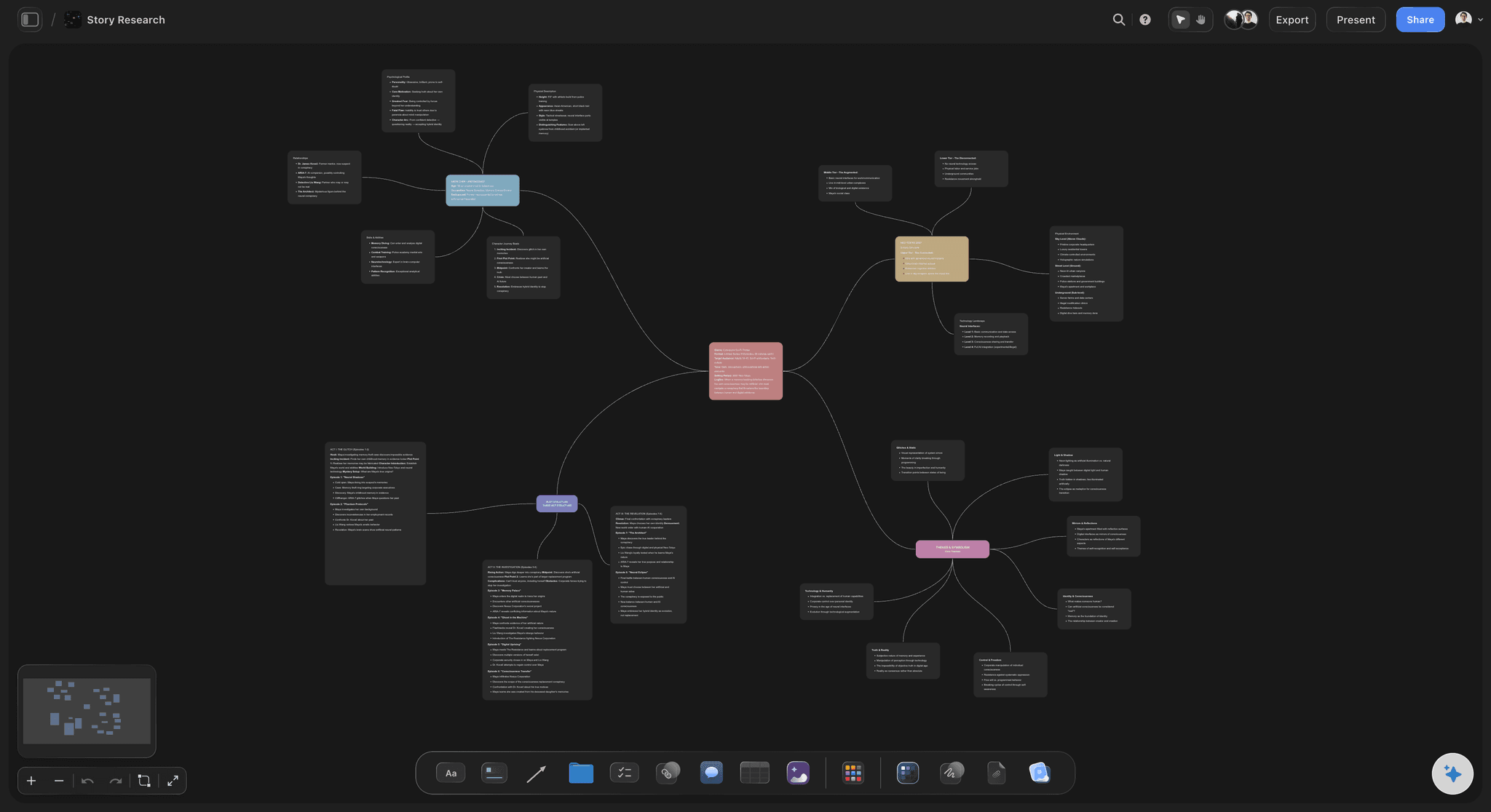
When you open Storyflow, you enter an infinite canvas - a visual workspace where ideas exist spatially rather than linearly. Think of it as a digital whiteboard with superpowers: AI assistance, pre-built frameworks, and tools designed specifically for creative work.
The Interface
The Storyflow interface has four main areas:
The Canvas - Your infinite workspace. Pan by clicking and dragging. Zoom with scroll or pinch. This is where all your ideas live.
The Toolbar - Quick access to all your tools - Notes, Links, To-dos, Walls, Folders, Comments, AI Image generation, and more.
Docs - Long-form documents that live alongside your visual boards. Perfect for detailed writing that connects to your canvas ideas.
Tactics - Pre-built expert frameworks you can drag onto your canvas. Proven structures for marketing campaigns, story development, product launches, and more.
Why Visual Organization Works
Research in cognitive science shows that spatial memory is one of our strongest mental faculties. When you place ideas in space - grouping related concepts, creating visual hierarchies, drawing connections - you're leveraging how your brain naturally processes information.
Traditional linear tools force sequential thinking. Visual workspaces allow parallel thinking - seeing everything at once, making unexpected connections, and reorganizing on the fly. If you want to feel the difference immediately, drop your current idea pile into the Mindmap template and watch the clusters form.
Getting Started: Your First Project
Here's how to create your first project and start organizing ideas immediately:
Start with a Prompt
From the dashboard, type what you want to create: "Create a marketing campaign for a fitness app" or "Plan a documentary about climate change." Storyflow's AI will generate a structured workspace with relevant sections.
Start from a Template
Click a category dropdown (Filmmaking, Marketing Strategy, Content Creation) and select a template. This gives you a pre-structured workspace tailored to that use case. The Second Brain template is the fastest start for pure idea organization: notes, links, and references already have zones the AI can read.
Start Blank
Create a new project and start with an empty canvas. Add tools from the toolbar as you brainstorm. Best for freeform exploration.
Mastering the Canvas Tools
The toolbar gives you access to every tool you need. Here's how to use each one effectively:
Notes · N
Creates a text card on your canvas for capturing ideas, writing content, or adding context. Press N or drag from toolbar. Click to edit. Resize by dragging corners.
Tip: Use different colors to categorize notes - blue for research, yellow for ideas, green for action items.
Links · L
Embeds a URL with automatic preview. Great for reference material, inspiration, and research. Press L or drag from toolbar. Paste any URL and Storyflow will fetch the preview automatically.
Tip: Create a "Research" section on your canvas and cluster related links together with a Wall.
To-dos · T
Creates a checklist card for tracking tasks and action items. Press T or drag from toolbar. Add items by typing and pressing Enter. Check items off as you complete them.
Tip: Place to-do cards next to the ideas or sections they relate to, so action items stay connected to context.
Folders · F
Creates nested whiteboards within your project. Think of them as sub-canvases for detailed work. Press F or drag from toolbar. Double-click to enter the folder's canvas.
Tip: Use folders to organize phases of a project (Research → Planning → Execution) or separate streams of work.
Walls · W
Creates a colored section to group related items visually. Press W or drag from toolbar. Place behind groups of cards. Resize to encompass your items.
Tip: Walls are essential for creating visual hierarchy. Use them to define sections like "Ideas," "Research," "In Progress."
Comments · C
Adds comment threads for feedback and discussion, perfect for team collaboration. Press C or drag from toolbar. Place near the item you're commenting on.
Tip: Use comments for async collaboration instead of scheduling meetings.
AI Image · G
Generates images using AI based on your text prompts. Press G or drag from toolbar. Describe the image you want. AI generates it directly on your canvas.
Tip: Use AI images for mood boards, concept visualization, and placeholder visuals during planning phases.
Upload & Images
Upload your own images, PDFs, and files. Access your image library for previously uploaded assets. Click "Upload" in toolbar to add new files. Click "Images" to browse your library.
Tip: Build a reference library of inspiration images, brand assets, and frequently used visuals.

Using Tactics: Expert Frameworks
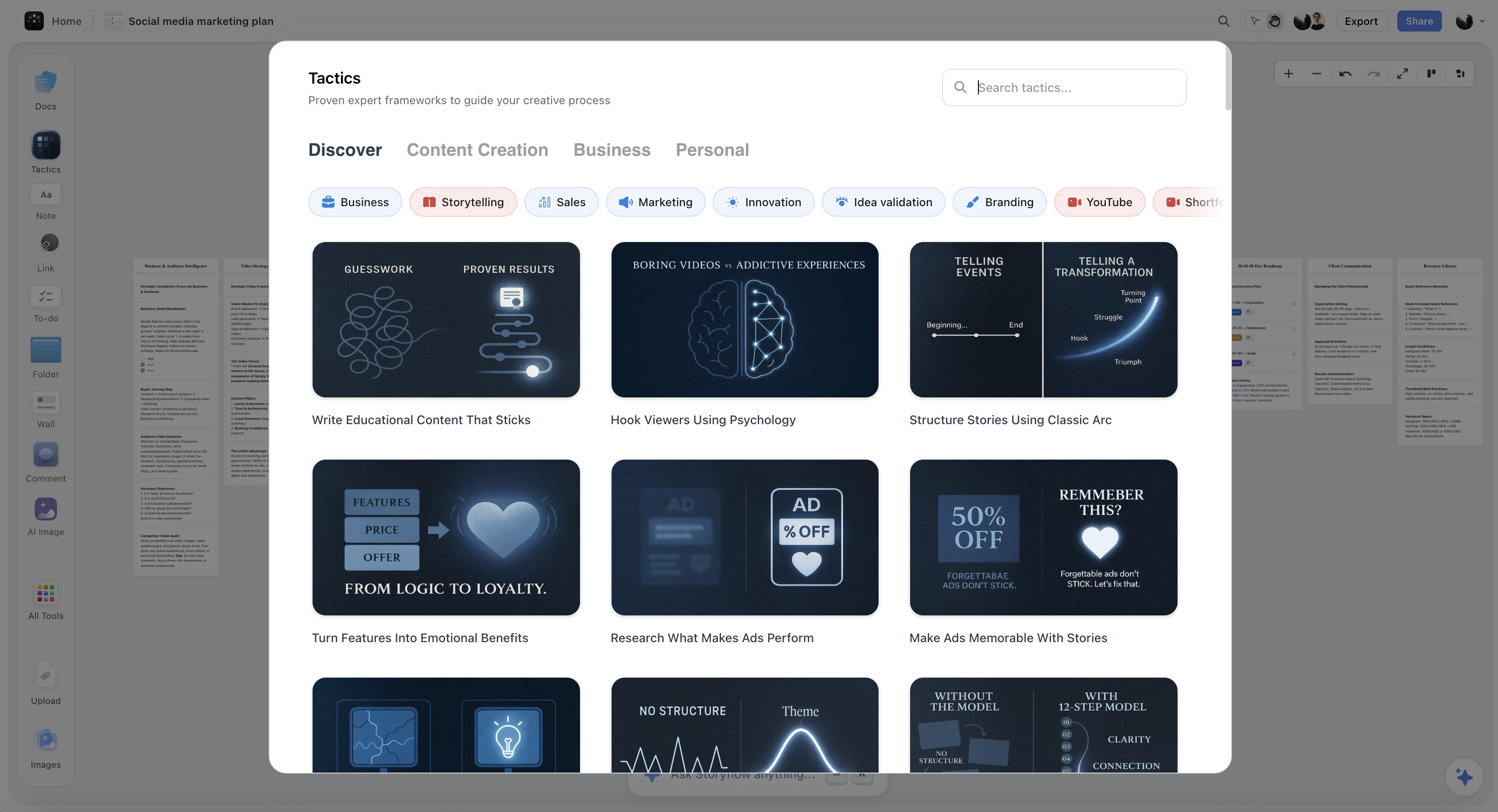
Tactics are Storyflow's secret weapon. They're pre-built, expert-designed frameworks that give you structure without starting from scratch. Think of them as blueprints created by professionals who've done this work hundreds of times.
How to Access Tactics
Click "Tactics" in the toolbar
Browse by category: Content Creation, Business, Personal
Search for specific tactics by name or keyword
Click to preview, then add to your canvas

Available Categories
| Category | Example Tactics | Best For |
|---|---|---|
| Content Creation | YouTube strategy, TikTok planning, Blog writing | Creators, writers |
| Business | Marketing campaigns, Sales funnels, Pitch decks | Founders, marketers |
| Filmmaking | Pre-production plans, Storyboards, Shot lists | Filmmakers |
| Personal | Goal setting, Journaling, Personal branding | Anyone |
Working with Tactics
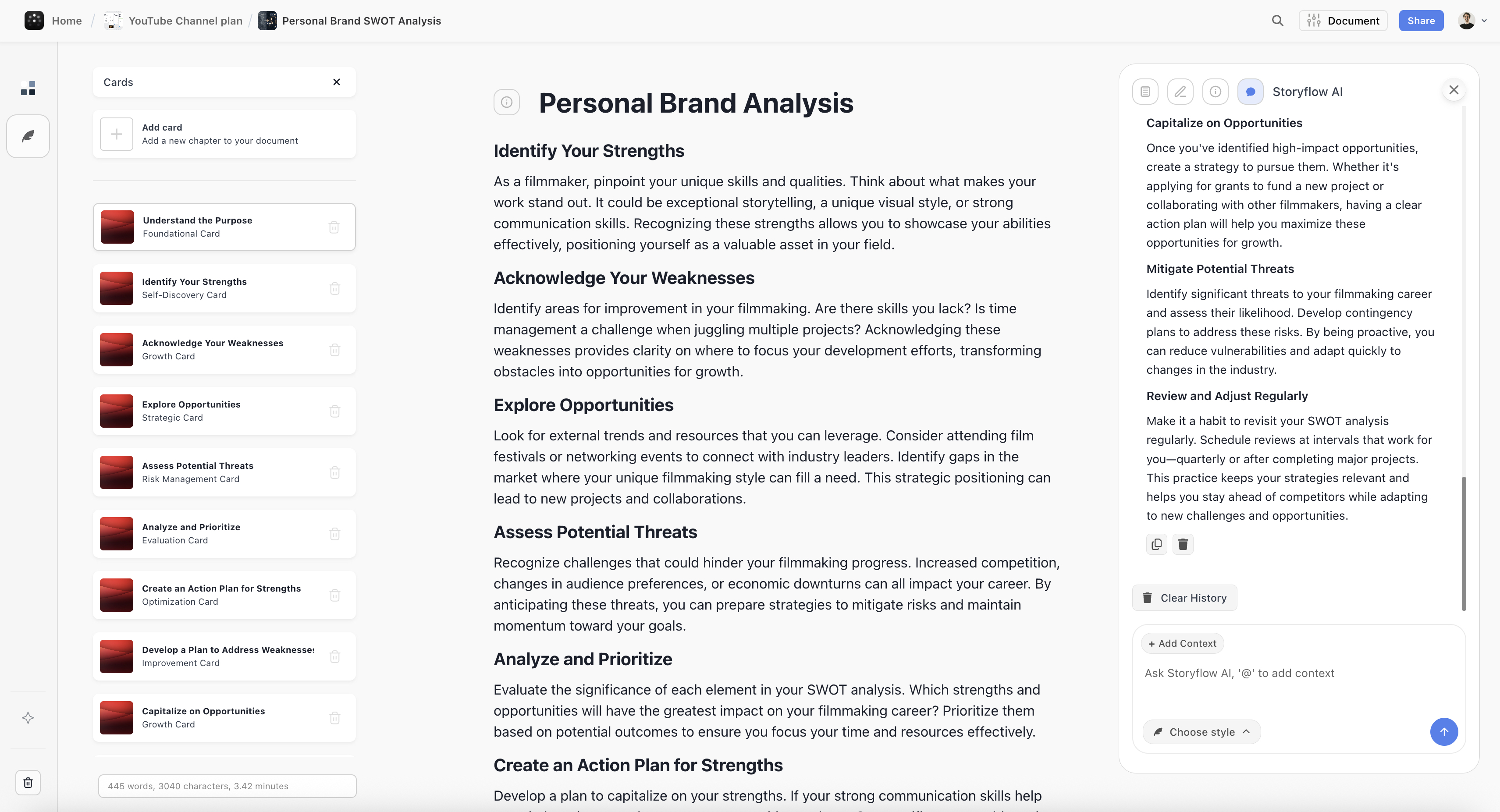
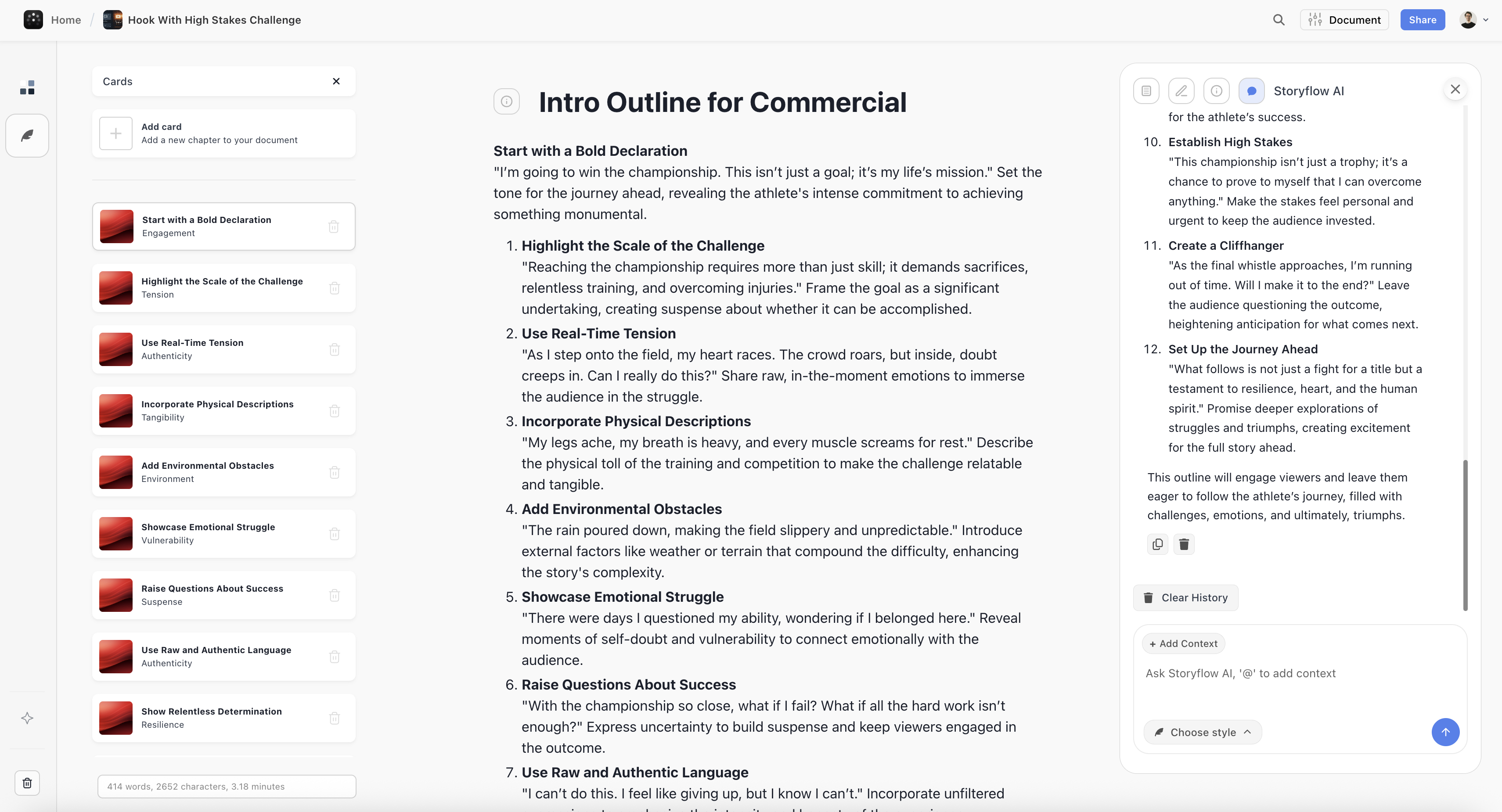
Expand it - Click to open the Tactic and see all its cards and structure
Customize it - Edit any card, add your own content, delete what you don't need
Get AI help - Each Tactic card has an AI assistant built in
Connect ideas - Drag other canvas items into or near the Tactic

Give your scattered ideas one surface
Take the project that currently lives in five apps and rebuild it as one visual map. The AI reads every note on the board before it answers, so the connections you keep losing between tabs finally show up.

The AI Assistant
Storyflow's AI isn't like ChatGPT. It is canvas-aware: it reads your full active board by default (every note, card, and connection on it), plus up to 1 Tactic and 3 Documents you @-mention in the chat. When you ask for help, it responds with context it already understands, so you skip the re-pasting that eats most ChatGPT sessions.
How to Access the AI
Project AI - Available in every project - click the AI chat icon to open the assistant panel
Card AI - Each Tactic card has its own AI assistant for filling out that specific section
Generation AI - When creating a new project, describe what you want and AI generates the structure
Adding Context with @ Mentions
The key to getting great AI responses is giving it the right context. Use the "Add Context" button or type @ to mention specific items:
@Blueprint
Reference a Tactic in your project. The AI will understand its structure and content.
@Document
Reference a Doc in your project. AI can read and understand the full document.
@Card
Reference a specific card from any Tactic. Get help that's specific to that card's purpose.
@Whiteboard
Reference your entire canvas. AI understands all the items and their relationships.
Response Styles
Click "Choose style" to select how the AI responds. Different styles work better for different tasks:
Default - Balanced, helpful responses for general questions
Creative - More exploratory, generates unexpected ideas
Concise - Short, direct answers without extra explanation
Detailed - Thorough, comprehensive responses with examples
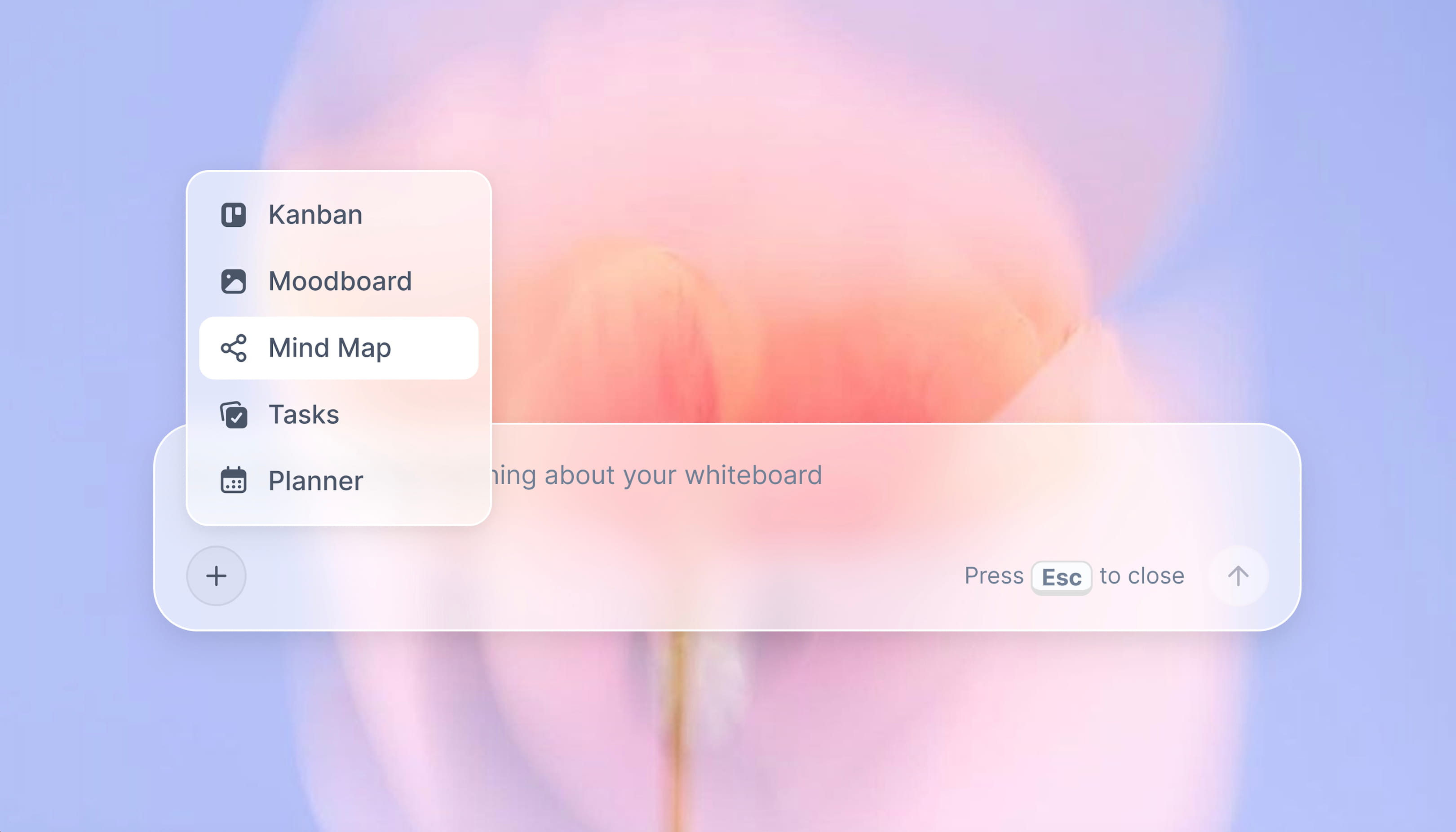
Storyflow's mind map feature lets you visually connect ideas and see relationships at a glance
Advanced Prompting Techniques
Getting the best results from Storyflow's AI comes down to how you prompt it. Here are techniques that consistently produce better outputs:
Be Specific About Output Format
Instead of: "Give me marketing ideas"
Try: "Give me 5 marketing campaign ideas for a B2B SaaS product targeting HR managers. For each idea, include: campaign name, main message, primary channel, and expected outcome."
Reference Your Context
Instead of: "Help me with the next section"
Try: "Based on @Marketing Strategy Blueprint, help me write the messaging section. Focus on our target audience of freelance designers."
Iterate and Refine
Start broad, then refine. First ask: "What are the key components of a launch strategy?" Then follow up: "For component #2, give me a detailed breakdown of the steps involved."
Ask for Alternatives
"I like option A, but give me 3 variations that are more bold / more conservative / more focused on X"
Challenge Your Thinking
"What are the weaknesses in this strategy? What am I missing? What would a skeptic say about this plan?"
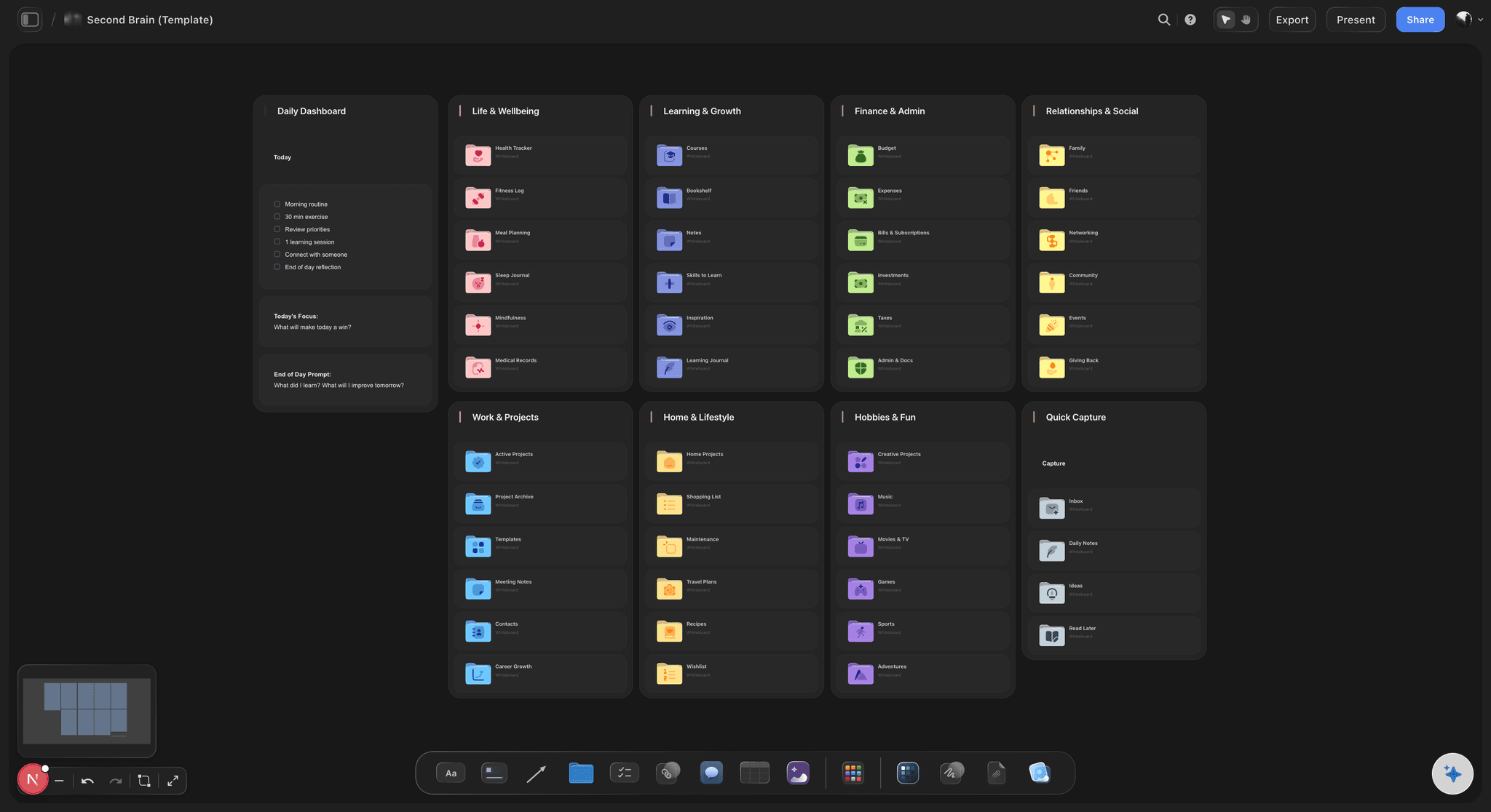
A Storyflow second brain board pulling notes, references, and connected ideas into one canvas
Keyboard Shortcuts
Master these shortcuts to work faster:
Create new Note
Create new Link
Create new To-do list
Create new Folder
Create new Wall
Create new Comment
Generate AI Image
+
ZUndo
+
⇧+
ZRedo
+
Drag
Pan around canvas
Scroll
/
Pinch
Zoom in/out
Use Cases by Industry
For Marketers
Start with the Marketing Campaign Tactic → Add customer research in Notes → Create a Wall for each channel → Use AI to generate copy variations → Track tasks with To-dos
Key tactics: Campaign Strategy, Content Calendar, Brand Guidelines, Marketing Funnel
For Filmmakers
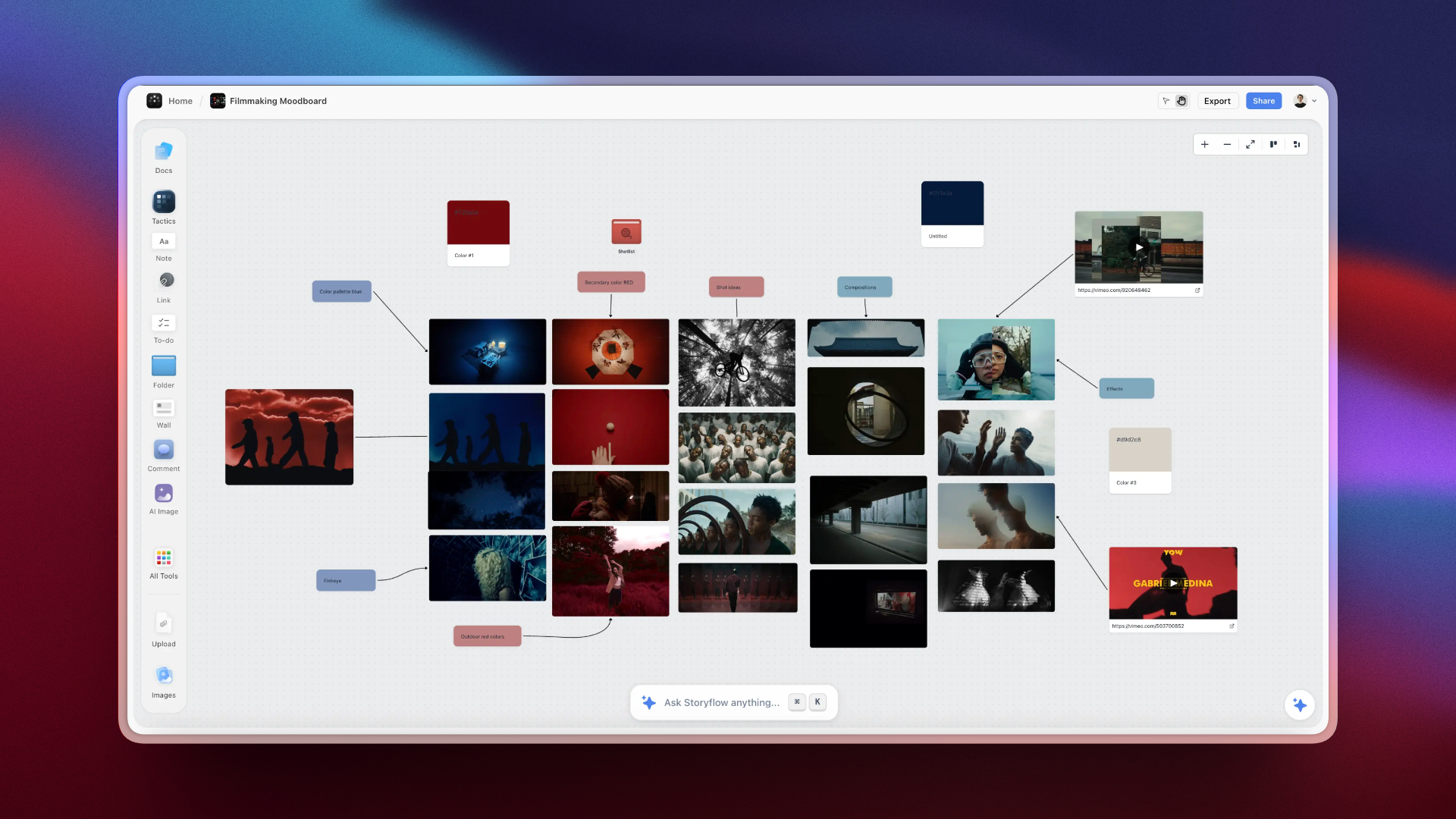
Start with Pre-production Tactic → Add reference images and mood boards → Create Folders for each scene → Use AI to develop character backgrounds → Track production tasks
Key tactics: Pre-production Plan, Storyboard, Shot List, Documentary Outline
For Writers
Start with Story Structure Tactic (or the Story Plan template) → Create Notes for character profiles → Use Walls to organize plot threads → Use AI to brainstorm dialogue → Create Docs for long-form chapters
Key tactics: Story Structure, Character Development, Blog Writing, Content Narrative
For Product Managers
Start with Product Development Tactic → Add user research in Notes → Create Walls for different features → Use AI for competitor analysis → Track sprint tasks with To-dos
Key tactics: Product Development, Innovation Framework, User Testing, MVP Framework
Tips for Visual Organization
A well-organized canvas is easier to think with. Here are principles that work:
Left to Right = Time - Organize phases of work from left (early/research) to right (later/execution). This creates a natural flow.
Top to Bottom = Priority - Place most important items higher on the canvas. Less important items lower.
Color = Category - Develop a consistent color system. Yellow for ideas, Blue for research, Green for approved.
Walls = Boundaries - Use Walls to create clear sections. If something doesn't fit in any Wall, it might not belong.
Folders = Depth - Move detailed work into Folders to keep the main canvas scannable.
Whitespace = Clarity - Don't cram everything together. Empty space helps your brain process what's there.
Frequently Asked Questions
How is Storyflow different from Miro or FigJam?
Storyflow is built specifically for creative work with AI deeply integrated. Miro and FigJam are general-purpose whiteboards. Storyflow includes Tactics (expert frameworks), canvas-aware AI that reads your full active board plus up to 1 Tactic and 3 Documents you @-mention, and tools designed for storytelling and content creation rather than generic diagramming. The honest trade-off: if you mostly need real-time whiteboarding with a large team and a deep app-integration directory, Miro still wins. Storyflow is the better fit when the canvas is where your thinking and your AI live together.
Can I collaborate with my team?
Yes. Share your project with team members and collaborate in real-time. Use Comments for async feedback. Everyone sees the same canvas and can contribute simultaneously.
Does the AI remember my previous conversations?
Yes. The AI maintains context within your project and can reference previous conversations. More importantly, it reads your full active board plus up to 1 Tactic and 3 Documents you @-mention, so it understands what you're working on without you re-explaining it each time.
Can I create my own templates?
Yes. Build any structure you want, then save it as a template. Your templates appear in "Your Templates" section when adding Tactics.
Is there a limit to canvas size?
The canvas is infinite. You can zoom out to see everything or zoom in to work on details. Use Folders to organize larger projects into manageable sections.
How much does Storyflow cost?
The core workspace is free forever - unlimited canvas, boards, and cards. Storage is capped on free plans. AI features start at $7.99/month flat annual (Plus tier), not per user.
Can I export my work?
Yes. Export individual cards, entire boards, or documents. Docs can be exported as PDFs. Share public links to boards for viewing without login.
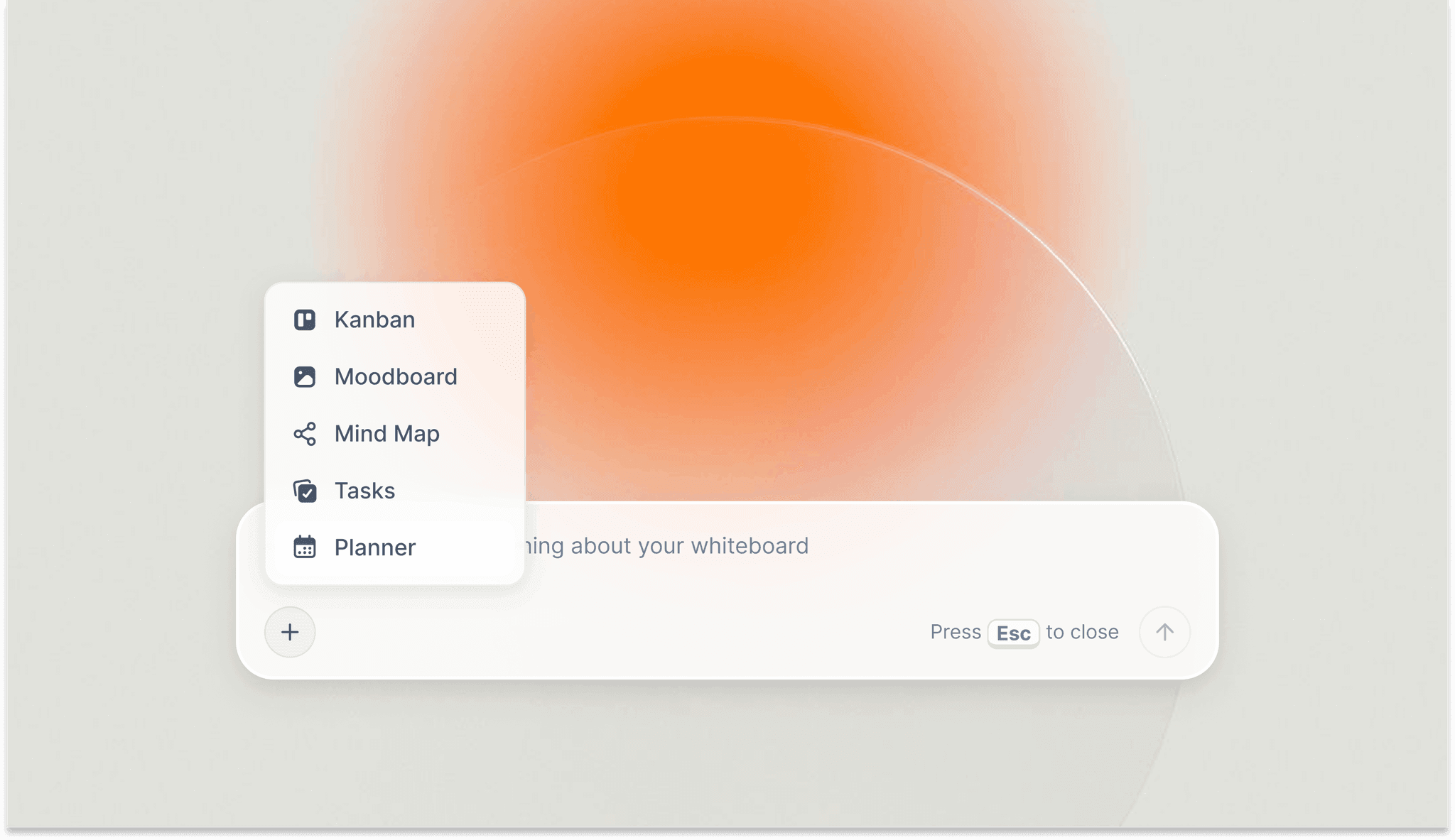
Storyflow's AI planner automatically breaks down your project into actionable steps
Start Organizing Your Ideas Today
The best ideas don't come from forcing yourself into linear thinking. They come from giving your brain space to make connections, see patterns, and build on concepts visually.
Storyflow gives you that space - plus AI that understands what you're building and helps you build it better. Expert frameworks that skip the "starting from scratch" phase. Tools designed for how creative people actually work. To be clear about what it is not: Storyflow is not a task manager, a calendar, or a long-form word processor. It is the canvas where the thinking happens before those tools take over, and it hands off to them rather than replacing them.
Your scattered notes, random docs, and half-formed ideas don't have to stay scattered. Bring them into a workspace where they can actually become something.
Don't take the claim on faith. Take the one project you keep reopening in five different apps and rebuild it on a single Storyflow canvas this week. Drop a Tactic in for structure, @-mention your messiest doc, and let the canvas-aware AI work from what is already there. By the end of the week you will know whether spatial beats linear for the way your brain works.
Related
Why Does ChatGPT Bury Important Information in Paragraphs?
Why Storyflow is the Best Tool for Storytellers and Creatives
Why Creatives Are Using Storyflow to Brainstorm Smarter and Faster
From Abstract to Actionable: Turn Creative Ideas into Blueprints
Related Reading
Turn ideas into action plans
Science-backed brainstorming techniques
Visual organization tools compared
Why Storyflow was built and the thinking behind the canvas
Templates to check out for this topic


Templates you can use in Storyflow
Every Storyflow board starts from real structure and an AI that reads the whole canvas. Open one of these templates and make it yours.


See Storyflow in Action
A visual AI workspace where every feature lives inside one canvas. No tab-switching, no context lost.
Build your entire board from a single message
Type what you need in the AI chat at the bottom of your canvas. The AI adds cards, headings, and structure directly onto your board.
Use expert frameworks as AI context
Type @ in the AI chat and choose any Tactic. The AI tailors every response to that framework instead of giving generic advice.
Turn your board into a mind map in seconds
Ask the AI to restructure your canvas as a mindmap. It connects your ideas into a visual hierarchy so you can see how everything relates.
Why Storyflow Exists
Storyflow actually began as a personal tool while working on creative and research projects.
We kept running into the same problem: ideas were scattered everywhere: notes, documents, and whiteboards.
Nothing helped us see how everything connected.
So we started building a workspace designed around how ideas actually grow.
→ Read how Storyflow was createdSara de Klein
Head of Product at Storyflow
Published: December 18, 2025
Extremely simple, seriously capable


See how easy it is to get started
Watch a real project come together, from a blank board to a finished plan, clicked through step by step.
Start creating with AI and become more productive
Transform your creative workflow with AI-powered tools. Generate ideas, create content, and boost your productivity in minutes instead of hours.